Use the Planning Tool to Support Year Planning
The Planning Tool can support teachers to create lesson-sized learning intentions tied directly to the curriculum. Teachers can determine the scope and sequence of learning for a class.
Verso
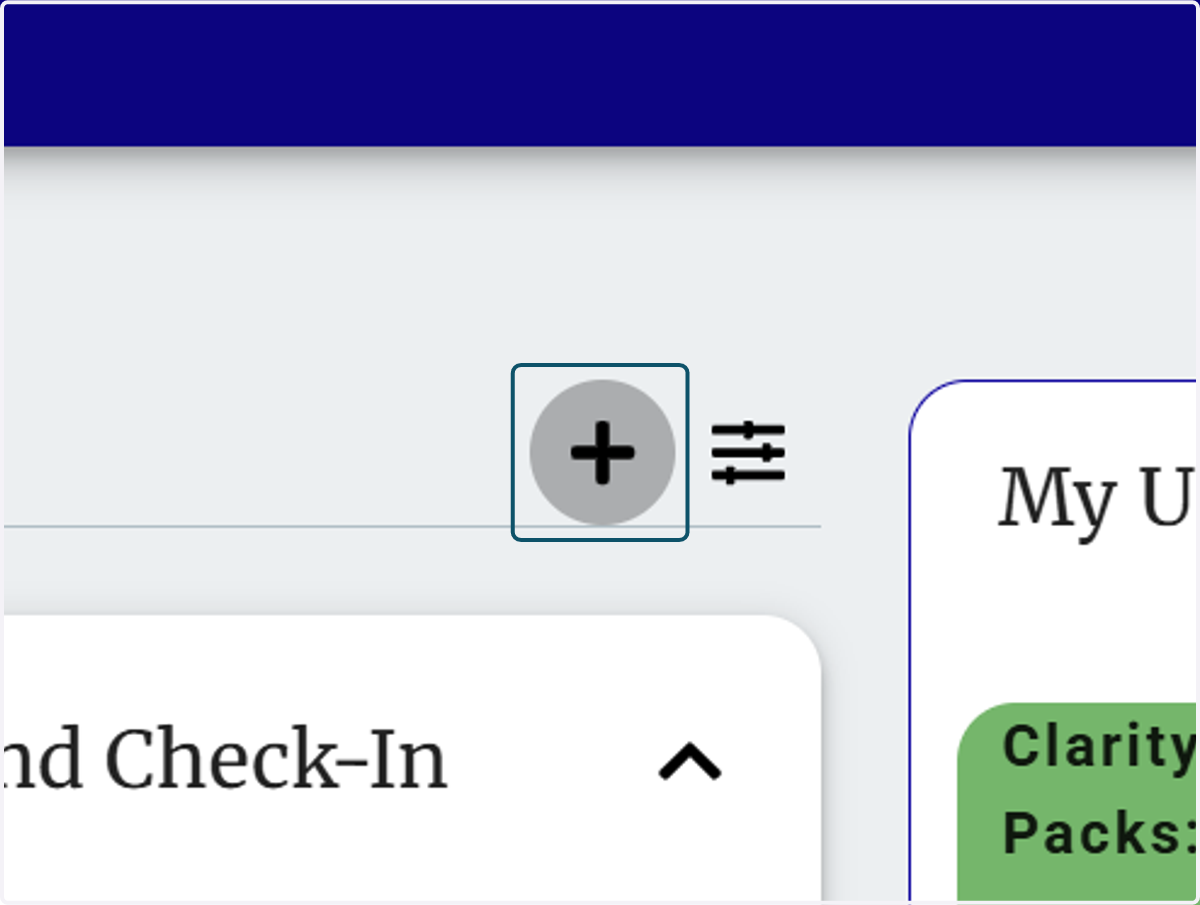
1. Click on Create
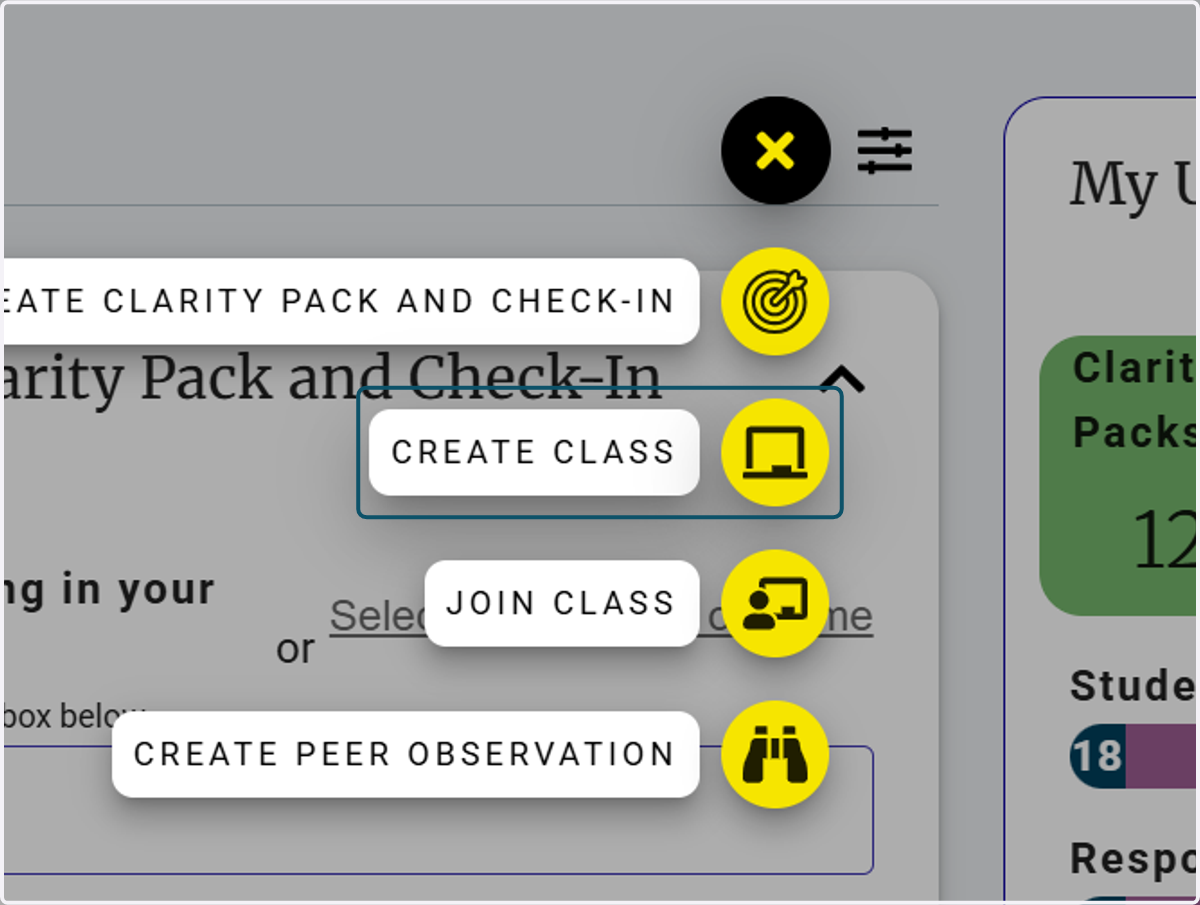
2. Click on CREATE CLASS
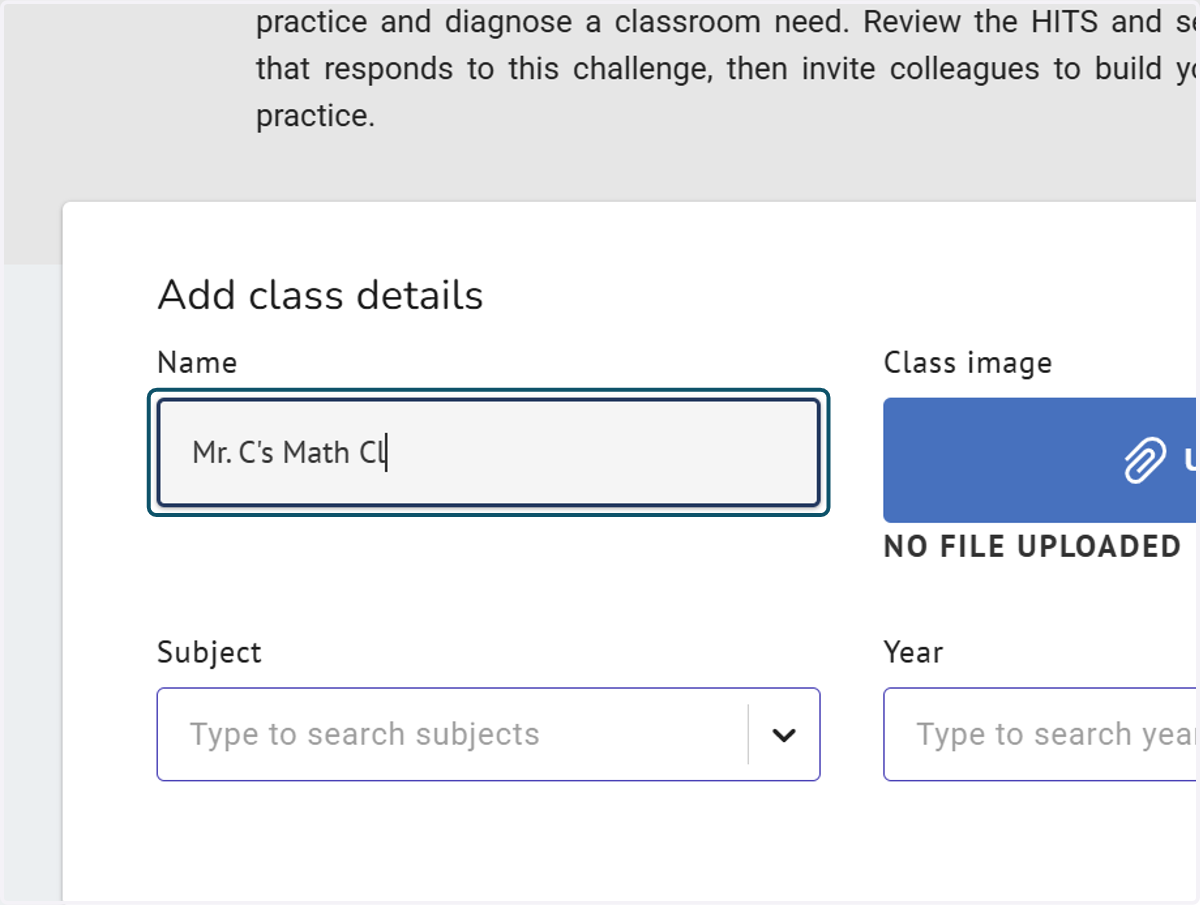
3. Type Name
Add your class details, including the name of the class, the subject and grade level of the class (Year).
4. Click on CREATE CLASS

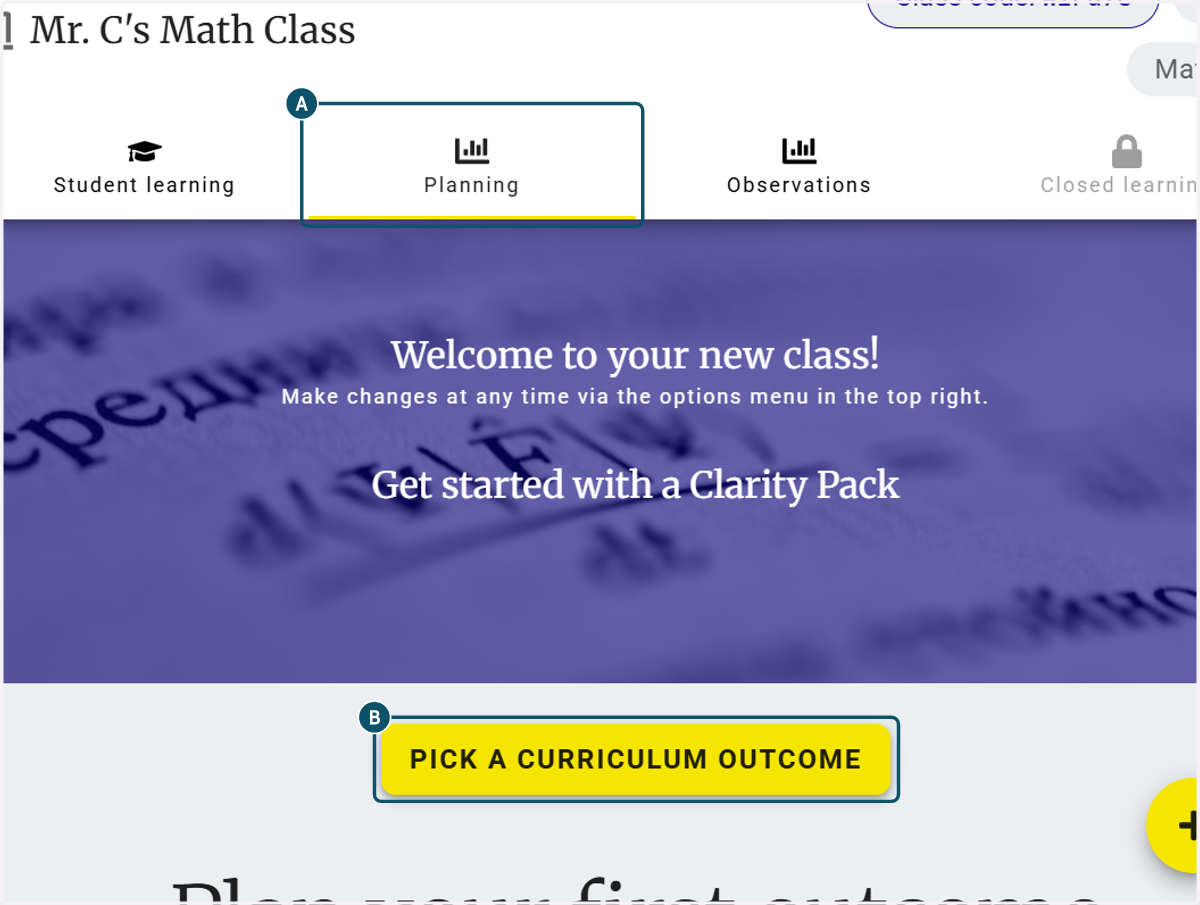
5. A. Click on Planning
5. B. Click on PICK A CURRICULUM OUTCOME
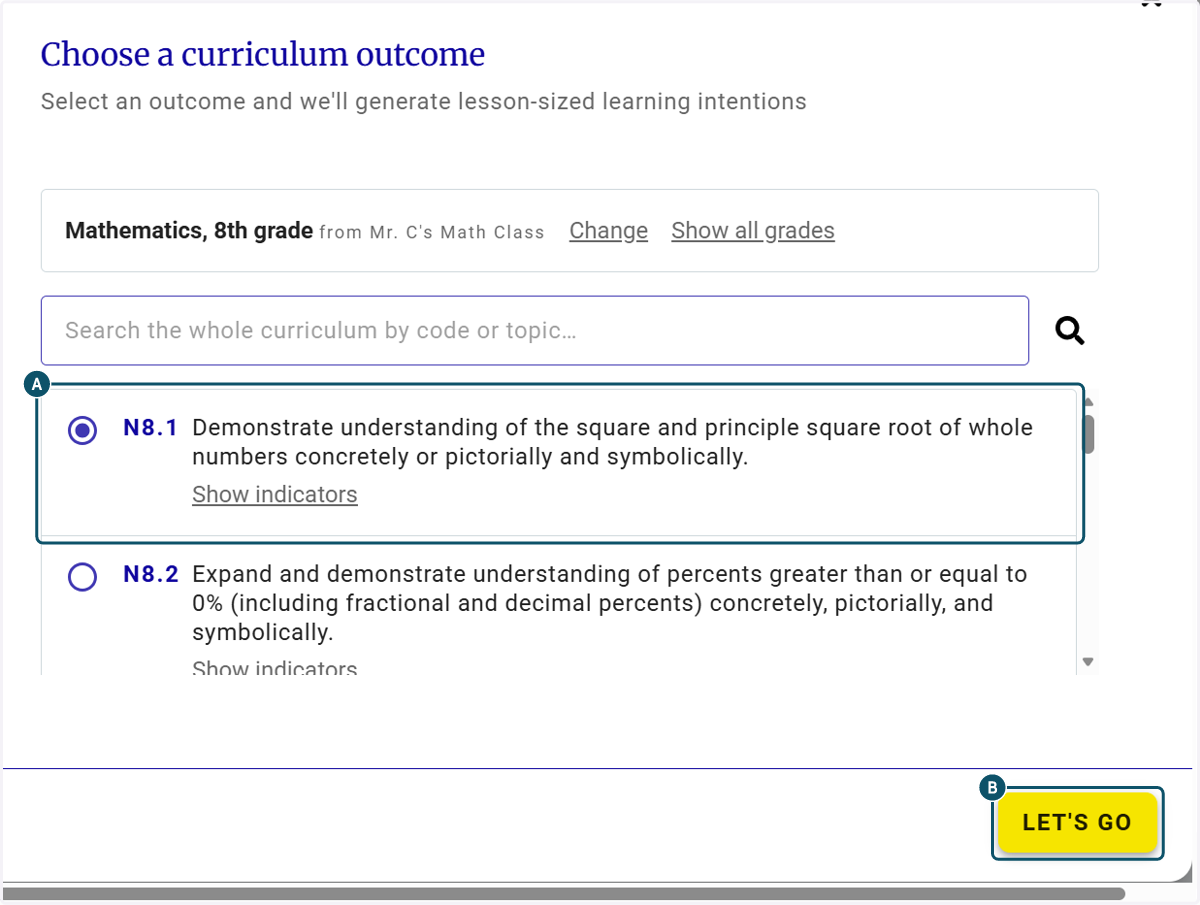
6. A. Click on N8.1…
6. B. A dropdown that shows all the curriculum outcomes for the subject and grade are listed. Select the outcome you wish to focus on then click LET'S GO
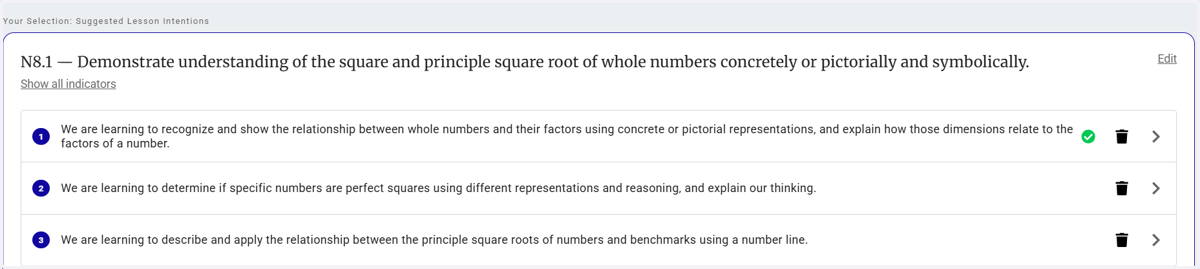
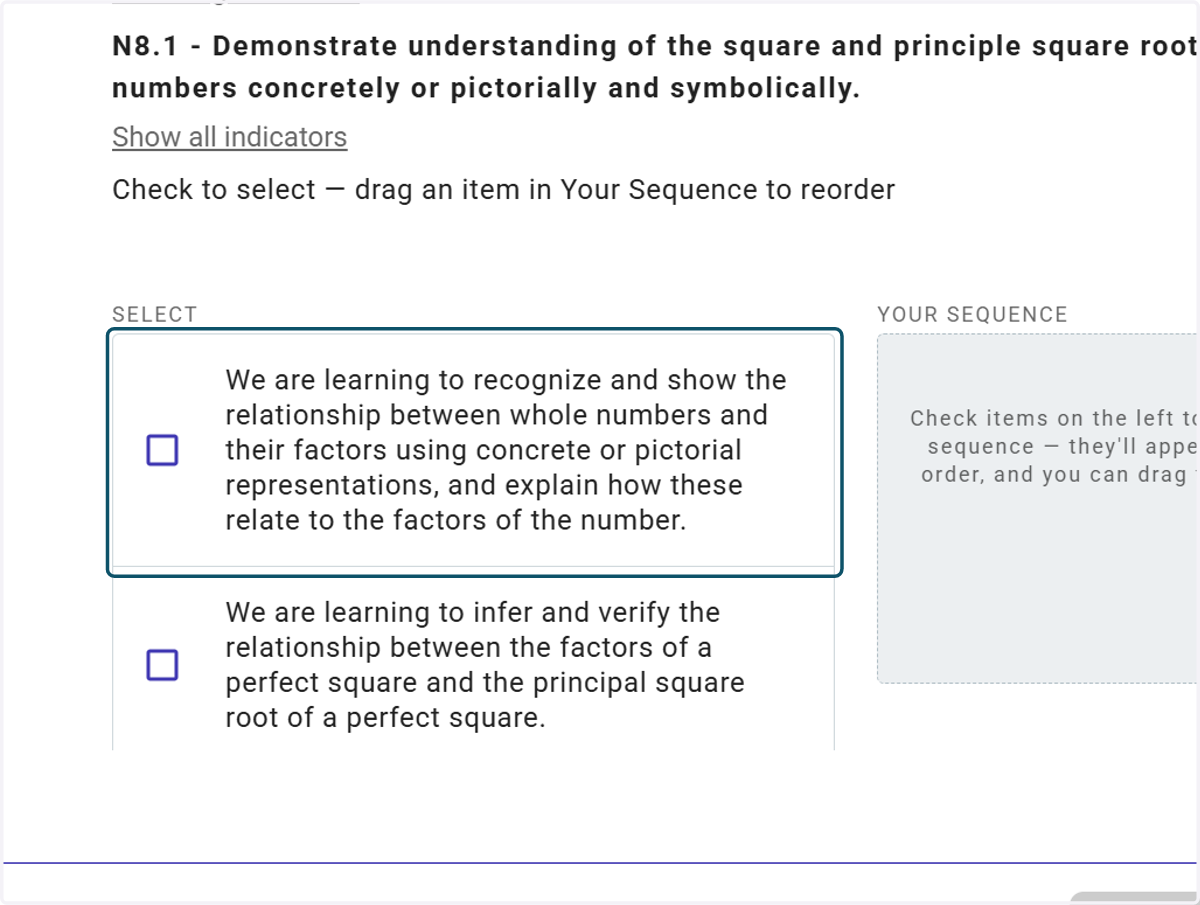
7. The tool has created learning intentions that you can select to teach by clicking the associated check box.
The tool identifies the essential learnings for the outcome, groups related requirements together, creates lesson-sized objectives and ensures the learning intentions cover the depth and breadth of the outcome and are in the right sequence.
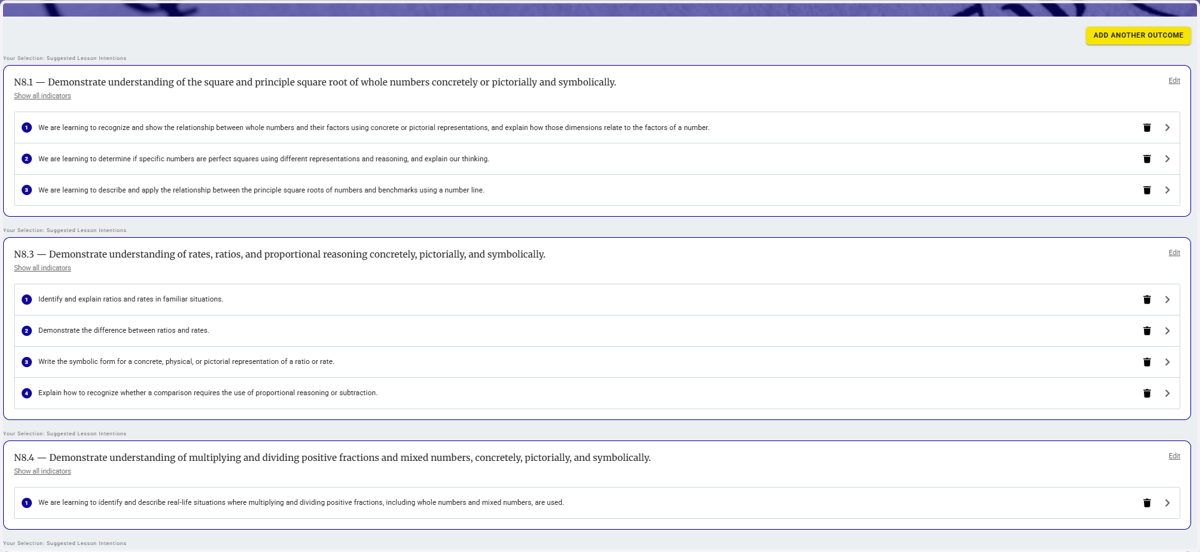
8. Once you have selected the learning intentions that you wish to teach, they will be listed underneath the outcome you are teaching.
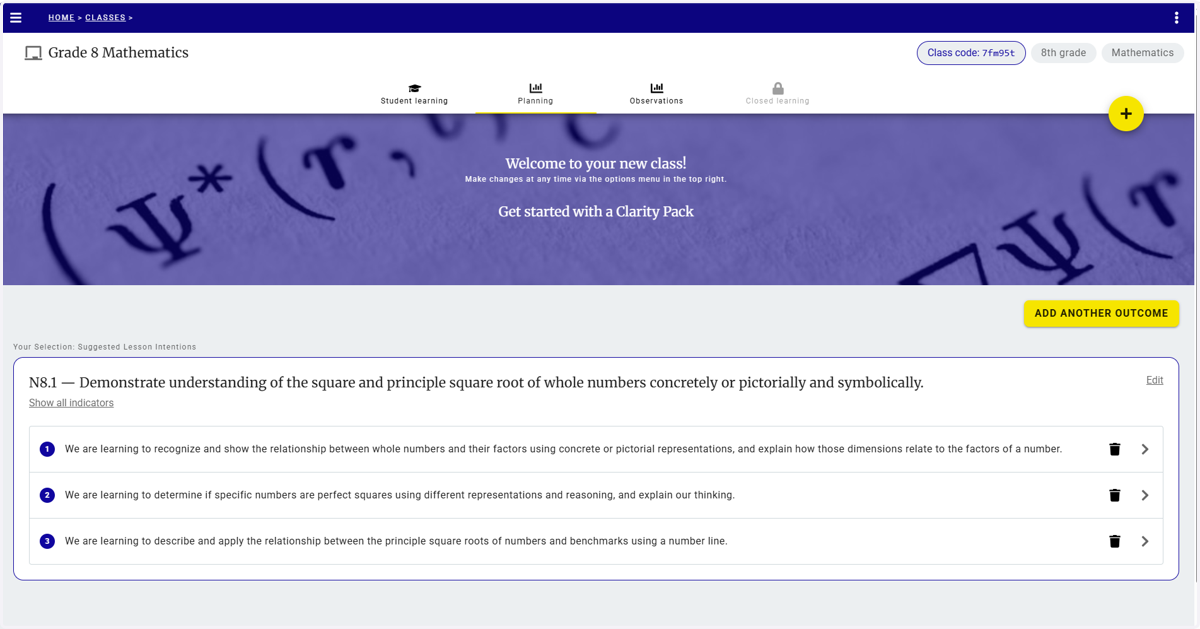
9. Click on ADD ANOTHER OUTCOME. The drop down displays the outcomes for the subject and grade again. You can select the outcome you will be teaching next. Select the associated check box.
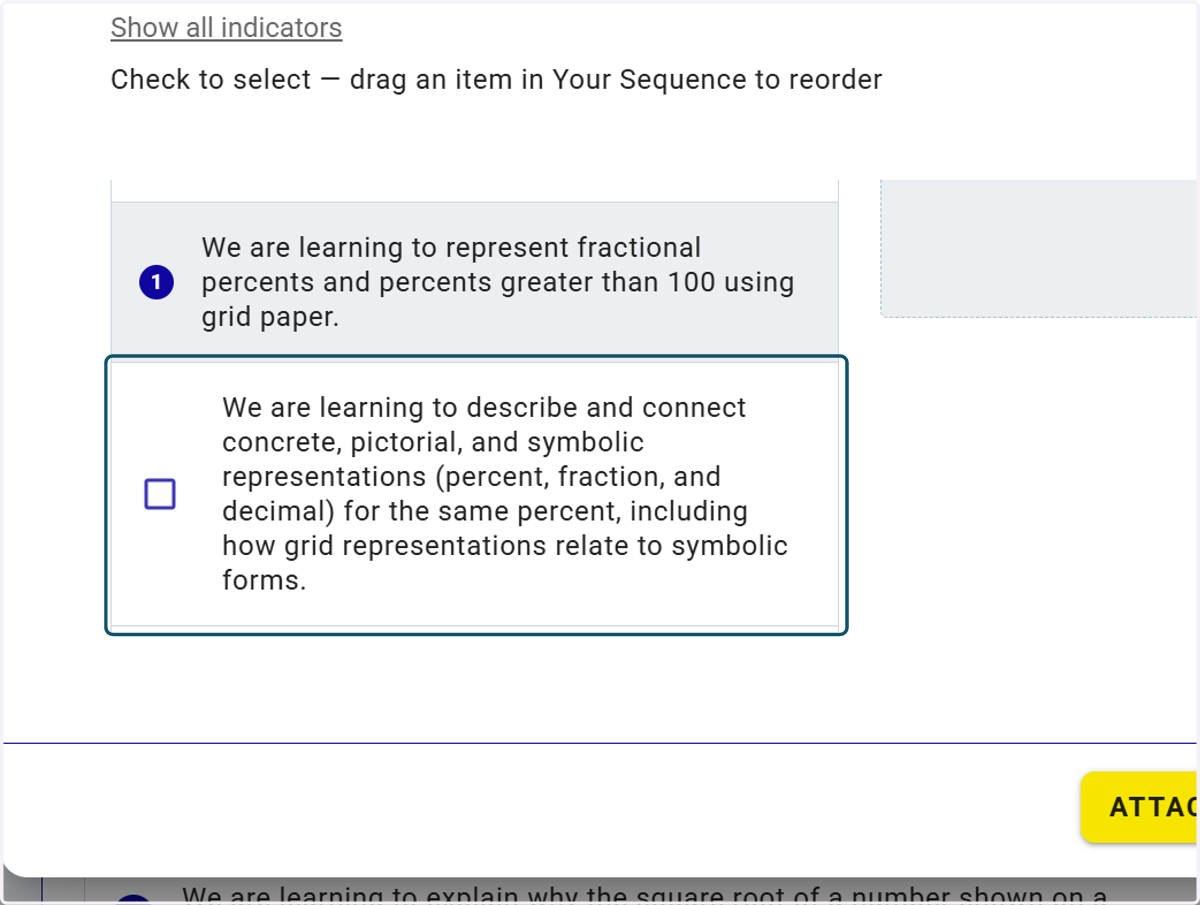
10. The tool will once again create a set of learning intentions that you can select to teach by clicking the associated text box. The tool sequences the learning intentions. You can change the order by dragging the learning intention.
11. Once you have completed selecting the learning intentions to teach the outcome, the tool lists all the outcomes with the learning intentions underneath in the order they were selected.
12. Select a learning intention and you can create a Clarity Pack.
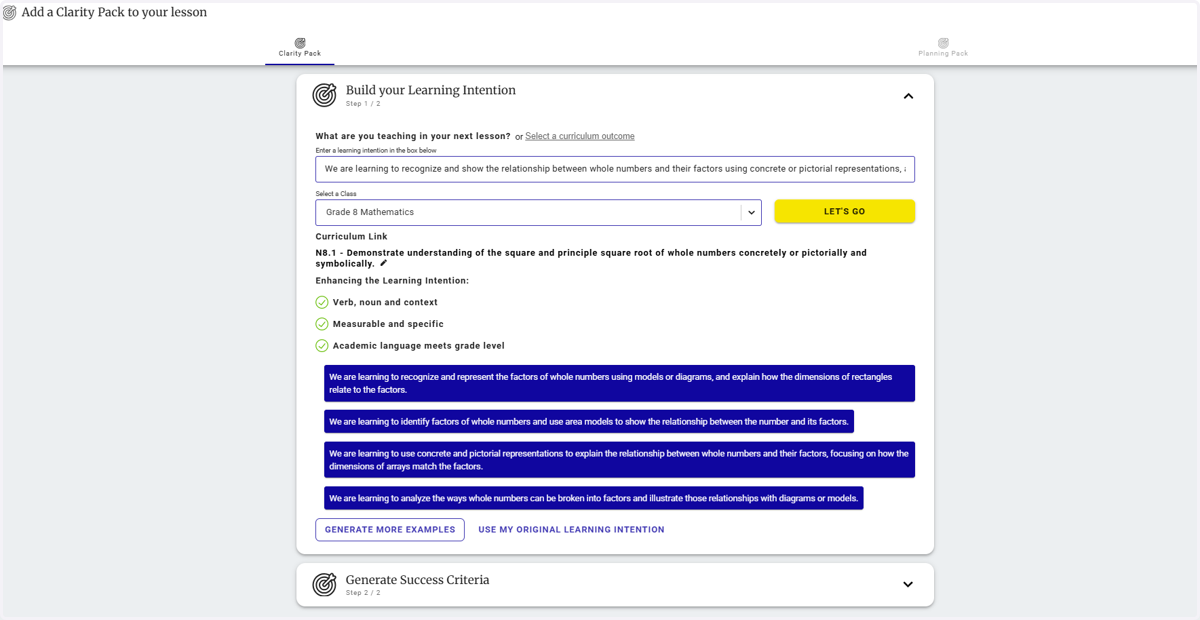
13. Once a Clarity Pack is created, a green checkmark appears beside the learning intention. Teachers can continue to create Clarity Packs for each learning intention to support lesson planning and implementation.