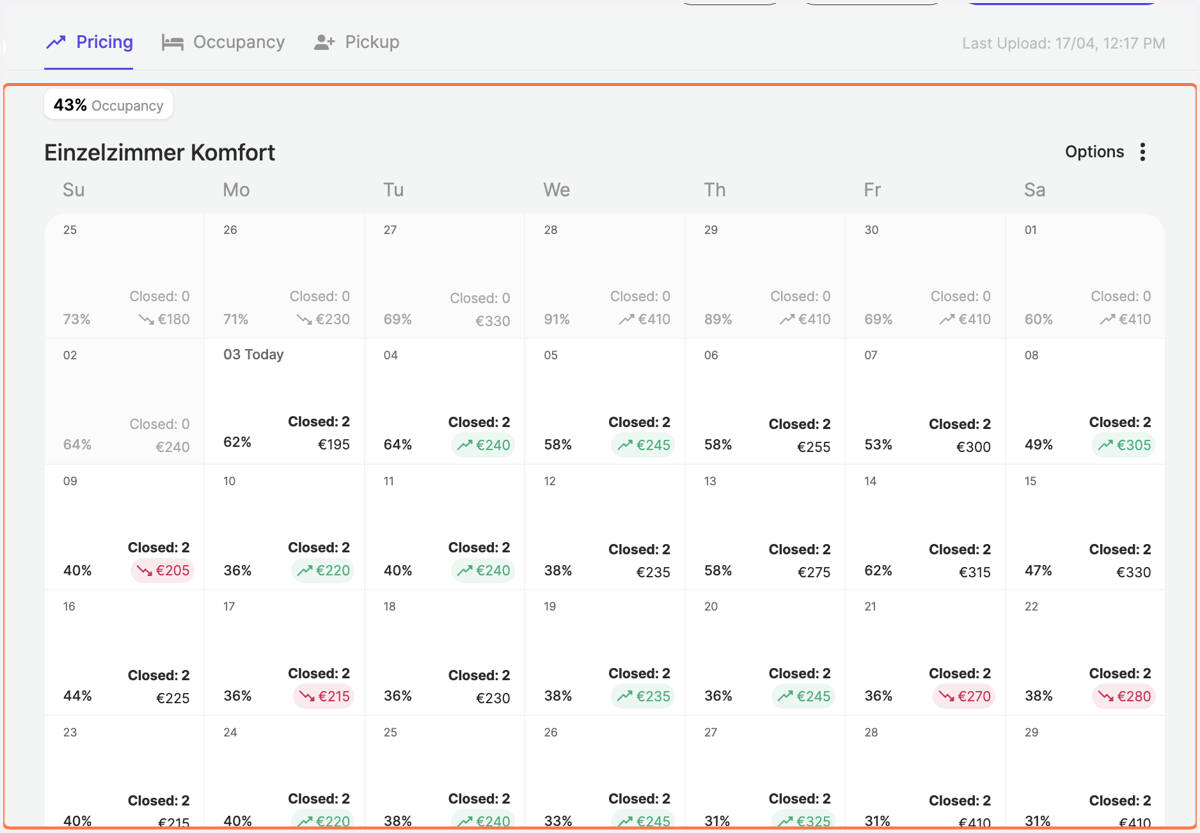
How can I close rooms in RoomPriceGenie?
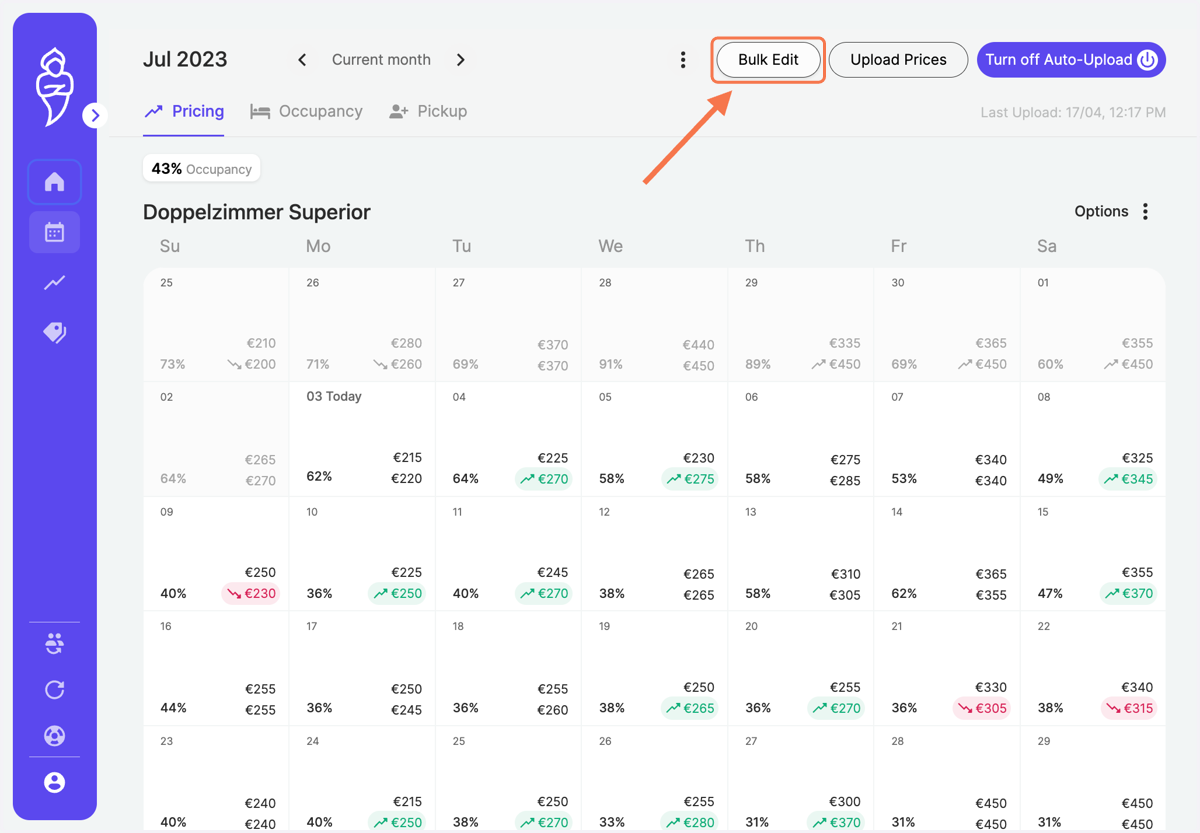
1. Navigate to "Bulk Edit" on the top right
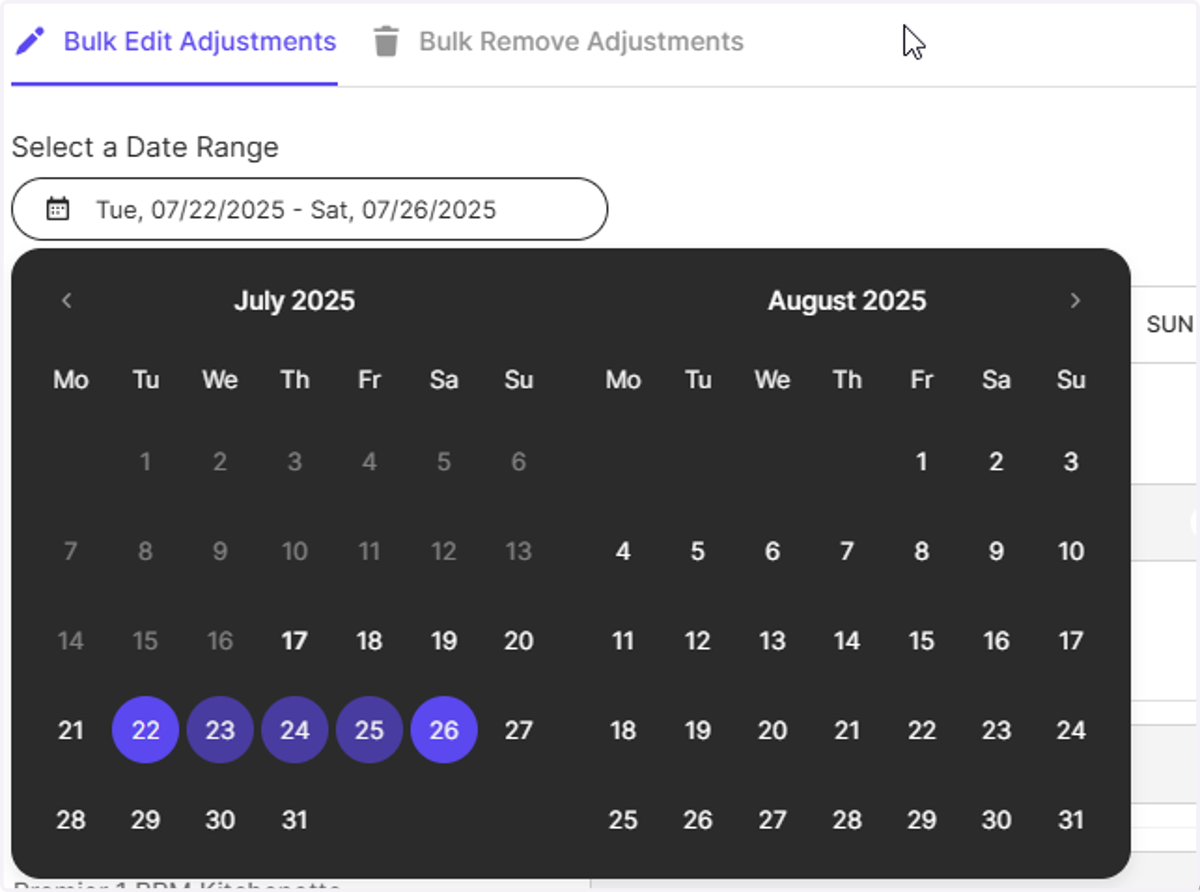
2. Define the time period when you would like to identify closed units
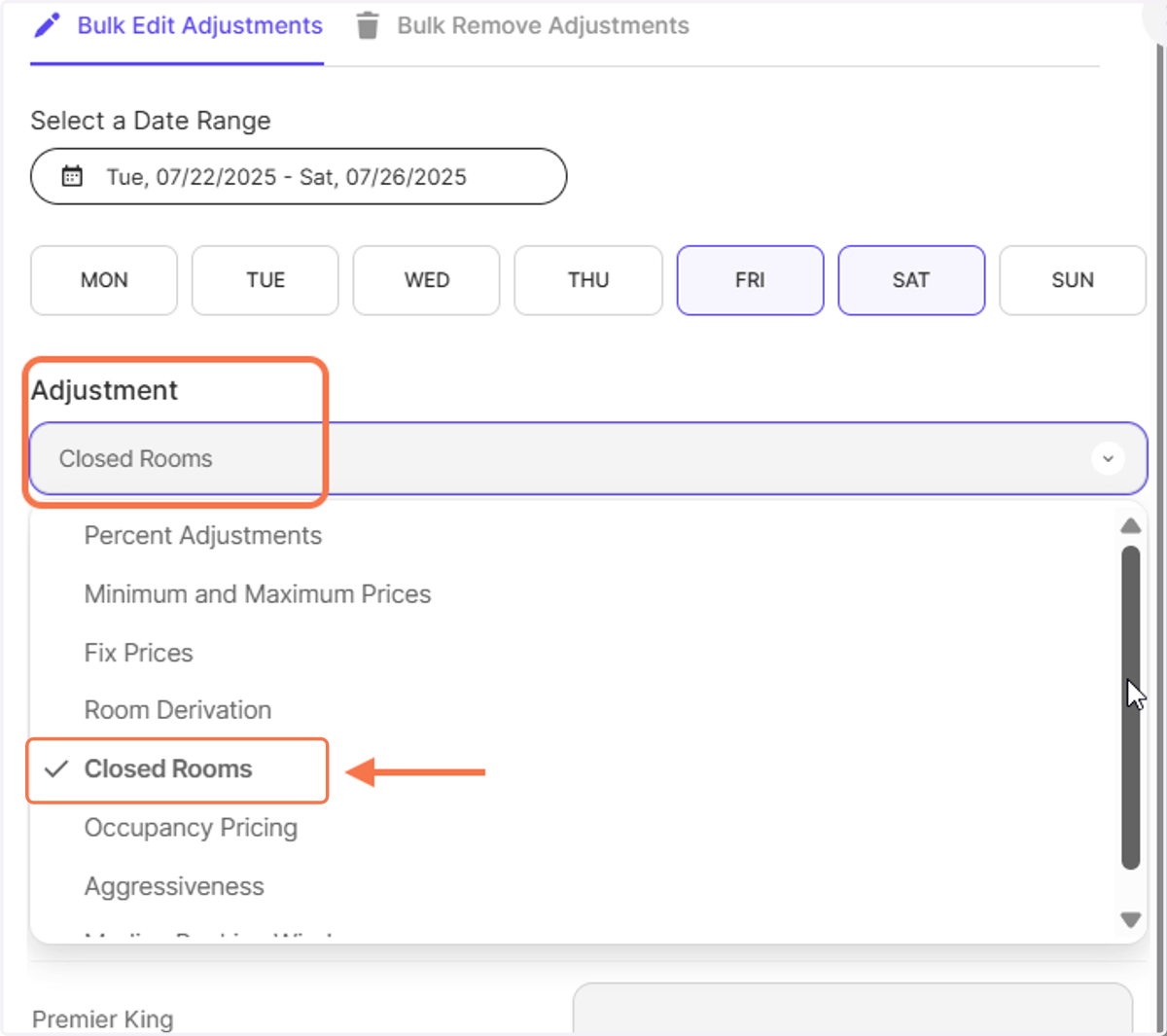
3. Optional: Choose the days of the week (skip this step if it you will apply to all days of the week in the selected interval)
Imagine you are releasing the blocks only for the weekends during the low season.
Then use this choice to select FRI and SAT, so the closed rooms will be removed on the weekends only.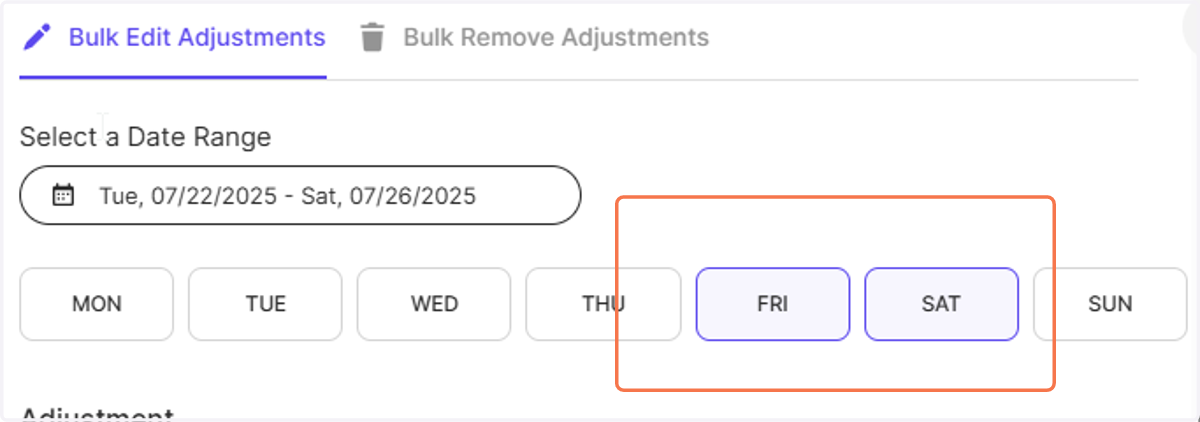
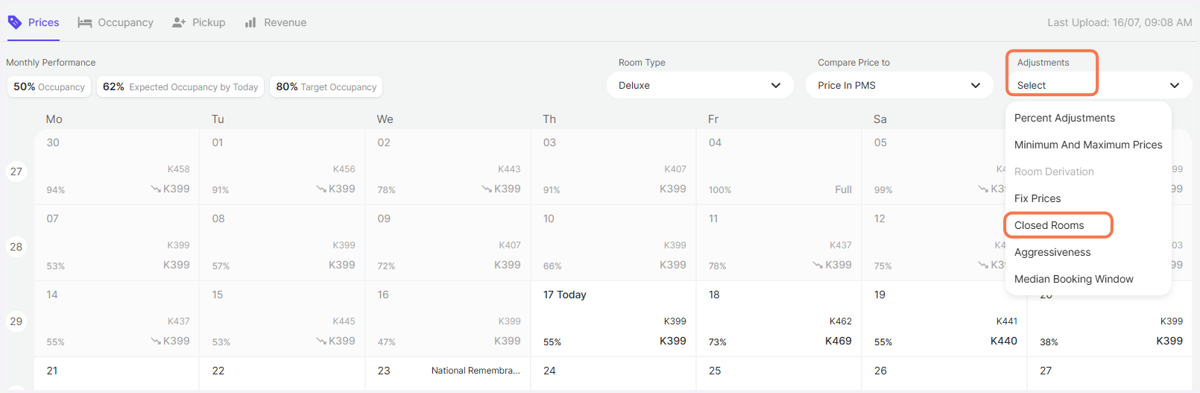
4. From the dropdown select the adjustment type "Closed Rooms"
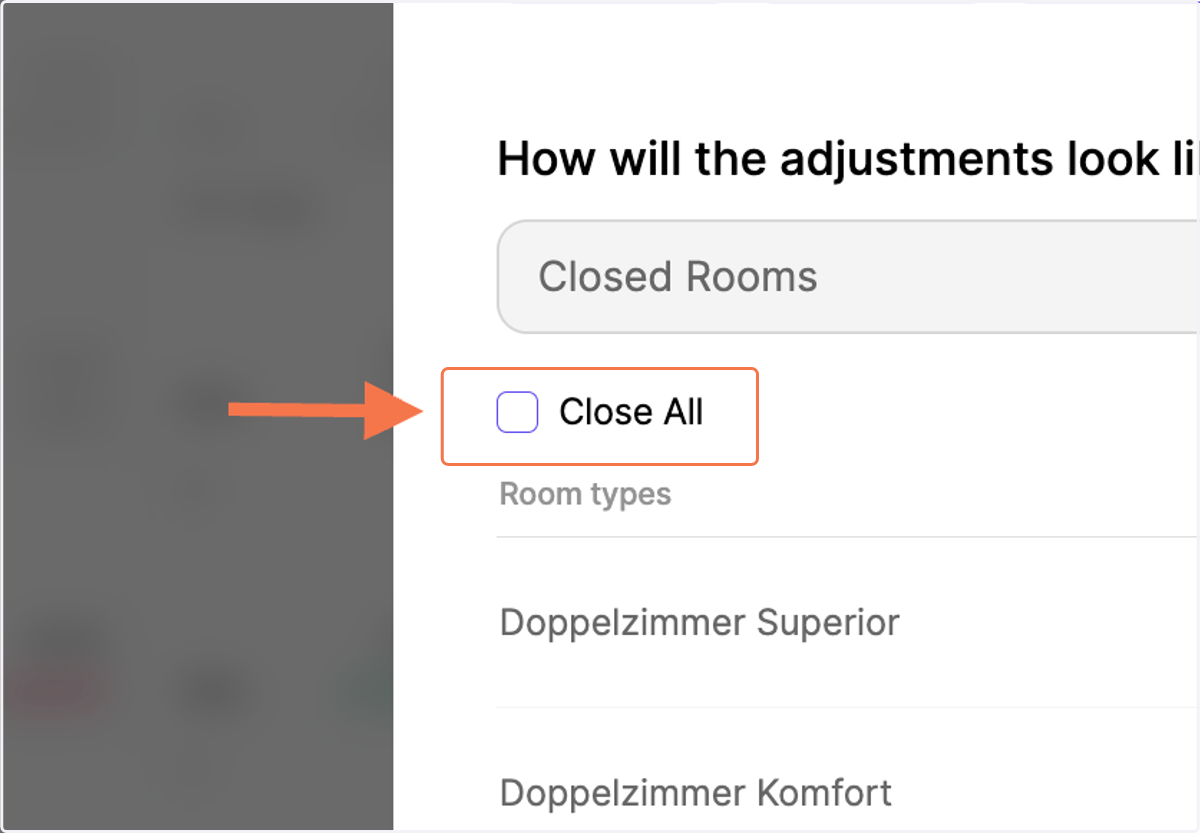
5. Optional: You could choose to close all your units. This would cater to the scenario when your whole property is closed for sale.
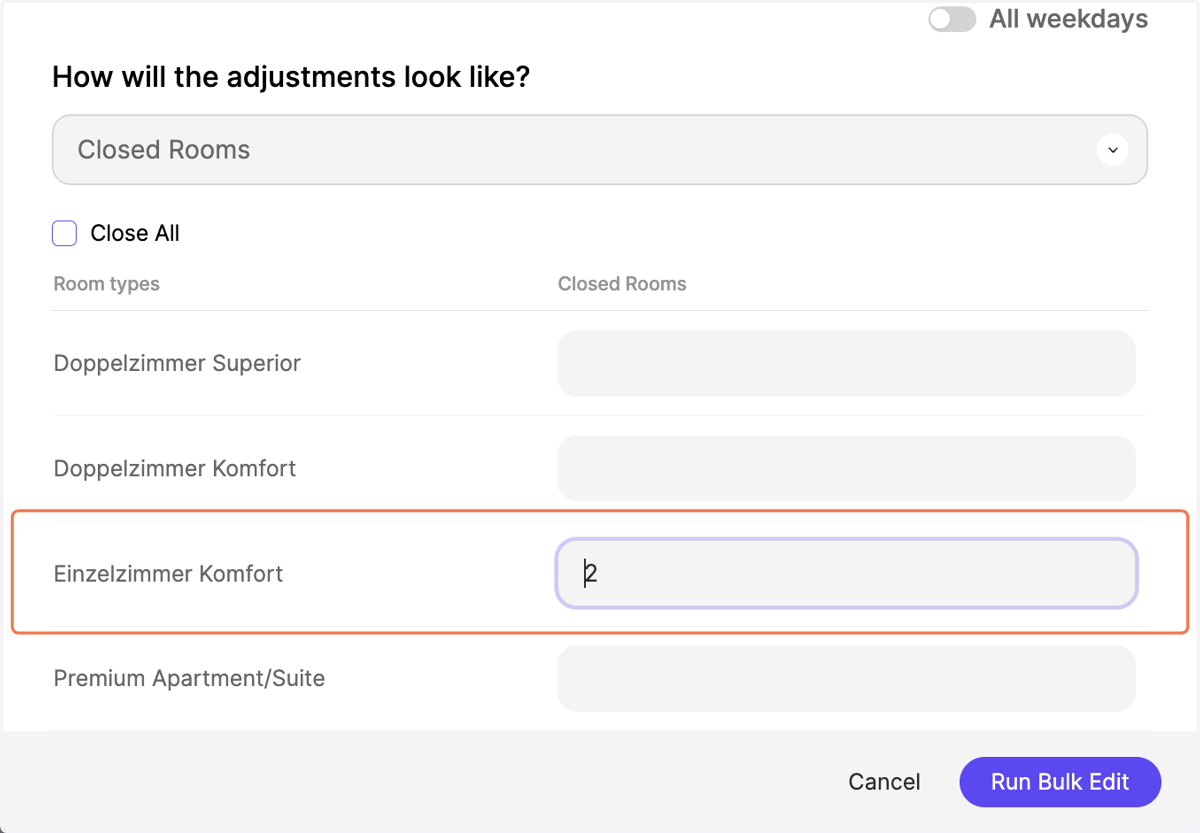
6. Enter the number of units per category that you like to identify as being closed for sale
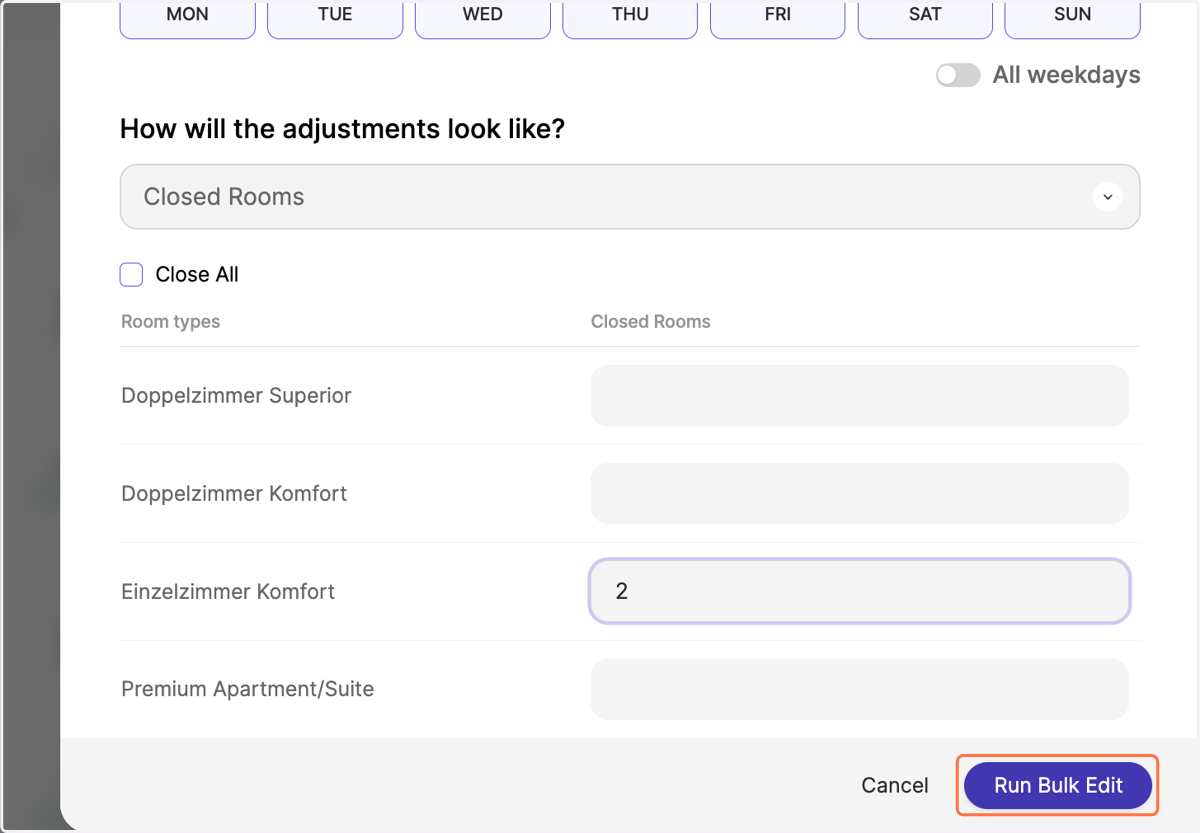
7. Click on "Run Bulk Edit" on the bottom right
8. Switch your calendar view to the "Closed Rooms" option.
9. In bold you can identify the number of units per category which are marked as closed.