Search the full-text for publications without DOIs to find policy citations
Searching for publications using DOIs and other identifiers is the gold standard in Overton. There may be times, however, where you want to find policy citations for scholarly works that don't have identifiers. This workflow describes how you can search for them.
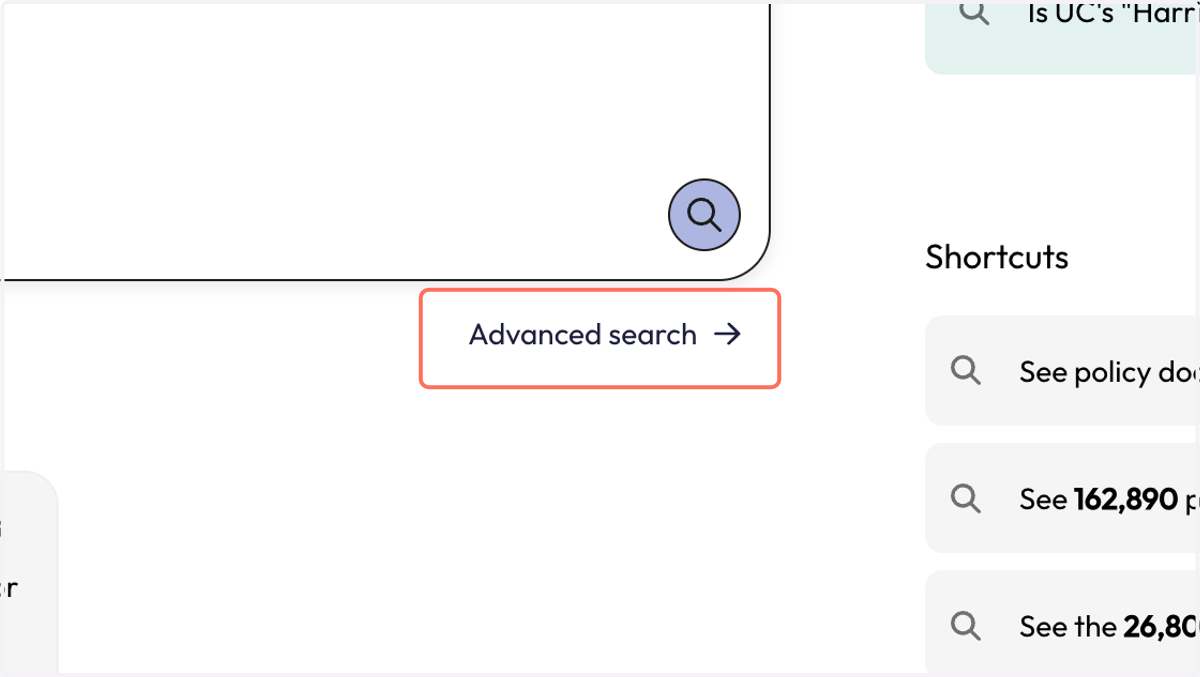
1. From the Start page, click on 'Advanced search'
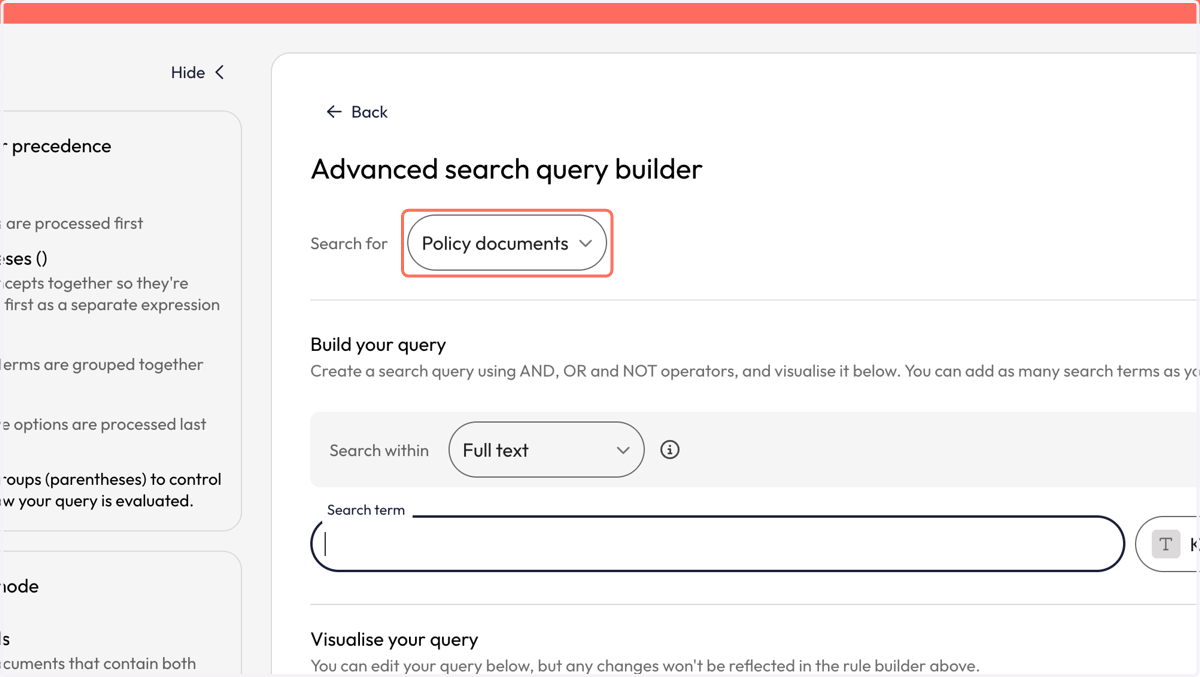
2. You will be taken to the 'Advanced search query builder'. From the 'Search for' dropdown, click on 'Policy documents'
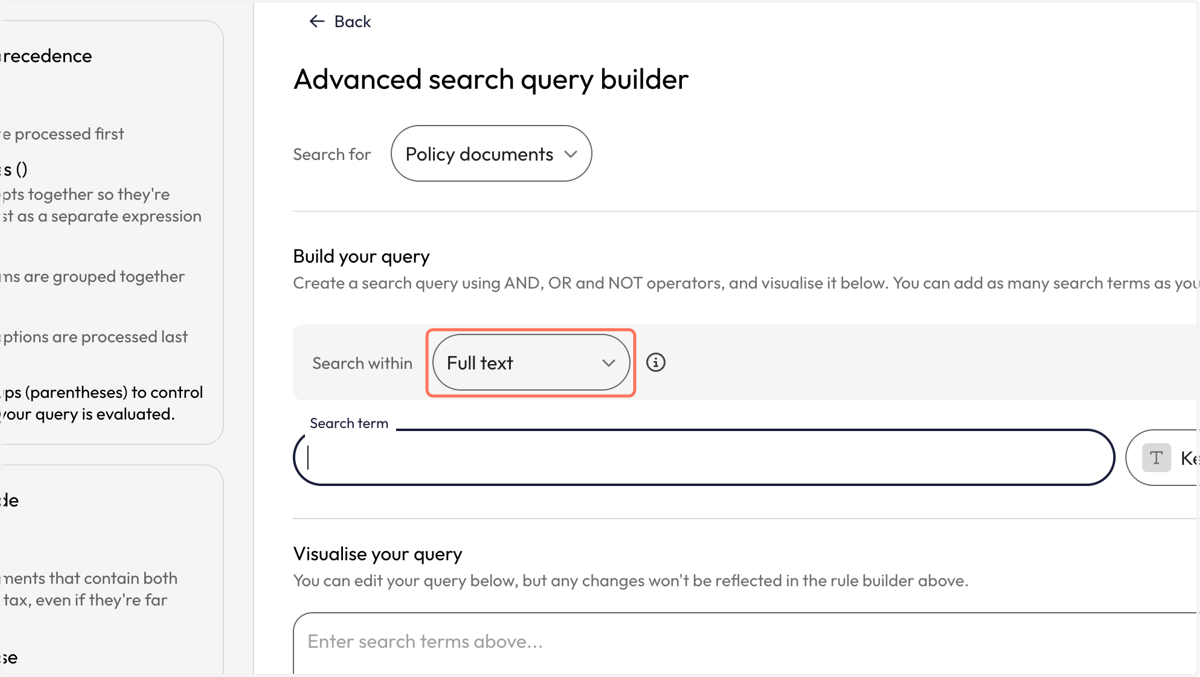
3. From 'Search within' click on 'Full text'
4. In the 'Search term' box, type the title of your publication
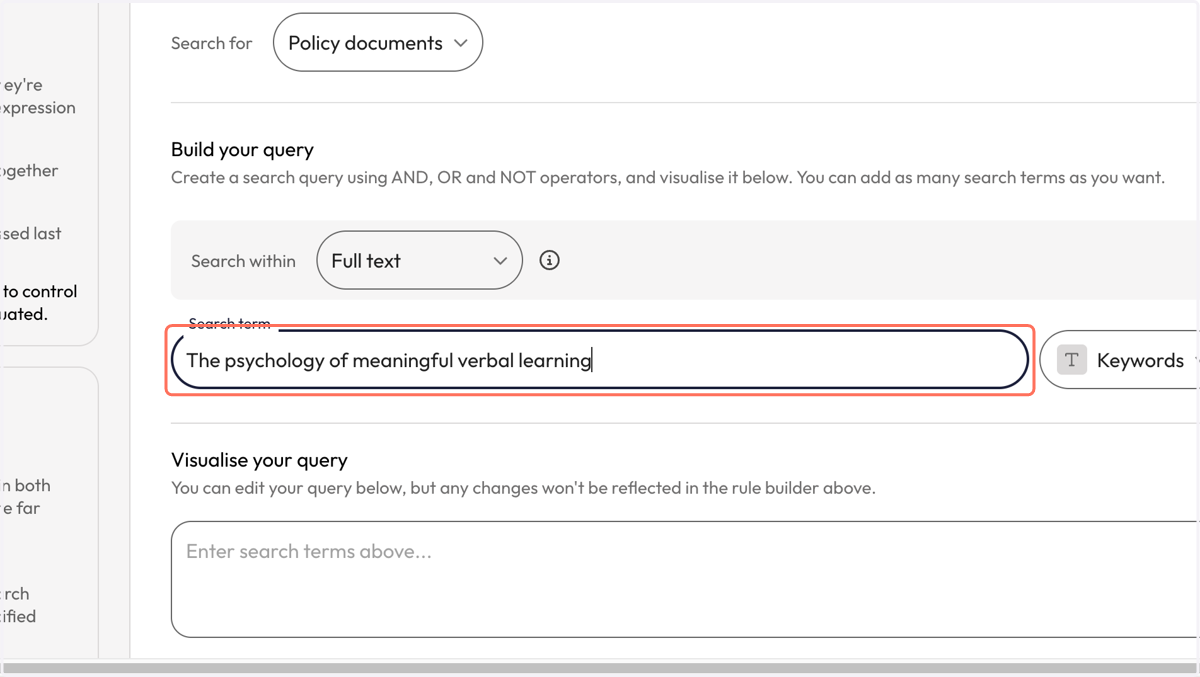
5. From the dropdown next to the search term box, click on 'Exact phrase'. This will find the words in the title in the exact order as you entered them.
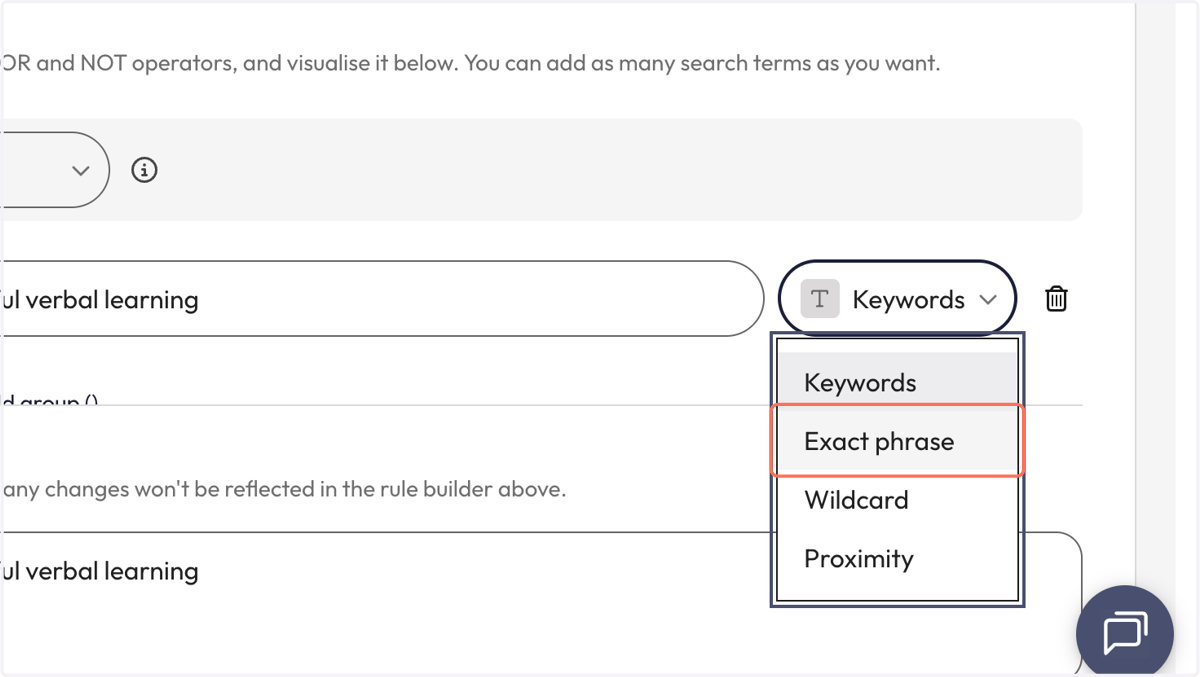
6. Check your search in the 'Visualise your query' box and click 'Search'
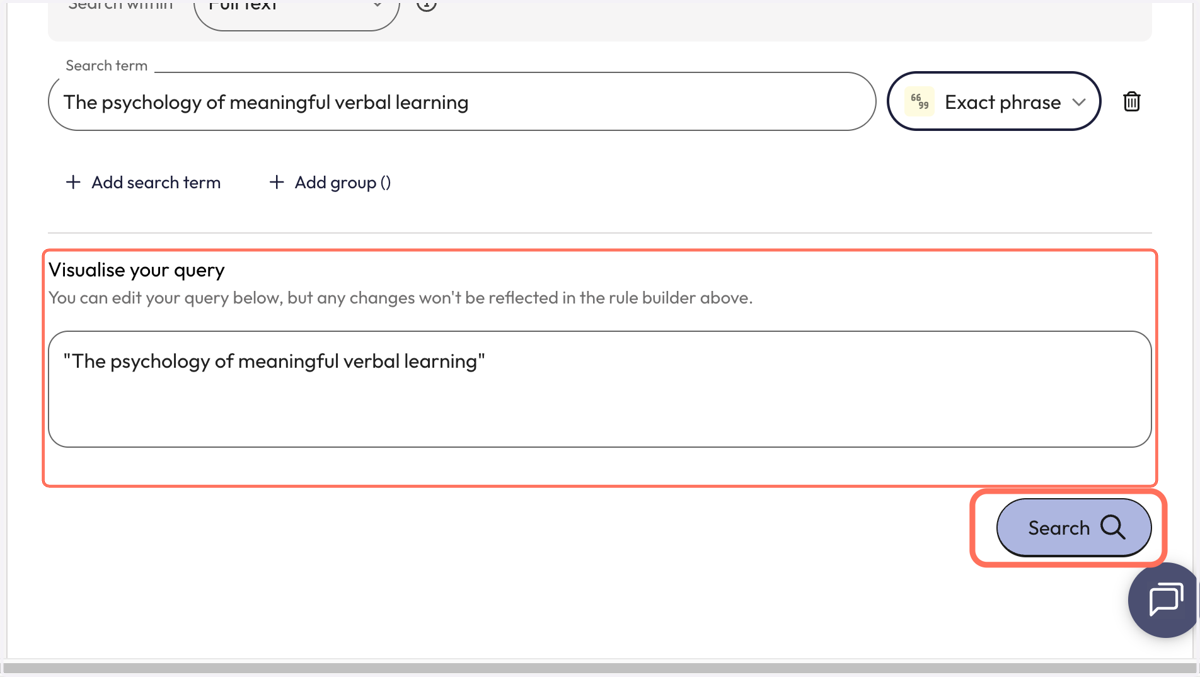
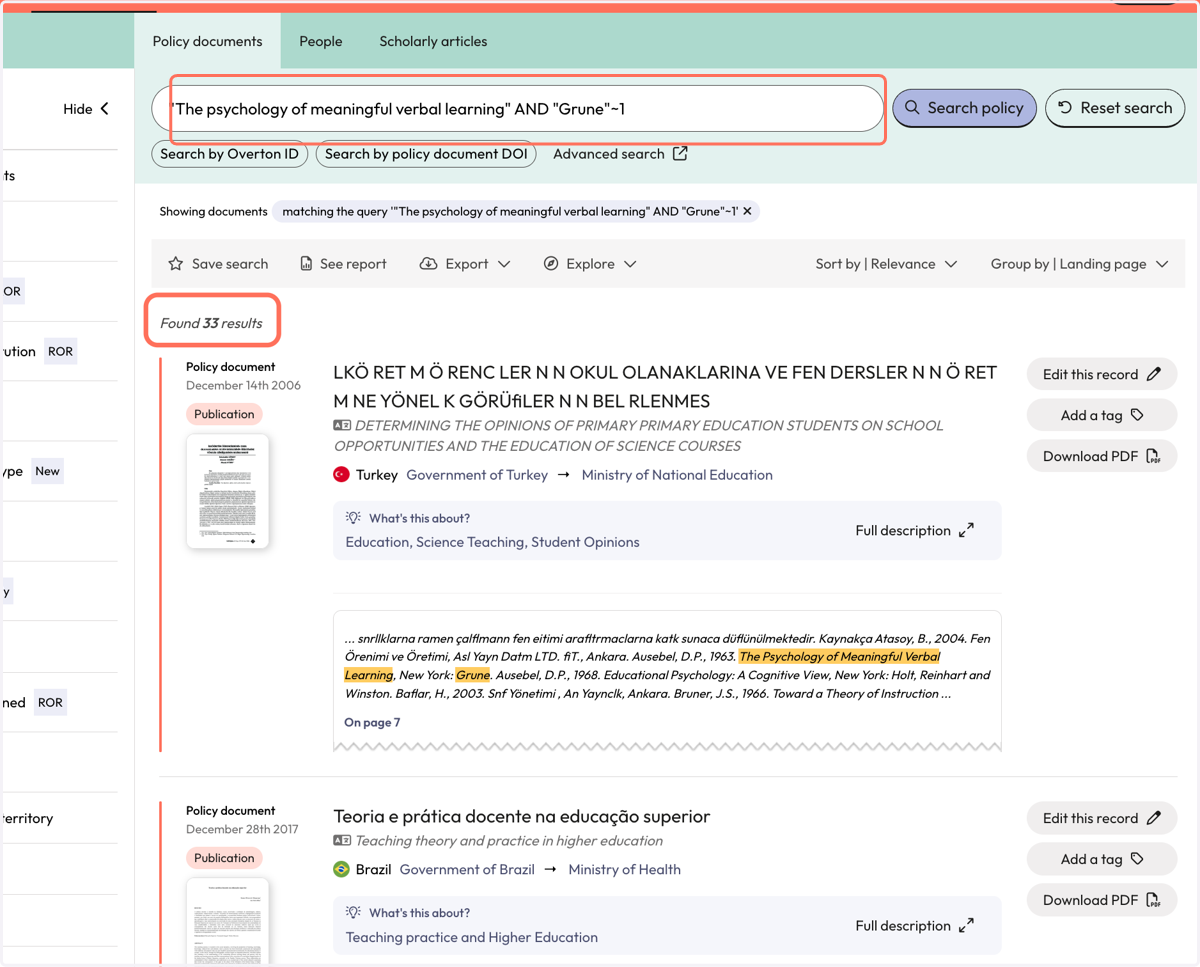
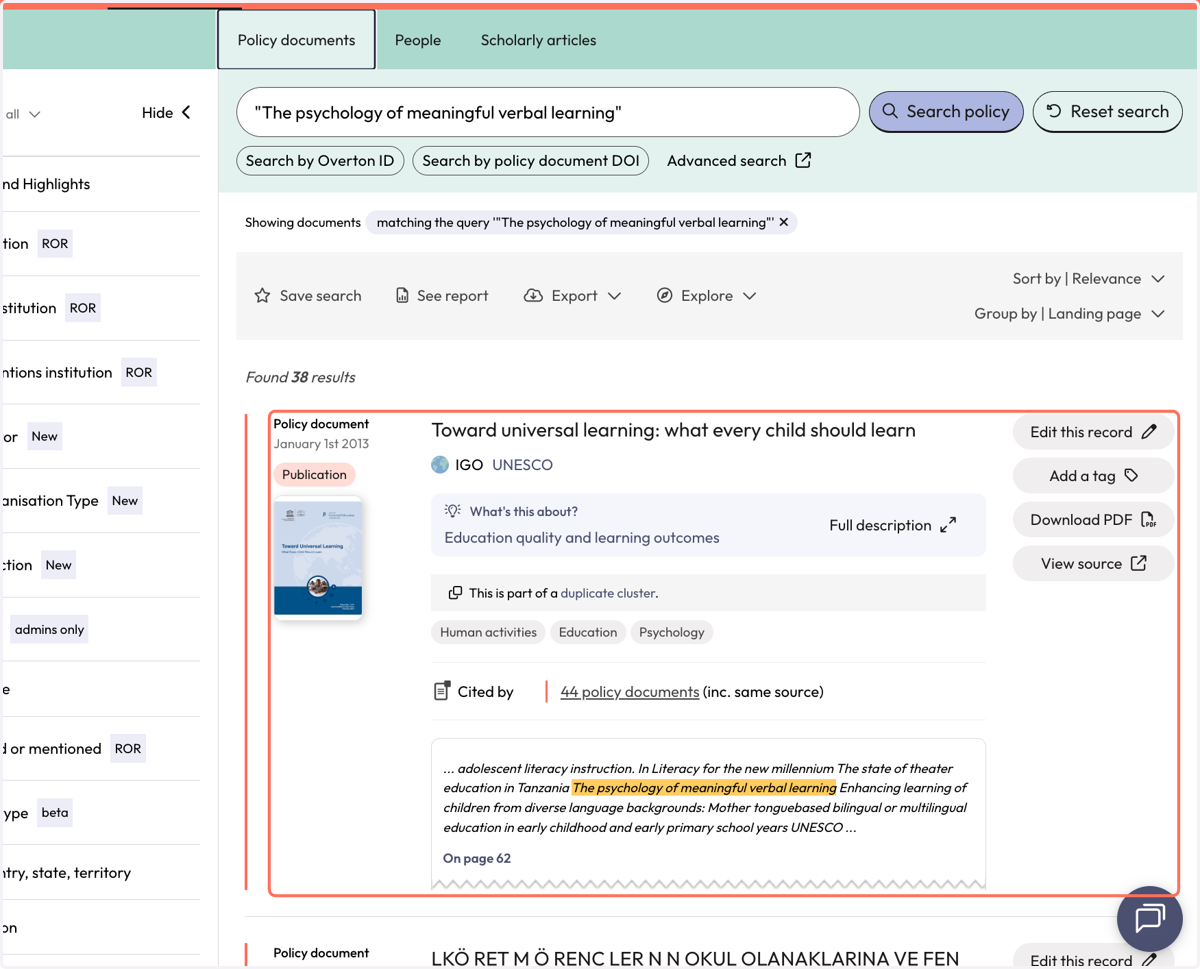
7. You will be taken to the 'Search Policy Documents' results where you will see results for where the title of your publication has been found in the full-text of policy documents.
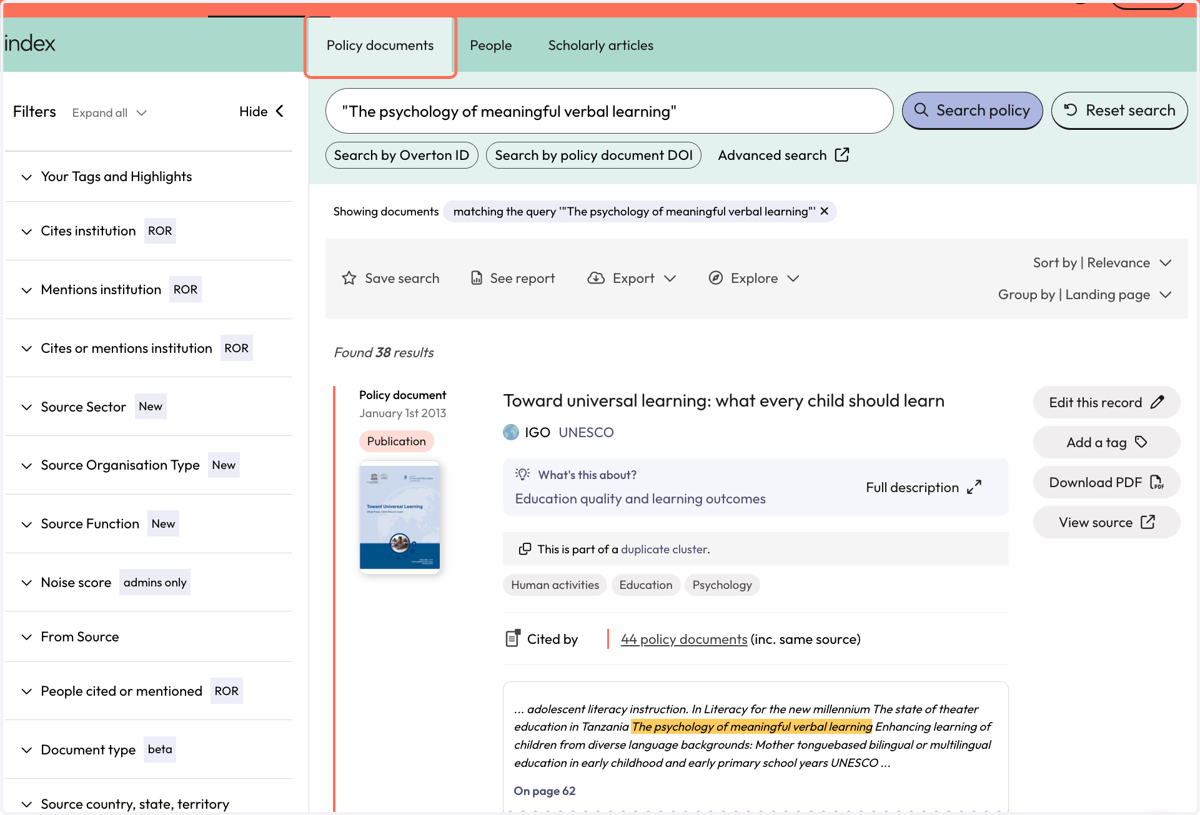
8. You can see a bit about the context by looking at the snippet. Overton highlights where your title was found. We also provide the page number so you do a deeper dive into the full-text. This is strongly recommended so you can understand how your work was
9. It is possible that not all results are relevant and you may want to narrow down your search.
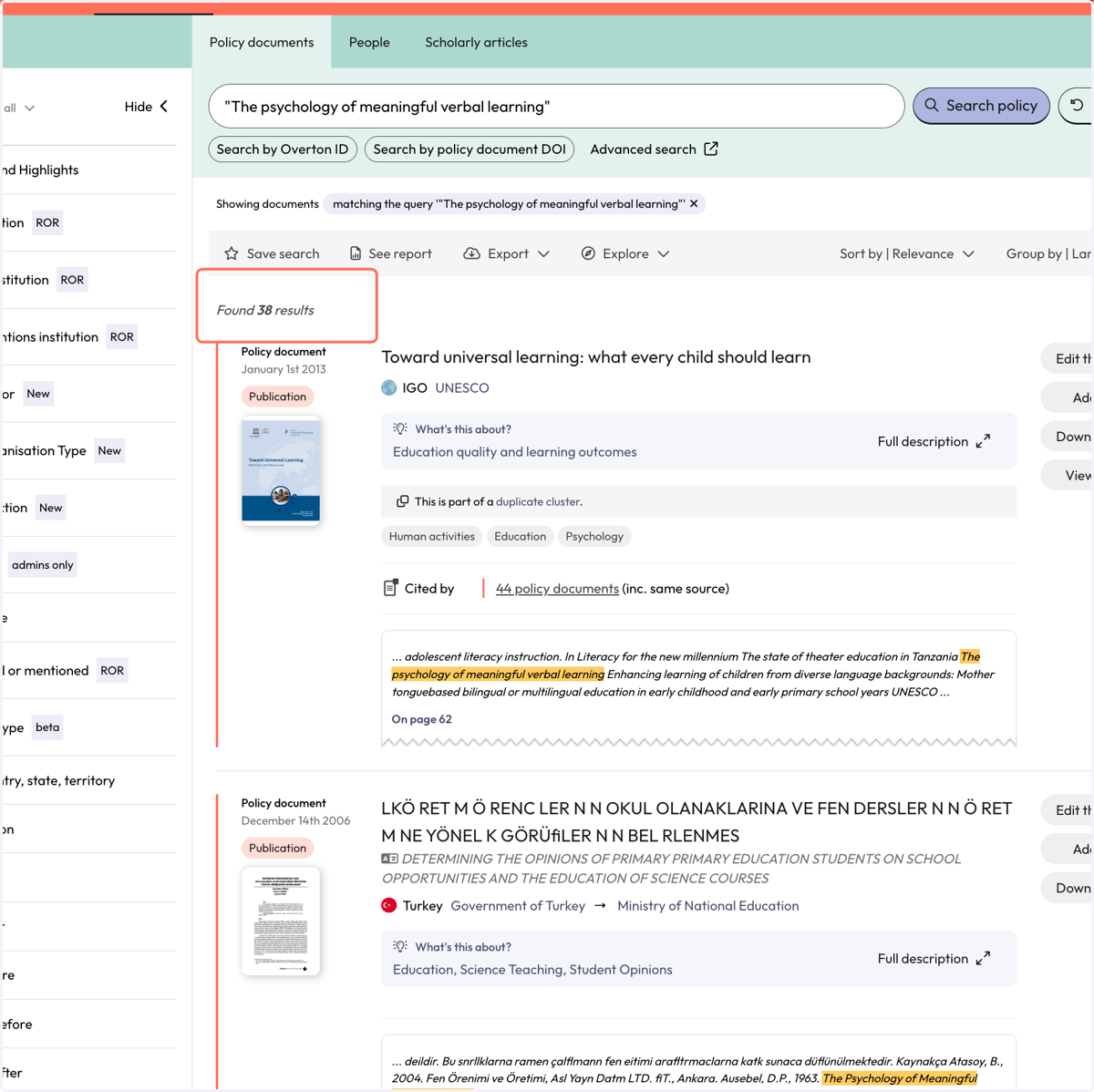
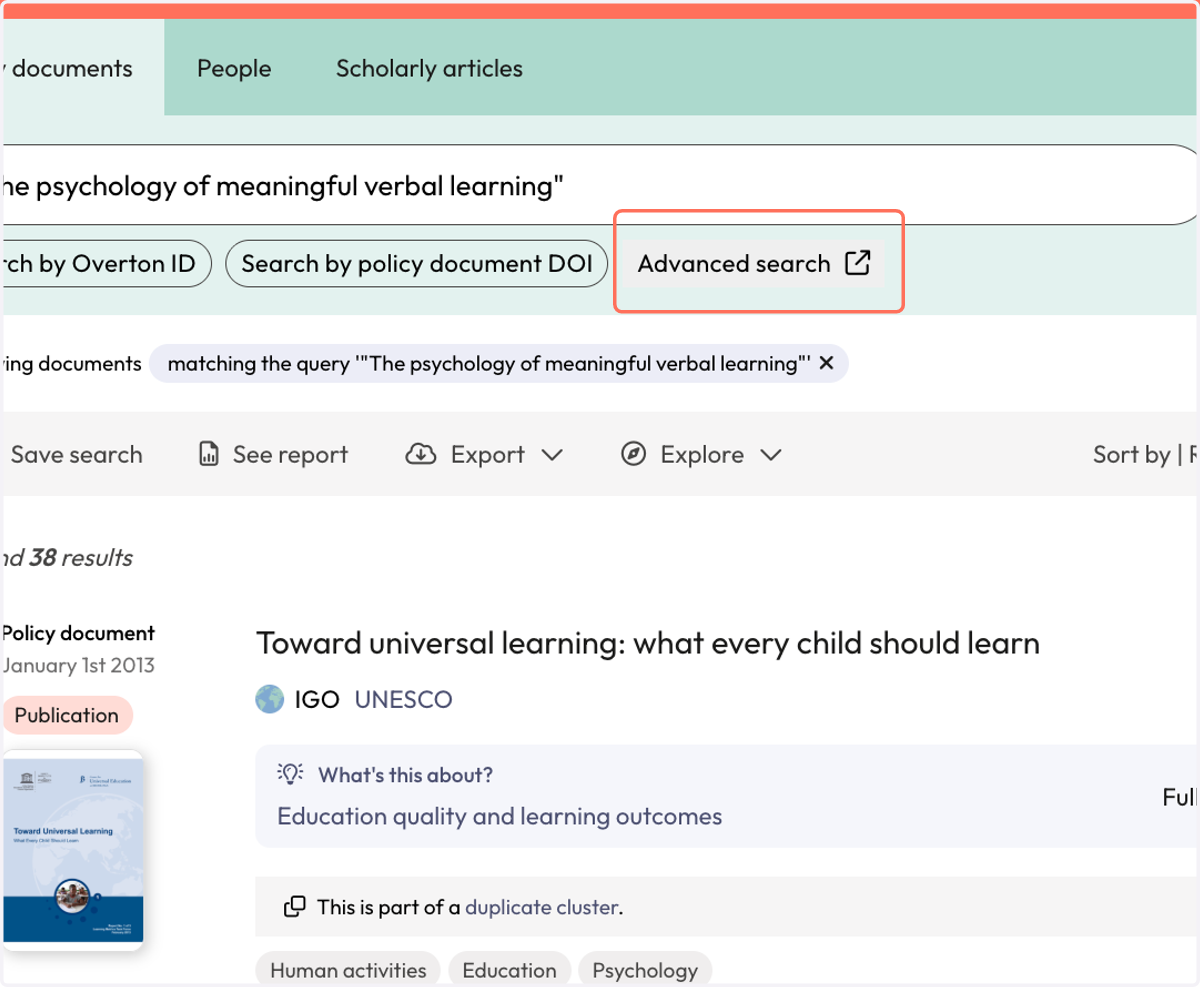
10. Click on 'Advanced Search' to return to your original query where you can add in further search terms to narrow down your search.
11. In the 'Advanced query builder', click on the 'Add search term' option.
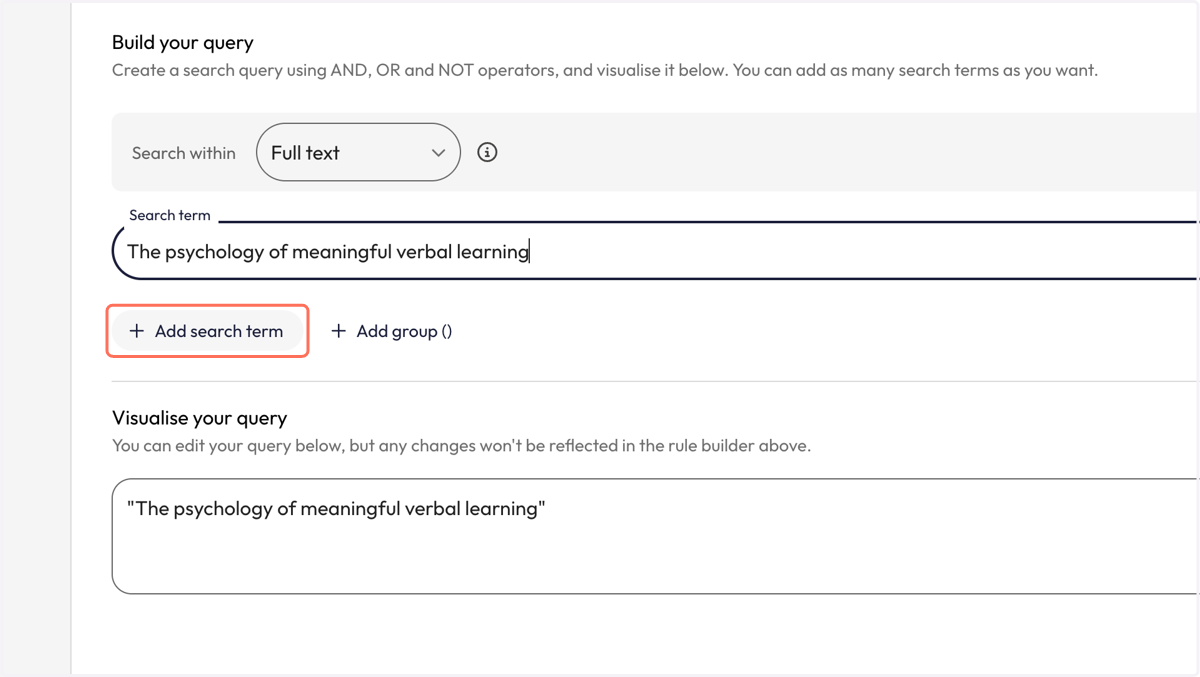
12. Consider adding in an author name or other relevant keywords in the 'Search term box' that appears. In this example, we will use the author surname to narrow down our search results.
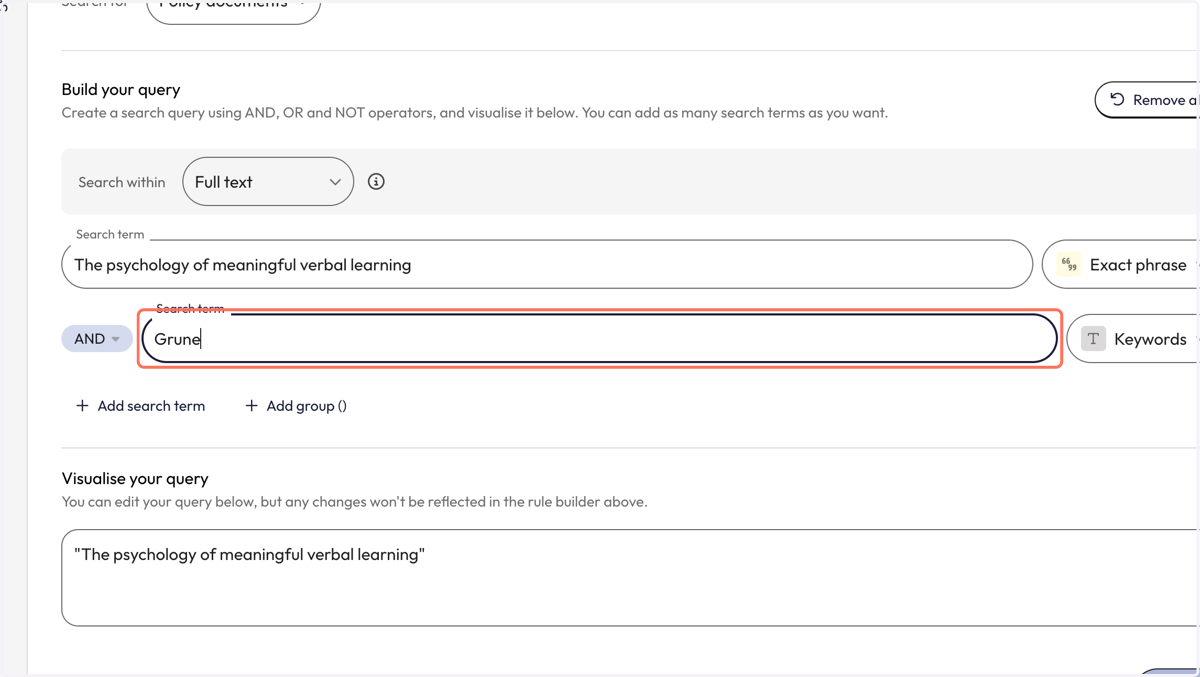
13. Once you have added a search term, you can decide the search strategy you want applied to the term or leave it as keyword. In this example, we'll use a proximity search. This search will find the authors name within a specified number of words from the title.
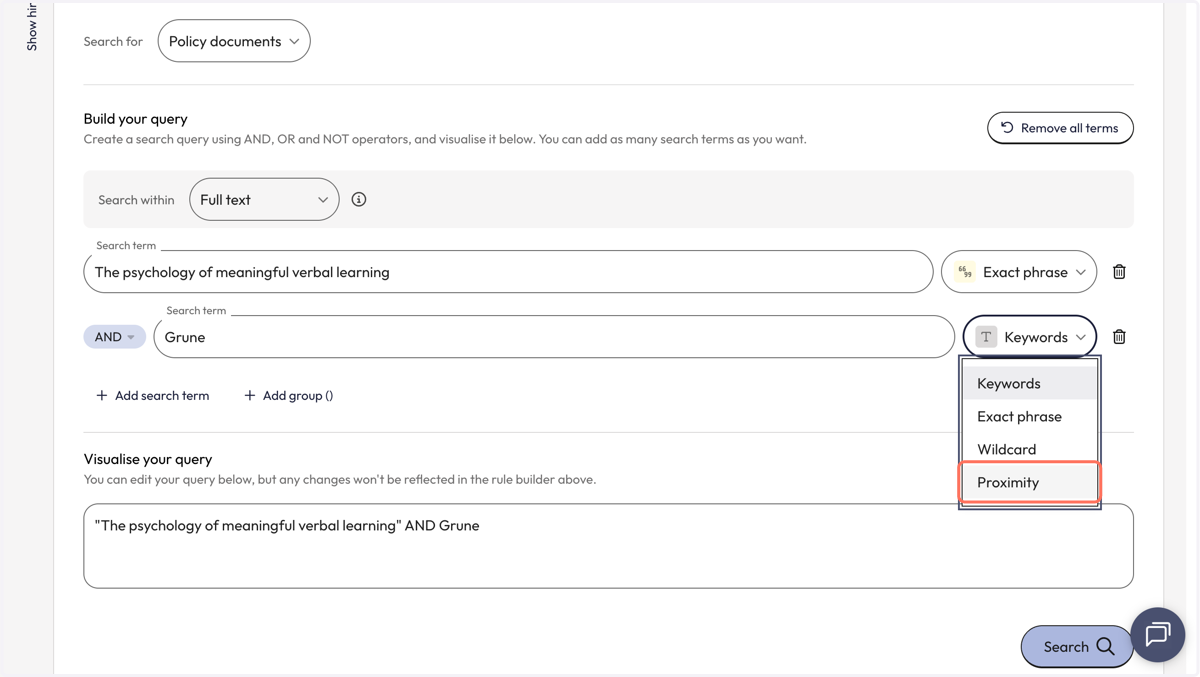
14. Select 'Proximity' and then enter the number of words you want in-between the title and the author's name.
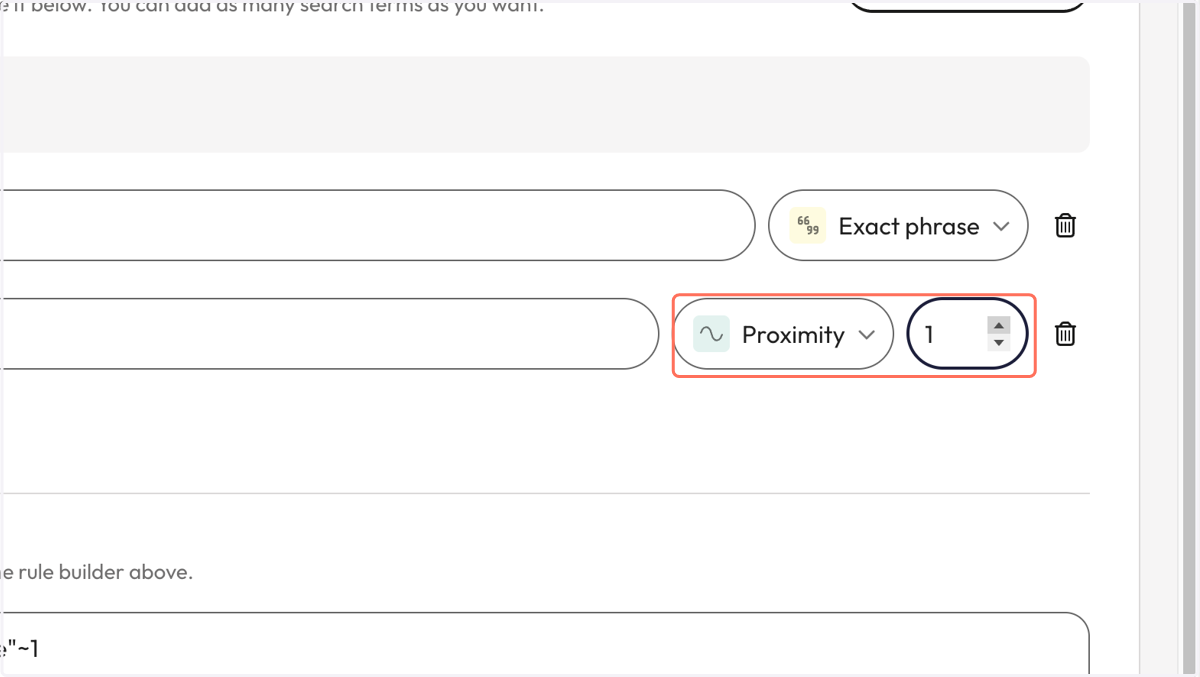
15. Notice how your query has changed in the 'Visualise your query' bar. Click 'Search'
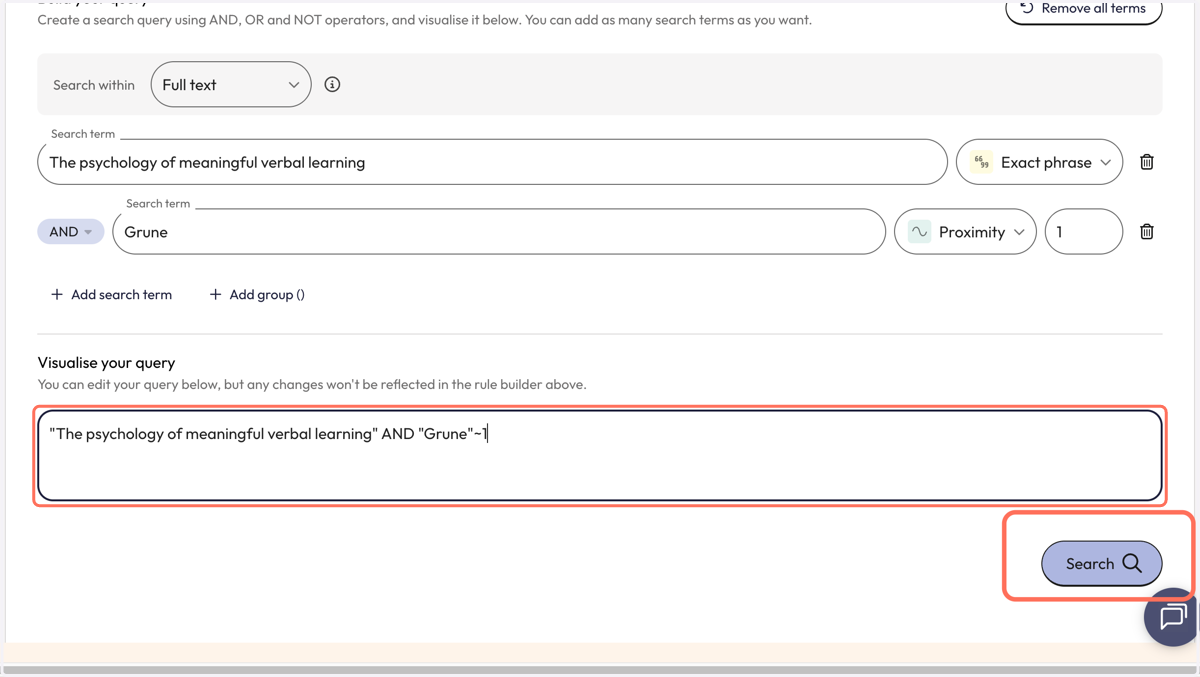
16. You will be brought back to the results page where you will likely have fewer results than you originally did. Both search terms will be highlighted.