Tutorial | CAAC Conduct Conversation and Contact Information
💁🏻♀️ Advantages
Understand how agents conduct the basic features in CAAC, e.g reply to contacts, review the contacts' data and change the status.
➤ Plan Availability
All CAAC plans.
➤ Conduct Conversation
1. Attaching Files, Using templates, and emojis
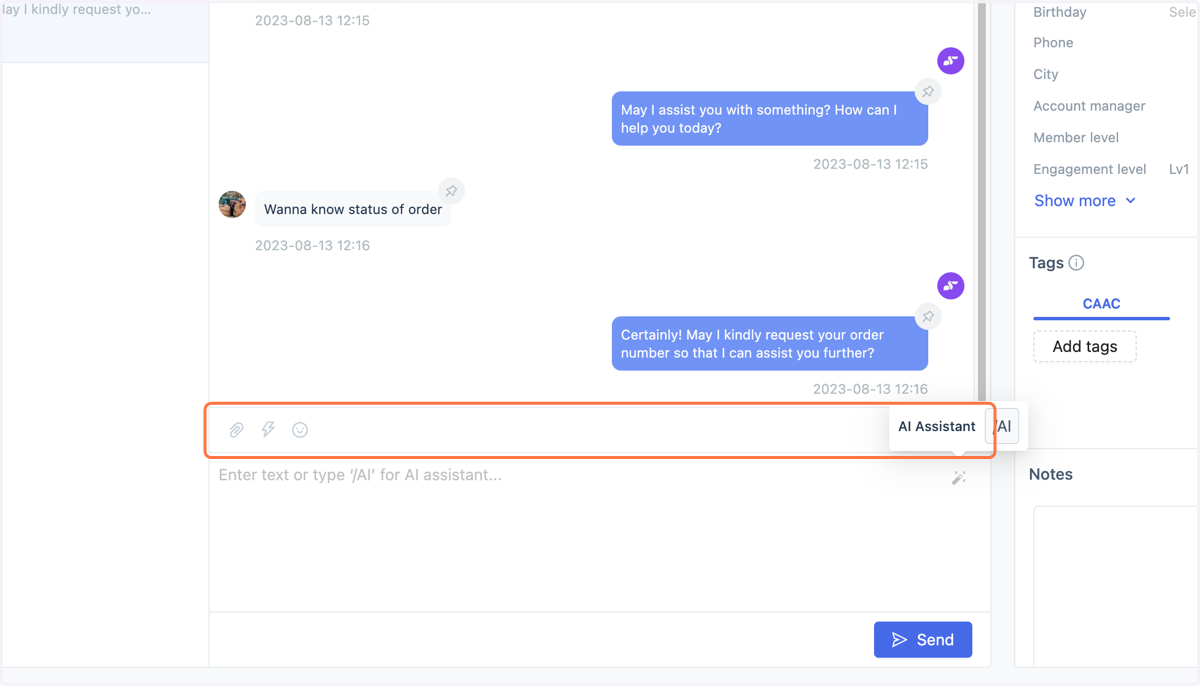
Use the buttons in the toolbar above the input box to attach files, access quick templates, and use emoji symbols.
🔍 Pro Tip: We support videos, PDFs, Word, and Excel files, with a maximum file size of 100 MB. You can select multiple files at once (unlimited quantity). You can also copy and paste images directly into the input box or drag and drop/select multiple images at once. Before sending, the system will provide a preview and allow you to adjust the display order.
2. Attached Image Preview
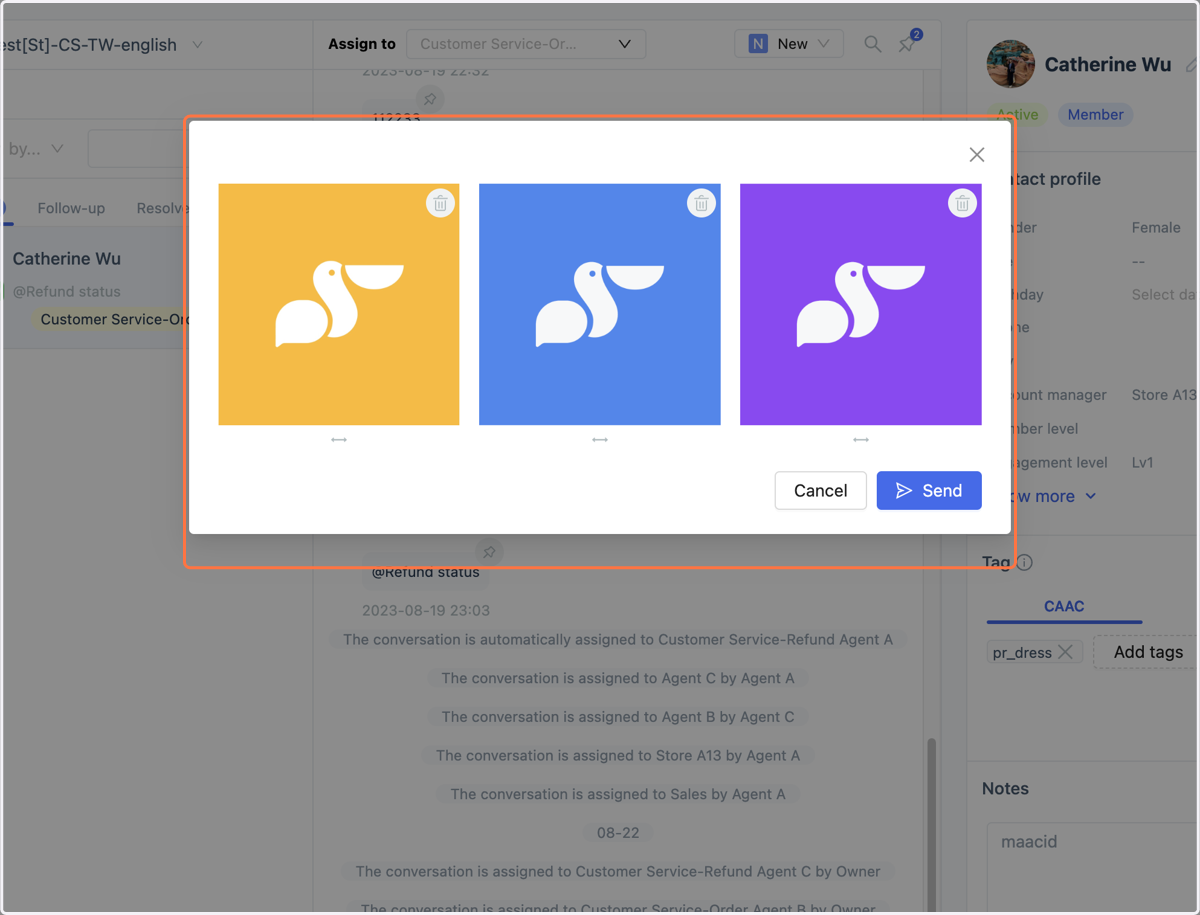
You can adjust the order of multiple images displayed below the images by dragging the handle underneath.
3. AI Expansion Assistant
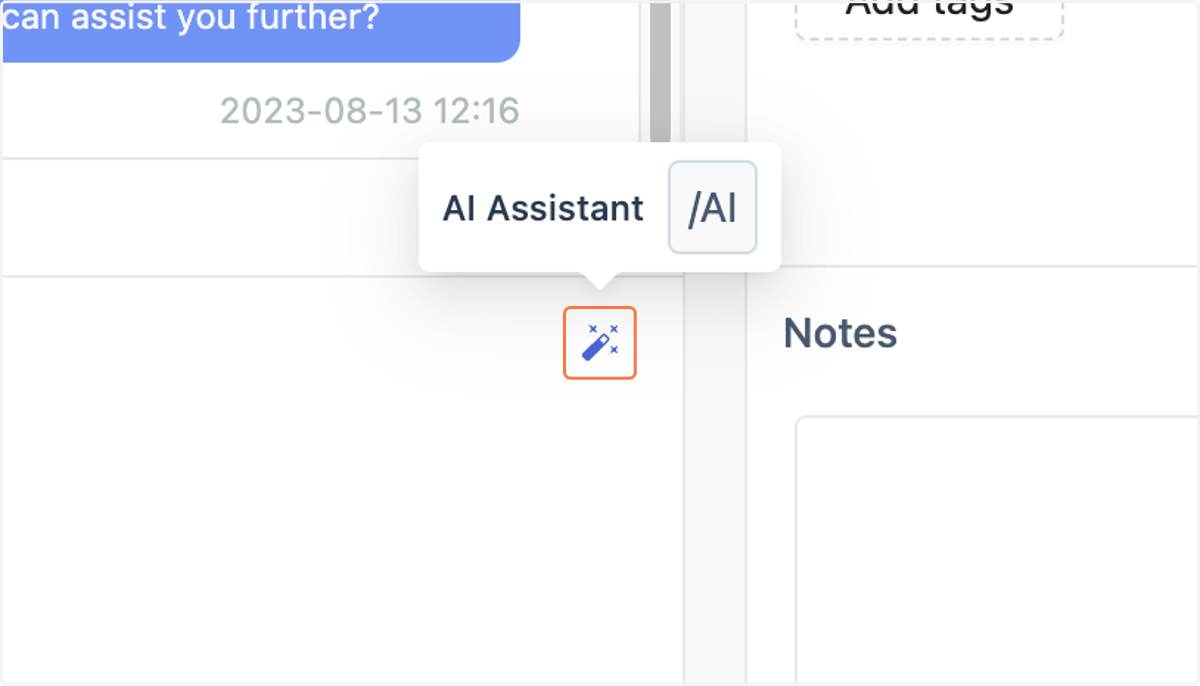
Need help expanding with the AI assistant? Just enter keywords (e.g., "Please ask") and click the magic wand icon in the top-right of the input box to easily call the AI assistant for expansion (the results of entering the keyword "Please ask" are shown
4. AI Recommendation Template
Effortlessly reply to 50% of inbox messages with AI recommendations! After engaging in a conversation with a contact, you will see a purple lightning icon above the chat feature. It will automatically display templates tailored to the contact's inquiries. Once you select a template, you can edit it without affecting the original template.
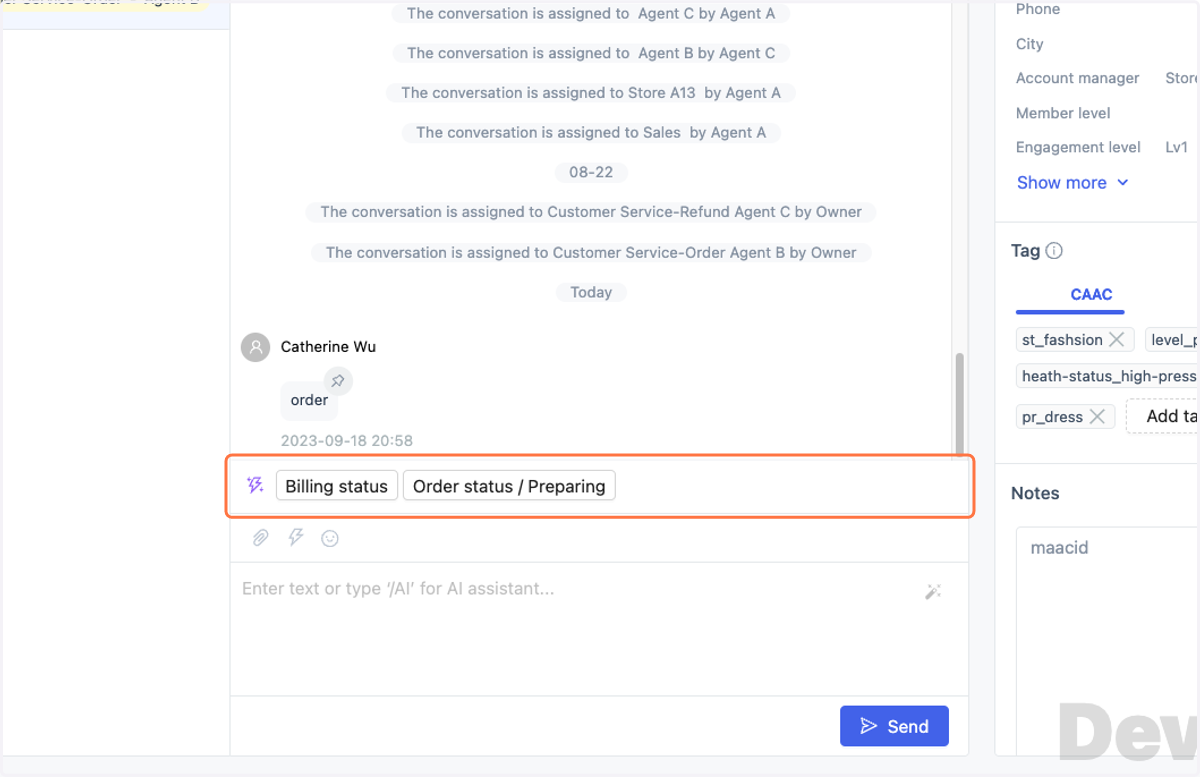
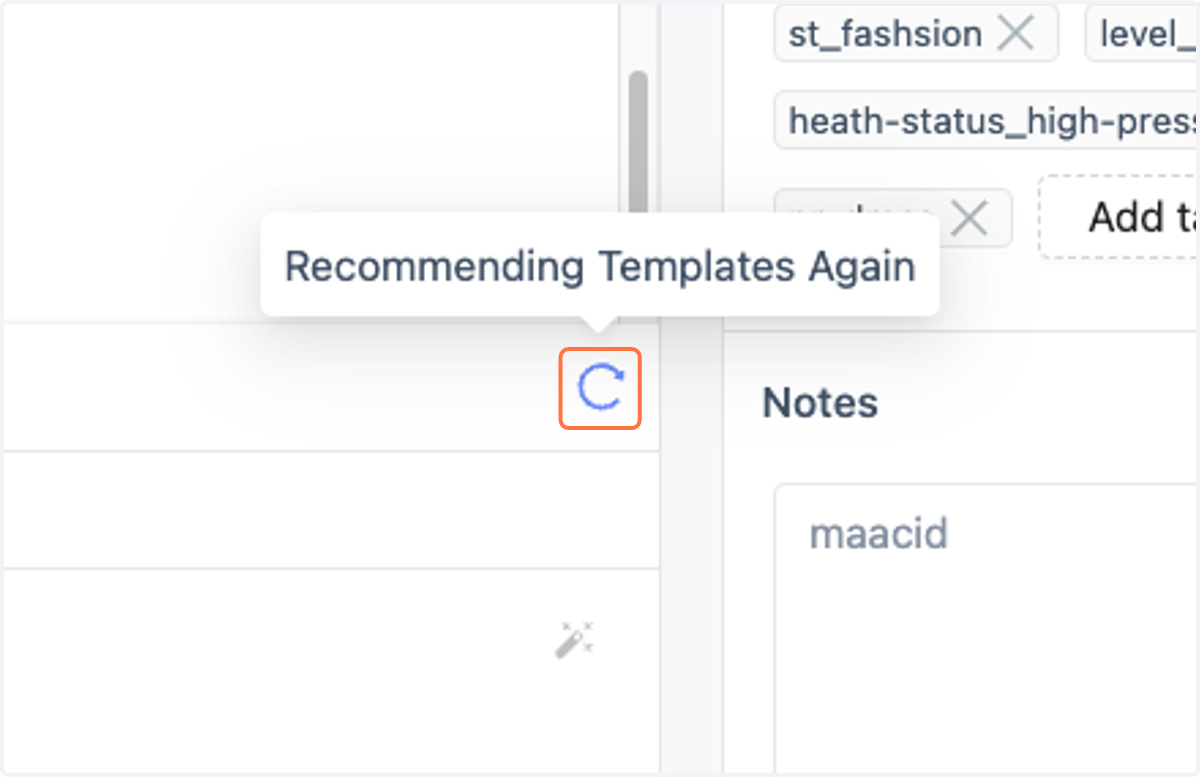
5. AI Recommendation Template - Recommending Again
During a conversation, if the contact has new inquiries, clicking the refresh icon allows the system to provide updated recommendations.
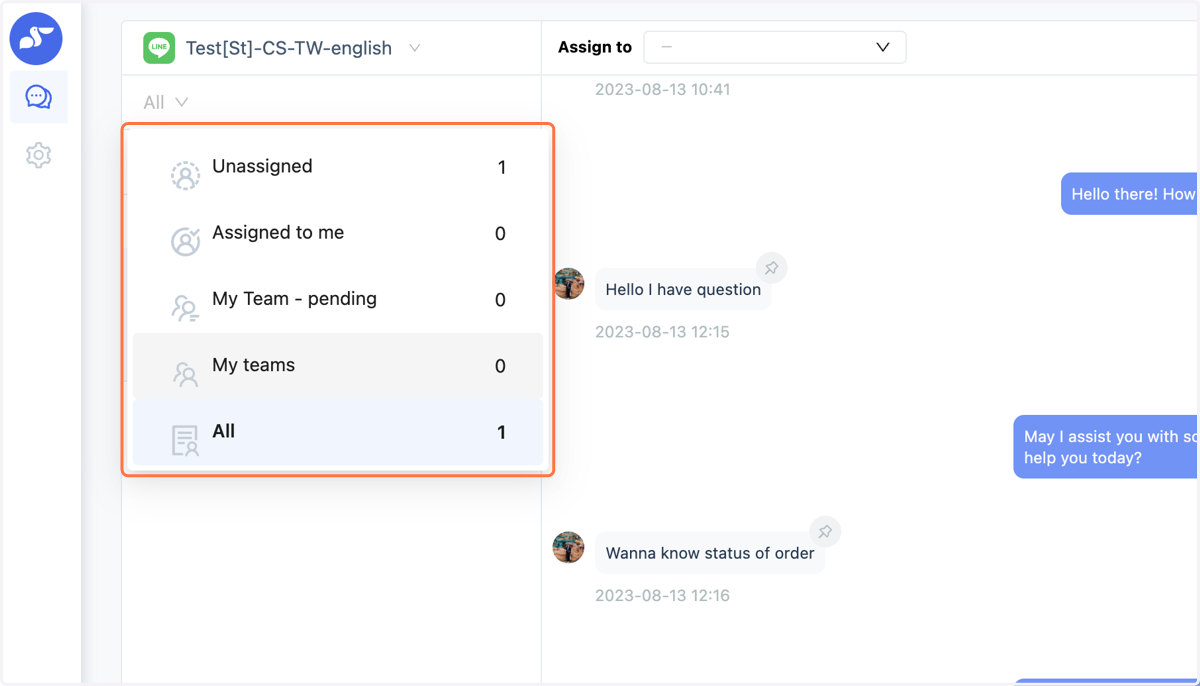
6. Switching Assignment Categories
The dropdown menu in the top-left corner of the assignment category allows you to view unassigned, assigned to me, and team conversations or all conversations.
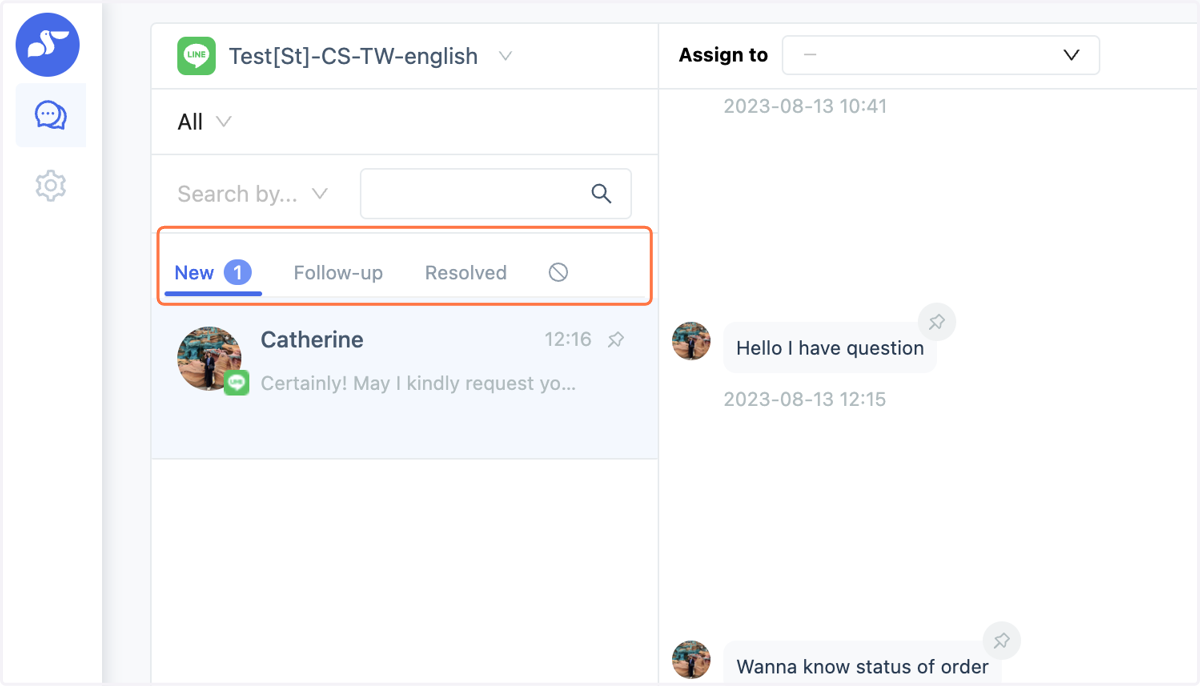
7. Switching Conversation Status Categories
In the conversation list, you can switch between new, follow-up, resolved, and blocked conversations using the status tabs at the top.
8. Search Functionality
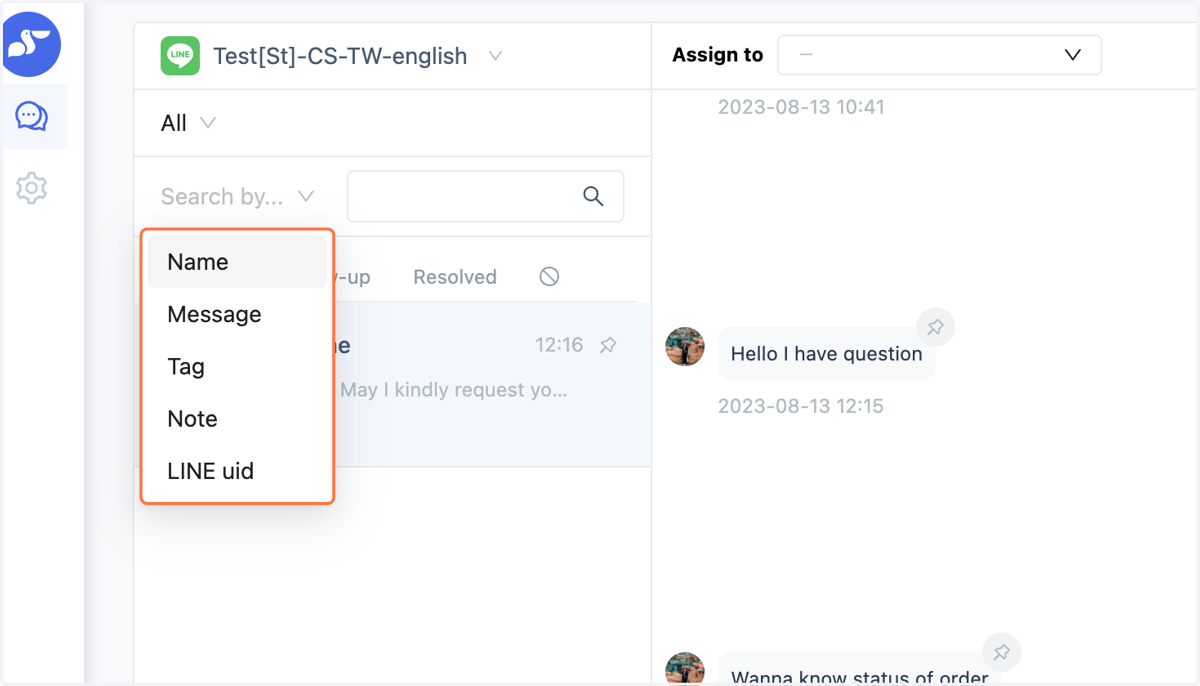
In the conversation list, you can use keywords to search for names, messages, tags, and notes.
In the conversation window, you can use keywords to search for words in the conversation content that match the search term.
9. Pinning Important Contacts
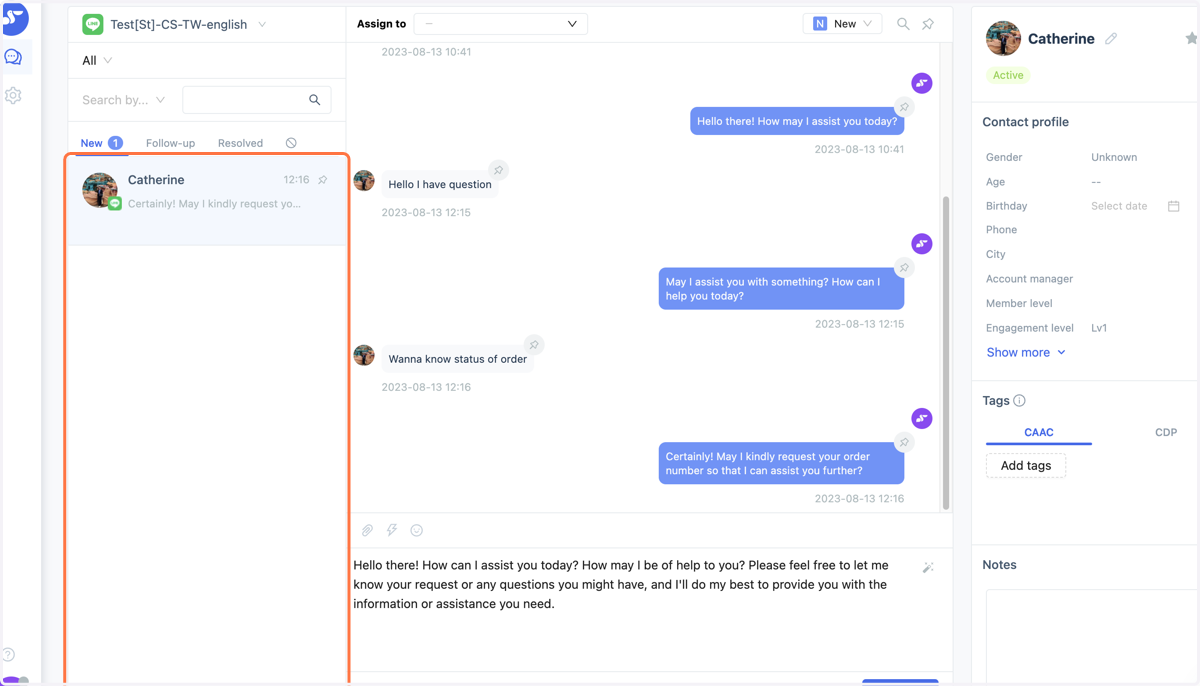
Click the pin icon at the top right of the conversation list to pin important contacts. Pinned contacts will be displayed at the top.
10. Assignment Functionality
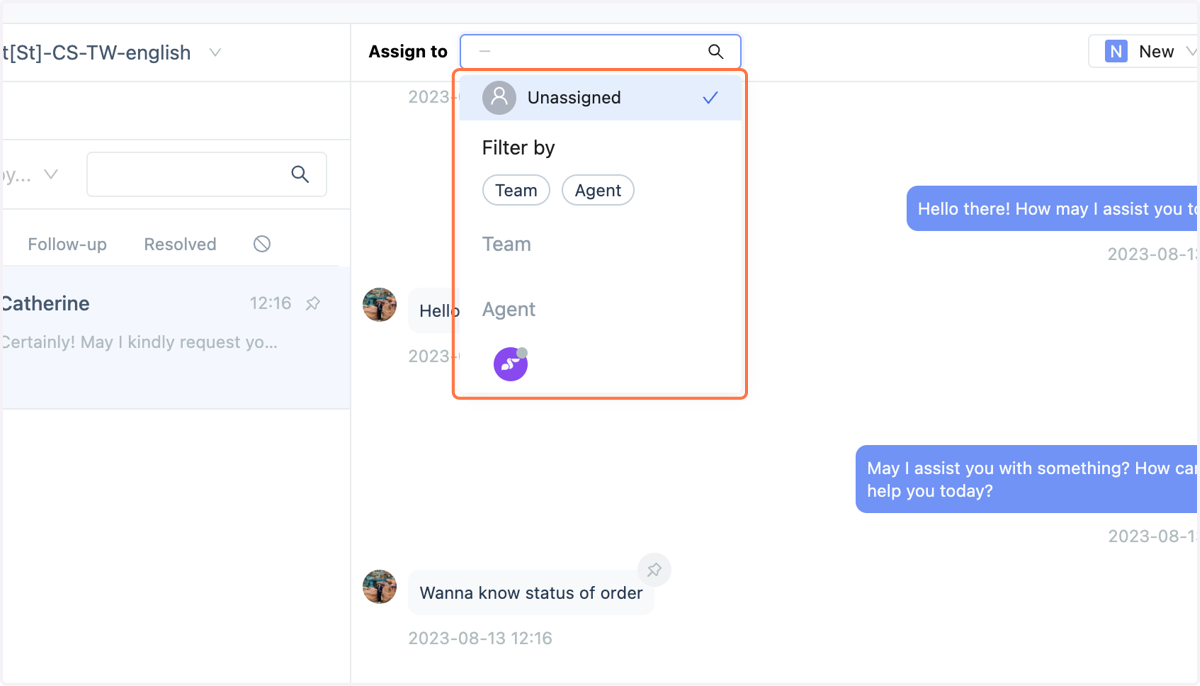
At the top of the conversation window, you can assign conversations to different targets. Use filters to quickly assign to teams or specialists.
11. Switching Conversation Status
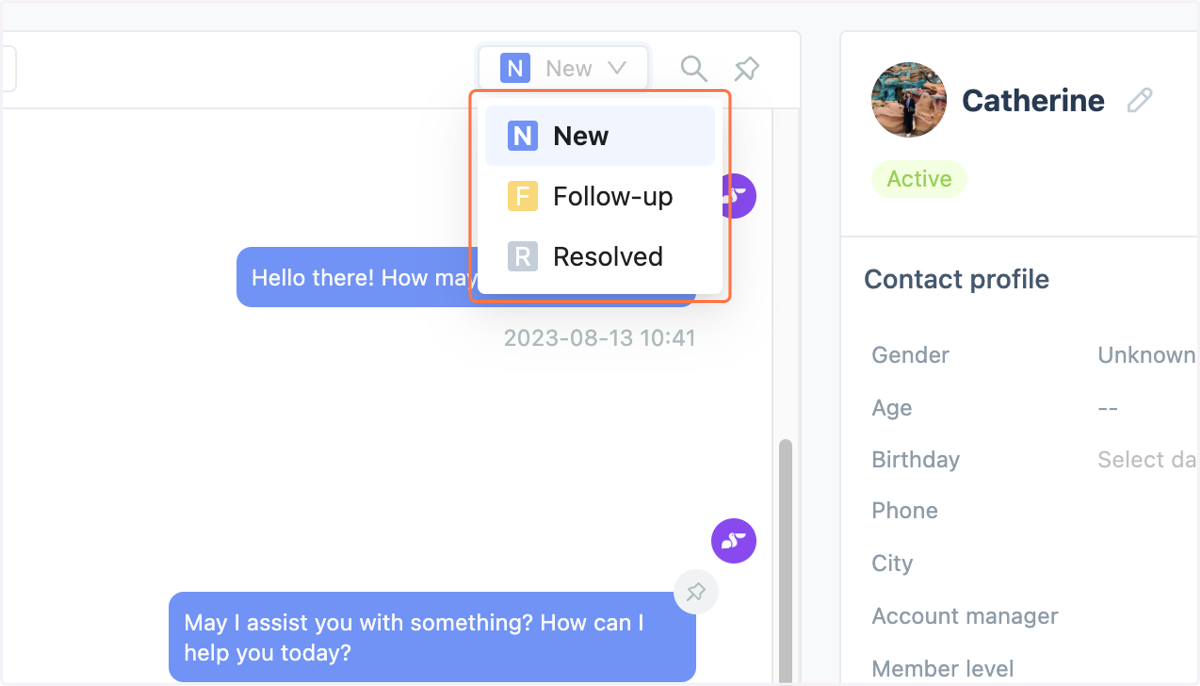
Click the status dropdown menu at the top right of the conversation window to change the current conversation status.
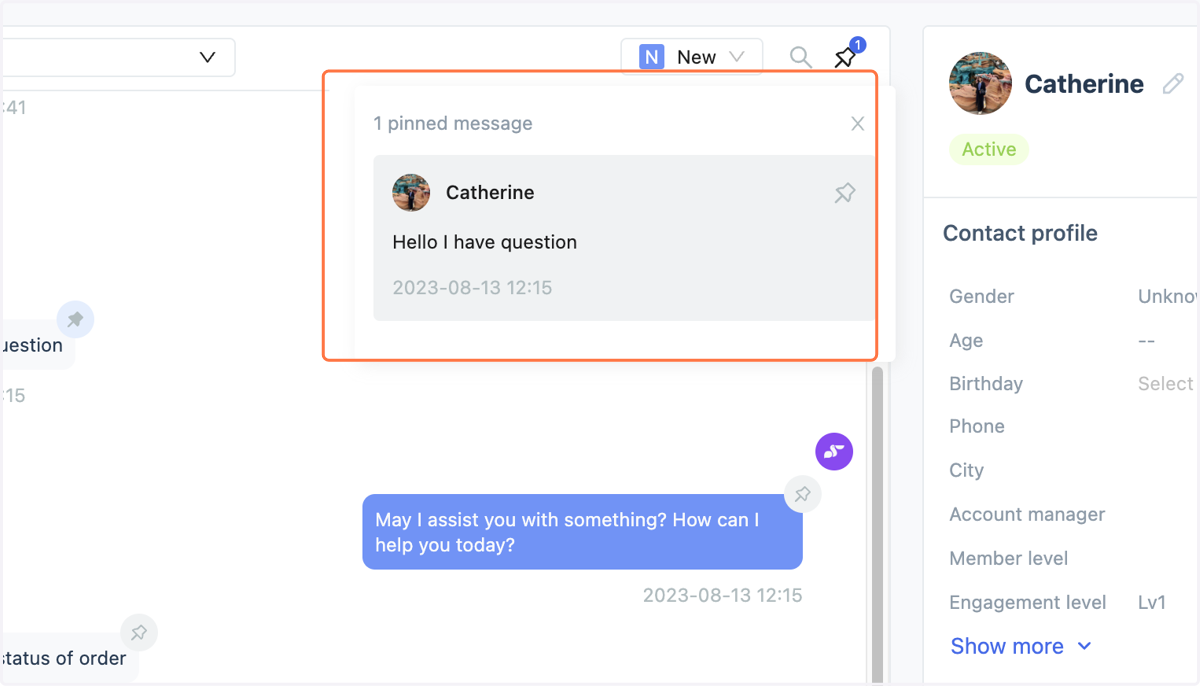
12. Viewing Pinned Messages
Click the pin icon to view important messages that have been pinned in the conversation with that contact.
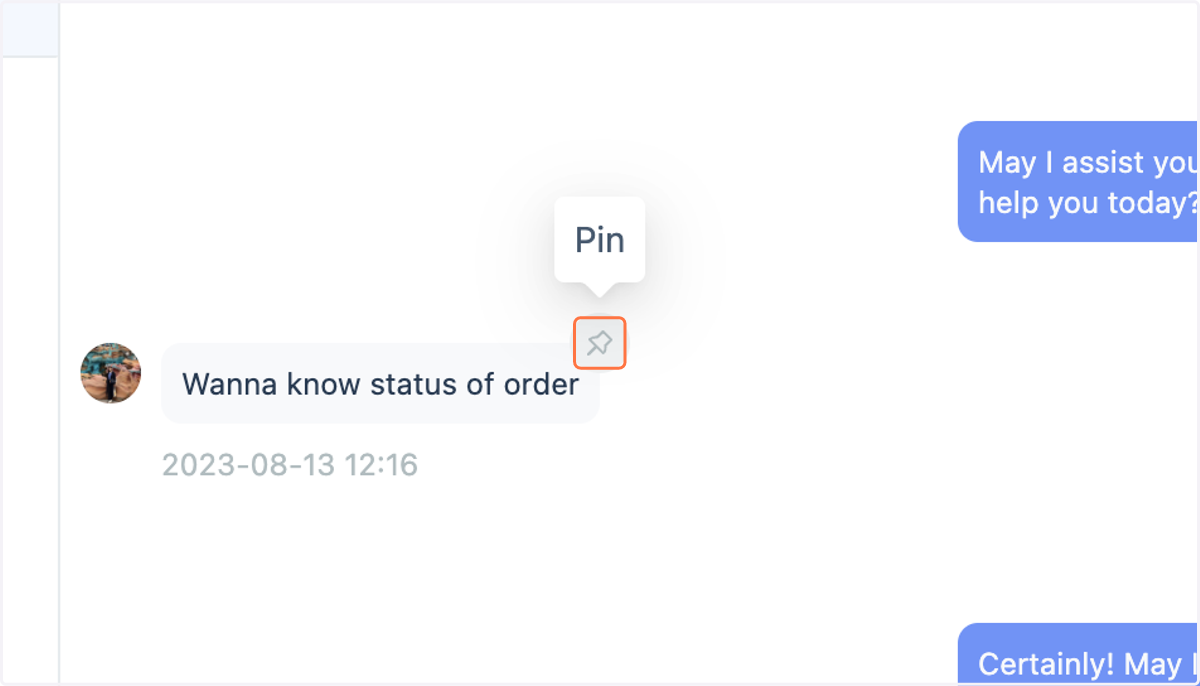
13. How to Pin Messages
There is a pin icon at the top right of each message bubble. Click it to pin the message. You can pin up to 20 messages in each conversation.
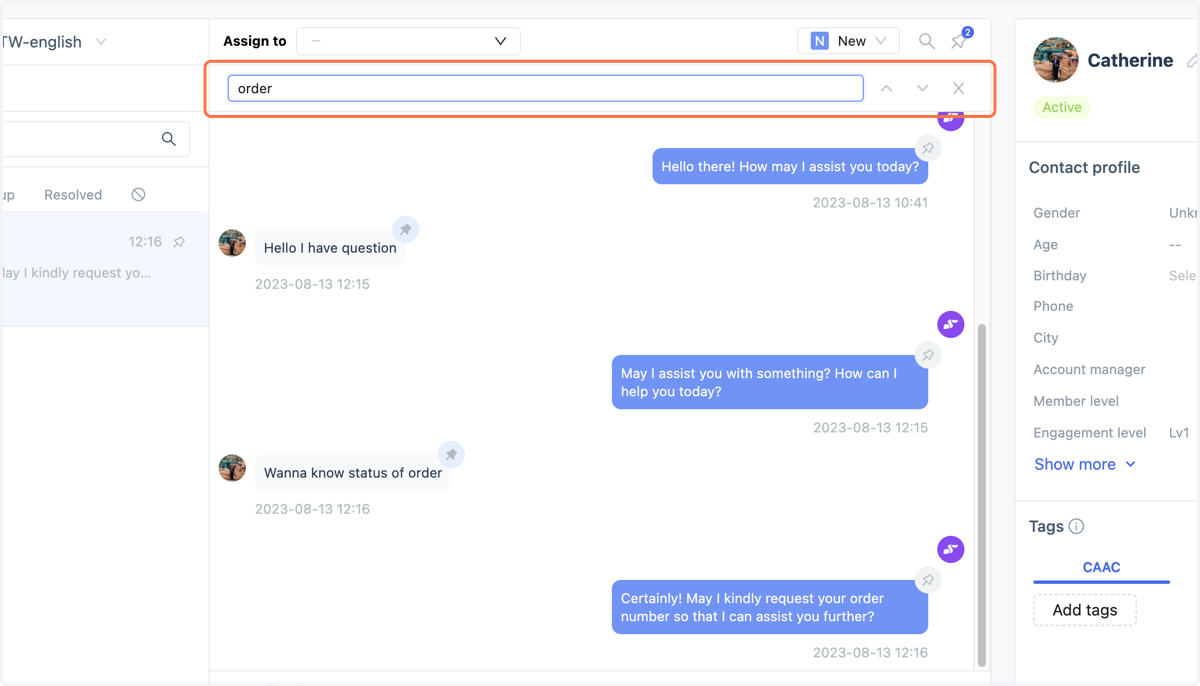
14. Search Current Conversation
Click the magnifying glass icon to search for messages relevant to the conversation history with that contact using keywords.
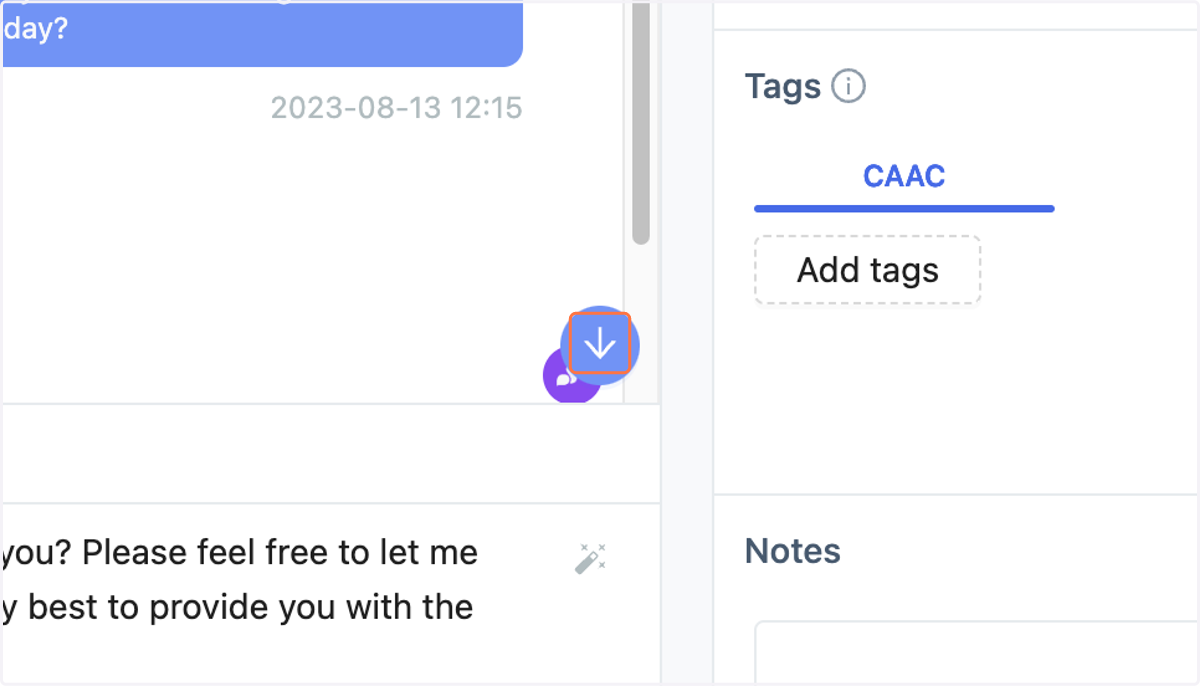
15. Return to Latest Messages
When scrolling through the message history, a blue downward arrow button will appear at the bottom right of the conversation window. Click it to return to the latest conversation messages.
Batch Transfer of Conversation States
16. Access the CAAC conversation list.
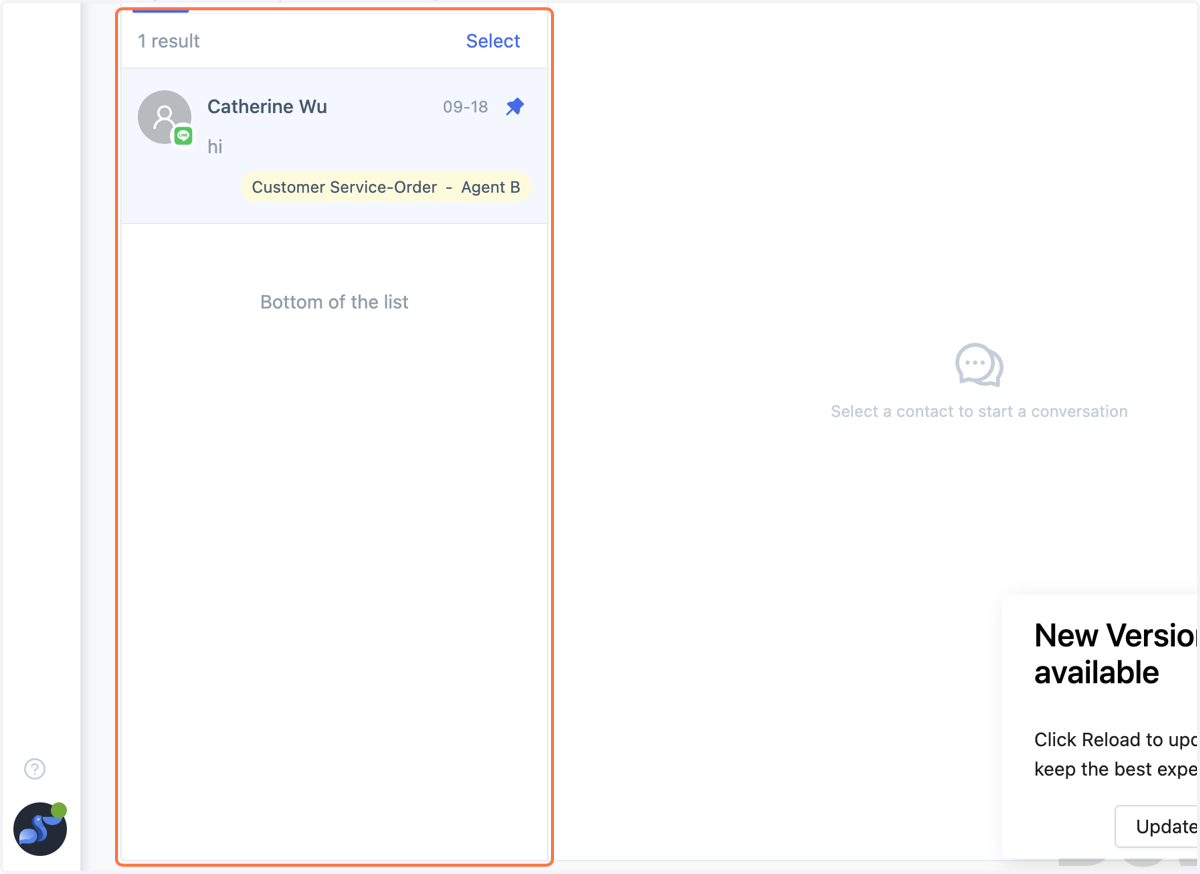
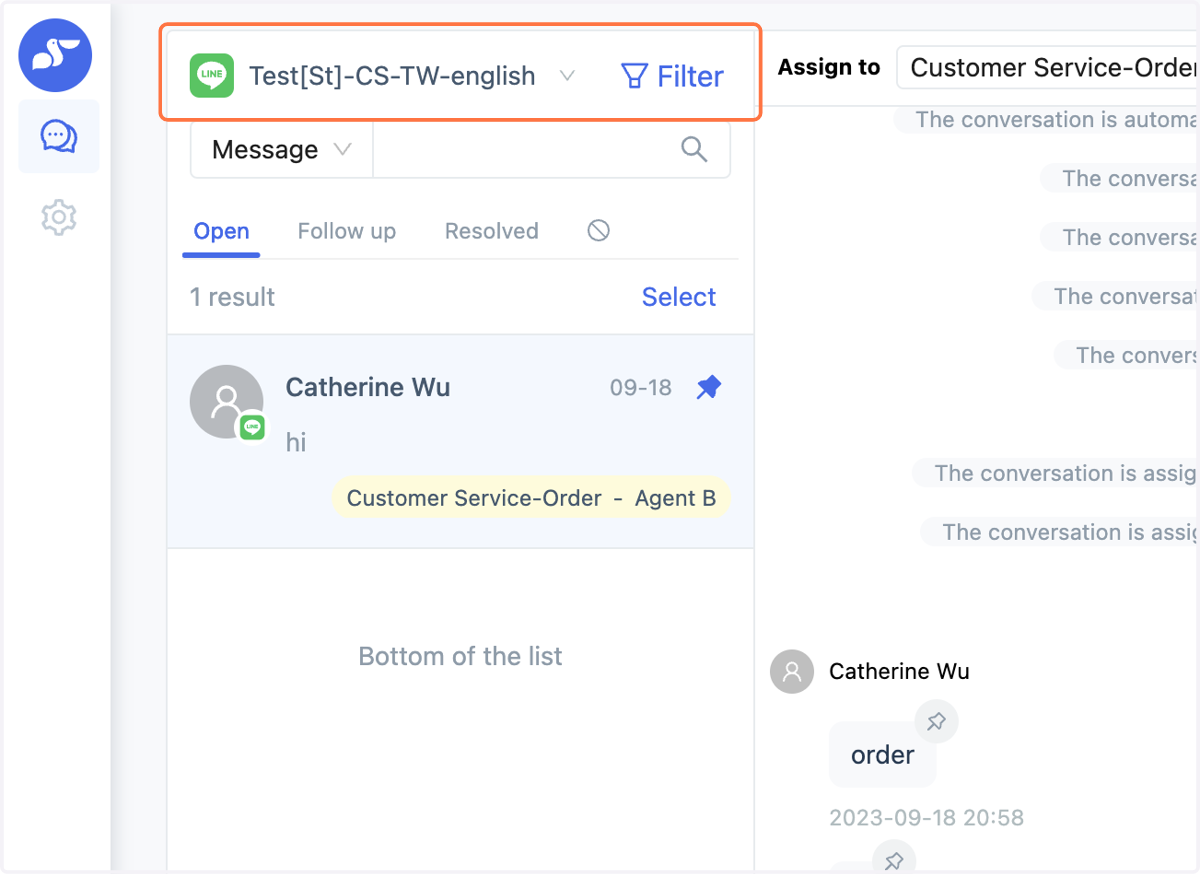
17. Filter Condition 1: Conversation Assignment Recipient
Click on the "Filter" in the top right corner to filter by "Conversation Assignment Recipient."
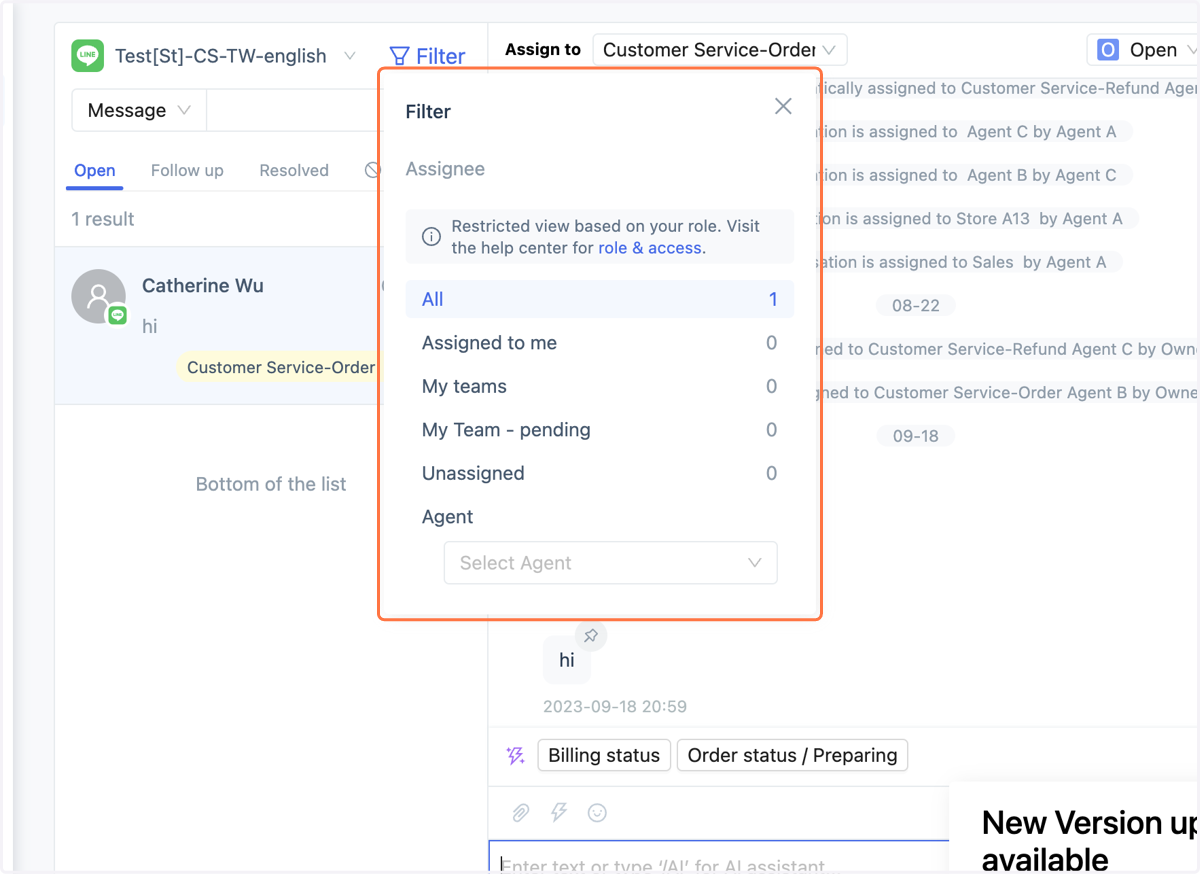
18. Filter Condition 1: Conversation Assignment Recipient
You can choose options like [All], [Assigned to Me], [My Team], etc., to filter conversations based on the assignment recipient.
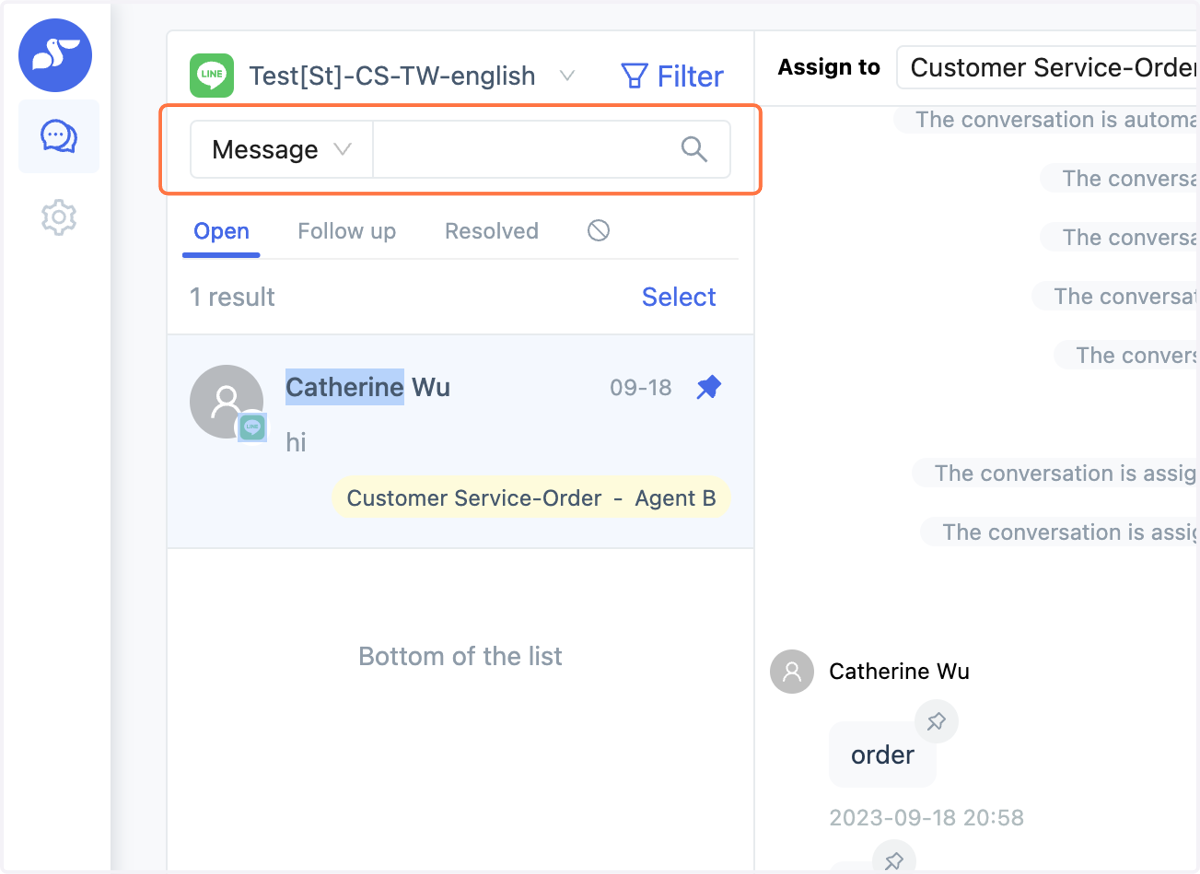
19. Filter Condition 2: Search Conversations
You can search for conversations based on the search criteria. After the search is complete, you can click on [Select] below to choose the corresponding conversations.
20. Select [Conversations to be Adjusted].
![Select [Conversations to be Adjusted].](https://images.tango.us/workflows/4df42c24-19ab-475a-a0cd-34487048919e/steps/3977ccd2-1689-4ed8-9606-49aa06e4f082/9c421824-7182-4fd3-8ba7-e60c59a2f7ea.png?fp-x=0.3396&fp-y=0.2038&fp-z=2.7785&w=1200&border=F4F2F7&bx=672&by=290&bw=130&bh=64&c=FF7442&dpr=2.00)
21. Select [Conversations to be Adjusted].
After clicking select, all conversations will be pre-checked by default. You can manually check the conversations you want to adjust.
(You can check up to 100 conversations at a time.)
![Select [Conversations to be Adjusted].](https://images.tango.us/workflows/4df42c24-19ab-475a-a0cd-34487048919e/steps/3f0435db-2e16-41b0-ab4b-7ec533467373/9f60c8f9-3b59-4172-a523-fdc87342fb4b.png?fp-x=0.2304&fp-y=0.5785&fp-z=1.2098&w=1200&border=F4F2F7&bx=174&by=274&bw=652&bh=1280&c=FF7442&dpr=2.00)
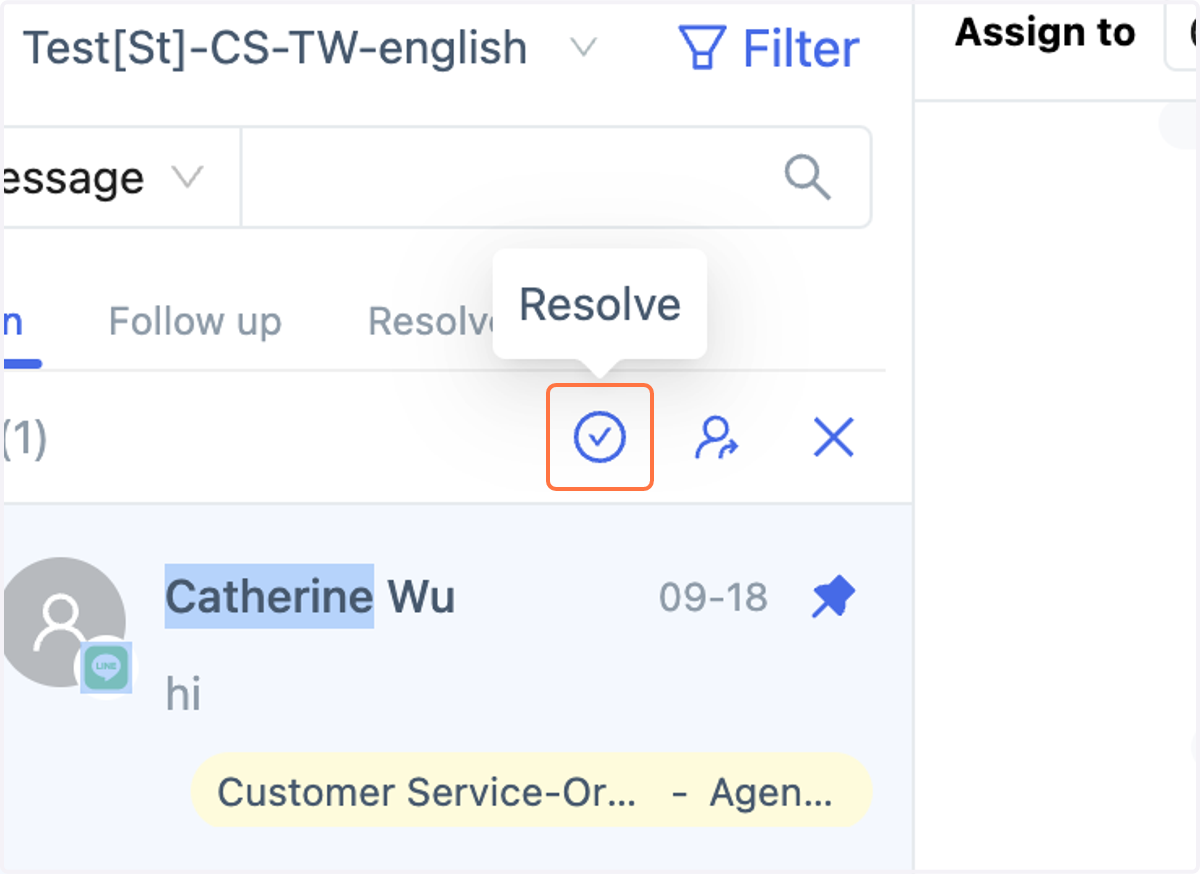
22. Transfer the conversation status to "Resolved."
After confirming the selected conversations, click on the ☑ Mark as Resolved option at the top.
23. Conversations marked as "Resolved."
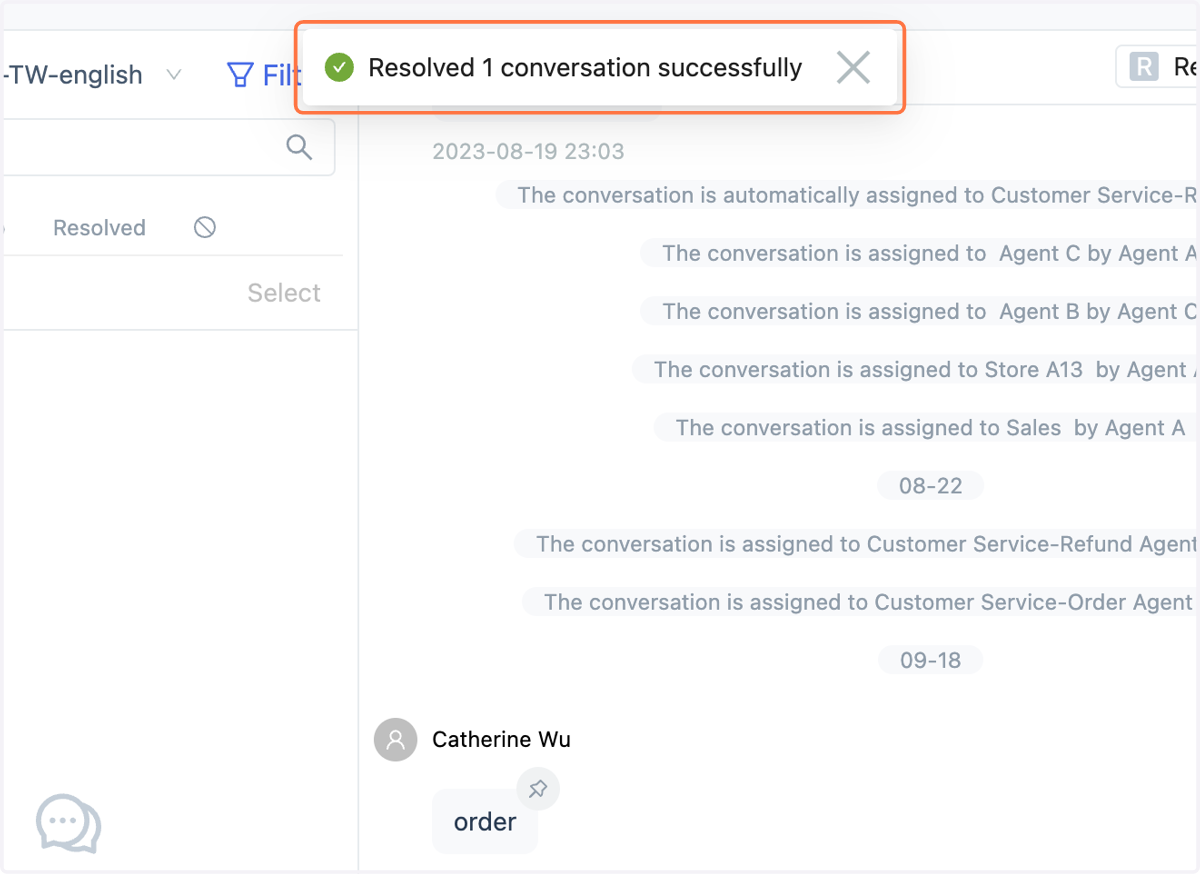
24. Conversations marked as "Resolved."
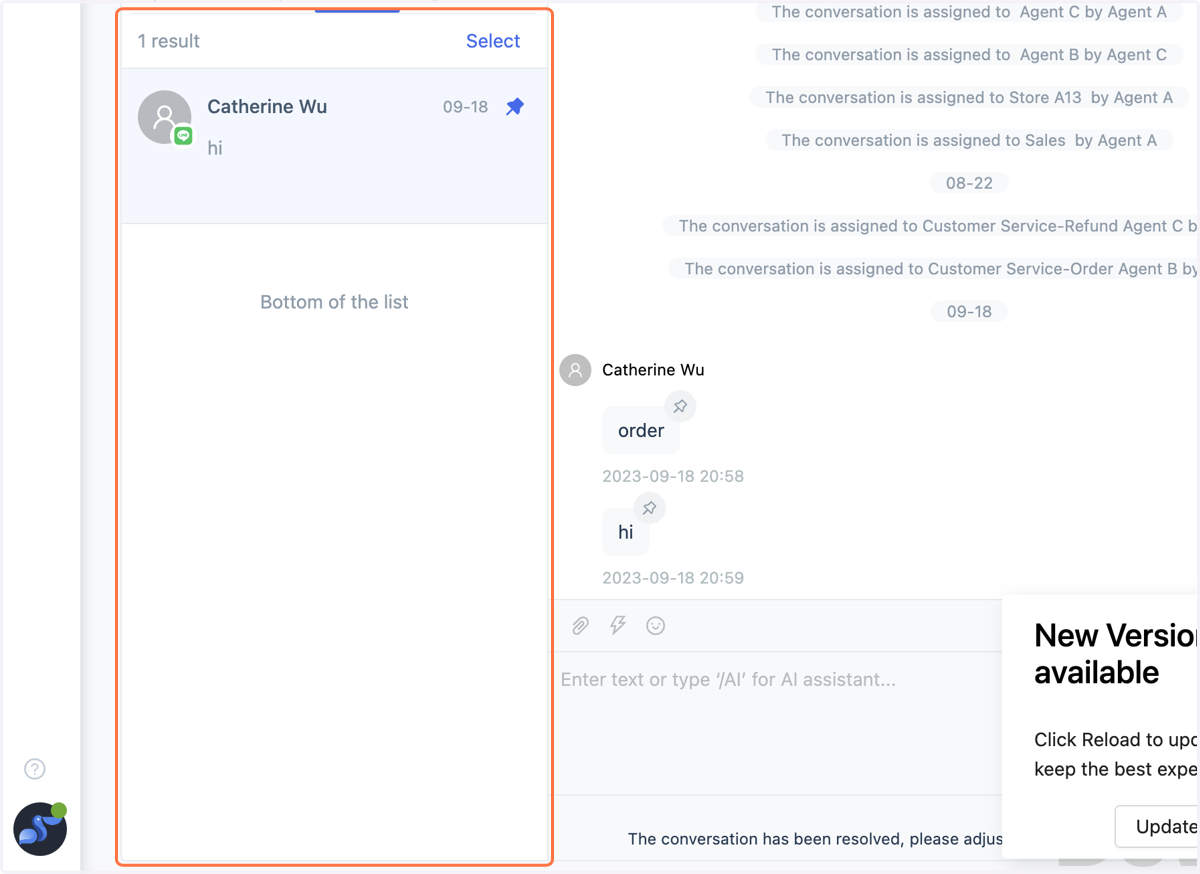
Conversations have been transferred to "Resolved."
➤ Contact Information
CAAC New Feature Update! You can now batch transfer conversation states! Please follow the steps below to proceed. 👇🏻
25. Contact Name, attributes, star marking, blocking
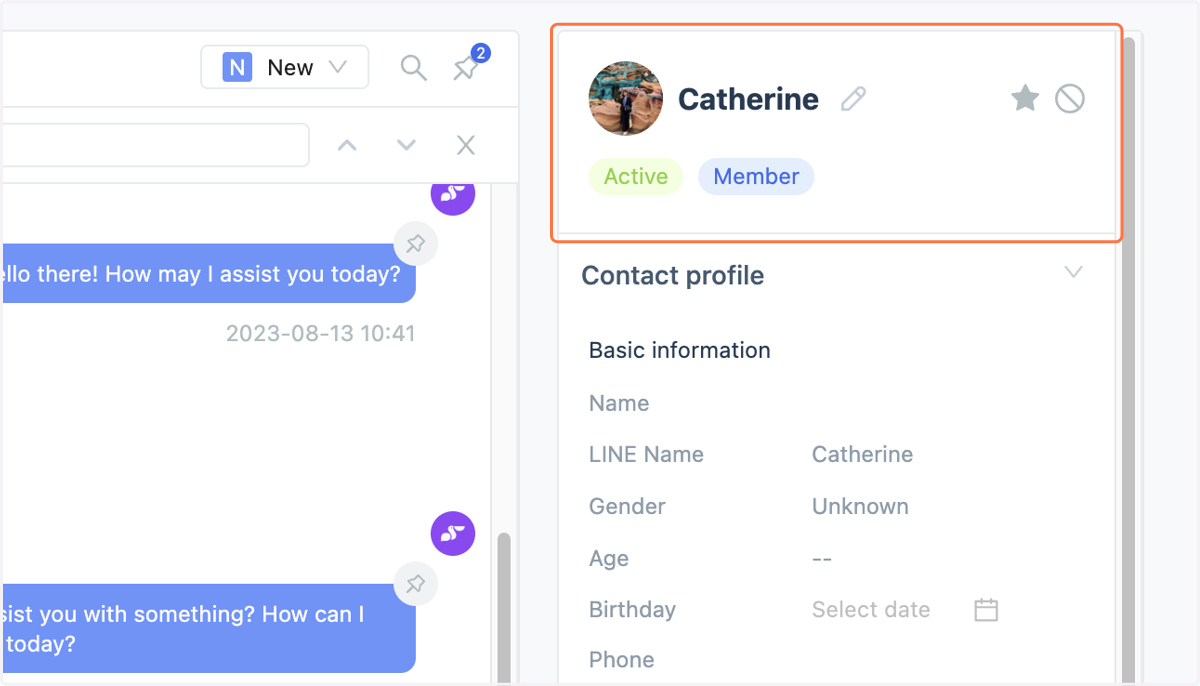
View and edit the contact's name. Different attribute labels will appear below the contact's name, such as "Valid" or "Member" (the system determines membership based on whether the contact's Customer ID has a value). The star icon in the top right can be used to mark important contacts, and the block icon can be used to block problematic contacts.
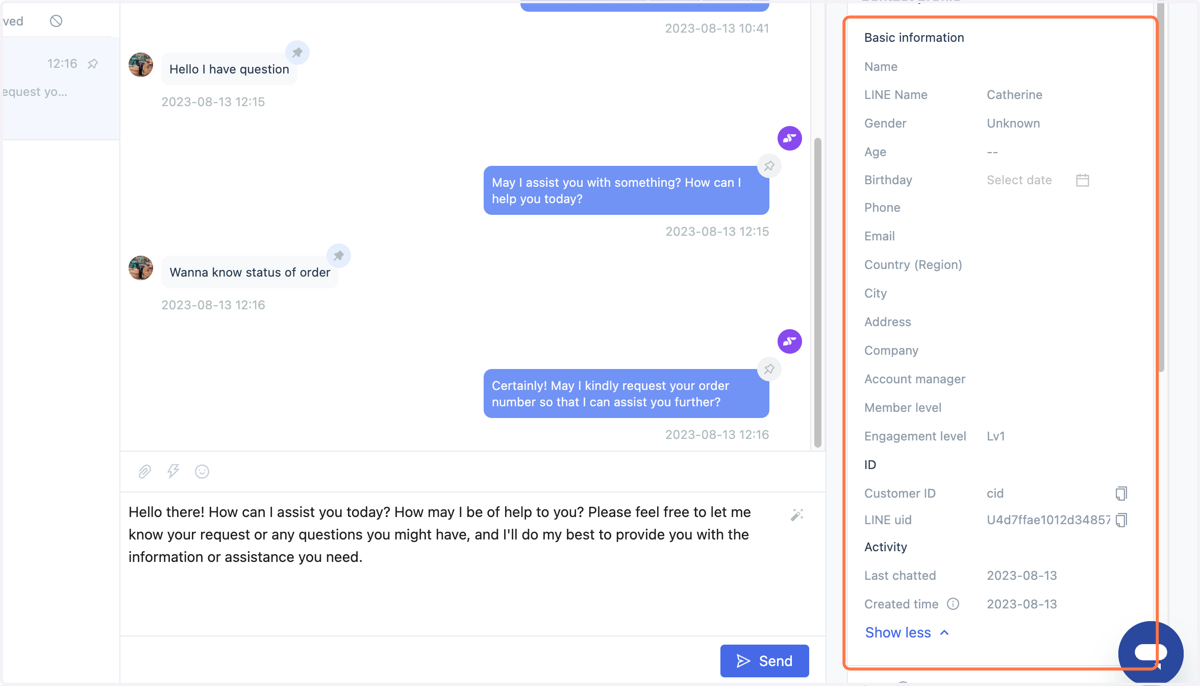
26. Contact Information Fields
Click to expand and view or edit the contact's relevant information fields. Some information fields, such as LINE Name, Age, and Engagement level, derive from the original LINE data, while Age and Interaction Level are inferred by the system.
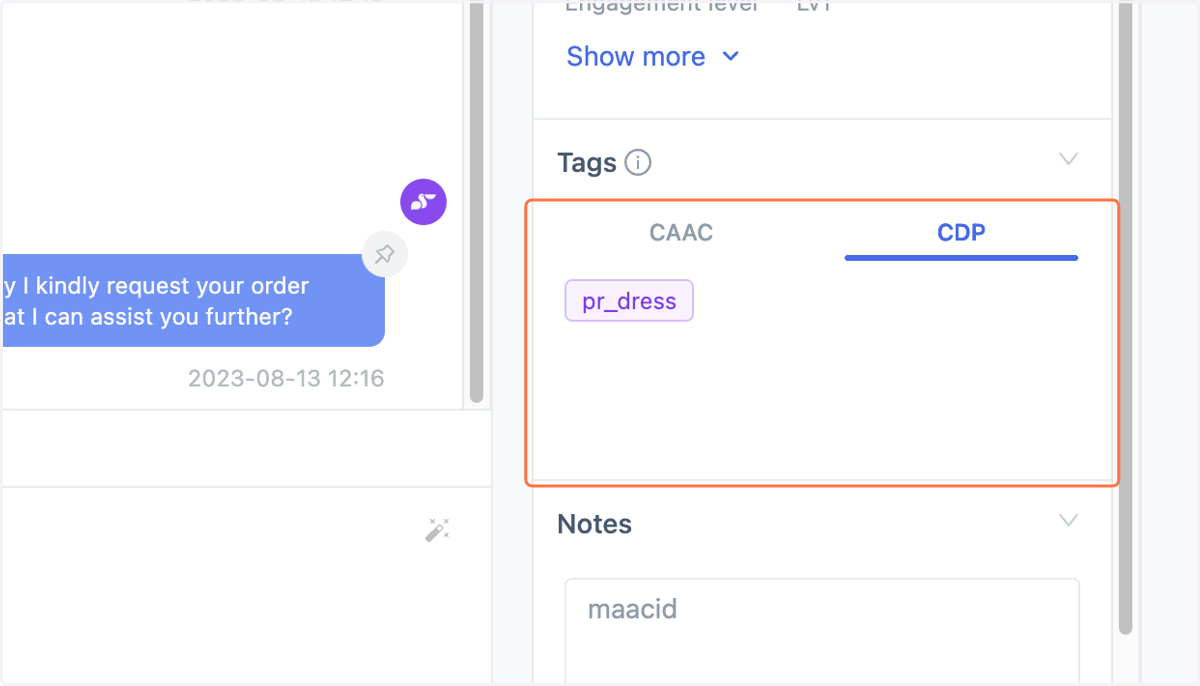
27. Contact Tag Data
The tag field will display relevant tag data associated with the contact.
28. Contact Notes Field