How to Add a Single Shift
DCS | Schedule
Go to https://facility.directcaresource.com/#/schedule/calendar
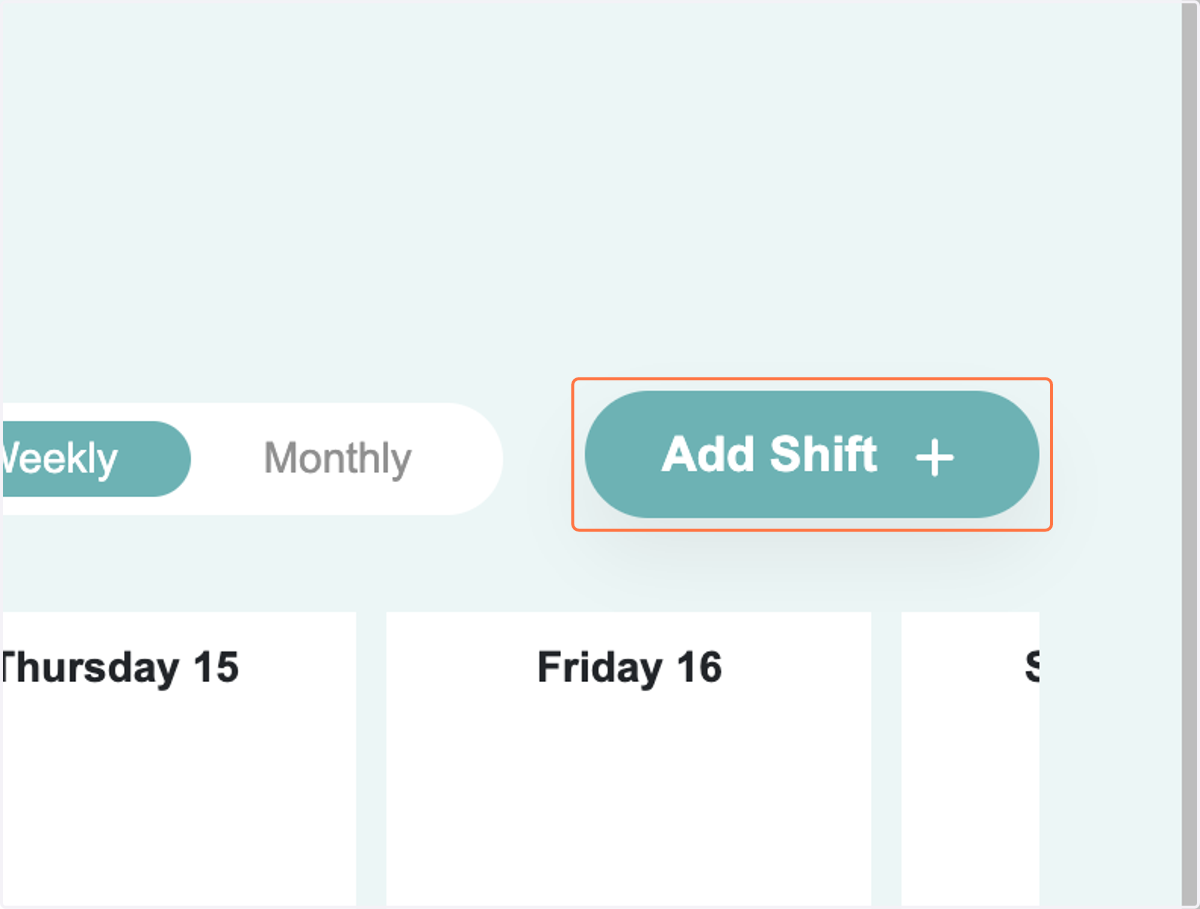
1. Click on Add Shift
2. A panel will open on the side of your screen.
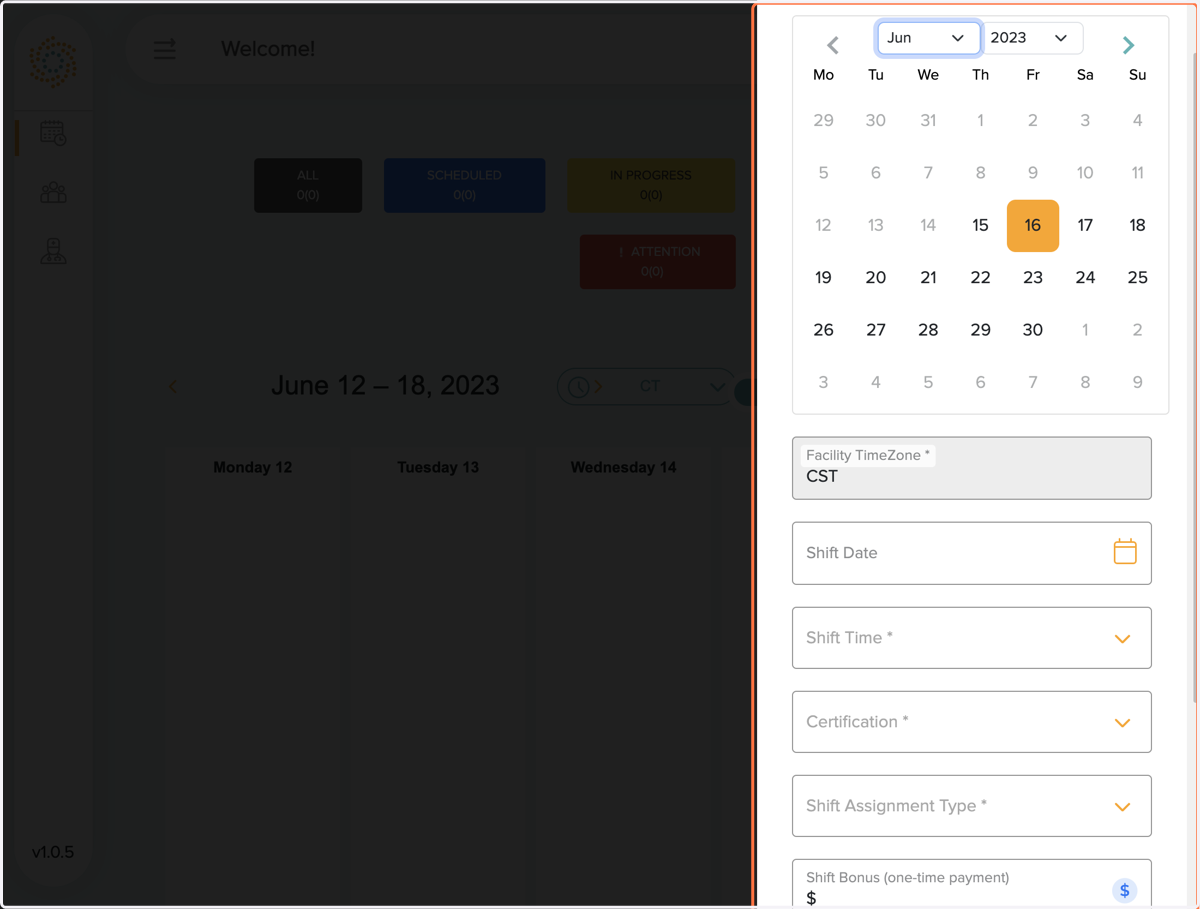
3. Today's date will be shown on the calendar with the orange square.Click on the date you want to create the shift for.
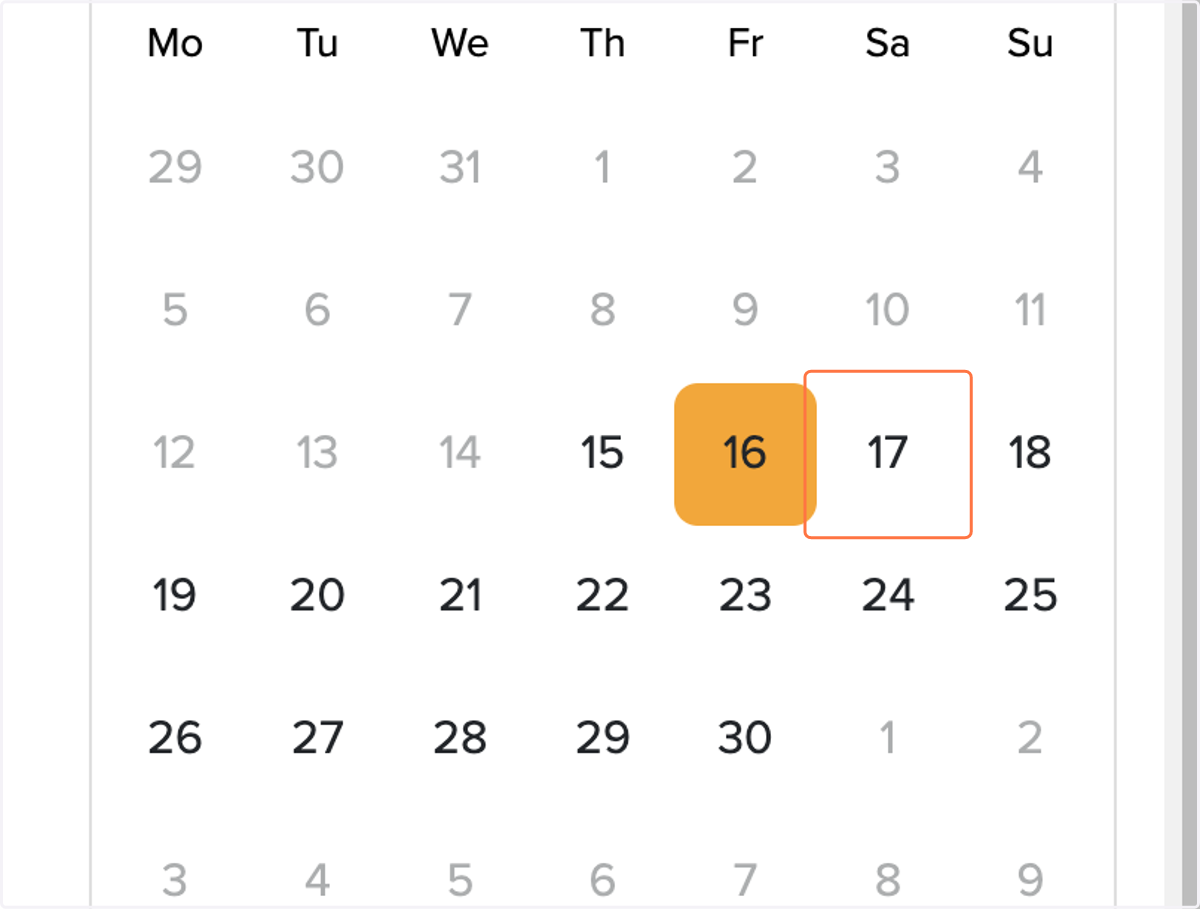
4. The date selected will now show as a teal square on the calendar, and will auto populate the Shift Date text box
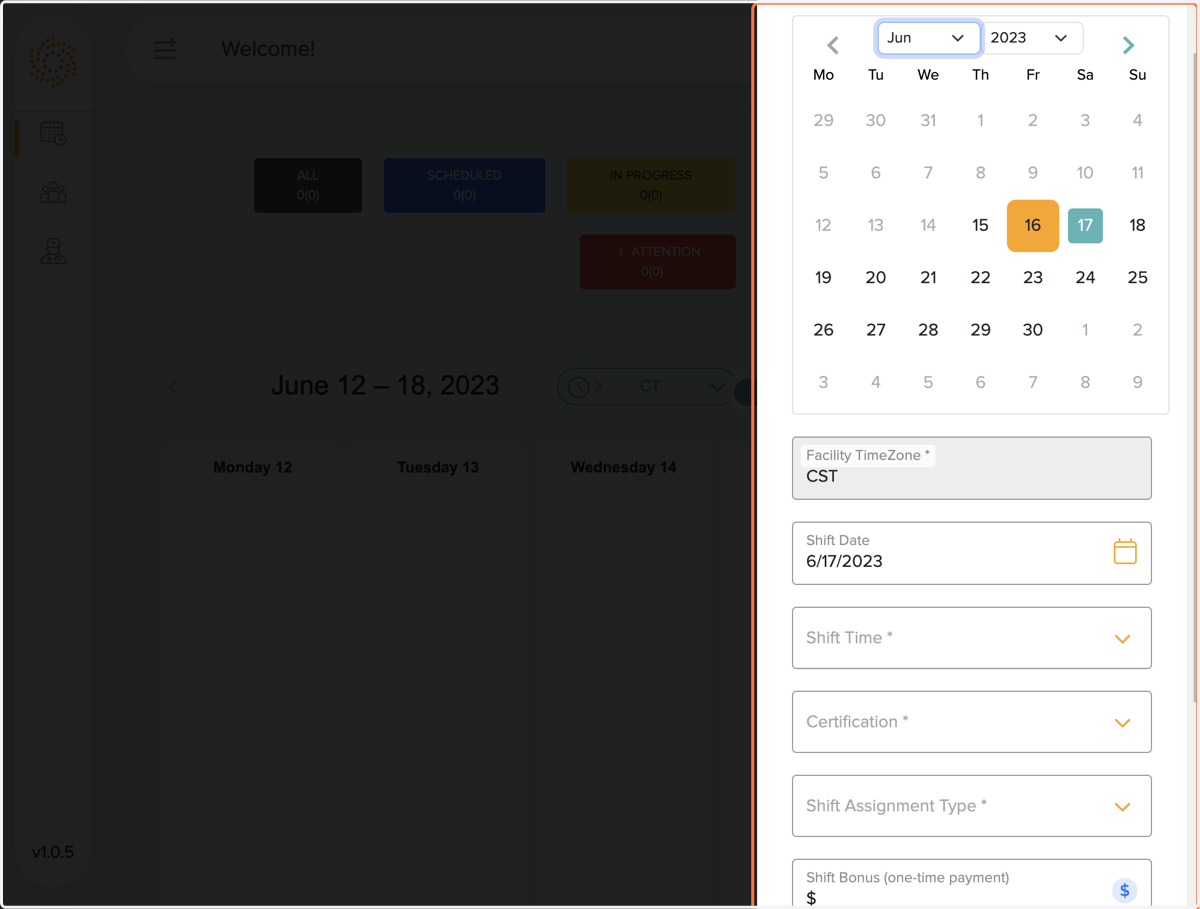
5. Next, select the shift time from the drop down. The most common shift types are selected. If you need a shift that is not listed here, select the "Custom" option.
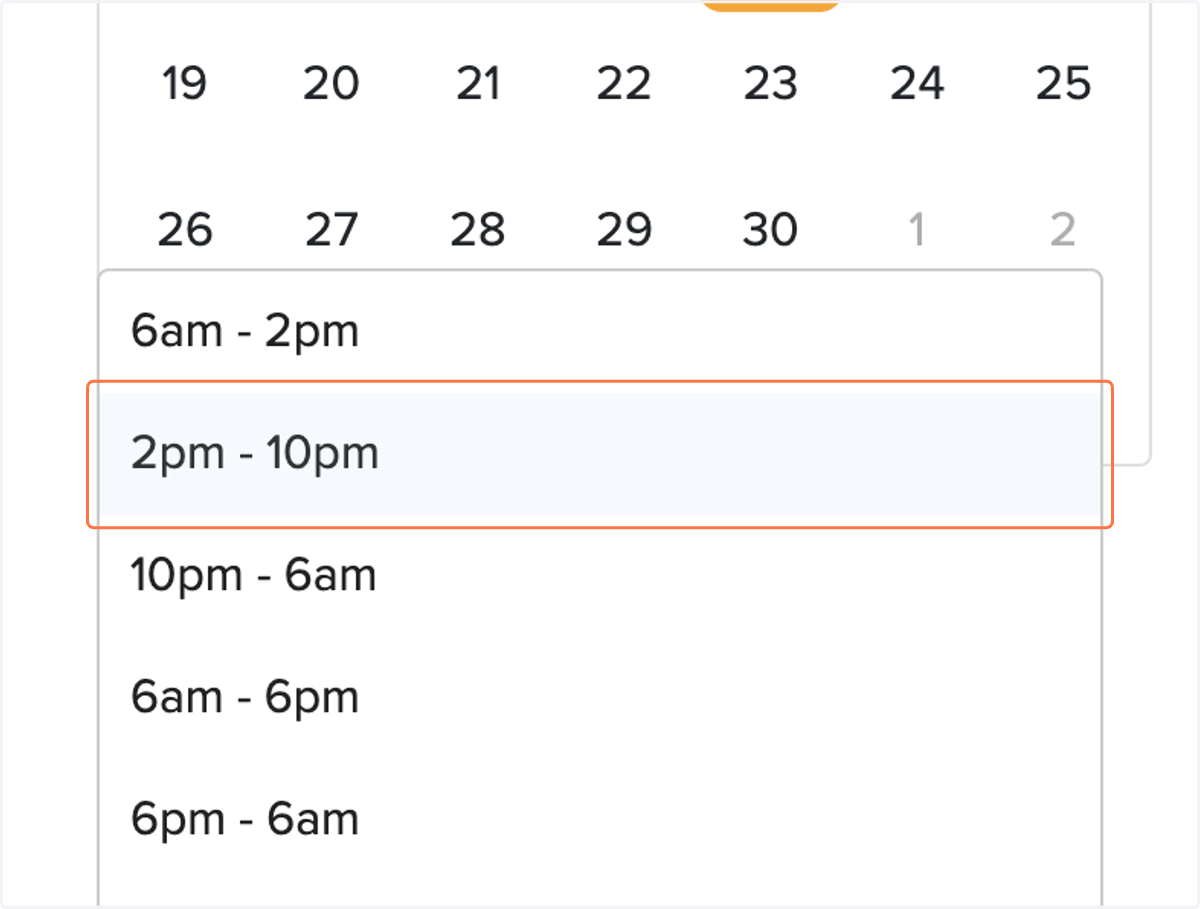
6. After you have selected the Shift Time, click on the dropdown for Certification Type
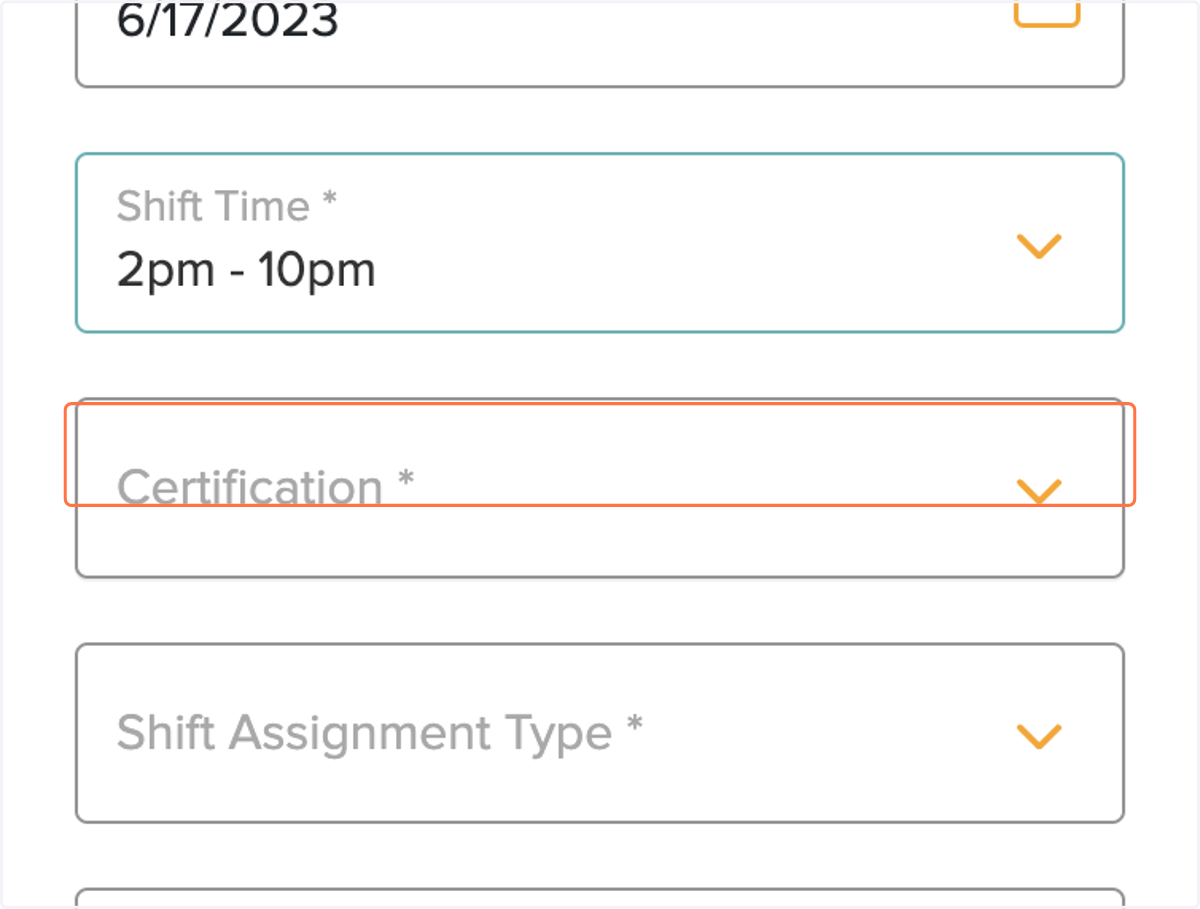
7. Select the Certification Type you need
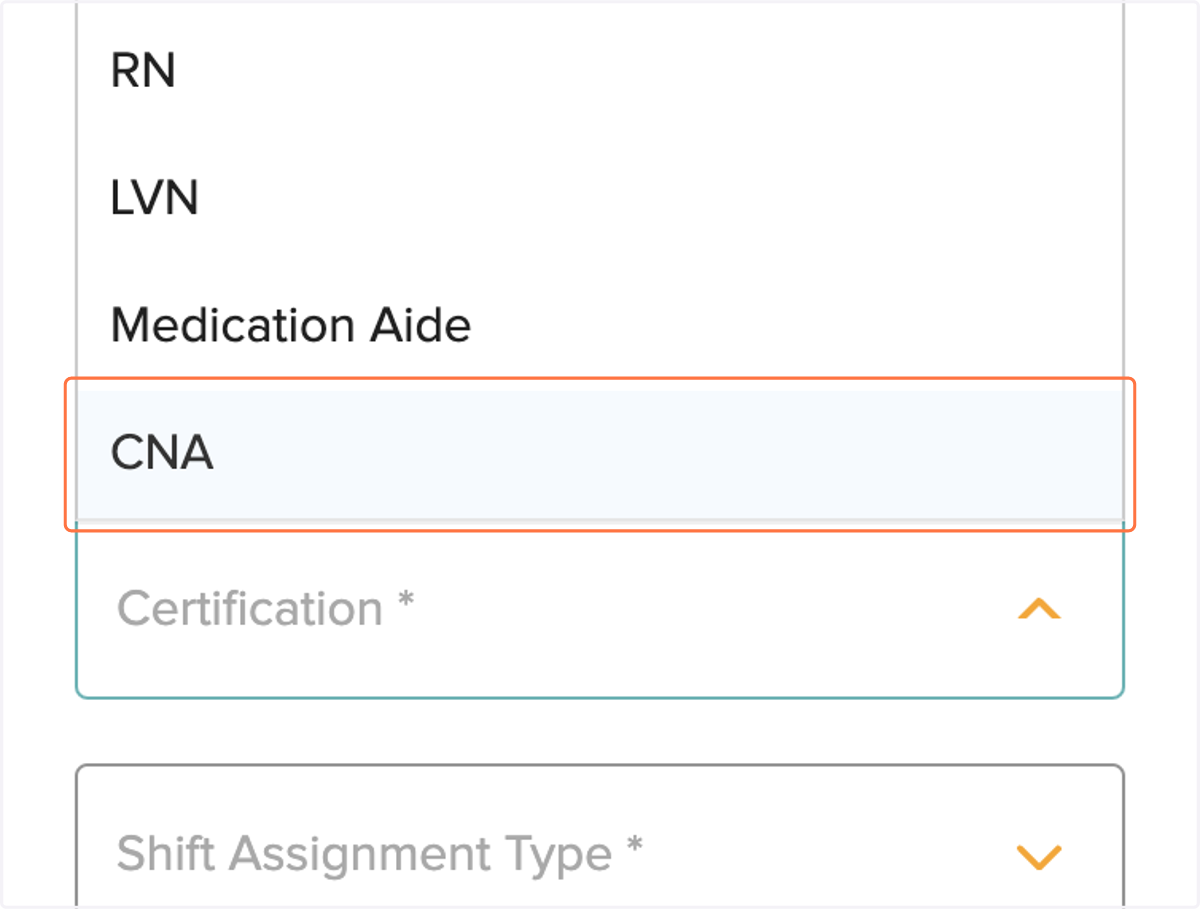
8. Select what type of assignment by opening the dropdown menu for Shift Assignment Type
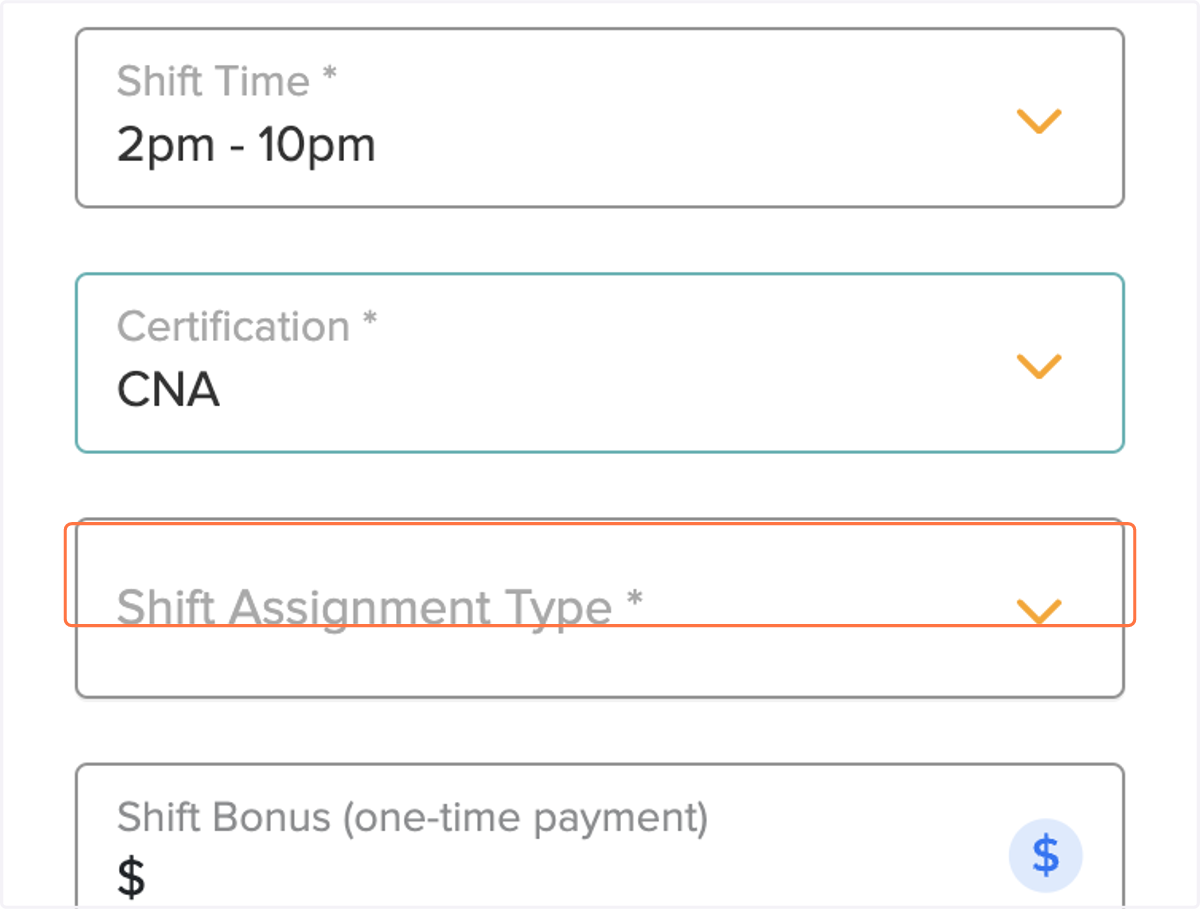
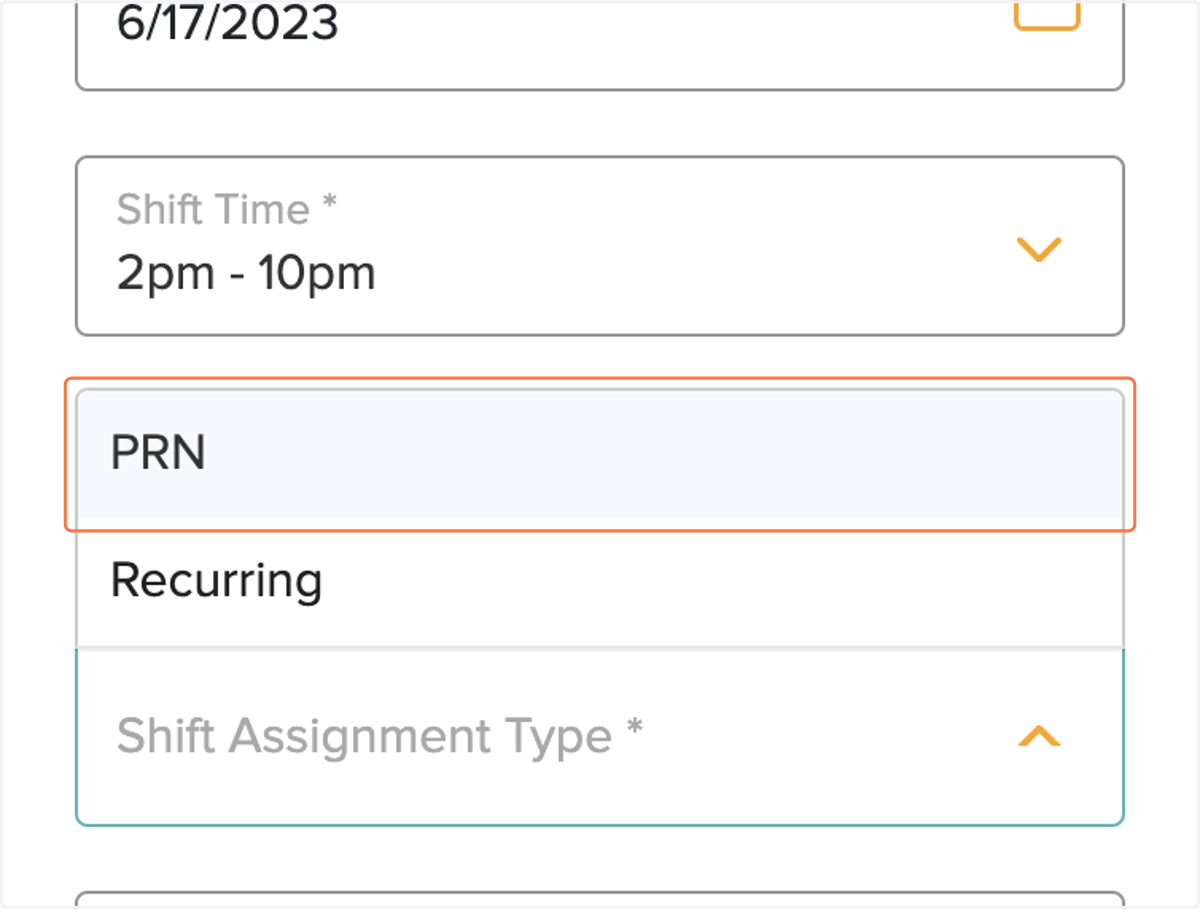
9. Select PRN for a single shift. If this is a Recurring shift (an ongoing placement), select recurring and then follow the prompts.
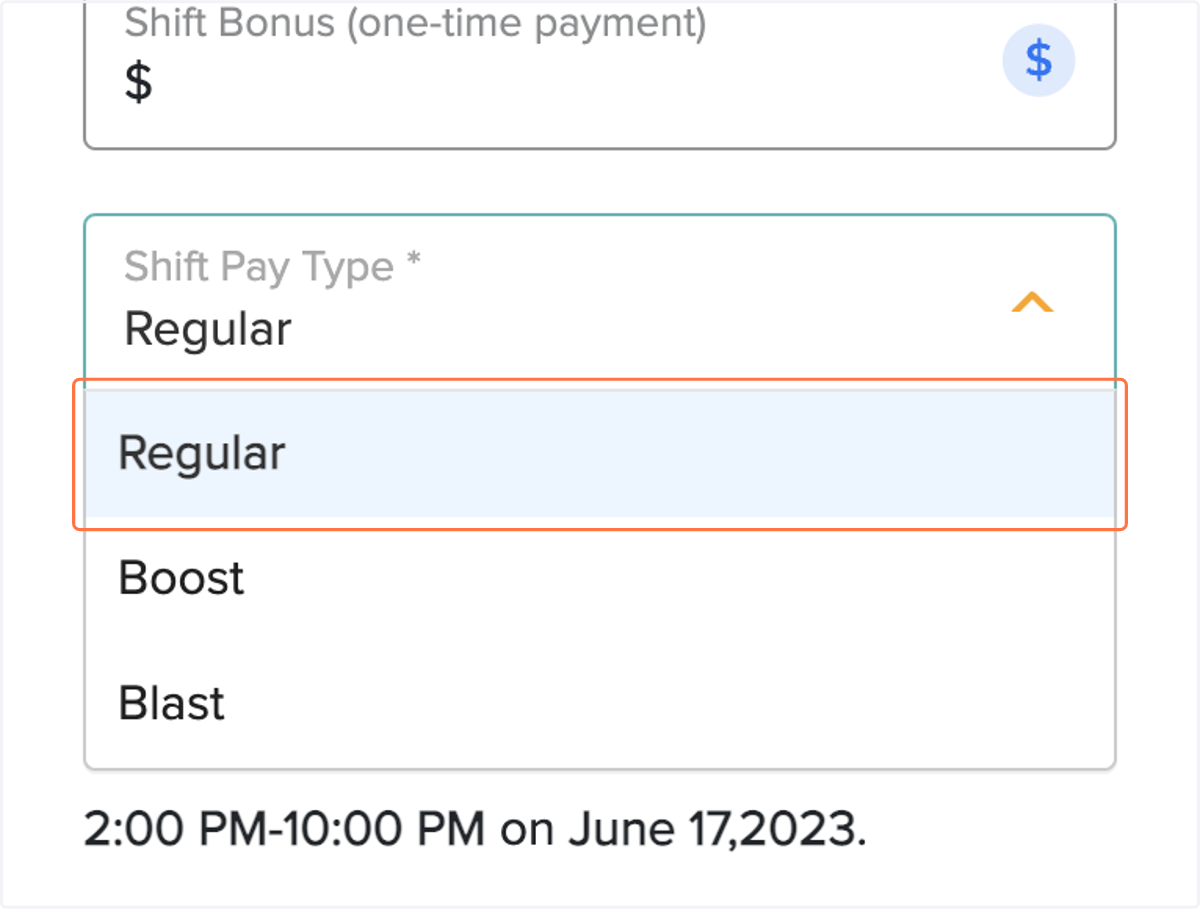
10. Select Pay Rate - Regular is the contracted pay rate. Boost is 12.5% and Blast is 25.0% higher than the Regular rate.
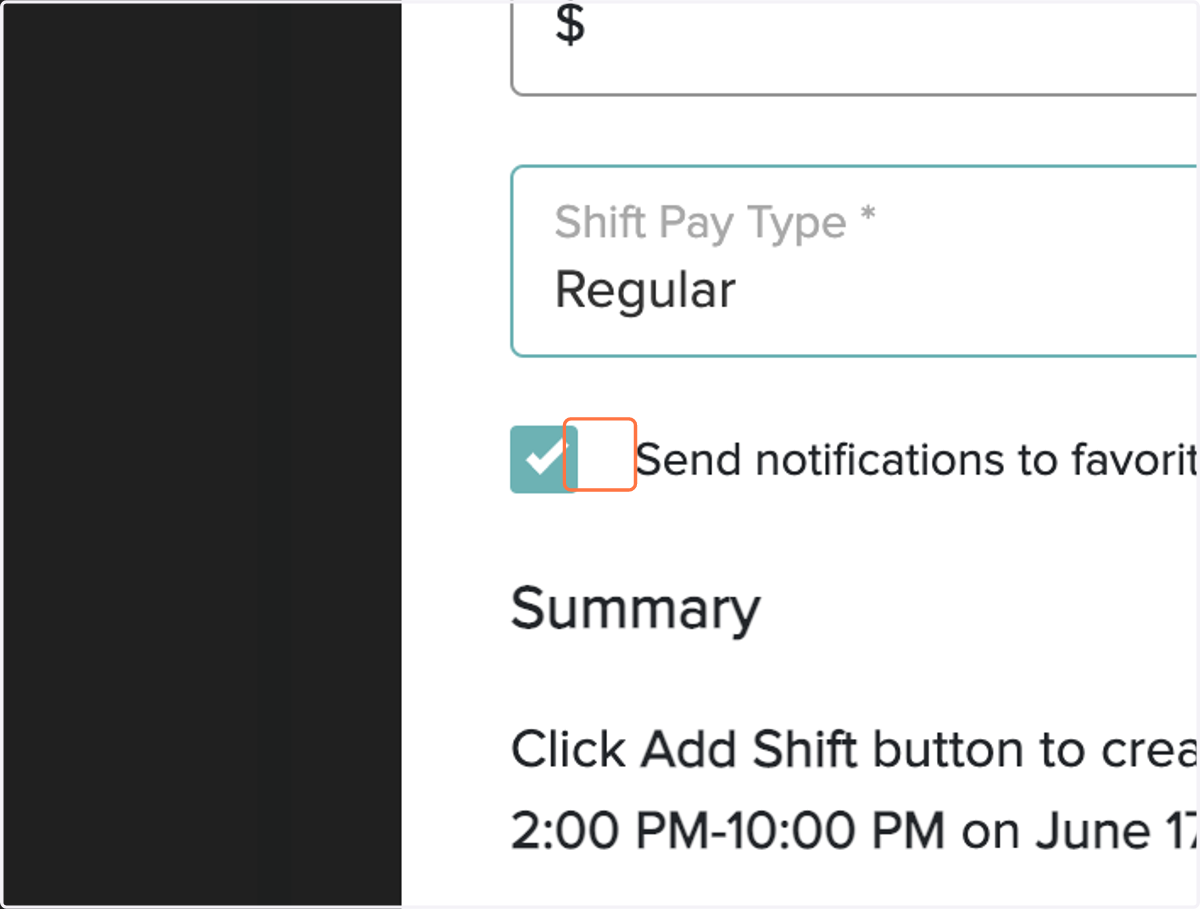
11. If your facility has "favorited" Providers, you can send a push notification directly to them by selecting the box. NOTE: for a Blasted shift, favorite providers are automatically notified.
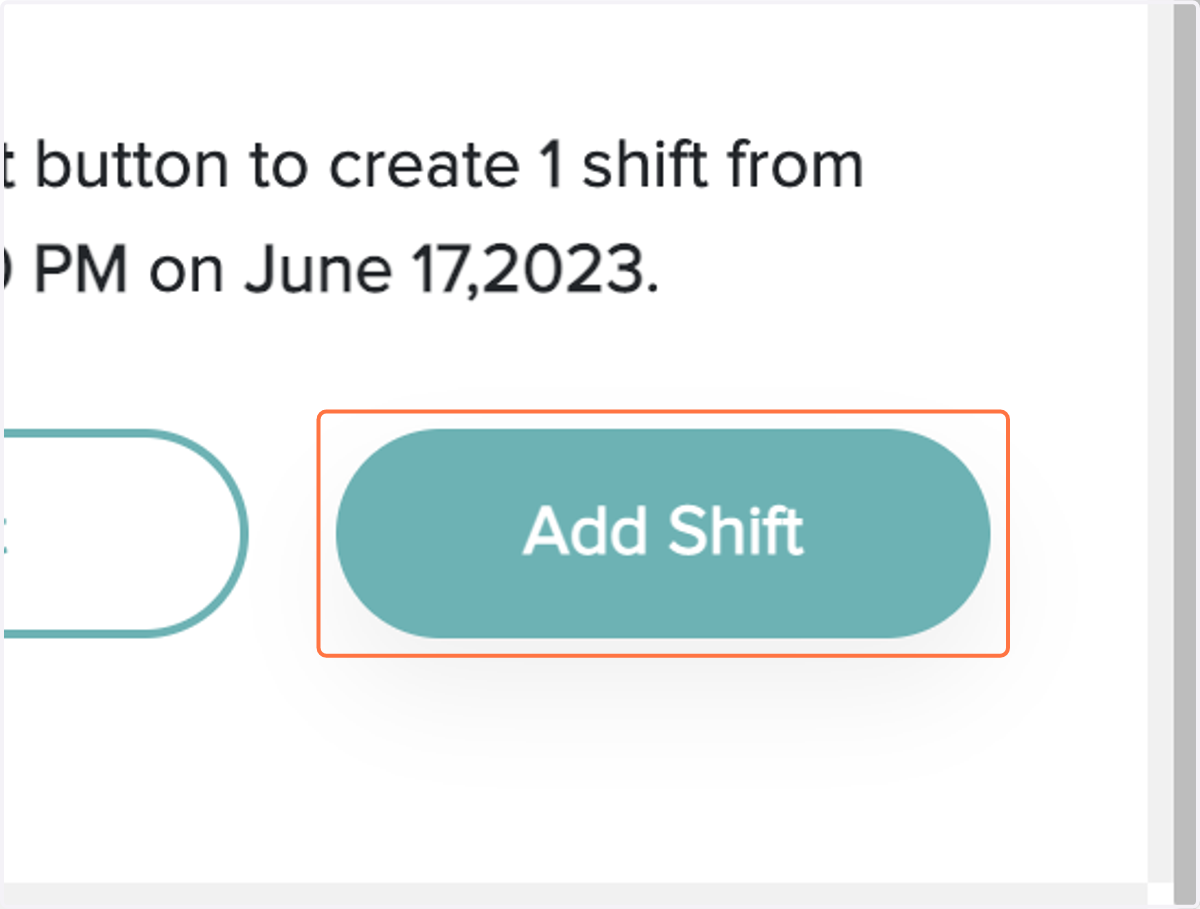
12. Review your shift details before finalizing. If everything looks good, then Click on Add Shift