Adding a New Employee

Go to the startpage

  1. 1. Select Employees from the side menu
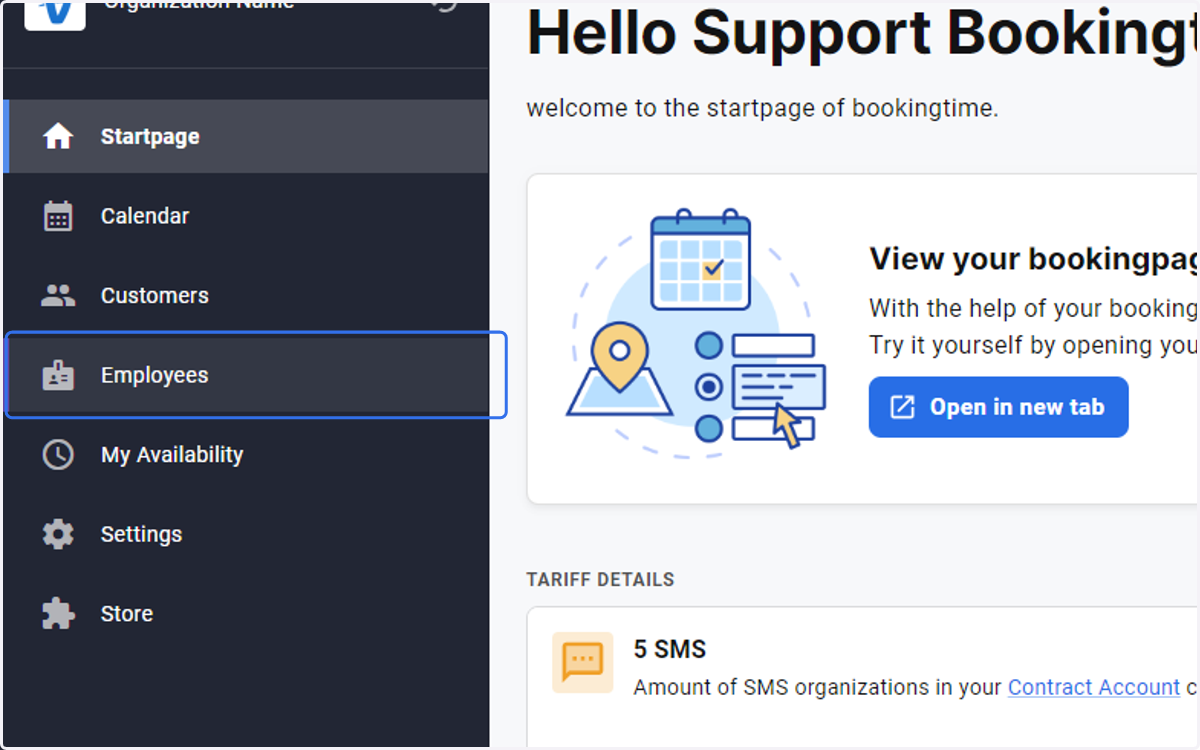
    Select Employees from the side menu
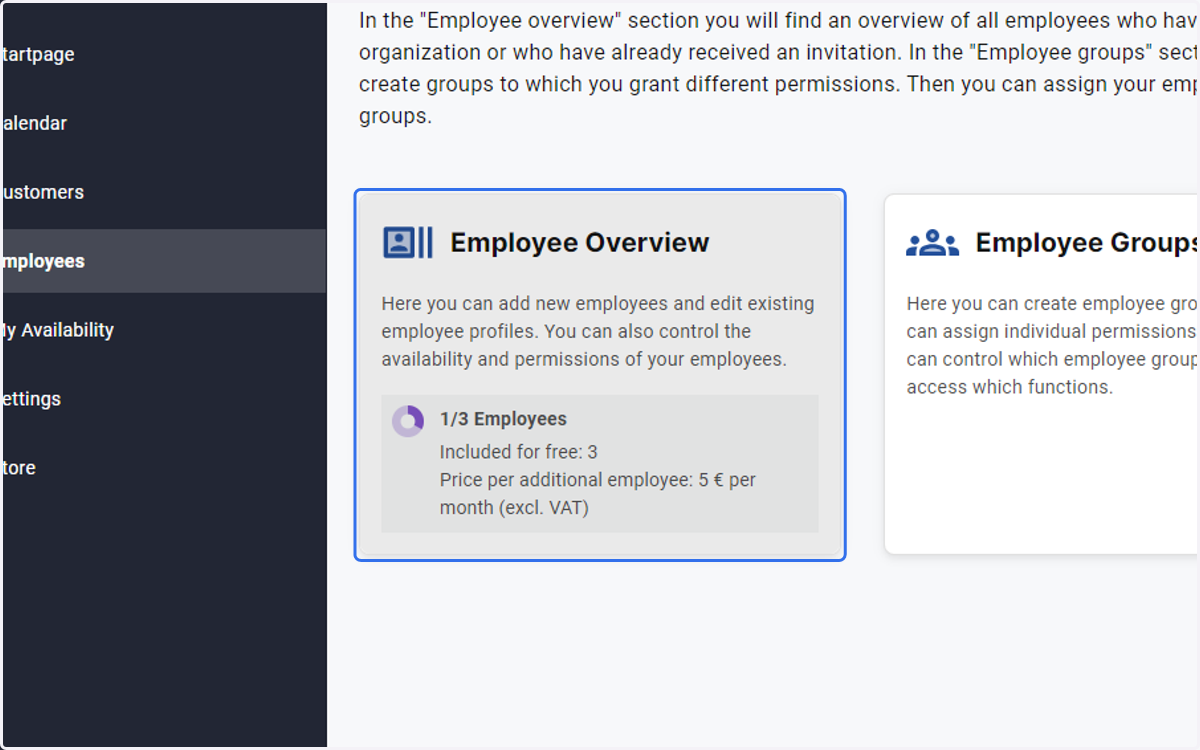
  2. 2. Click on Employee Overview

    Click on Employee Overview
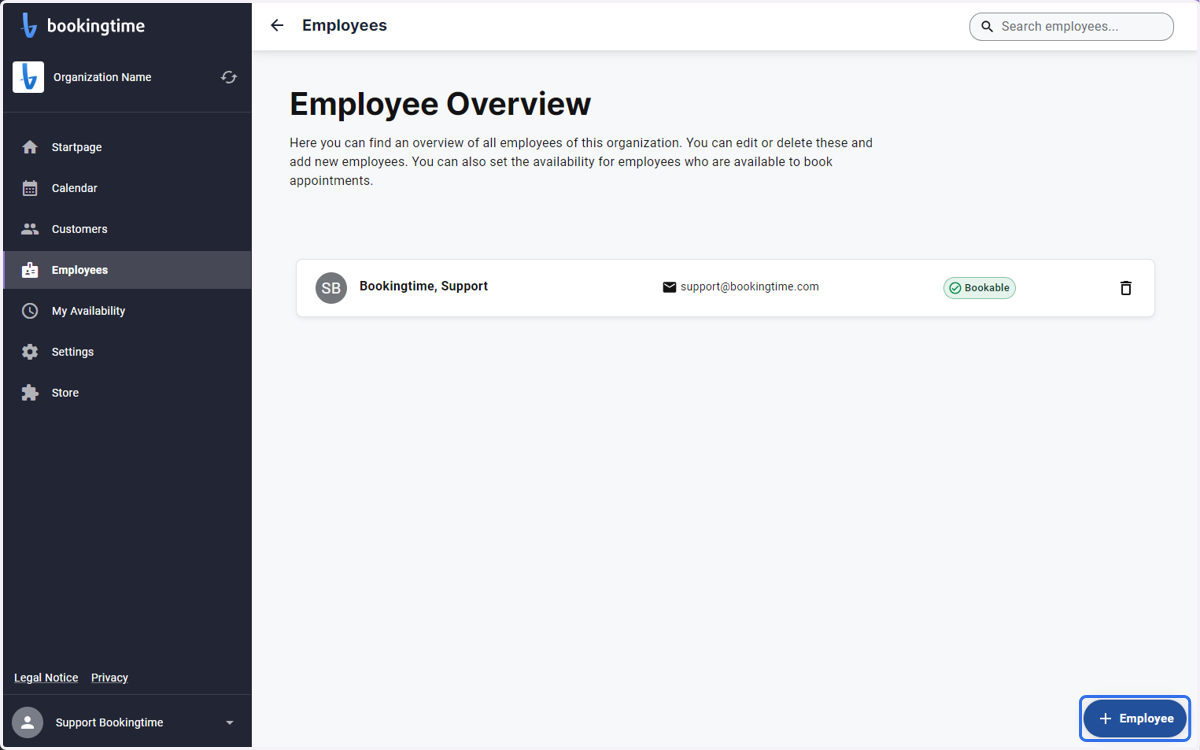
  3. 3. Click on the add Employee button

    Click on the add Employee button
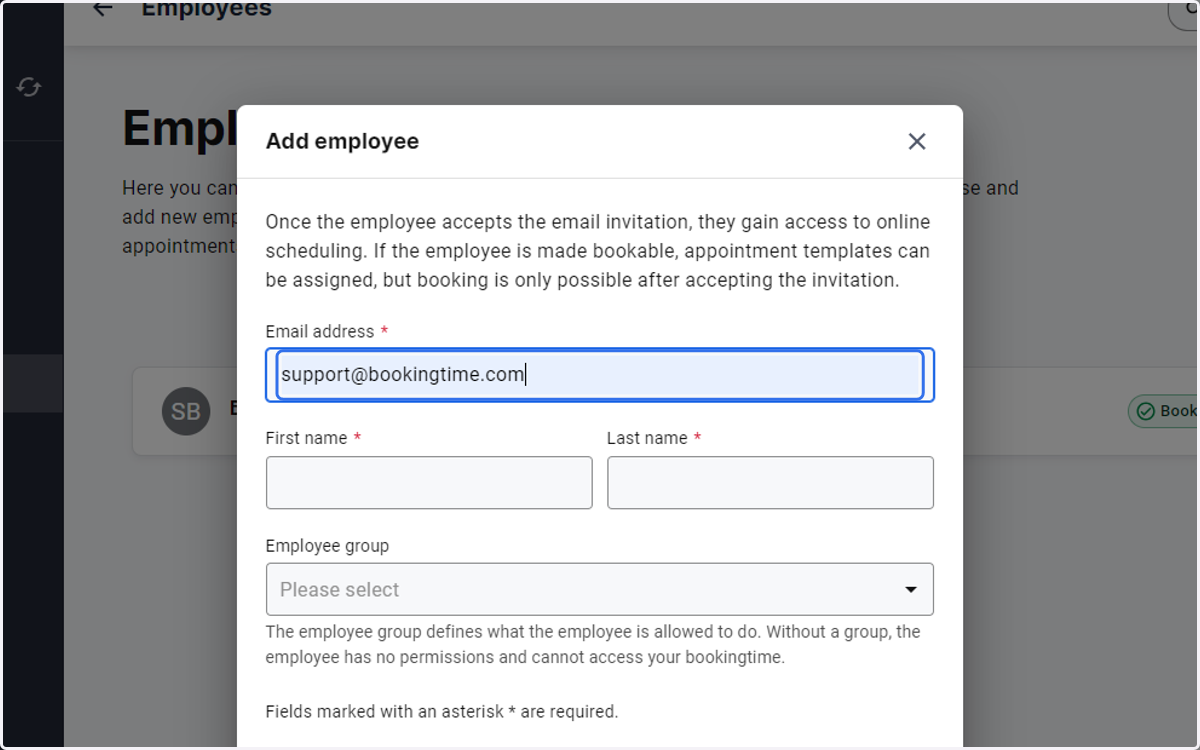
  4. 4. Add the employee's email address

    Add the employee's email address
  5. 5. Add the employee's name and surname and the employee group if necessary
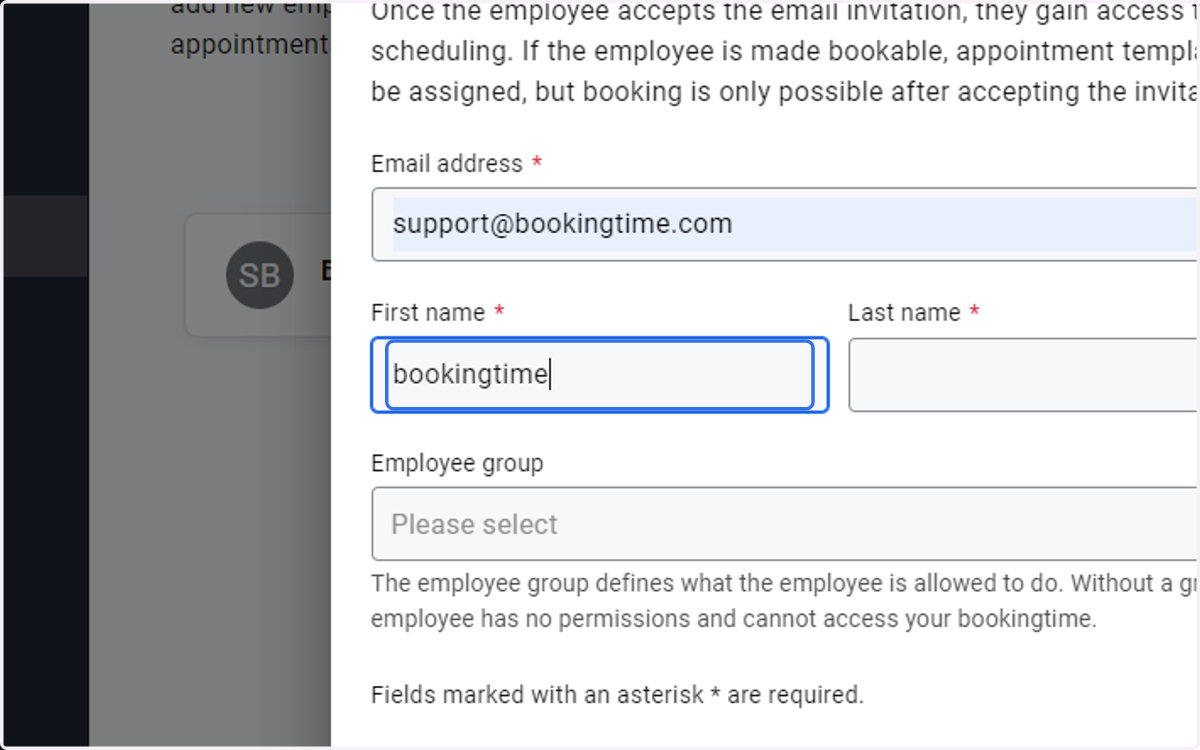
    Add the employee's name and surname and the employee group if necessary
  6. 6. Click on Confirm to save the new employee
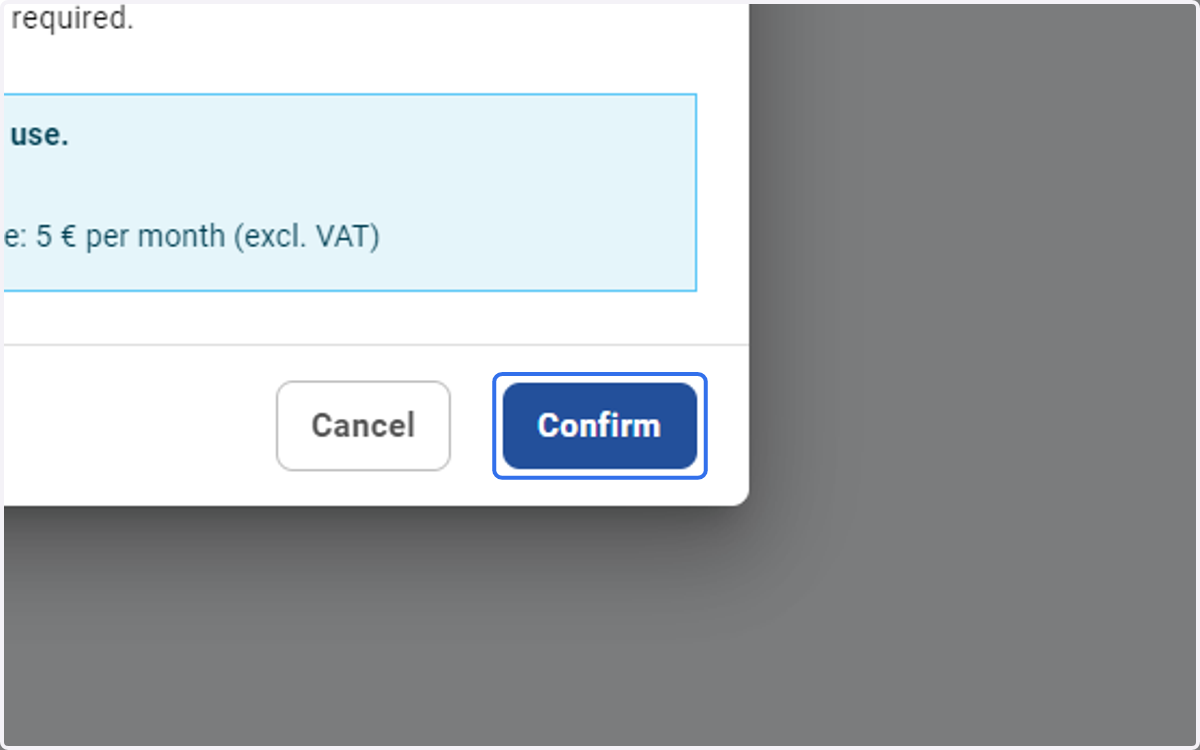
    Click on Confirm to save the new employee
  7. 7. To add an image for the employee, click on the search button to upload an image from your PC
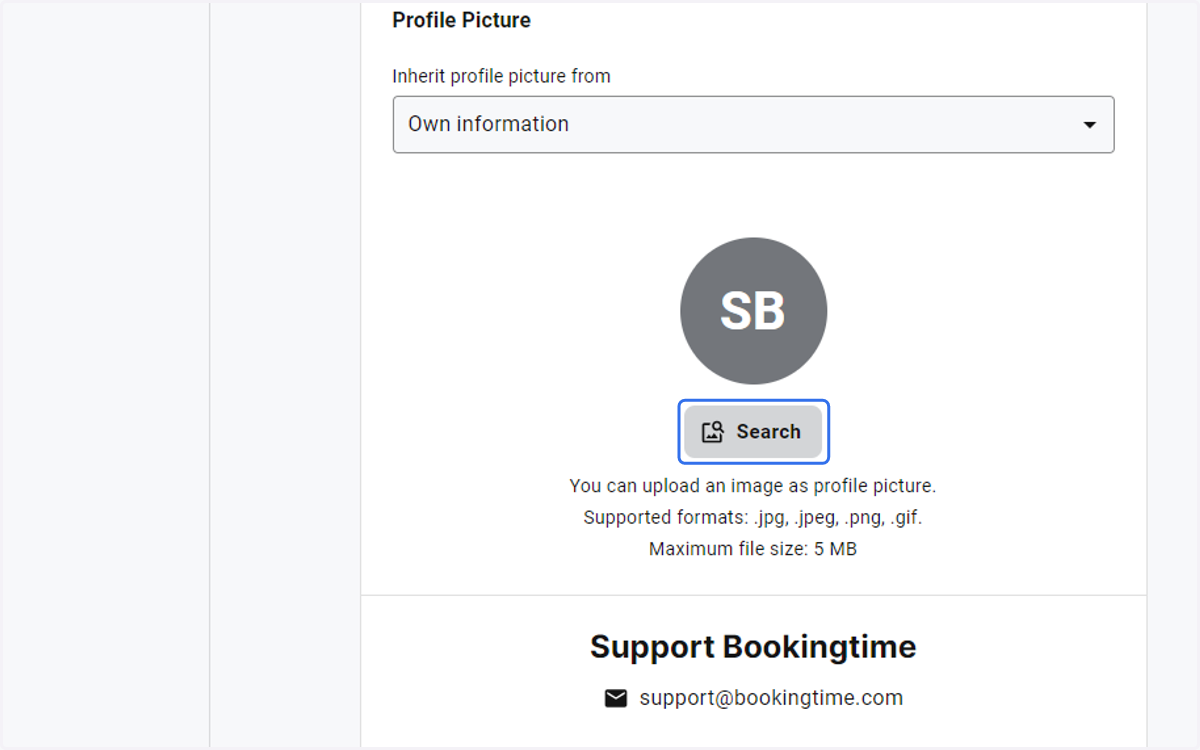
    To add an image for the employee, click on the search button to upload an image from your PC
  8. 8. To set the employee's availability, select the Availability tab to Own information
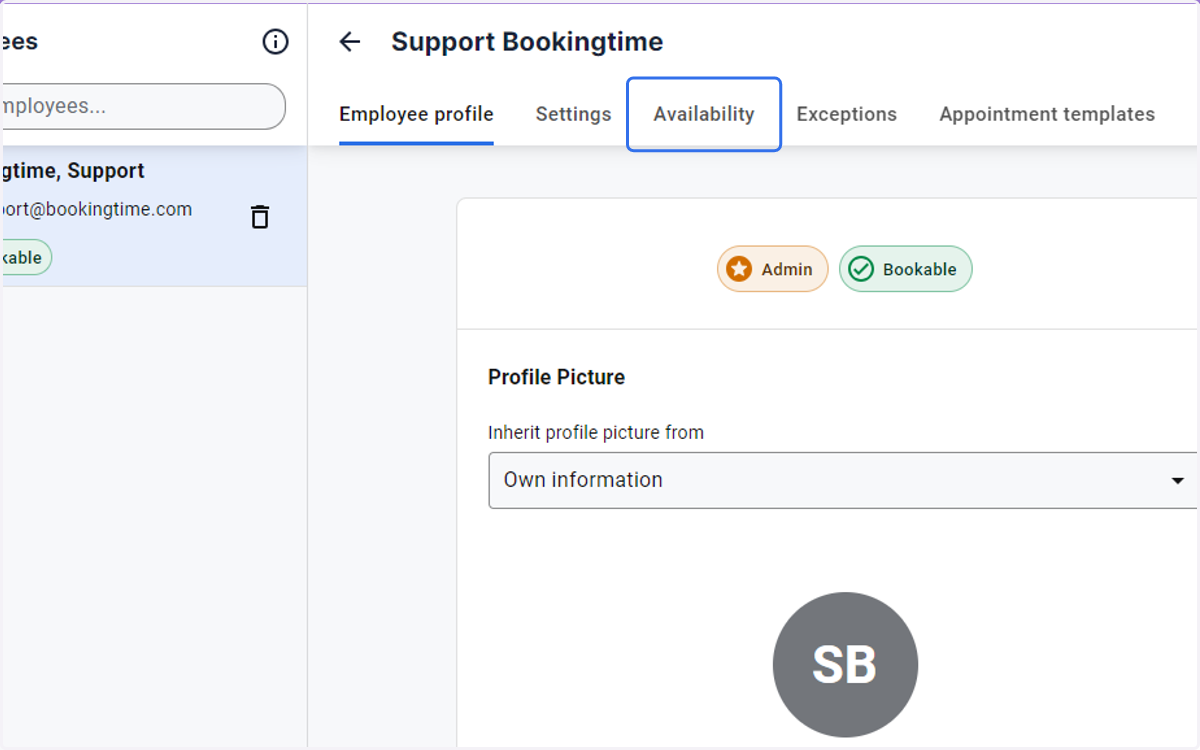
    To set the employee's availability, select the Availability tab to Own information
  9. 9. In the Permissions Tab, select User-defined and slide the green bar to activate enter times individually
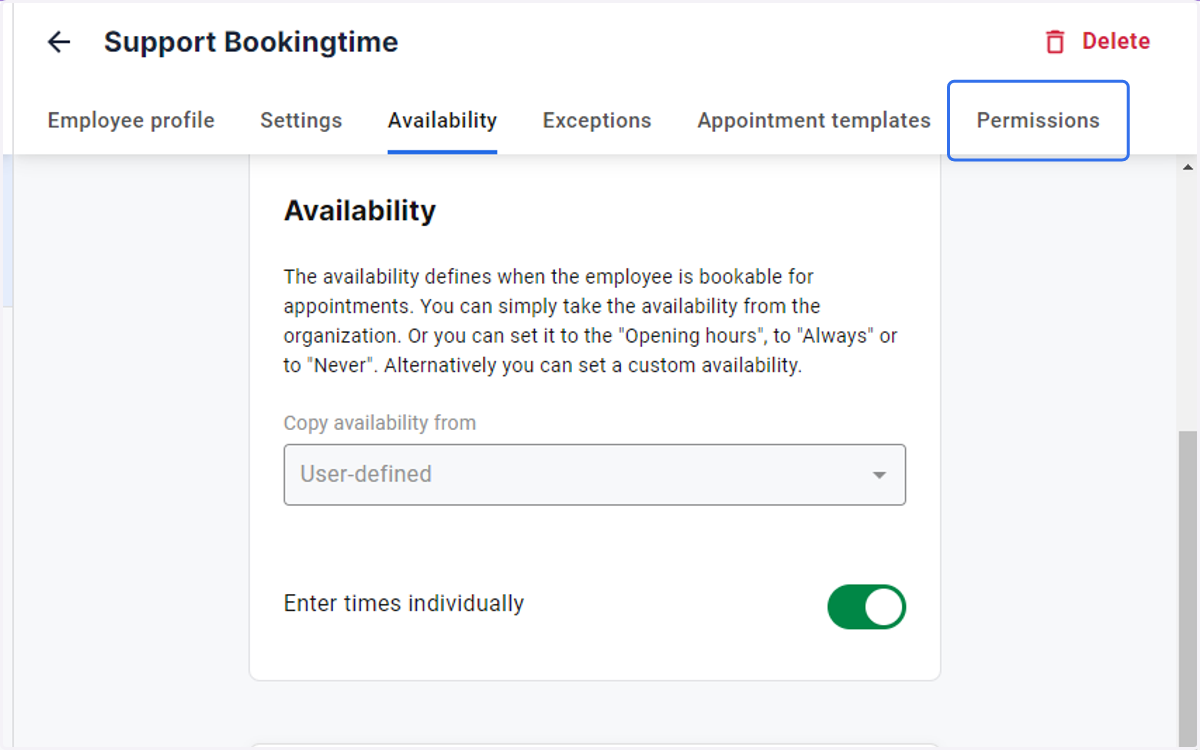
    In the Permissions Tab, select User-defined and slide the green bar to activate enter times individually
  10. 10. Another option, would be to create your own NEW EMPLOYEE GROUP
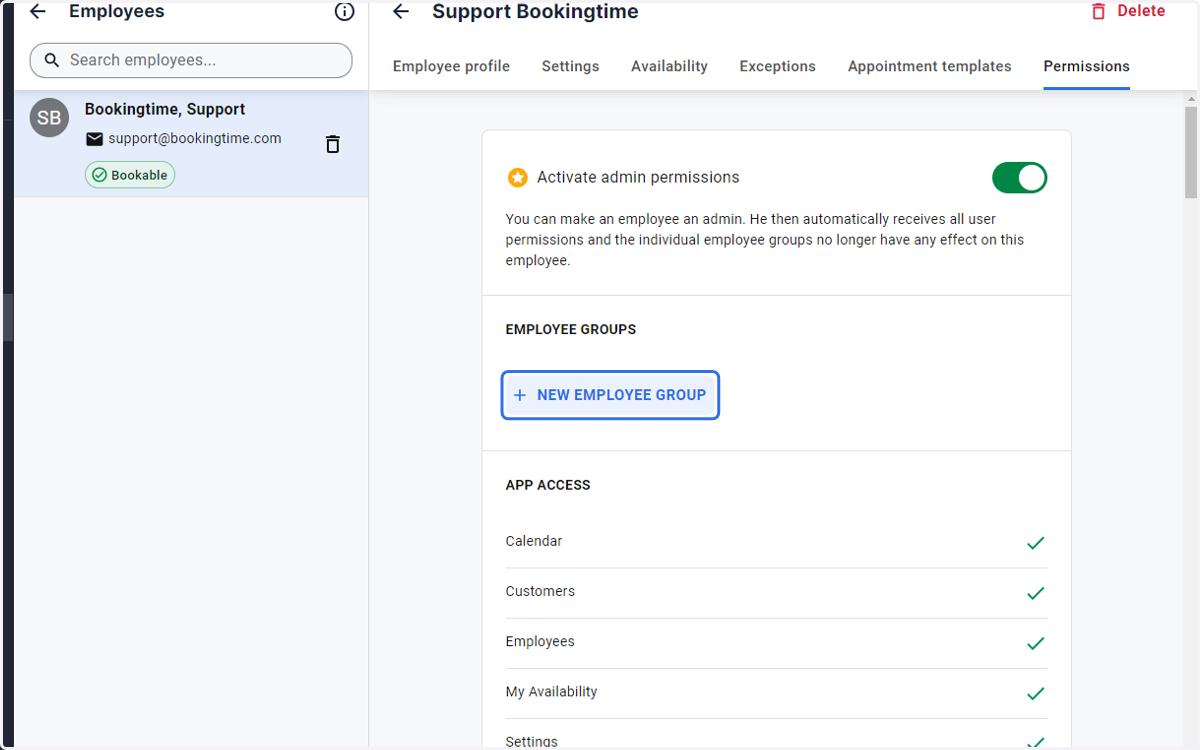
    Another option, would be to create your own NEW EMPLOYEE GROUP