Pricing and Configuration for Classes
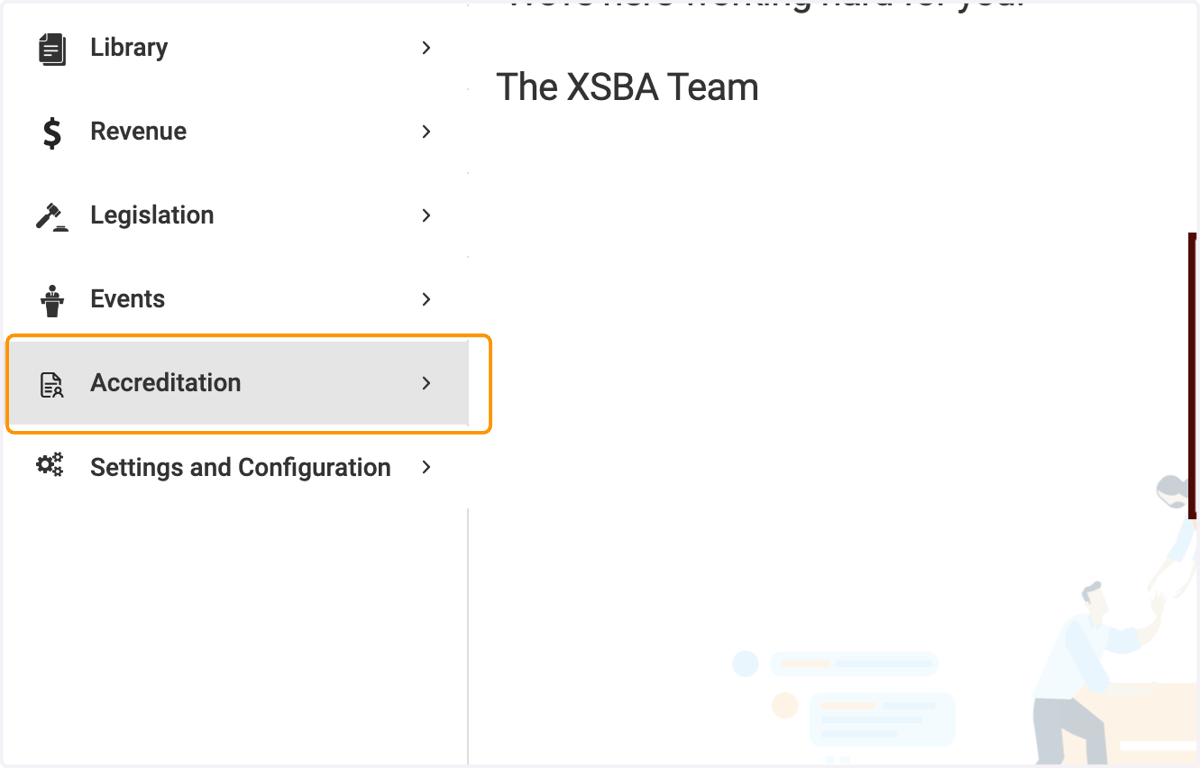
1. Click on Accreditation
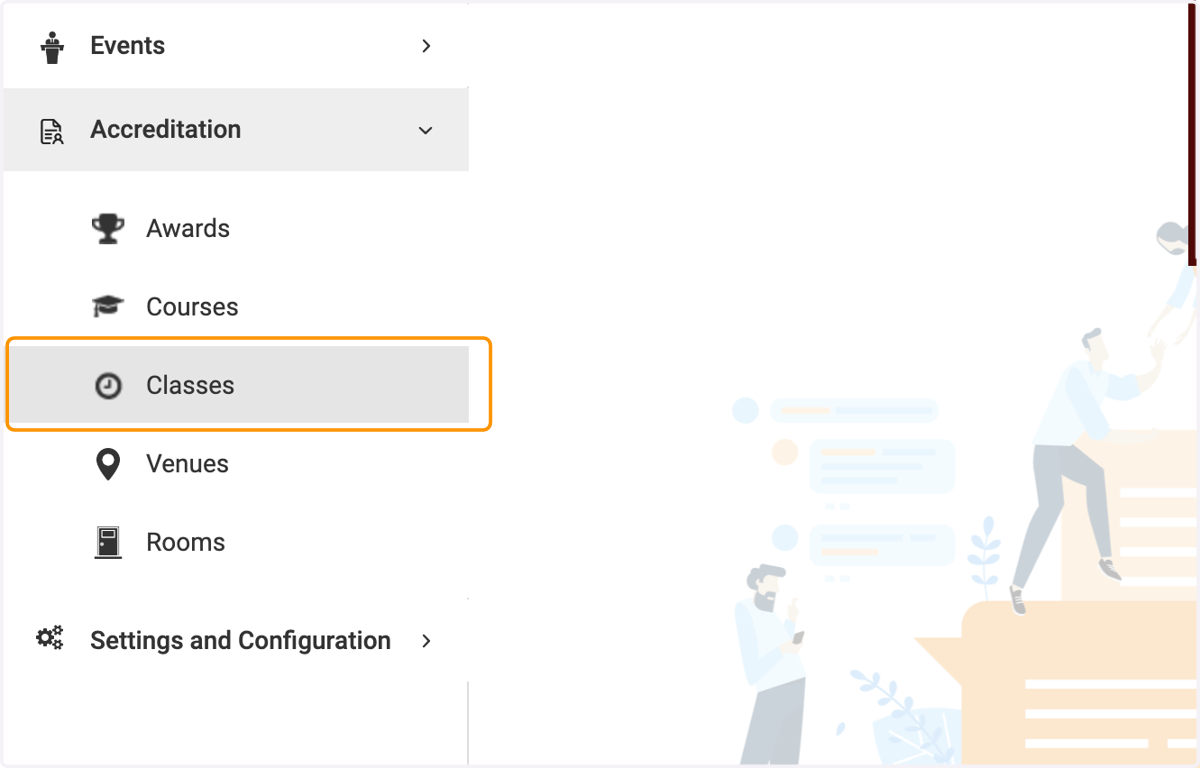
2. Click on Classes
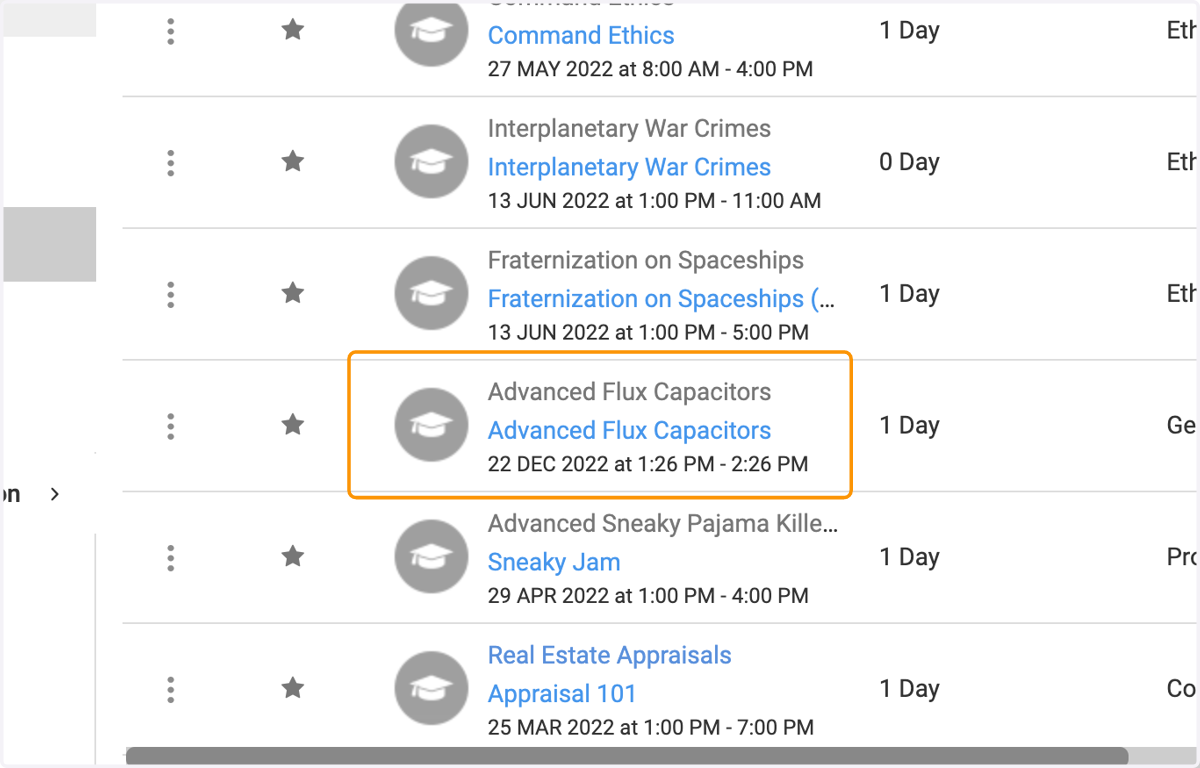
3. Find the class you would like to set up custom pricing for
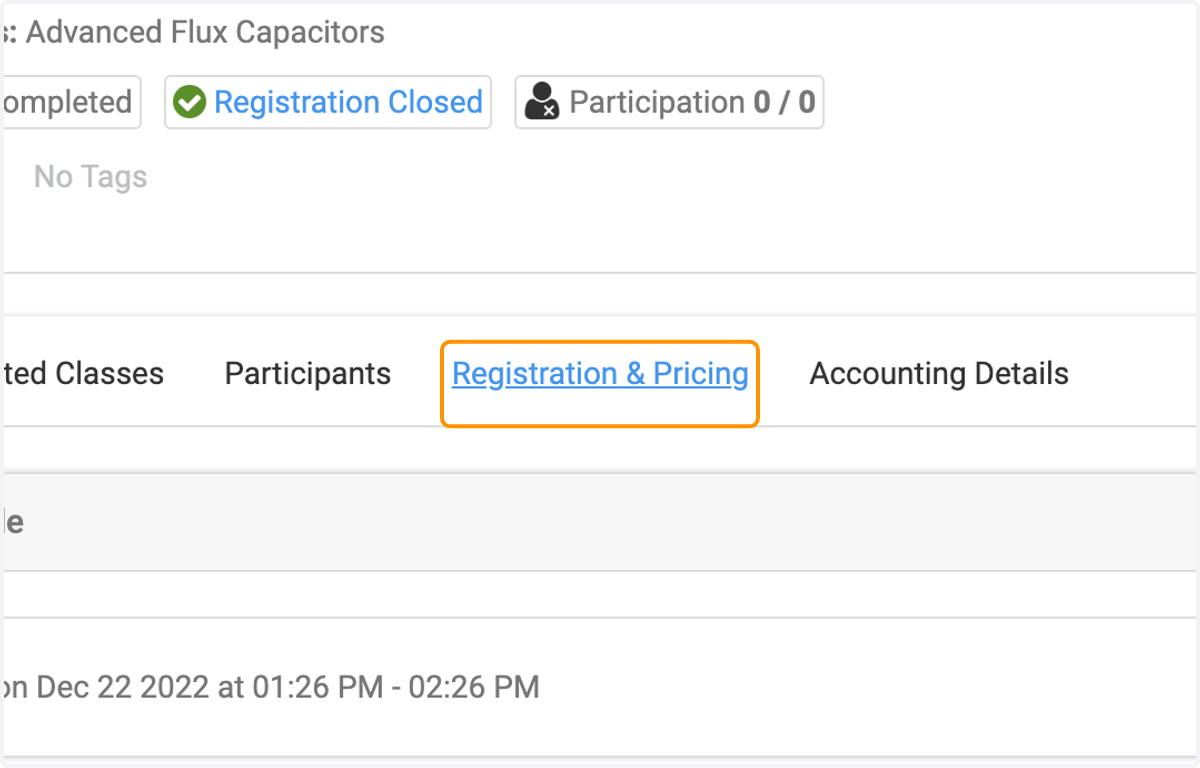
4. Click on Registration & Pricing
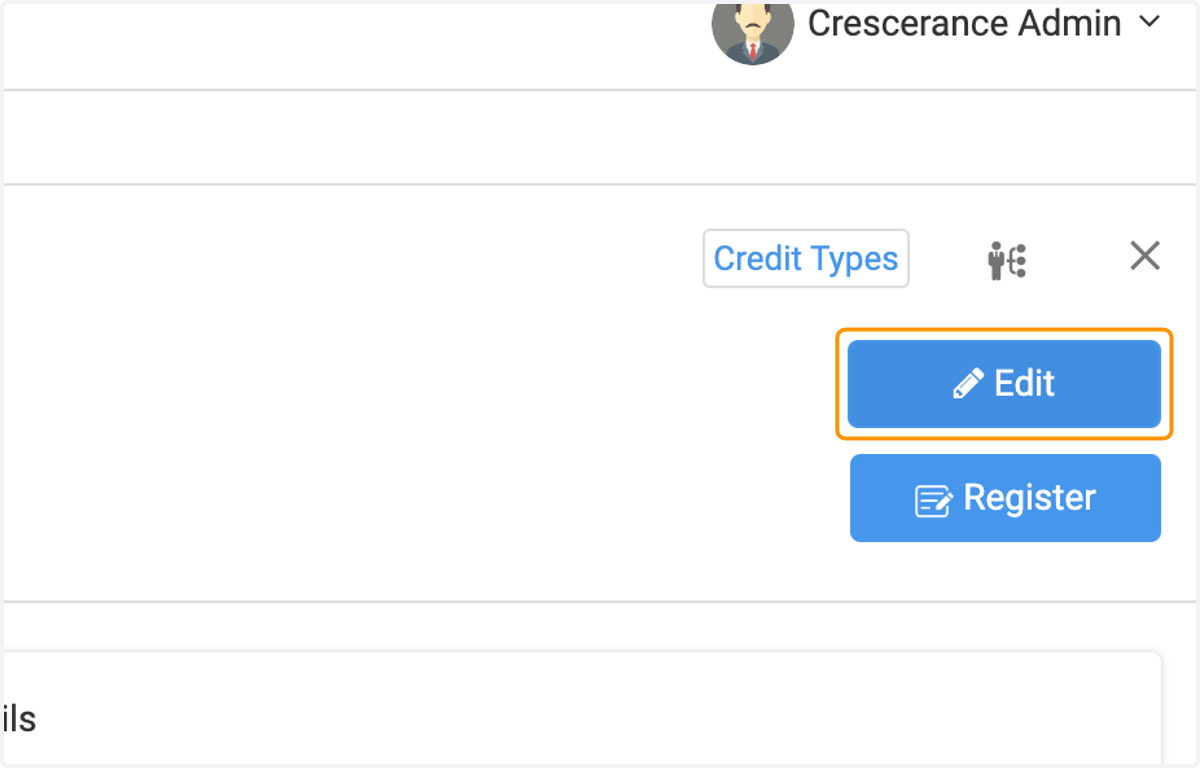
5. Click on Edit
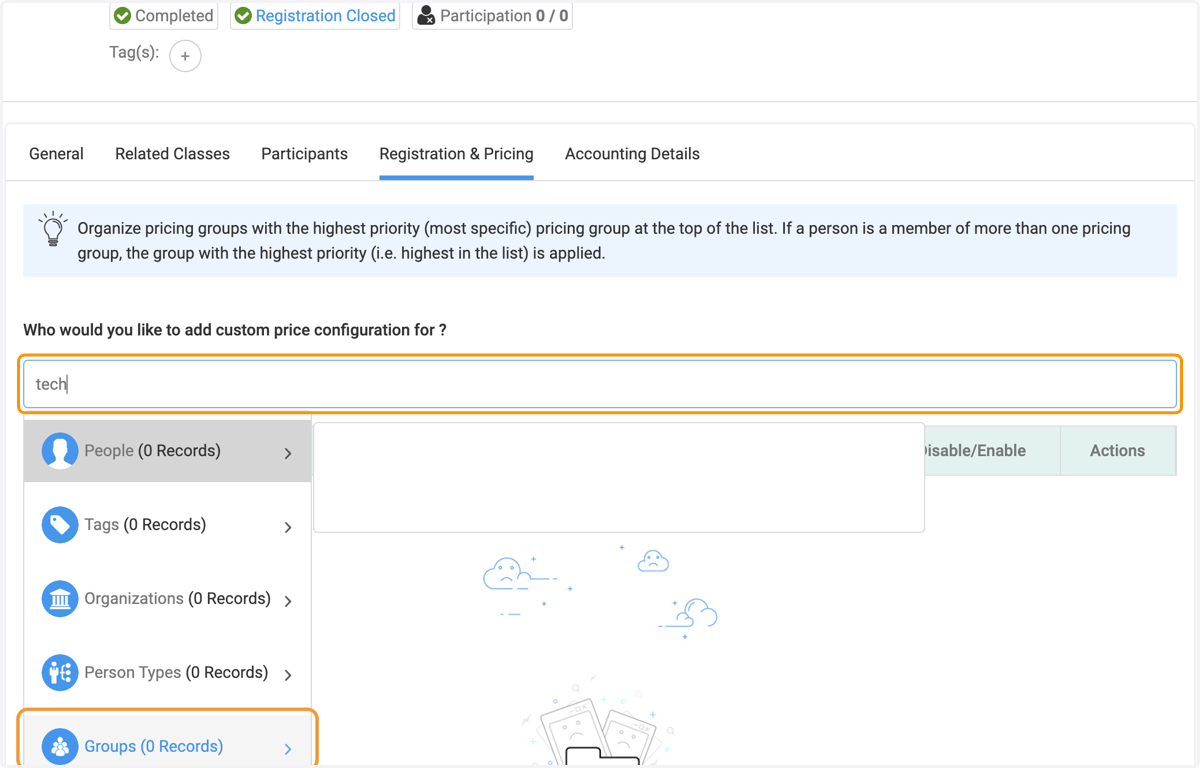
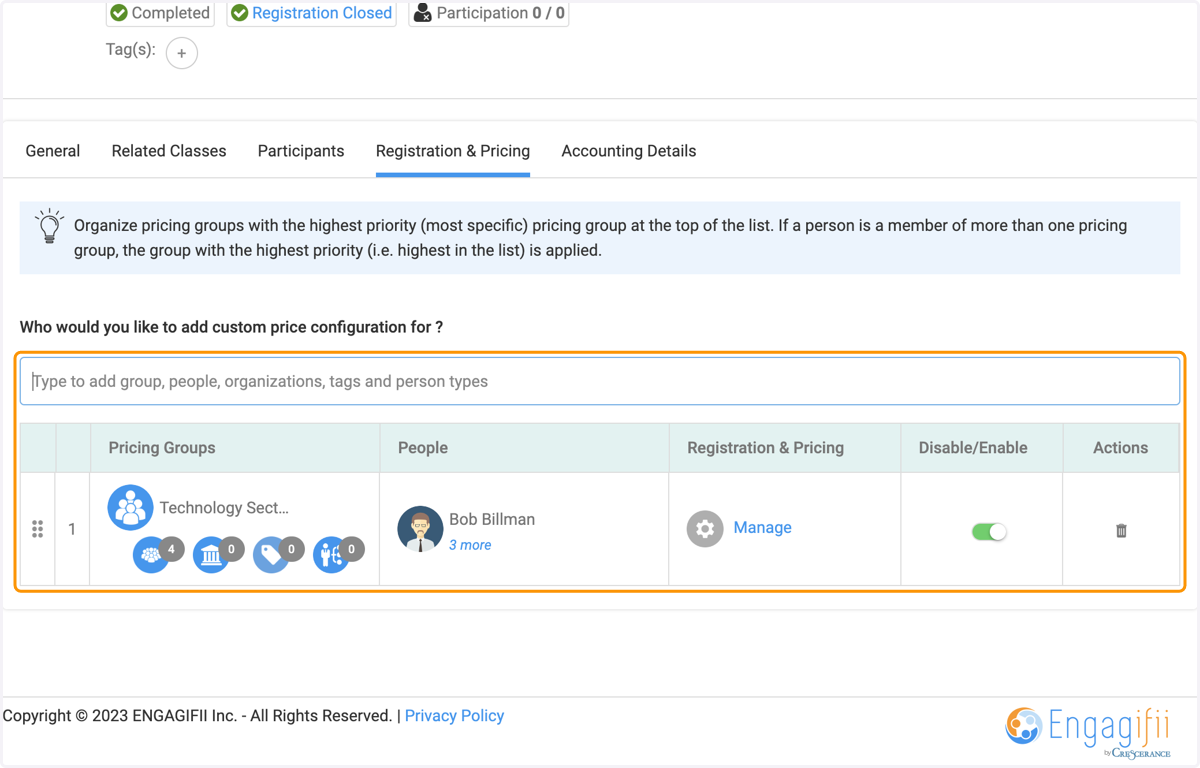
6. Type your selection, in the example below we are using Groups
7. Click on the group you want to have custom pricing for
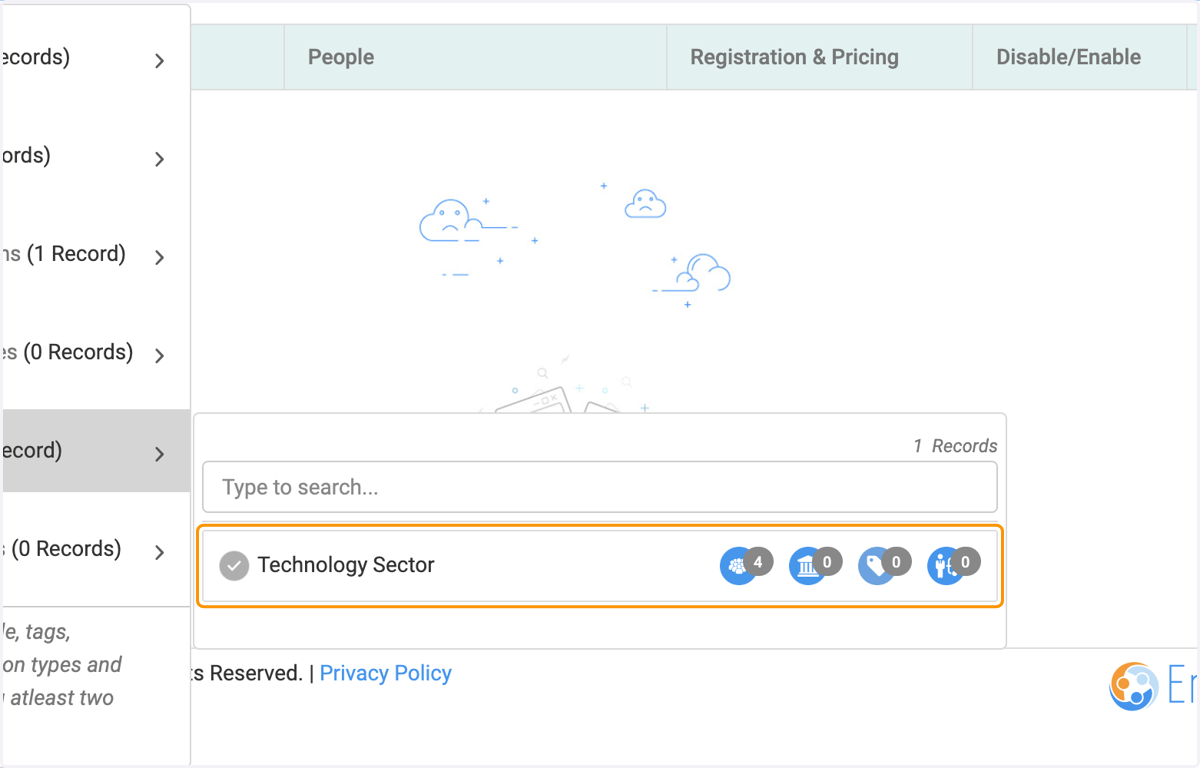
8. This will be your view once your selection has been chosen
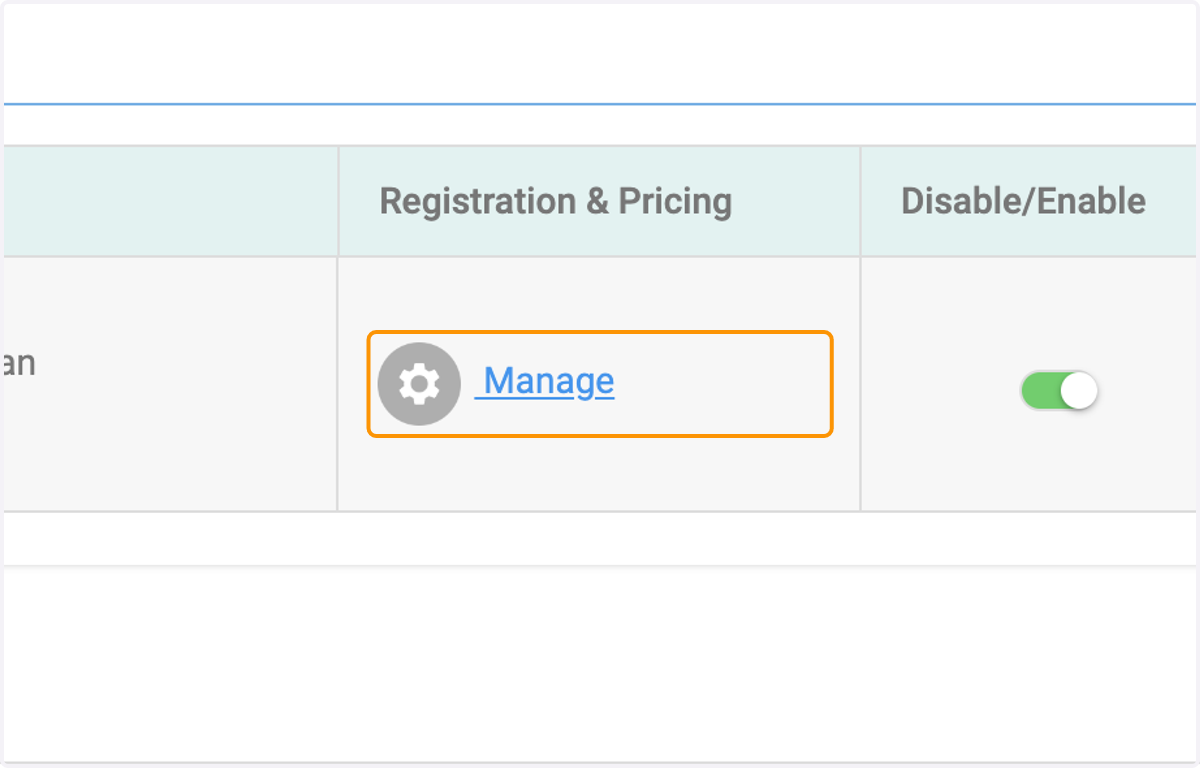
9. Click on Manage
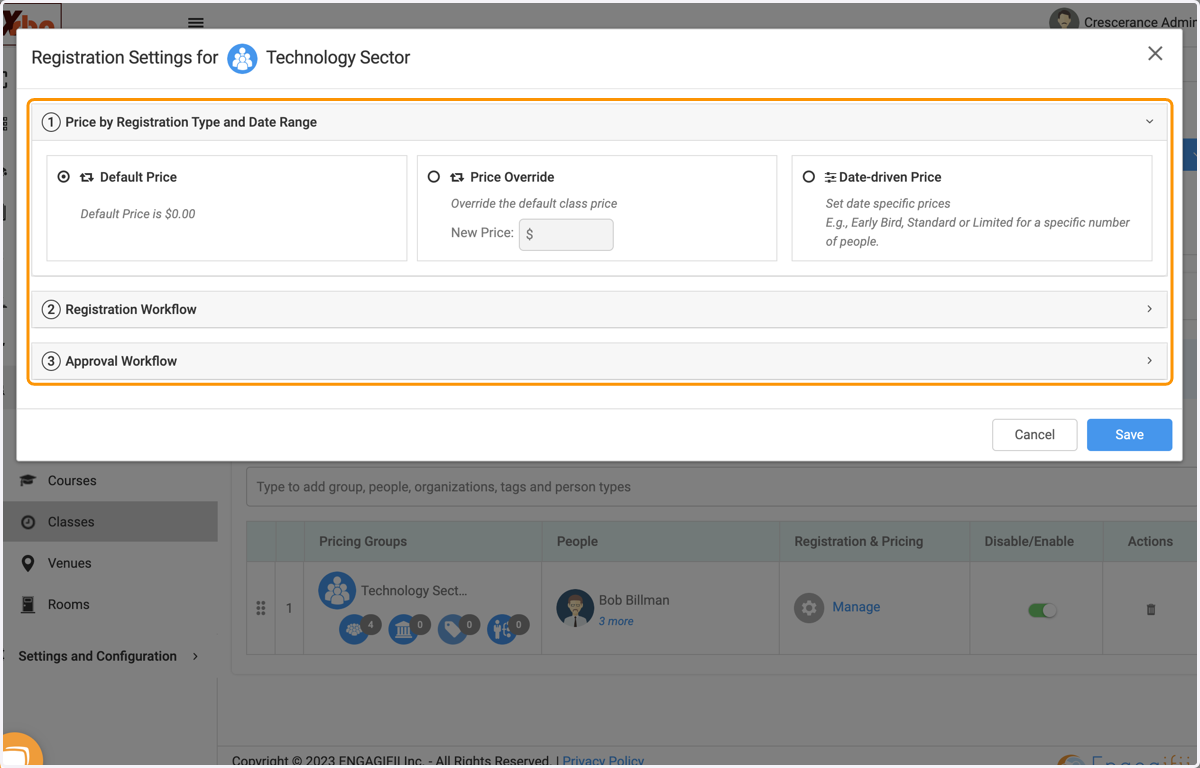
10. Make your selection on the window that pops up
You have the choice between Default Price, Price Override or Date-Driven Price
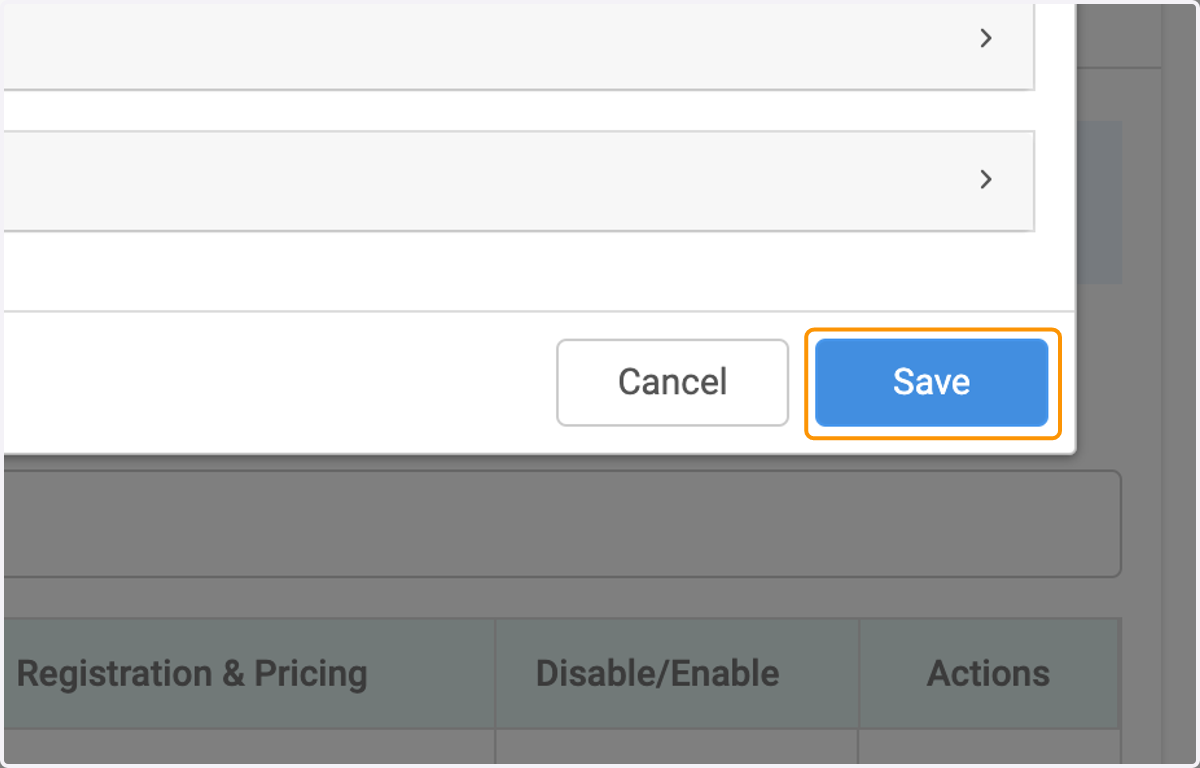
11. Click on Save