Reset your Password
localhost
1. Go to https://portal.summitinterconnect.com
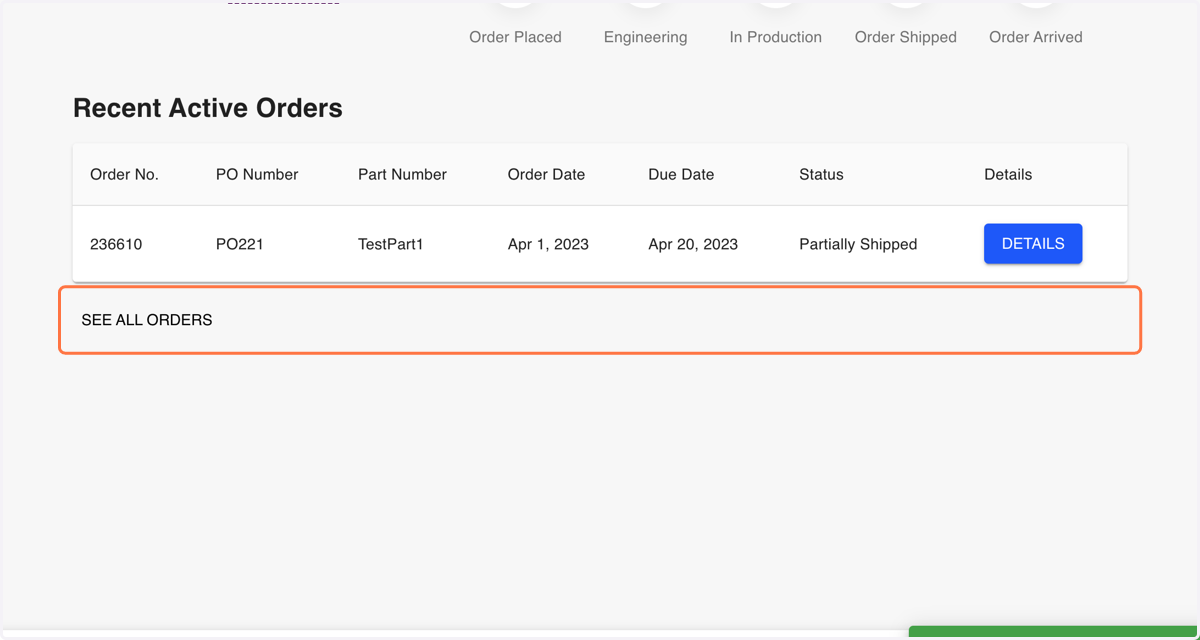
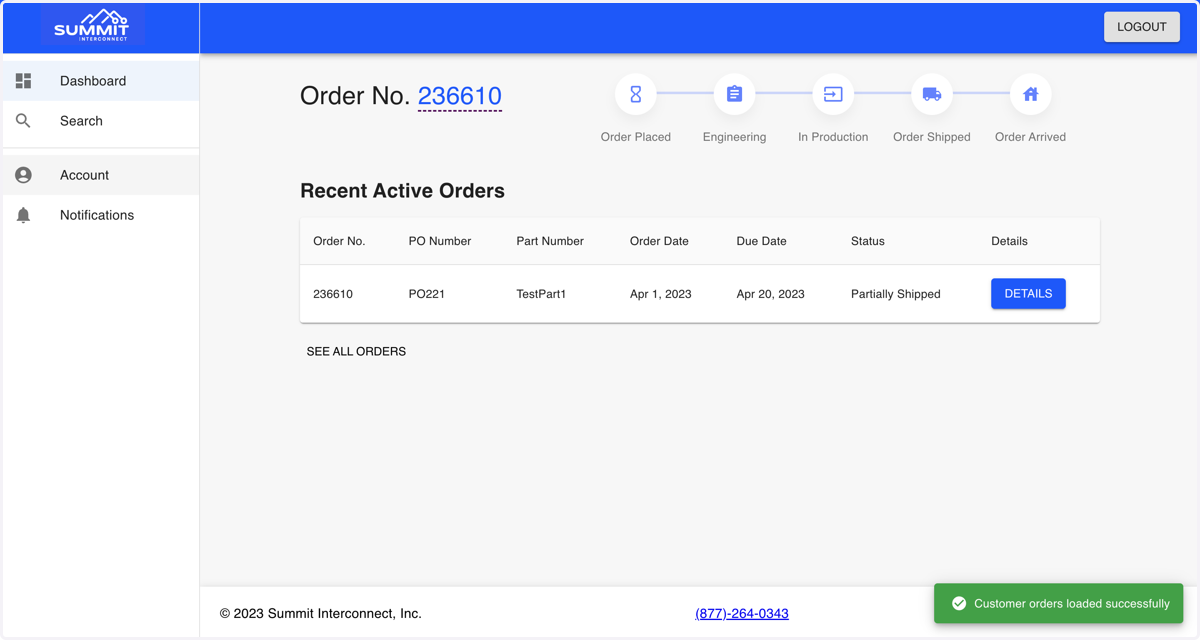
2. Click on Account
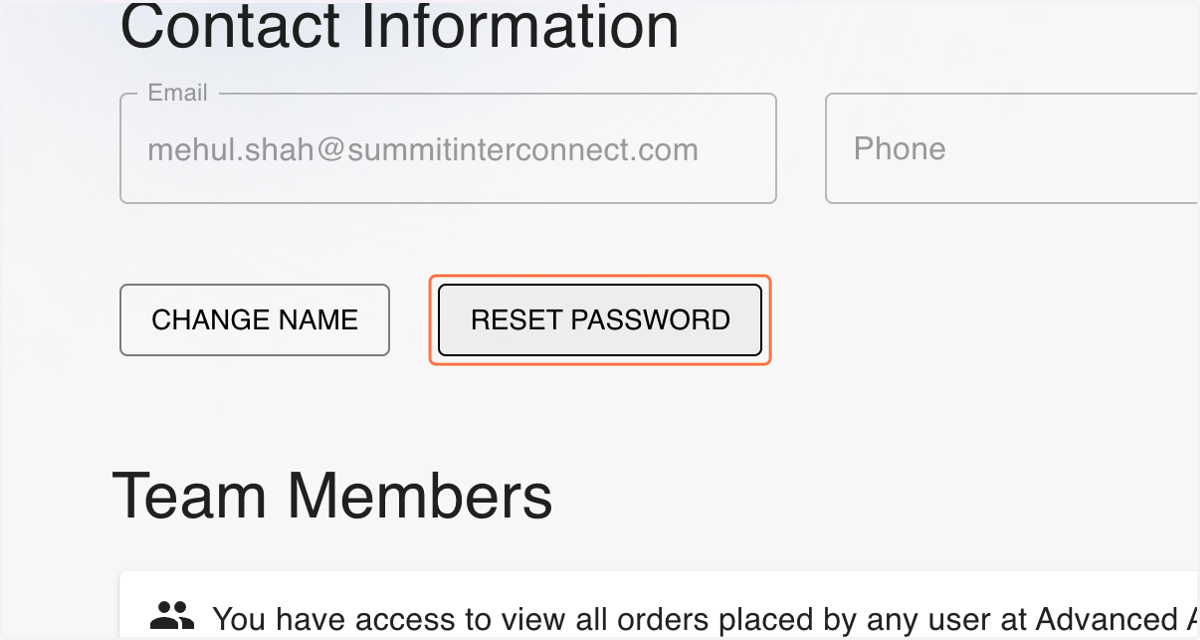
3. Click on RESET PASSWORD
Okta
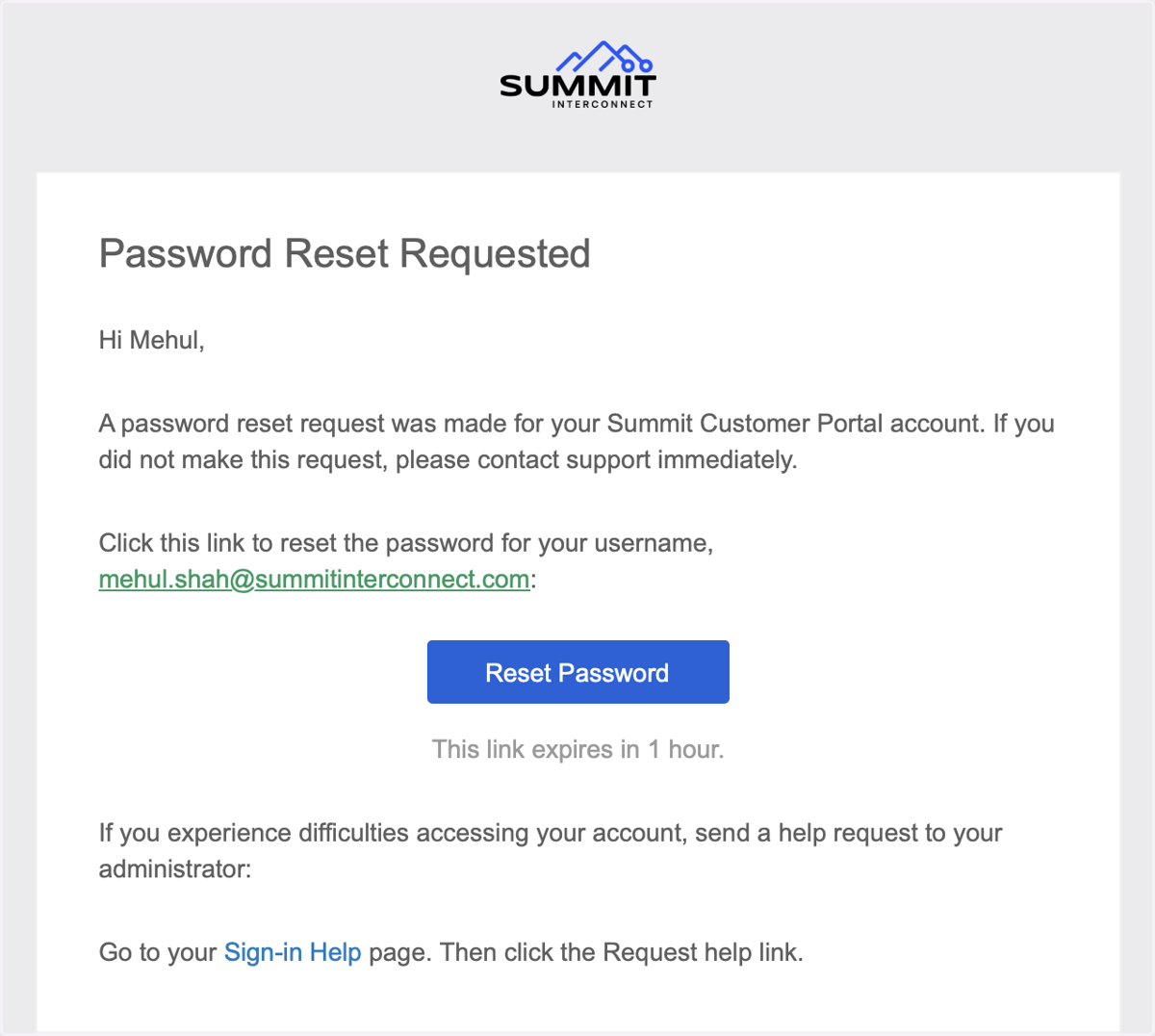
4. Go to your email and click the Reset Password button in the reset password email
See the below screenshot as an example of what the password reset email will look like. The subject line will be "Account password reset" from "noreply@okta.com".
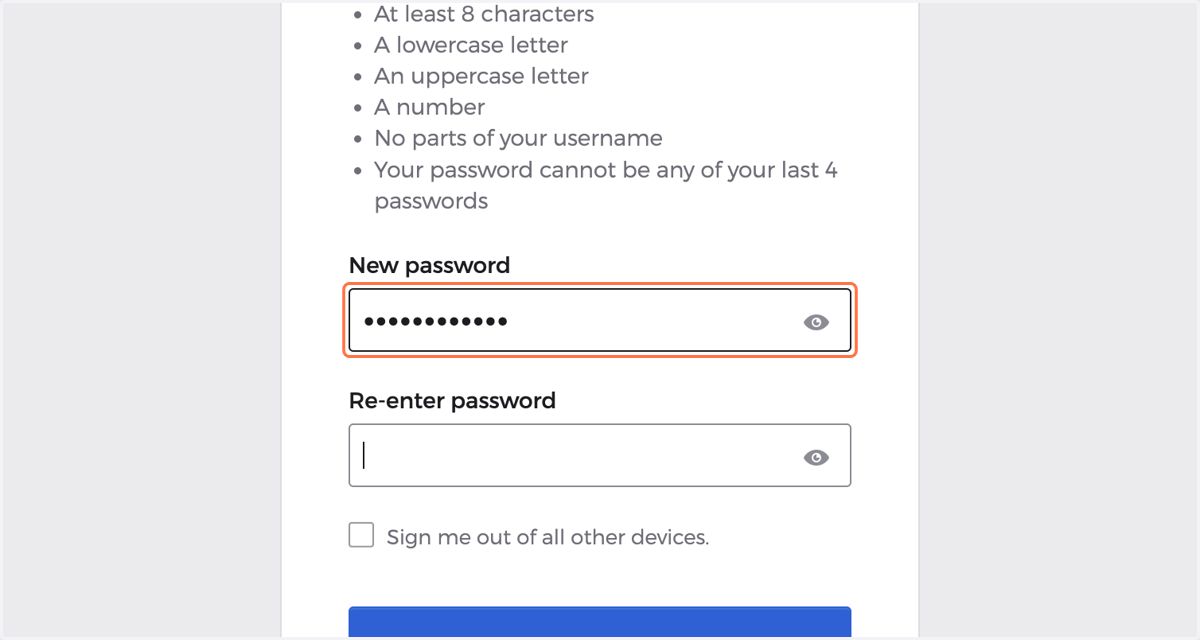
5. Type in your new password
Keep in mind the guidelines set by Okta!
localhost
6. Click on Reset Password
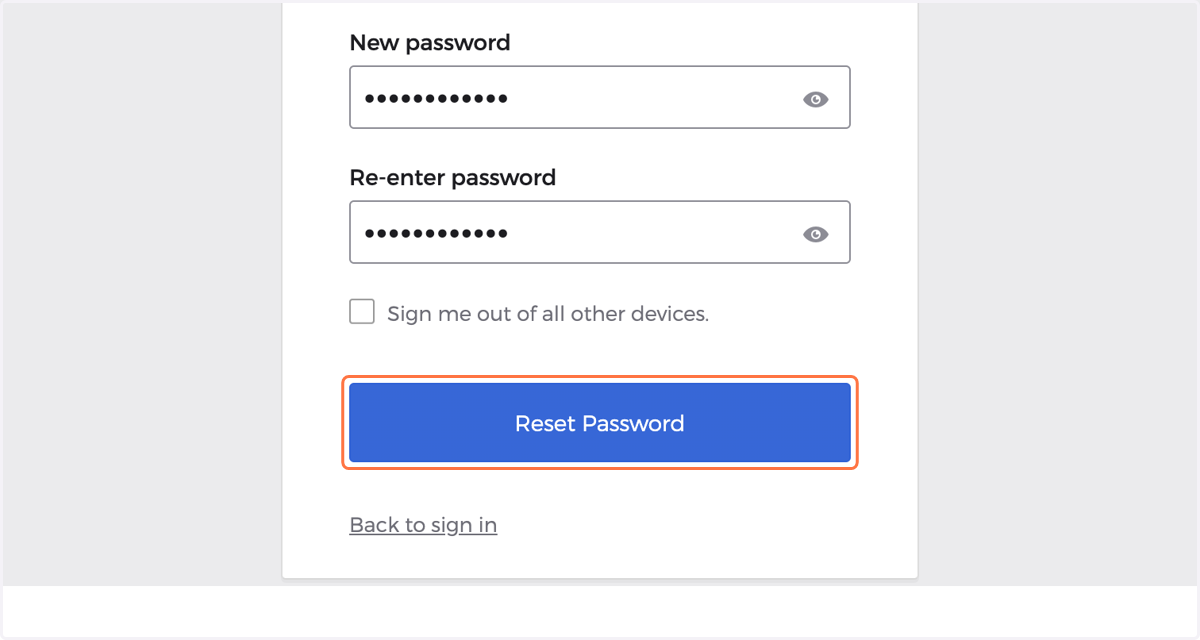
7. You can now revisit https://portal.summitinterconnect.com and sign in with your new password!