Enabling Terms in your Engagifii Workspace
Follow these steps to enable the Terms functionality for a given role in your workspace. Please note that you'll need to repeat these steps for each steps you want to see and manage terms.
From anywhere in Engagifii...
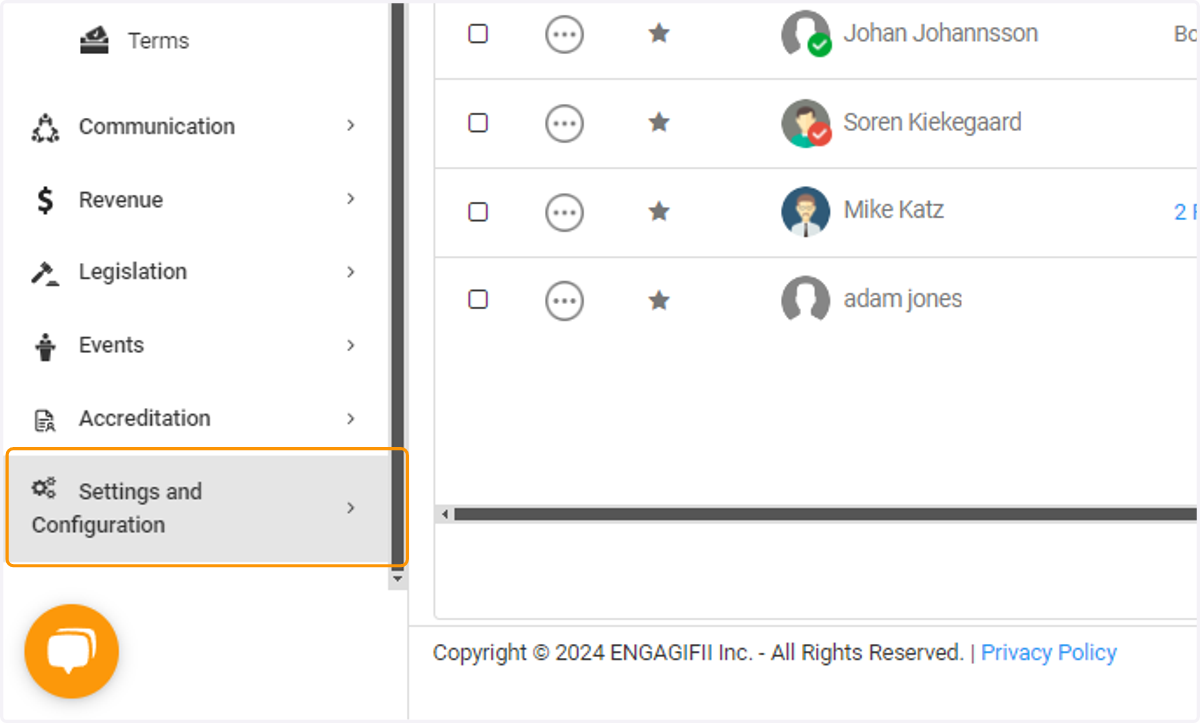
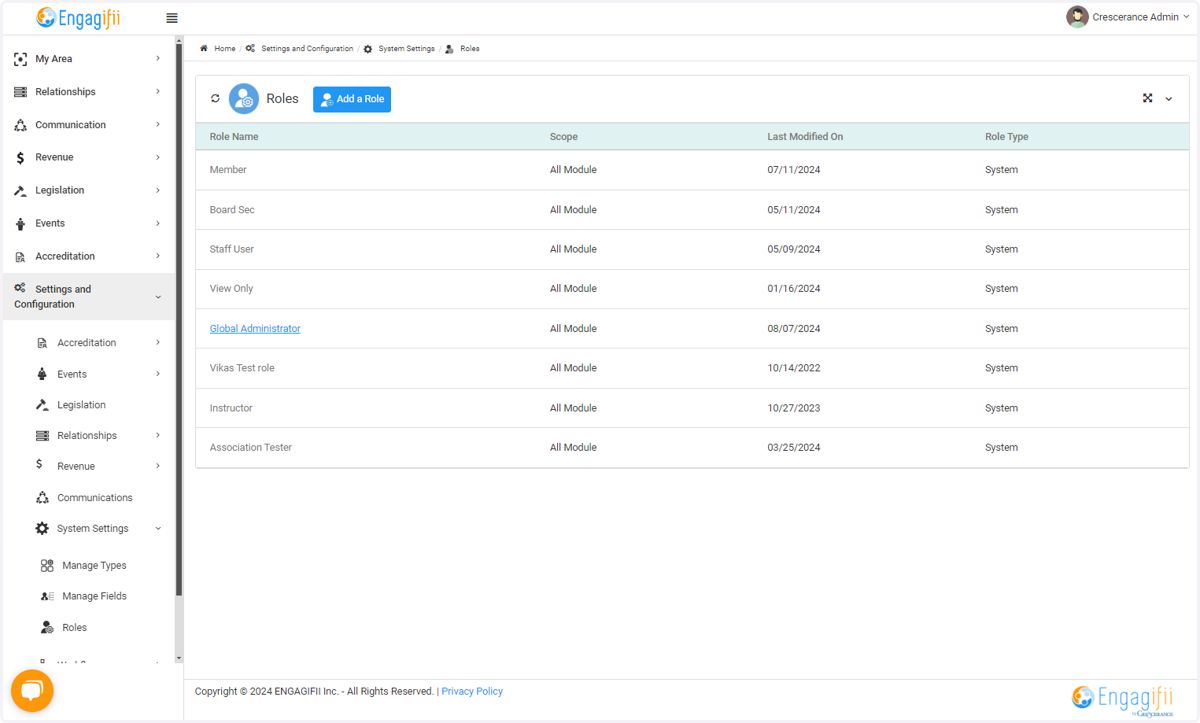
1. Click on Settings and Configuration
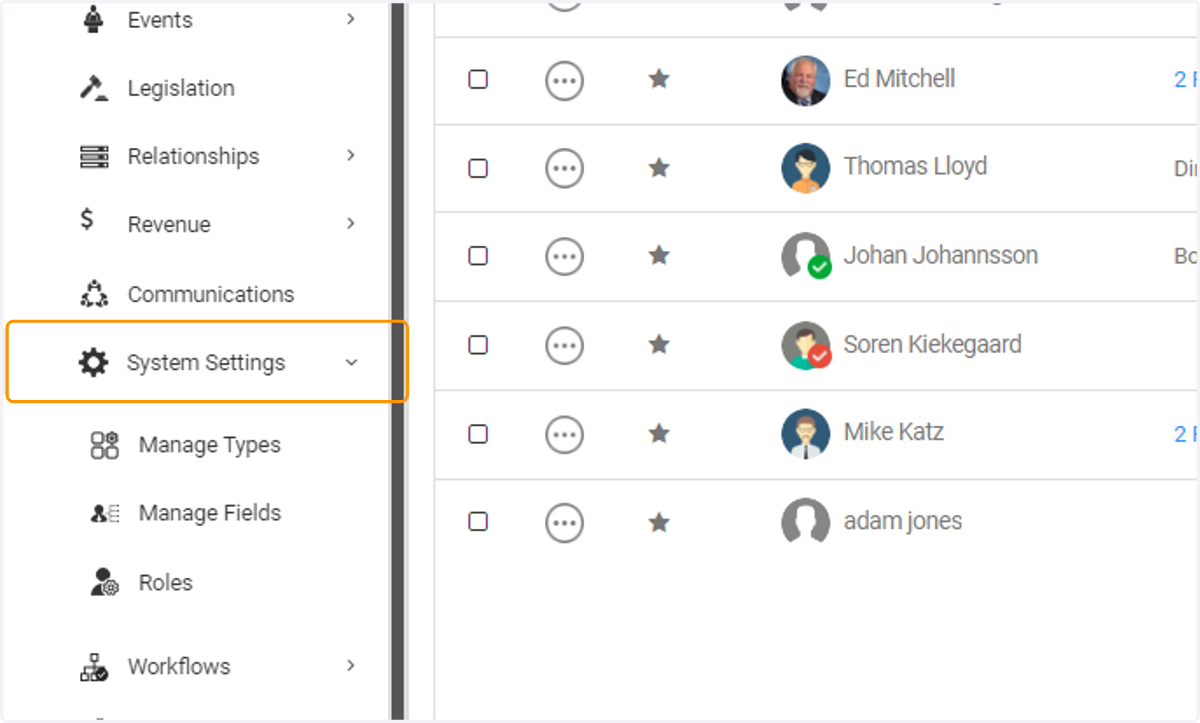
2. Click on System Settings
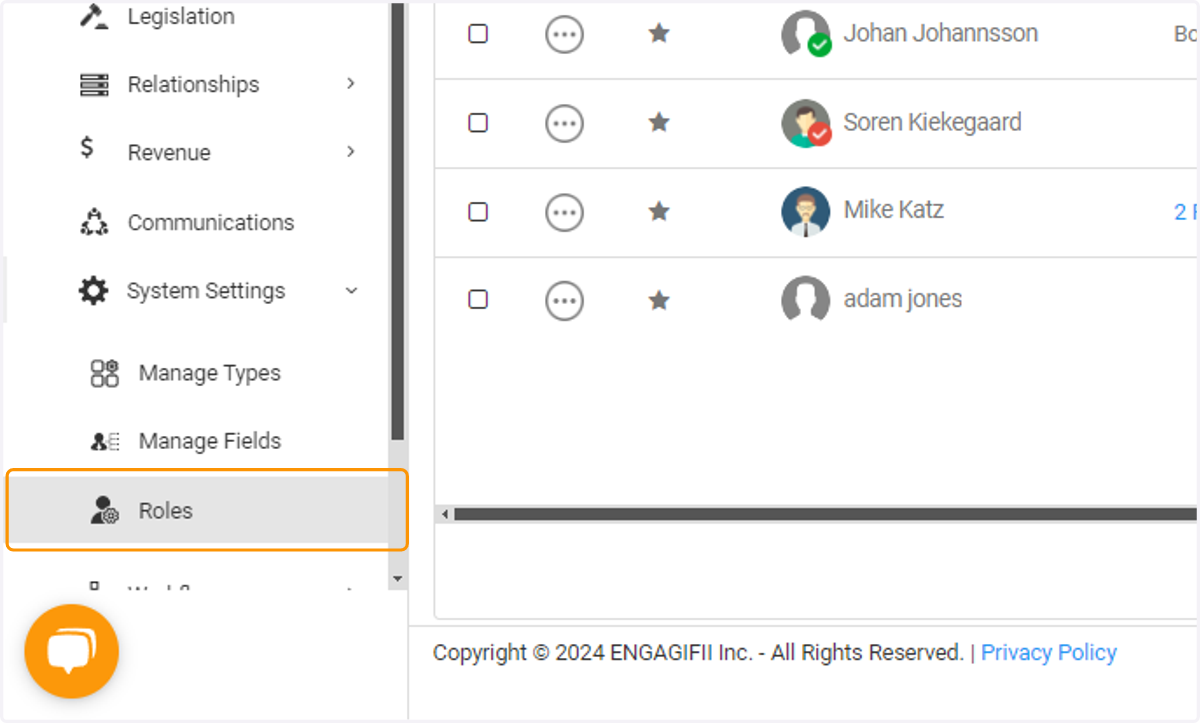
3. Click on Roles
4. Click on the role you want to grant permission to
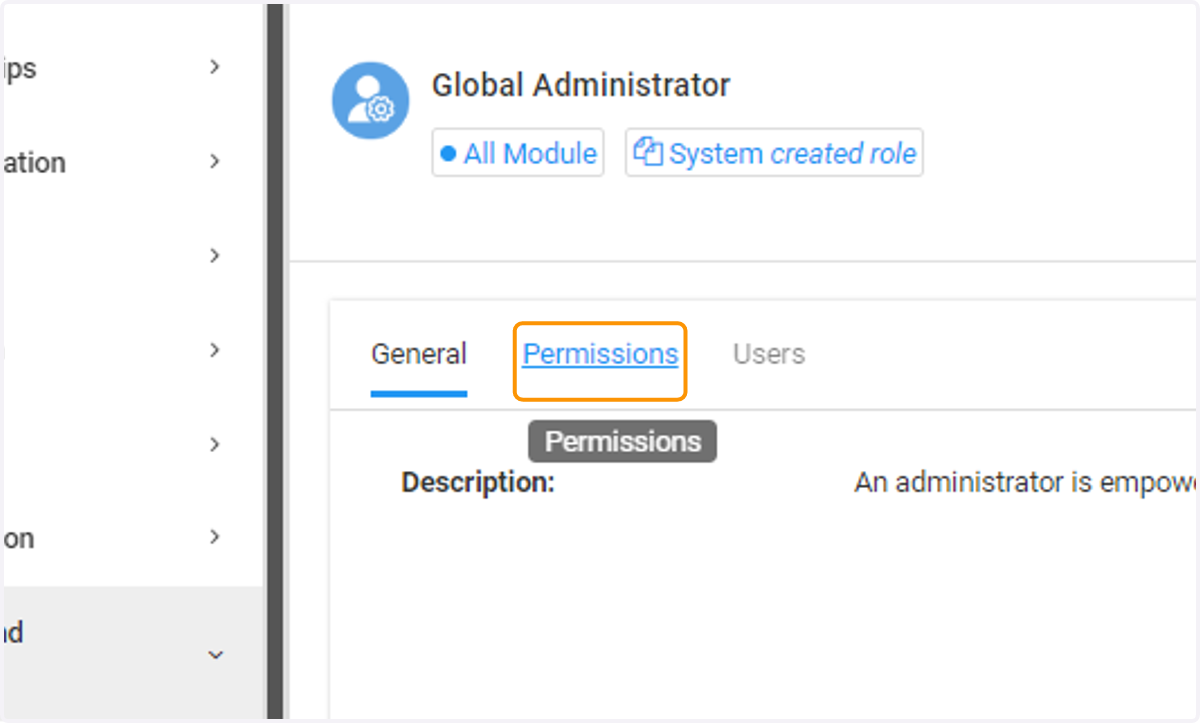
5. Click on Permissions
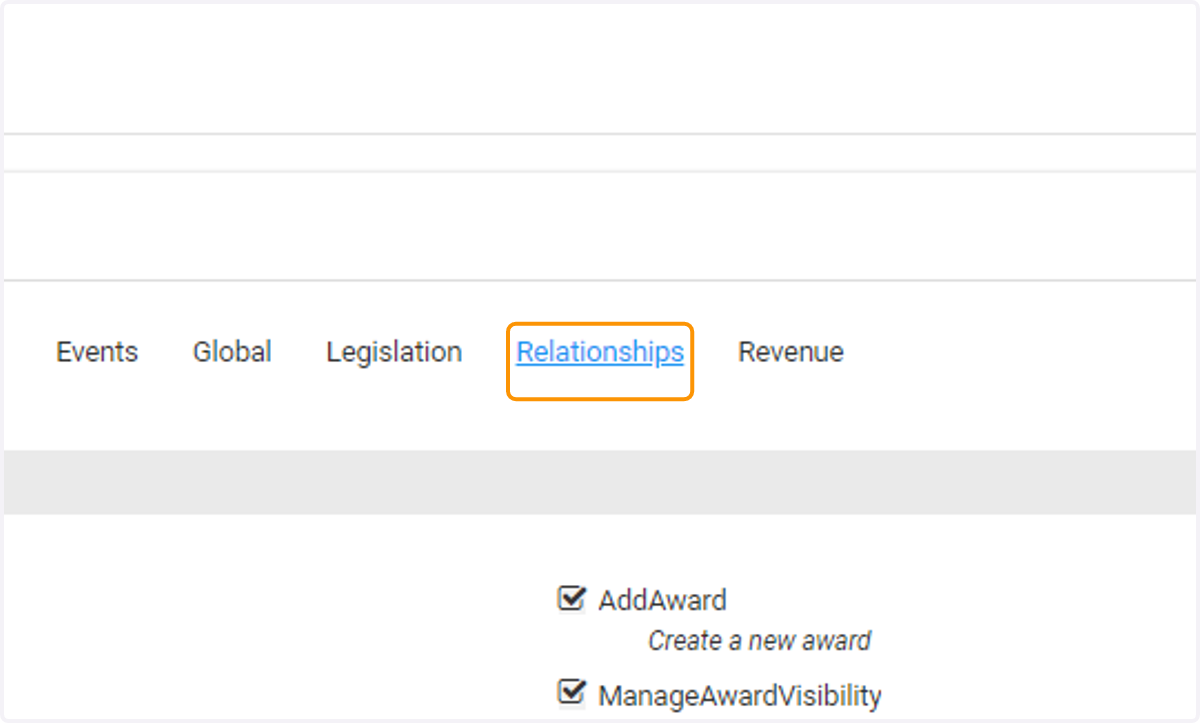
6. Click on Relationships
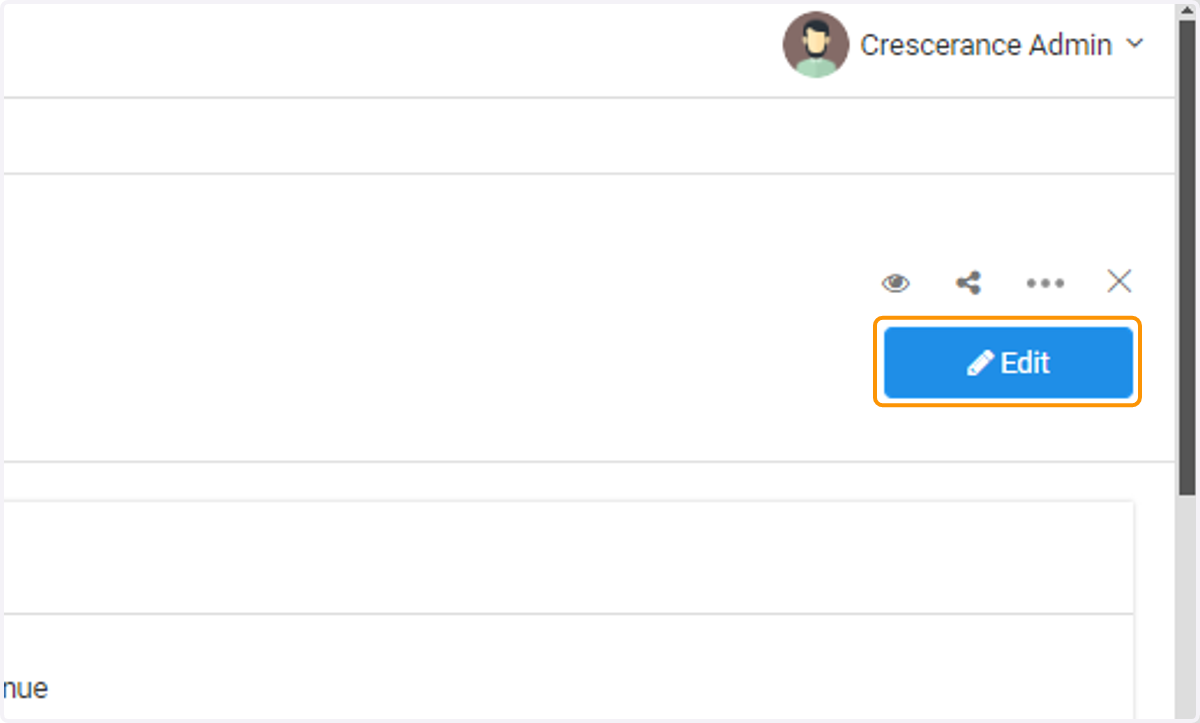
7. Click on Edit
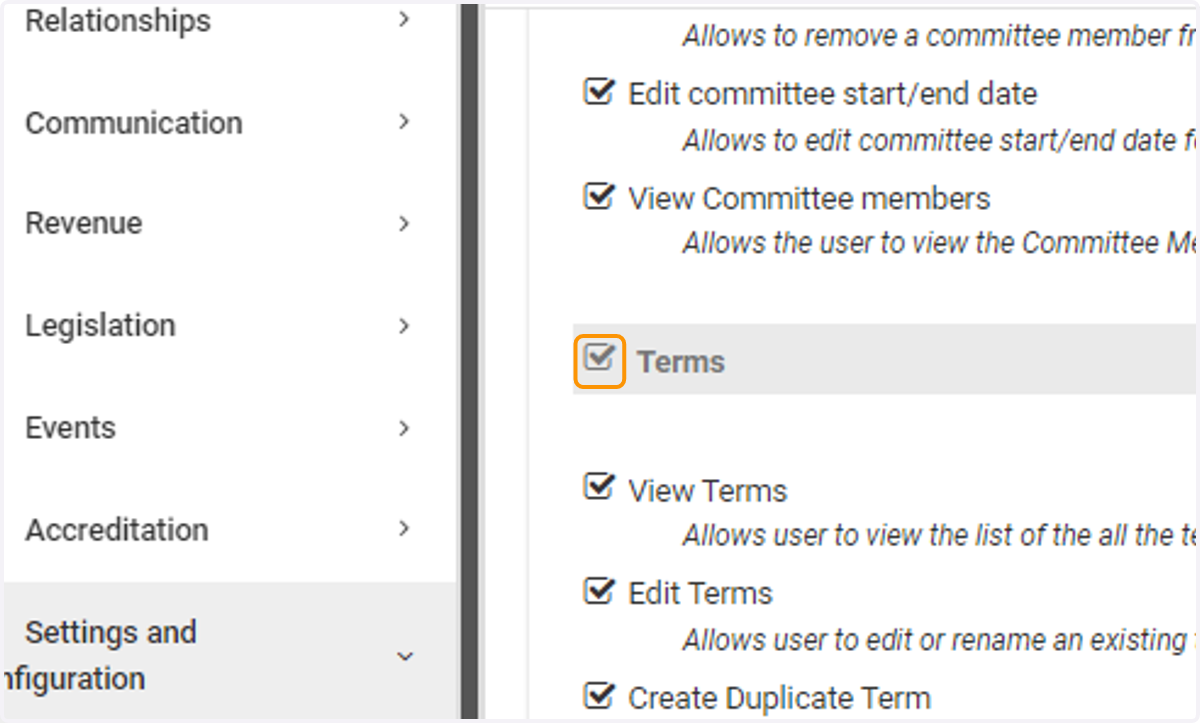
8. Scroll down and enable the Terms permissions you want enabled for this role. For this example, we're enabling all Terms permissions
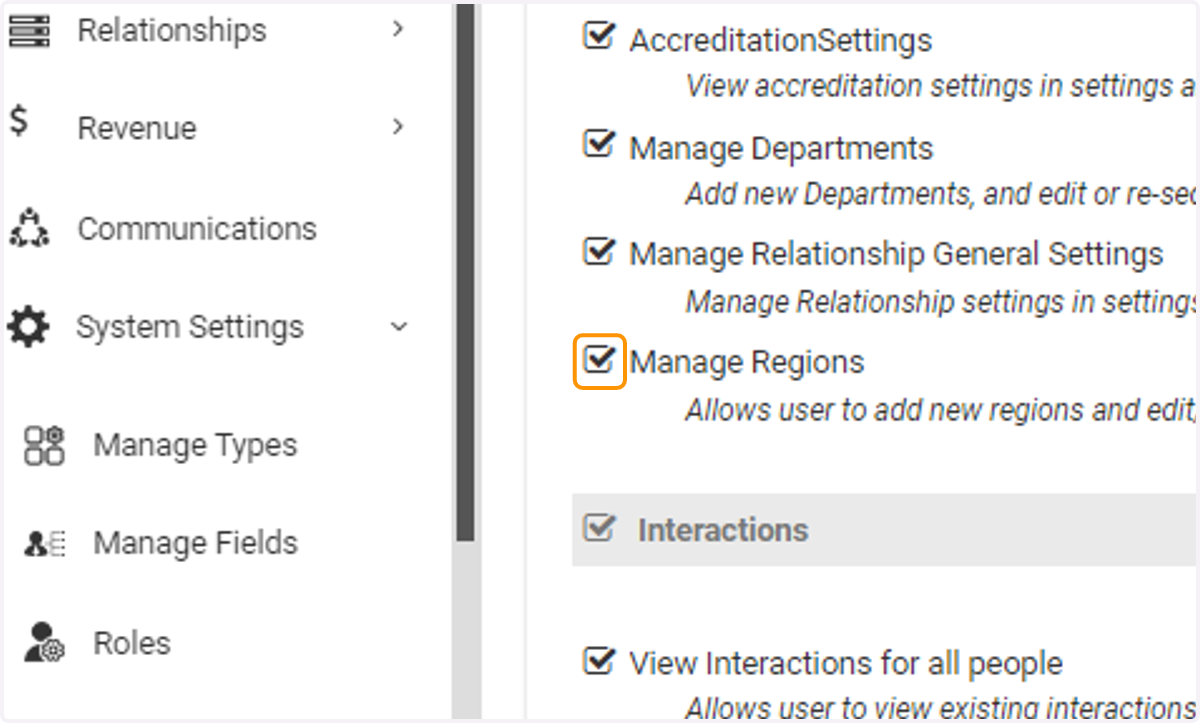
9. Scroll down and also enable "Manage Regions" so that you can create the regions used later as part of your term. Only do this if you reference your members in regions (like 1-10 or North & South).
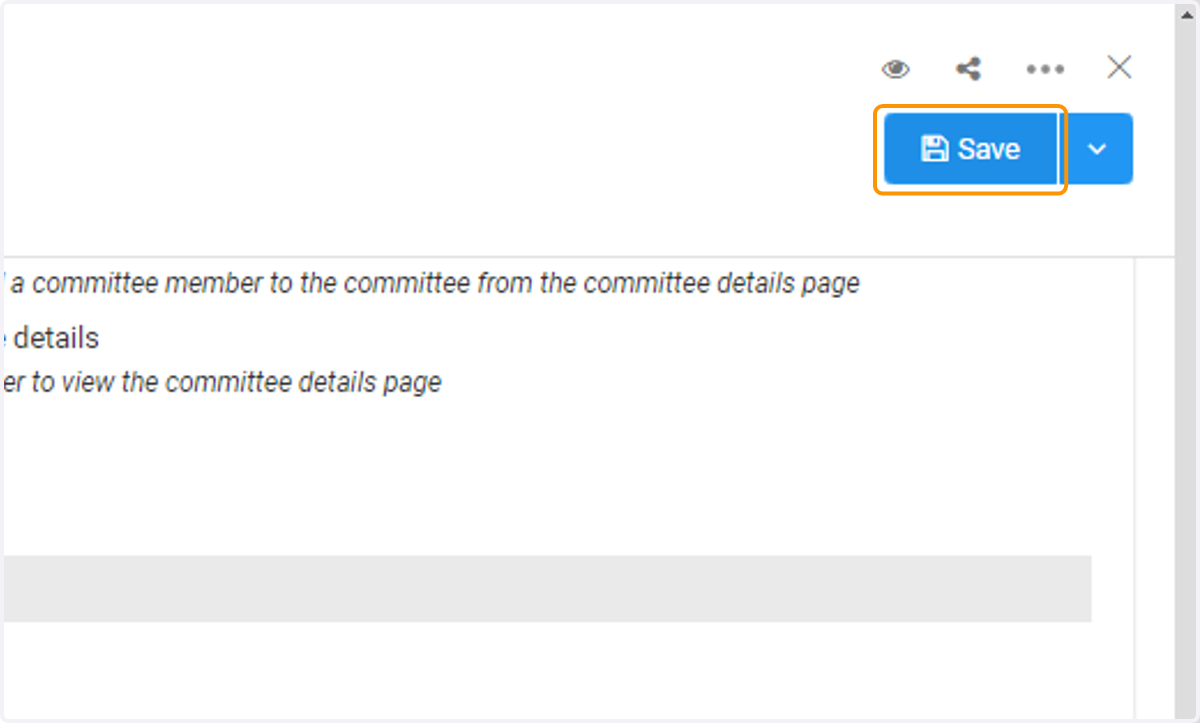
10. Click on Save
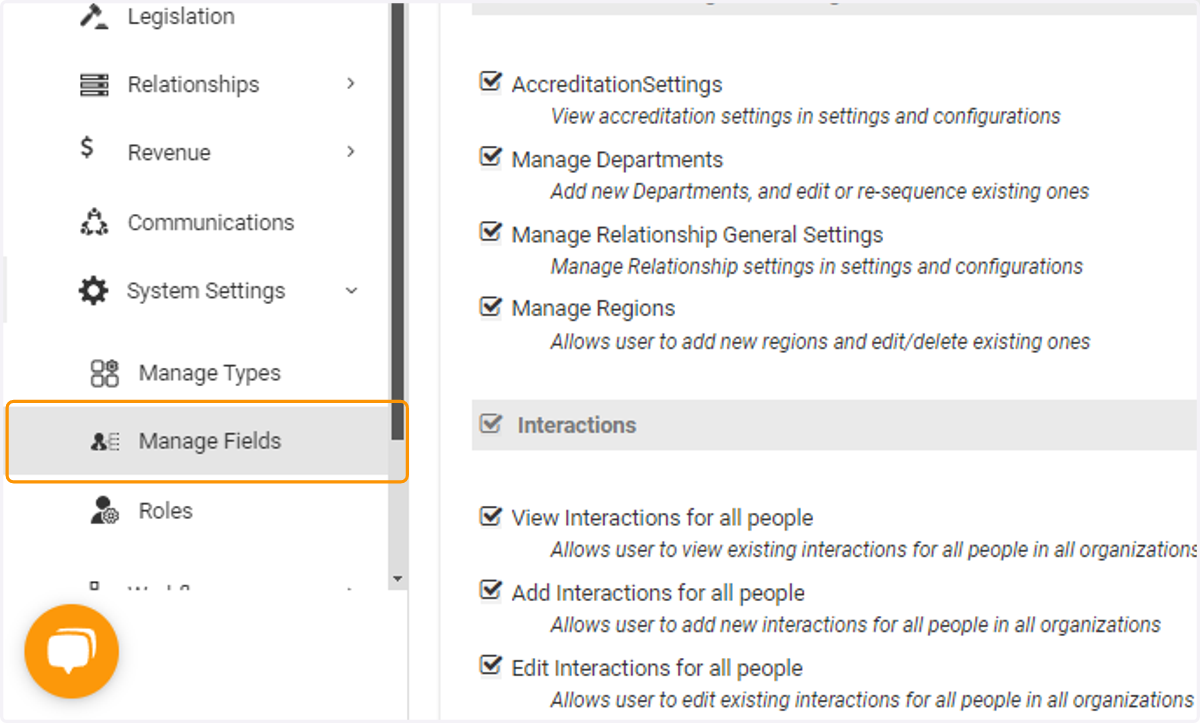
11. We need to enable the Terms fields for use on your People records now. Click on Manage Fields
12. Expand GENERAL DETAILS
13. Click on Edit
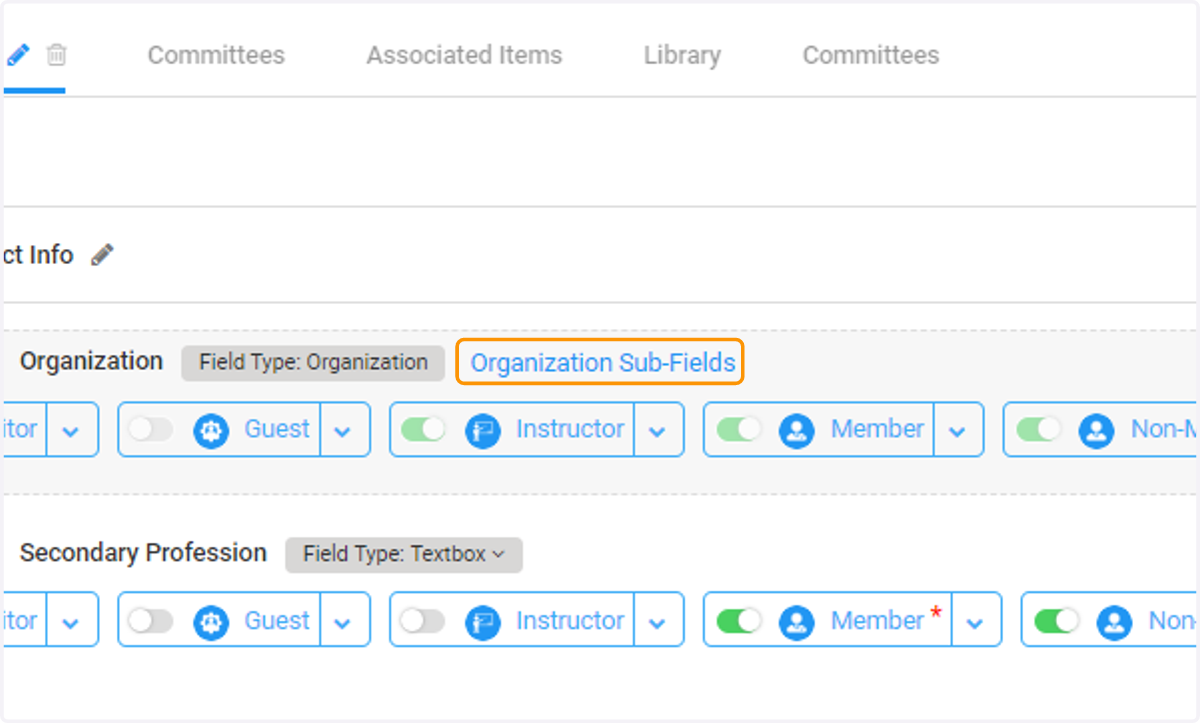
14. Click on Organization Sub-Fields
15. Enable the Terms subfields for all of the relevant Personas
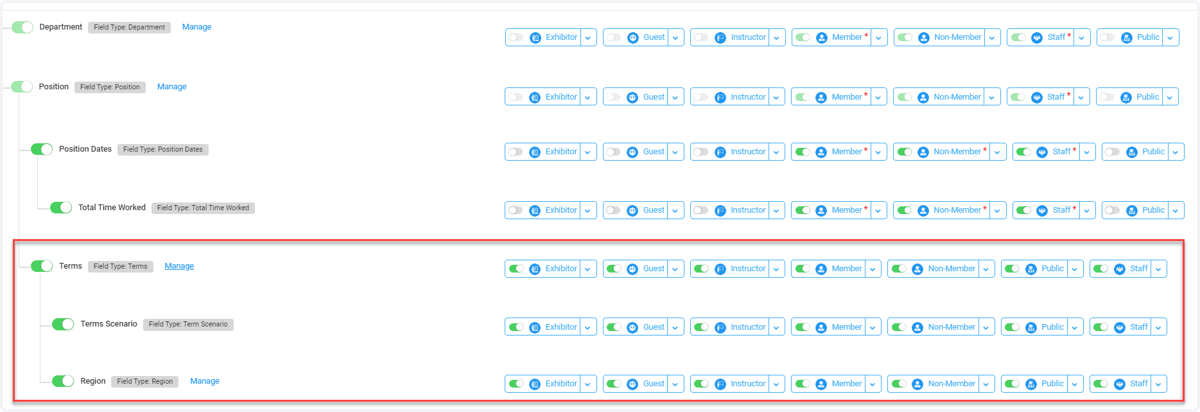
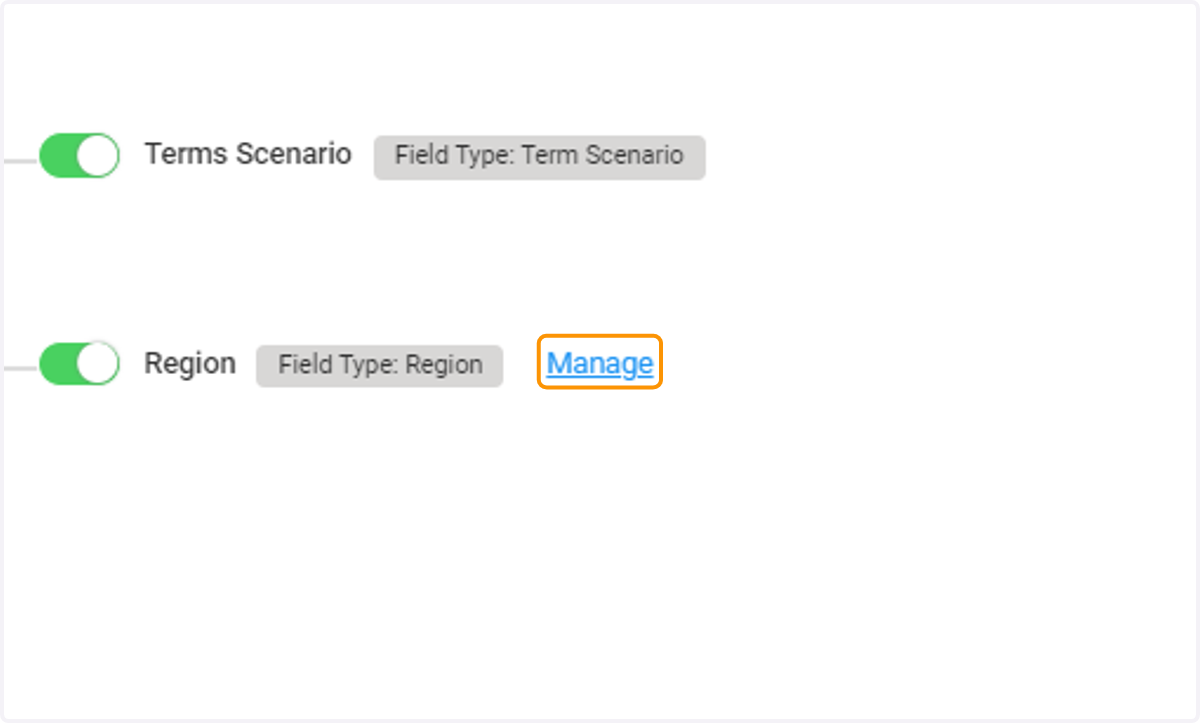
16. To create Regions, Click on Manage
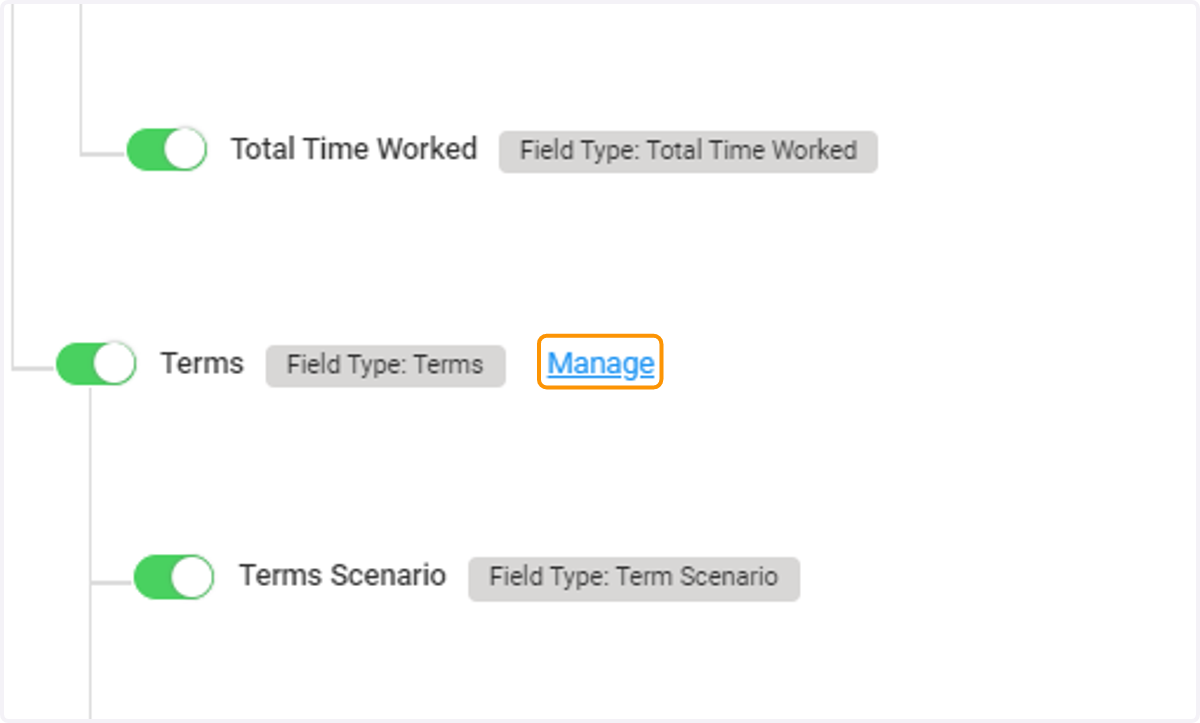
17. Now you're ready to create your first Terms. Click on Manage
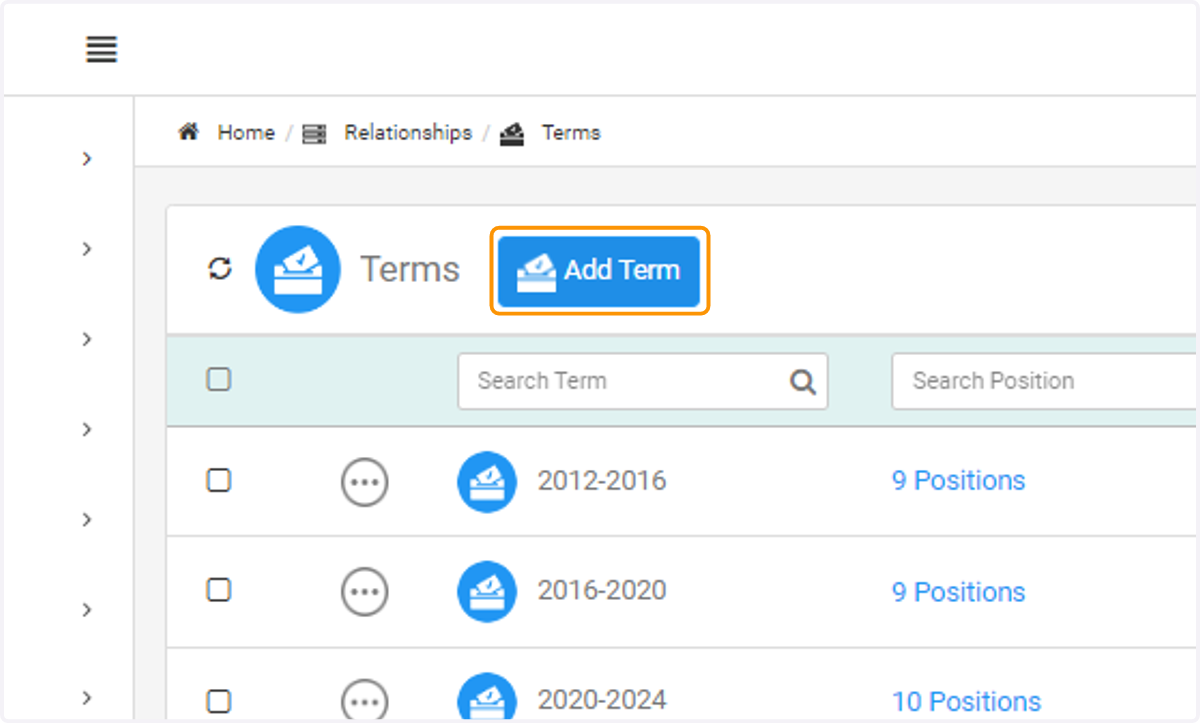
18. Click on Add Term