Creating Staff Analysis in Engagifii
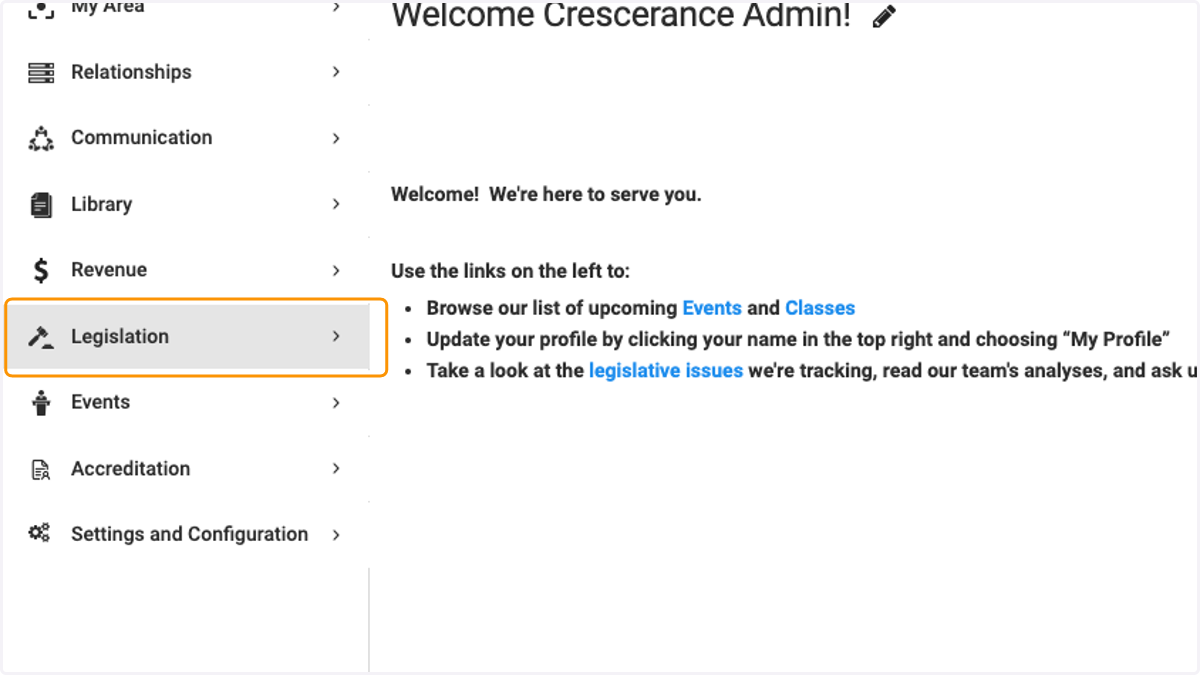
1. Click on Legislation
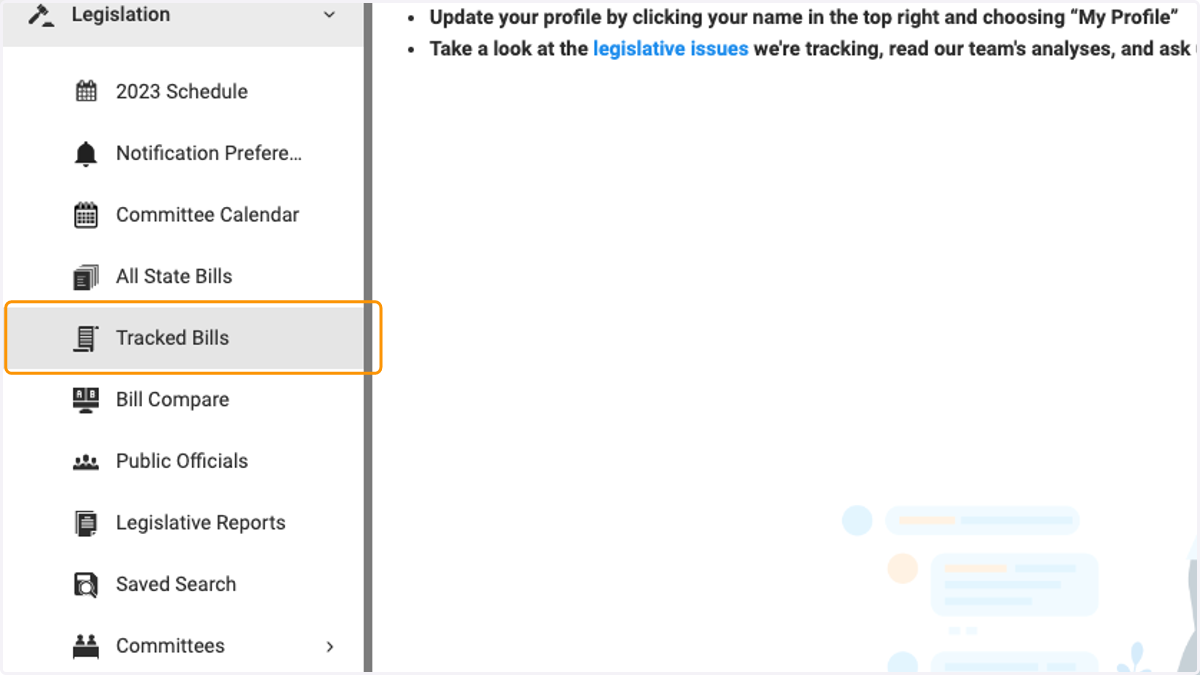
2. Click on Tracked Bills
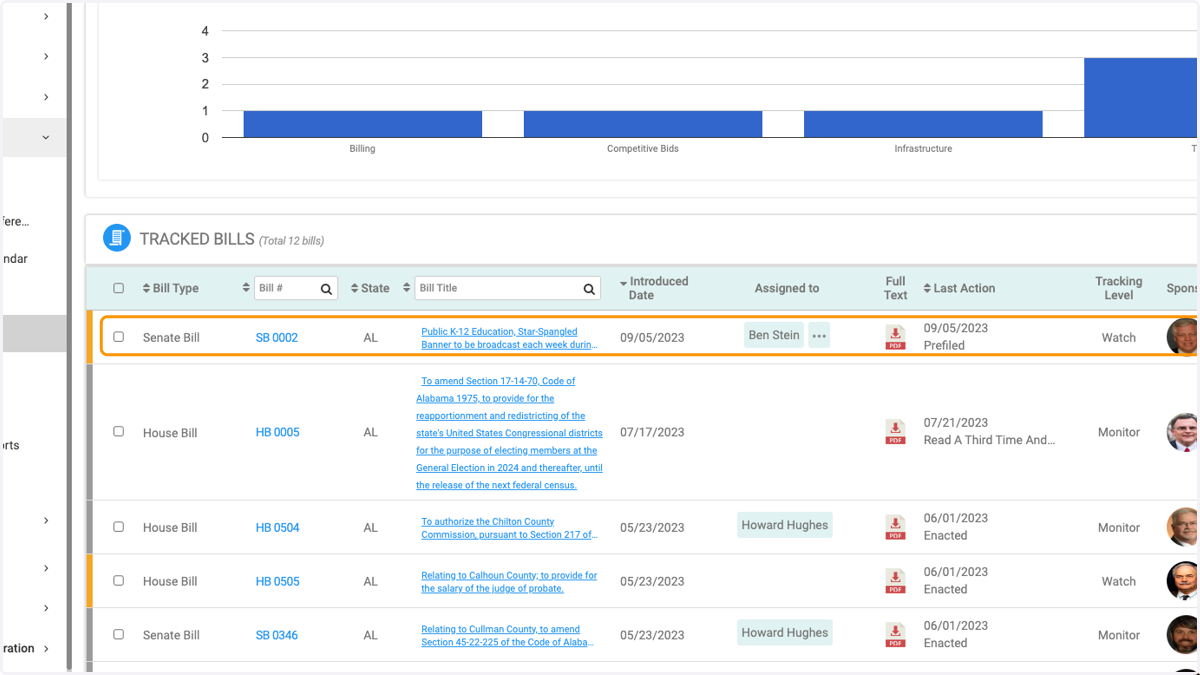
3. Click on a bill
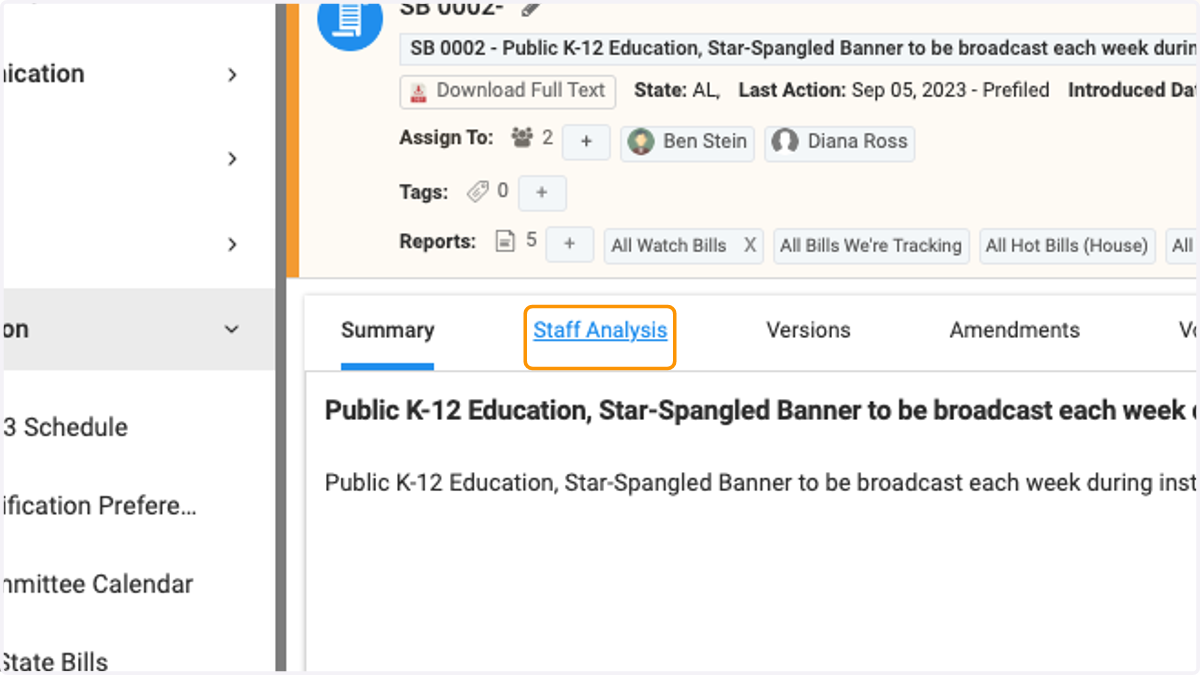
4. Click on the Staff Analysis tab
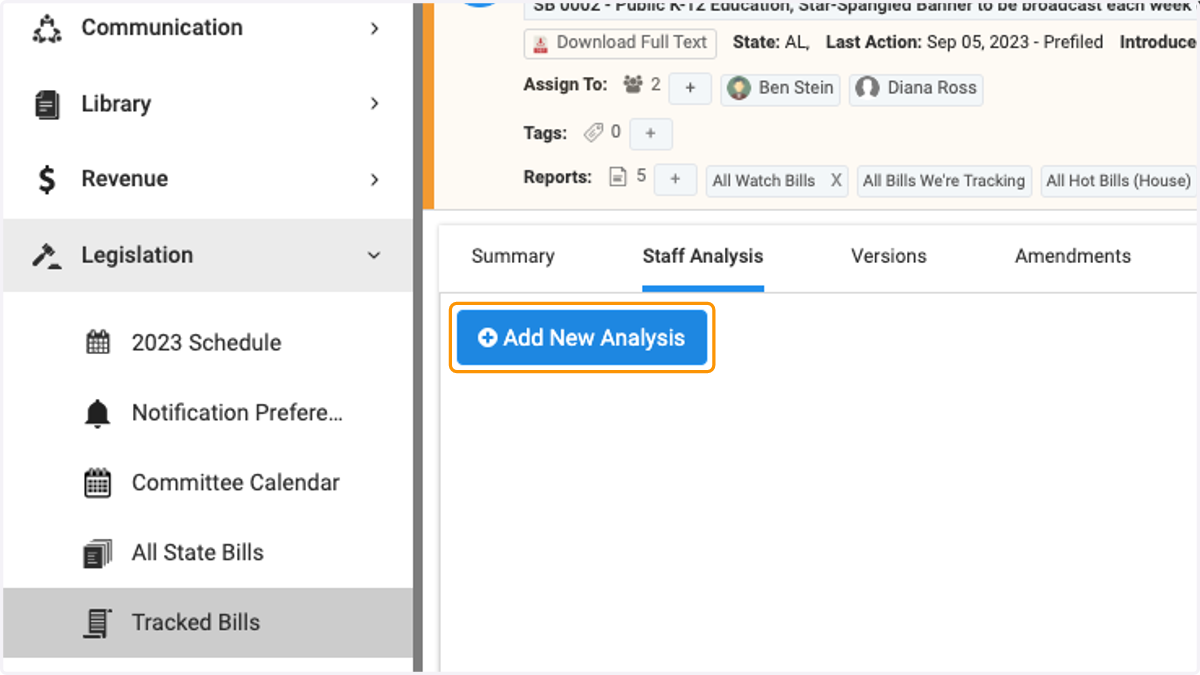
5. Click on Add New Analysis
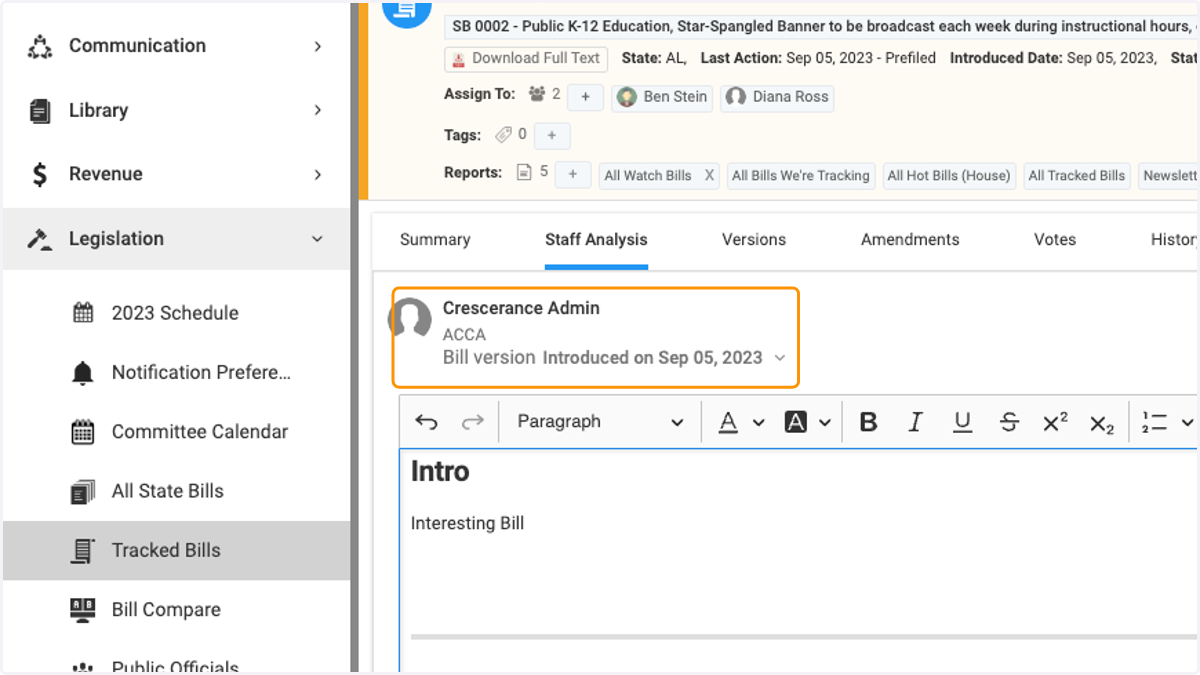
6. You can write an analysis on a specific bill version
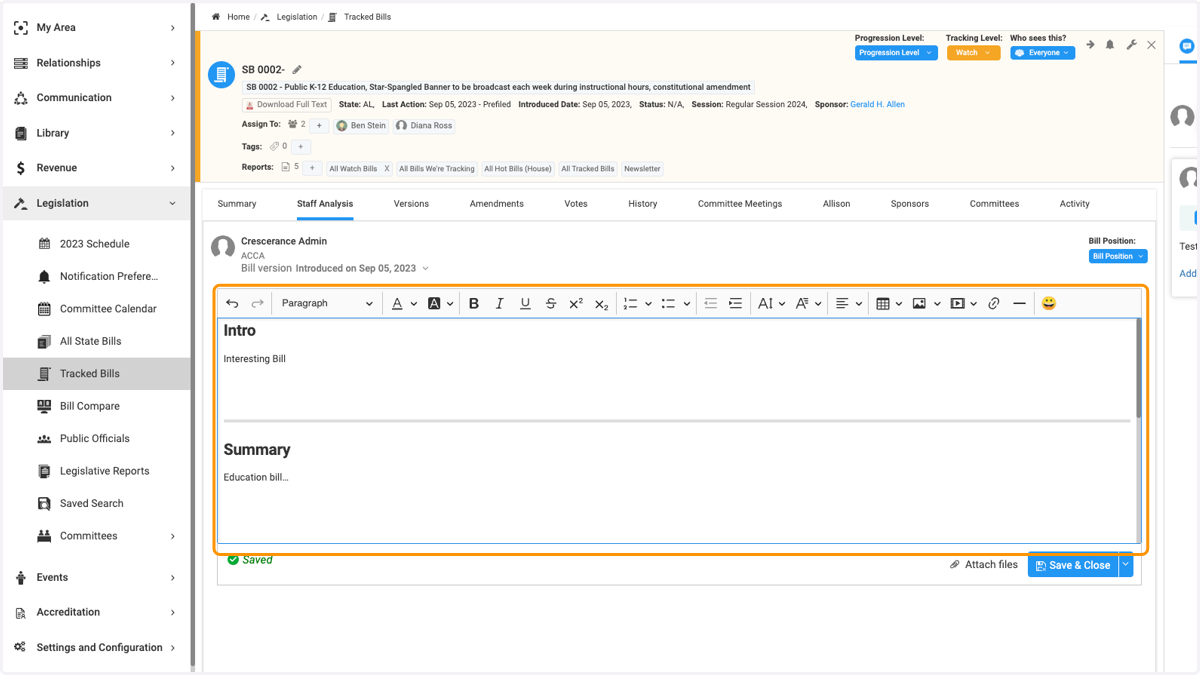
7. Begin writing the analysis in the text box. You can format using the editor bar, as well as add images and links.
Your workspace may have a staff analysis template created with parameters for your analysis content
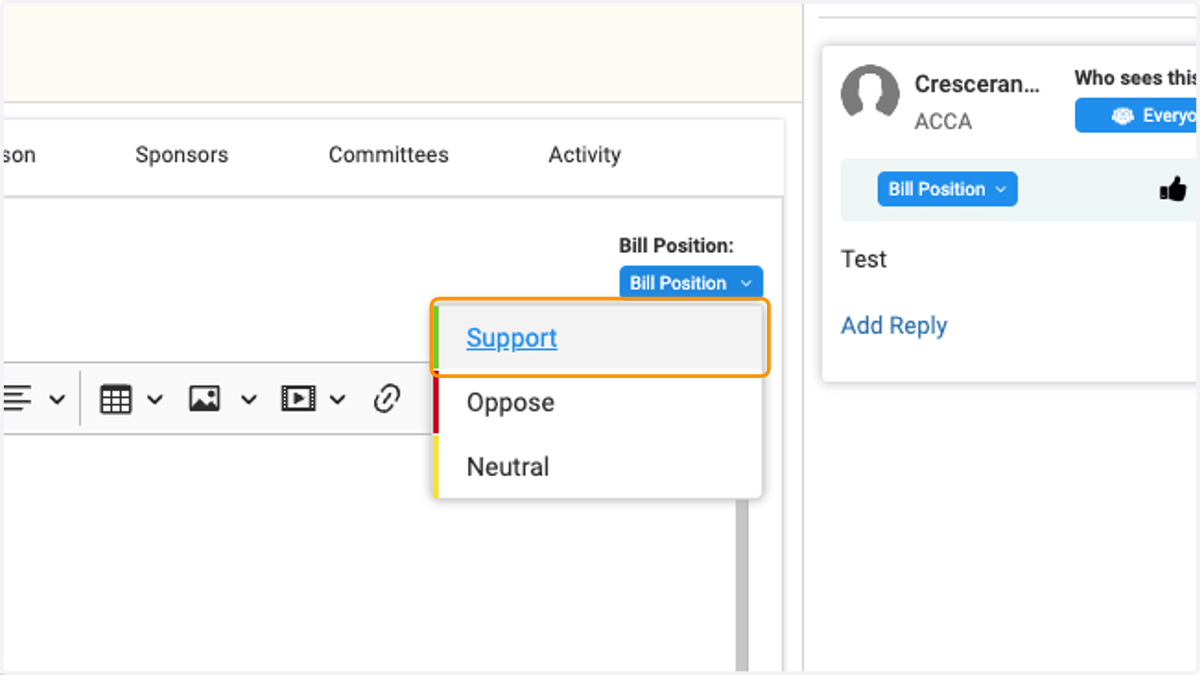
8. Click on Bill Position to indicate your position
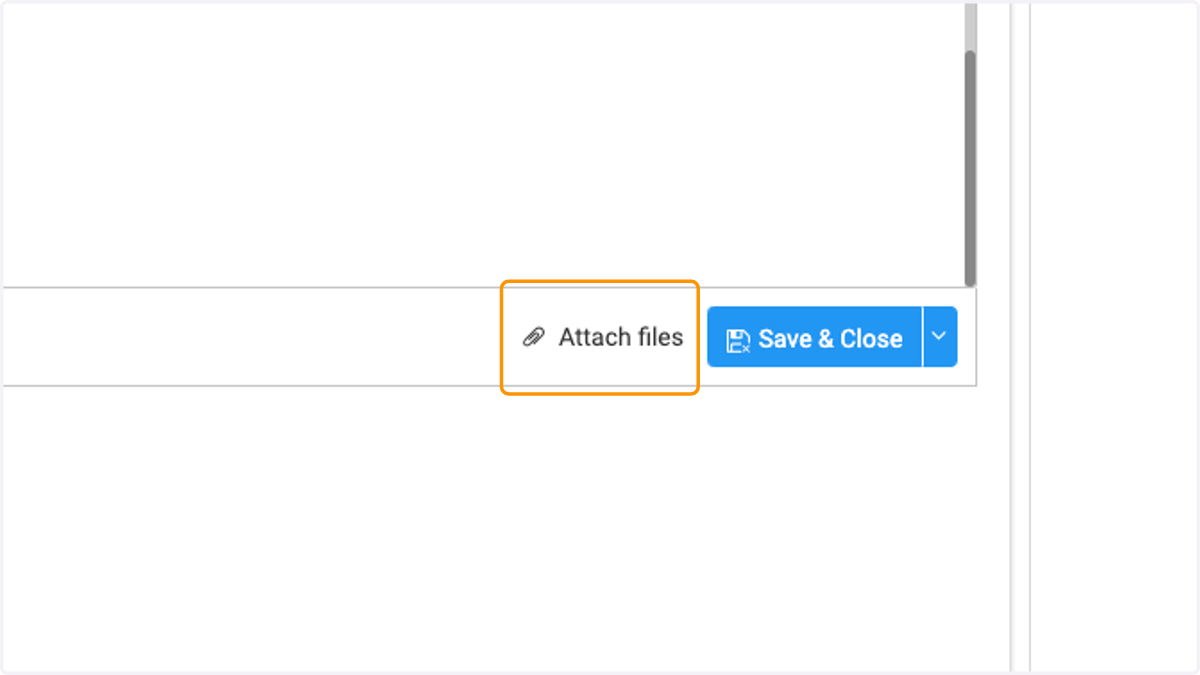
9. Click on Attach files to attach additional documentation to your analysis
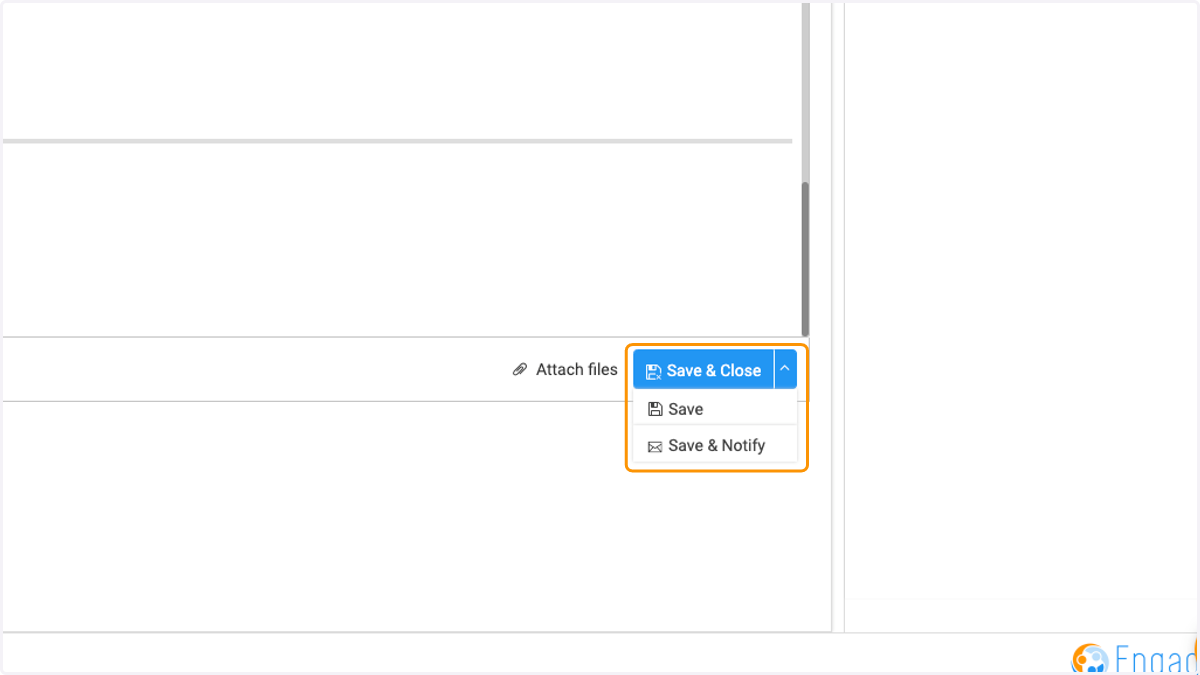
10. Click on Save…
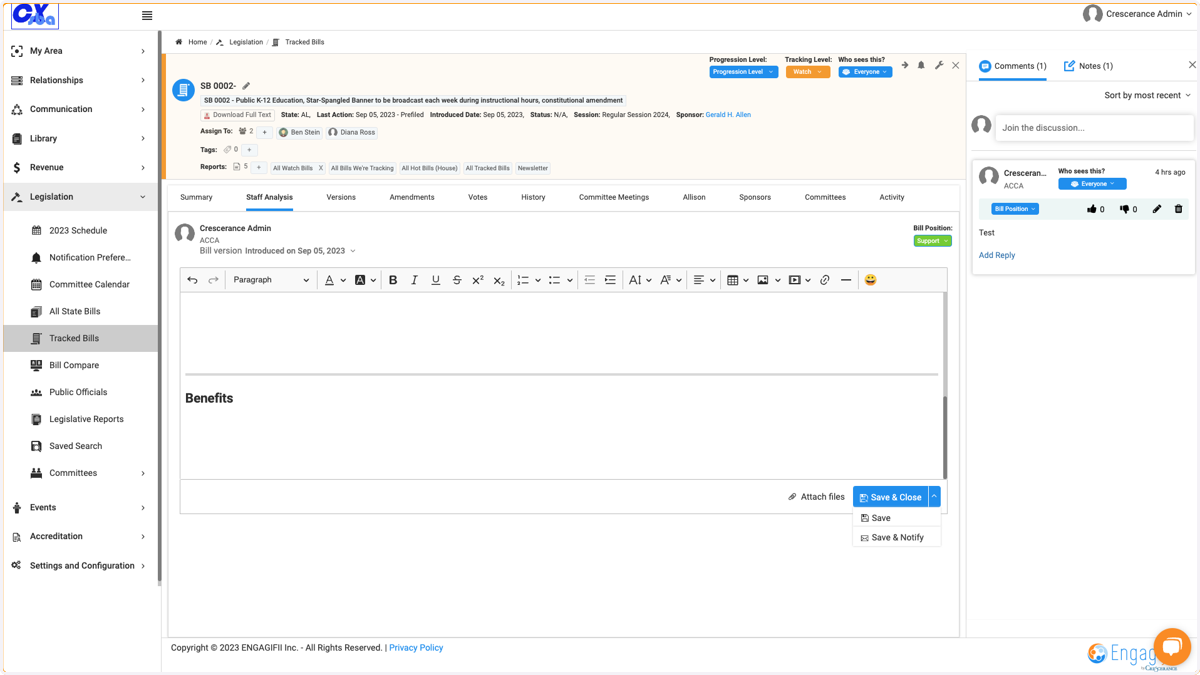
11. Click on Save & Close… you can either just save your analysis or save and notify a designated team member.