Navigating the Bubble.io API Connector Setup (Pixelwise)

Go to Bubble.io

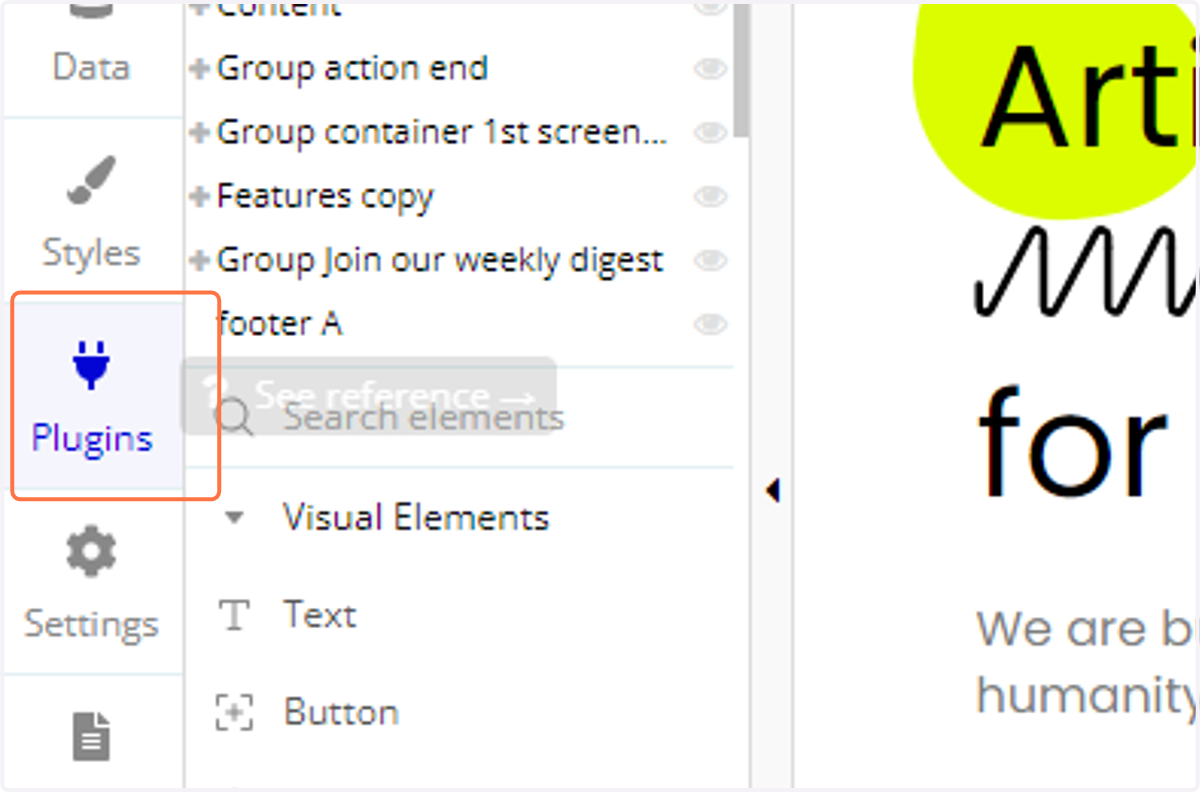
  1. 1. Click on Plugins

    Click on Plugins
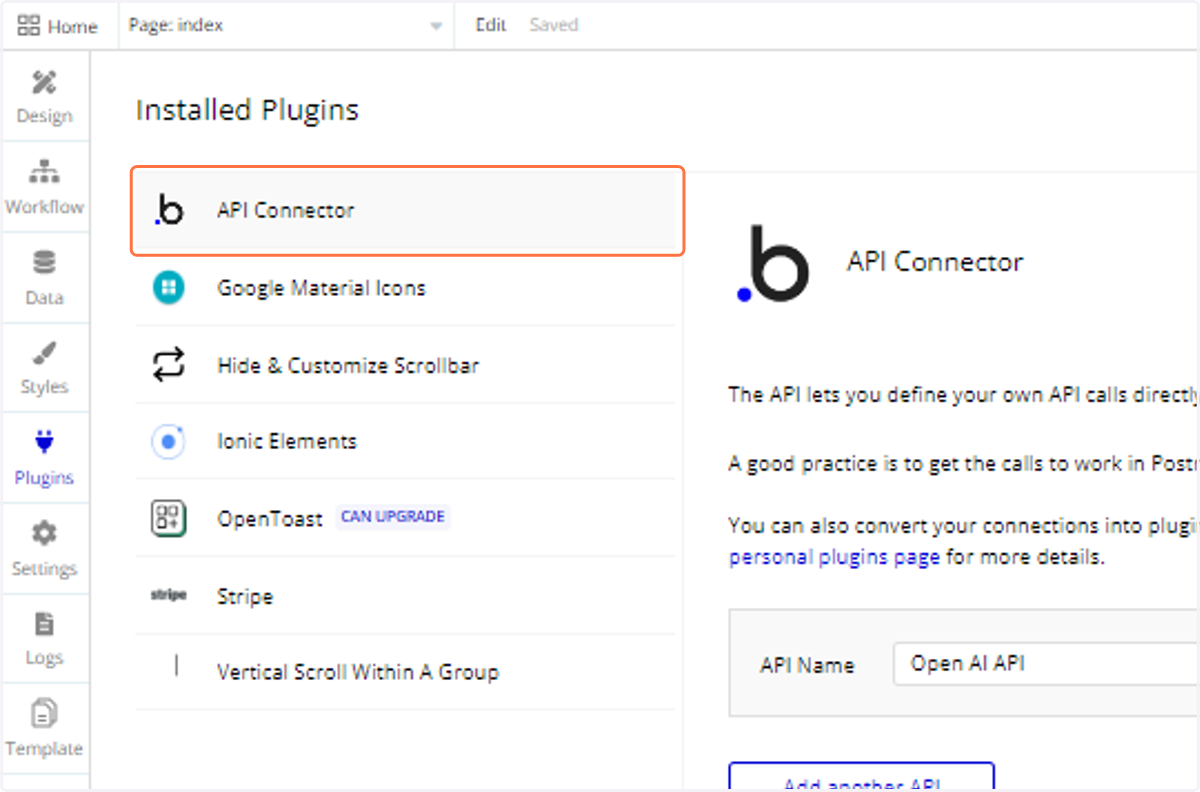
  2. 2. Click on API Connector

    Click on API Connector
  3. 3. Look for expand in front of Open AI API …
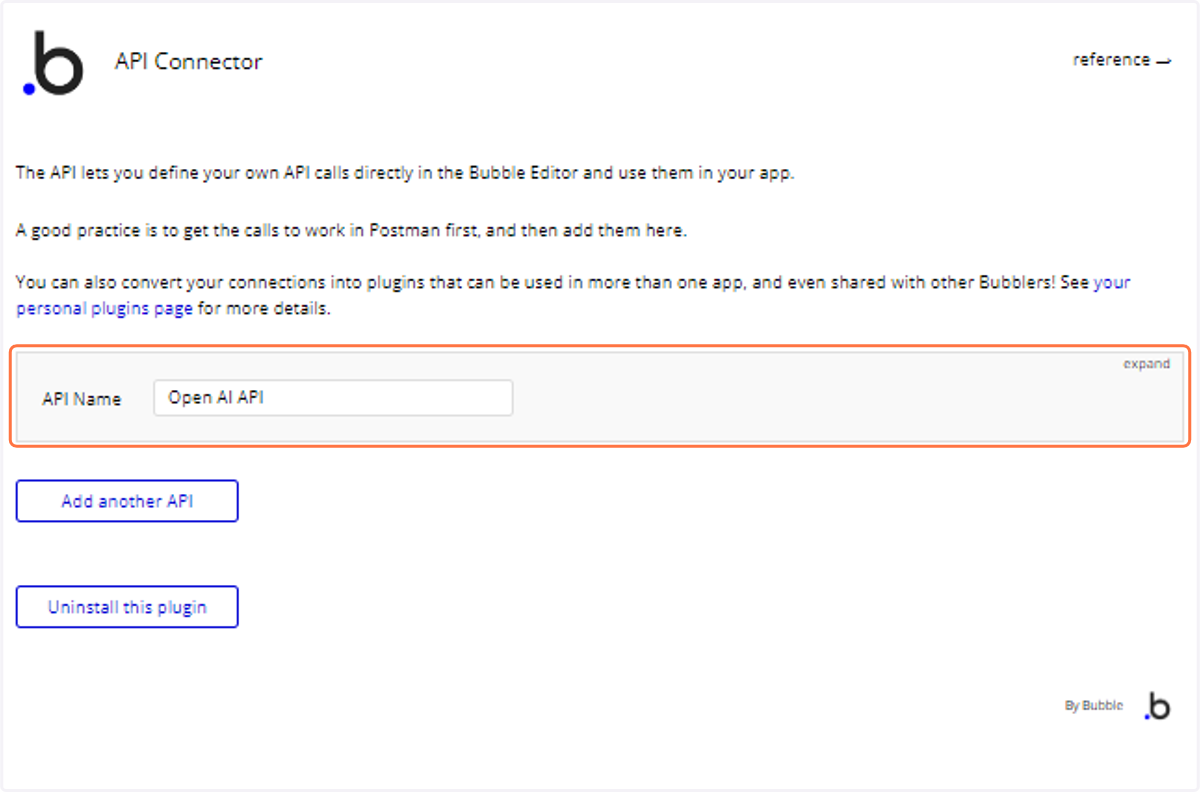
    Look for expand in front of Open AI API …
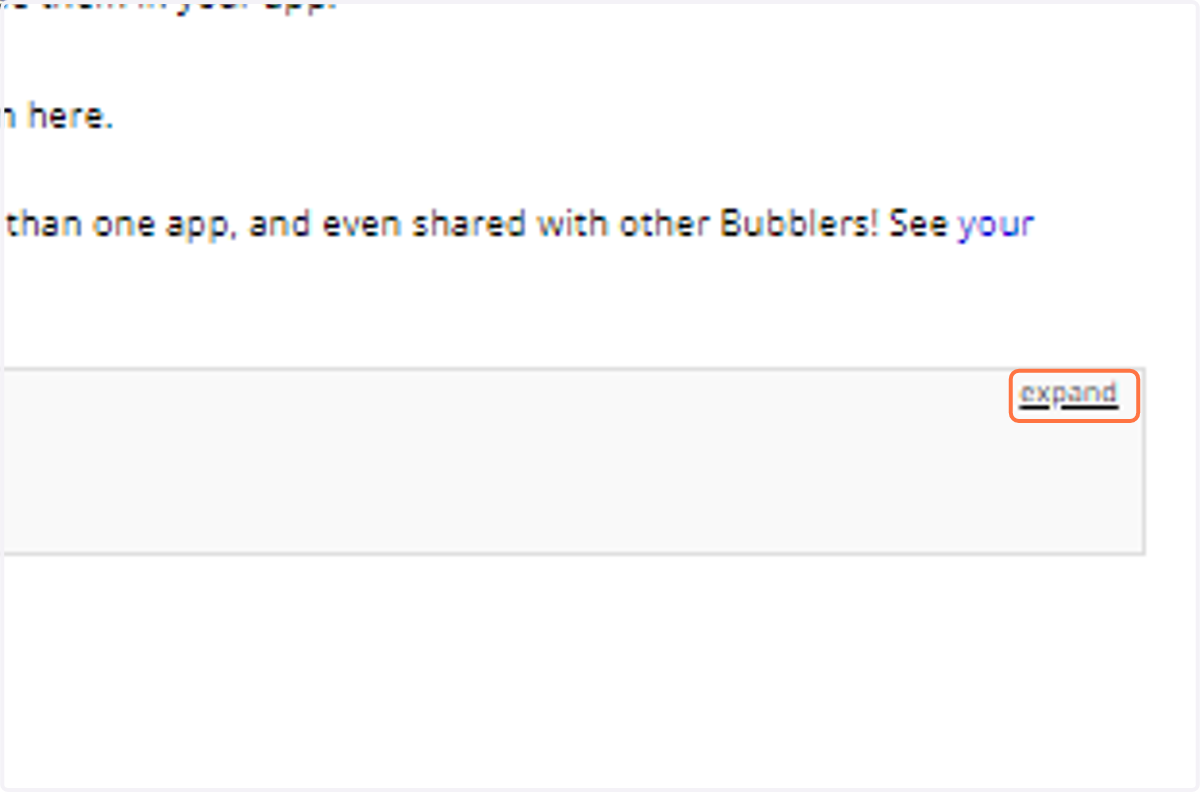
  4. 4. Click on expand

    Click on expand
  5. 5. In Key value, insert the Open AI API key
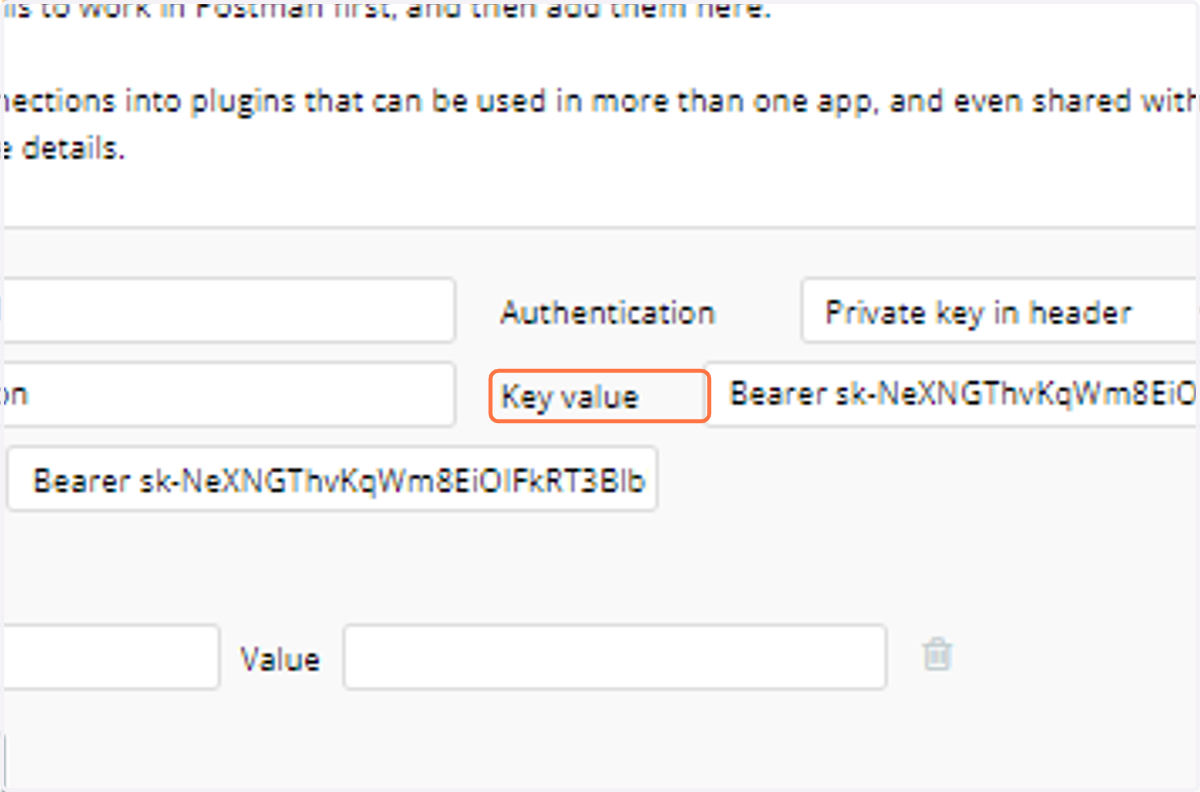
    In Key value, insert the Open AI API key
  6. 6. In Development key value, insert same Open AI API key
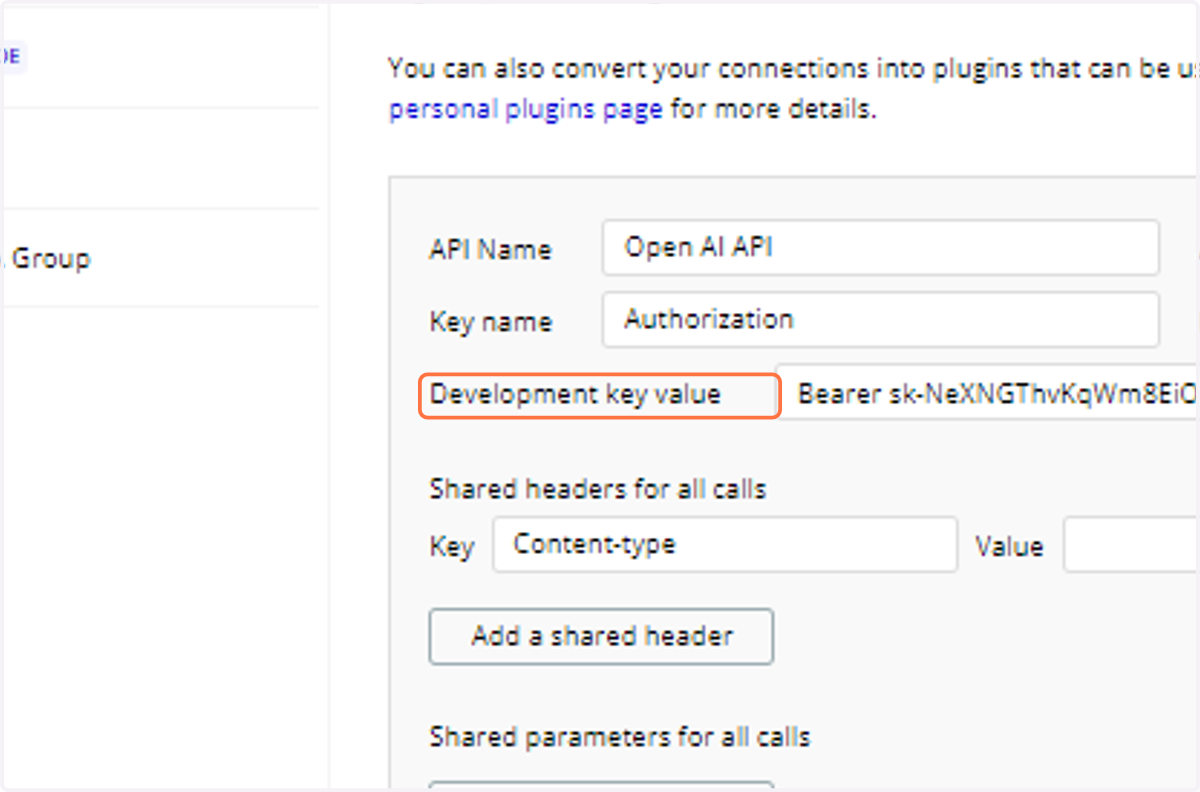
    In Development key value, insert same Open AI API key
  7. 7. In the Value in front of content type , type "application/json"
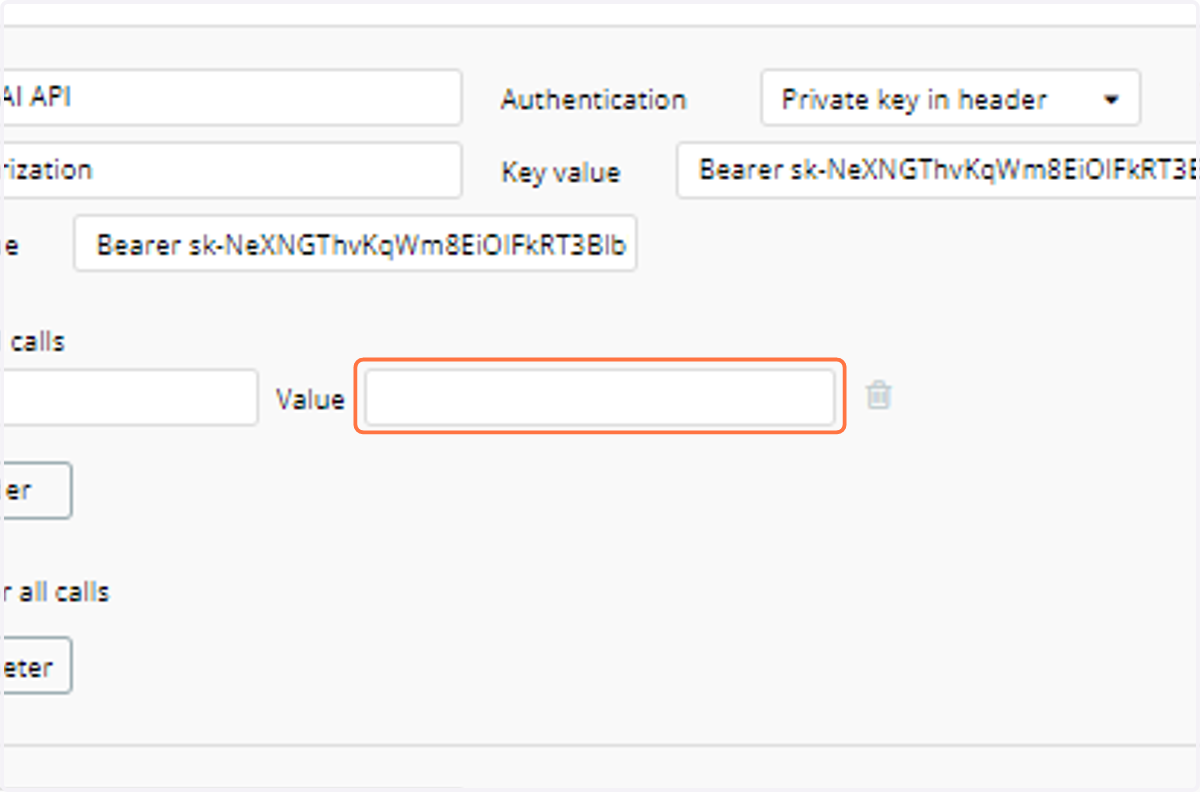
    In the Value in front of content type , type "application/json"
  8. 8. Click on expand in front of create Image
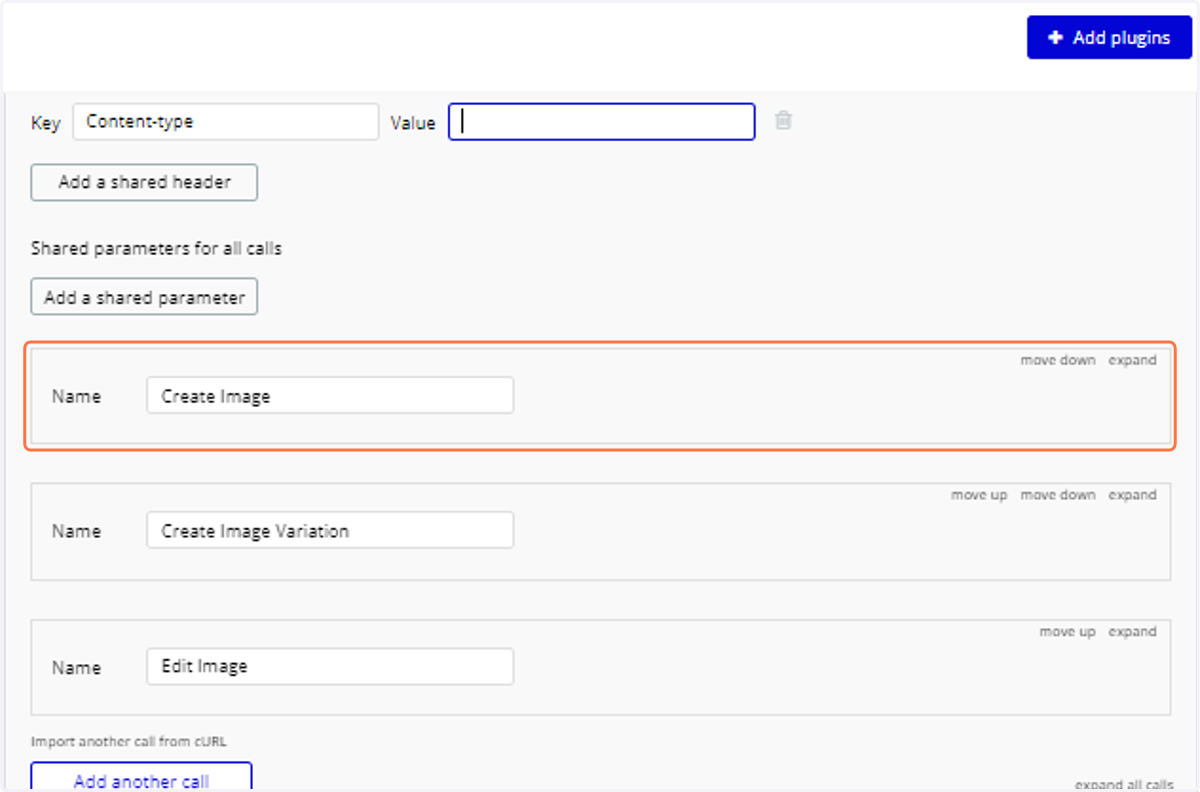
    Click on expand in front of create Image
  9. 9. Click on Reinitialize call. And save when successful.
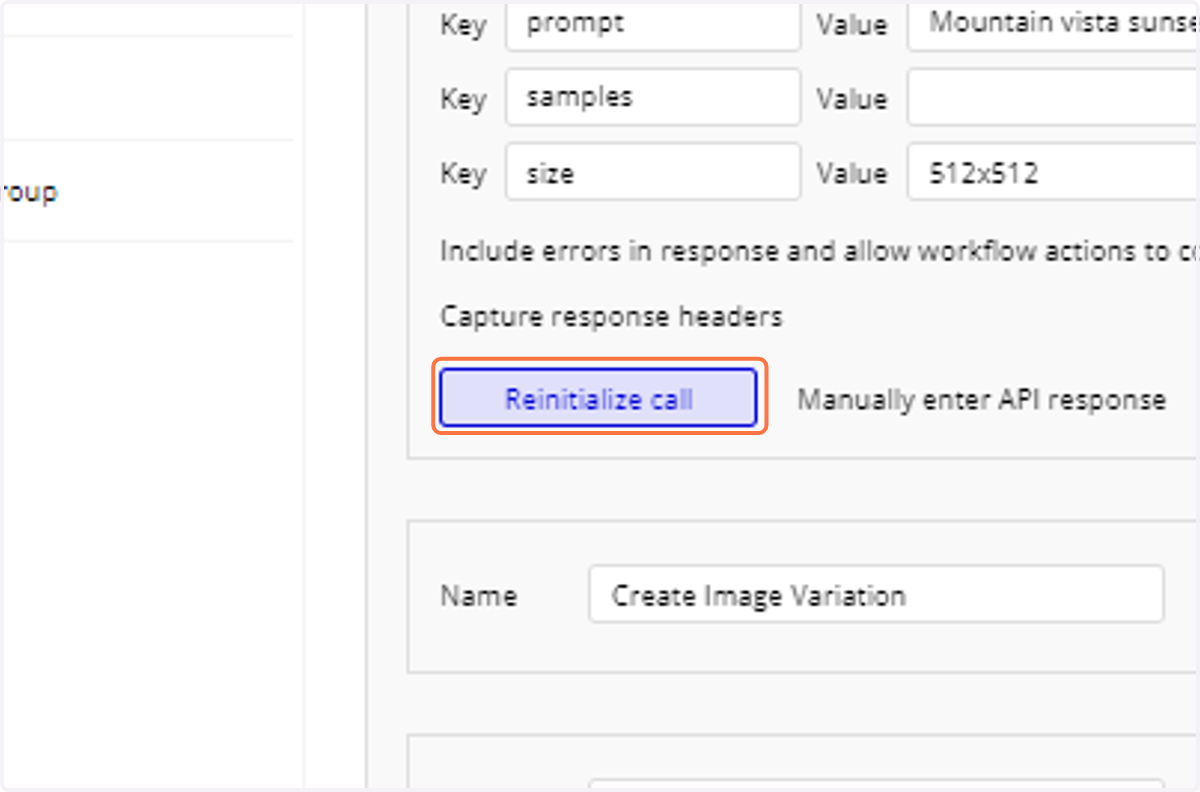
    Click on Reinitialize call. And save when successful.
  10. 10. Click on expand in front of Create Image Variation and Edit Image, and then repeat the previous step of Reinitializing the call and saving.
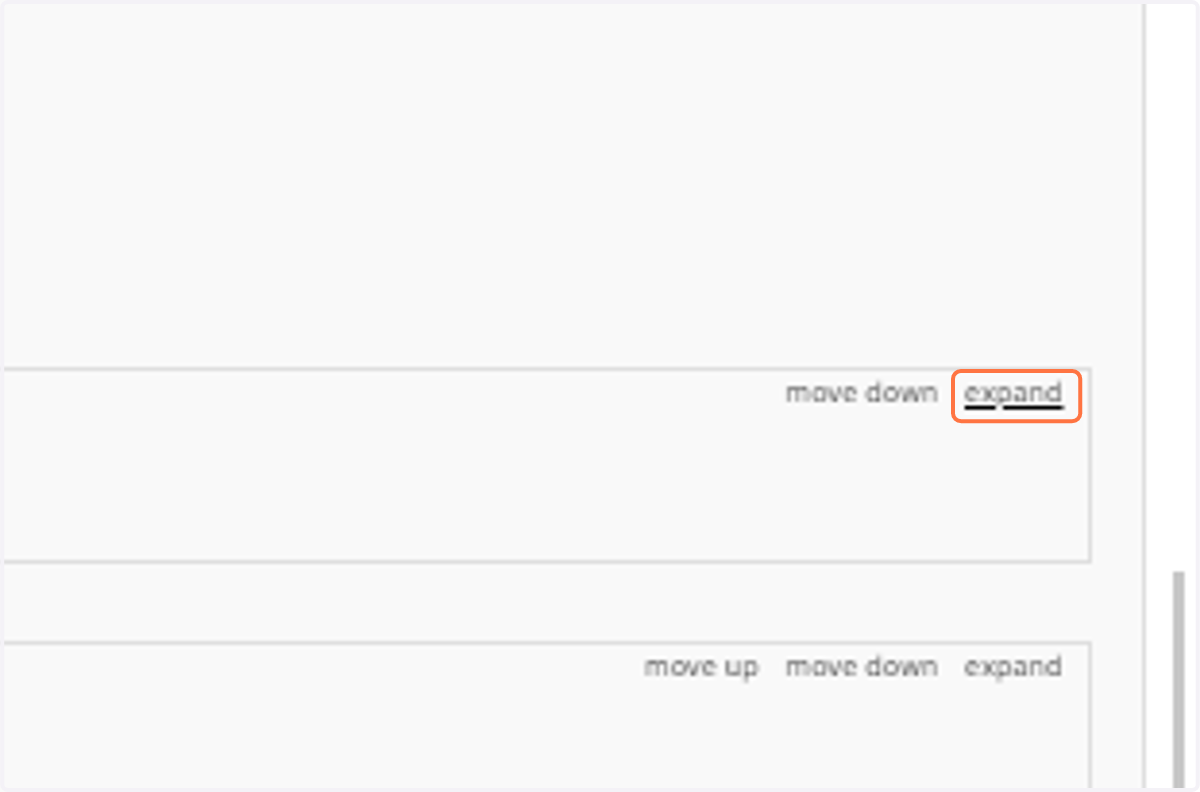
    Click on expand in front of Create Image Variation and Edit Image, and then repeat the previous step of Reinitializing the call and saving.