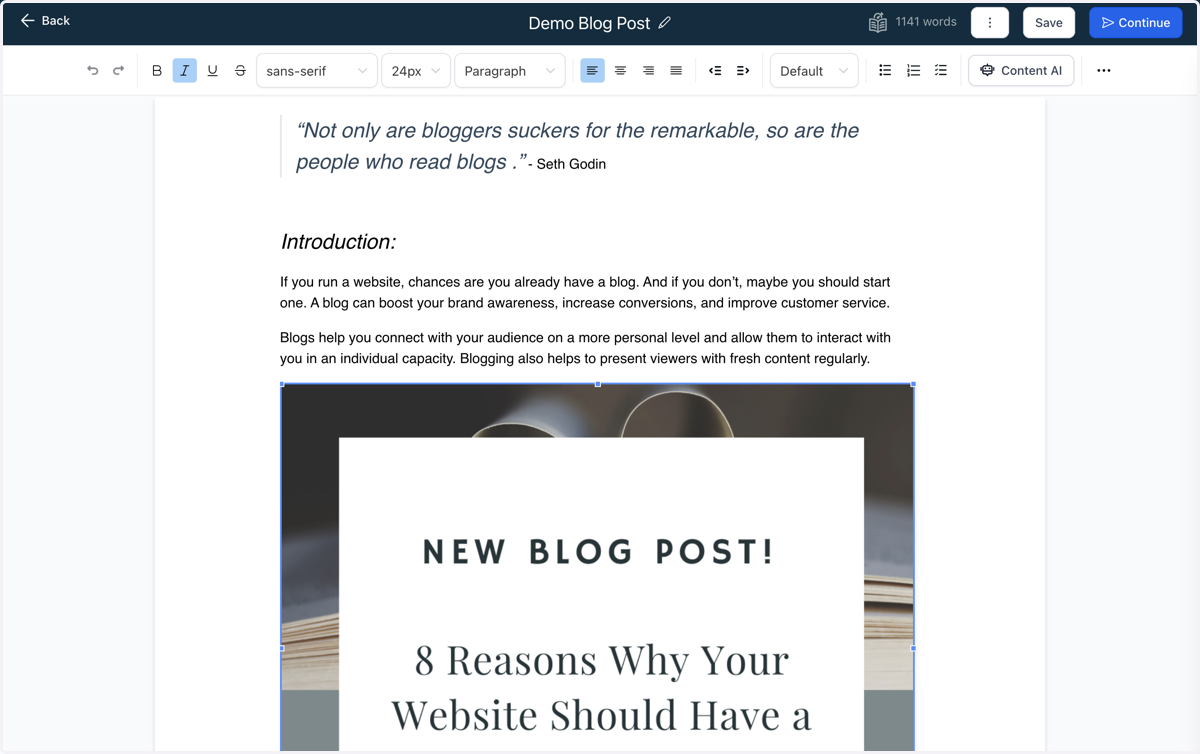
6. Your new blog post will auto-populate with sample text
7. Delete the sample text and type your post
8. You can click on these three dots to show additional elements and style options
9. You can format the text, add links, photos, audio files, videos, custom code, and more
10. Once you are finished writing your blog post, click Continue
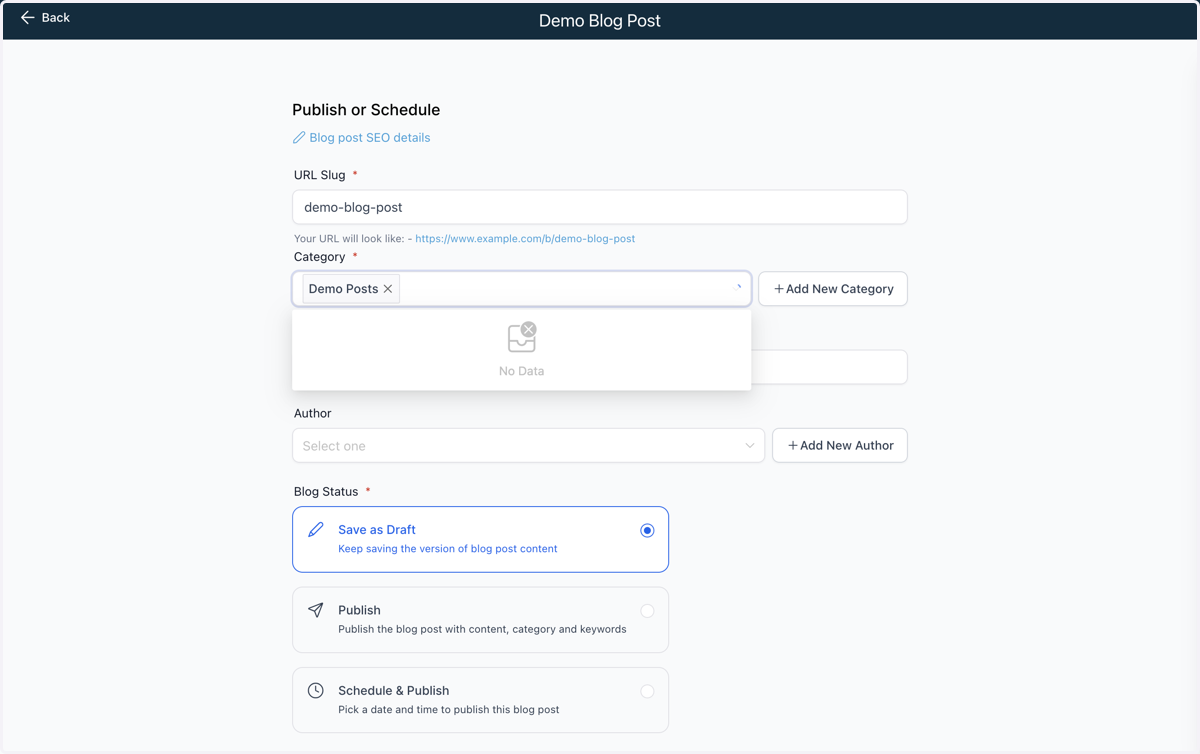
11. Categorizing your blog posts will keep them well organized and easy for readers to navigate
12. Click on Add New Category
13. Name your category and fill out all of the required fields
14. Click on Create Category
15. Click inside the Category box to select your new category
16. Click on Demo Posts
17. Fill out any additional fields that you want
18. Choose the blog post status - for this example we are going to Publish the post
19. Select your publish date
20. Click on Save
21. Once your post is saved, it will show up on a list under the Blogs tab
22. Now it's time to create a page to host your blog posts on your website
23. Click on the site you want to add a blog to
24. Locate your Blog page or create a new page where the blog will be shared
25. Click on Edit Page…
26. Click on Add Row
27. For this example we are going to add a 1 Column Row
28. Click on Add Element
29. Click on Blog Posts
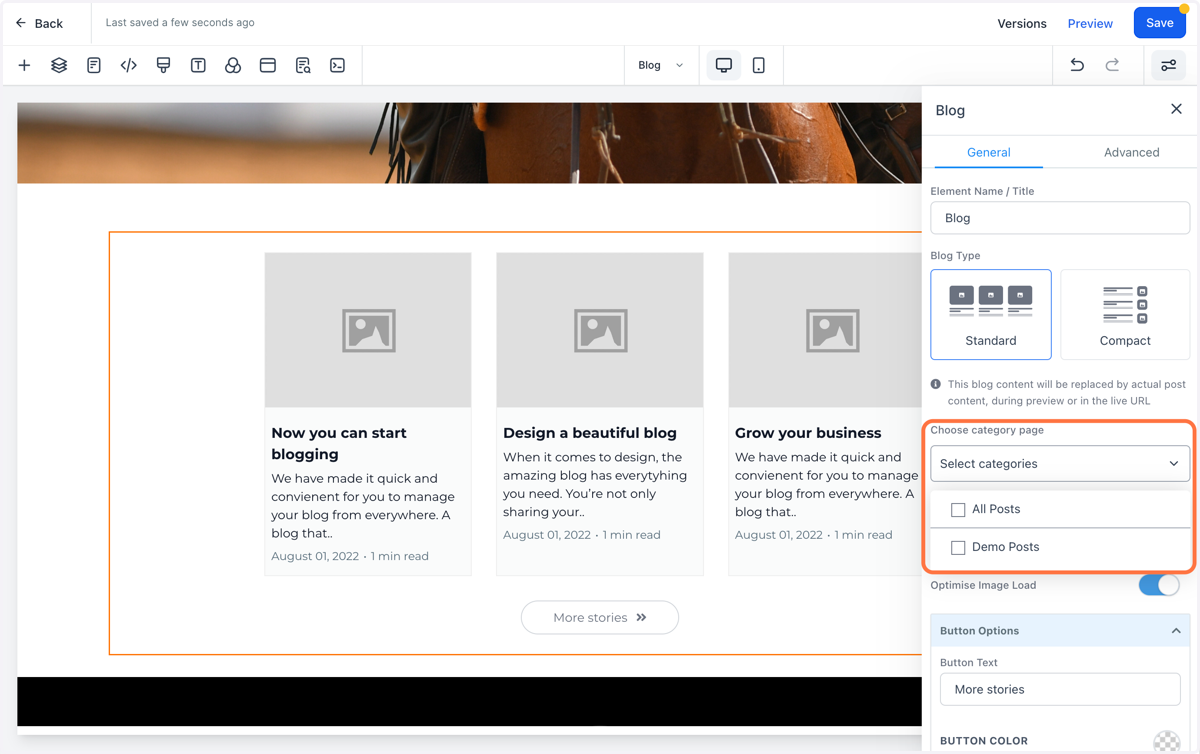
30. This will add a default blog element onto your site
31. Click on the element to view the additional settings. If you only want to share certain types of posts, you can filter them by selecting the Categories here. Otherwise select All Posts.
32. Edit any additional General settings using the window
33. Click on Advanced
34. Edit any Advanced settings using this window
35. When you are finished formatting the Blog element click Save
36. *Note: Your unique posts will NOT show up on the website editor. They will be populated once the page has been saved and you view the page from the frontend. To view the site with the posts, click Preview.
37. This is an example how the posts will be populated on the frontend