[TUTORIAL] How to Use Dependency Tags to Link to Pages or Other Files
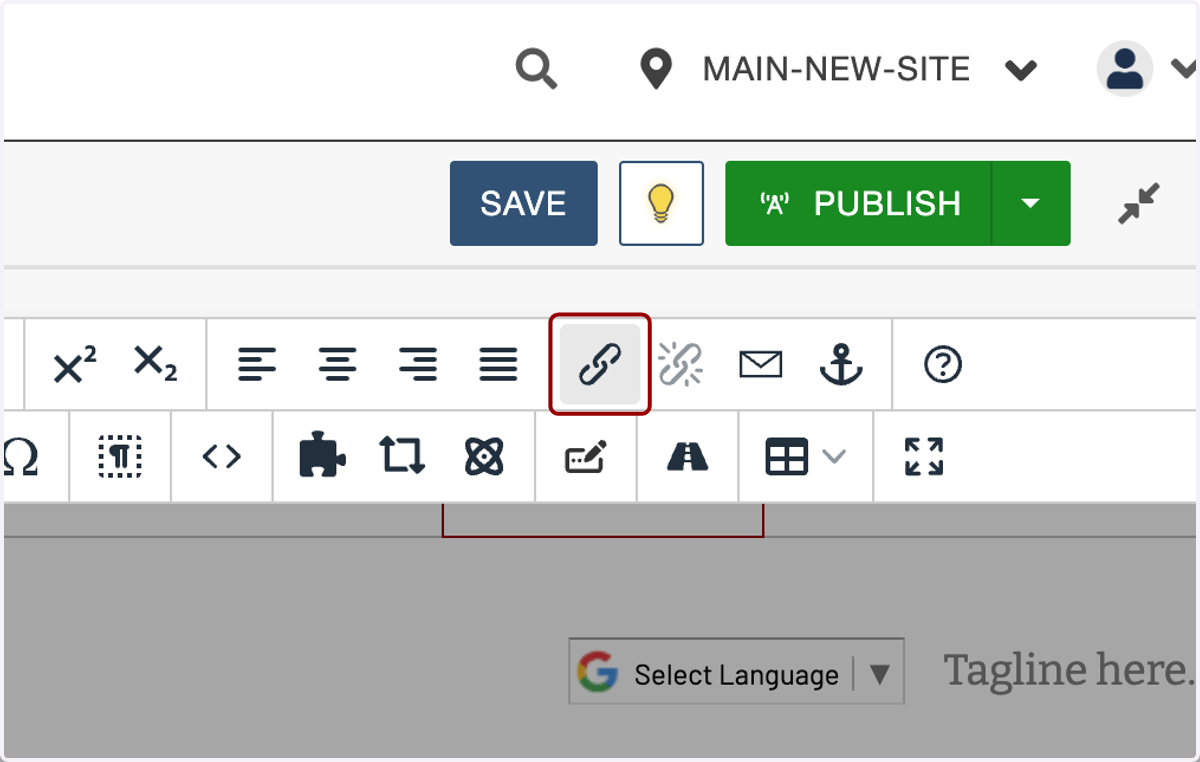
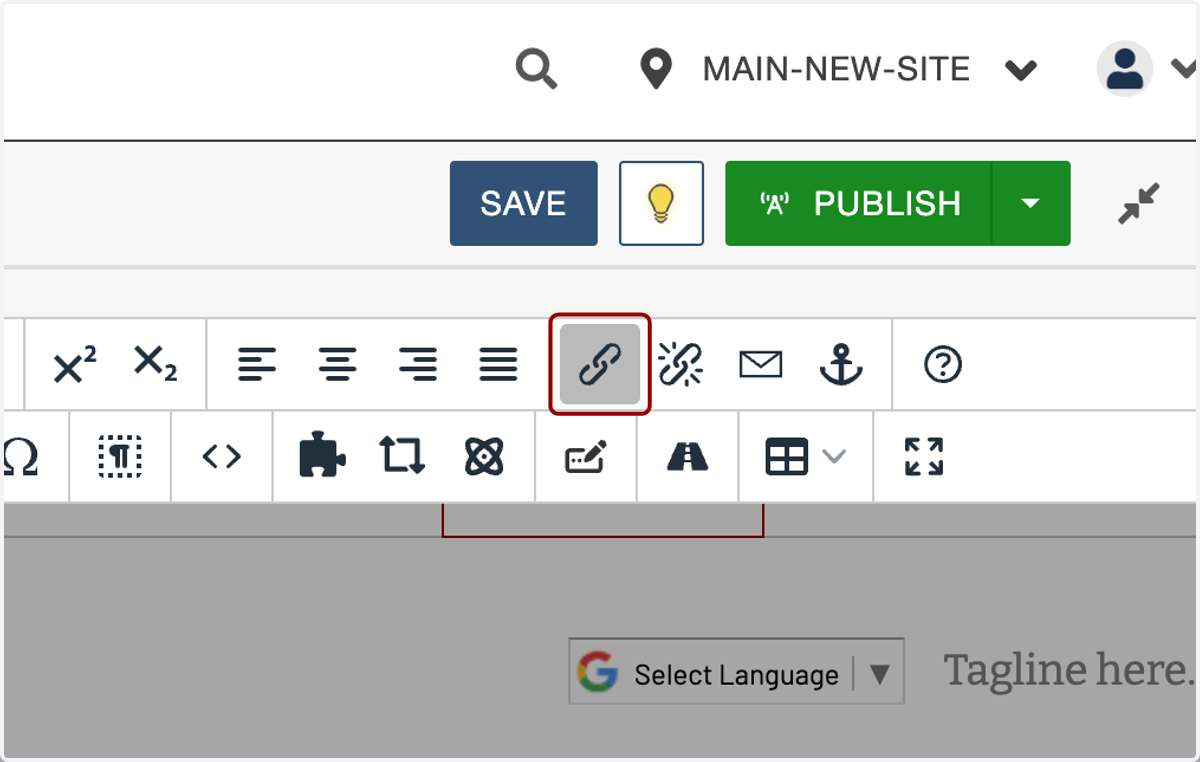
1. Click on insert/edit link.
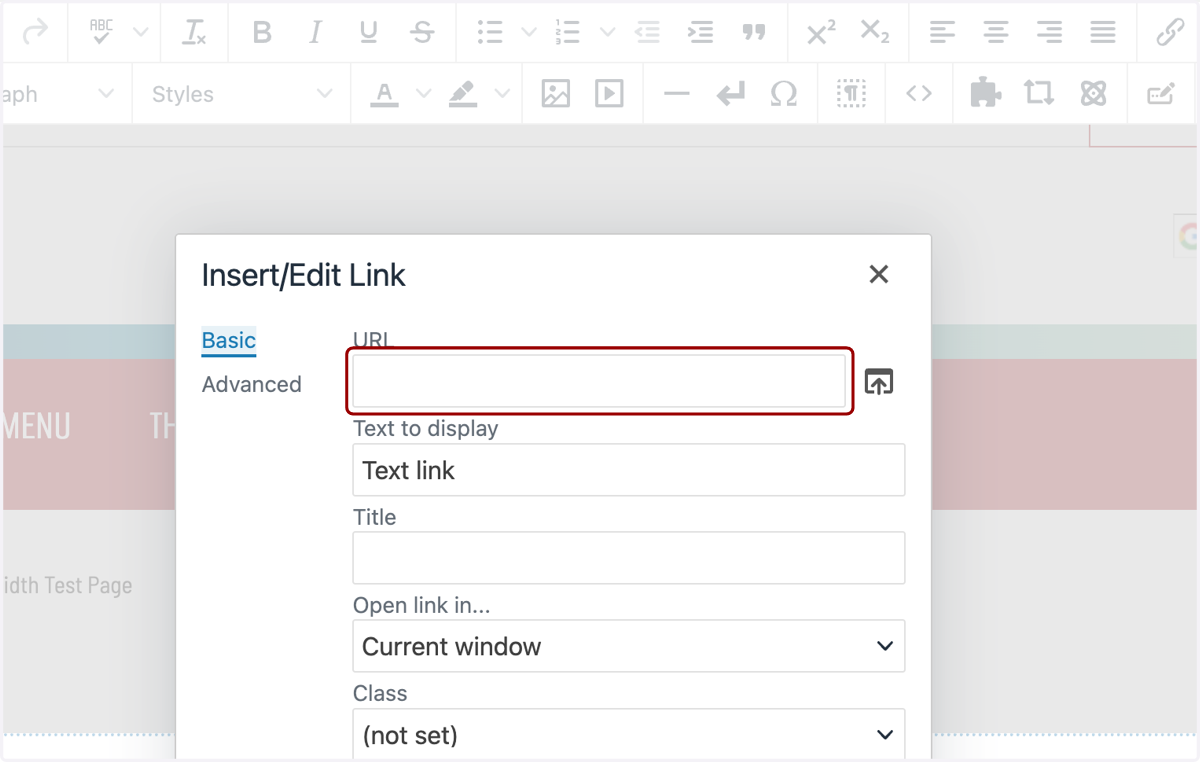
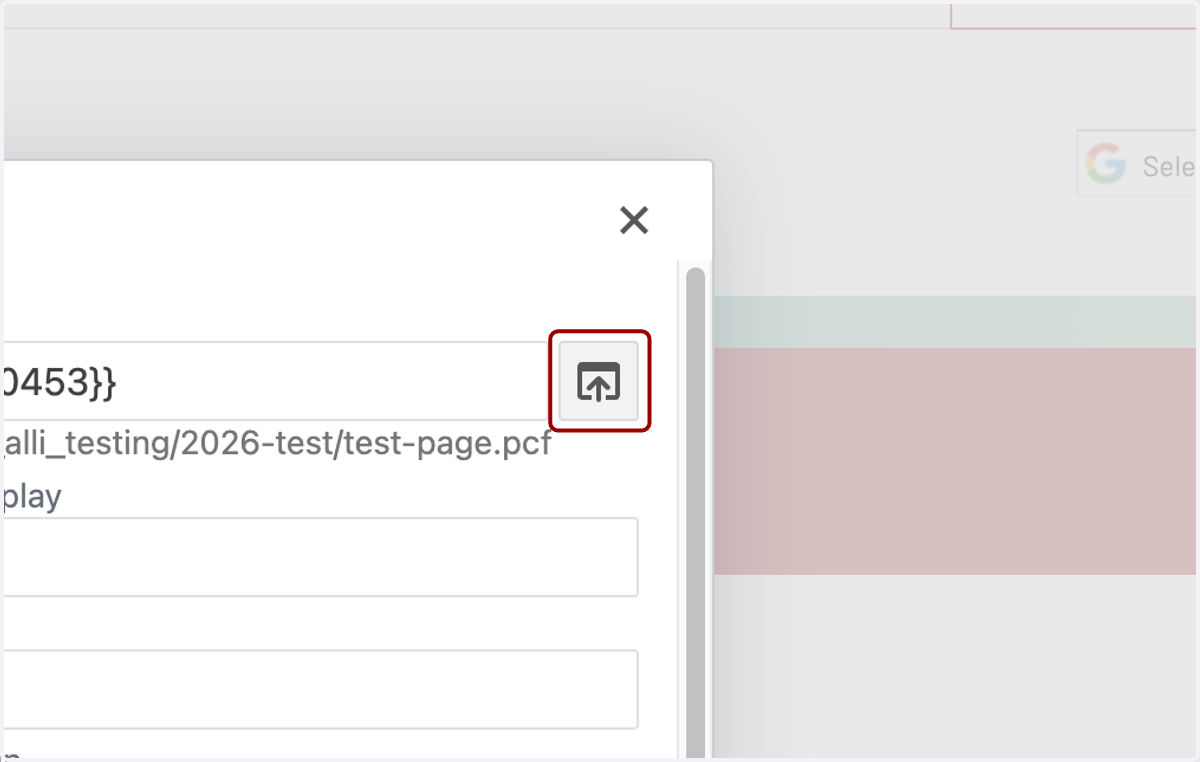
2. To the right of the URL field...
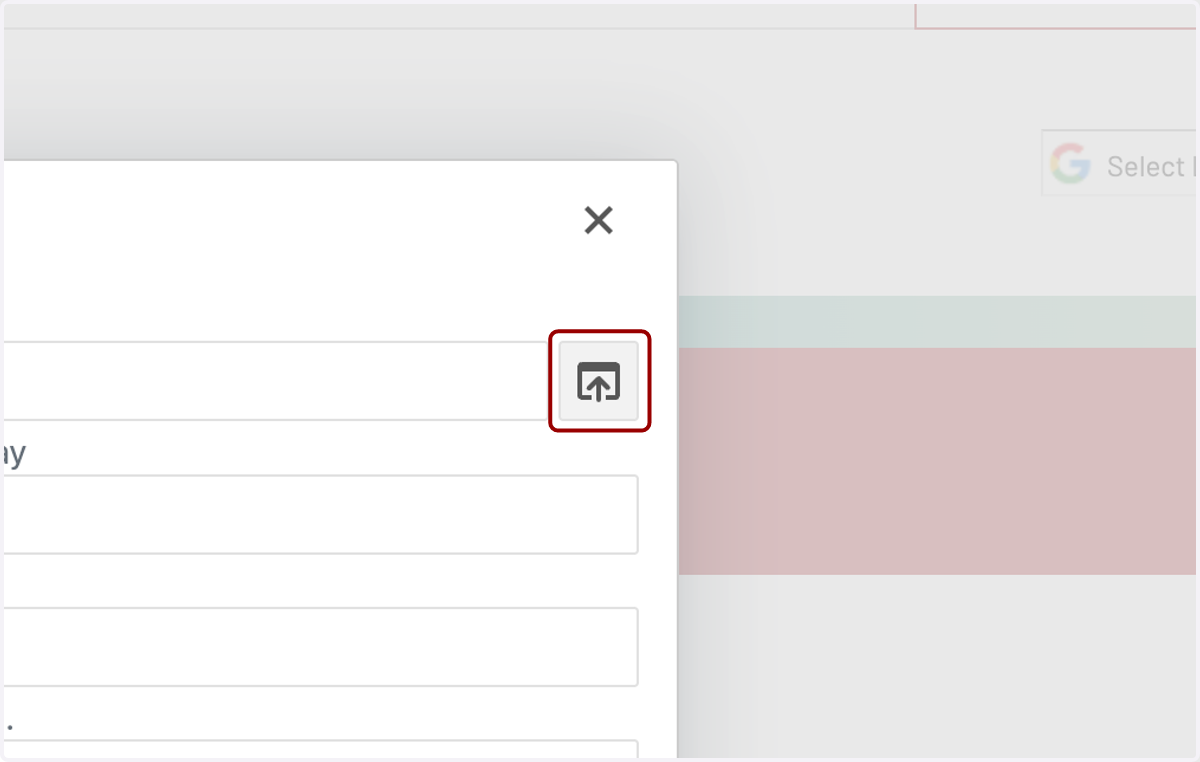
3. ...you will see the File Chooser icon. Click this icon.
4. Navigate to your page or file.
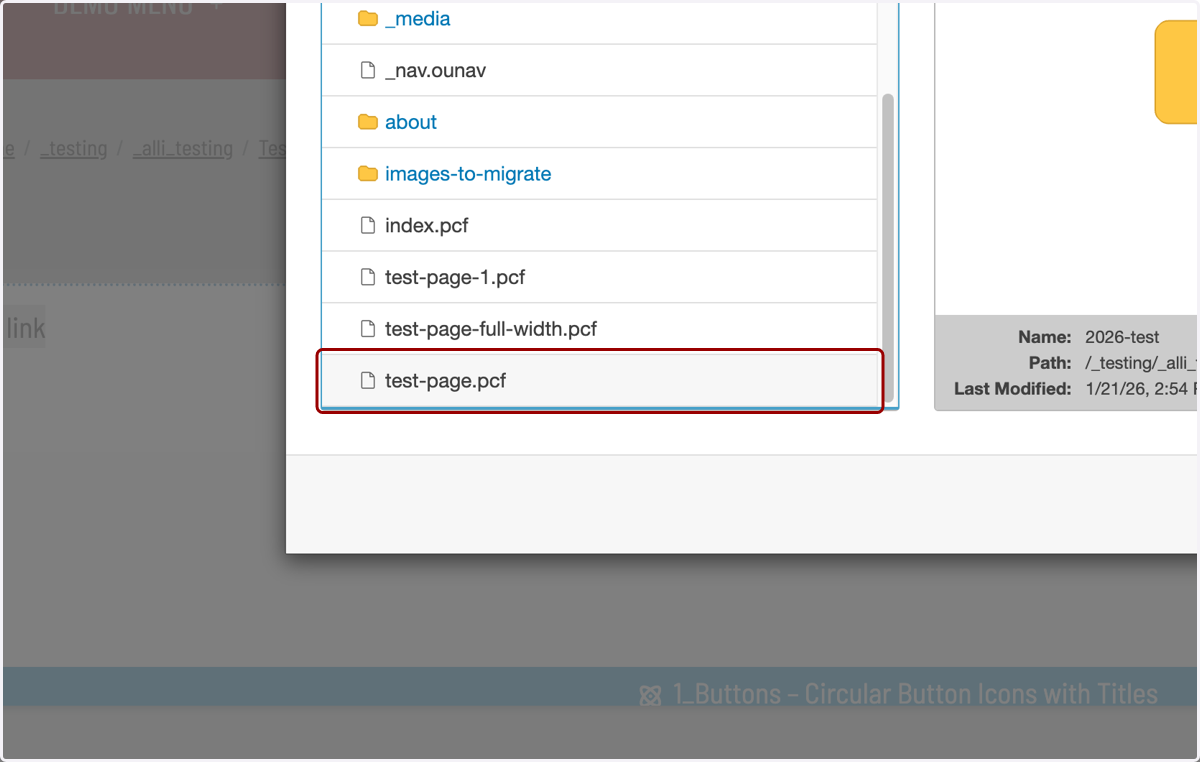
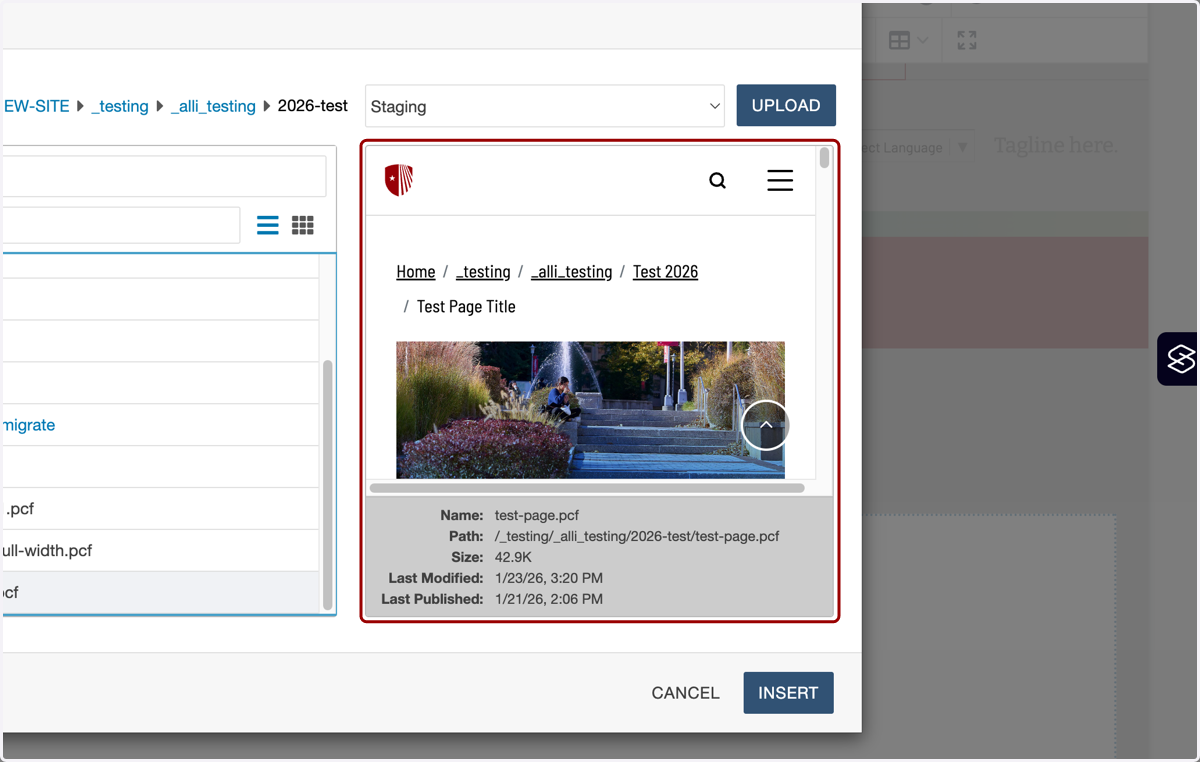
5. For pages, you'll see a preview on the right-hand side.
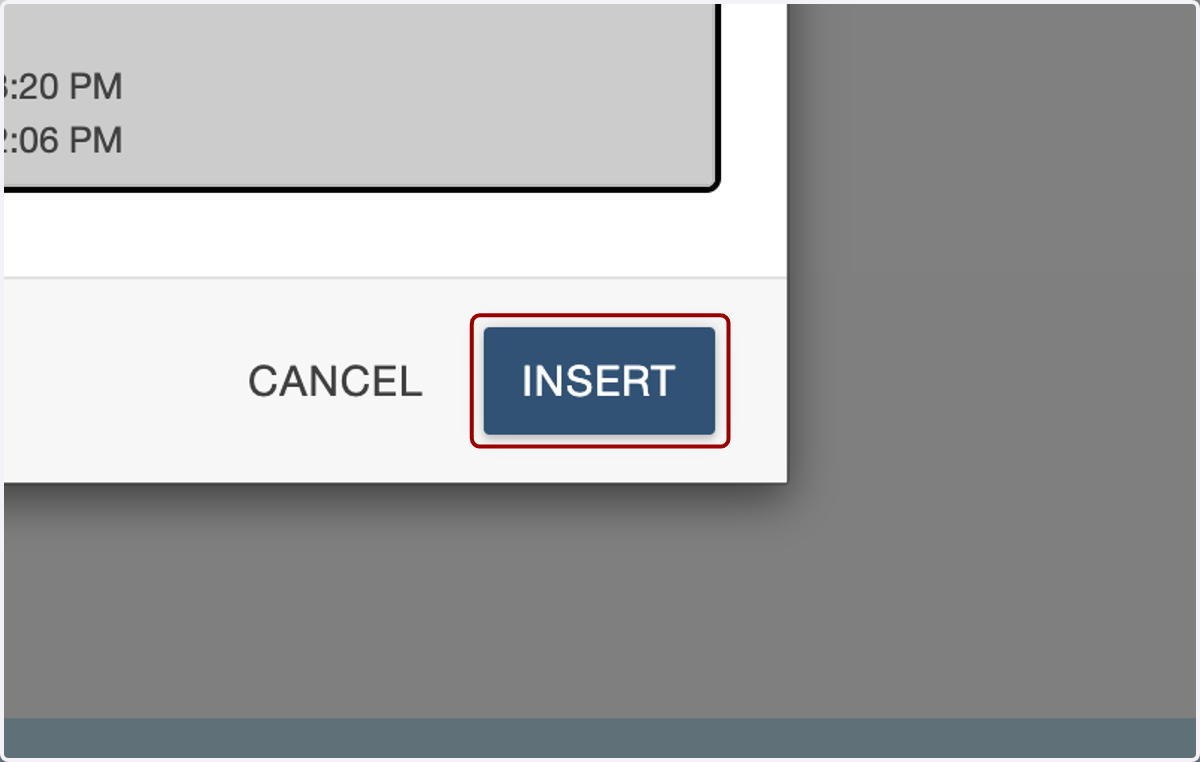
6. Click on INSERT.
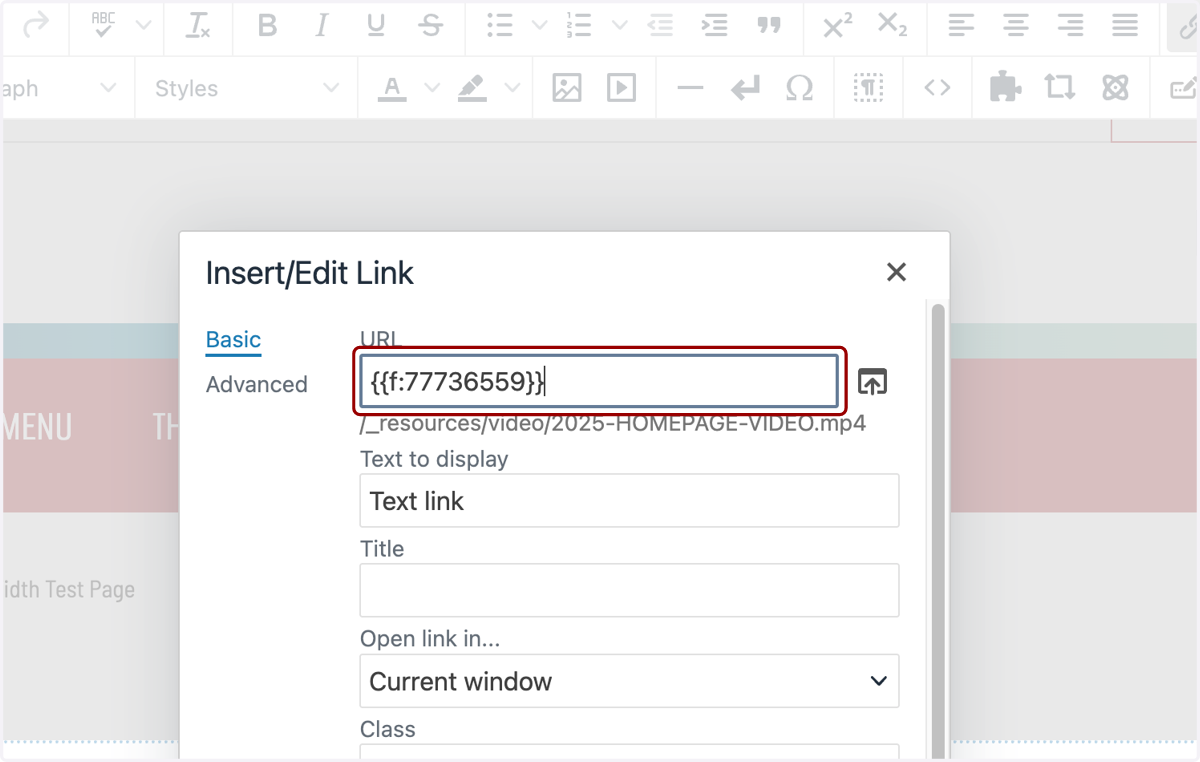
7. You'll see the dependency tag for that page or file in the URL field.
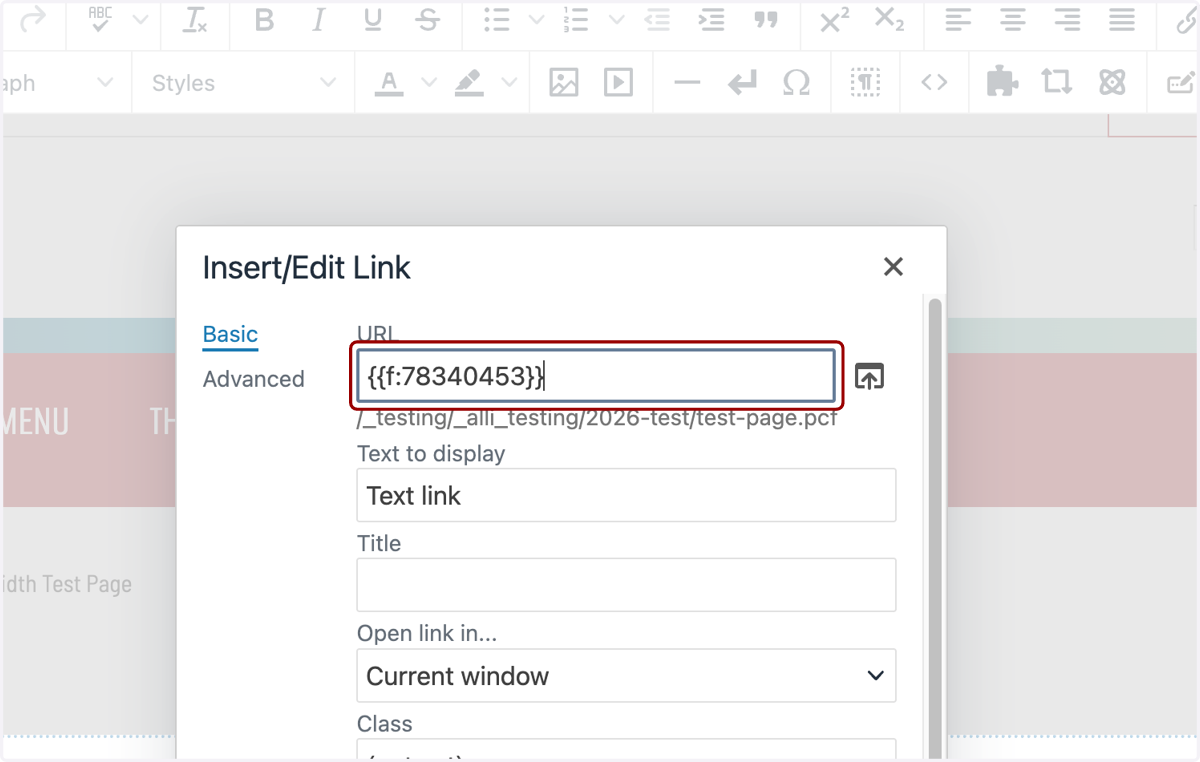
8. Fill in the rest of the fields in the Insert/Edit Link modal as necessary.
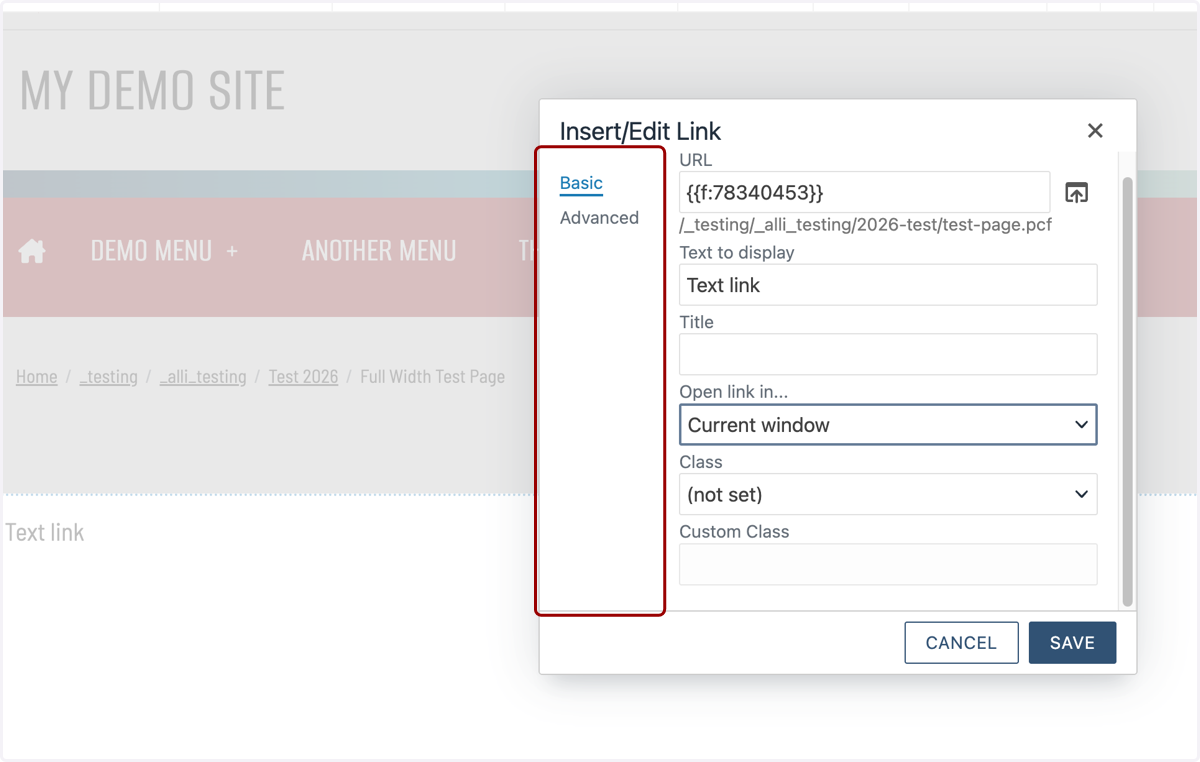
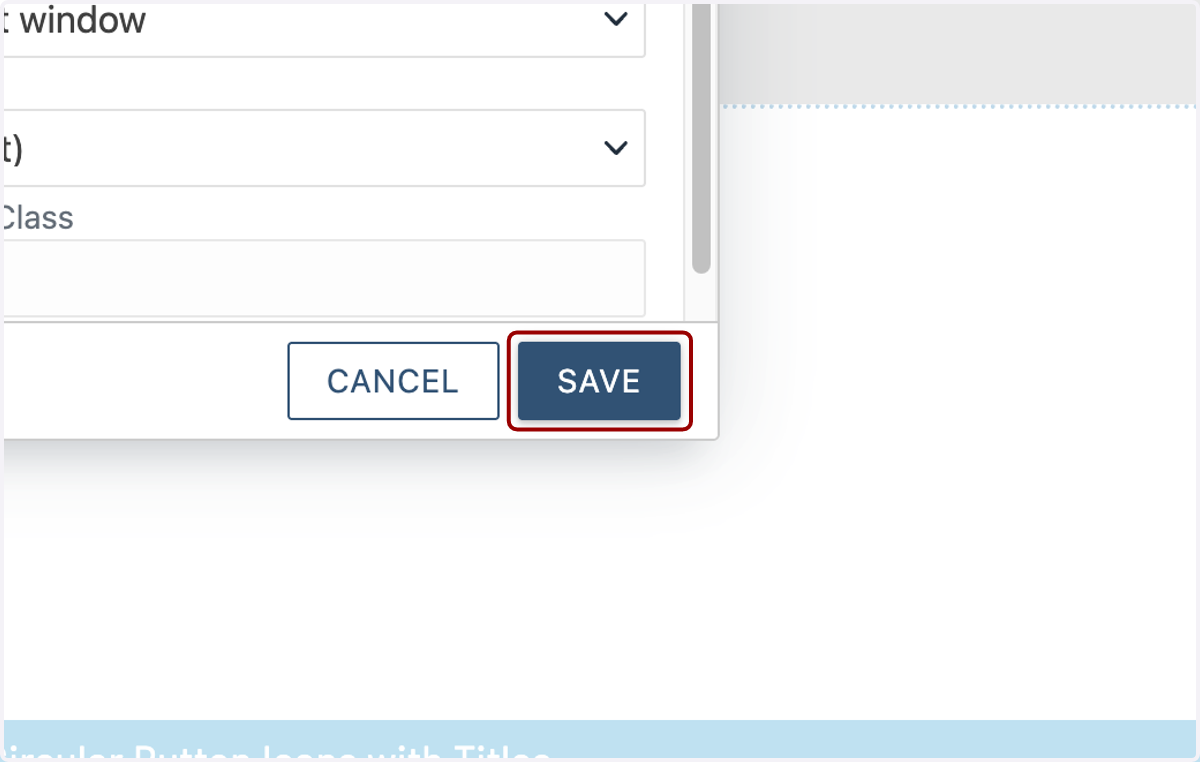
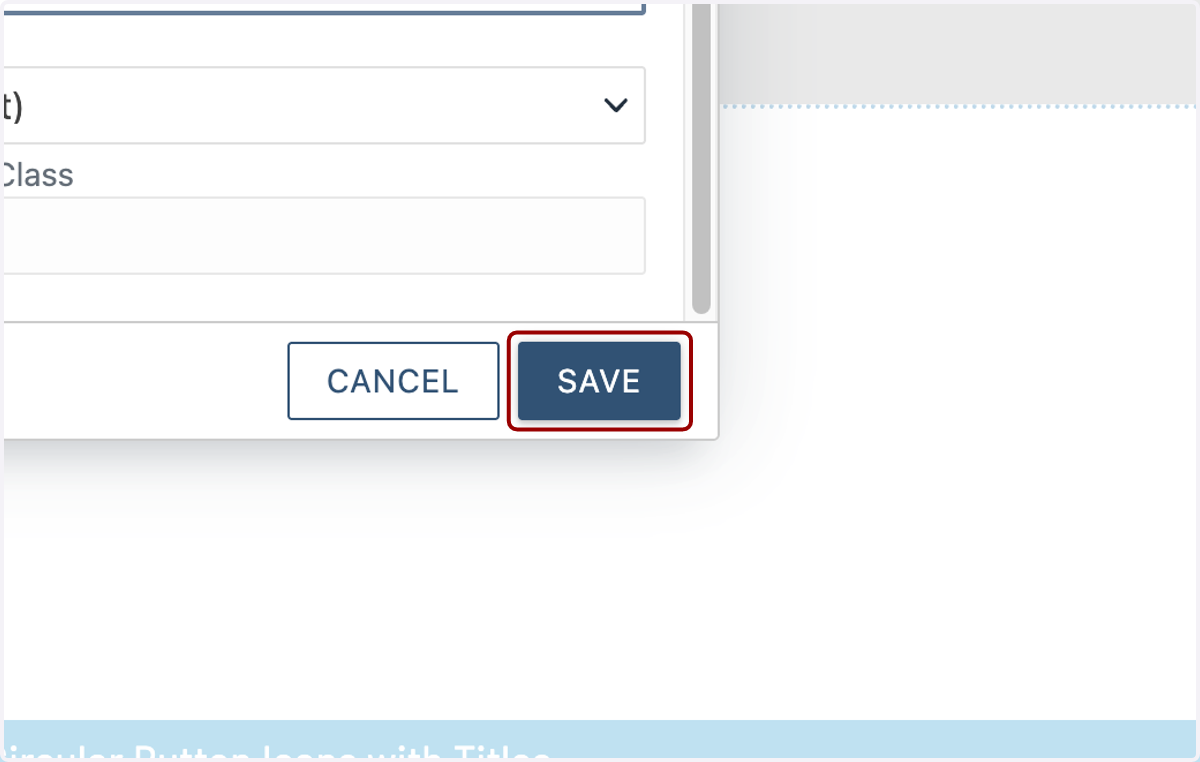
9. Click on SAVE
10. If you want to link a file, click the same Link icon...
11. ...and the File Chooser icon in the URL field again.
12. Navigate to the file you want to link to.
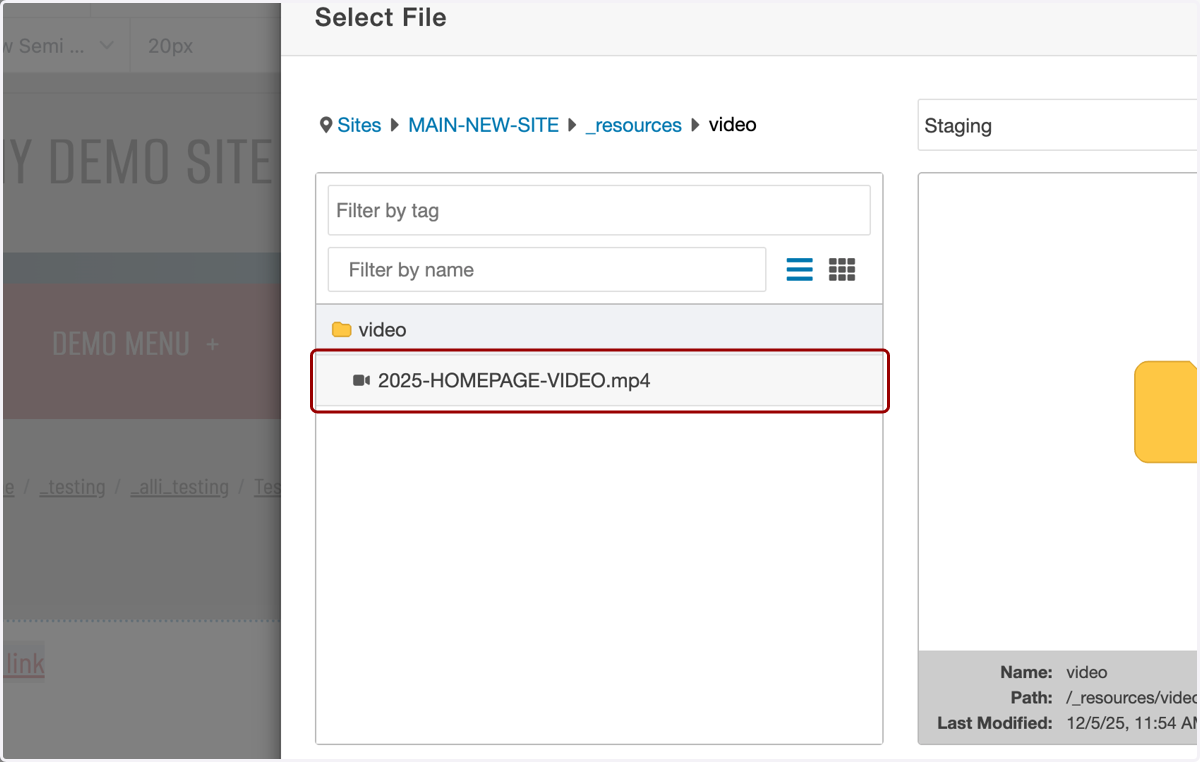
13. You may or may not see a preview in the right-hand side depending on the filetype.
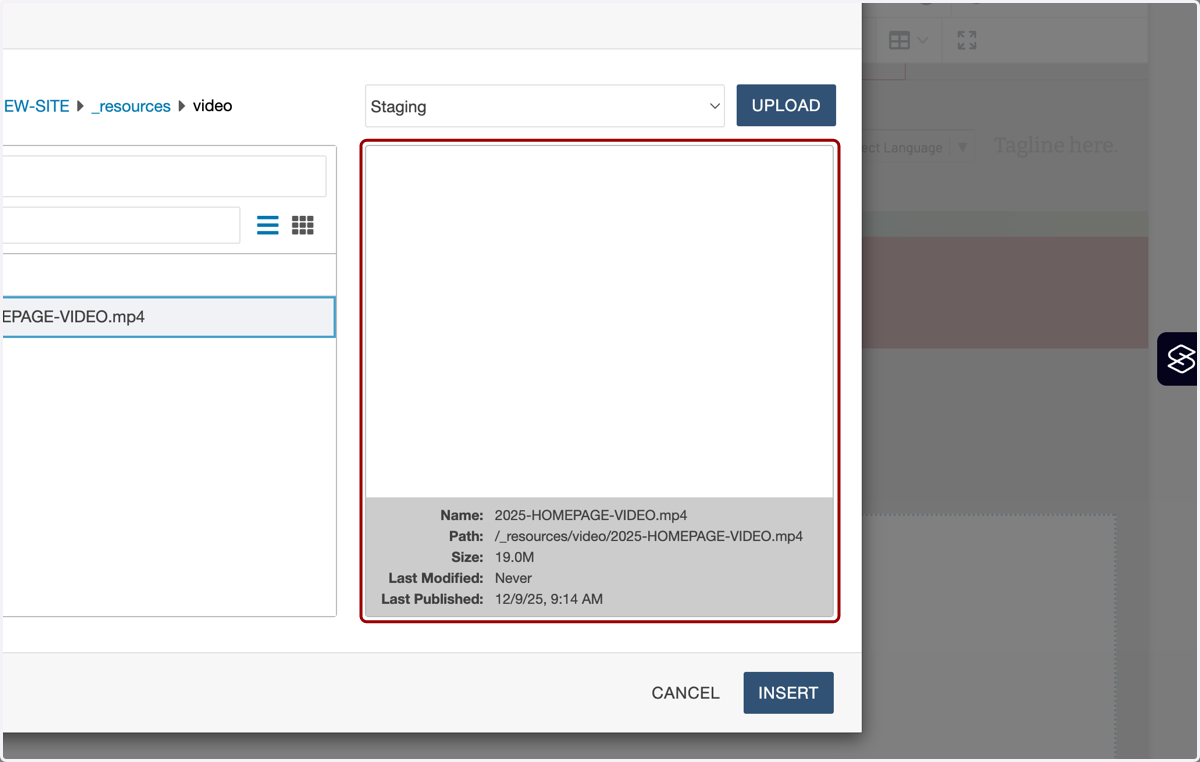
14. Click on INSERT...
15. ...and you'll see the dependency tag
16. Click on SAVE