Add Schedule to Feast Site Page
Dashboard | United Church of God
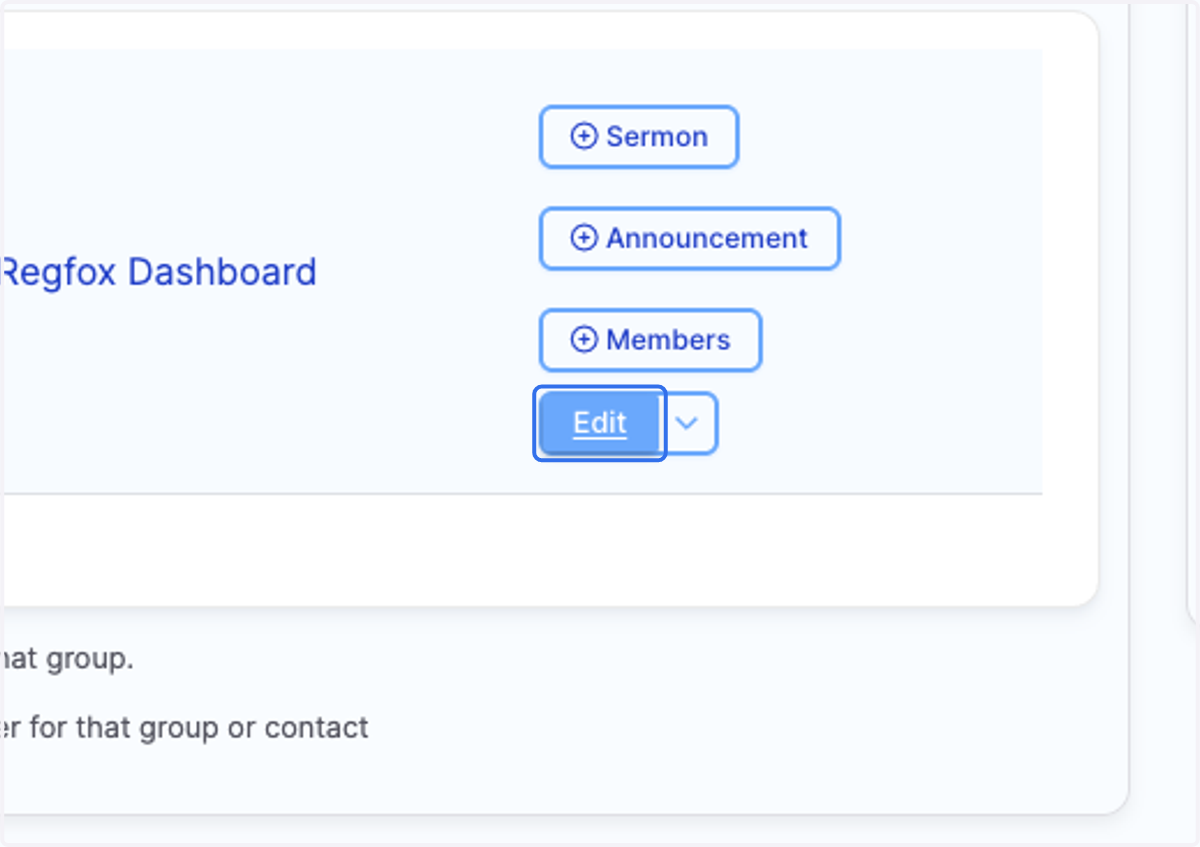
1. Click on Edit for your Feast Site
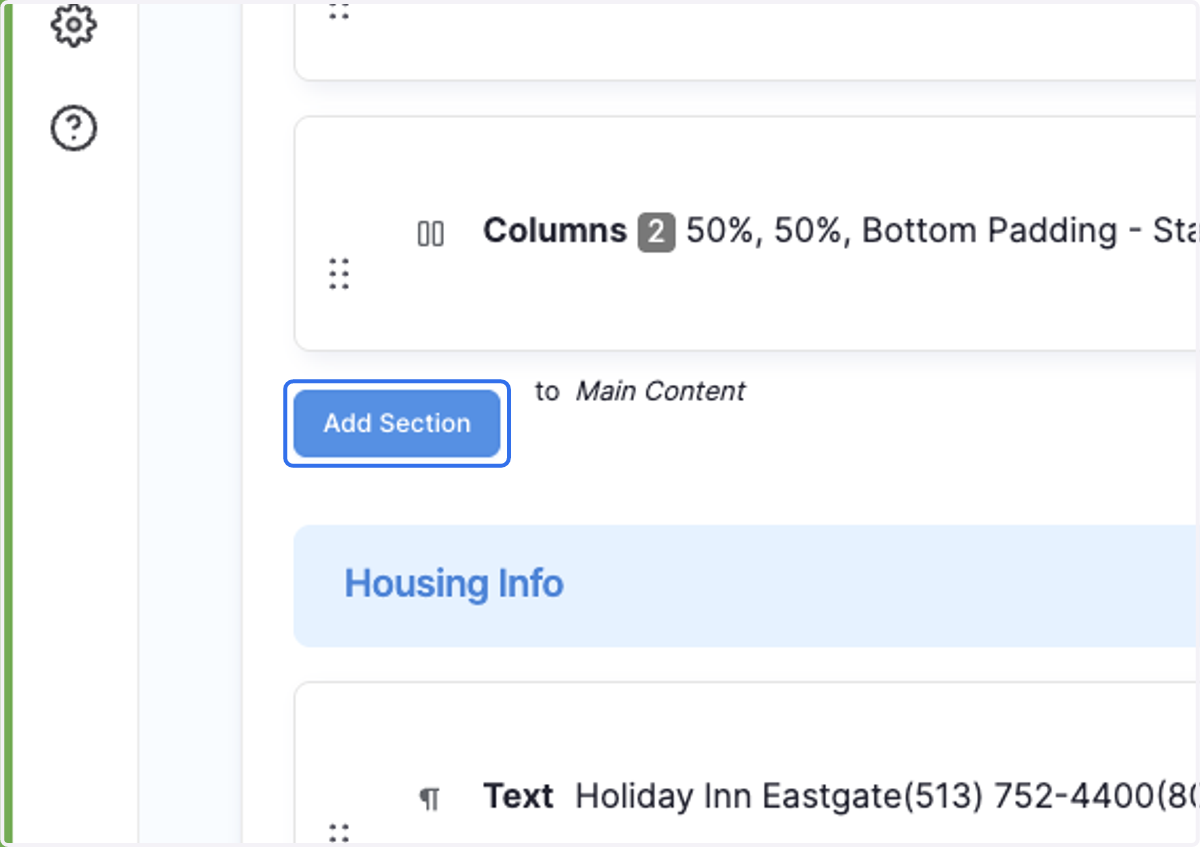
2. Click on Add Section in the Main Content area
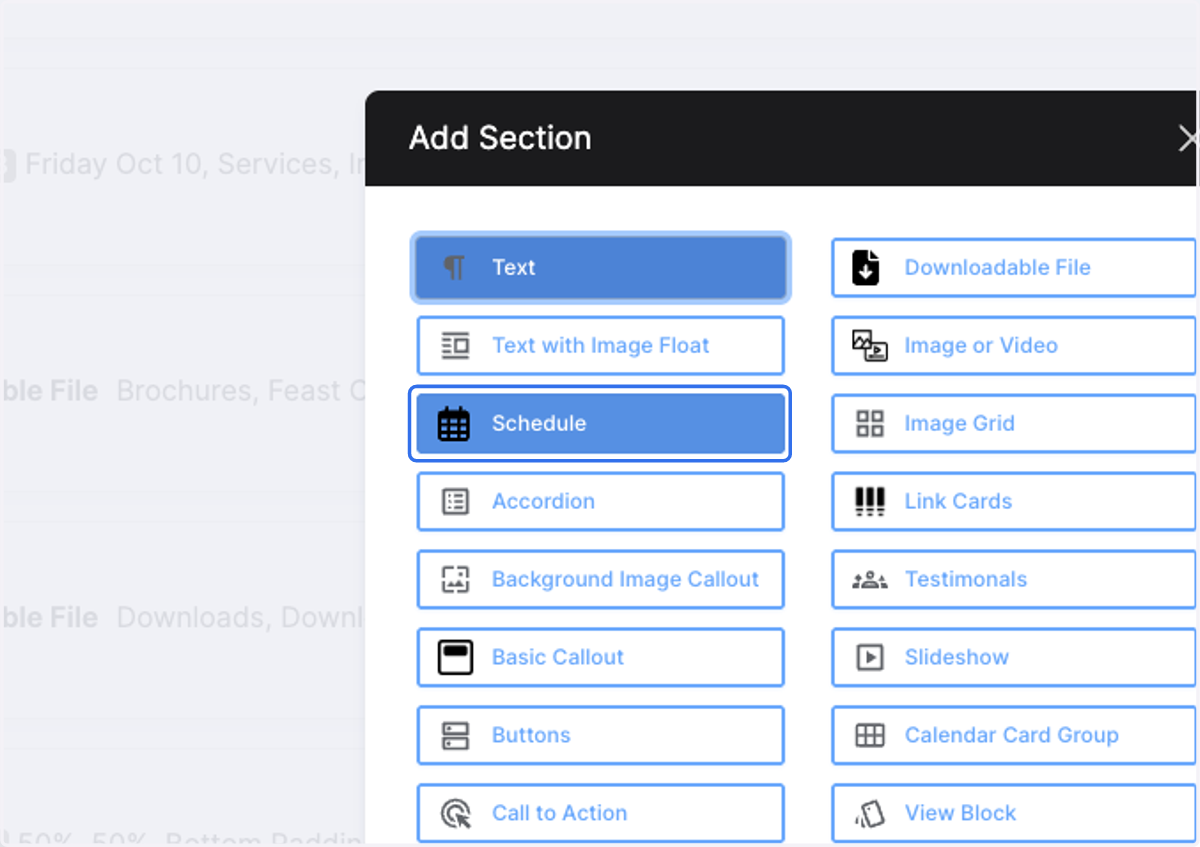
3. Click on Schedule
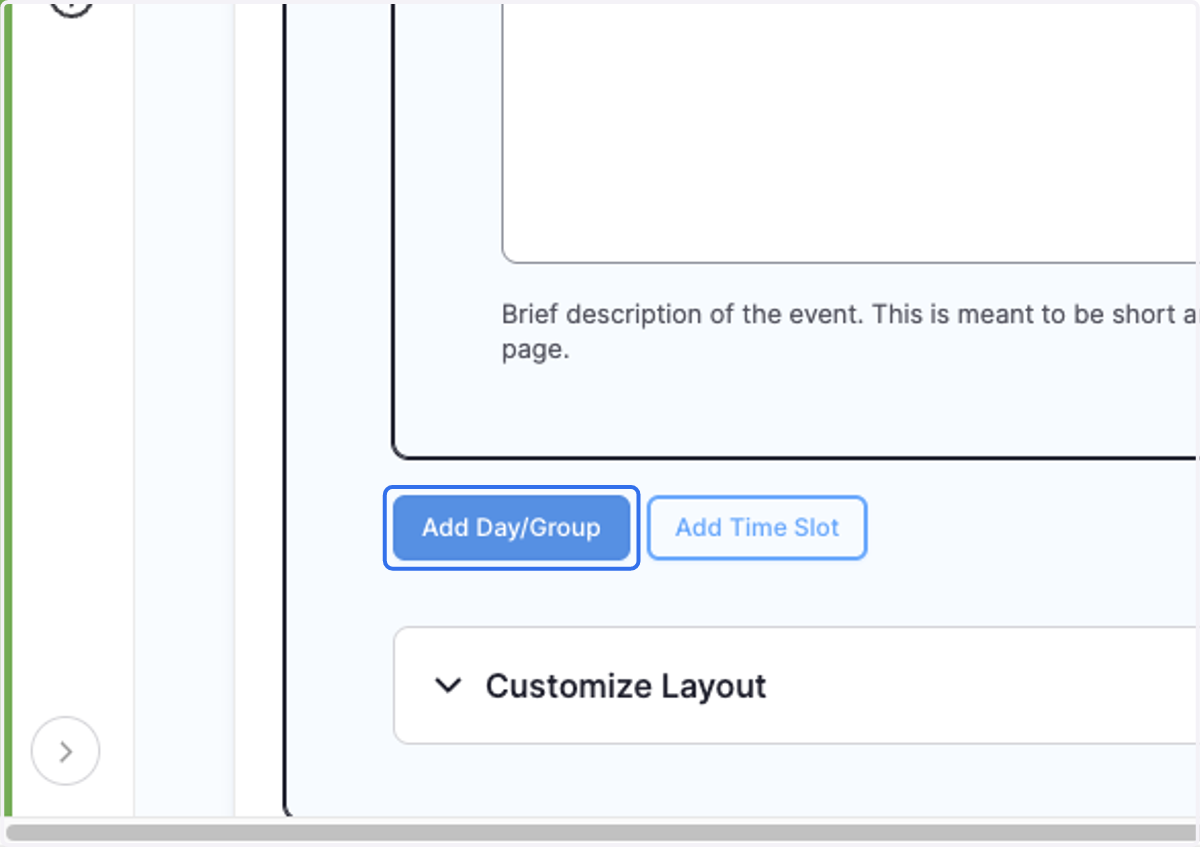
4. Click on Add Day/Group
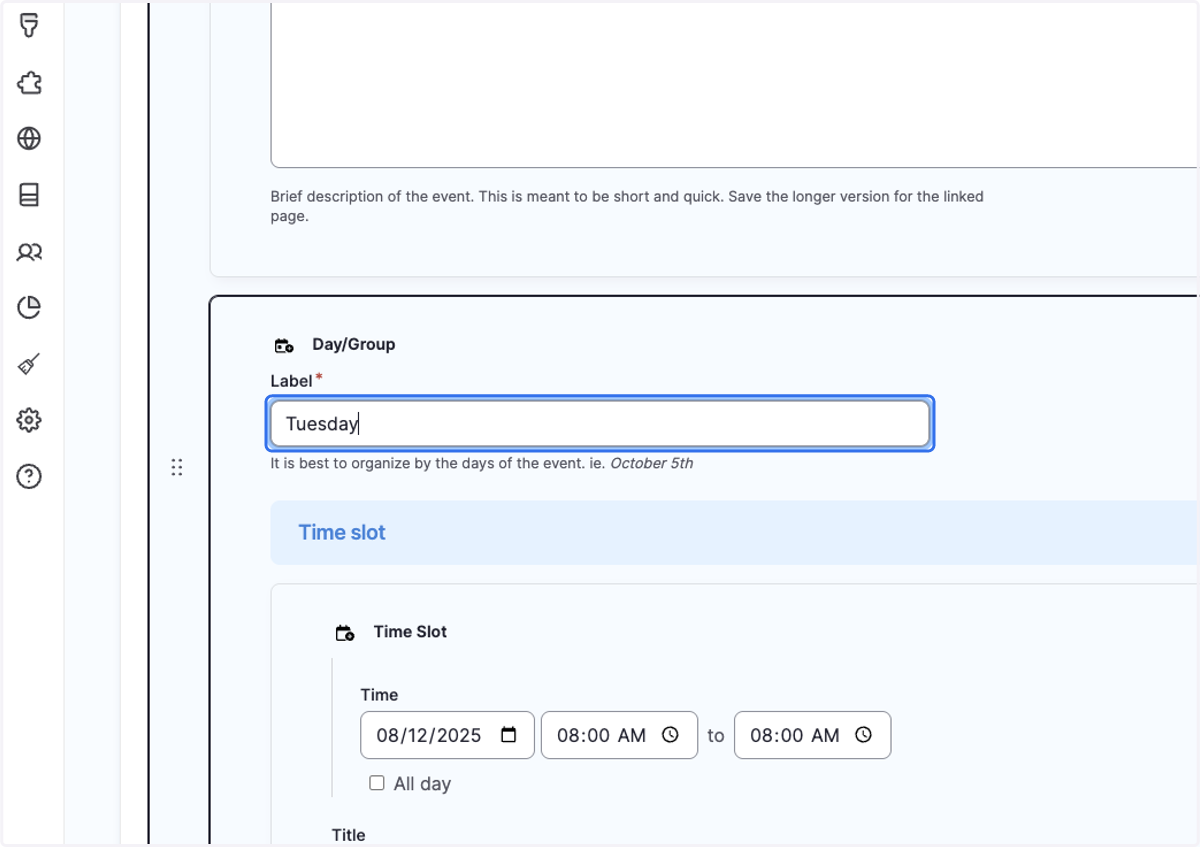
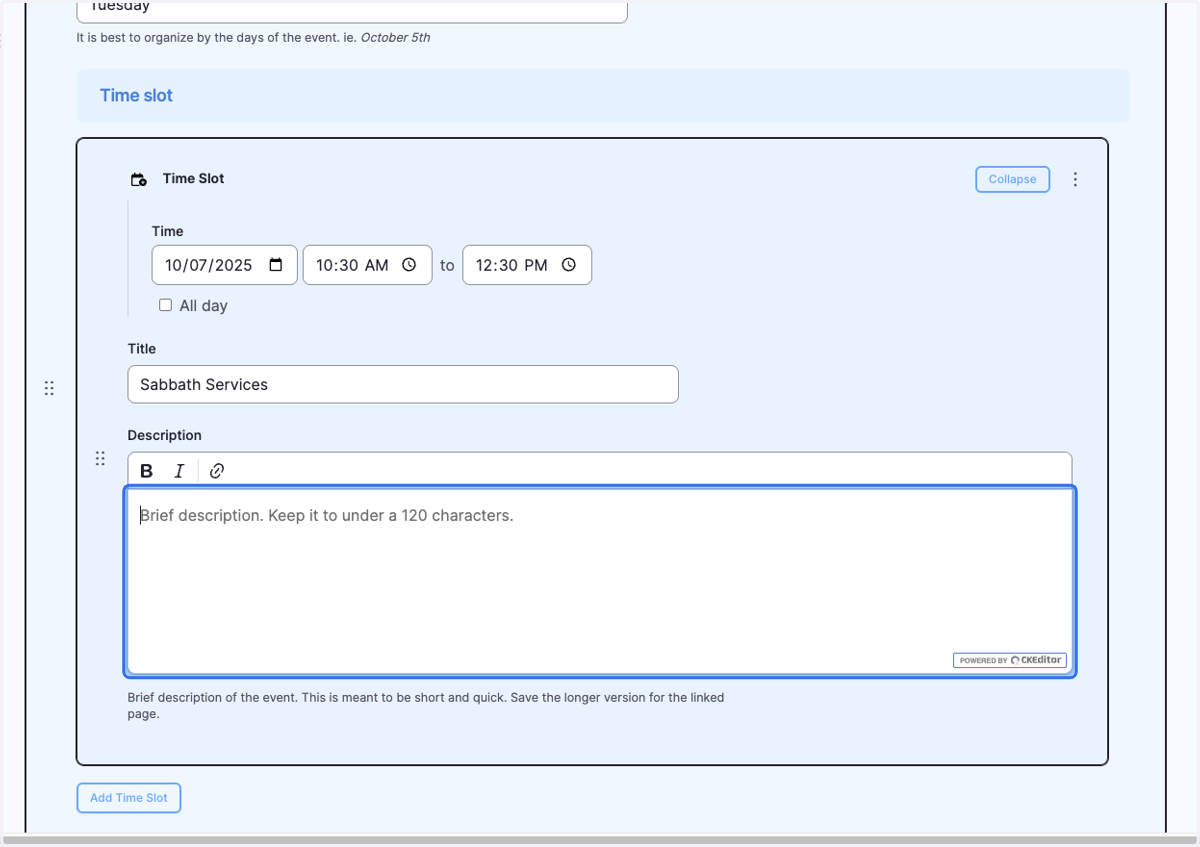
5. Give a name to the Day e.g. Type "Tuesday"
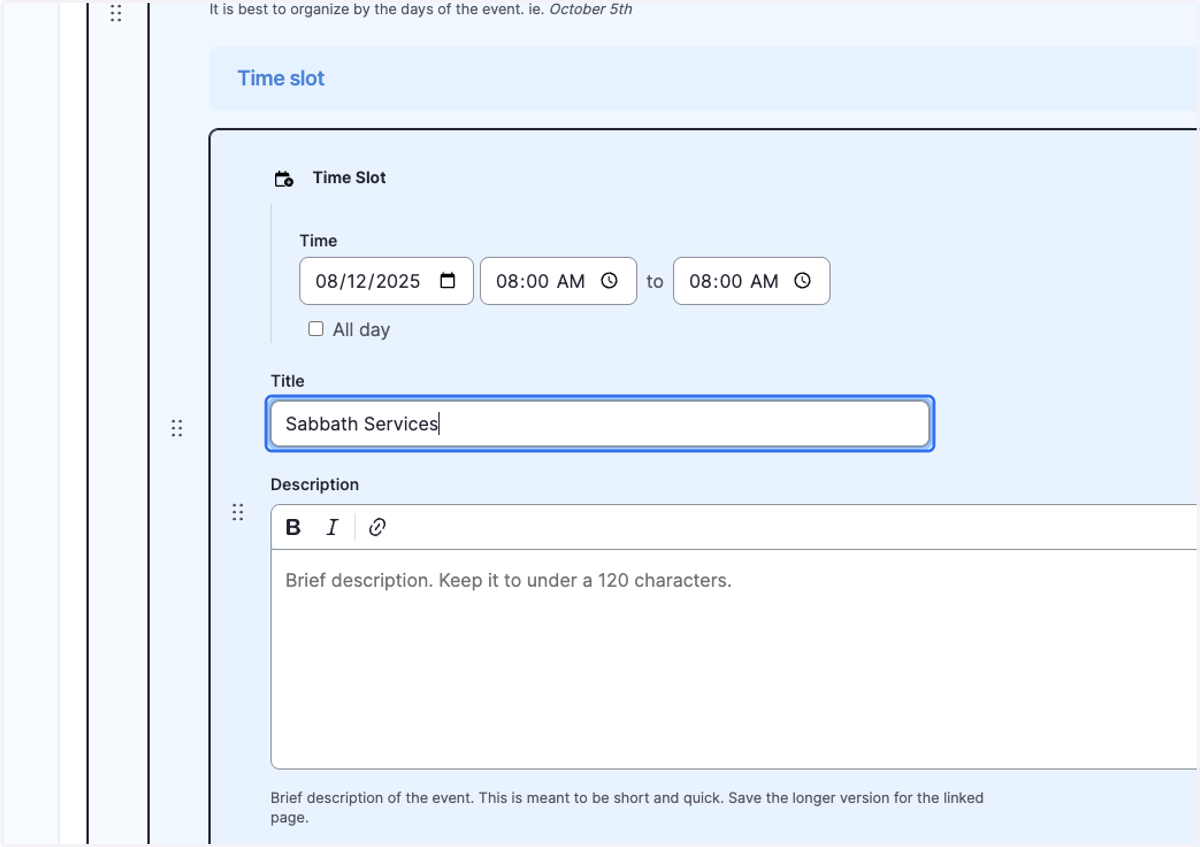
6. Give a name of the time slot in the Title field, e.g. Type "Sabbath Services"
7. Give the time slot a time and date.
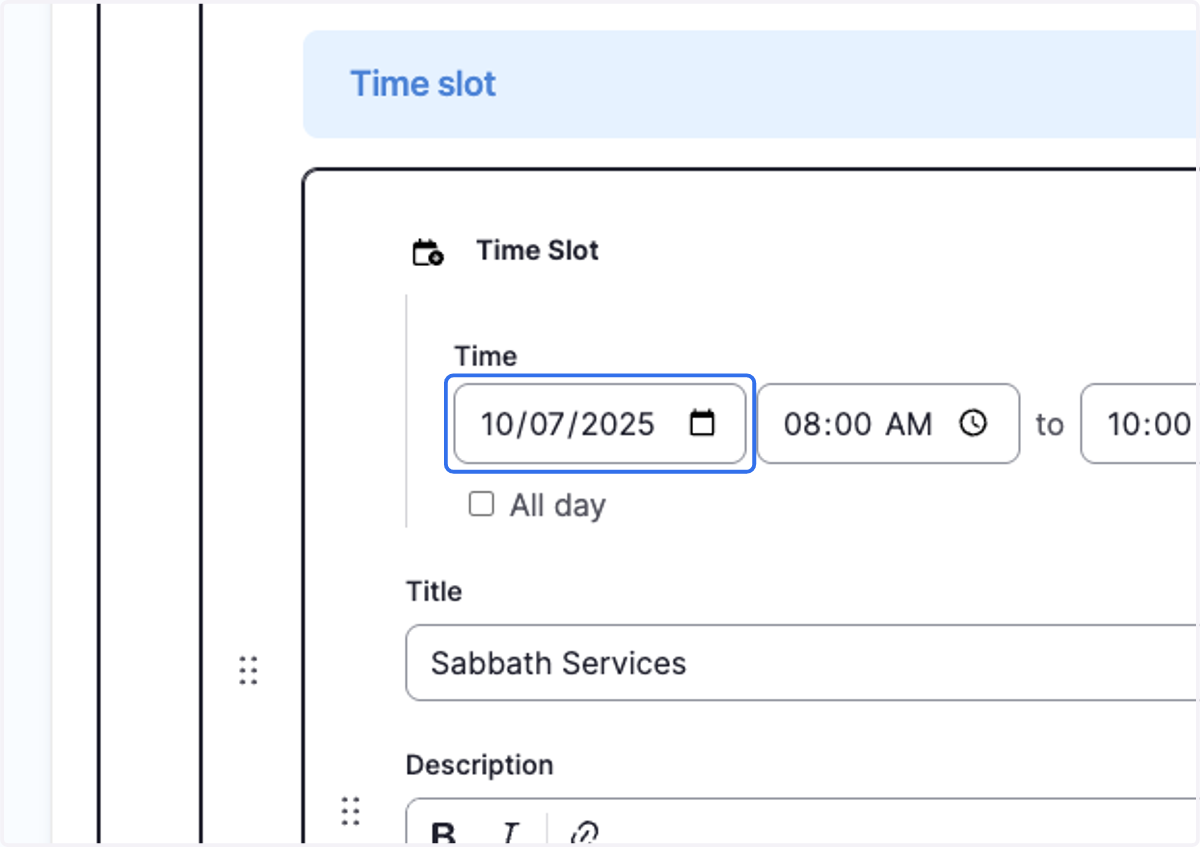
8. Example: Type "10:30"
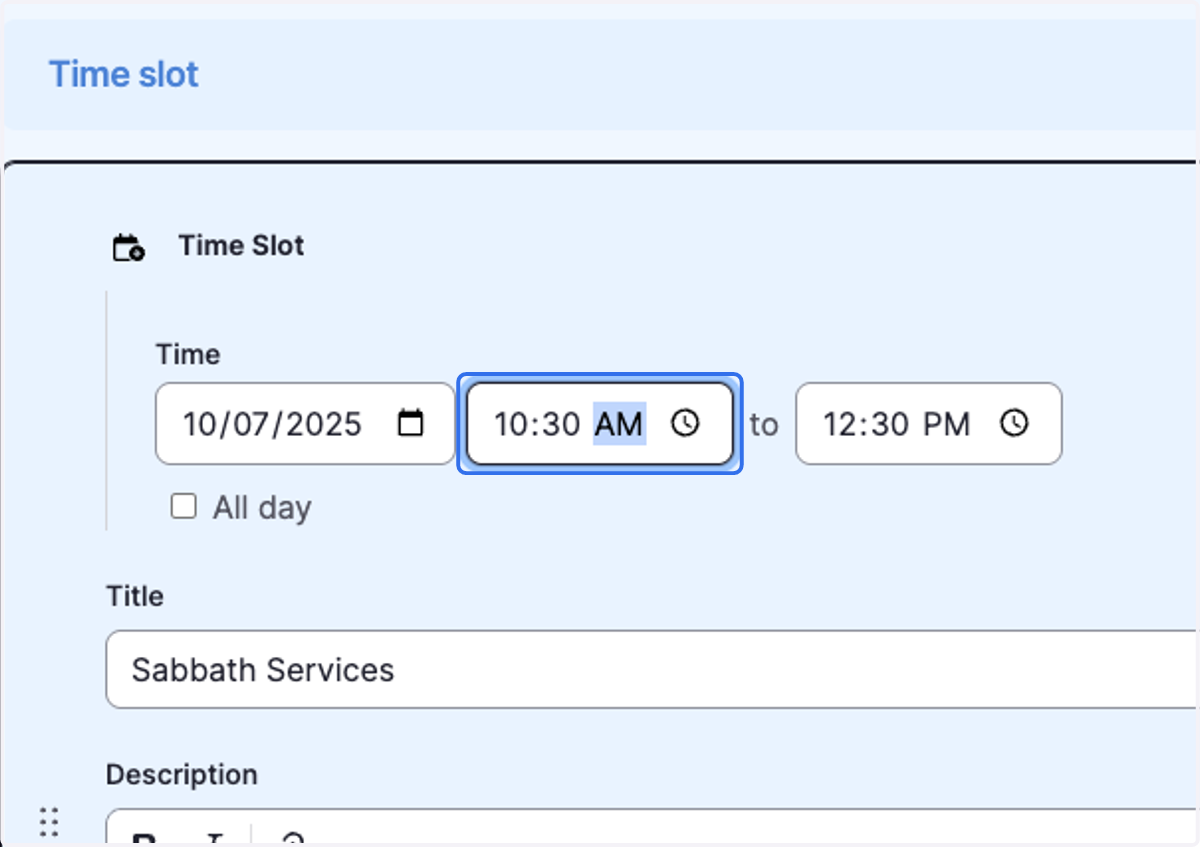
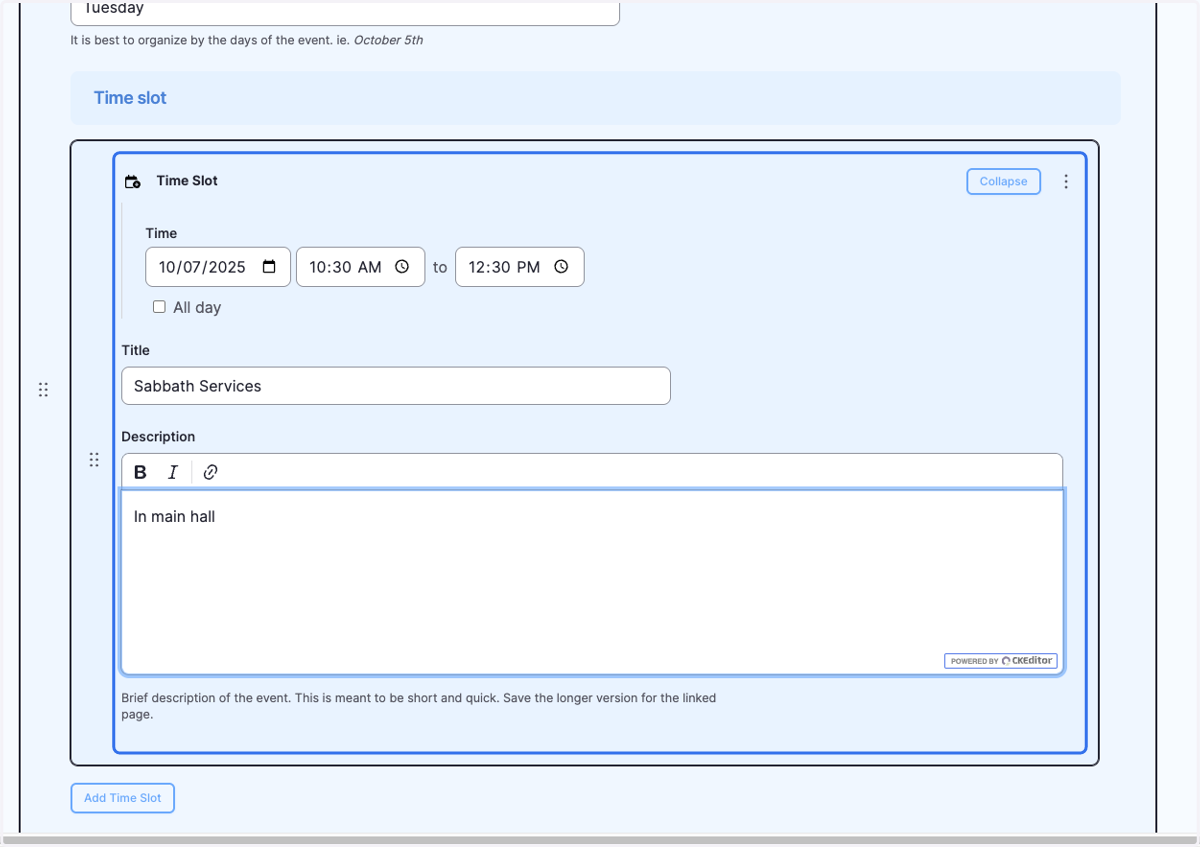
9. Give the time slot a description eg. Type "Located in the main hall"
10. The time slot should look like this.
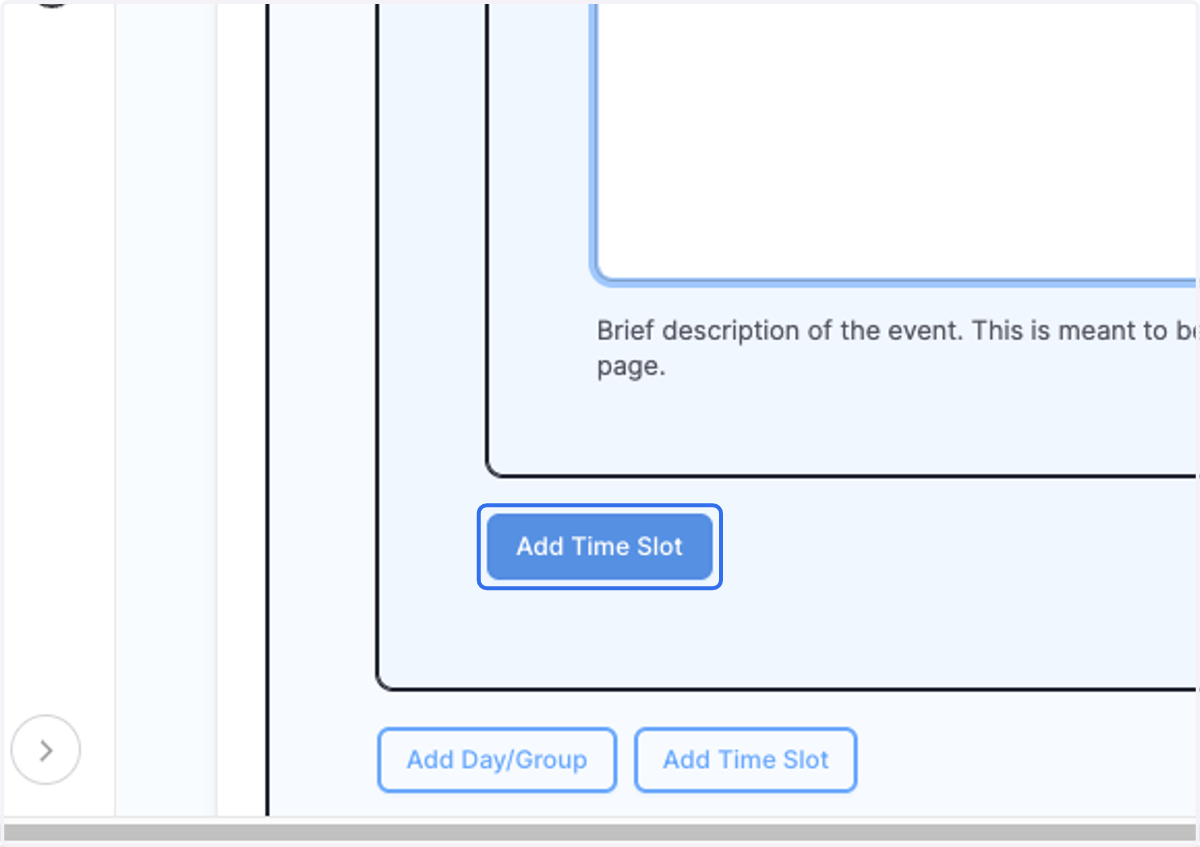
11. Click on Add Time Slot to add additional events to the day. Or click "Add Day/Group" to add additional days.
To save time you can Duplicate time slots or days.
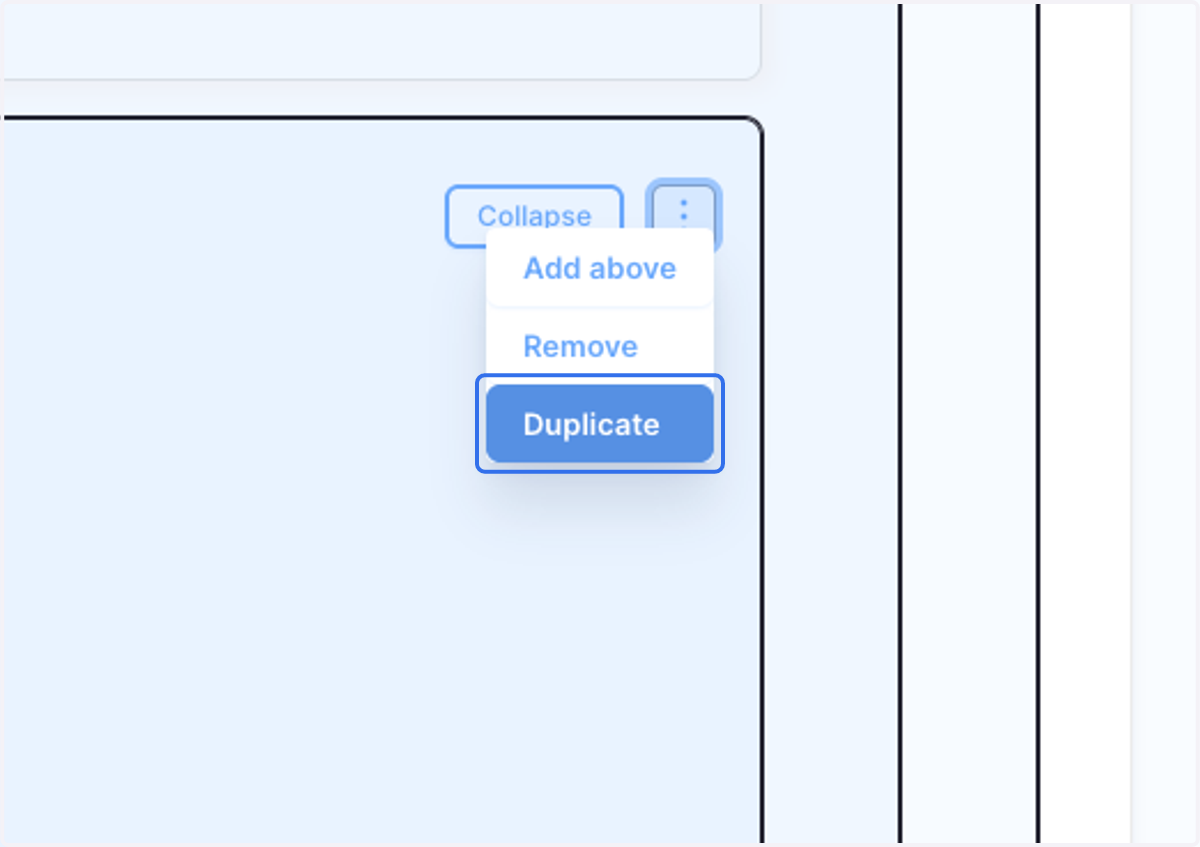
12. To duplicate, Click on Toggle Actions on the right side of the element.
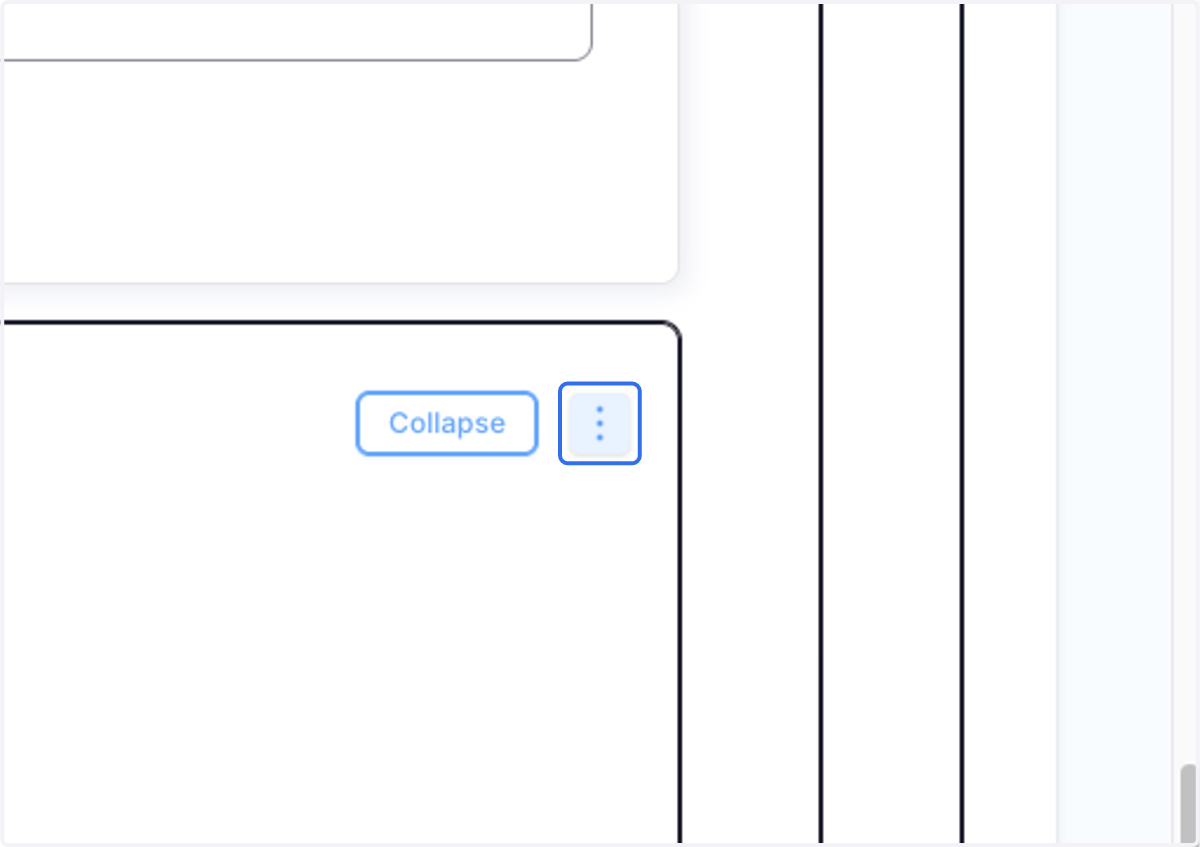
13. Click on Duplicate
🚀 For your convenience, we have already created a template schedule for this Feast year
Follow the following instructions to quickly add the schedule template to your page.
14. In the Main Content area...
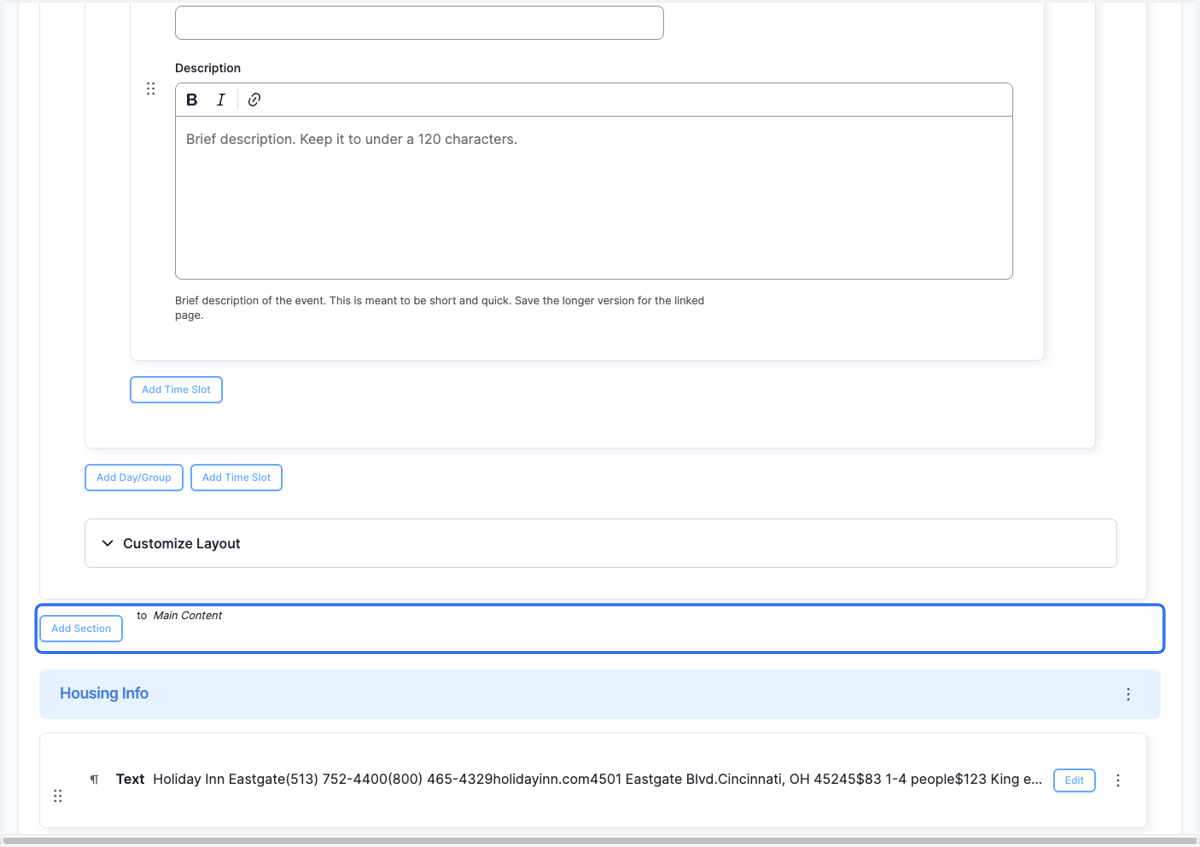
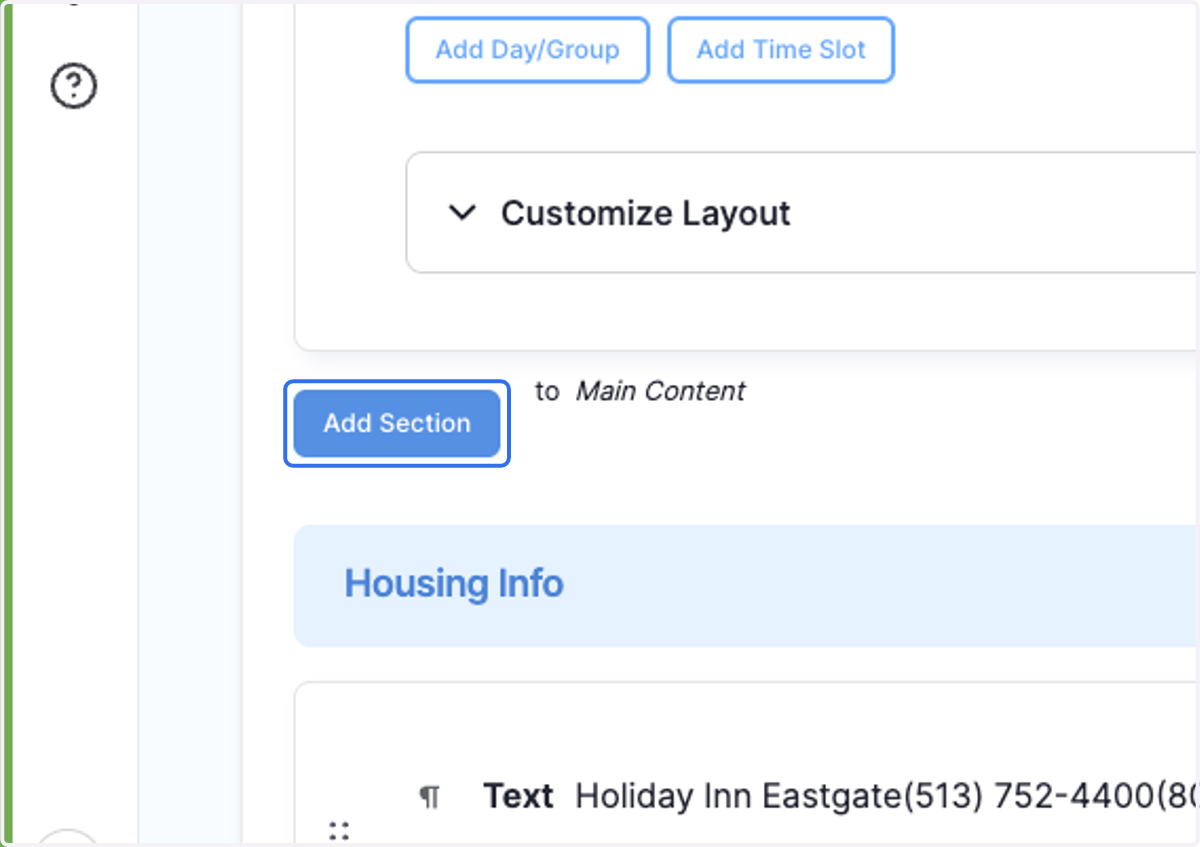
15. Click on Add Section
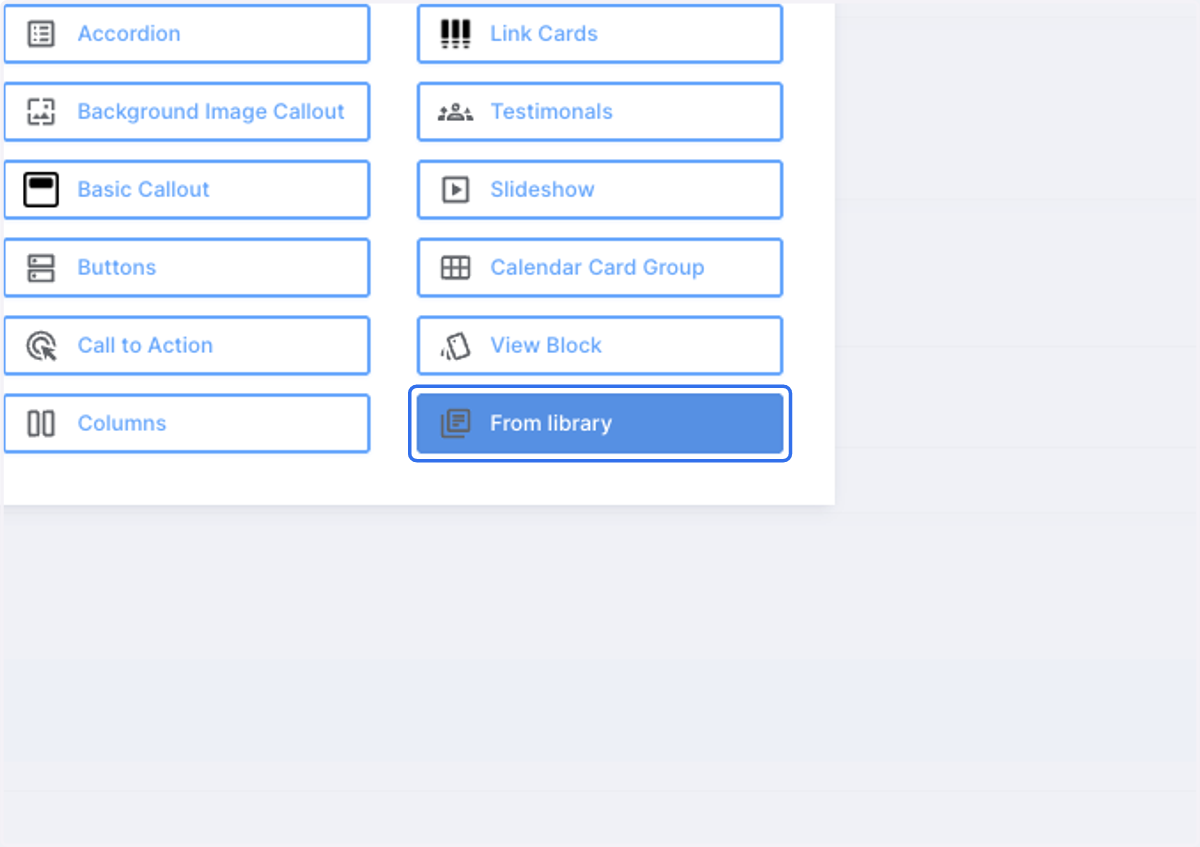
16. Click on From library
17. Click on Select reusable paragraph
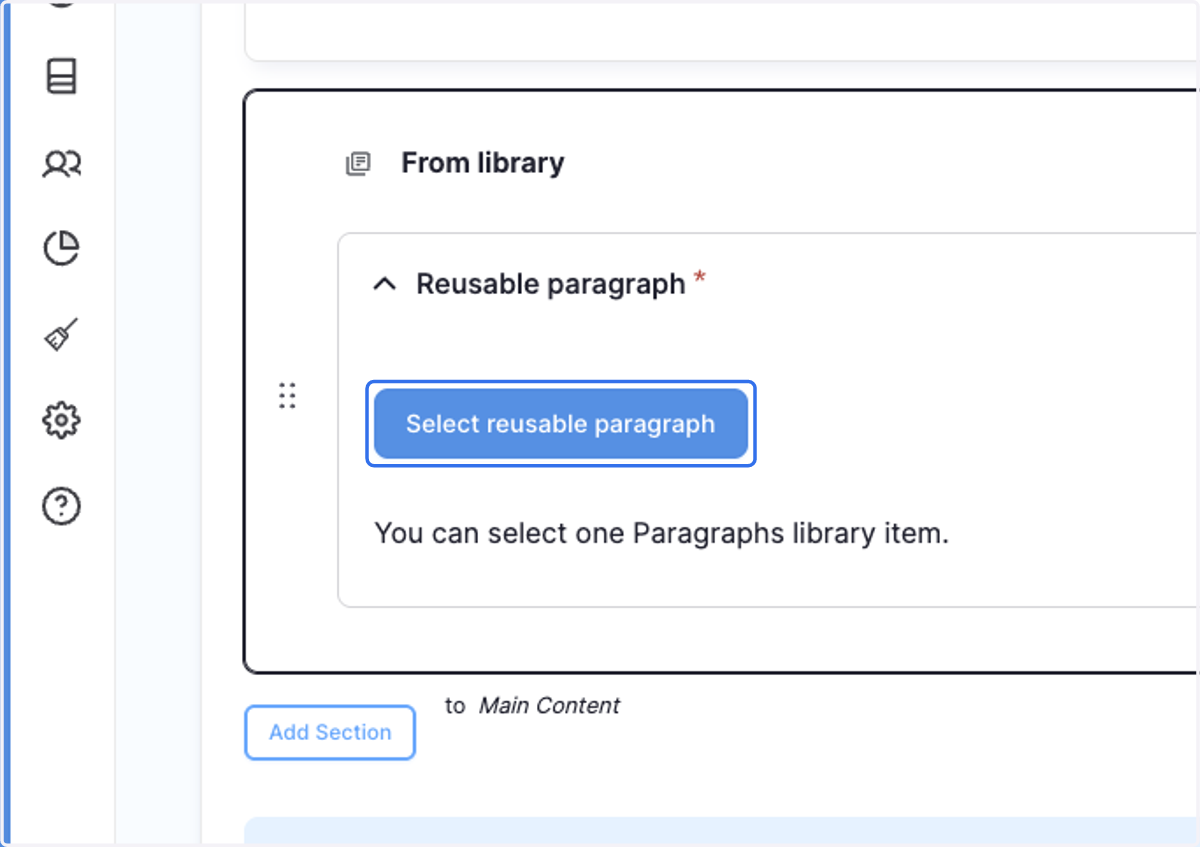
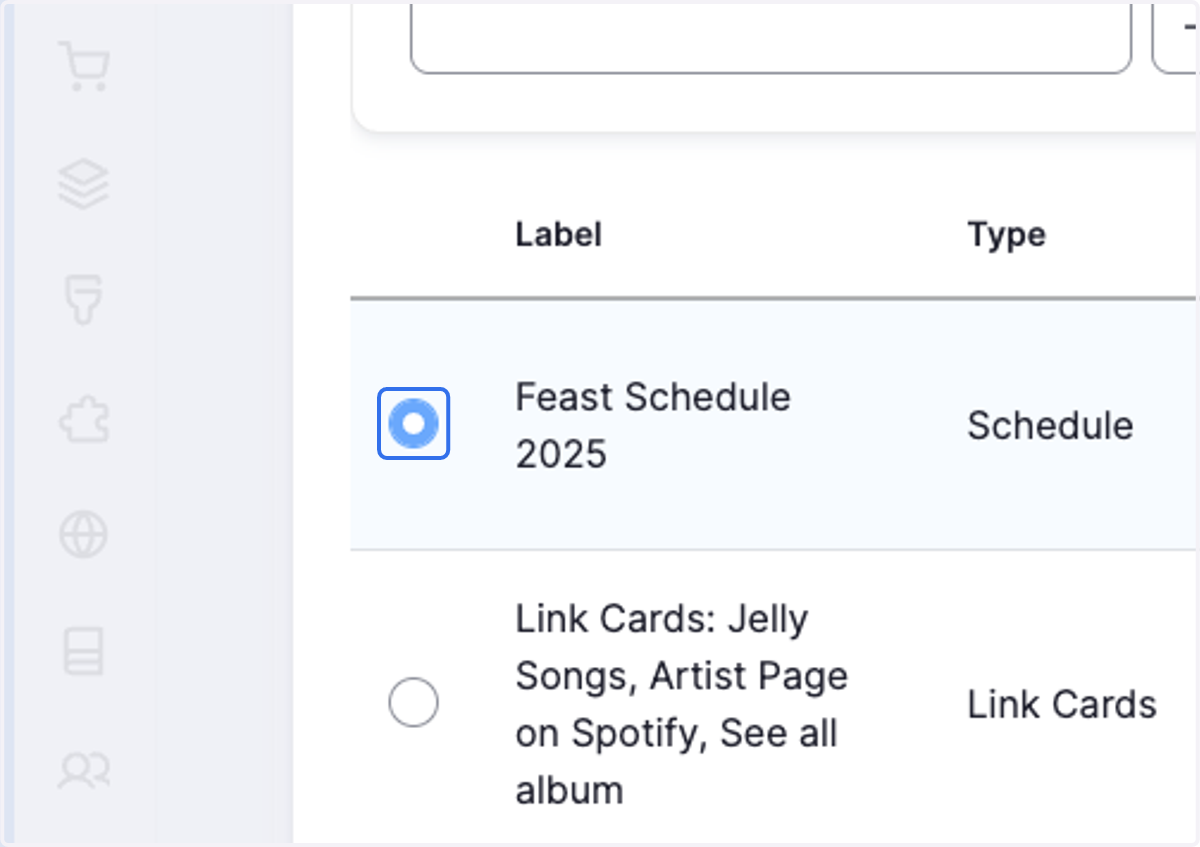
18. Select Select this item "Feast Schedule 2025"
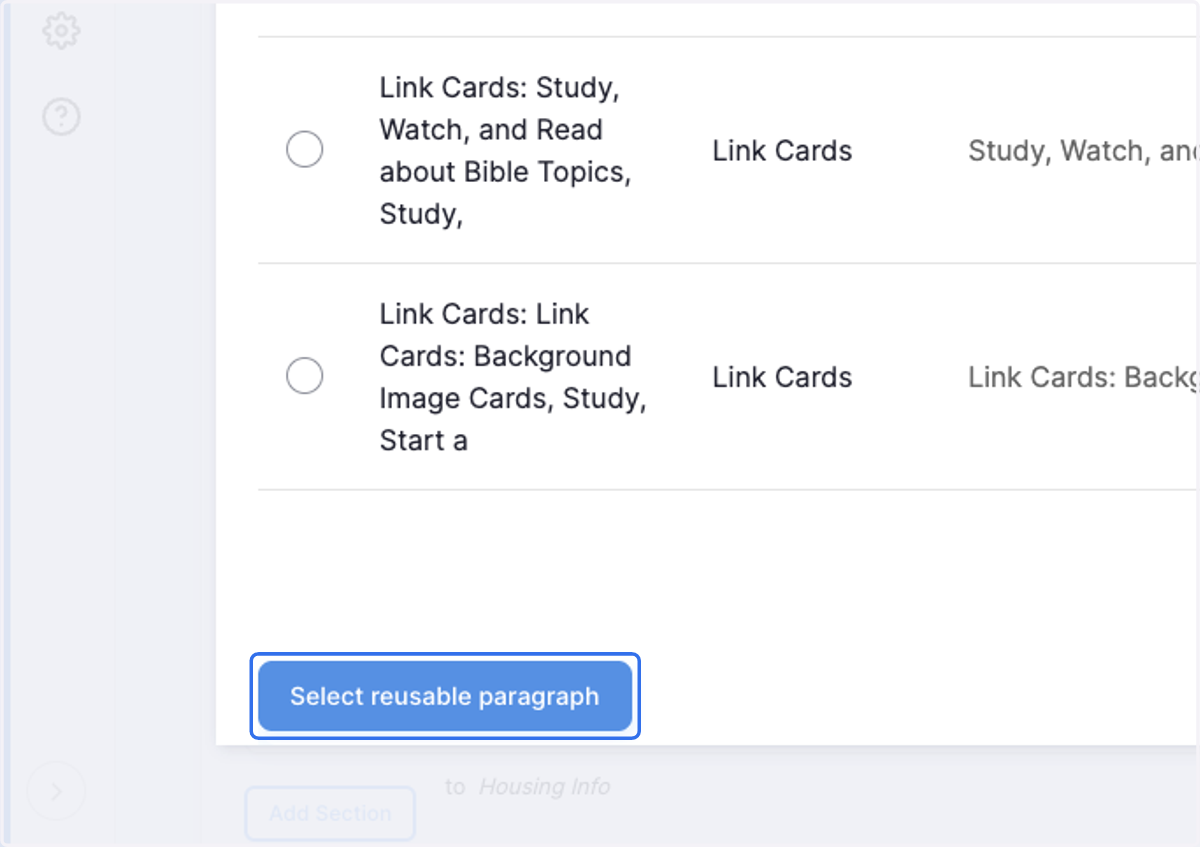
19. Scroll to the bottom of the window and Click on Select reusable paragraph
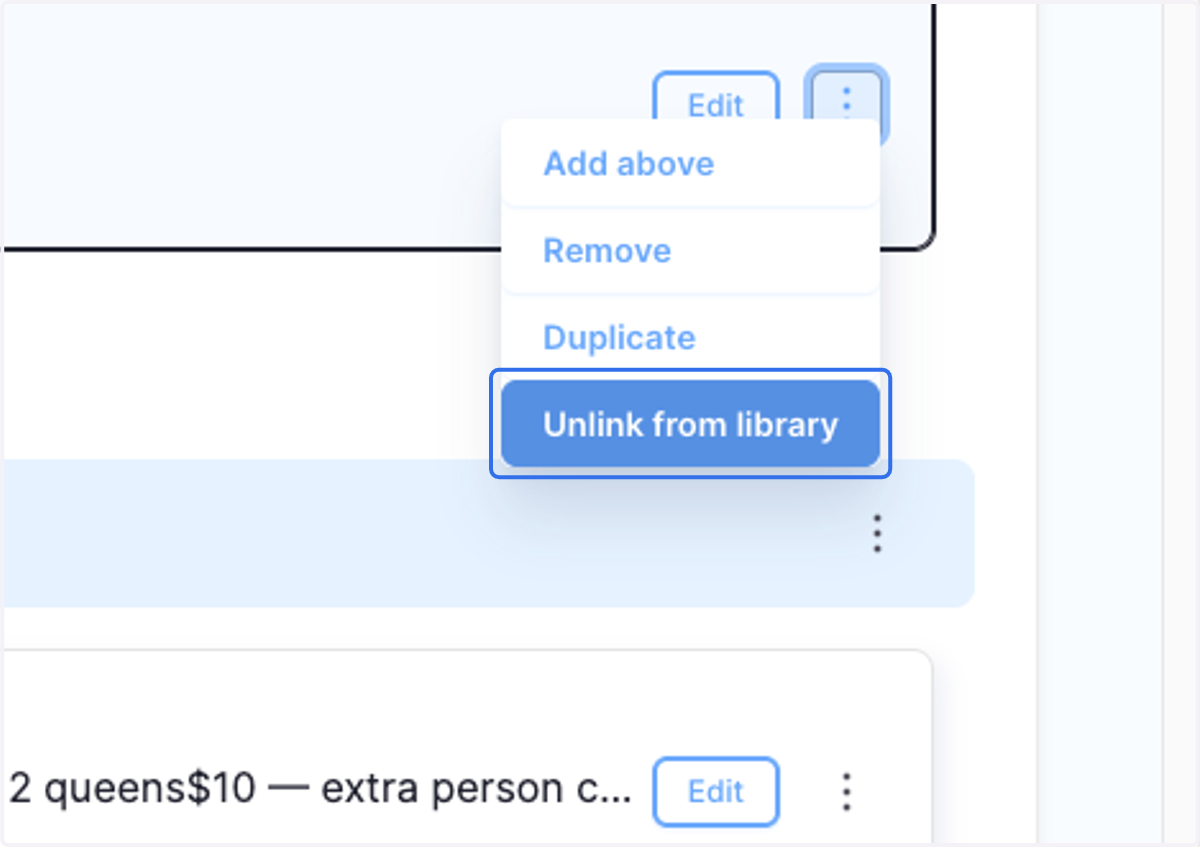
20. Click on Toggle Actions for the reusable paragraph you just added.
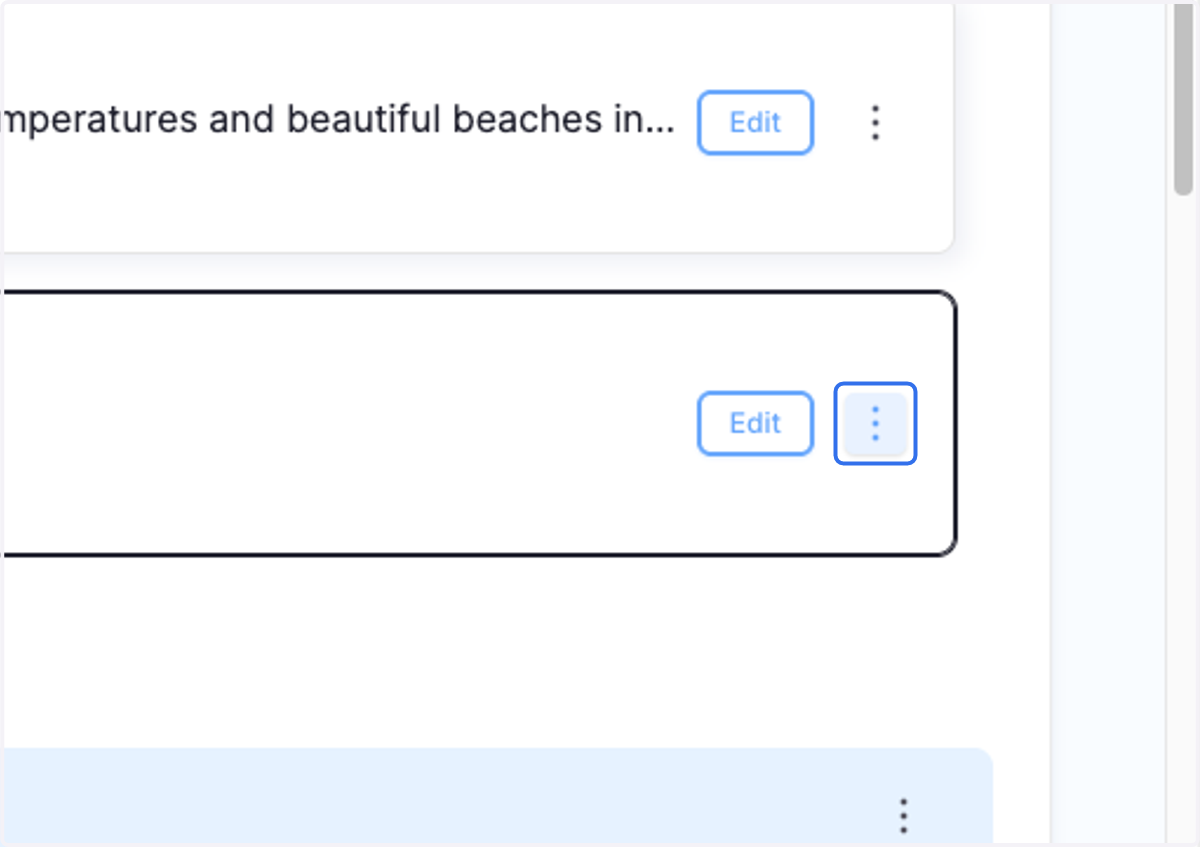
21. Click on Unlink from library. This will unpackage the template and allow you to edit on your Feast site page.
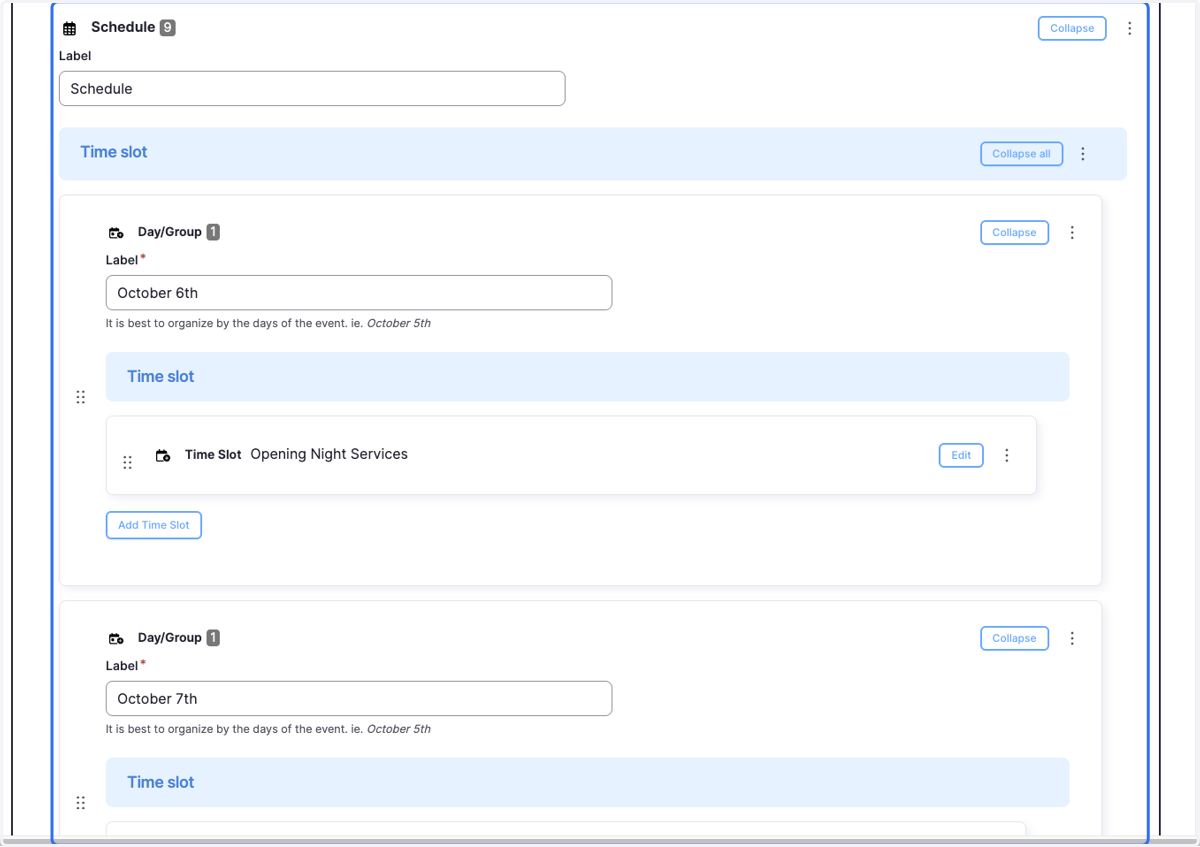
22. Click on Schedule… you can not edit your version of the schedule for your Feast site. You can add additional time slots and Days.
23. It is wise you go ahead and click Save to keep your progress at this point.