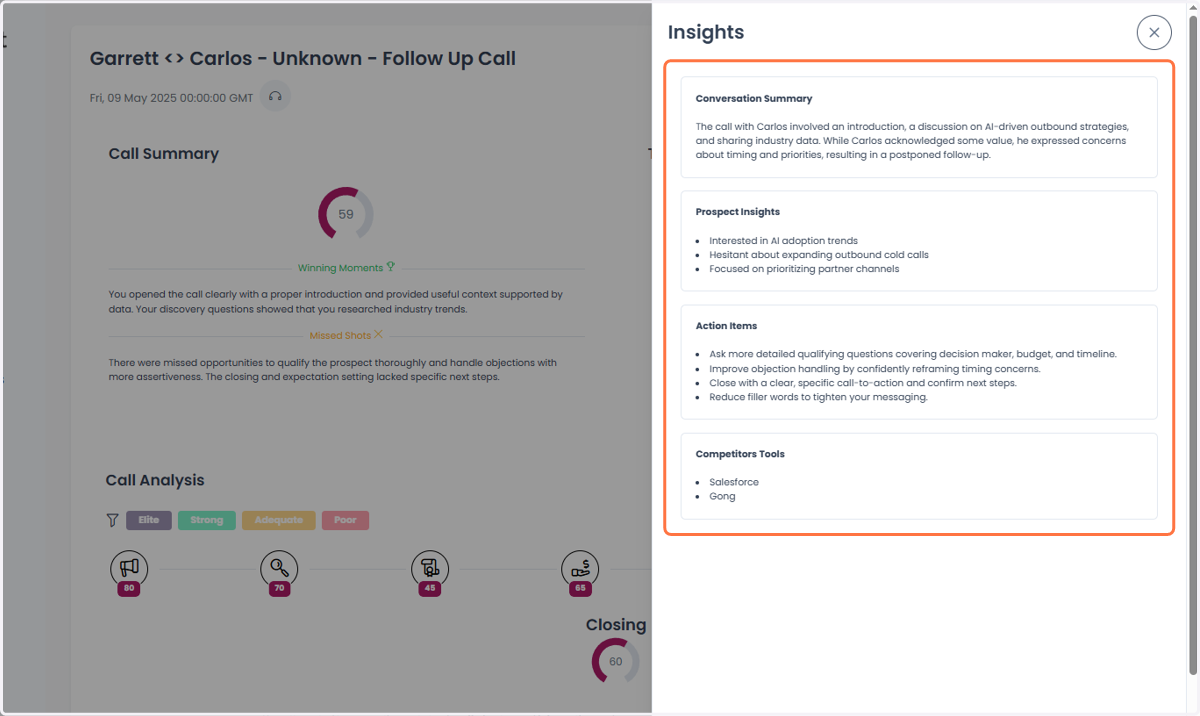
Generate a Call Report
This guide walks through how to manually submit and review a call on Pitchpilot
Pitchpilot | Call Coaching
1. Click on Generate Report
This guide walks through how to manually submit and review a call on Pitchpilot
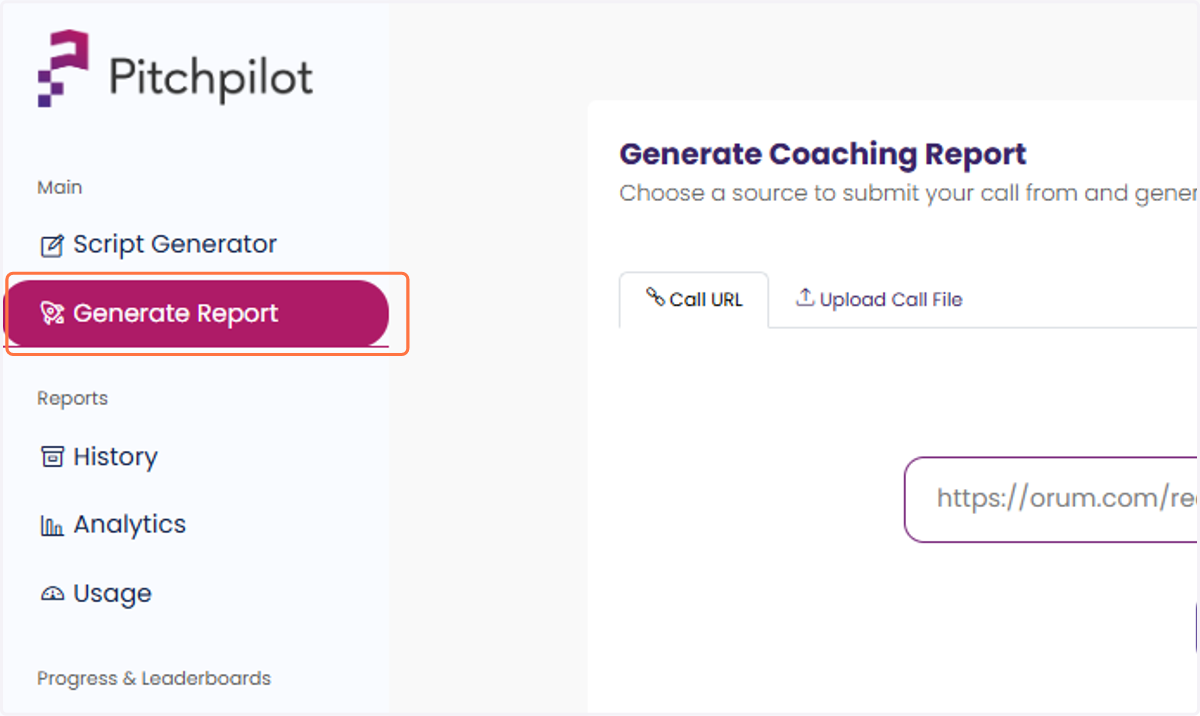
2. Select submission method
You may choose to enter the URL of your recording or upload the file
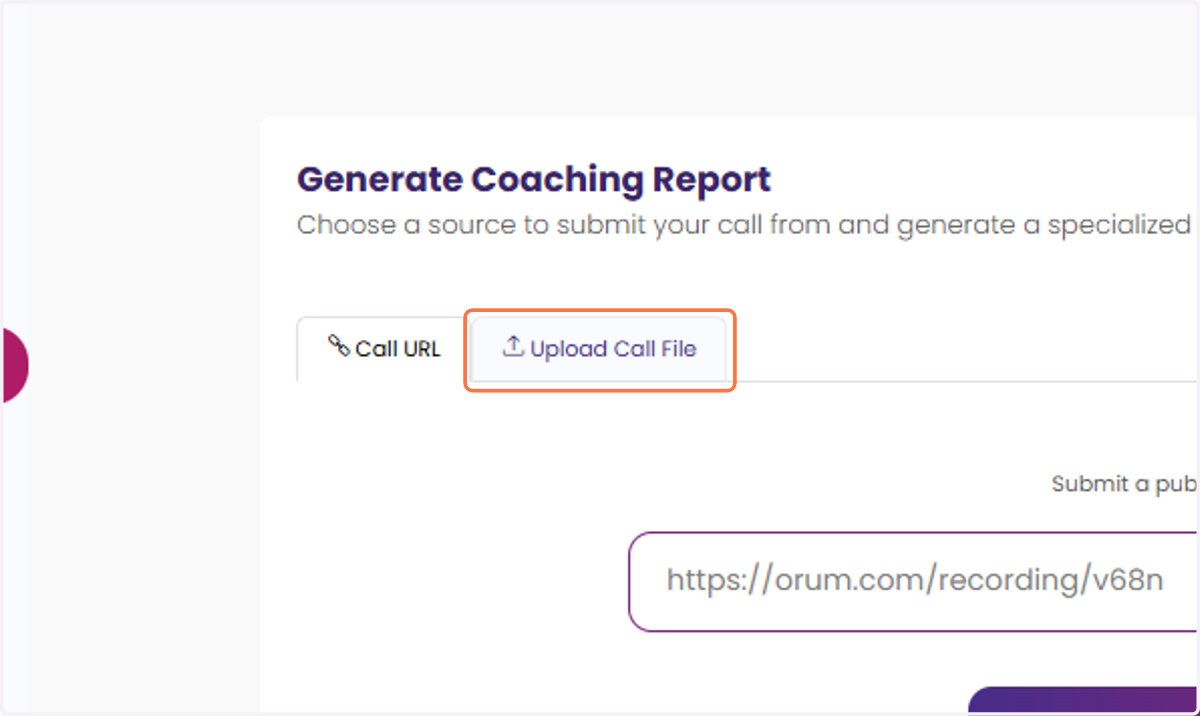
3. Input your selection
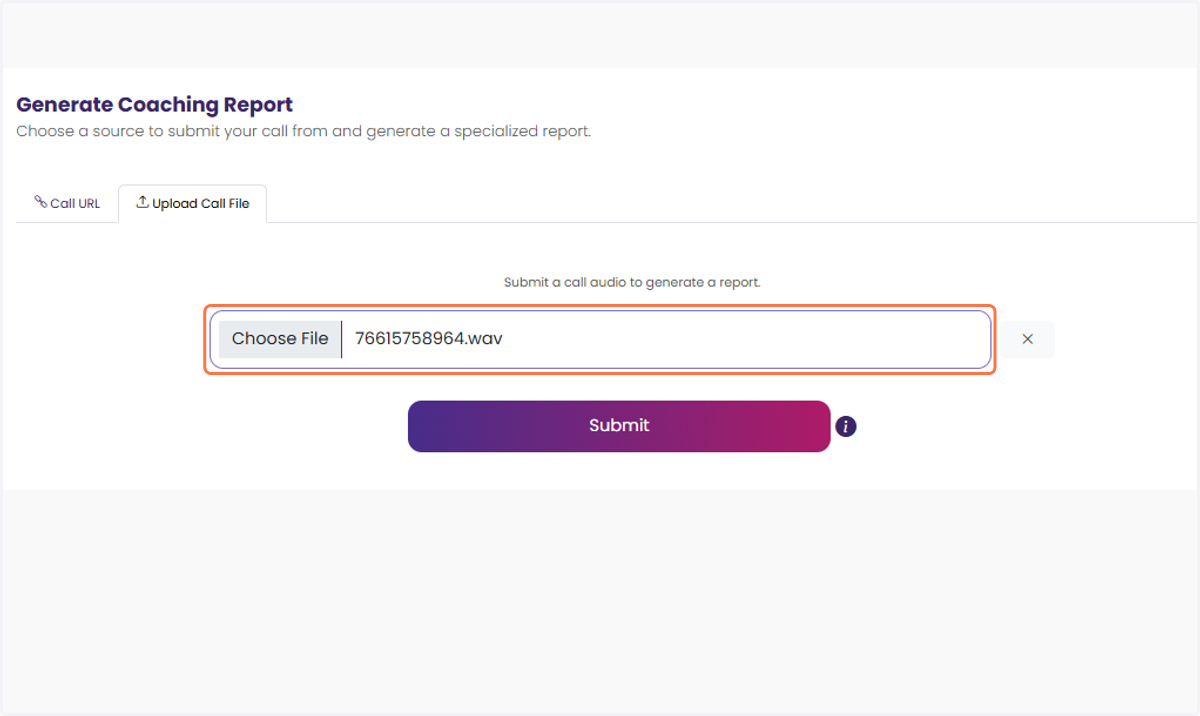
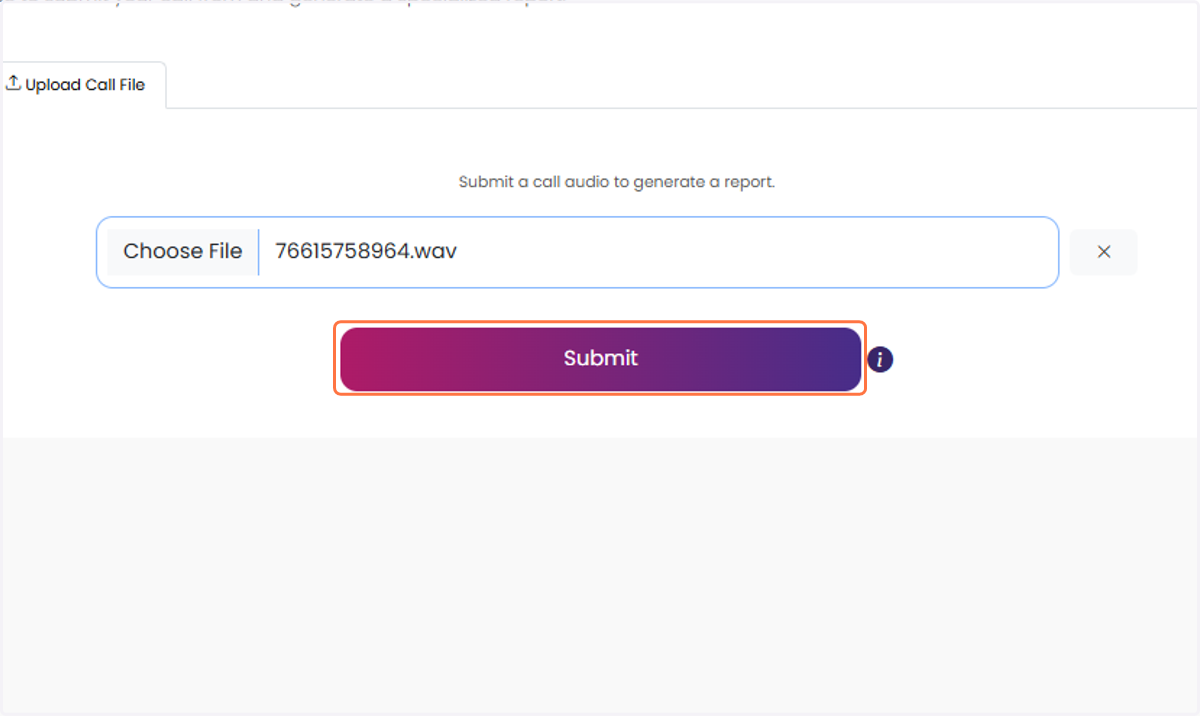
4. Click on Submit
Your report may take approximately one minute to generate
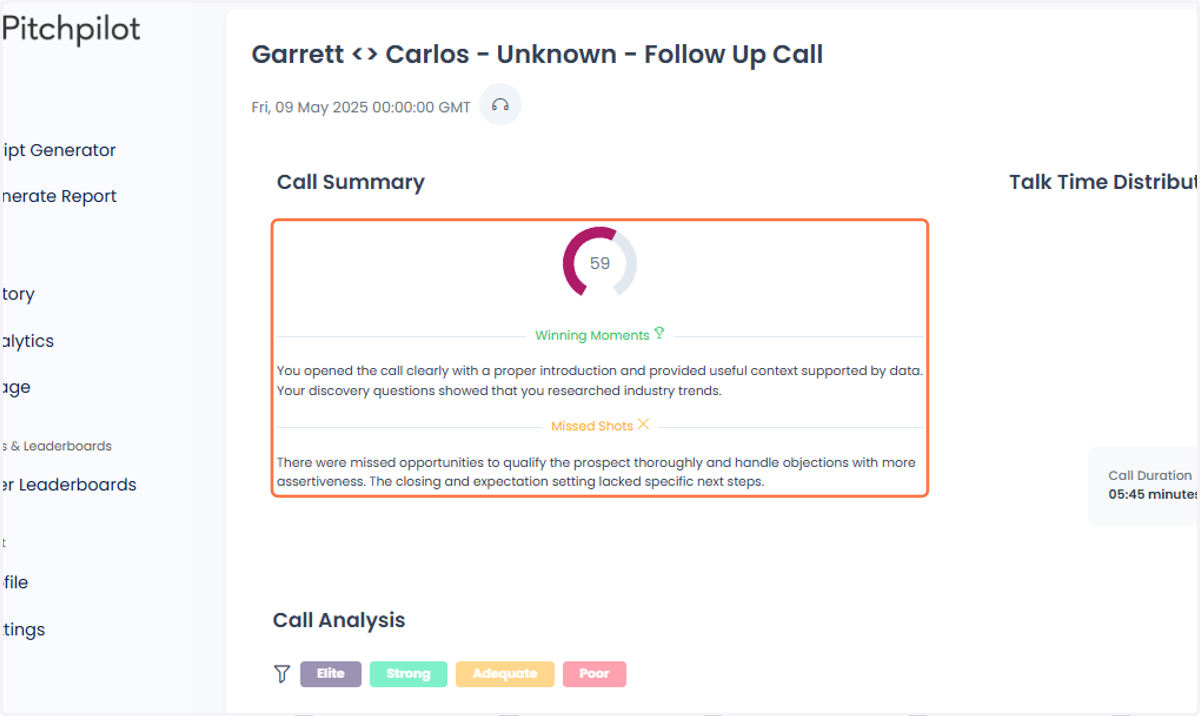
5. Navigate through the report to view the feedback
Review your summary to get a high-level understanding of what went well and some improvements to make on your next call
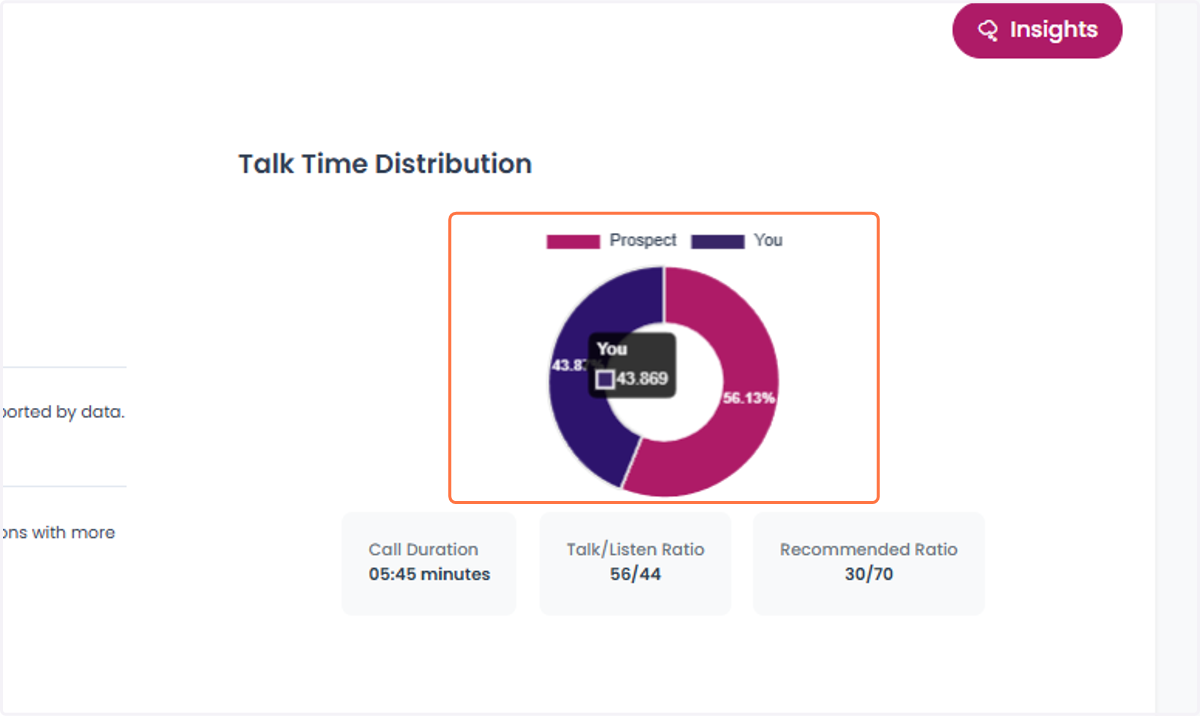
6. Analyze your talk time
Keep an eye on your talk time! This can help you identify if you're dominating the conversation.
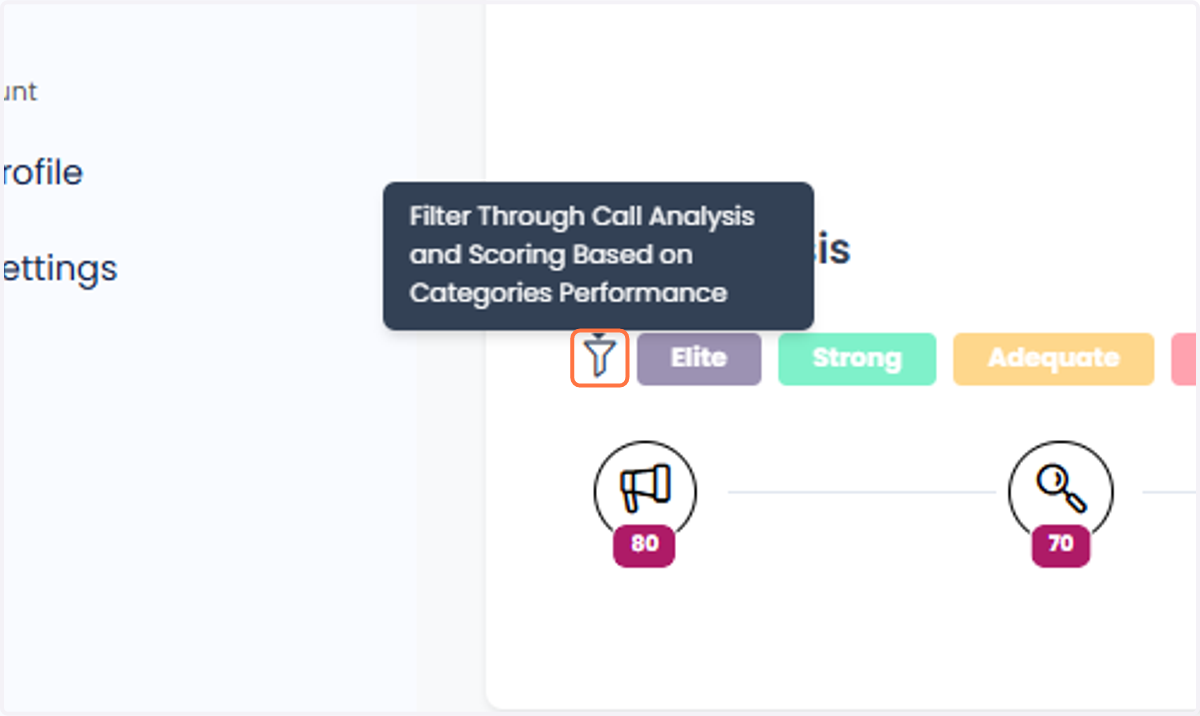
7. View all categories or filter for low performing ones
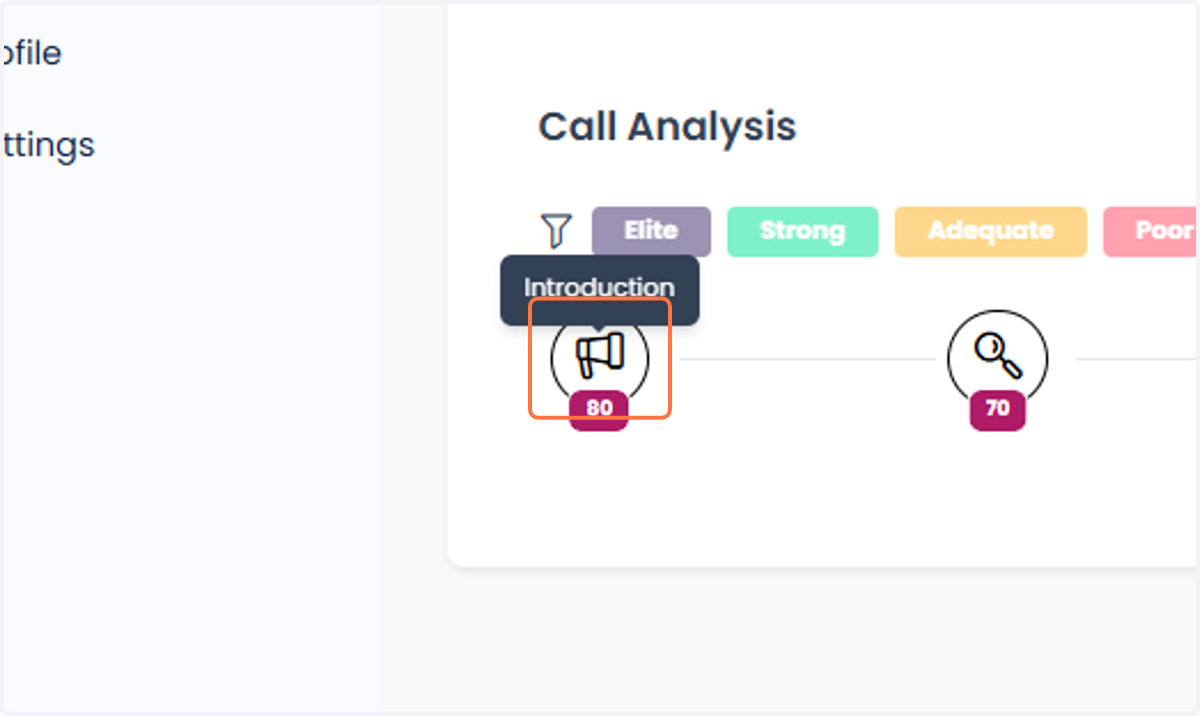
8. Call Section: Introduction
Click the icon to open the feedback display. Expand each section to view feedback and messaging suggestions.
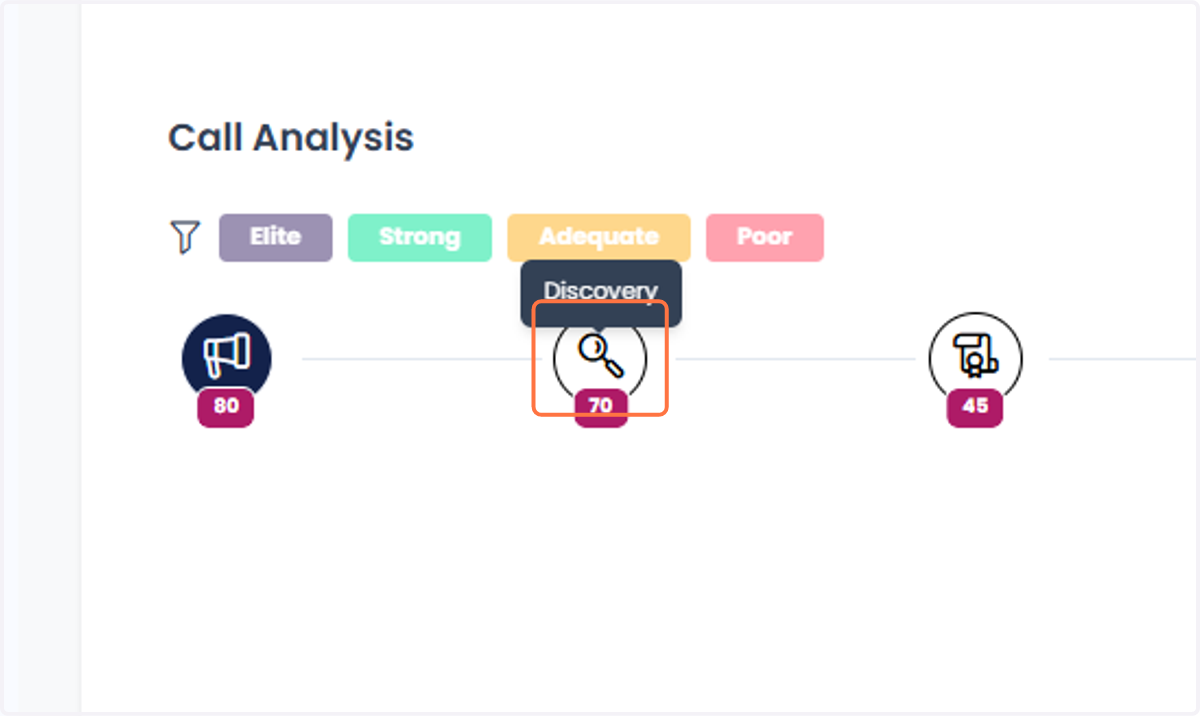
9. Call Section: Discovery
Click the icon to open the feedback display. Expand each section to view feedback and messaging suggestions.
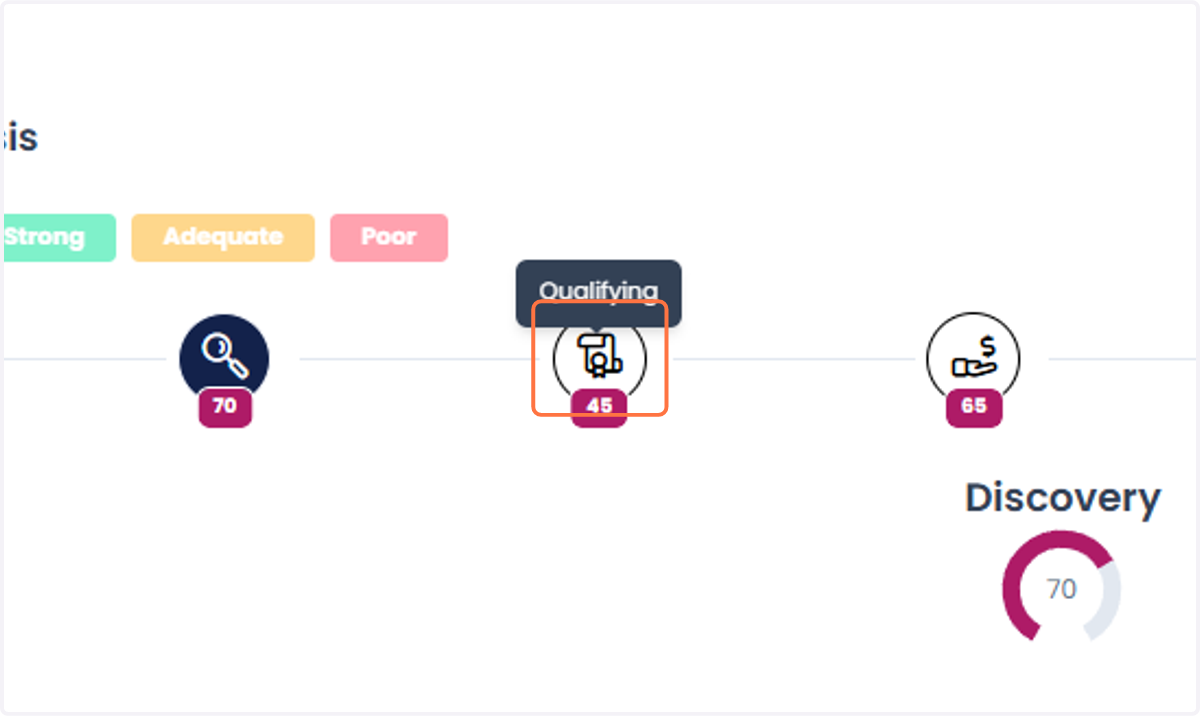
10. Call Section: Qualifying
Click the icon to open the feedback display. Expand each section to view feedback and messaging suggestions.
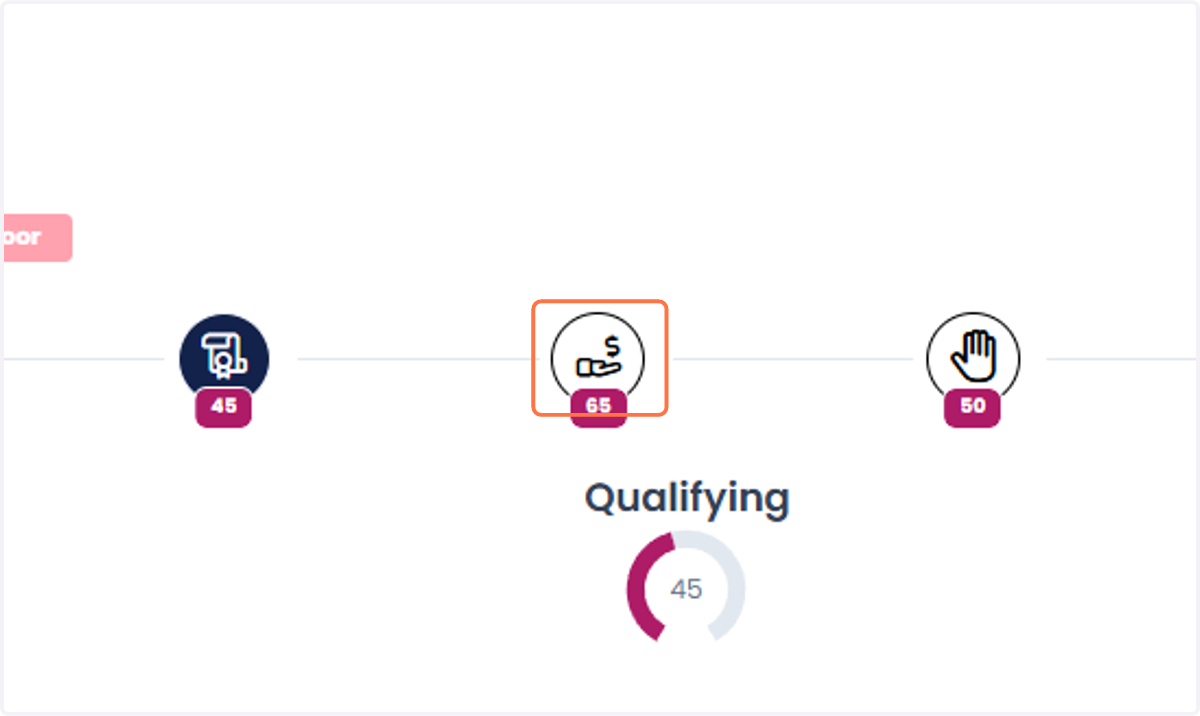
11. Call Section: Value Prop
Click the icon to open the feedback display. Expand each section to view feedback and messaging suggestions.
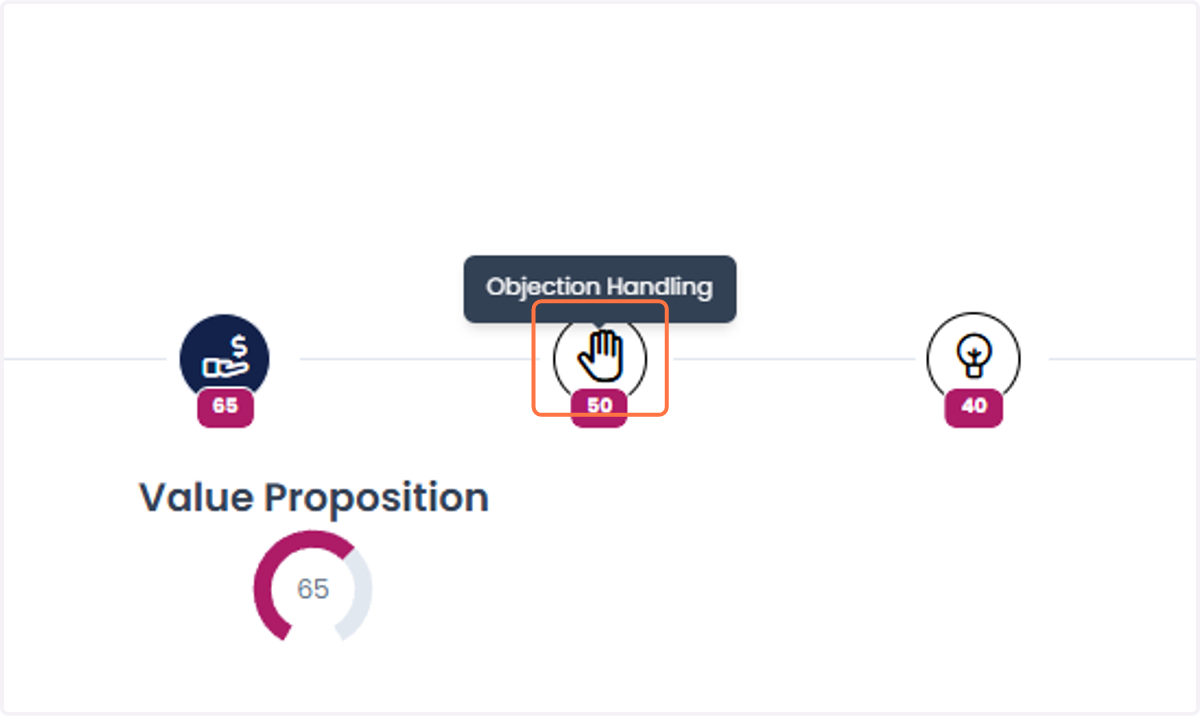
12. Call Section: Objection Handling
Click the icon to open the feedback display. Expand each section to view feedback and messaging suggestions.
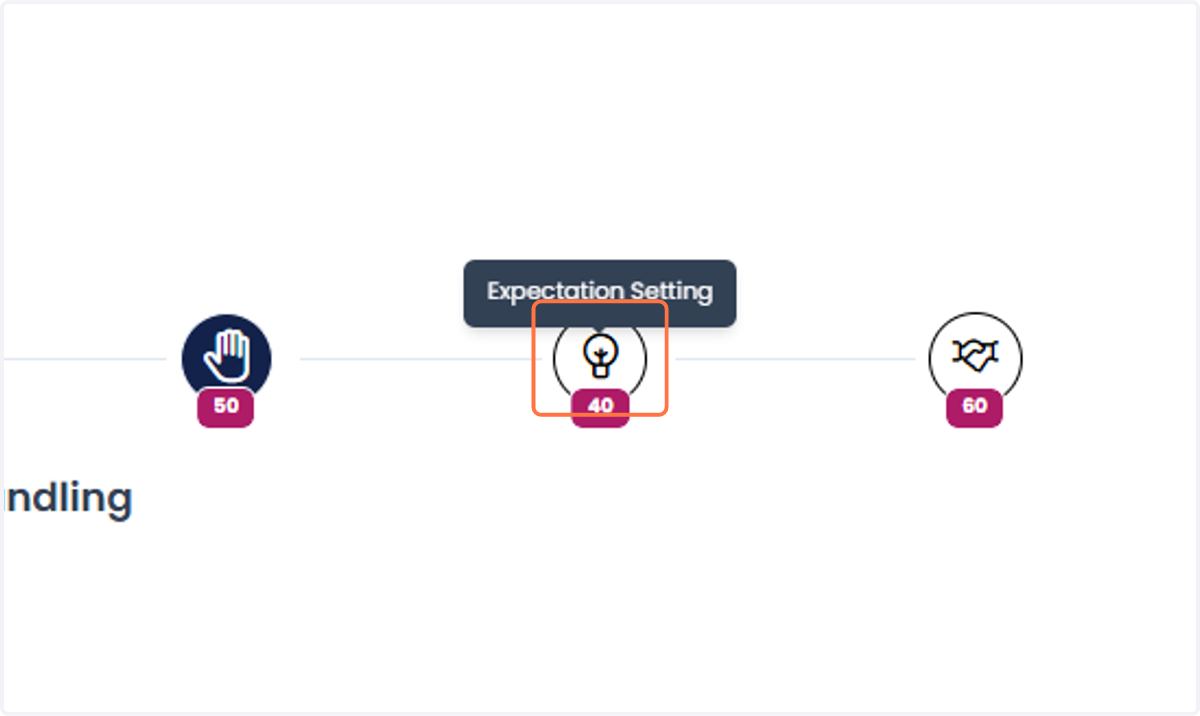
13. Call Section: Expectation Setting
Click the icon to open the feedback display. Expand each section to view feedback and messaging suggestions.
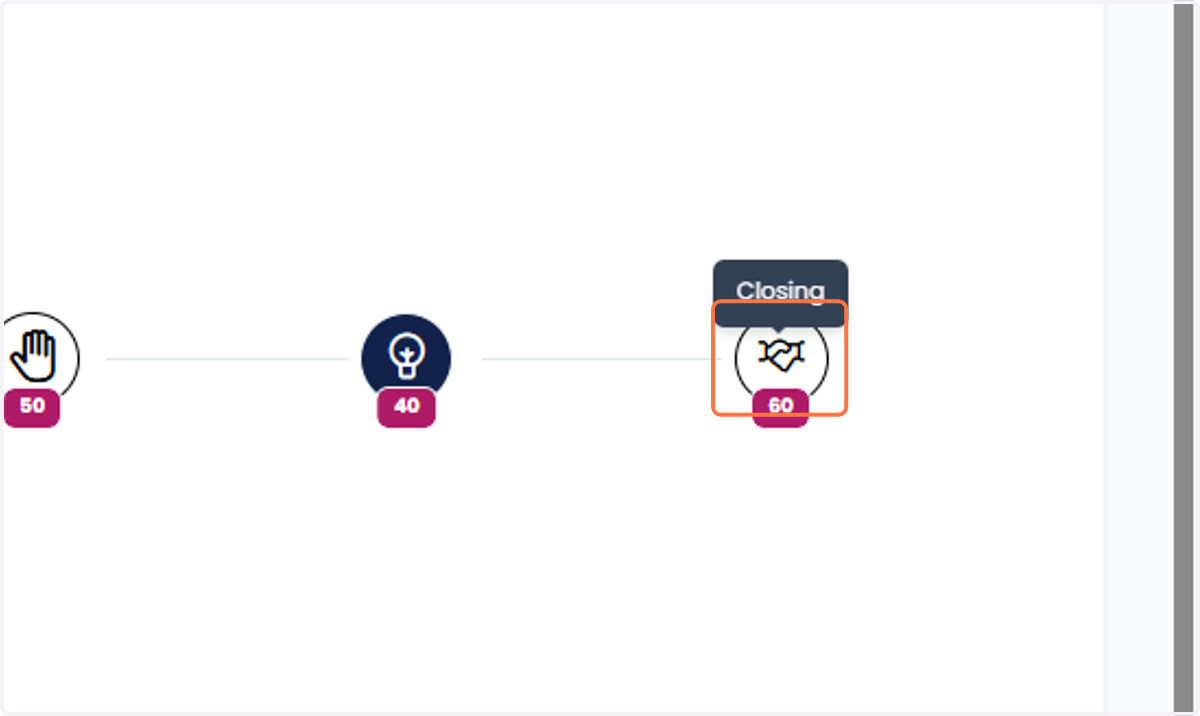
14. Call Section: Closing
Click the icon to open the feedback display. Expand each section to view feedback and messaging suggestions.
15. Click on Insights to view some additional action items