FTV: New Teacher Sign Up Tutorial for the Student Check-in Tool
Go to ca.versoapp.com
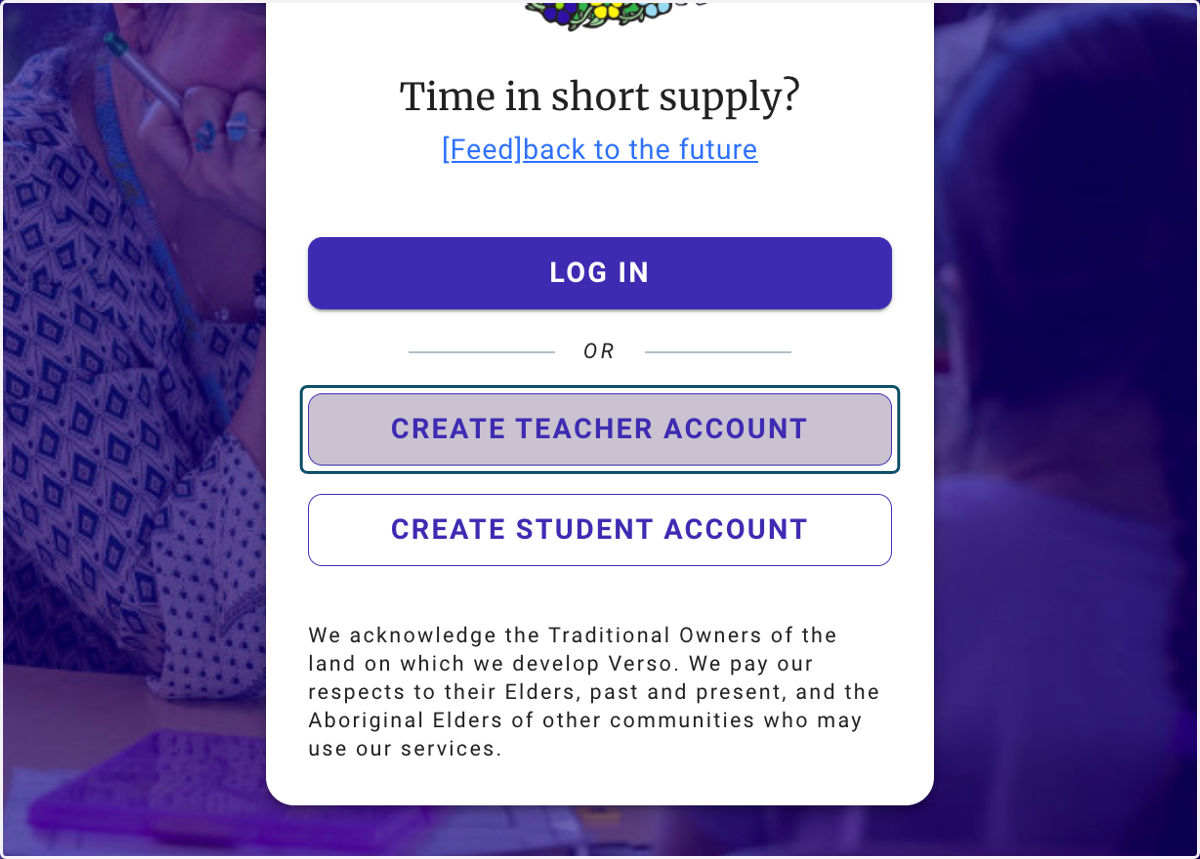
1. Click on CREATE TEACHER ACCOUNT to set up your new teacher account
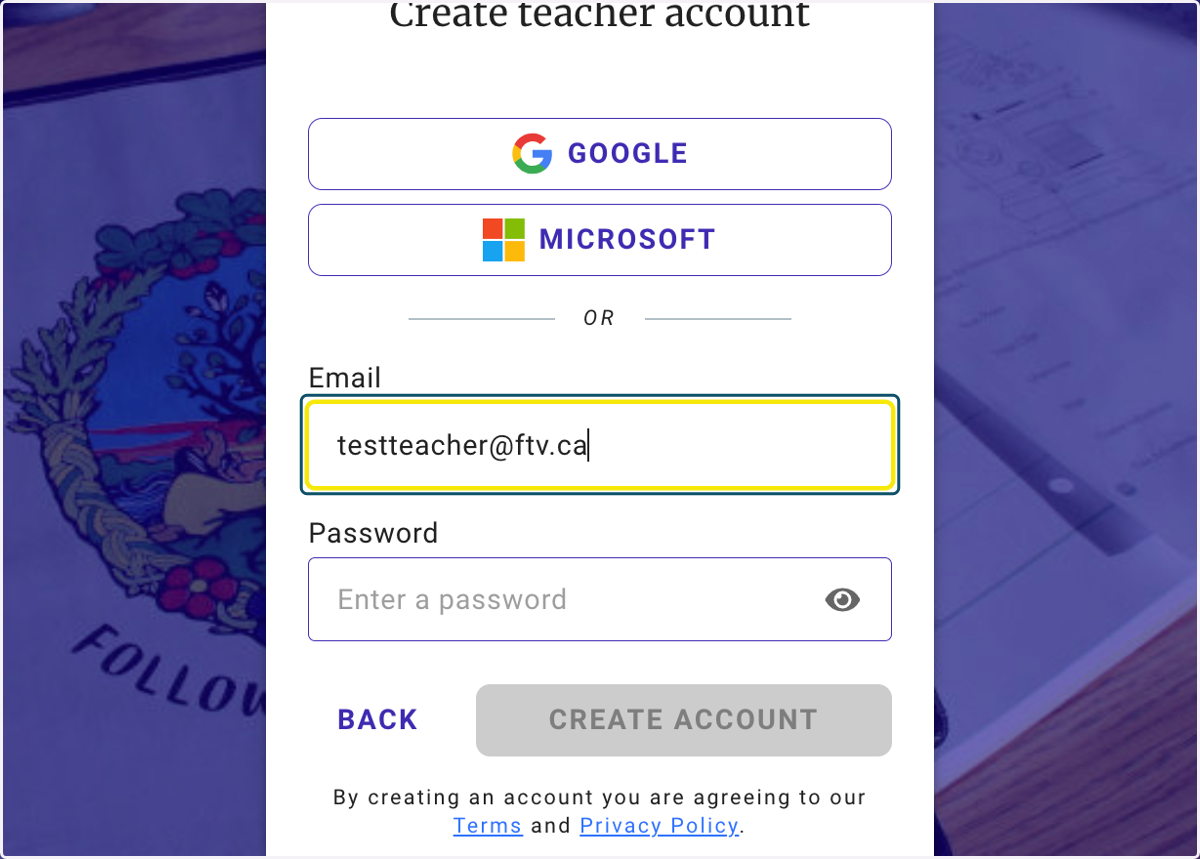
2. Click the Google button to link your Student Check-in tool to your Google Classroom account, alternatively enter your email address and a password
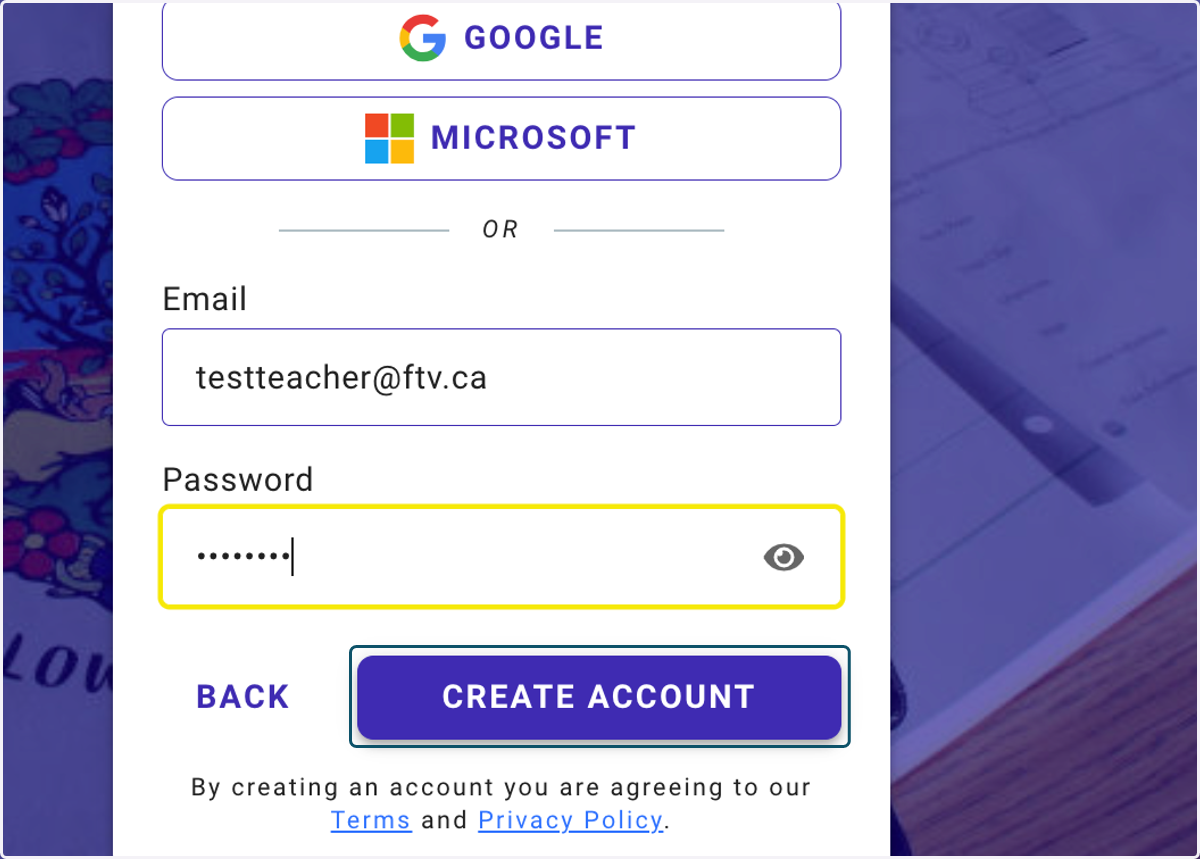
3. Click on CREATE ACCOUNT
4. Select title and enter first name and last name
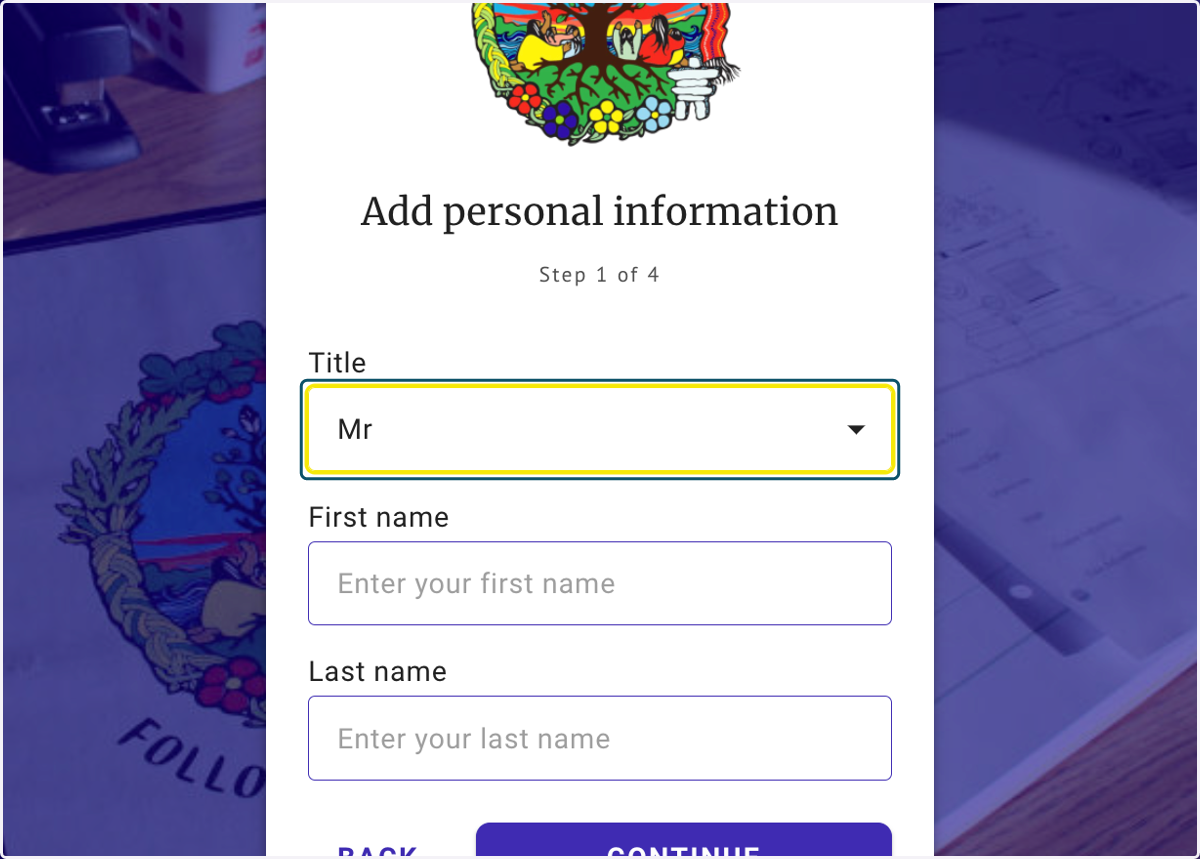
5. Click on CONTINUE
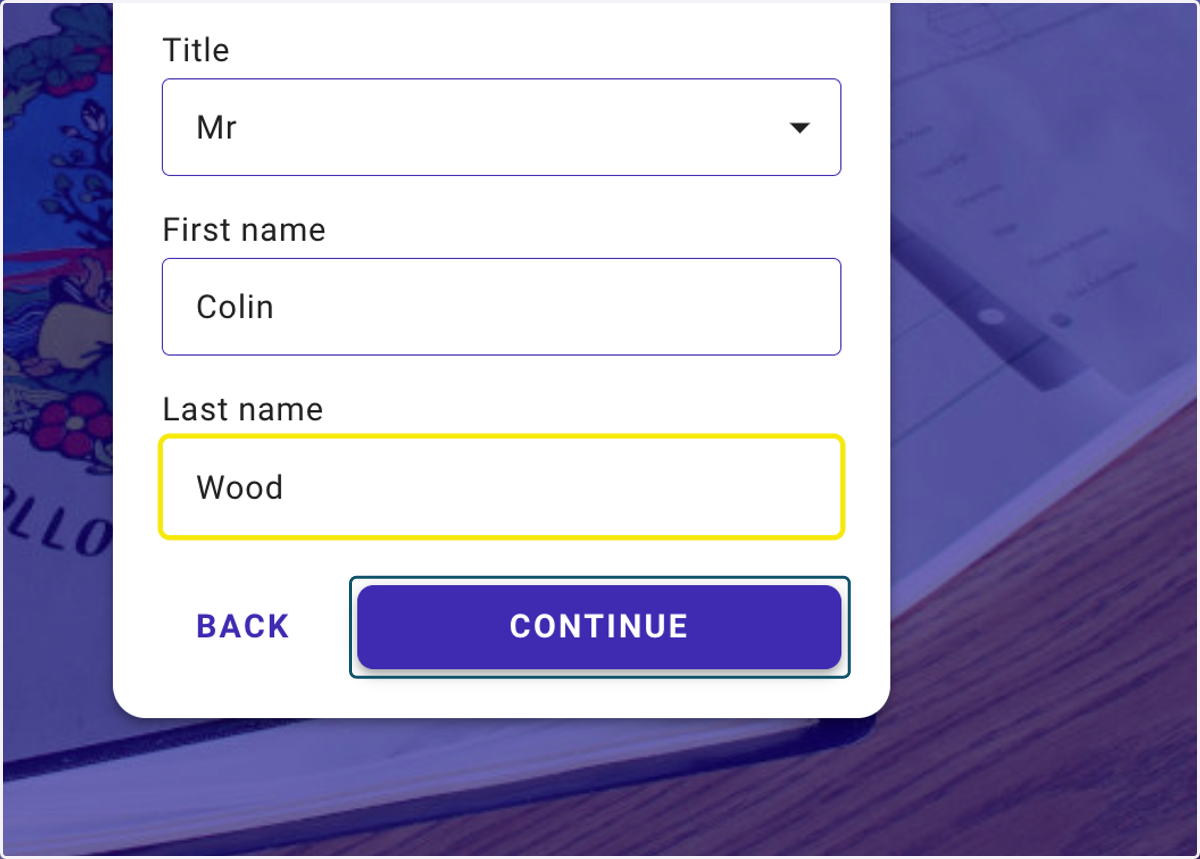
6. Select Gender the dropdown list
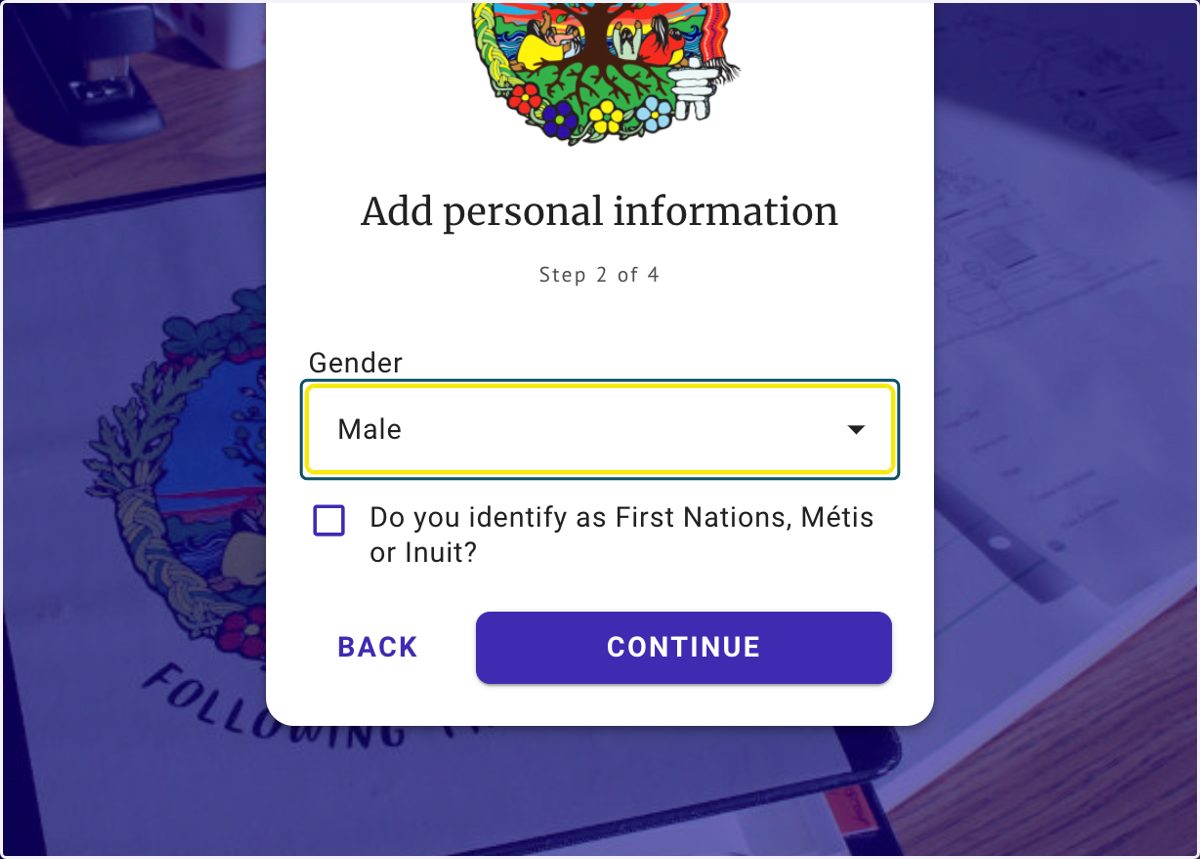
7. If appropriate, check Do you identify as First Nations, Métis or Inuit? and select your ethnicity
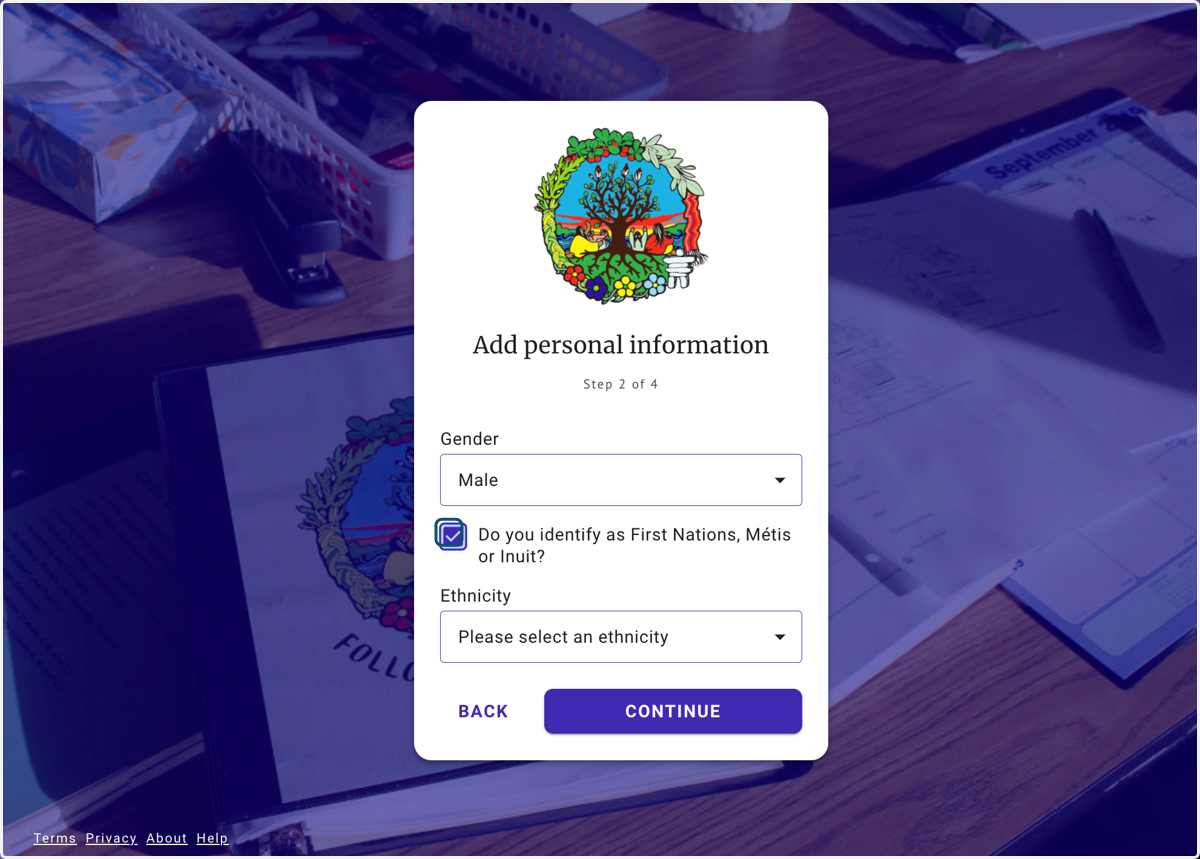
8. Select Canada from the list of countries
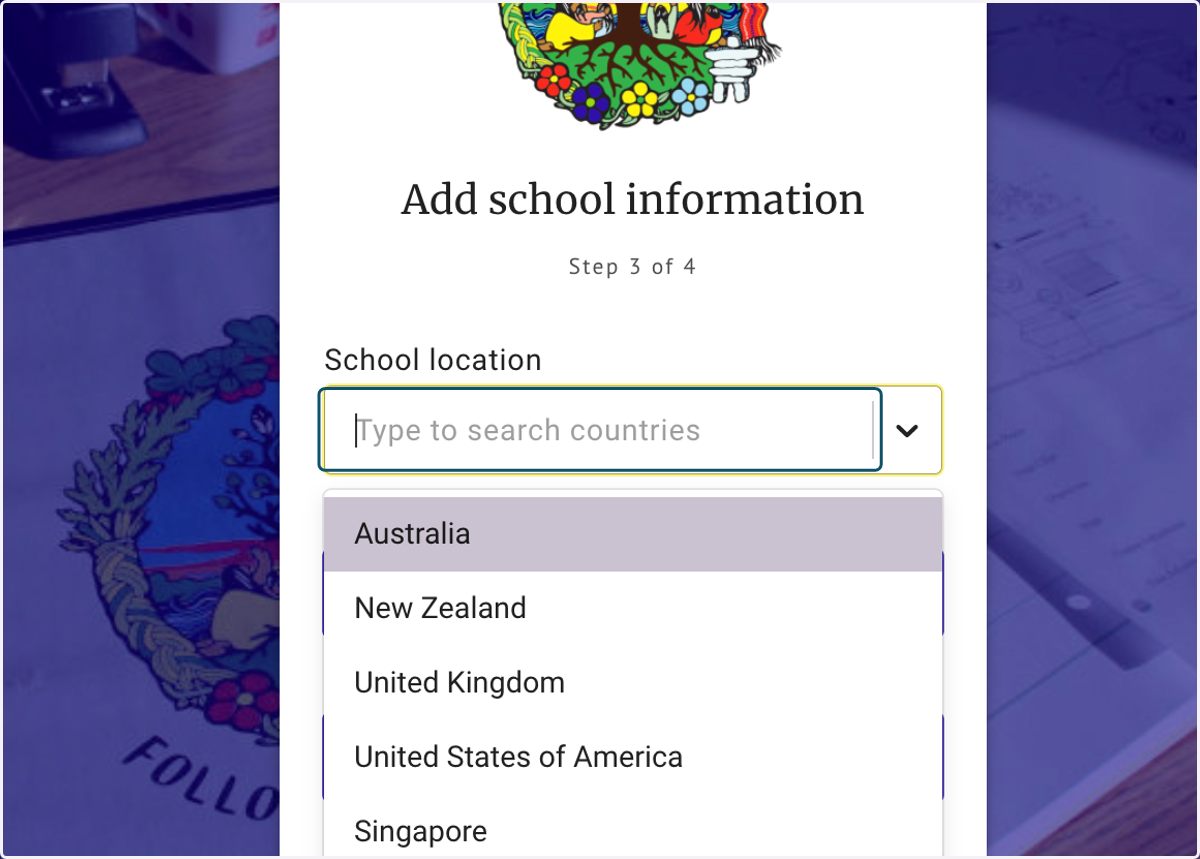
9. Type in your School's postcode
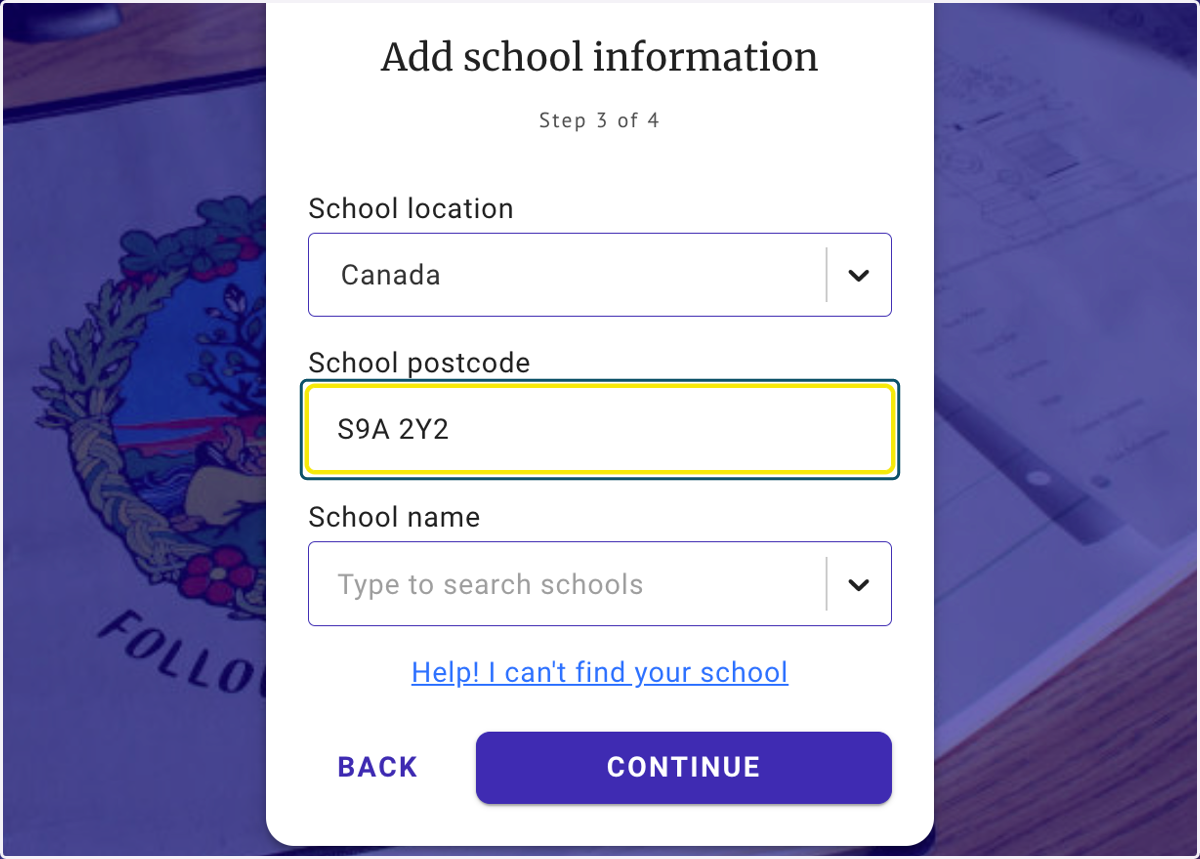
10. Select your school from the dropdown list
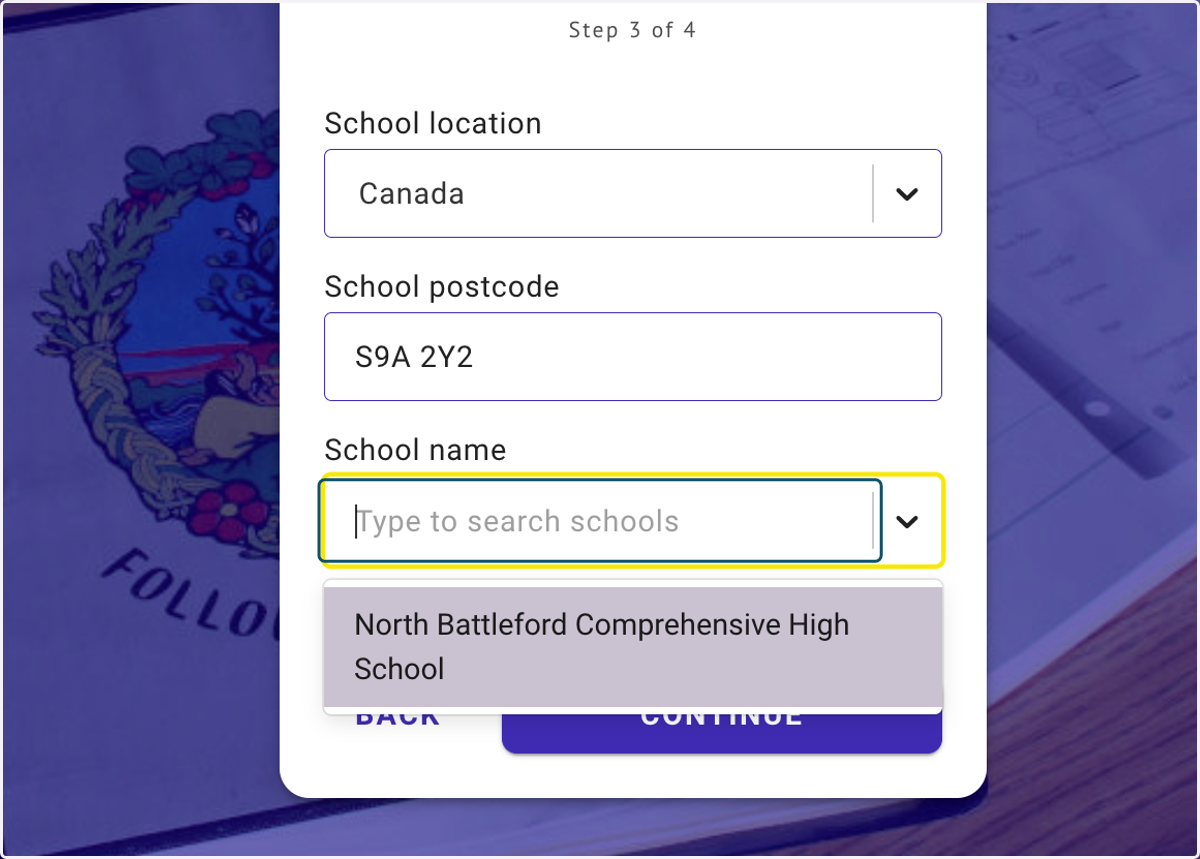
11. Click on CONTINUE
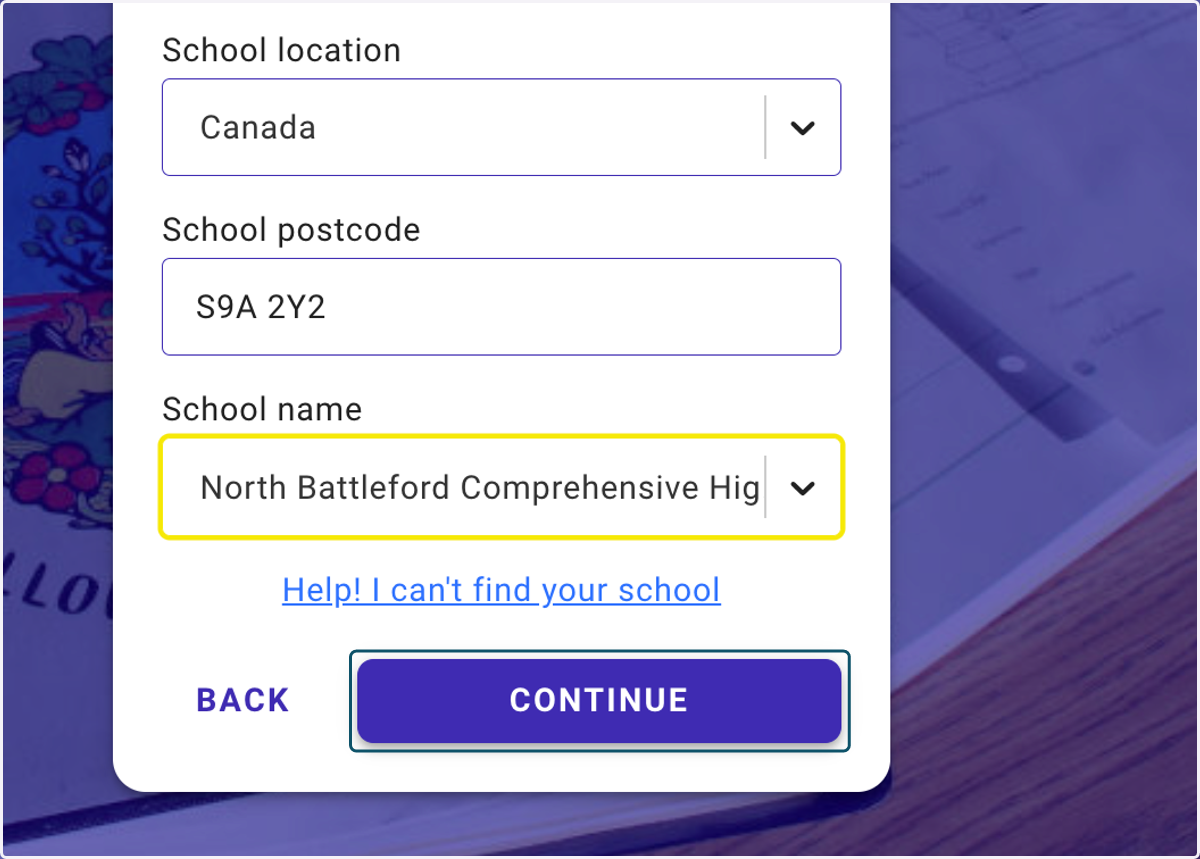
12. Select your role
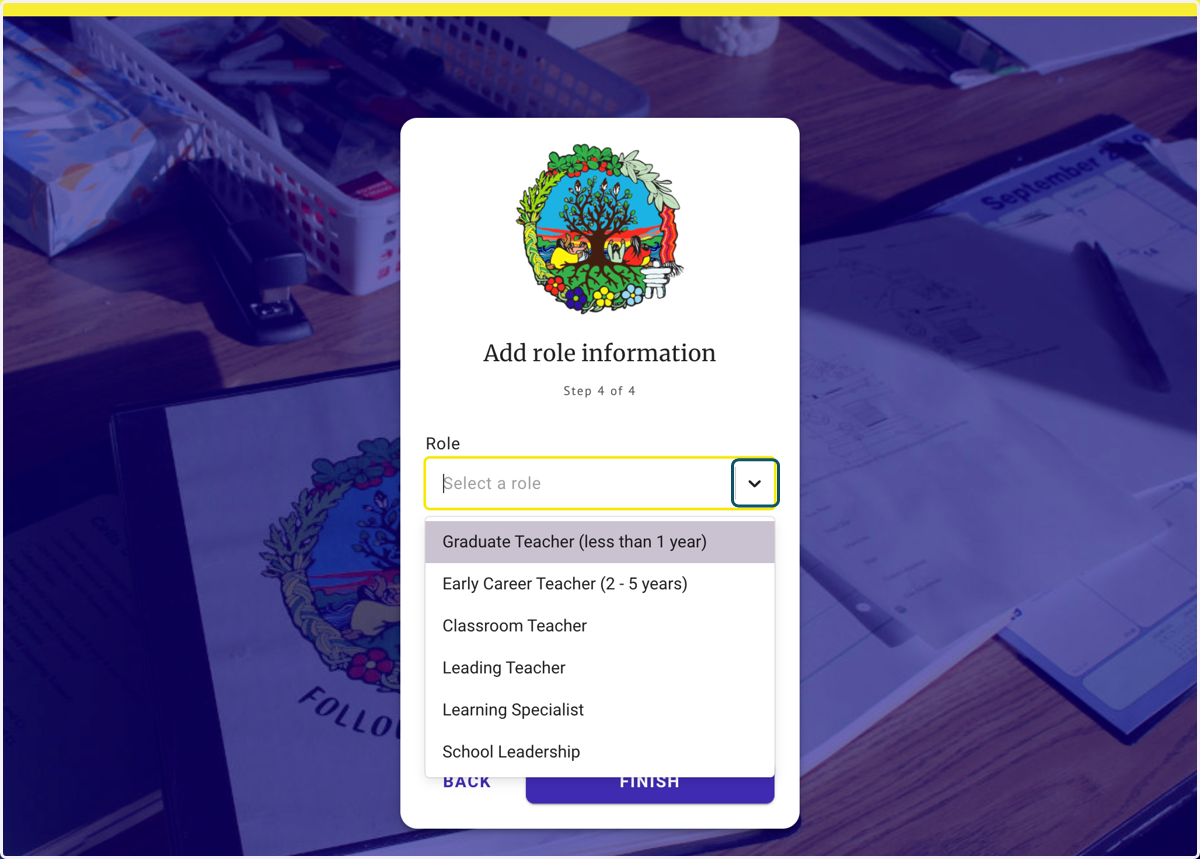
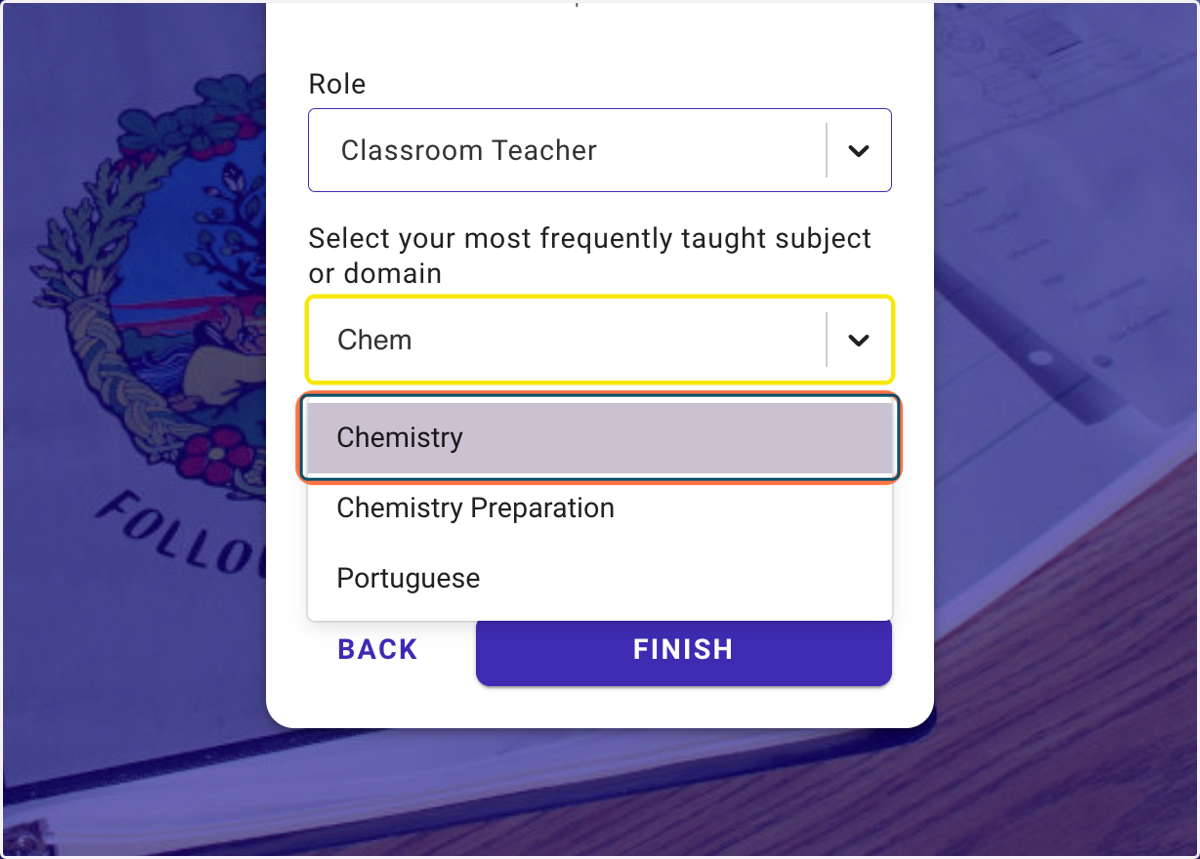
13. Type to search subjects and click on your most commonly taught subject
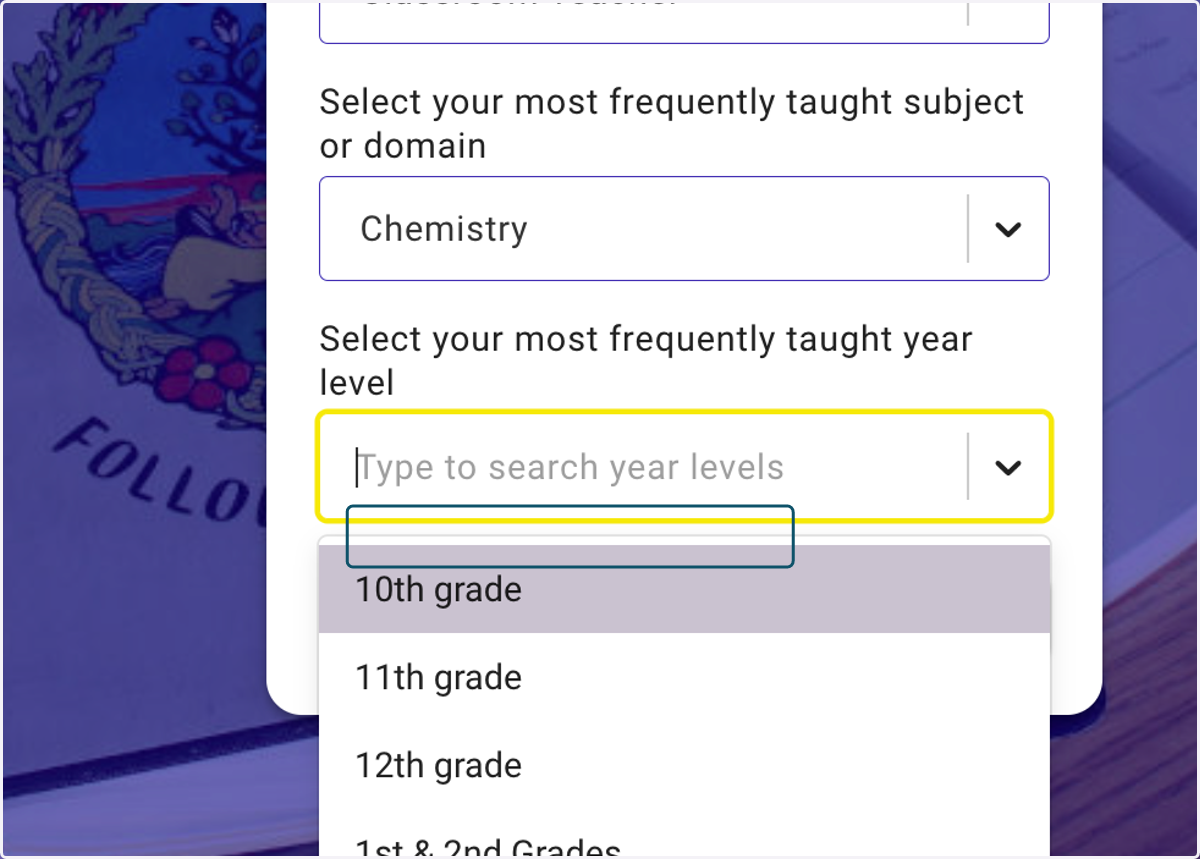
14. Type to select your year level
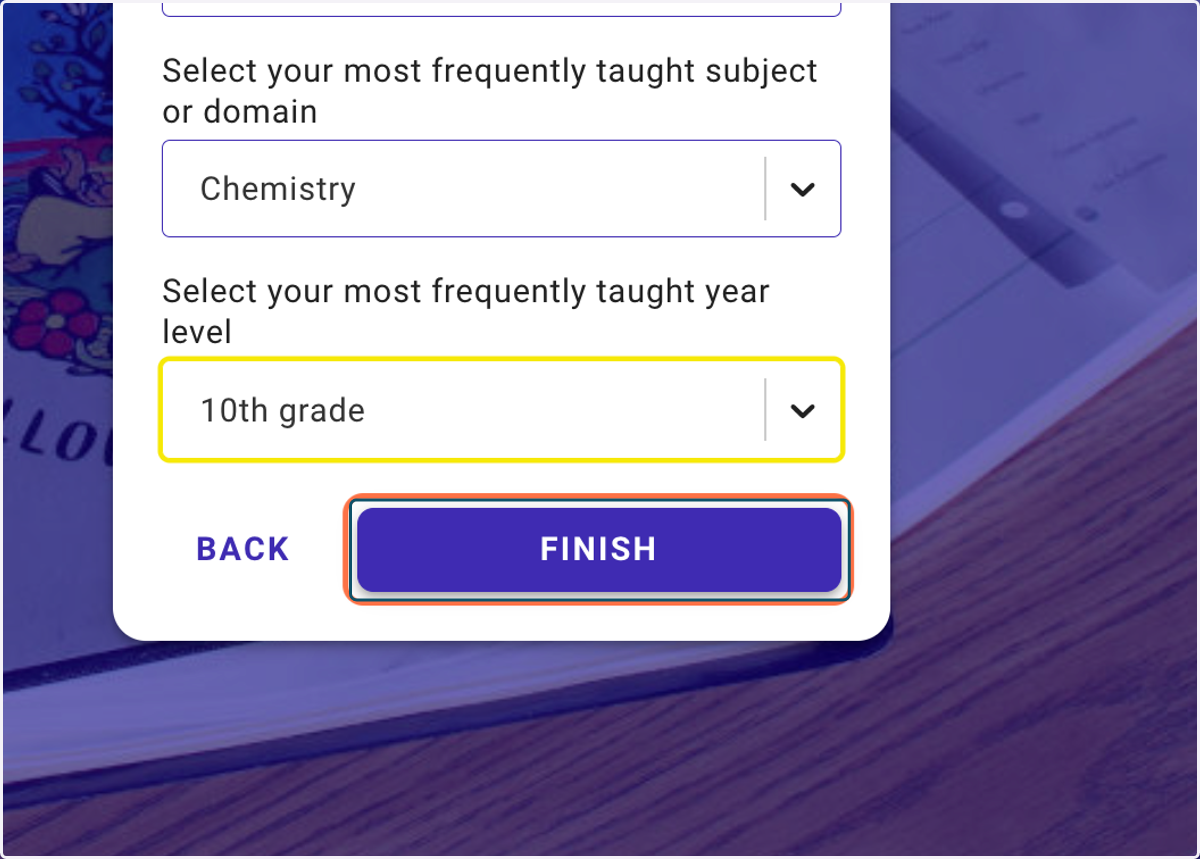
15. Click on FINISH to complete the sign up process
16. Click on LET'S GET STARTED to Launch a preview of the Student Check-in Form
The page shows an overview of the student check-in
17. Click on LAUNCH CHECK-IN to create a Student Check-in
Scroll down to view the preview of the student check-in form, then click Launch Check-in when ready
18. Click on INVITE STUDENTS TO CLASS for sharing options
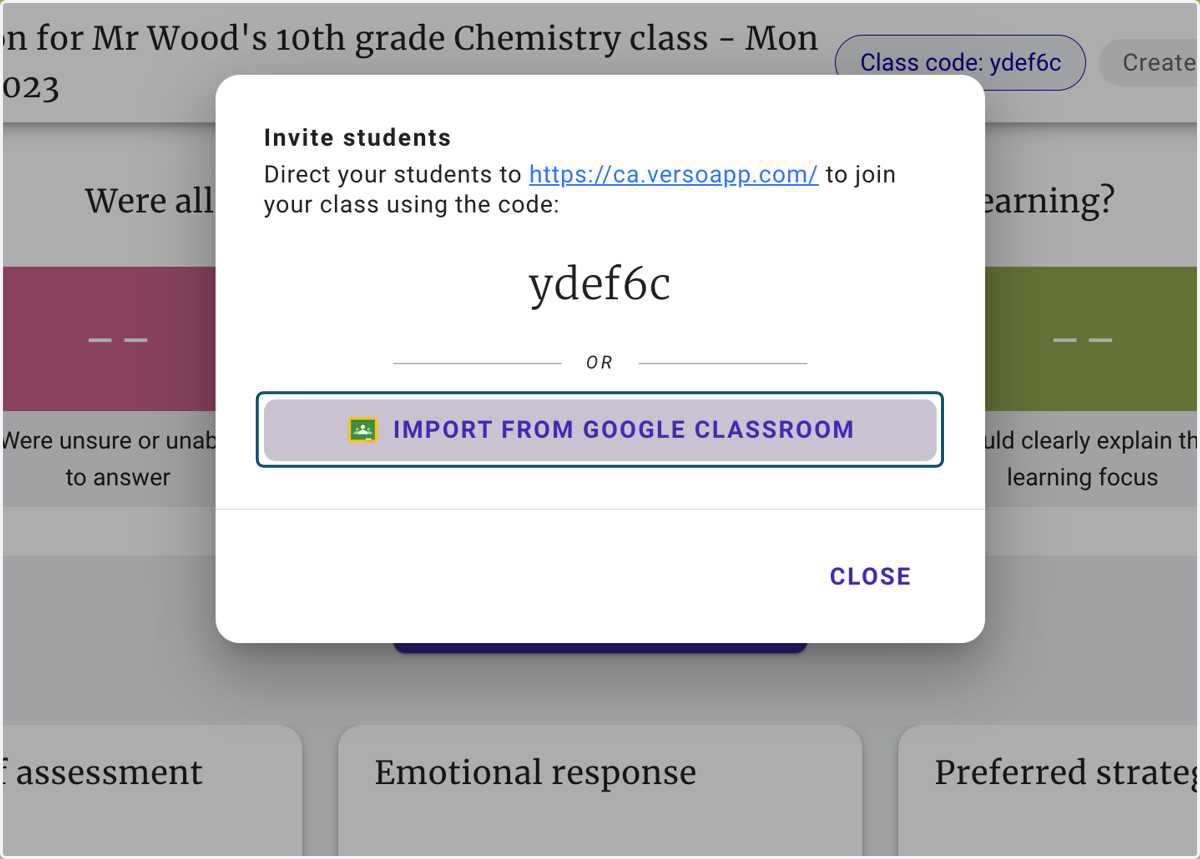
19. To add students to your class click the IMPORT FROM GOOGLE CLASSROOM button
Alternatively, share the web site address and class code. Students can sign up with Google.