[Orum]: Salesfloor Overview
This guide will show you how to use the Orum Salesfloor.
Orum - Dashboard
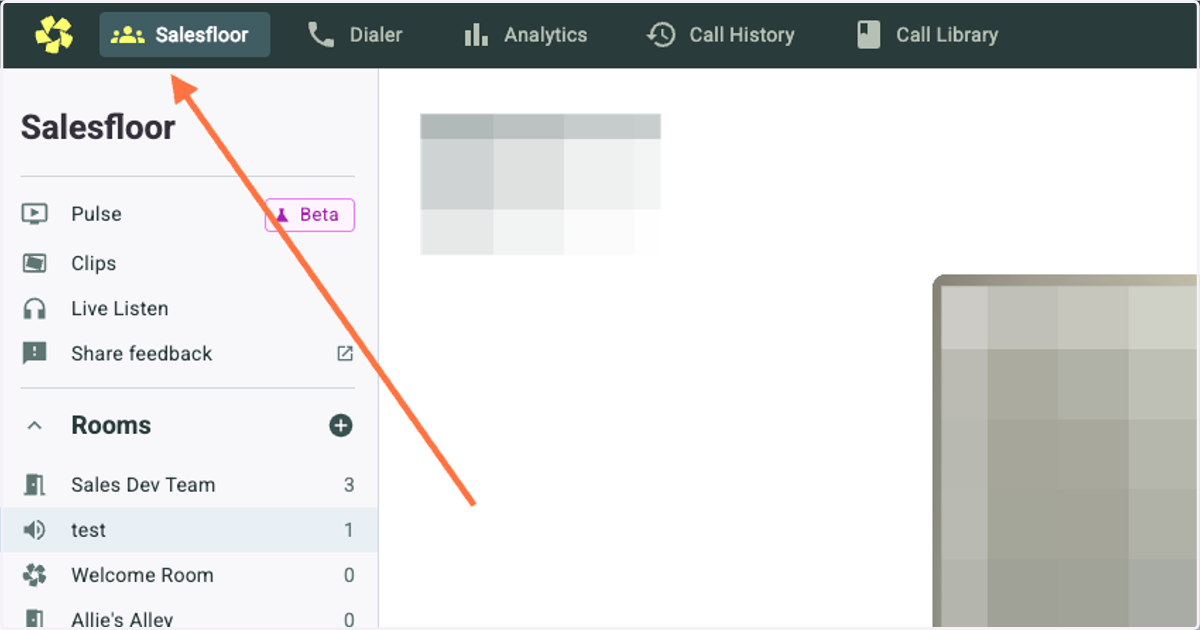
1. Once you're in Orum, click on the Salesfloor option in the top left.
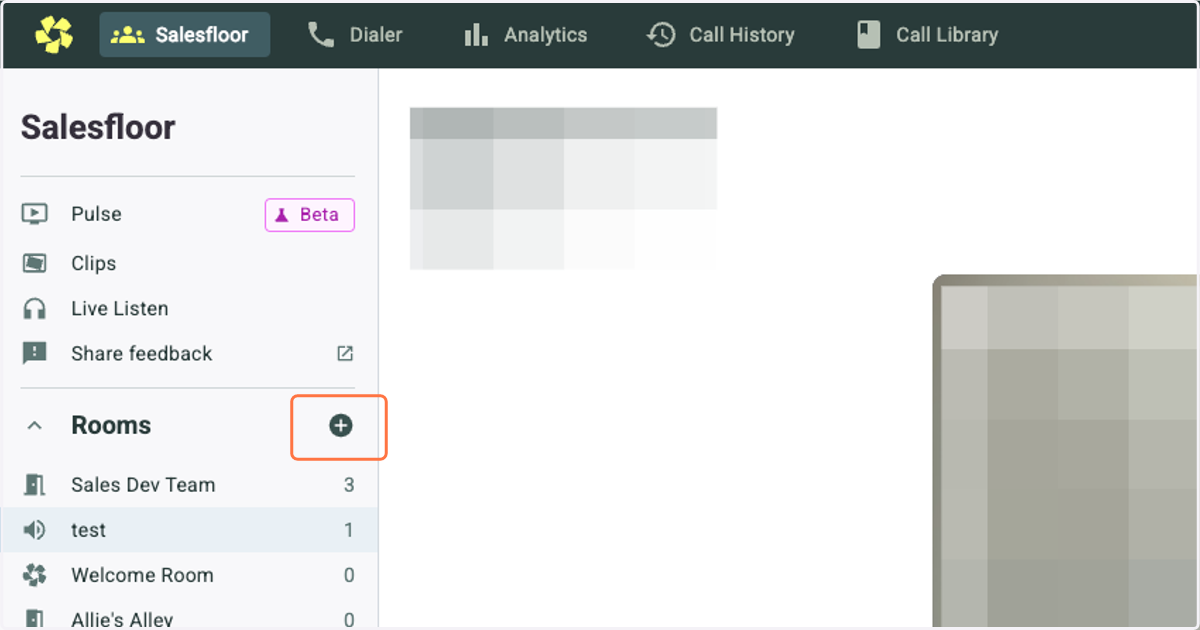
2. Click the "+" icon next to room to create a new Salesfloor room. Otherwise join an existing one.
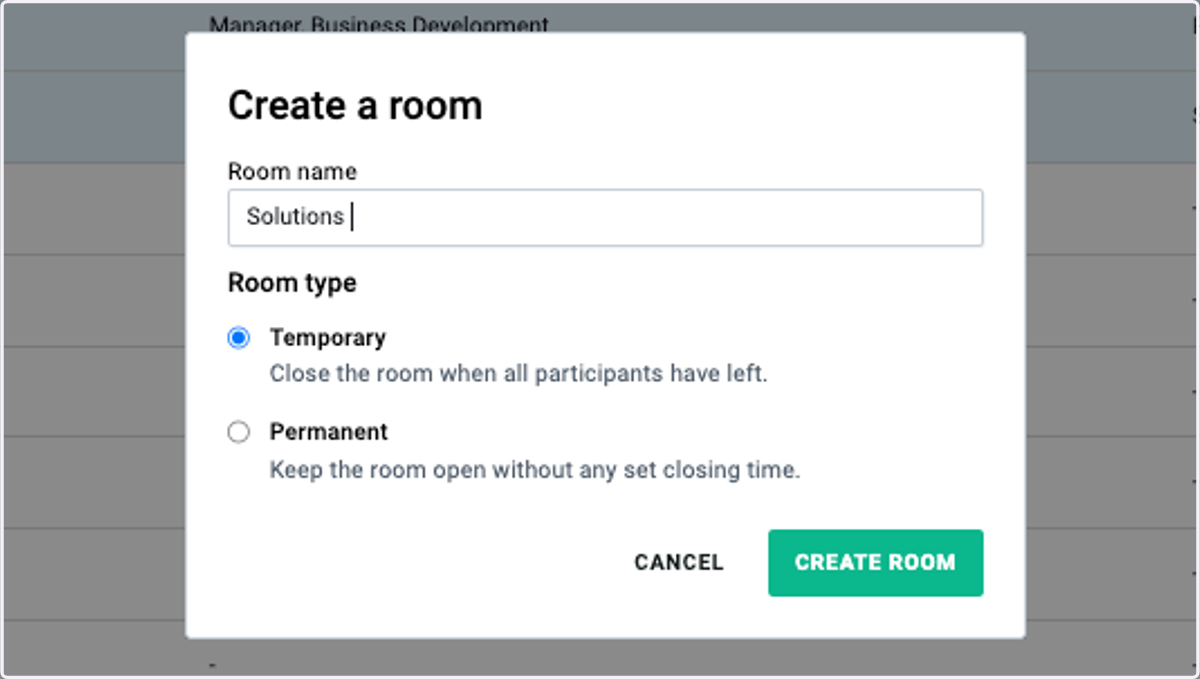
3. Name your room whatever you'd like! Here, you can choose if you want the room to be temporary or keep it permanent so it is available each time you come back into the salesfloor
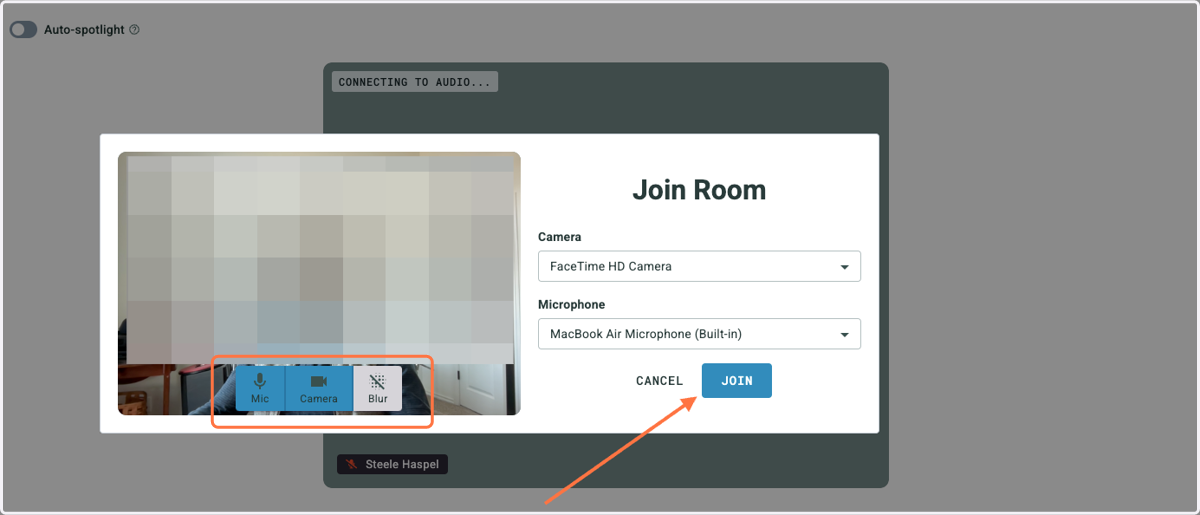
4. Adjust your camera and microphone settings. Then select Join.
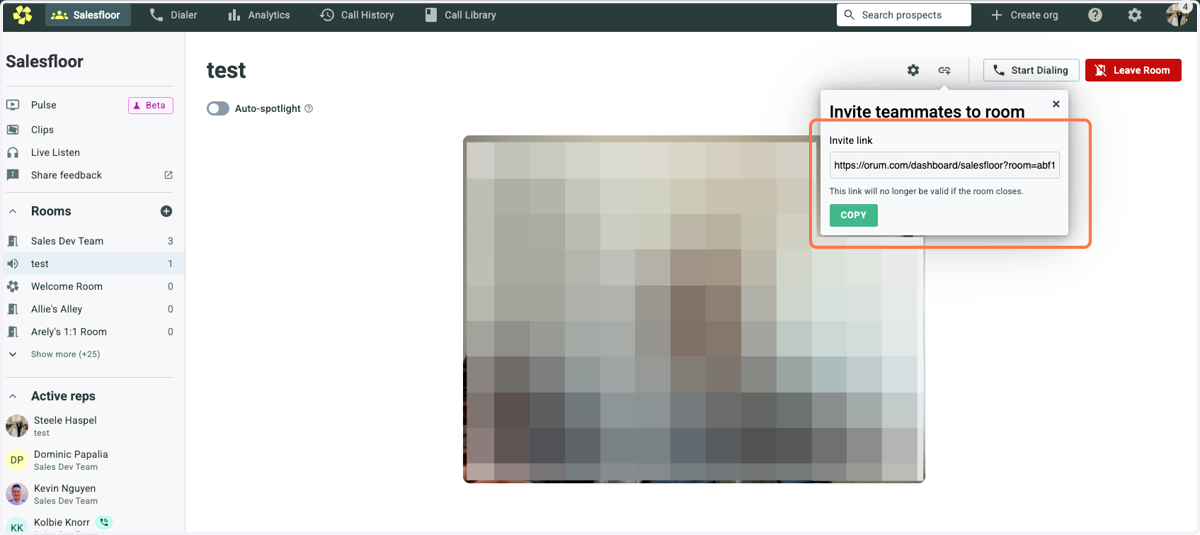
5. If you'd like to add teammates to your room, feel free to copy the invite link and send it to the appropriate people
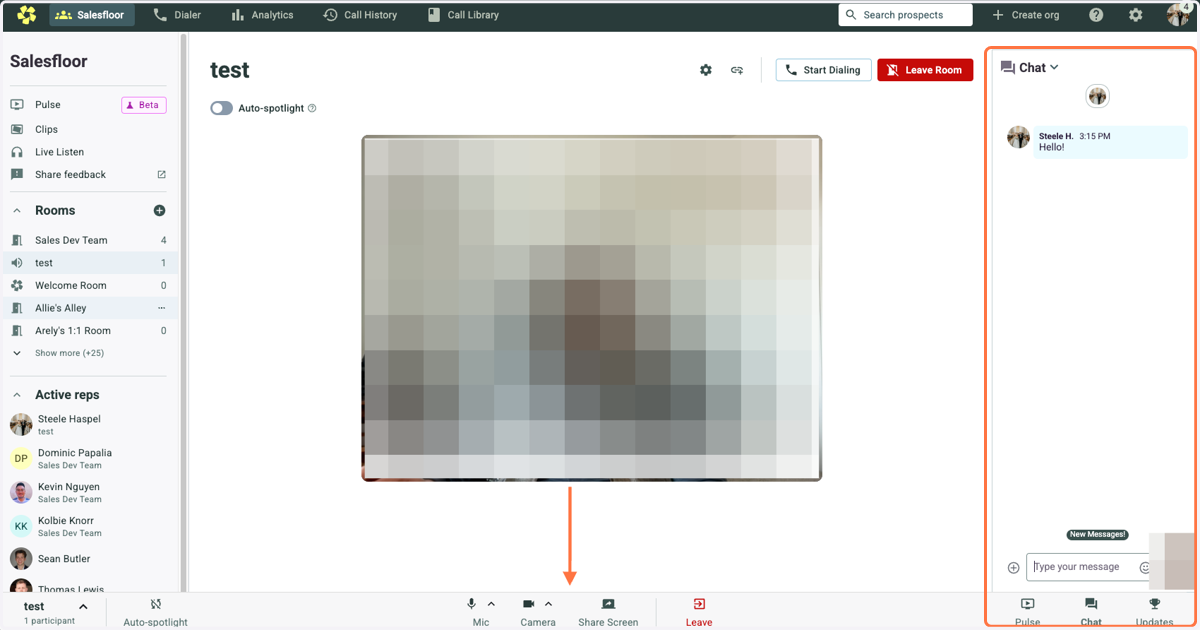
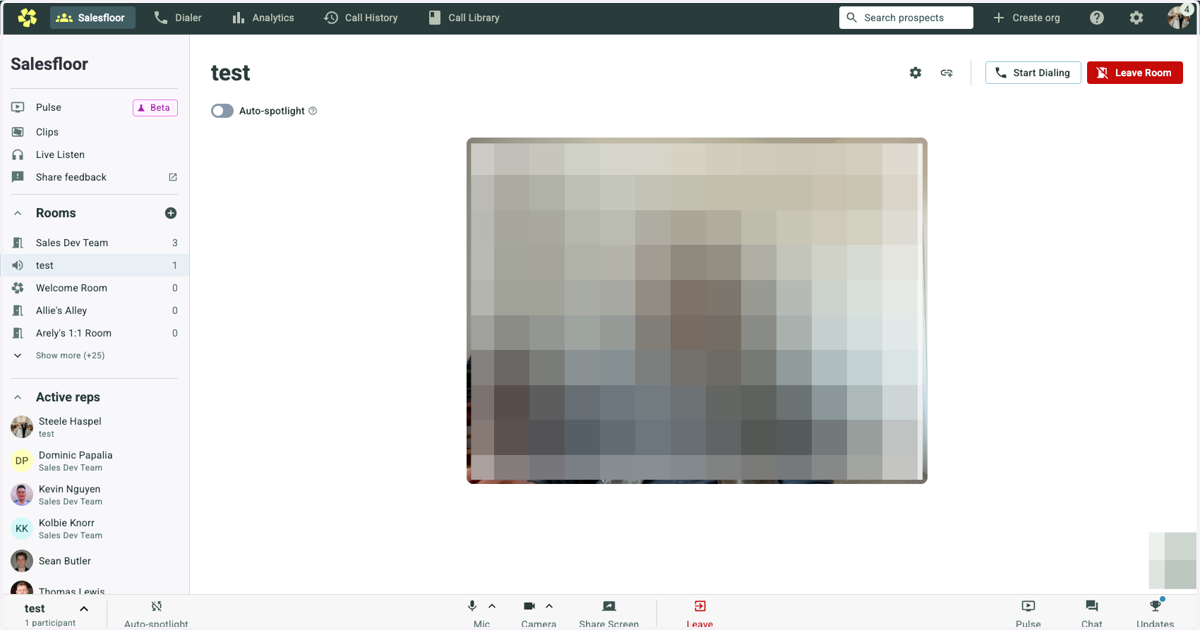
6. You will then see all of the joined participants in the room with you. In this example, there is only one team member present.
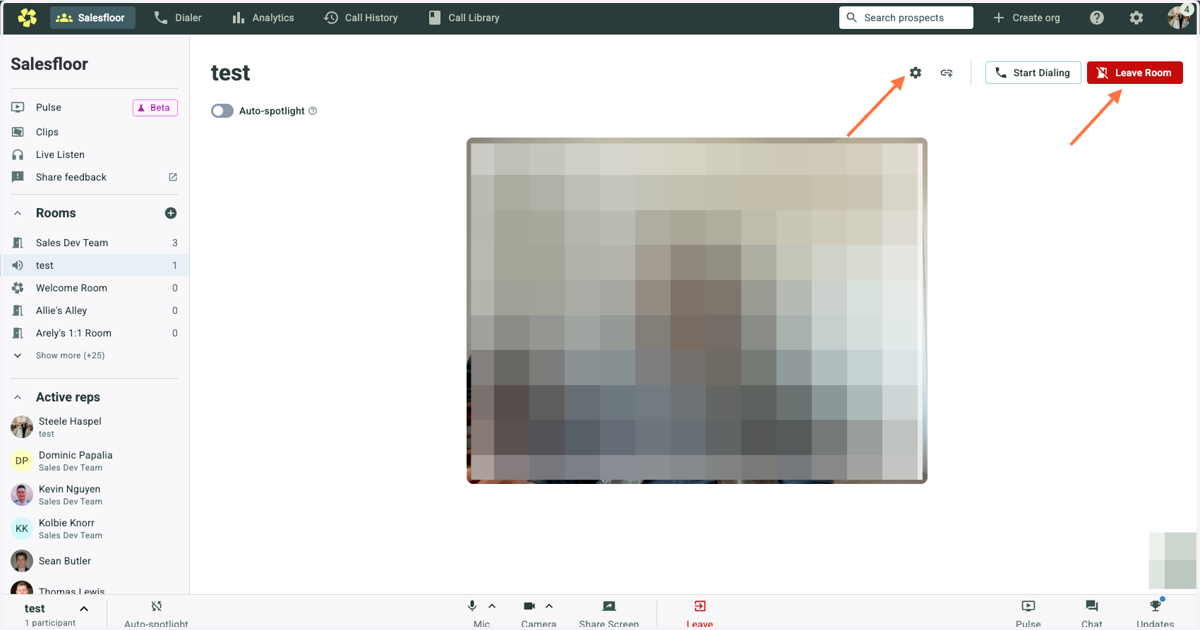
7. You can leave or edit the room's settings at anytime.
8. Click on "Start Dialing" in the top right corner to be taken to the Dialer.
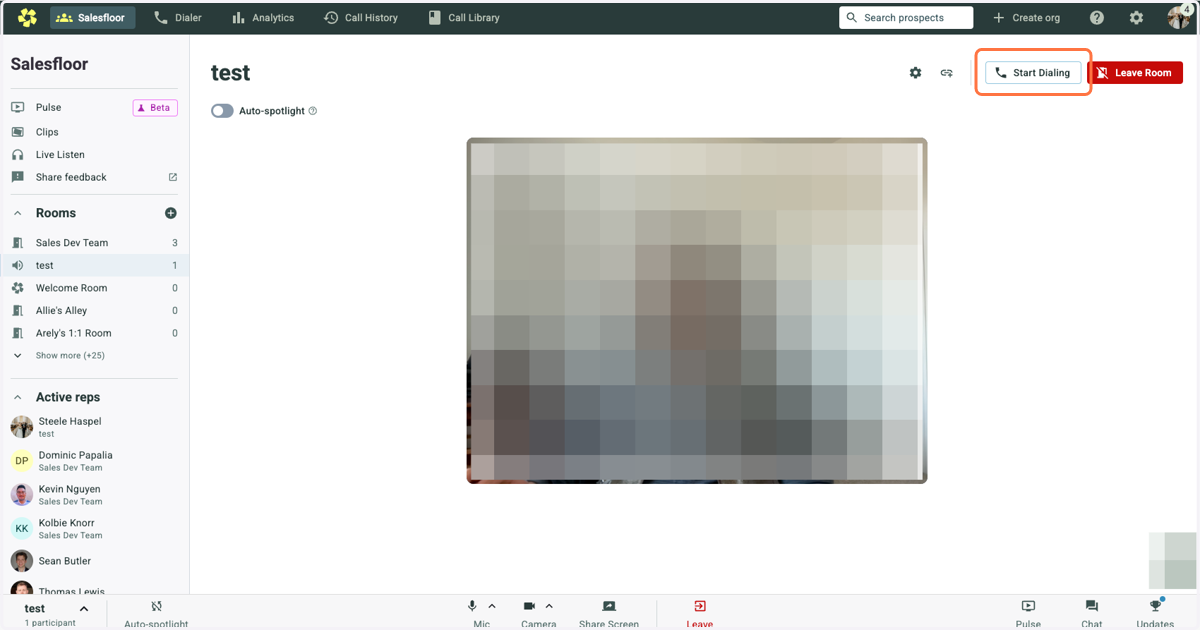
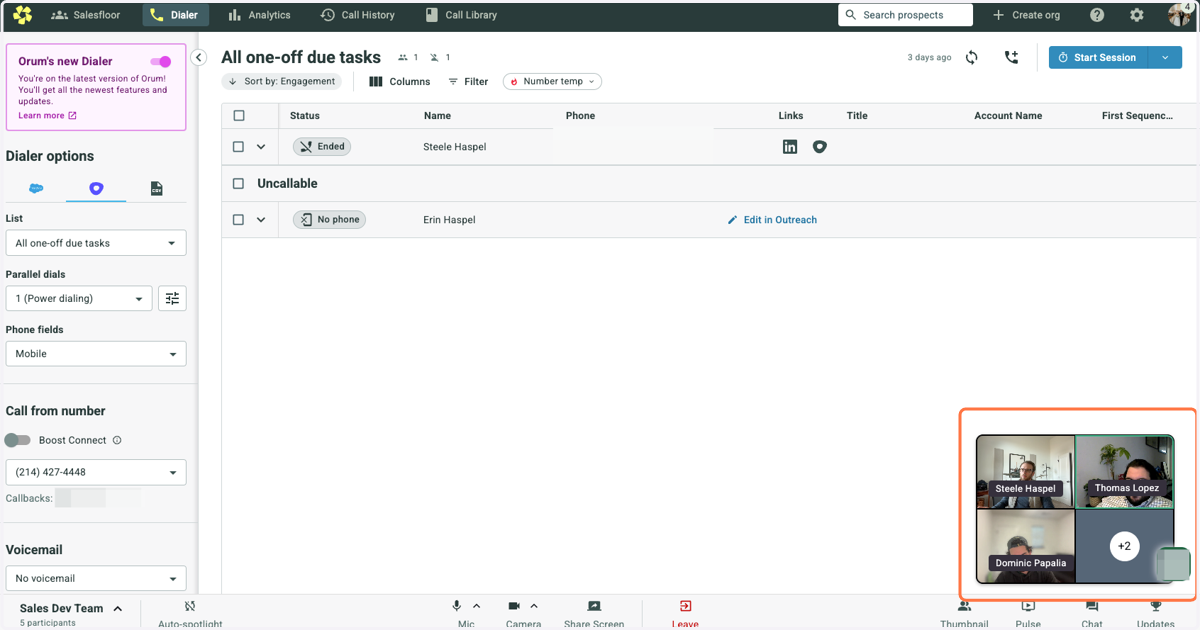
9. If you are Power Dialing or using Click to Call, you will not be able to interact with the Salesfloor room while the dialer is running. If you are Parallel Dialing, you will be able to interact with the Salesfloor participants until you are placed into a call.
10. Back on the Salesfloor, Auto-spotlight automatically triggers Live Listen. When someone dialing gets connected with the prospect, you will be brought into that call as a silent observer! The Rep making that call is not aware you are listening in. They cannot hear you either.
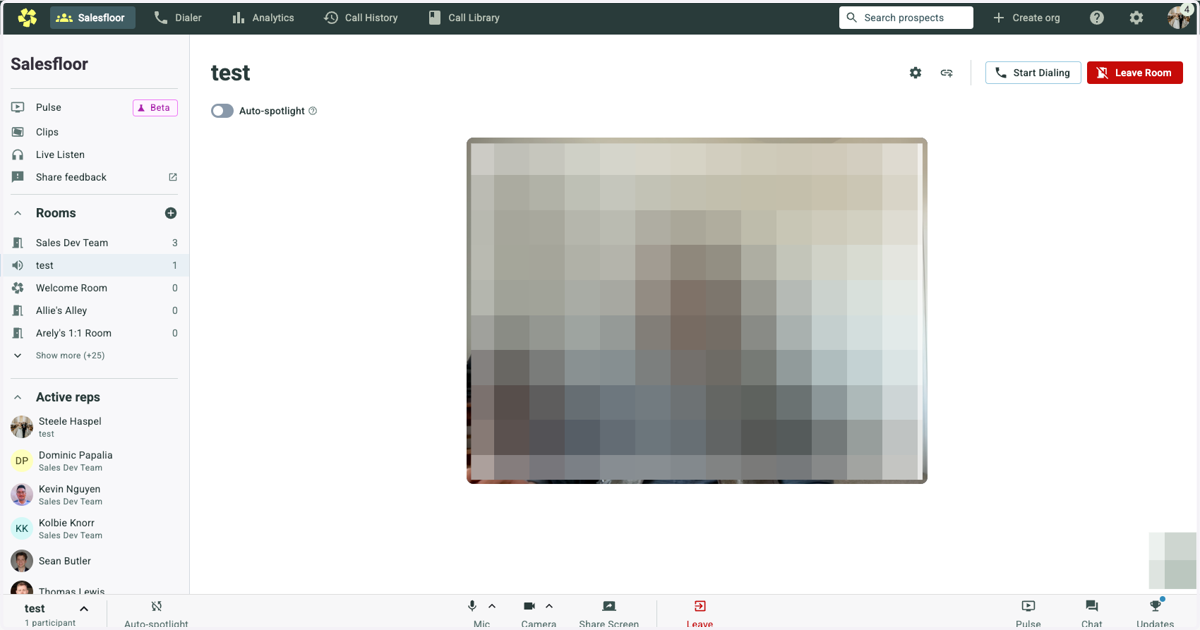
11. Use Chat to communicate with Salesfloor participants. You can adjust your camera and microphone settings at any time. You can share your screen to the Salesfloor as well!