Managing Safe from Harm requirements on Data Portal
These general steps can be followed for managing the Safe from Harm requirements of your NSO on the Data Portal.
NSO Data Portal - Safe from Harm
Navigate to directory.scout.org and login. NSO Administrator access will be required to proceed. Email reporting@scout.org to request access.
1. Navigate to the NSO Data Portal
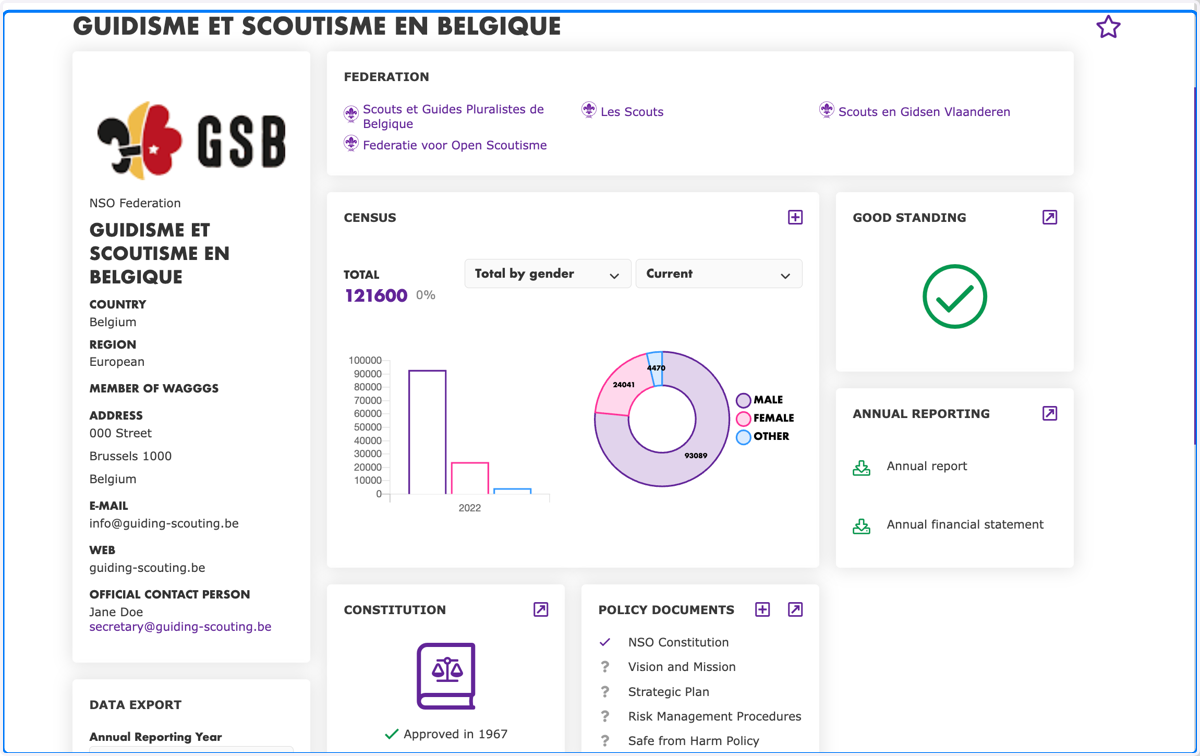
2. Navigate to the "Safe from Harm"widget
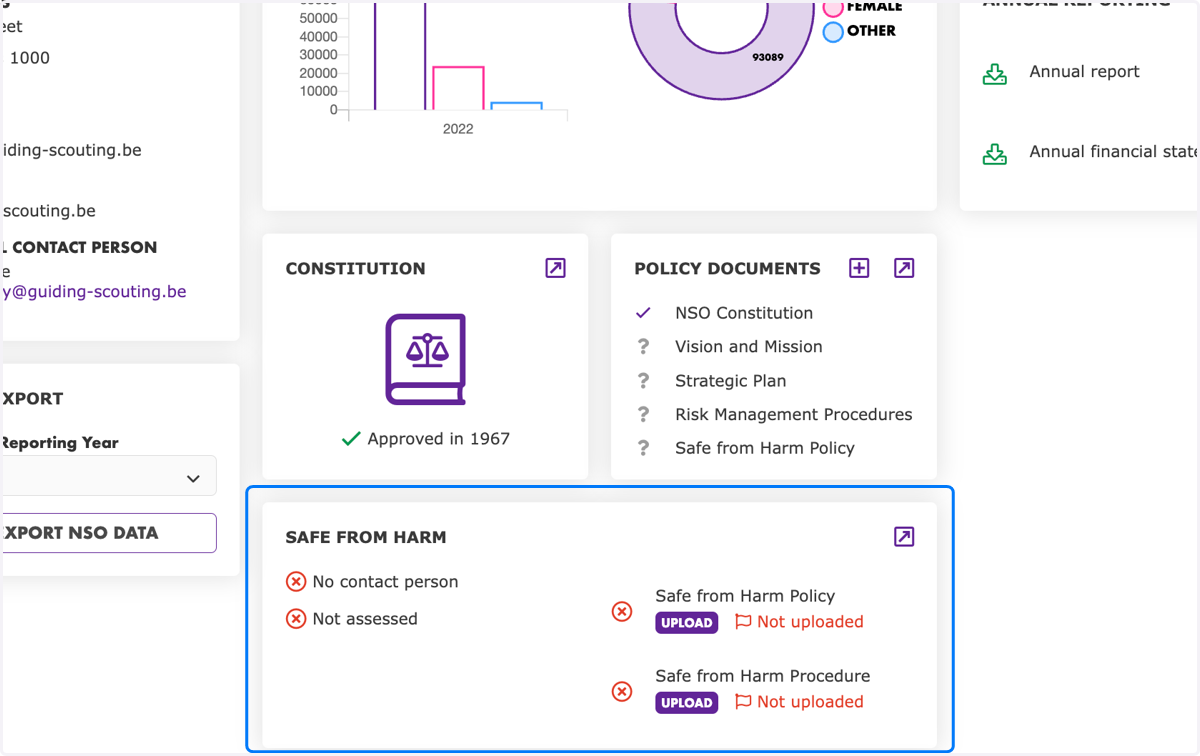
3. Click on the expand button
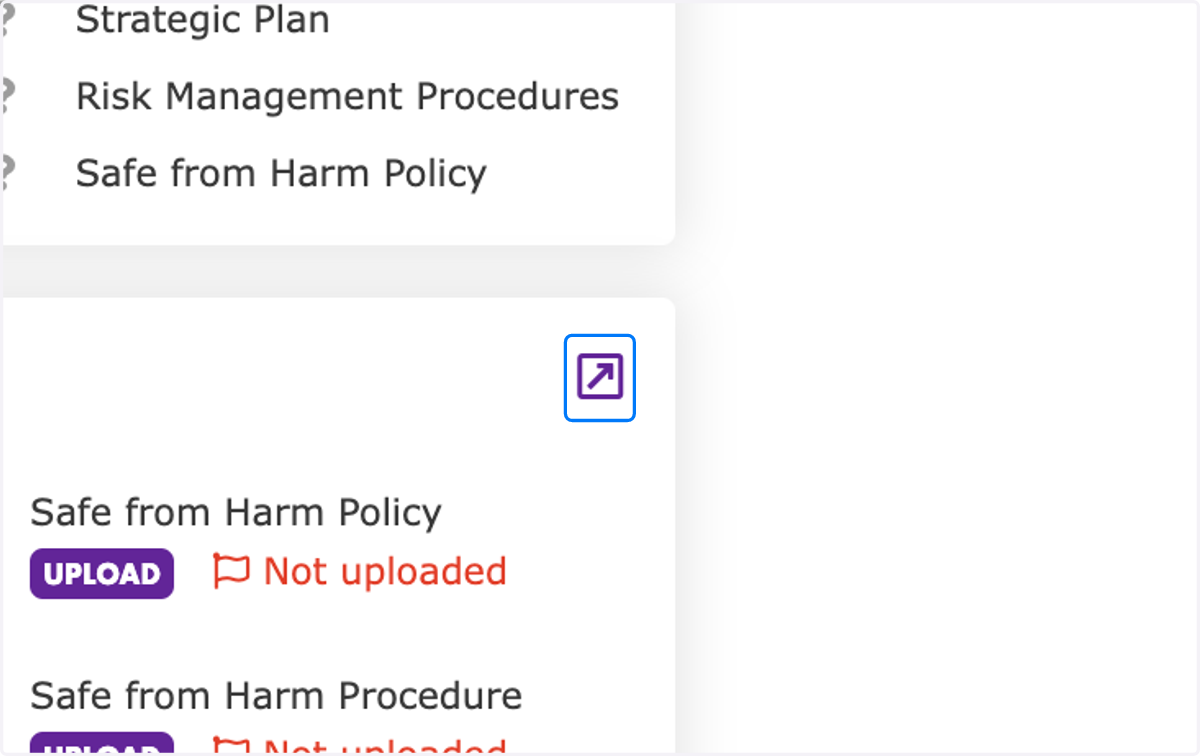
4. Navigate to the "Safe from Harm" section
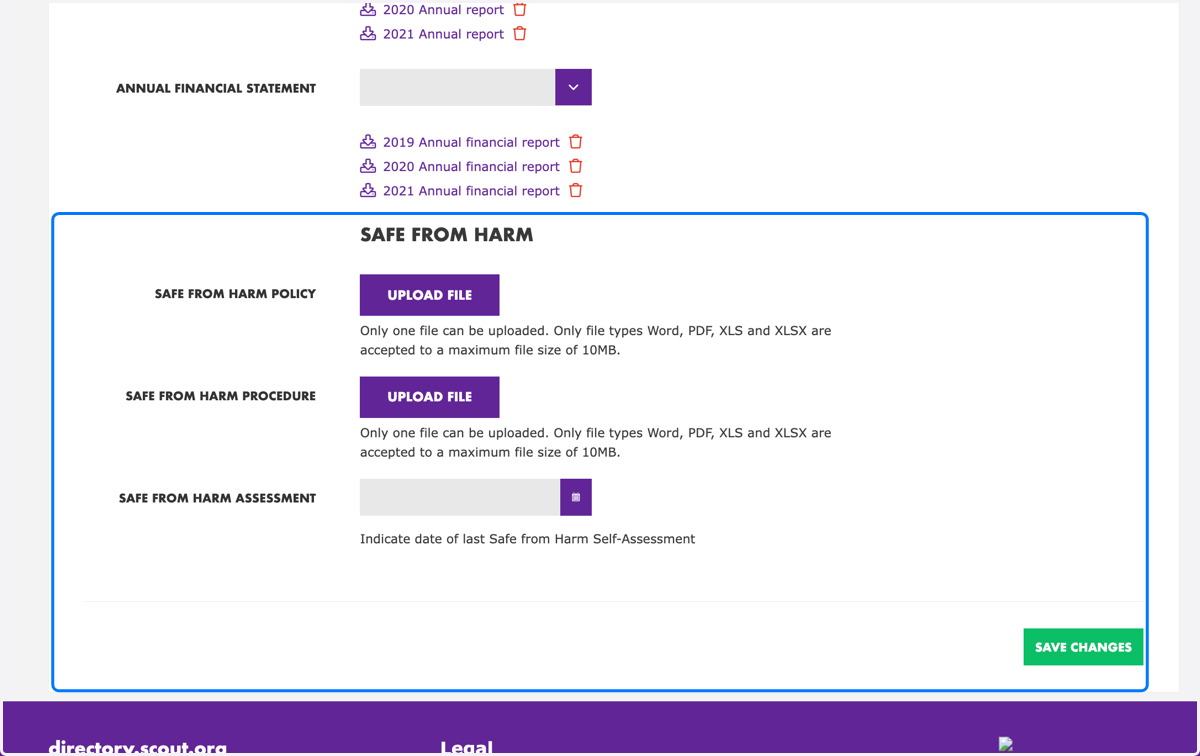
5. Click on "Upload File"
Here the Safe from Harm policy of your organisation and the Safe from Harm reporting procedure can be uploaded. It is important to ensure that the files uploaded stay up to date if any changes are made.
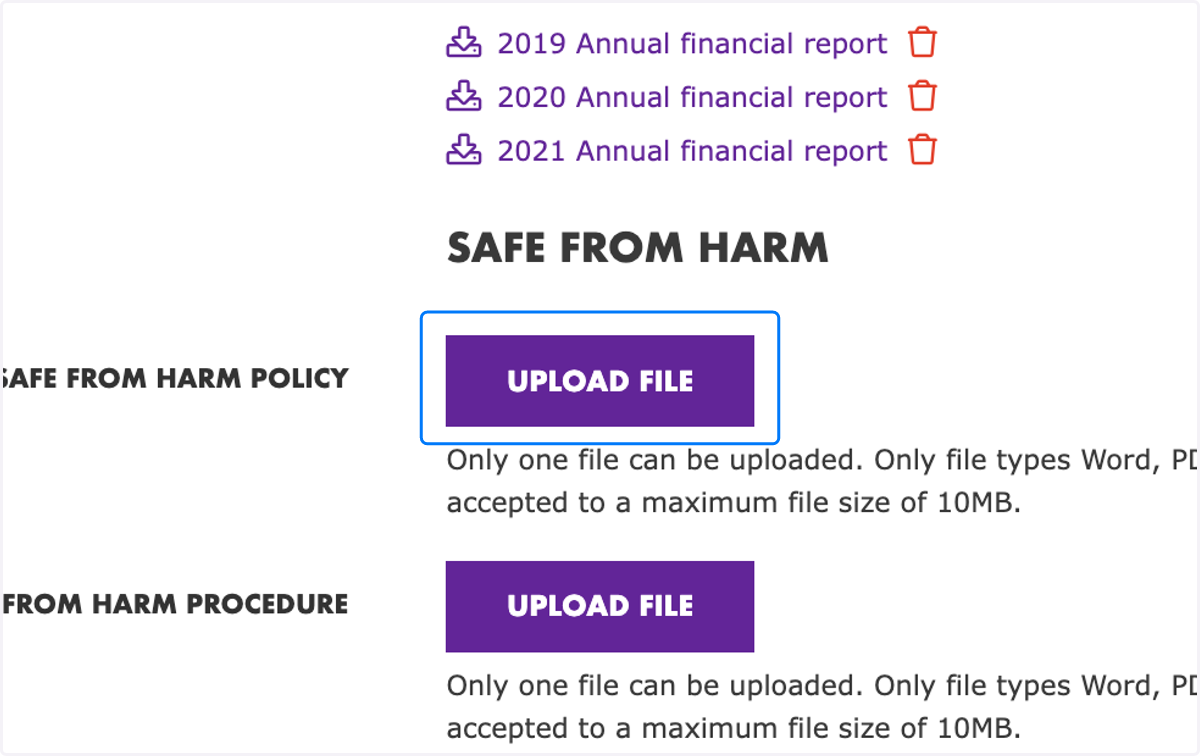
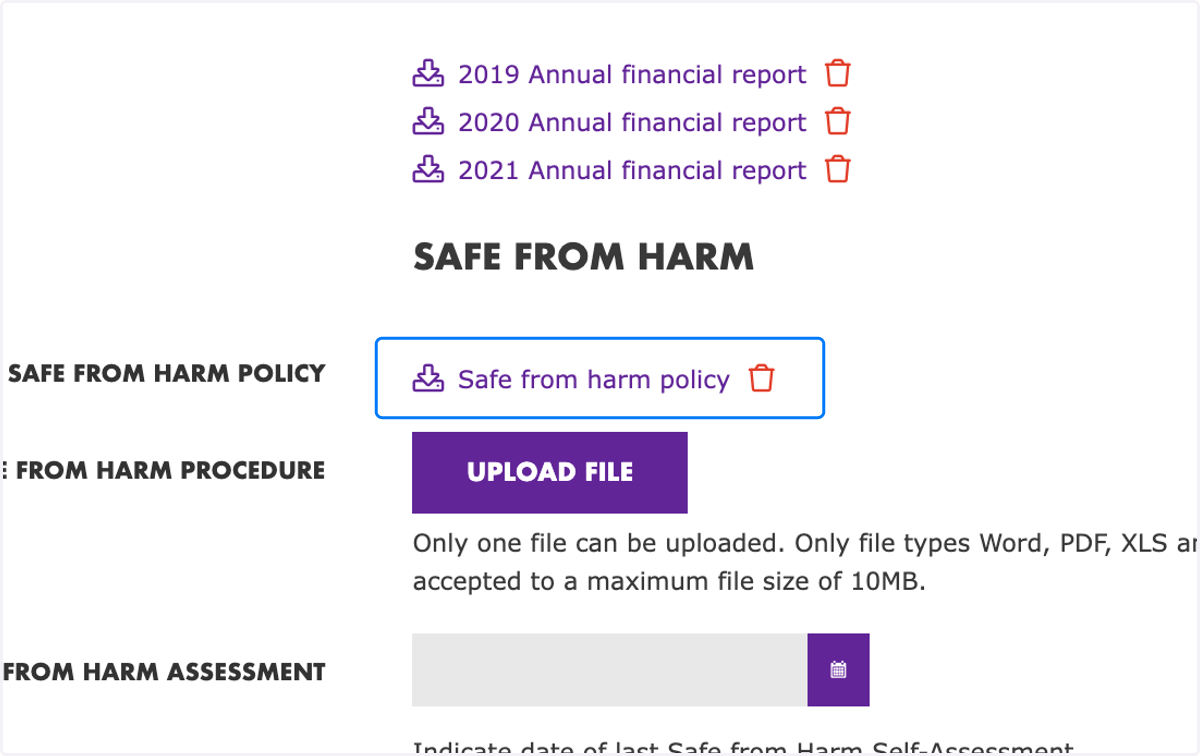
6. Select a file from computer
Only one document can be selected for upload and it must be 10mb or less. The documents are preferred to be in a WOSM language, but they can be in the local language of the NSO.
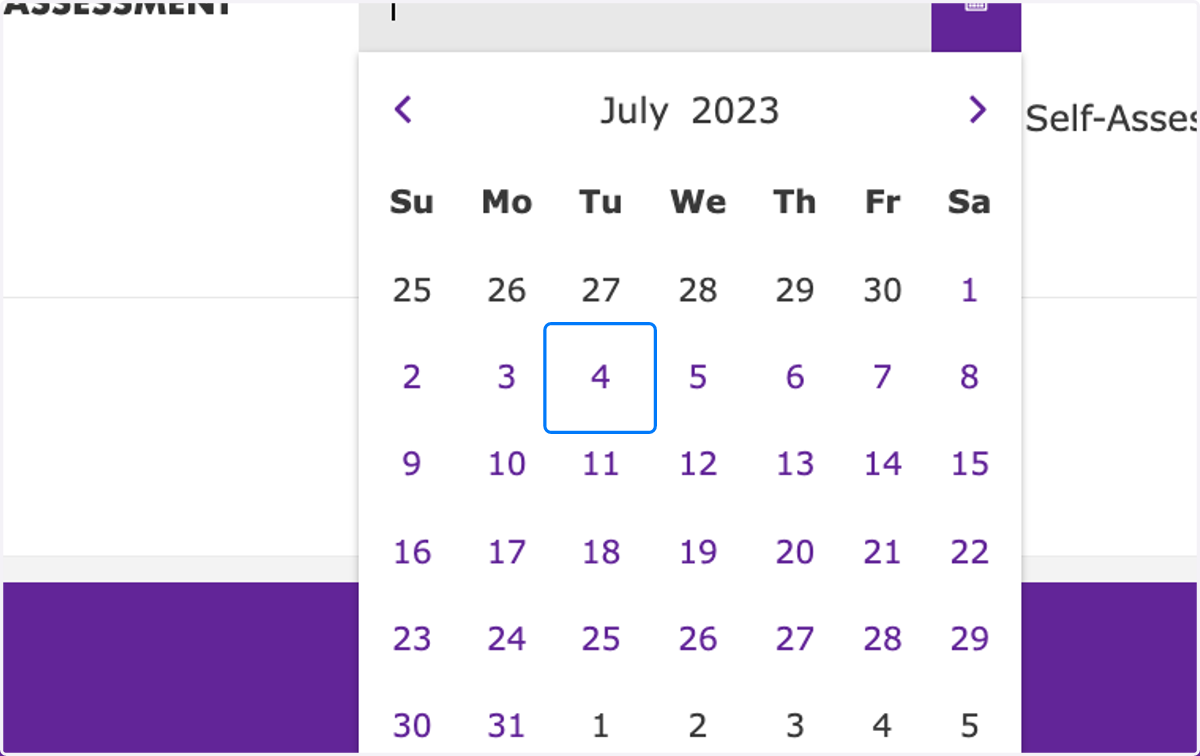
7. Select a date of last Safe from Harm Self-Assessment
This date should be the date of the last conducted Safe from Harm Self-Assessment or the date the assessment scoring was shared with WOSM.
8. Managing the Safe from Harm Contact Person
Locate the profile of the person who is the Safe from Harm coordinator of your organisation.
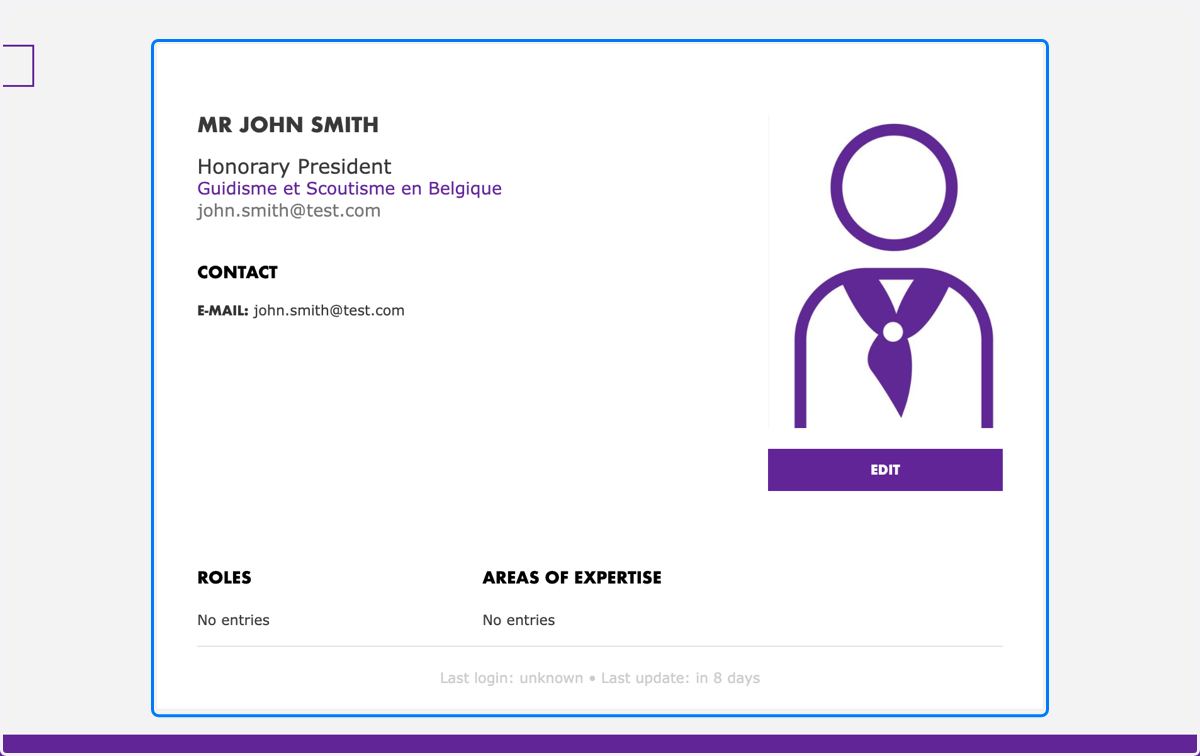
9. Click on "Edit"
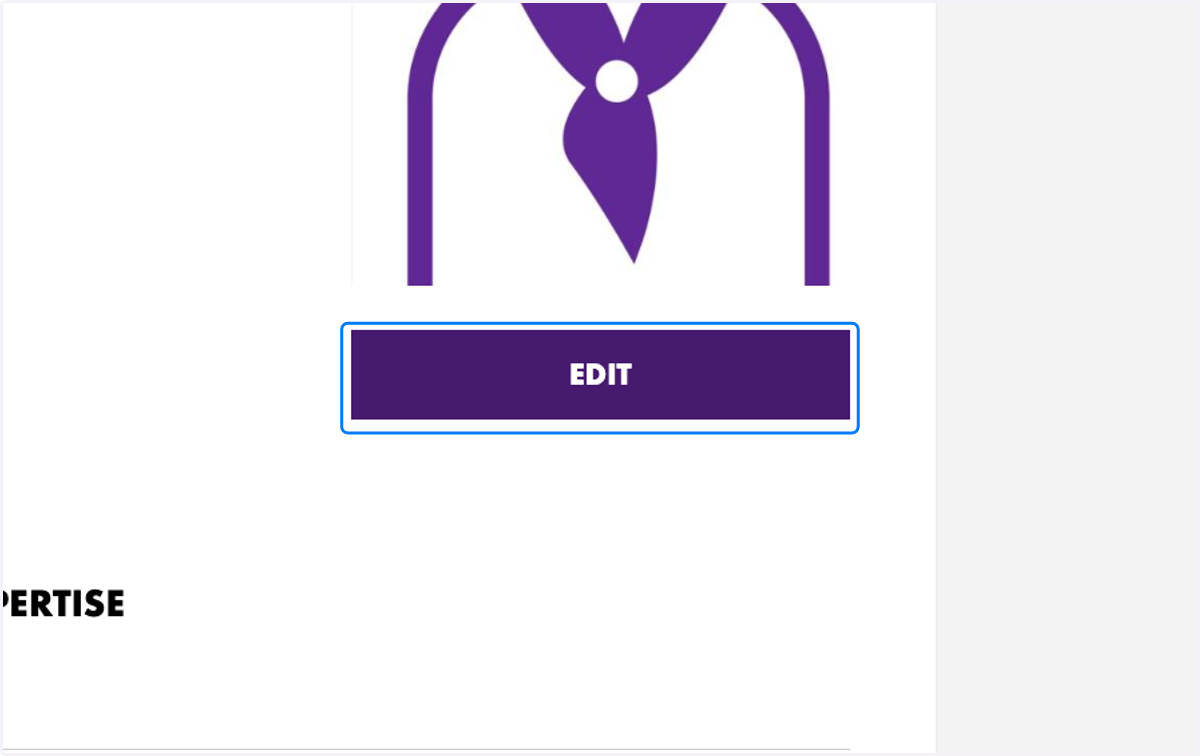
10. Navigate to the "Appointments" tab
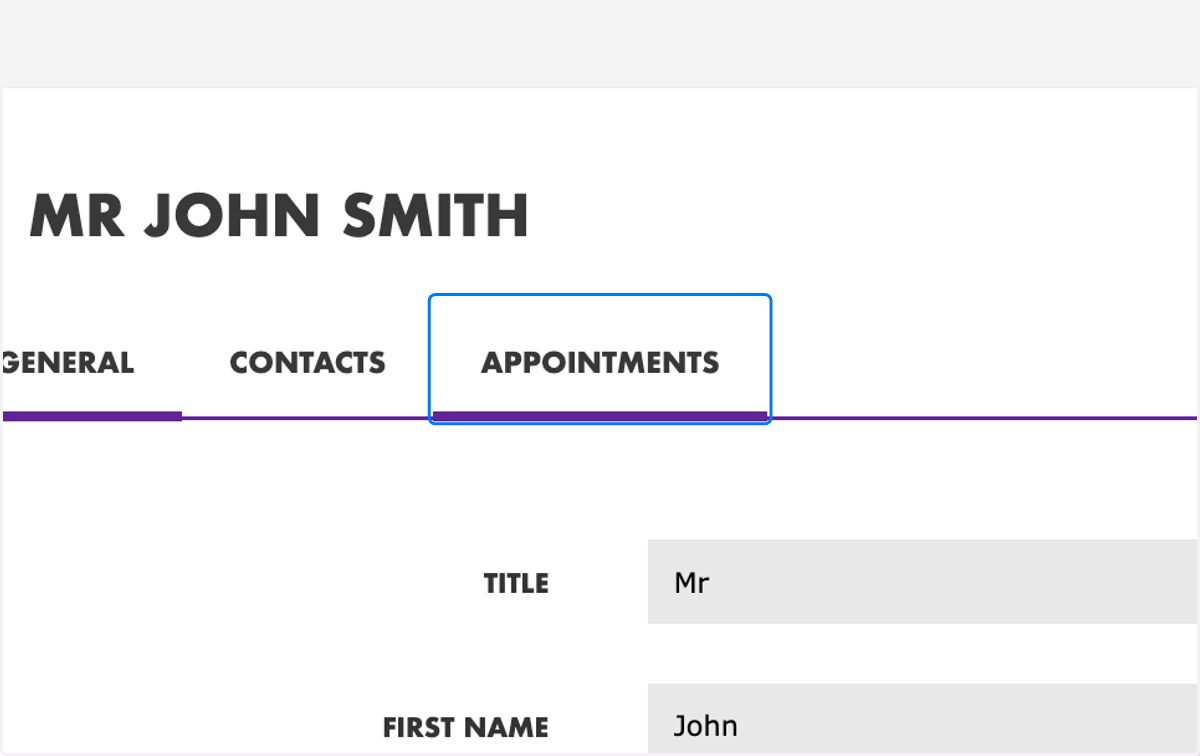
11. Select the "Safe from Harm" standard appointment
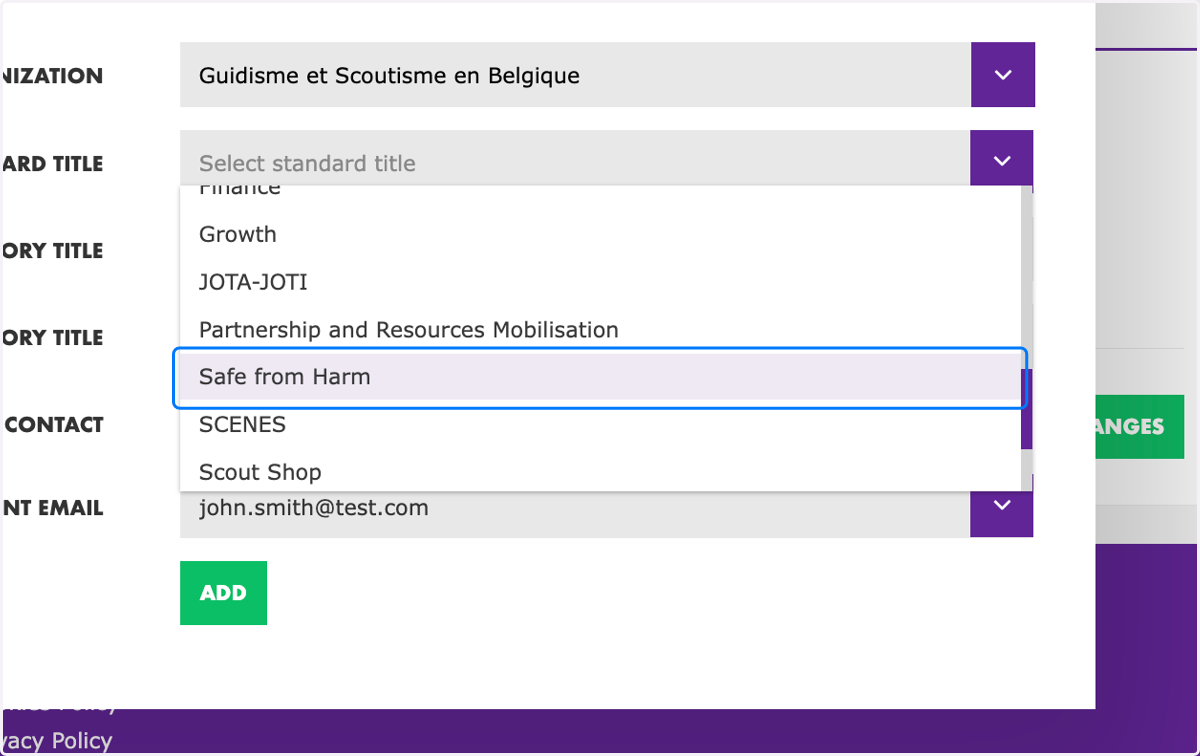
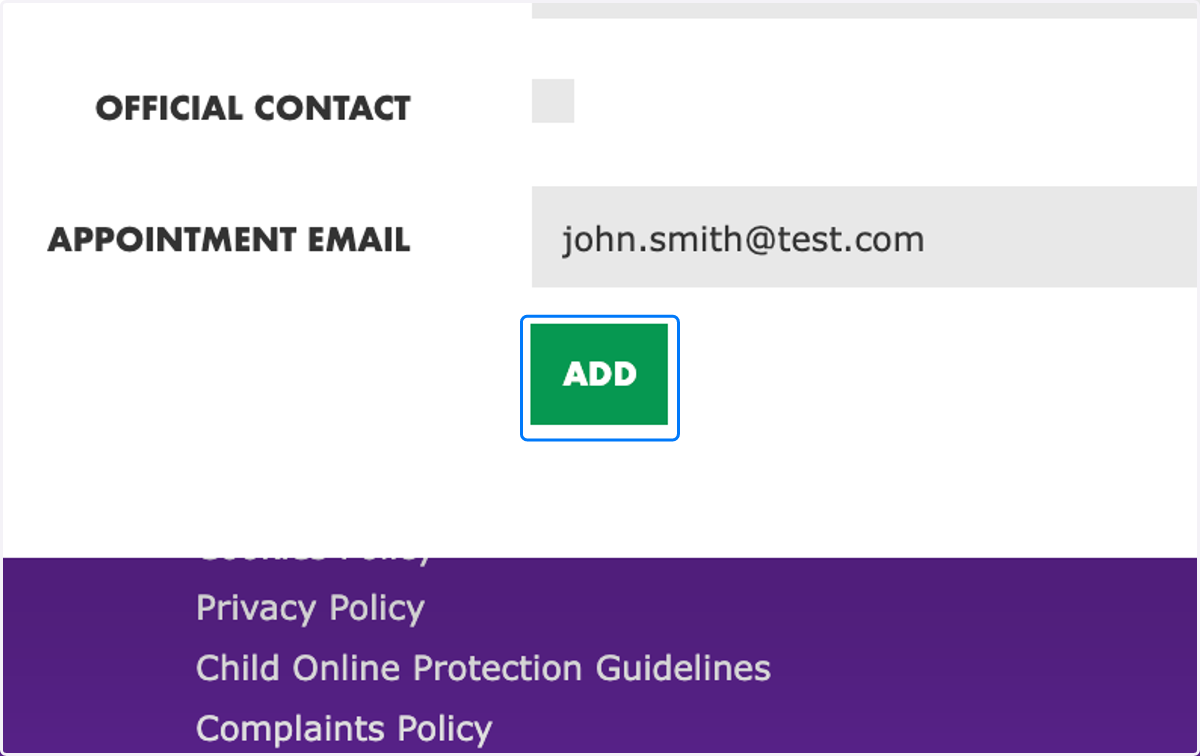
12. Click on "Add"
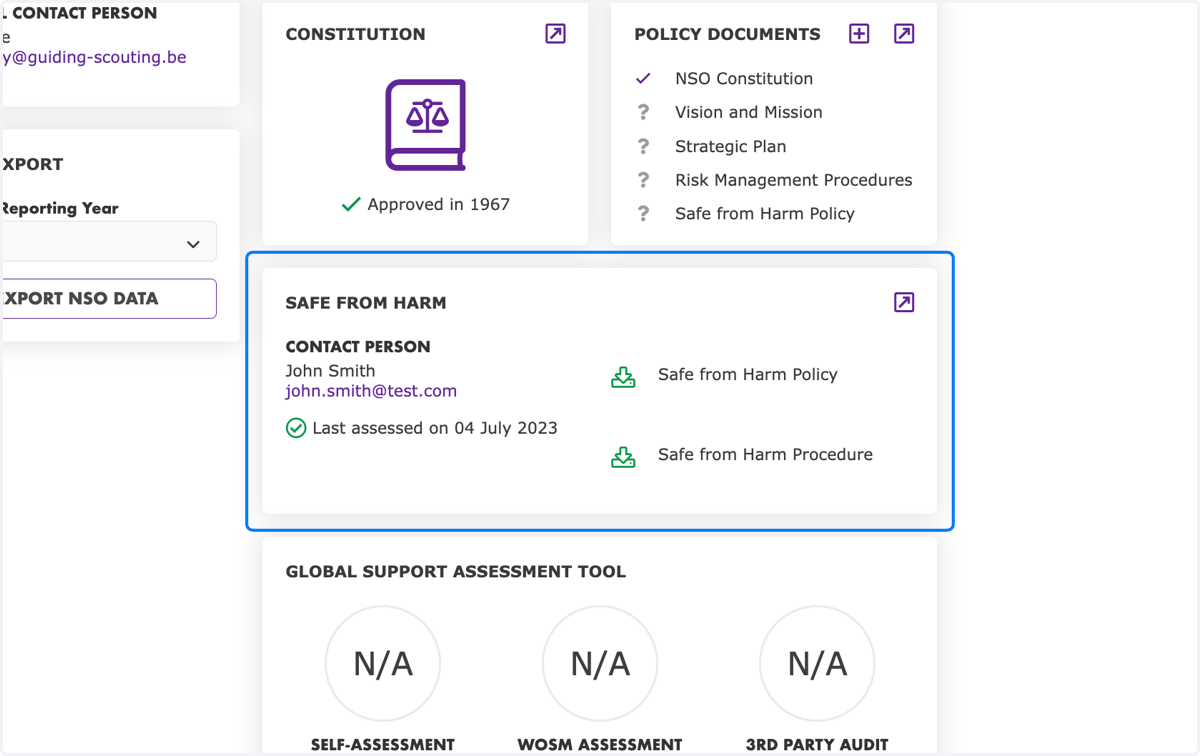
13. Safe from Harm widget completed
Navigate back to the NSO Data Portal Safe from Harm widget to see the completion status of all requirements.