[EN] USED86E6 - See what other people do in a record in real time
1. On the home screen, in the left side menu, click Types
2. Click the category of the record you want to follow. In this example, Suppliers
3. In the category submenu, click All to see all the records
4. In the search above the table, type the record's name and press Enter. In this example, Boreal
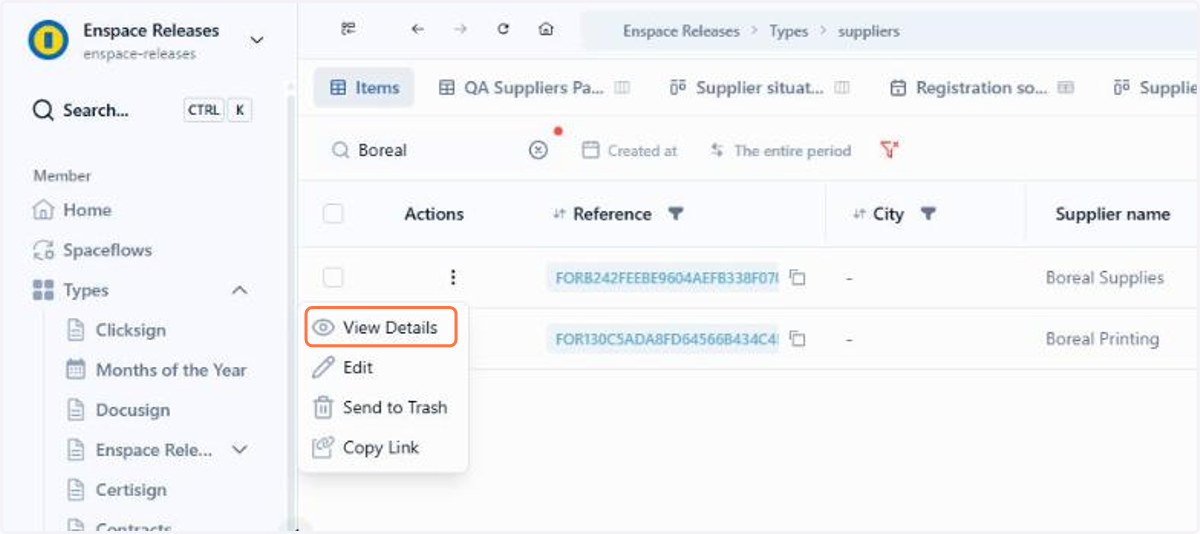
5. In the record's row, click the three dots under Actions
6. Click View Details
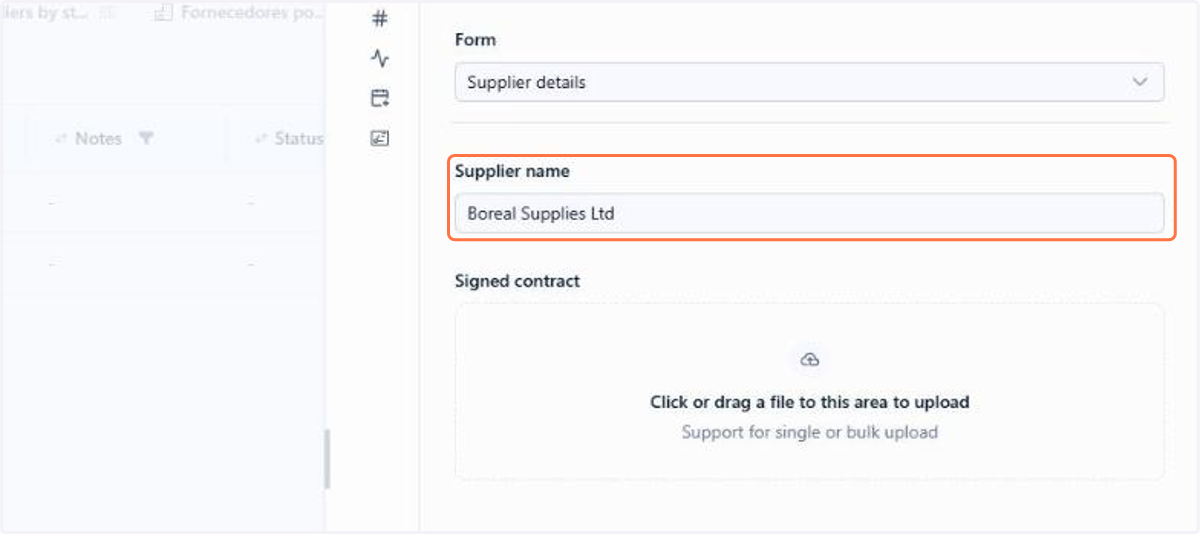
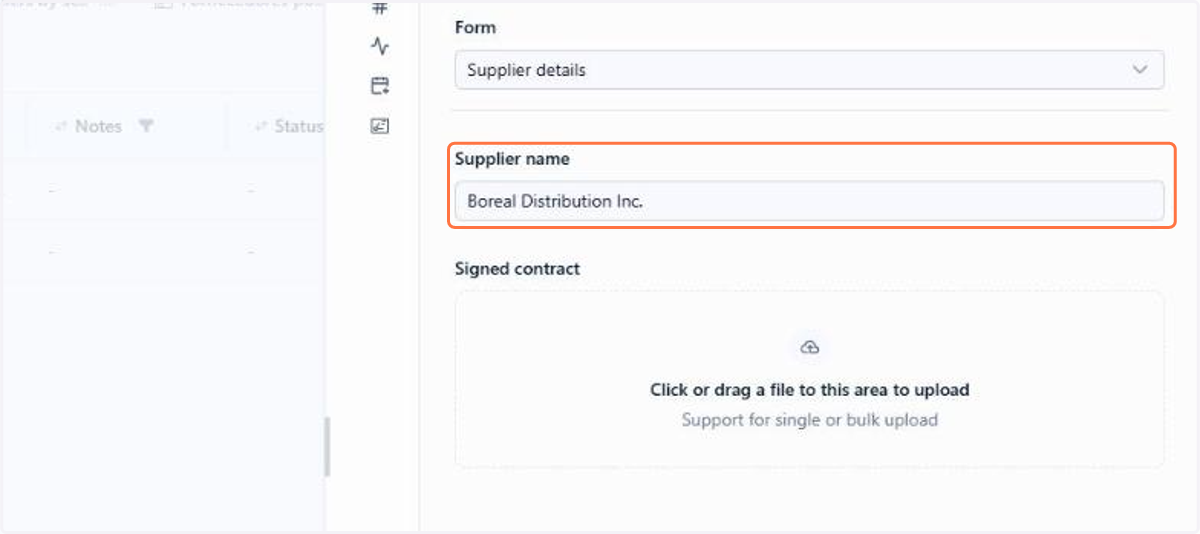
7. The panel shows the current value of the Supplier name field
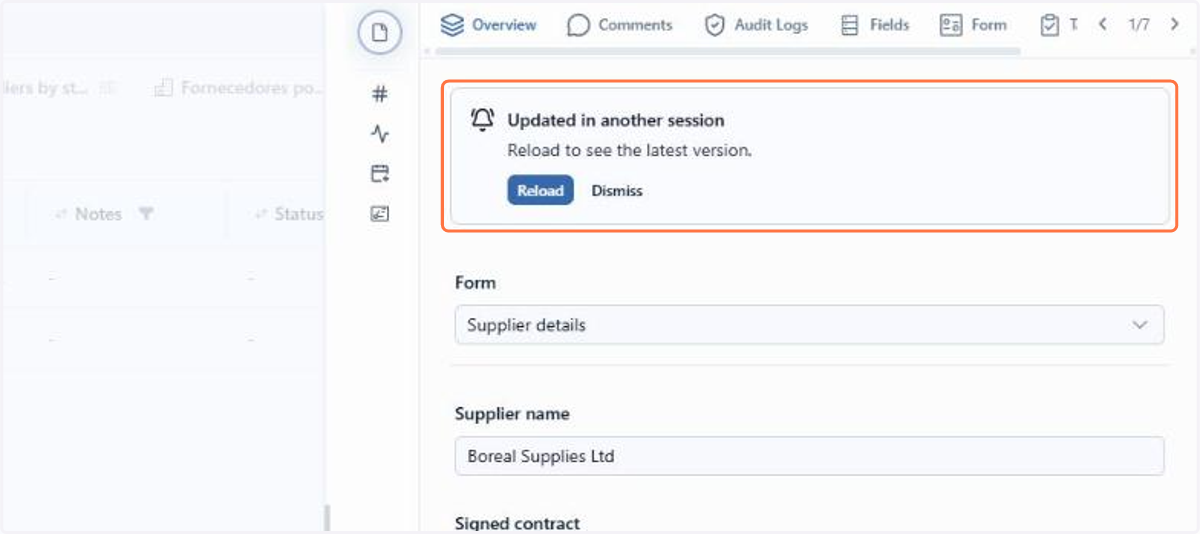
8. You will see the Updated in another session notice when the item is changed in another session
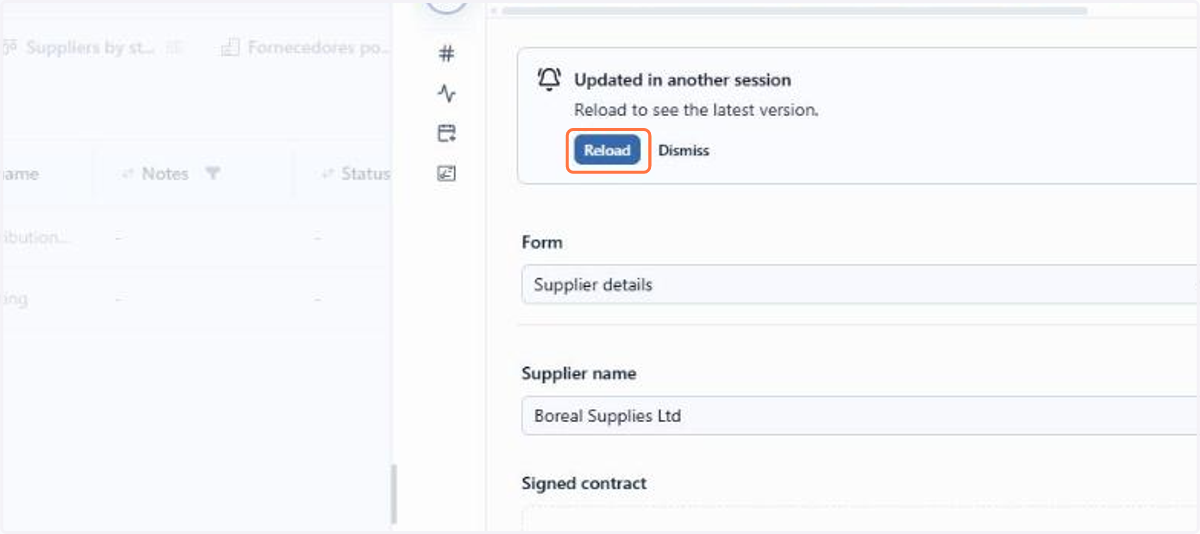
9. Click Reload
10. The panel shows the latest version of the item, with the new value of the Supplier name field
11. Click Comments
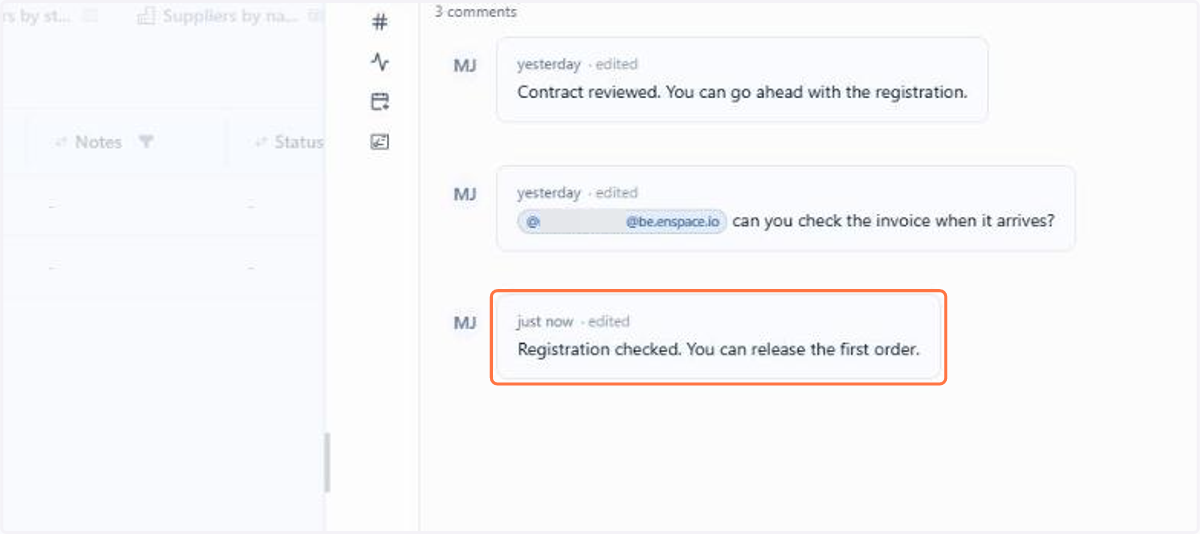
12. A comment sent by another person appears in the list as soon as it is sent, without reloading the page
13. To see the Chat field, click Overview and, under Form, choose the form that has the field. In this example, Quick supplier registration
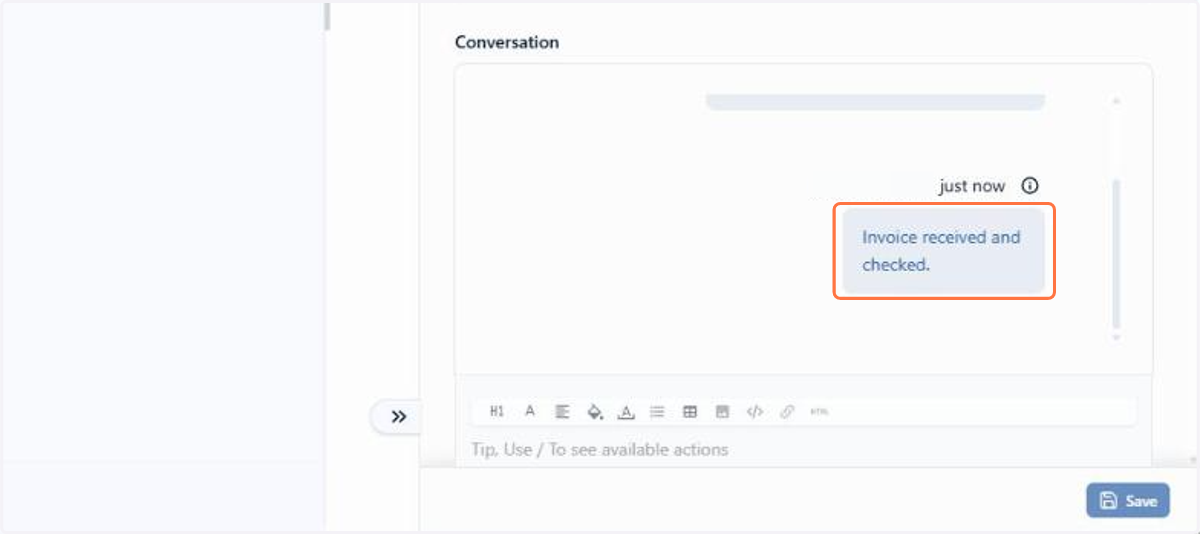
14. A message another person sends in the Chat field appears in the conversation as soon as it is sent. In this example, in the Conversation field
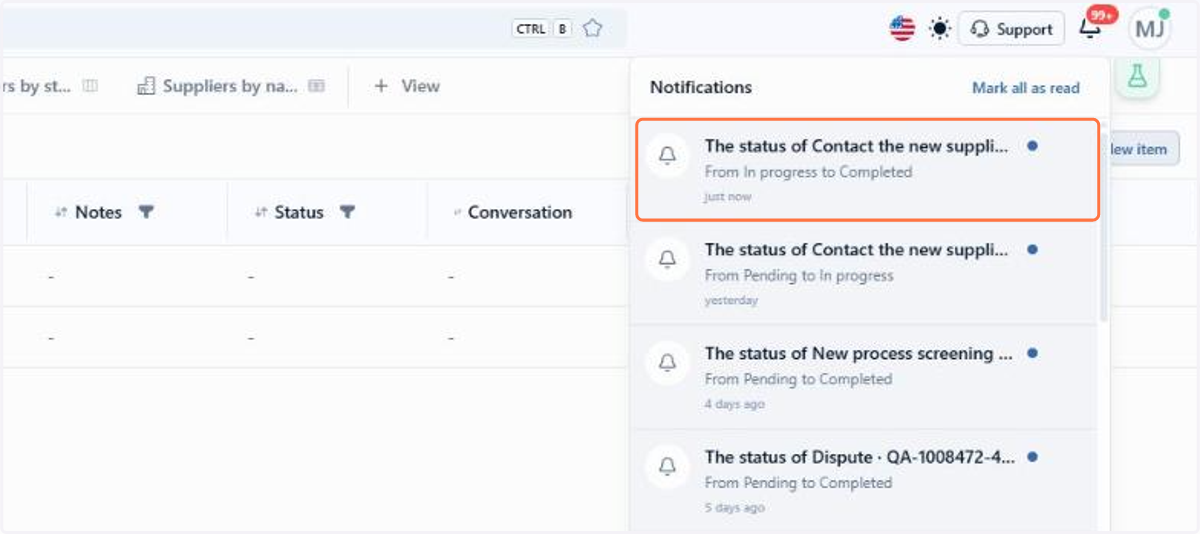
15. Notifications also arrive without reloading the page. Click the bell in the upper right corner to see the most recent one
16. The new notification appears at the top of the list as soon as it is generated. In this example, a task status change
17. The notice of edits in another session also applies to quick tasks. In the left side menu, click Tasks and then Quick
18. In the task's row, click the three dots under Actions and then Edit
19. The task screen shows the same Updated in another session notice as soon as another person changes it. Click Reload to see the latest version; Dismiss keeps the screen as it is