How to Set Up the Google Analytics 4 Data Connector
Follow this guide to map Google Analytics 4 (GA4) accounts to existing MultiHub properties.
Log into MultiHub
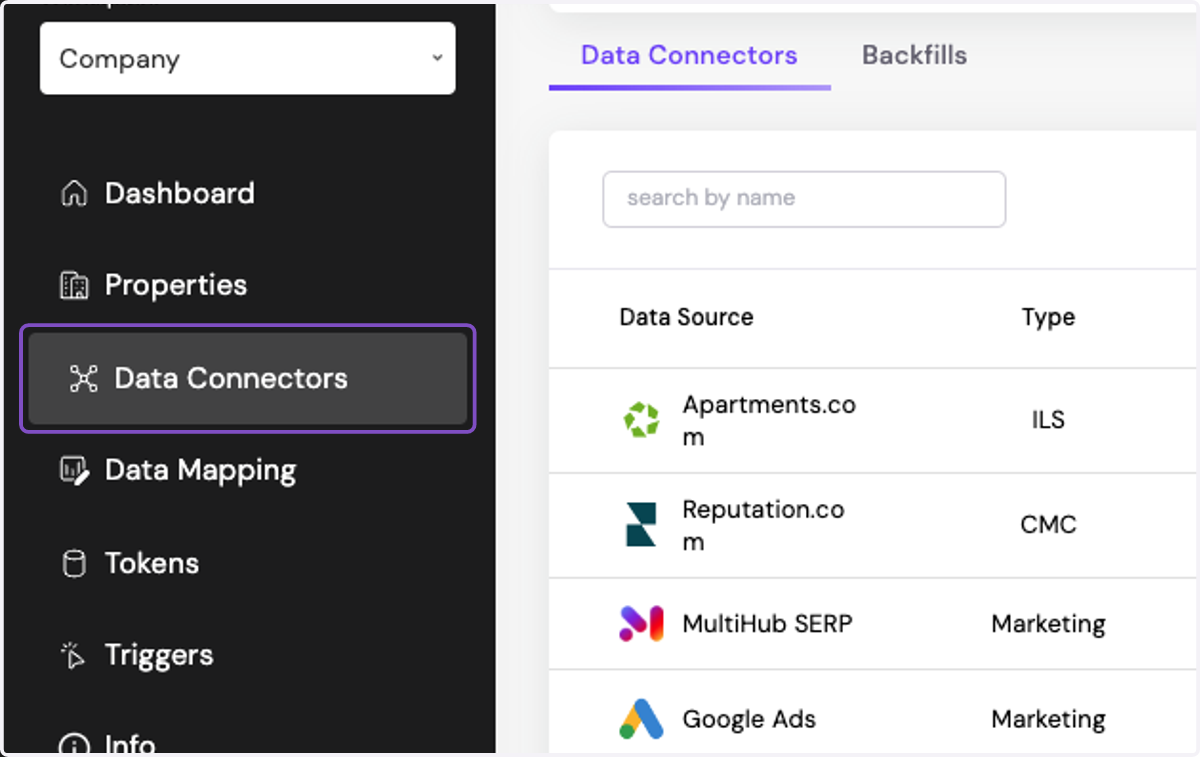
1. In MultiHub, go to the Company Workspace and select Data Connectors
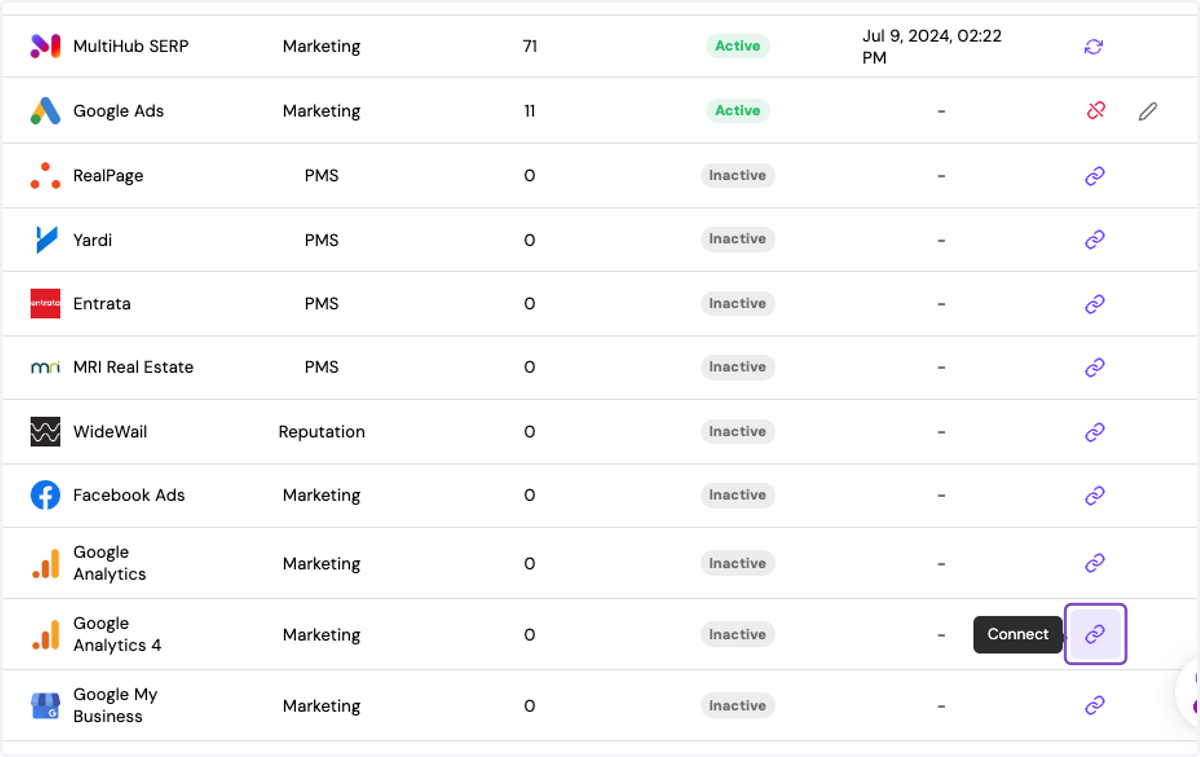
2. Click on Connect for the Google Business Profile data connector
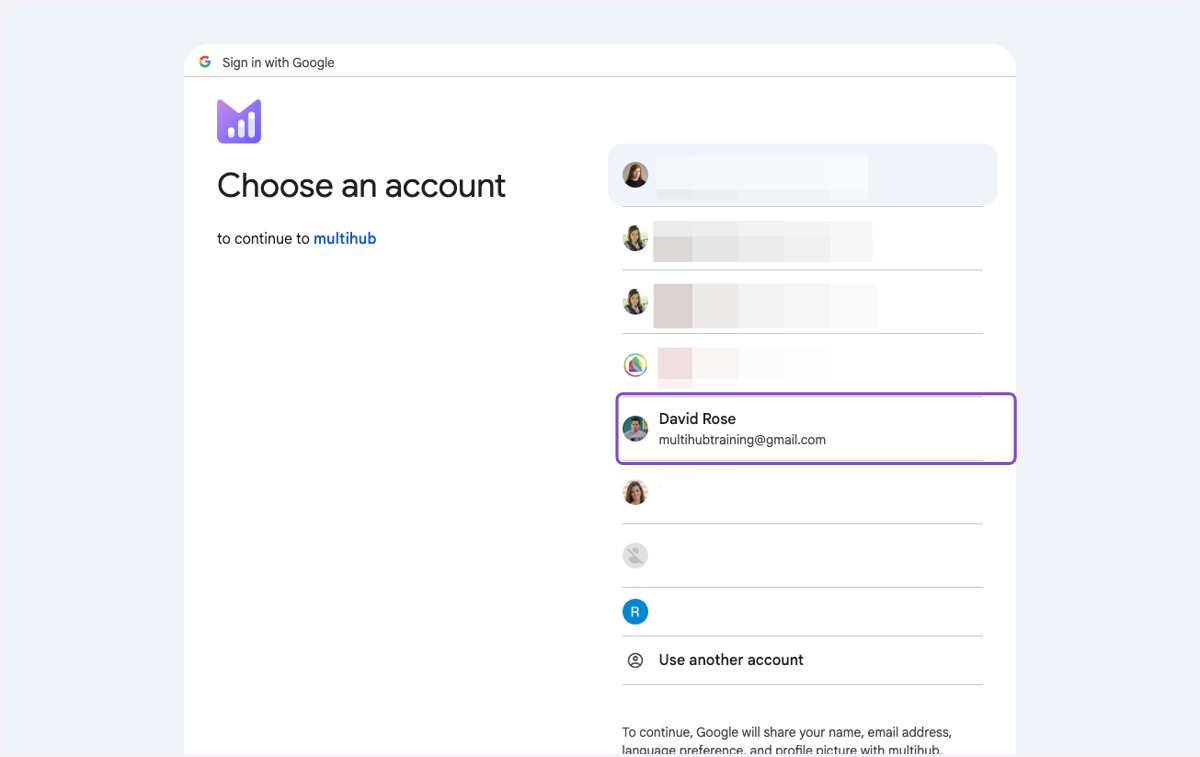
3. Log in to the correct Gmail account
4. Click on Continue
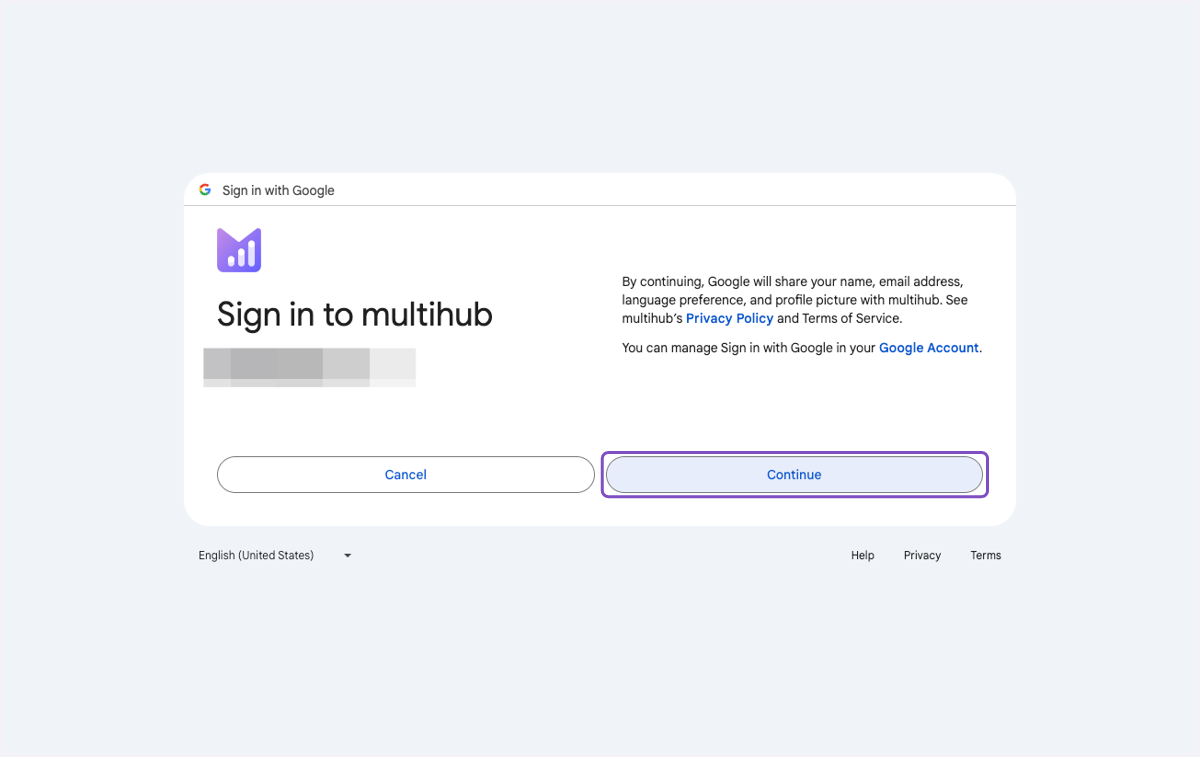
5. Click on Allow
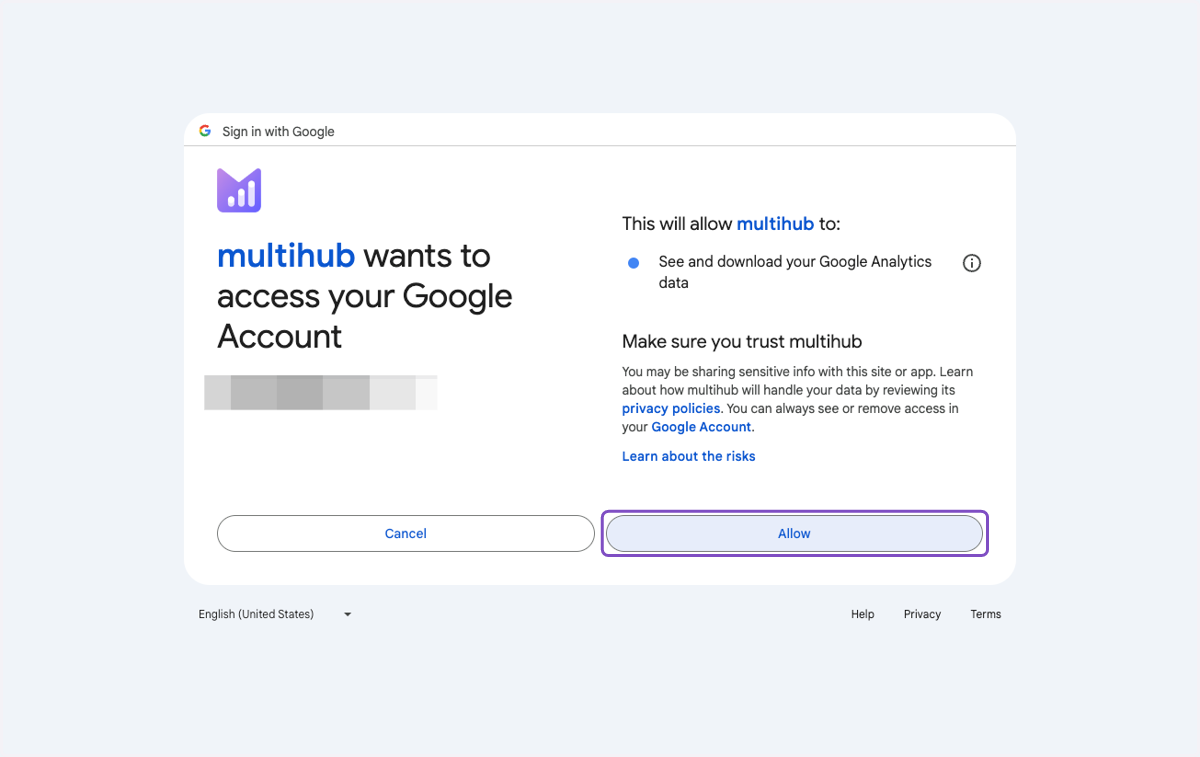
6. Click the check box to select the Google Analytics 4 account you'd like to connect
You can select more than one account
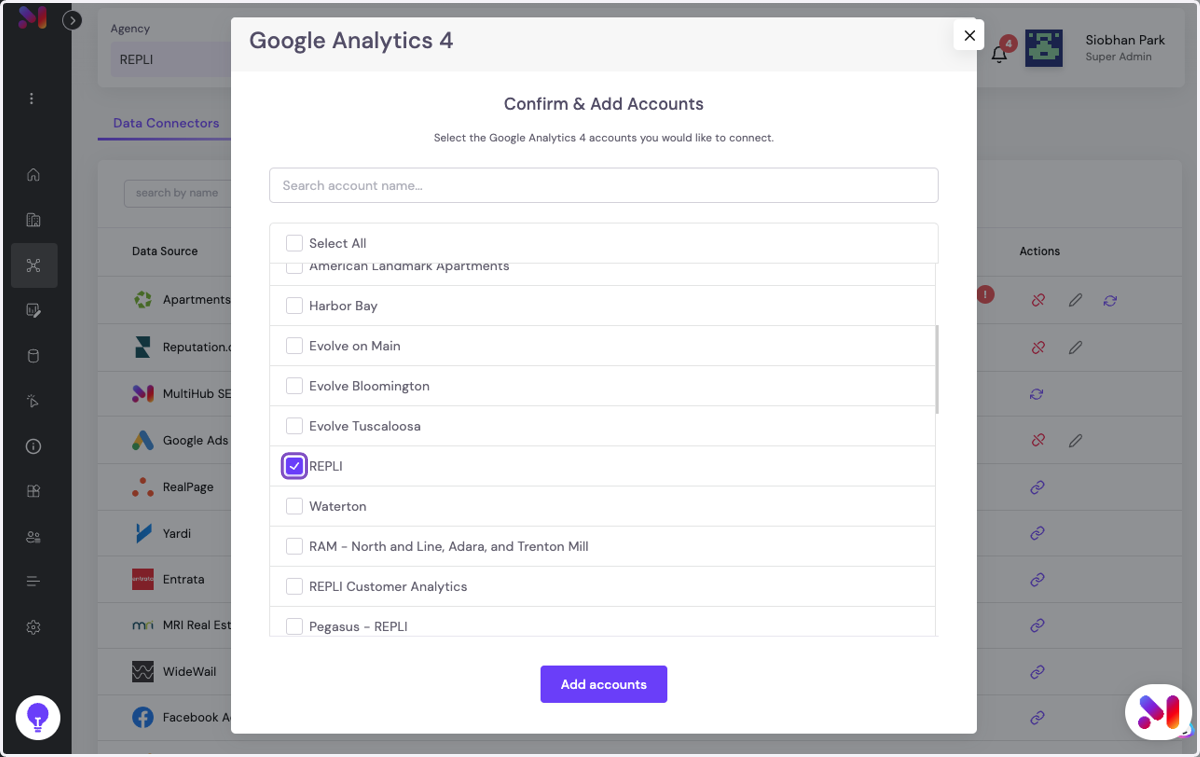
7. Click on Add accounts
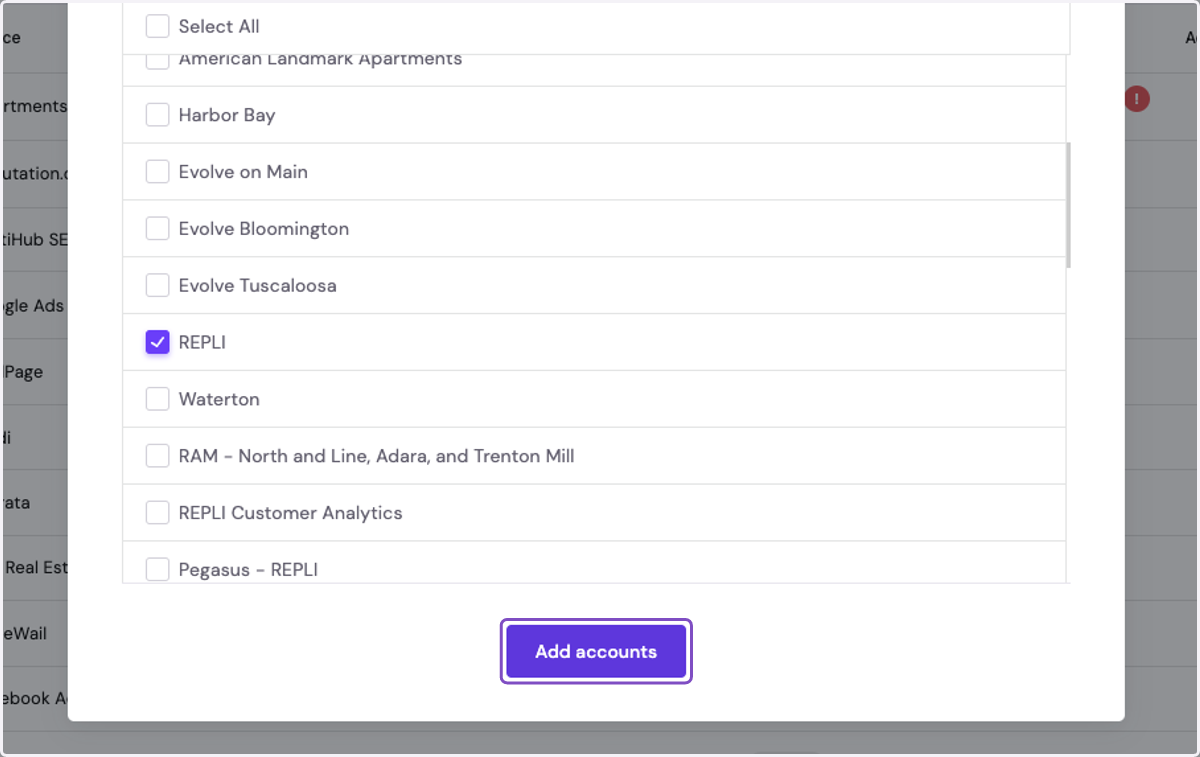
8. To bulk add, click Select All. Otherwise, manually add any properties using the check box.
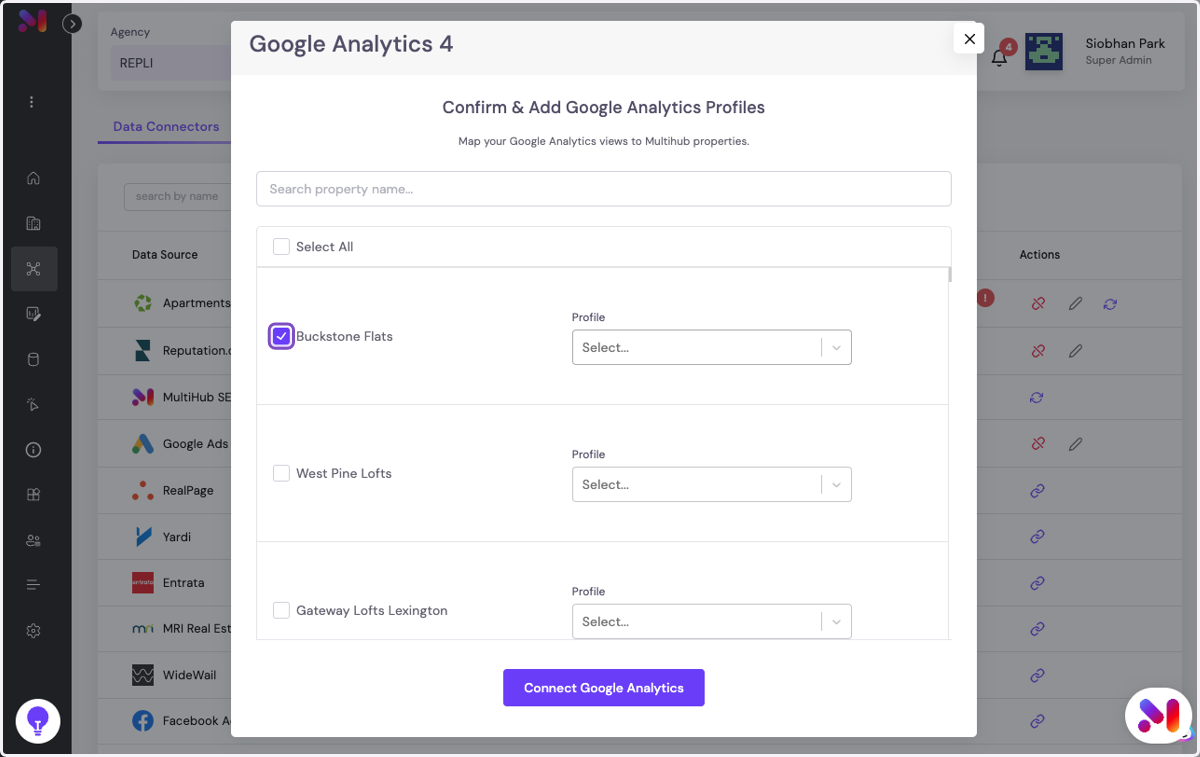
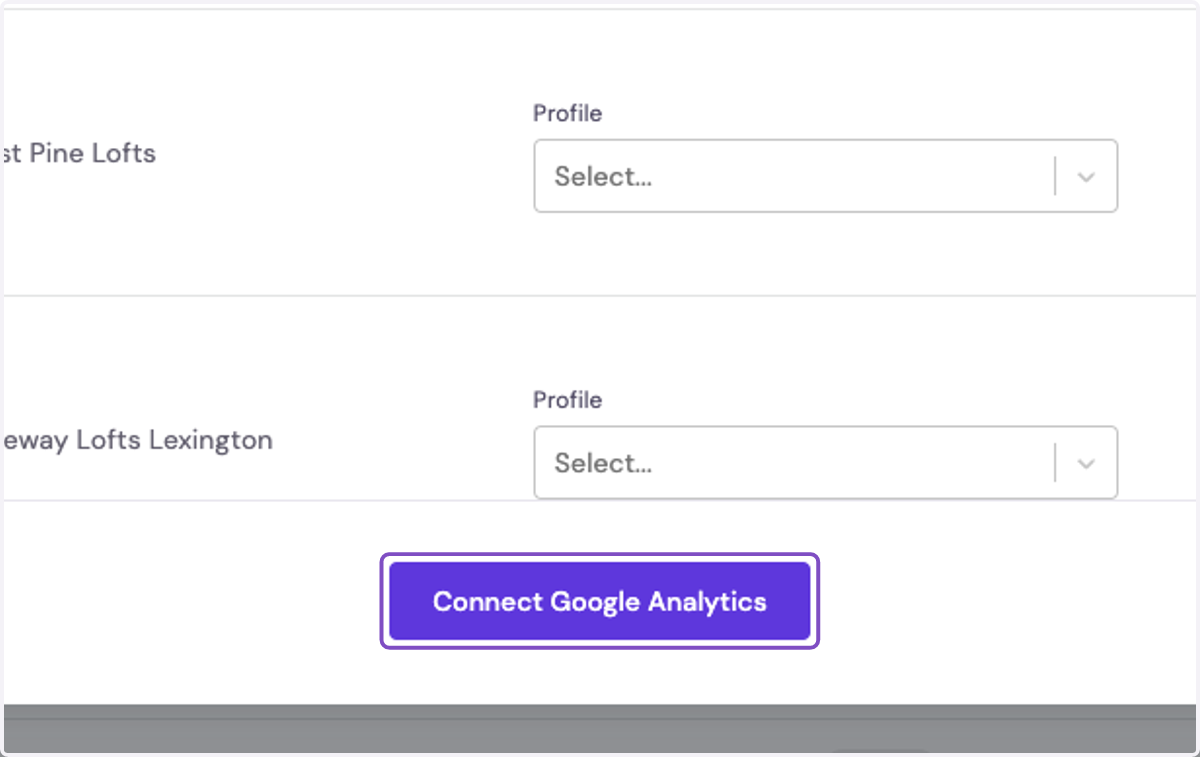
9. Under profile, choose the correct GA4 account for that property. Multihub's AI will attempt to match the GA4 property to the MultiHub property. We recommend confirming the matches are correct.
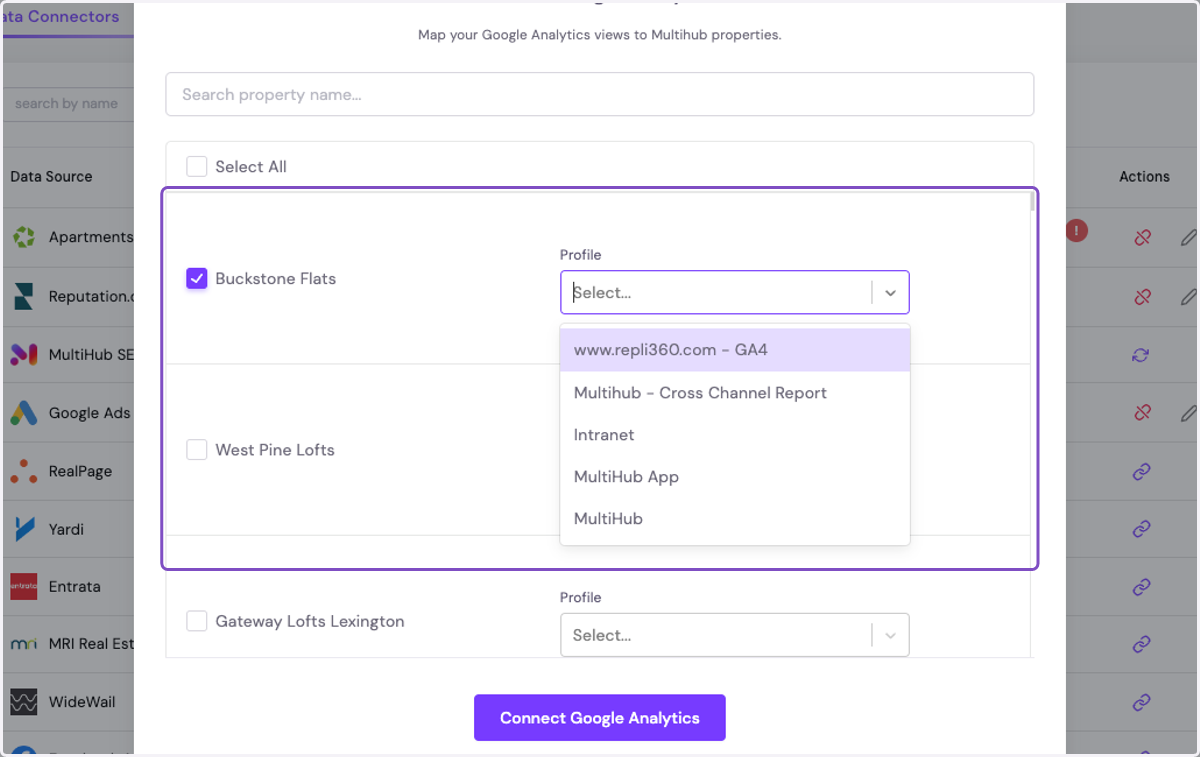
10. Once you've completed your setup, click on Connect Google Analytics