Distribute Additional Contract Value to an Existing Project
1️⃣ Distribute Additional Contract Value to an Existing Project
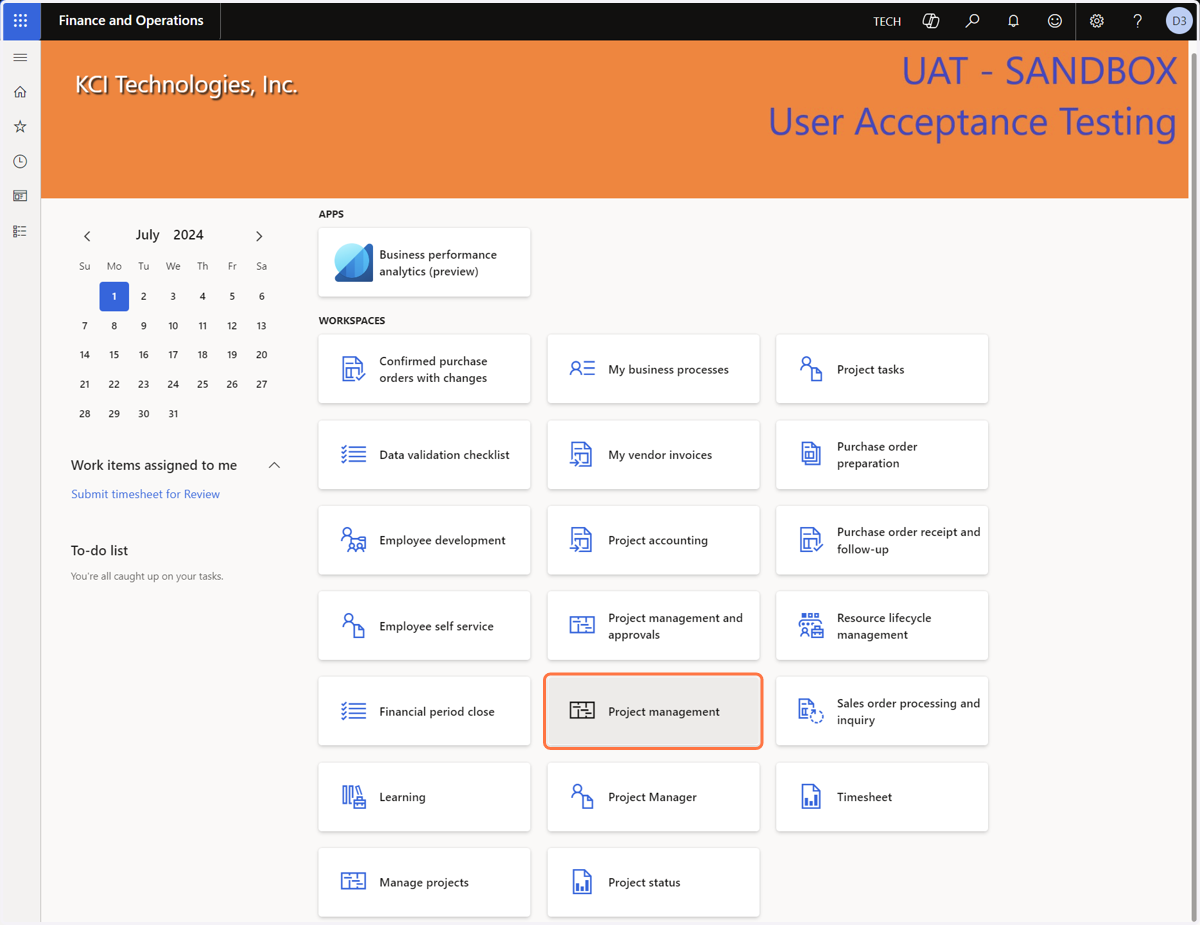
1. Click on "Project management"
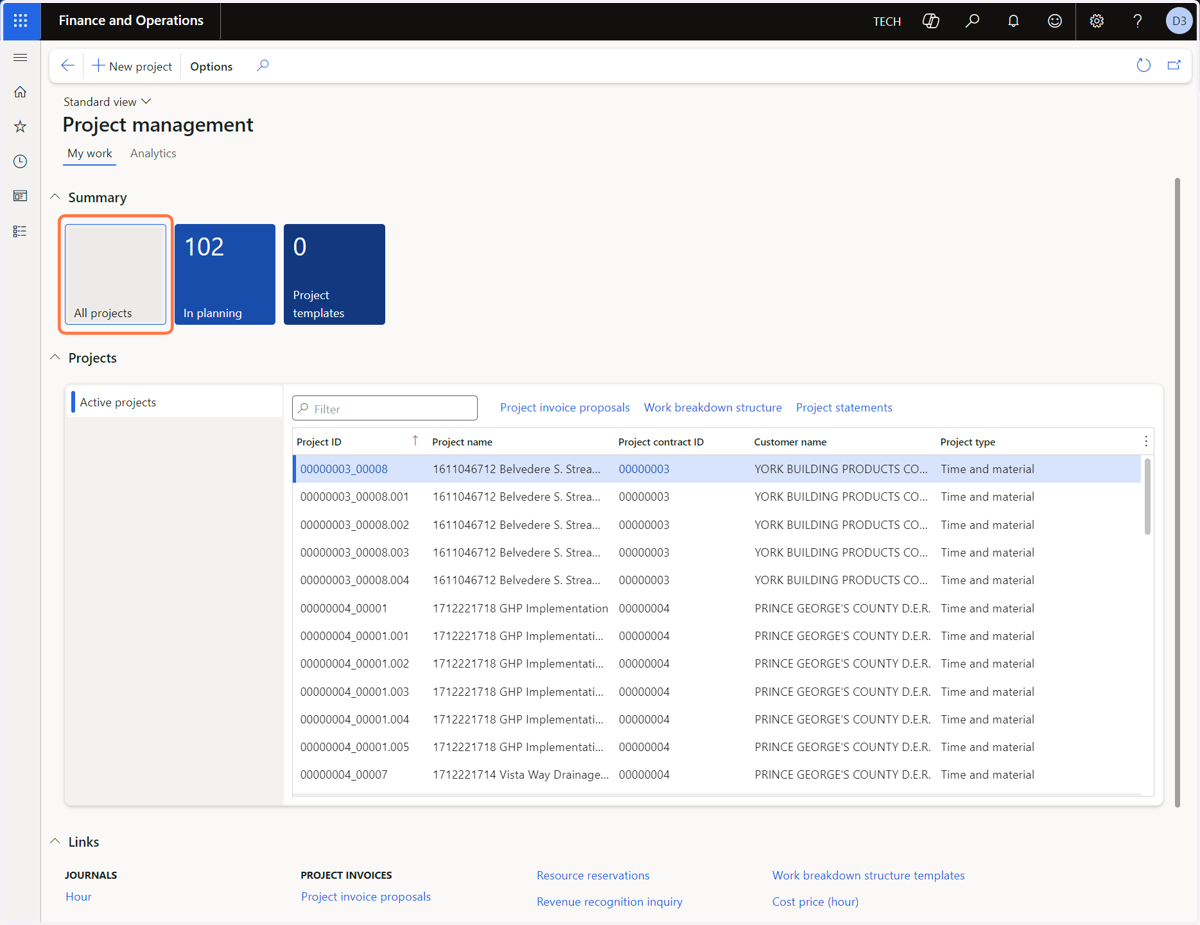
2. Click on the "All projects" tile
3. Click on the link in the Project ID field for a Project
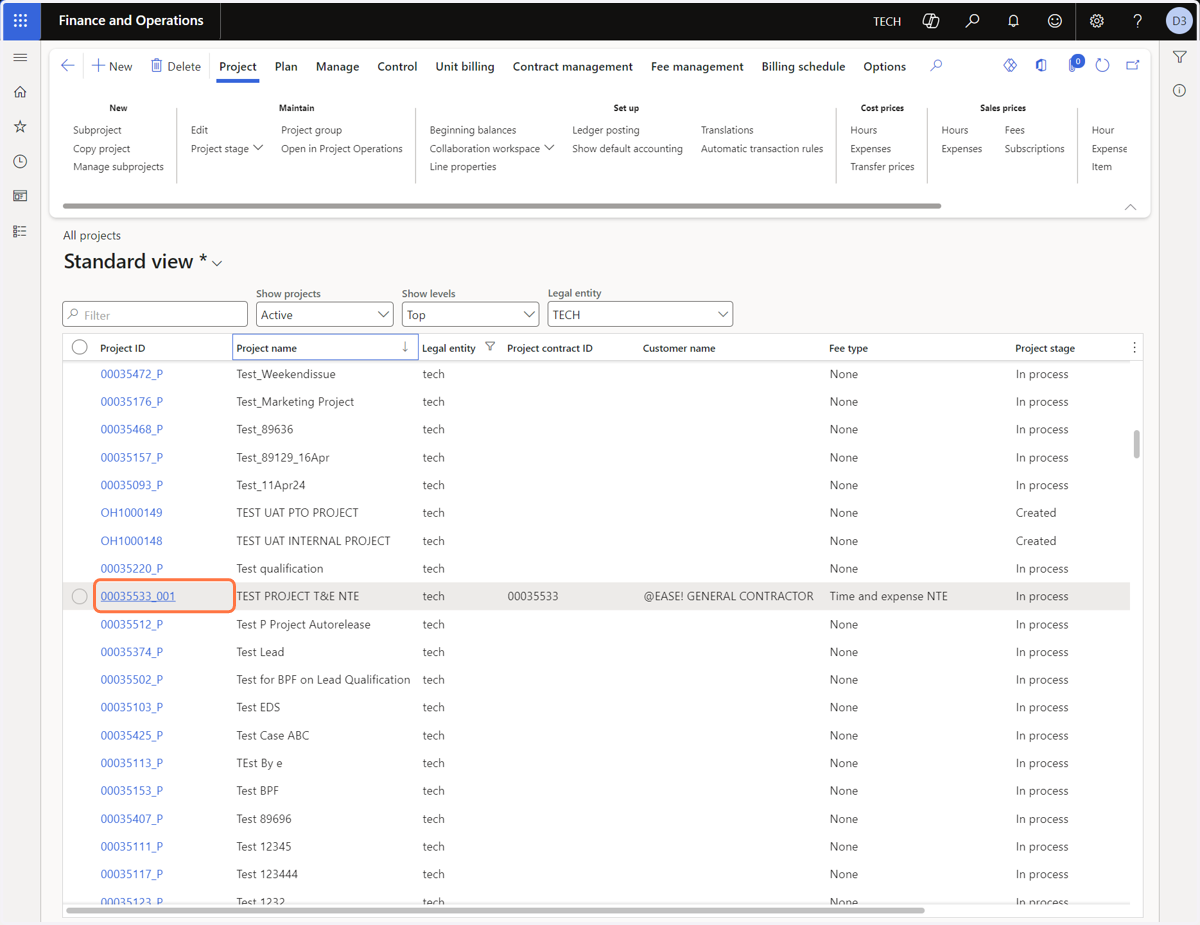
4. Click on "Contract management"
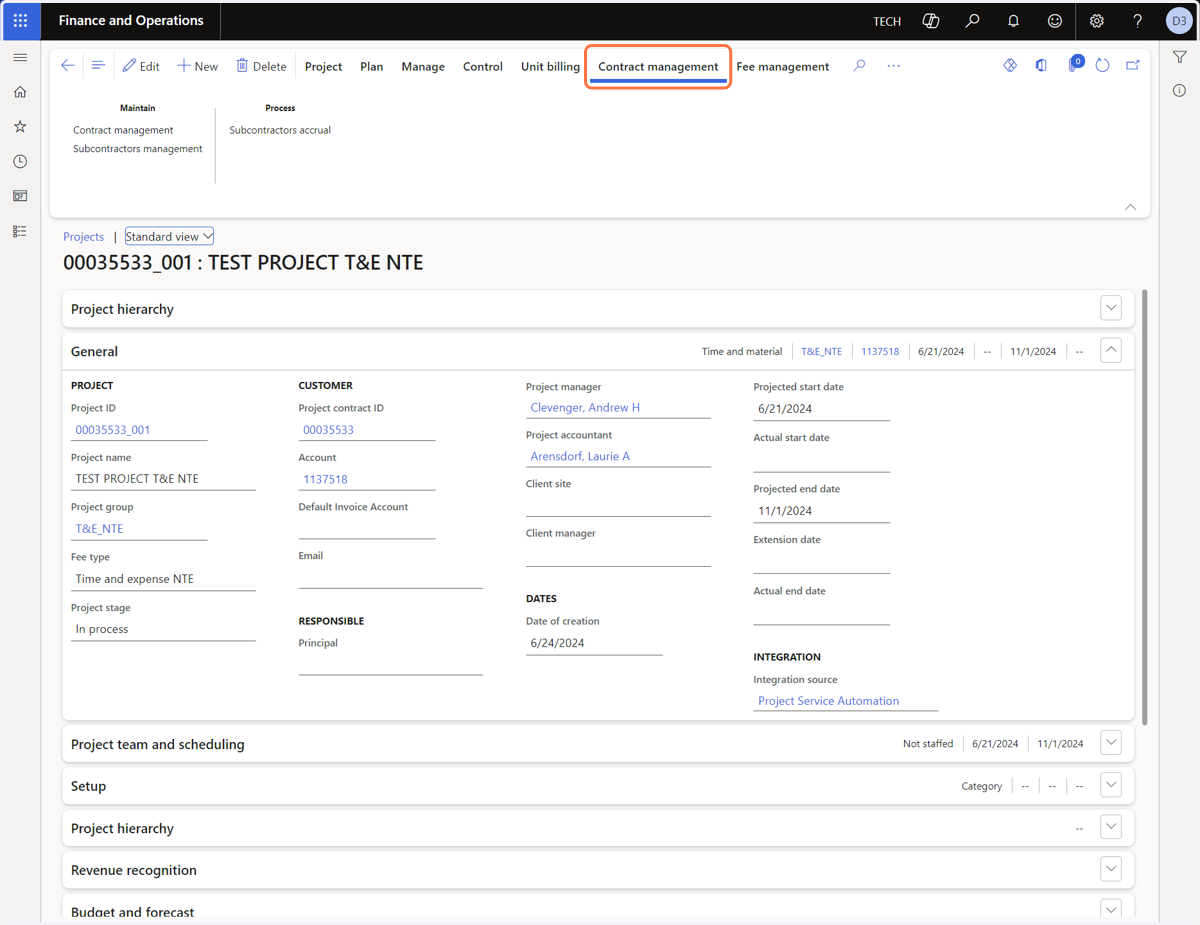
5. Click on "Contract management"
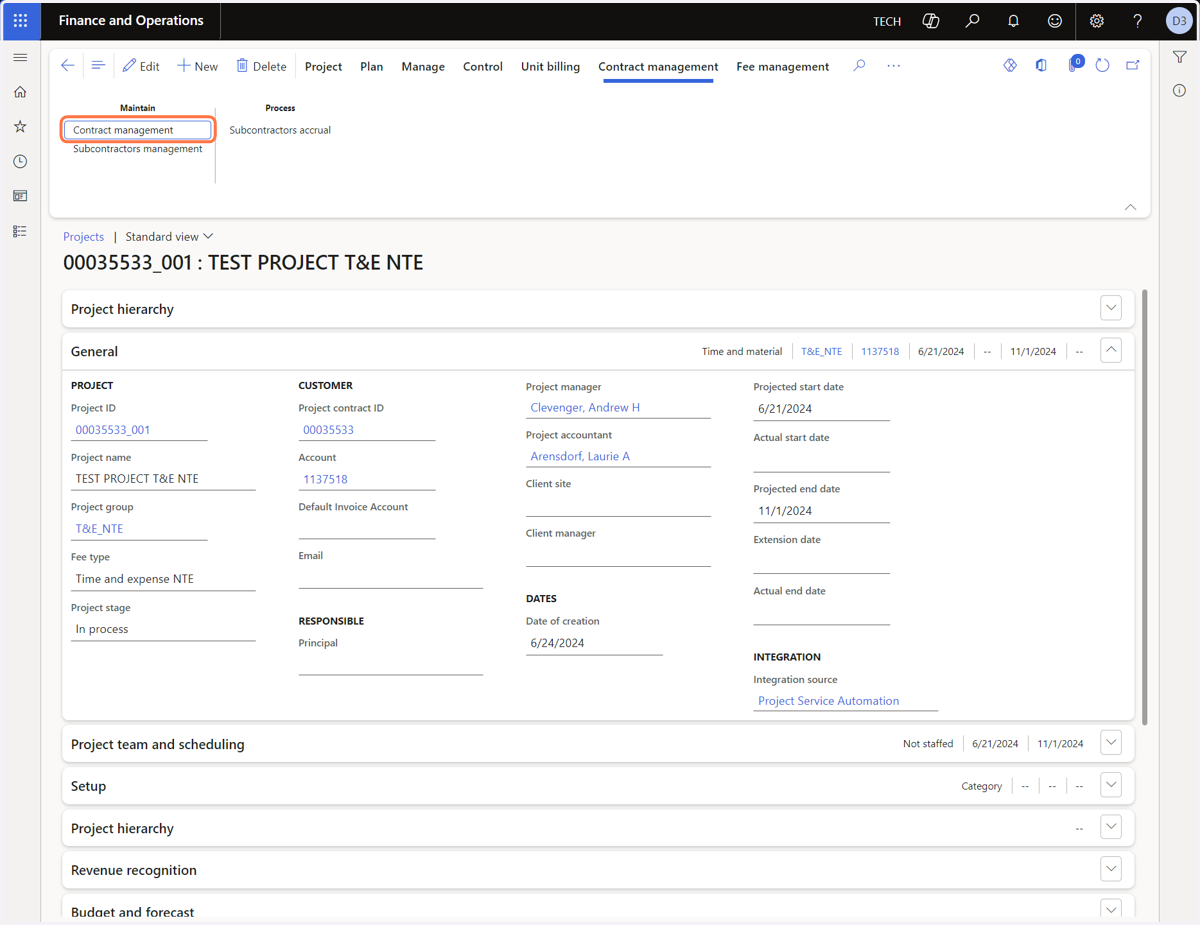
6. In the "Contract agreements" section, select the line item of the additional funding
If applicable, redistribute the value of the additional funds by clicking Edit and typing the appropriate values into the Labor, Expenses, or Subcontractor fields of the additional funding line. Ensure that the total of these fields is equal to the "Contract value" field before proceeding.
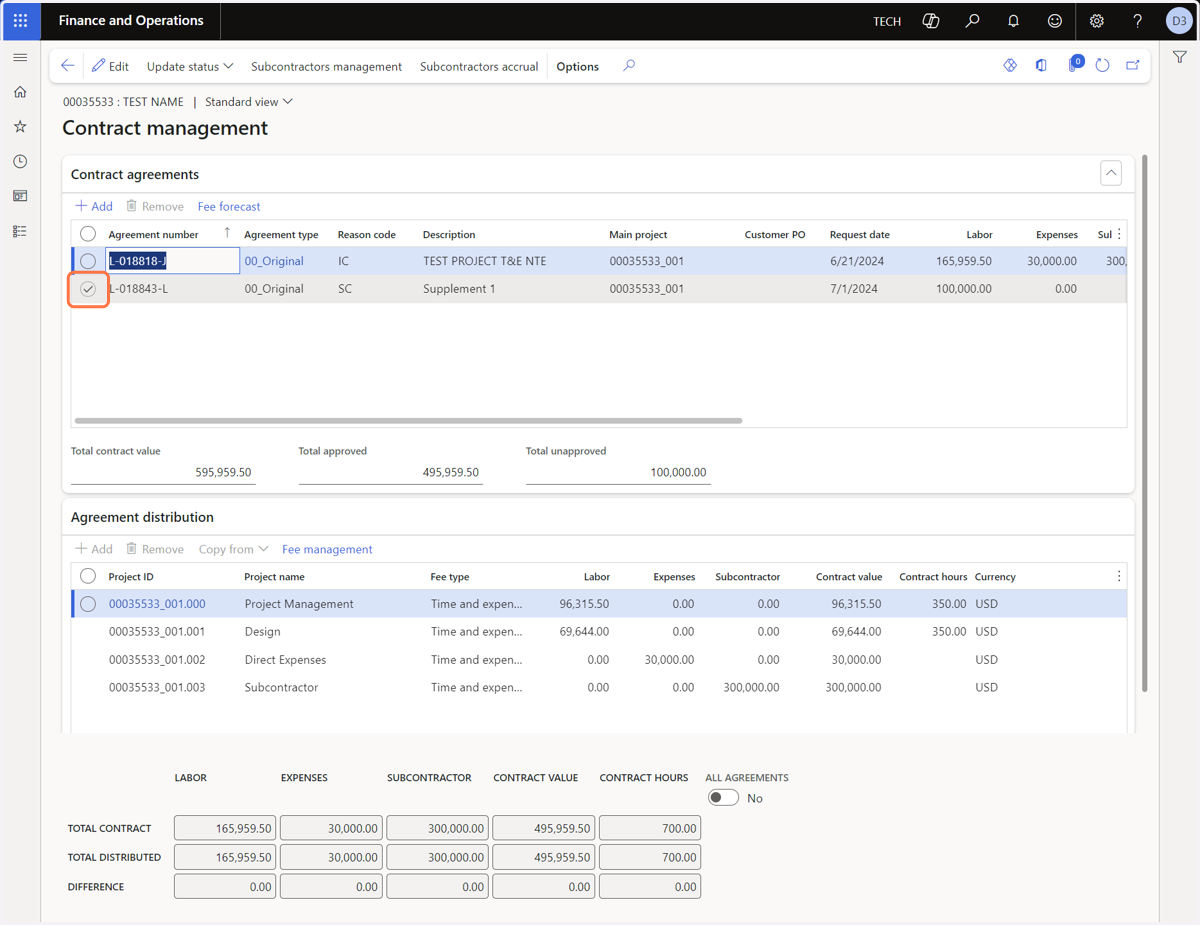
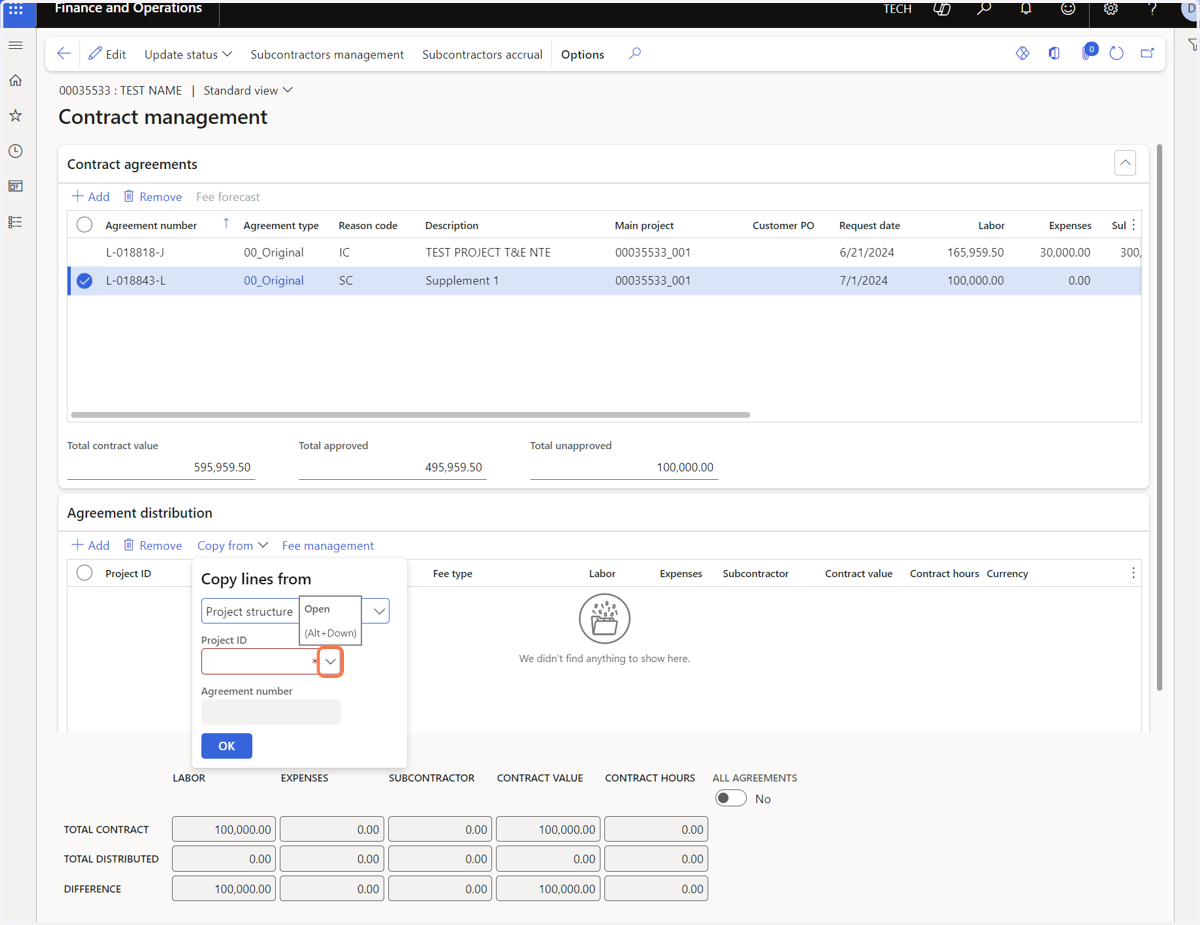
7. Click on "Copy from"
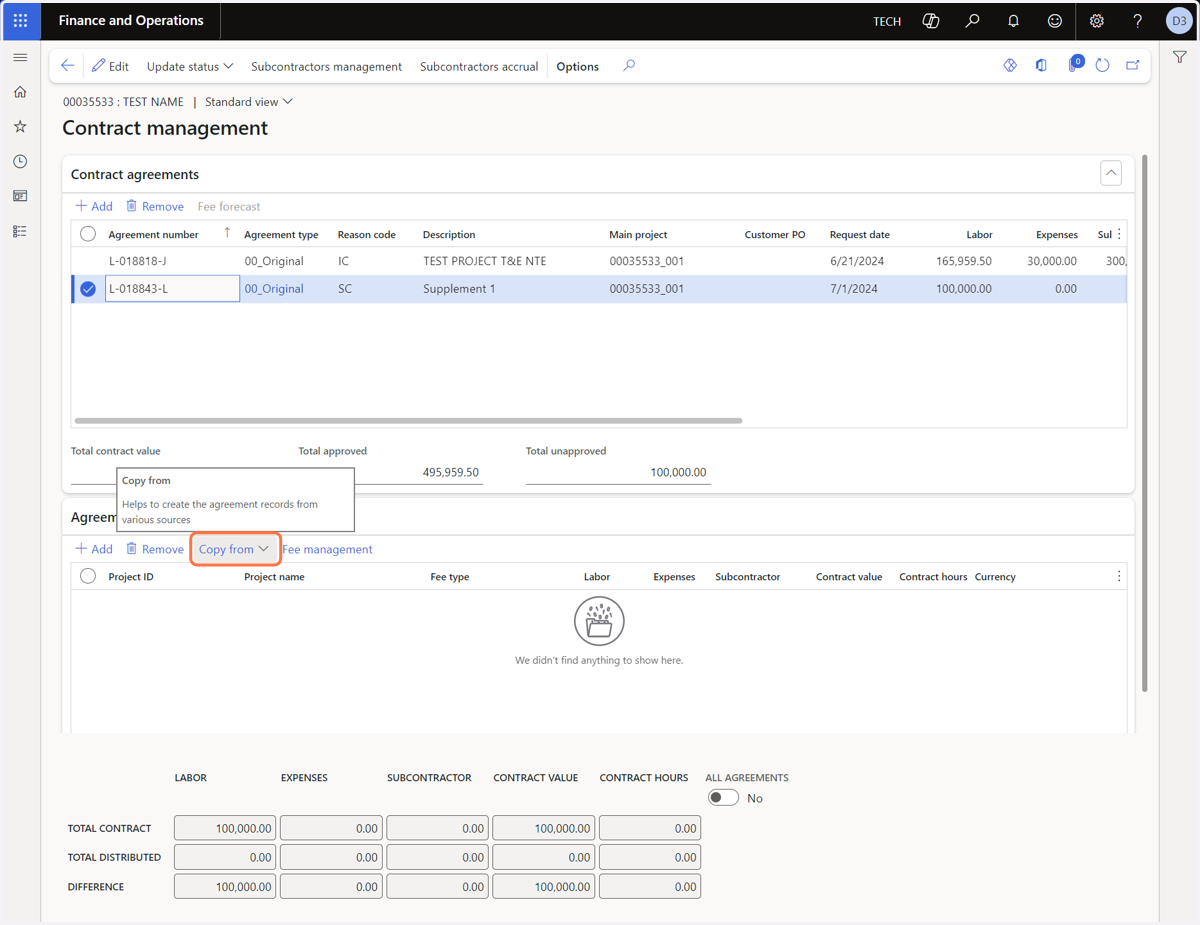
8. Click on the Project ID field drop-down menu
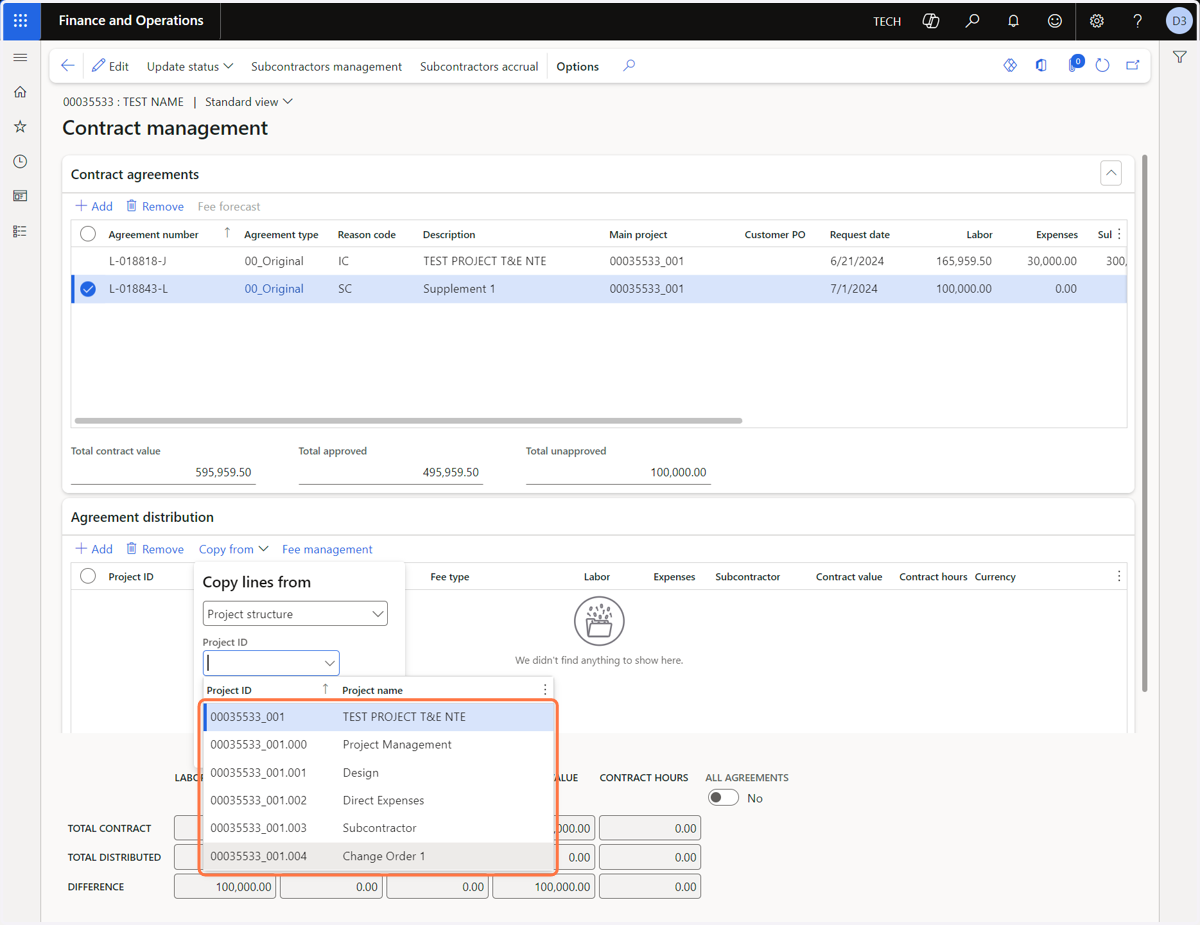
9. Select the Project ID of the Task to allocate additional funds to
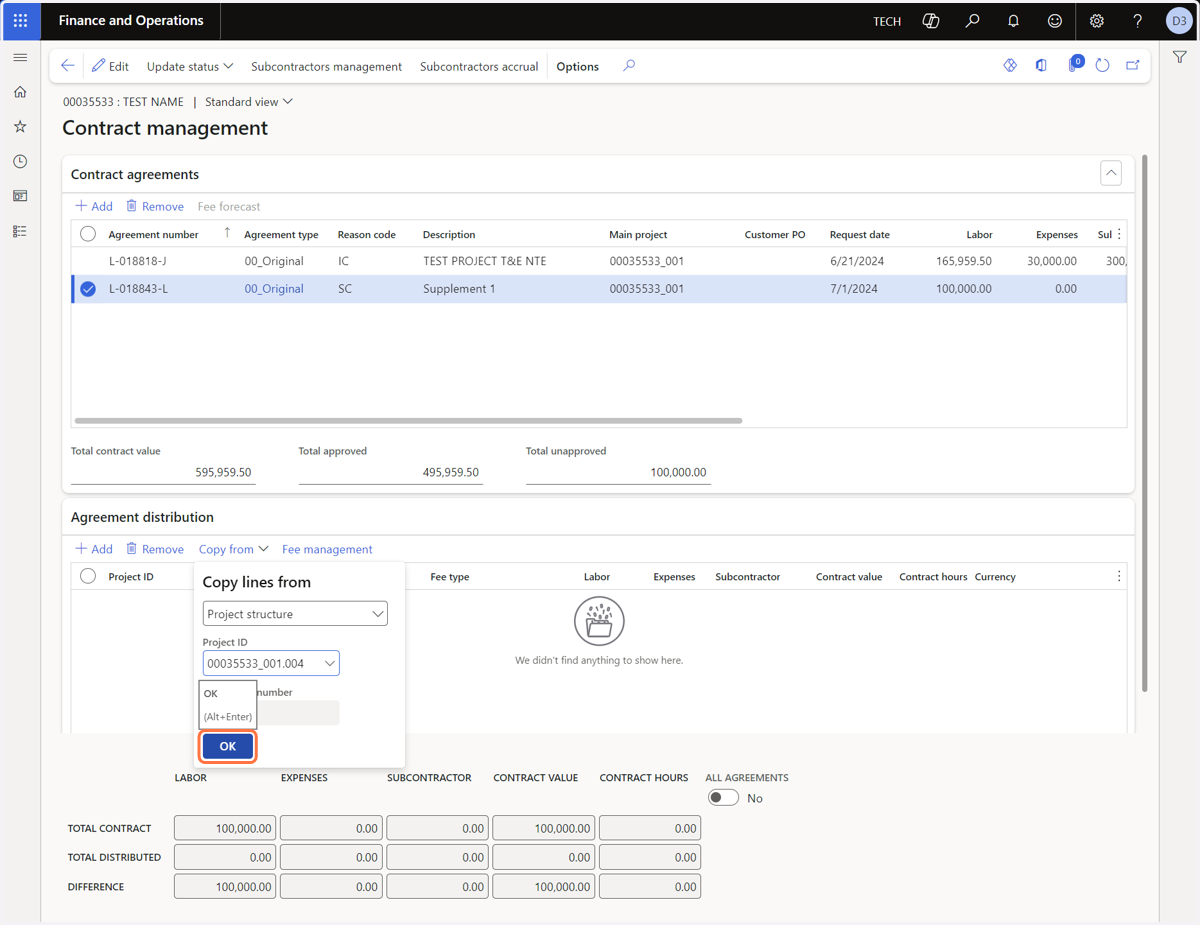
10. Click on OK
11. Click on Edit
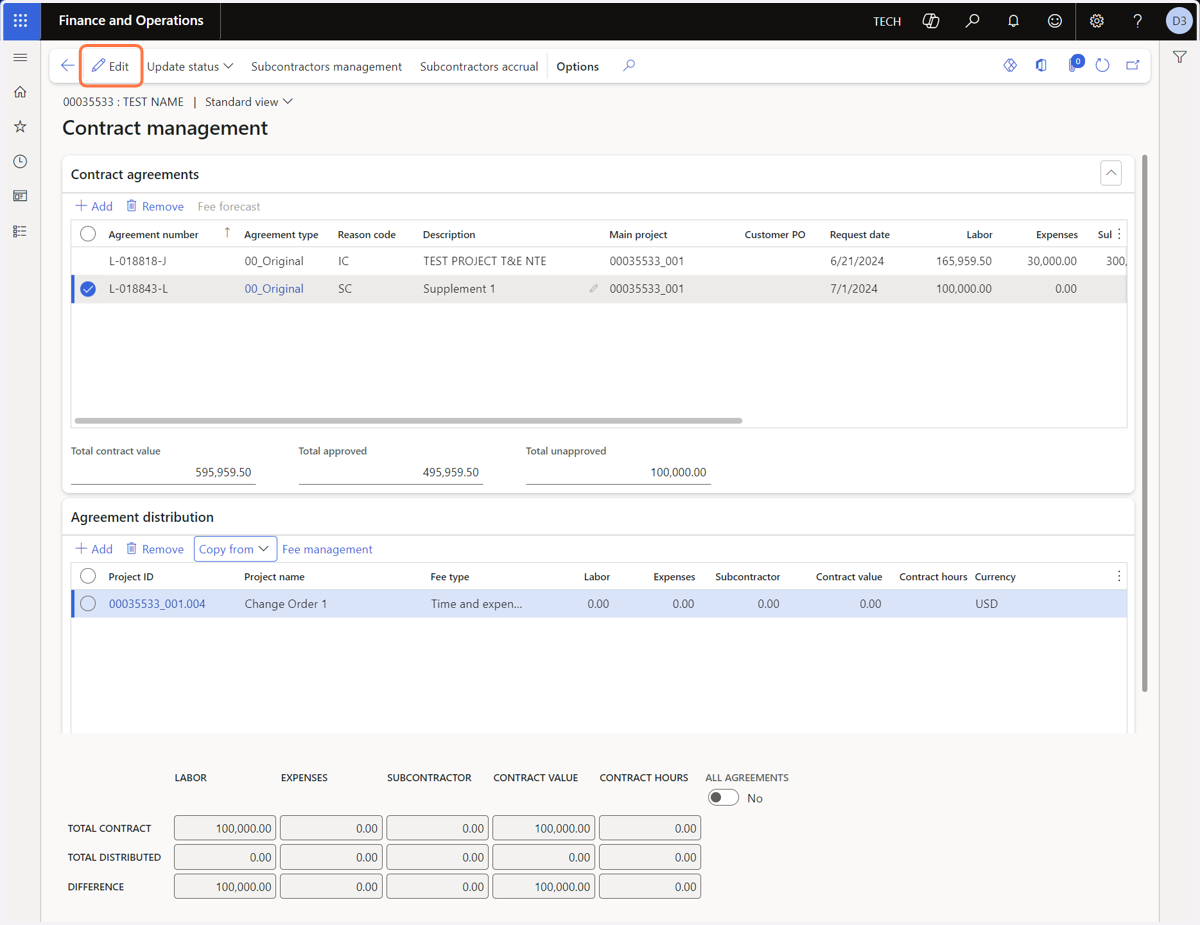
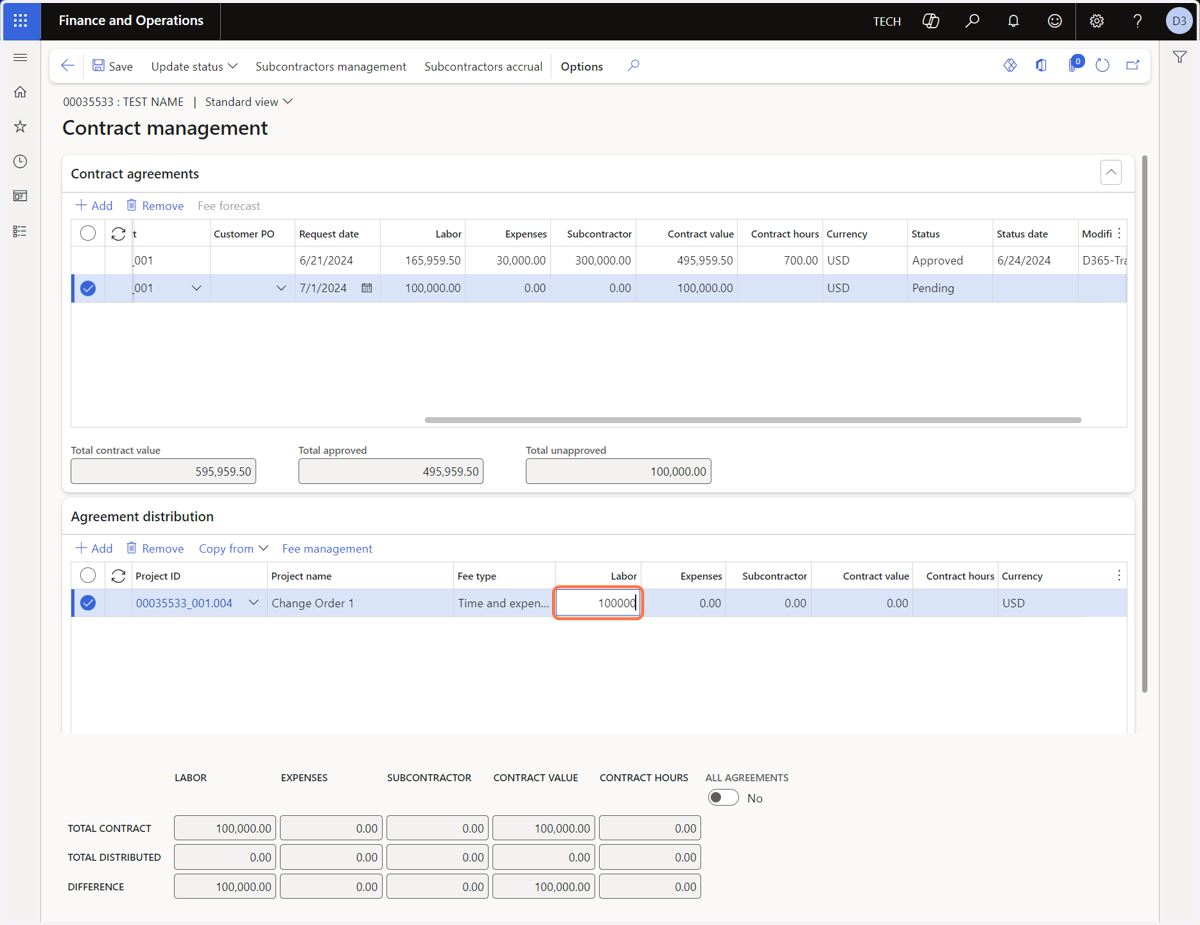
12. Distribute additional contract value by typing the appropriate values into the line item's Labor, Expenses, or Subcontractor fields
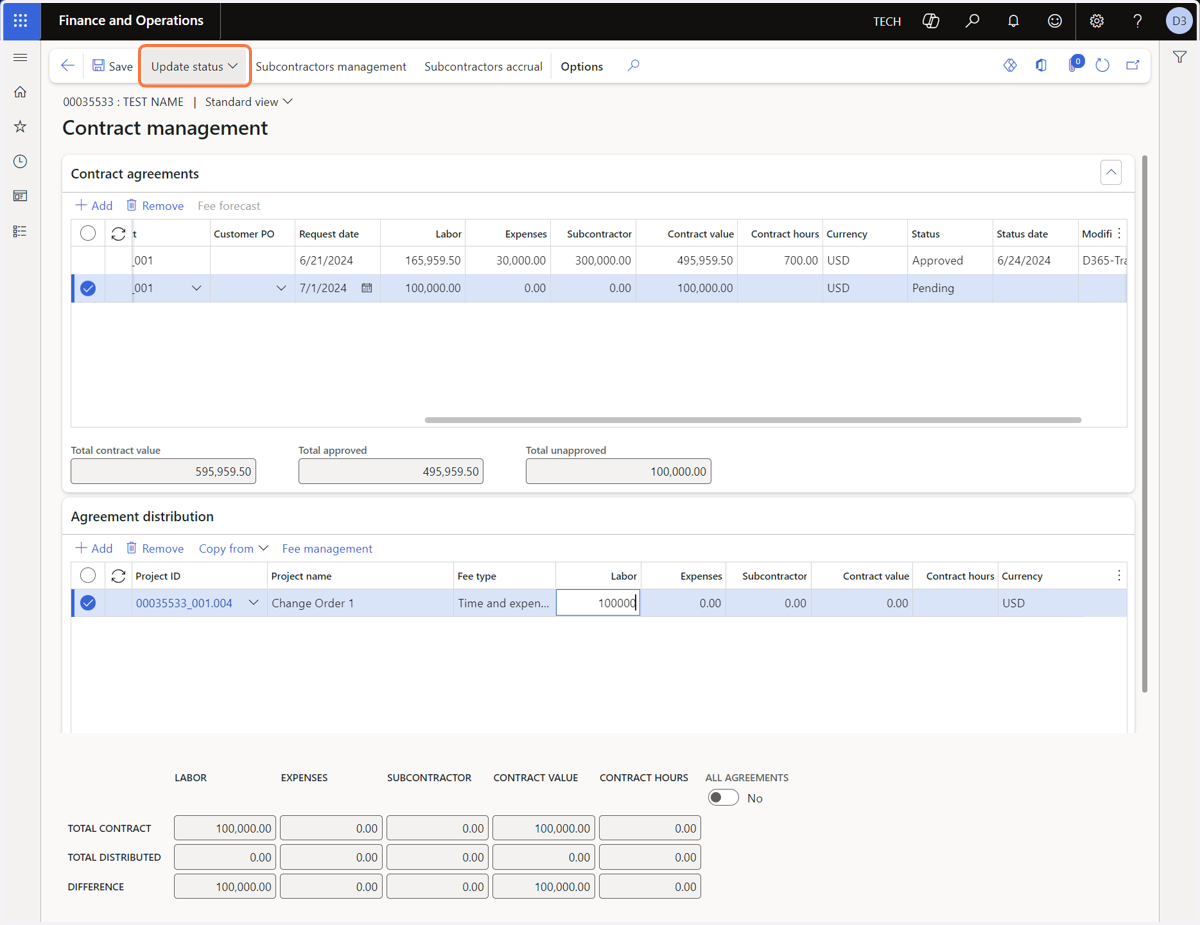
13. Click on the "Update status" drop-down menu
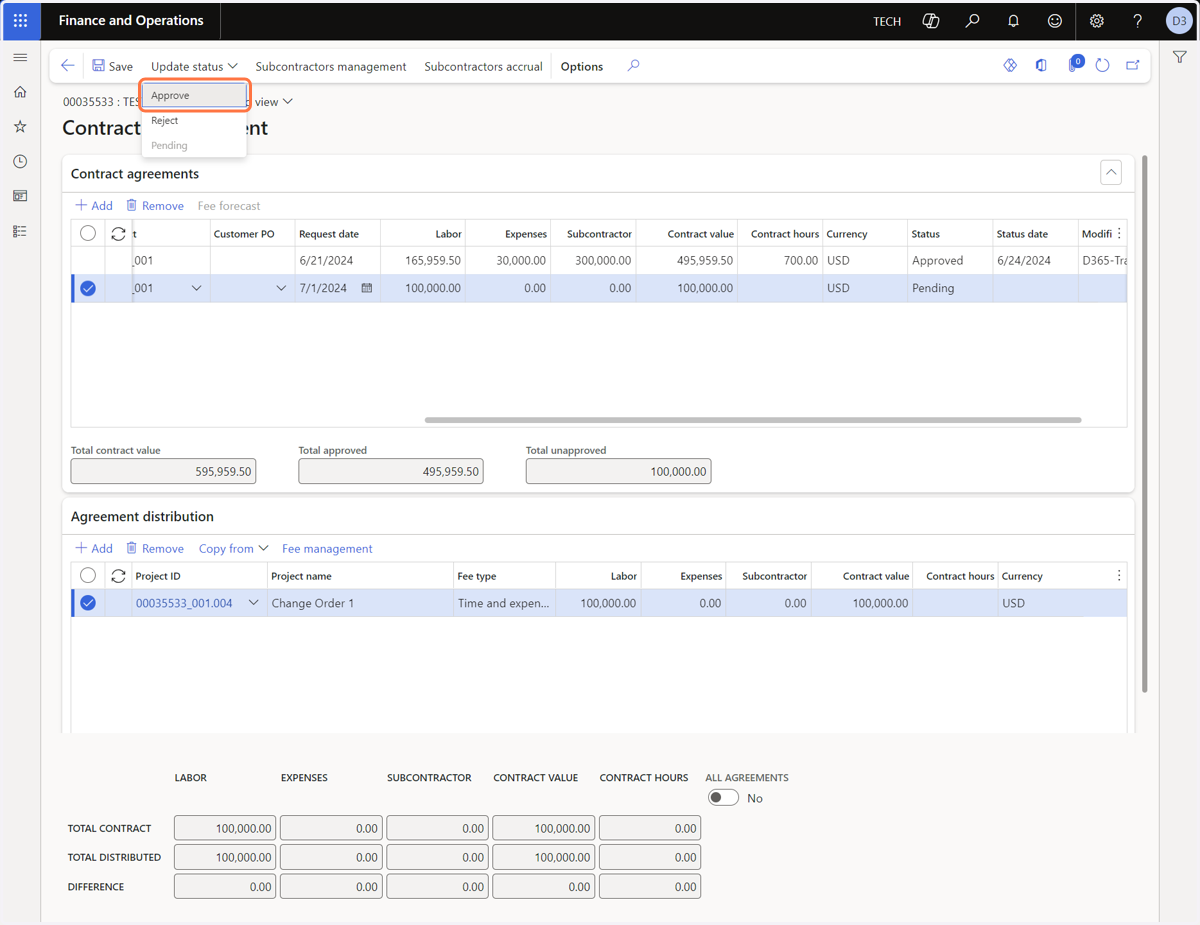
14. Select "Approve"
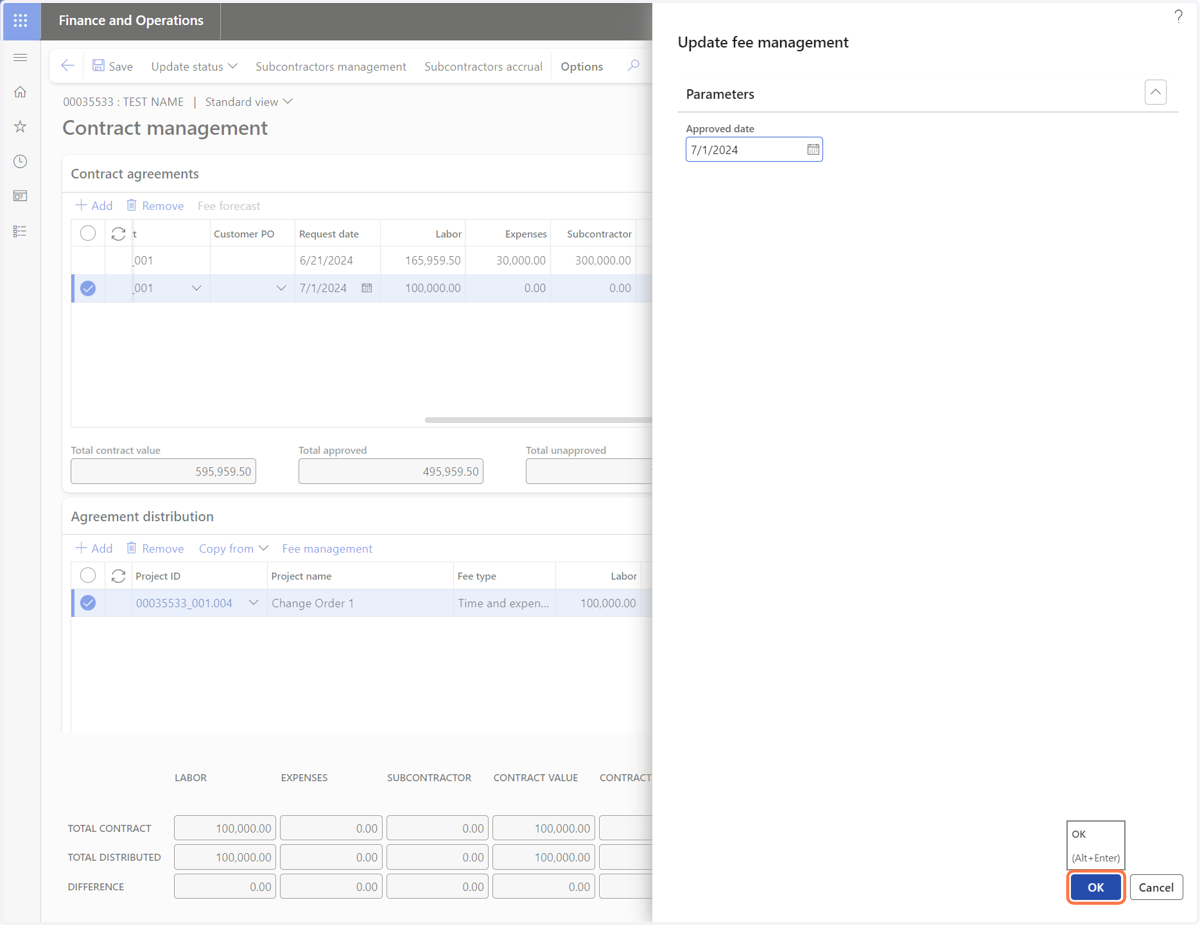
15. Click on OK
2️⃣ Update New Task to "In Progress"
If you allocated additional funds to a new task/change order, proceed to update the new task to "In process" to make it available for timesheet entry.
If you allocated additional funds to an existing Project task, you have completed this workflow.
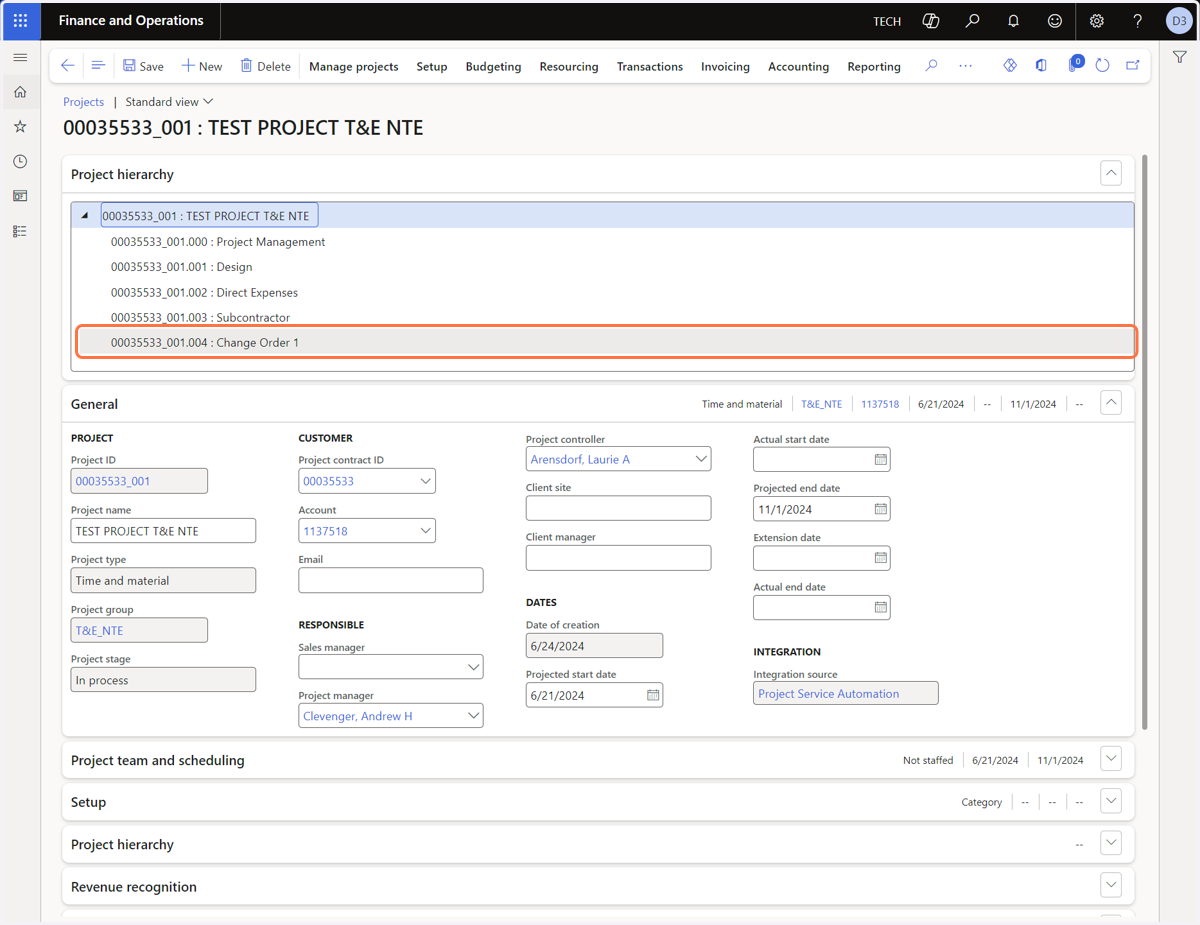
16. If you are allocating additional funds to a new task, select the new task
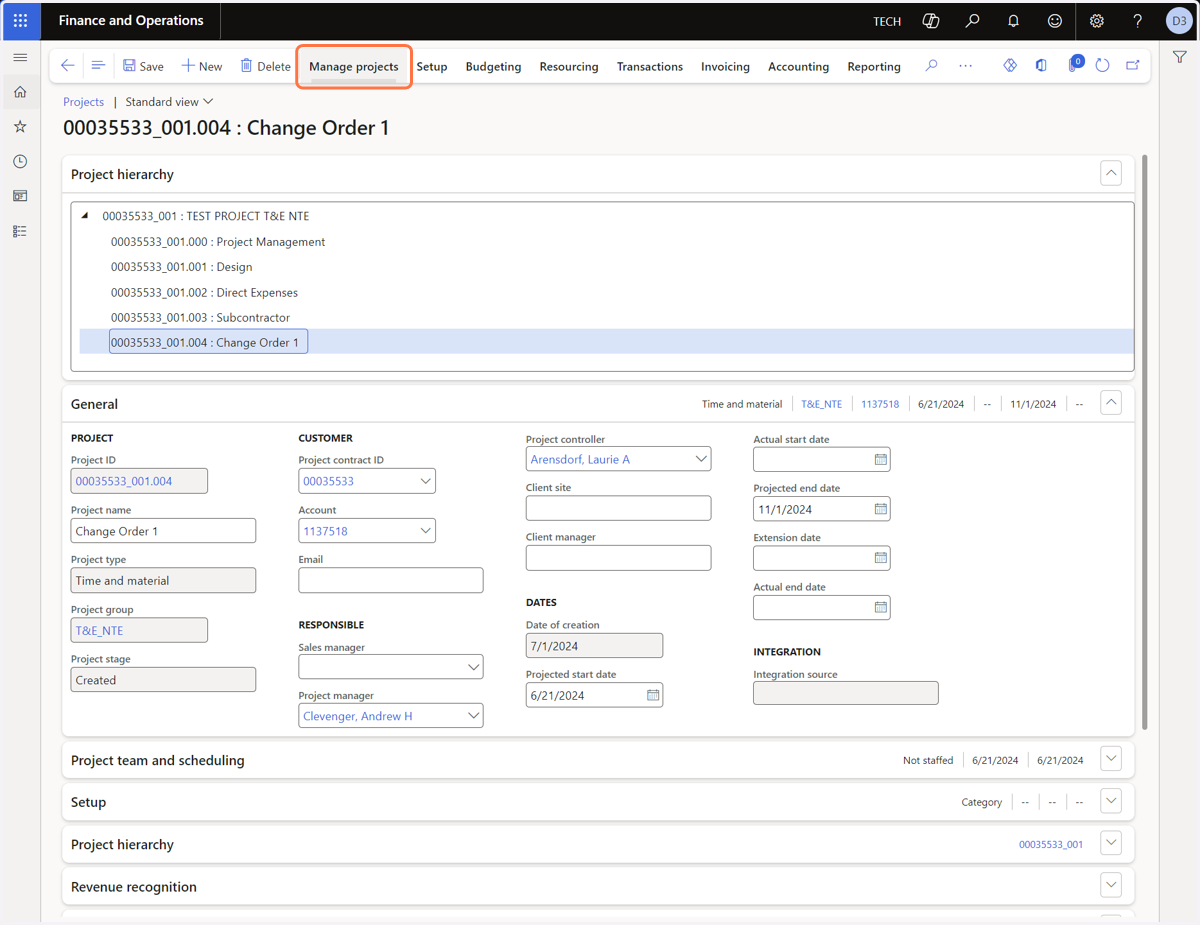
17. Click on "Manage projects"
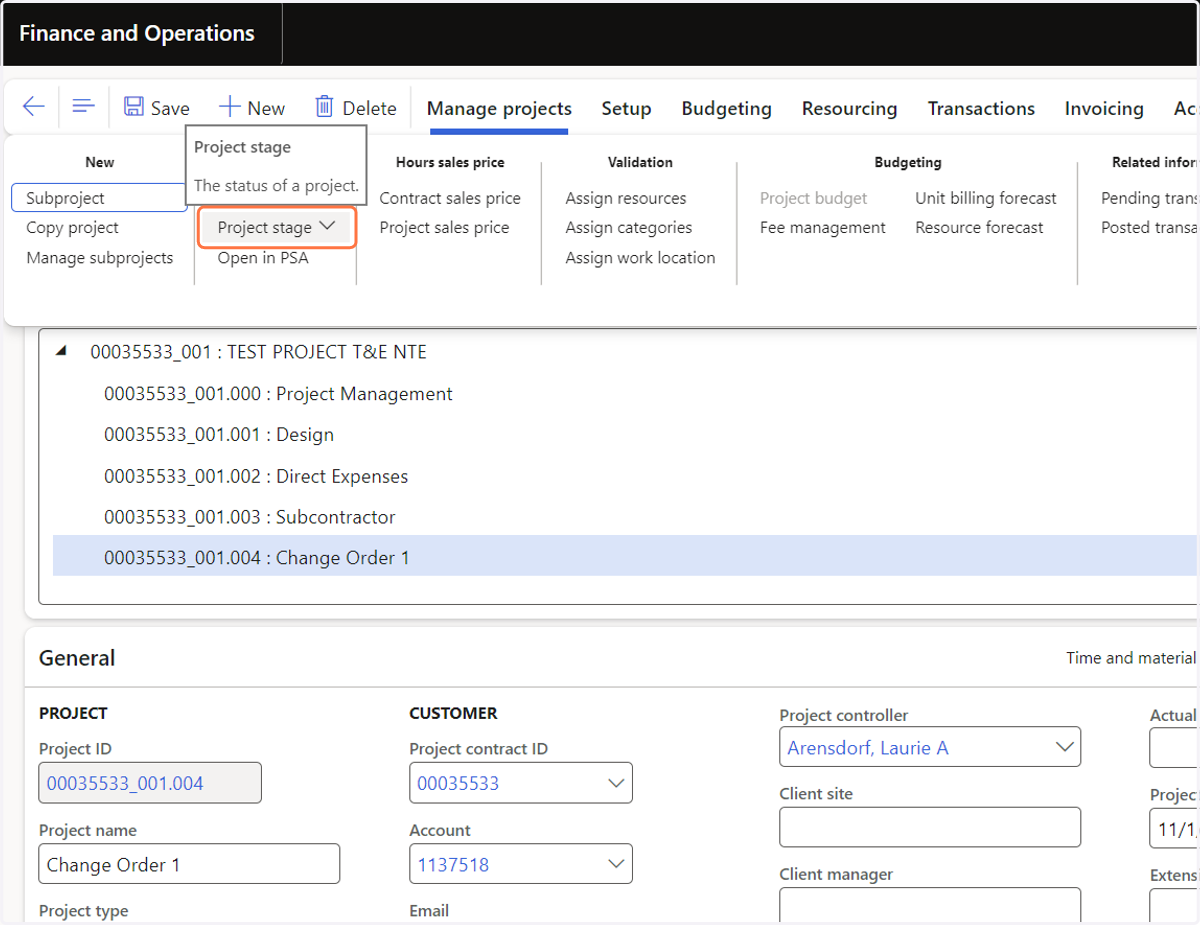
18. Click on the "Project stage" drop-down menu
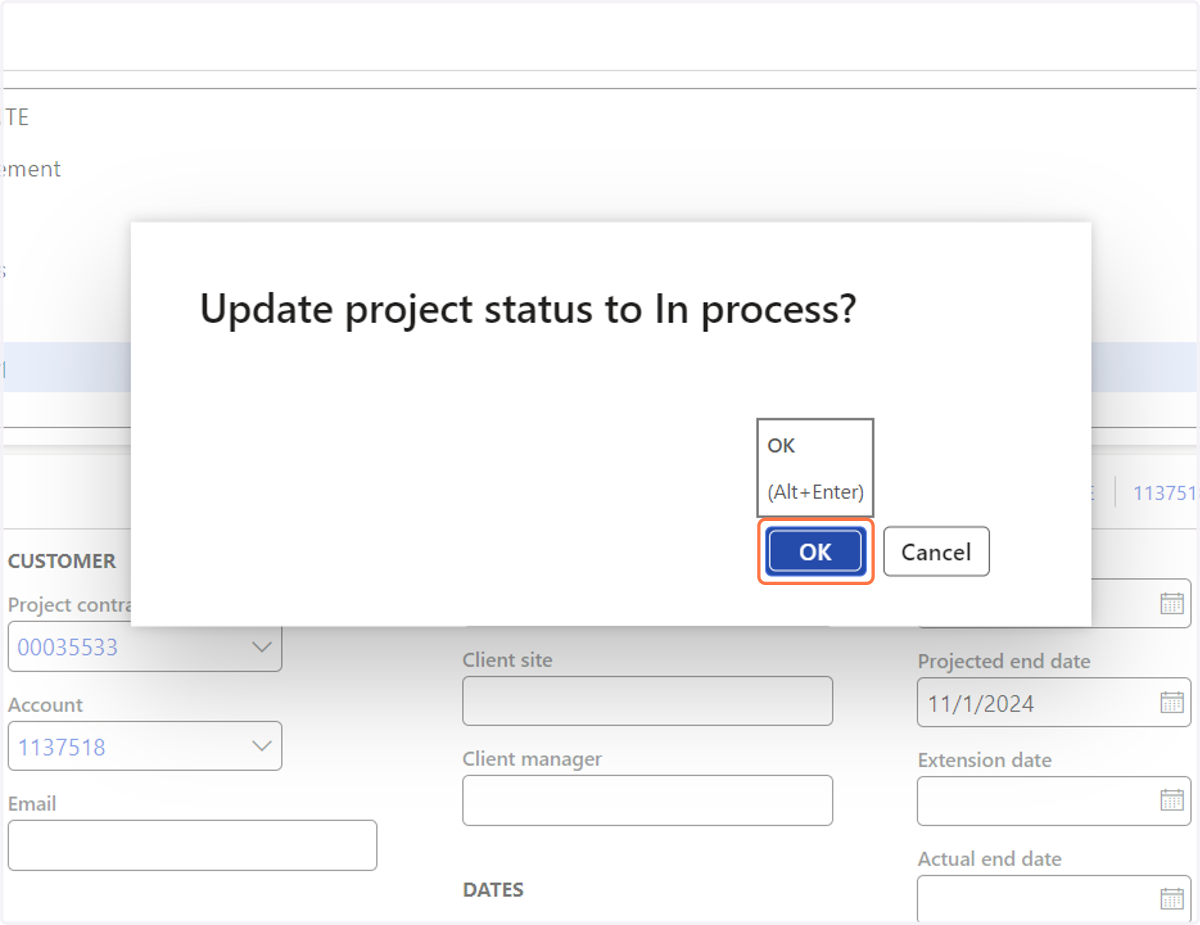
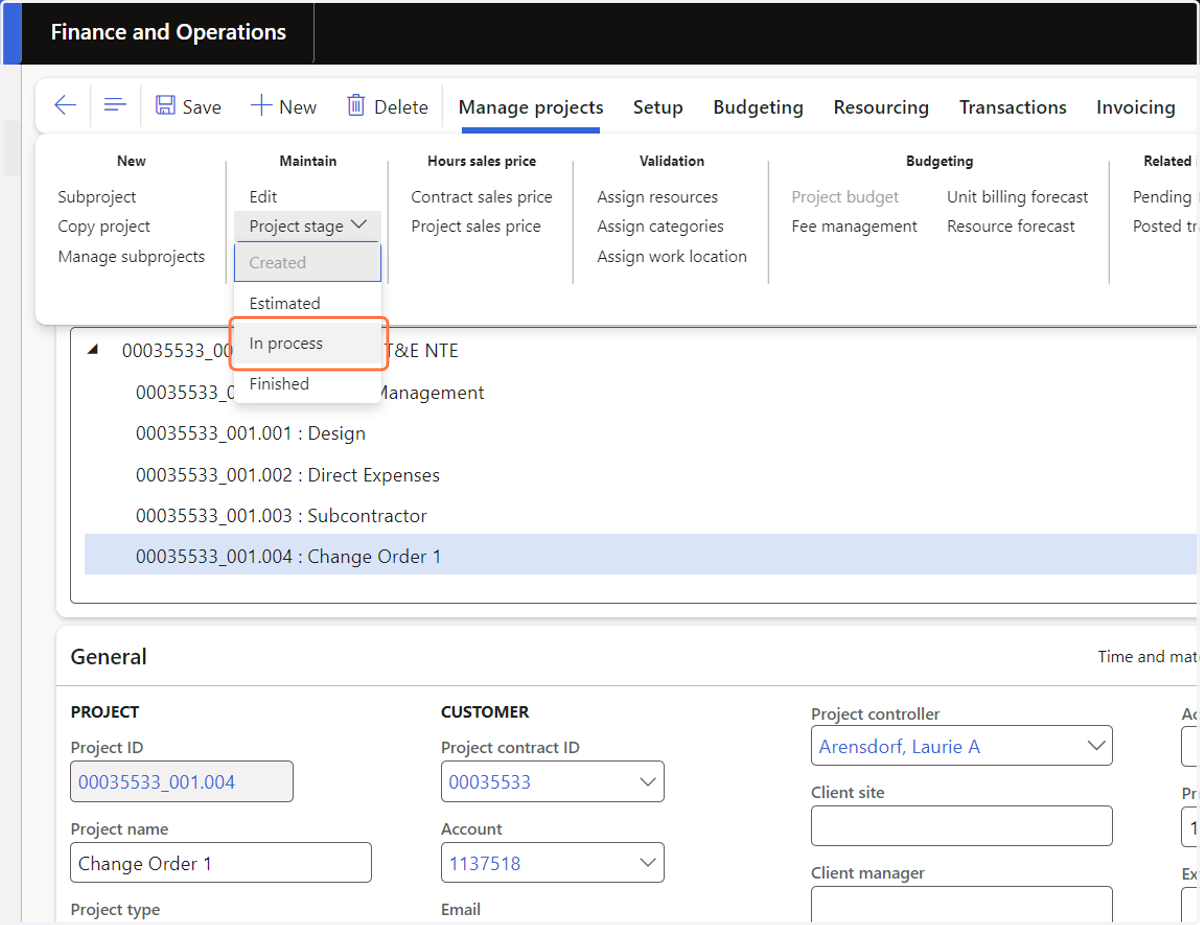
19. Select "In process"
20. Click on OK
The new task is now available for selection in timesheets.