Navigating Coverage with T.R.U.S.T
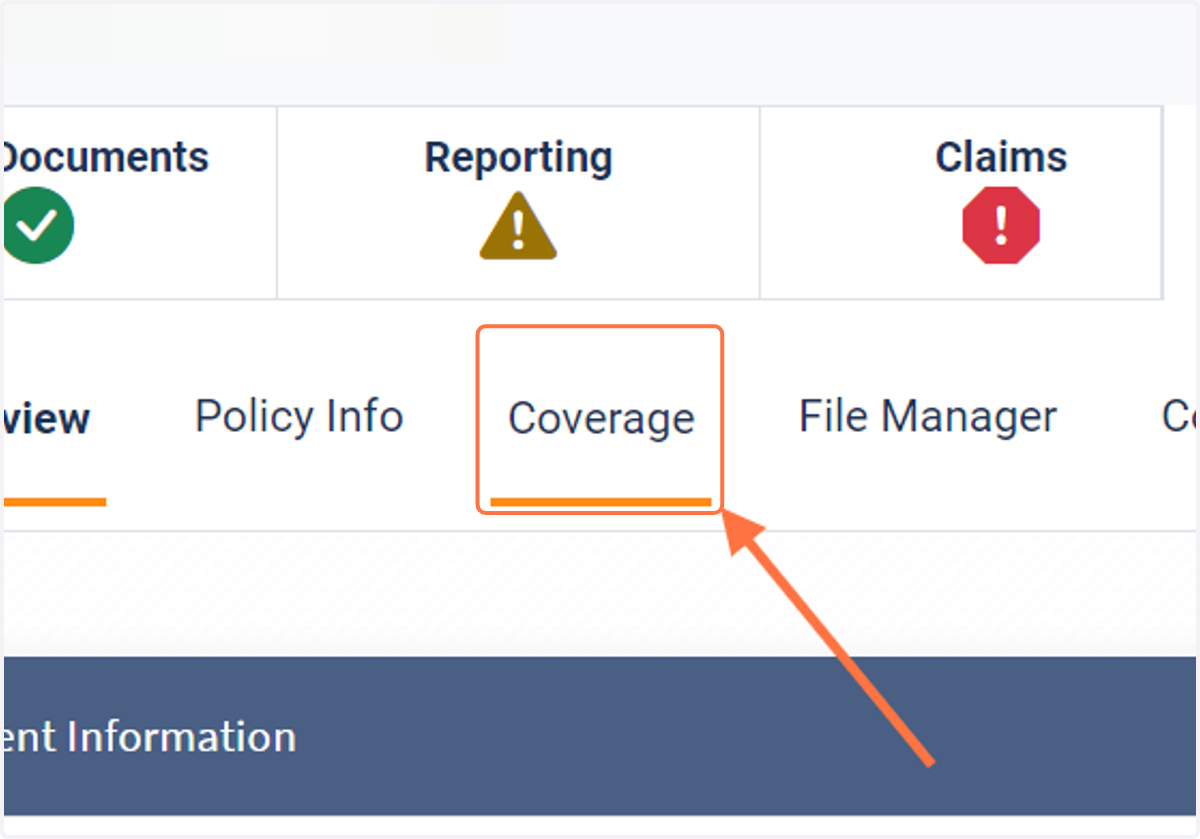
1. Coverage can be found by clicking on the button located at the top of the page
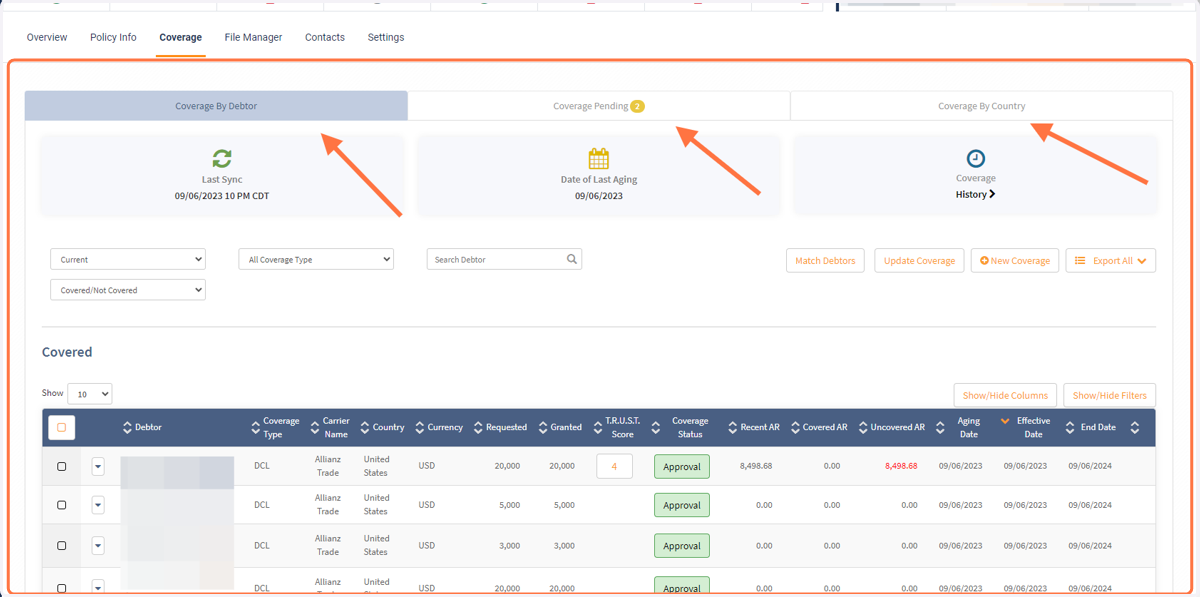
2. This gives you an overview of your coverage.
You can see coverage by debtor, pending coverage and coverage by country using the top tabs.
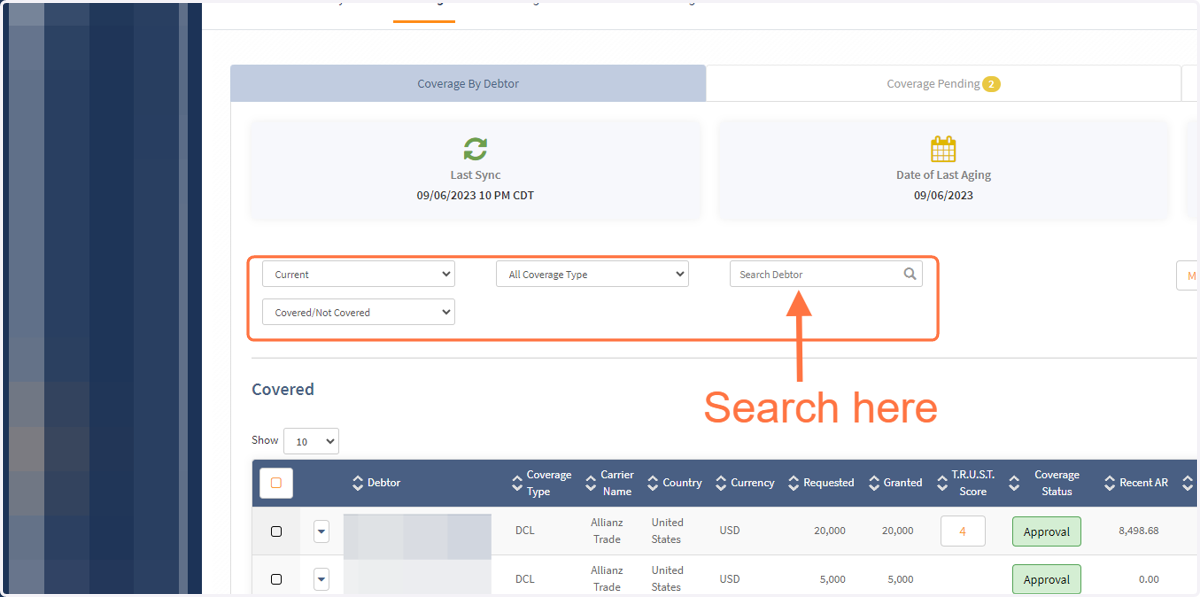
3. Search using the fields shown here
As you start typing the debtor will appear
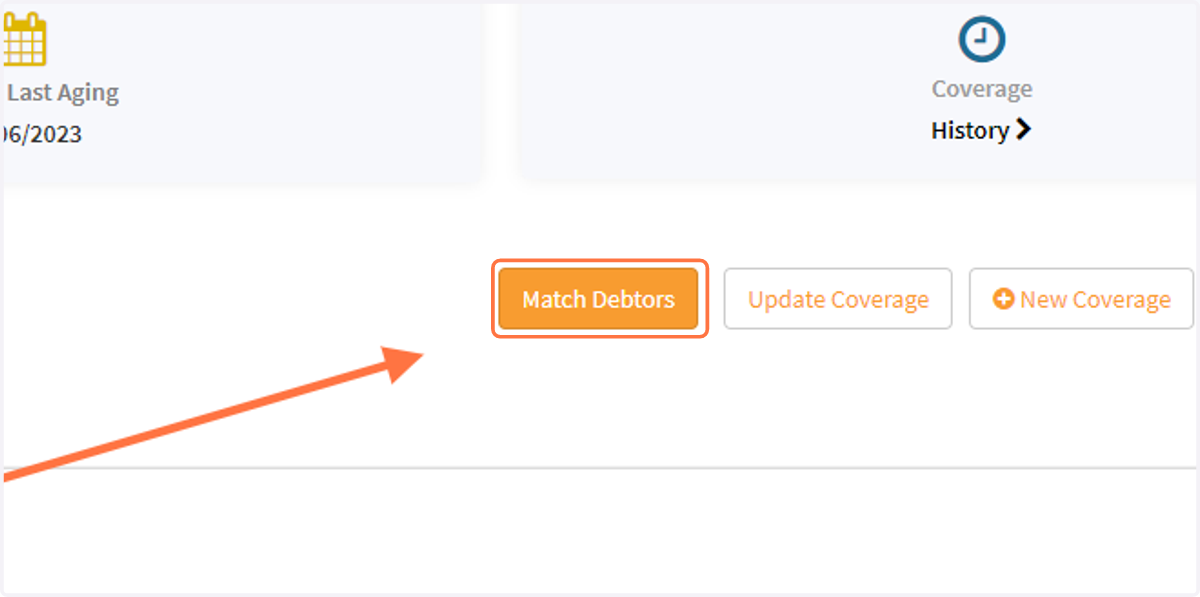
4. Ensure all debtors are correctly matched via the Match Debtors button
This is important to make sure all debtors are matched to the appropriate limit
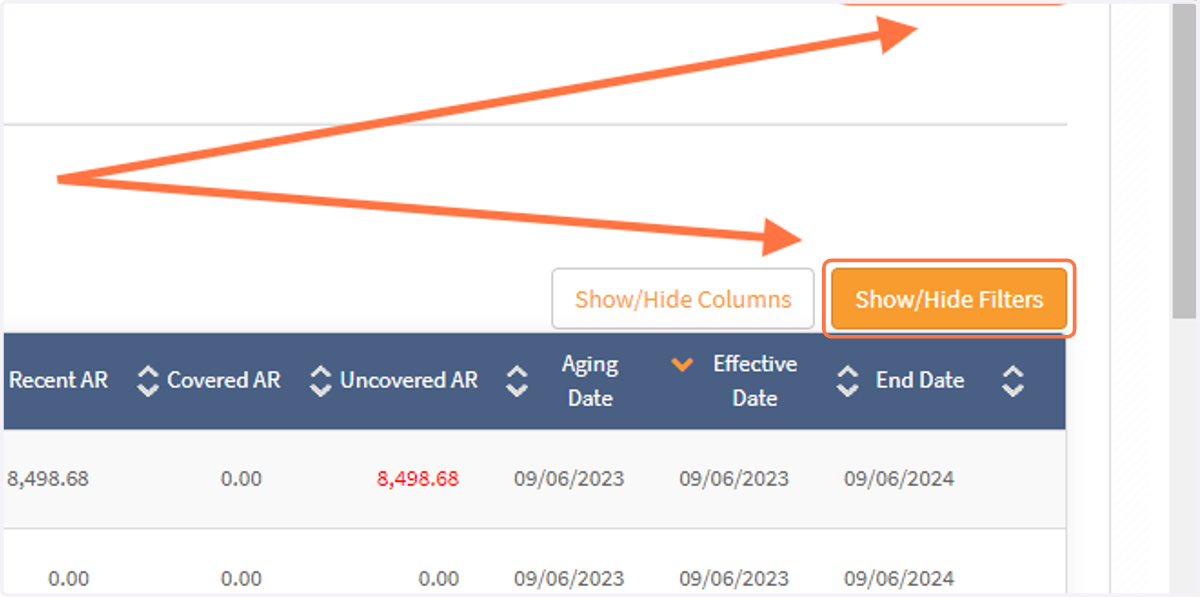
5. Click on Show/Hide Filters to alter your fields and also use the export button to export the coverage data
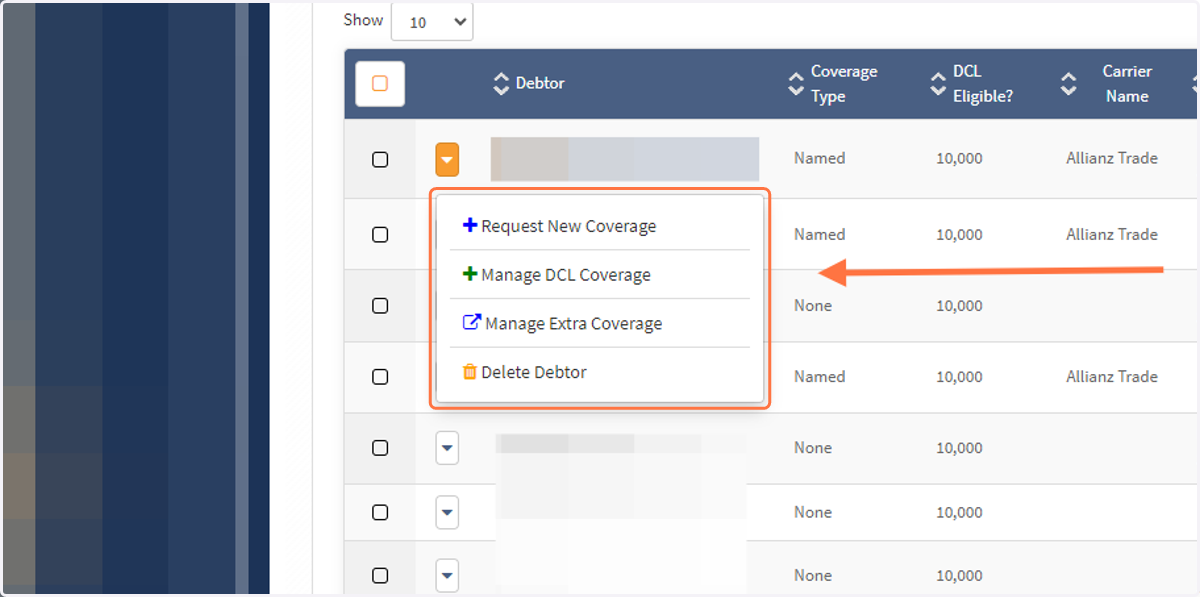
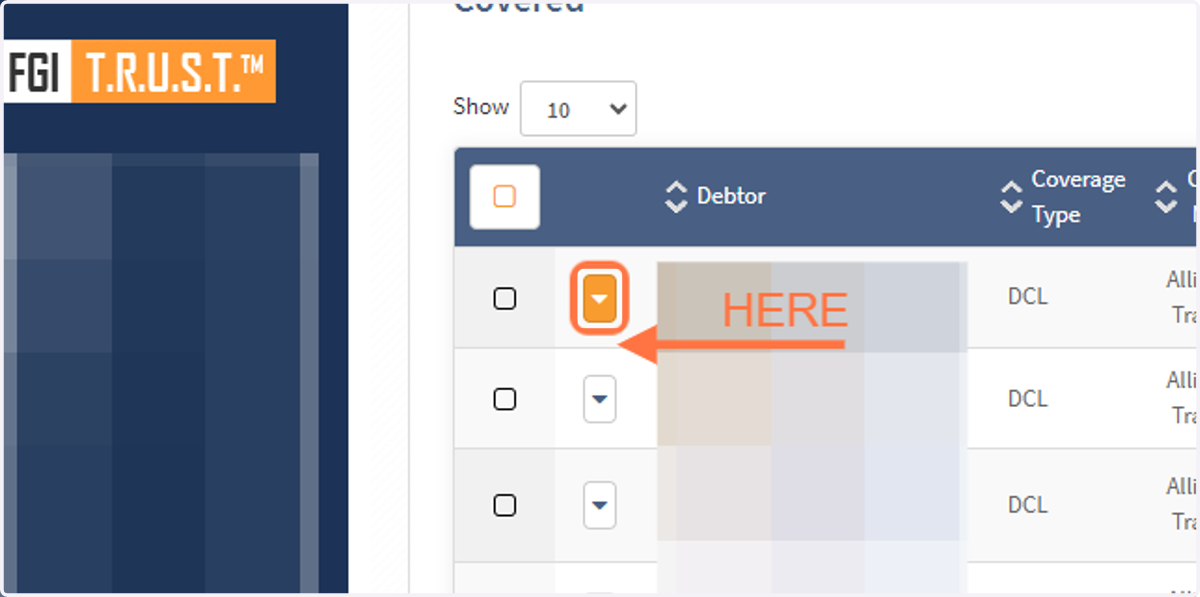
6. Click the arrow next to the desired debtor you wish to alter coverage for
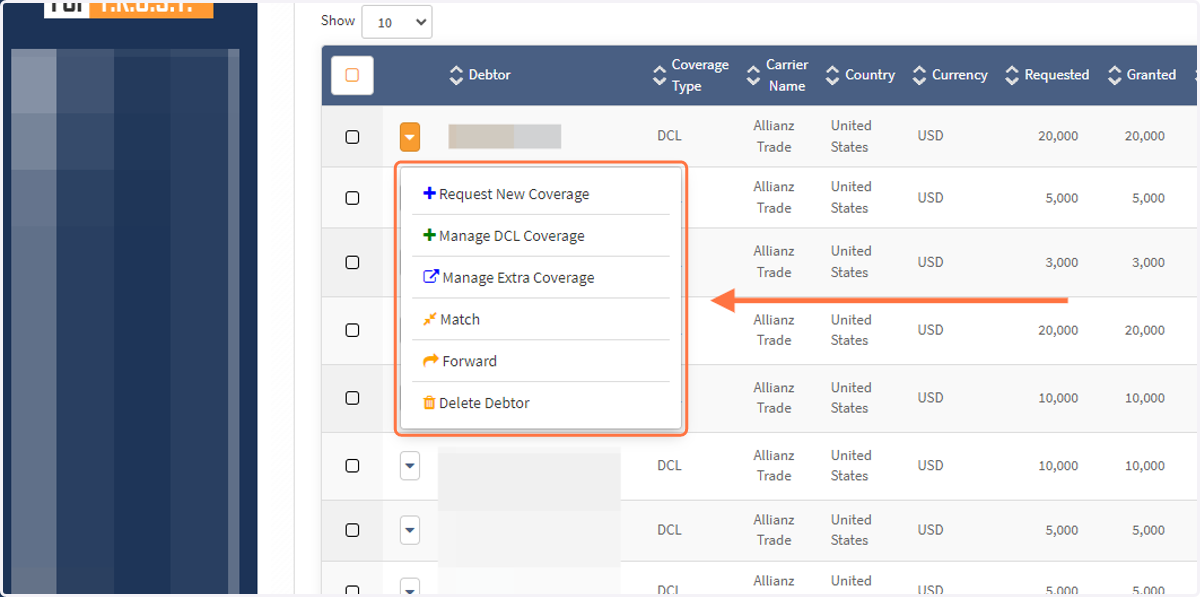
7. Here you can request new coverage, manage DCL coverage and more actions relating to the debtor
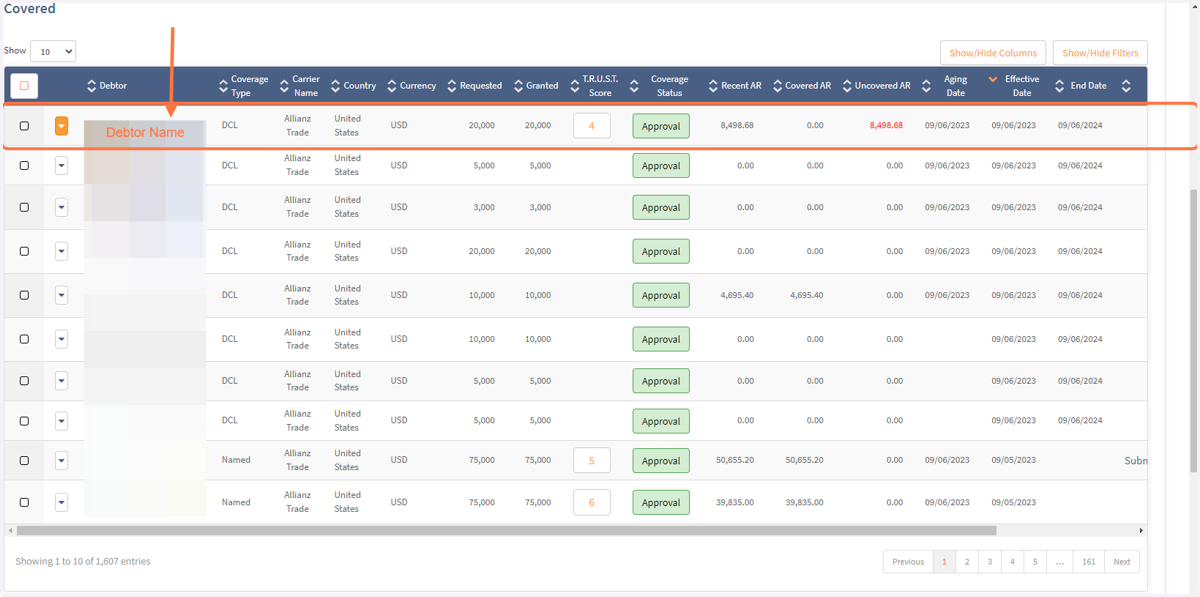
8. Click the debtor name to view in more detail
9. Not covered debtors
You can make actions here as well using the same drop down box.
You can also see the reasons for the coverage status by clicking the status on the right.