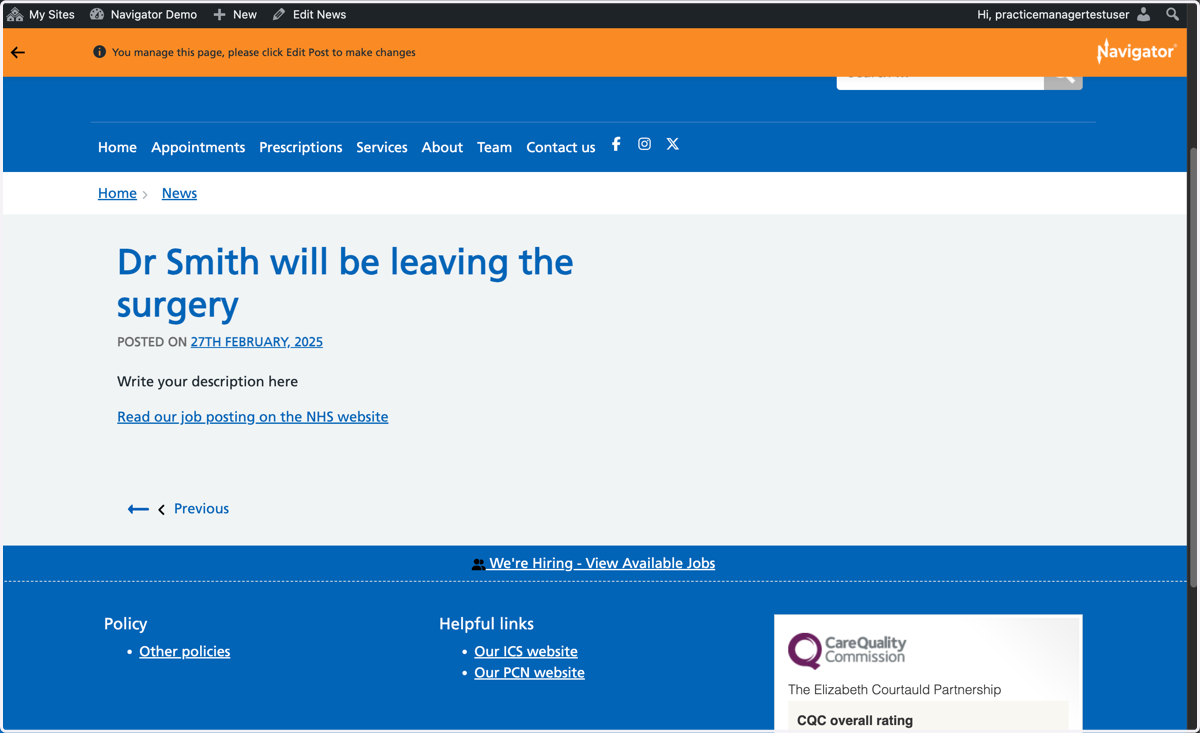
Schedule News or an Alert on a Navigator website
This tutorial explains how to schedule News or Alerts to be published at a later date on a GPsurgery.net website. You can move through the tutorial at your own pace using the NEXT button.
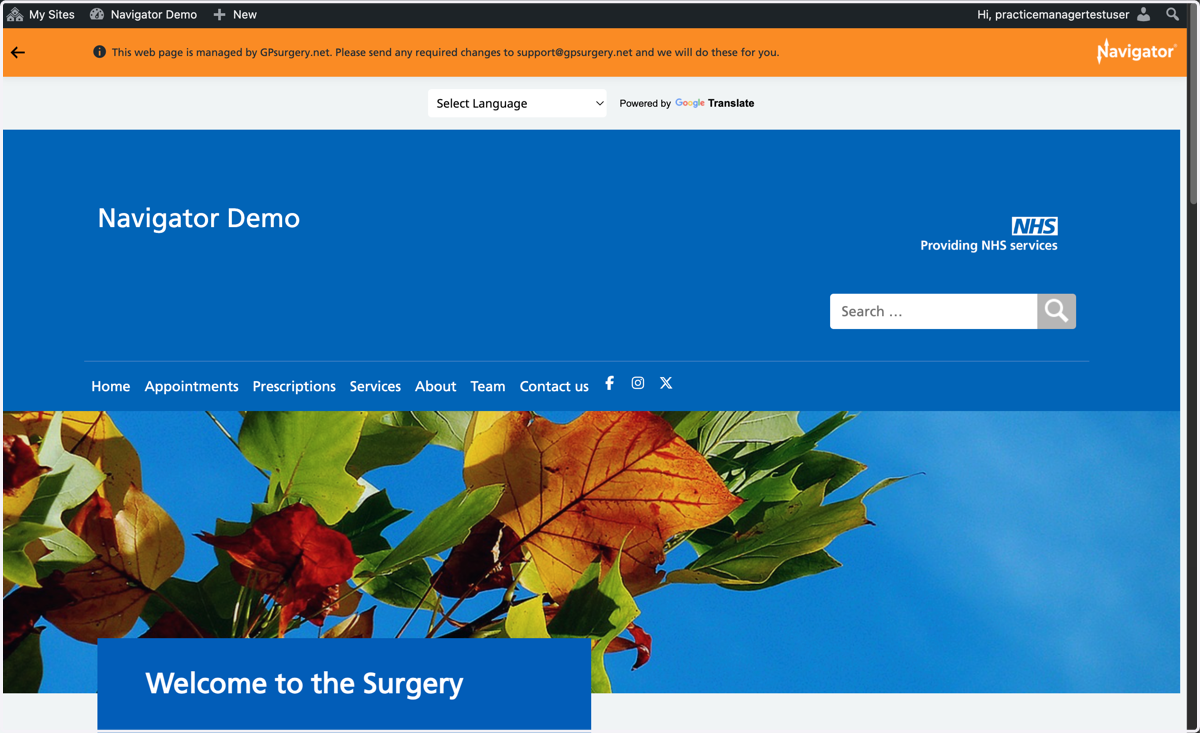
1. Ensure that you are logged into your Navigator website. The black admin toolbar will be visible at the top of the screen.
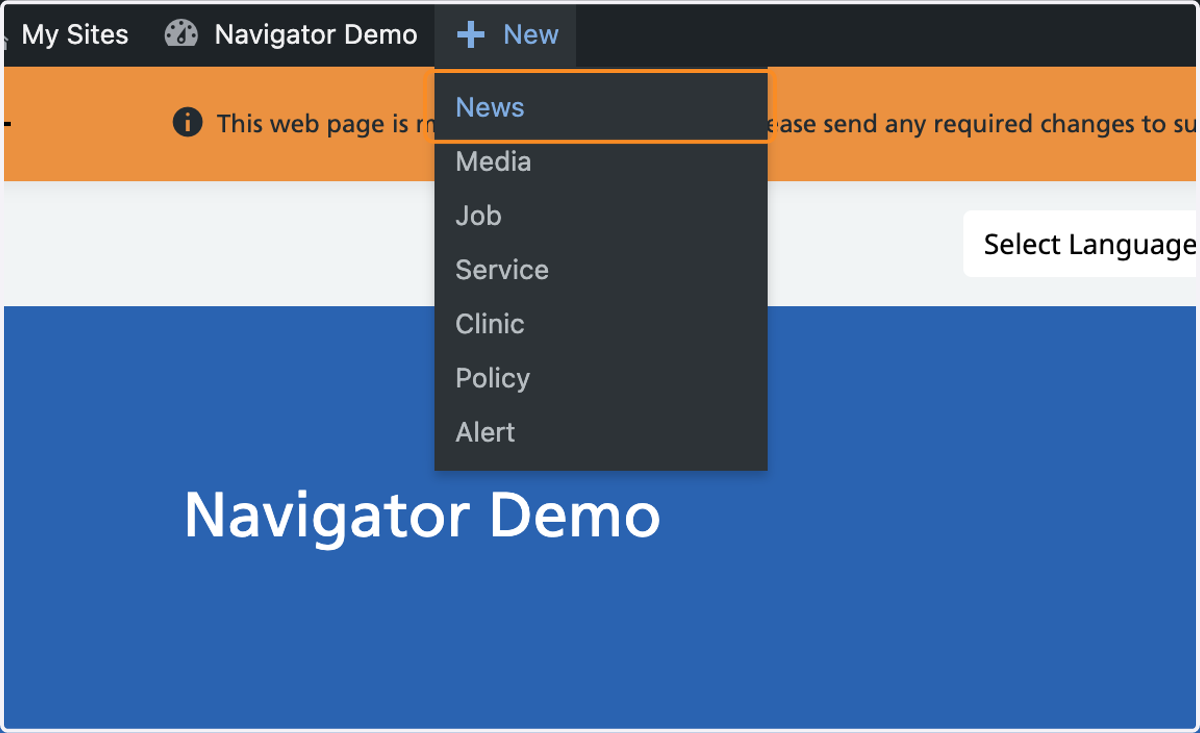
2. Hover your mouse over +New in the admin toolbar, and select News or Alert from the drop-down that appears.
3. Add your News or Alert details.
Learn how to add a News item or Alert.
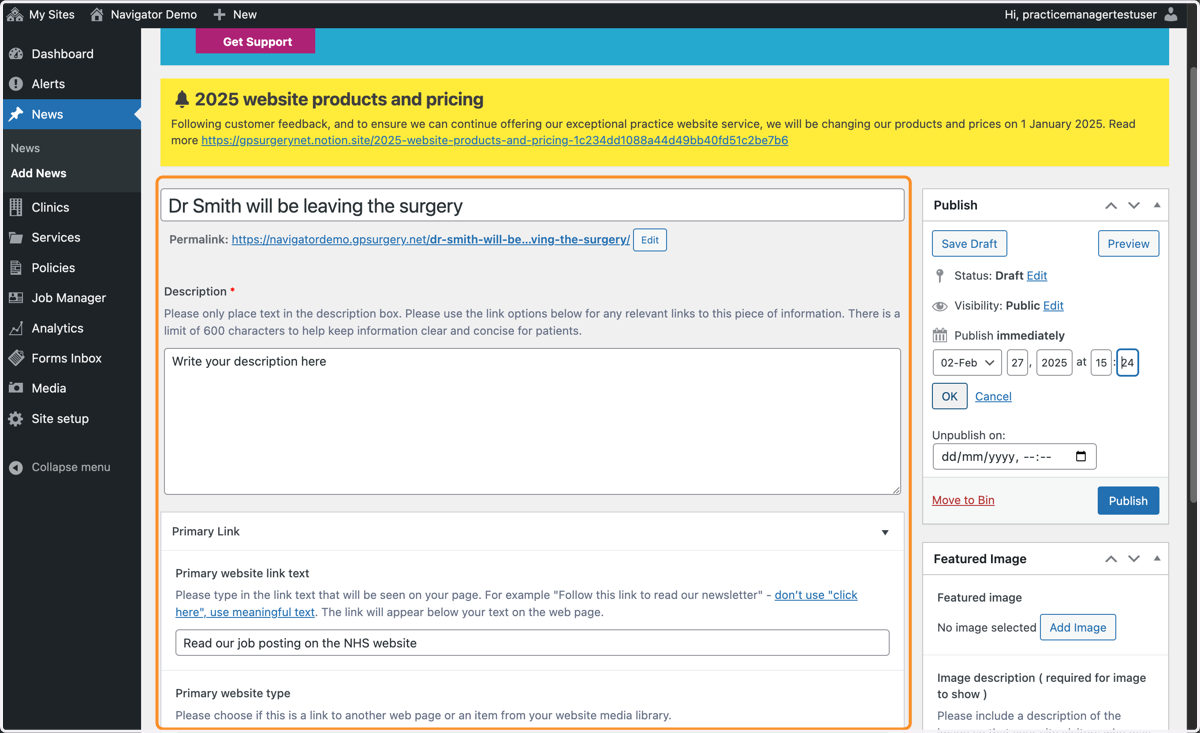
4. Once you have added all your information, go to the Publish box and select the 'Edit' link next to 'Publish immediately'
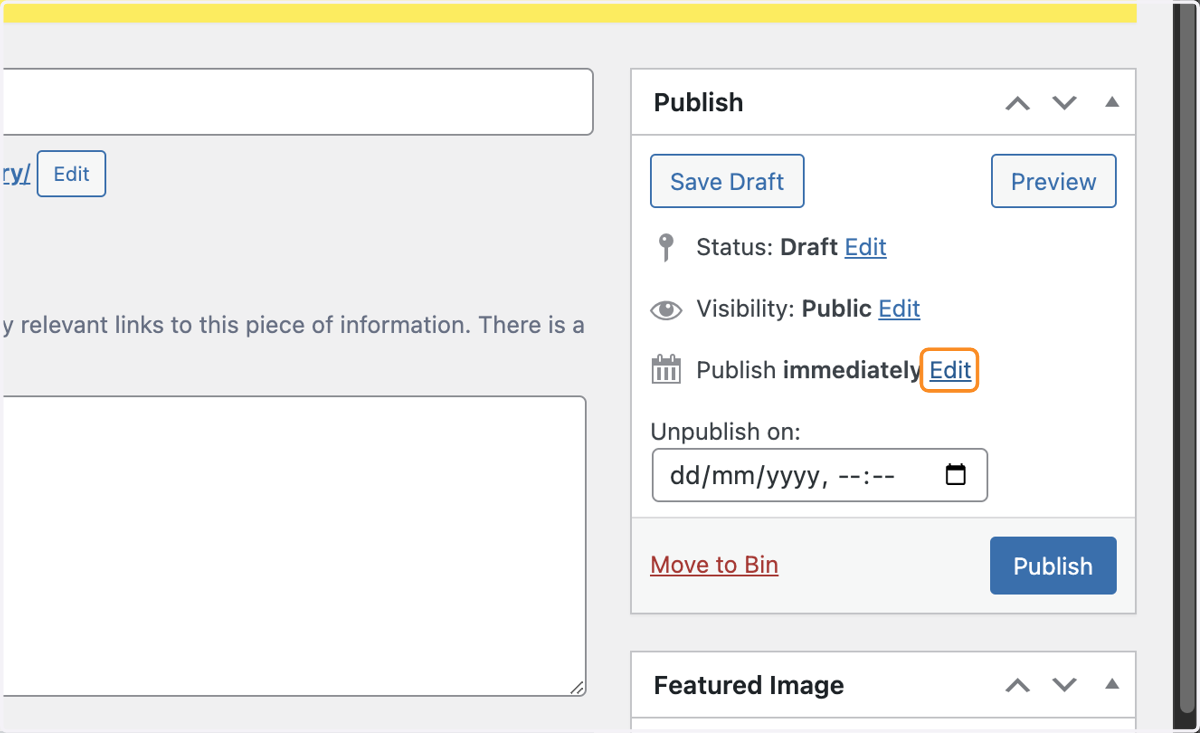
5. You can then choose a Date and time that you would like your content to be published.
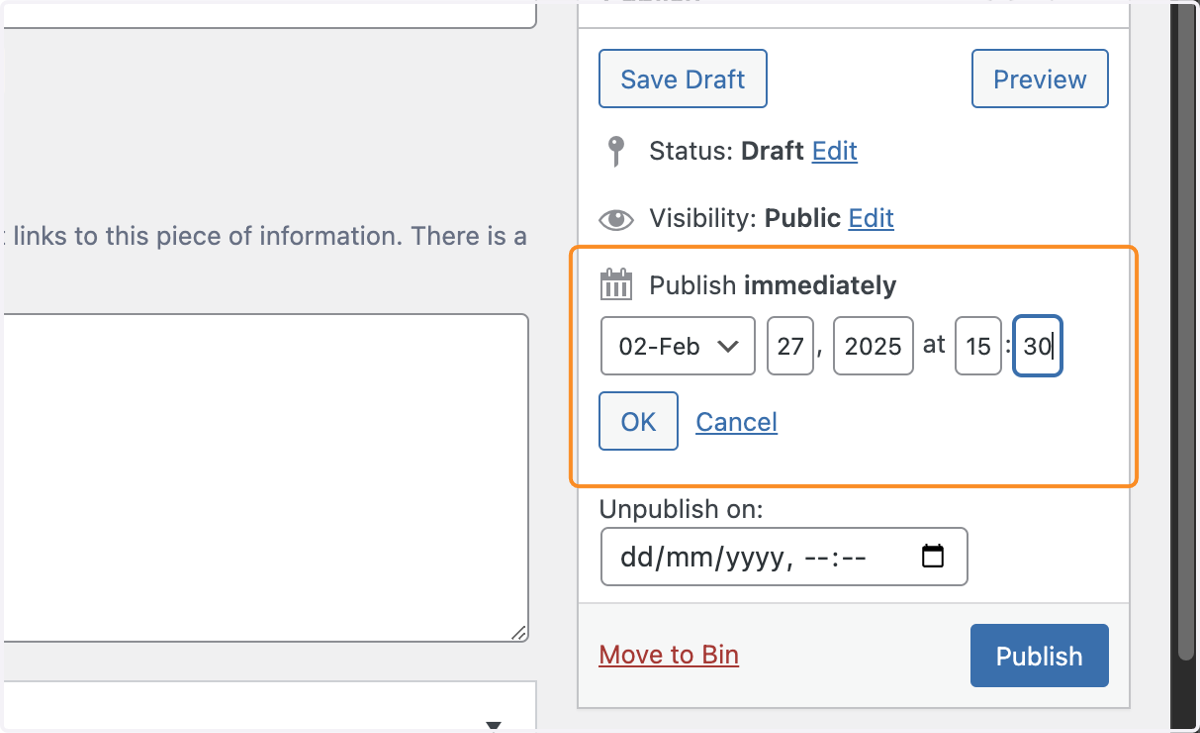
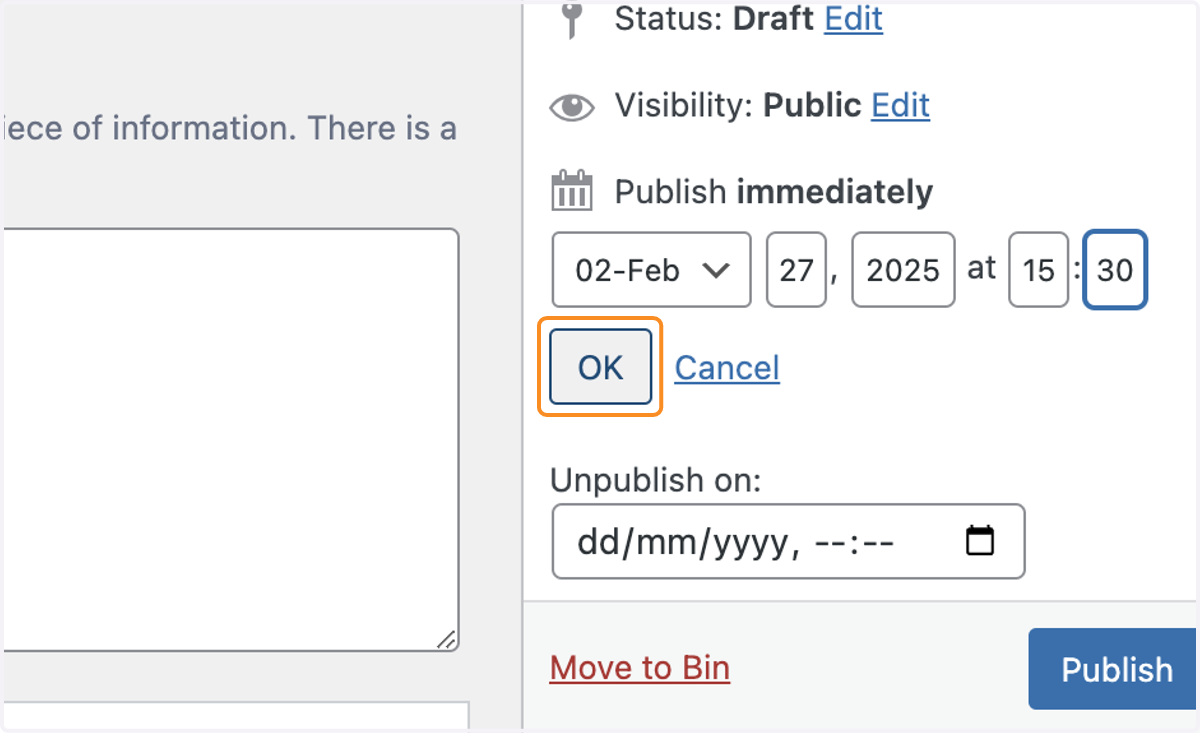
6. Once you have set your date and time, select the grey OK button.
7. Then select the blue Schedule button.
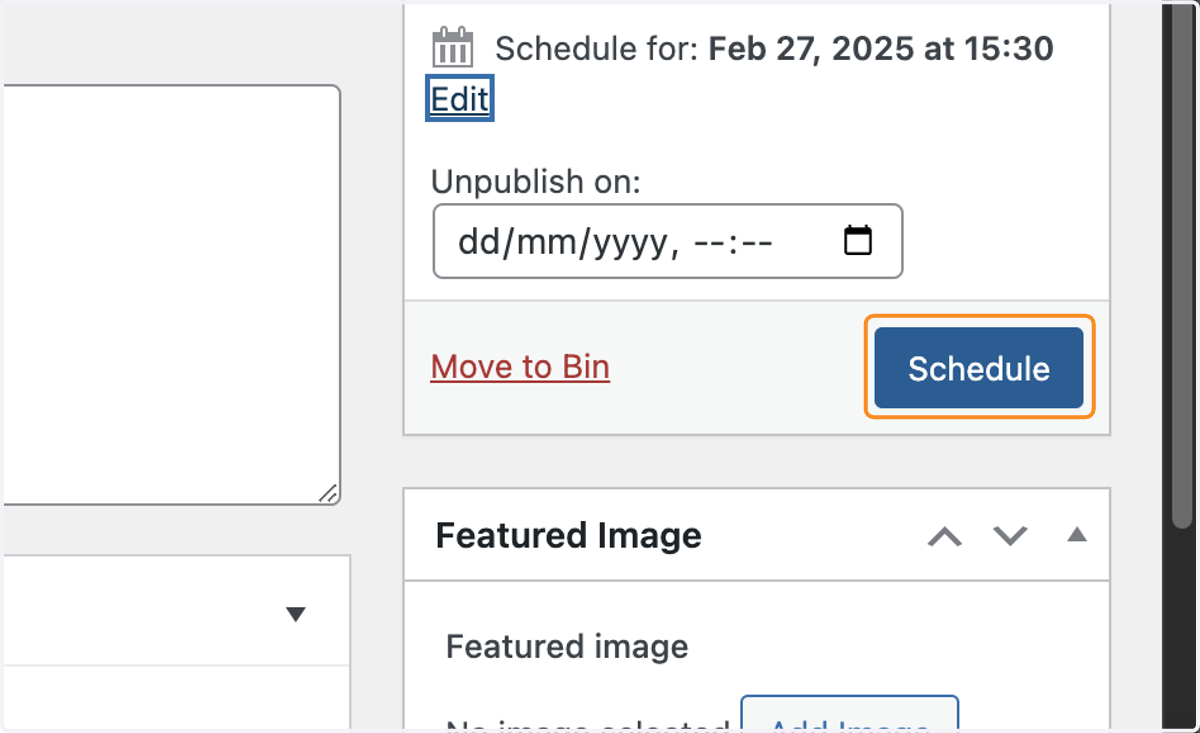
8. Your Alert or News item will now be scheduled for the time you picked. A small confirmation message will appear.
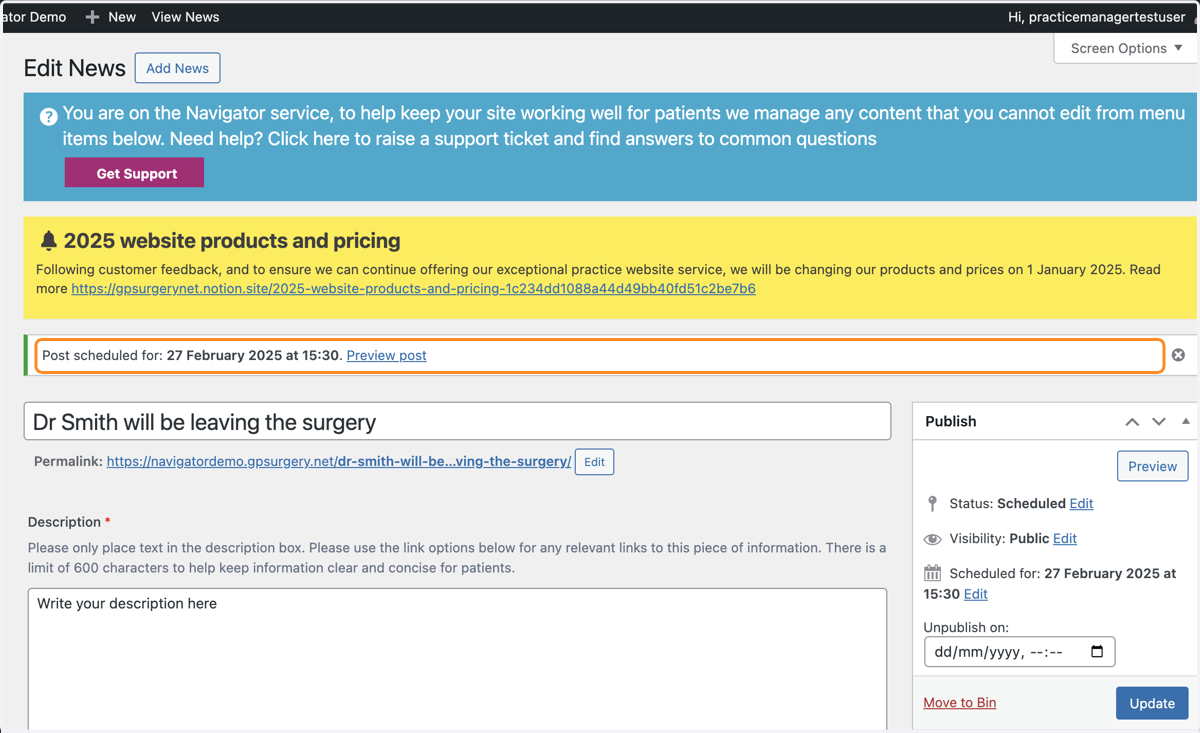
9. When the date and time you chose arrives, your News item or Alert will be published.