How to Create a Product & Link to a Sales Page

Horse Business Manager

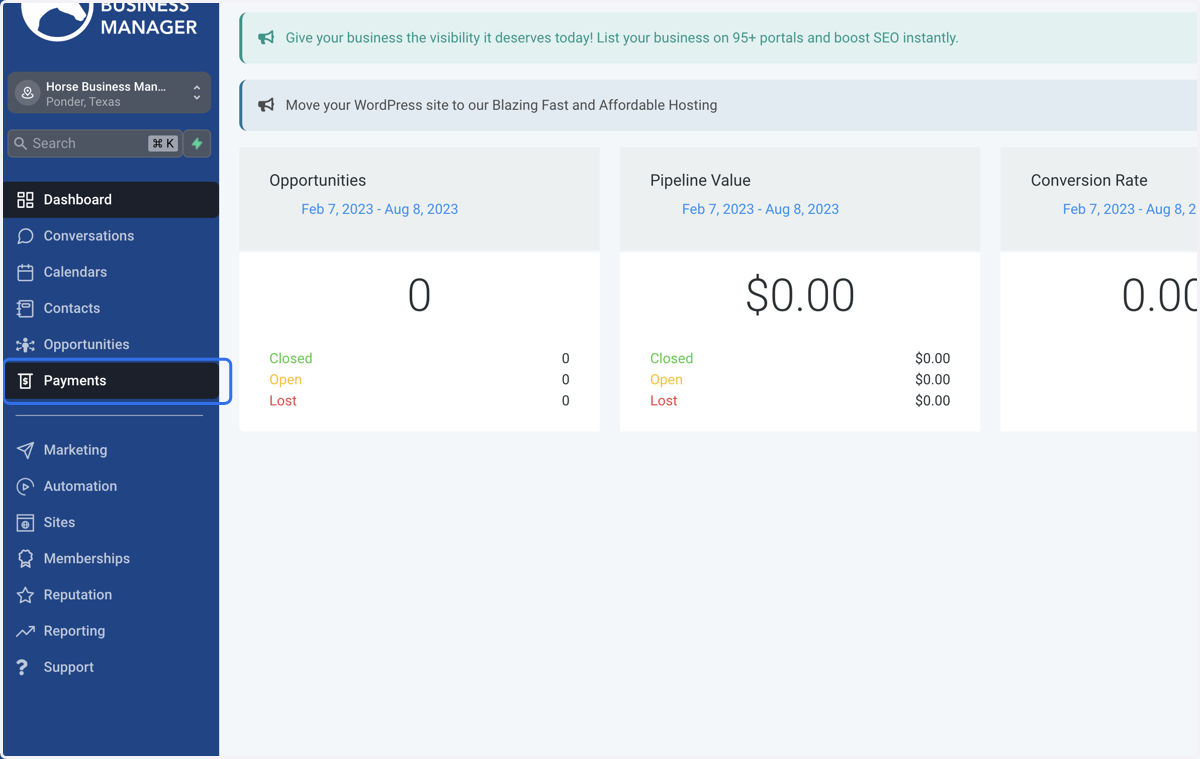
  1. 1. Click on Payments

    Click on Payments
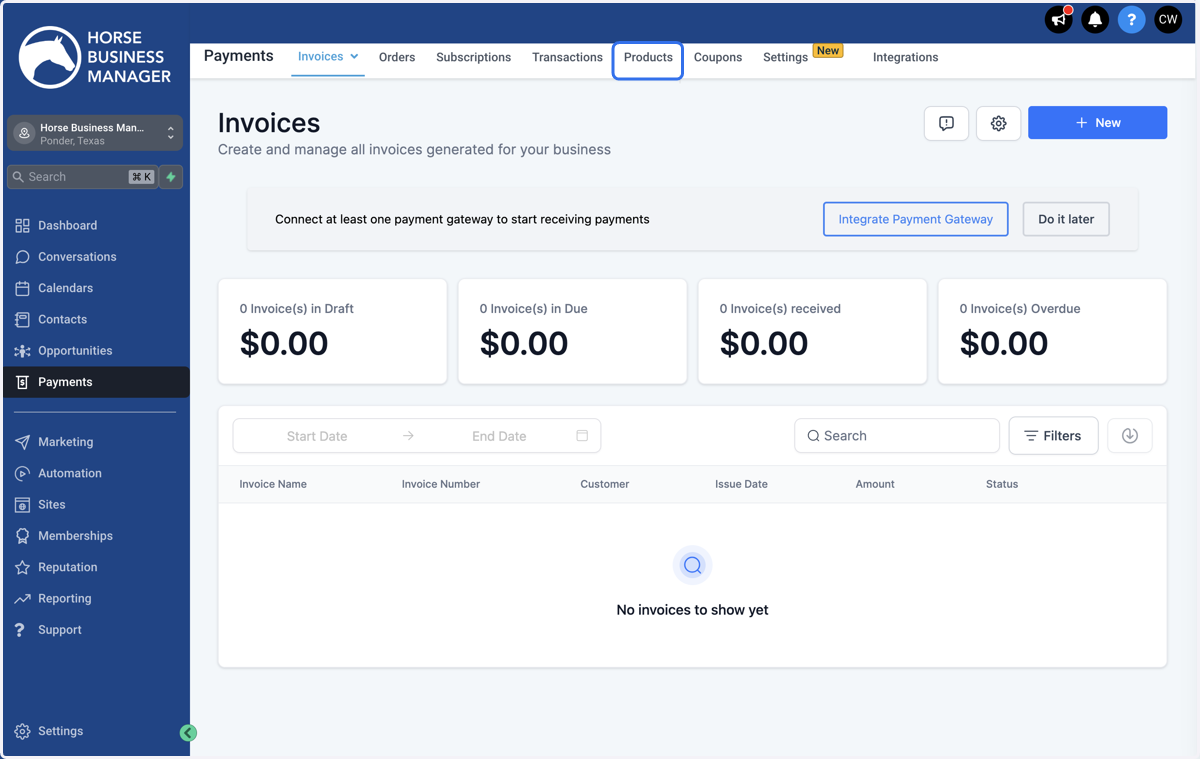
  2. 2. Click on Products

    Click on Products
  3. 3. Click on Create Product or Import an Existing Product from Stripe
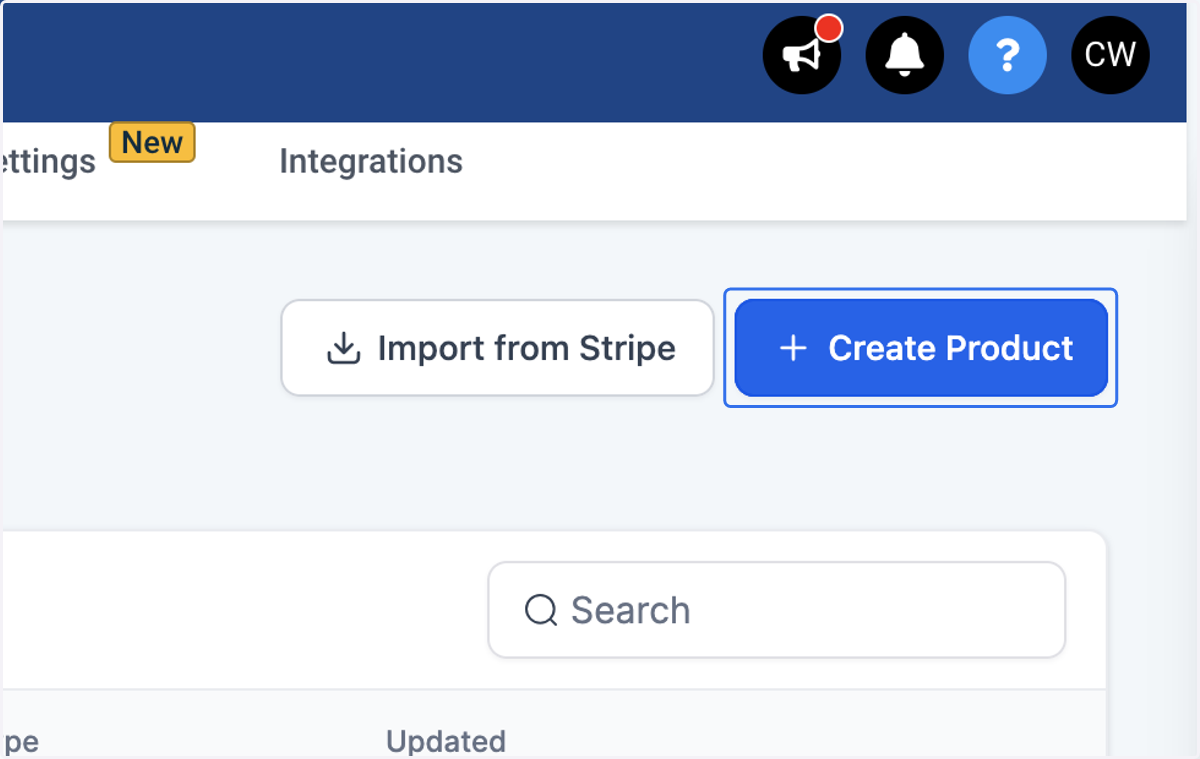
    Click on Create Product or Import an Existing Product from Stripe
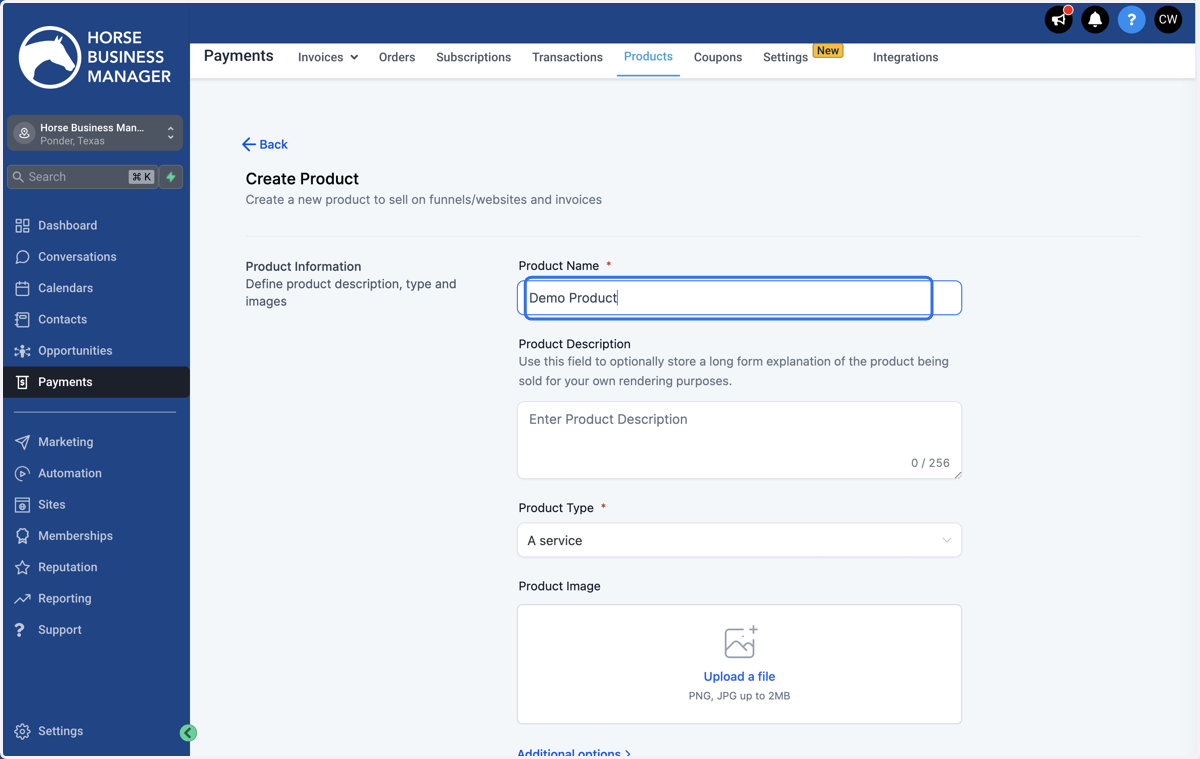
  4. 4. Name your new product

    Name your new product
  5. 5. Add a description of the product (optional)
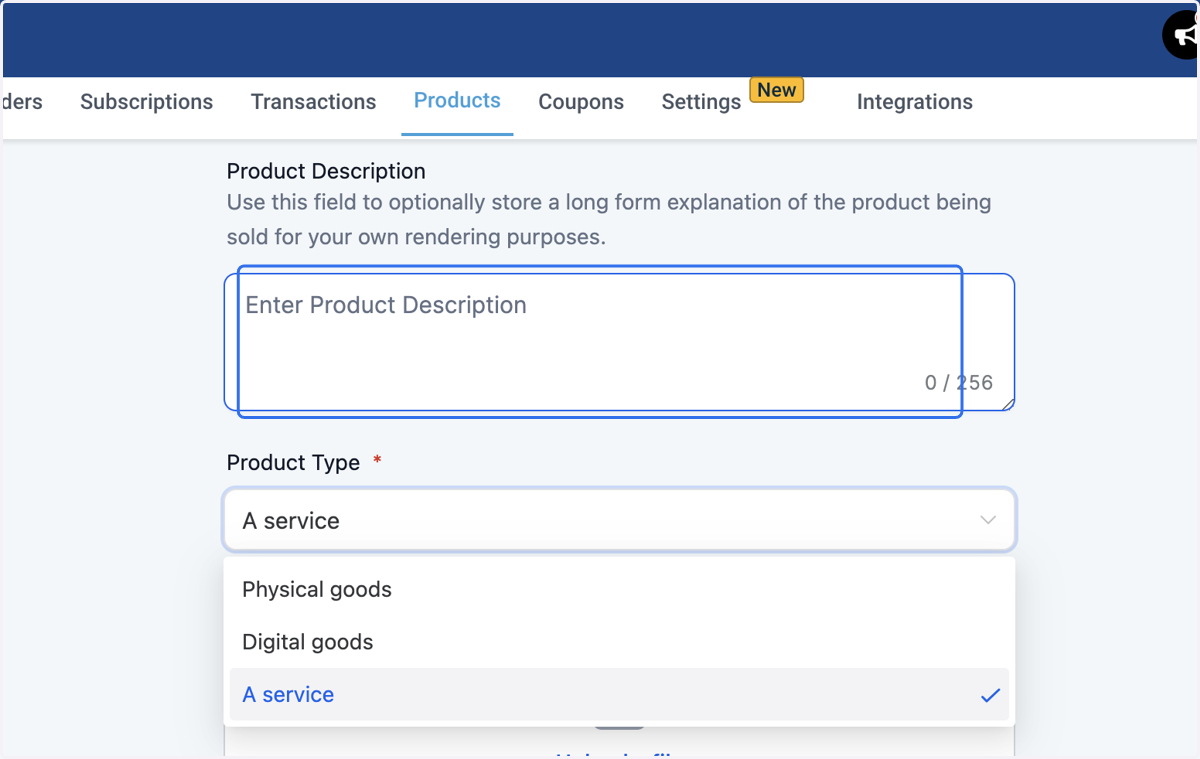
    Add a description of the product (optional)
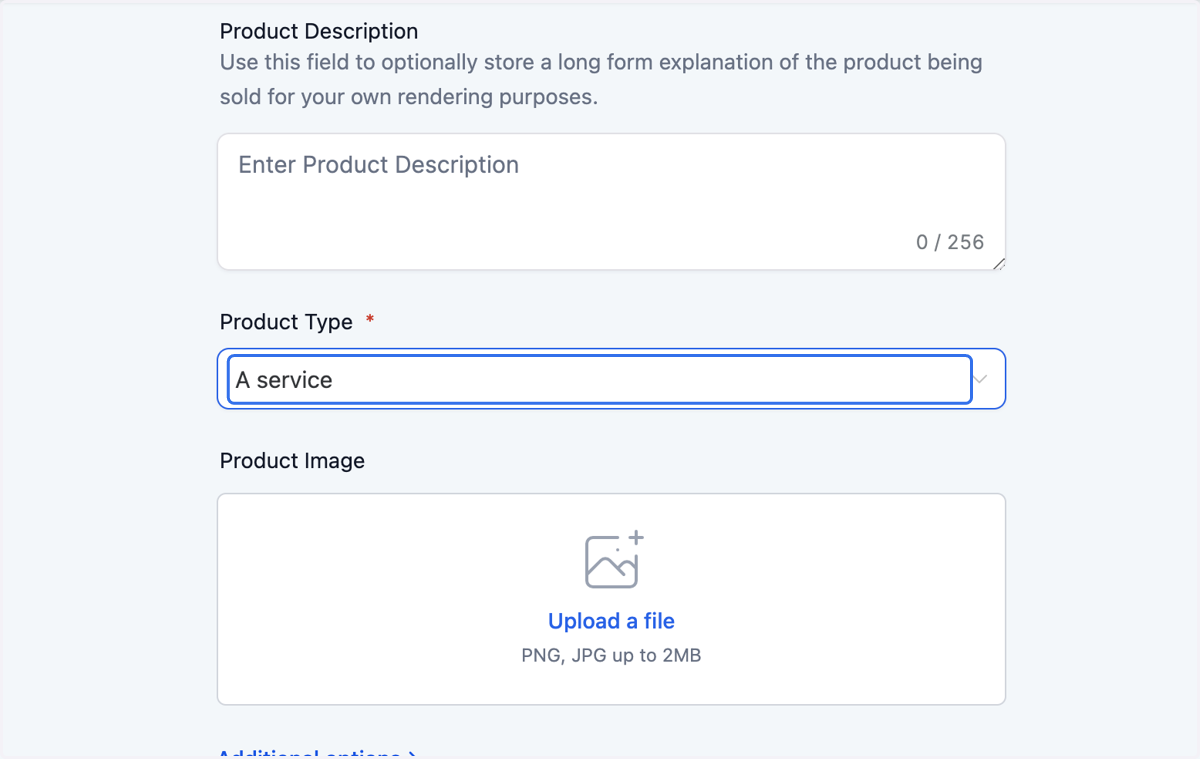
  6. 6. Select the product type

    Select the product type
  7. 7. Add an image of your product (optional)
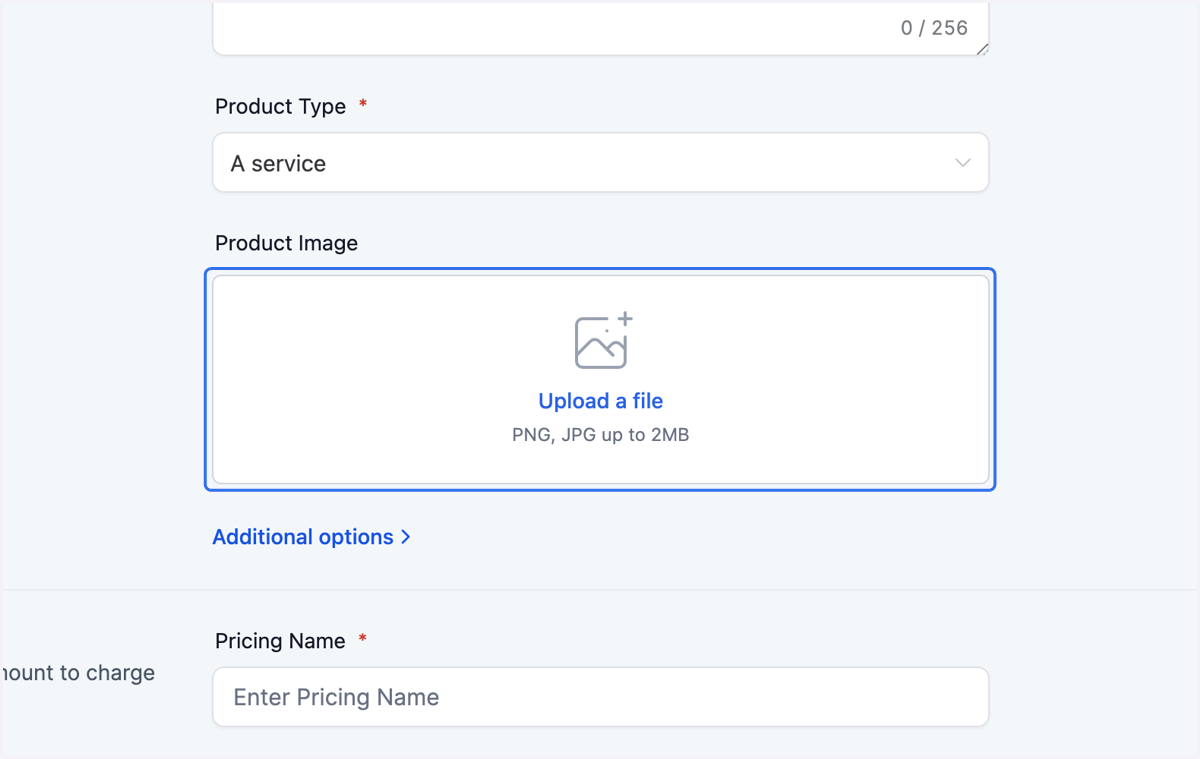
    Add an image of your product (optional)
  8. 8. Click on Additional options (optional)
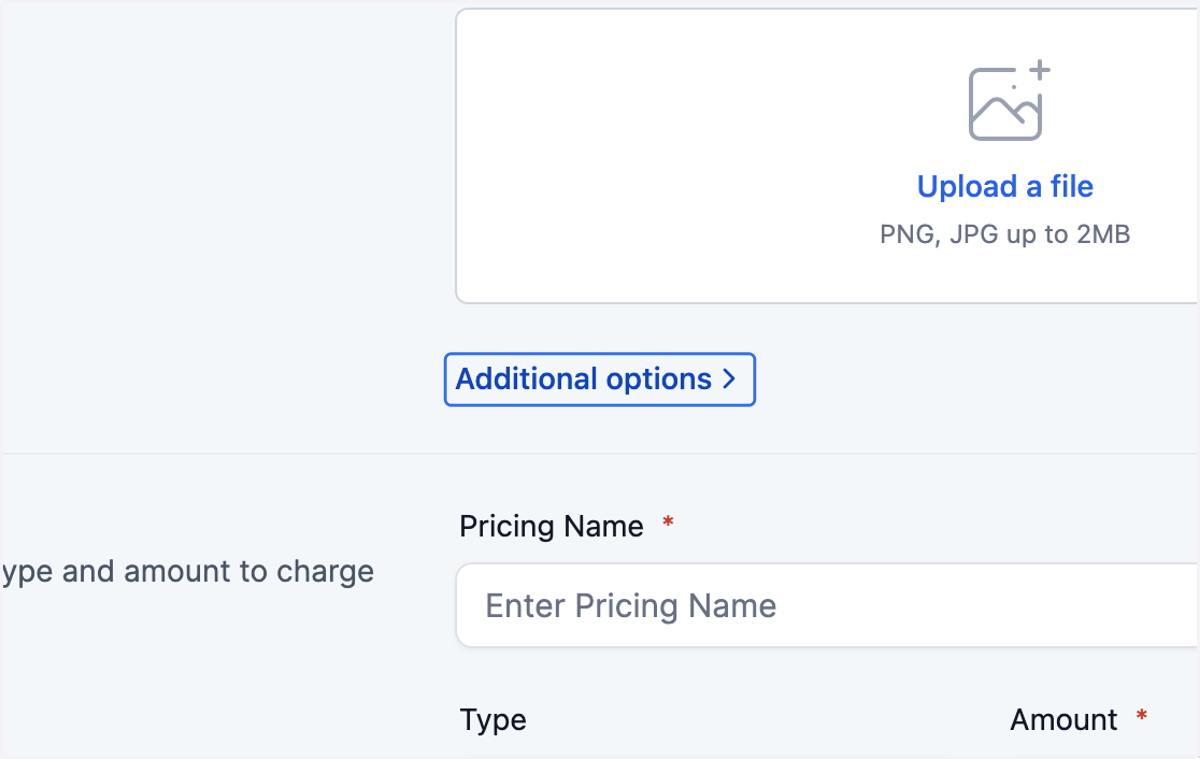
    Click on Additional options (optional)
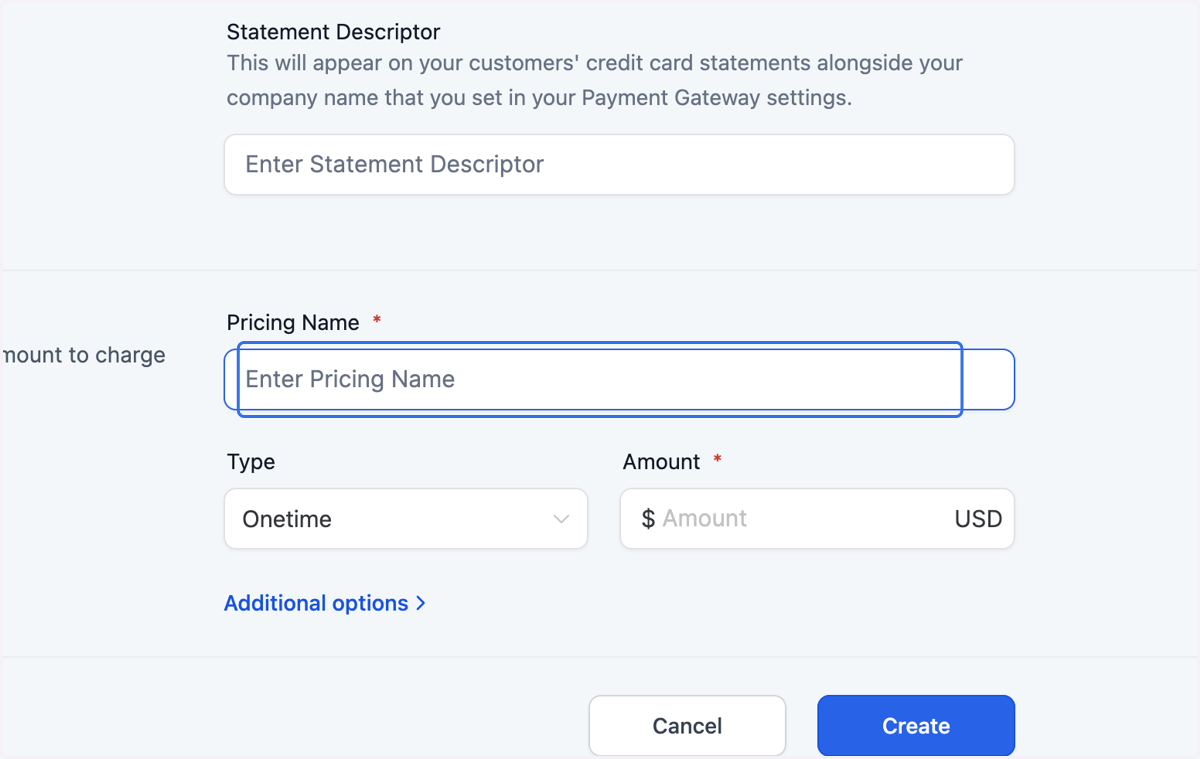
  9. 9. Click on Enter Statement Descriptor (optional)
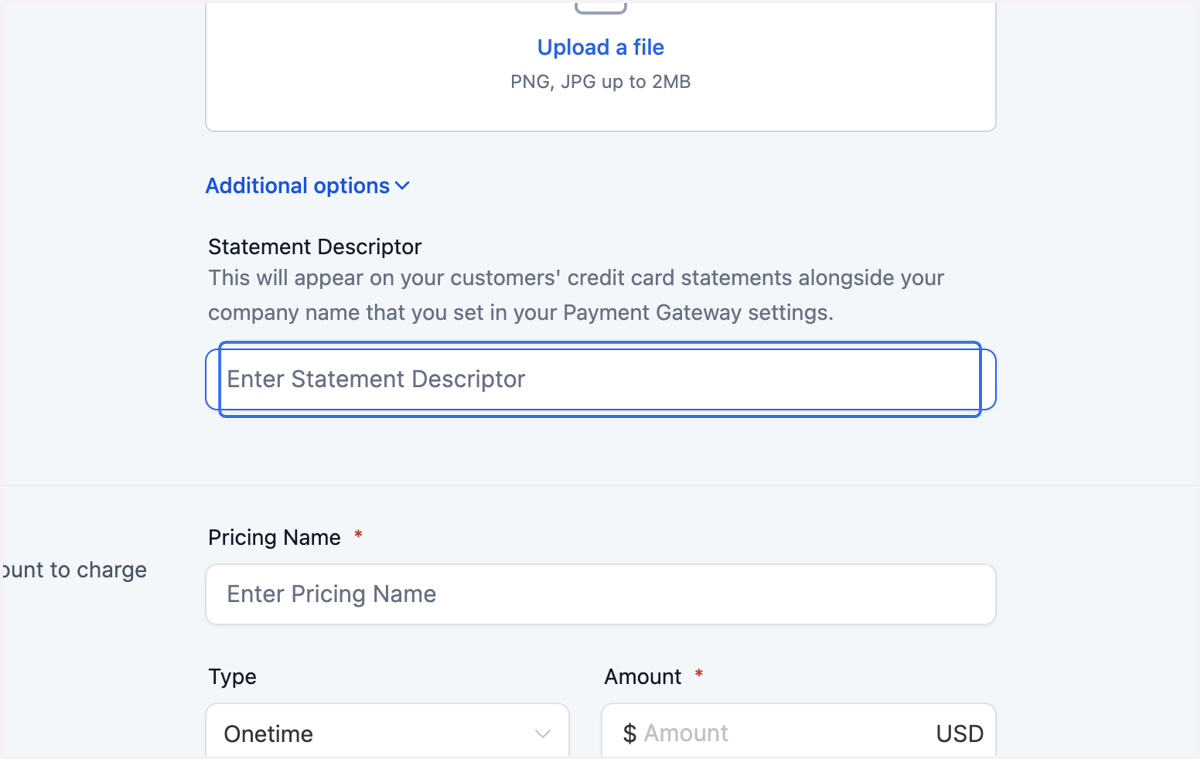
    Click on Enter Statement Descriptor (optional)
  10. 10. Add a Pricing Name

    Add a Pricing Name
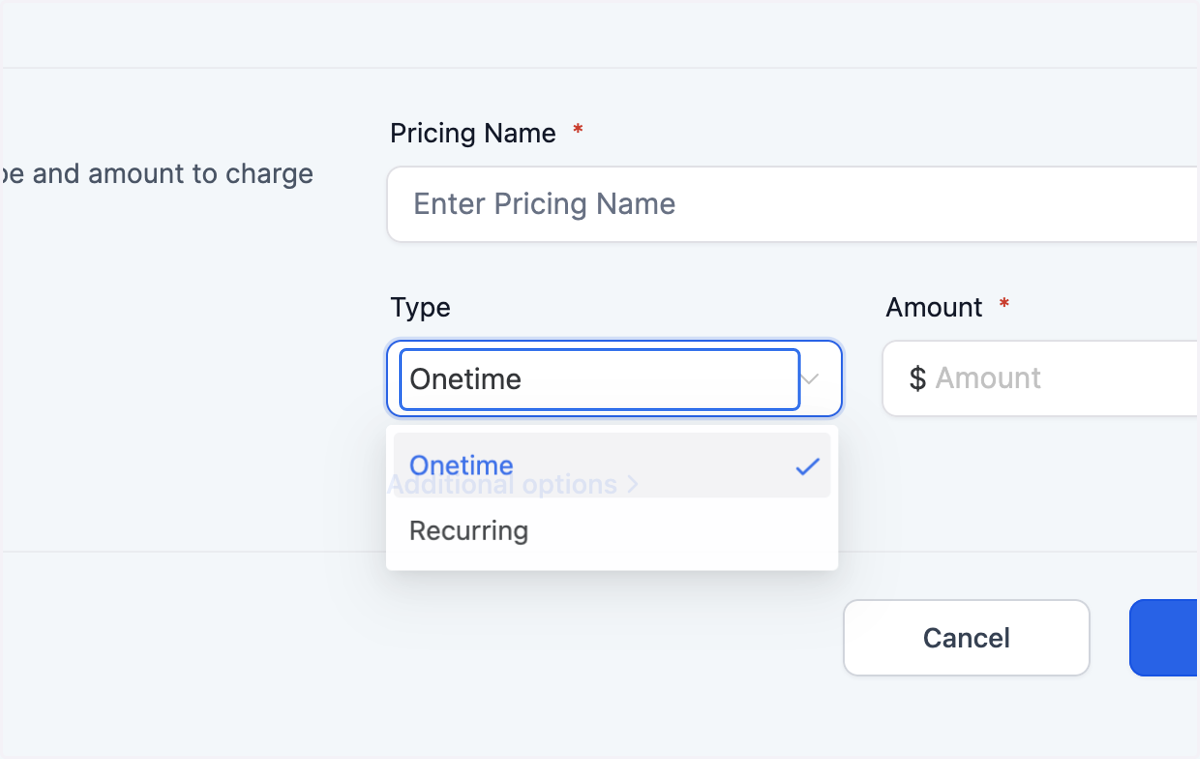
  11. 11. Select a payment type

    Select a payment type
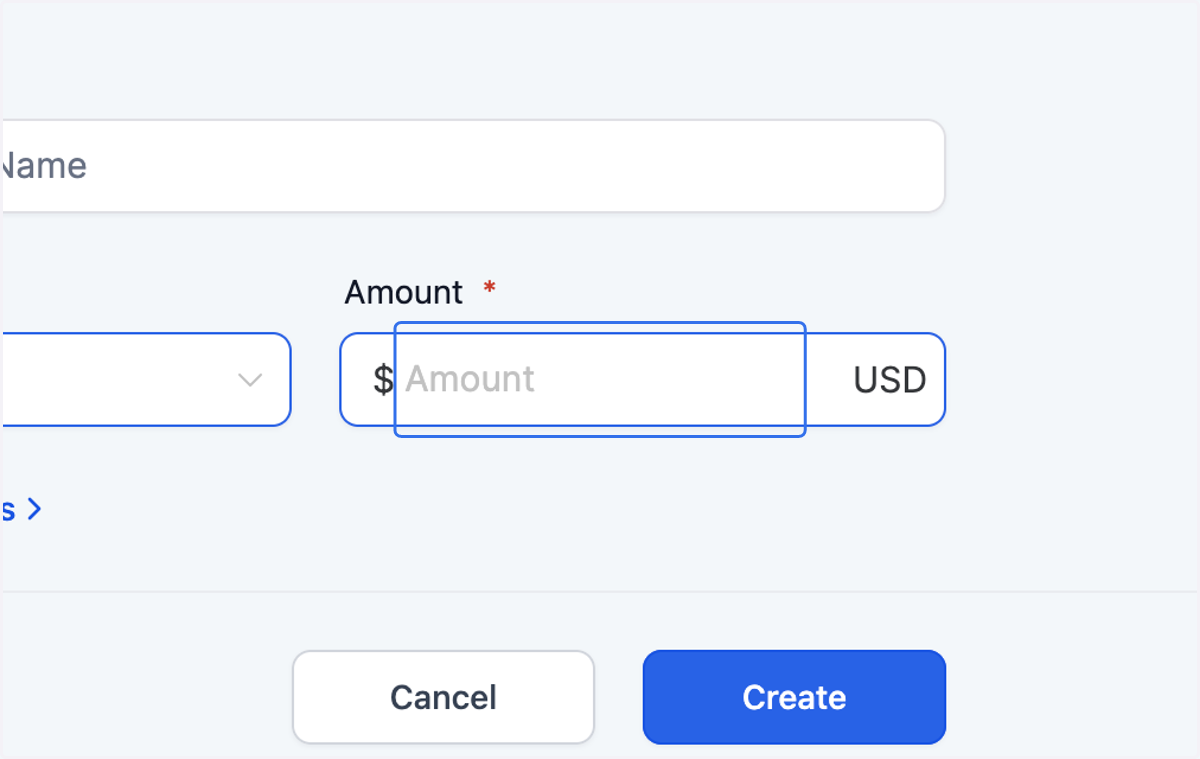
  12. 12. Add an Amount

    Add an Amount
  13. 13. Click on Additional options (optional)
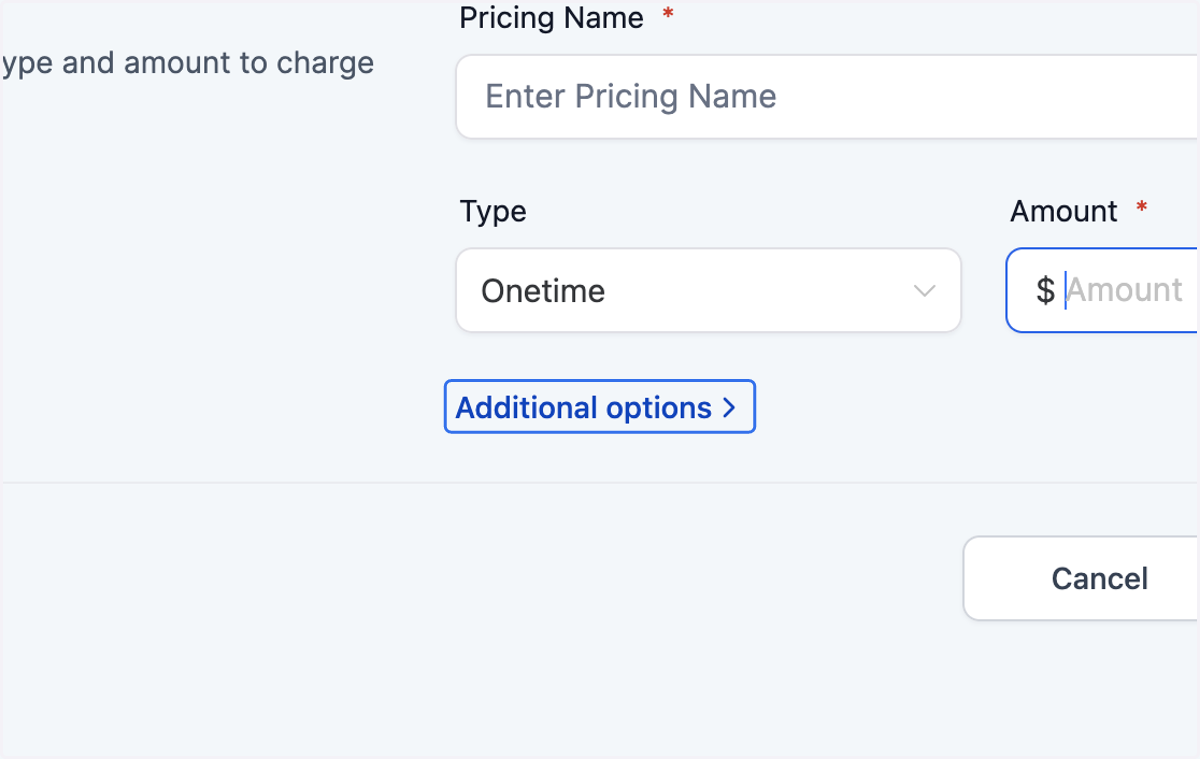
    Click on Additional options (optional)
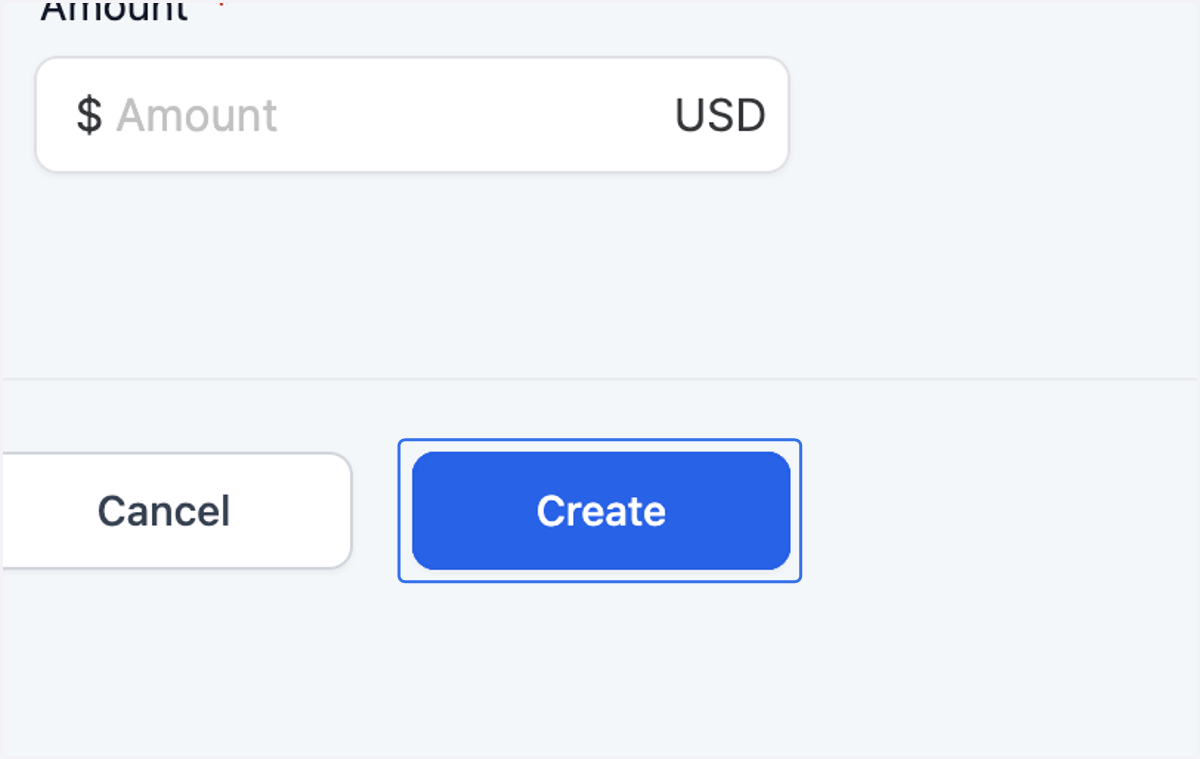
  14. 14. Click on Create

    Click on Create
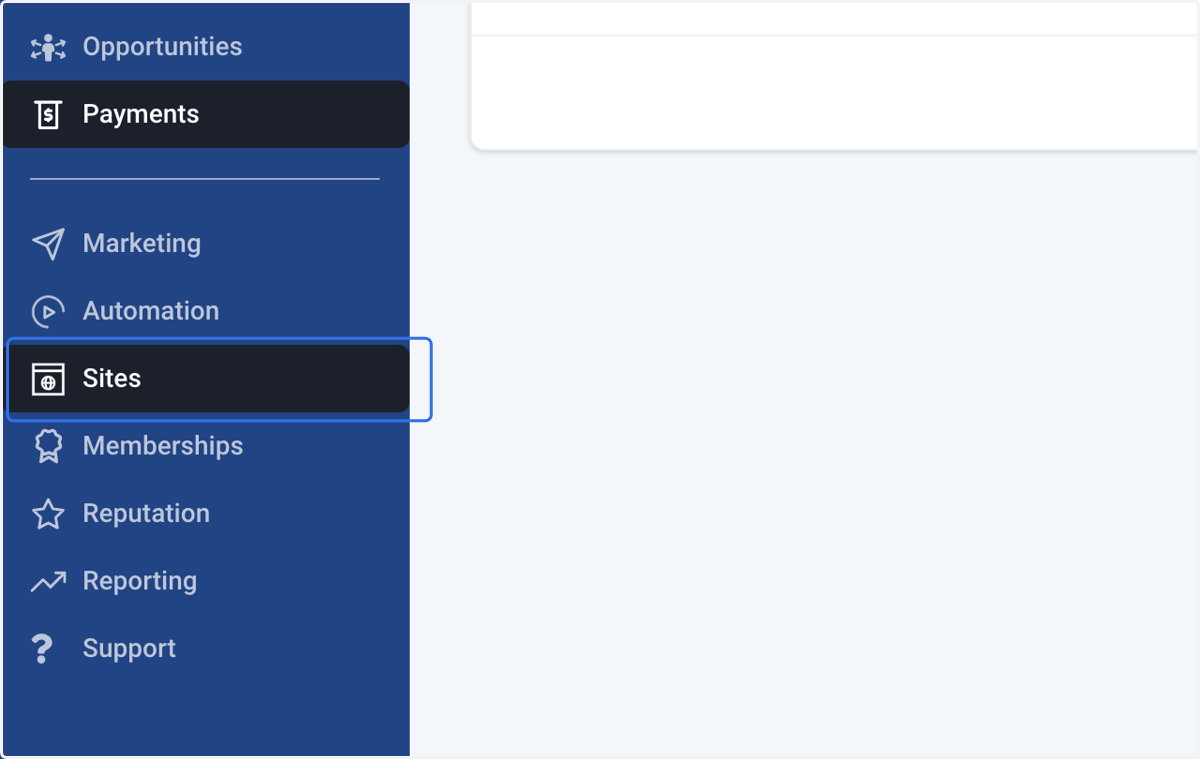
  15. 15. Click on Sites

    Click on Sites
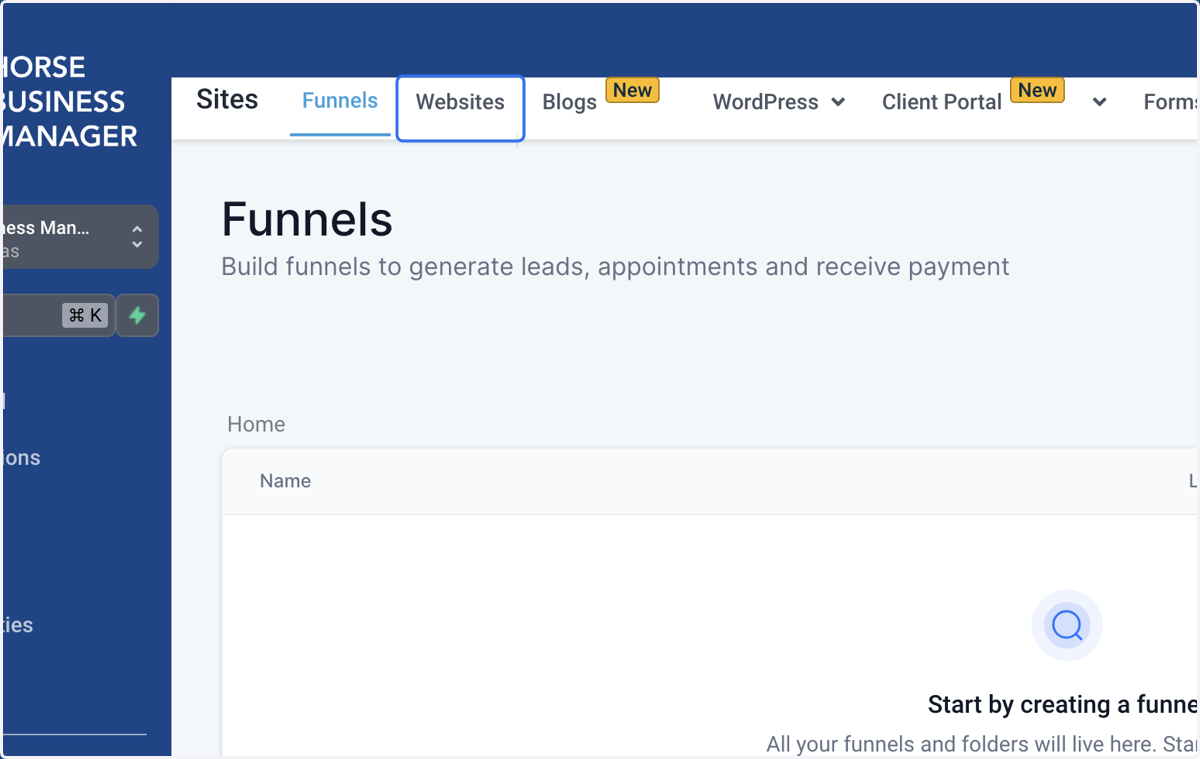
  16. 16. Click on Websites

    Click on Websites
  17. 17. Click on the site you want to add the product to
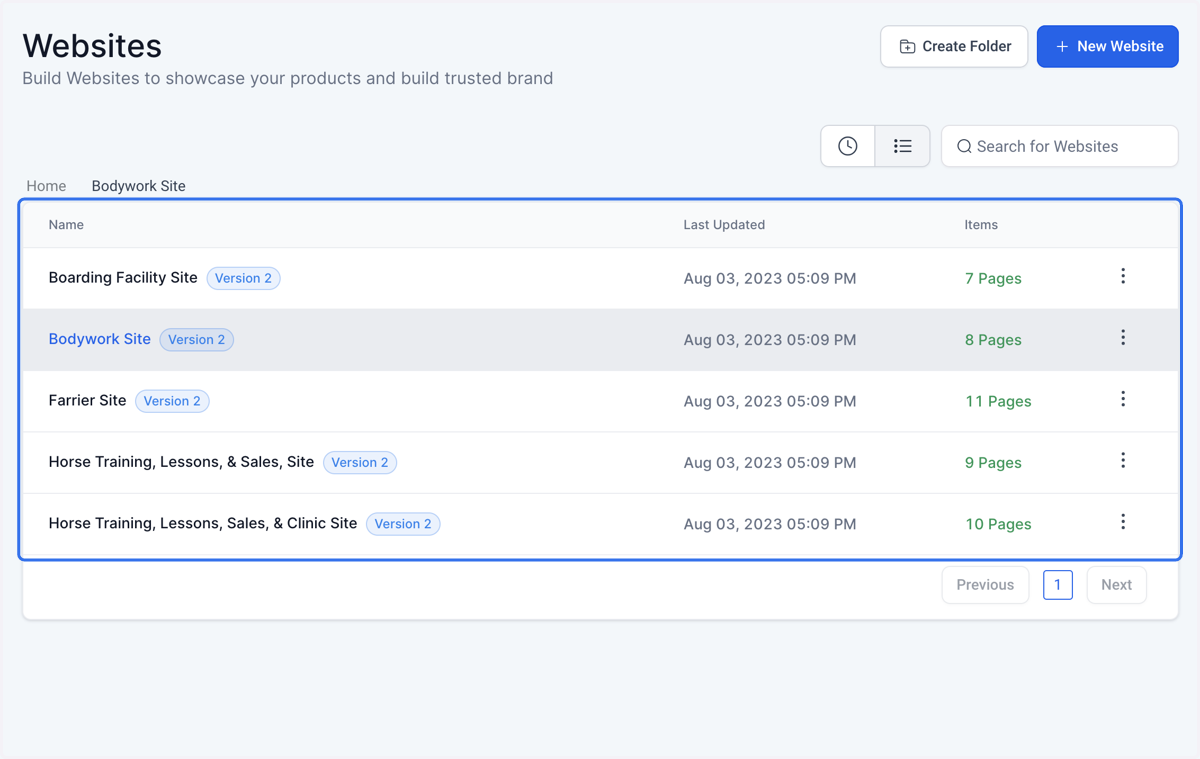
    Click on the site you want to add the product to
  18. 18. Find the page that you want to sale the product on and click the three dots to click Products
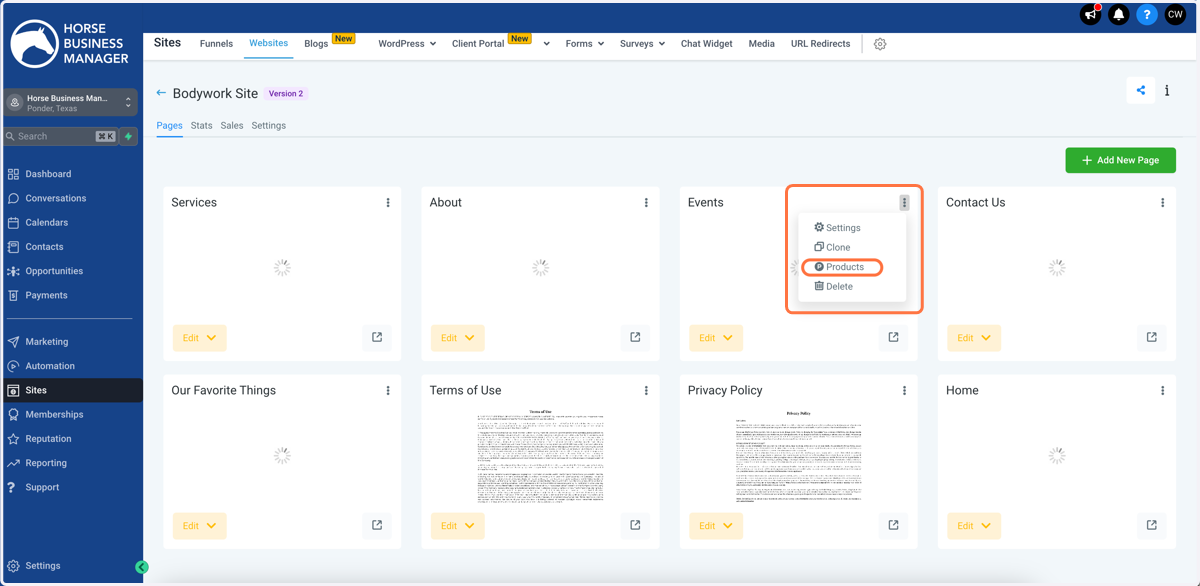
    Find the page that you want to sale the product on and click the three dots to click Products
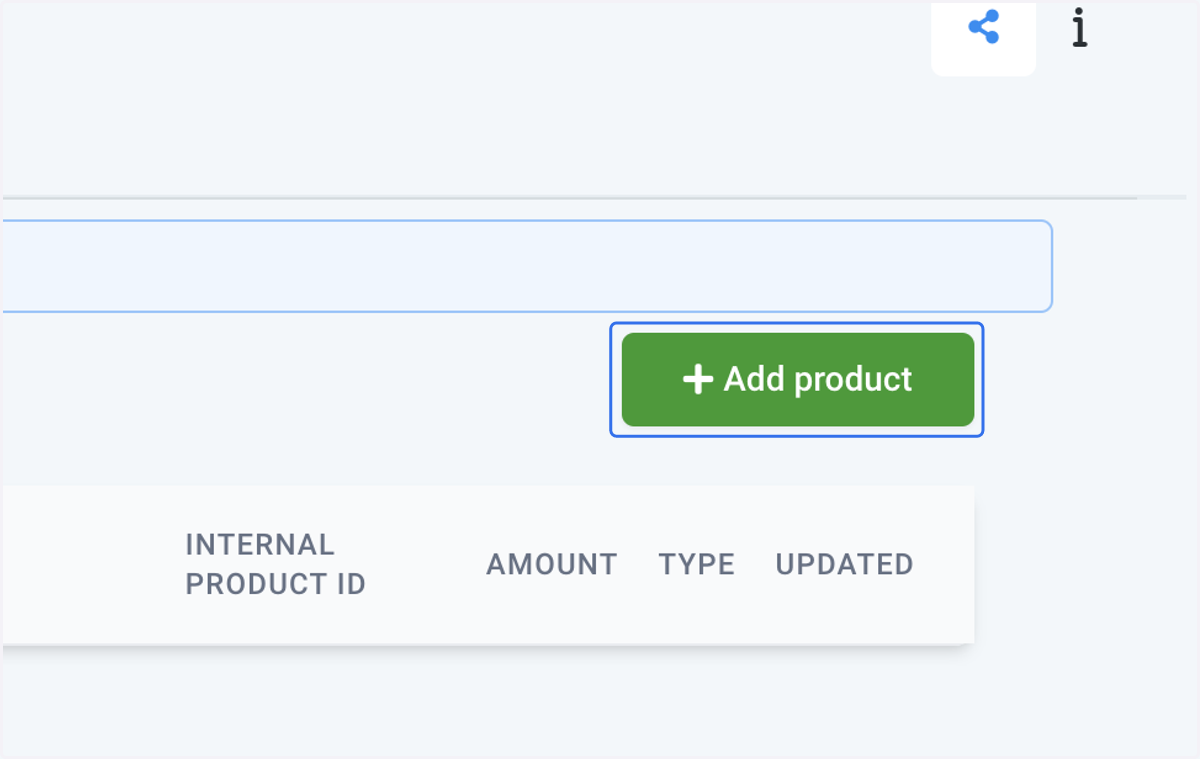
  19. 19. Click on Add Product

    Click on Add Product
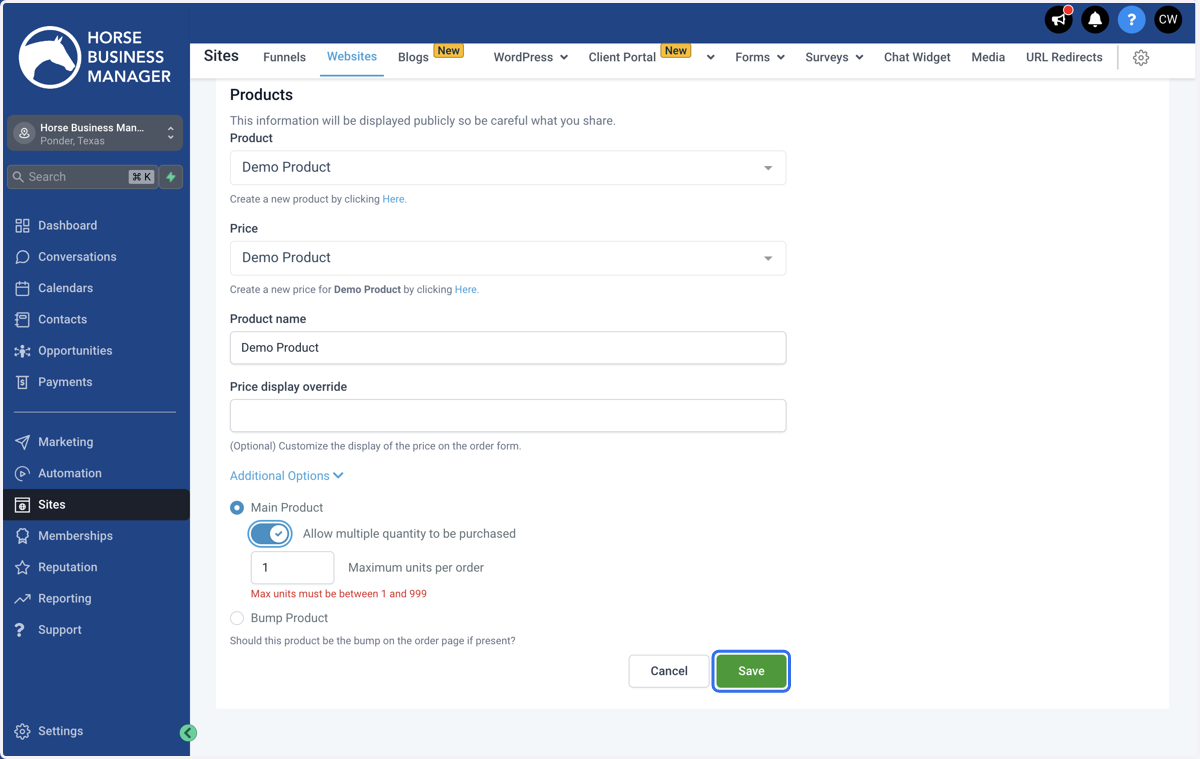
  20. 20. Select your product from the dropdown product list
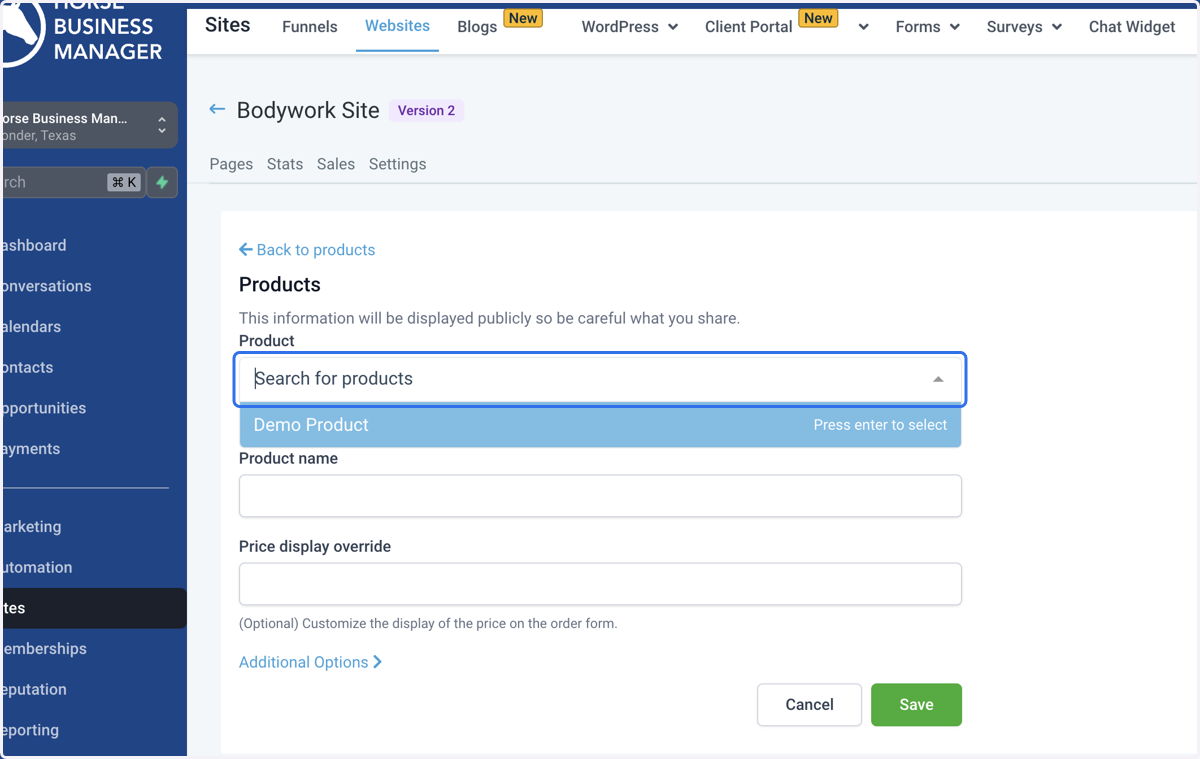
    Select your product from the dropdown product list
  21. 21. Input the price or select the product for the default price
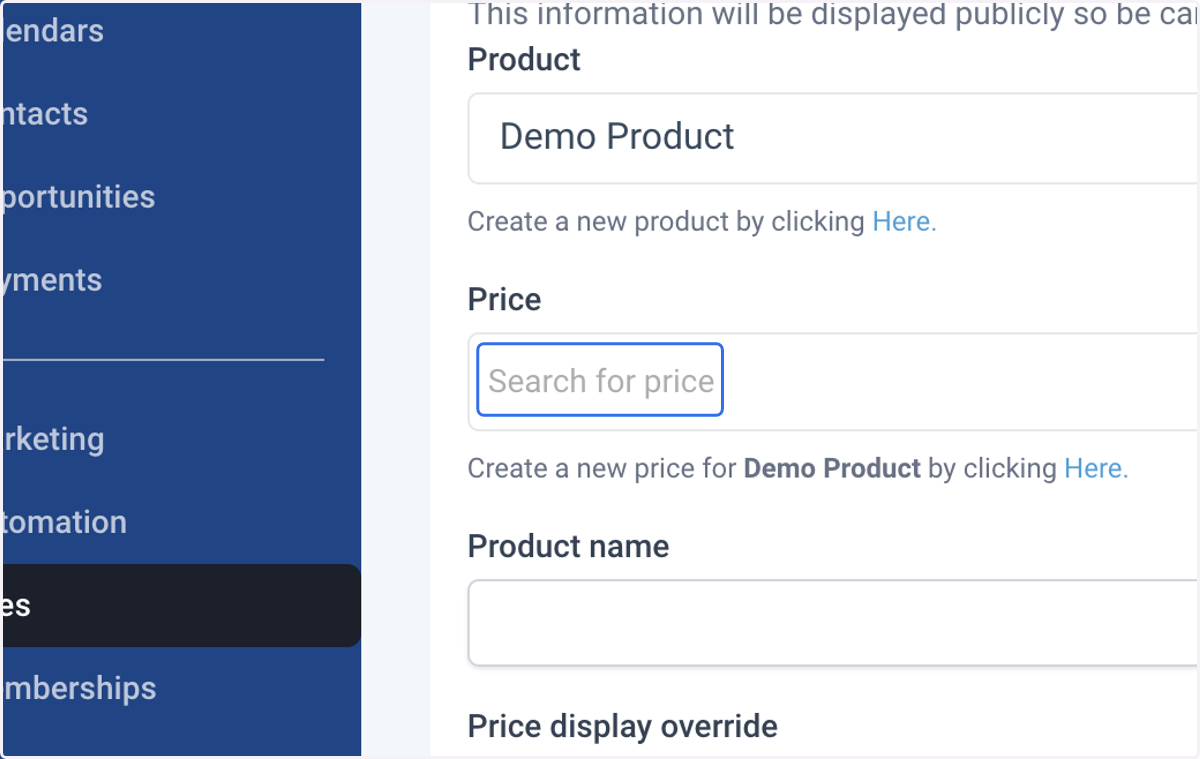
    Input the price or select the product for the default price
  22. 22. Click on Additional Options (optional)
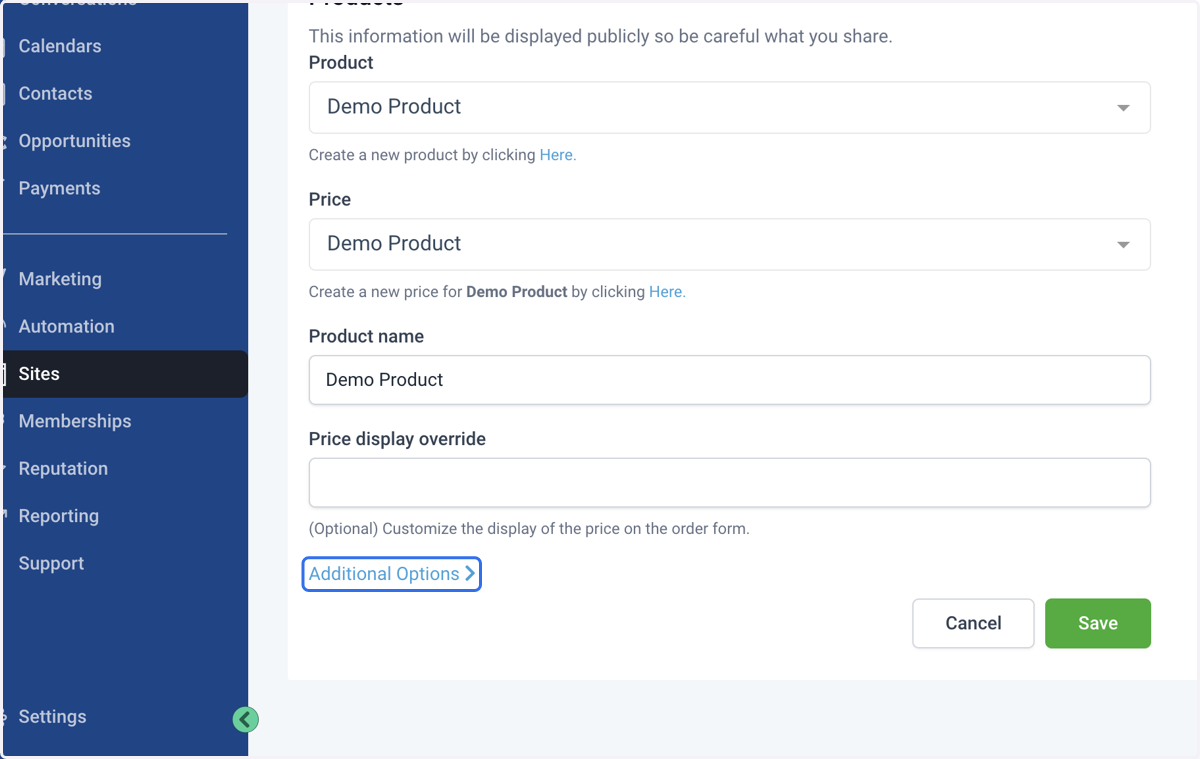
    Click on Additional Options (optional)
  23. 23. Update if multiple quantities can be purchased (optional)
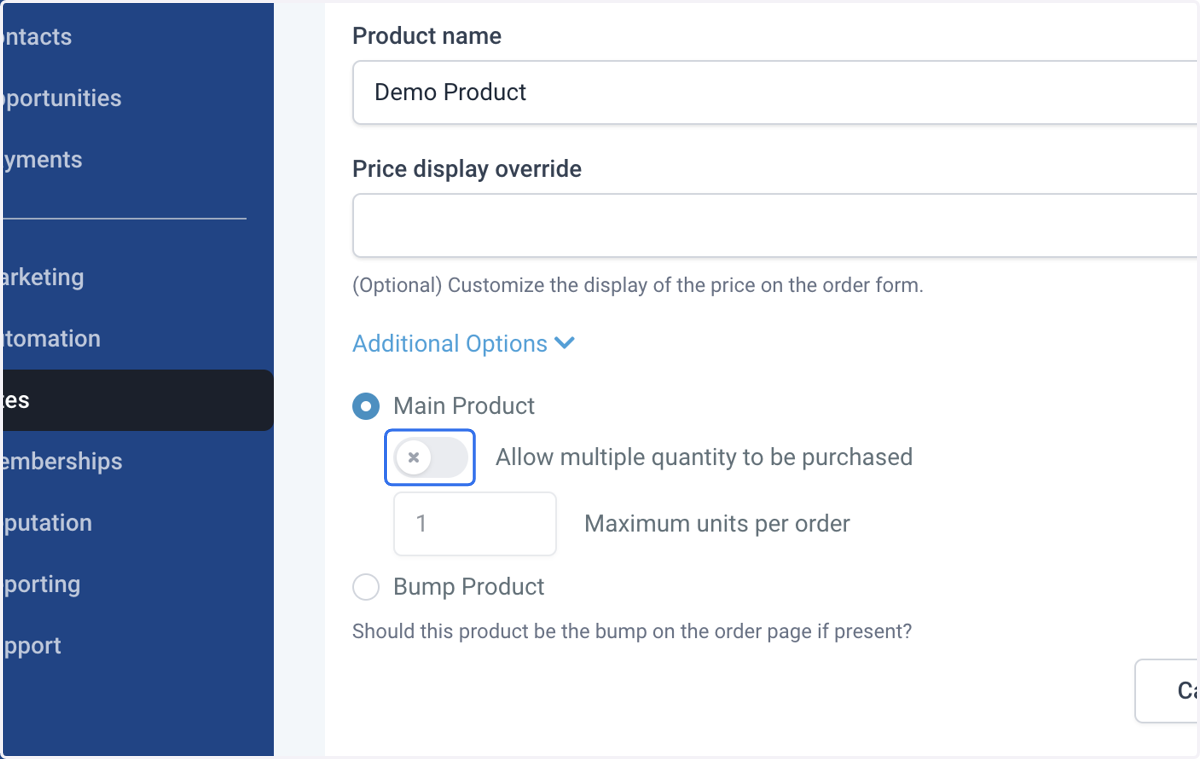
    Update if multiple quantities can be purchased (optional)
  24. 24. Click on Save

    Click on Save