1.6 How to create custom payment terms and terms and conditions
Creating payment terms
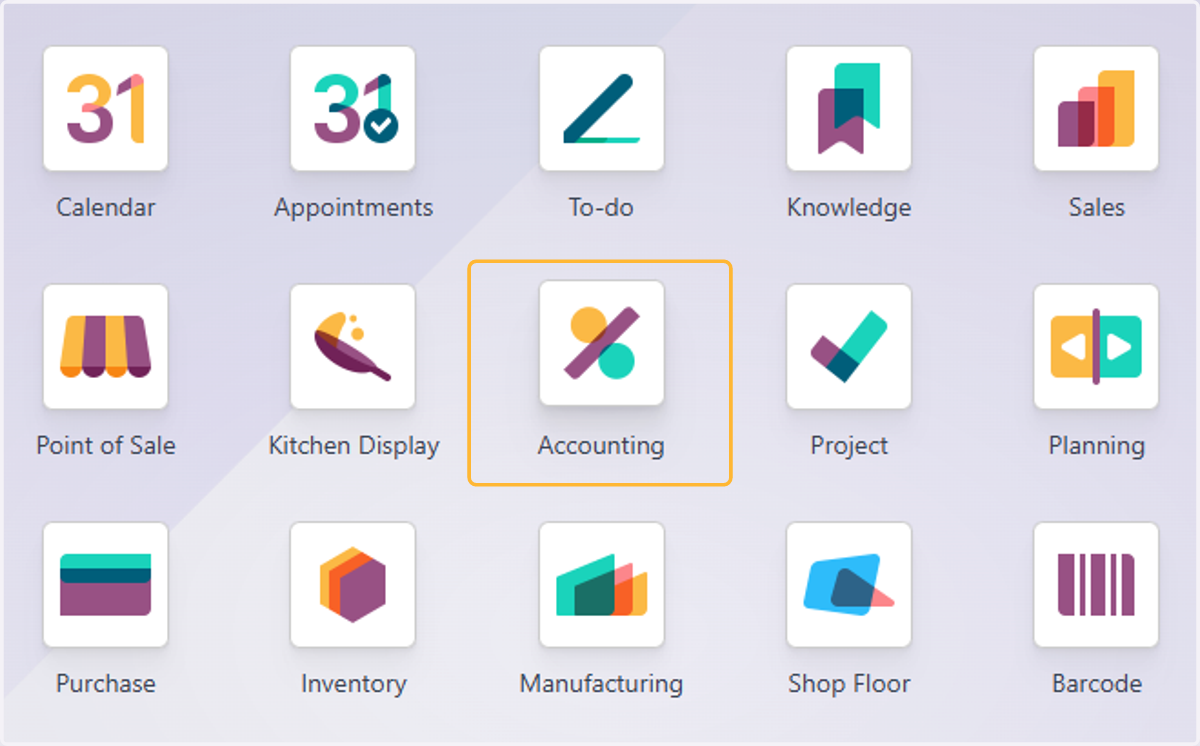
1. Click on Accounting
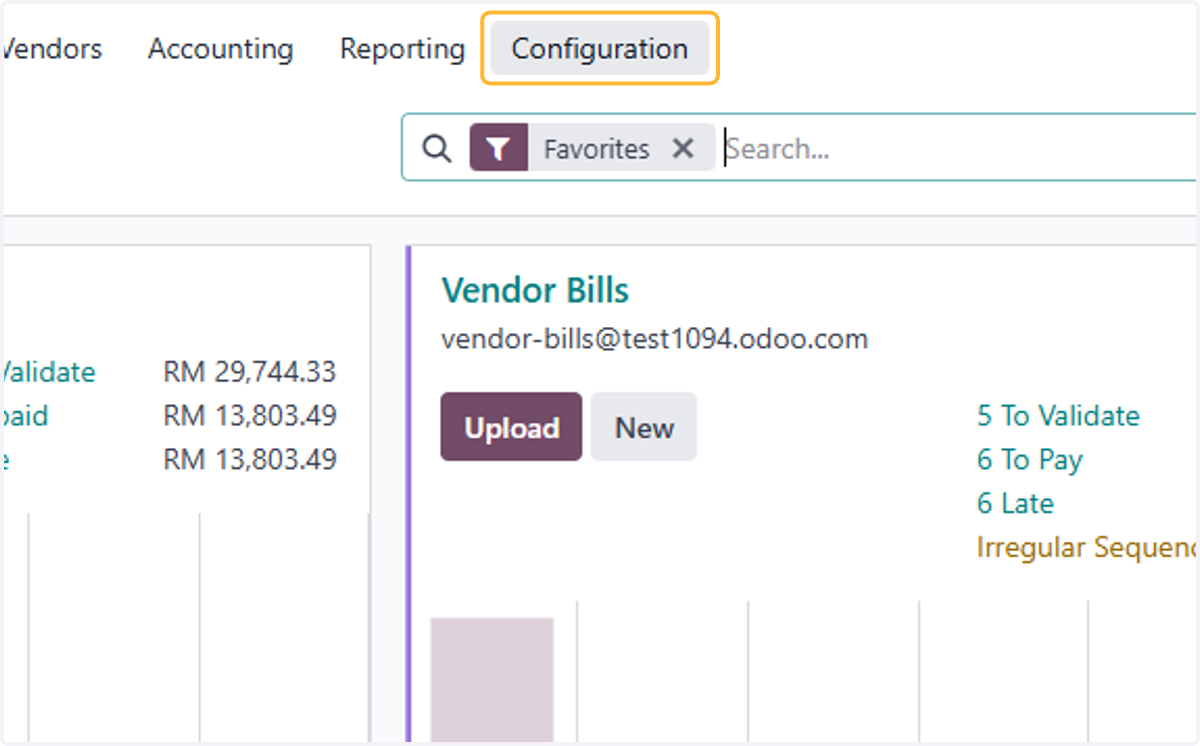
2. Click on Configuration
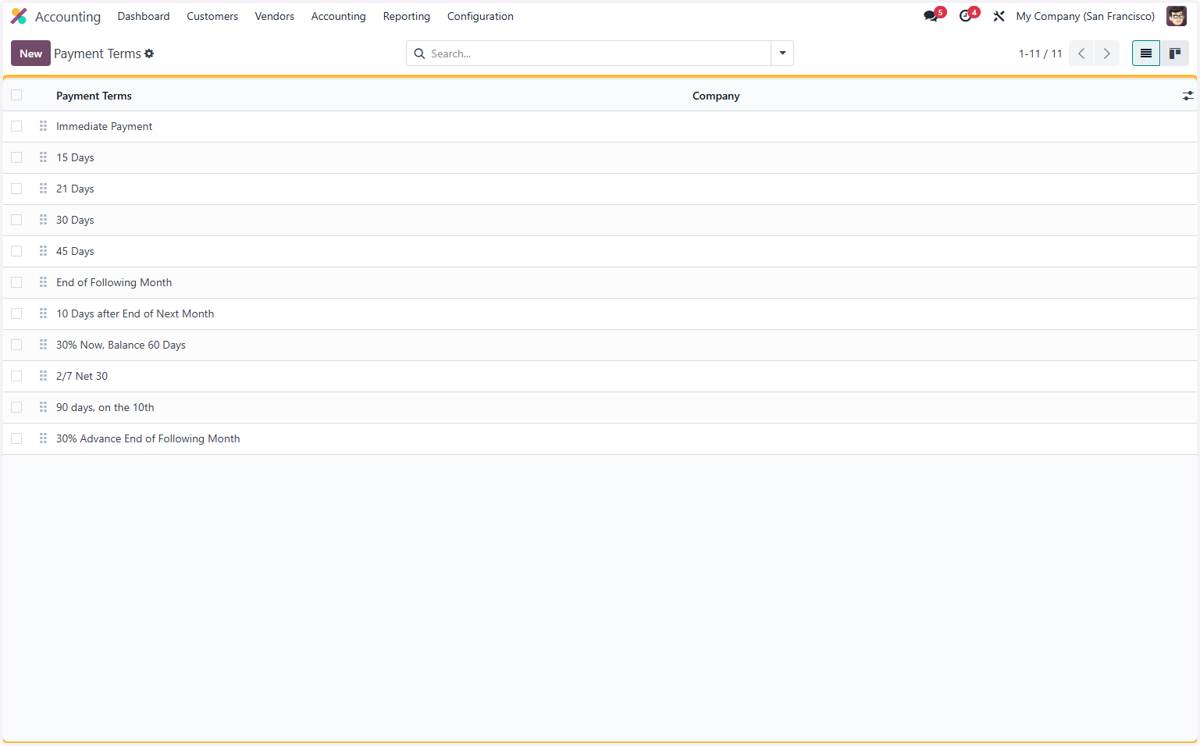
3. Click on Payment Terms
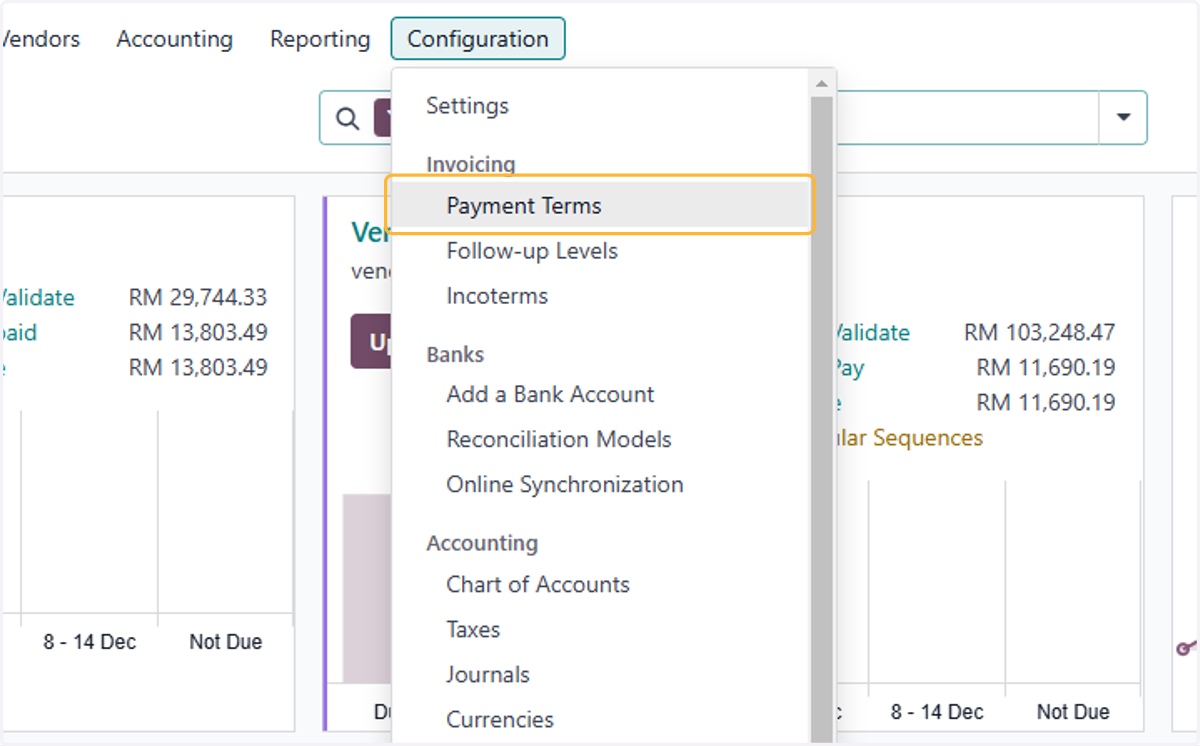
4. These are the default list of payment terms provided by Odoo
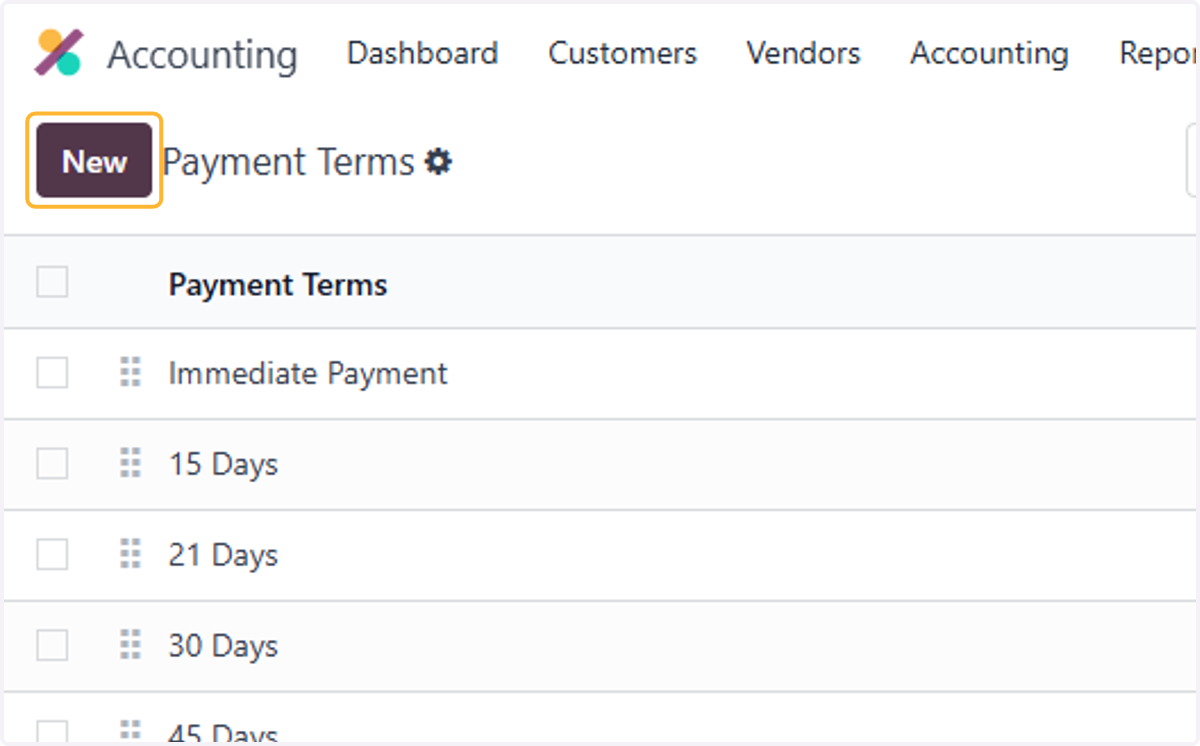
5. Click on New
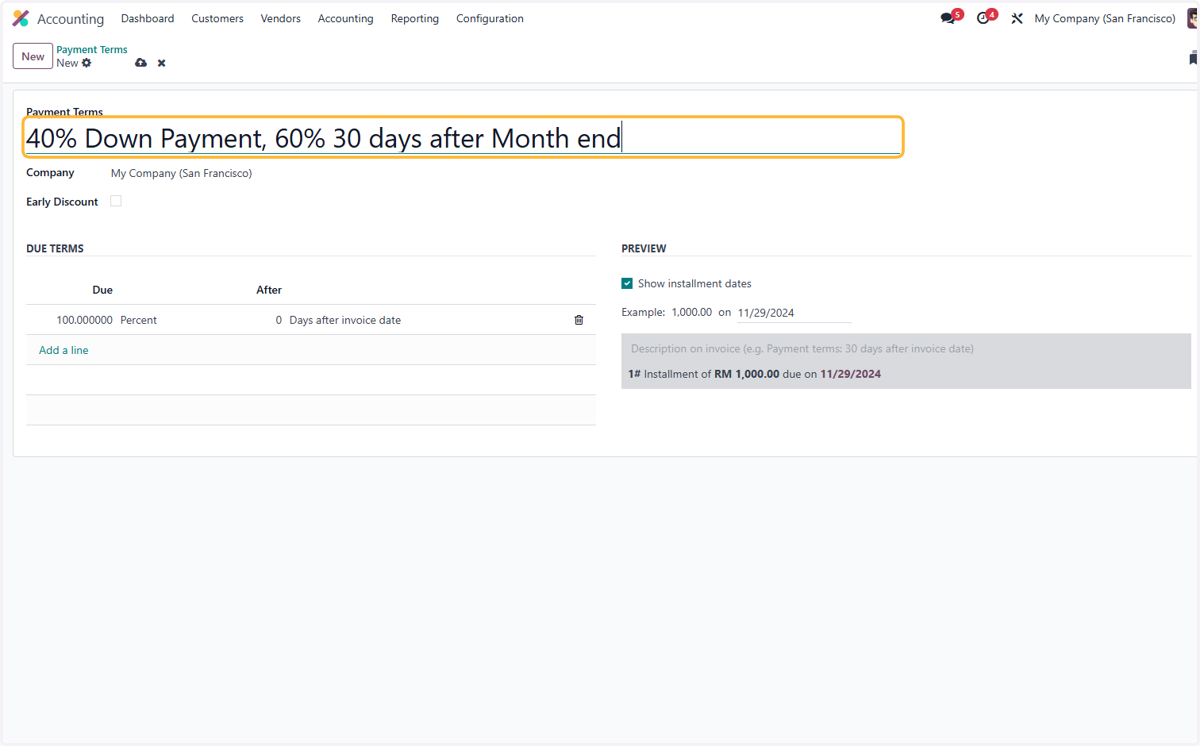
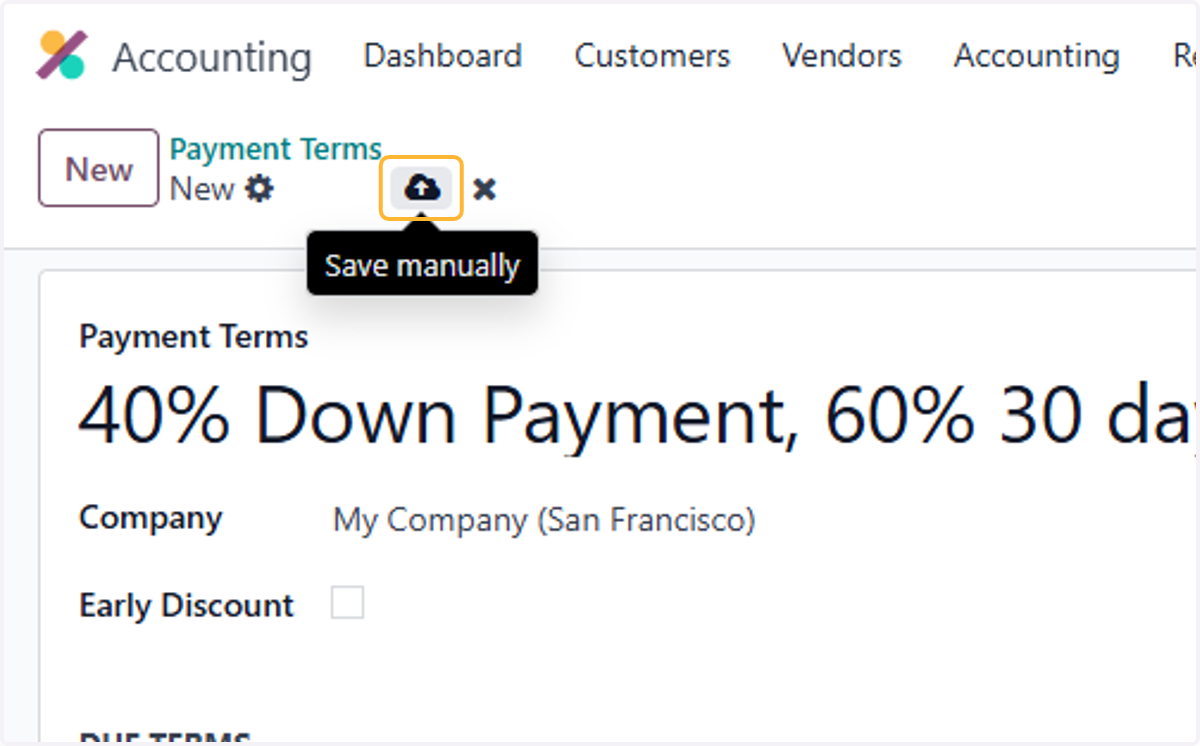
6. Name of payment terms. For example, "40% Down Payment, 60% 30 days after Month end"
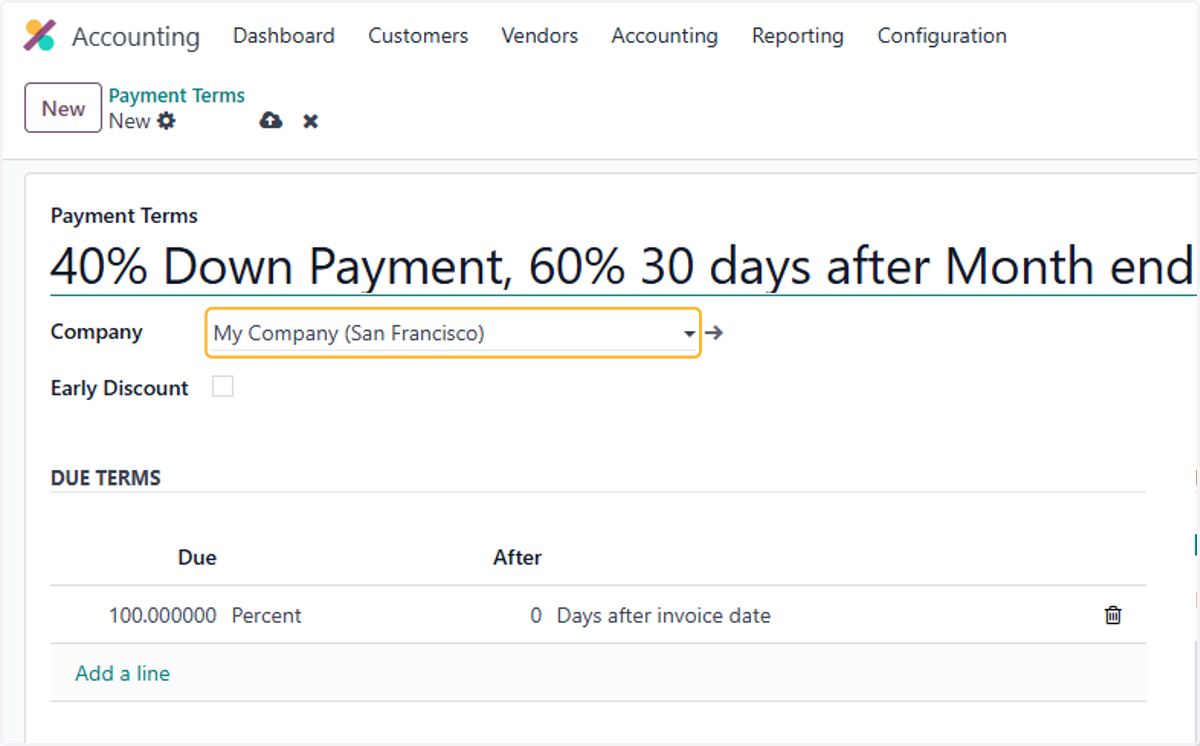
7. Select a Company, if needed
8. Click on Add a line
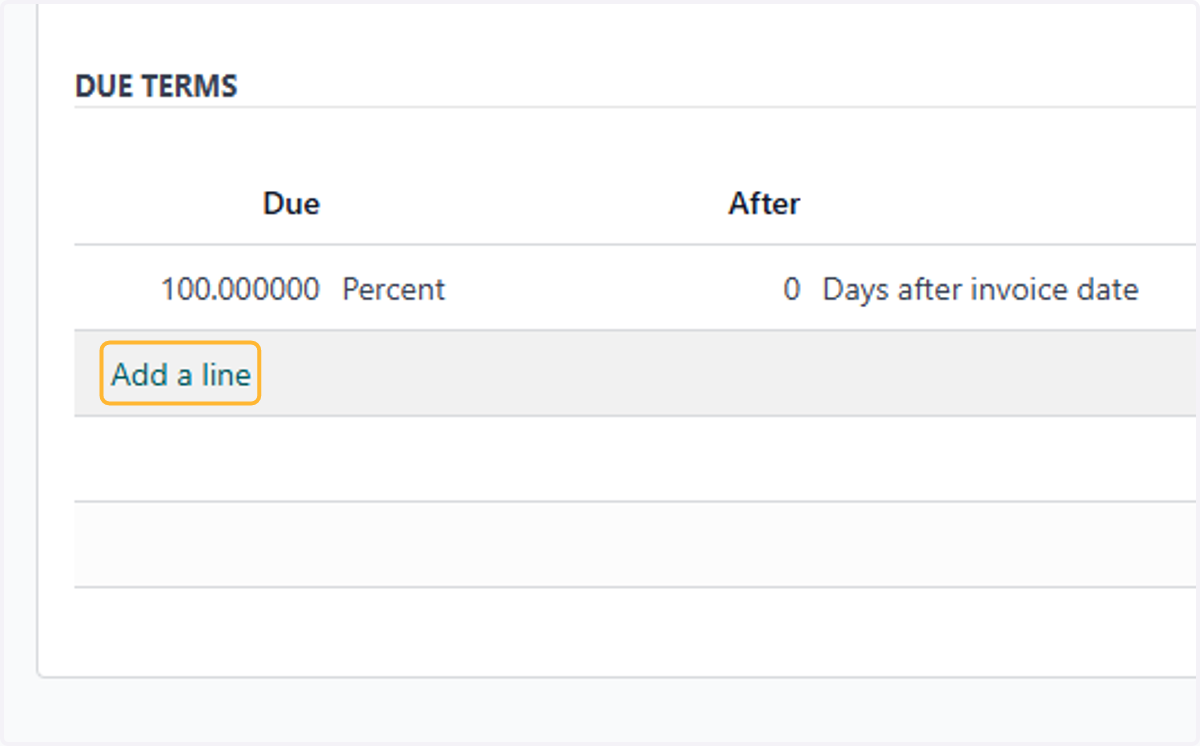
9. Change first line to desired percent. For example, 40%
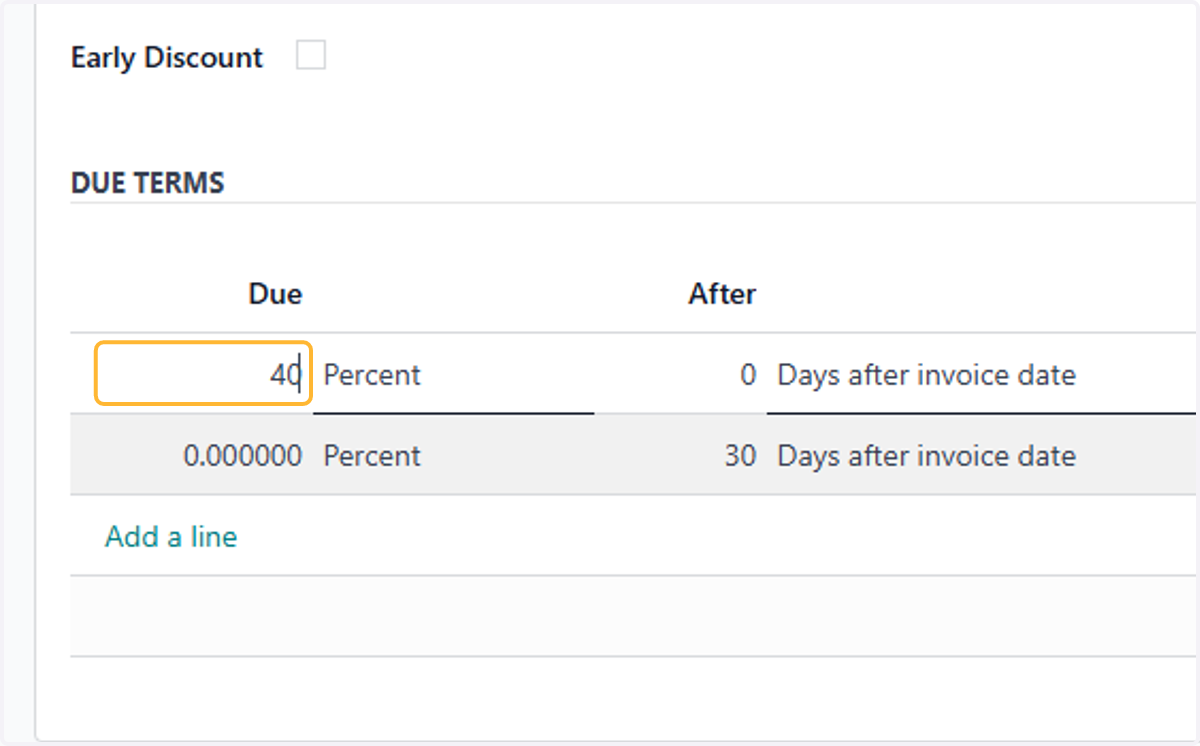
10. Change second line to desired percent. For Example, 60%
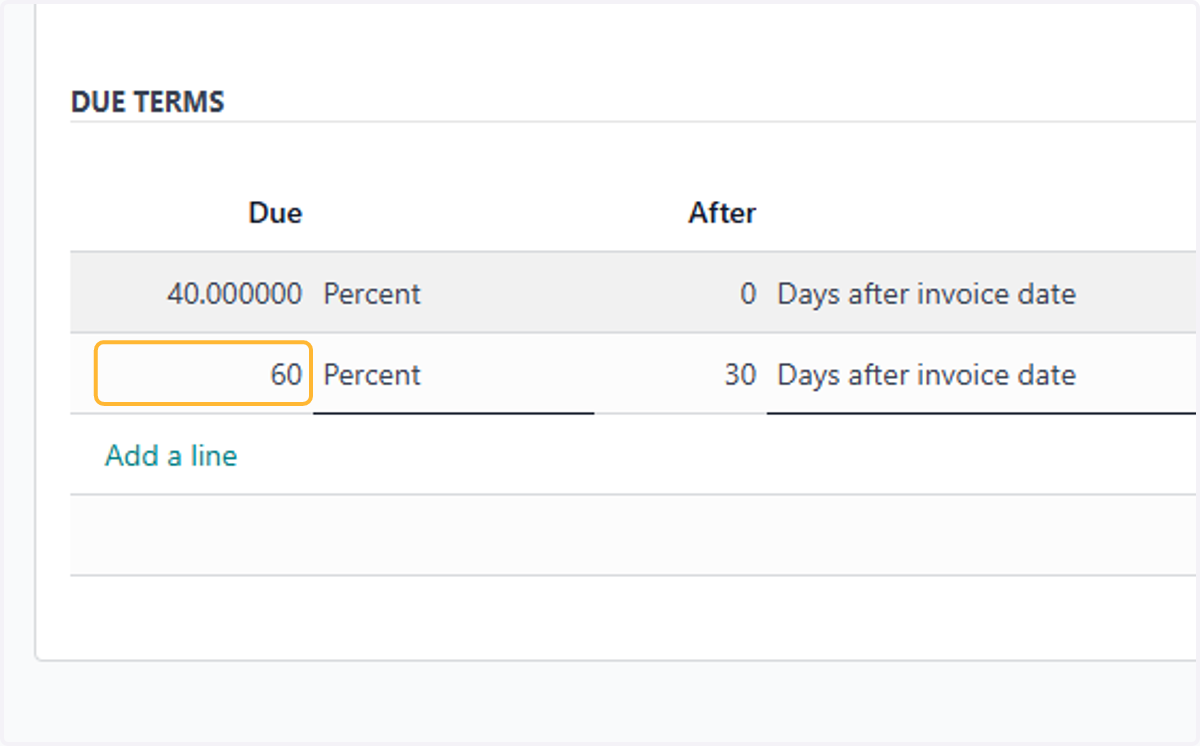
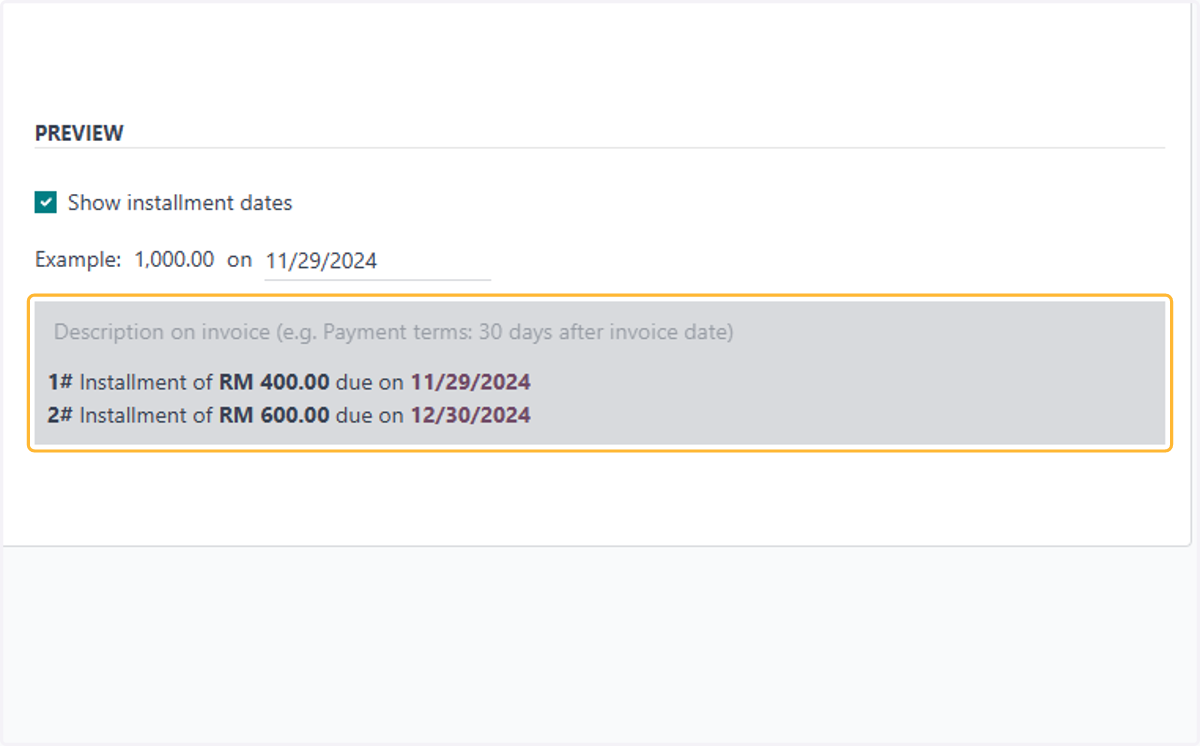
11. Select Days after end of month
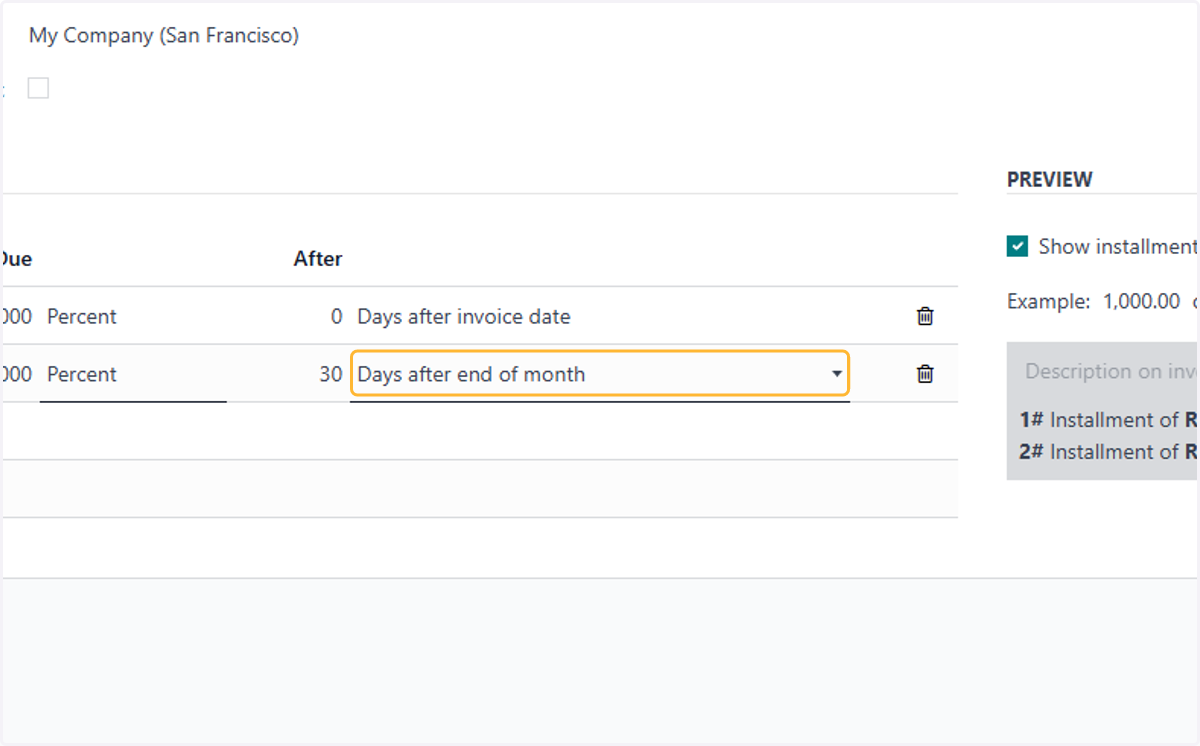
12. Example of the payment terms installment will be generated.
13. Click on Save manually
Creating & editing Terms & Conditions for Invoices
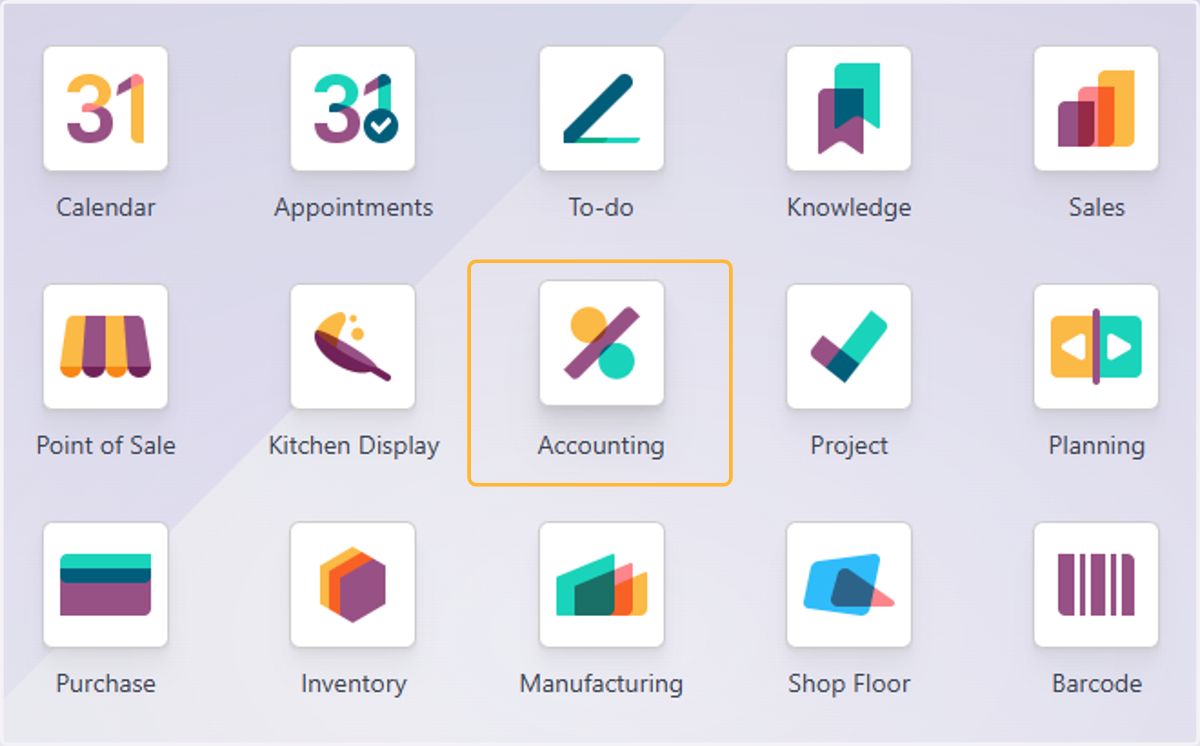
14. Click on Accounting
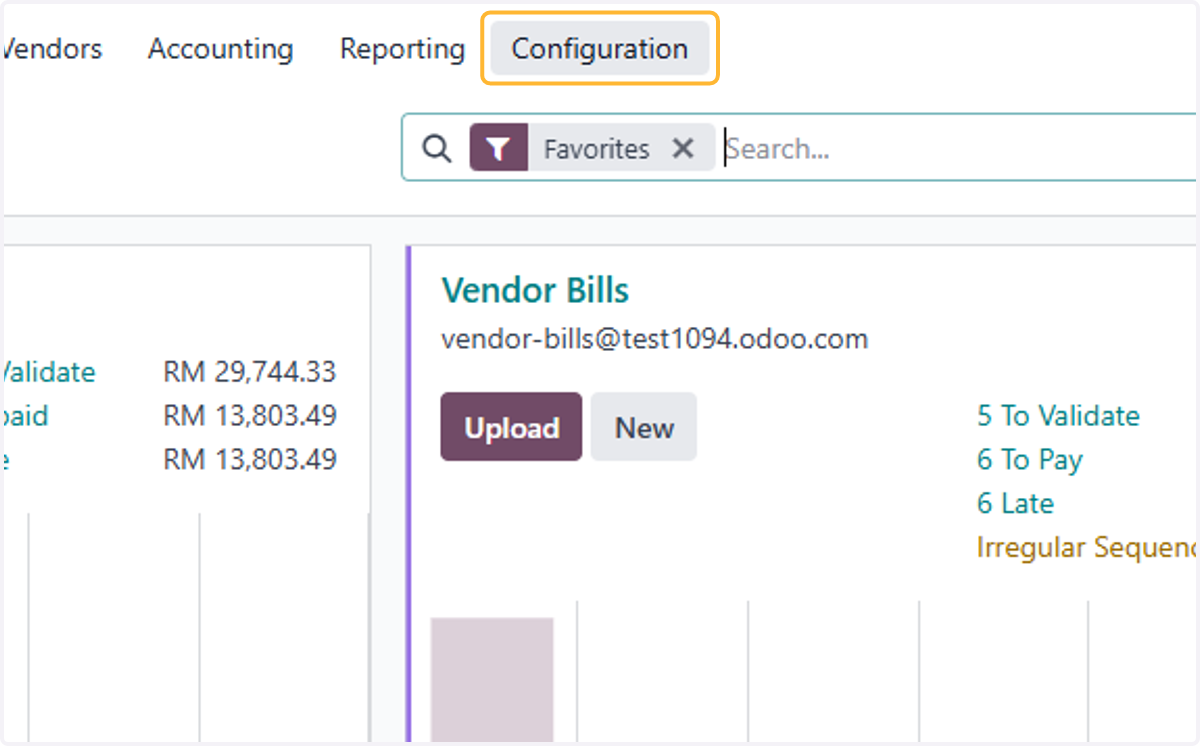
15. Click on Configuration
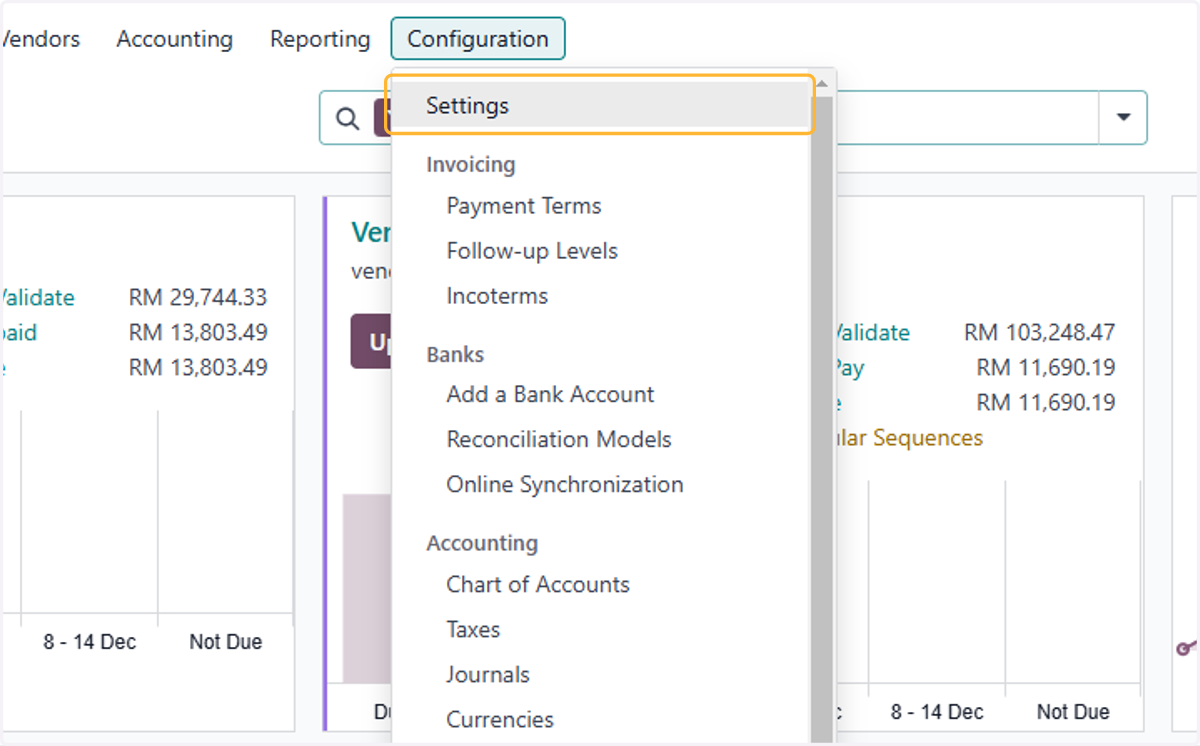
16. Click on Settings
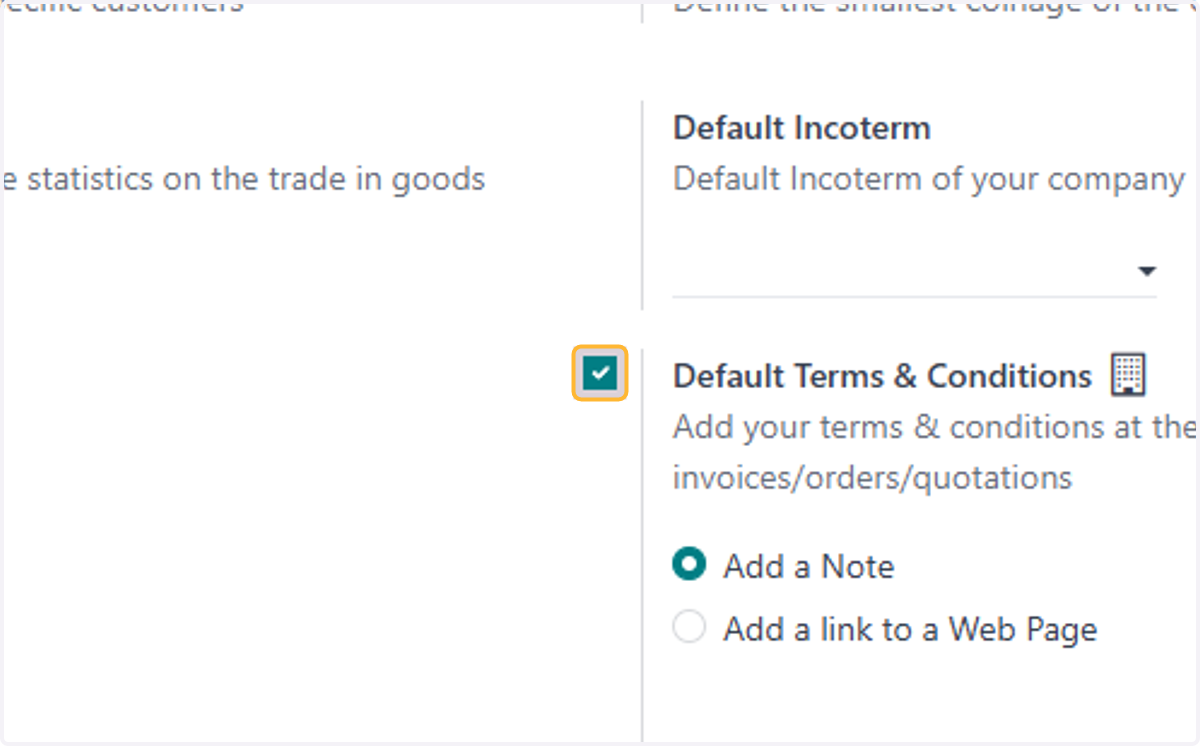
17. Check Default Terms & Conditions
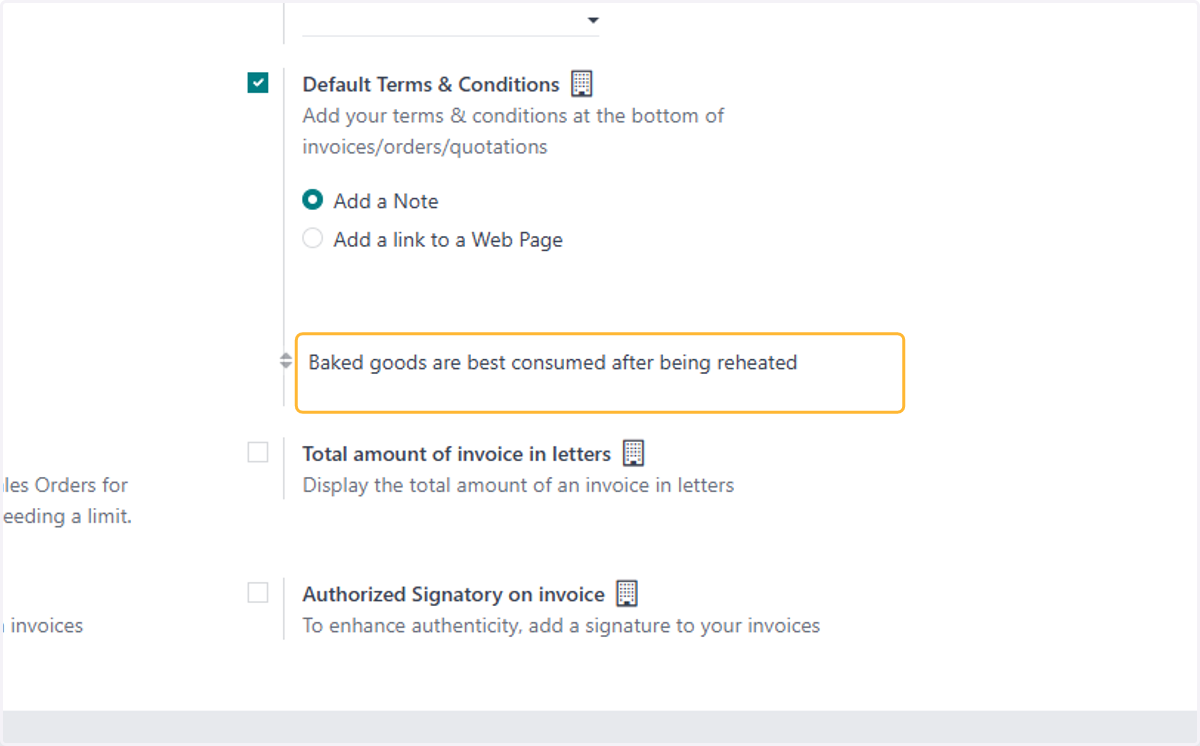
18. Type the Terms & conditions you want to include. For example, "Baked goods are best consumed after being reheated"
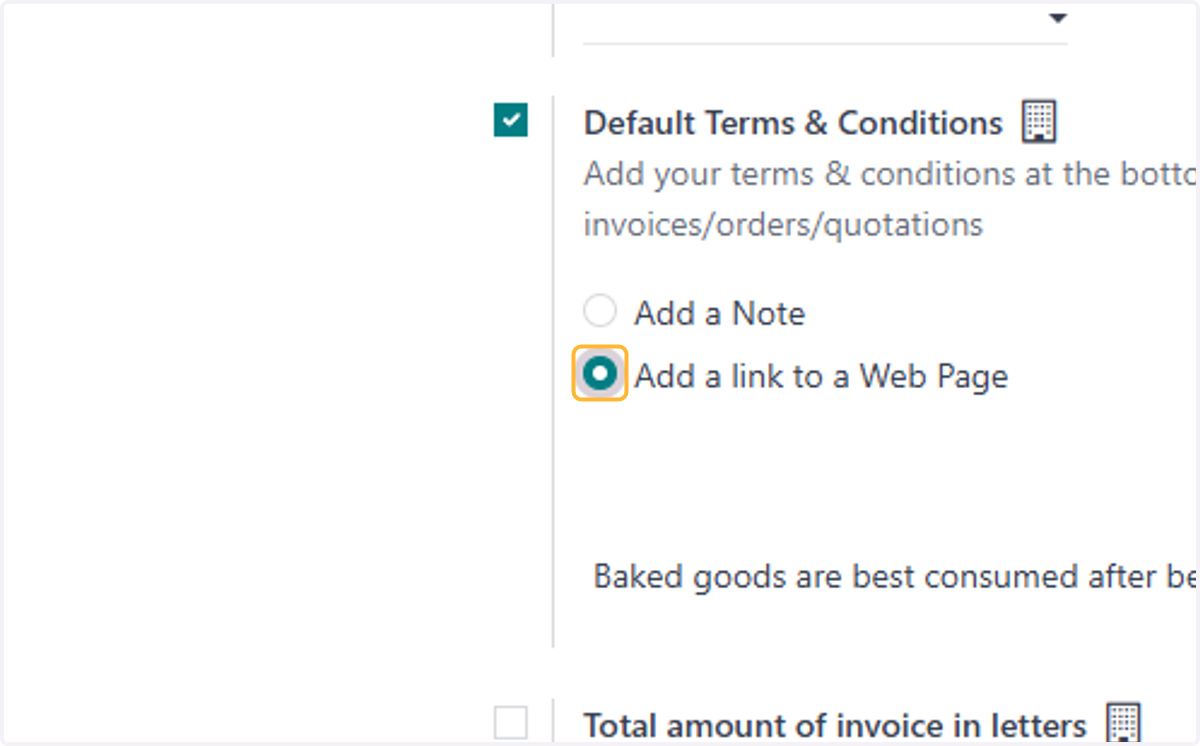
19. If T&C is lengthy, you may select Add a link to a Web Page
20. Click on Update Terms
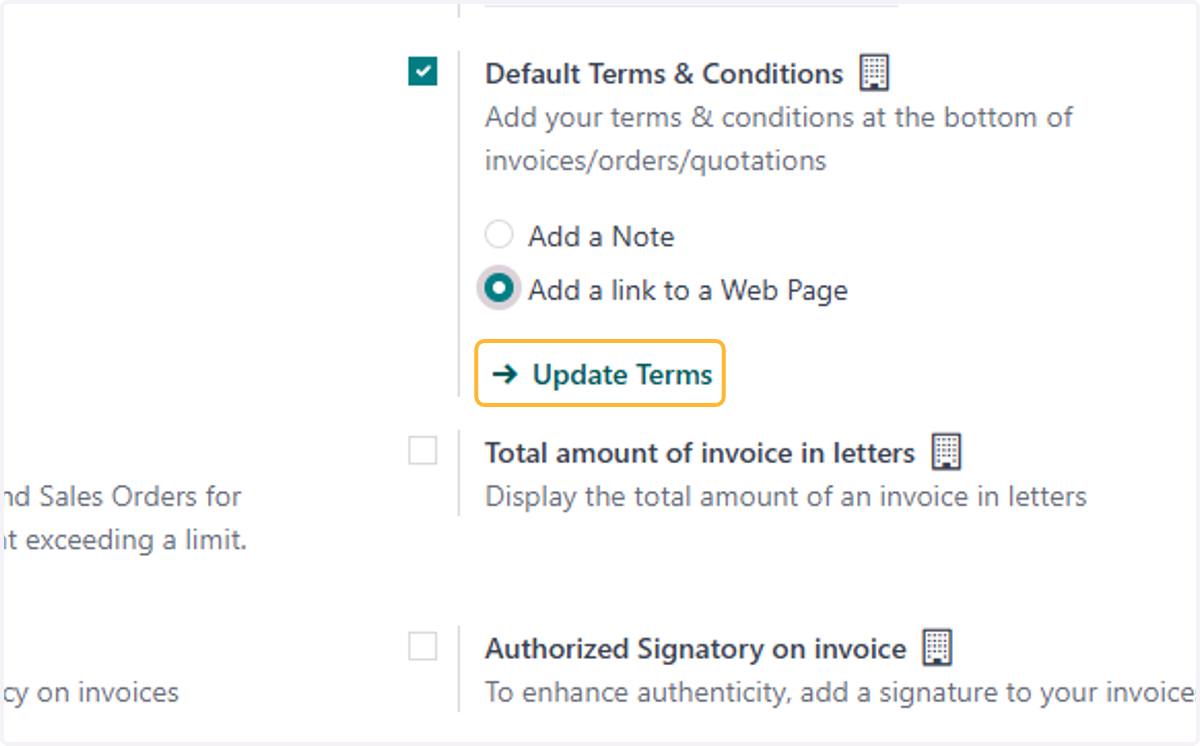
21. Standard T&C has been provided & its fully editable .Click on Update Terms & Conditions…
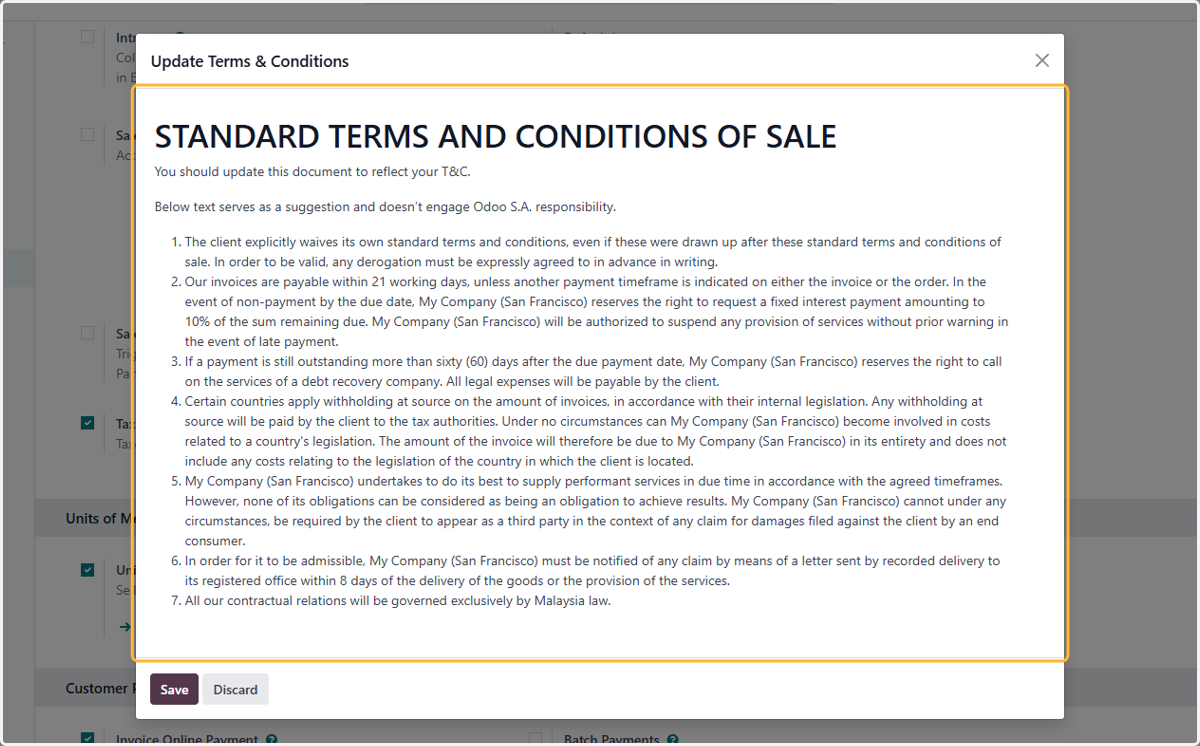
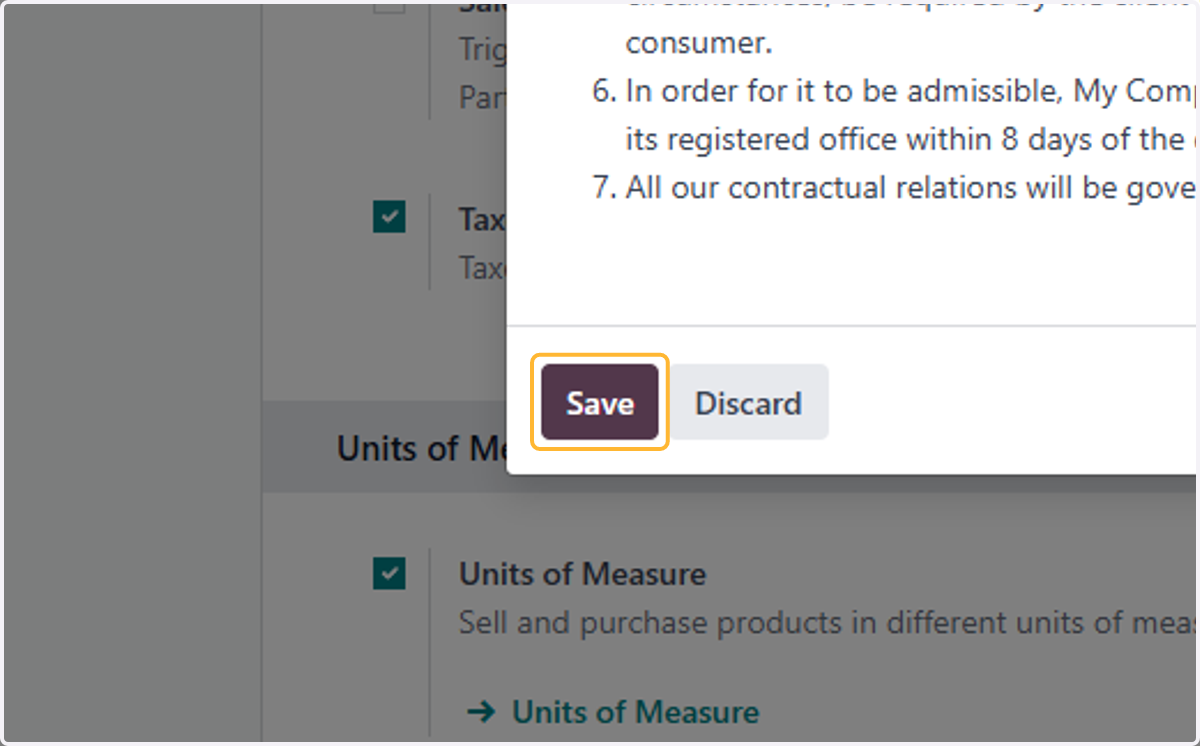
22. Click on Save
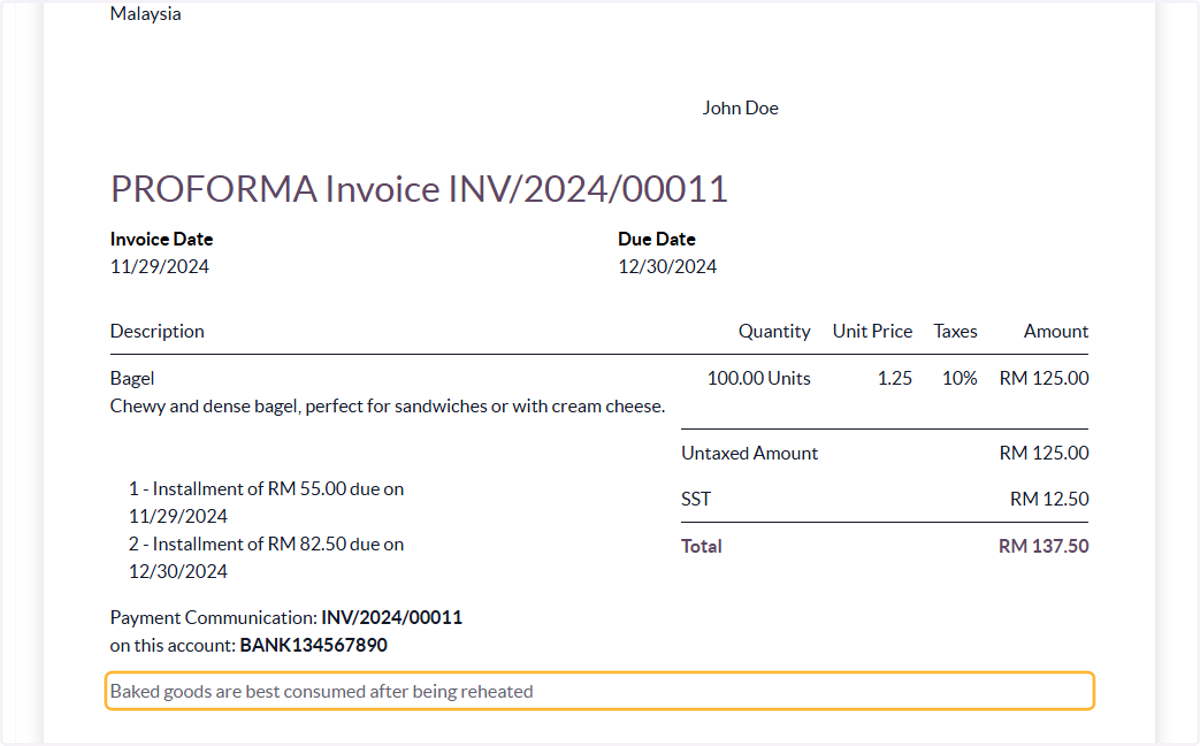
Example of Invoice with payment terms & T&C
23. Click on Invoices
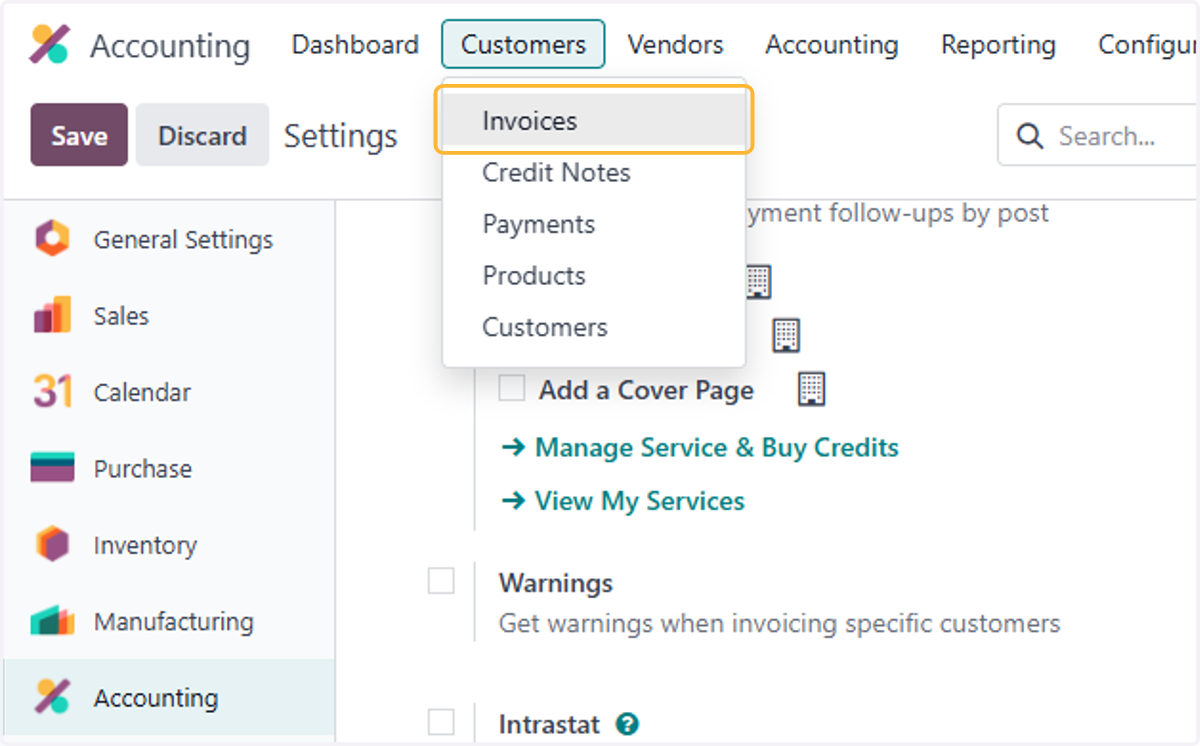
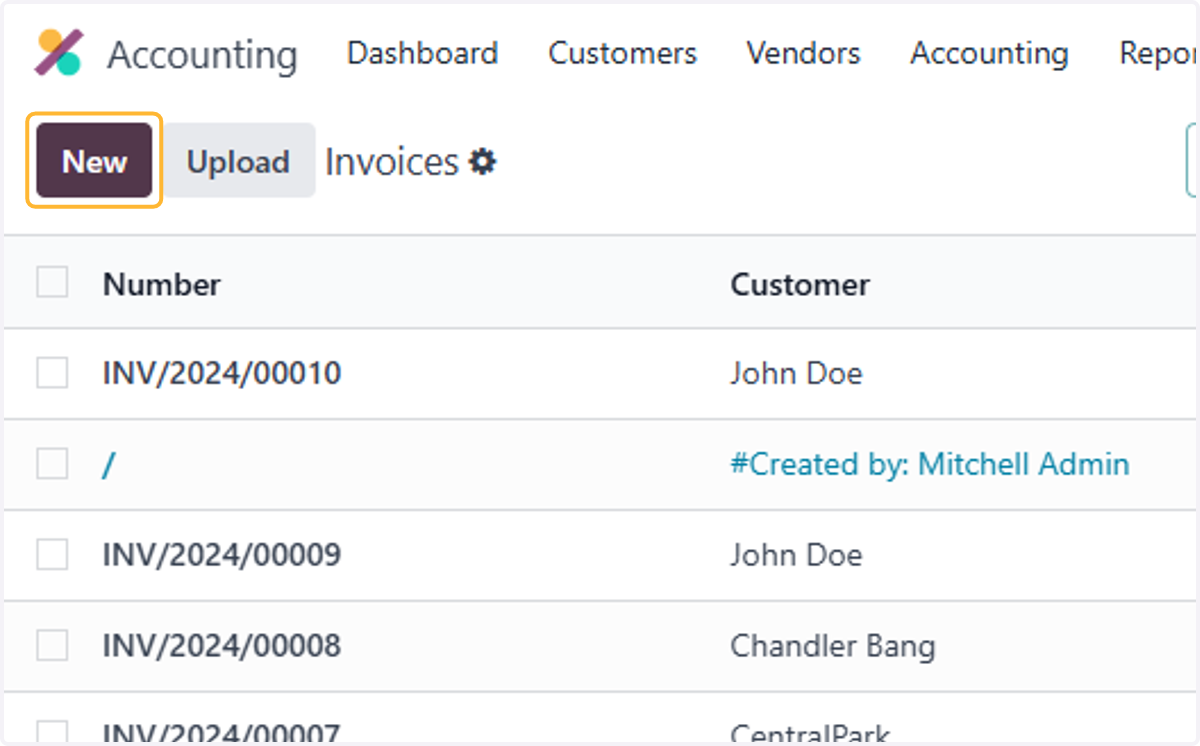
24. Click on New
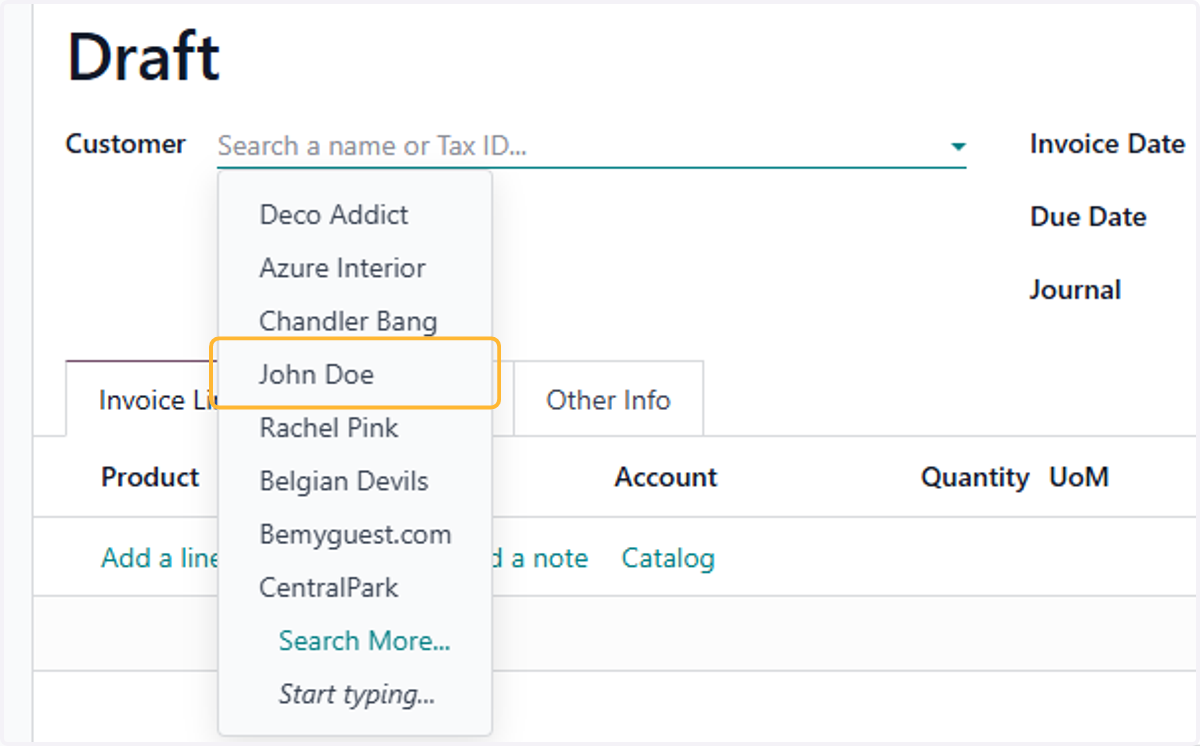
25. Click on John Doe
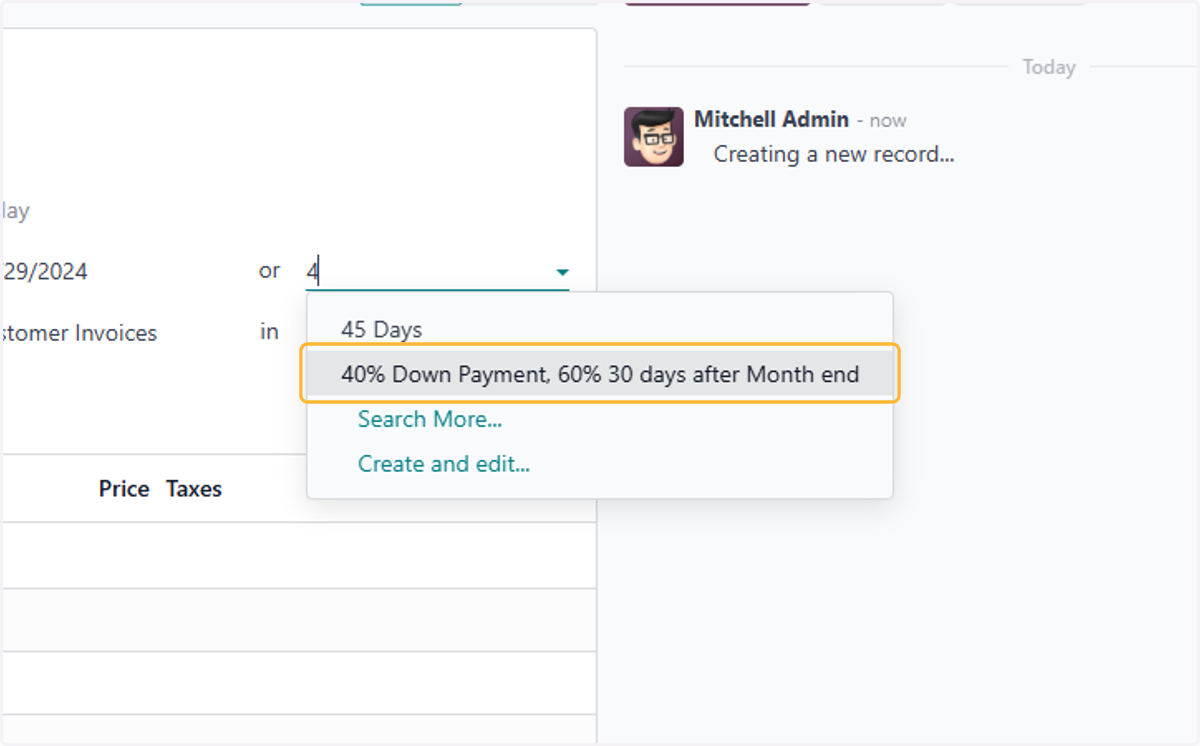
26. Click on 40% Down Payment, 60% 30 days after Month end
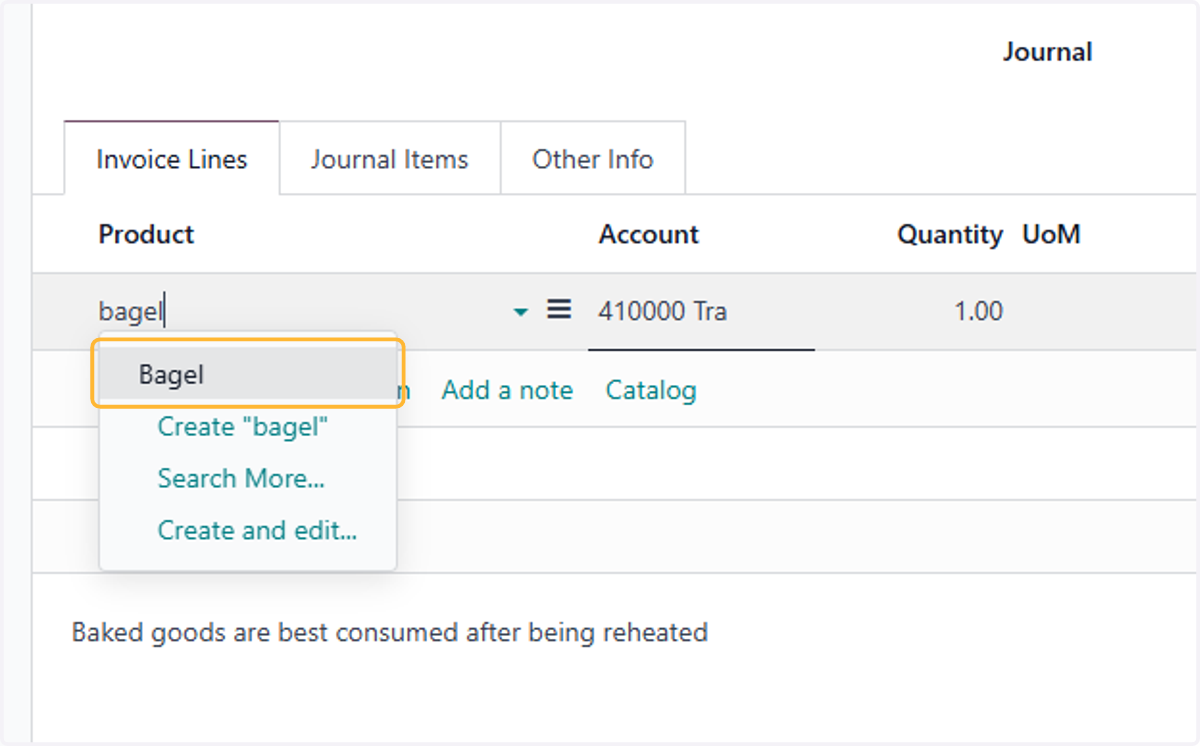
27. Click on Bagel
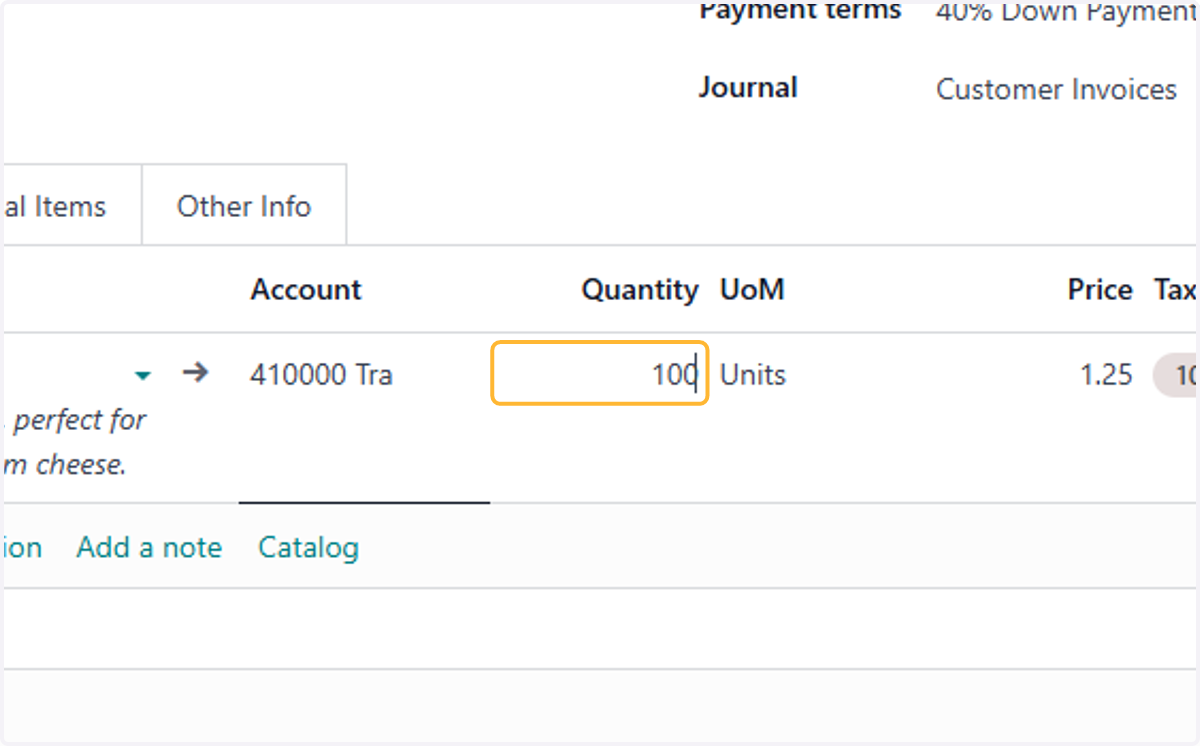
28. Type "100"
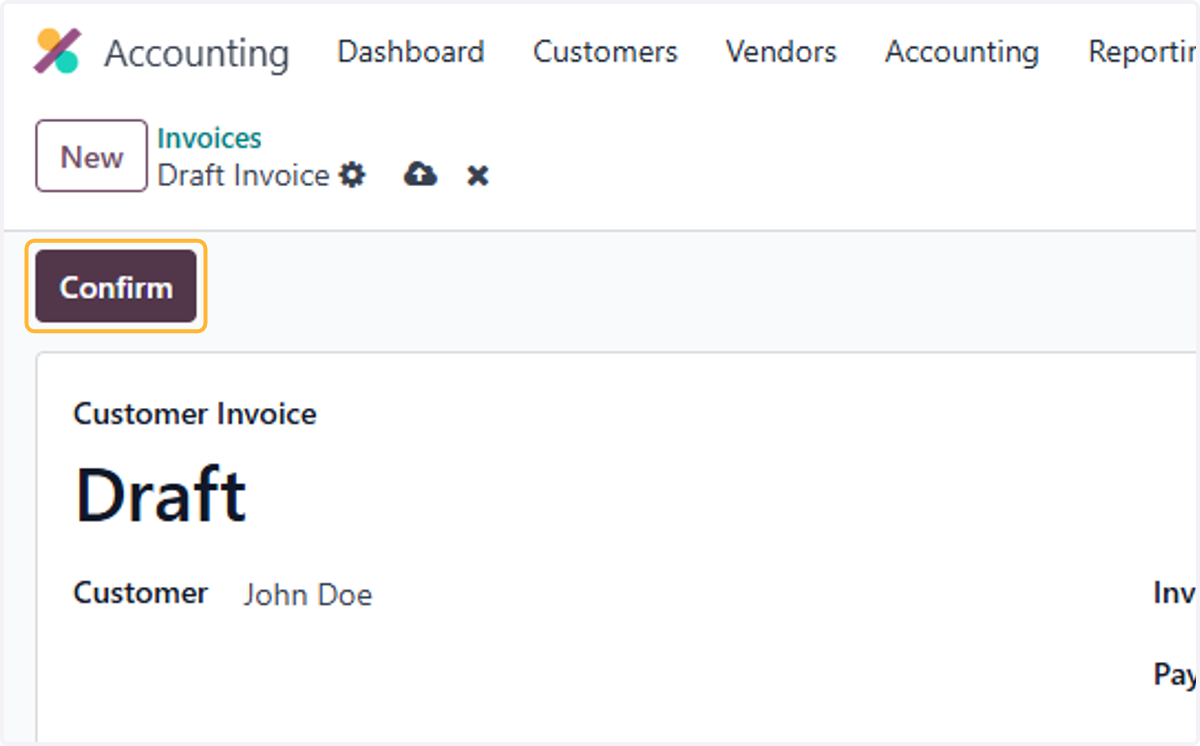
29. Click on Confirm
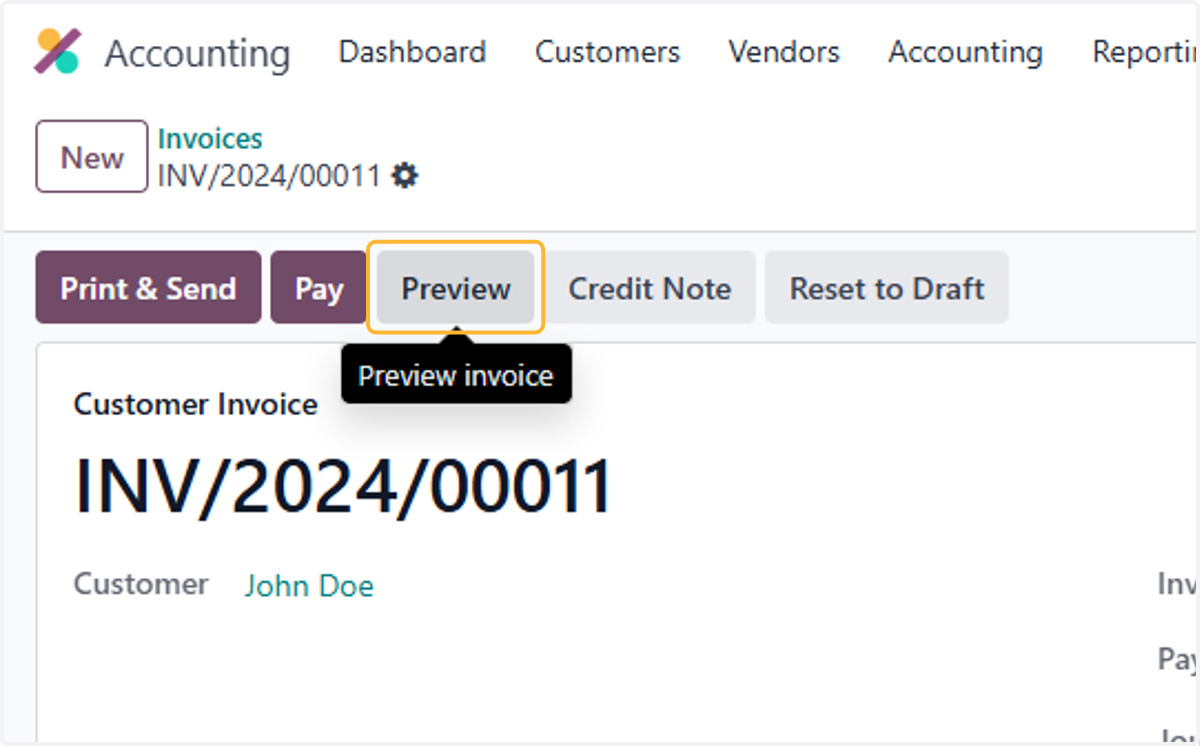
30. Click on Preview
31. Click on 1 - Installment of RM 55.00 due on 11/29/2024…
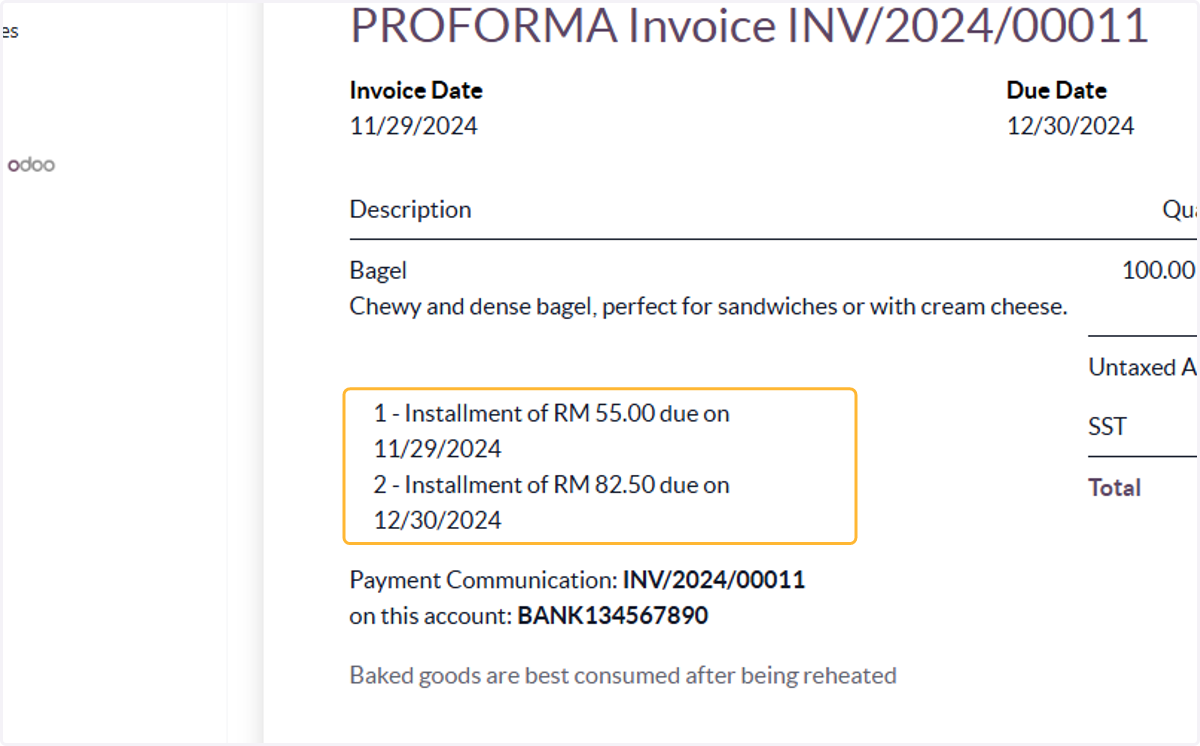
32. Click on Baked goods are best consumed after being reheated