Kit Accountability

Report Returned

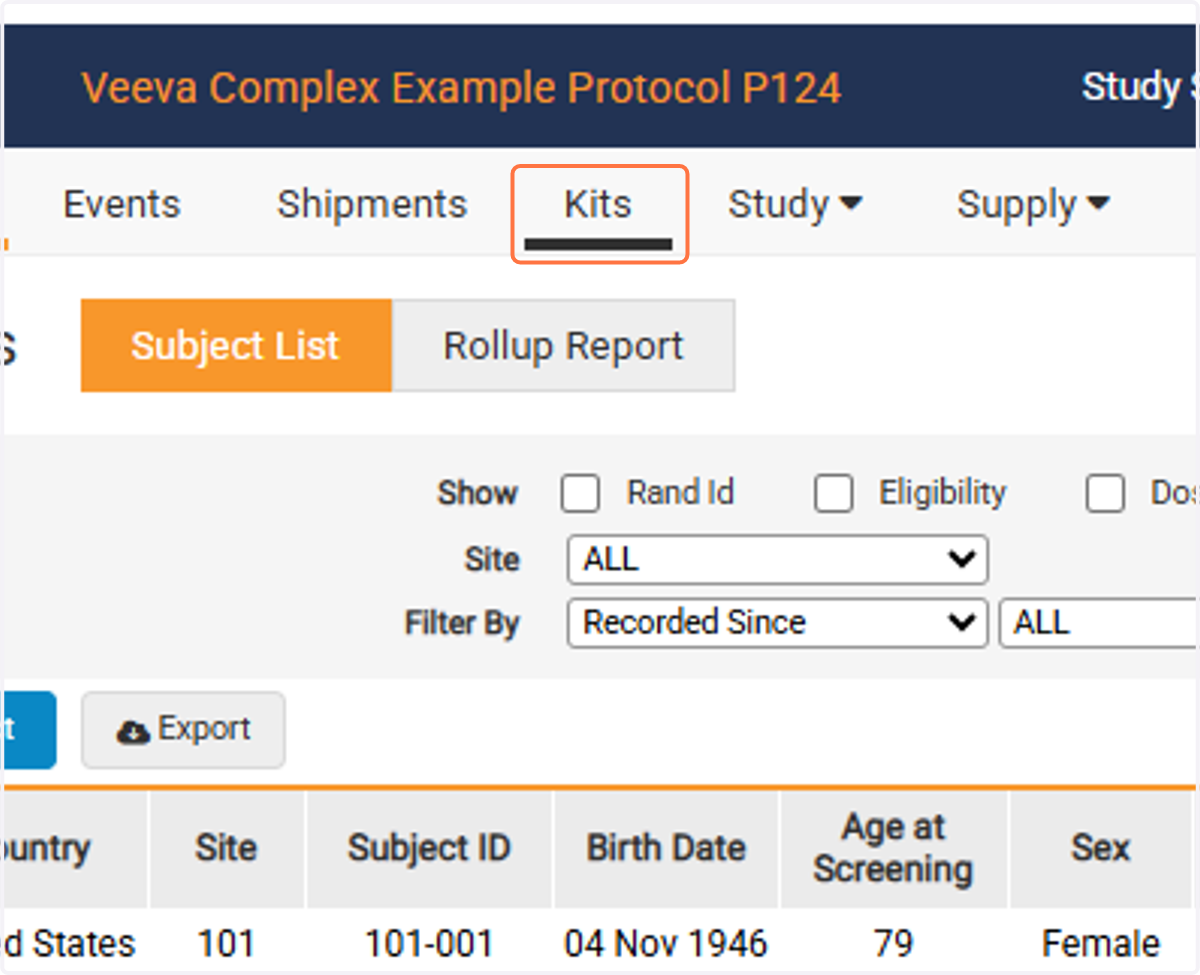
  1. 1. Click on Kits

    Click on Kits
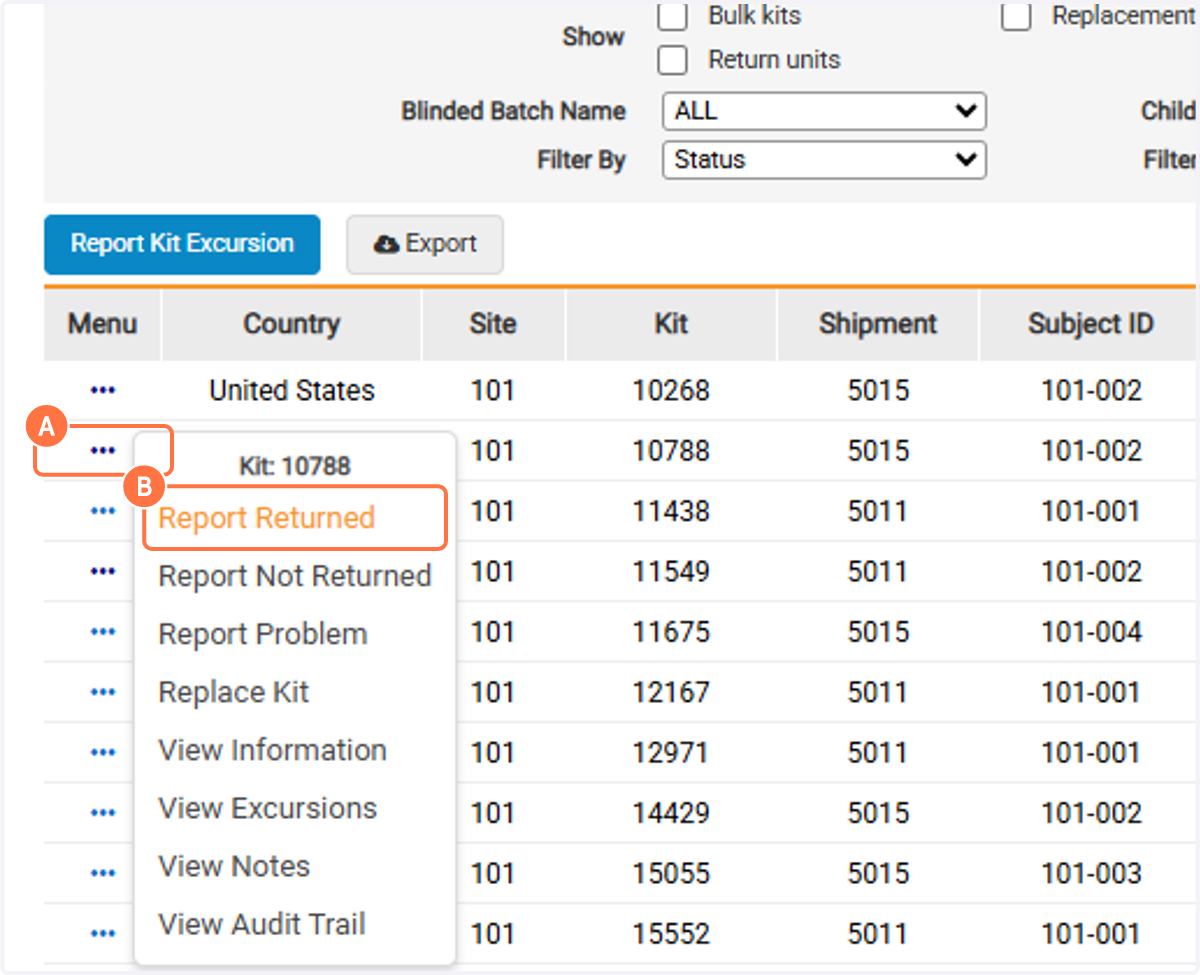
    1. 2. A. Click on Task Menu

    2. 2. B. Click on Report Returned

    A. Click on Task Menu B. Click on Report Returned
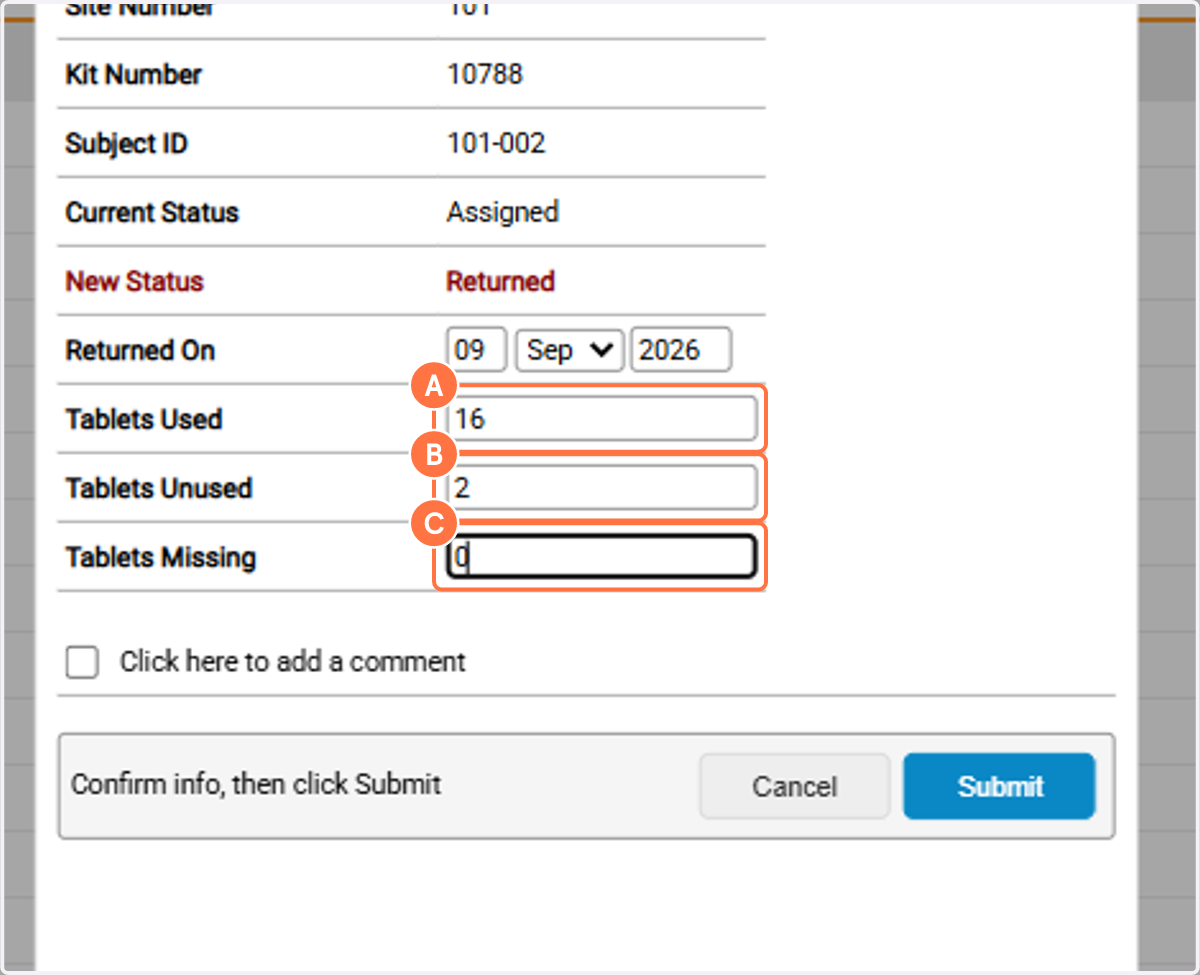
    1. 3. A. Type quantity of Used

    2. 3. B. Type quantity of Unused

    3. 3. C. Type quantity of Missing

    A. Type quantity of Used B. Type quantity of Unused C. Type quantity of Missing
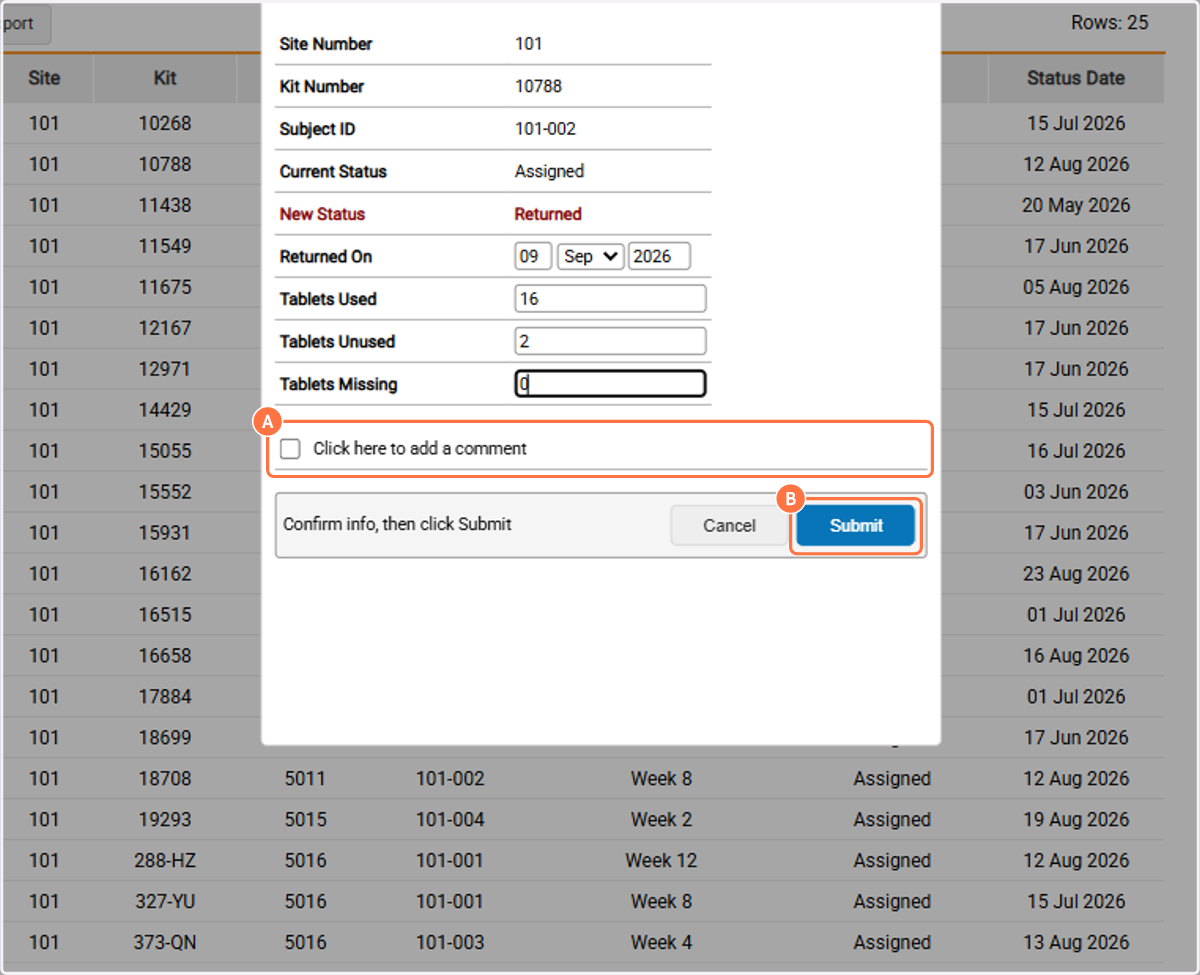
    1. 4. A. Click the checkbox to add an optional comment

    2. 4. B. Click on Submit

    A. Click the checkbox to add an optional comment B. Click on Submit
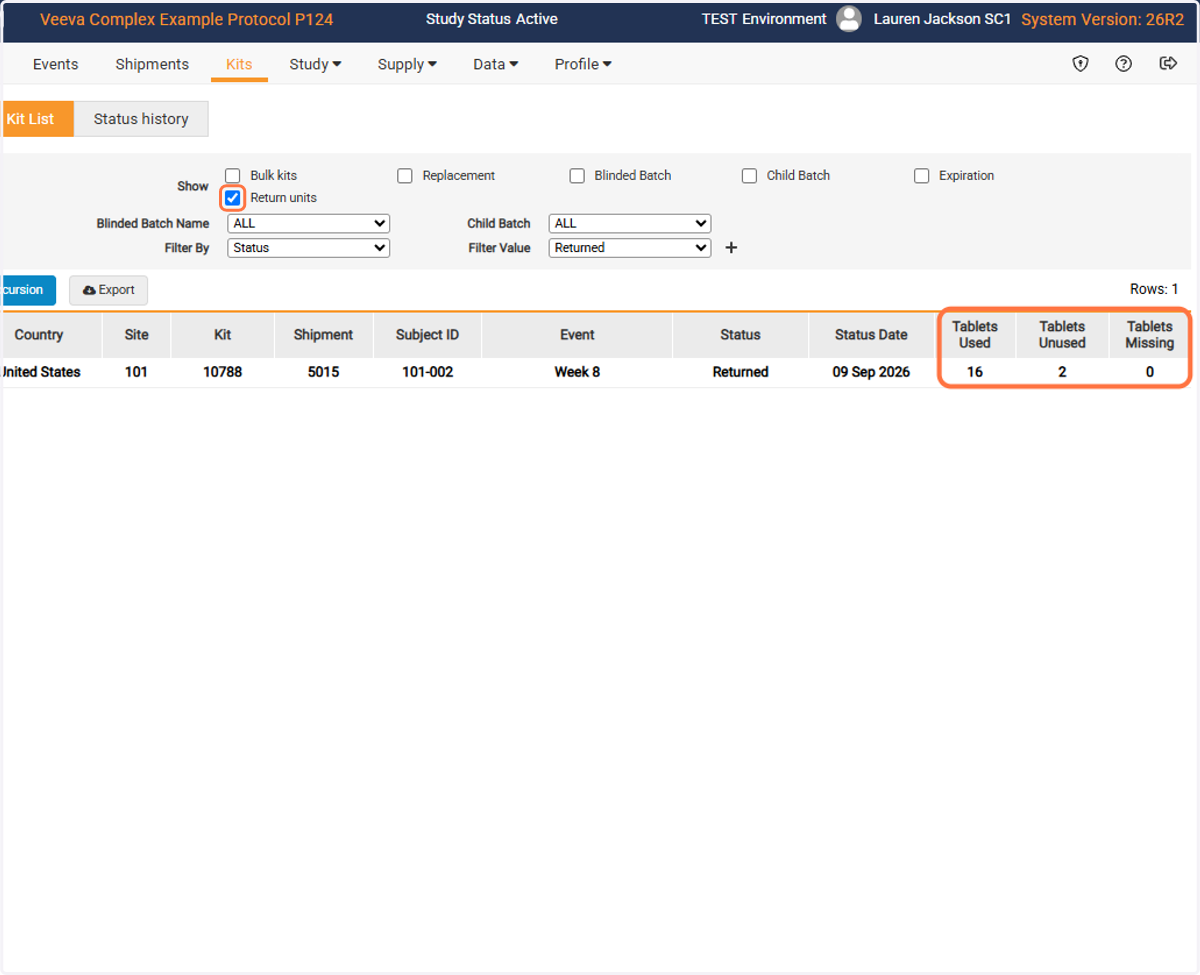
  1. 5. If the study is using content accountability, select Return units to view the specific quantities that were entered

    If the study is using content accountability, select Return units to view the specific quantities that were entered
Report Not Returned

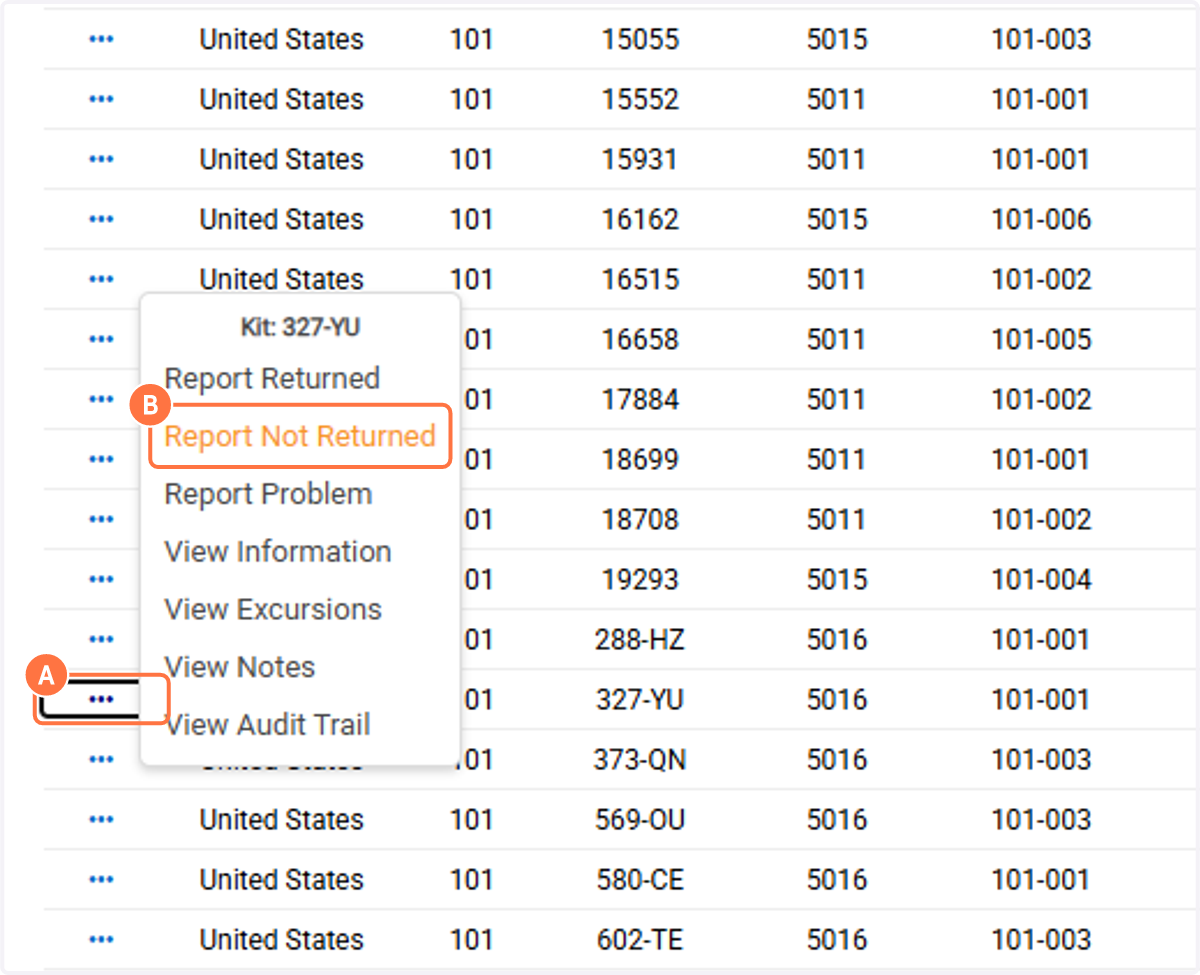
    1. 6. A. From the Kits page, Click on the Kit Task Menu

    2. 6. B. Click on Report Not Returned

    A. From the Kits page, Click on the Kit Task Menu B. Click on Report Not Returned
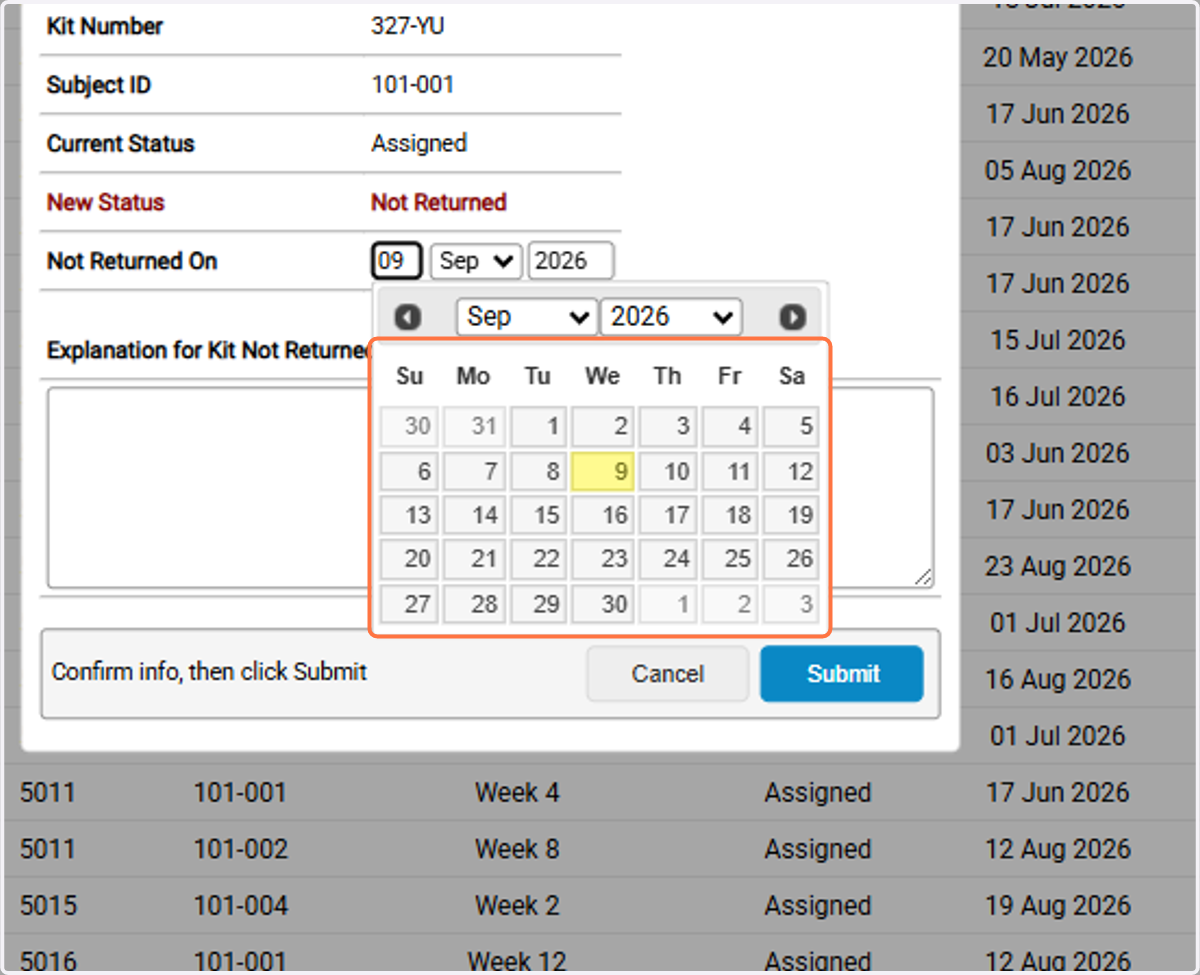
  1. 7. Select a date

    Select a date
  2. 8. Type Explanation for Kit Not Returned
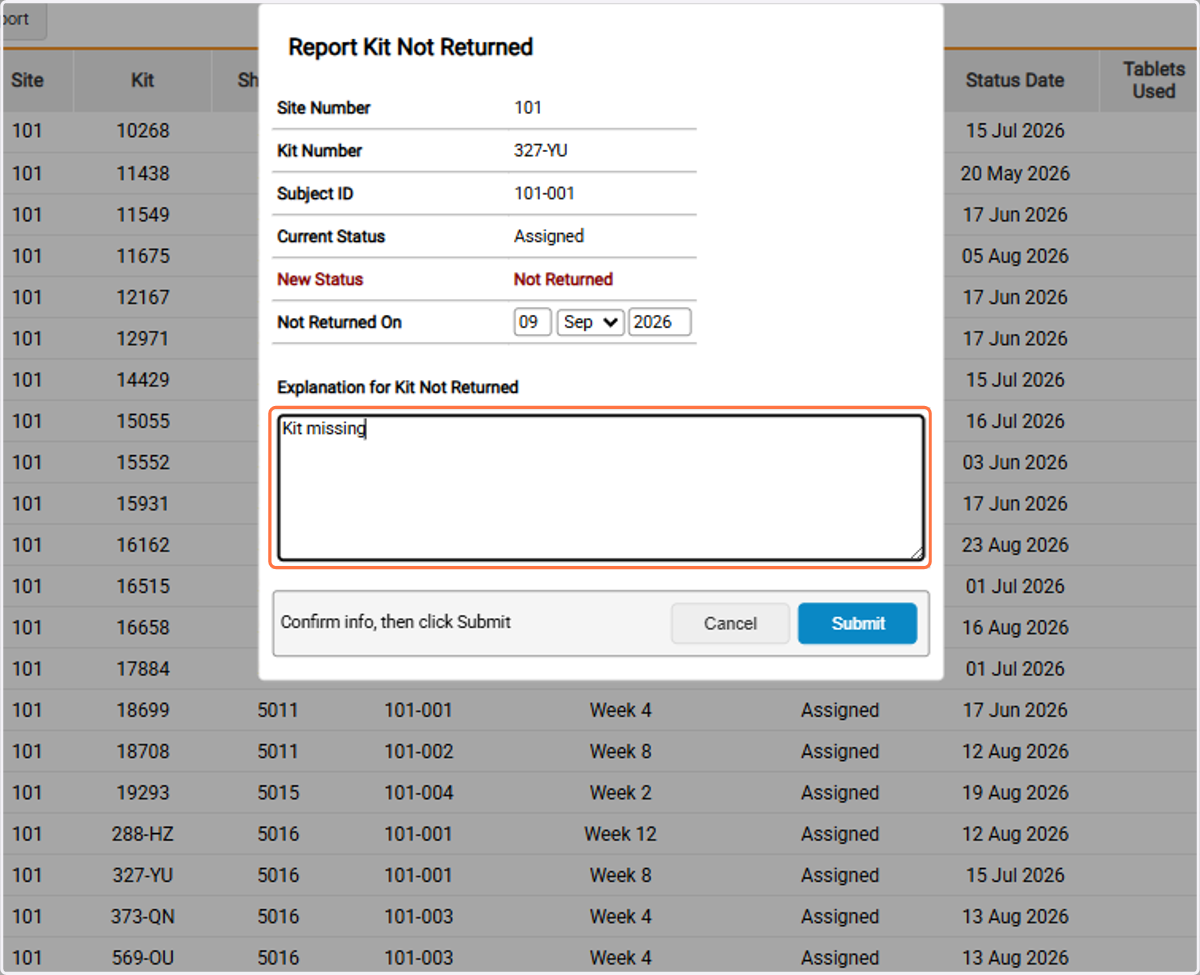
    Type Explanation for Kit Not Returned
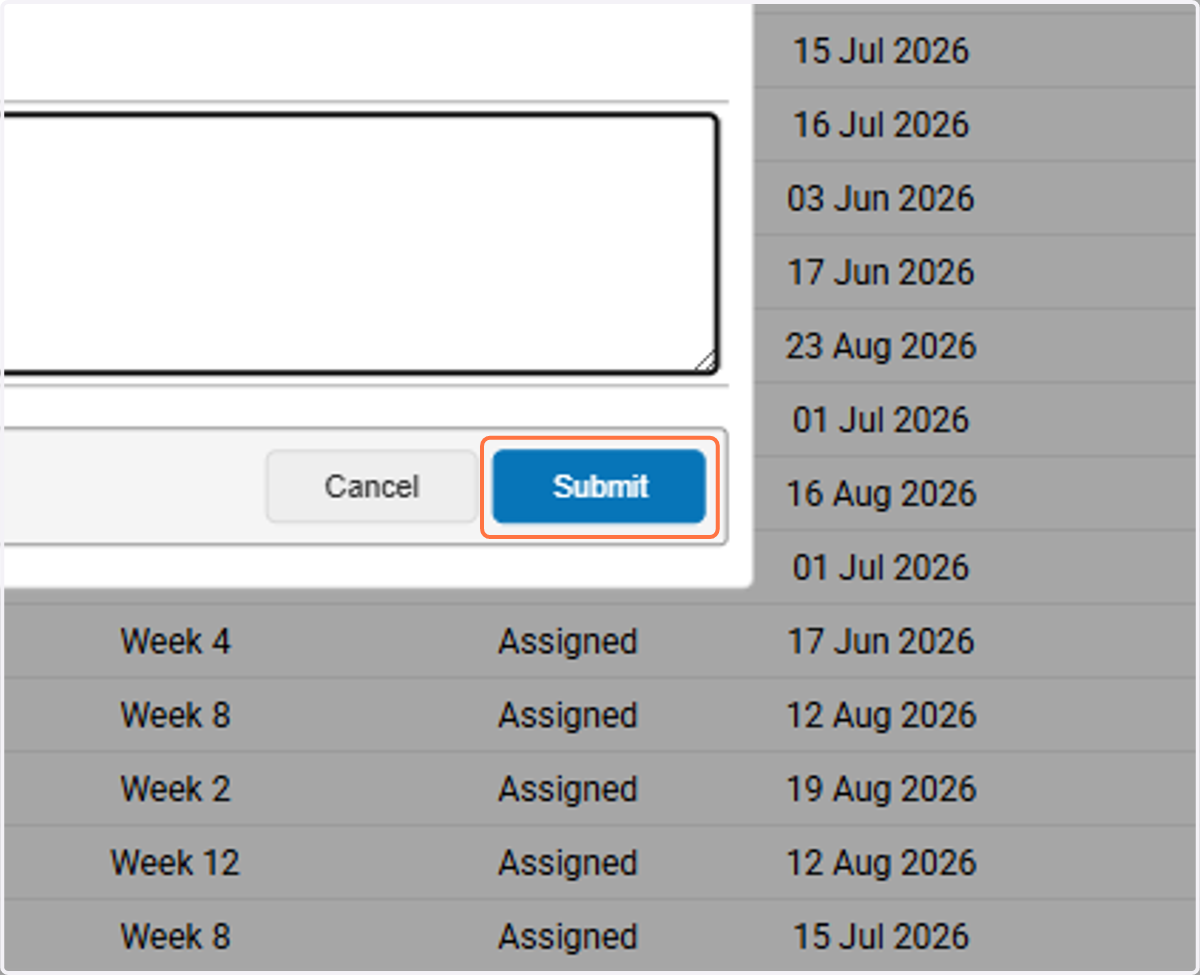
  3. 9. Click on Submit

    Click on Submit
  4. 10. The Not Returned status now displays
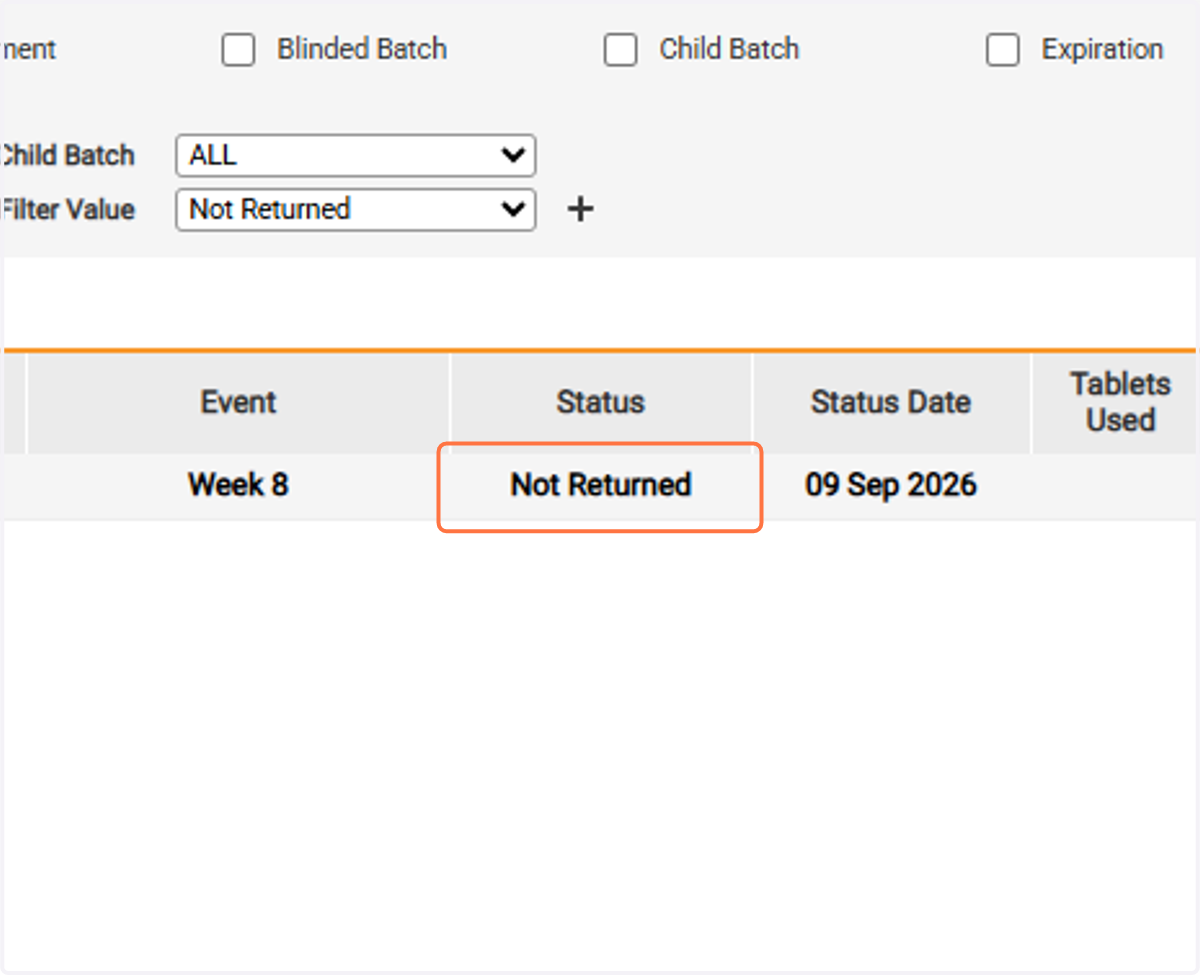
    The Not Returned status now displays

View Kit Status History

  1. 11. Select Status history to view all of the status dates for a kit
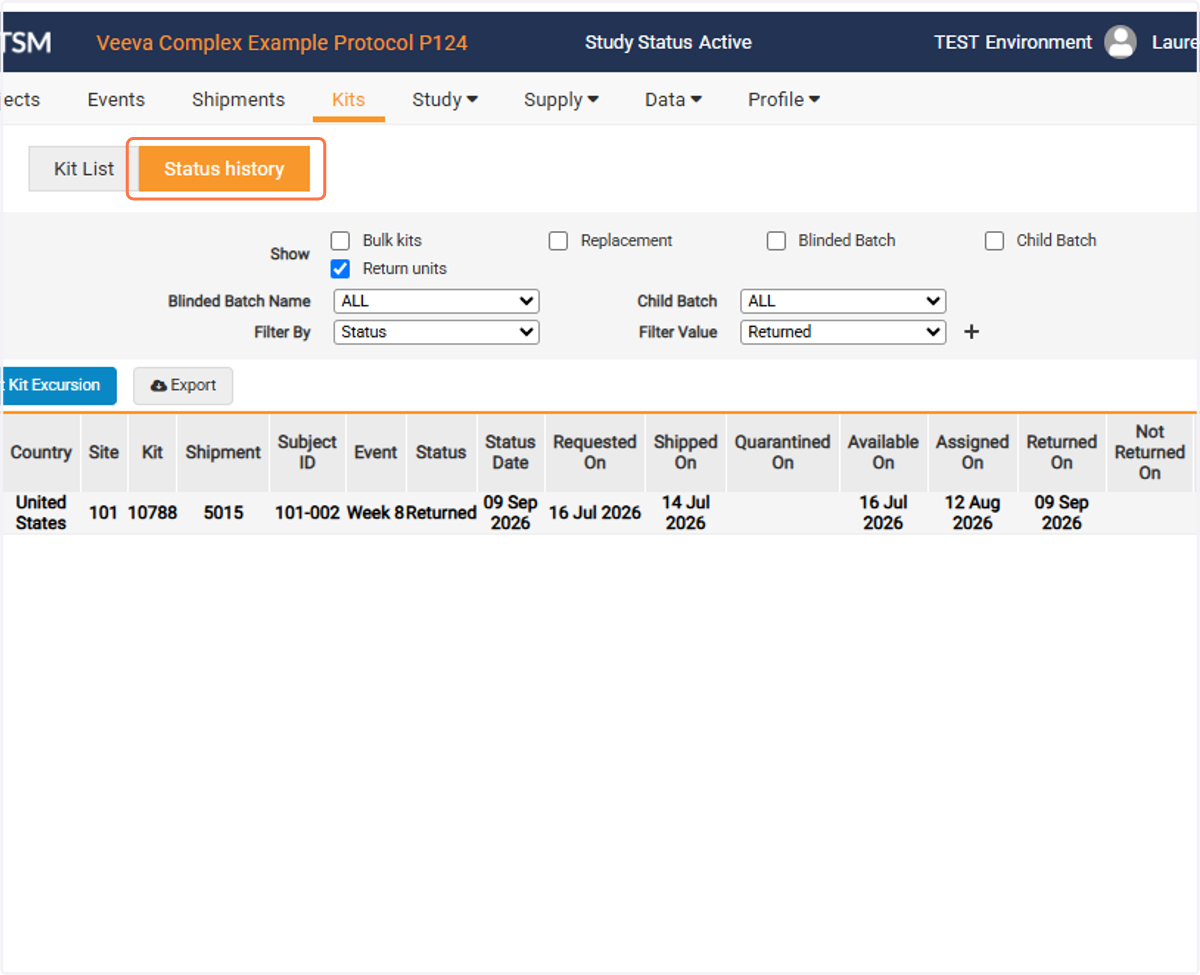
    Select Status history to view all of the status dates for a kit