Adding Leadngage Voicedrops to Follow Up Boss

Leadngage

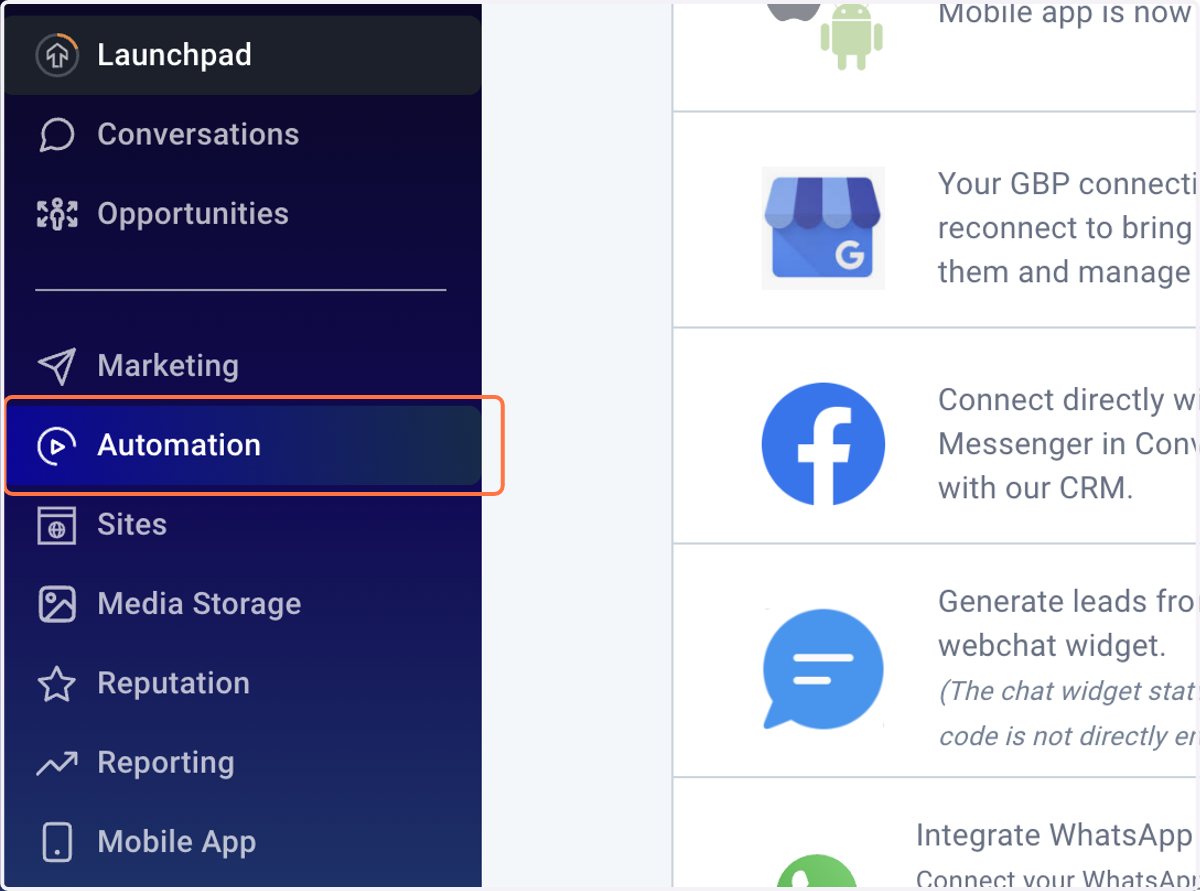
  1. 1. Click on Automation

    Click on Automation
  2. 2. Click on Leadngage_Automation_Plan_Templates
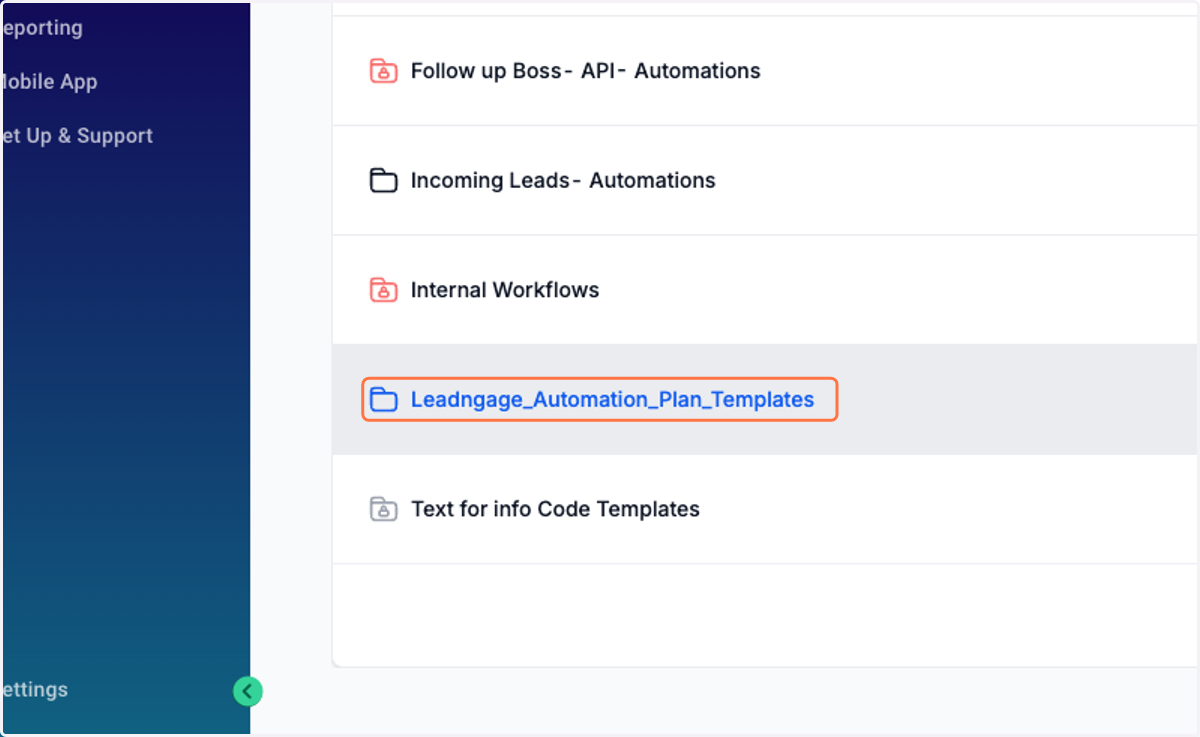
    Click on Leadngage_Automation_Plan_Templates
  3. 3. Click on the voice drop you'd like to edit, 1-6
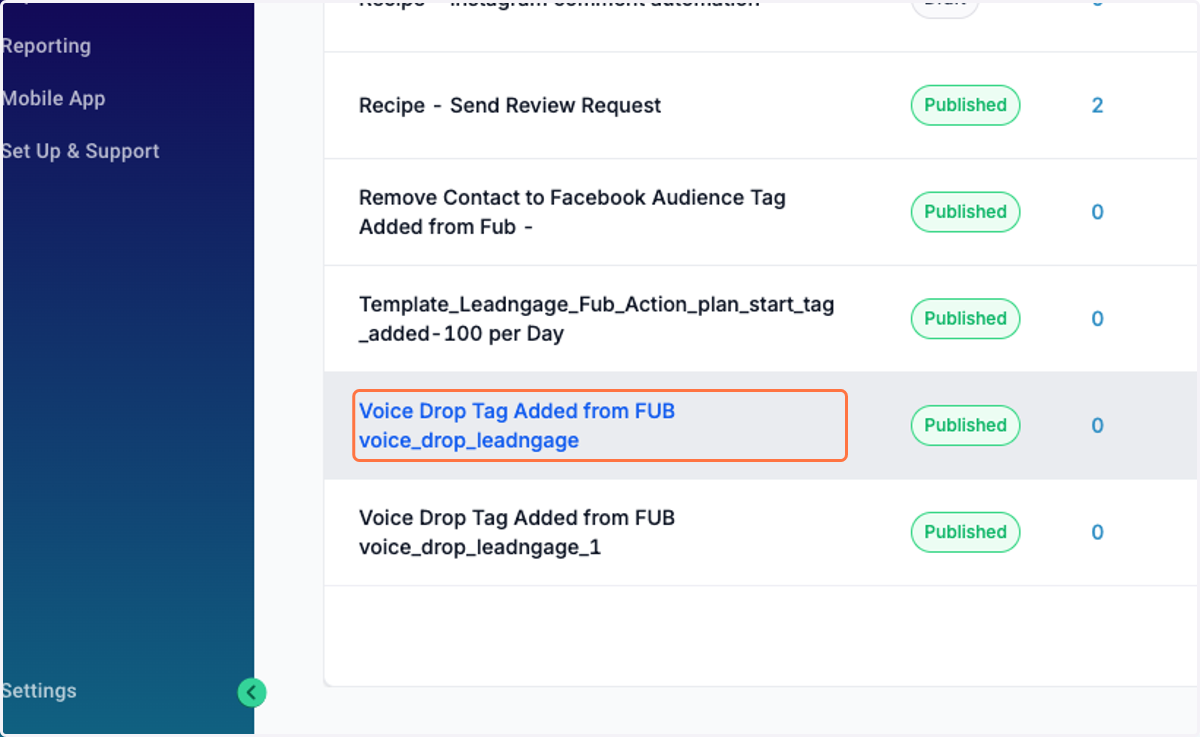
    Click on the voice drop you'd like to edit, 1-6
  4. 4. Click on Voicemail_ Drop Sample message_ PLEASEREMOVE Action
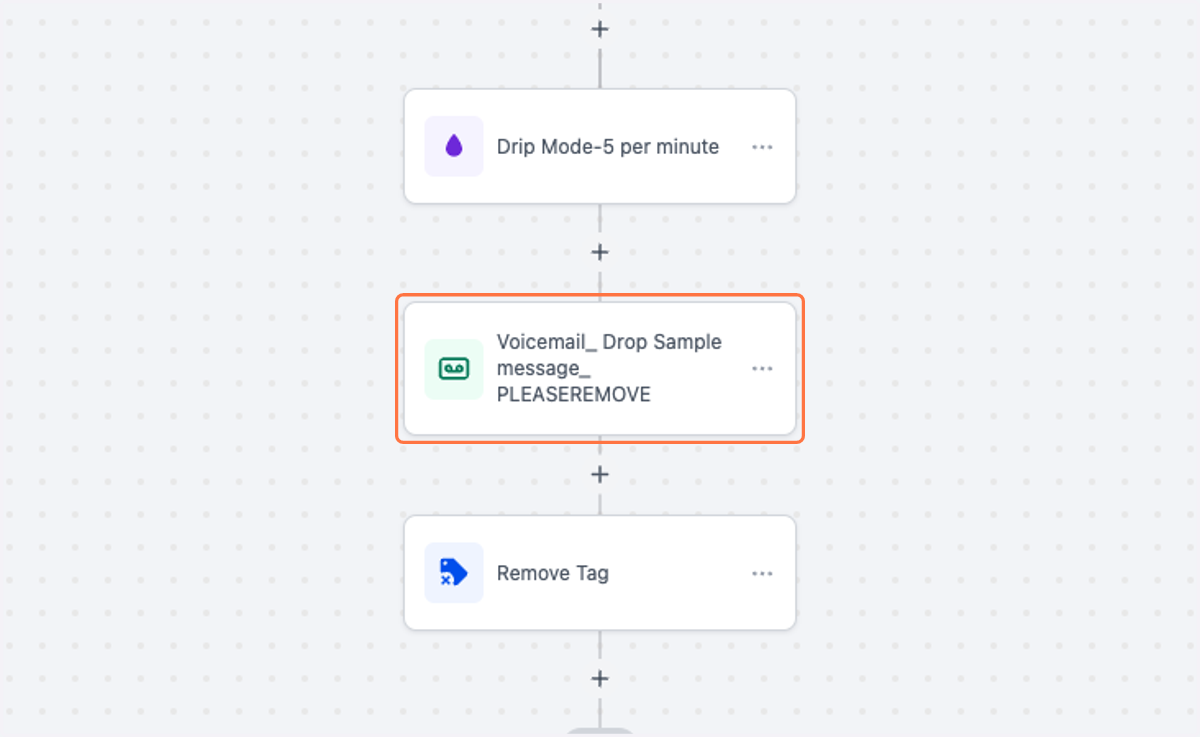
    Click on Voicemail_ Drop Sample message_ PLEASEREMOVE Action
  5. 5. Click the x to get rid of the current placeholder voicedrop
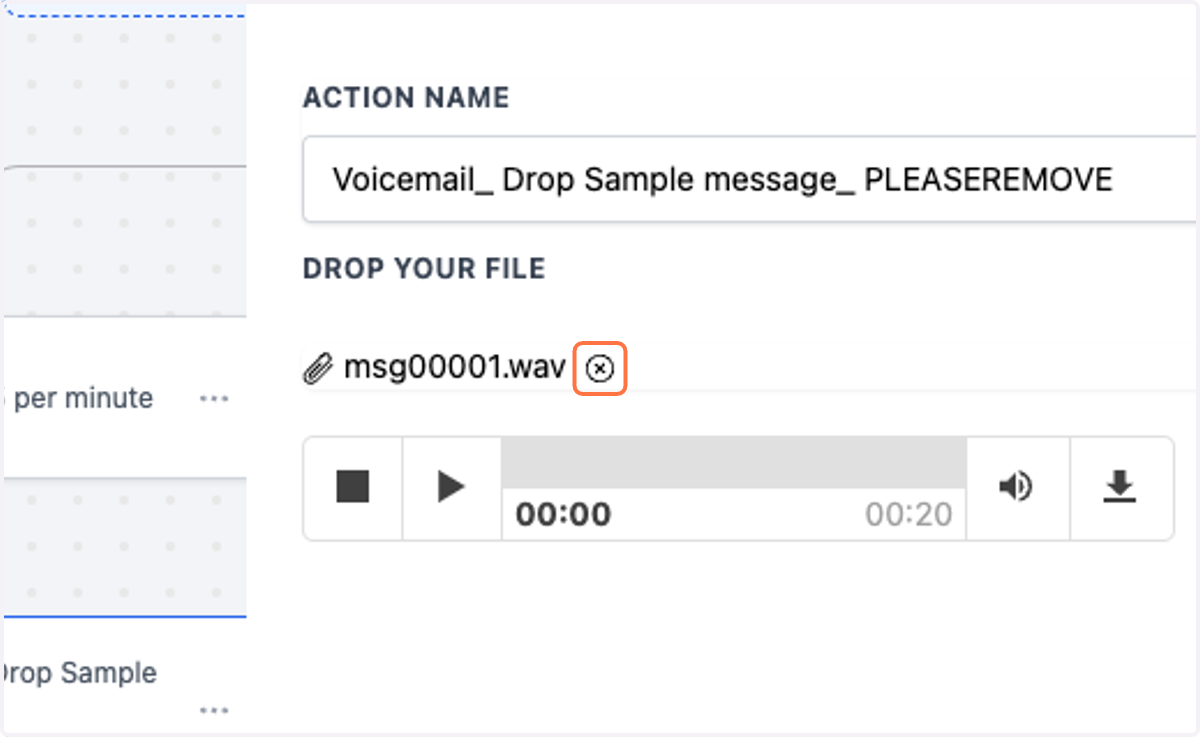
    Click the x to get rid of the current placeholder voicedrop
  6. 6. Now you can upload your prerecorded voicedrop and save
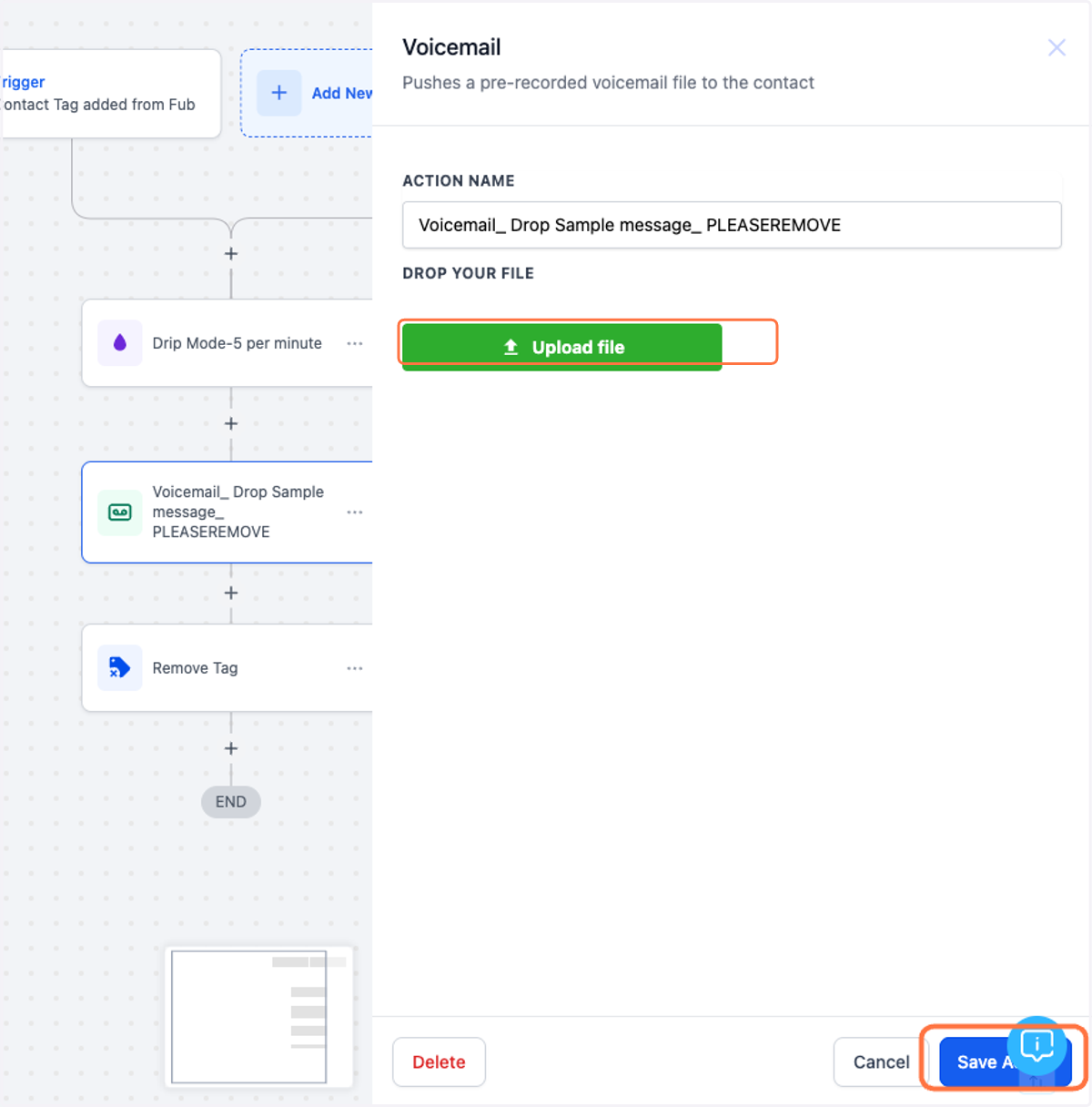
    Now you can upload your prerecorded voicedrop and save
  7. 7. In Follow Up Boss, under a contact add a new tag
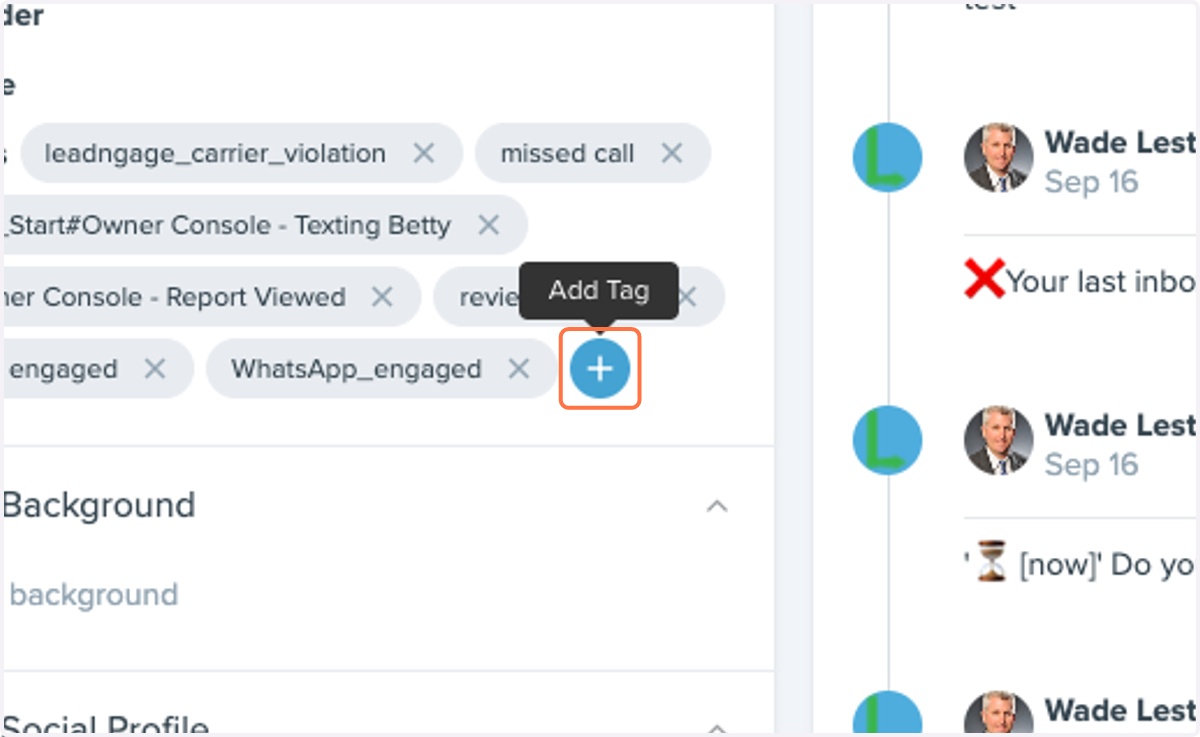
    In Follow Up Boss, under a contact add a new tag
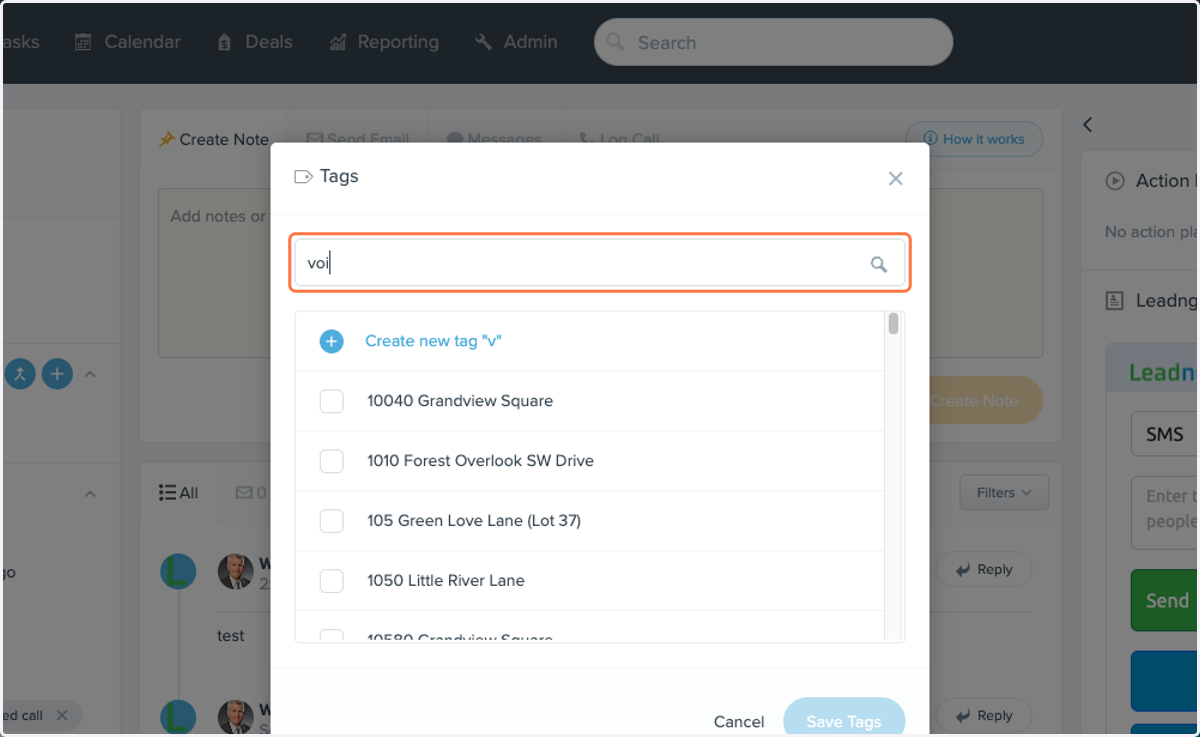
  8. 8. Type "voice"

    Type "voice"
  9. 9. Check voice_drop_leadngage. You can choose between 6 different ones.
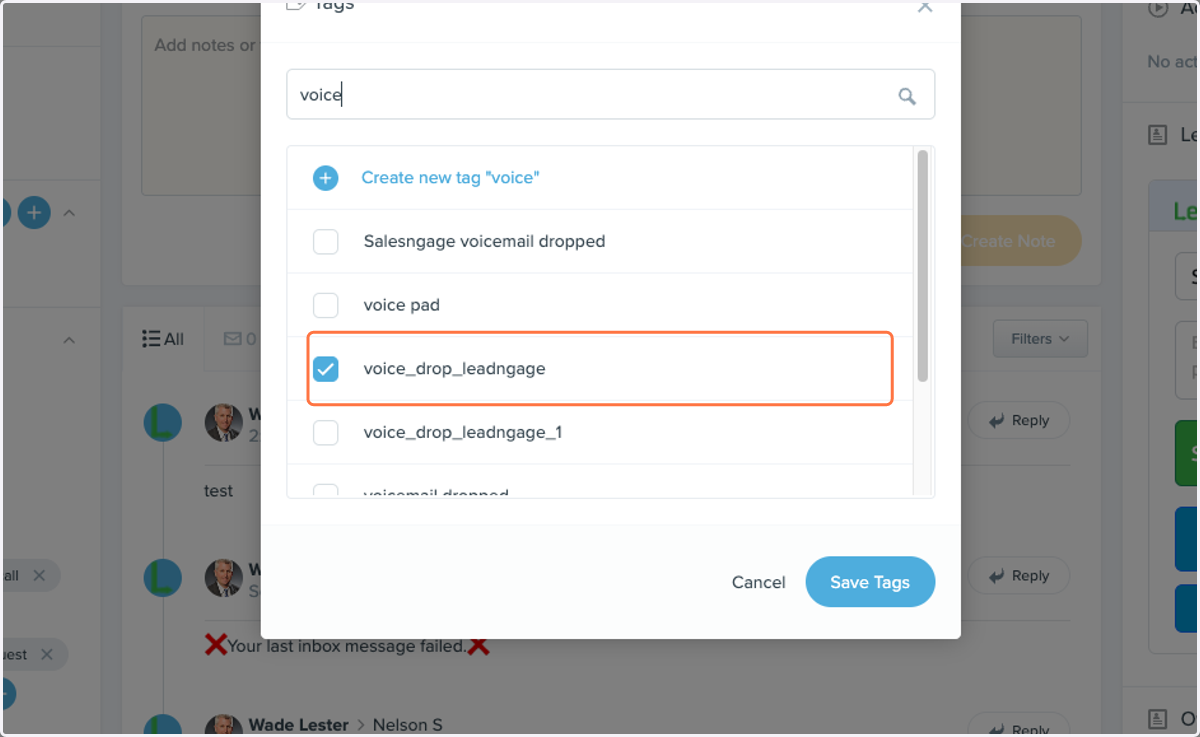
    Check voice_drop_leadngage. You can choose between 6 different ones.
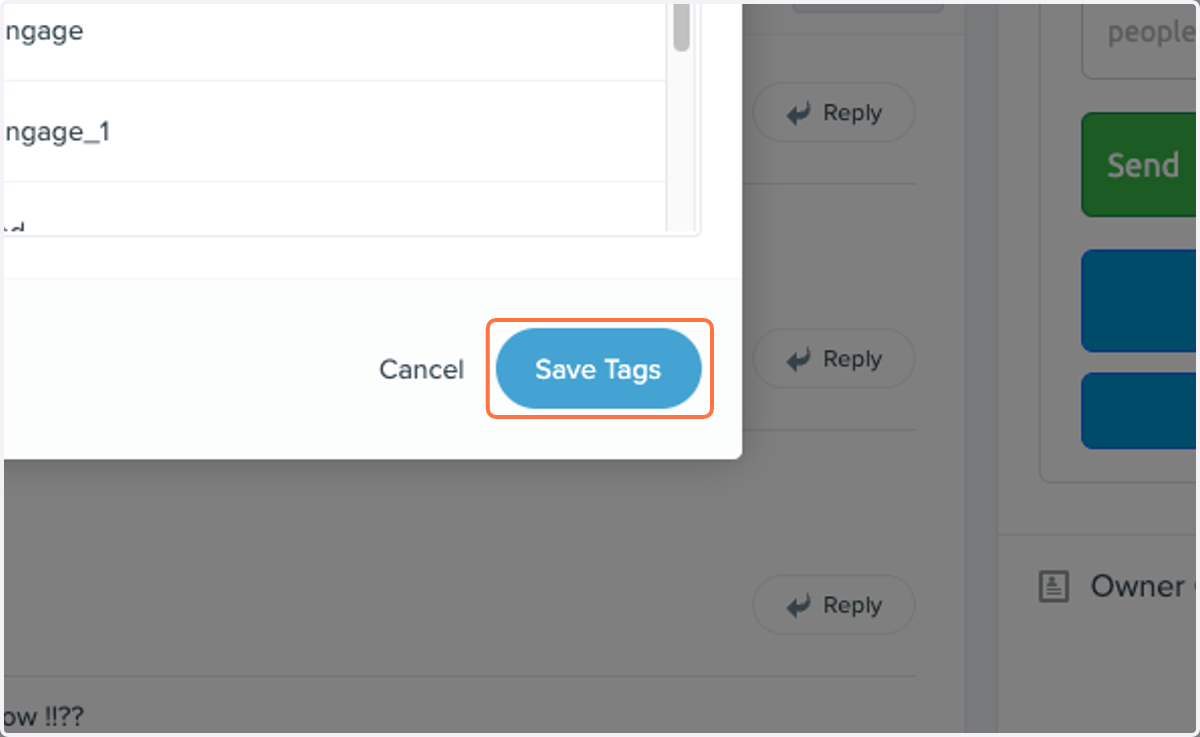
  10. 10. Click on Save Tags

    Click on Save Tags