SBO | Hubspot Training for Desktop
Hubspot
1. Go to www.hubspot.com
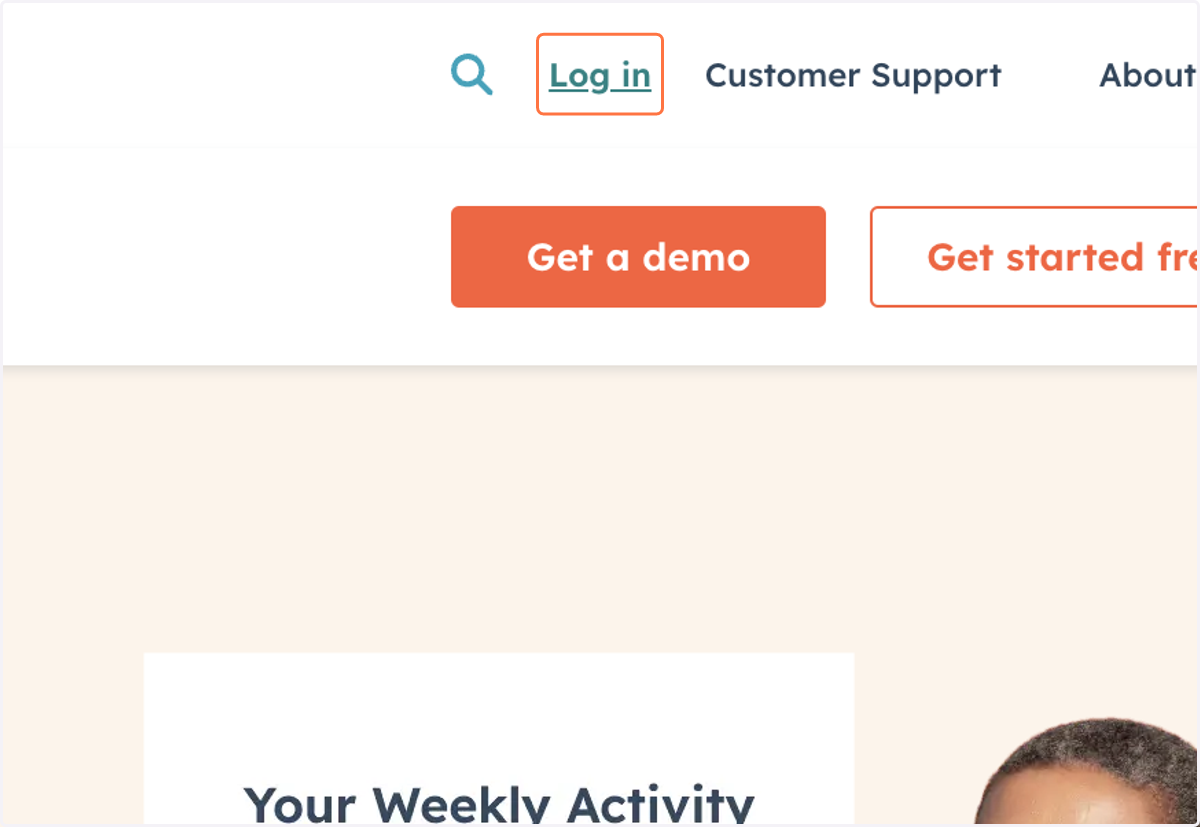
2. Click on Log in
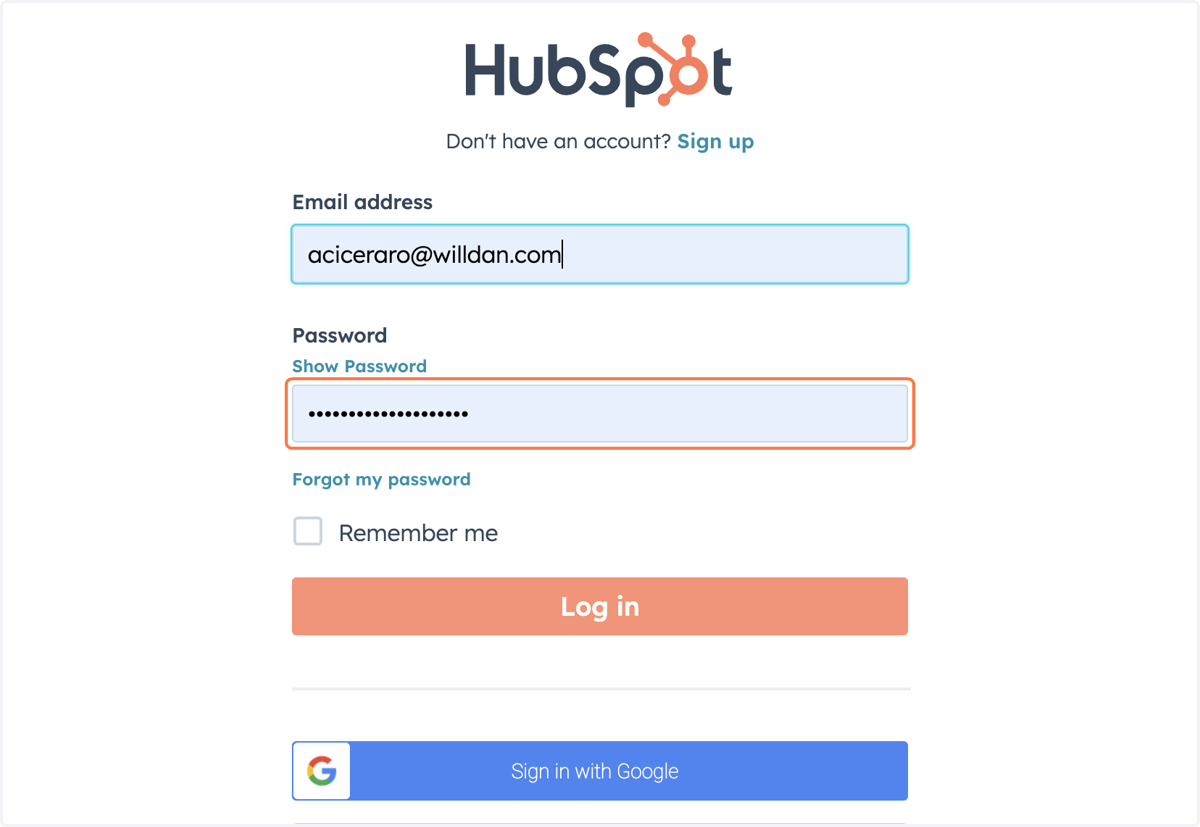
3. Input your credentials and click login
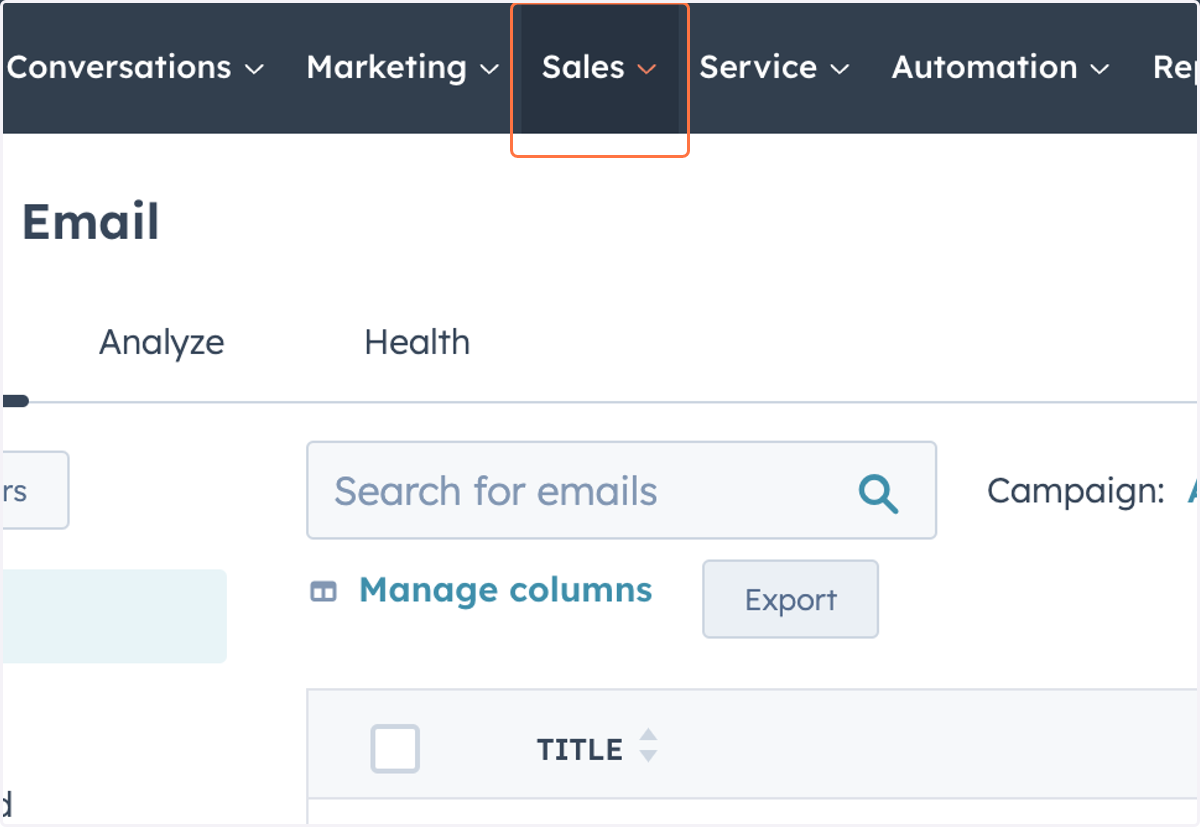
4. Click on Sales
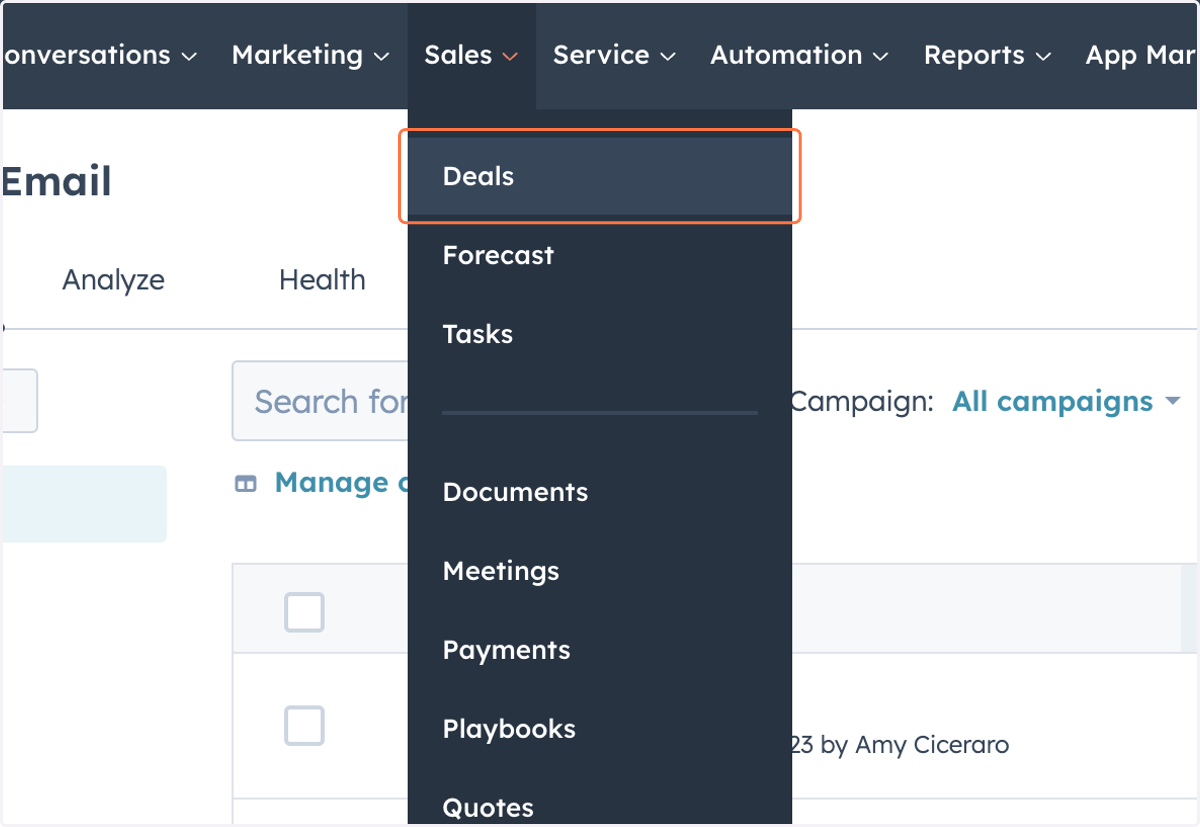
5. Click on Deals
6. Search for your deal
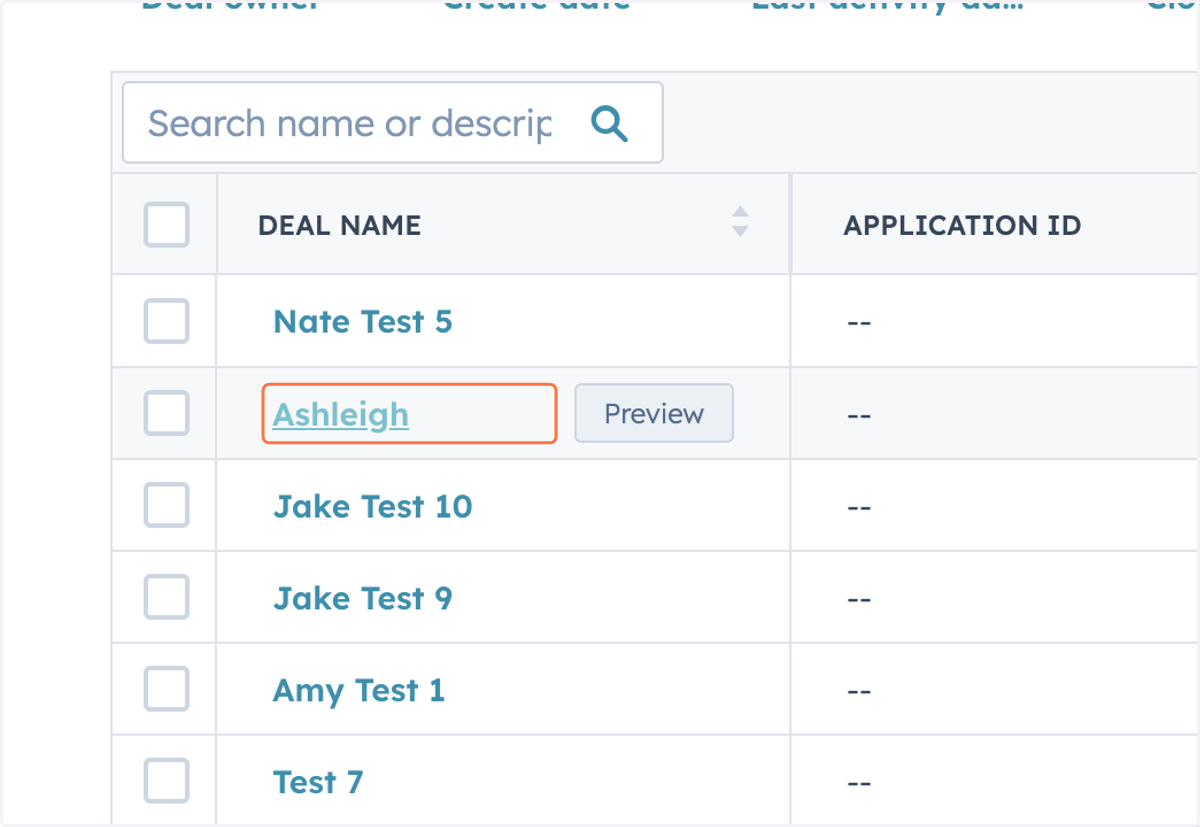
7. Call the customer
Example script:
“Hello, my name is __________ calling on behalf of Willdan, who is a contracted partner with ________ (IOU name). (If you have the customer’s name, ask for that person, if not, ask for the person who handles the utility bill.) I am reaching out today as (IOU name) has launched a new no-cost program that is geared to help small business customers, that may have been impacted due to the pandemic. In addition to the extended payment arrangements, the Small Business Opportunities Program can help with energy saving and I believe it would be beneficial to your business. I can review it with you and provide additional information if you are interested.” If the customer is interested in the program, they must sign the enrollment form. The EA will email the customer the form to sign."
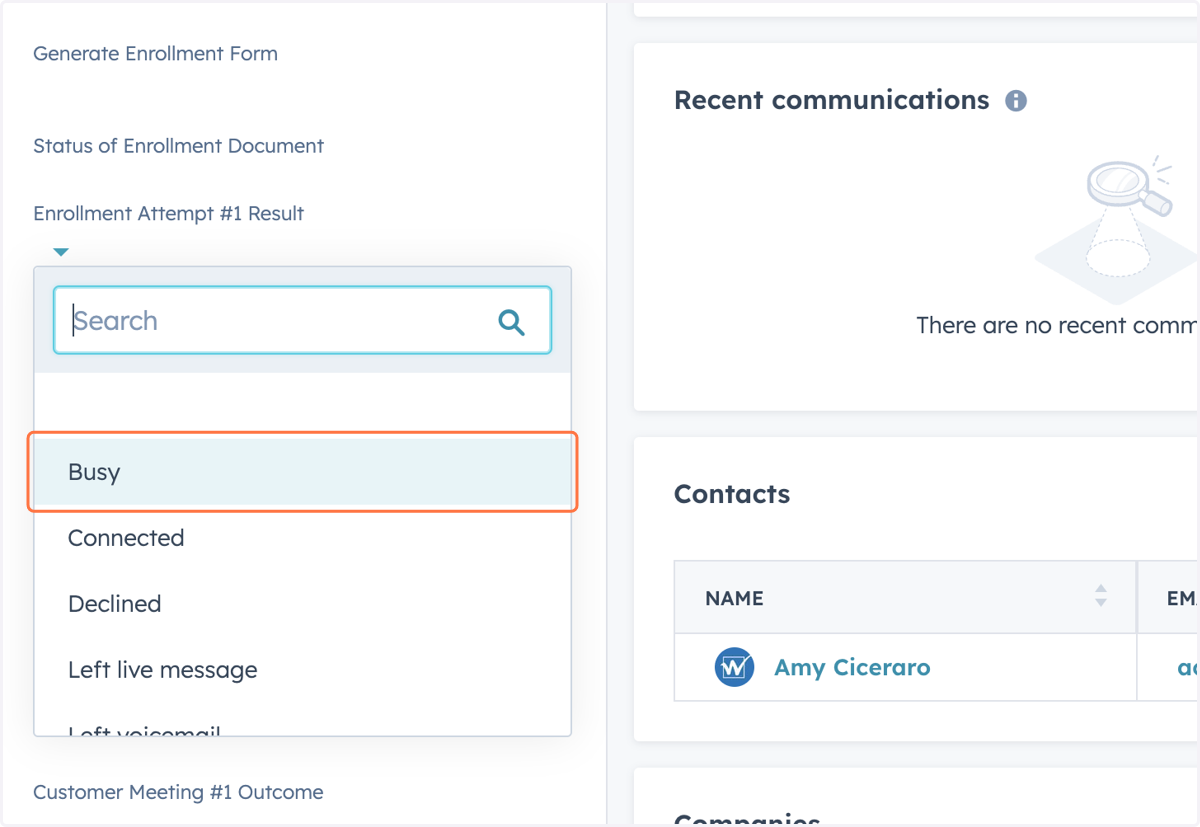
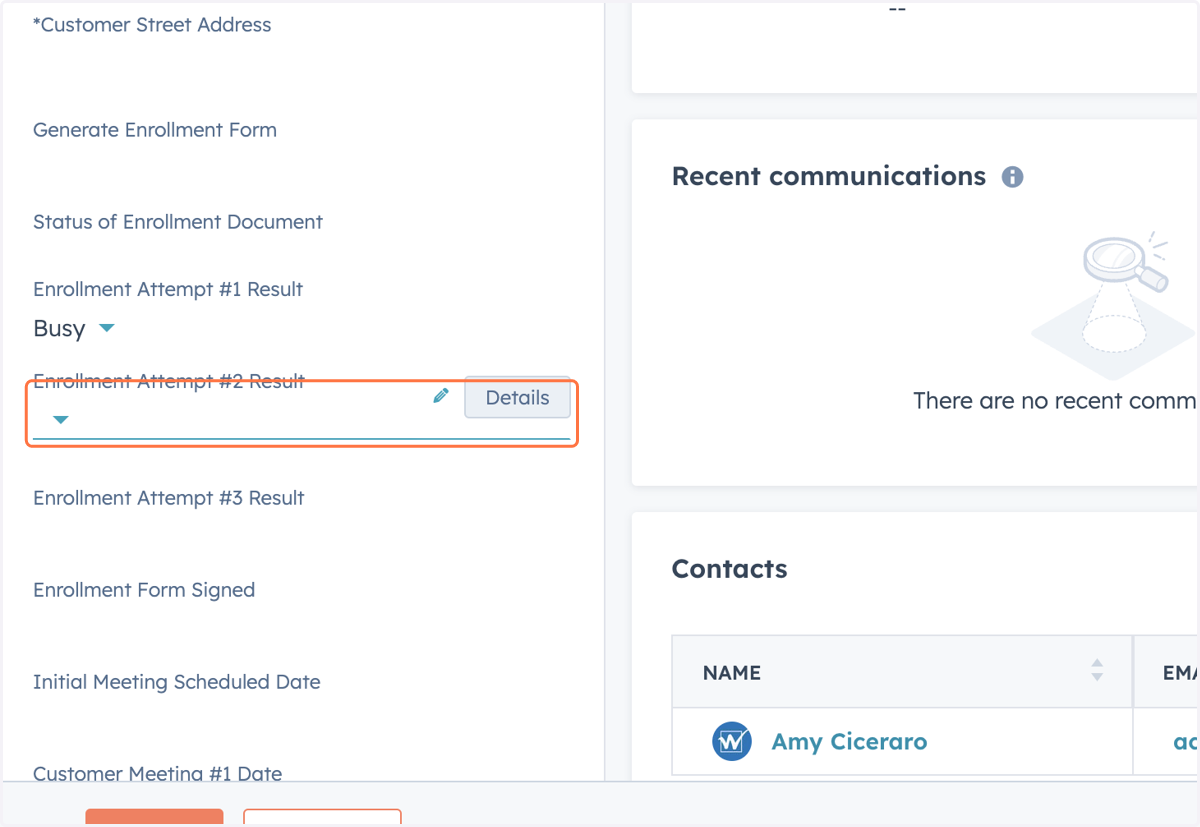
8. Select the outcome of Attempt #1 Result
The EA must try to contact the customer as many times as possible within a 30 day period and 3 of the attempt results need to be entered into Hubspot.
Result options:
Busy
Connected
Declined
Left live message
Left voicemail
No answer
Wrong number
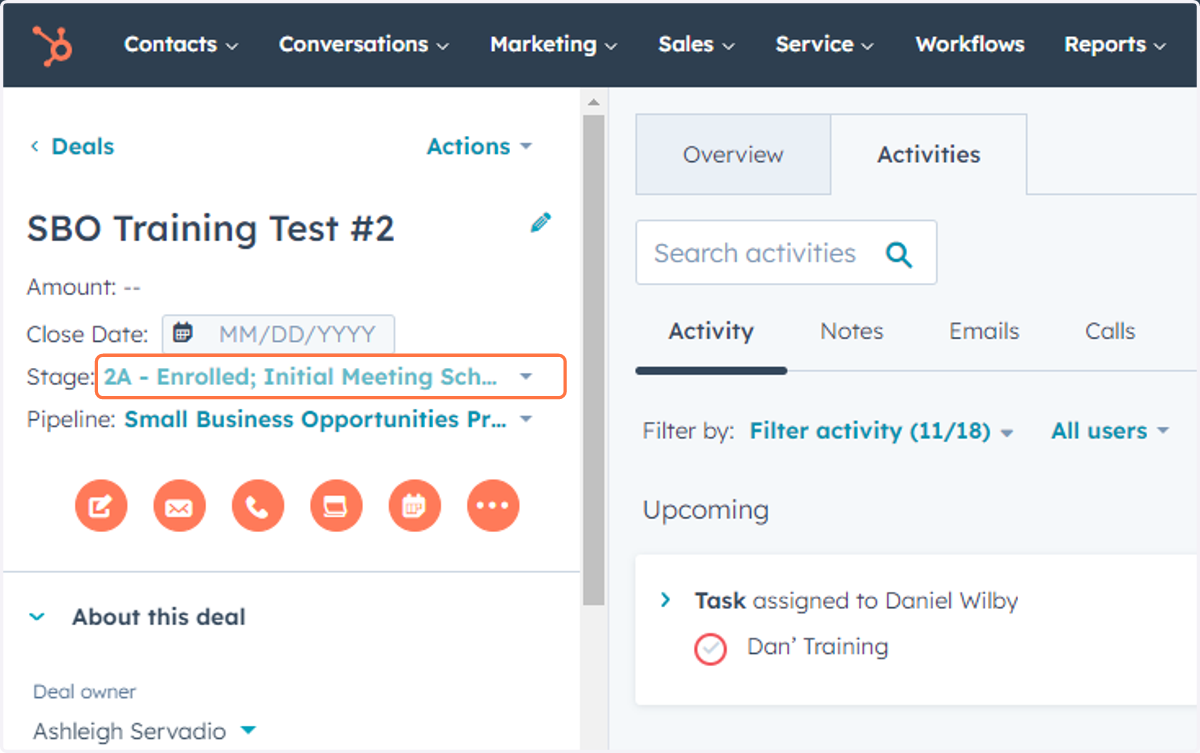
9. If business is closed or out of business - change the stage
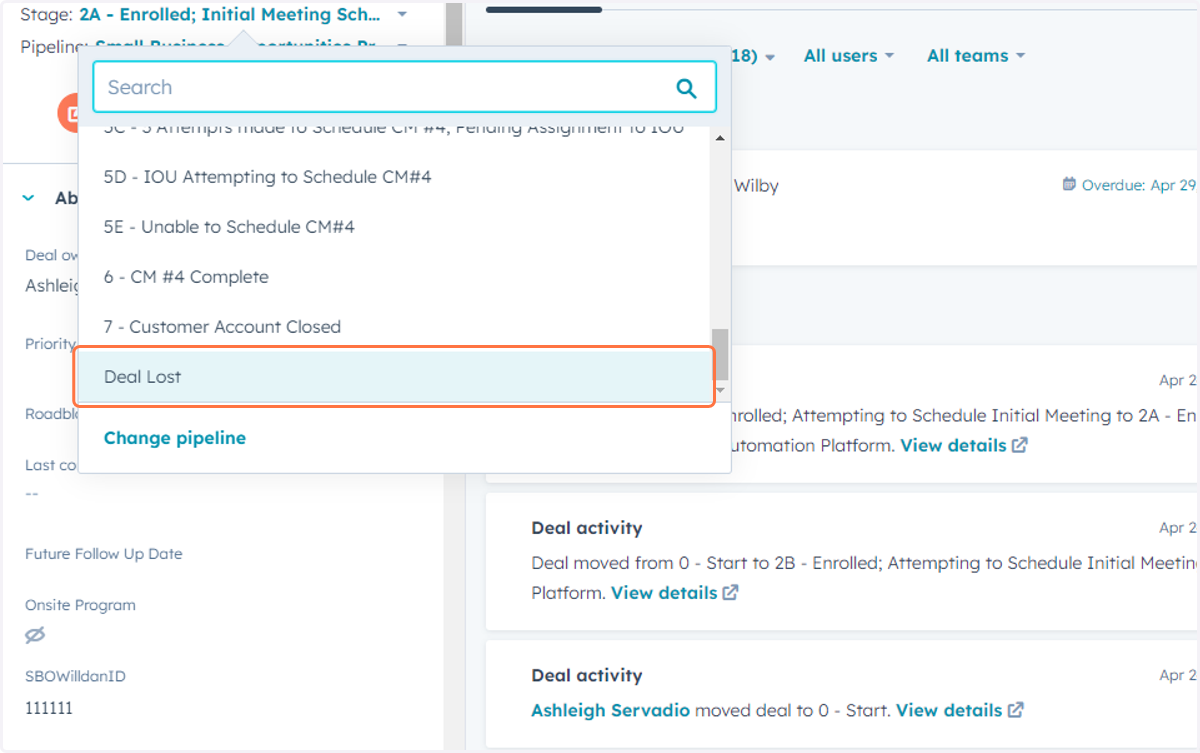
10. Click on Deal Lost
11. Click on Deal Lost Reason (SBO)
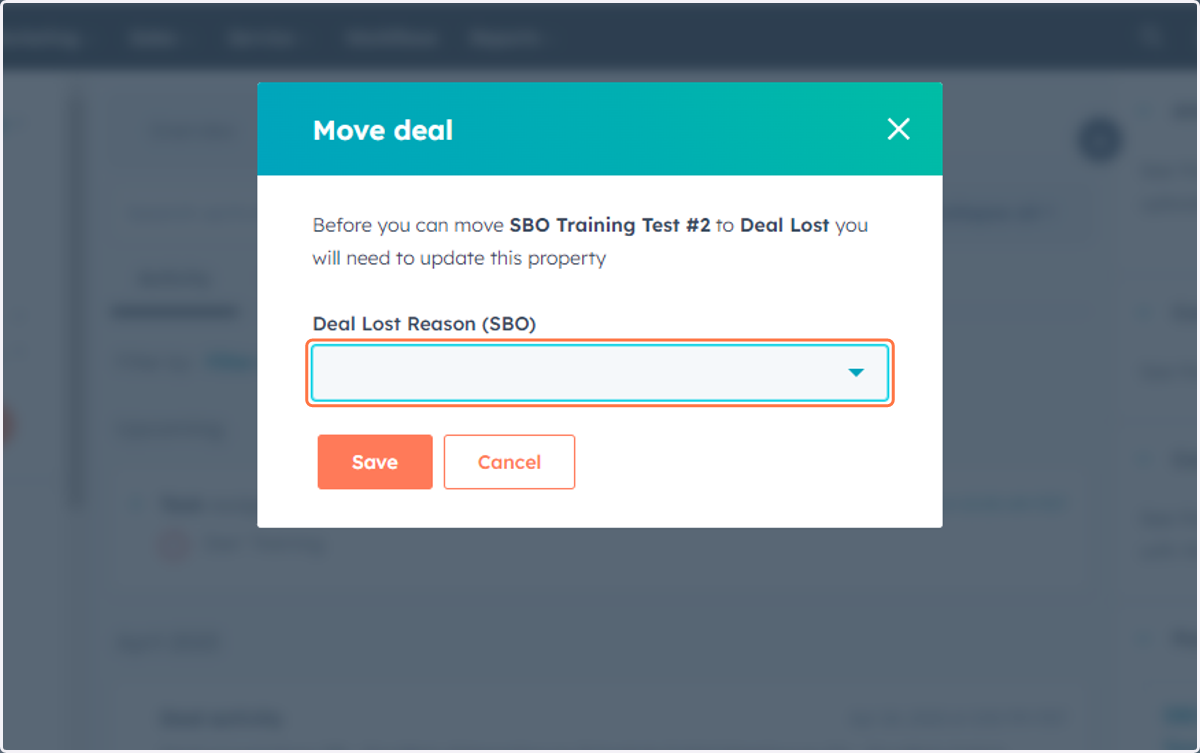
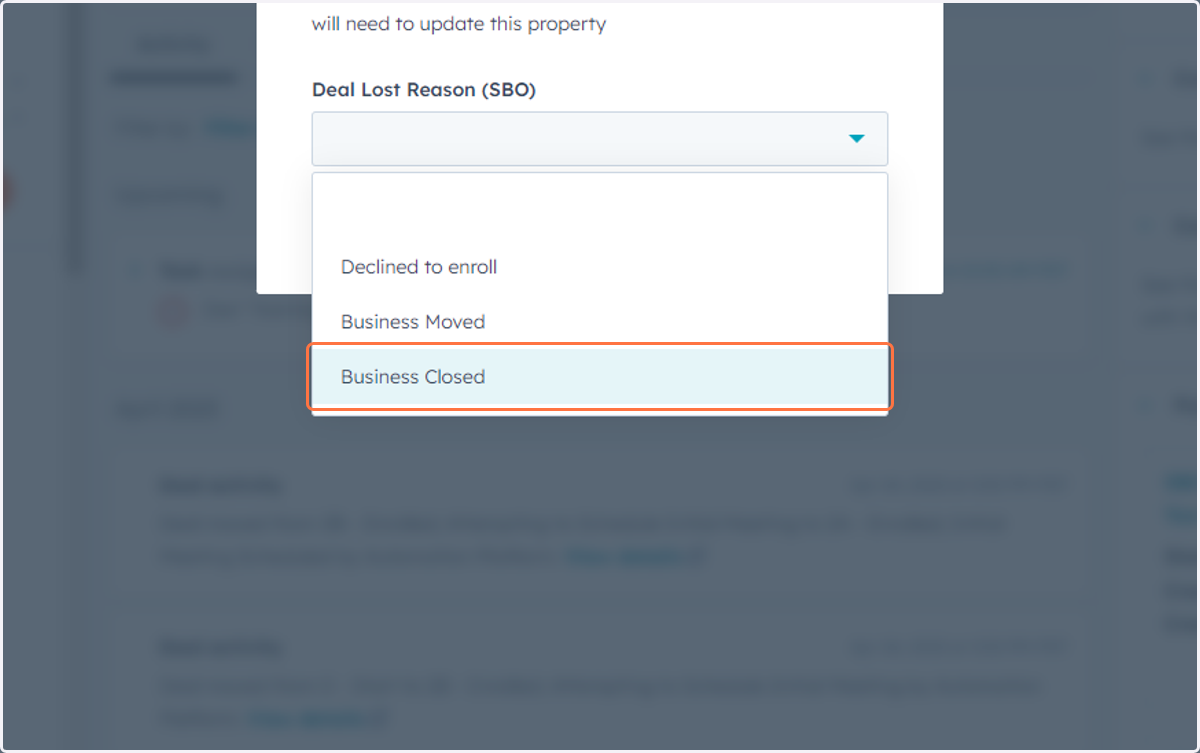
12. Click on Business Closed
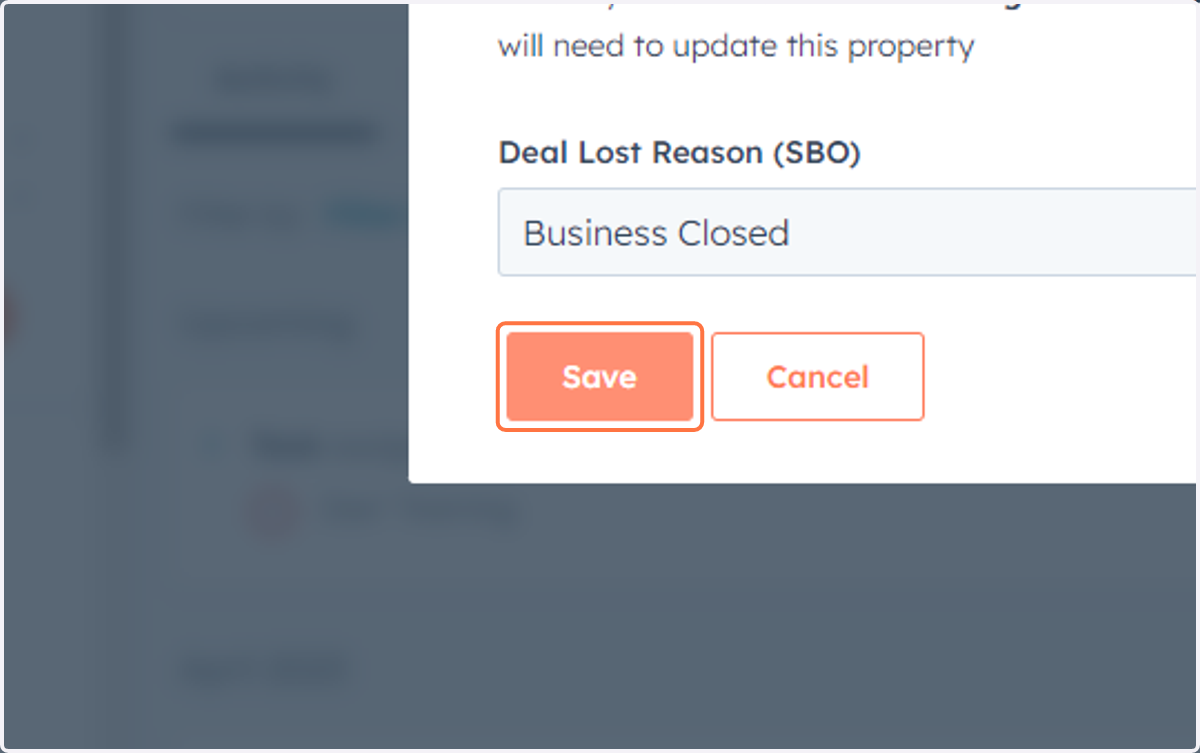
13. Click on Save
14. Repeat the process for Enrollment Attempt #2 Result and Enrollment Attempt #3 Result as necessary
15. Confirm the following contact details if the customer is ready to signup
16. Input 'Contact First Name'
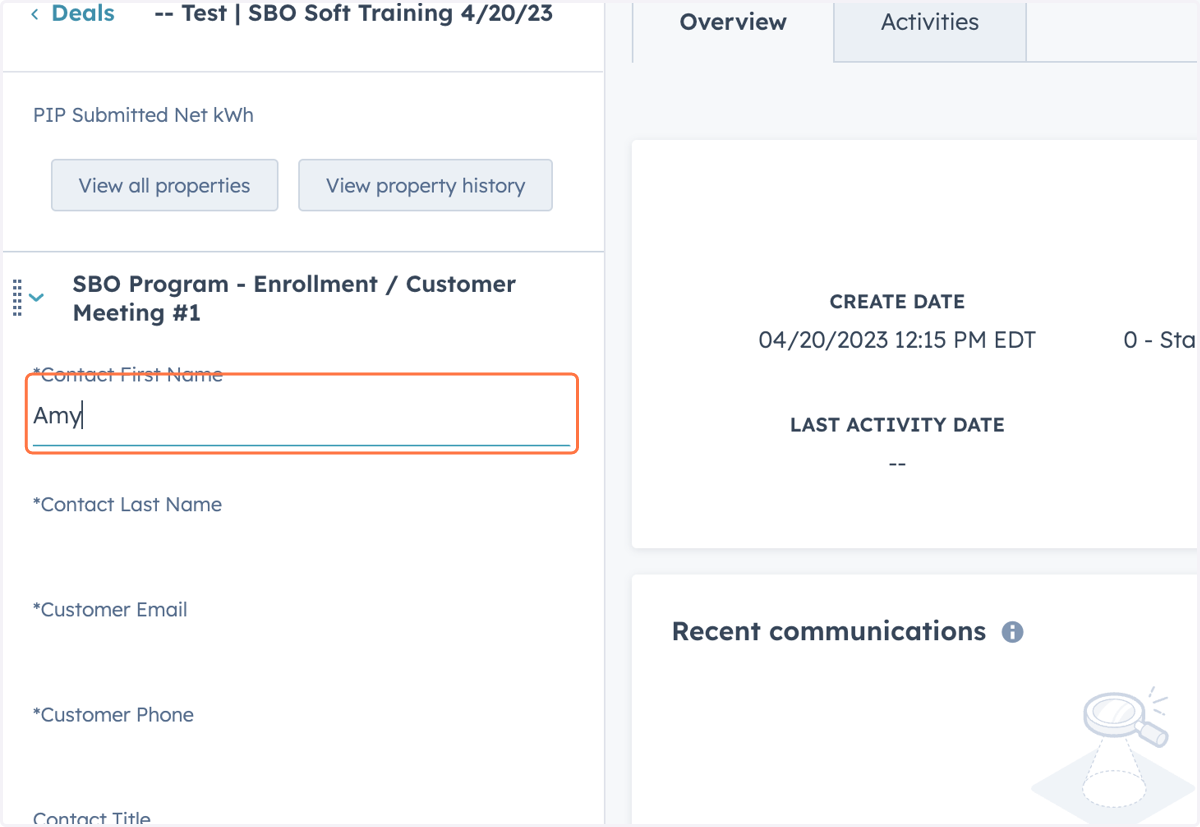
17. Input 'Contact Last Name"
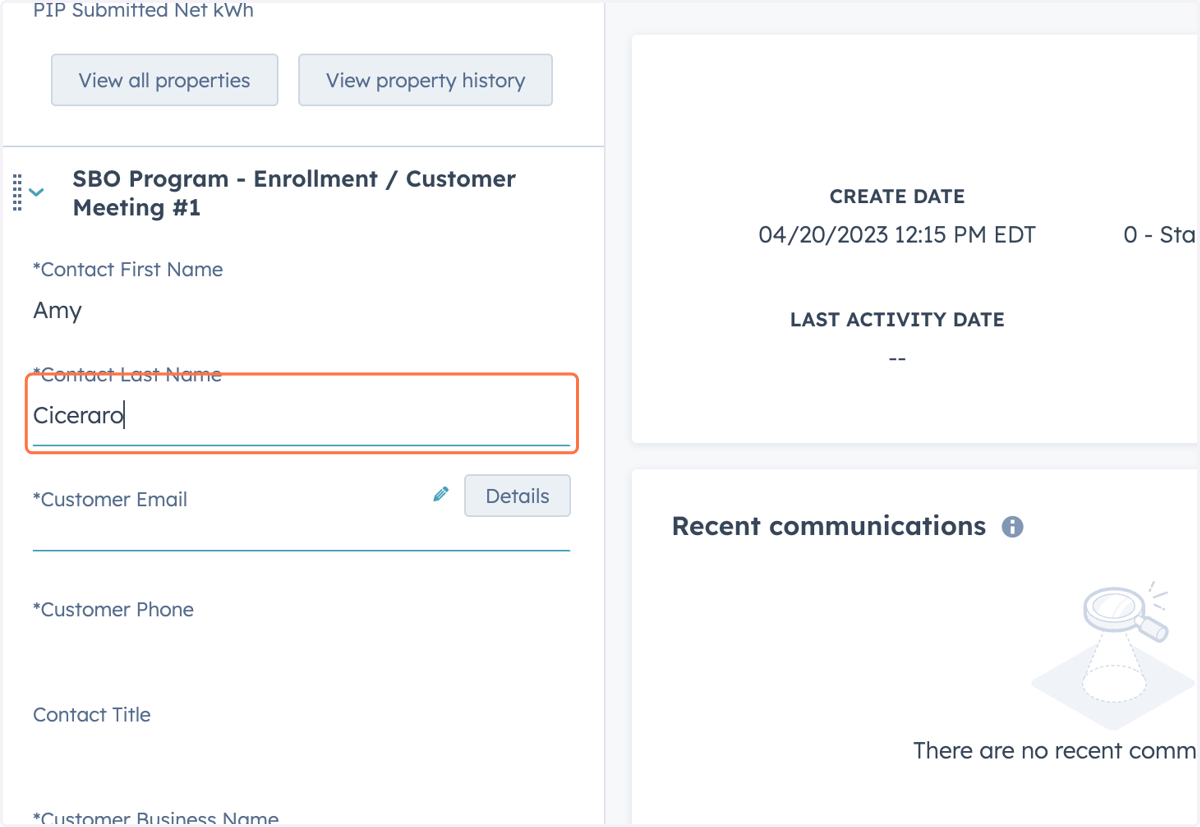
18. Input 'Customer Email'
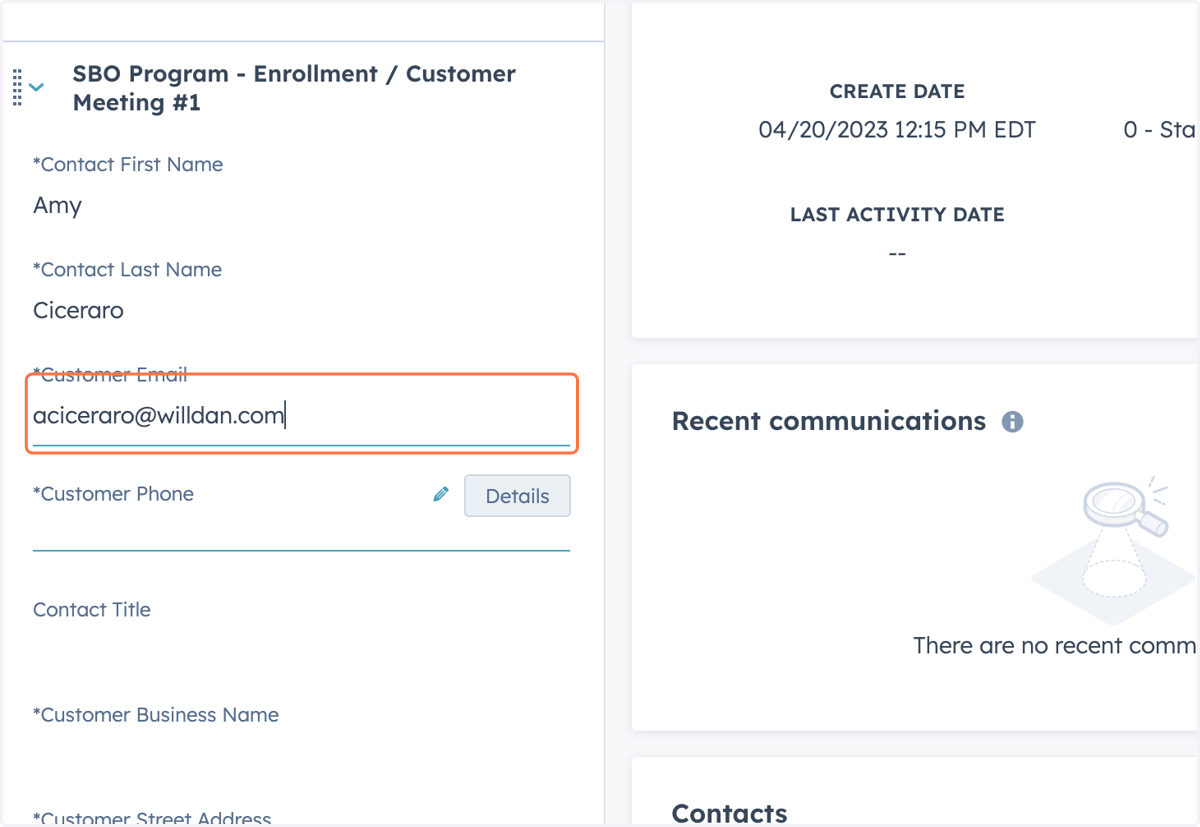
19. Input 'Customer Phone'
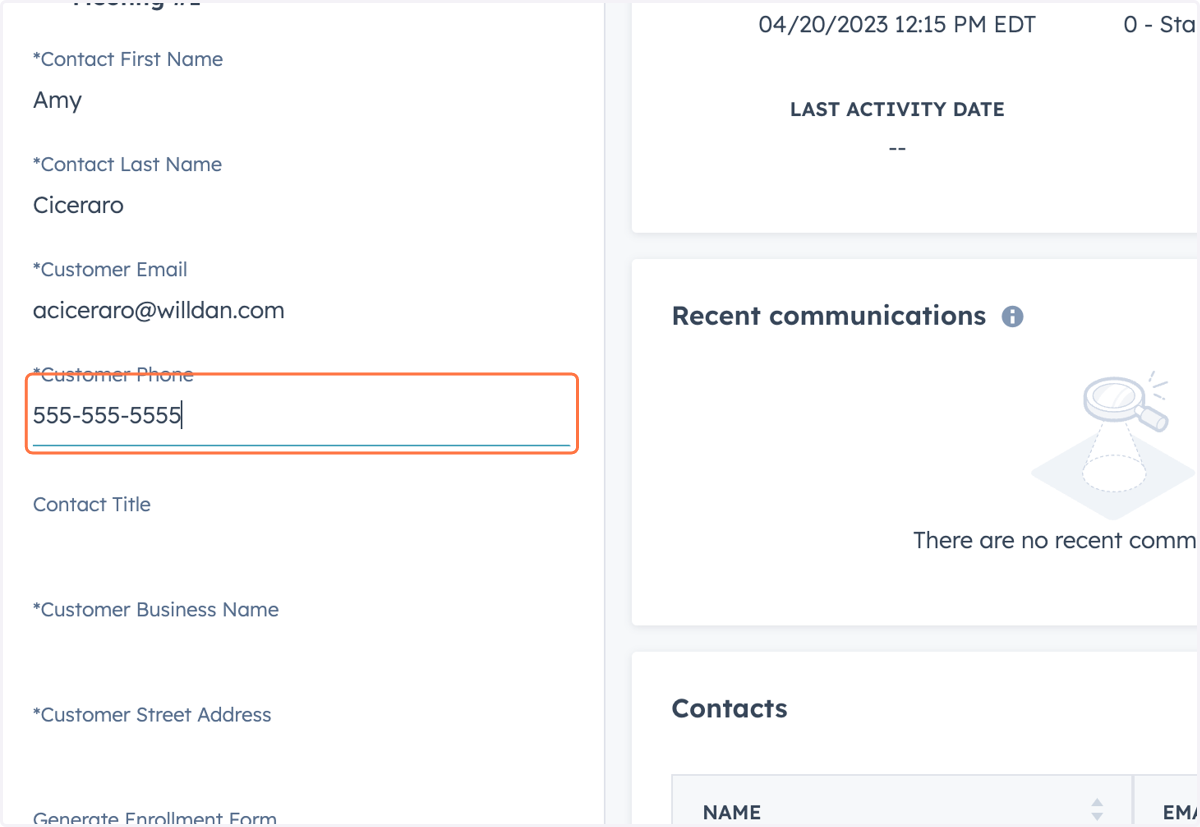
20. Input 'Customer Business Name'
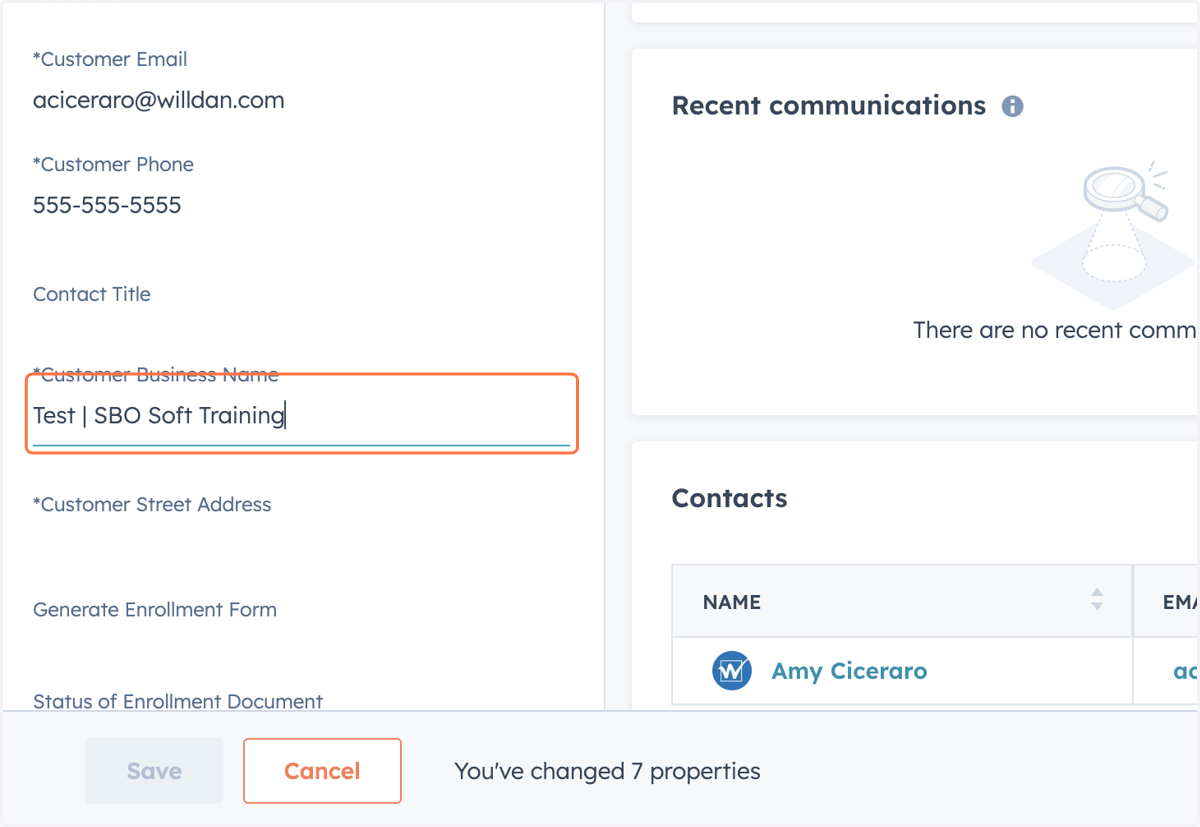
21. Input 'Customer Street Address'
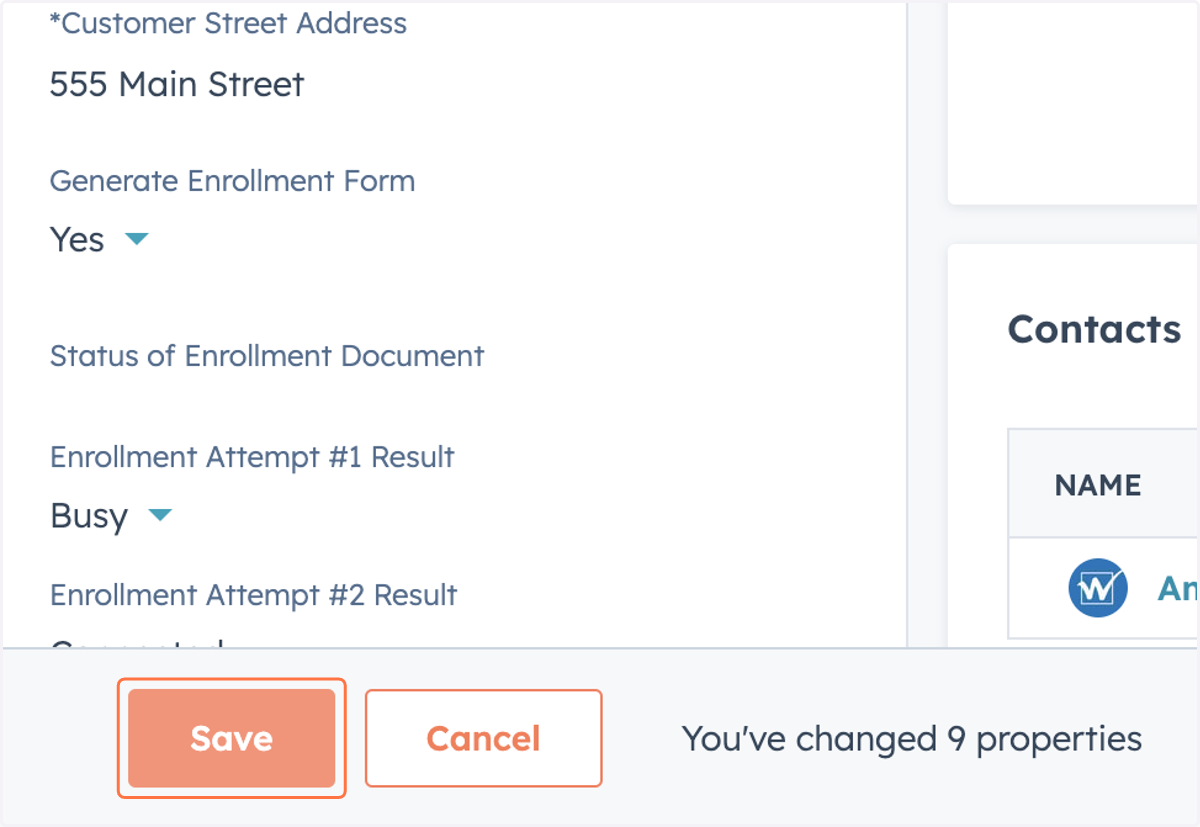
22. Select 'Yes' in the 'Generate Enrollment Form' dropdown
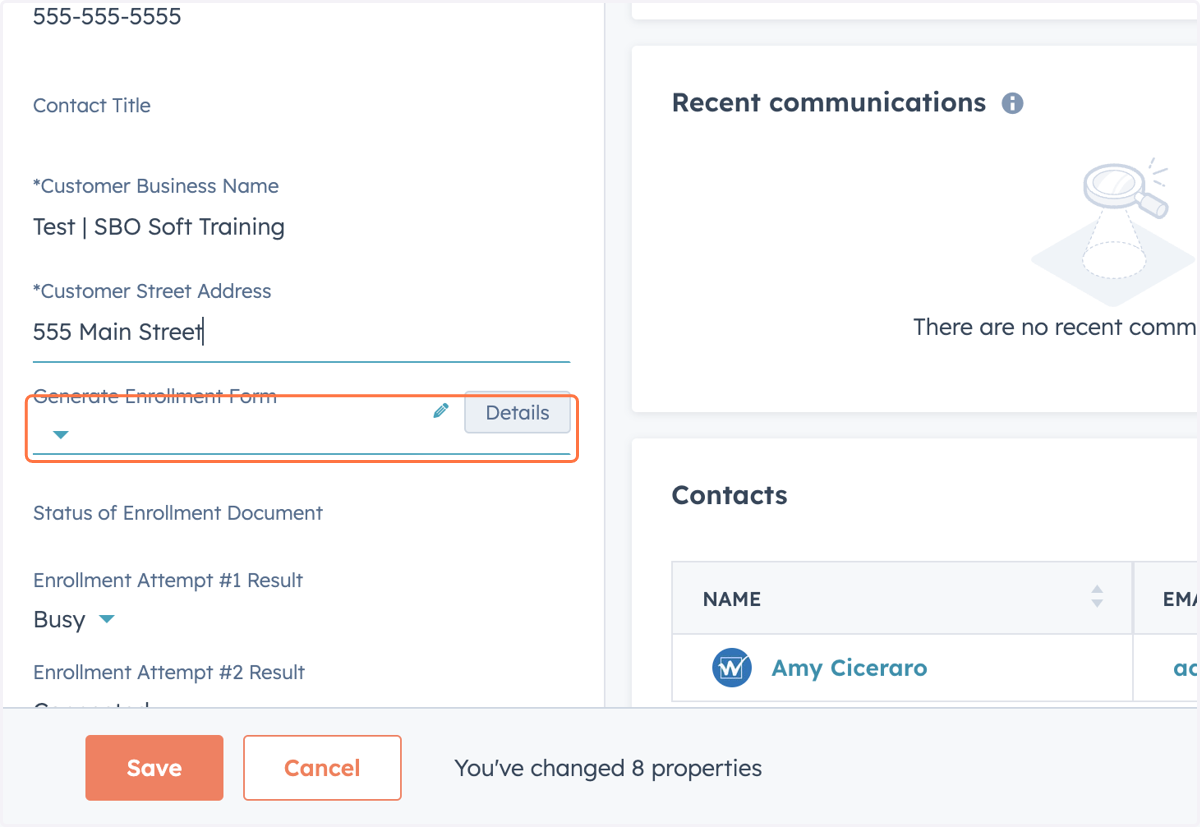
23. Click on Save
24. PandaDocs will generate and email the Enrollment Form to the customer.
Follow the document status in the PandaDocs section of the right sidebar
25. Click on the square with the arrow to open the Enrollment Form or copy and paste the link into an email if necessary.
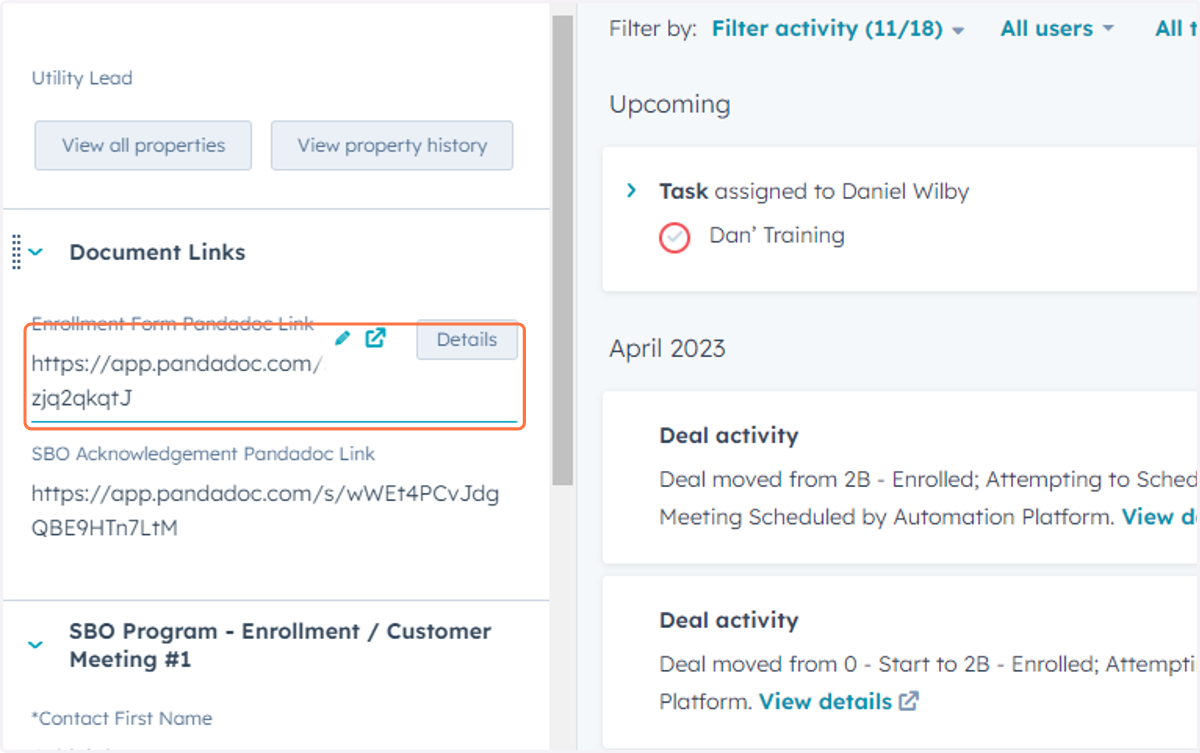
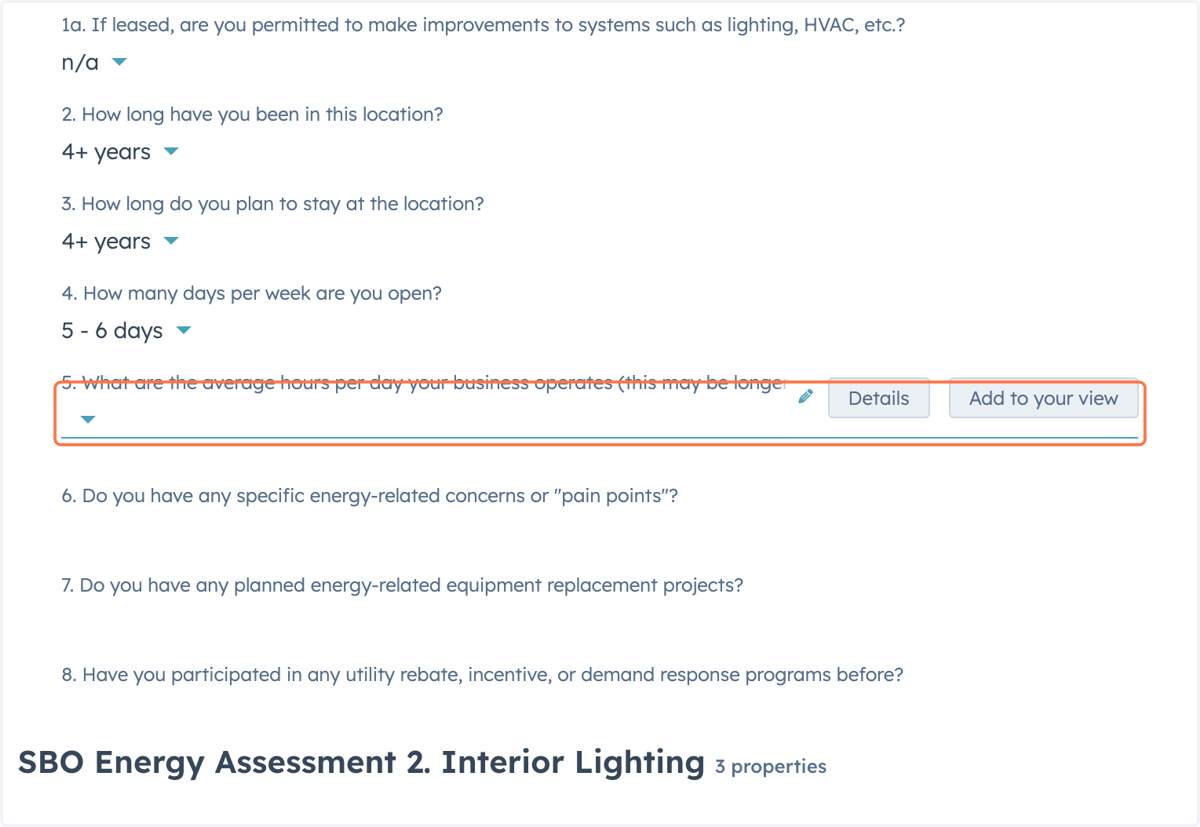
26. The status will be marked 'Completed' once the customer signs the form and the sender will receive an email notification. The EA will also receive an email and a task will be generated to follow up with the customer and schedule the 1st coaching session.
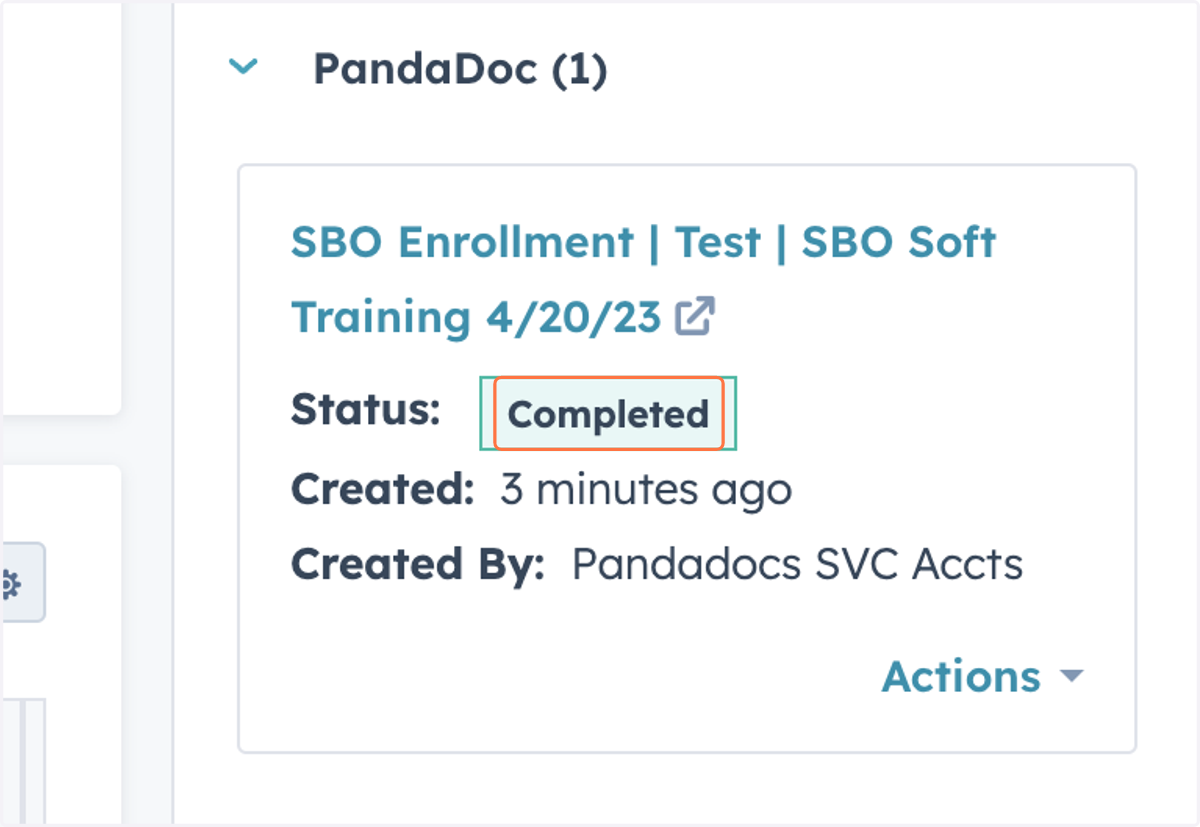
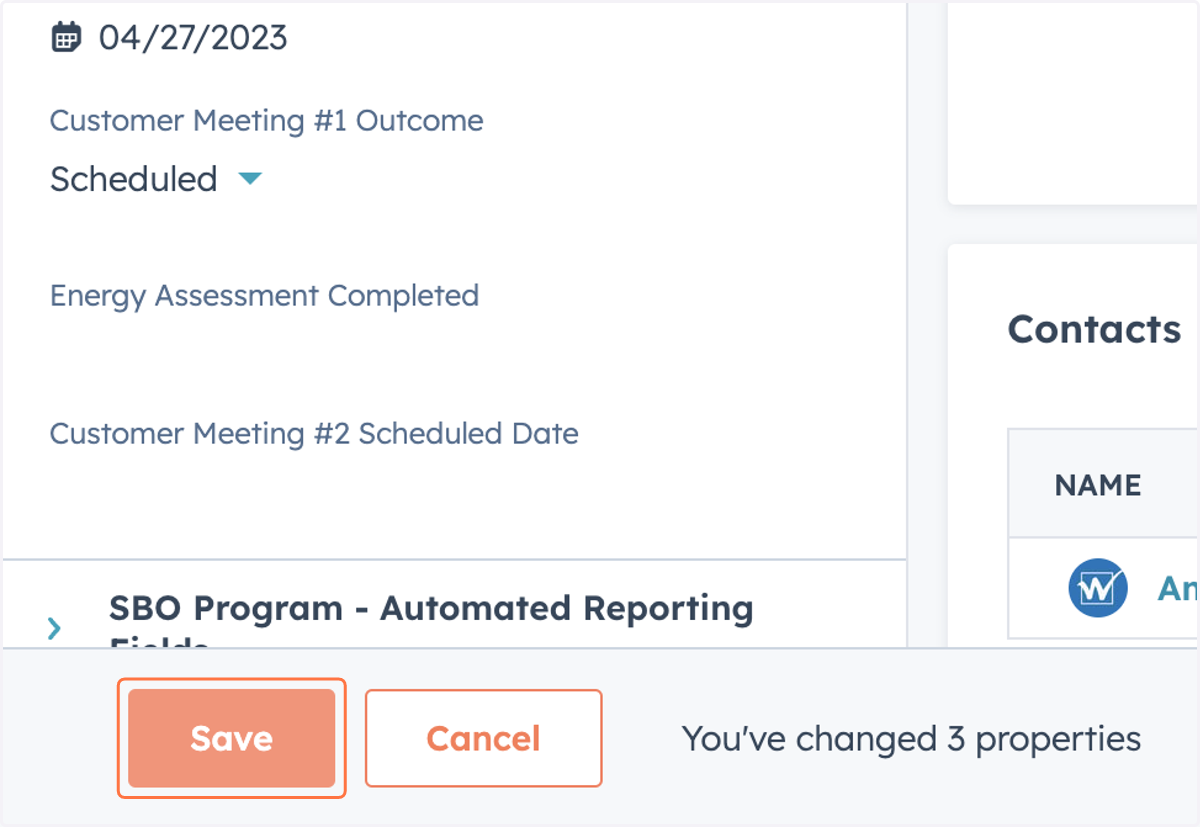
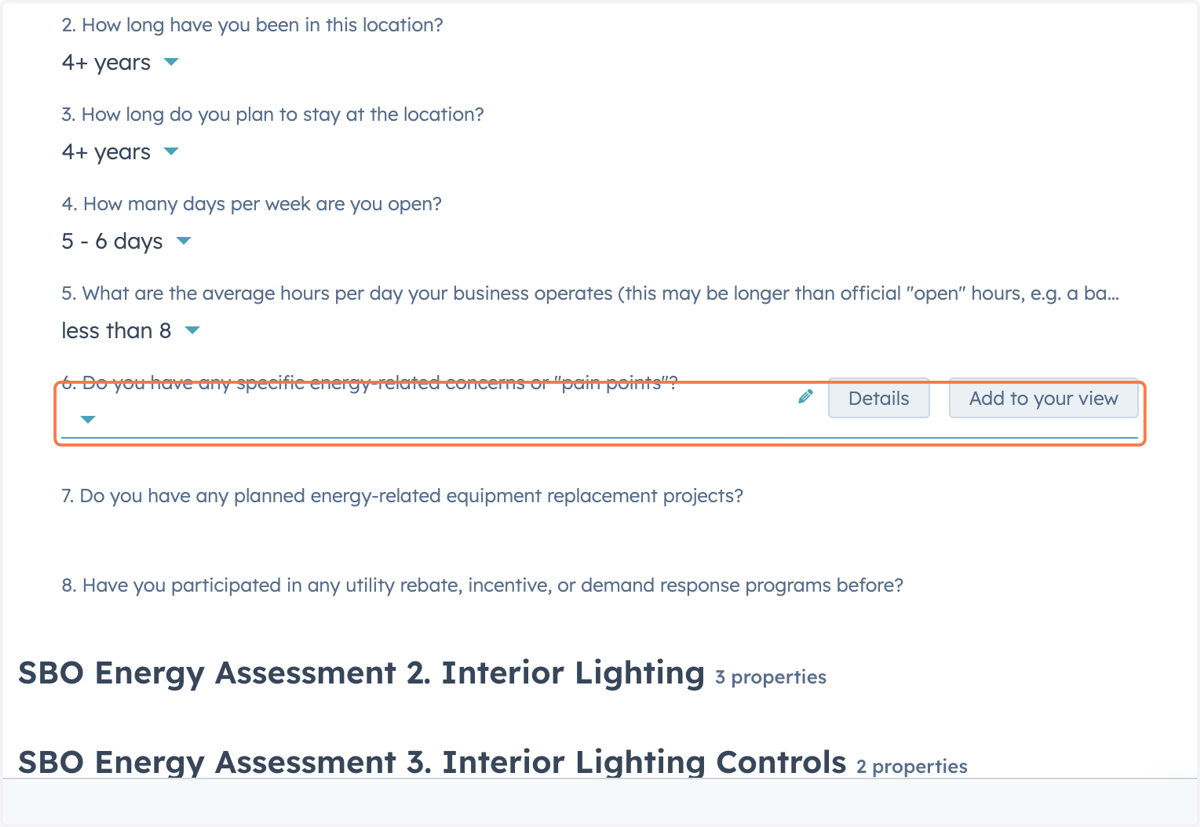
27. Input 'Initial Meeting Scheduled Date'
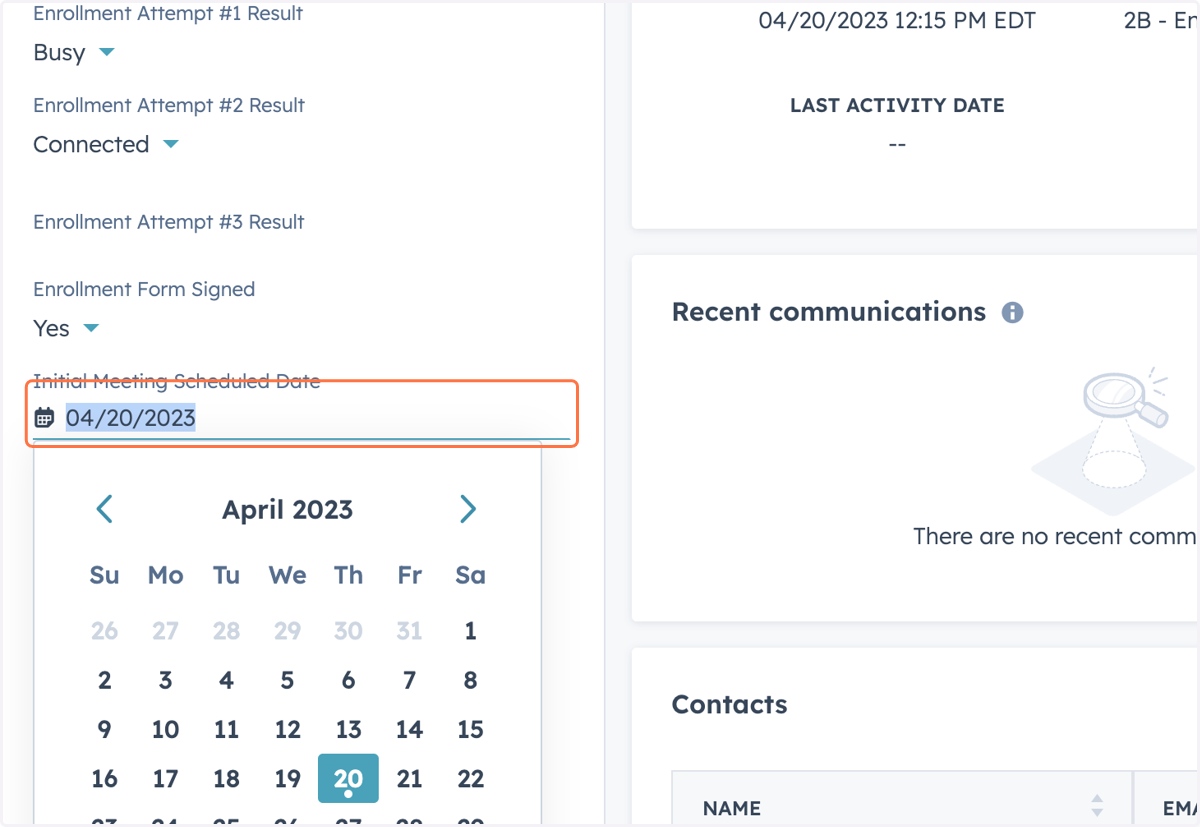
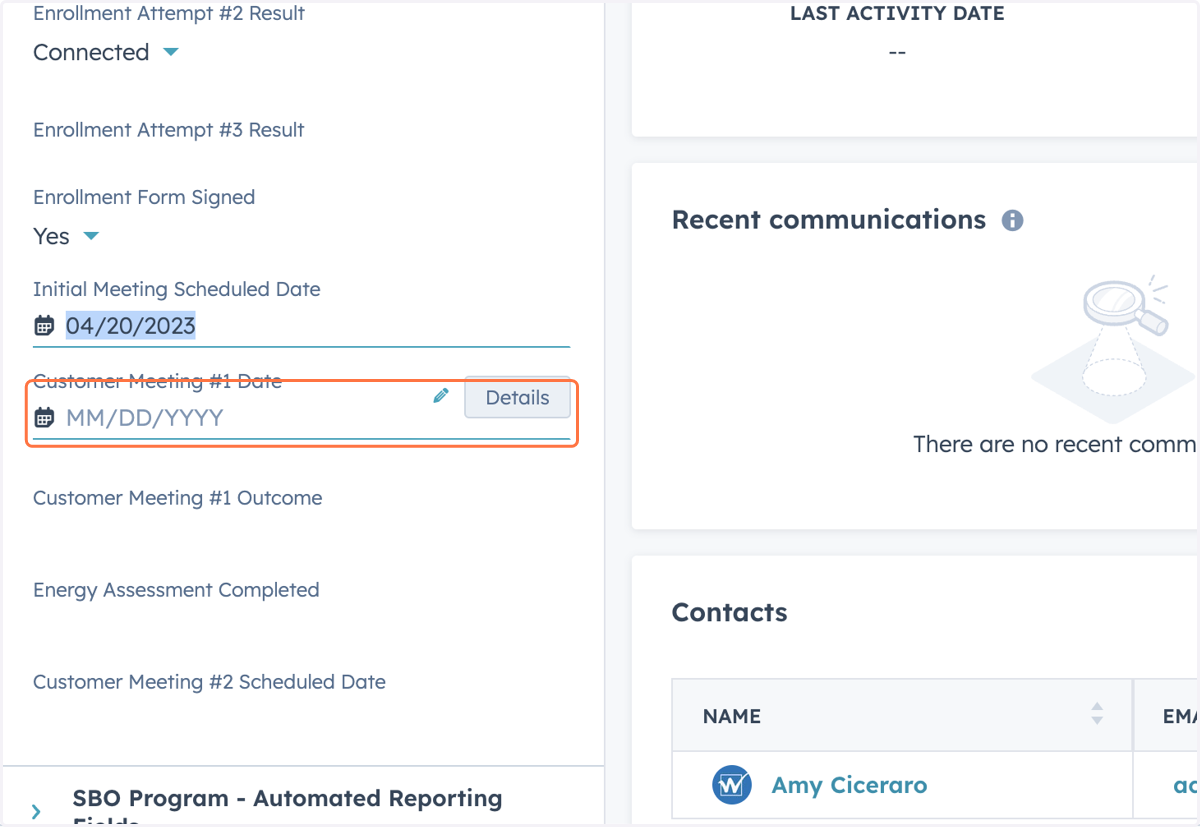
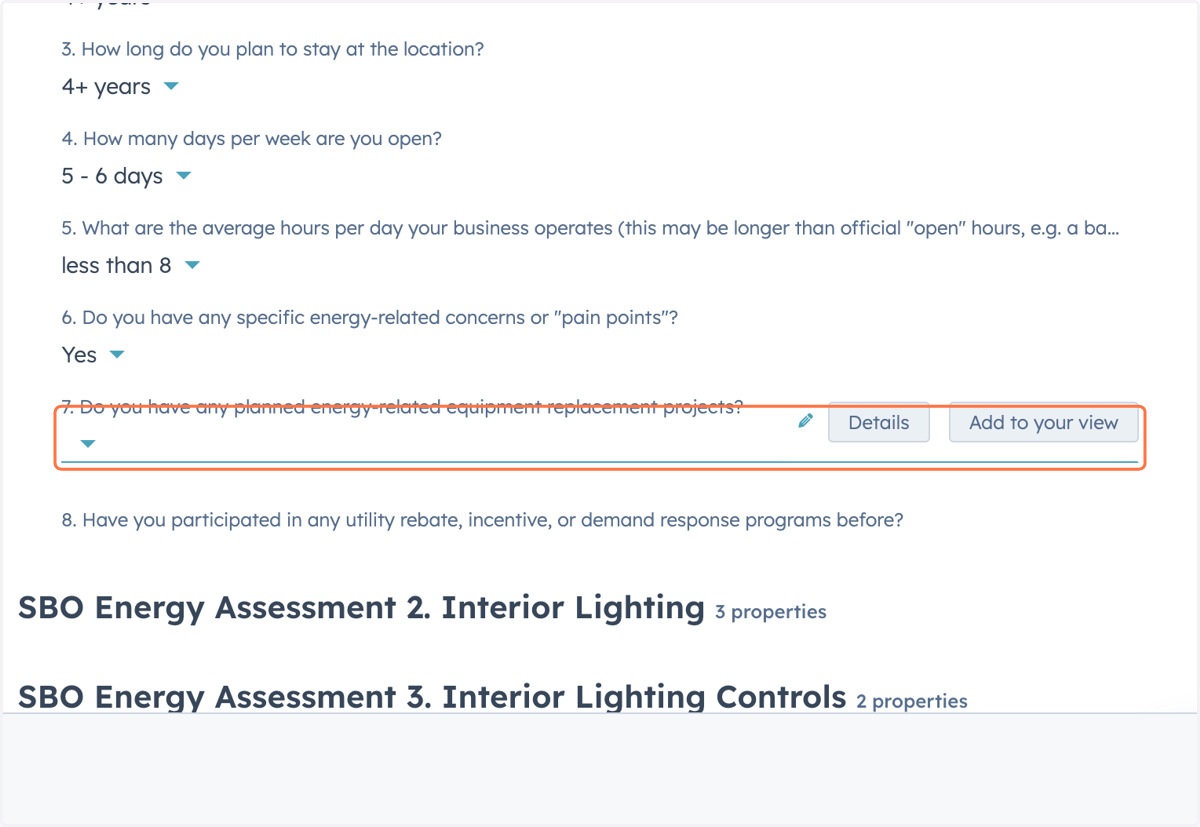
28. Input 'Customer Meeting #1 Date'
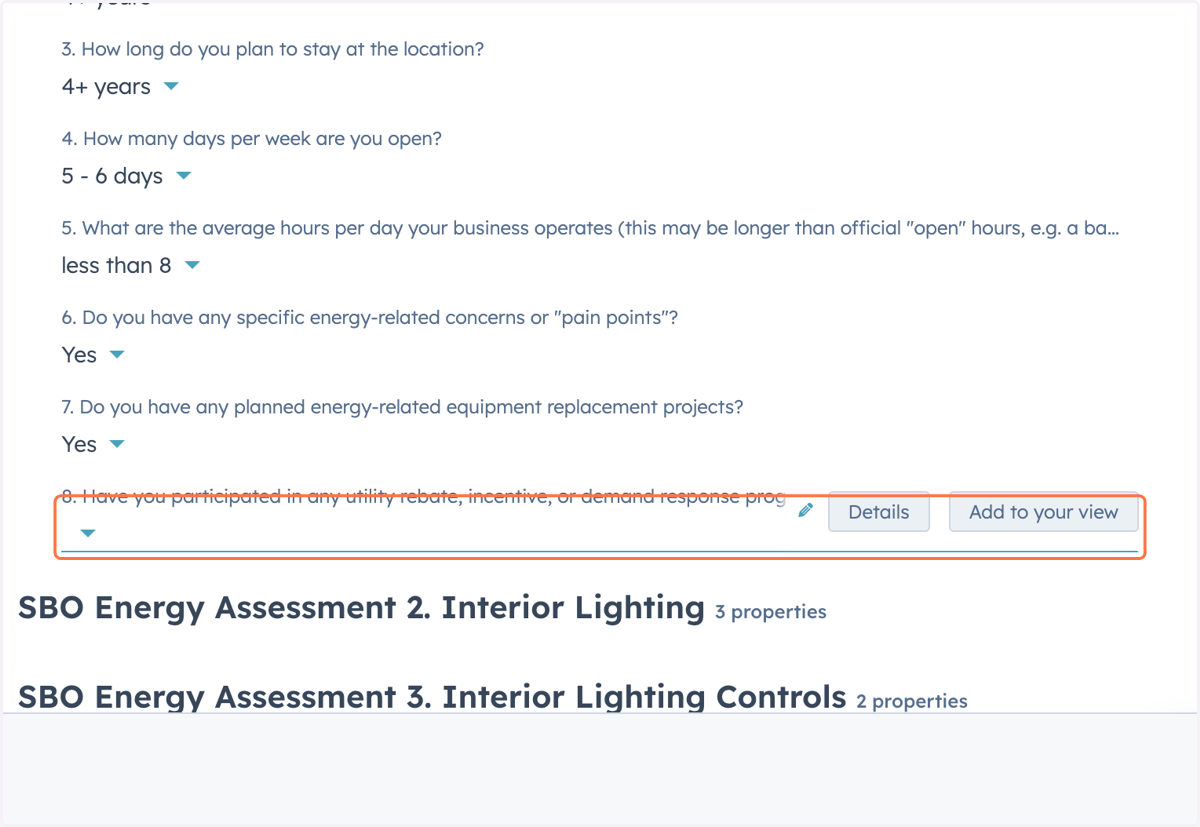
29. Input 'Customer Meeting #1 Outcome'
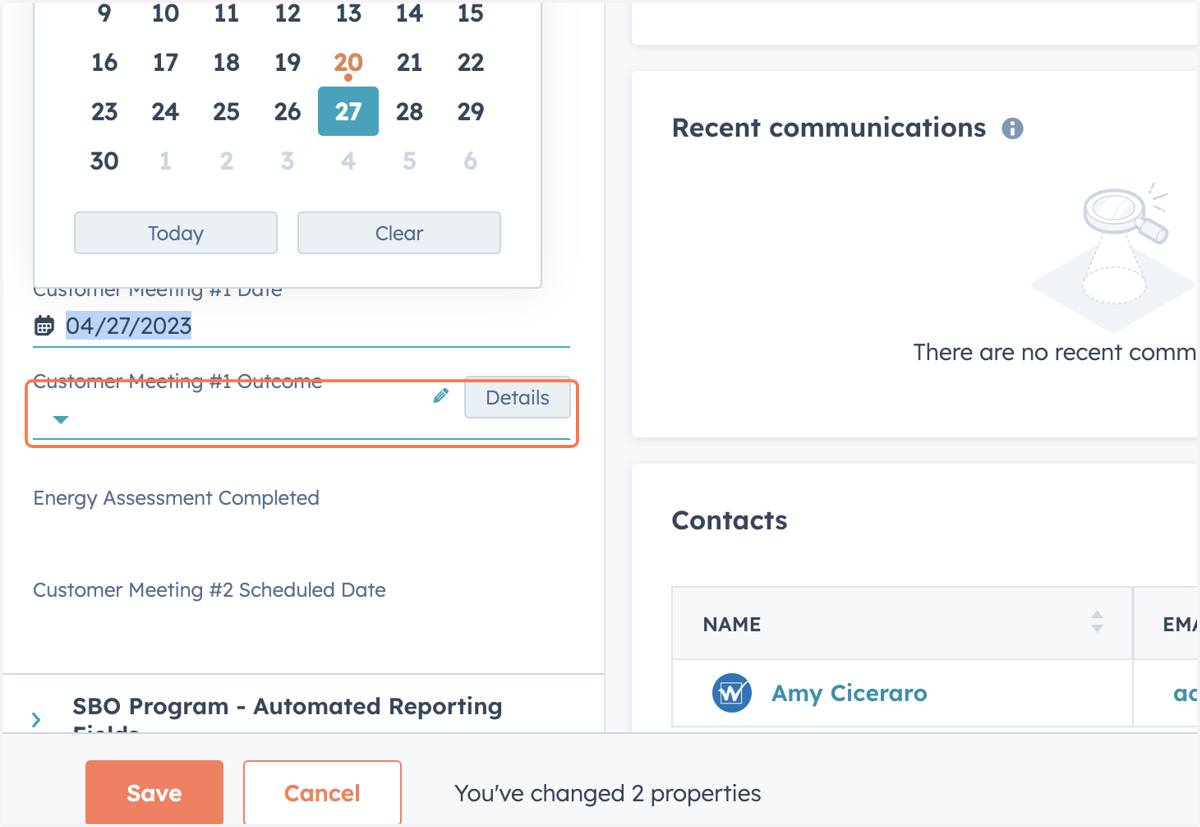
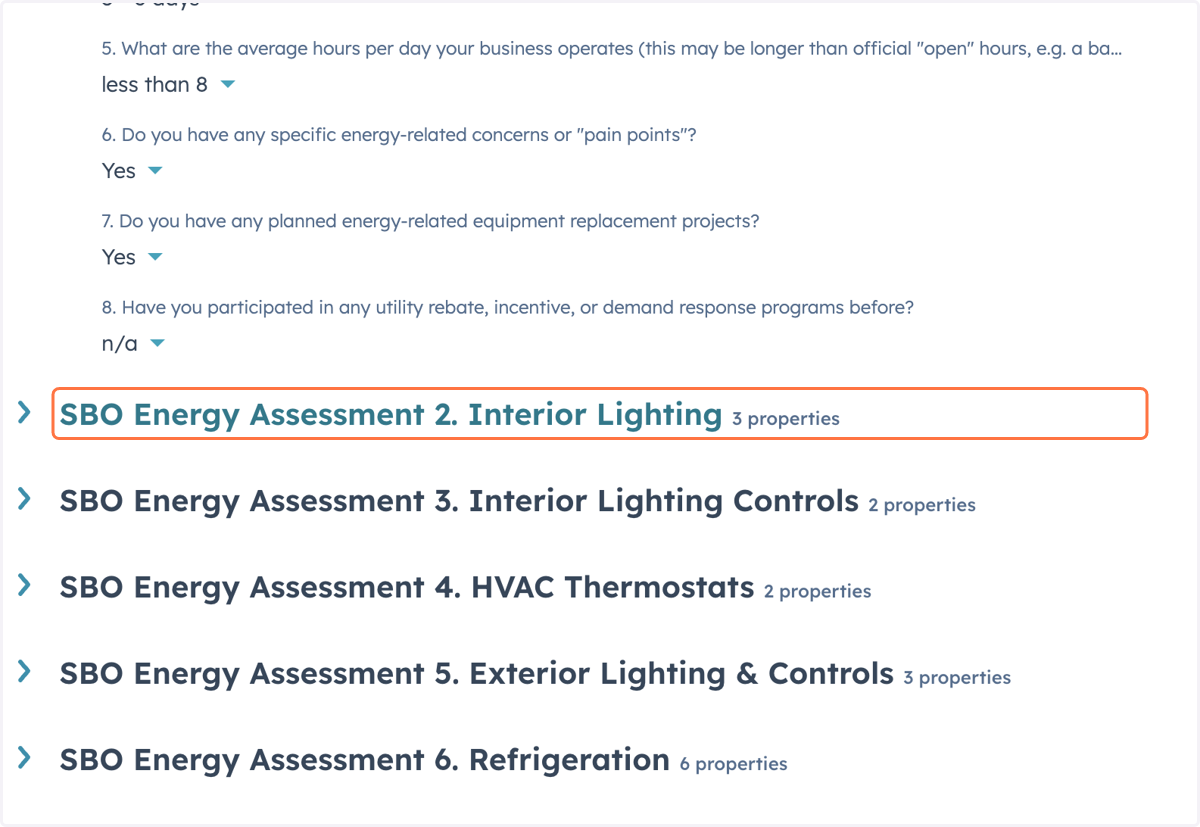
30. Click on Save
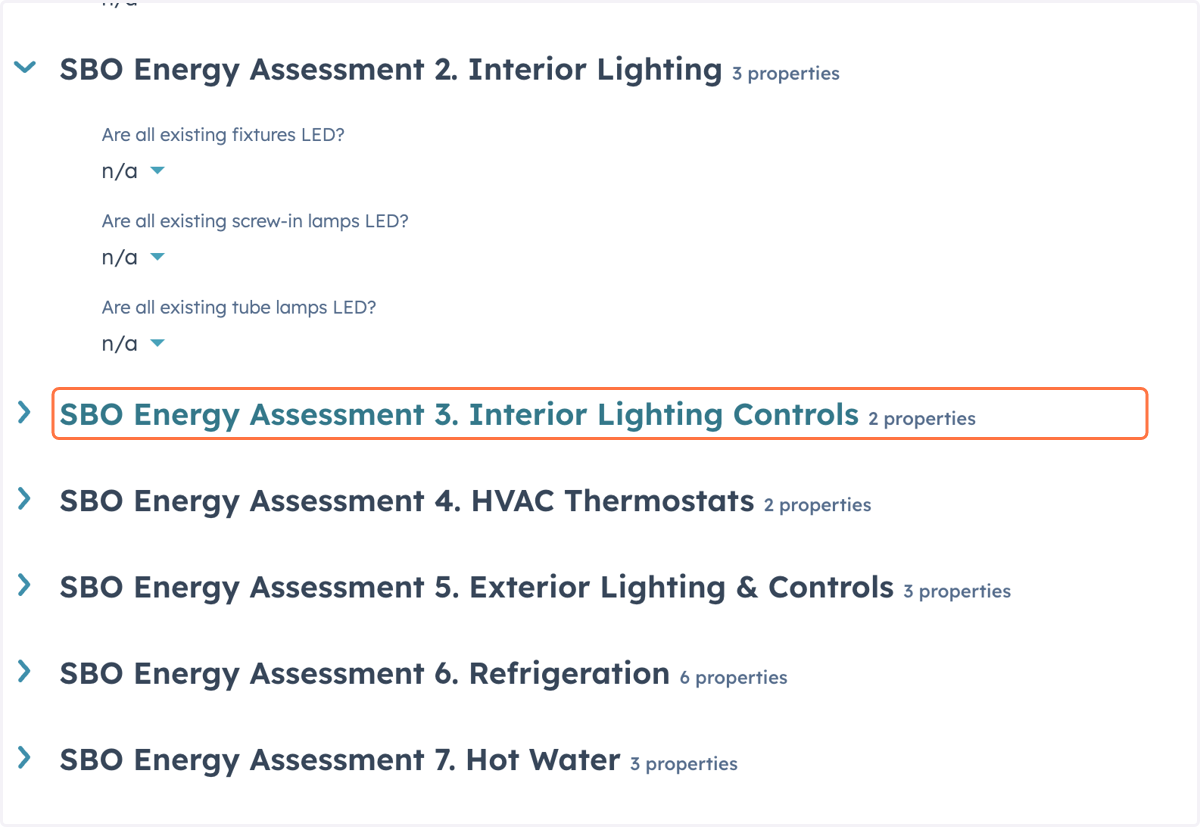
31. Site Visit
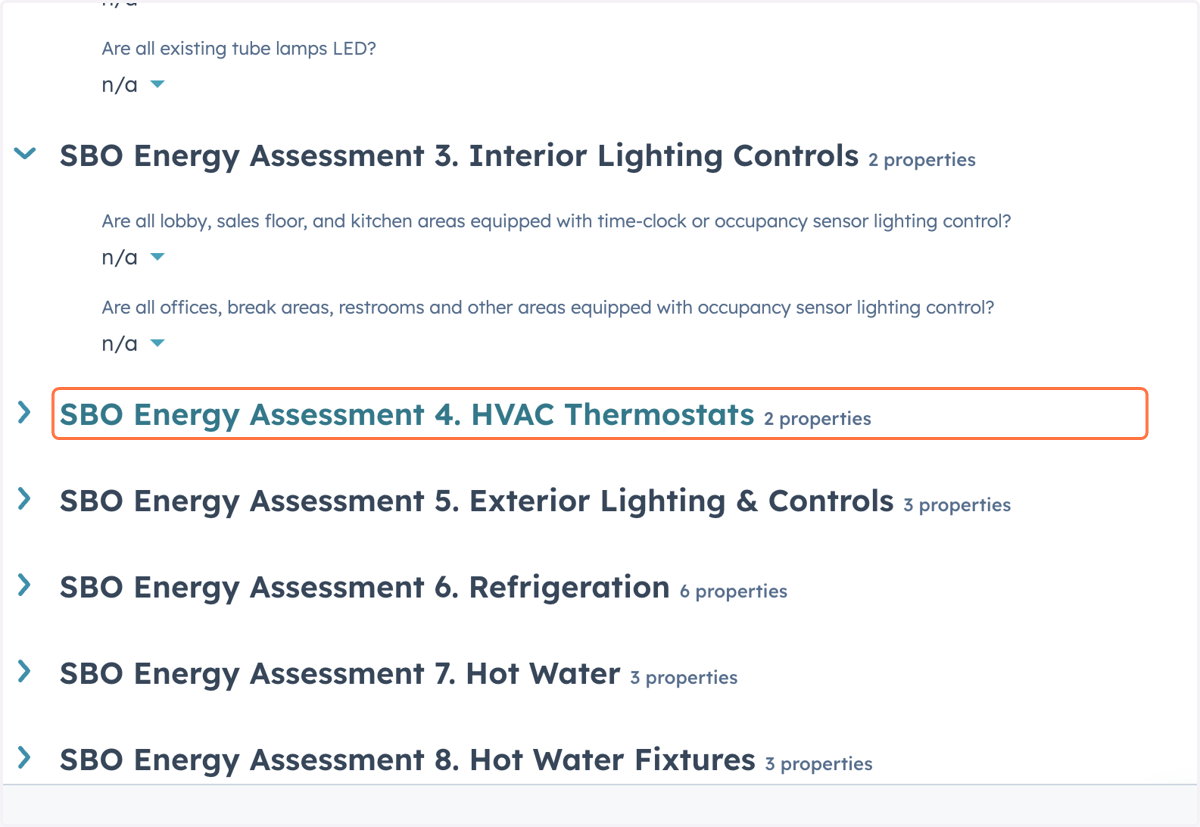
Preload the Hubspot deal on your tablet before you meet with the customer.
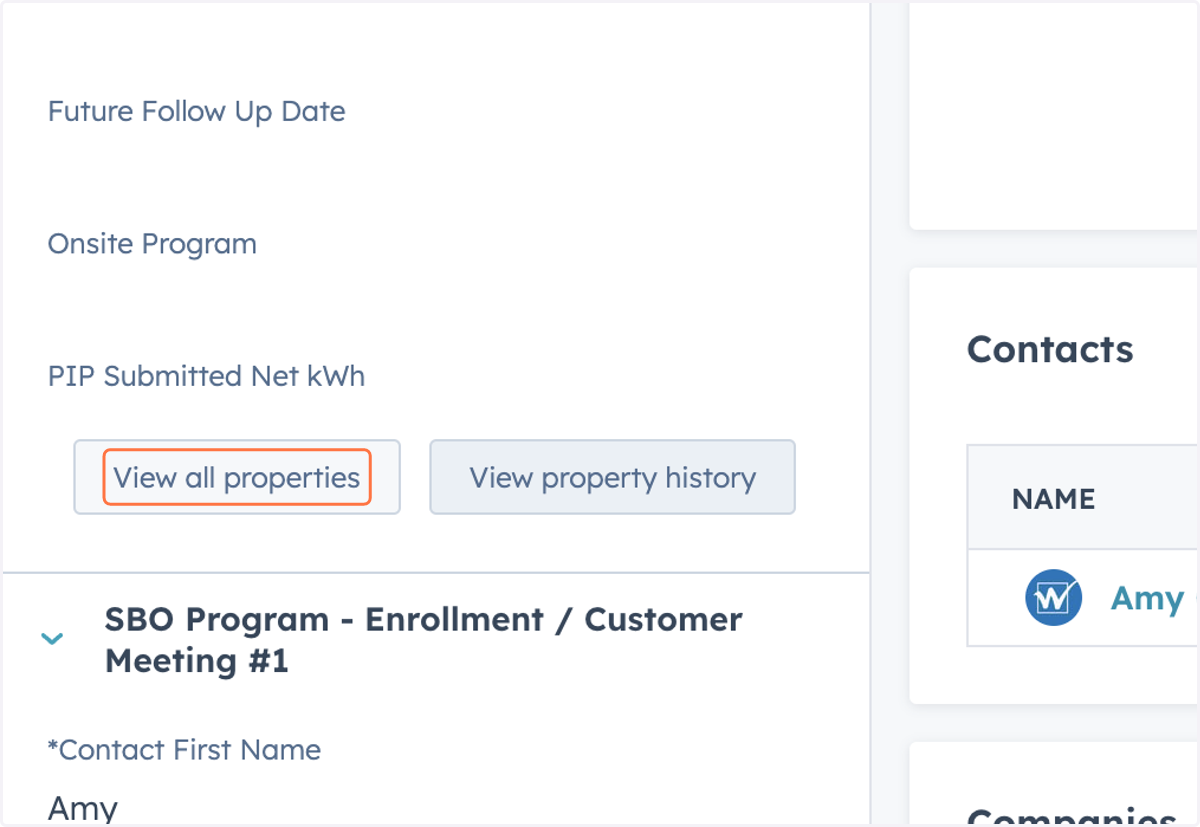
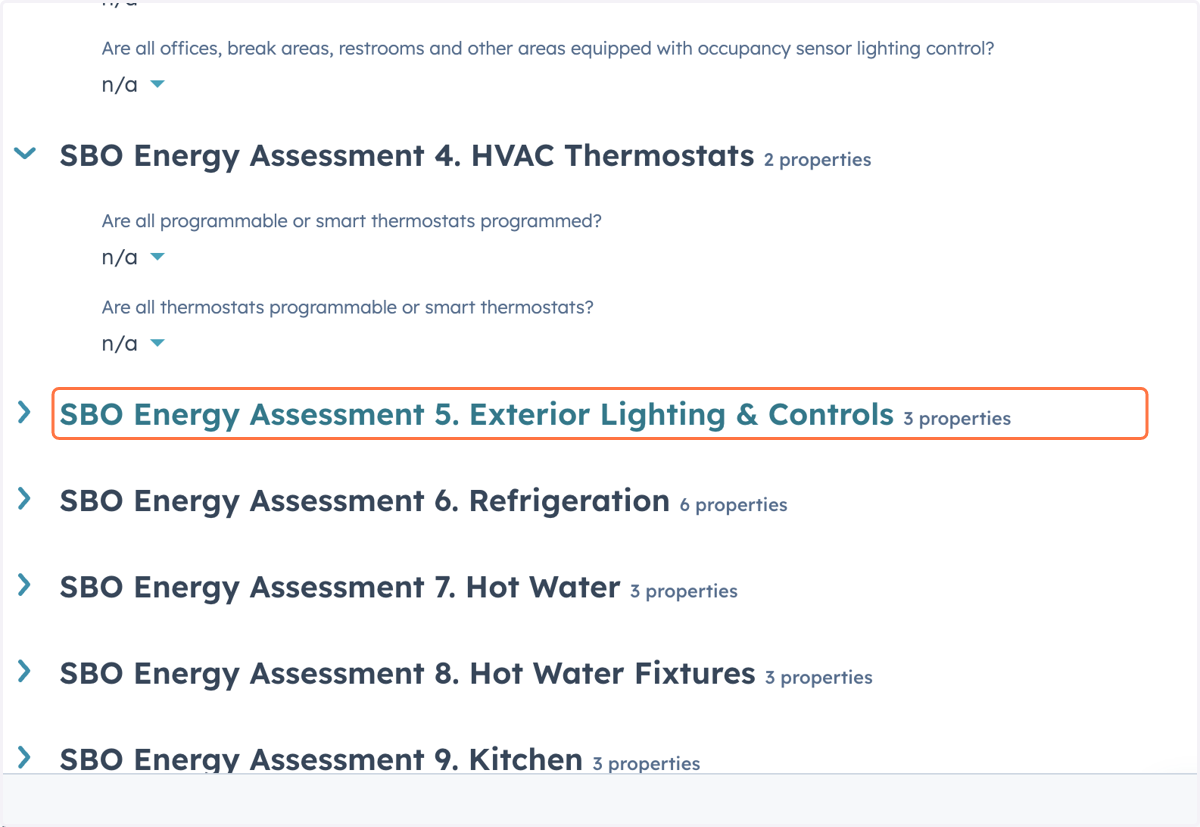
32. Click on View all properties
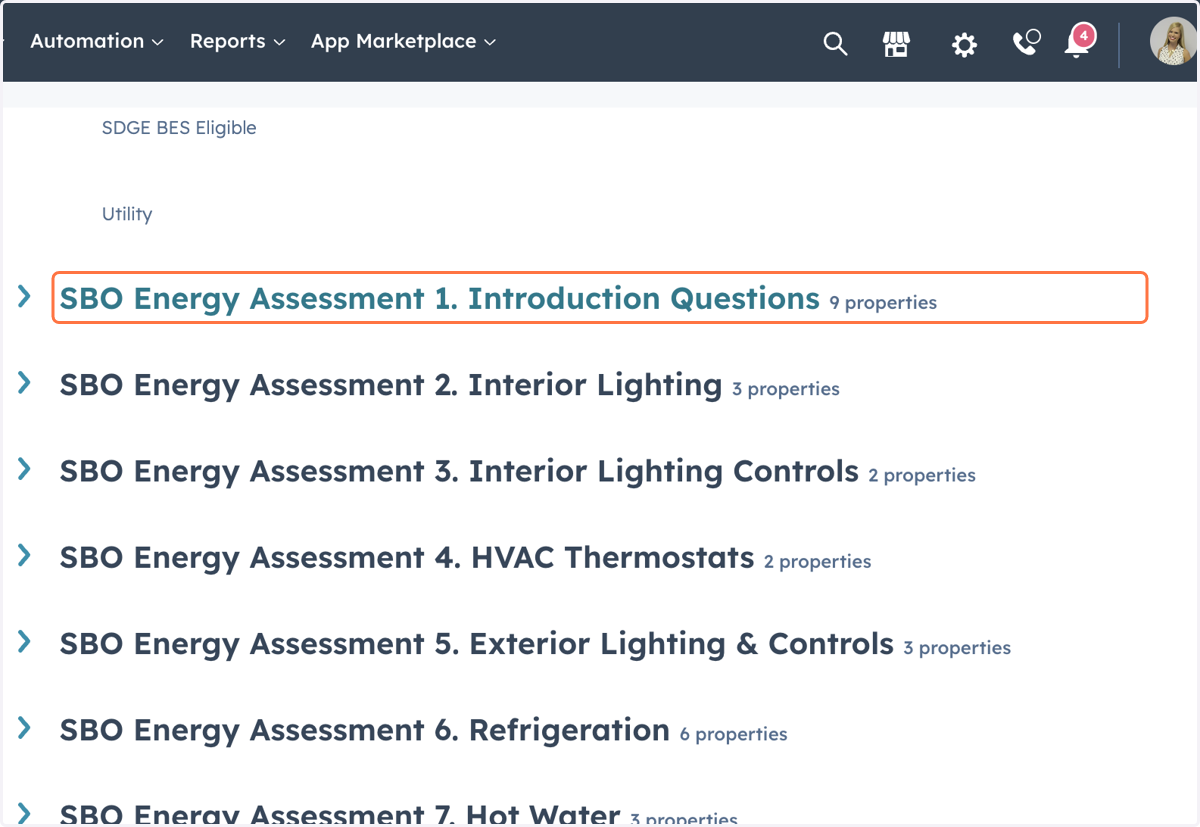
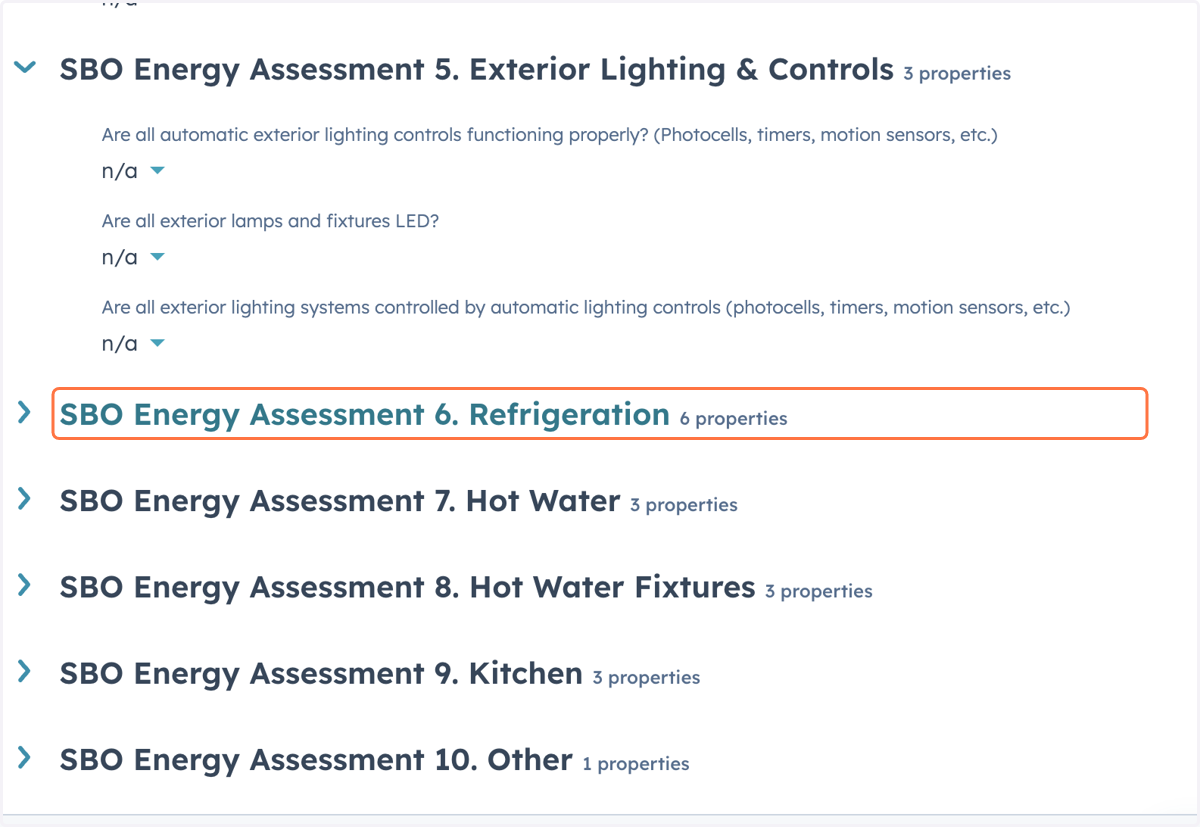
33. Complete the 9 questions in the ' SBO Energy Assessment 1. Introduction Questions' section.
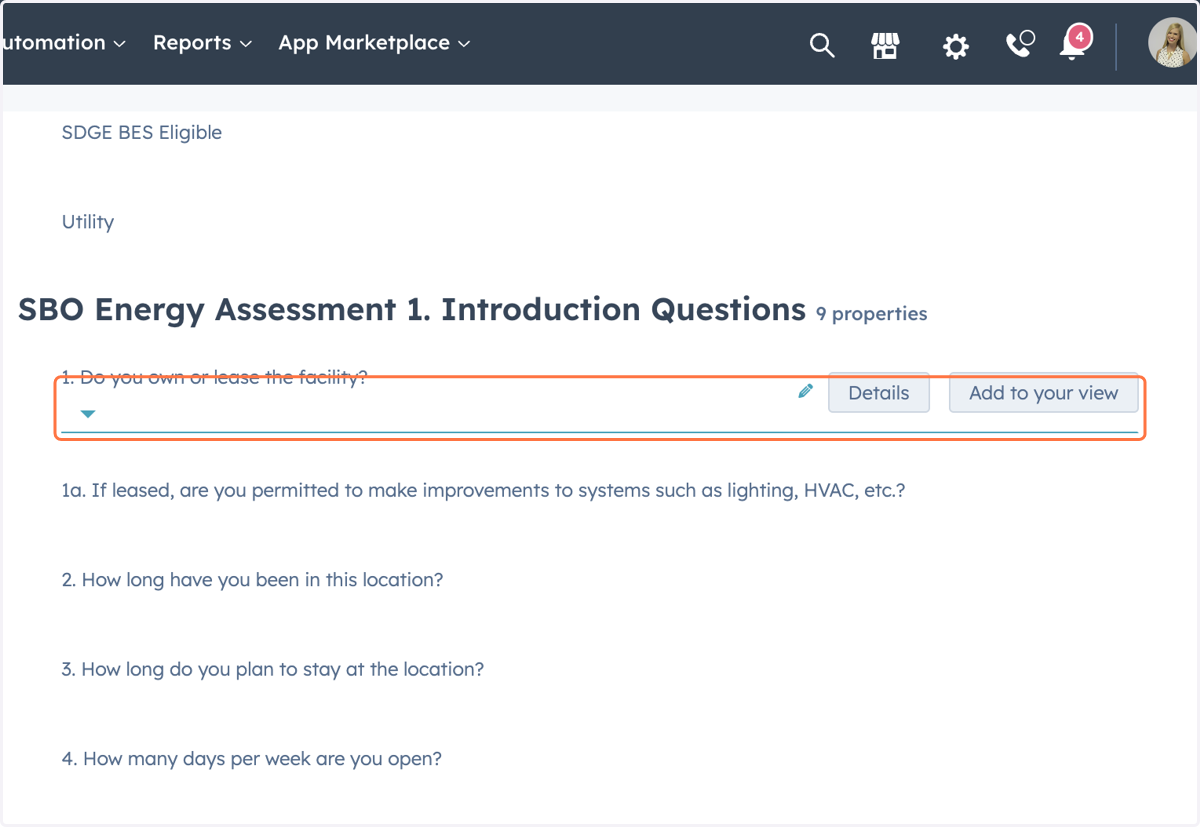
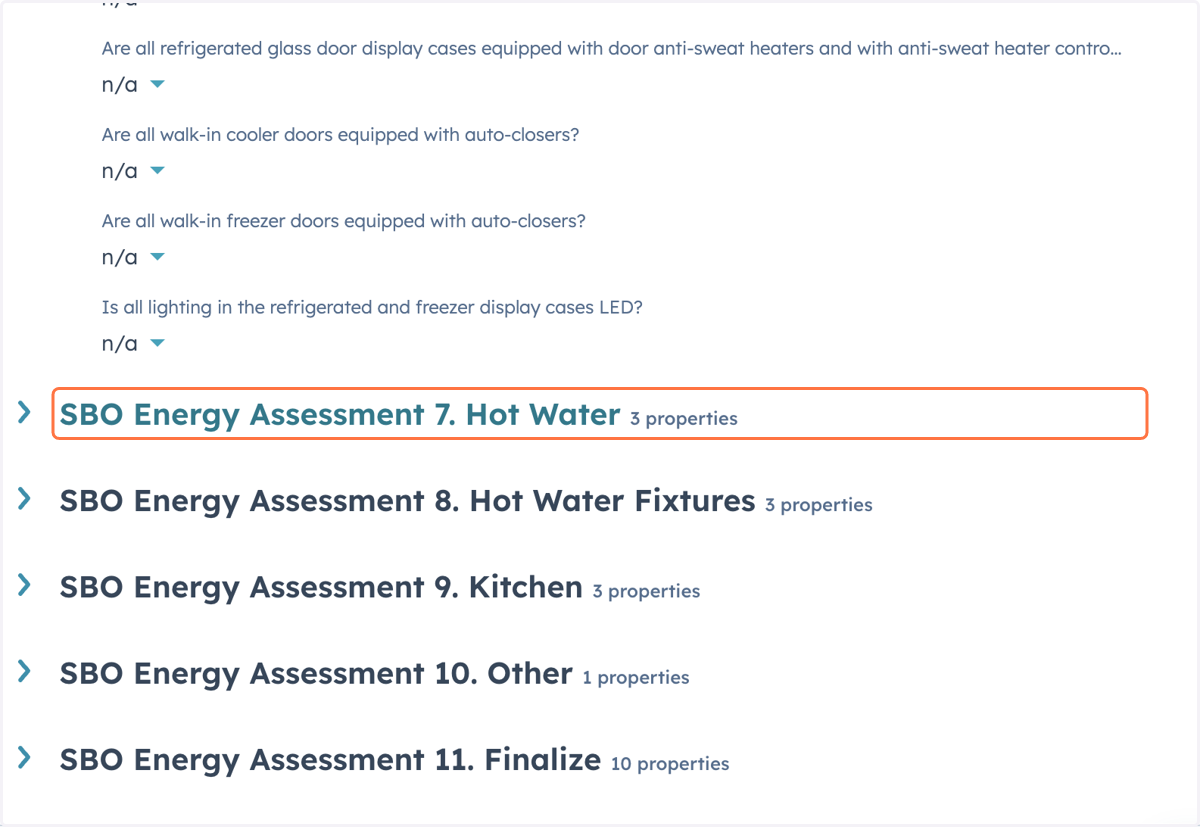
34. 1. Do you own or lease the facility?
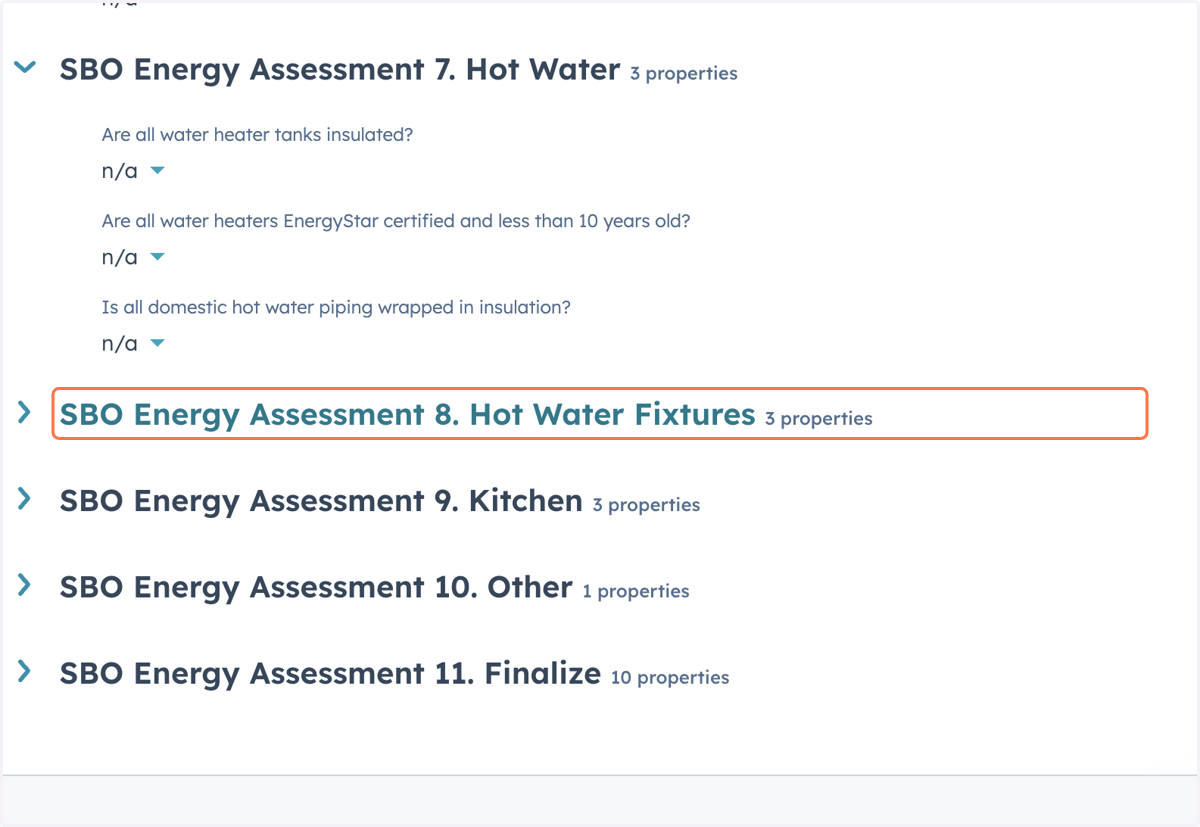
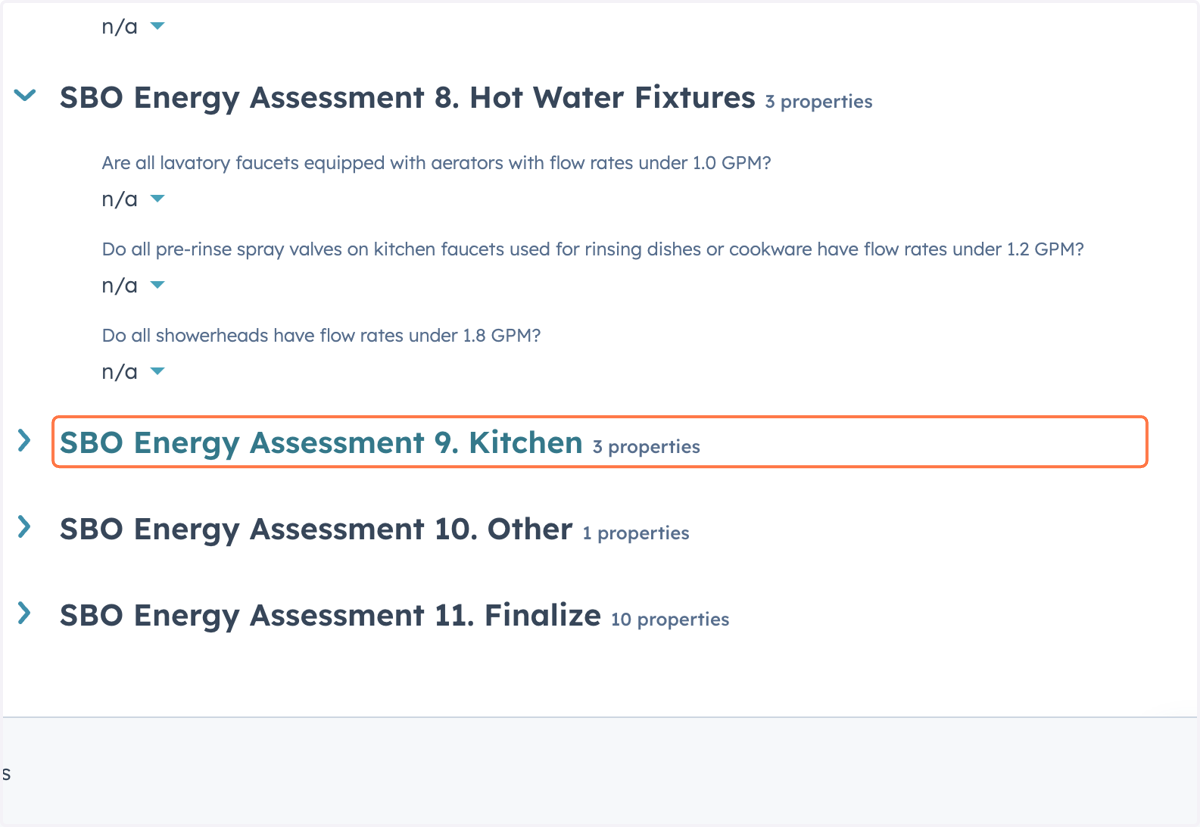
35. 1a. If leased, are you permitted to make improvements to systems such as lighting, HVAC, etc.?
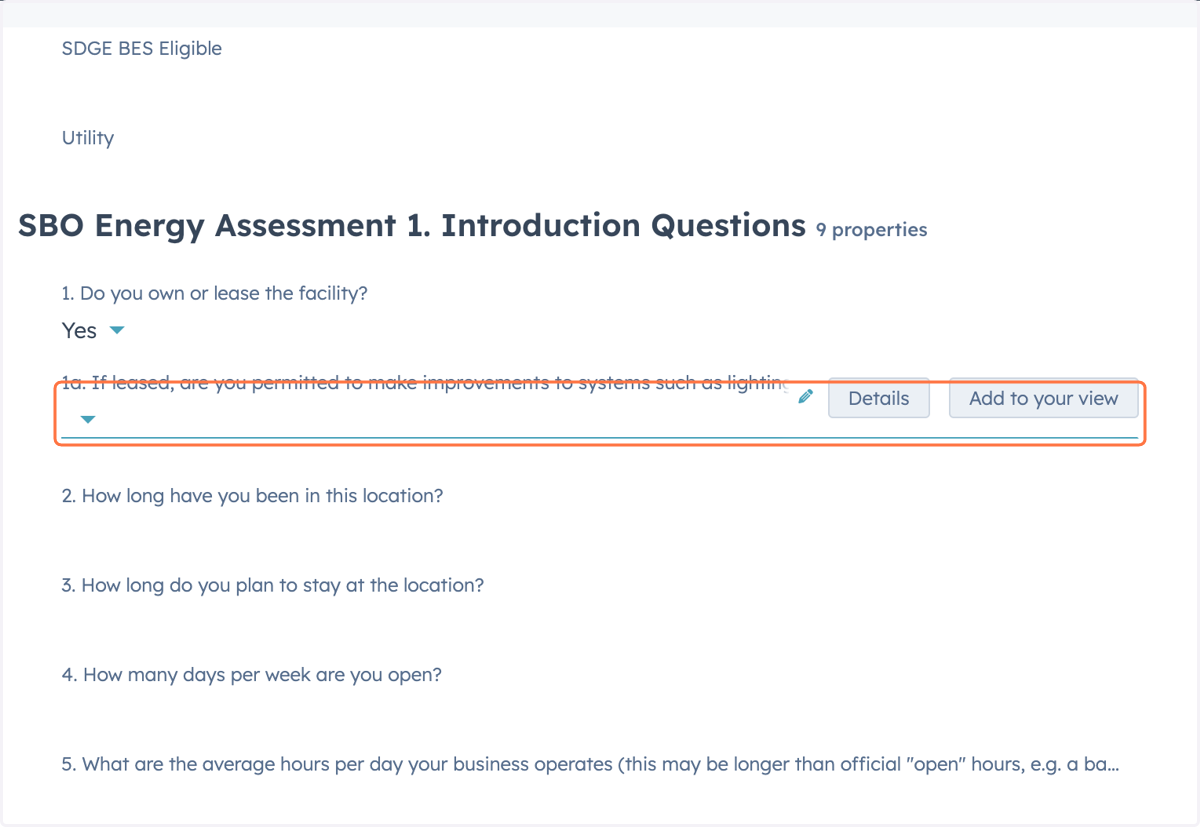
36. 2. How long have you been in this location?
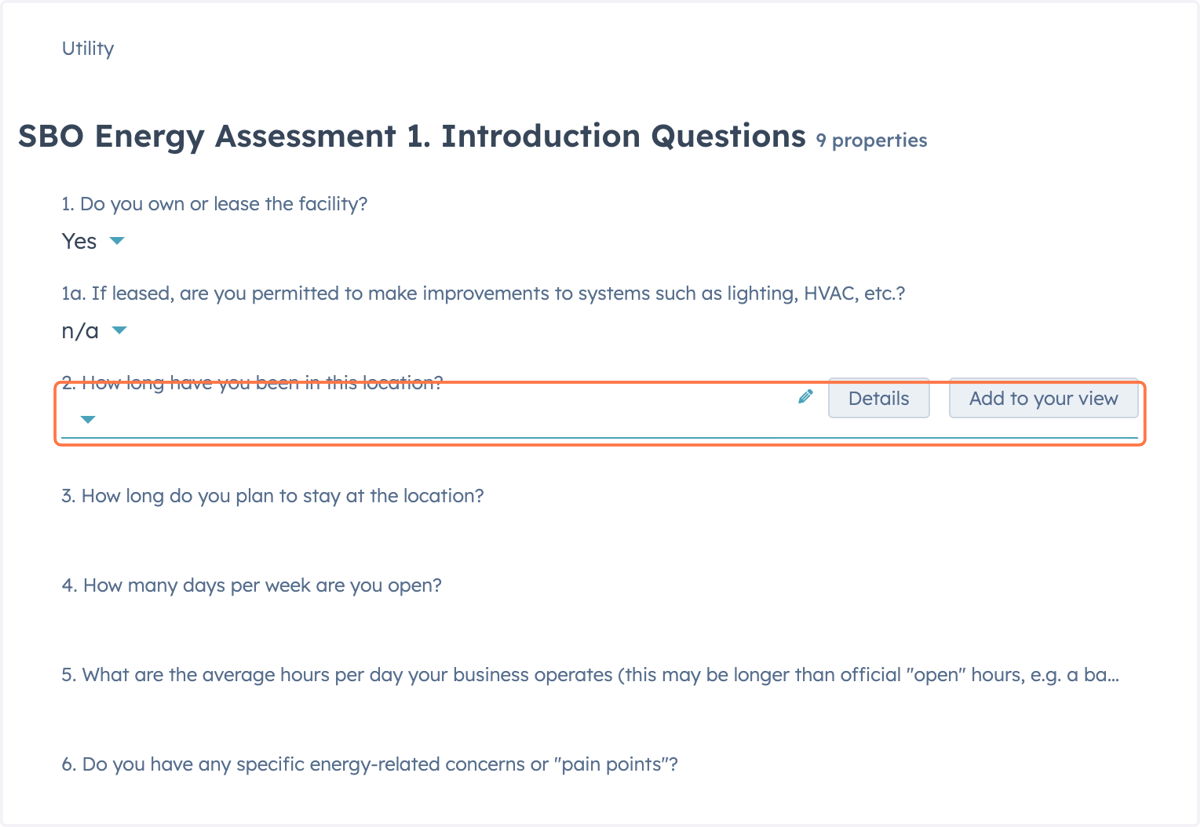
37. 3. How long do you plan to stay at the location?
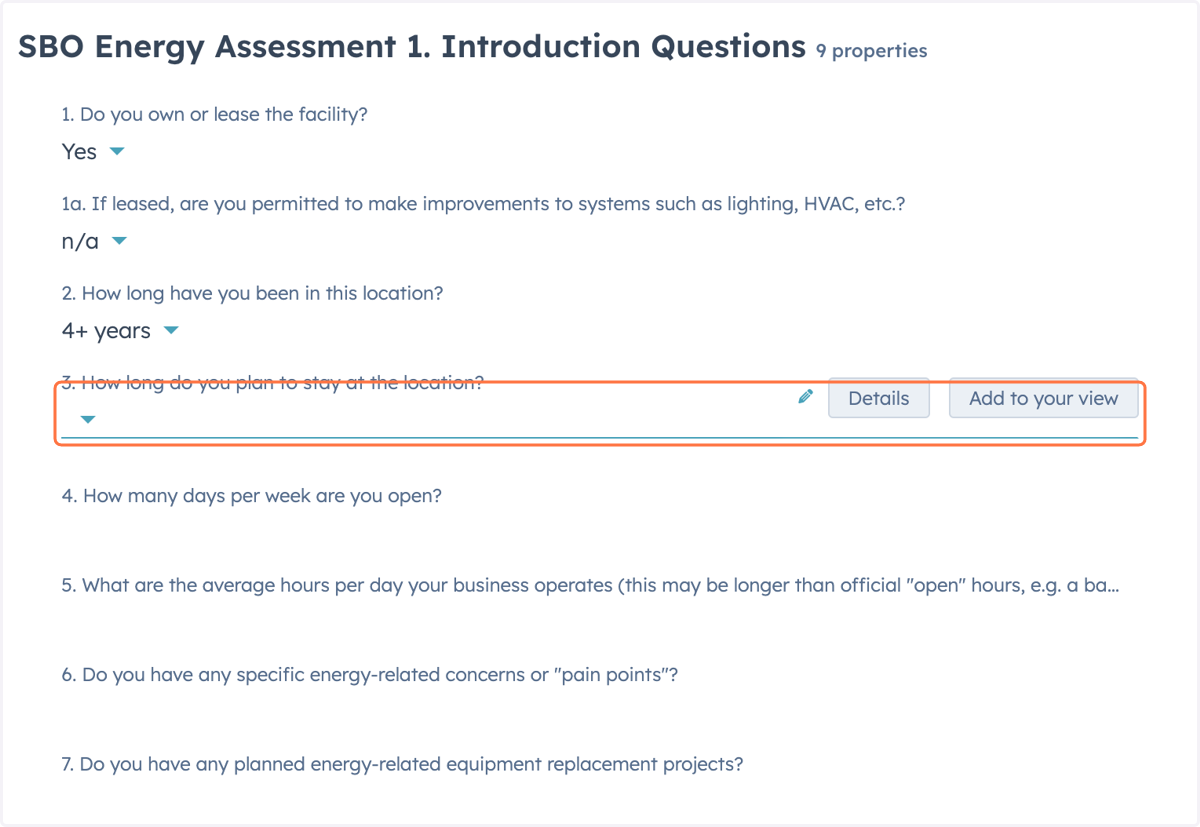
38. 4. How many days per week are you open?
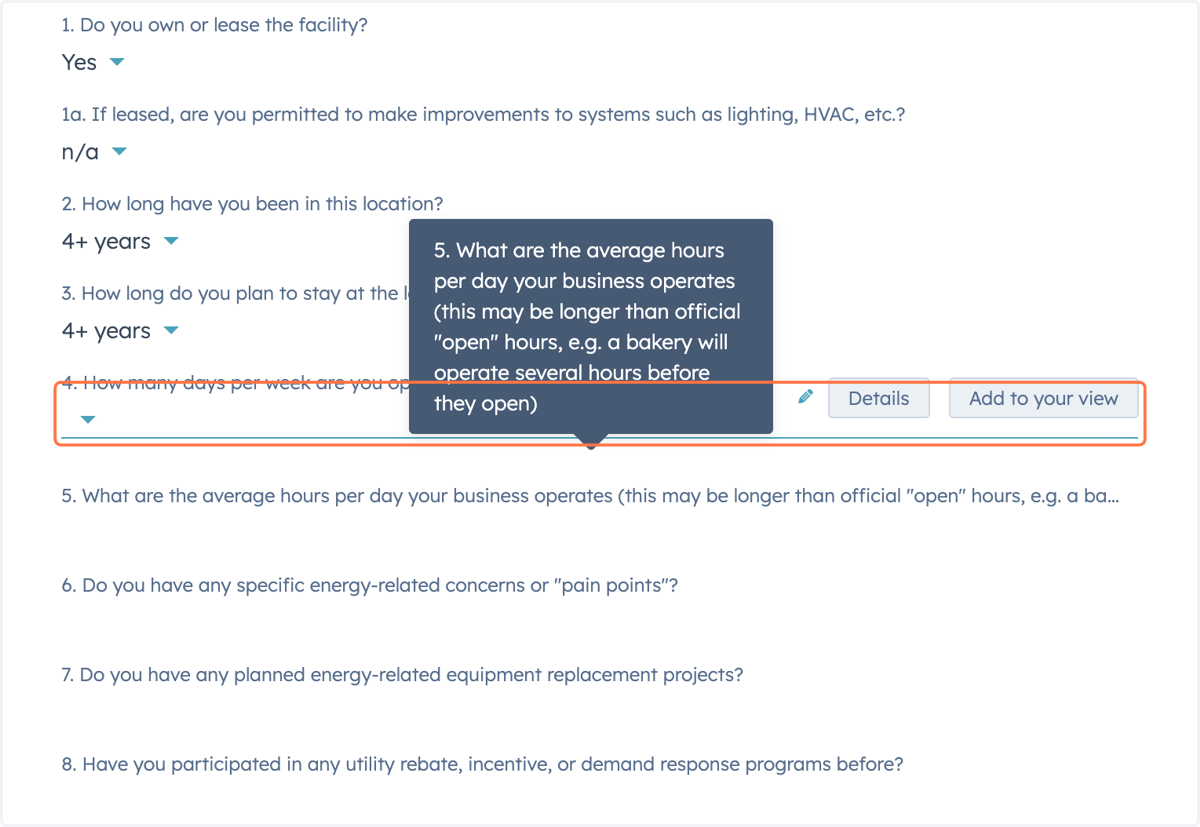
39. 5. What are the average hours per day your business operates (this may be longer than official "open" hours, e.g. a bakery will operate several hours before they open)
40. 6. Do you have any specific energy-related concerns or "pain points"?…
41. 7. Do you have any planned energy-related equipment replacement projects?…
42. 8. Have you participated in any utility rebate, incentive, or demand response programs before?…
43. Complete the 'SBO Energy Assessment 2. Interior Lighting 3 properties' section
44. Complete the 'SBO Energy Assessment 3. Interior Lighting Controls 2 properties' section
45. Complete the 'SBO Energy Assessment 4. HVAC Thermostats 2 properties' section
46. Complete the 'SBO Energy Assessment 5. Exterior Lighting & Controls 3 properties' section
47. Complete the 'SBO Energy Assessment 6. Refrigeration 6 properties' section
48. Complete the 'SBO Energy Assessment 7. Hot Water 3 properties' section
49. Complete the 'SBO Energy Assessment 8. Hot Water Fixtures 3 properties' section
50. Complete the 'SBO Energy Assessment 9. Kitchen 3 properties' section
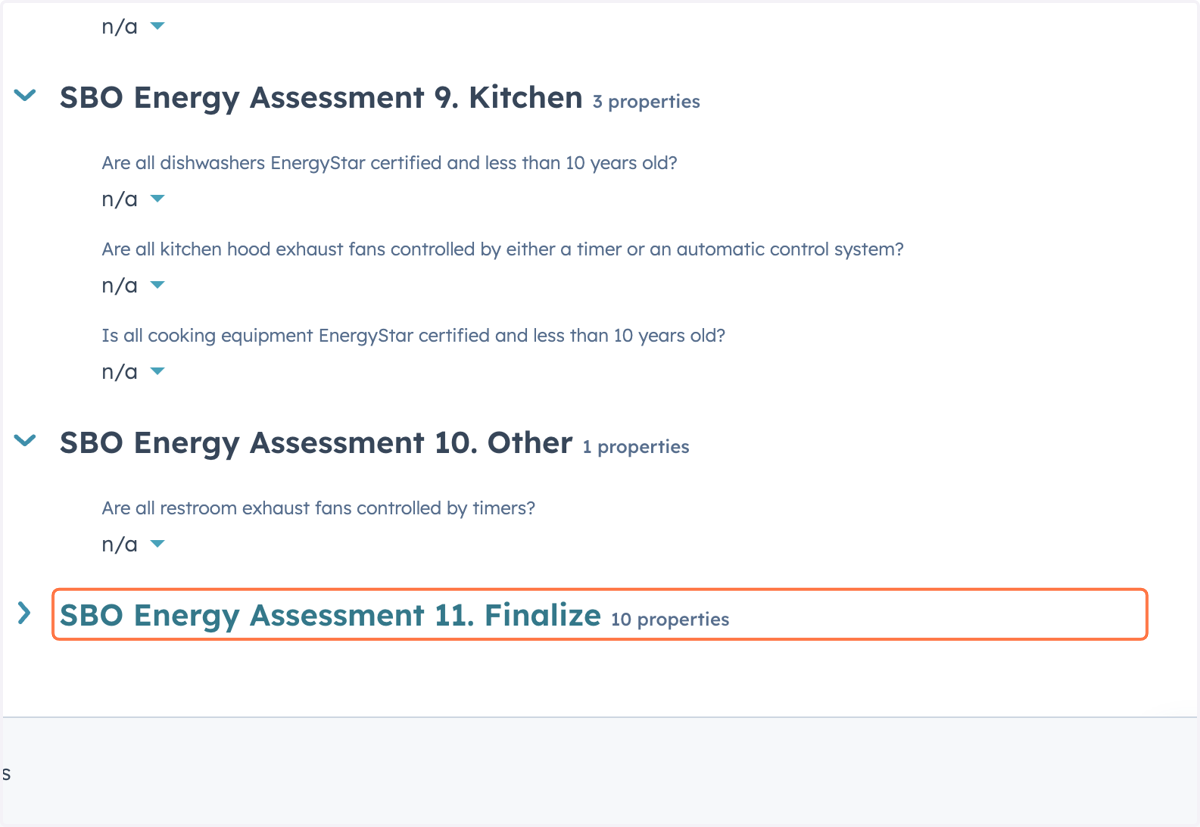
51. Complete the 'SBO Energy Assessment 10. Other 1 properties' section
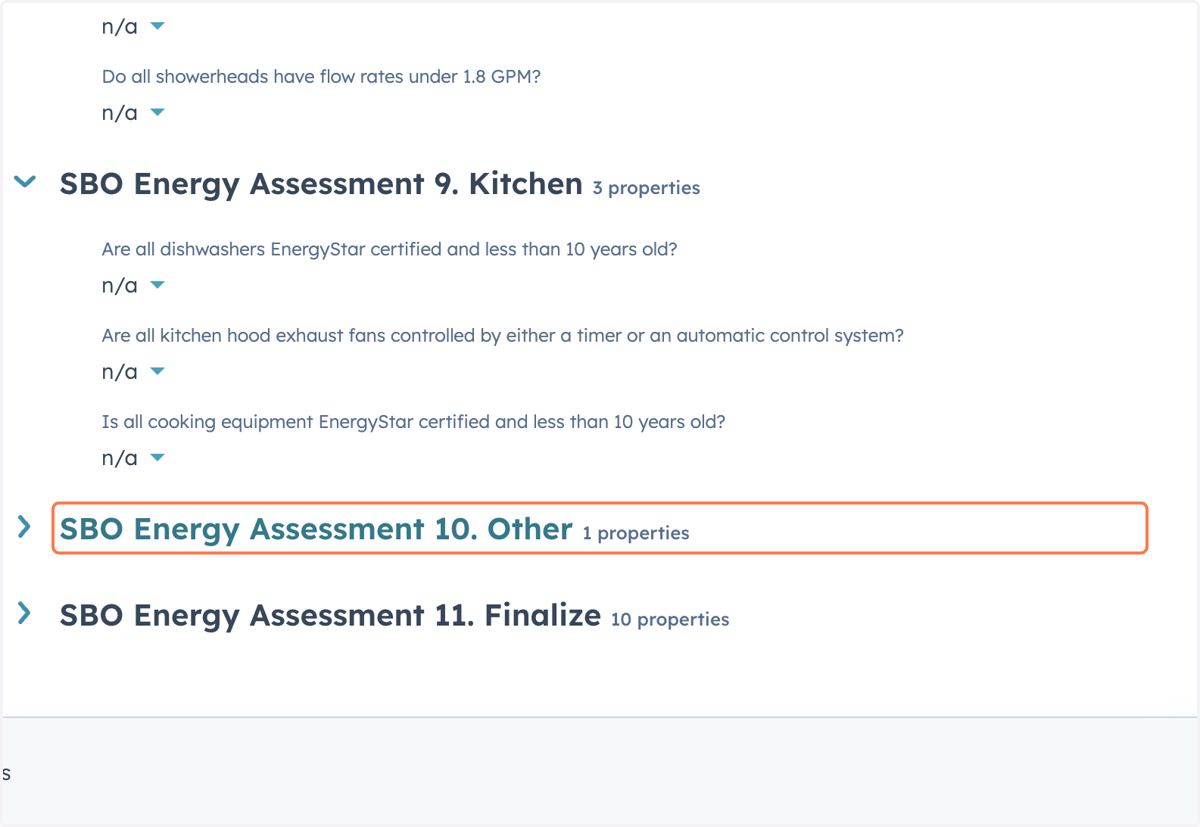
52. Complete the 'SBO Energy Assessment 11. Finalize 10 properties' section
53. Input any notes from customers as necessary
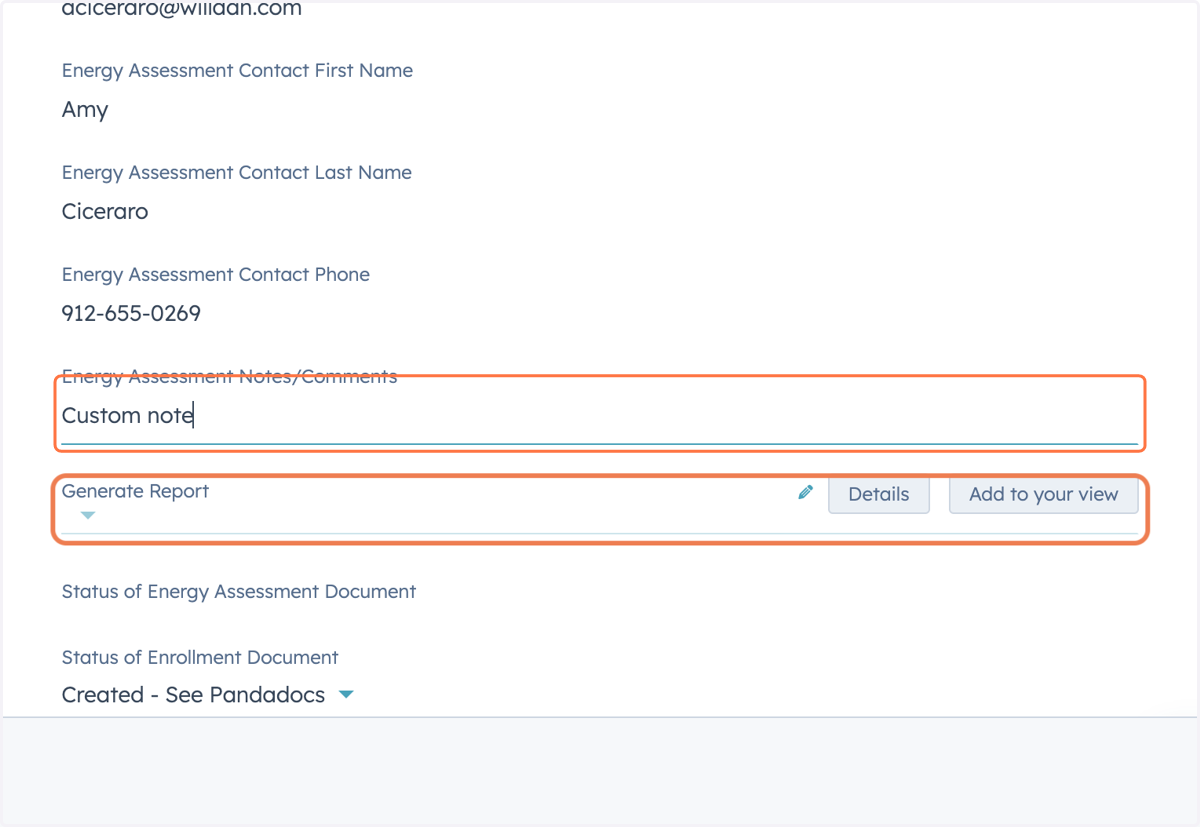
54. Select 'Yes' in the 'Generate Report' dropdown
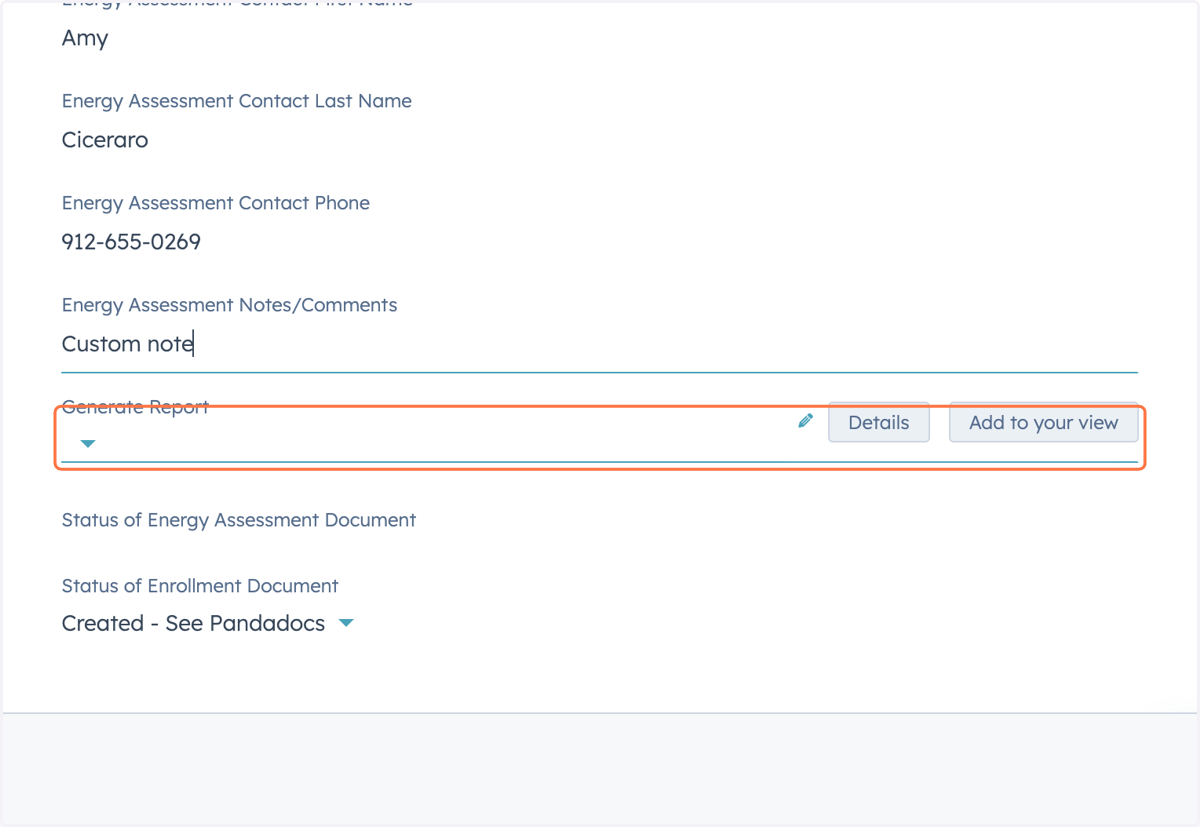
55. Click on Save
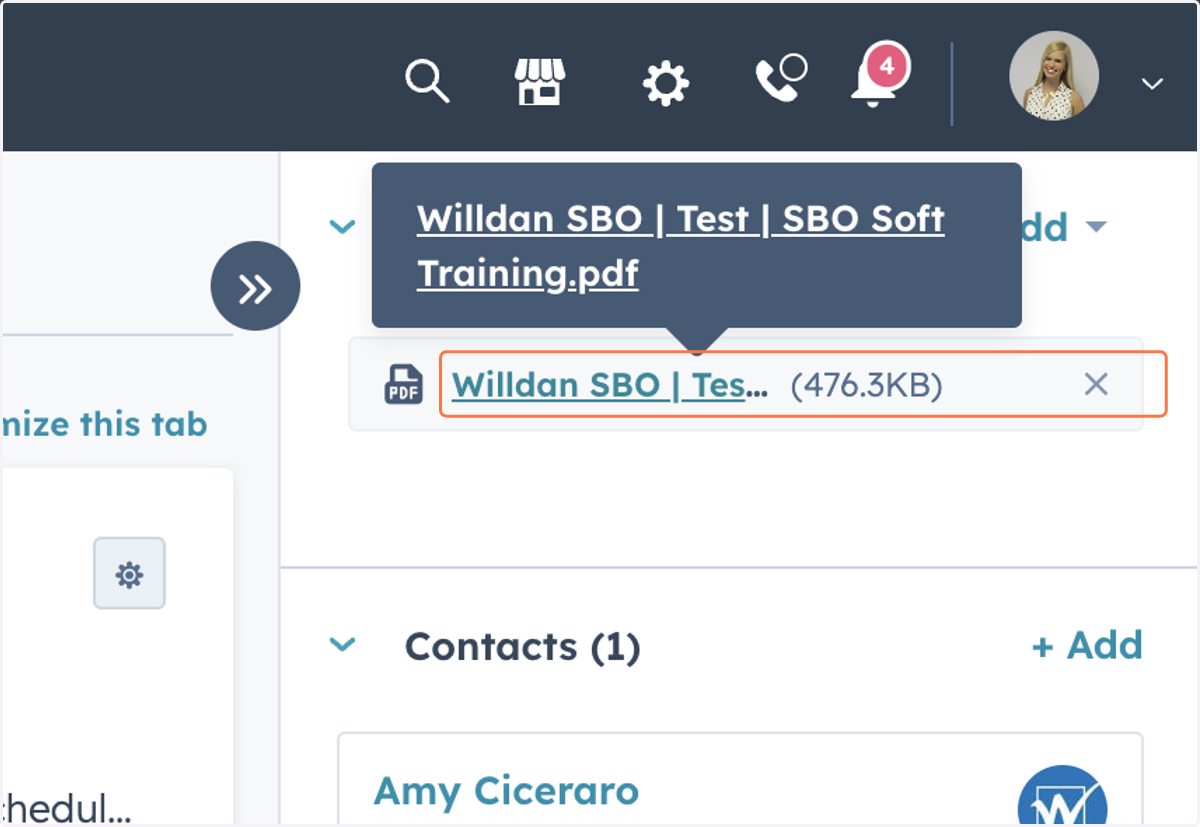
56. The Energy Assessment Report will populate under attachments in the top right deal sidebar
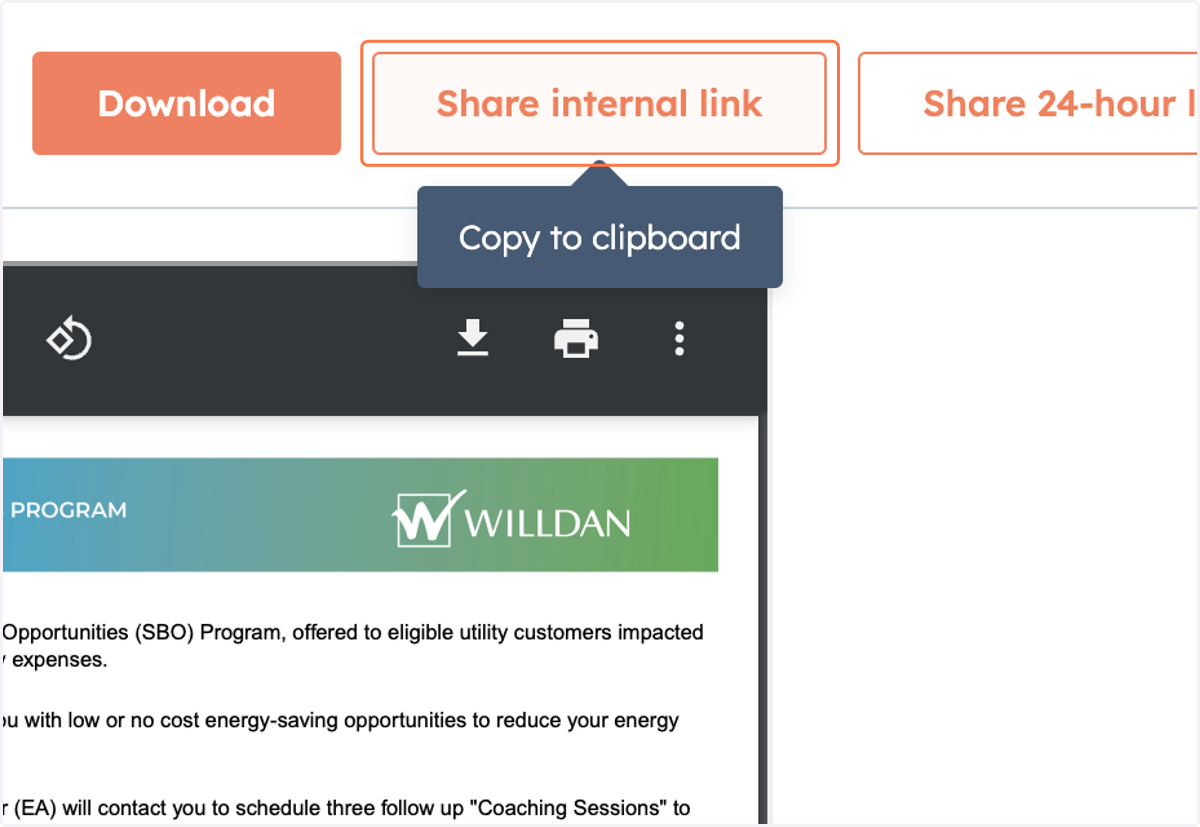
57. Click on Share internal link
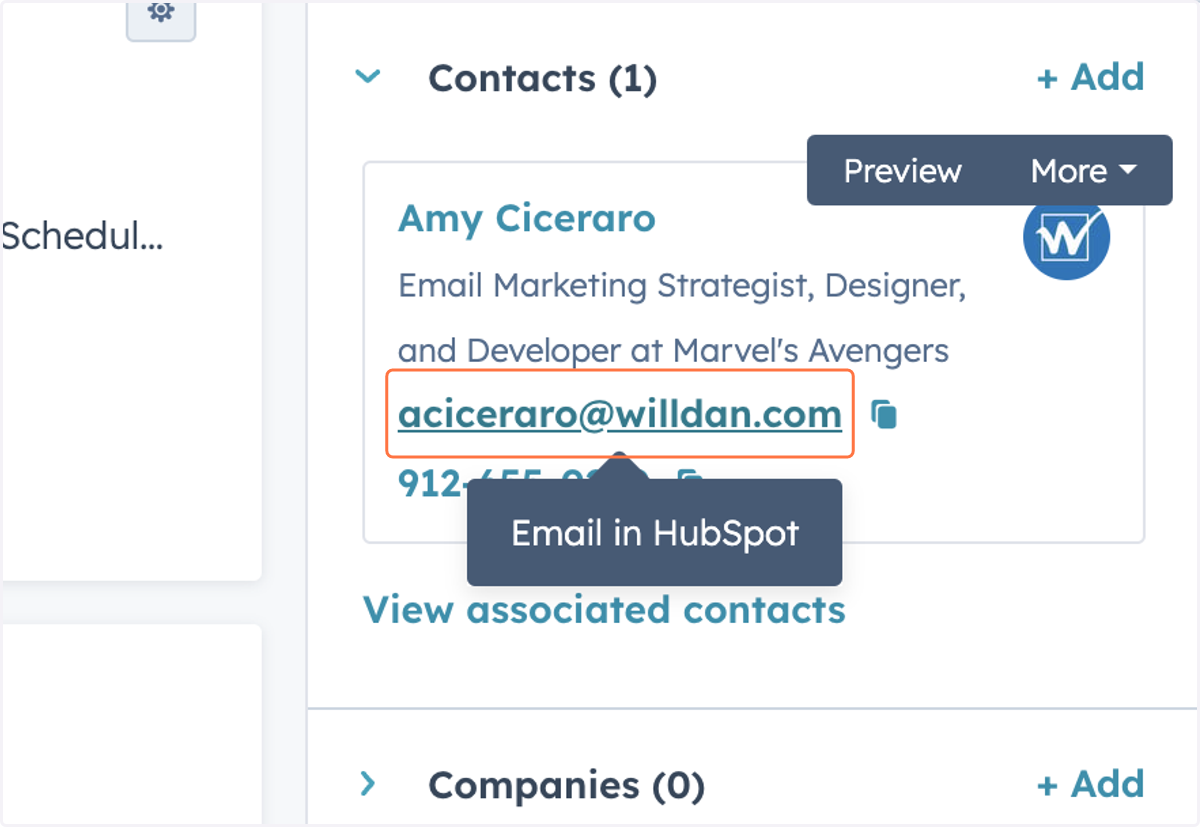
58. Click the customer's email address in the 'Contacts' section of the right deal sidebar
59. Add a subject line for the email
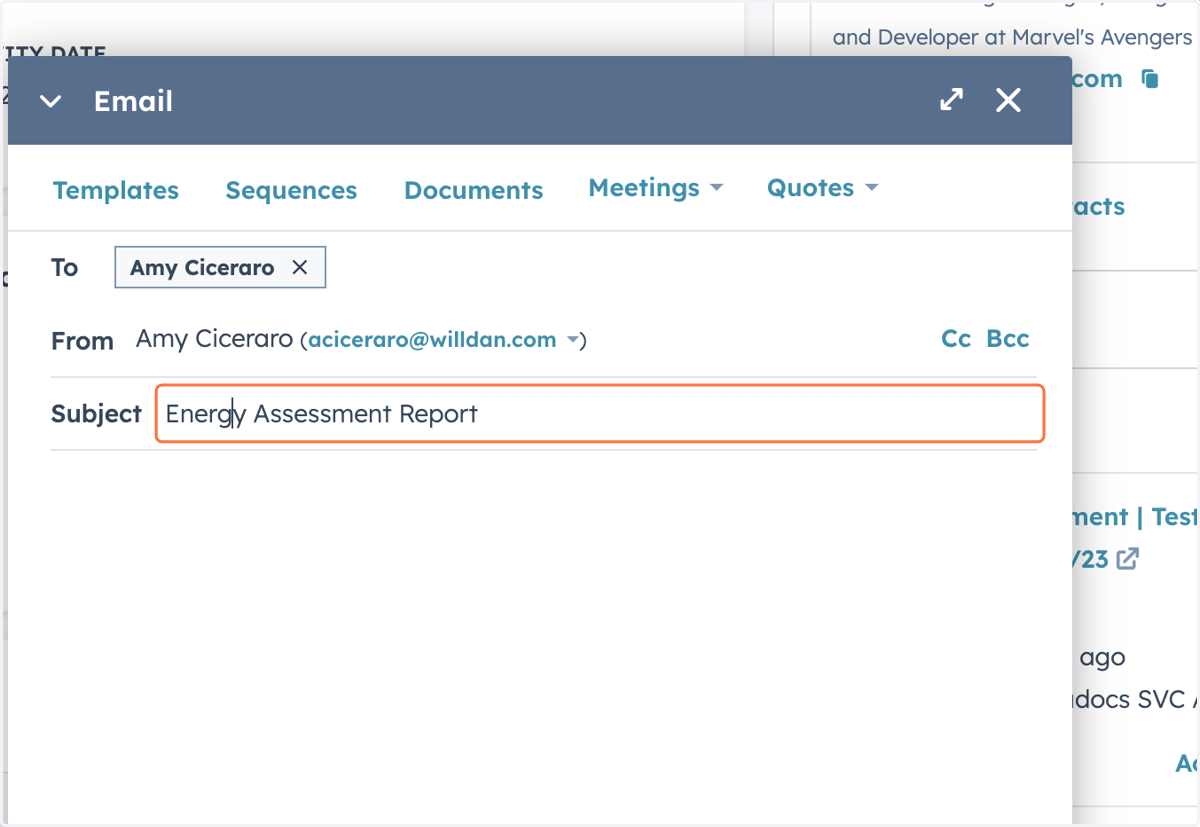
60. Type your message to the customer and paste the Energy Assessment Report link
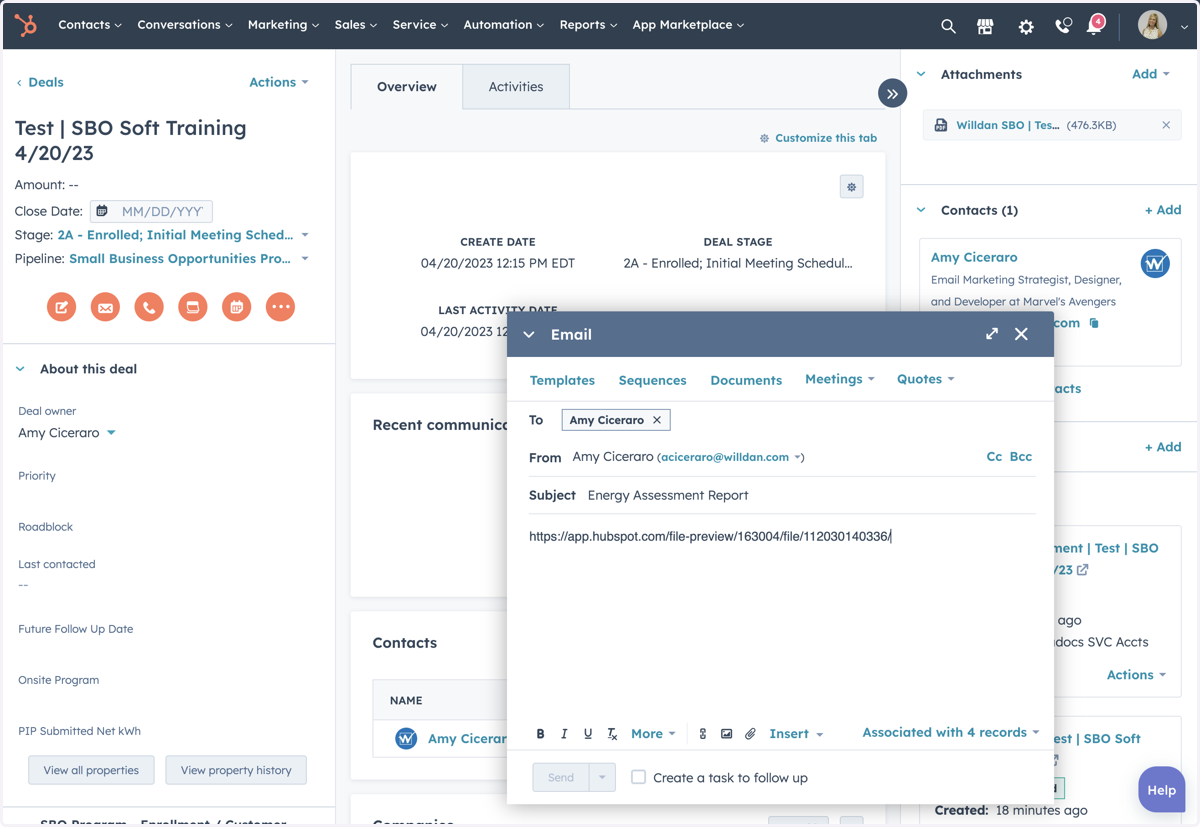
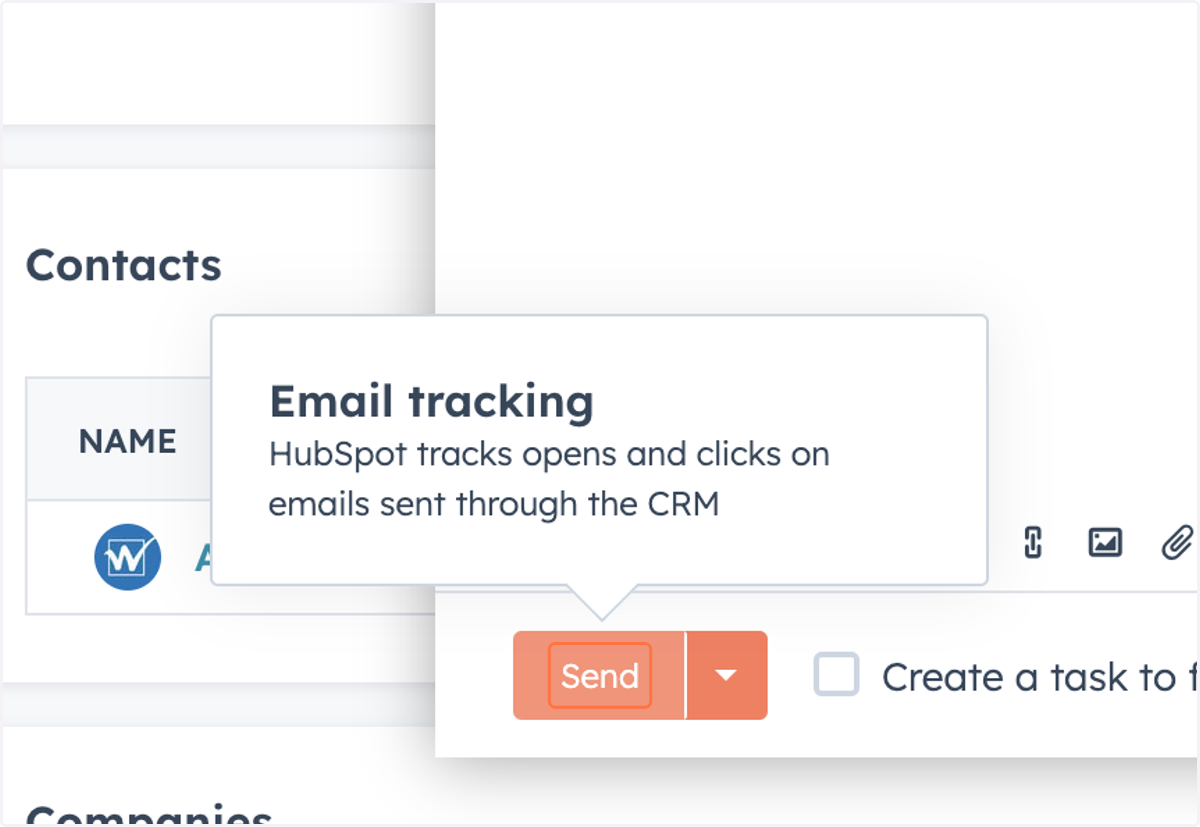
61. Click on Send
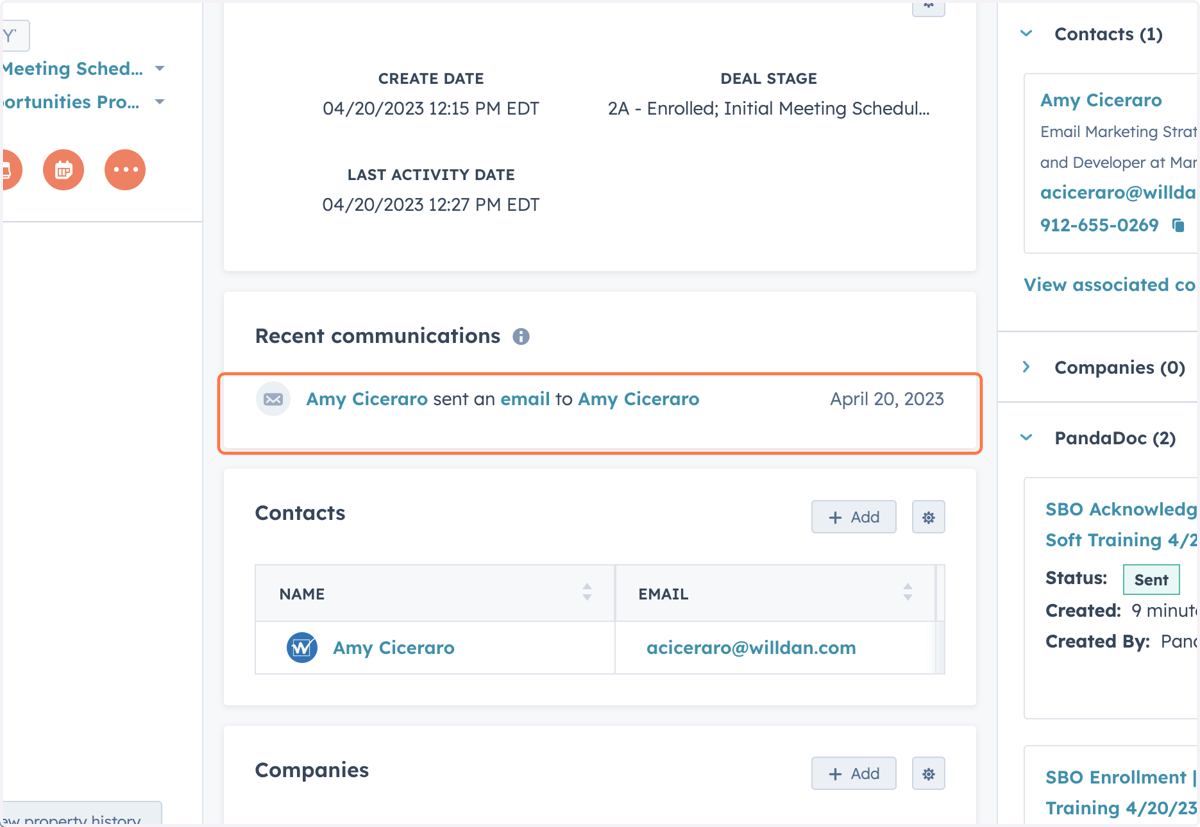
62. The email will be logged in Hubspot under "Recent Communications' in the deal view
63. PandaDocs will generate the Acknowledgement Form and send the form to the customer to sign.
This form is to acknowledge the customer received their Energy Assessment Report.
Follow the status of the document in the PandaDocs section on the right sidebar.
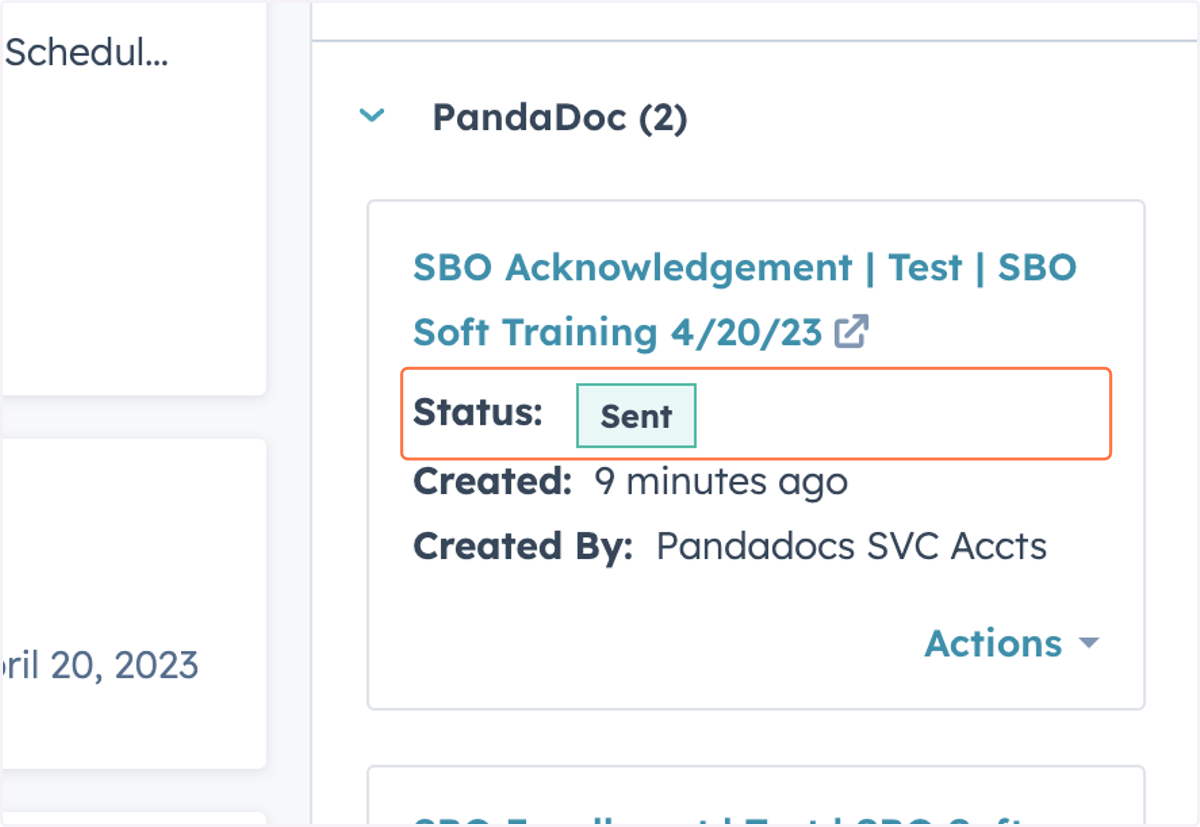
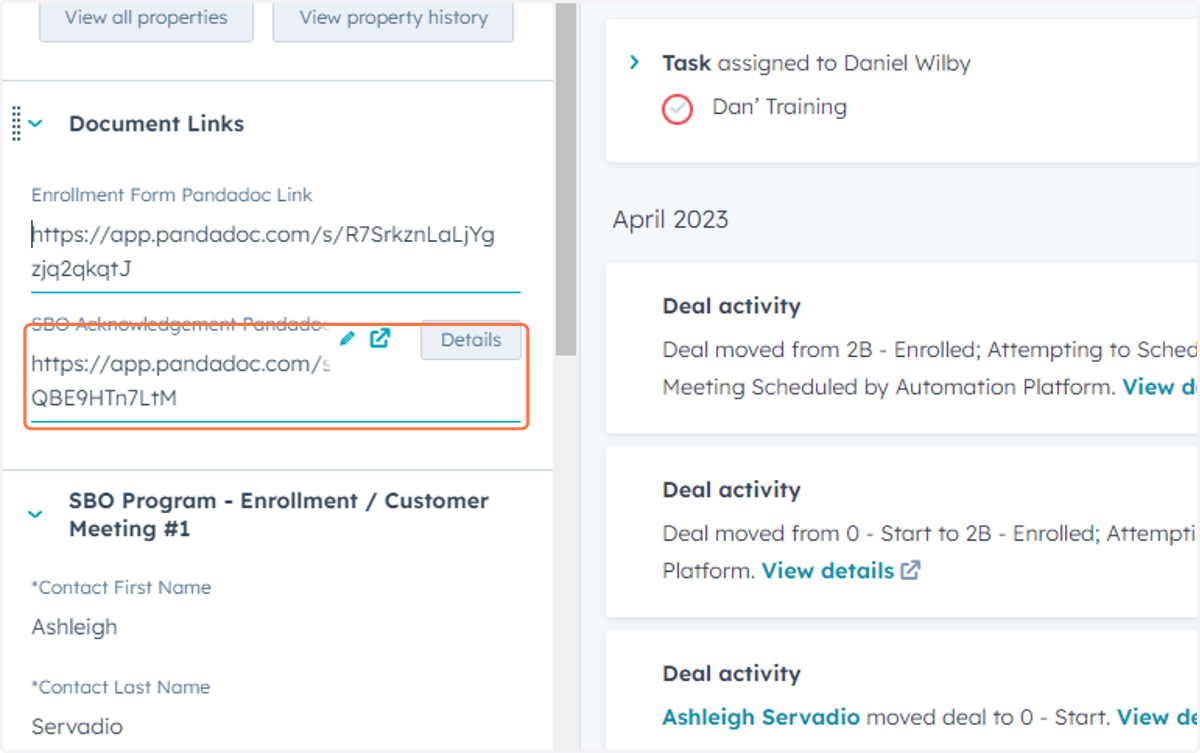
64. Click on SBO Acknowledgement Pandadoc Link
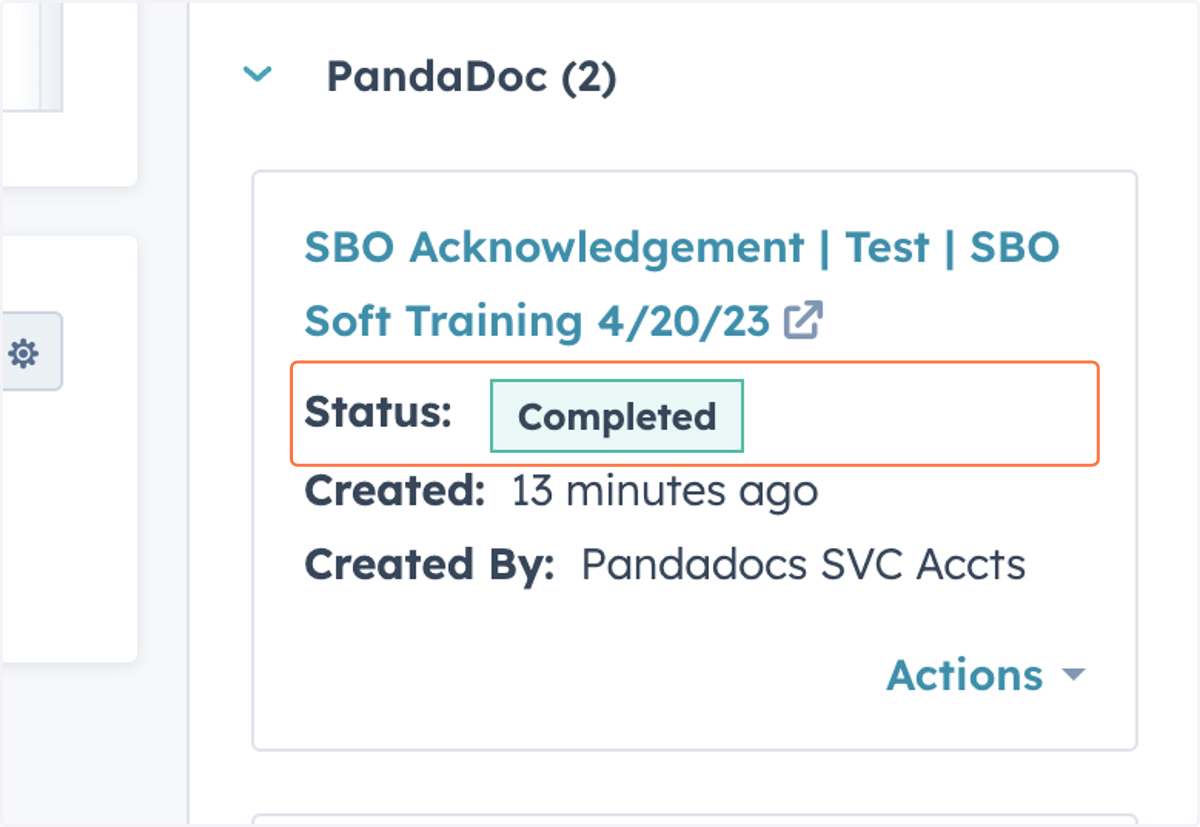
65. Document status is marked as completed when the customer signs the document
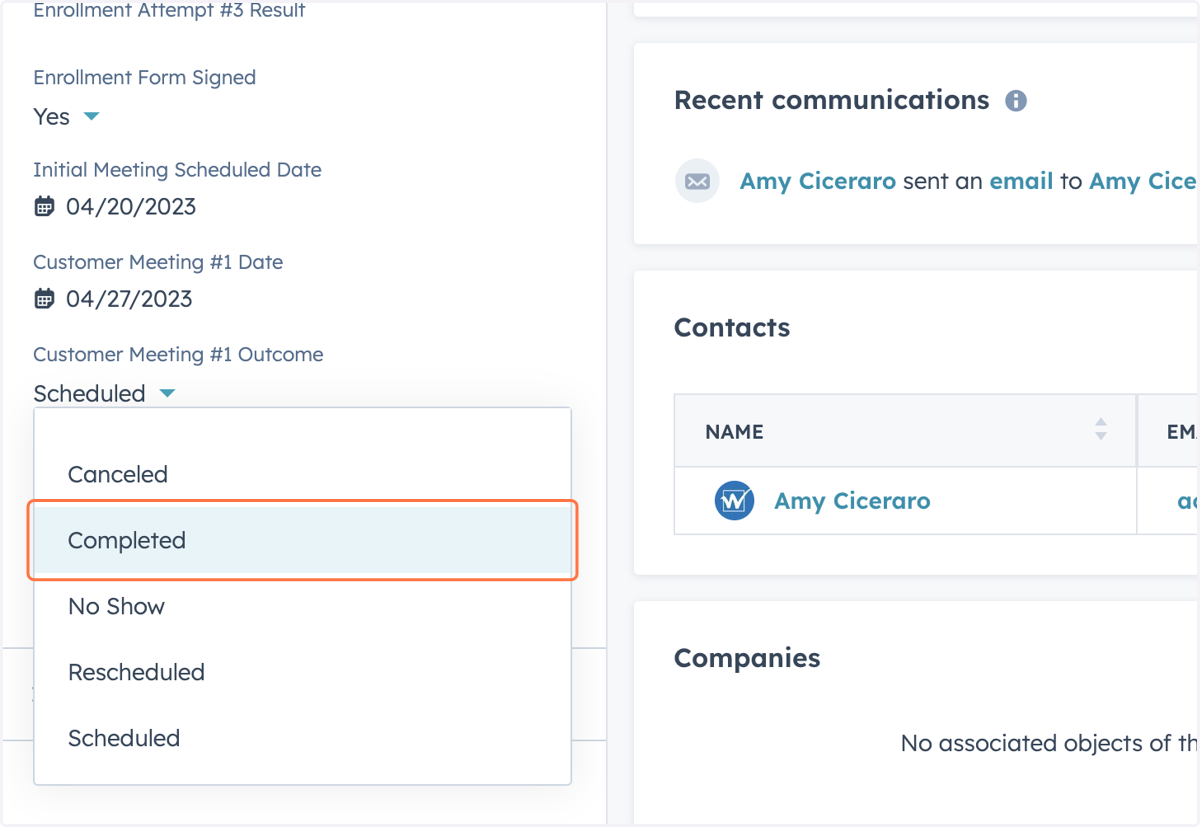
66. Select 'Customer Meeting #1 Outcome'
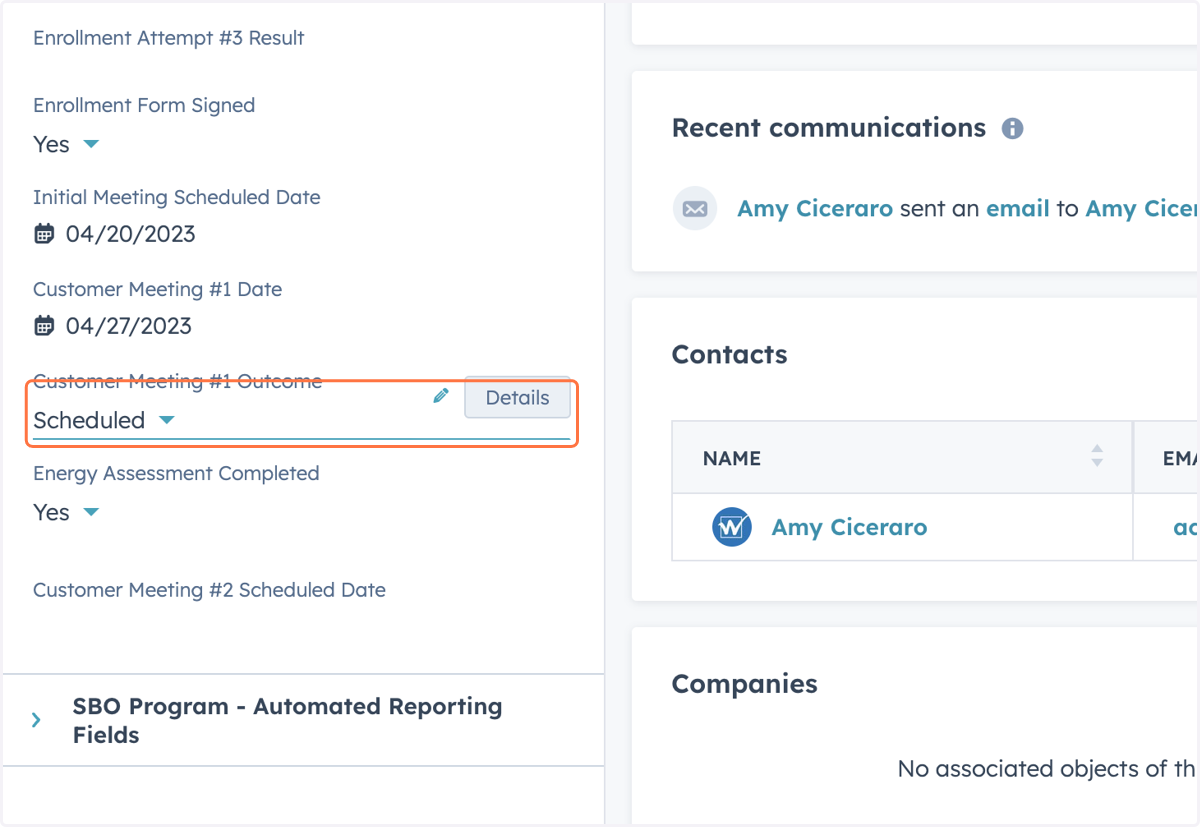
67. Mark 'Customer Meeting #1 Outcome' completed
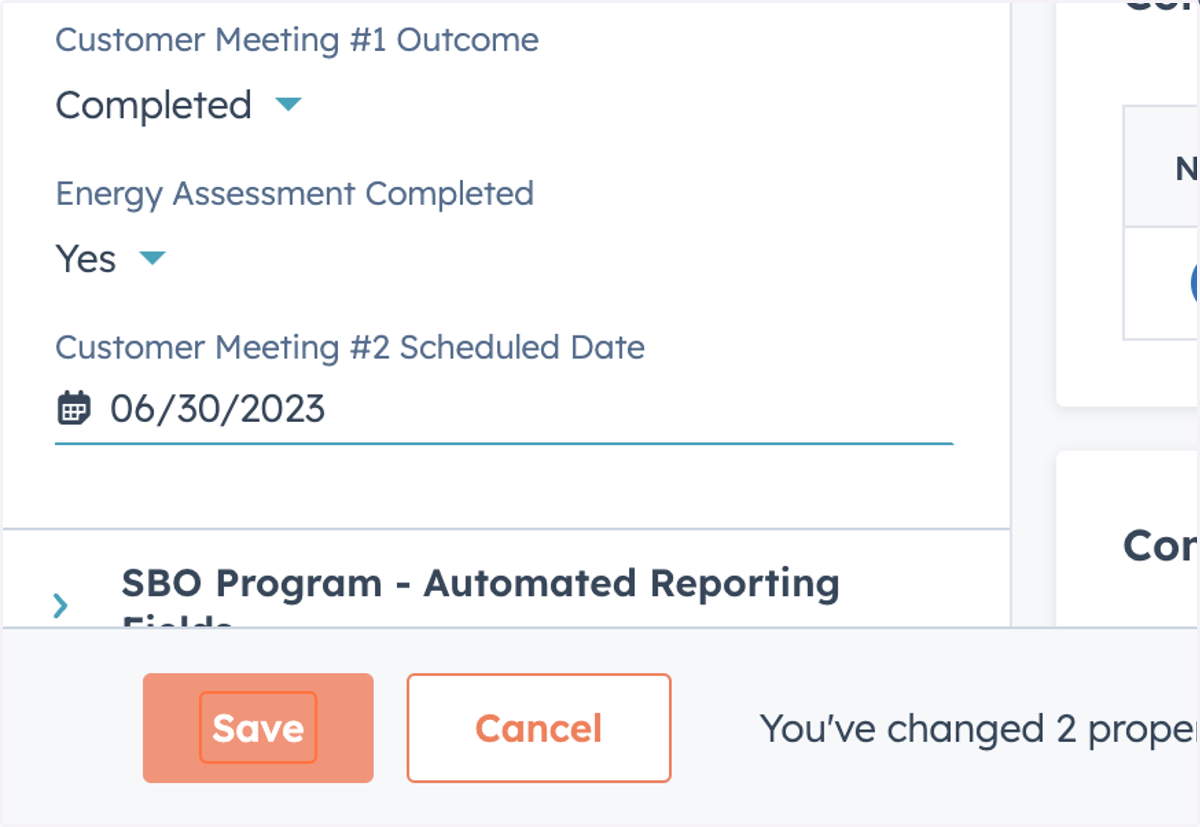
68. Input 'Customer Meeting #2 Scheduled Date'
Note: Customer Meeting #2 must be at least 45 days from Customer Meeting #1
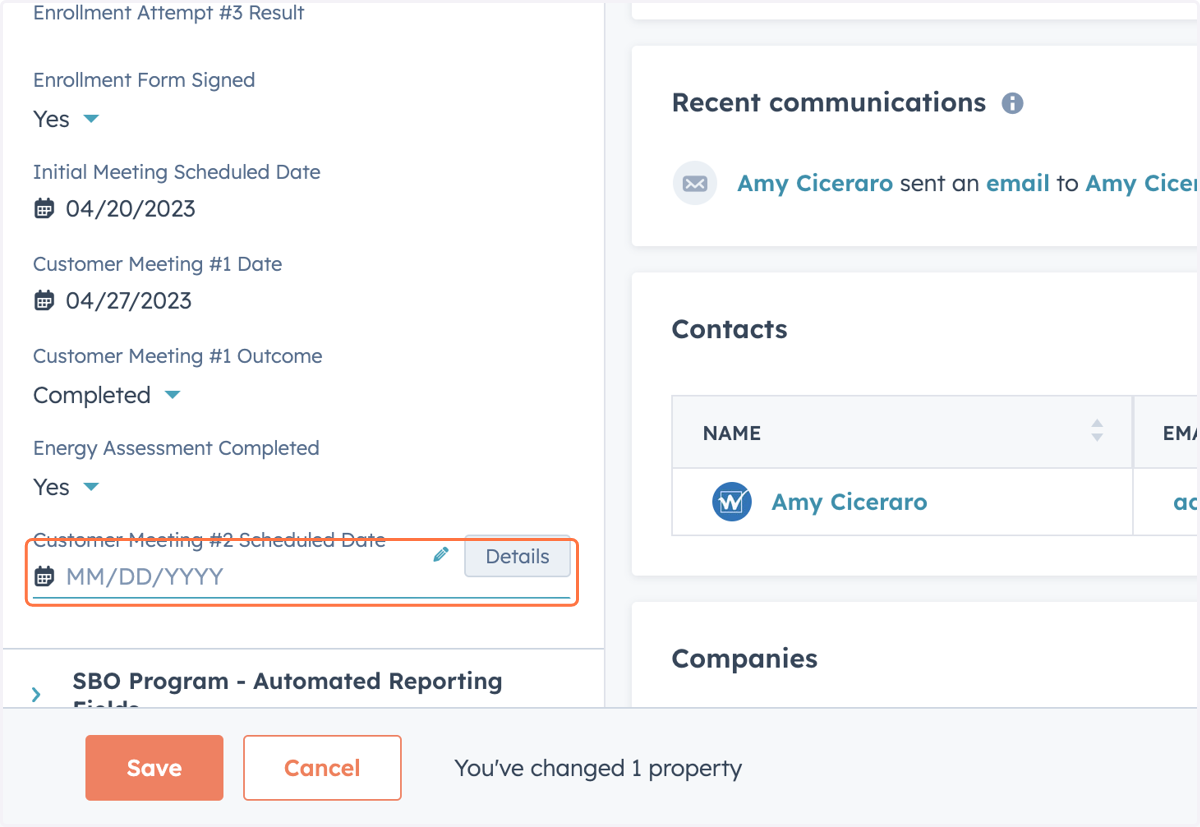
69. Click on Save
70. Customer Coaching Meetings #2-4 (can be done over the phone)
EA will review the energy assessment report with the customer over the phone and provide any information about other IOU programs that are available.
· Review the customers’ energy assessment with them and ask if they have enrolled in any of the applicable EE, DR, energy management, and/or optimal rate offering.
· Email customer utility flier to review if they don’t have it.
· Please note, in hubspot, what programs they have enrolled in. For PG&E customers, if they are interested in the Simplified Savings Plan or they are an AG customer and interested in the Agriculture Energy Savings Action Plan, under the Enrollment / Customer Meeting #1 there is a section that says Add. Program Interest, mark what program they are interested in.
· If the customer has not enrolled in any of the programs, please review the programs again with the customer and ask if there is anything you can assist with.
· The EA will assist customers in enrolling in applicable EE, DR, energy management, and/or optimal rate offerings by referring them to the program or relevant representative for the applicable program.