Process Move Ins in Senior CRM
Senior CRM
1. Click on Move In on the residents profile under documents
This can also be found on the Documents Dashboard

2. Check off any Move in Checklist items that havent been flagged as completed that are required.
If there is something we don't truly have, please make a note of it to get ASAP.
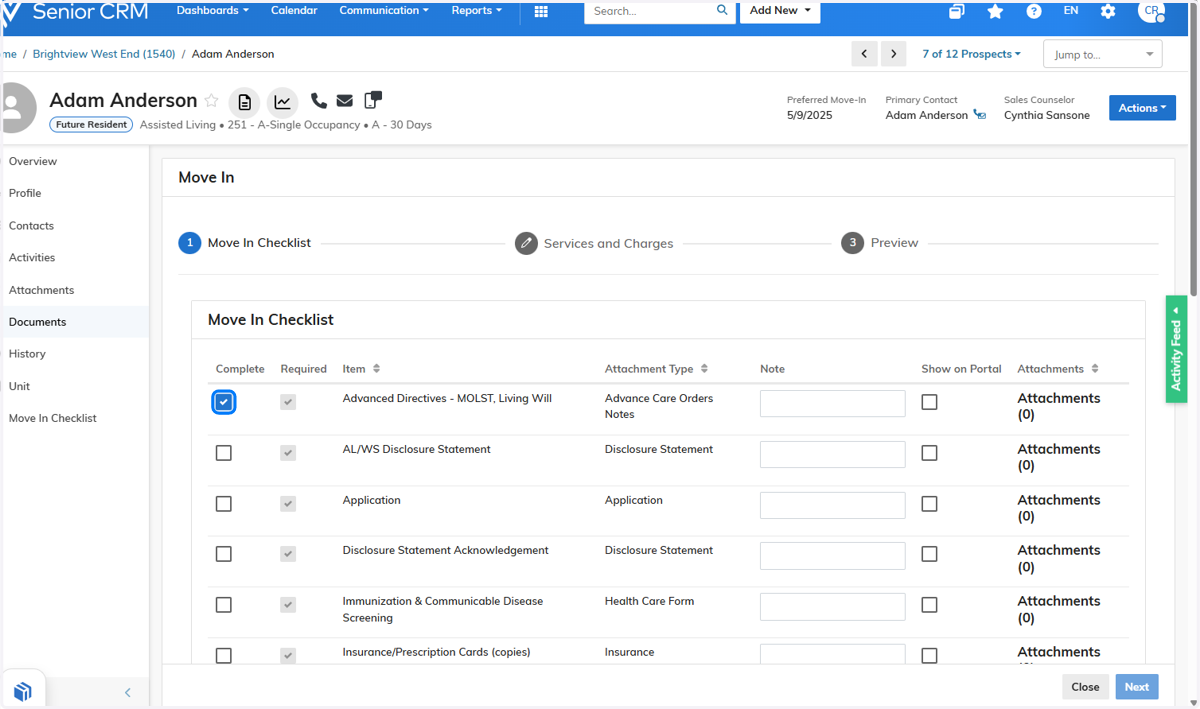
3. Click on Next

4. Double check any dates as this will produce the move in batch

5. Double check that all the charges are on the correct payer and that the dates and amounts are correct

6. Click on Next

7. Preview charges will show you any charges that will be prorated/due. Then Click on move in after confirming the charges upon Move in are accurate

8. You will see that the resident now has a Moved in status and the document has been completed

9. The Move in Batch will still need to be posted in Voyager