Gmail setup - send from your Workspace or personal email
1. Click on Maintenance
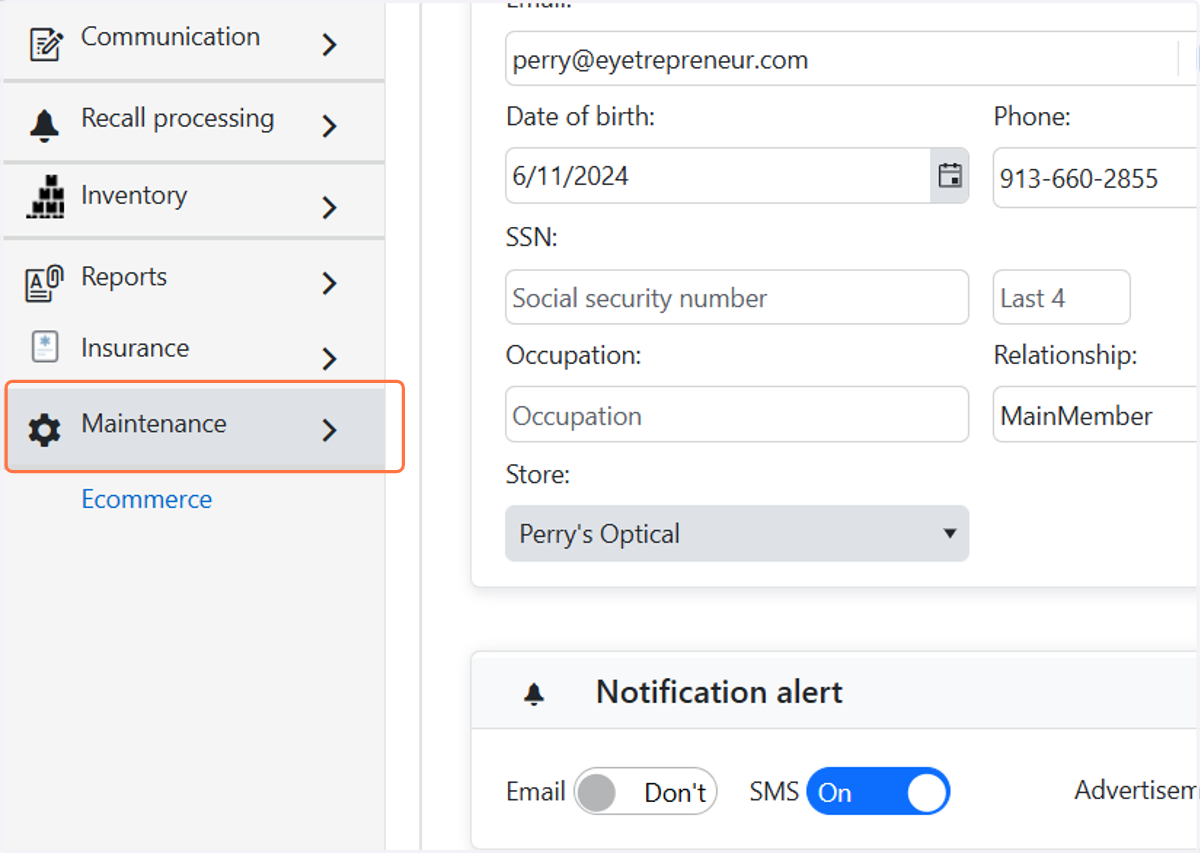
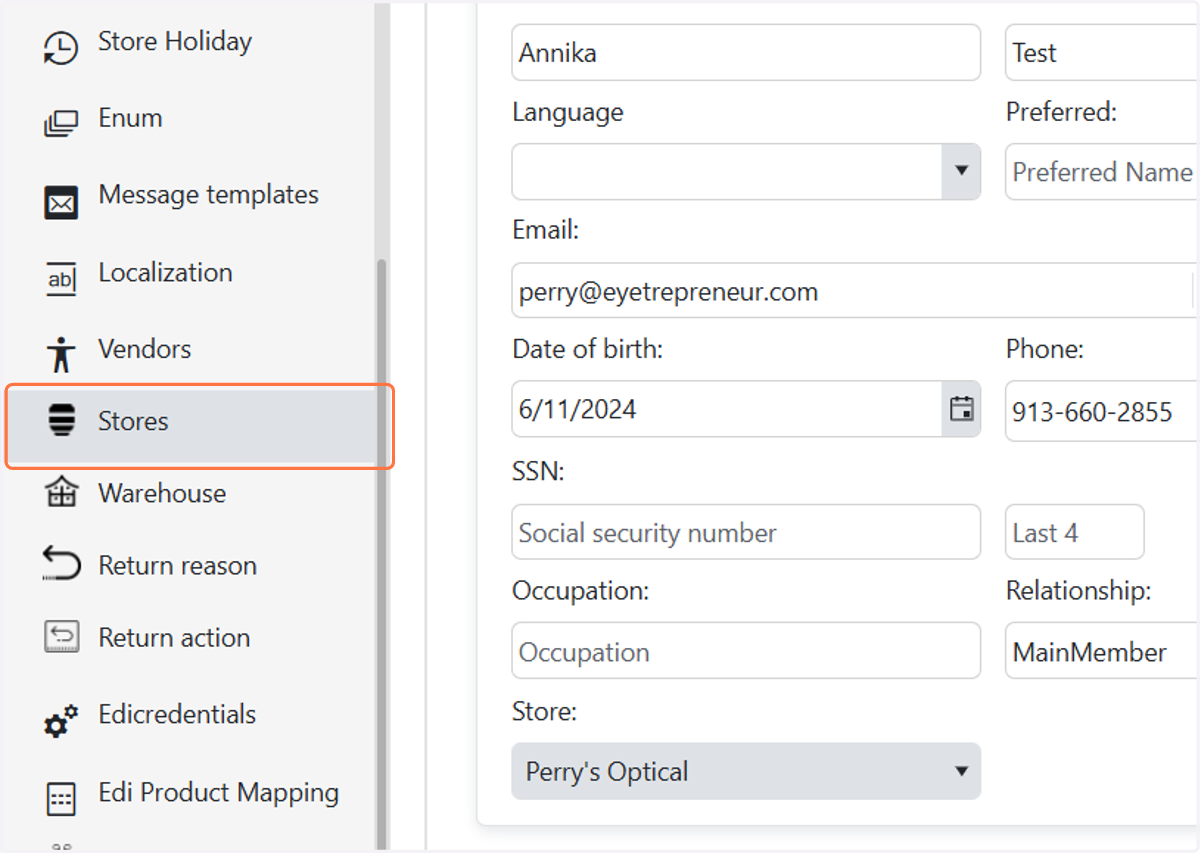
2. Click on Dashboard…
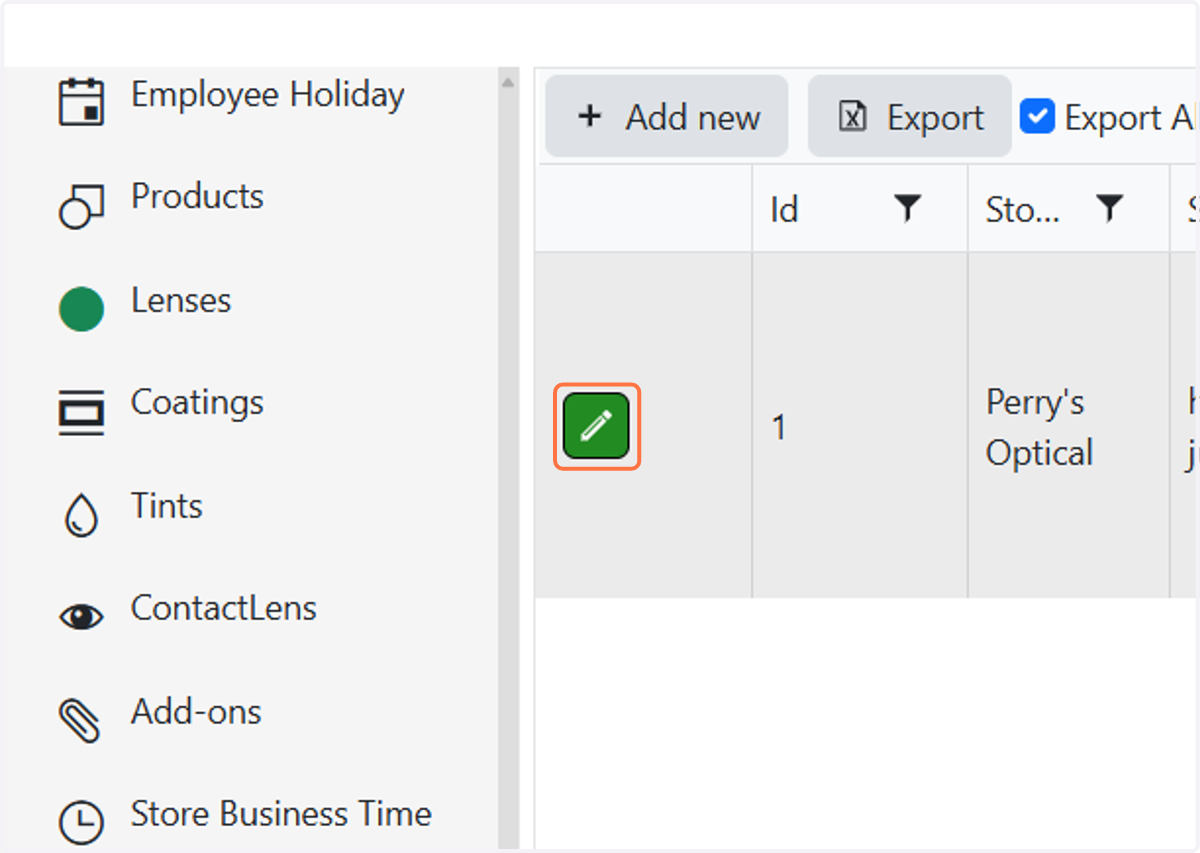
3. Click on Add edit icon next to your correct store location
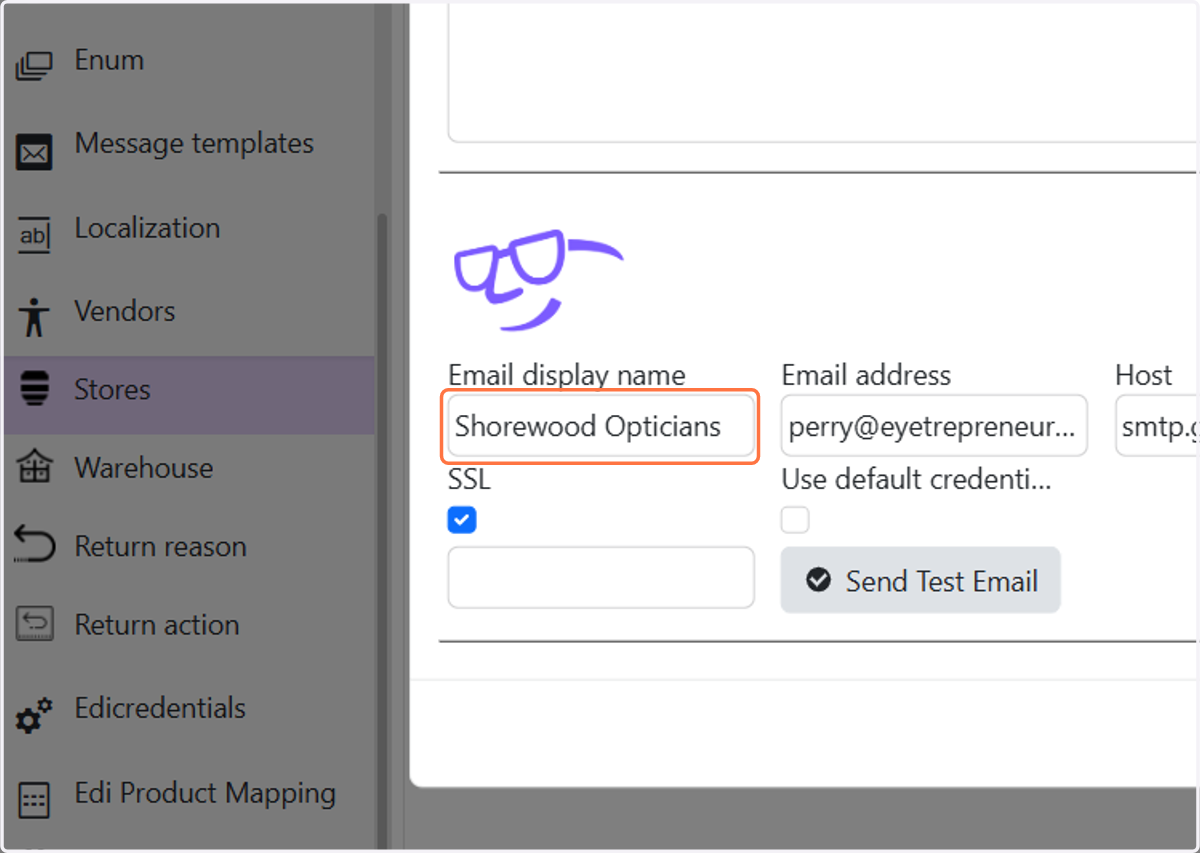
4. Enter how you want your email to display to customers in the subject line
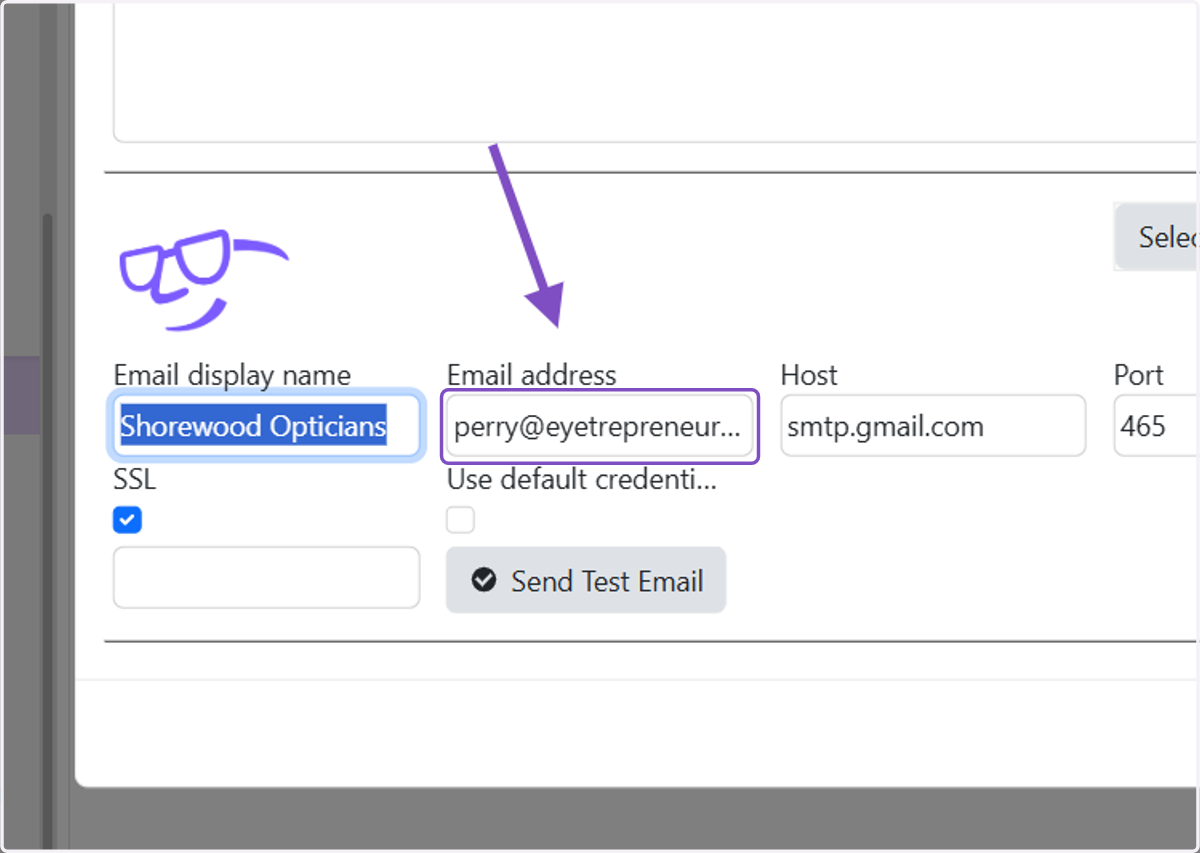
5. Type your email here
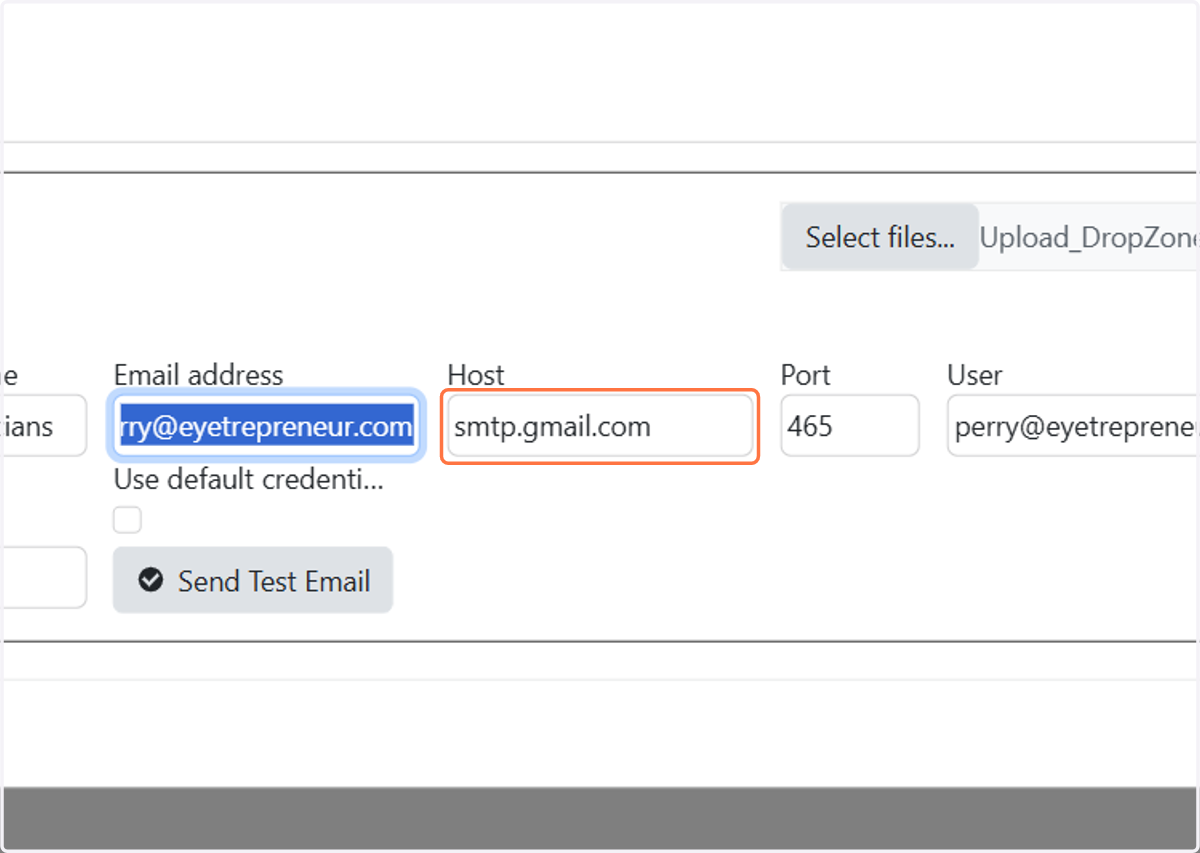
6. Type smtp.gmail.com
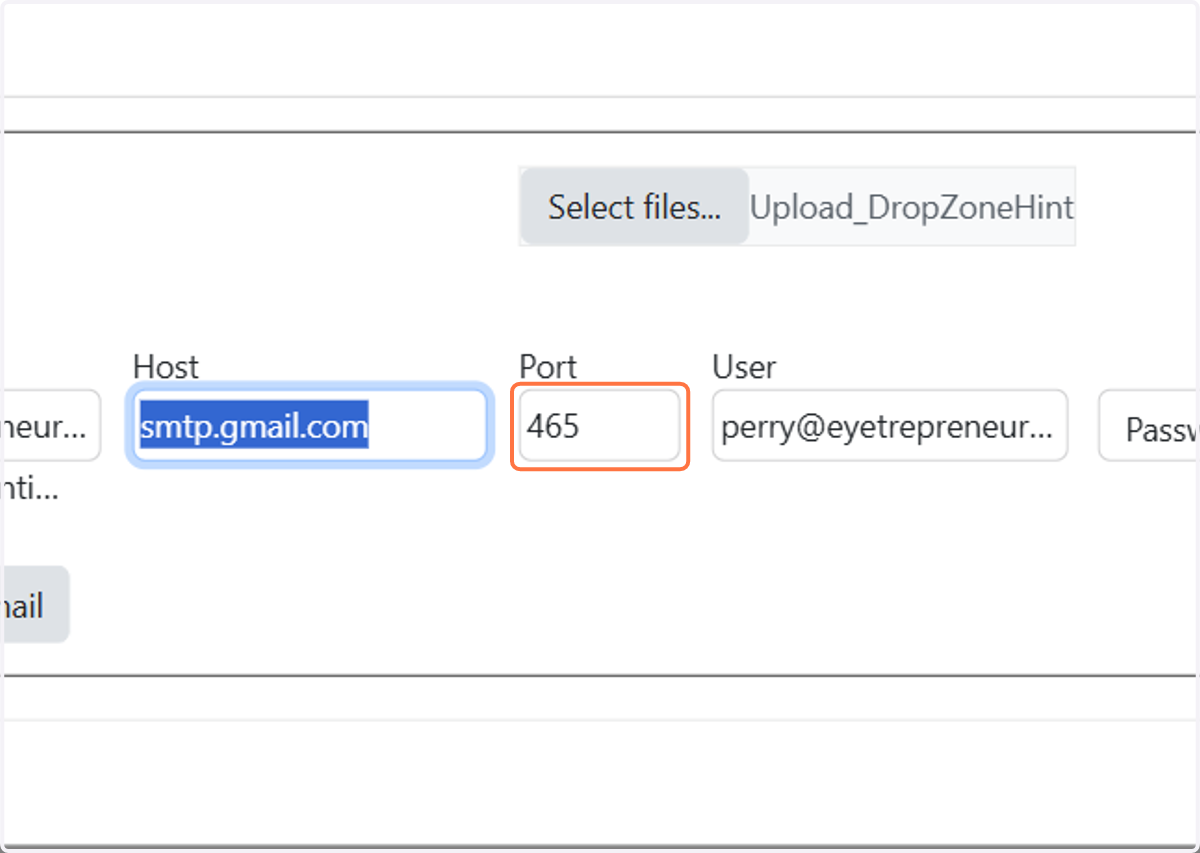
7. Type 465
8. Type your email again or username you login with
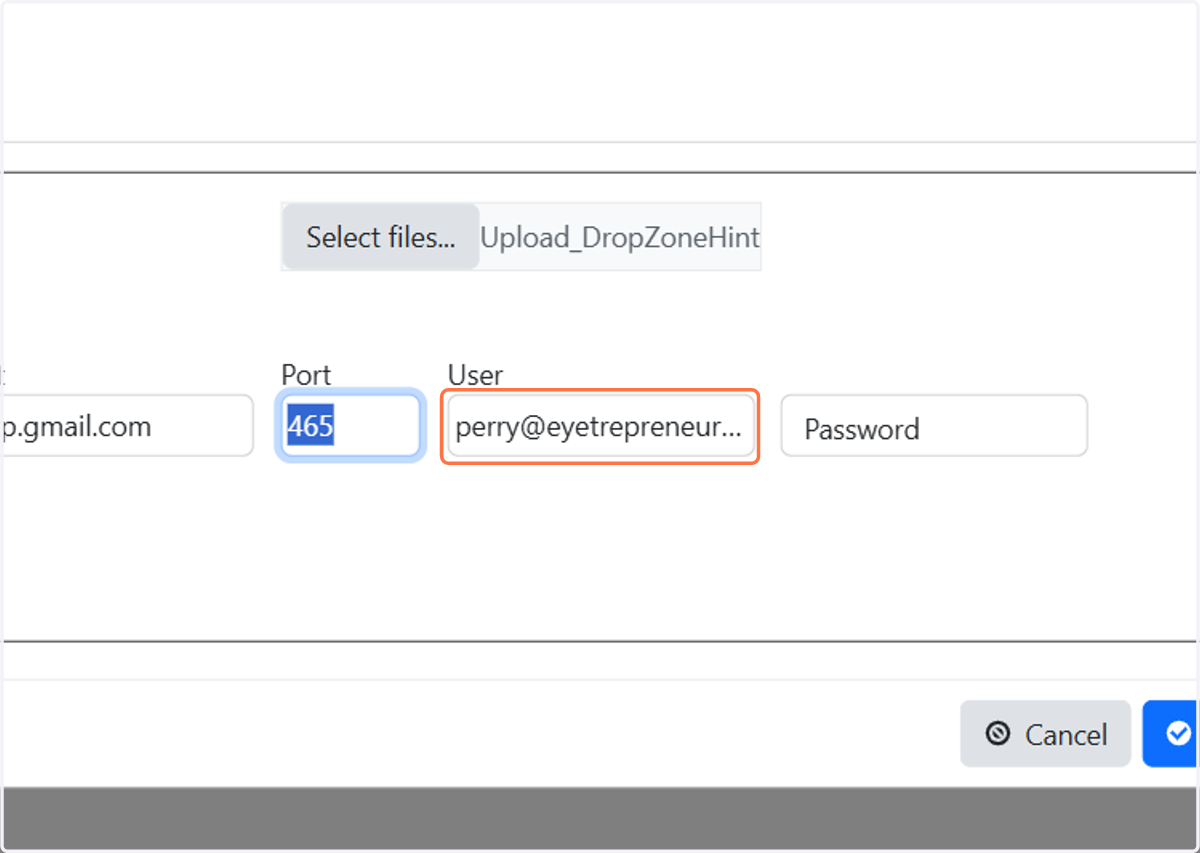
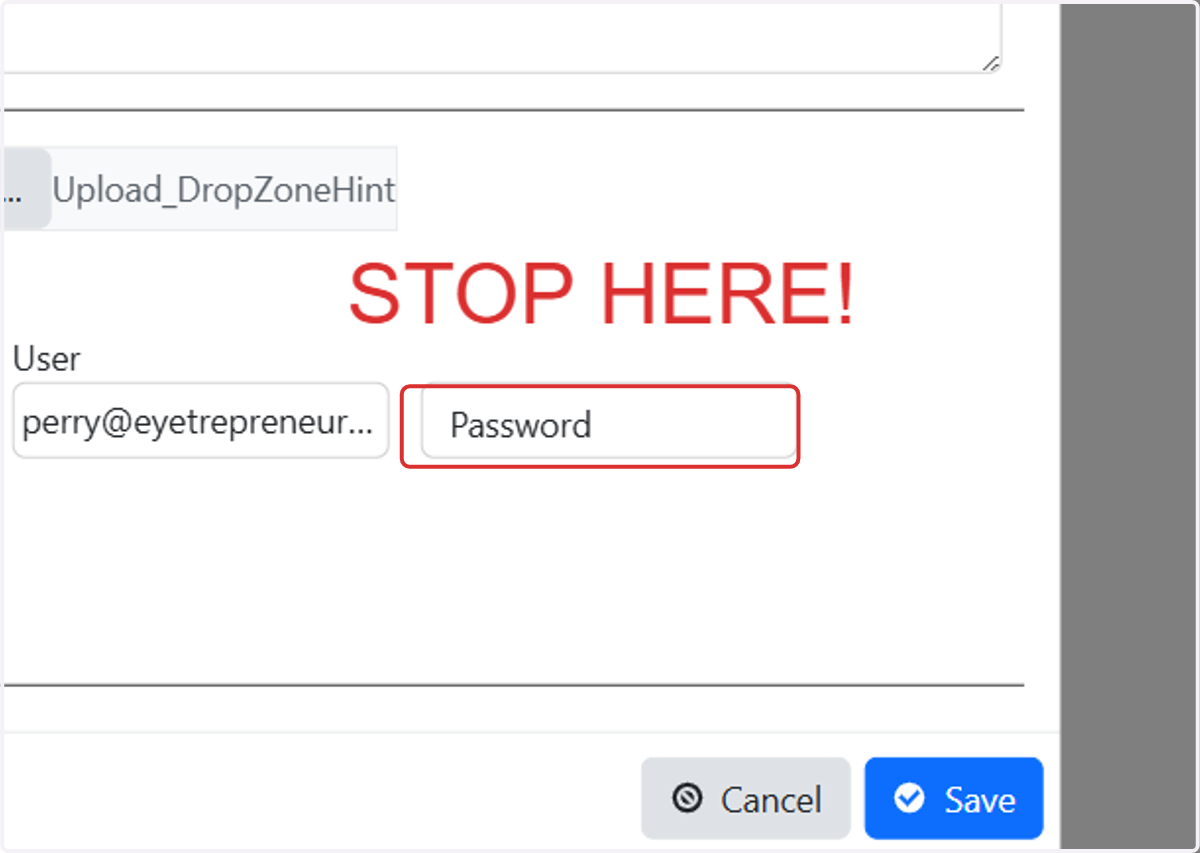
9. Before entering password, you need to setup a special password
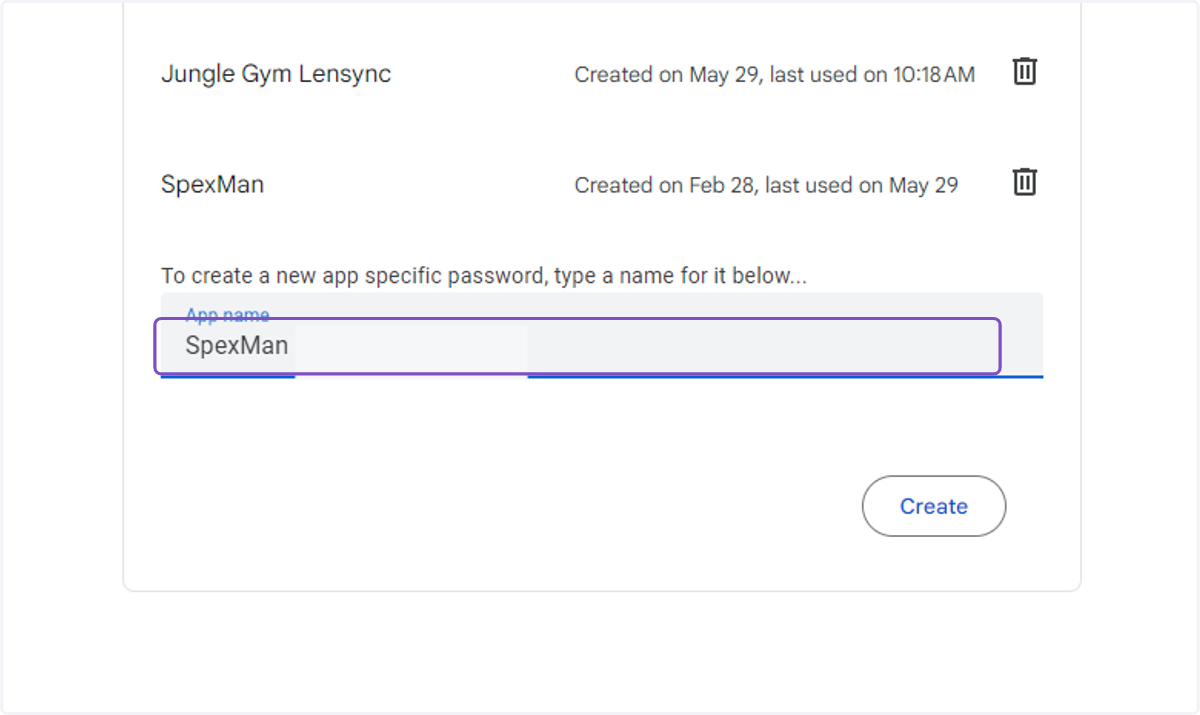
10. Type "SpexMan" or any name you want you will relate to this program
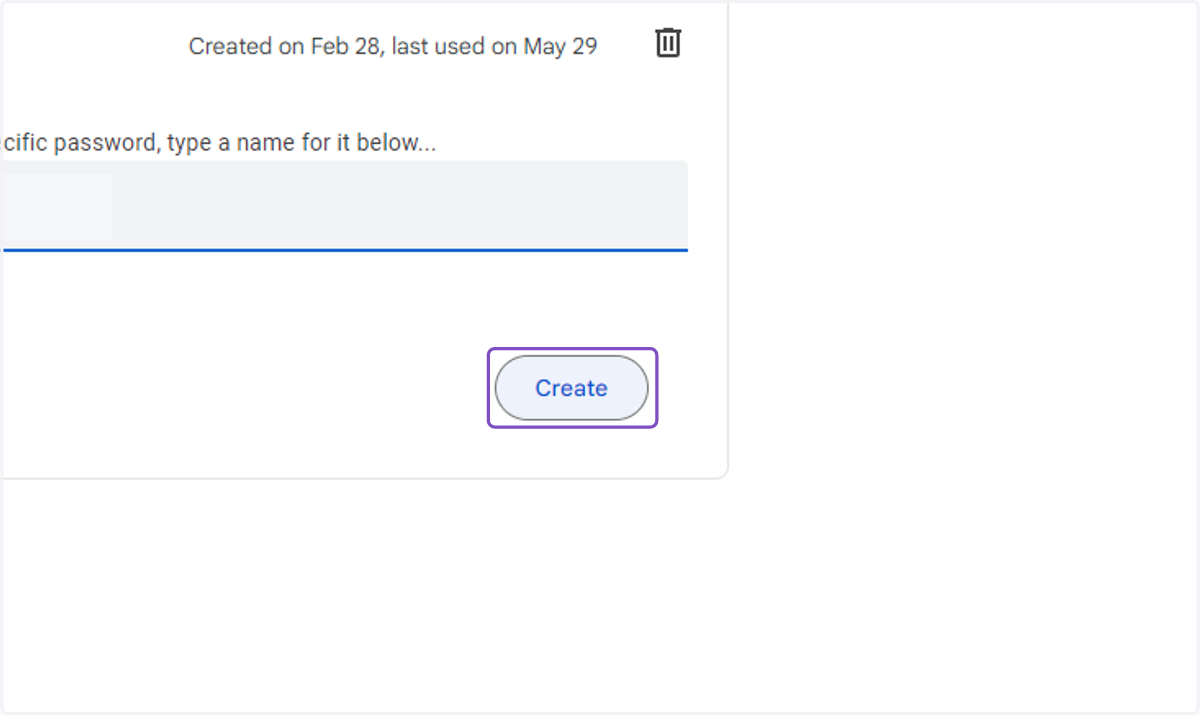
11. Click on Create
12. Click on Your app password for your device…
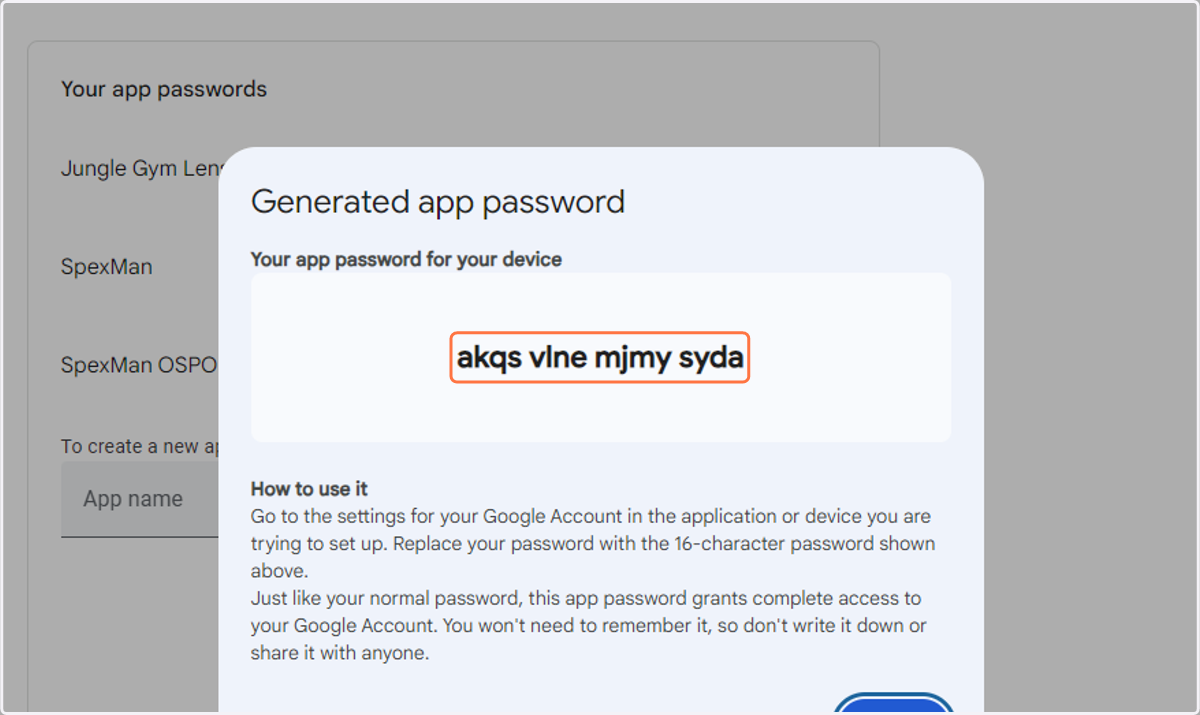
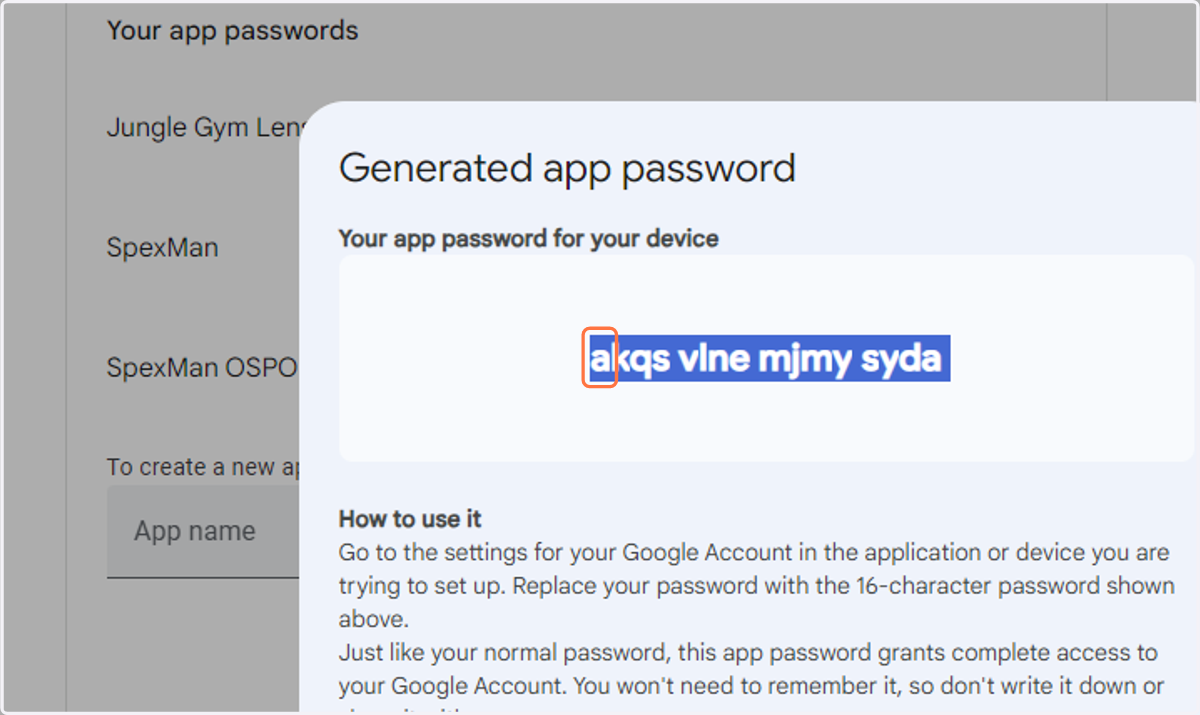
13. Copy the text
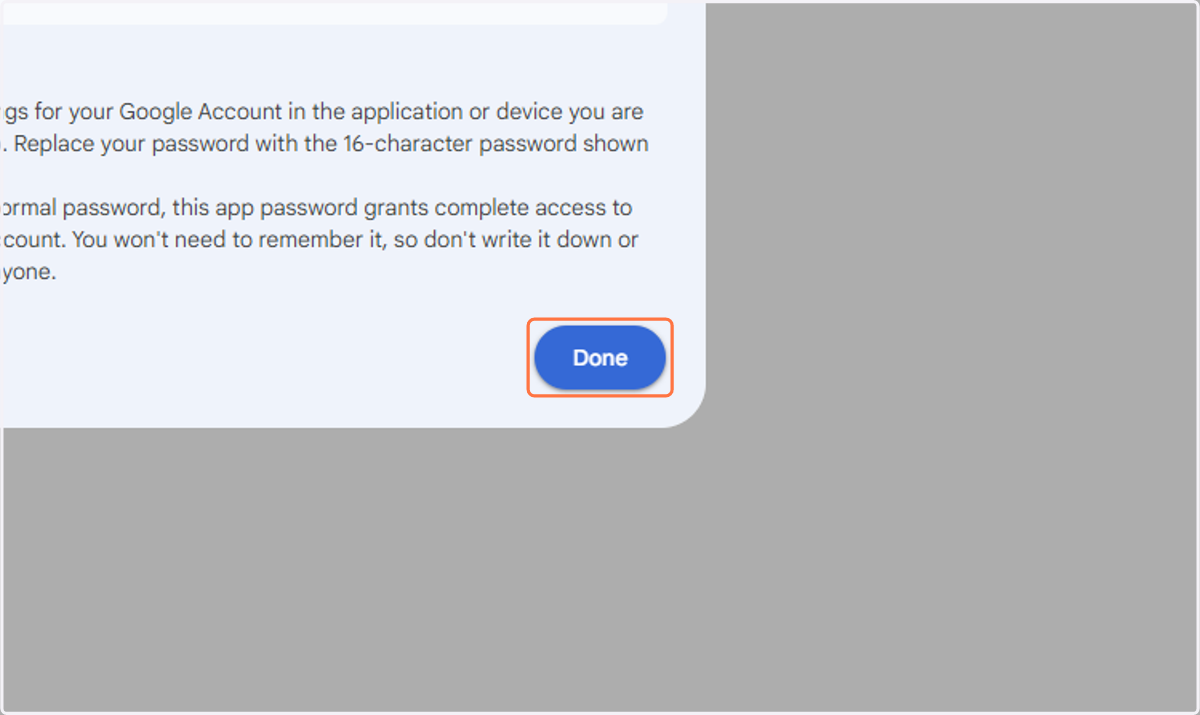
14. Click on Done
15. Paste app password here. Do not remove spaces. Do not click save yet!
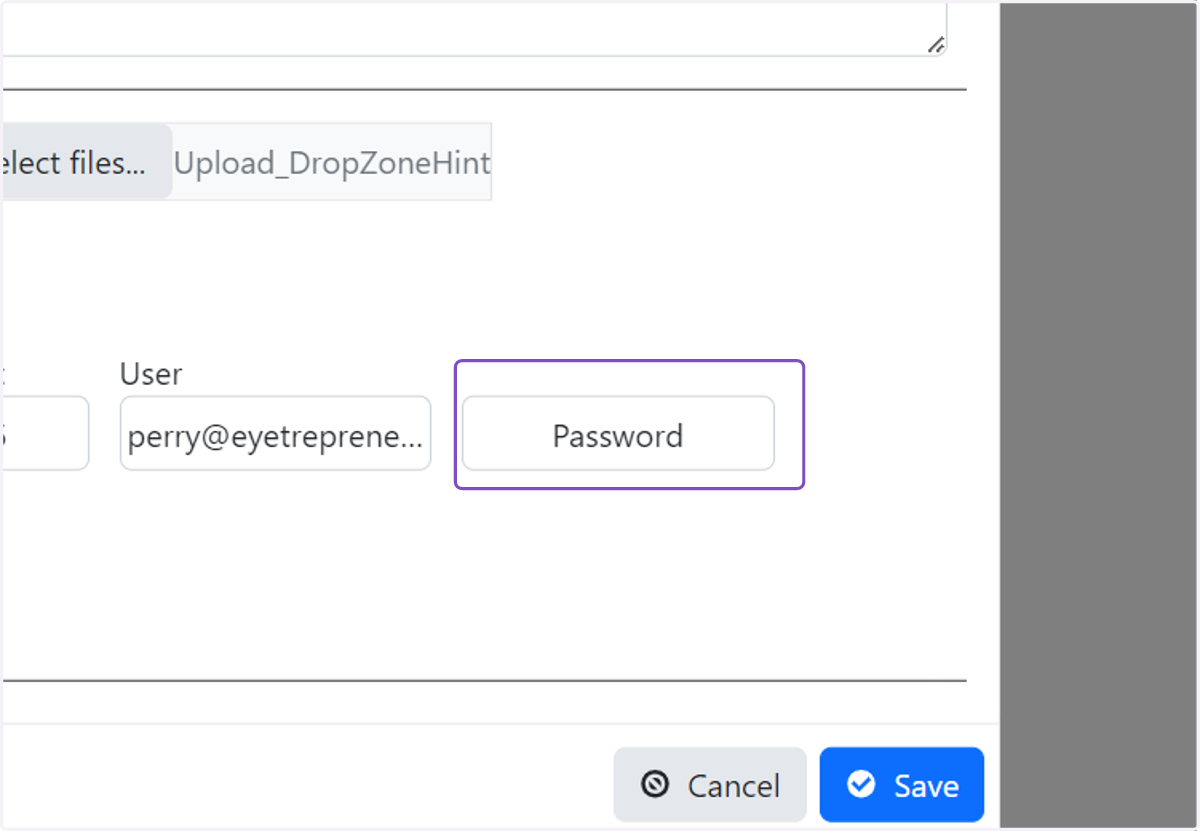
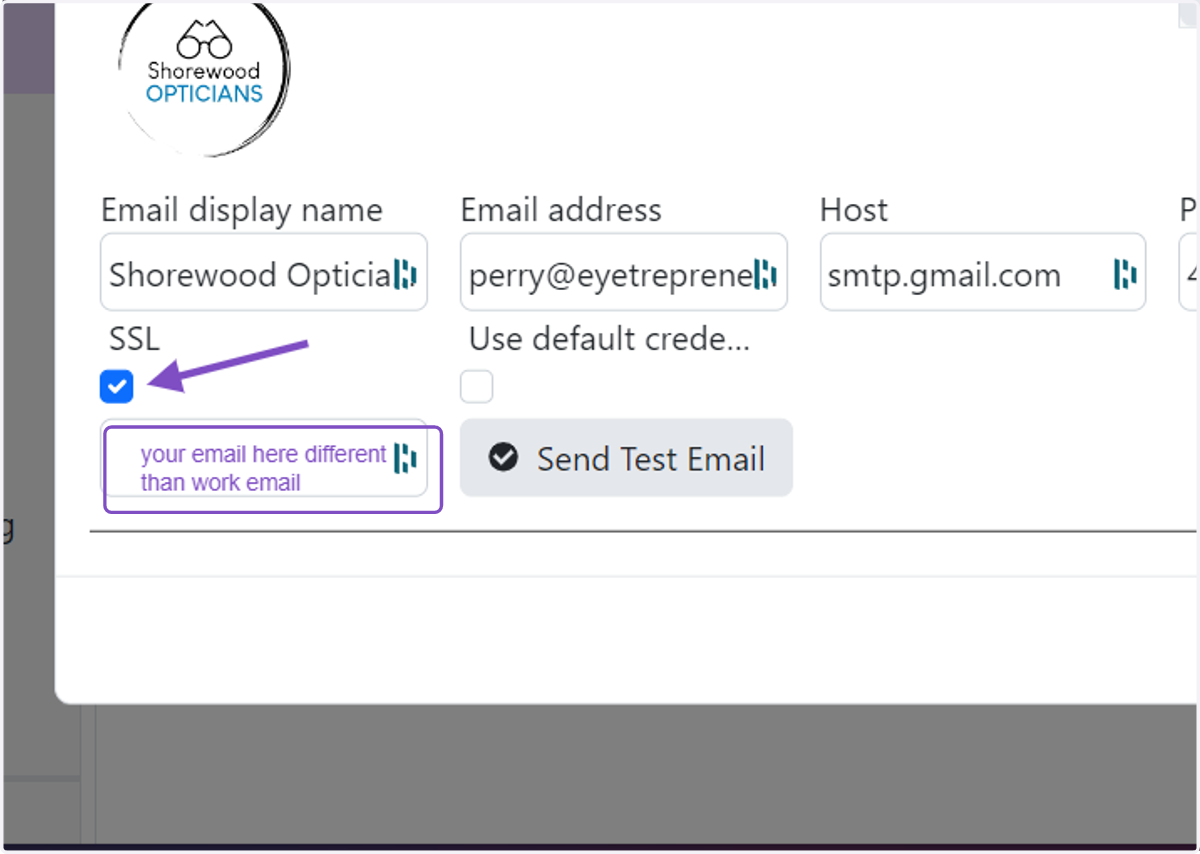
16. Check SSL box. Type in an email (other than your current one) to send test to.
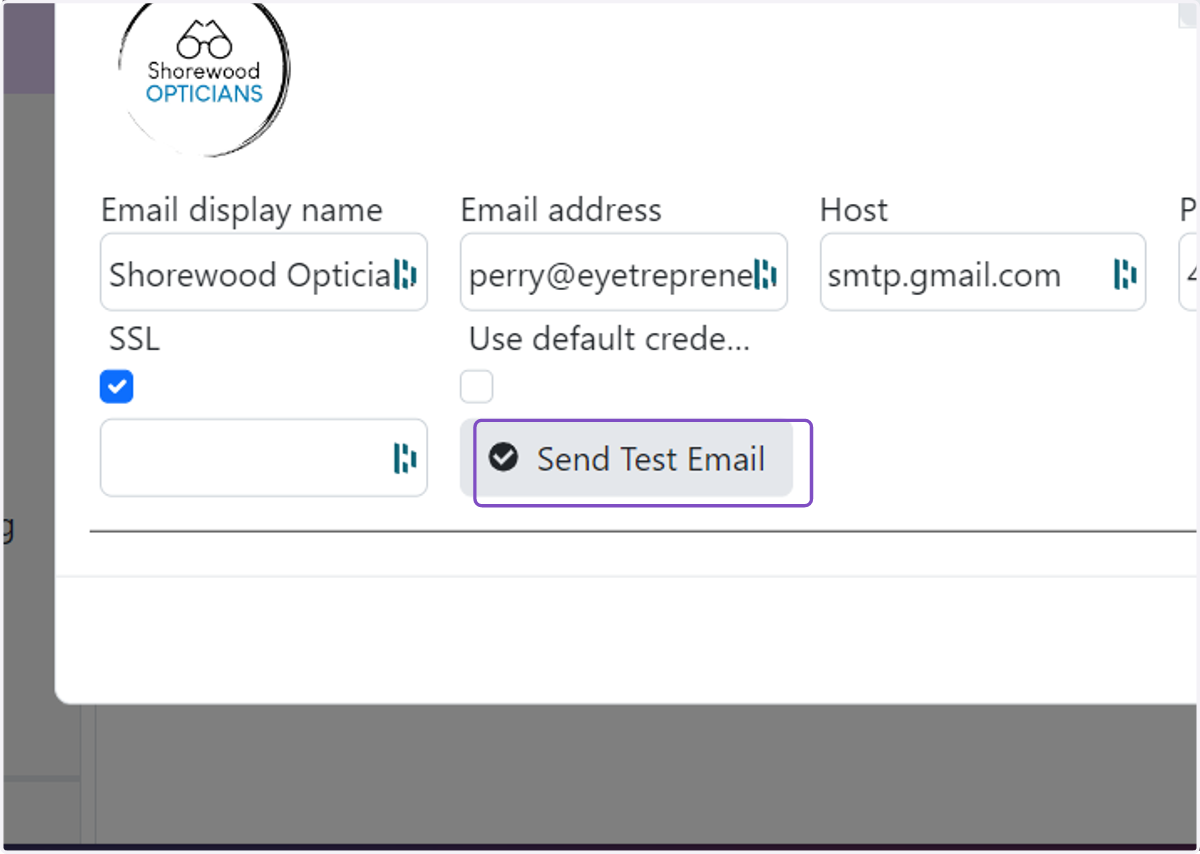
17. Click Send Test Email - check your inbox (it could take a few minute
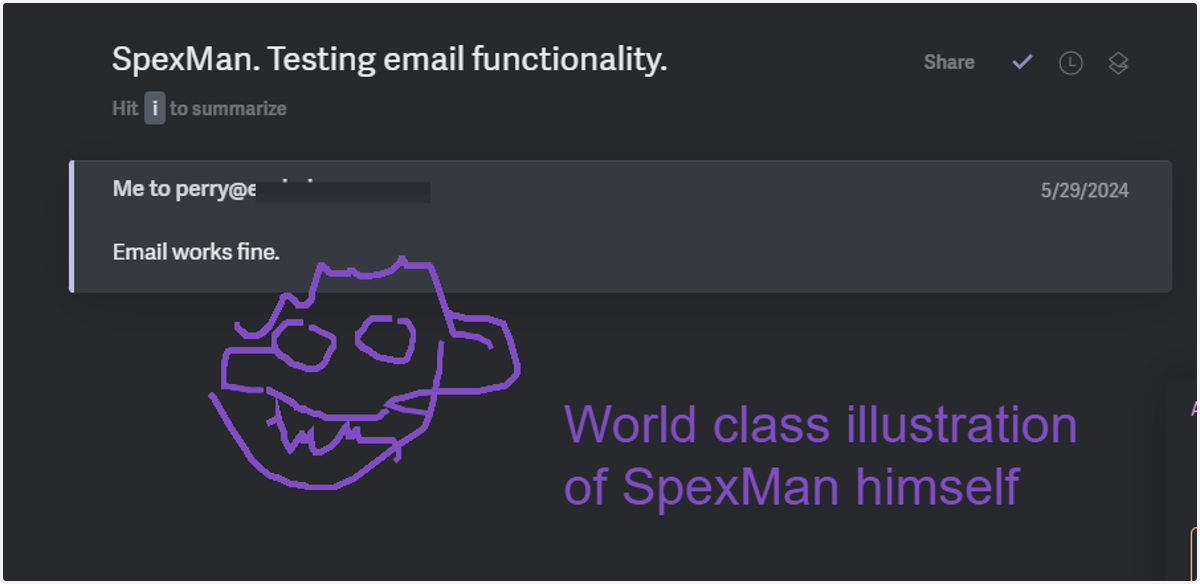
18. Did you receive a similar email? If so, all done! If not, you may want to chat us for support.
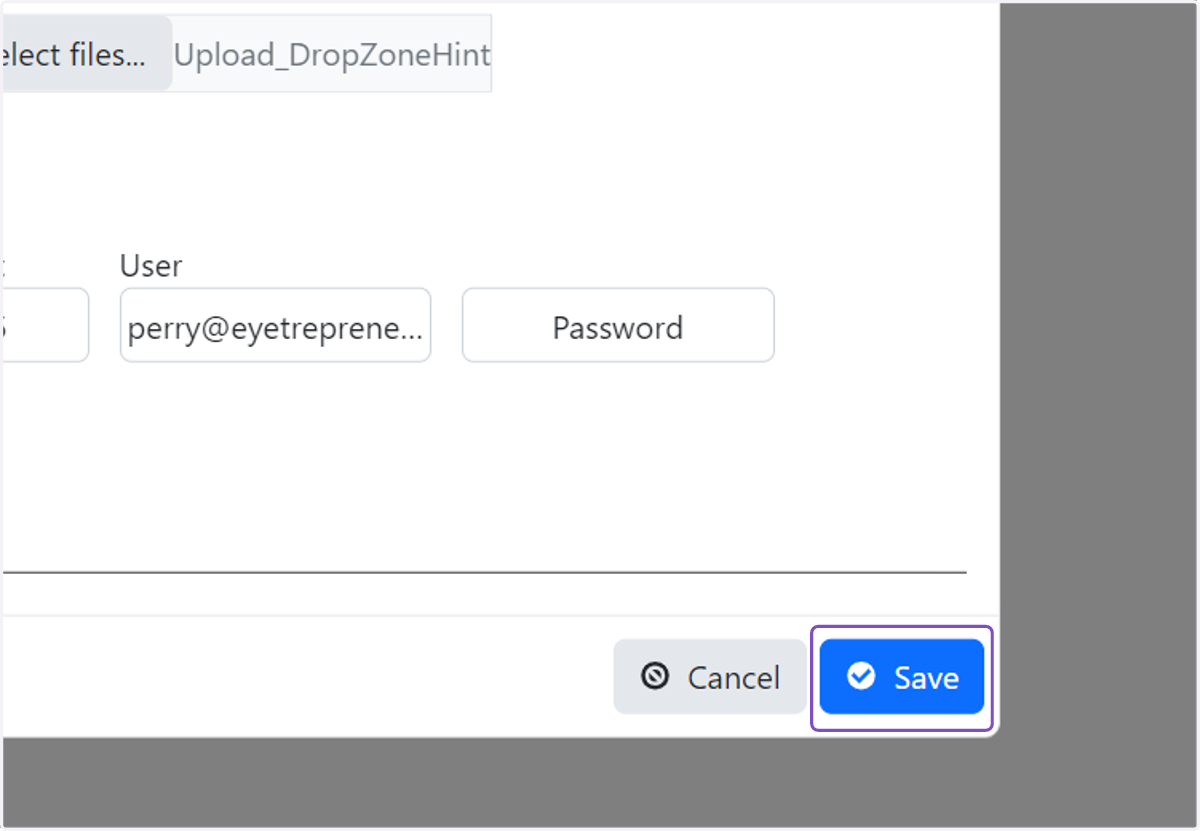
19. Click Save