How to determine what state your eSign Order is in.
Enotarylog
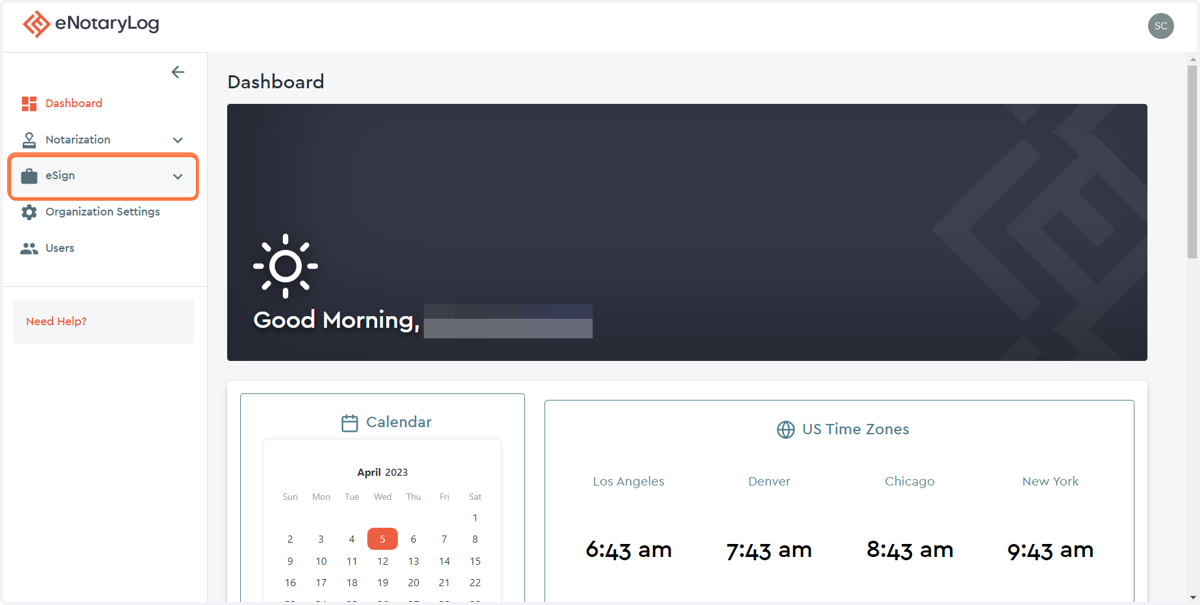
1. From the Dashboard, Click on the eSign drop down menu...
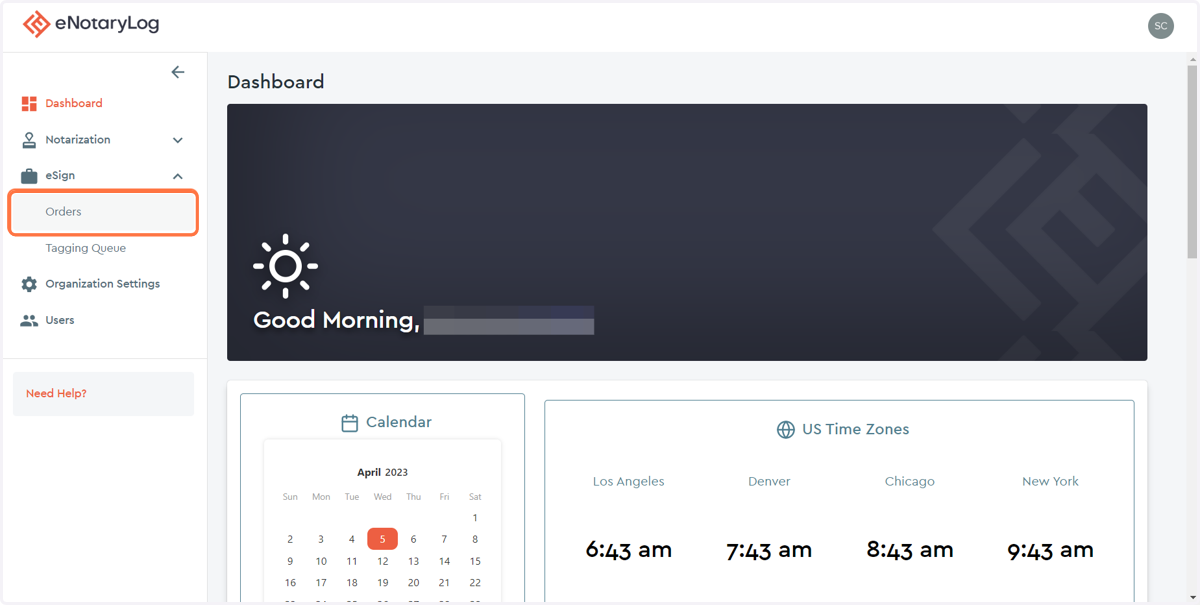
2. Select the Orders option...
3. Select DRAFTS...
By clicking on the DRAFTS tab you can view all eSign orders that have yet to be submitted and sent out to signers.
4. Select TAGGING QUEUE...
By clicking on TAGGING QUEUE tab you can view all eSign Orders that have yet to be submitted and sent out to signers, but do have documents attached to the order that are ready to be tagged.
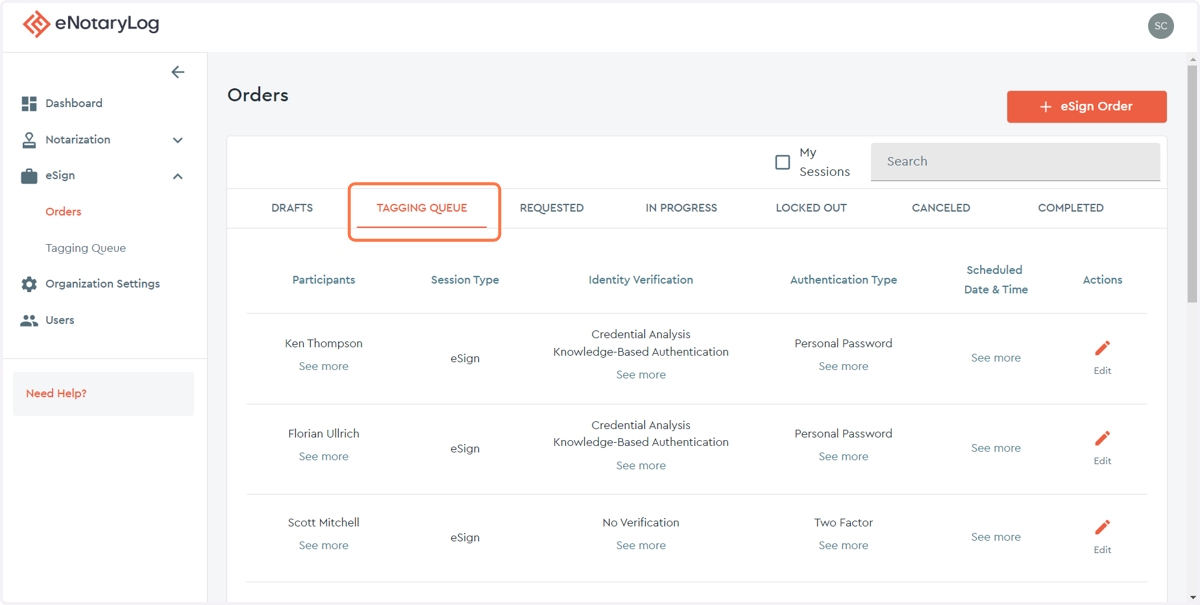
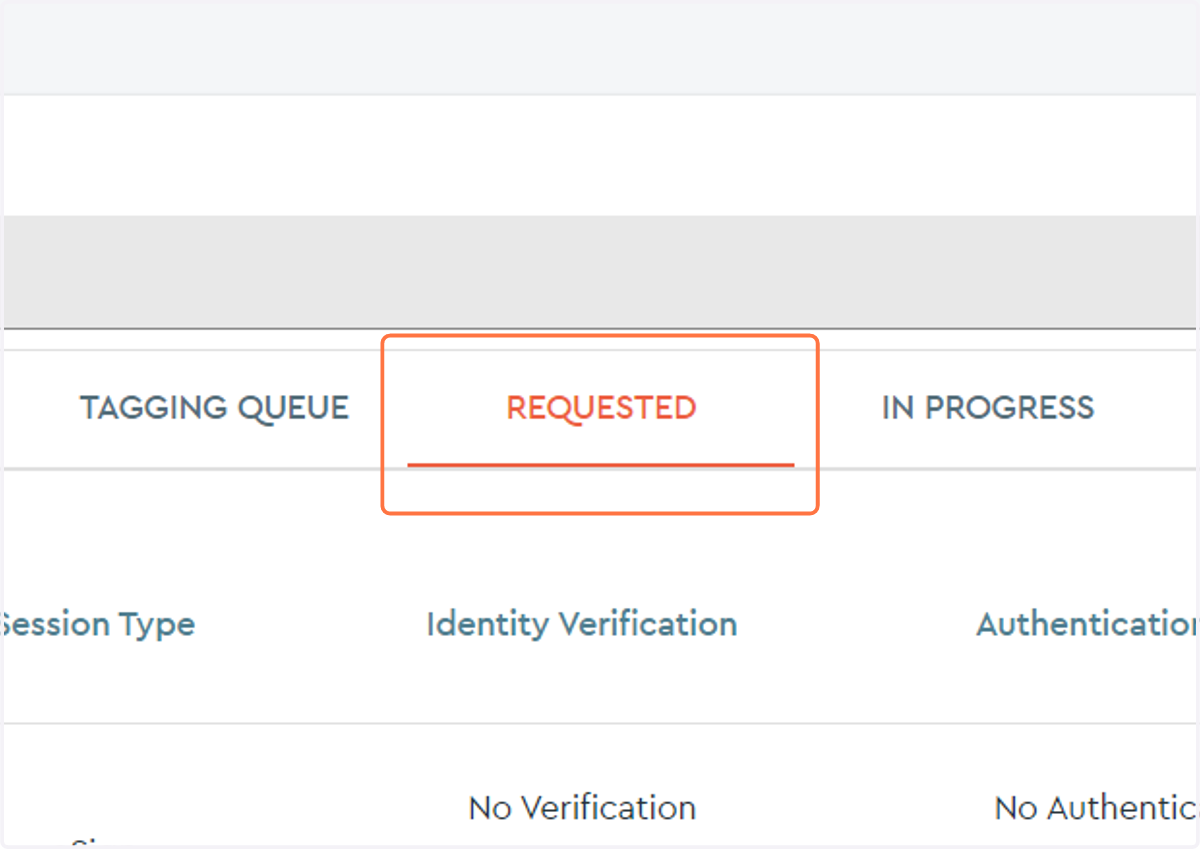
5. Select REQUESTED
By clicking on the REQUESTED tab you can view all eSign Orders that have been submitted to a signer and are awaiting the signer to accept the invitation to the order to begin their eSign session.
6. Select IN PROGRESS
By clicking on the IN PROGRESS tab you can view all eSign Orders that are currently being viewed by a signer.
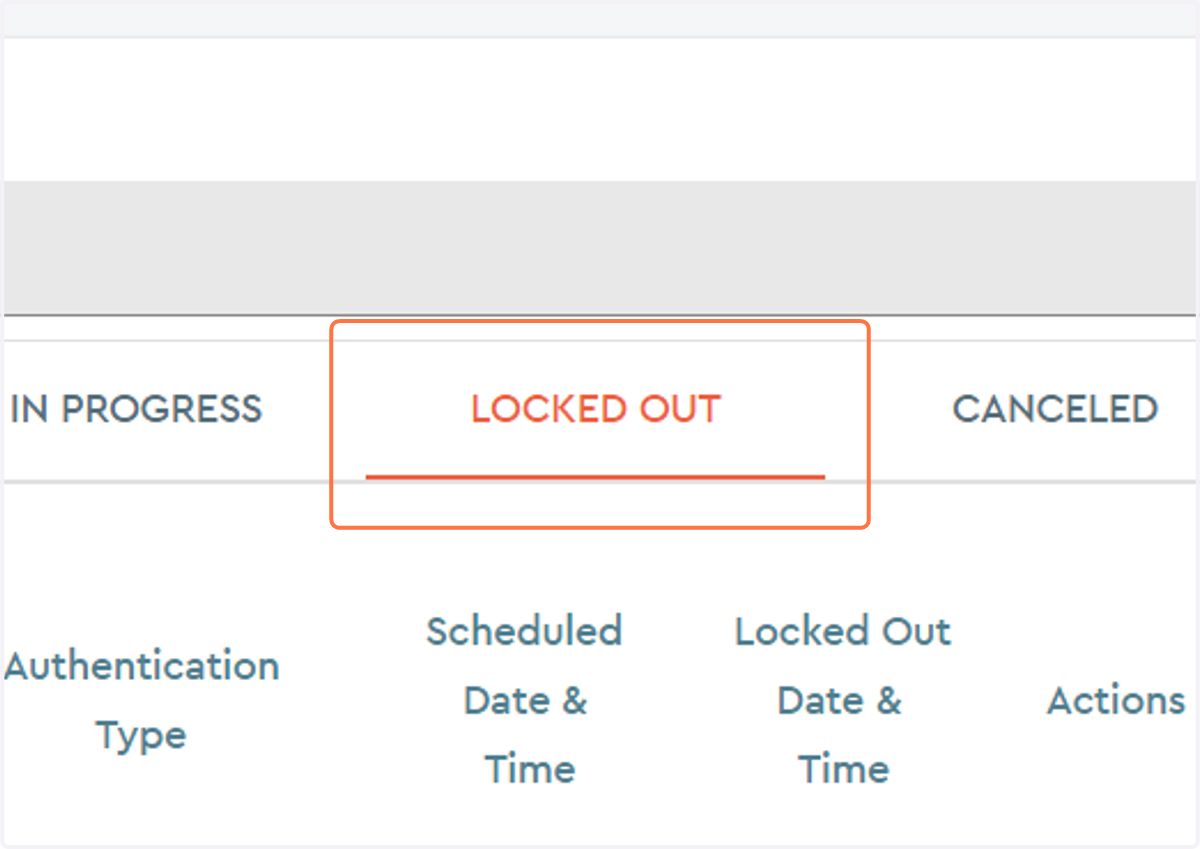
7. Select LOCKED OUT
By clicking on the LOCKED OUT tab you can view all eSign Orders that signers have failed verification for and can no longer access.
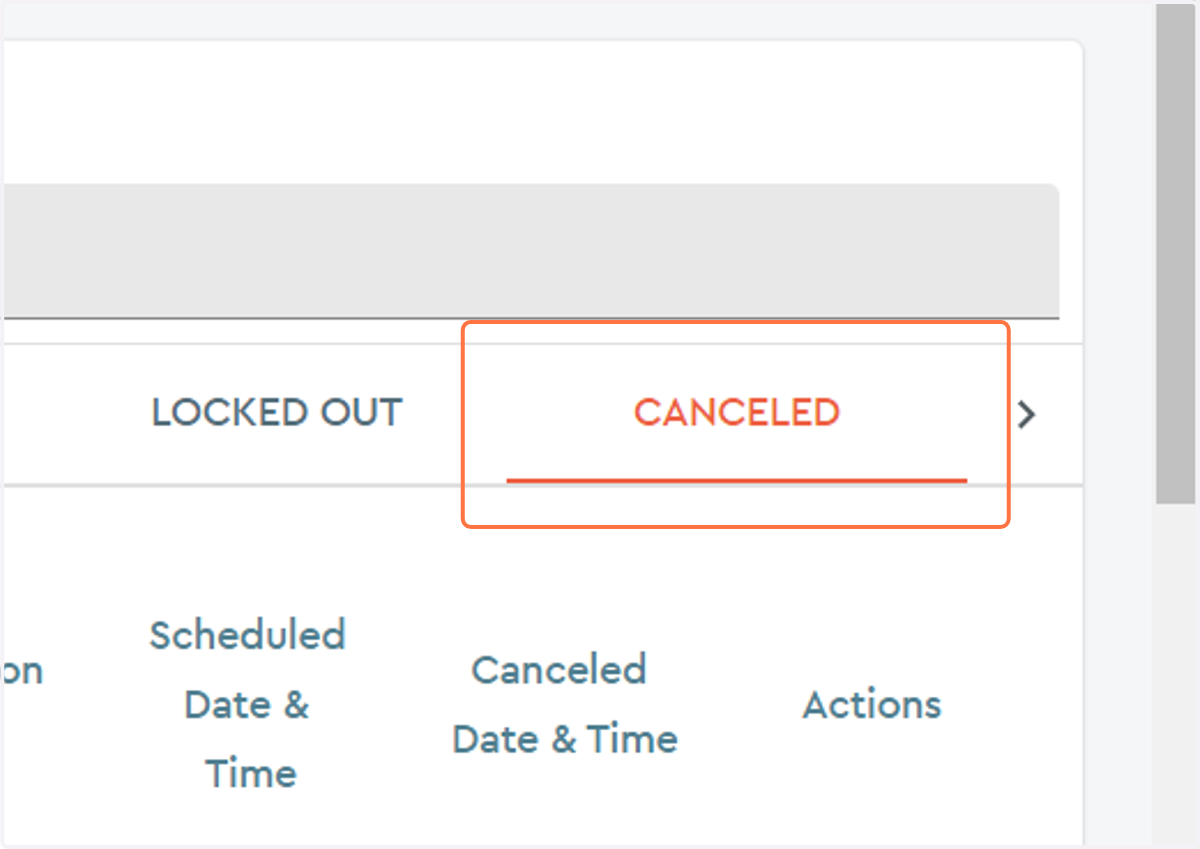
8. Select CANCELED
By clicking on the CANCELED tab you can view all eSign orders that have been canceled.