Managing and Installing Dinero Pay Woocommerce Plugin
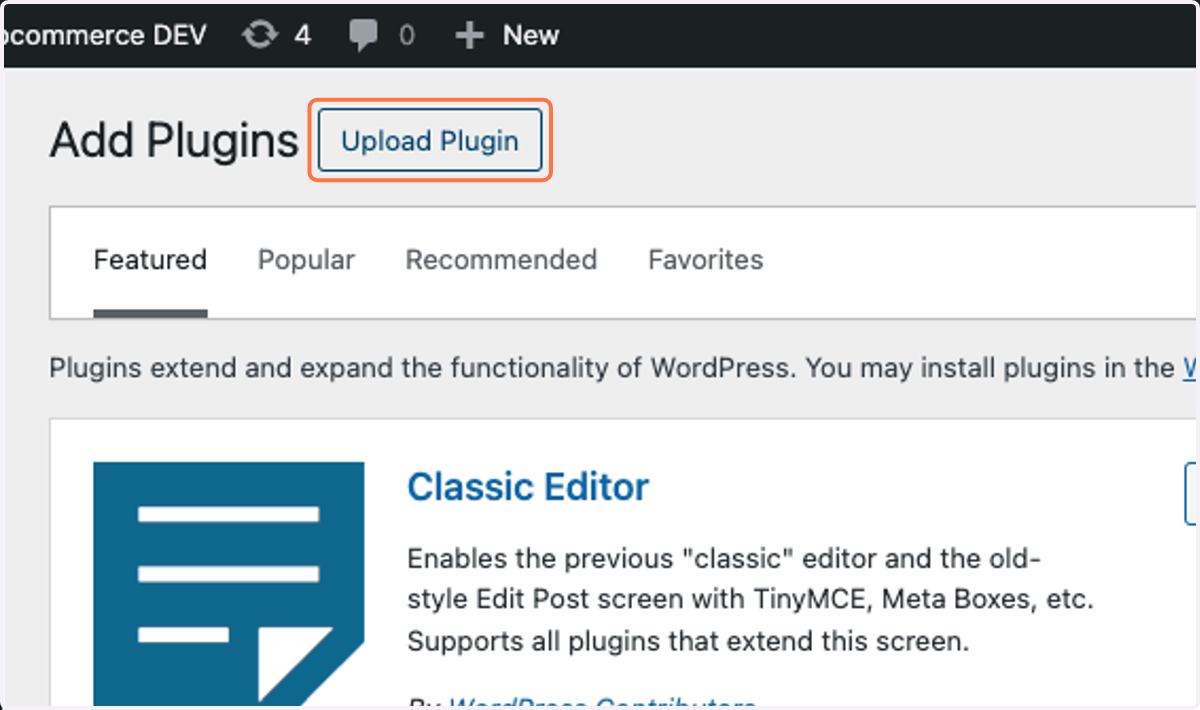
1. Go to the upload section
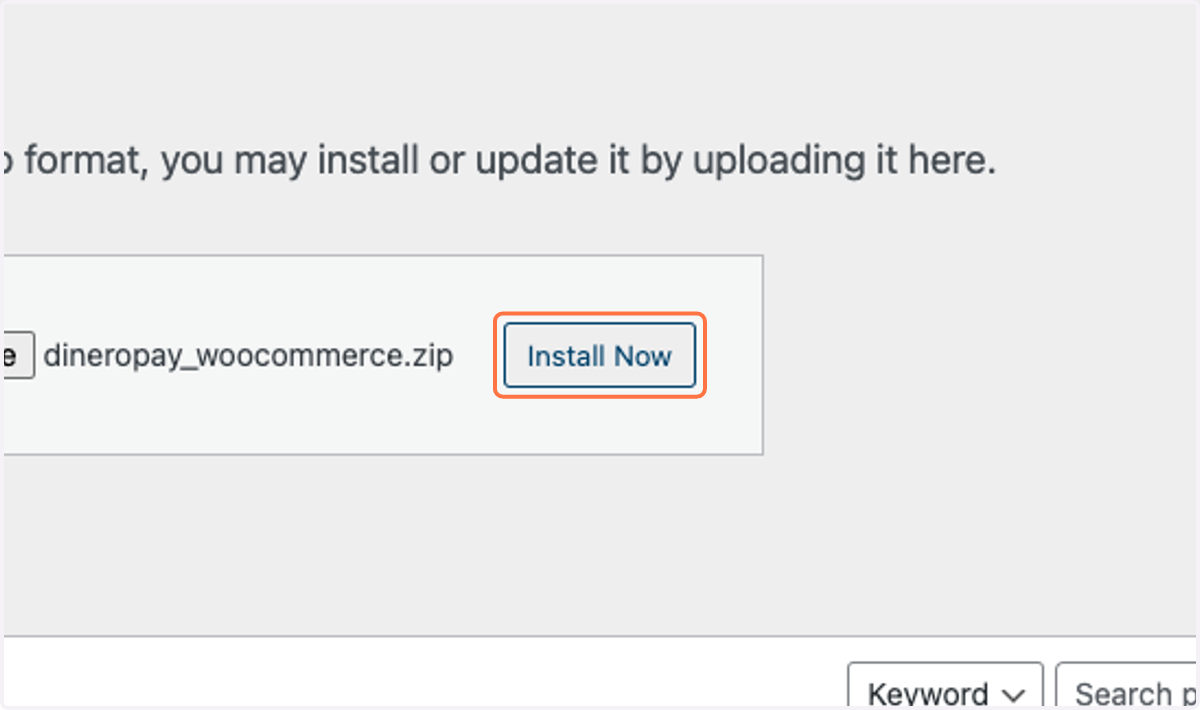
2. Install the plugin by clicking on install now
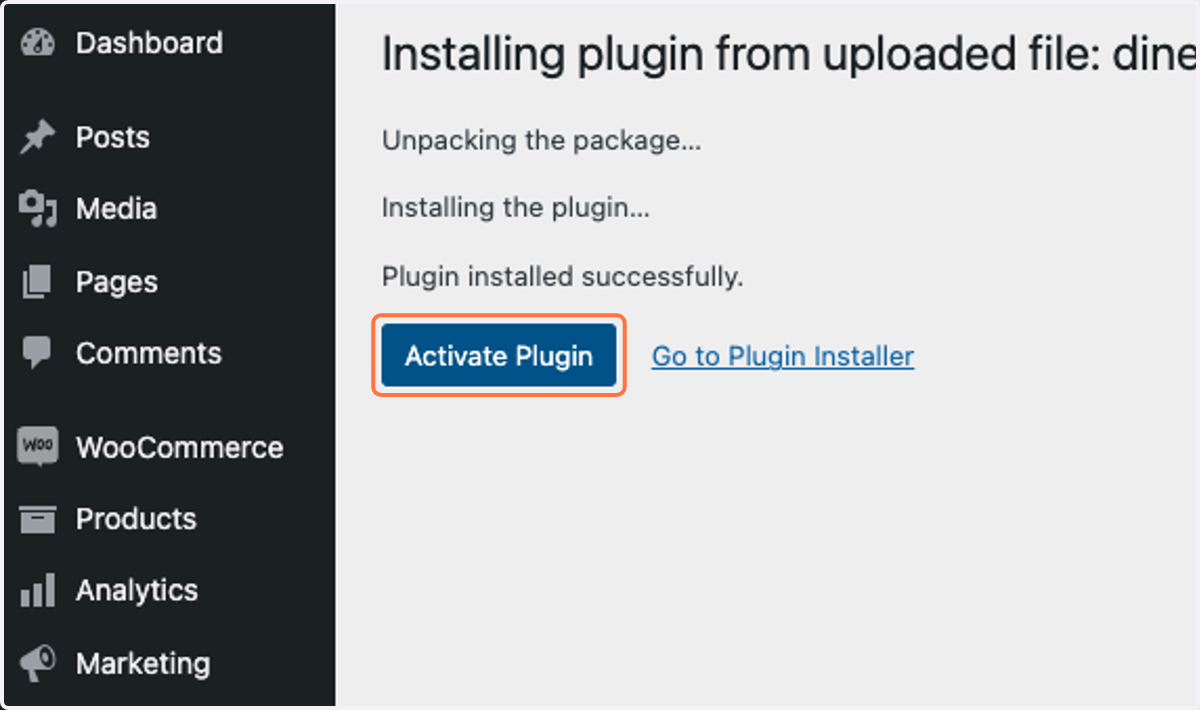
3. Click on Activate Plugin
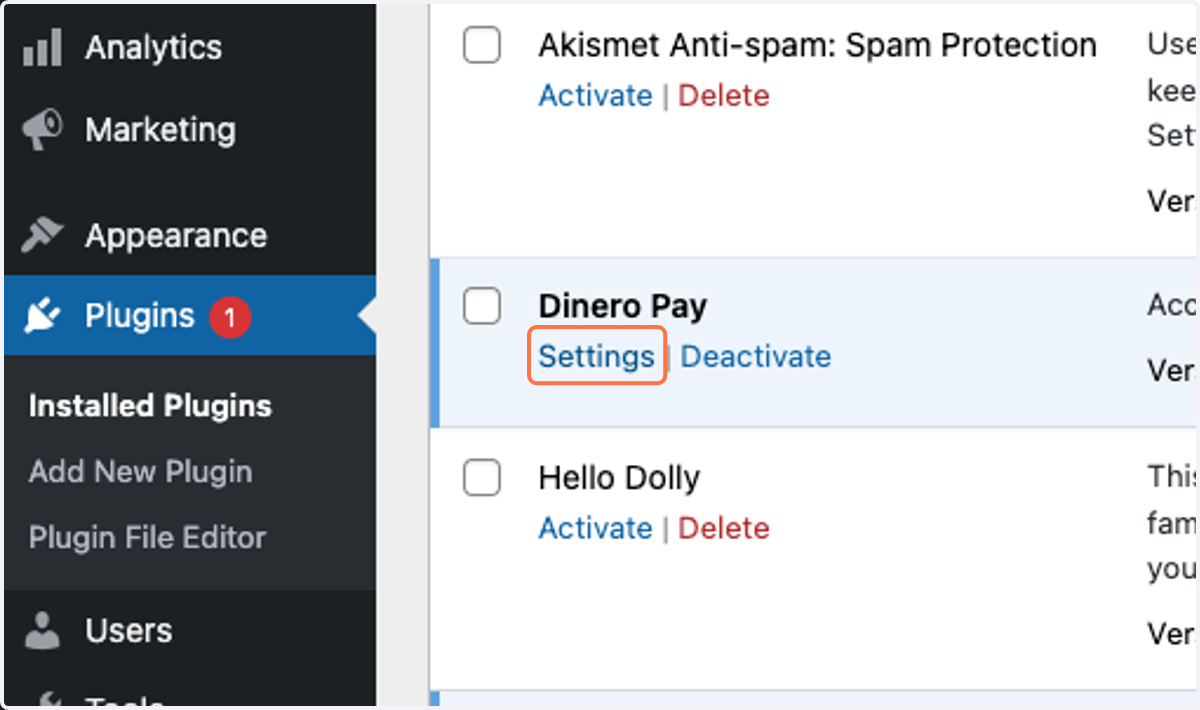
4. Go the the plugin settings and click on manage
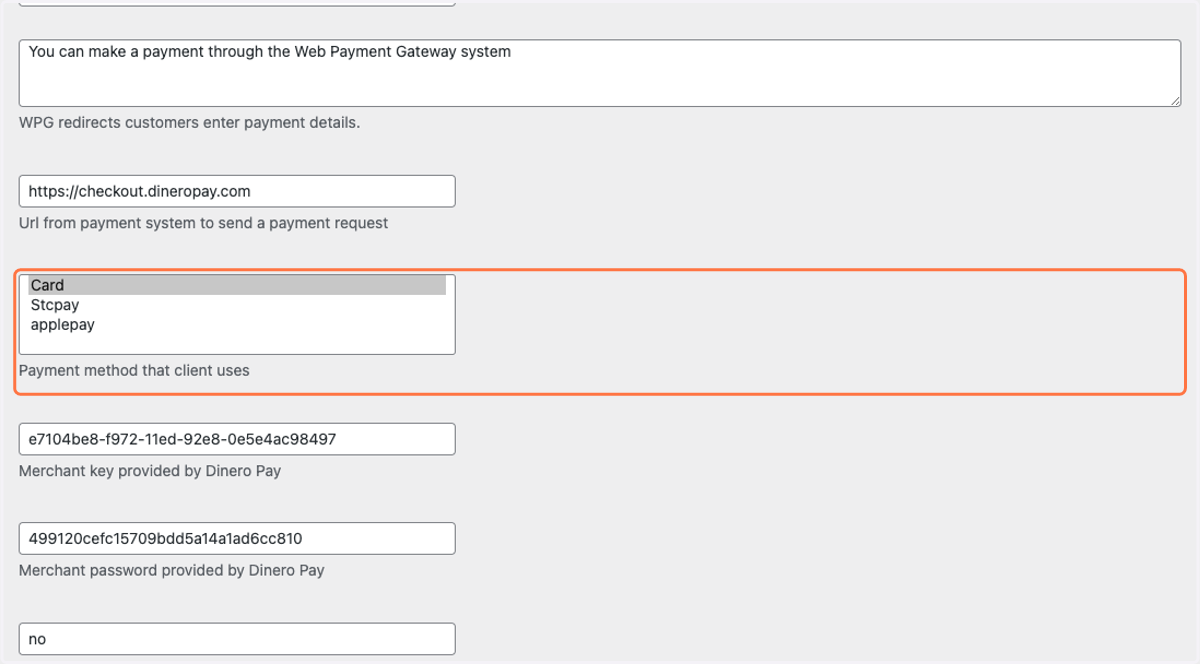
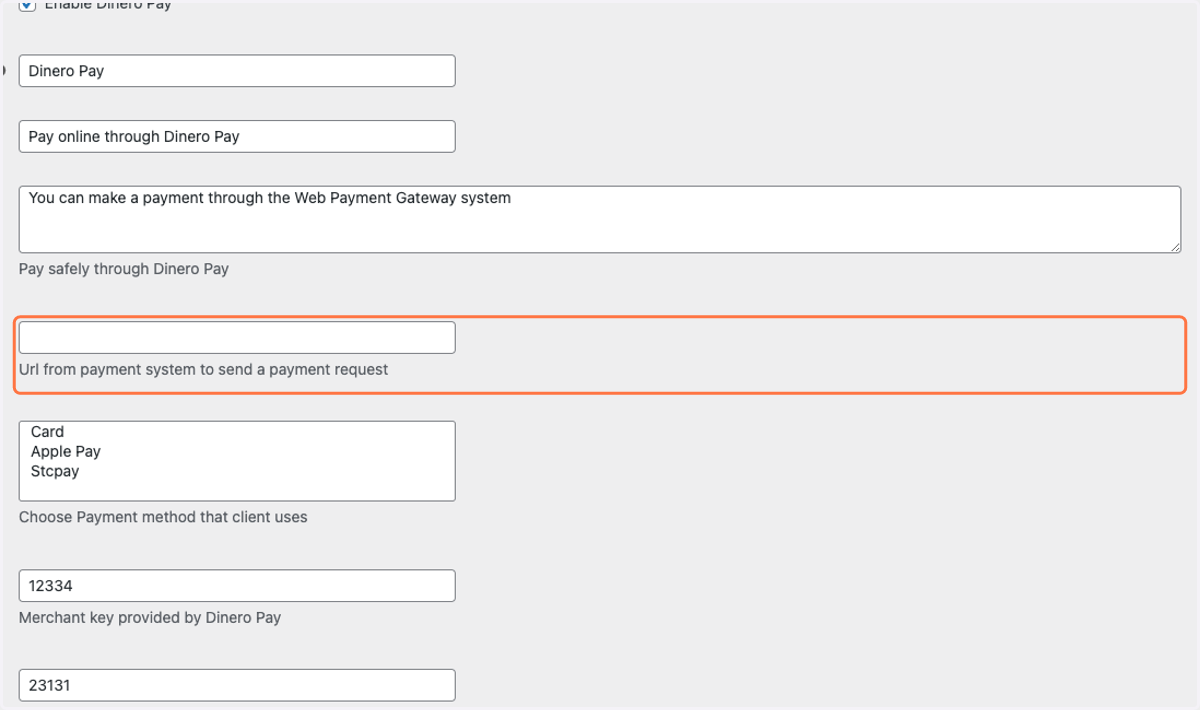
5. Add the checkout host URL: https://checkout.dineropay.com
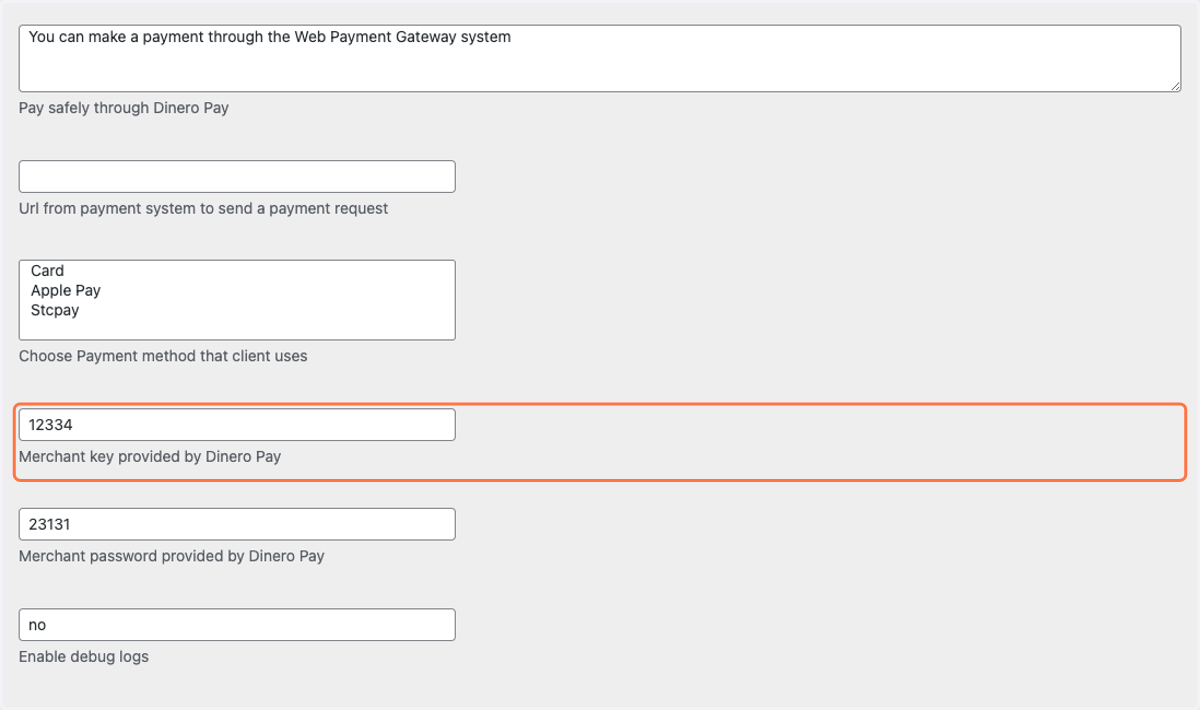
6. Add the merchant key which will be provided by Dinero Pay
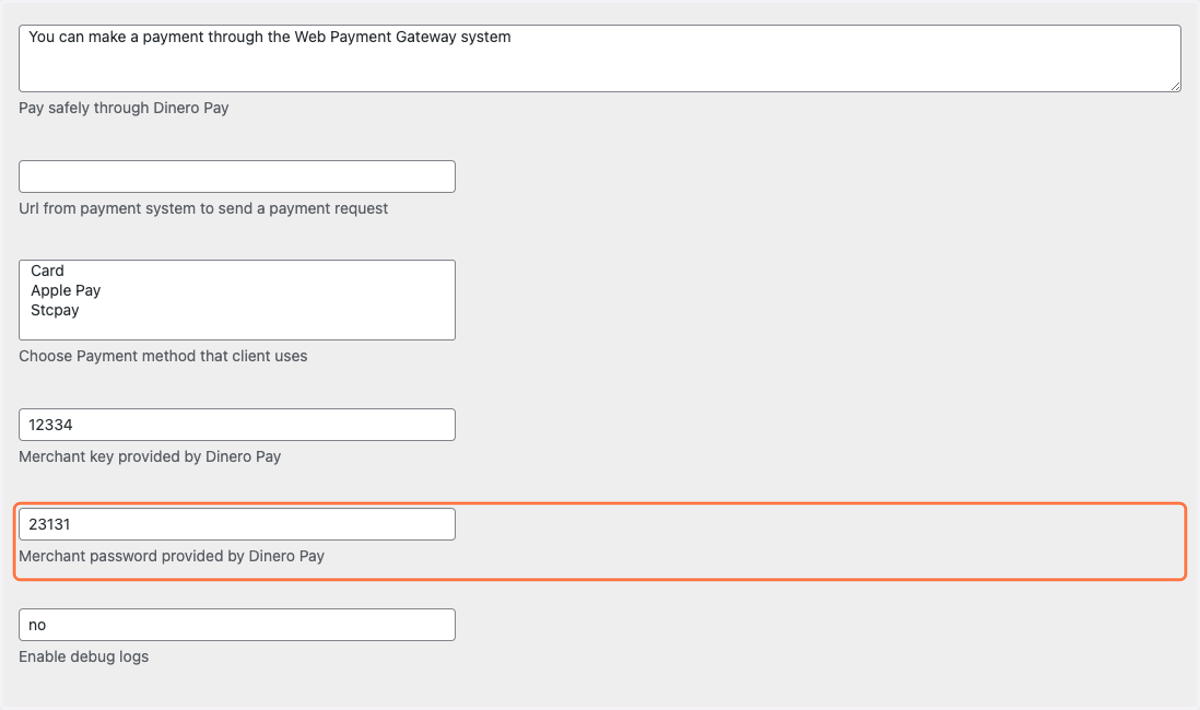
7. Add the password which will be provided by Dinero Pay
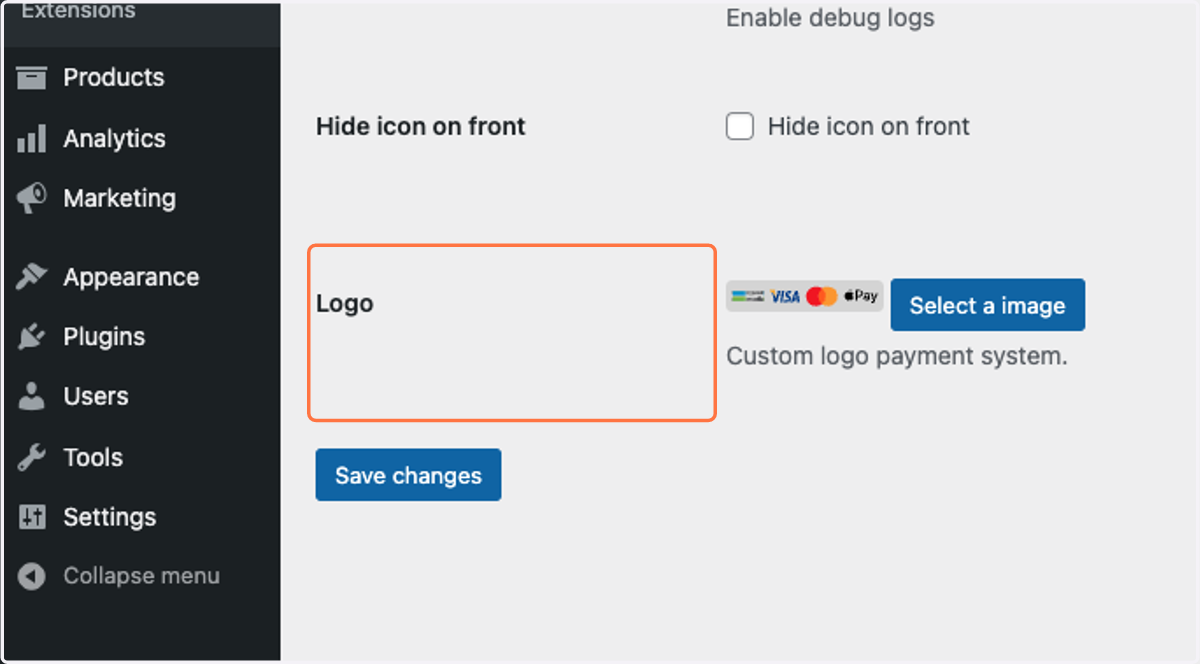
8. In case you want to add your own payment icons you can change it from here
9. Choose the desire payment methods to be displayed on the checkout page , or leave empty to display all the payment method enabled for you