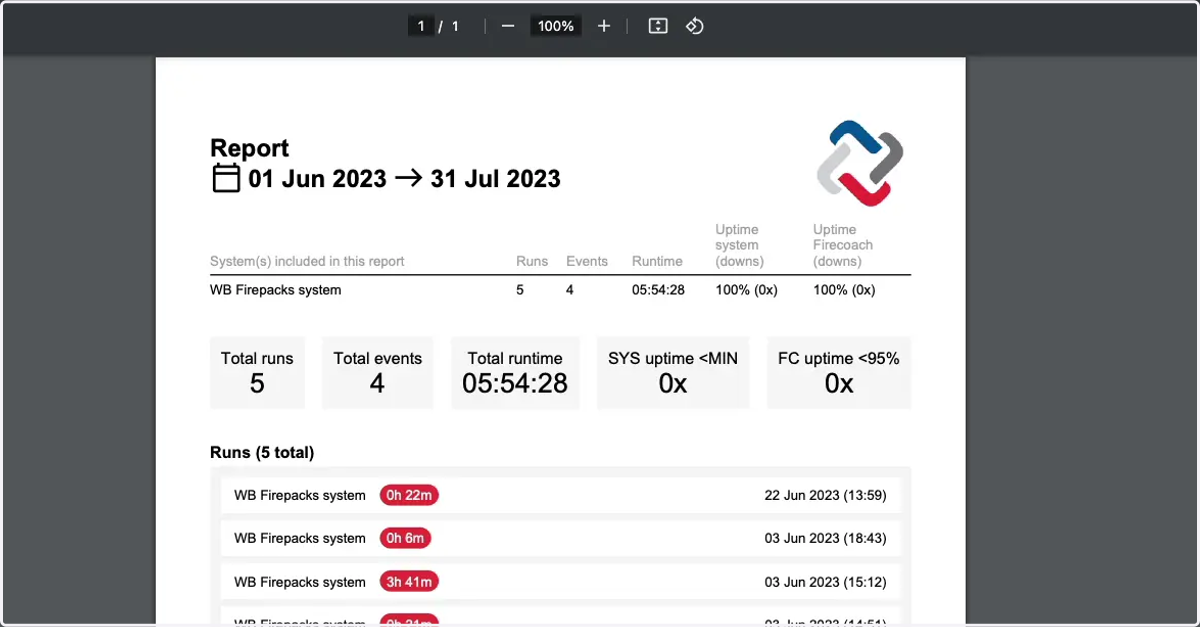
How to download the report of a selection of Firepacks
1. Navigate to web.firecoach.app
2. Log in with your Firecoach account
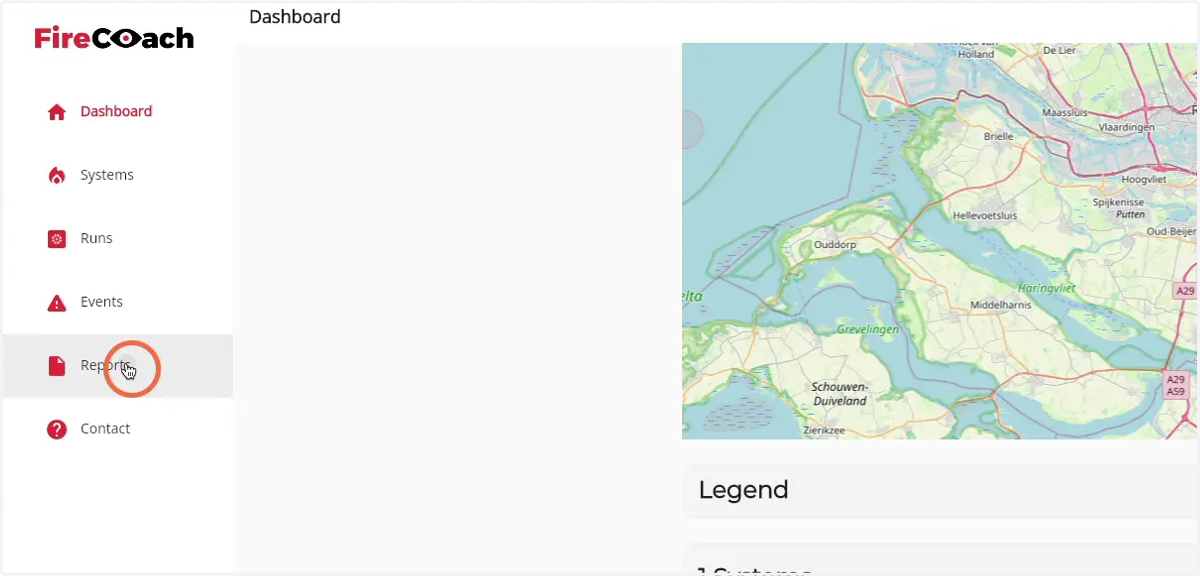
3. Click on 'Reports'
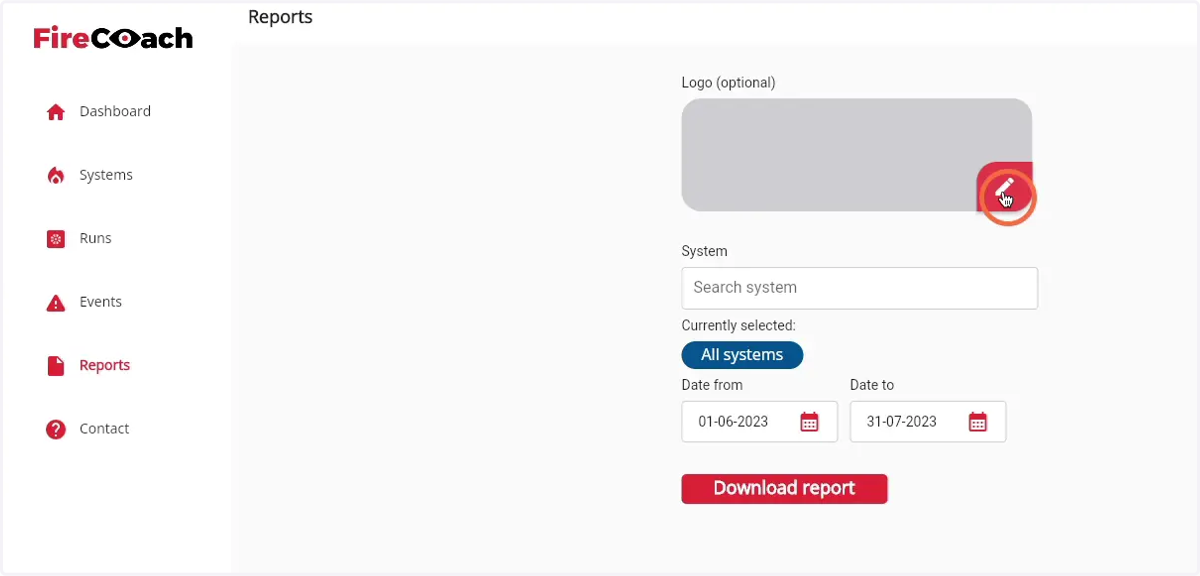
4. Click on the 'Pen' icon to select a logo for the PDF export
5. Click 'Search system' to search for specific Firepack
As default, all systems that are within the acces rights of the user are selected
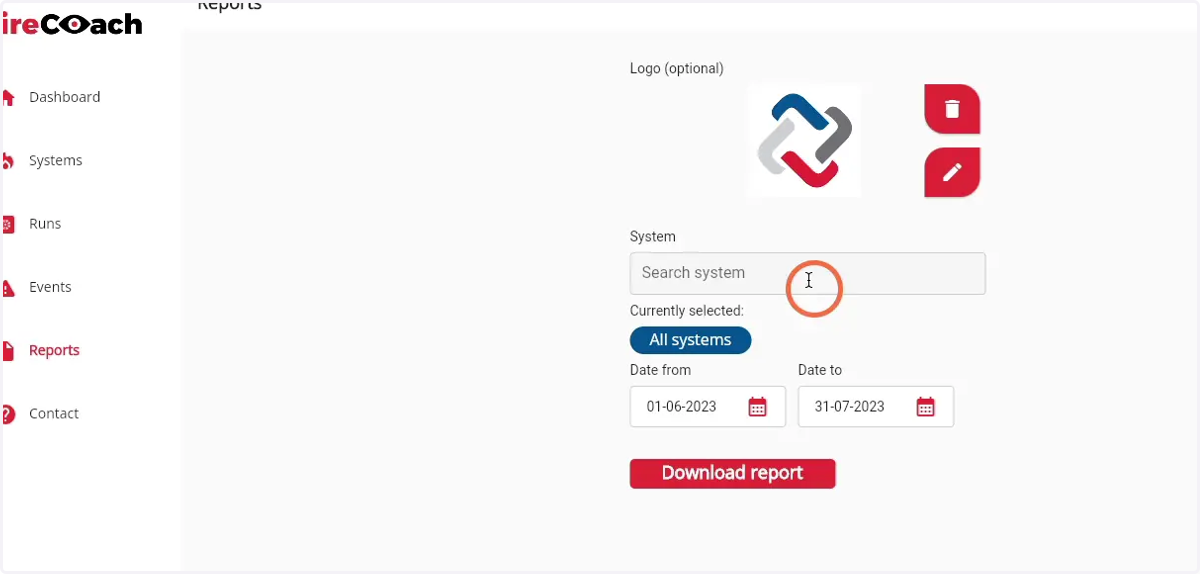
6. Type the name of the desired Firepack
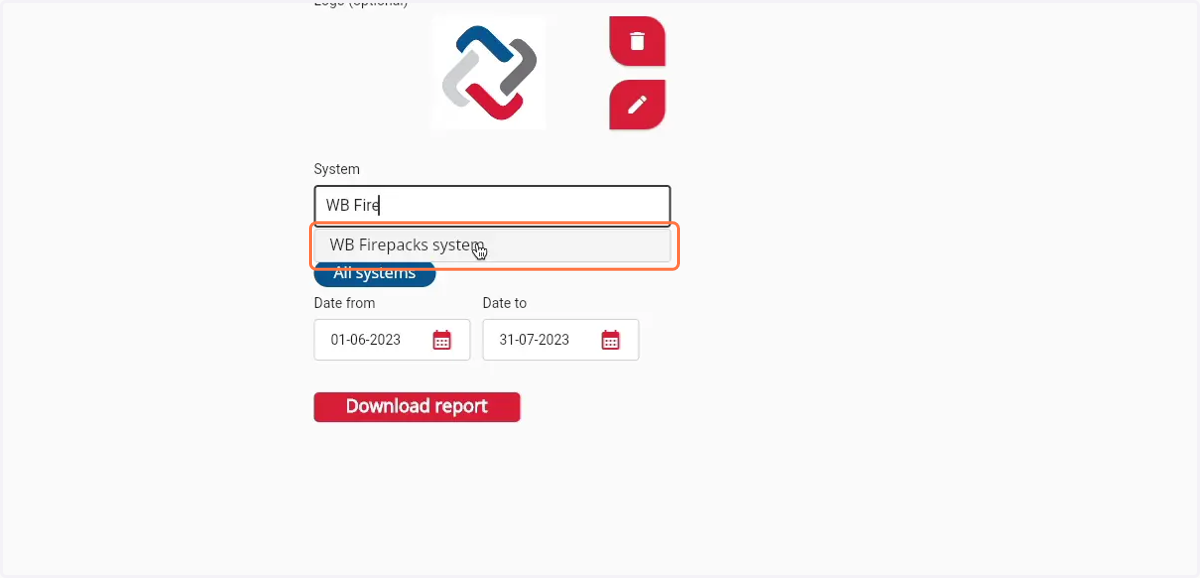
7. Click on the Firepack that you would like to include in the report
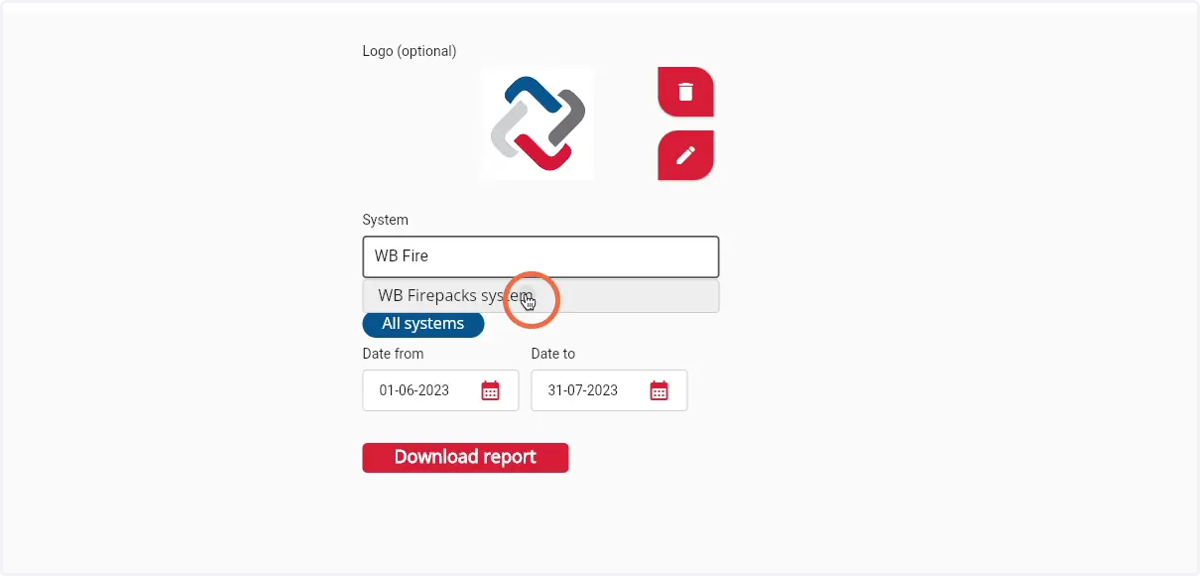
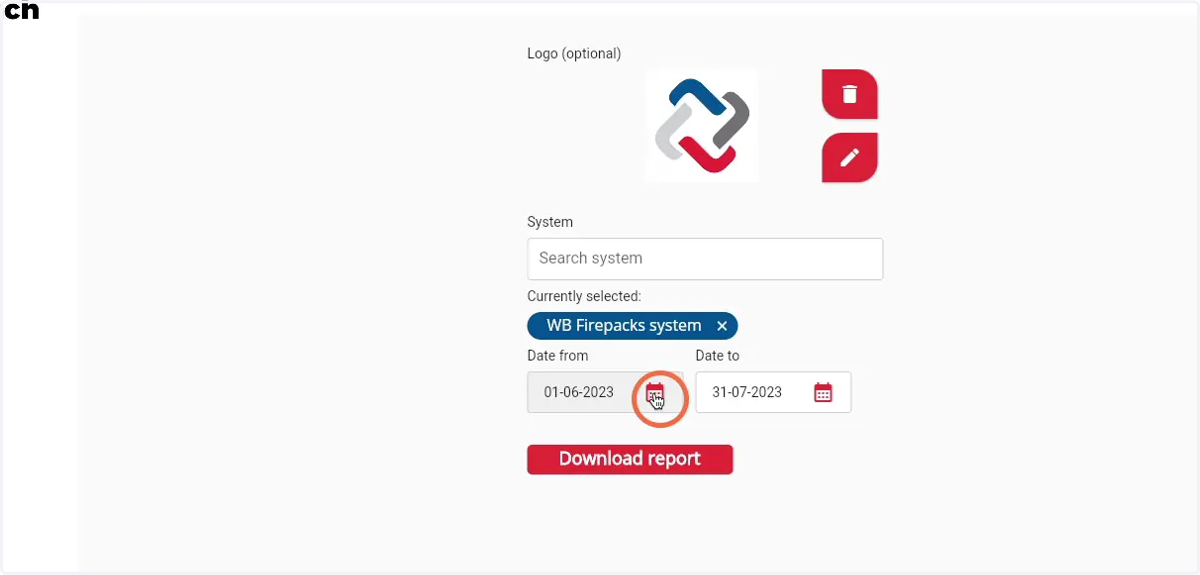
8. Click the 'Agenda' icon to select the first day of the preferred date range
9. Click on the first day of your preferred date range
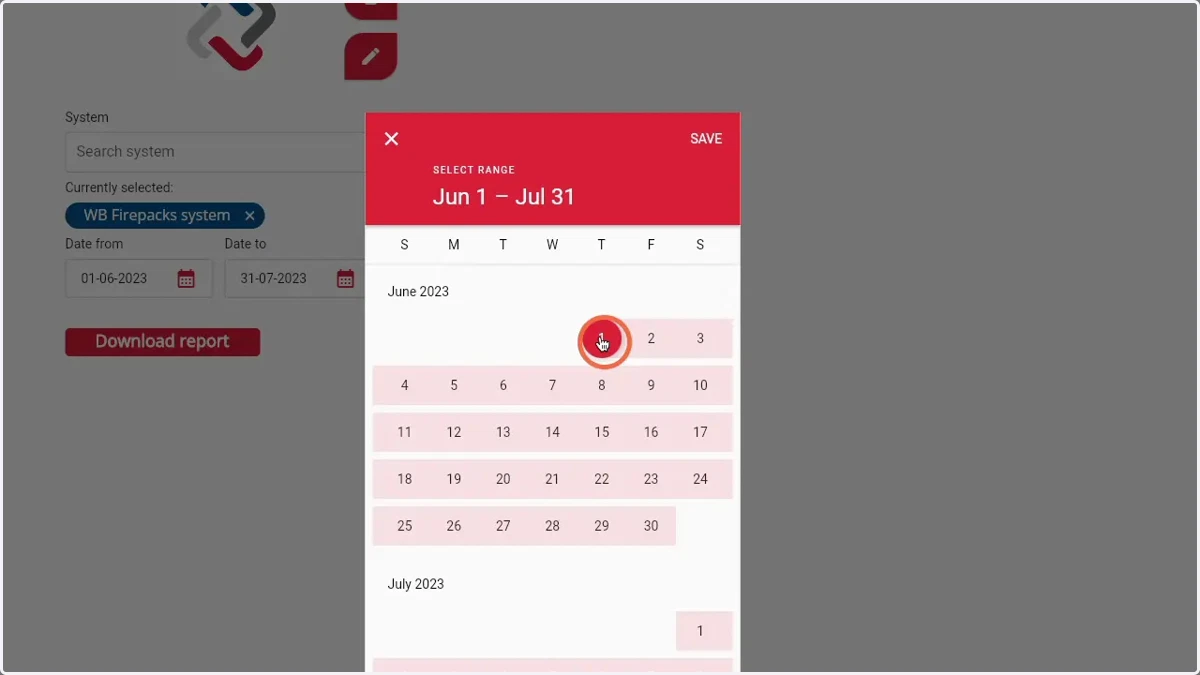
10. Click on the last day of your preferred date range
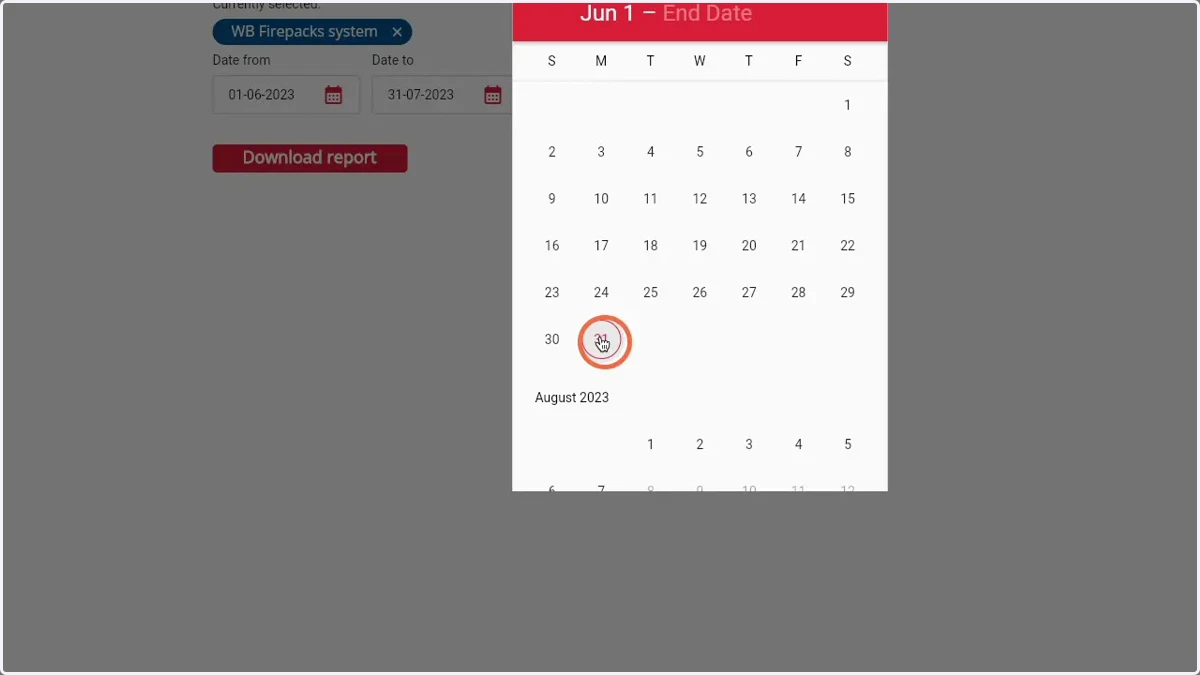
11. Click 'Save' to apply the date range
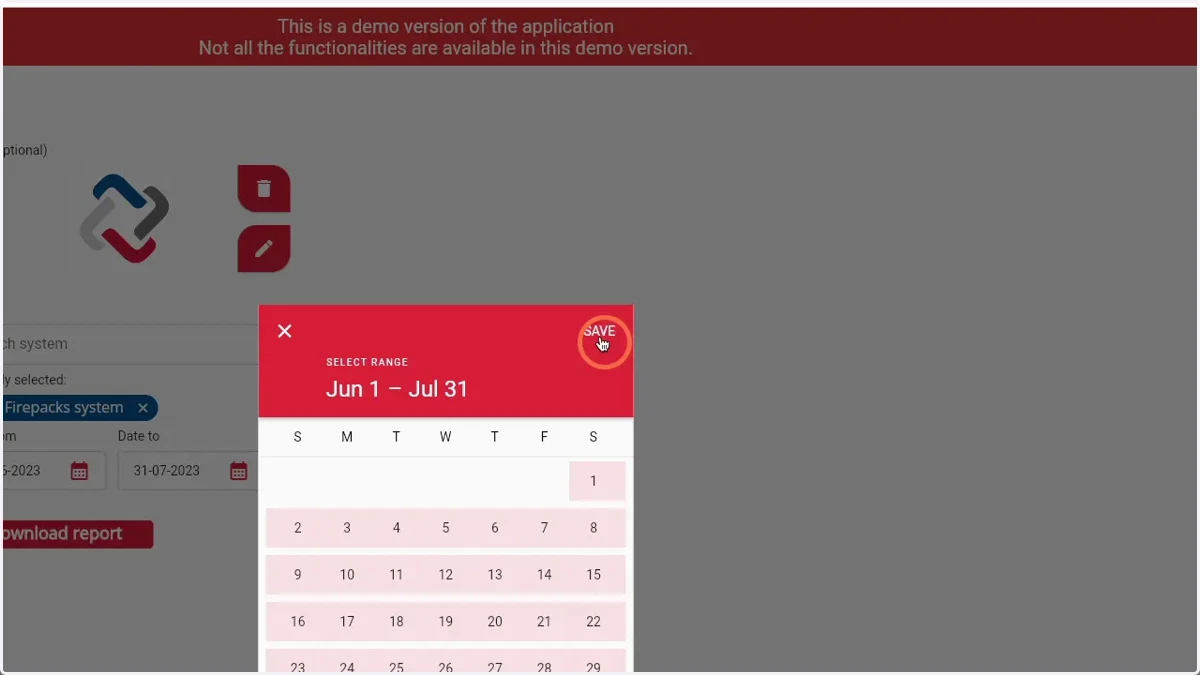
12. Click 'Download report' to download the report for the selected Firepacks as a PDF file
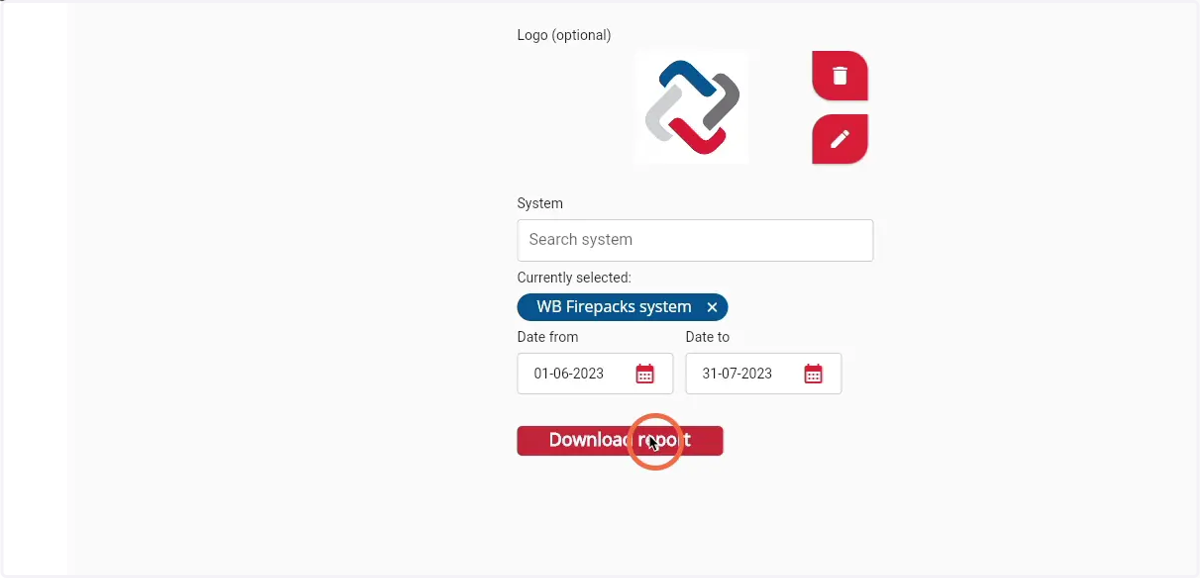
13. The download will open the PDF file in a new tab