Import Year to Date Data
Ocerli
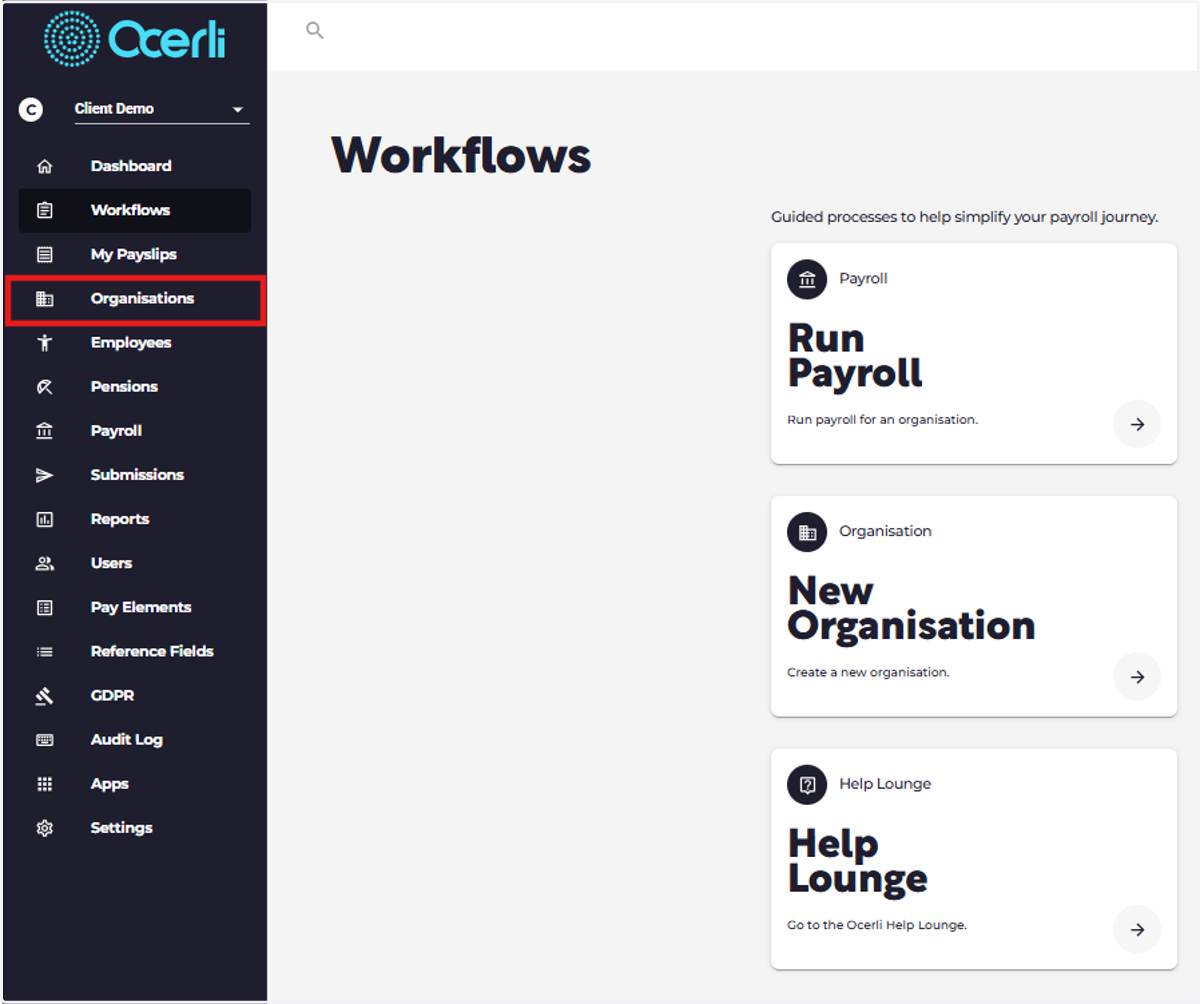
1. Click on Organisations
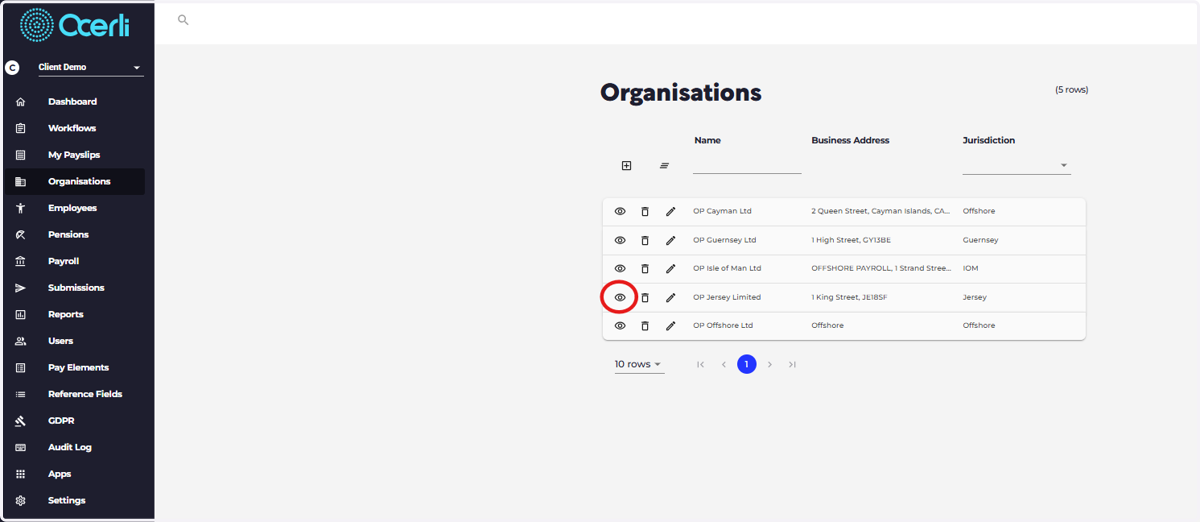
2. Click to view your chosen organisation
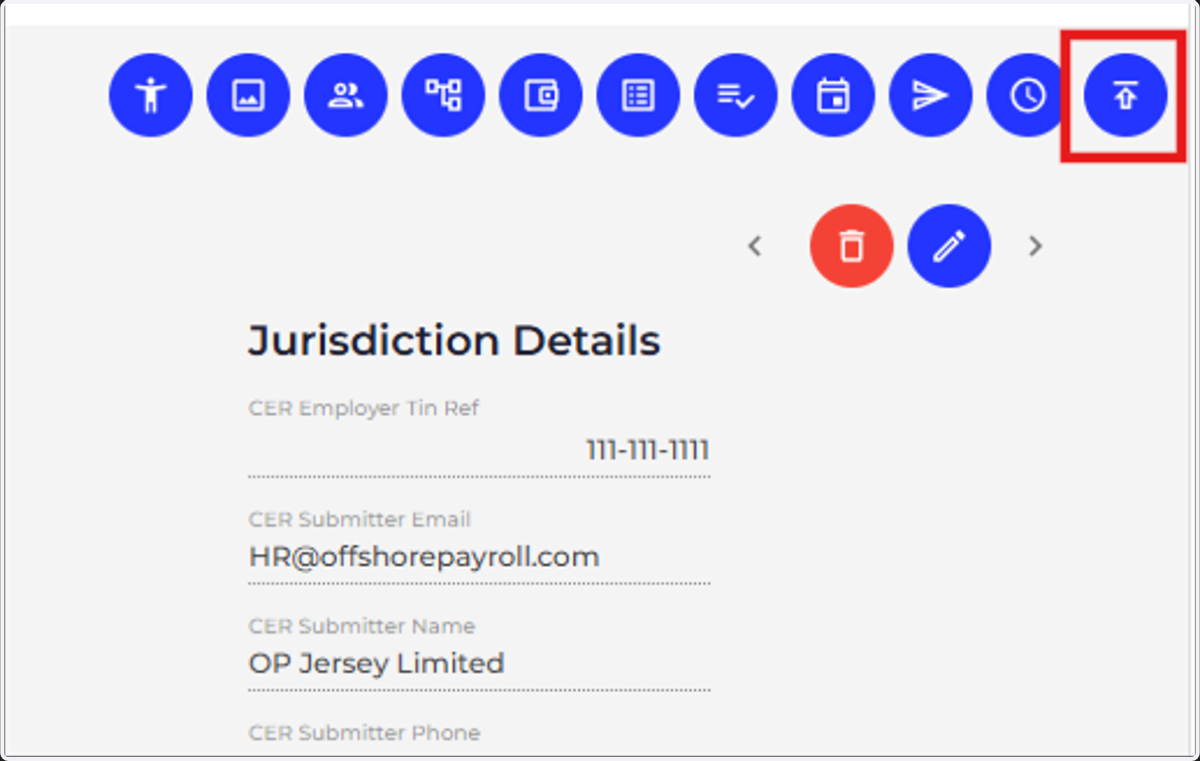
3. Click on organisation imports
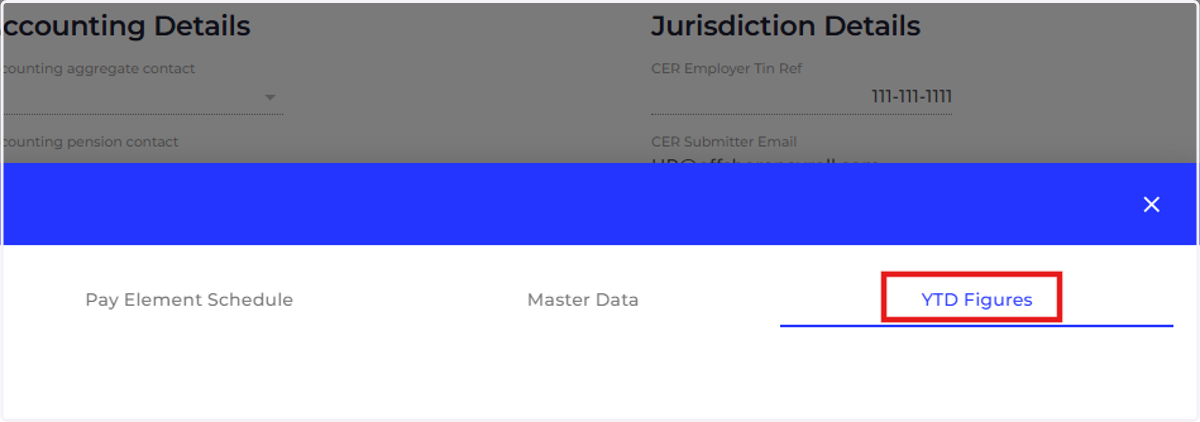
4. Click on YTD Figures
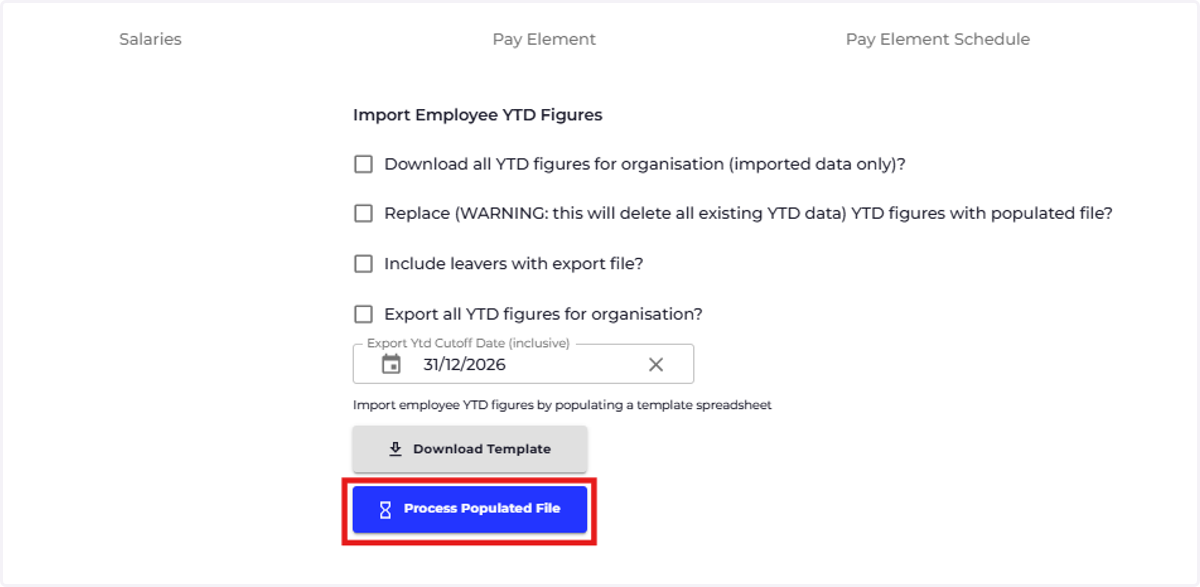
5. Click on DOWNLOAD TEMPLATE
You can download existing YTD data by selecting You have the option to include leavers with the export file, if you don't select this only active employees will be included in the import file. You can then complete the YTD data for your employees, once complete save the spreadsheet in your documents.
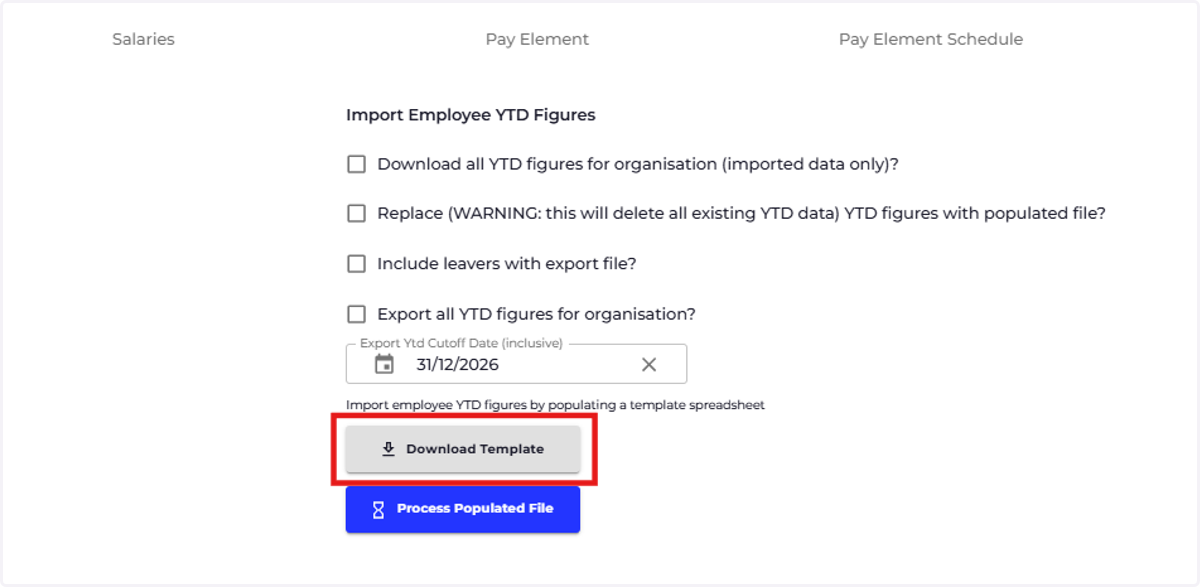
6. Click on PROCESS POPULATED FILE and select the excel file in your documents
You have the option here to select 'replace' all existing data if you are replacing an existing YTD import.