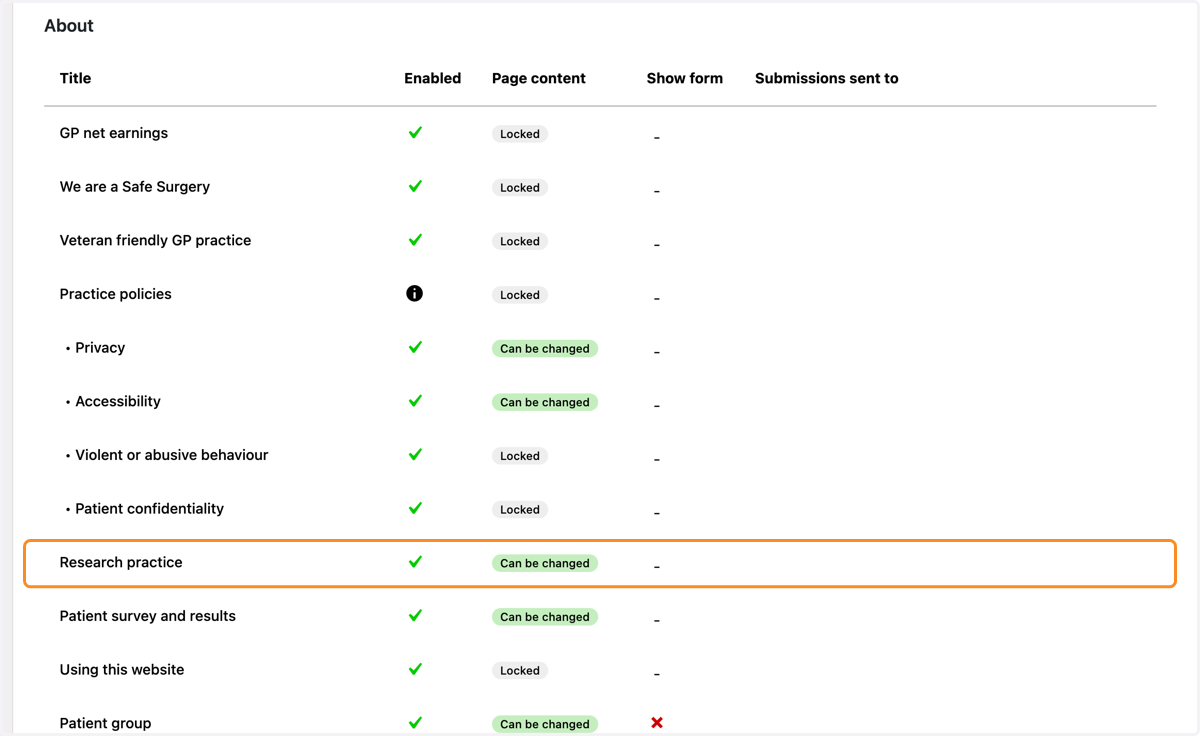
Turn a page on in Site Setup on a Navigator website
This tutorial explains how to turn a page on on a GPsurgery.net Navigator website. You can move through the tutorial at your own pace using the NEXT button.
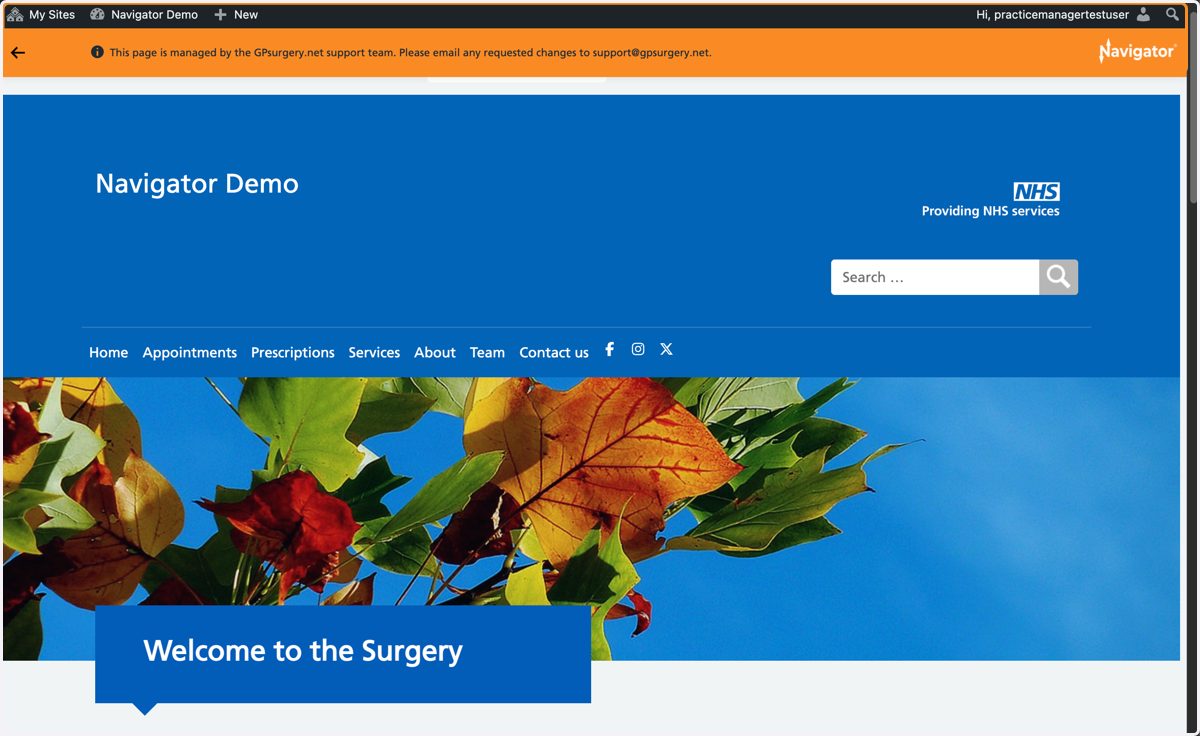
1. Ensure you are logged in to your website. The black admin toolbar and orange Navigator toolbar should be visible at the top of your screen.
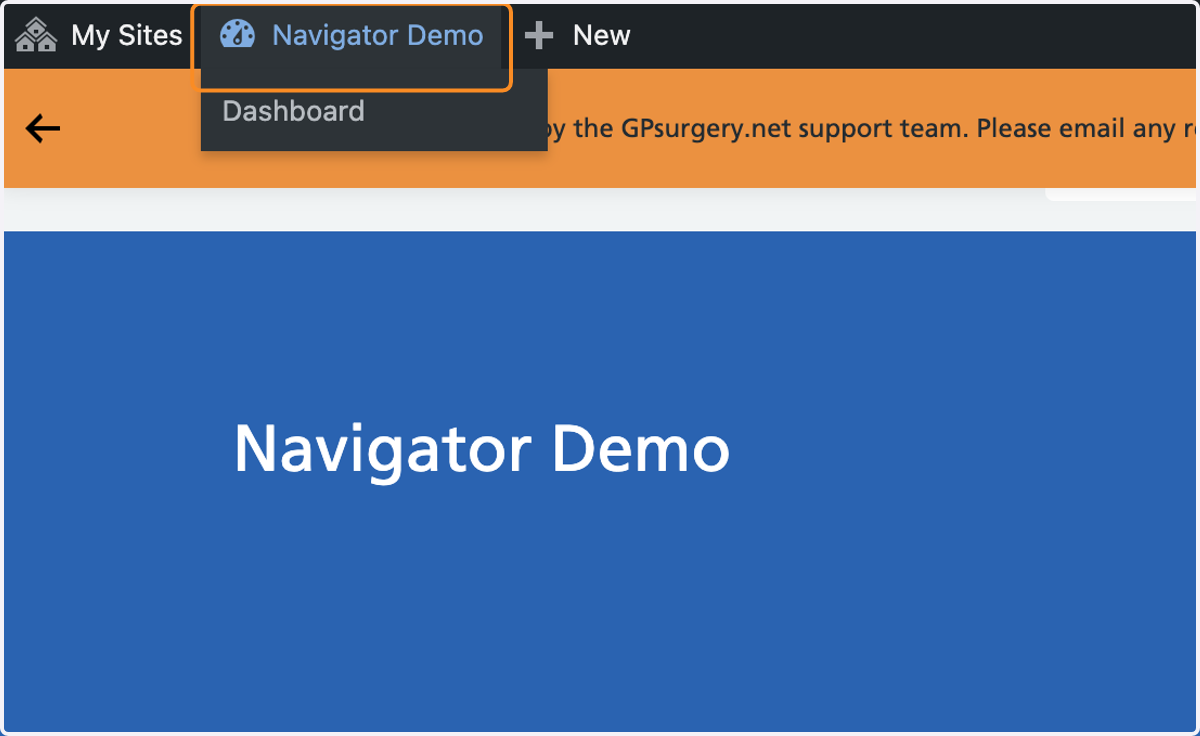
2. Select your practice's name in the black admin toolbar.
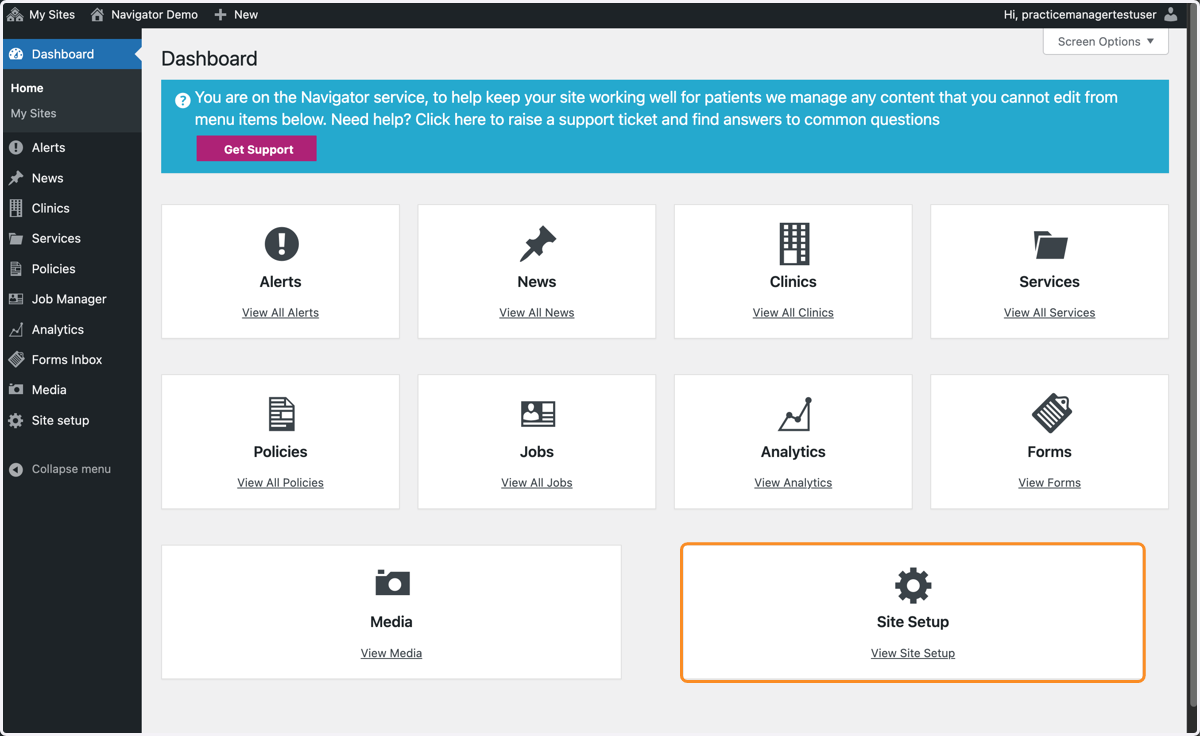
3. You are now in your website Dashboard. Select Site Setup.
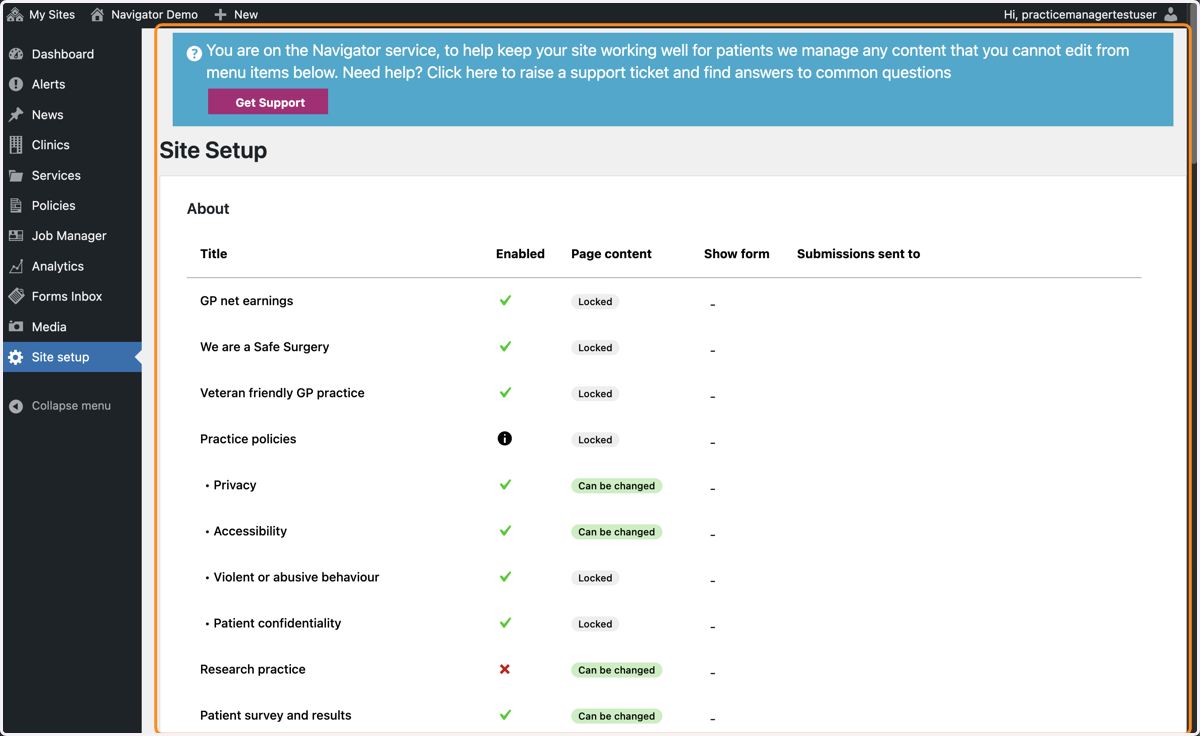
4. You are now in the Site Setup section of the Dashboard.
This is where you can turn pages and forms on/off on your website.
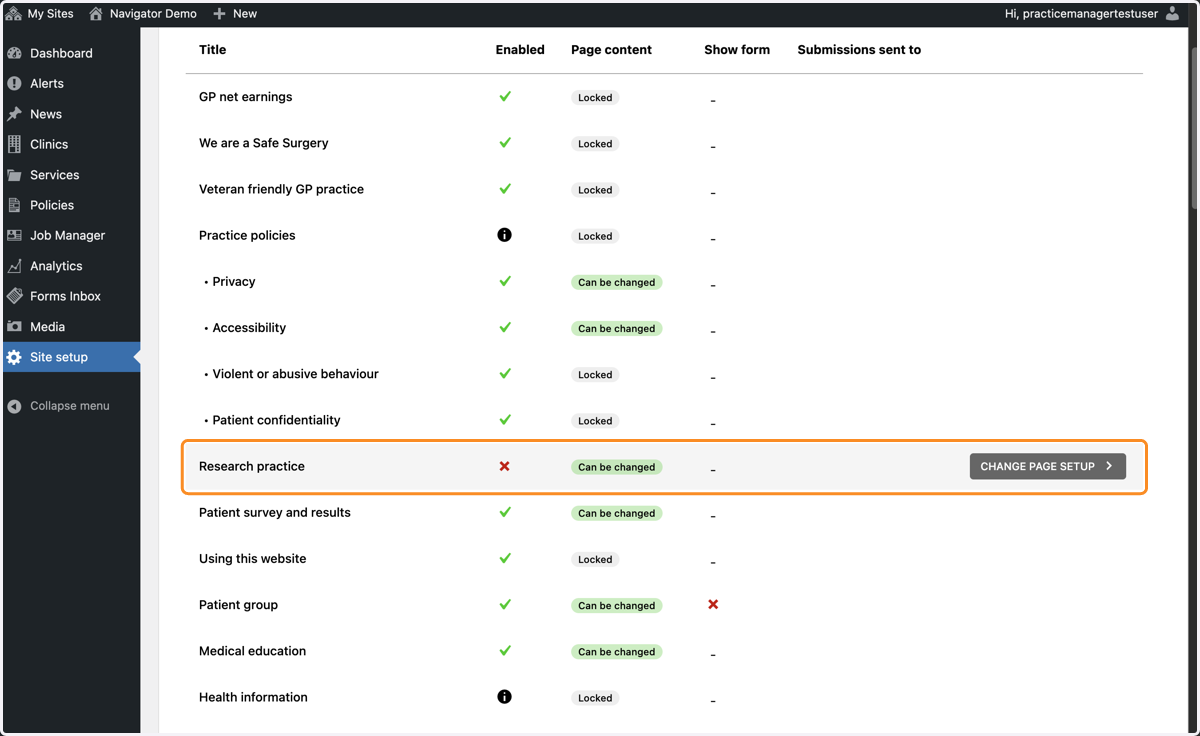
5. Find the page you would like to turn off in the list. Hover your mouse over the page name and select Change page setup.
6. You will now be able to see the page you would like to turn on.
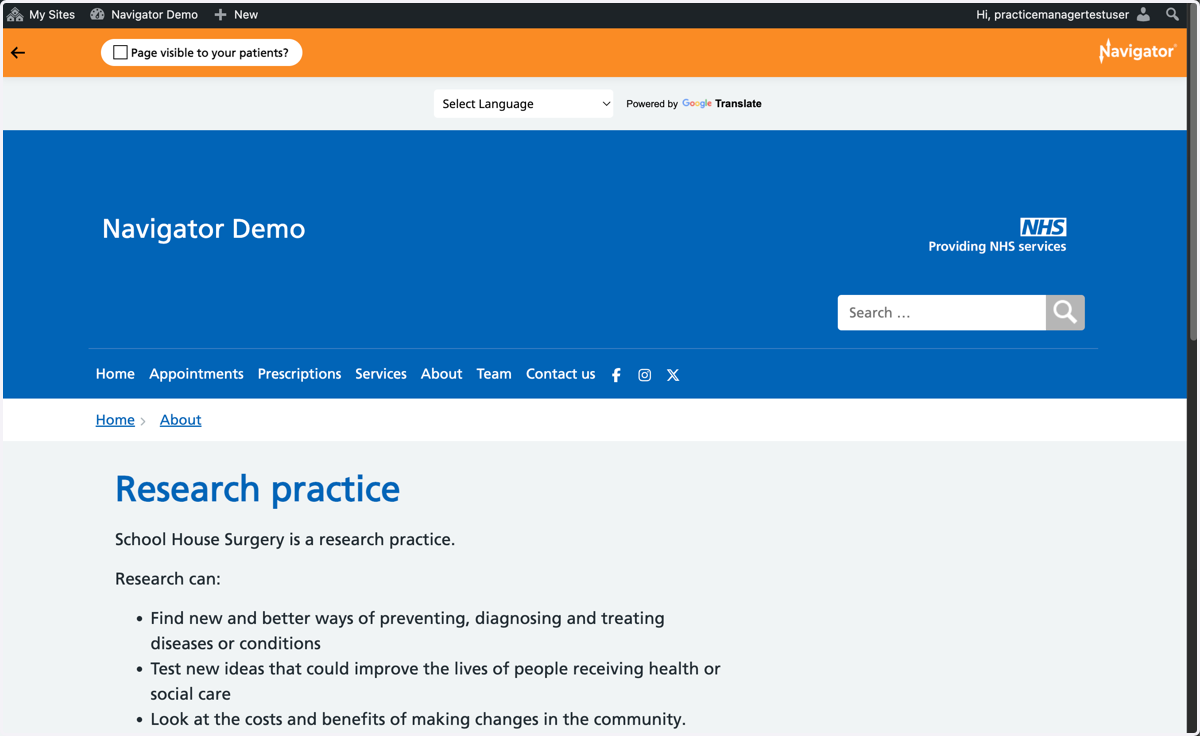
7. In the orange Navigator toolbar, check the Page visible to your patients? box, and wait for the tick to appear.
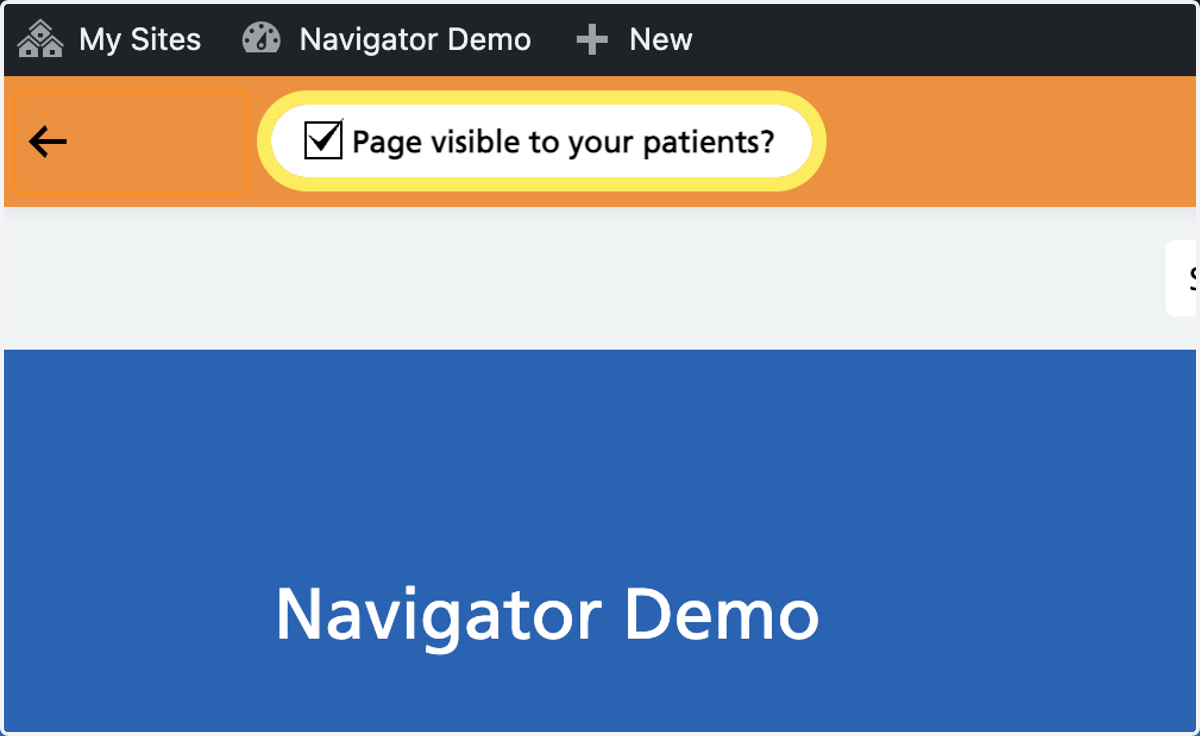
8. The page will now display on your website. You should see a green tick next to the page name in Site Setup.