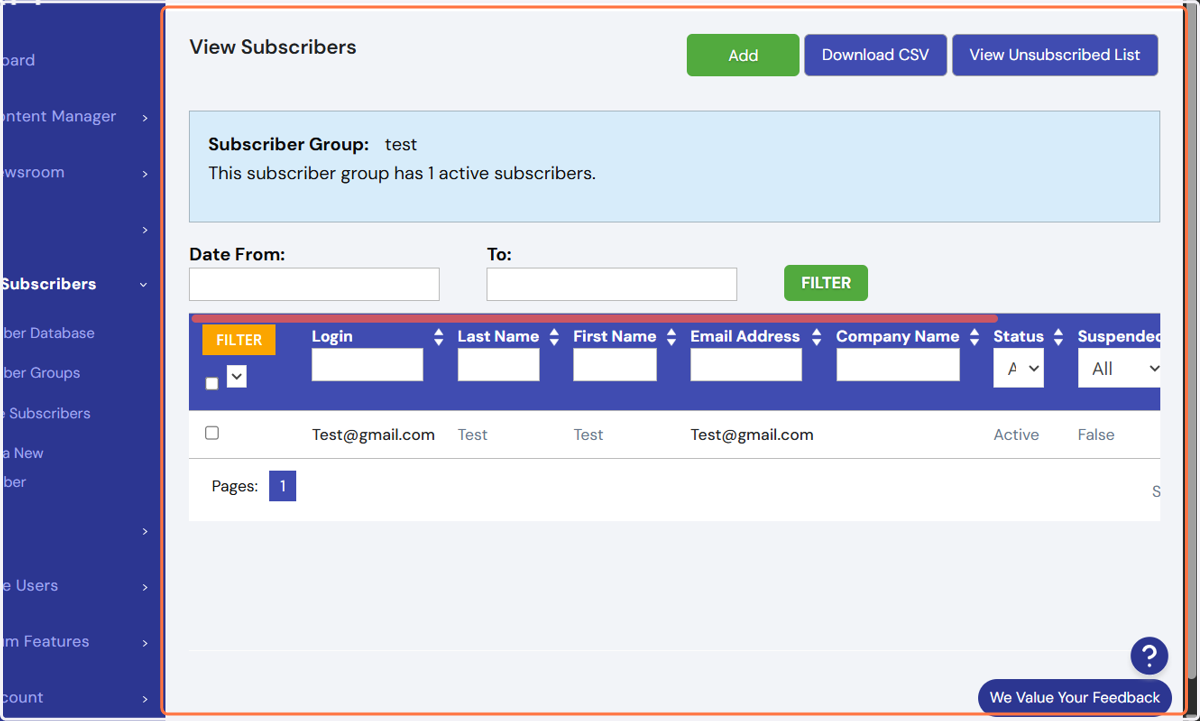
Adding a subscriber group and adding users to a subscriber group
The Subscriber Groups feature gives you the ability to create specific subscriber groups you can target for your particular communications.
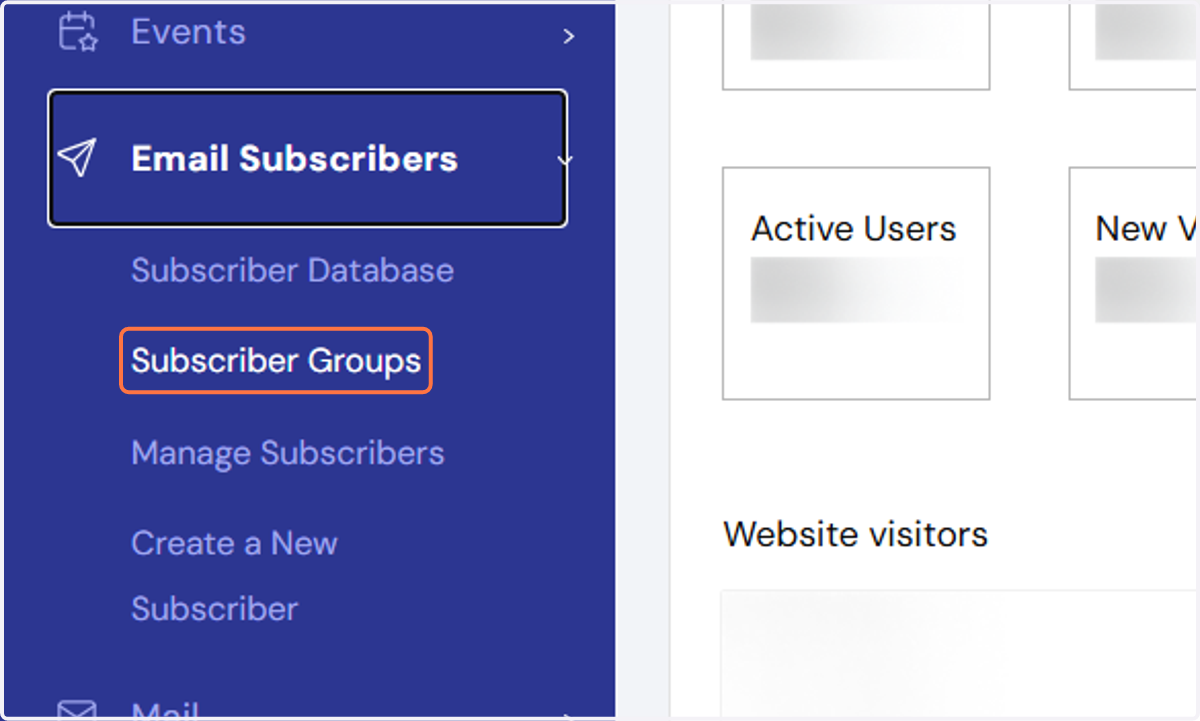
1. To add a new subscriber group, firstly navigate to the "Subscriber Groups" option underneath the "Email Subscribers" module in HQi's menu.
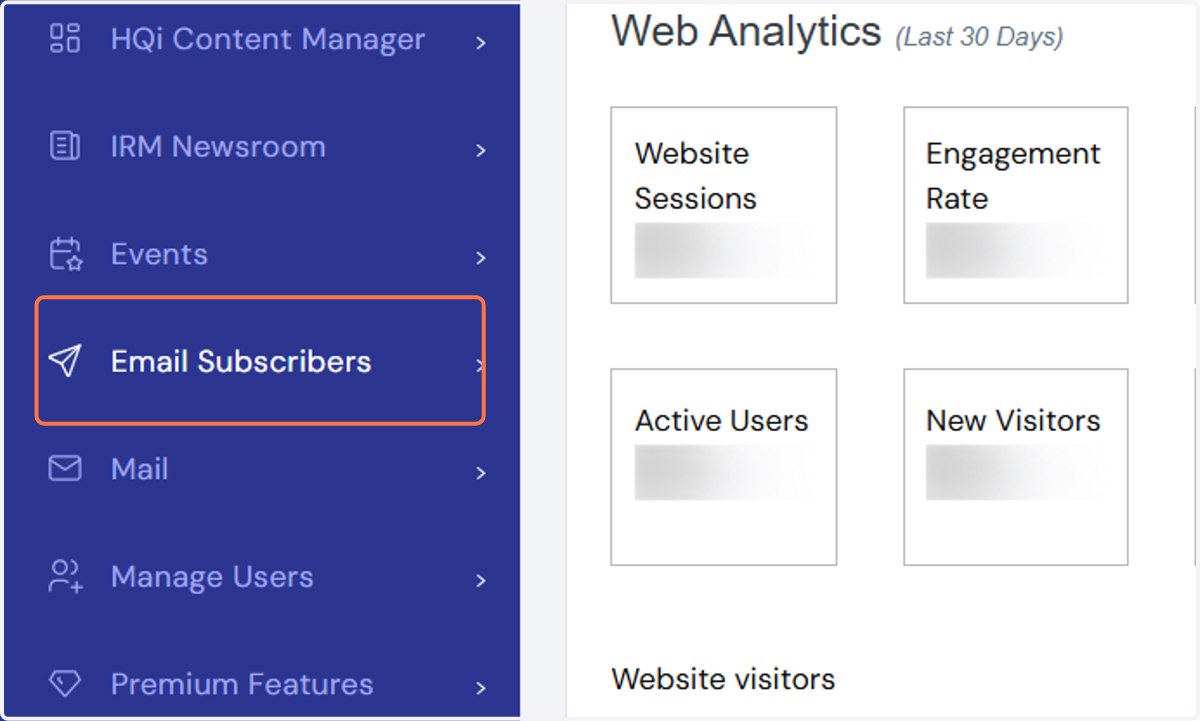
2. Click on Subscriber Groups
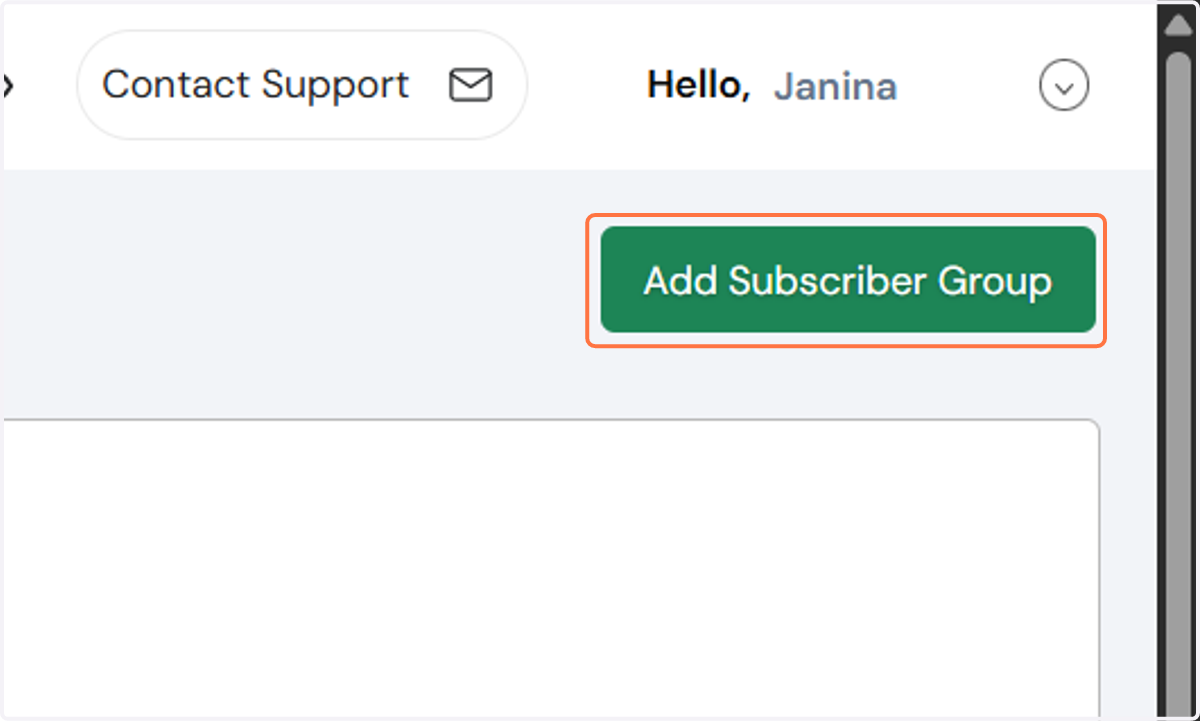
3. In the following page, click the “Add Subscriber Group” button at the top of the page.
4. Then name your Subscriber Group and give it a description for internal reference. Please note that this description will not be shown anywhere on your site. Click the "Save" button after you have entered a Group Name and Description in the appropriate fields.
Note: The Hide subscriber group tickbox hides any existing customised subscriber groups from the Email registration page.
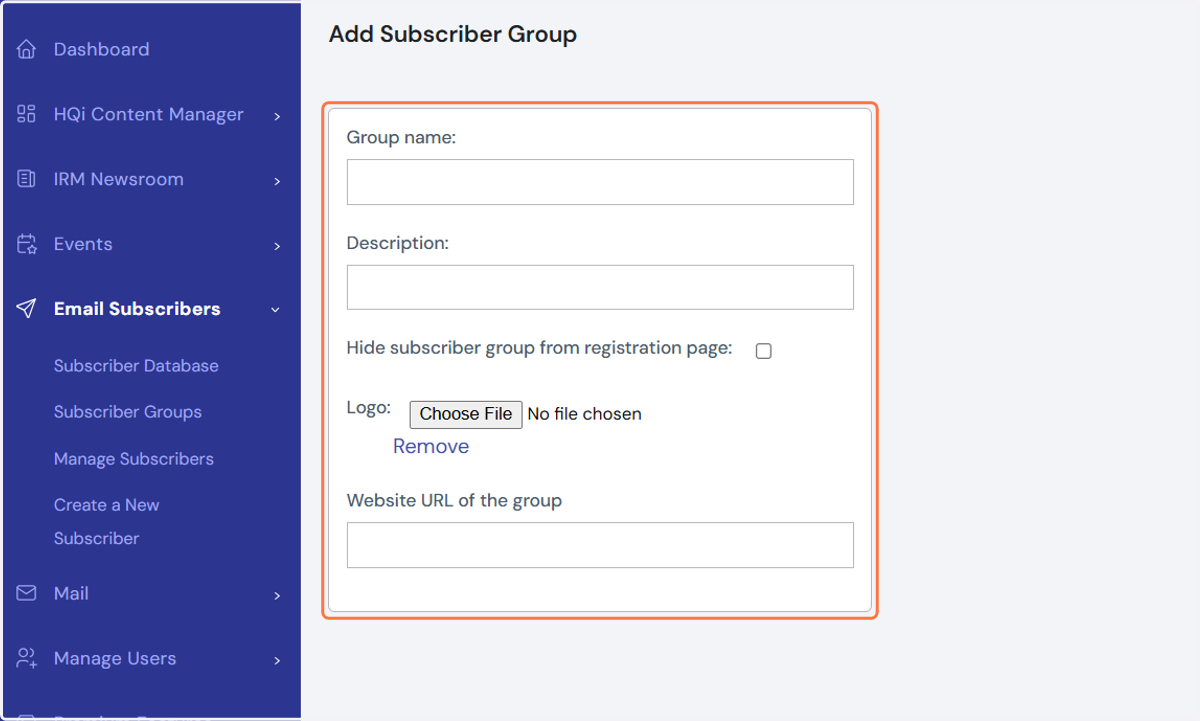
5. To add subscriber to your group, click on Subscriber Group…
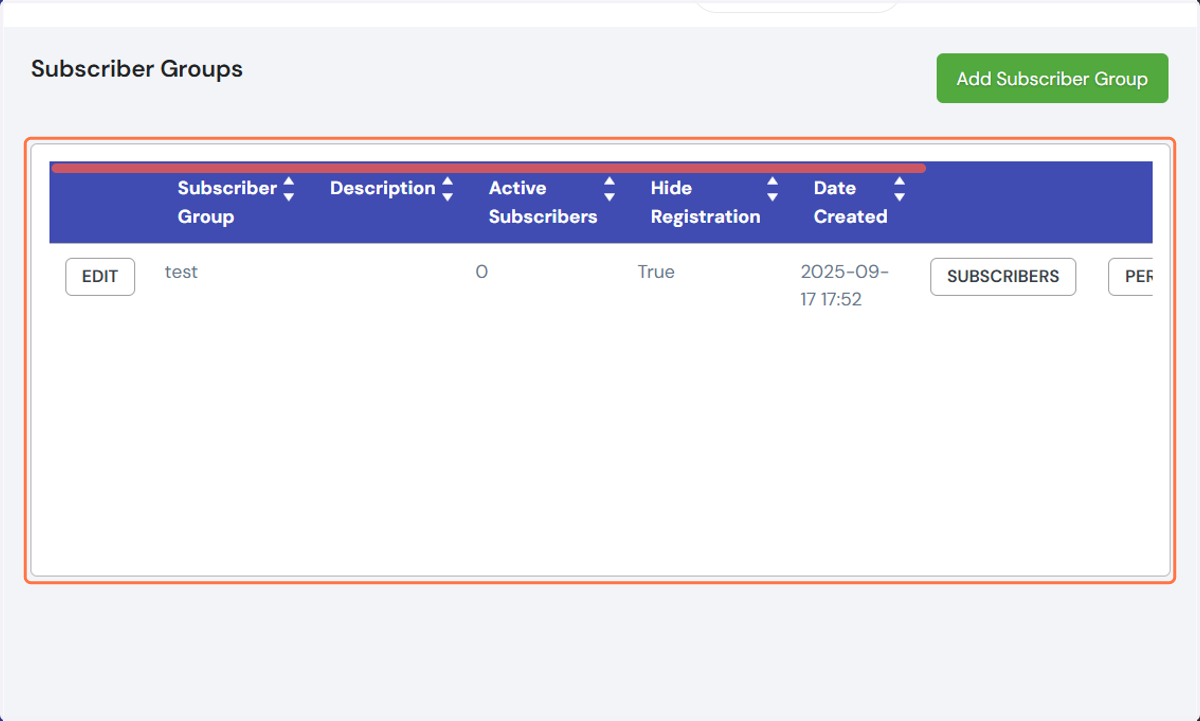
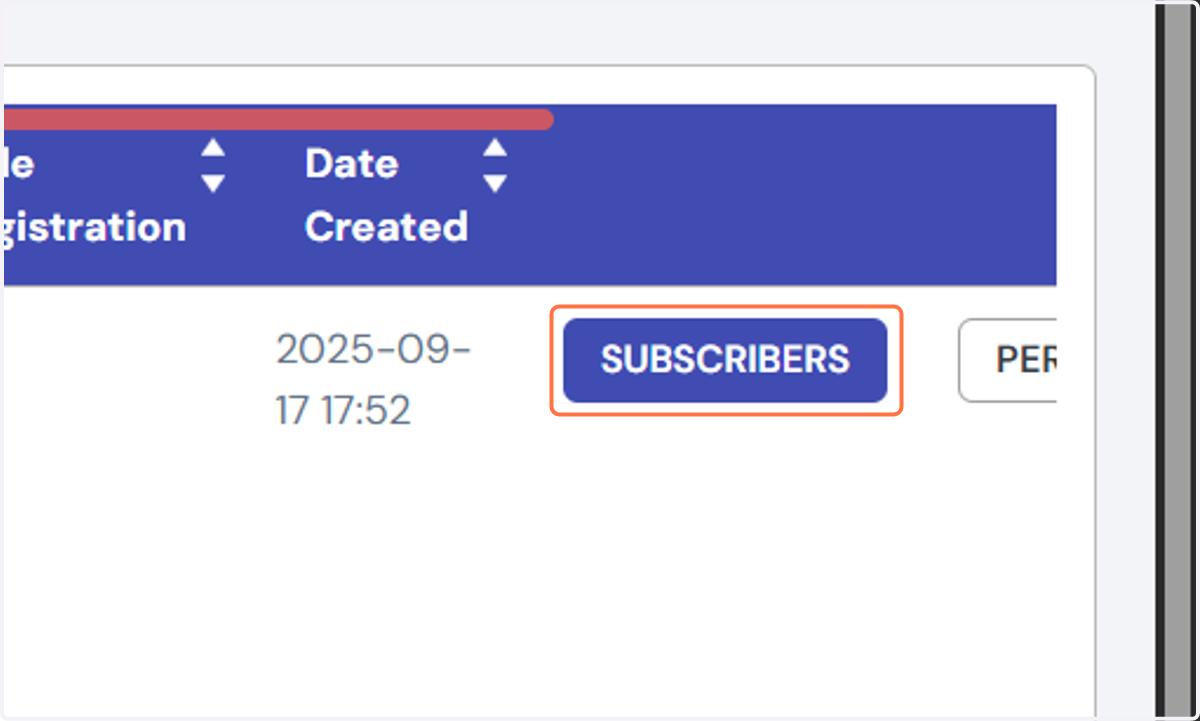
6. Click on SUBSCRIBERS
7. Click on Add
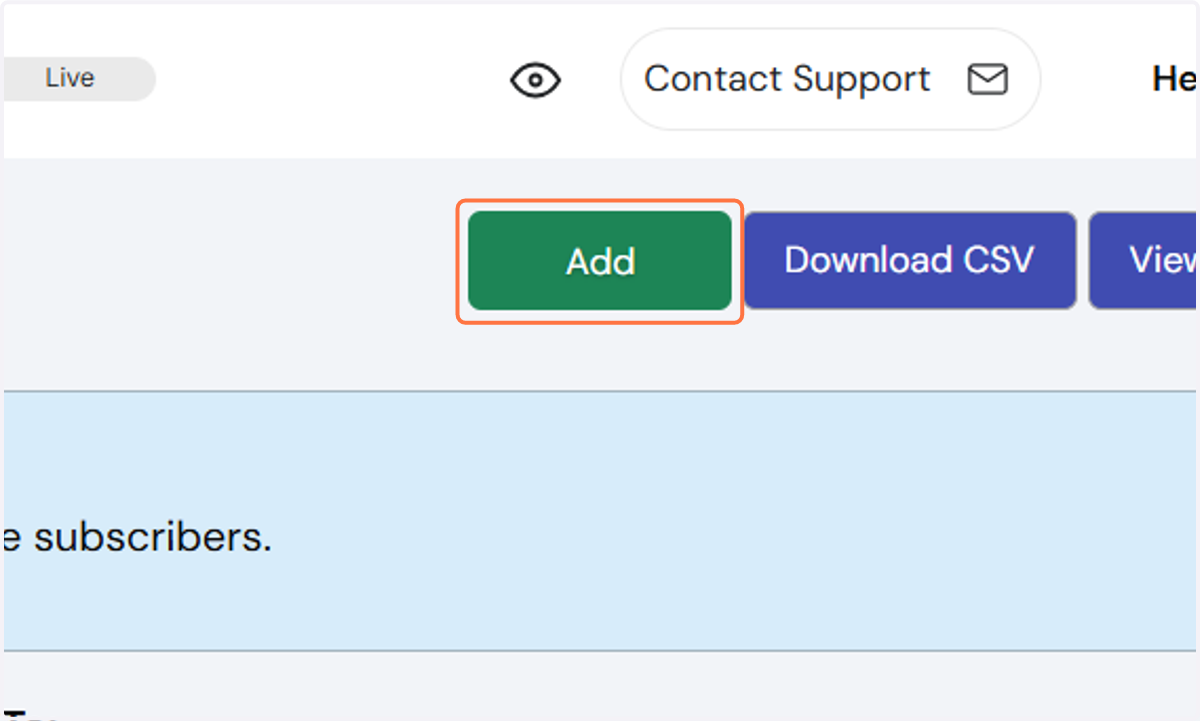
8. Fill in the fields of the subscribers
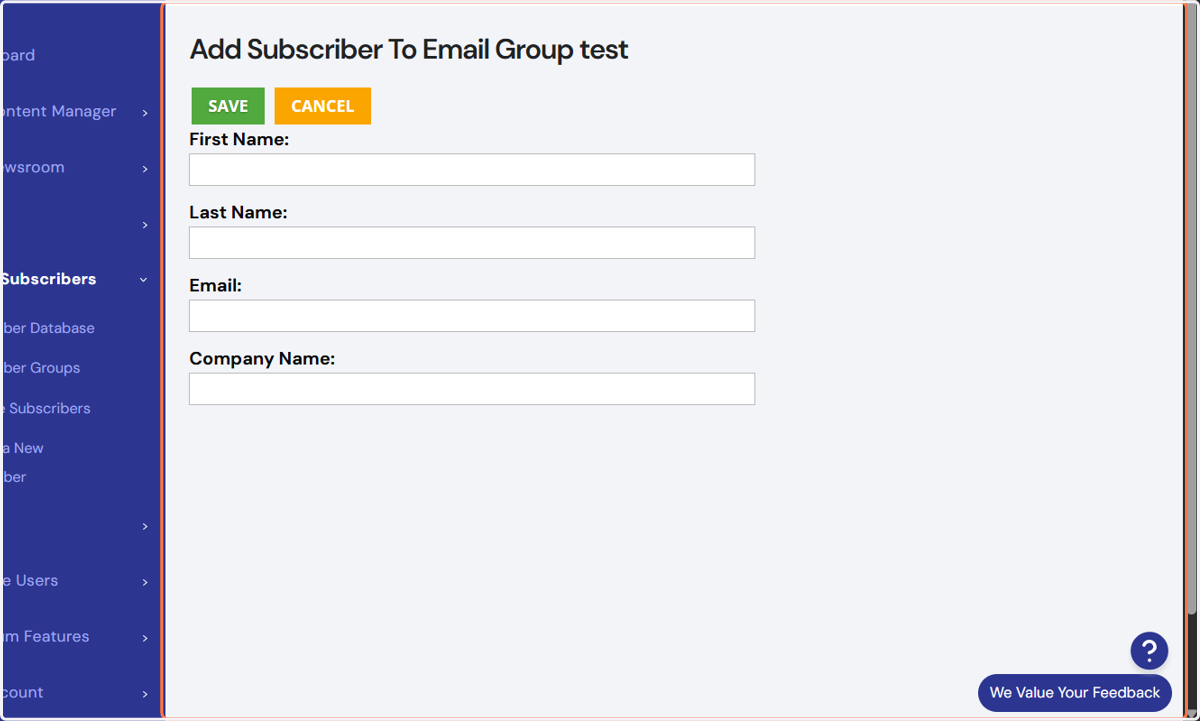
9. Click on Save
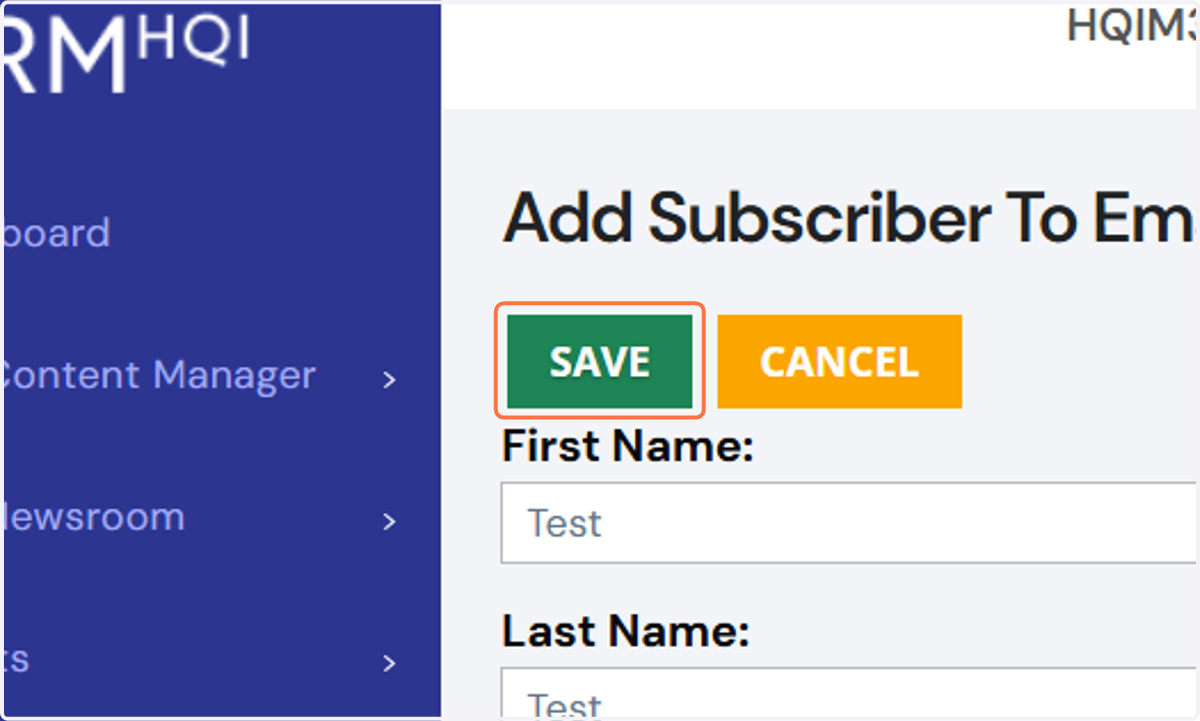
10. Once you save, you’ll be taken back to the subscriber group’s page.