How to Add a New Component
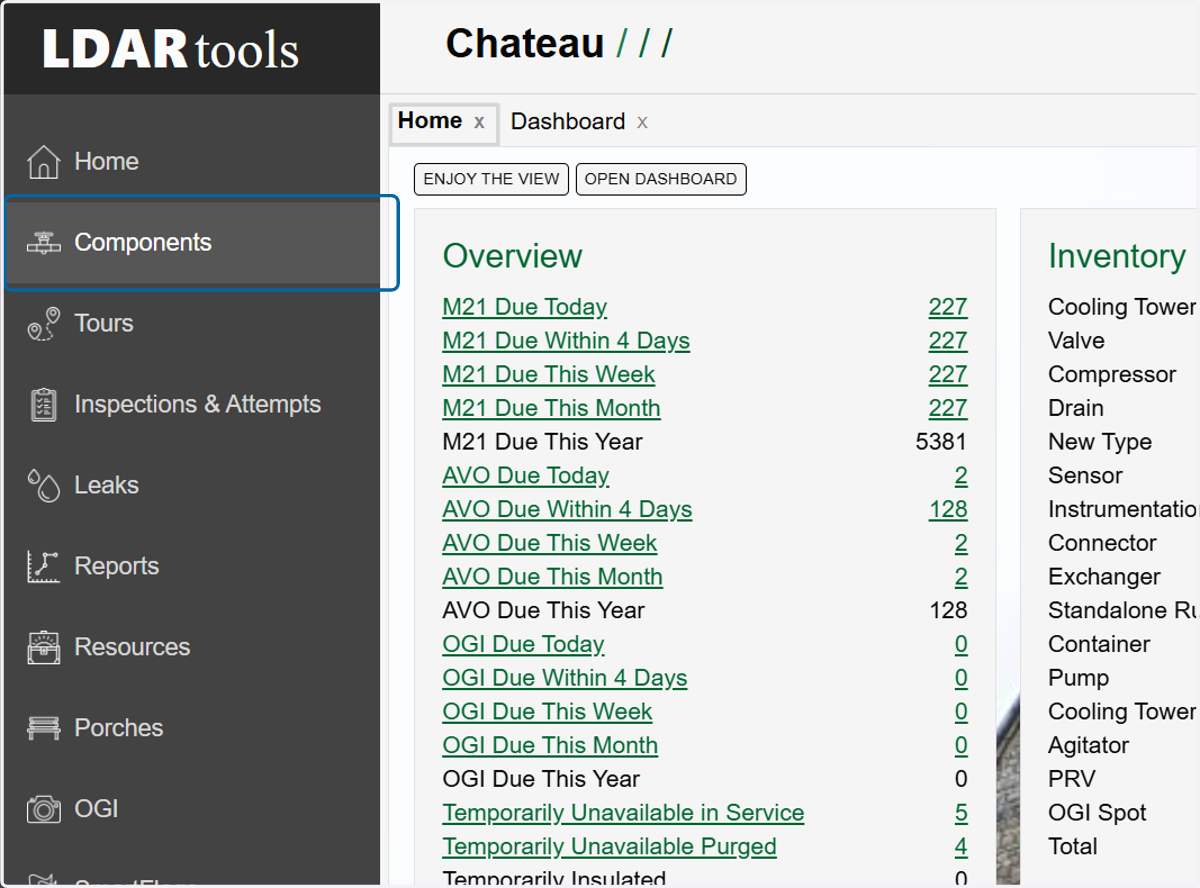
1. Click on Components
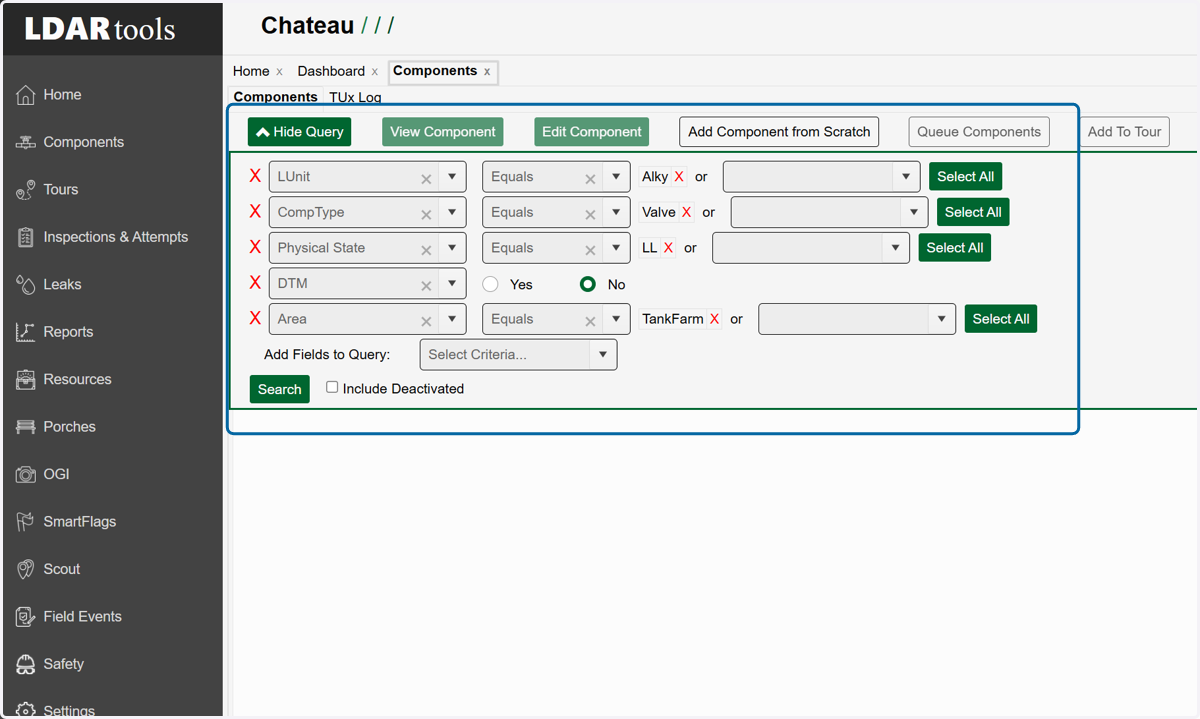
2. Utilize the query builder to find existing components that closely resemble the one you are about to add.
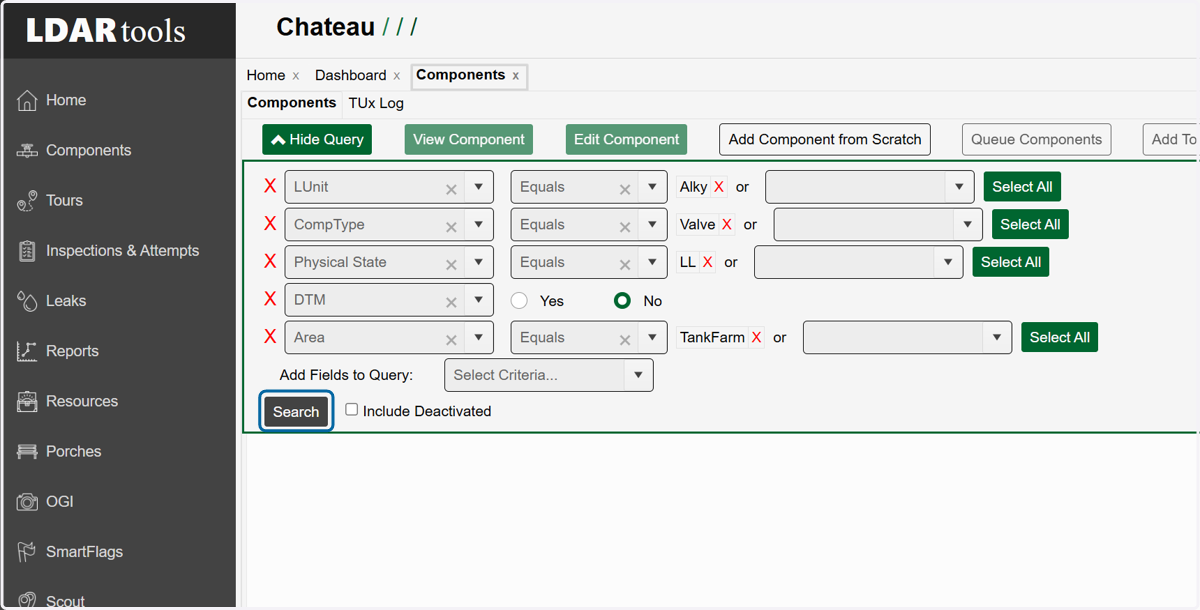
3. Once you have your query built, click on Search.
4. Select the row with the component that best matches the one you are about to add.
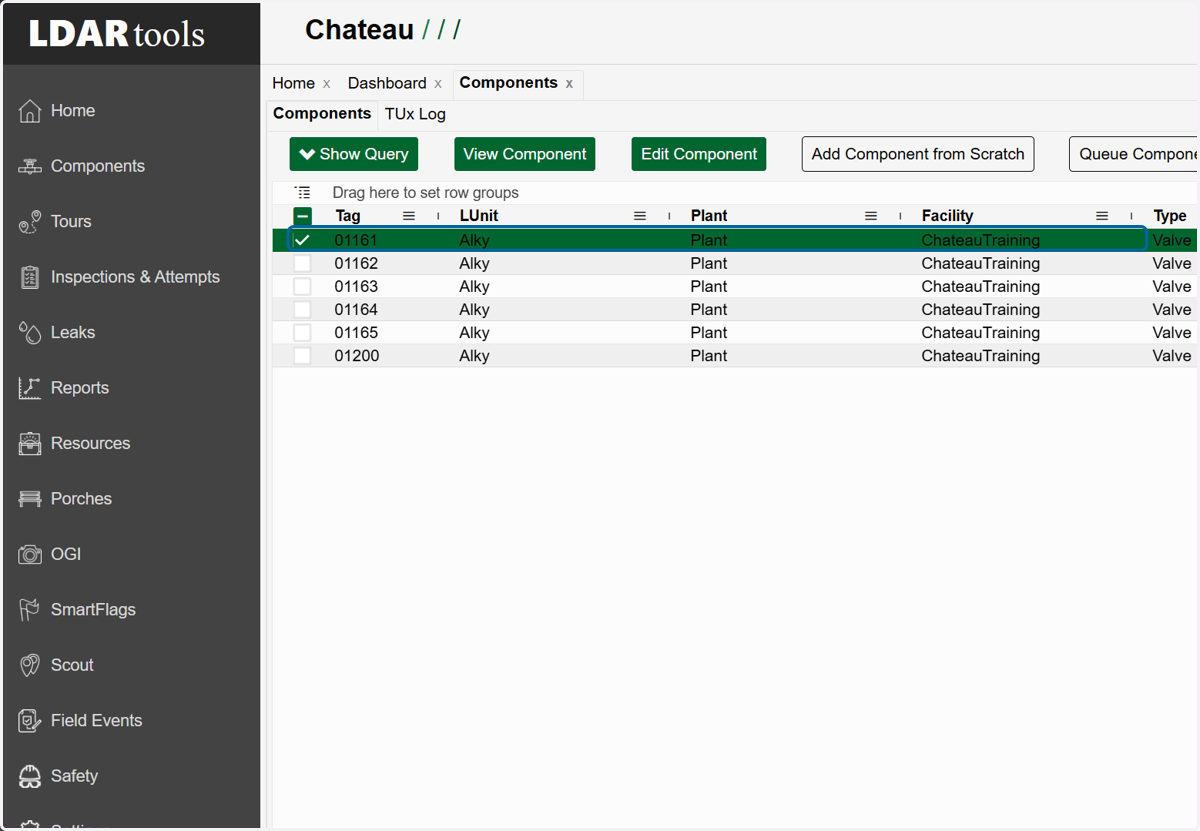
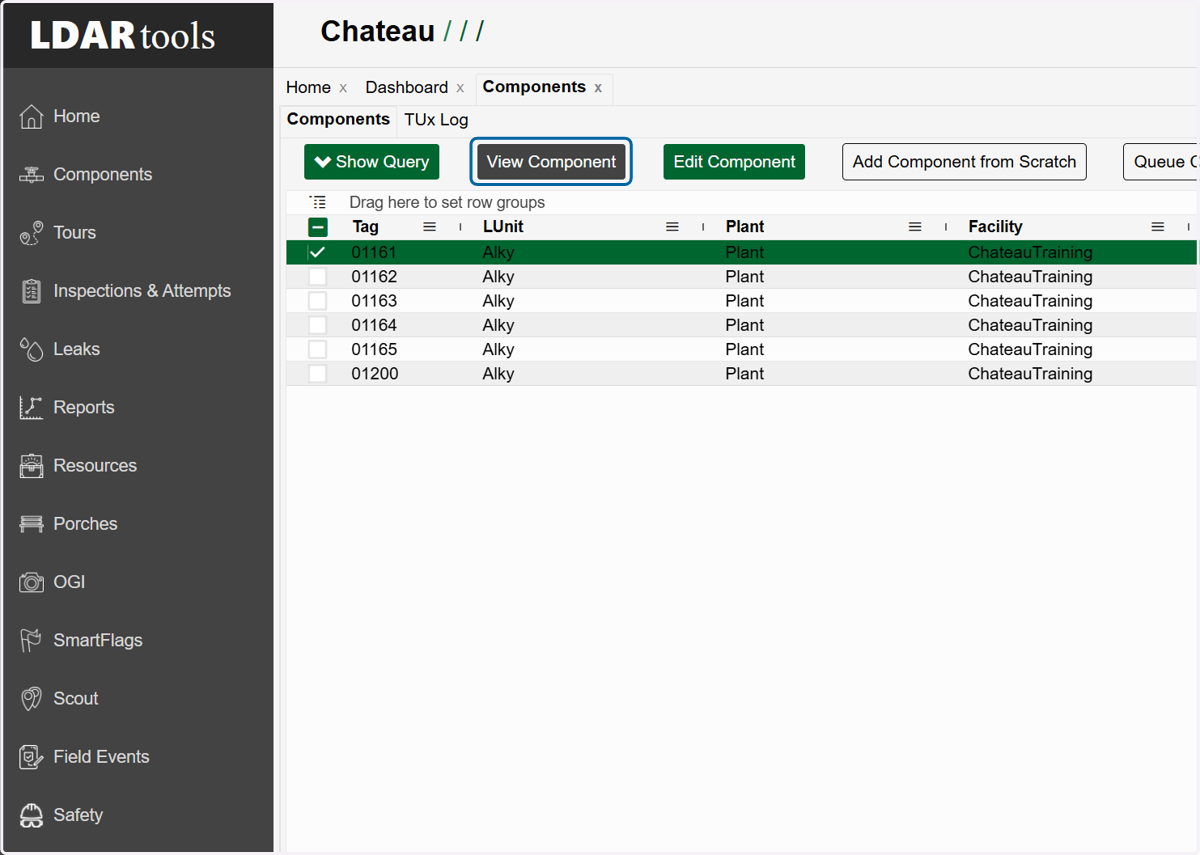
5. Click on View Component
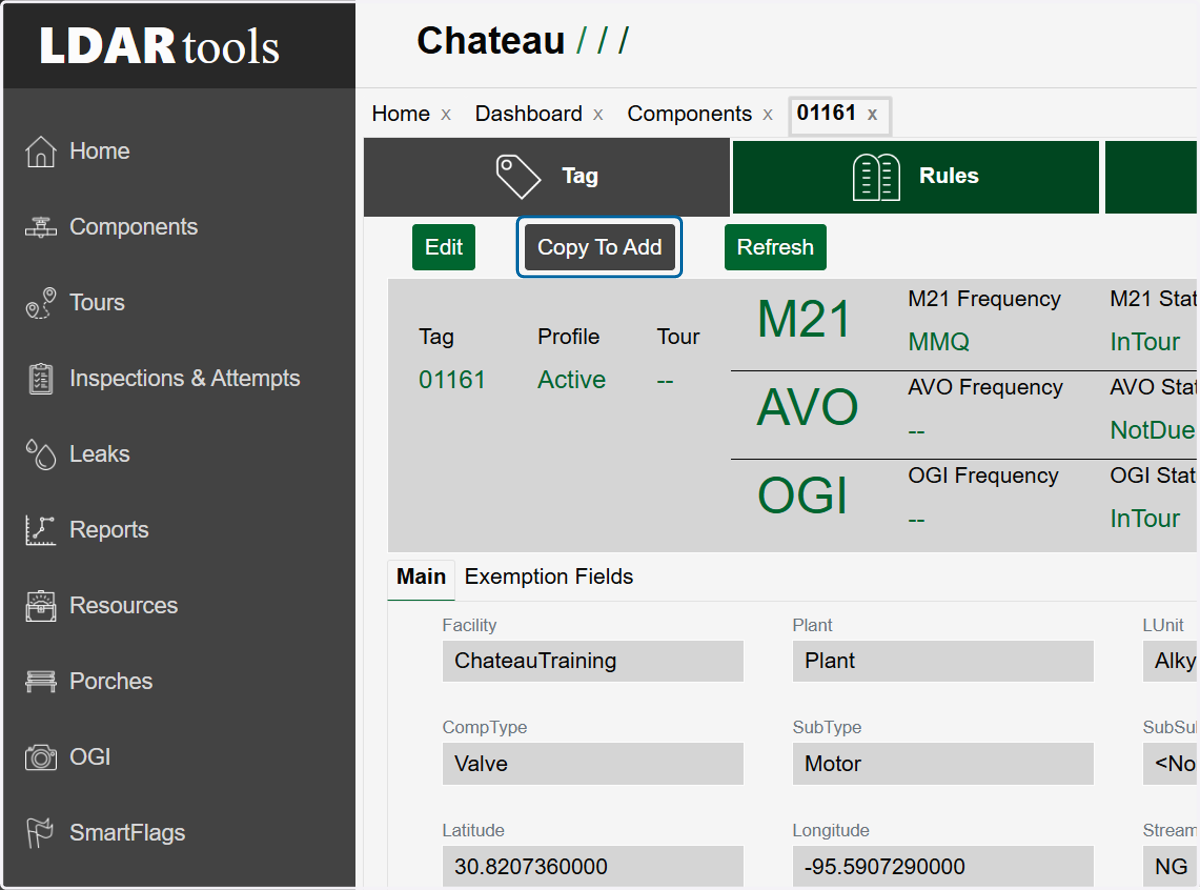
6. Click on Copy To Add
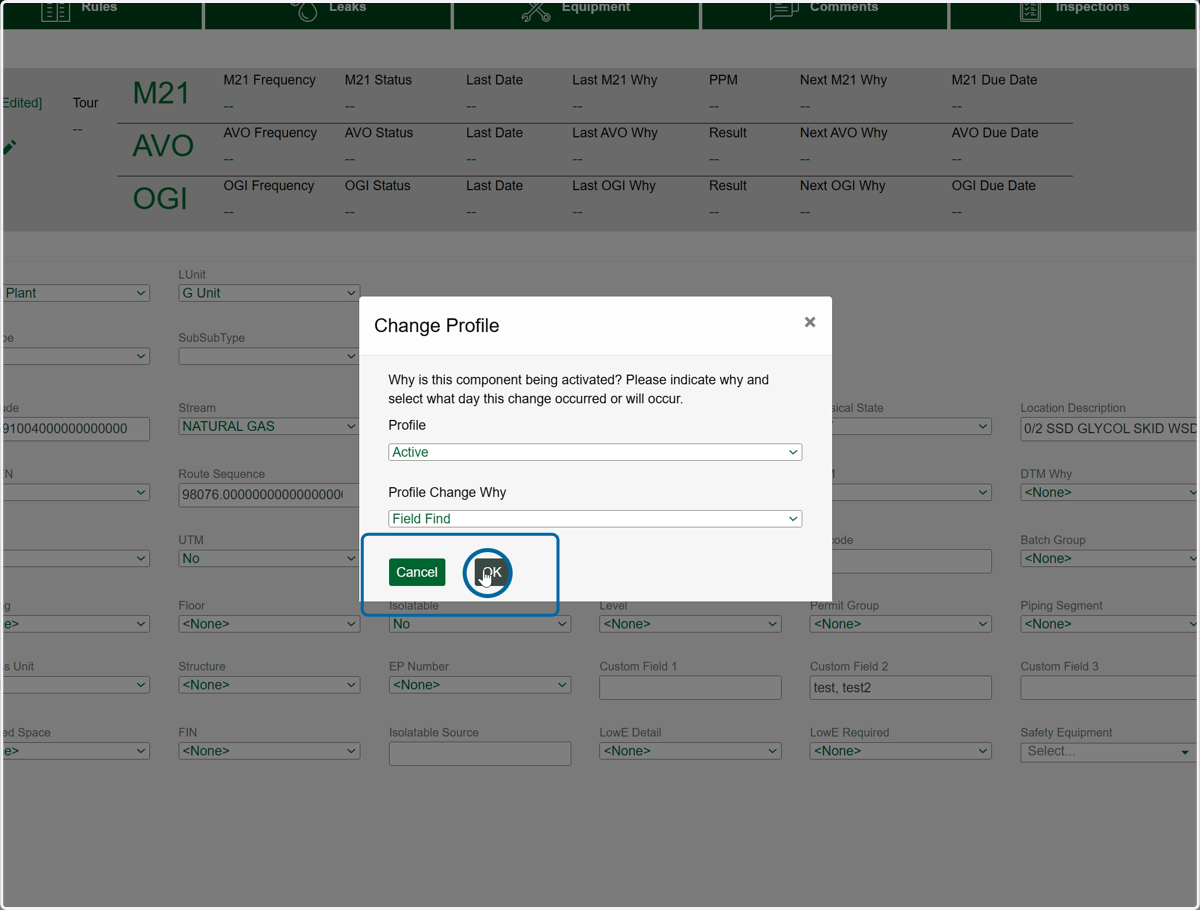
7. Choose the Profile you would like the component added as.
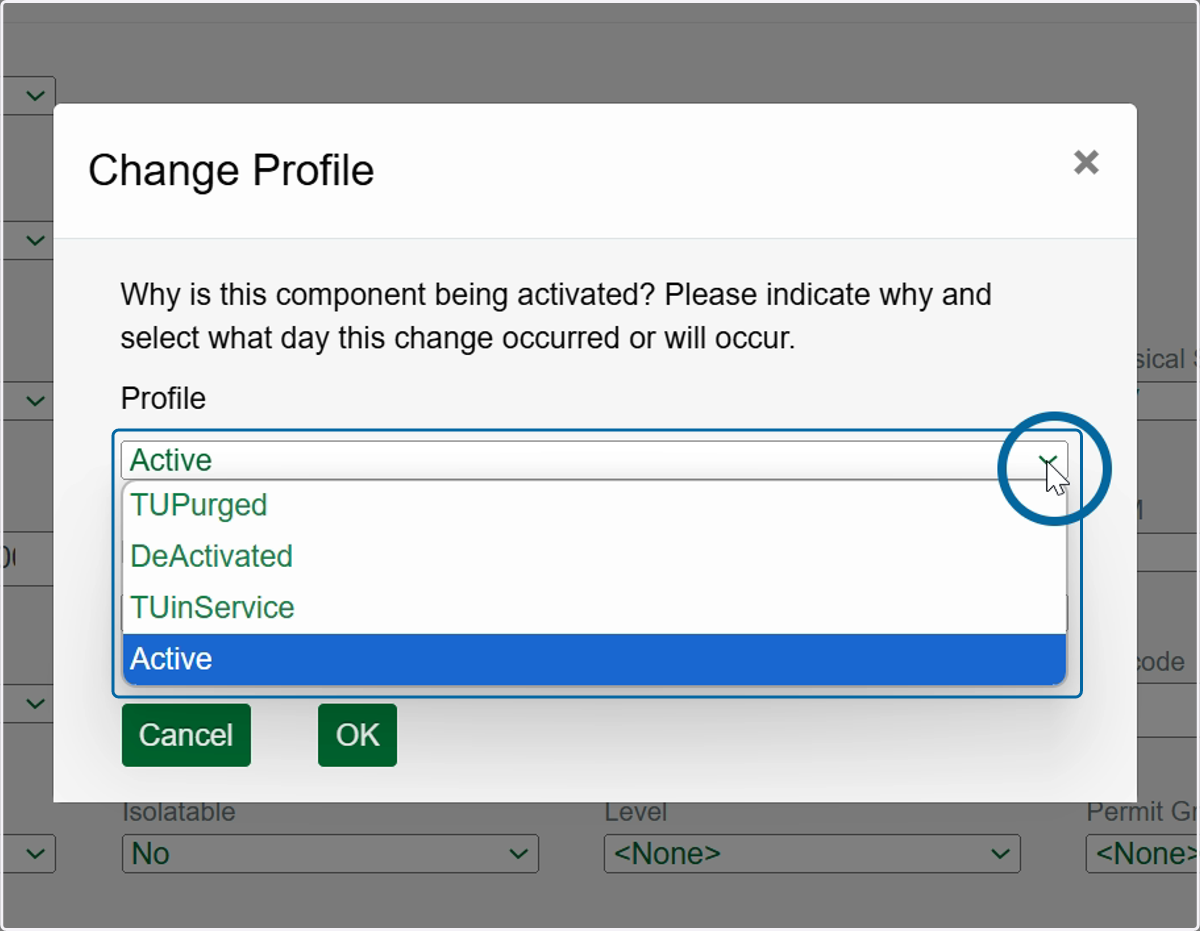
8. Choose the reason for adding this new component in the Profile Change Why dropdown.
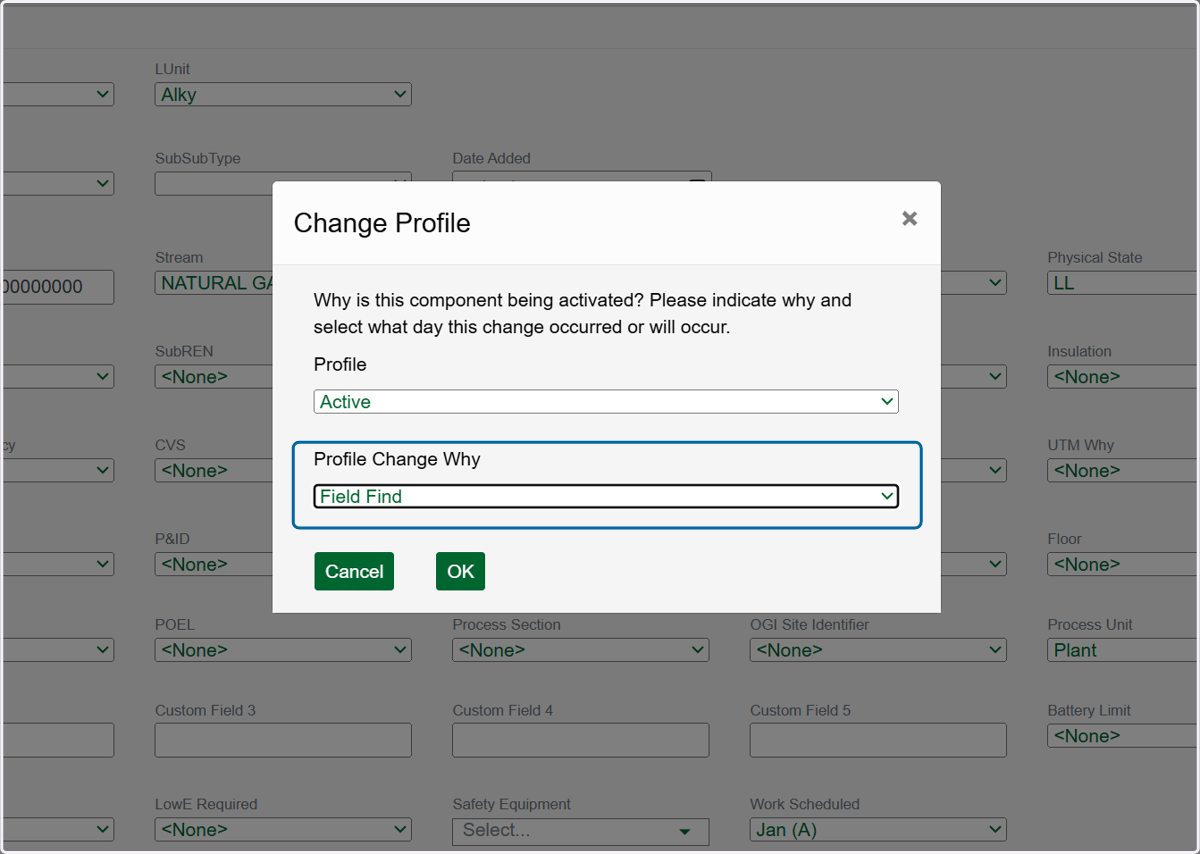
9. Click here
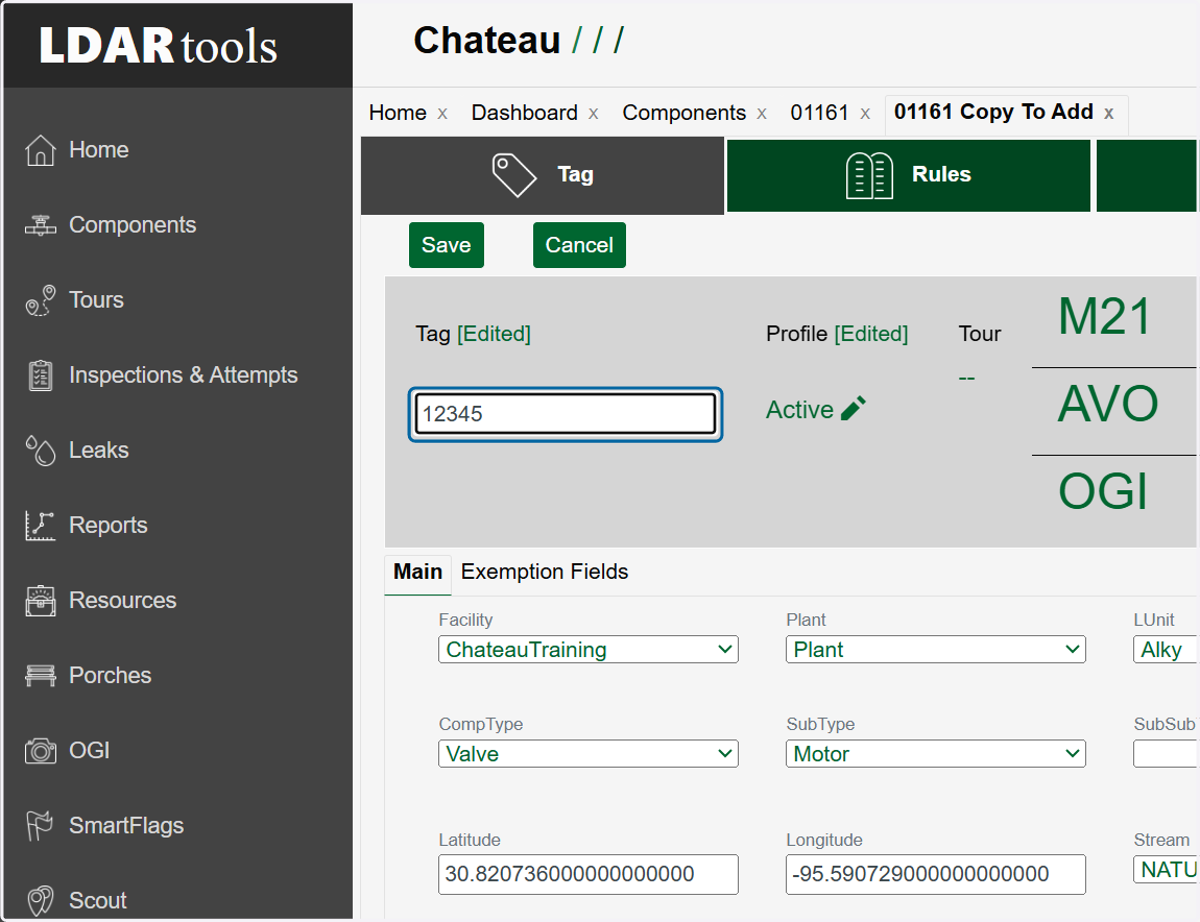
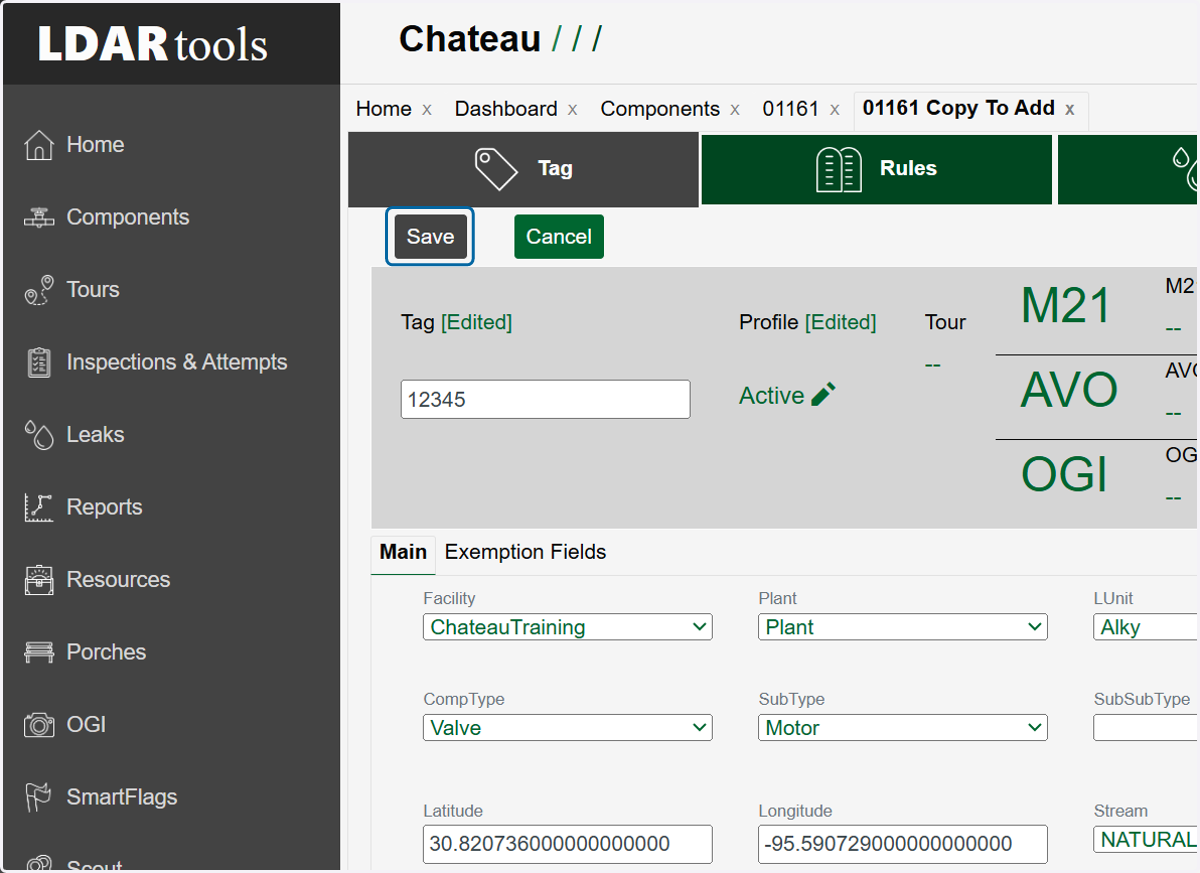
10. Remember to change the Tag field to the new tag number.
11. Edit any other property fields that do not match the new component.
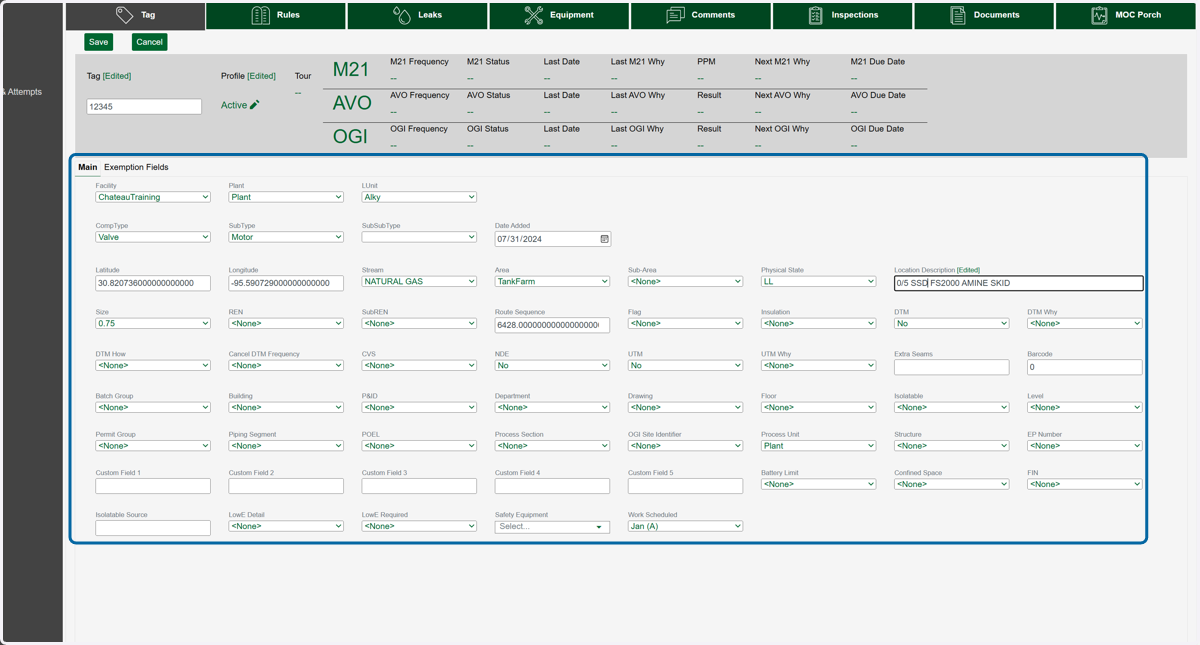
12. Click on Save
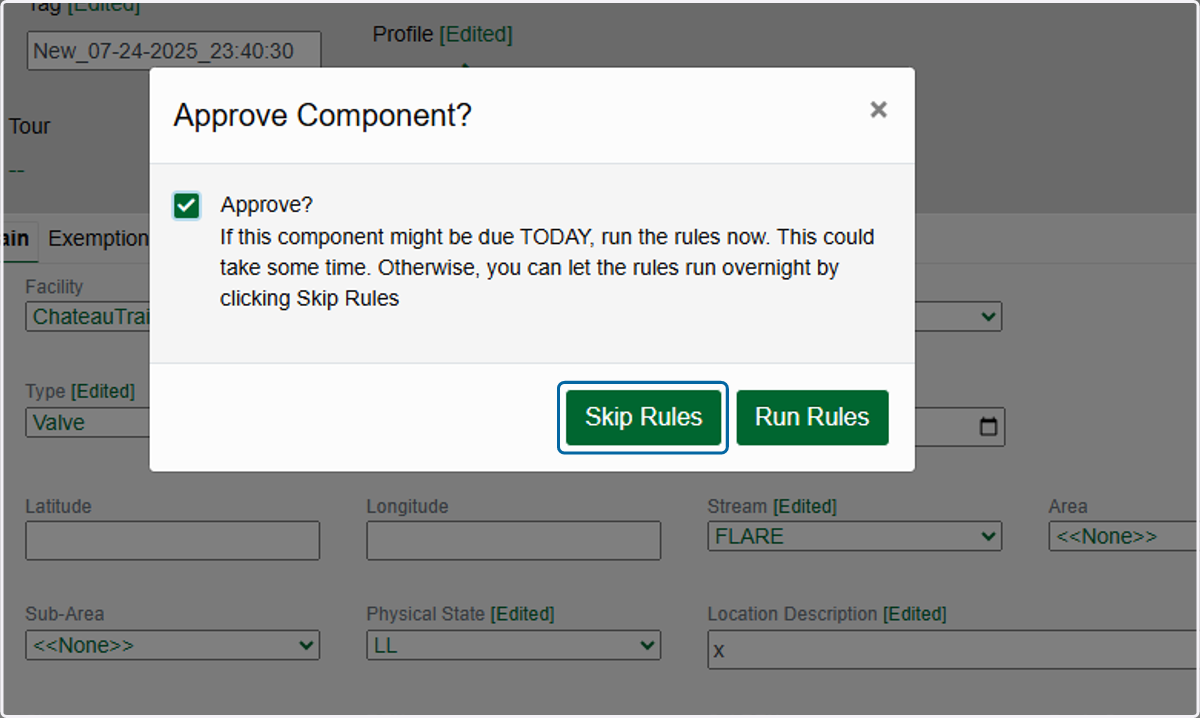
13. Choose to approve the component, or suggest it and have it reviewed later
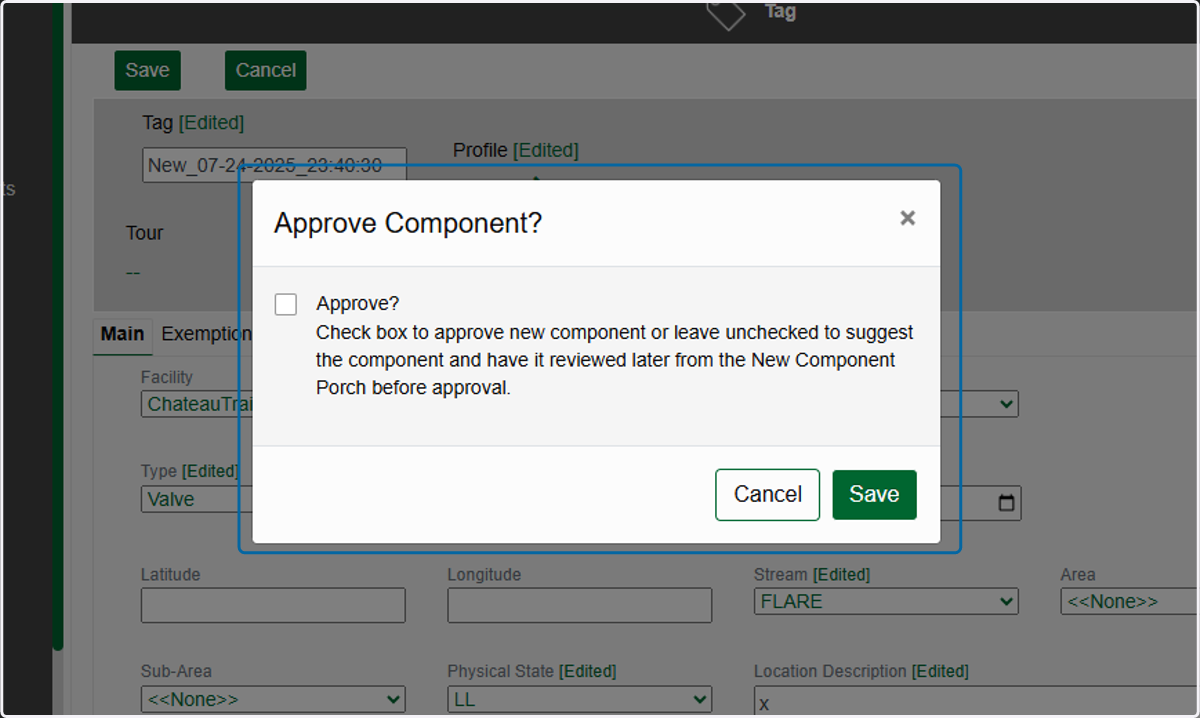
14. If you choose to approve the component, make a decision on whether to run or skip the rules