Setting Up Dynamic Floor Rates
Dynamic Floor Rates are set based on last year´s booked rate, with the option to increase or decrease on that rate by dollar amount or by percentage. This does not affect the "true" floor rate.
RevMax
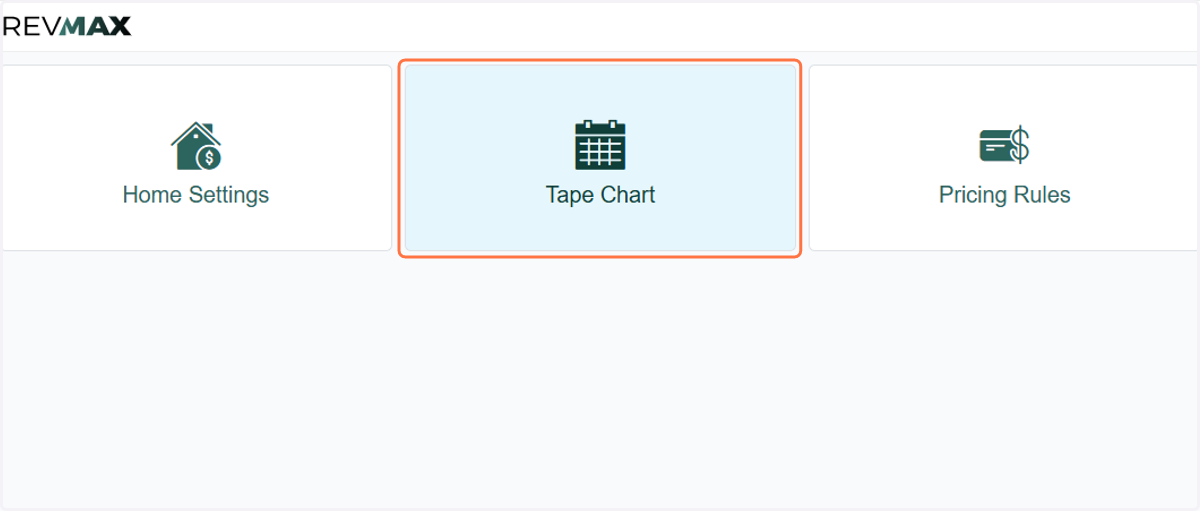
1. Go to the Tape Chart from the RevMax Homepage
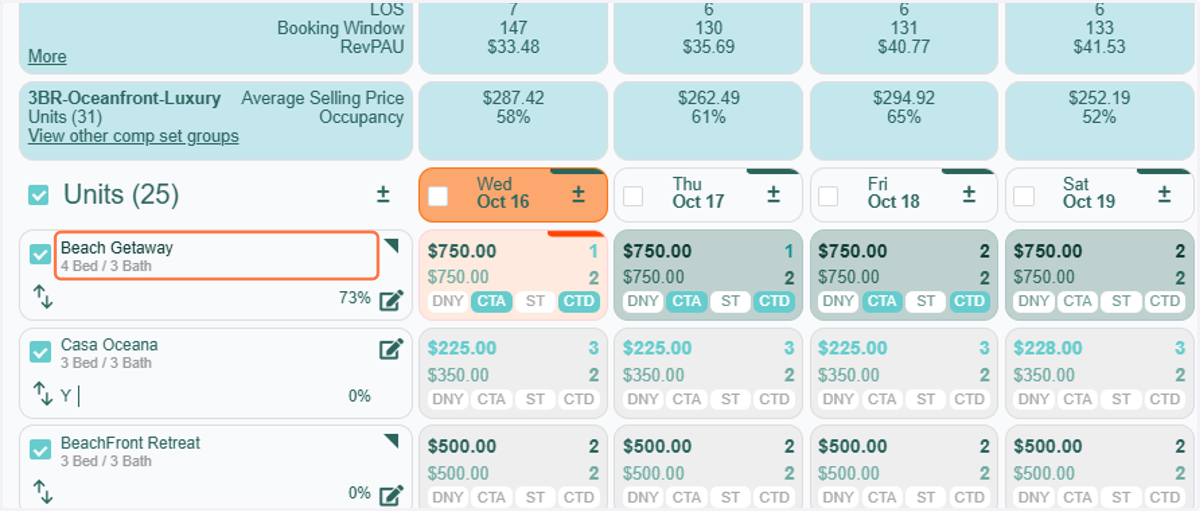
2. Click on the Unit Name
On the Tape Chart, when you click on a unit, a popup will appear with the corresponding settings set for it.
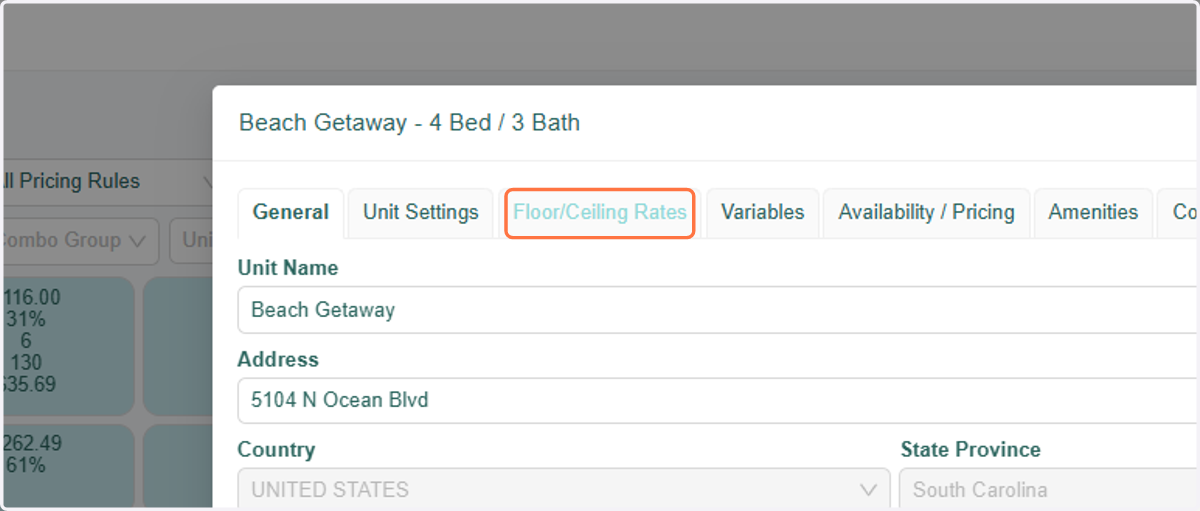
3. Click on Floor/Ceiling Rates
To set up or edit the Floor/Ceiling Rate Settings, go to the "Floor/Ceiling Rates" tab:
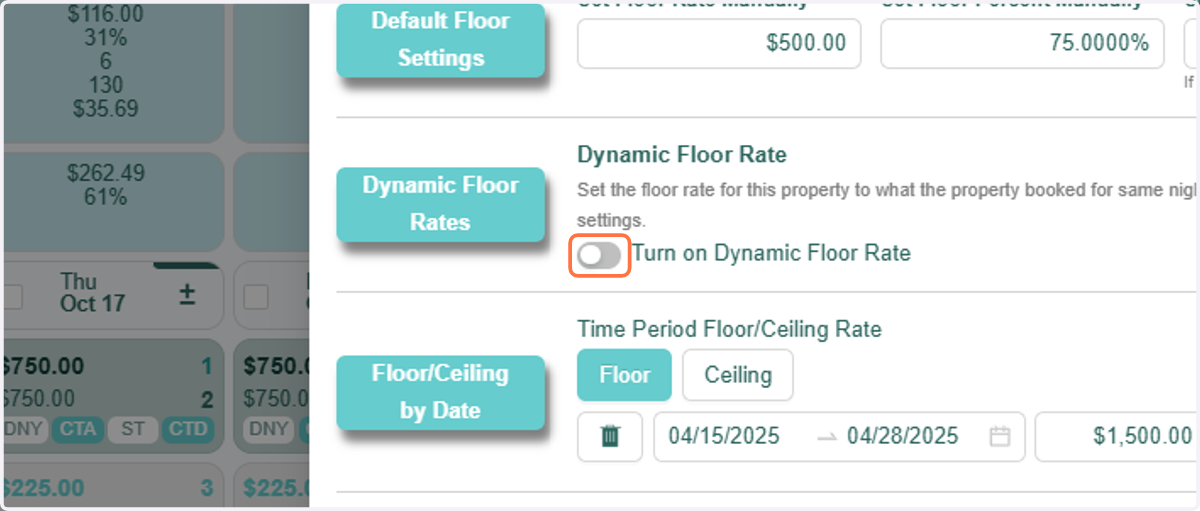
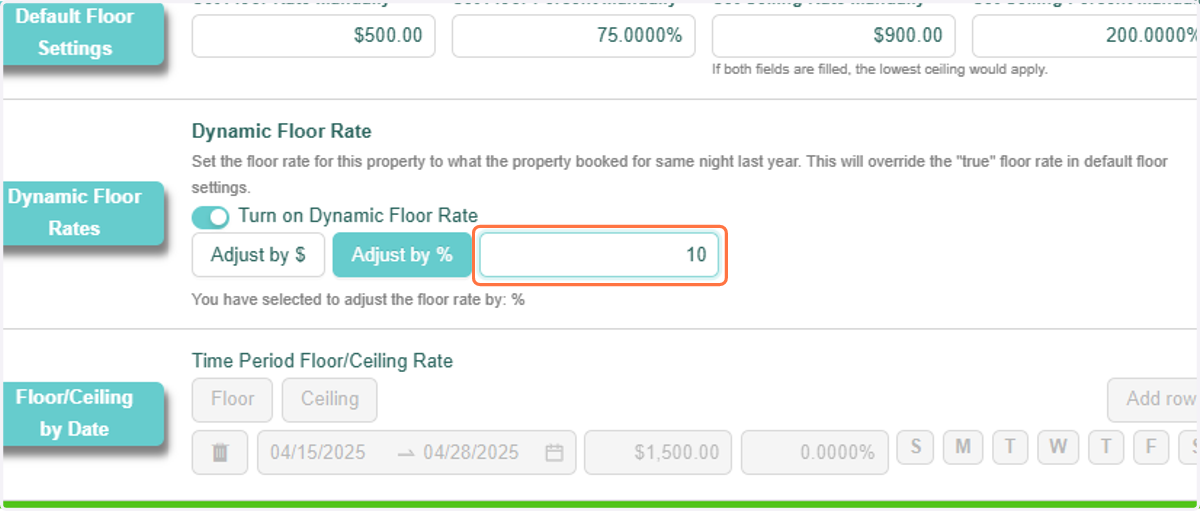
4. Turn on Dynamic Floor Rates
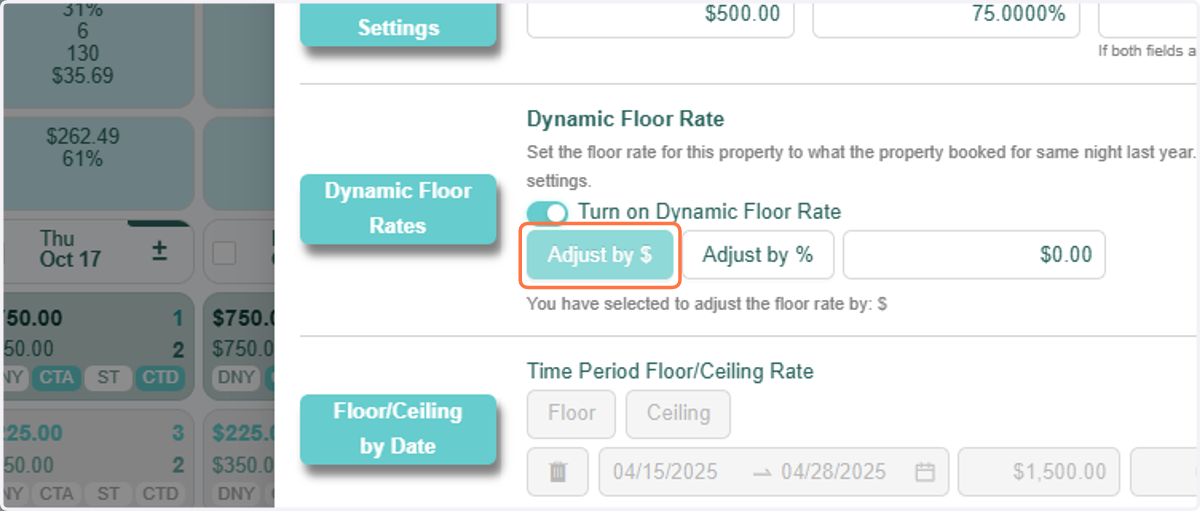
5. To adjust Dynamic Floor by dollar amount, click on "Adjust by $"
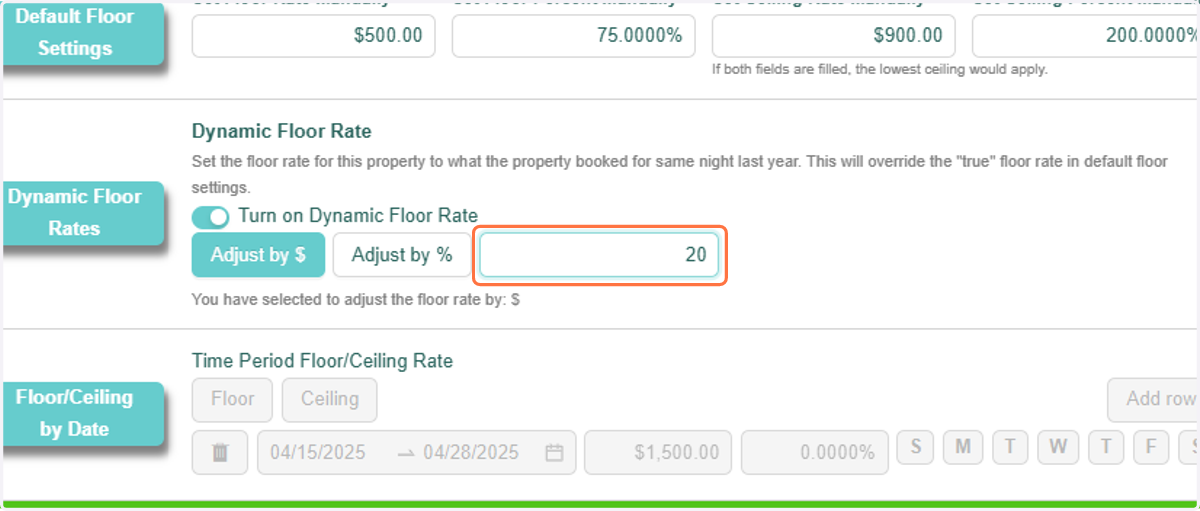
6. Type in the adjustment, which will be added to the rate this unit got booked last year, and use the result as the floor rate.
7. To adjust Dynamic Floor by percentage, click on "Adjust by %"
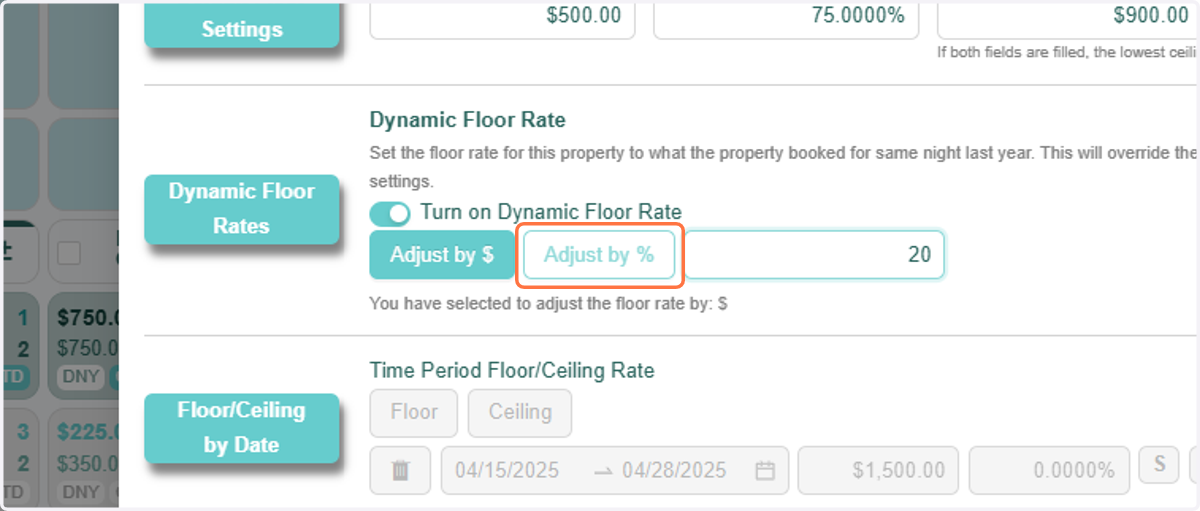
8. Type in the percentage you want added to the rates this unit got booked last year, and use that as the floor rate
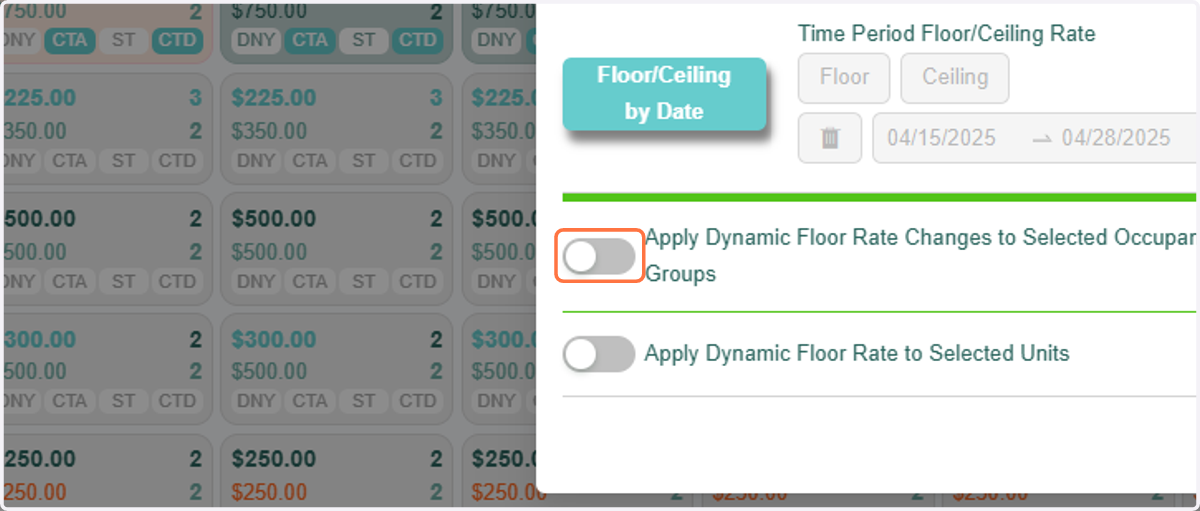
9. You may apply the settings in bulk to either an Occupancy Group or to Specific Units. To apply the setup/changes you made to Dynamic Floor Rates to selected occupancy groups, toggle on the switch beside the option.
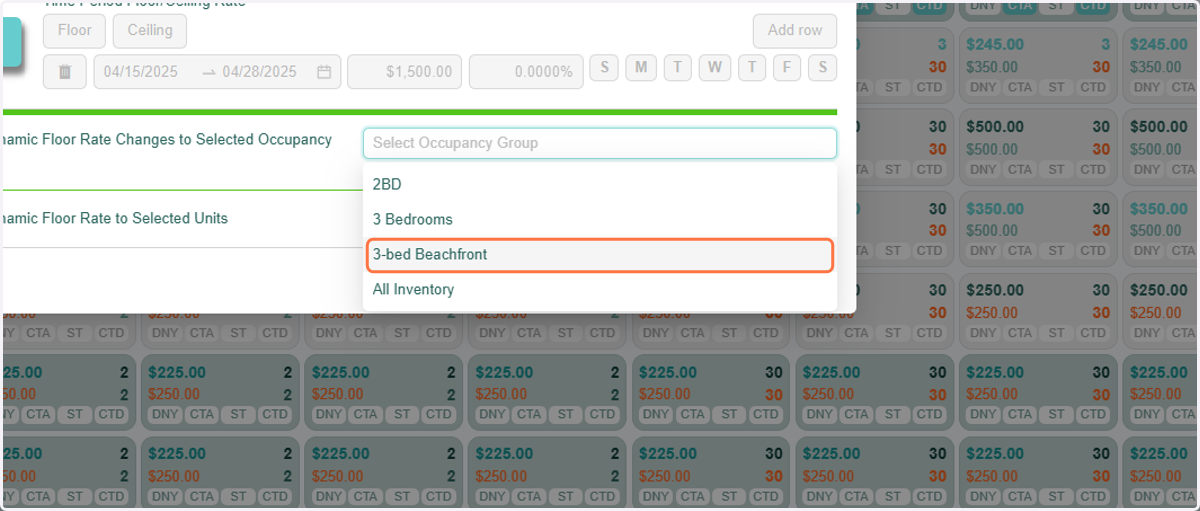
10. Select the Occupancy Group you want the changes applied to.
You can select more than one occupancy group, if needed.
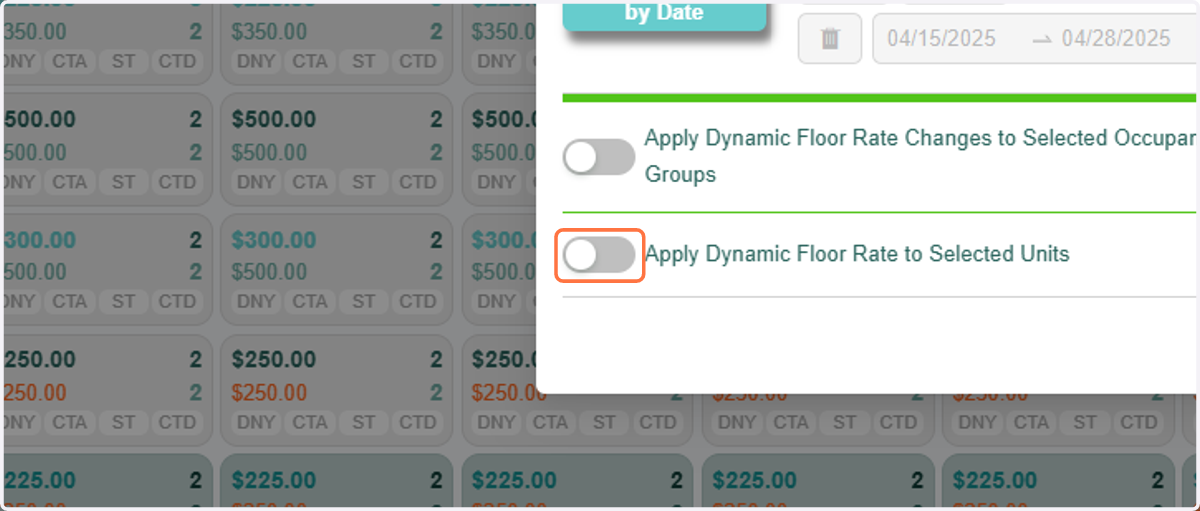
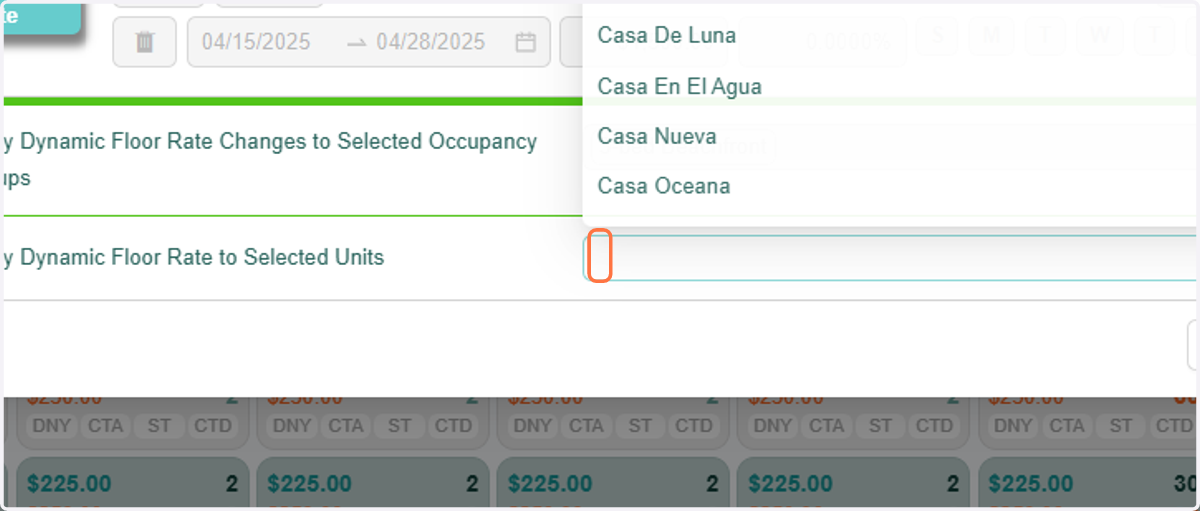
11. To apply the setup/changes you made to Dynamic Floor Rates to selected units, toggle on the switch beside the option.
12. Select the units you want the changes you made applied to.
You can select more than one unit.
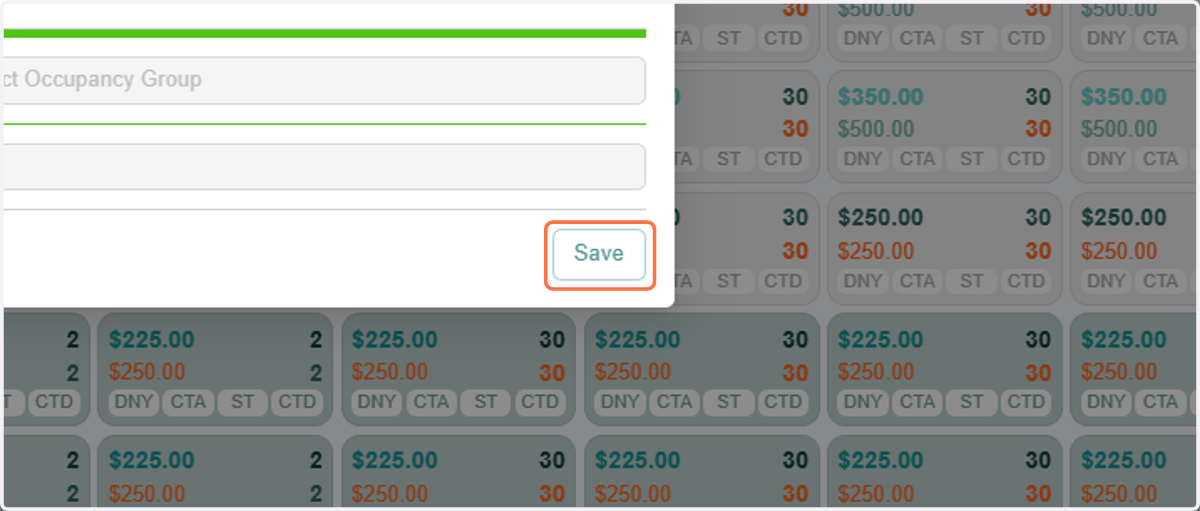
13. To apply changes to the selected occupancy group or selected units, click on Save.
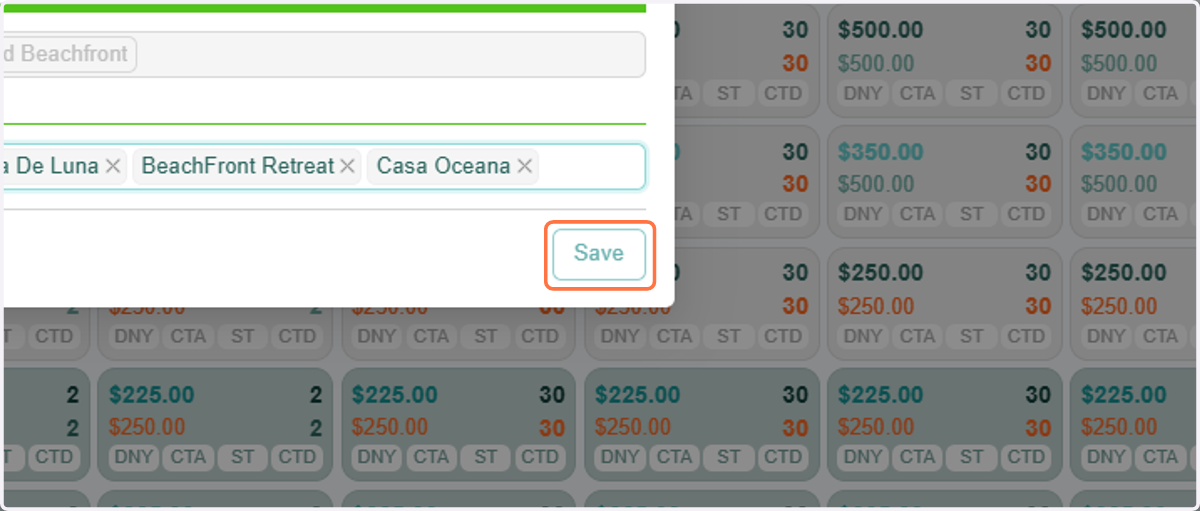
14. Click on Save to apply changes made.