How to Add Mapped Fields to Proposal Content

FollowUpCRM

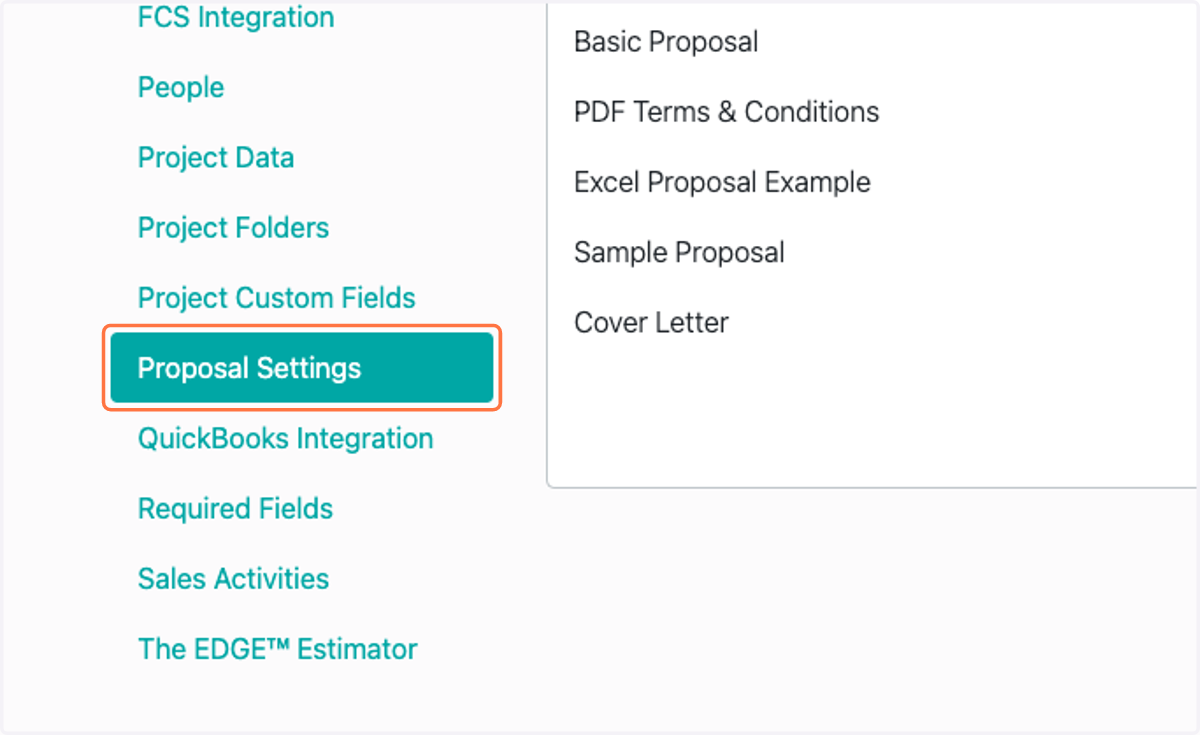
  1. 1. Click on Proposal Settings

    Click on Proposal Settings
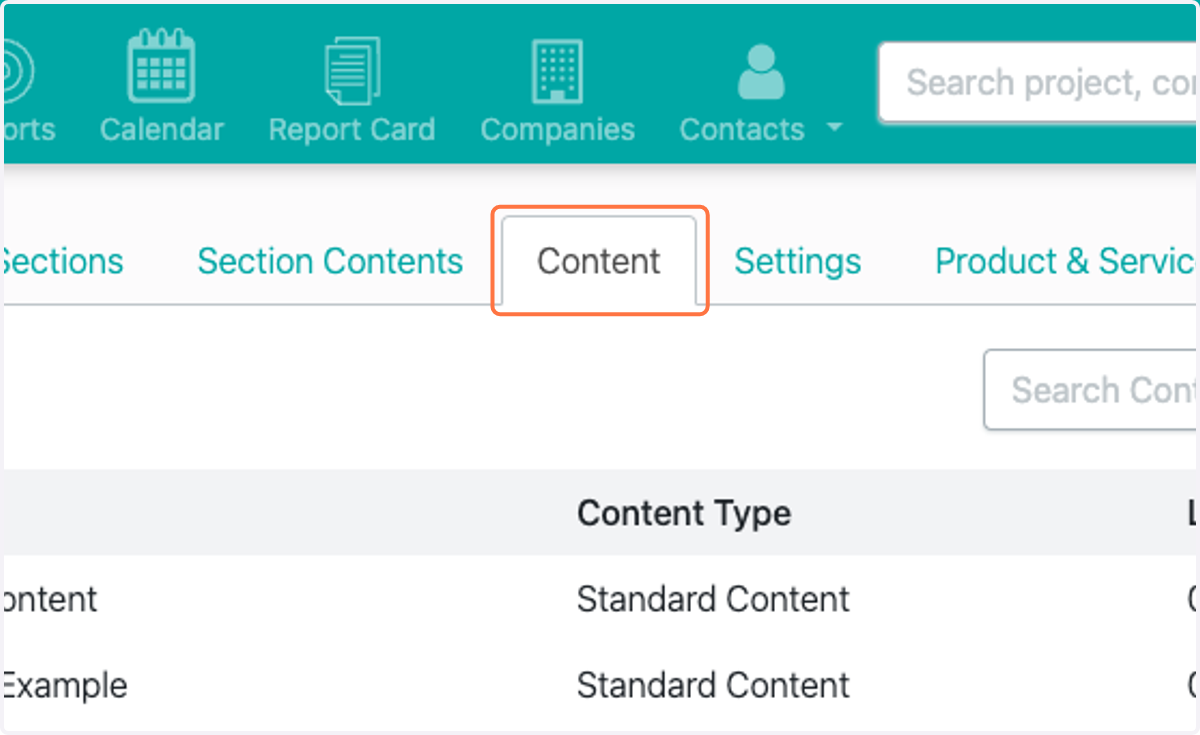
  2. 2. Click on Content

    Click on Content
  3. 3. Select the piece of content you would like to edit
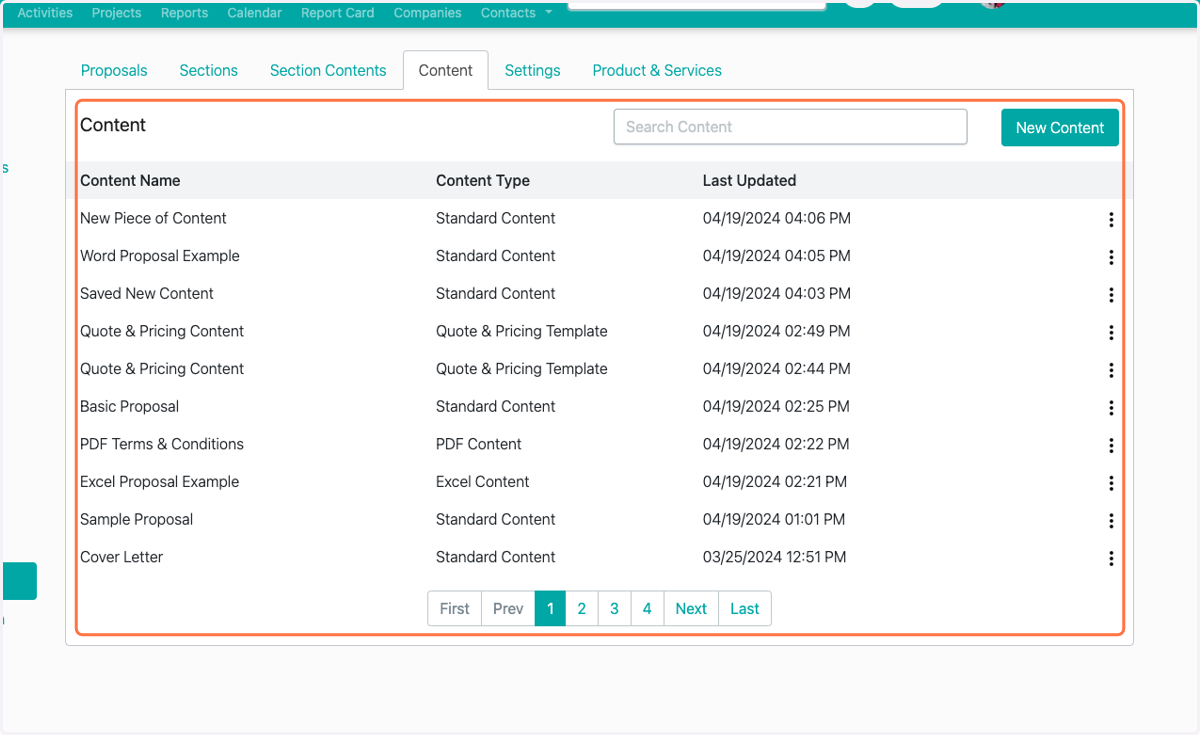
    Select the piece of content you would like to edit
  4. 4. Click on dropdown trigger and Manage
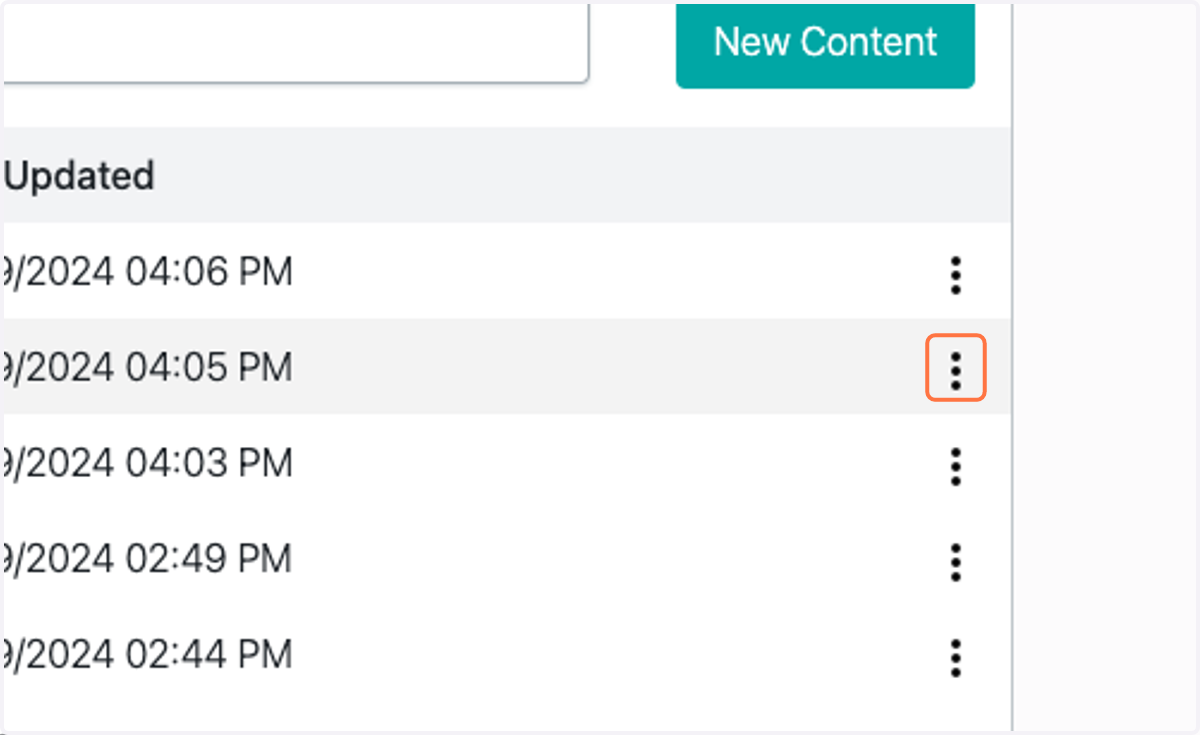
    Click on dropdown trigger and Manage
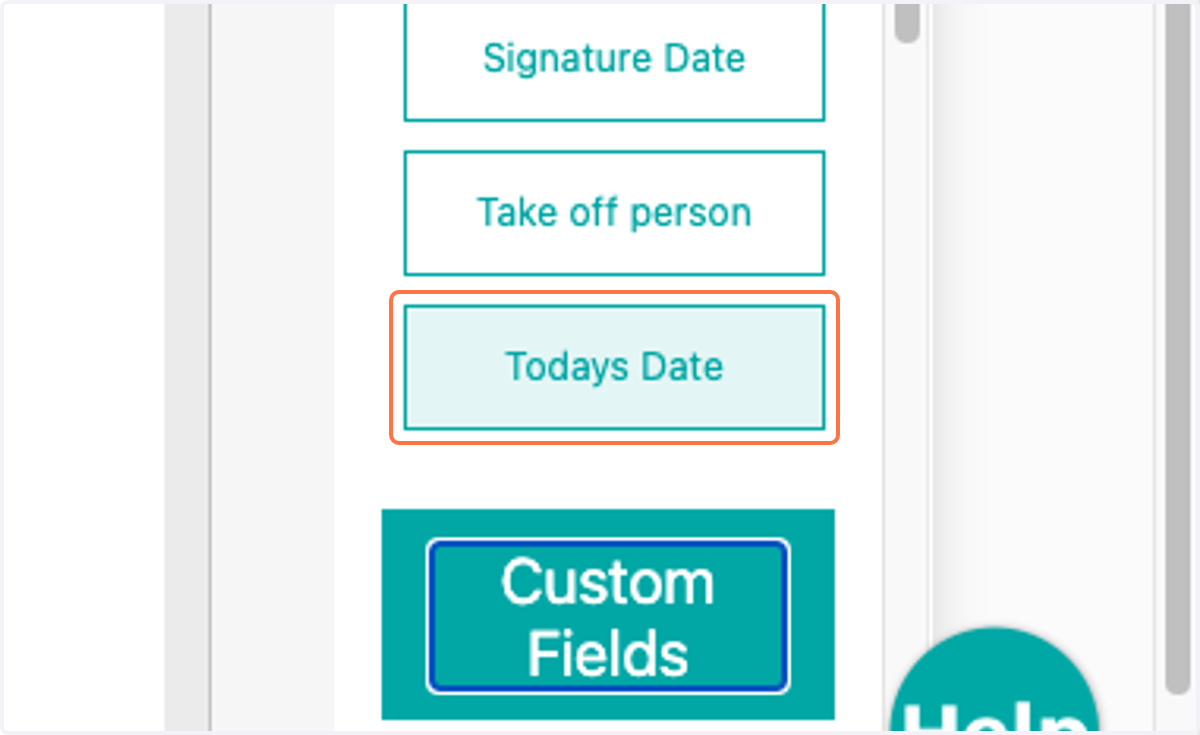
  5. 5. Select from the Fields section any items you would like to automatically pull in information from the project page
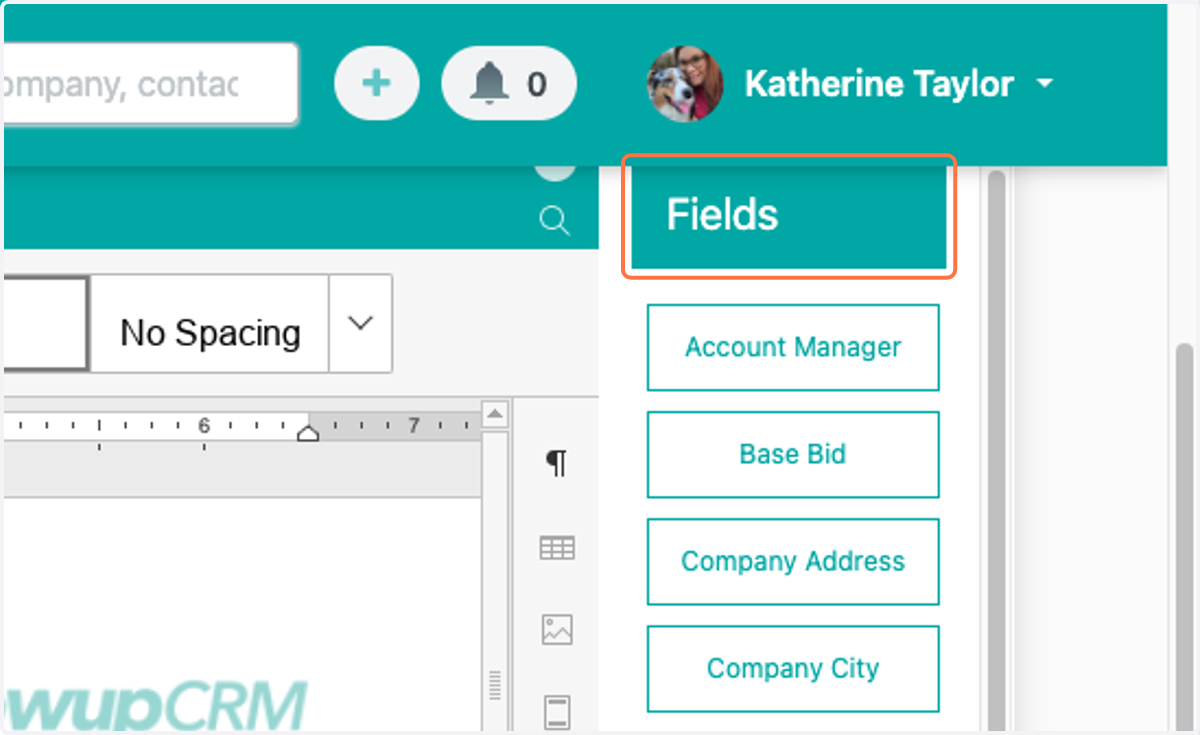
    Select from the Fields section any items you would like to automatically pull in information from the project page
  6. 6. Custom Fields are also available to be mapped
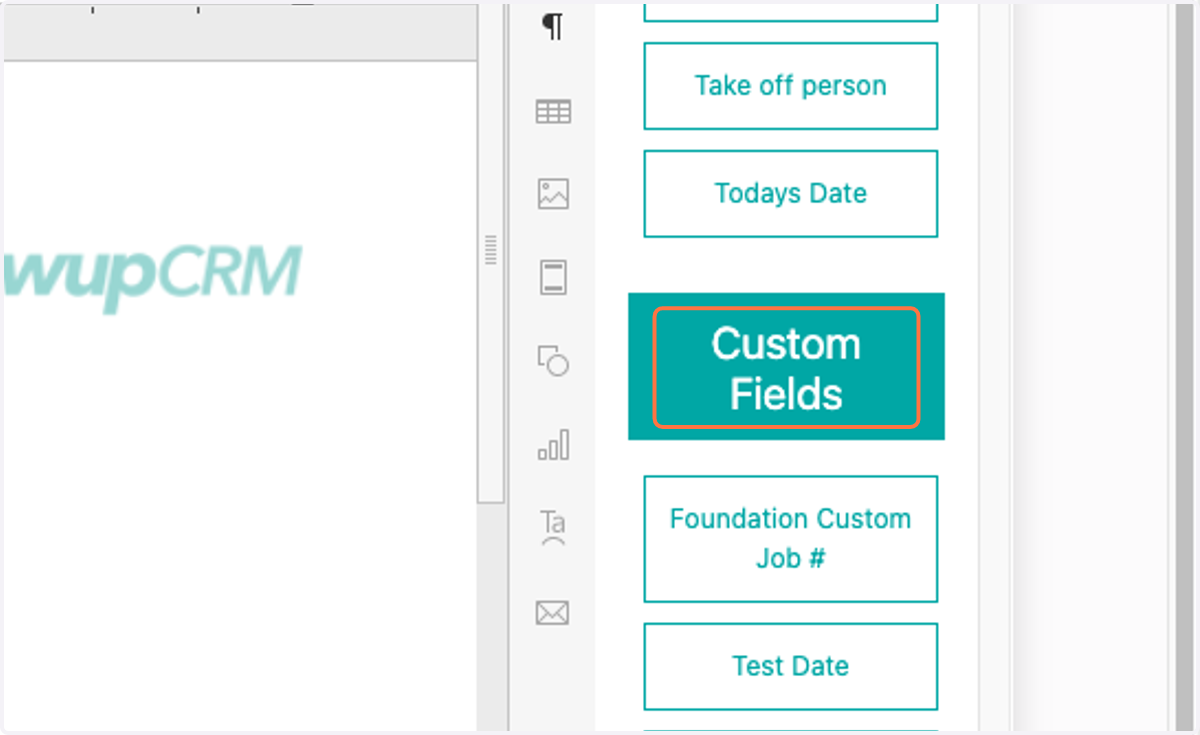
    Custom Fields are also available to be mapped
  7. 7. Click to add to the document

    Click to add to the document
  8. 8. Any items in double brackets}} are mapped fields
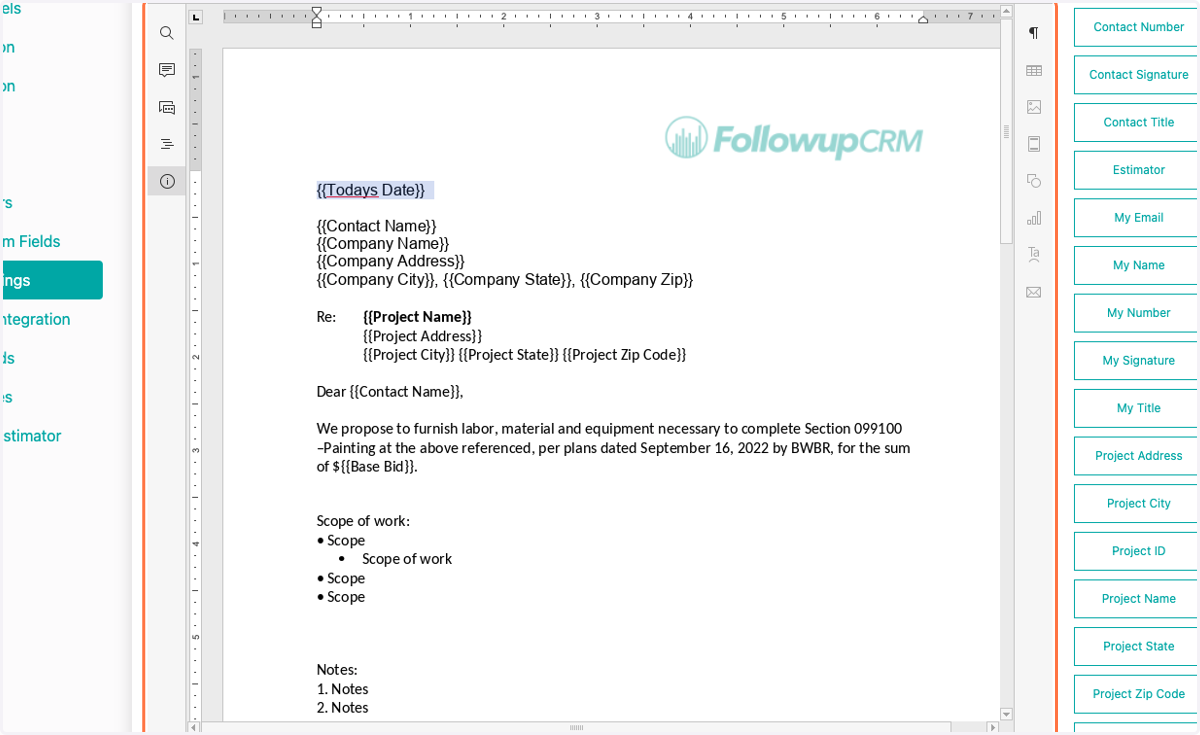
    Any items in double brackets}} are mapped fields
  9. 9. Use Contact Signature if you would like a digital signature from the client
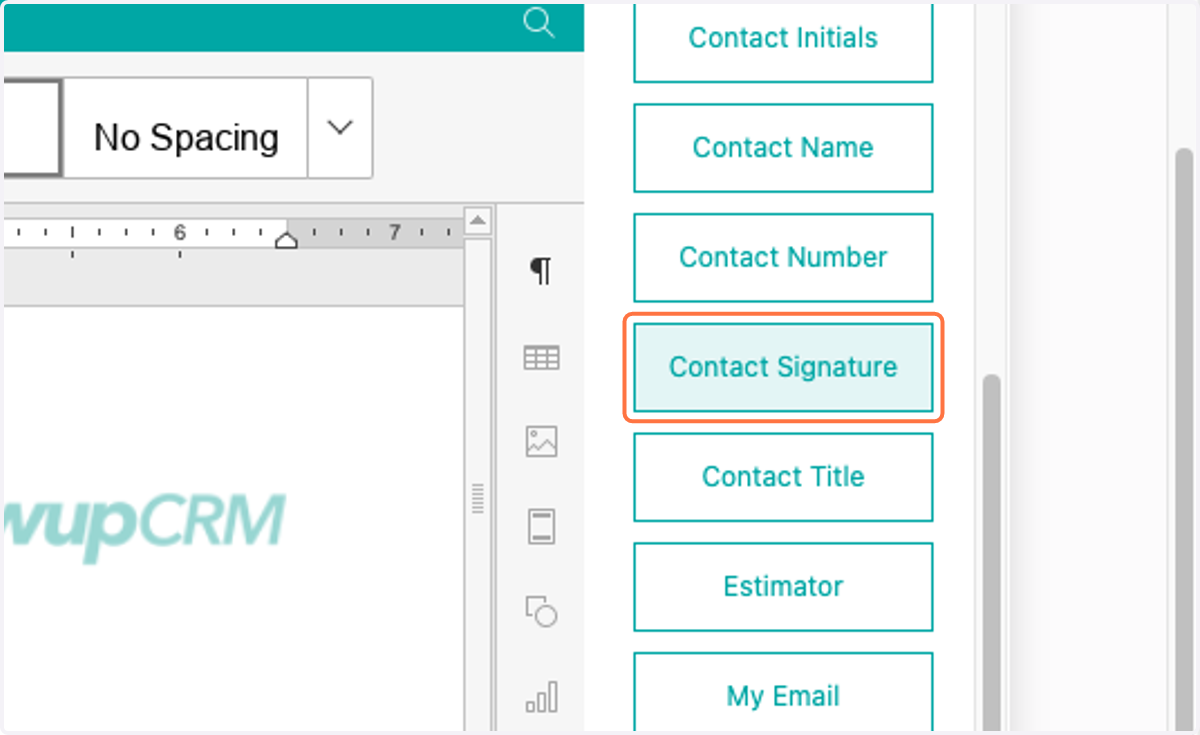
    Use Contact Signature if you would like a digital signature from the client
  10. 10. Use Signature Date to add the date of client signature
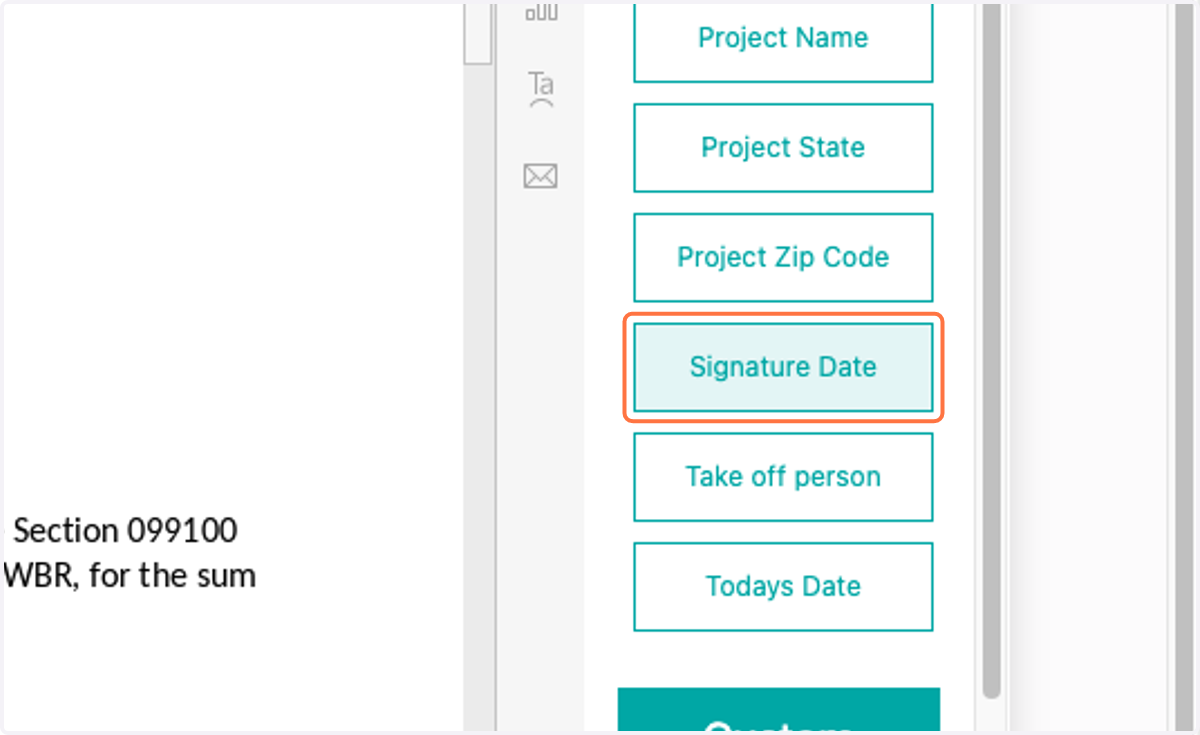
    Use Signature Date to add the date of client signature
  11. 11. Use My Signature to prompt a countersignature
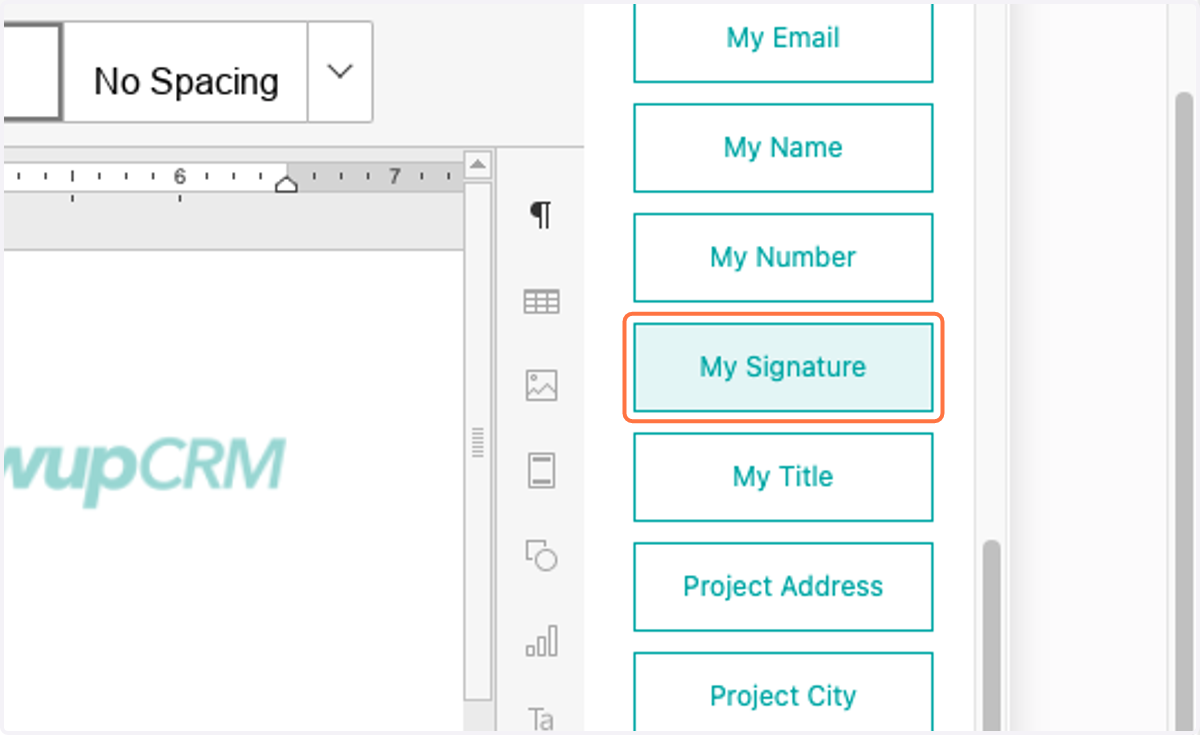
    Use My Signature to prompt a countersignature
  12. 12. My fields (email, name, number, title) will populate the information of the person creating the proposal
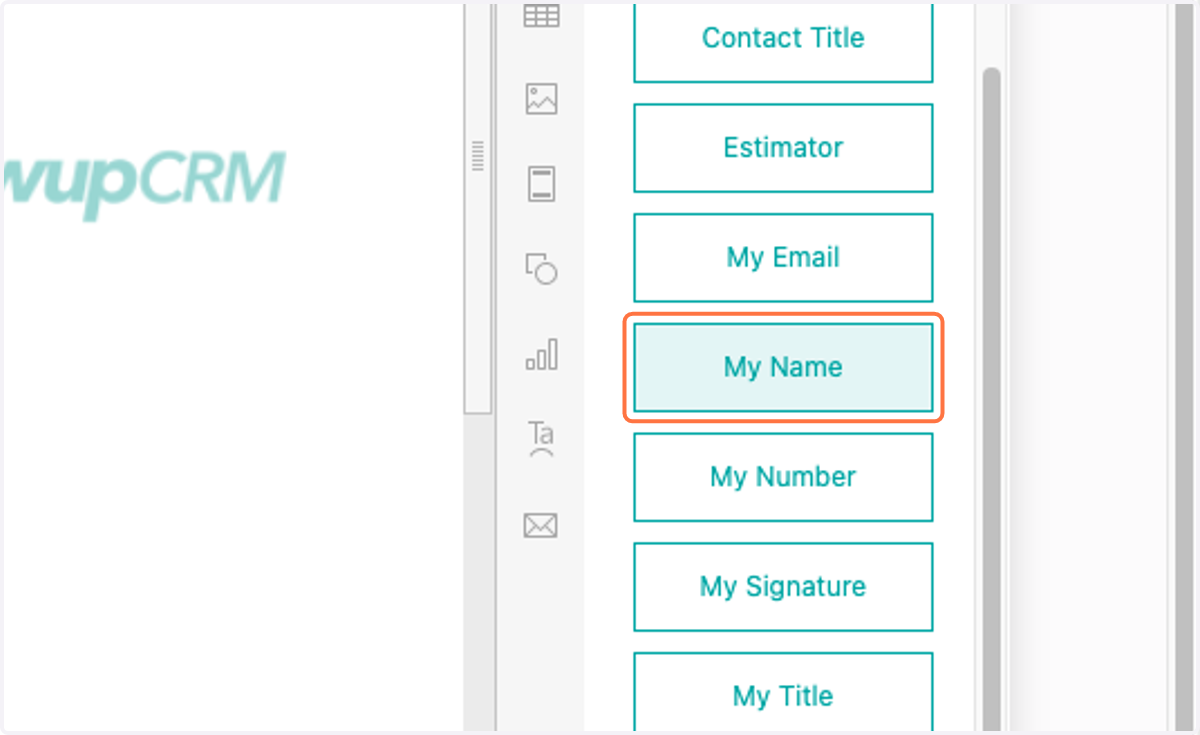
    My fields (email, name, number, title) will populate the information of the person creating the proposal