Allocate and Approve Invoice in BV Marketplace
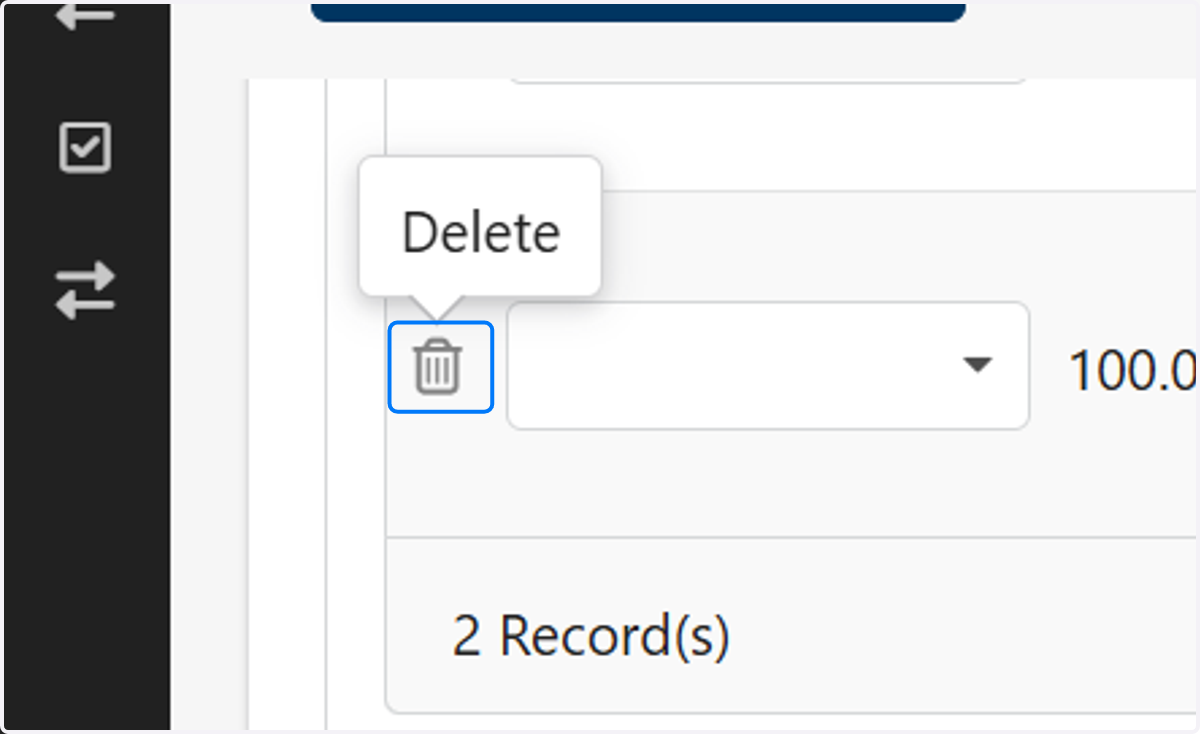
1. Click on the delete button next to the allocation line you would like to allocate
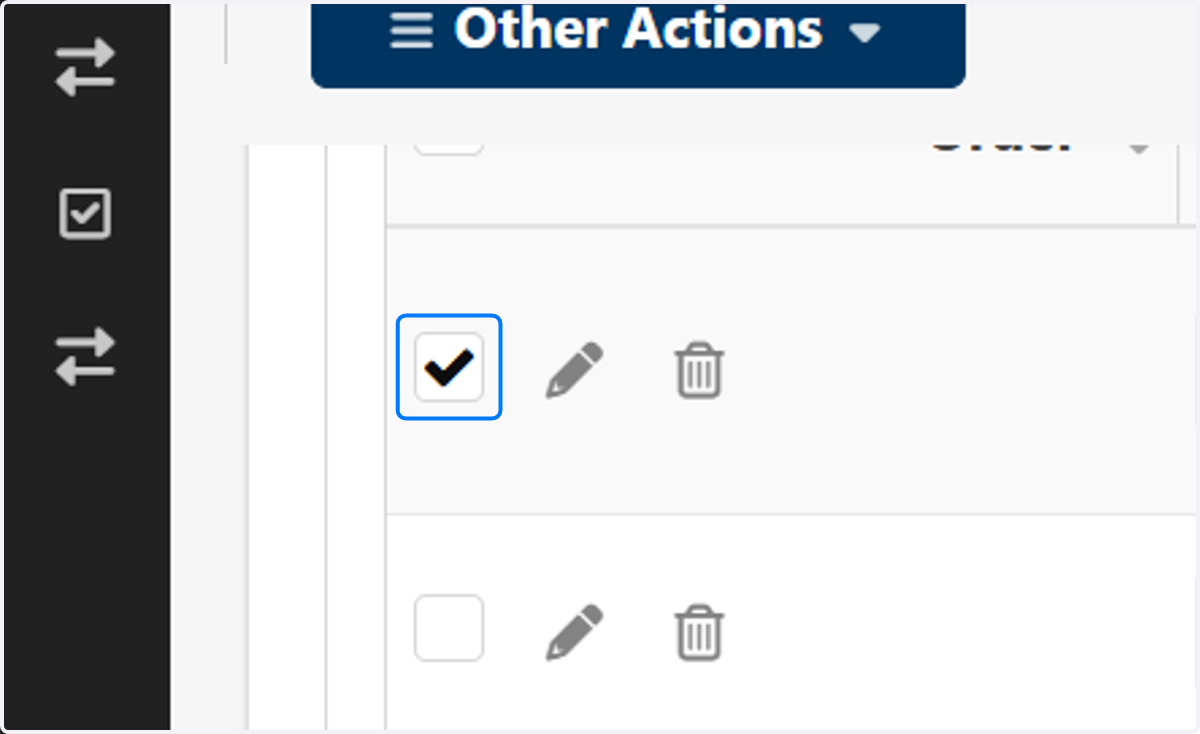
2. Check Select checkbox on the item you would like to allocate to more than 1 GL
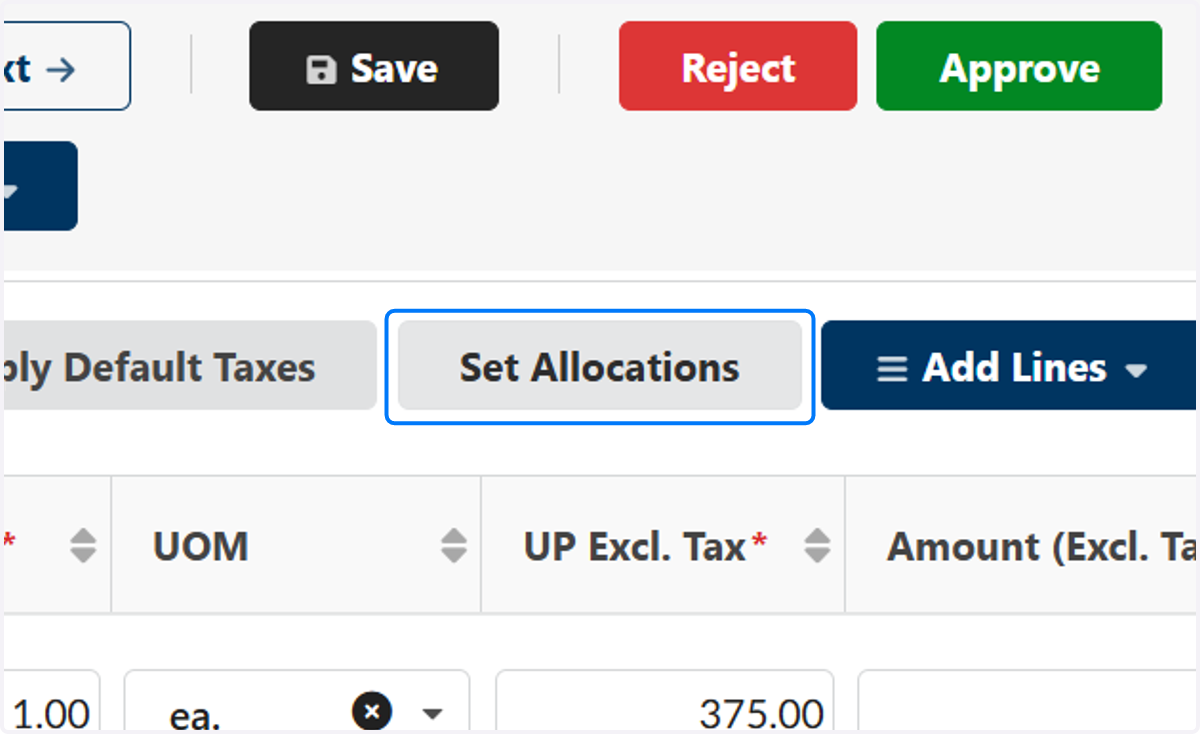
3. Click on Set Allocations
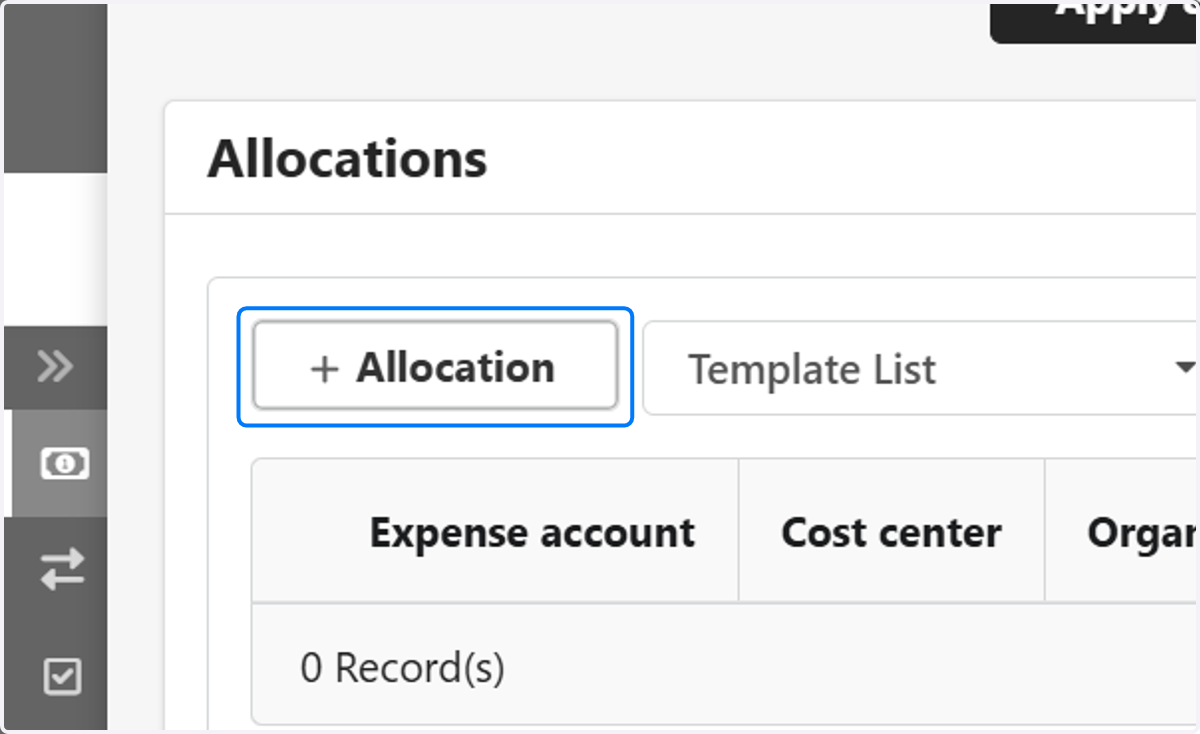
4. Click on + Allocation the amount of times you would like to allocate the line item
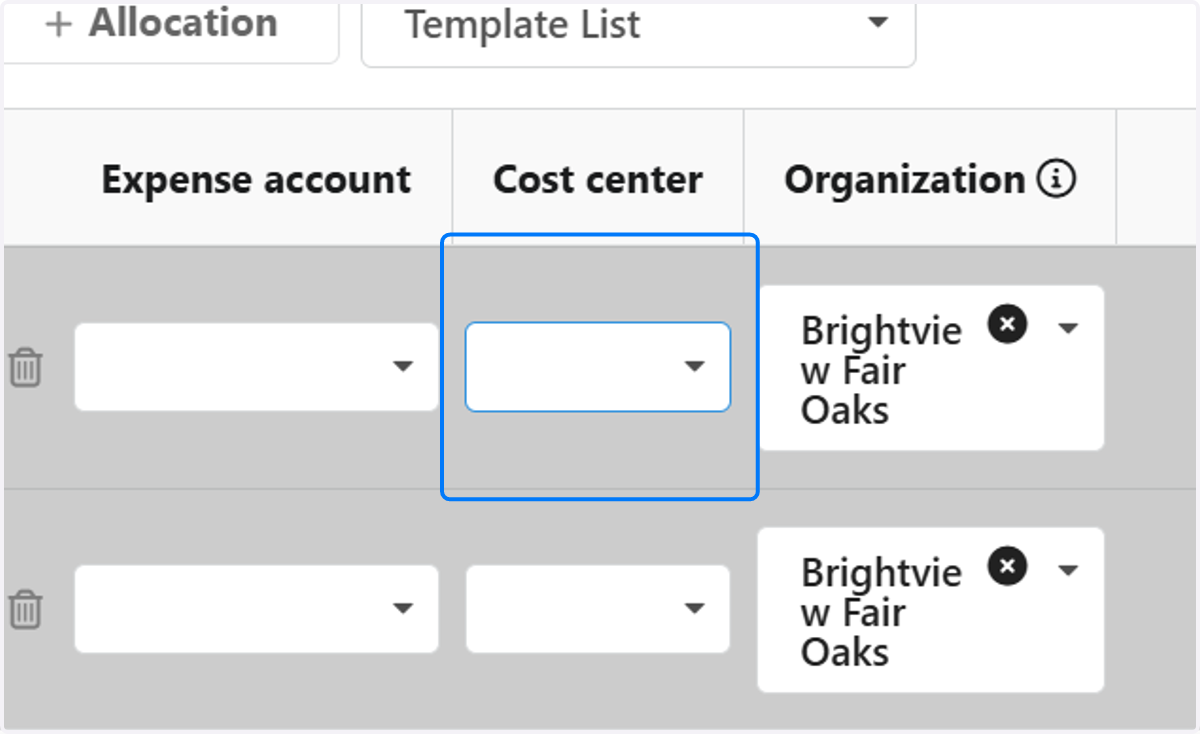
5. Enter Cost Center on each allocation make sure the Cost Center on this line matches what is on the invoice
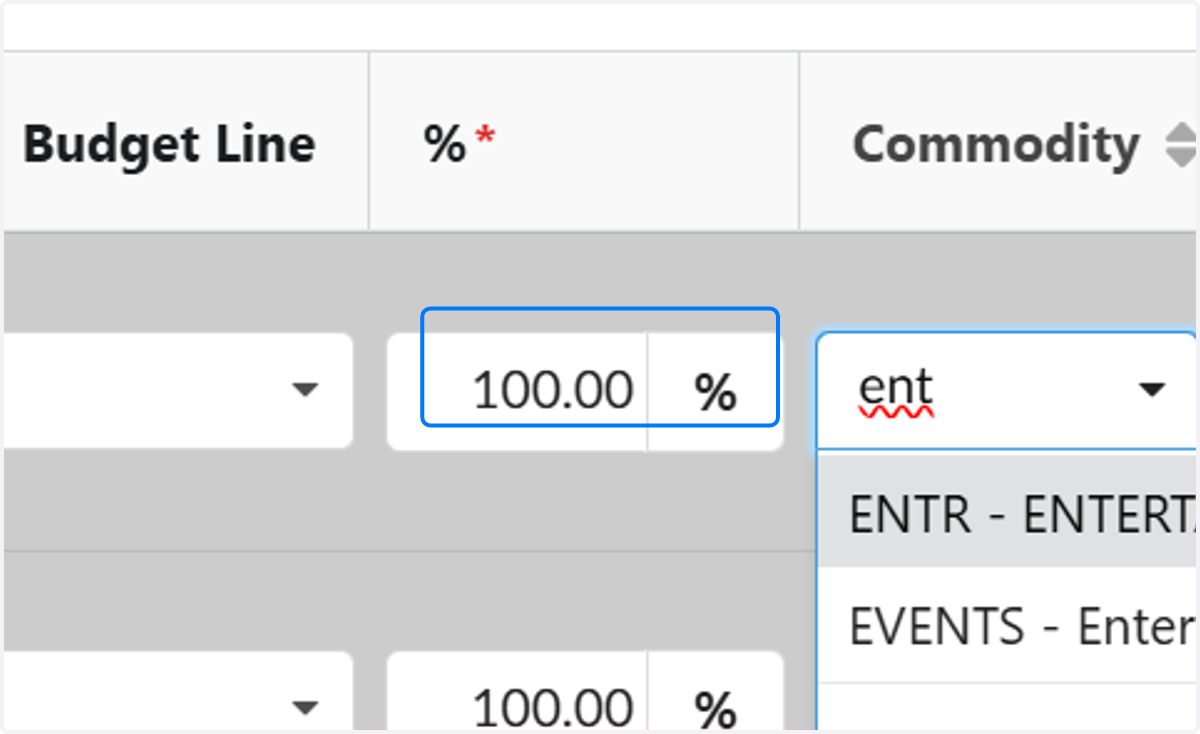
6. Enter the Commodity for each allocation
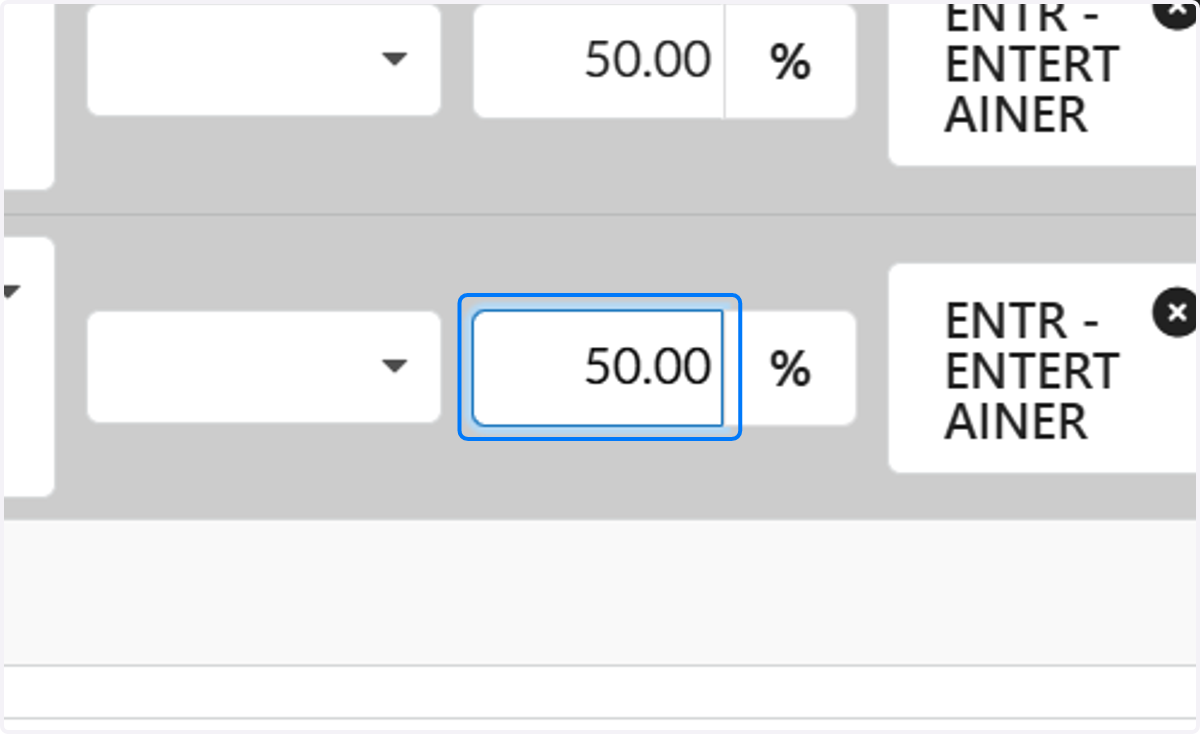
7. put the allocation as 50% if two lines
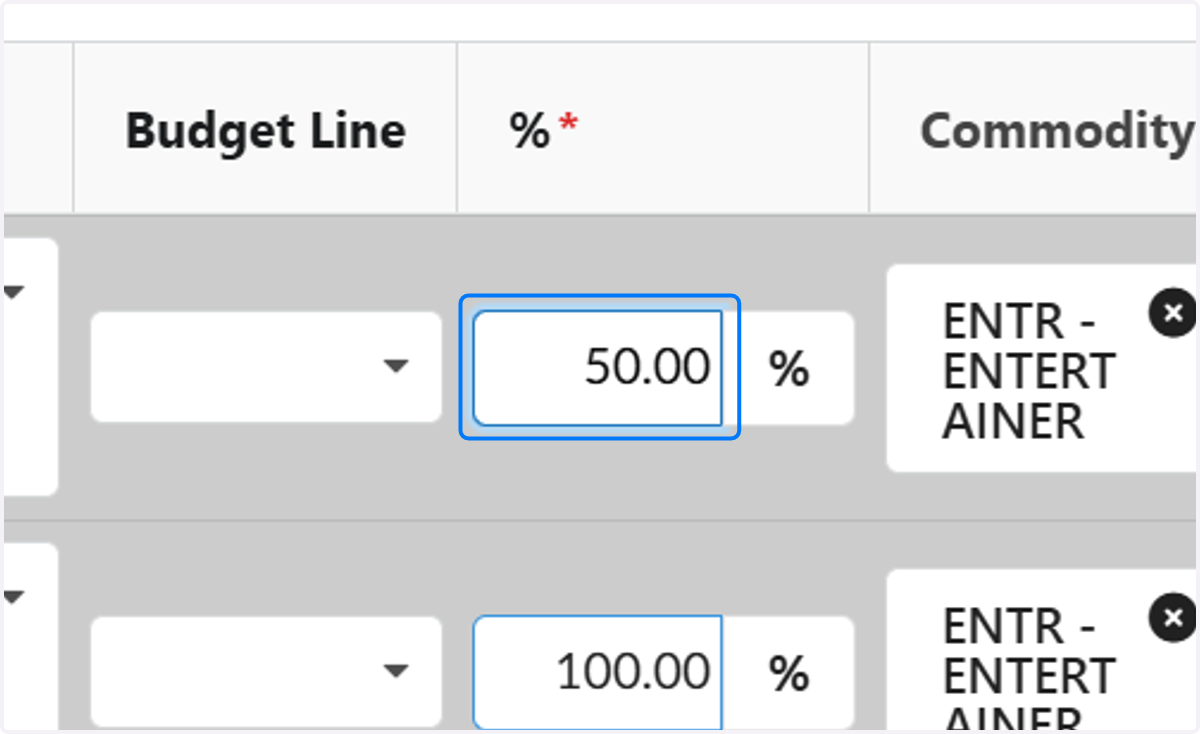
8. Type "50.00"
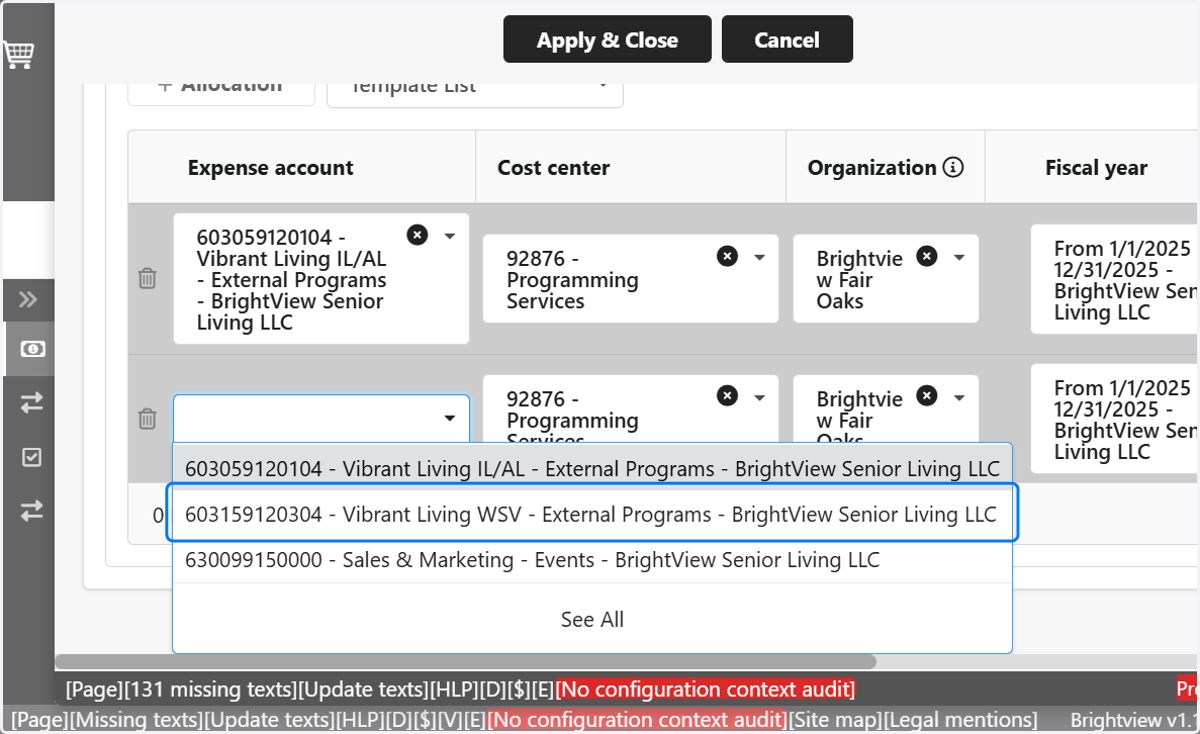
9. Add in the GL code for each allocation
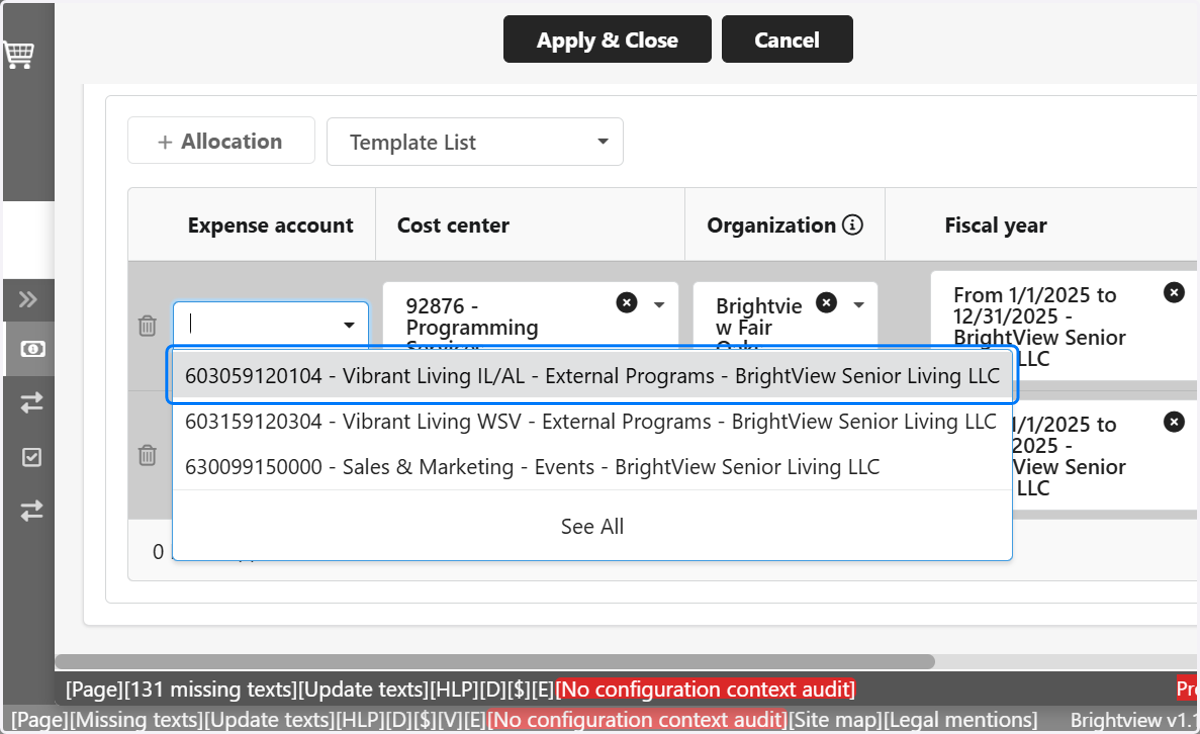
10. Add in the GL code for each allocation
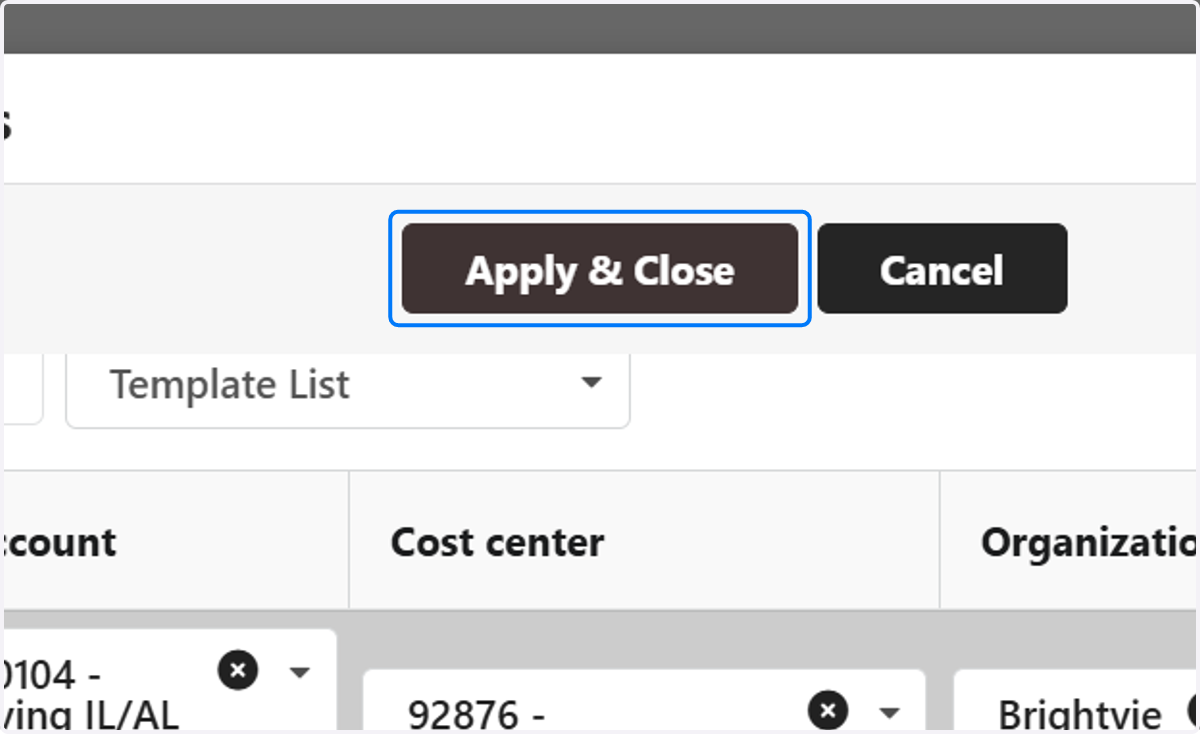
11. Click on Apply & Close
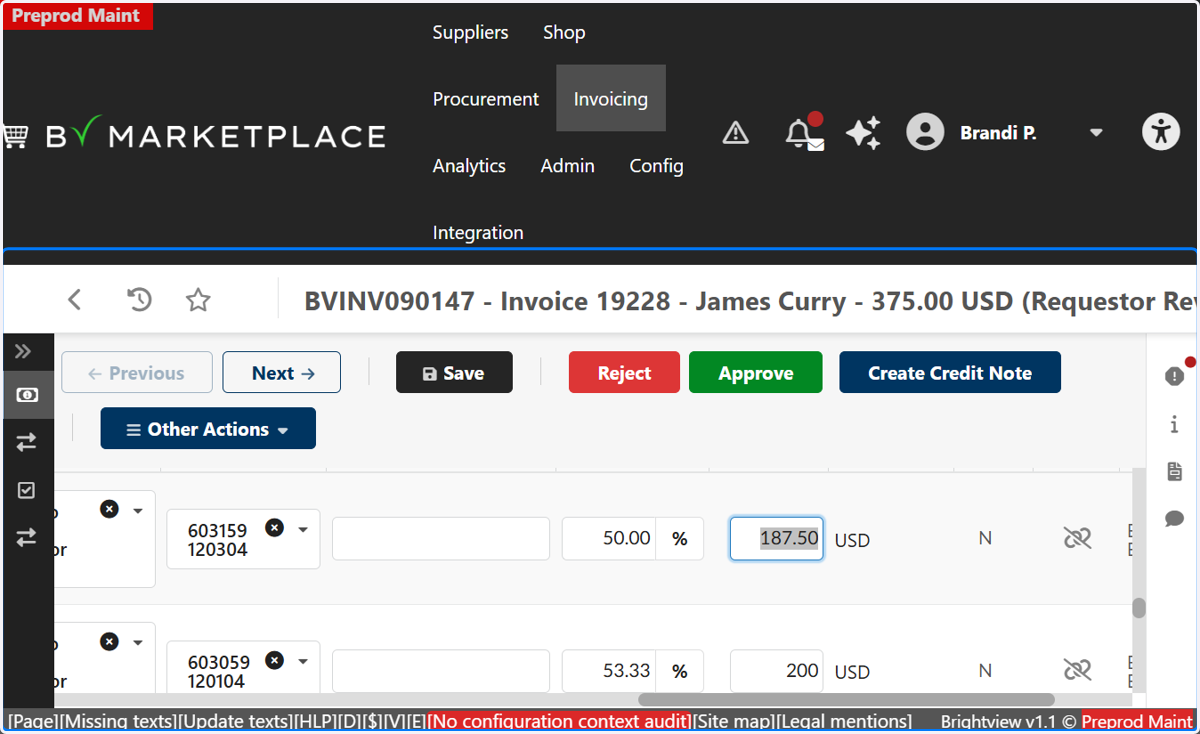
12. Change the allocation dollar amount under allocations if needed. Make sure all allocations equal total amount of the line item exactly
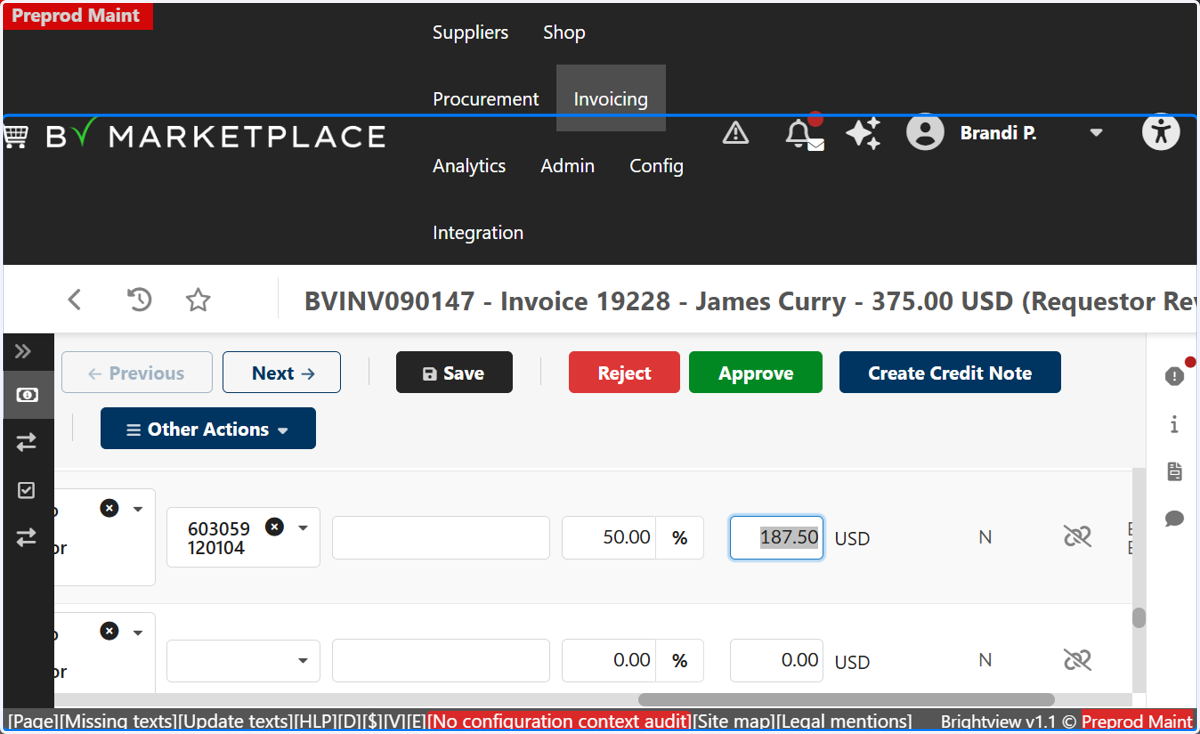
13. Change the allocation dollar amount under allocations if needed. Make sure all allocations equal total amount of the line item exactly
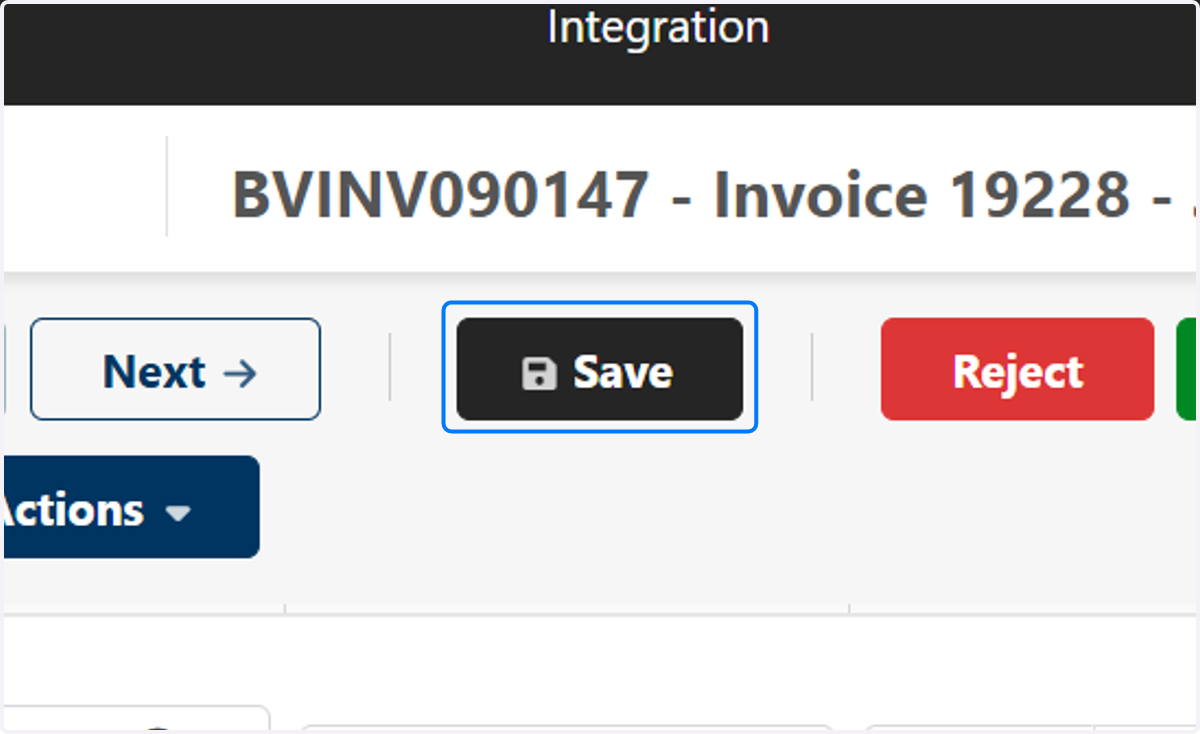
14. Click on Save
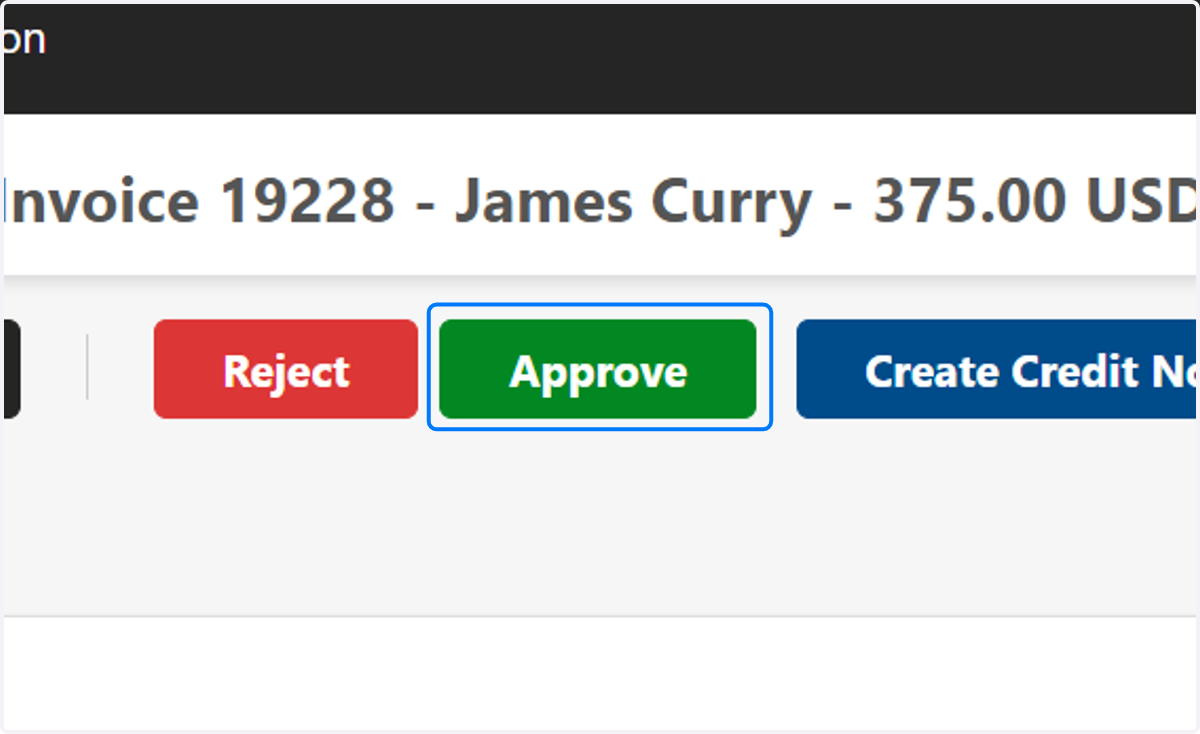
15. Click on Approve