Creating a New Project in the System
Learn how to create a project in QScan for more advanced QC configuration.
If you've used Quick Analysis, you may have felt limited in your ability to choose watchfolders as inputs or control specific features.
Projects let you create automated jobs based on watchfolders with customized actions based on results. You can also personalize PDF report layouts and manually add set thresholds to existing templates.
Projects offer more control over analysis speed, GPU usage, simultaneous file analysis, node selection, and report storage options. Here's how to create one.
localhost:8080
1. When you are in the main screen http://localhost:8080
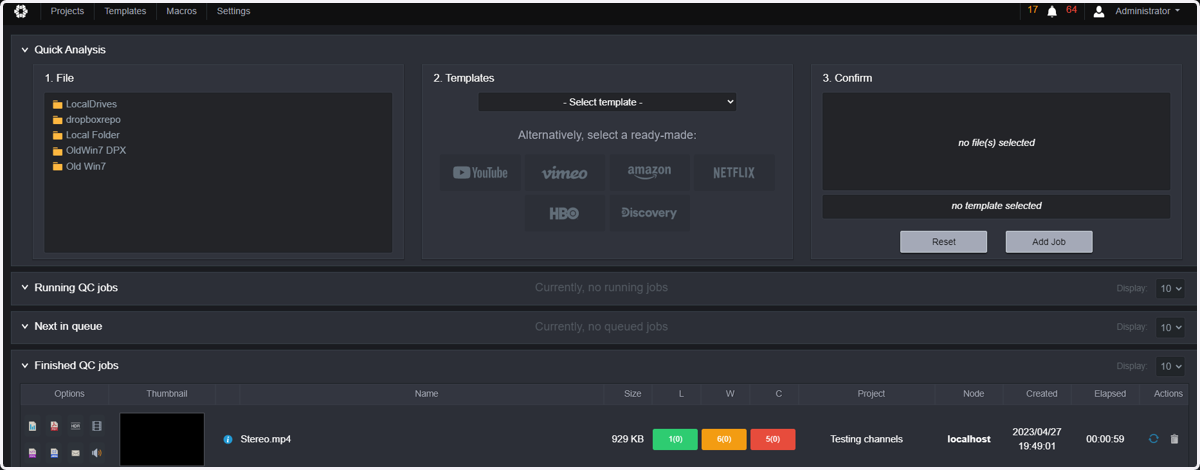
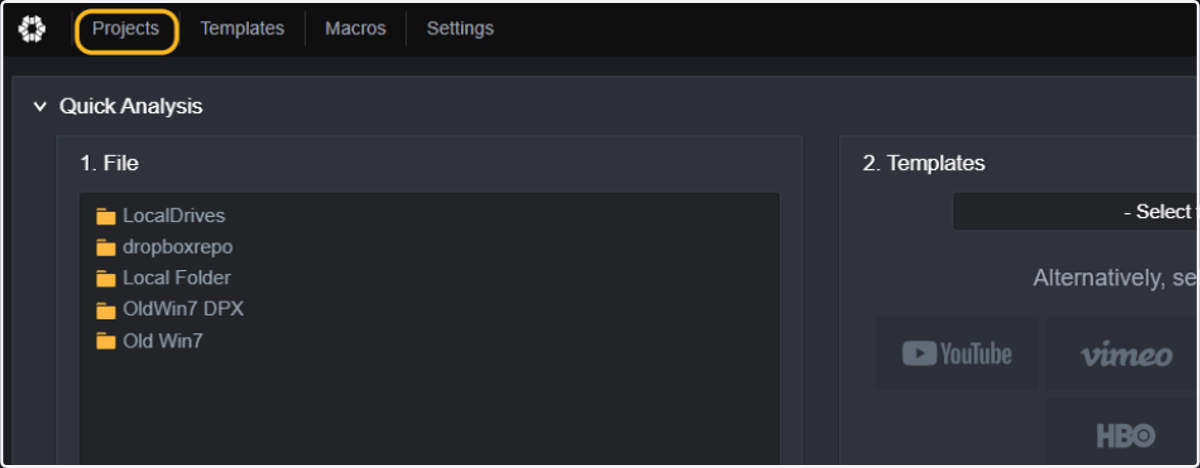
2. Click on Projects
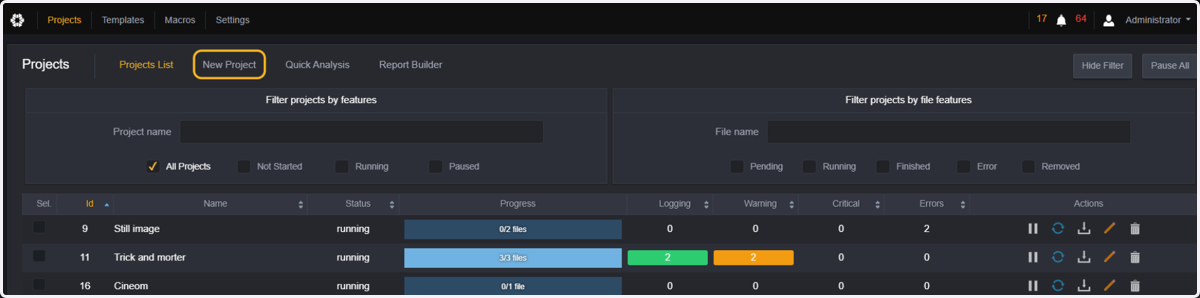
3. Click on New Project
4. Type in the Project Name of your choice.
All files analyzed in this project will be available in the project page for this project and they will all be analyzed using the same configuration options, same template, and same reporting options
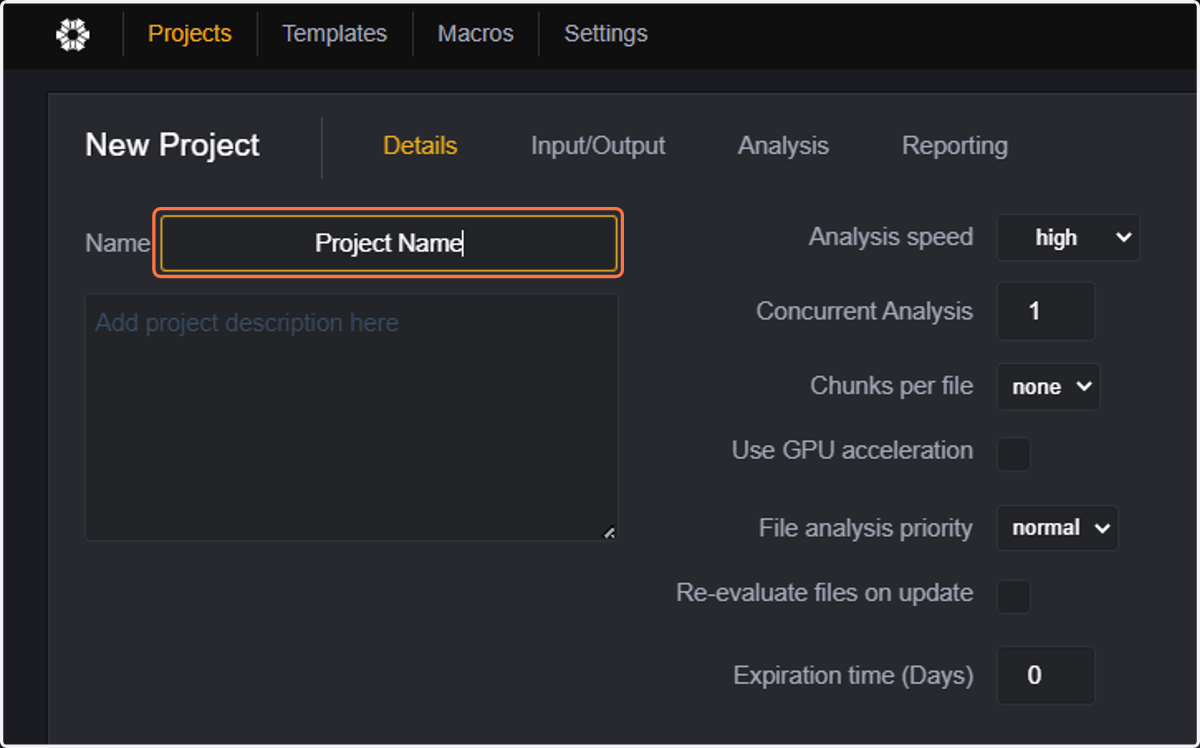
5. Select the Analysis speed
The analysis speed configures the amount of CPU that will be used when analyzing files in QScan. As indicator (although it will also depend on the file format) when using an 8 Core machine:
Low: will be using around 10-20% of your CPU
Medium: will be using around 50% of your CPU
High: will be using between 80% and 100% of your CPU
Very high: only intended for 12 core machines or higher. Optimized for J2K files.
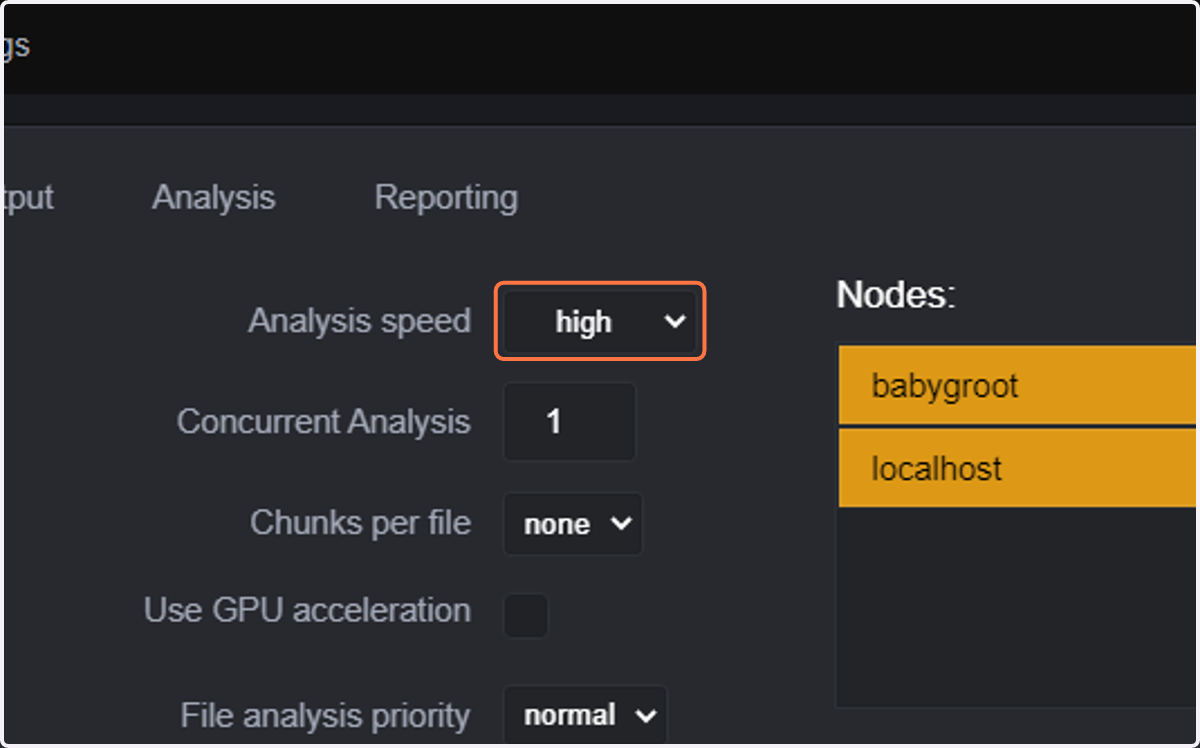
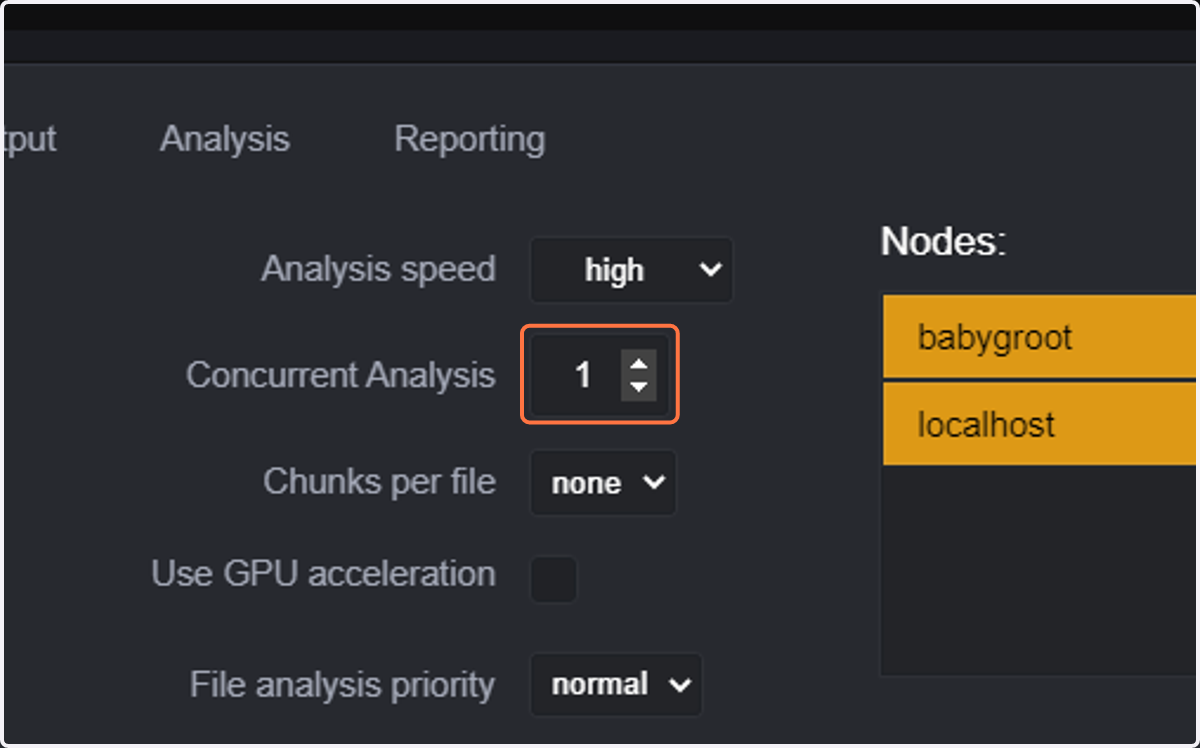
6. Select the number of concurrent files to be analyzed within this project. Note: if your license only allows one file at a time, you can only analyze one file after the other.
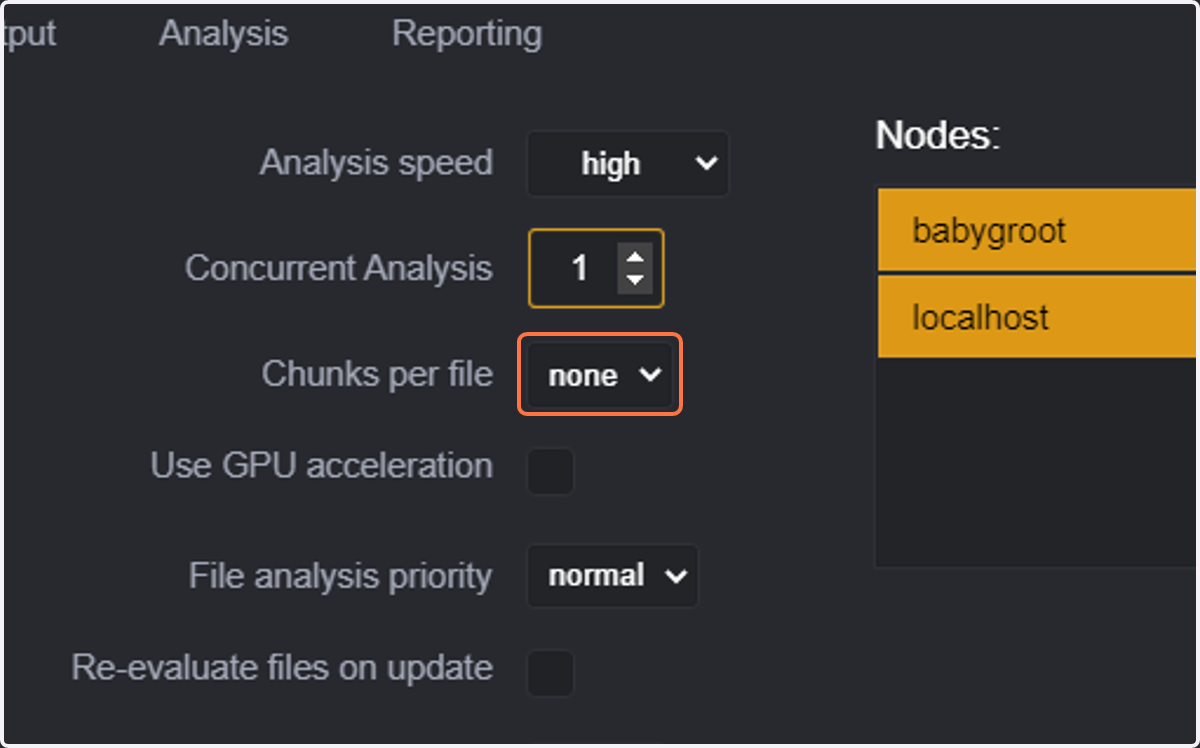
7. Select the number of chunks
Chunk based analysis allows splitting the files into sections so they can be analyzed in parallel, thus utilizing your CPU more efficiently.
Note: this is only suitable for use when you have a spare CPU when analyzing one file without chunks.
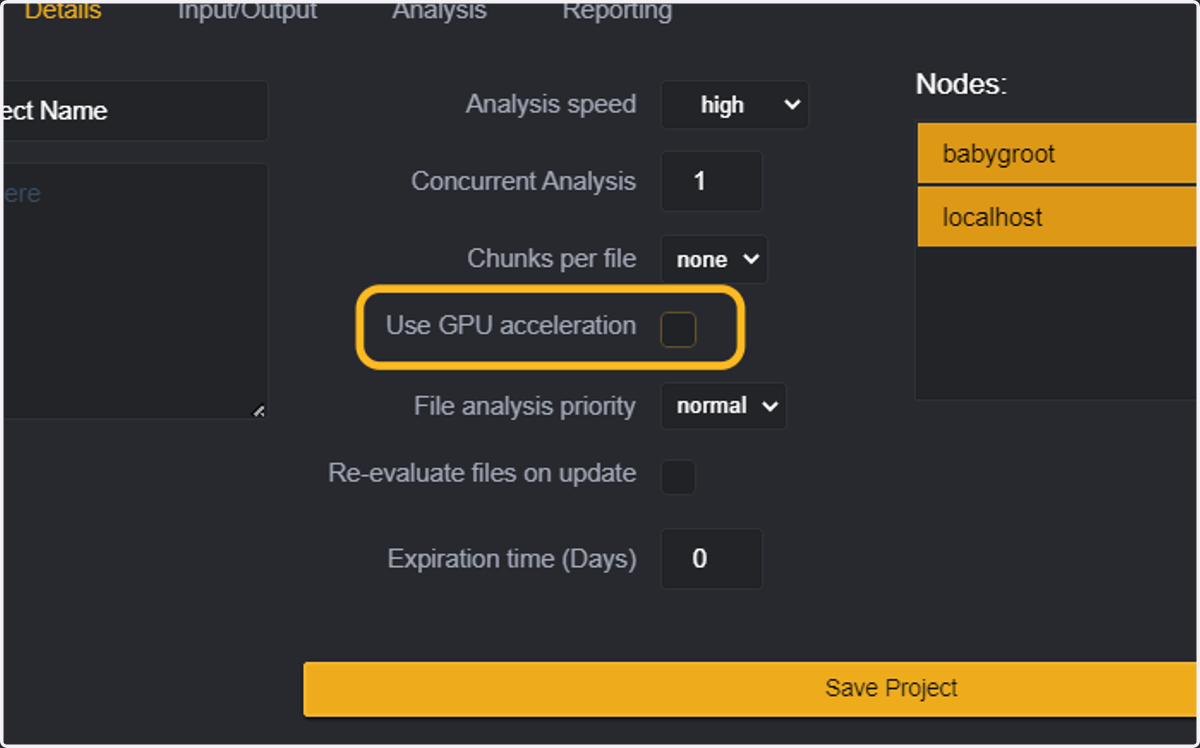
8. Select wether you want to use GPU acceleration. The GPU acceleration will use your GPU for some internal processing tasks (as of April 2023).
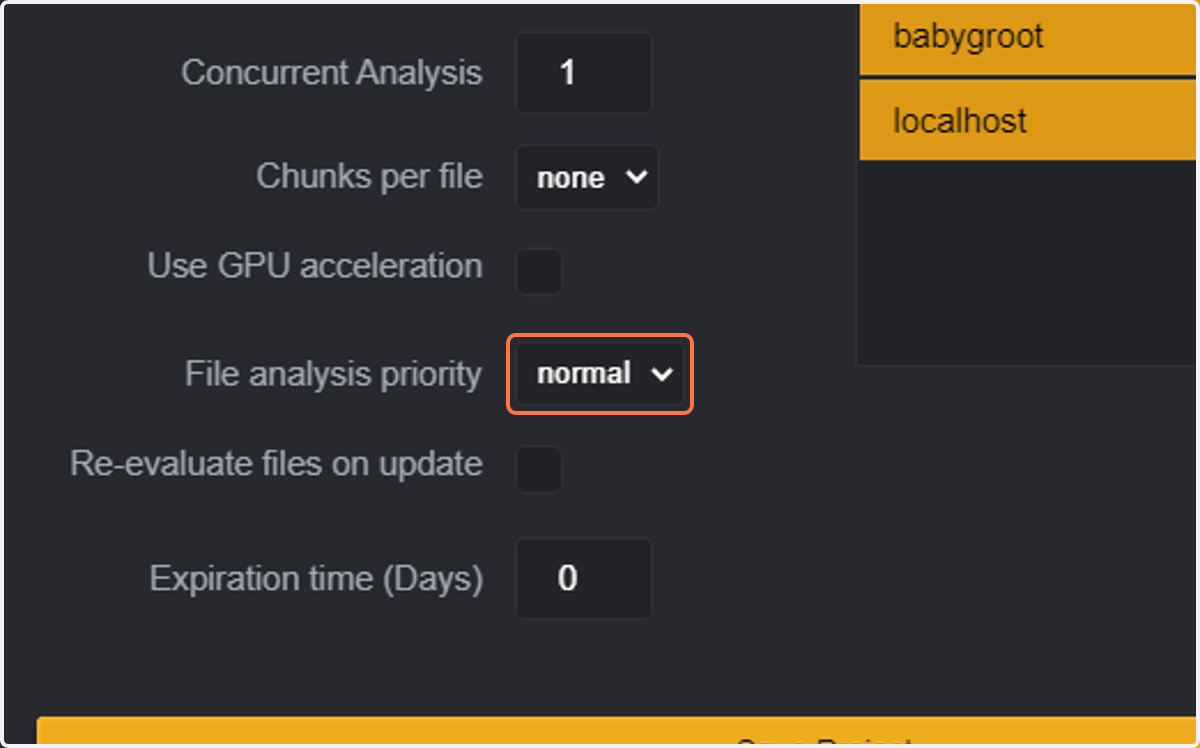
9. Select the File analysis priority.
All files inside this project will be analyzed with the priority indicated in this box.
Priority can then be changed per file once they are queued
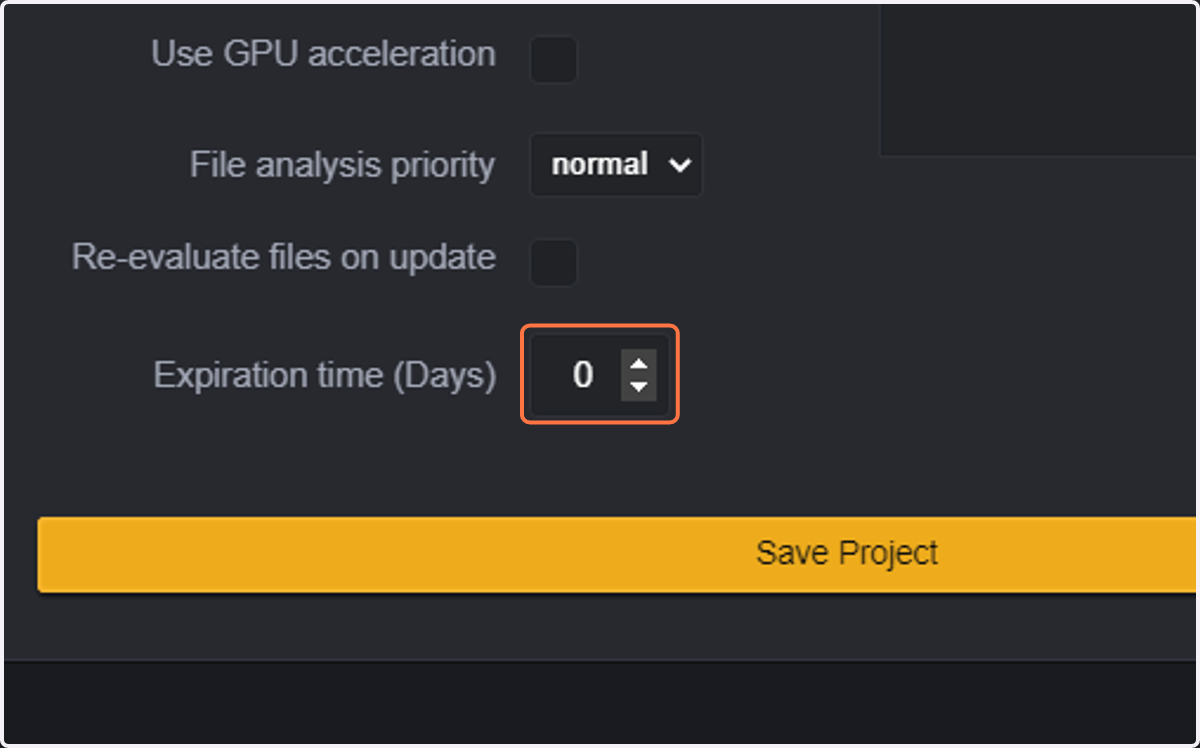
10. Select the Expiration of files in this project
The expiration time will remove all analysis results and references that have not been updated for the number of days indicated in this box. I.E: expiration date of 7 days will mean that all analysis info and file references for files that are older than 7 days, will be automatically removed
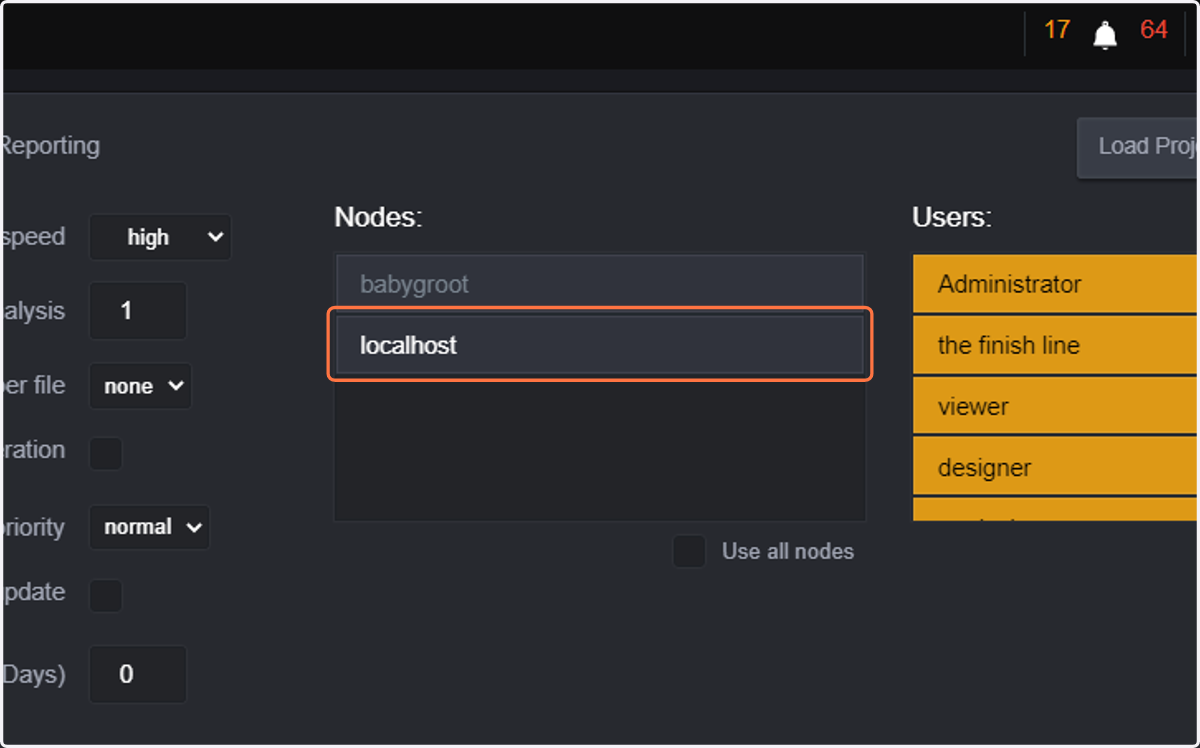
11. Select the node that will be used for analyzing files in this project
QScan One and QScan Pro only allow using one node, so local host will be selected by default.
QScan Max users that have more than one node, and the nodes are correctly configured, will be able to select what node is to be used (or all)
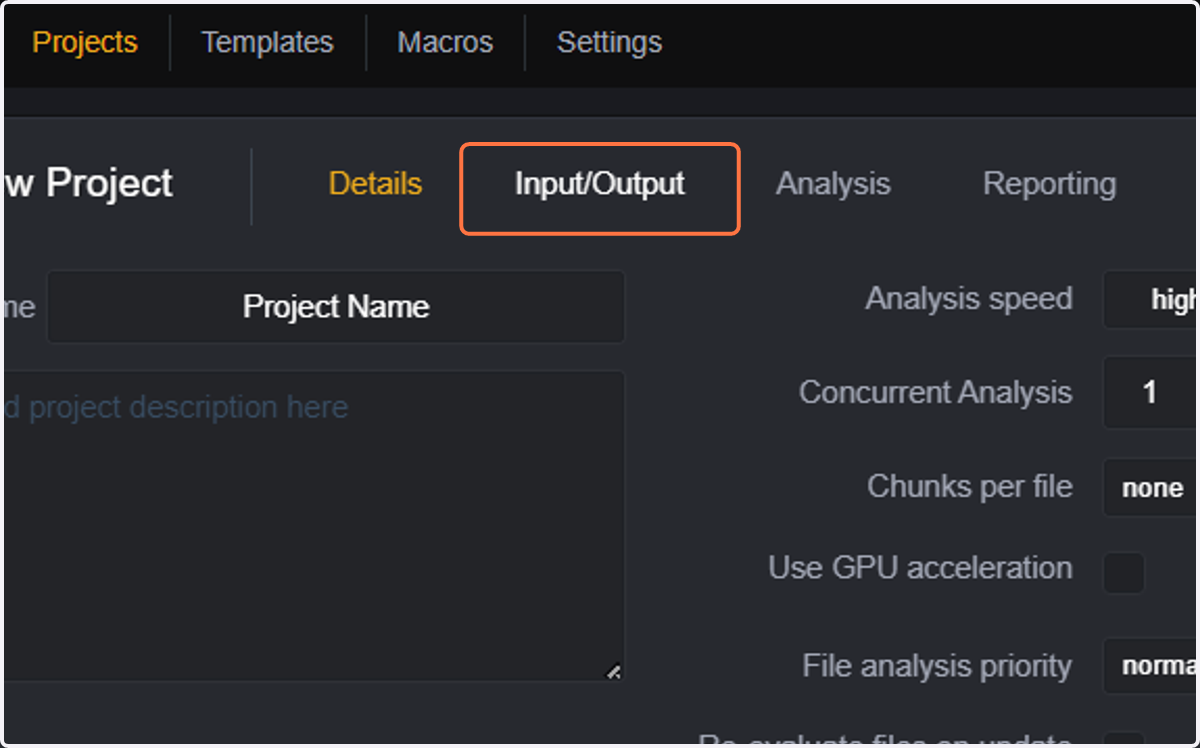
12. Click on Input/Output
Input/Output will allow setting up the files to be analyzed into this project, or configure watchfolders (analyze all files that are copied to the watchfolder)
13. Select the path for your files
You can select from any of the repositories that have previously been configured. Just browse through the repositories and folders inside your repository. For simplicity we will be using the LocalDrives (default) repository
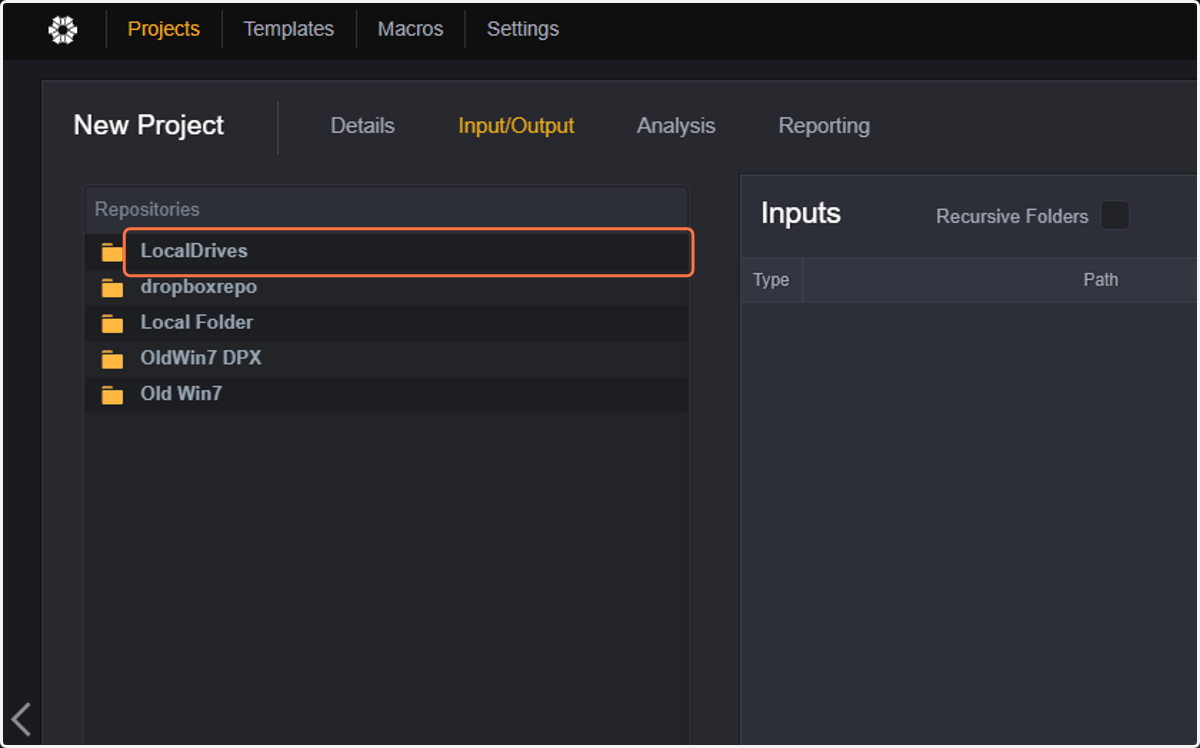
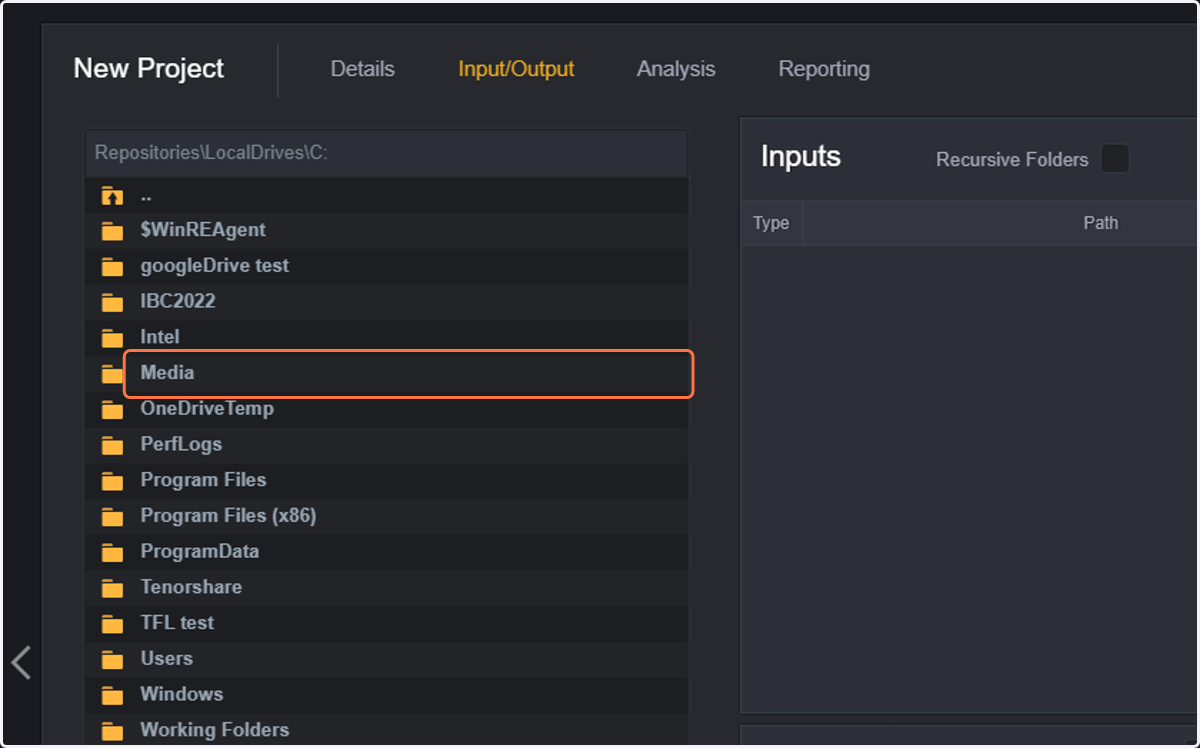
14. Click on the files of your choice or the folder you want to select as watchfolder
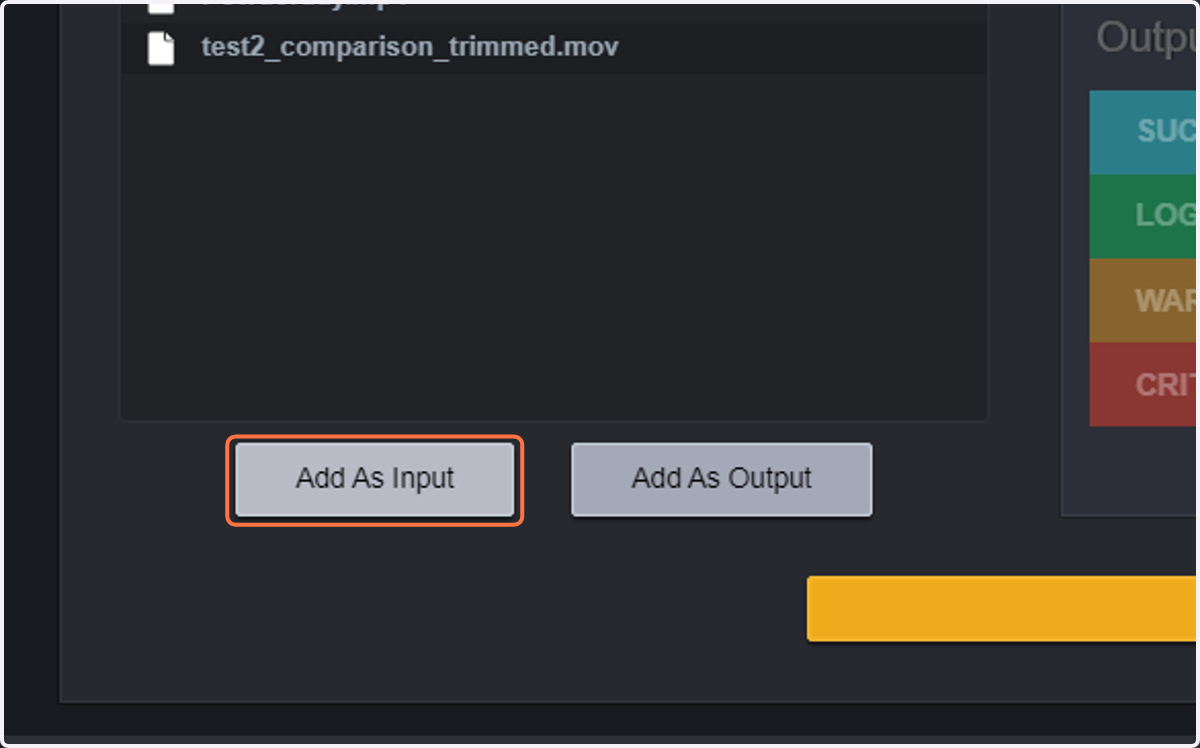
15. If you selected a folder and want to configure as watchfolder click on Add As Input. Note: double click on the folder name also selects the folder as watchfolder
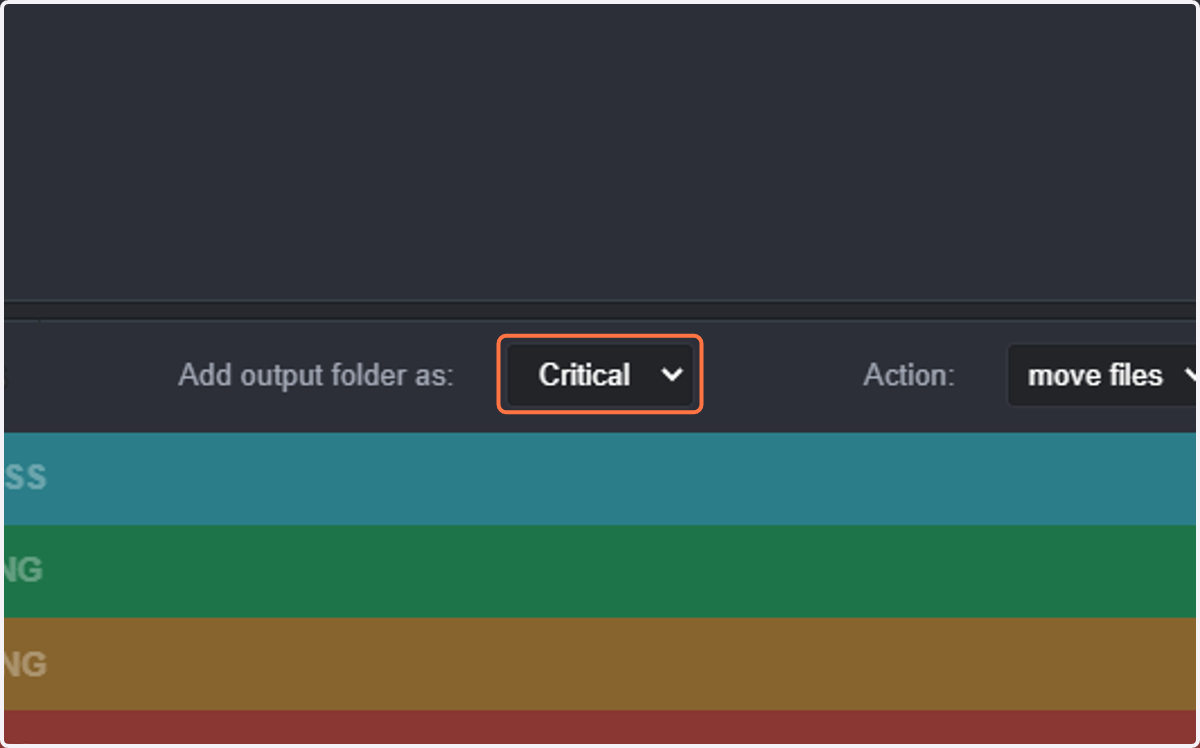
16. You can also configure a move/copy folder
Files will be moved to the selected folder depending on the severity level of the events found after the QC is complete. So, if you want to move files that have "critical" events, select critical.
17. Select move/copy files
Move: will move the original file to the selected location
Copy: will make a copy of the original file in the selected location
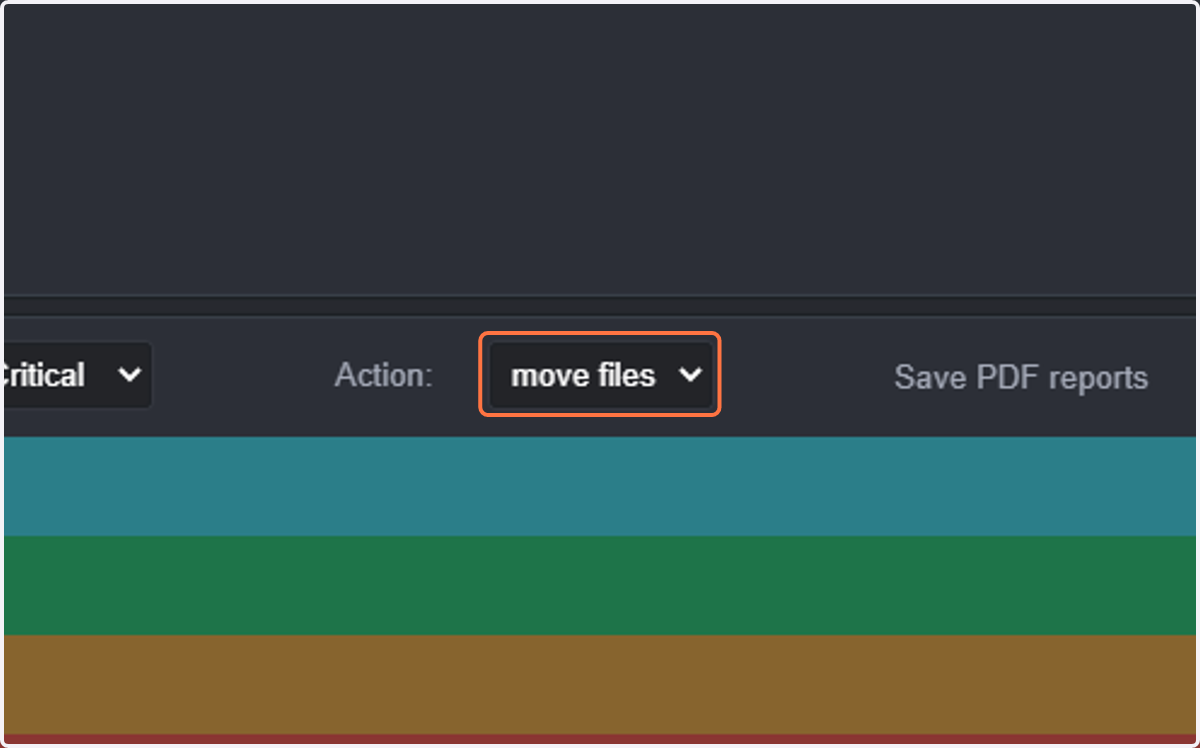
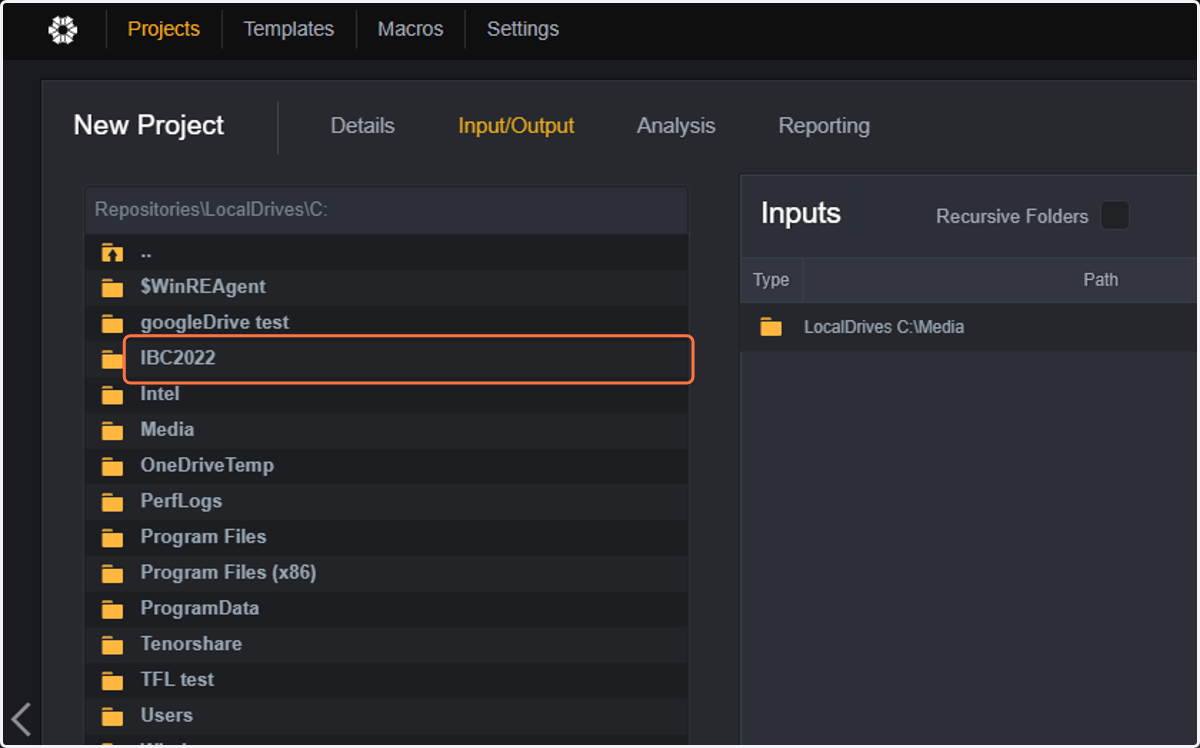
18. Select the folder you want to act as output folder
In this case we are selecting IBC2022 as output folder
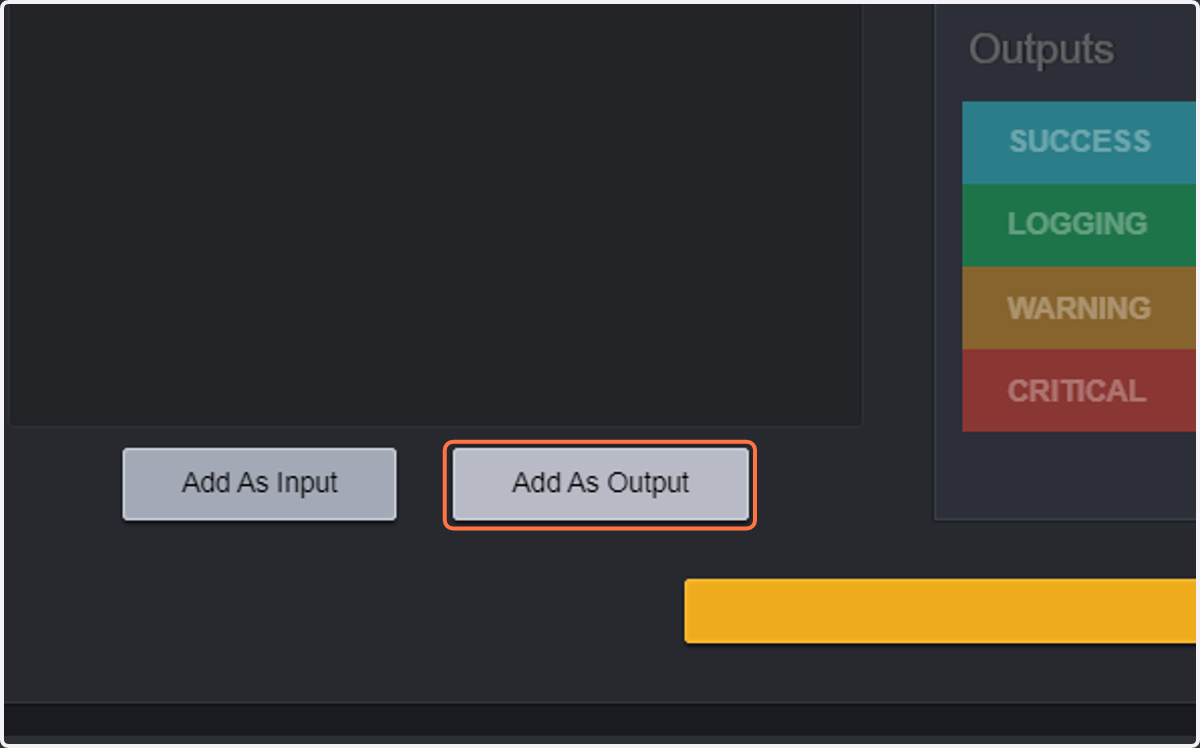
19. Click on Add As Output
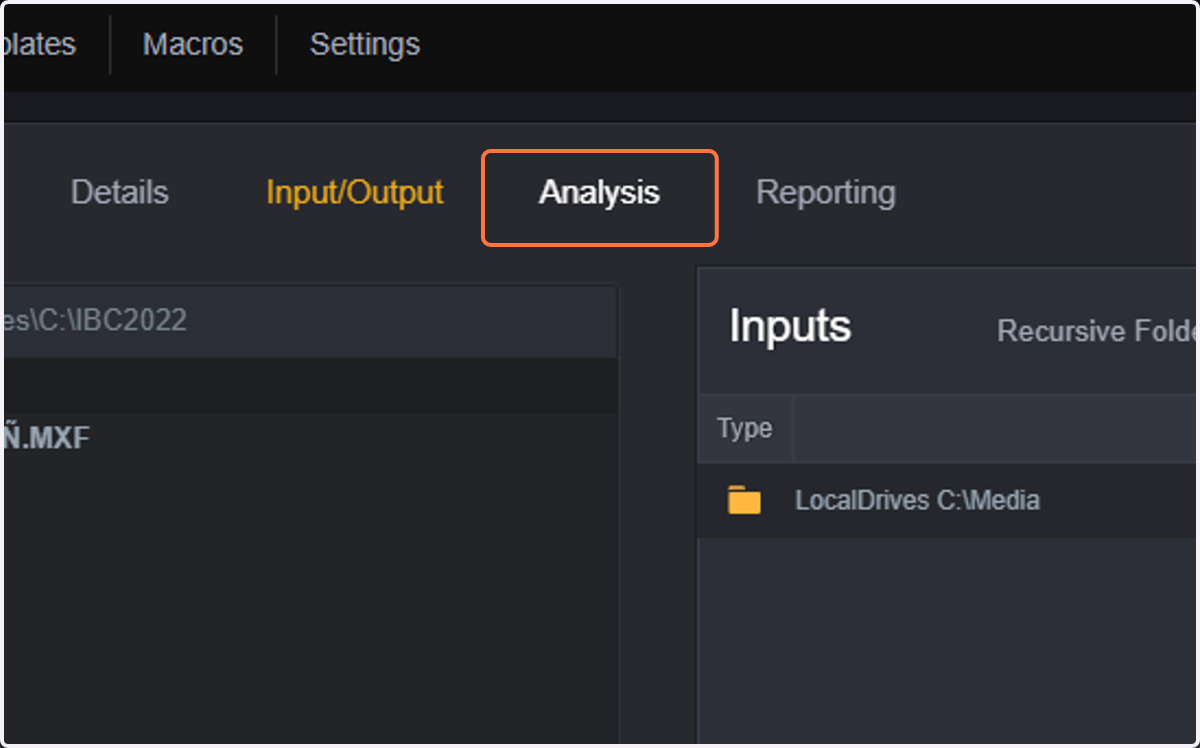
20. Now you will need to configure the analysis parameters and thresholds
21. Click on Analysis
22. If you want to save your analysis configuration as a new template, enter the name of the template in "save as template"
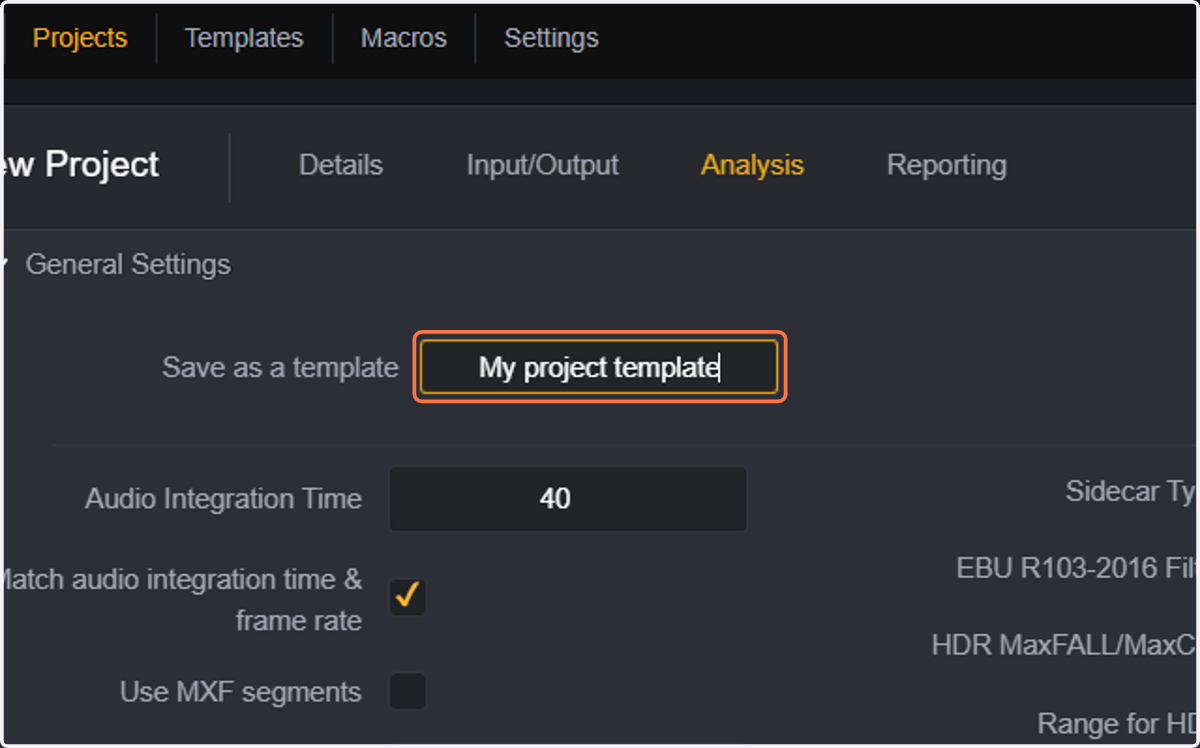
23. You can now select a premade template by Clicking on Apply Templates. Jump to step 26 in case you want to configure manually
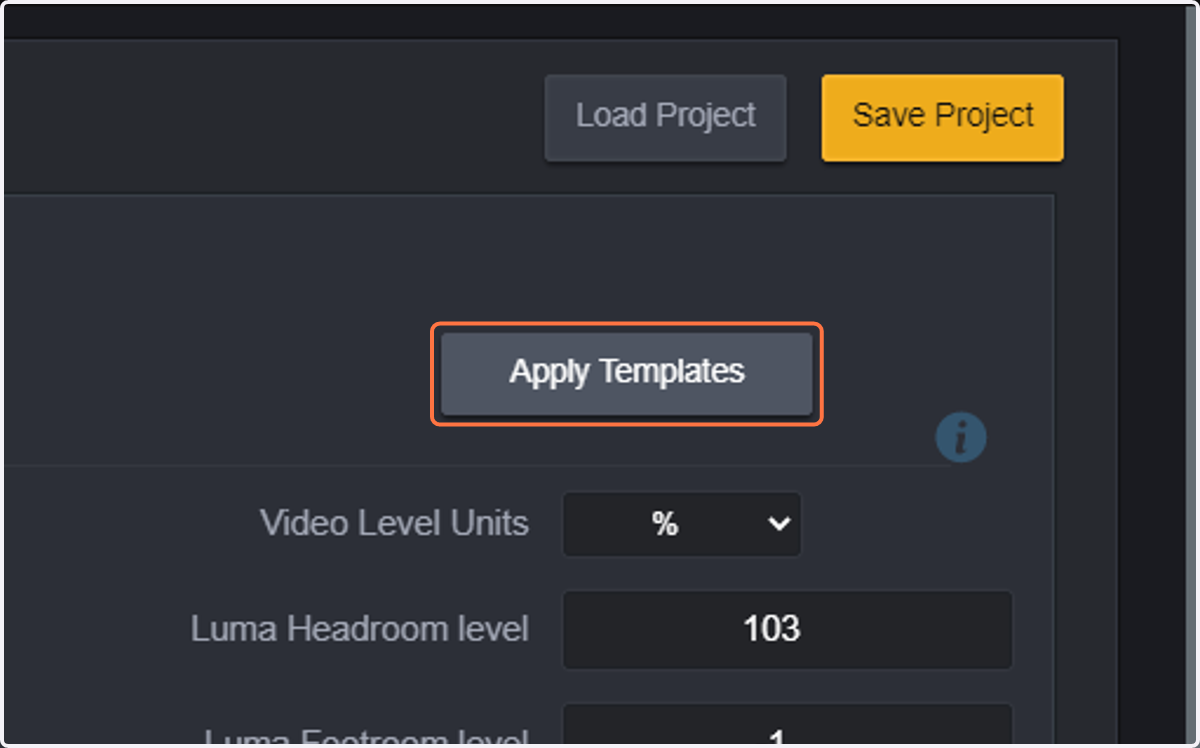
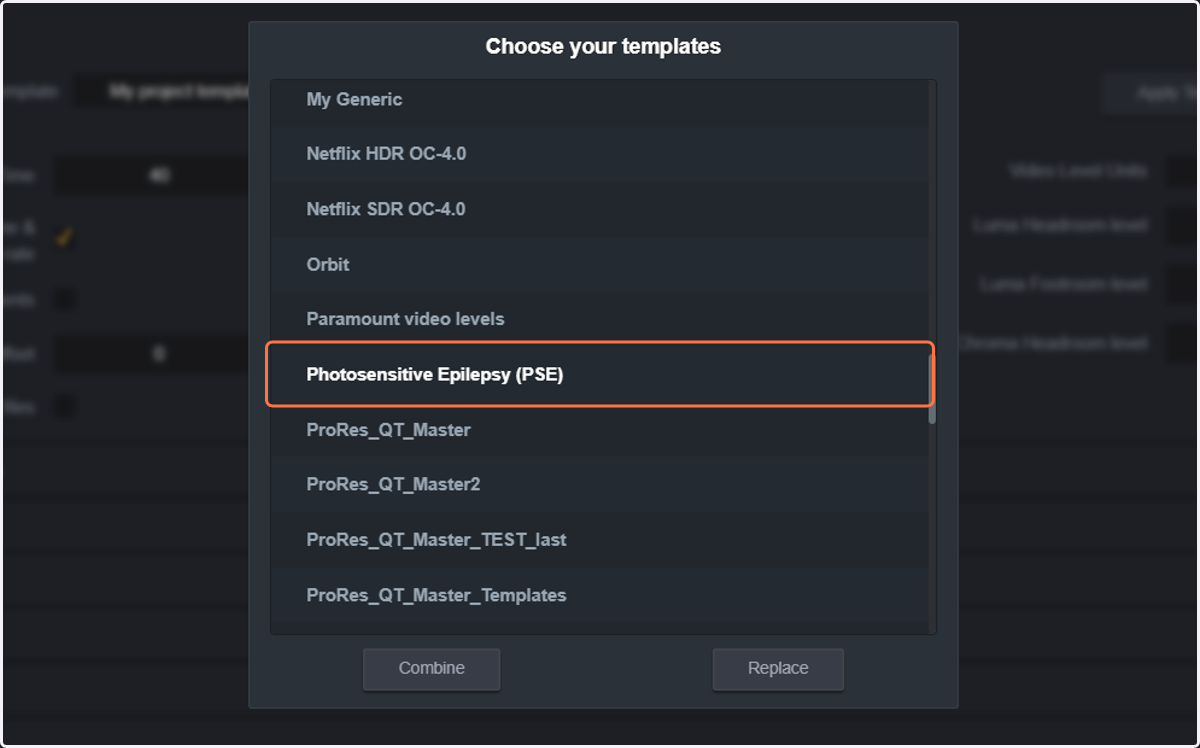
24. You can select one or more templates by selecting them from the list
When you select more than one template, you can combine them together to add all settings on al the selected templates.
If you use "replace" you will replace any existing configuration.
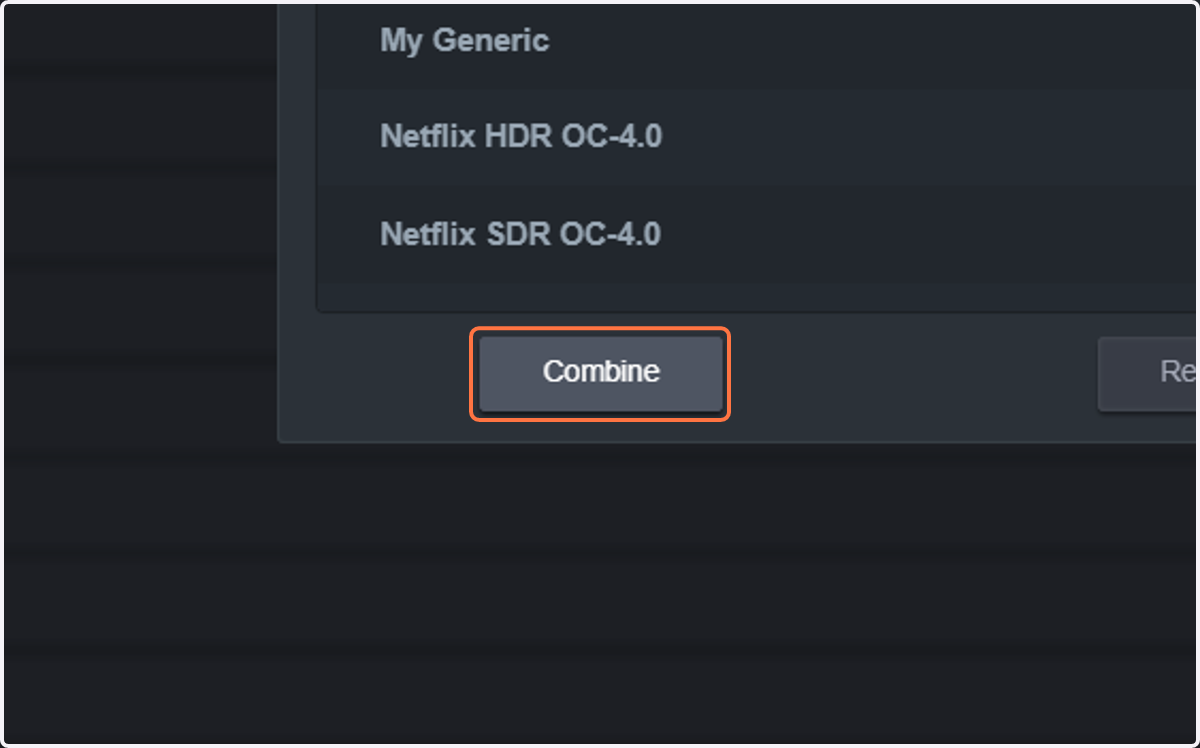
If you use "combine" the existing configuration will be maintained and the templates will be added.
25. Click on Combine
26. Now, additional thresholds can be added manually.
We will now be adding some format checks that will identify format inconsistencies.
Note, that even though QScan can analyze all parameters that are enabled, you will be notified only about parameters that have associated thresholds.
We will start with Header format checks (format parameters at file level), we will continue with video format checks (format parameters at video level). We will also add an audio format check (format parameters at audio level).
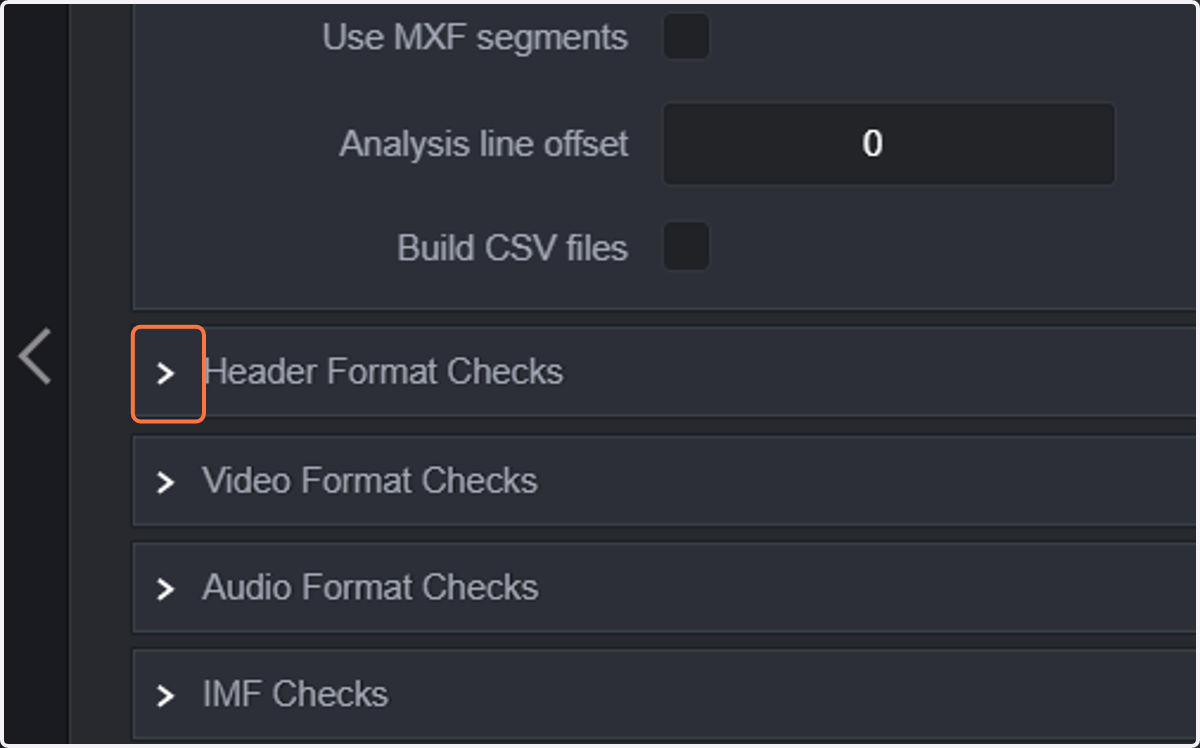
27. Click on Header Format Checks
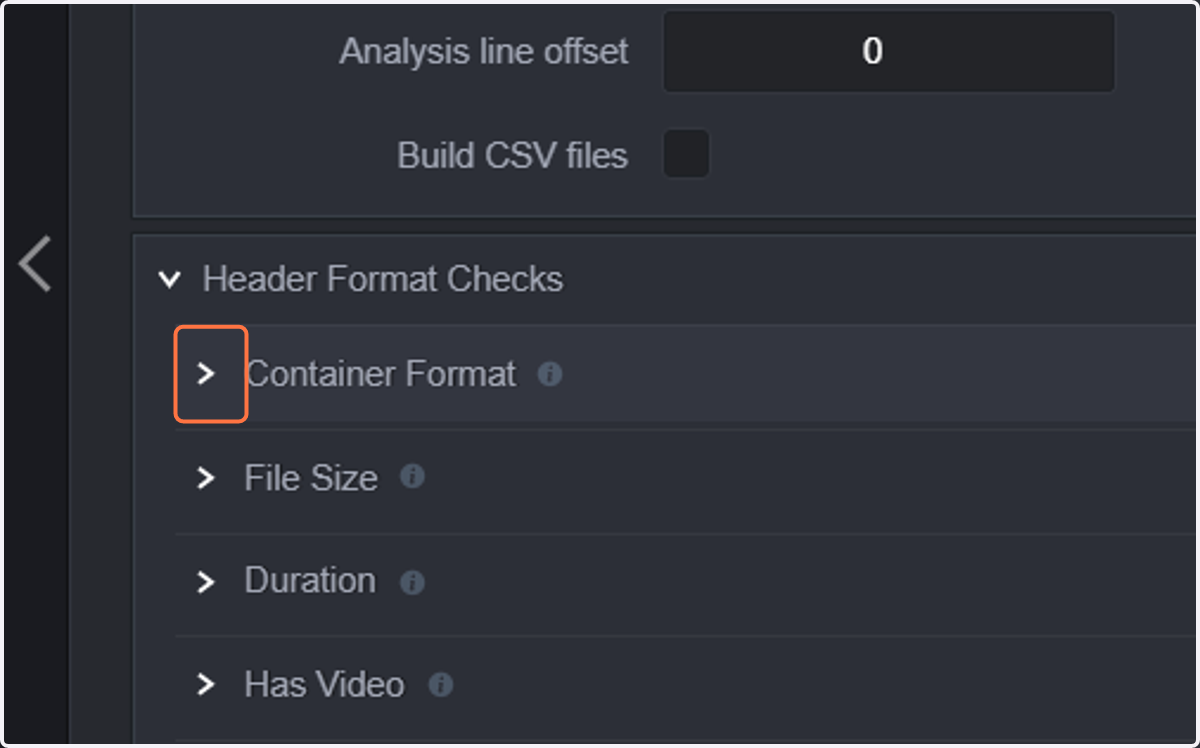
28. Click on Container Format
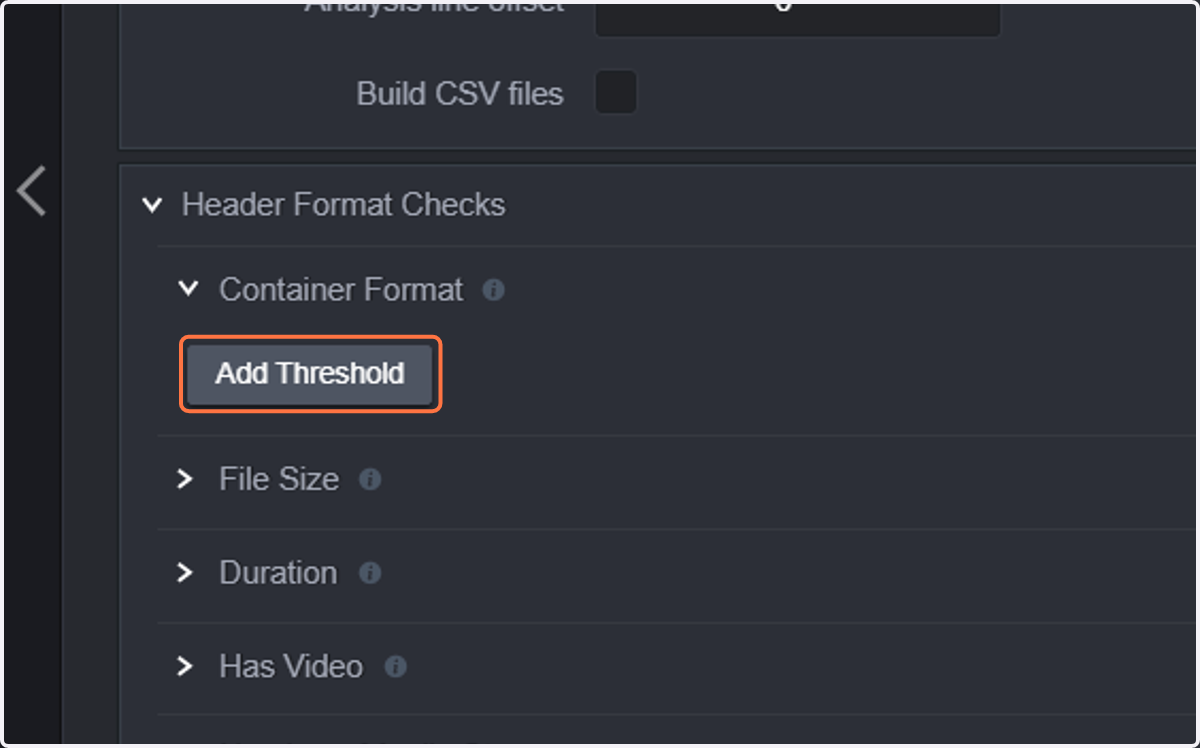
29. Click on Add Threshold
30. Select "is not MXF". This will detect whether the file is not using an MXF container and notify in an event.
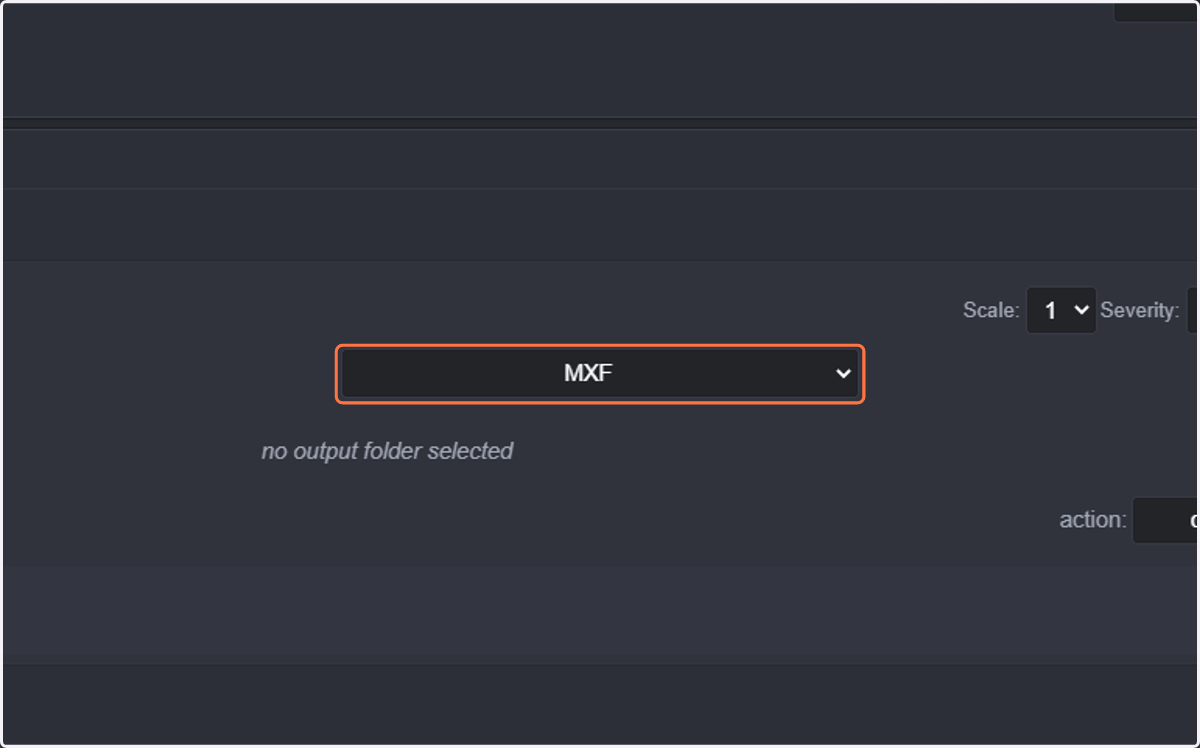
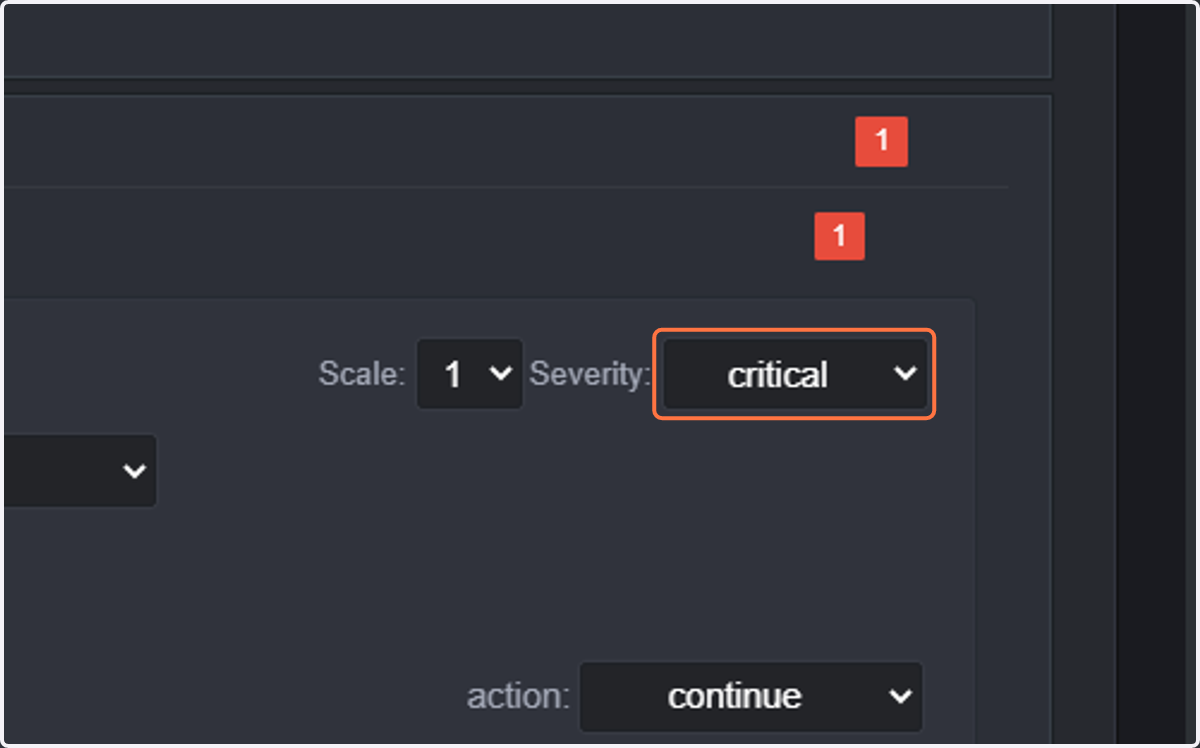
31. Select critical. This will trigger a critical event when the condition is met.
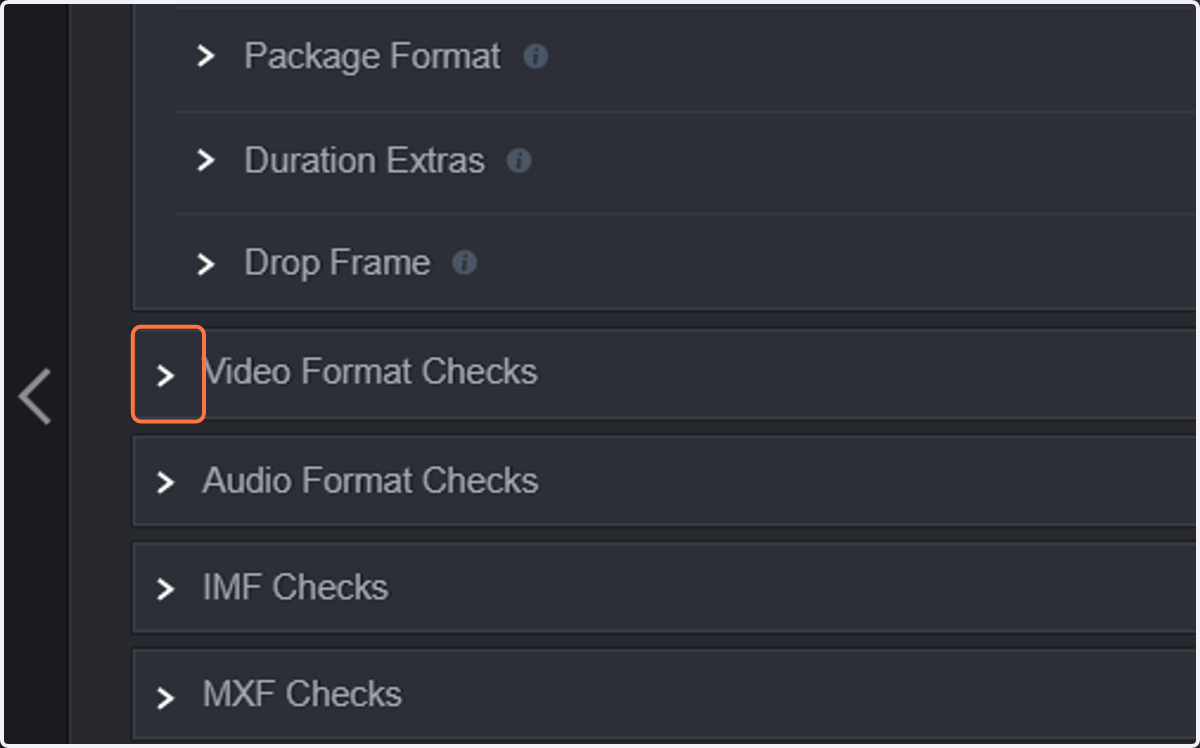
32. Click on Video Format Checks
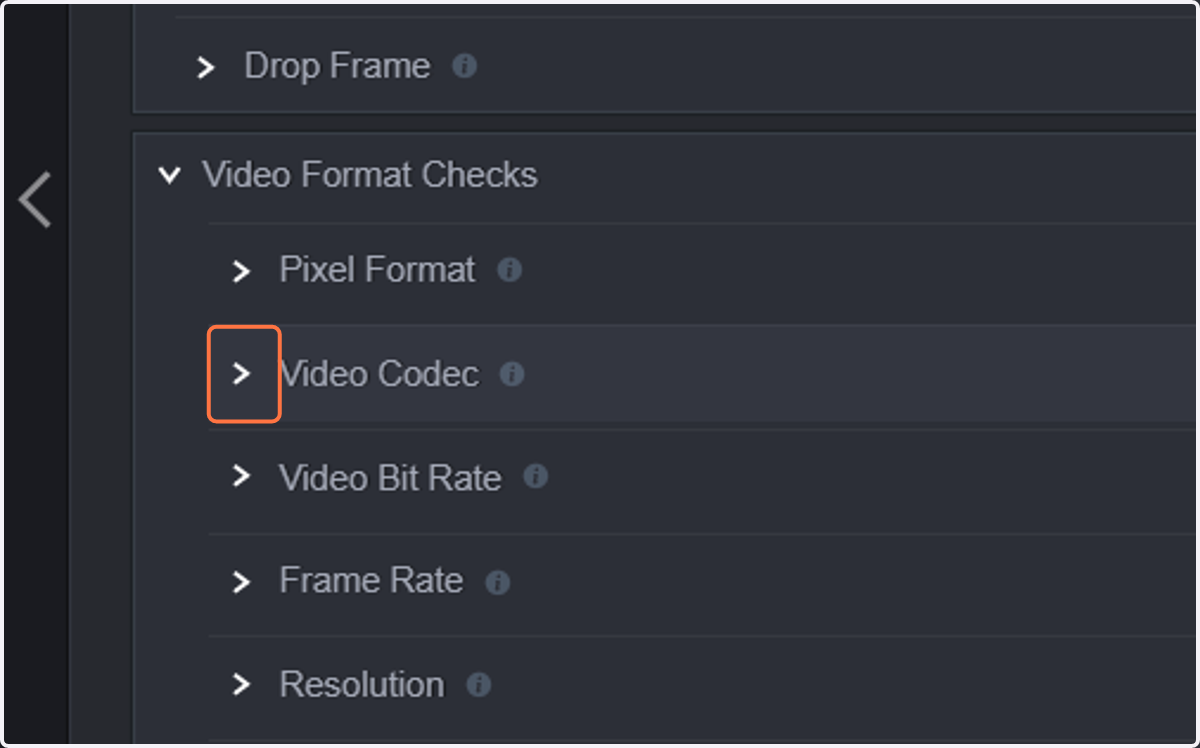
33. Click on Video Codec
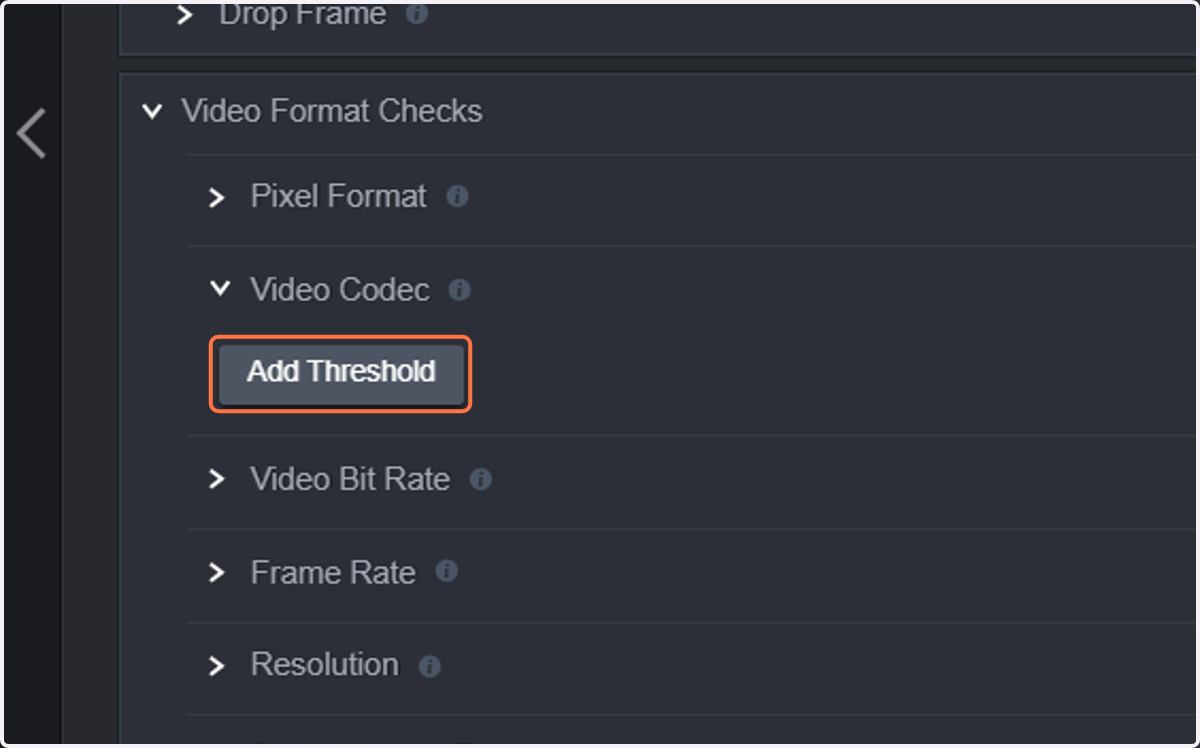
34. Click on Add Threshold and configure Video Codec is not H264. This will trigger an event when this condition is met
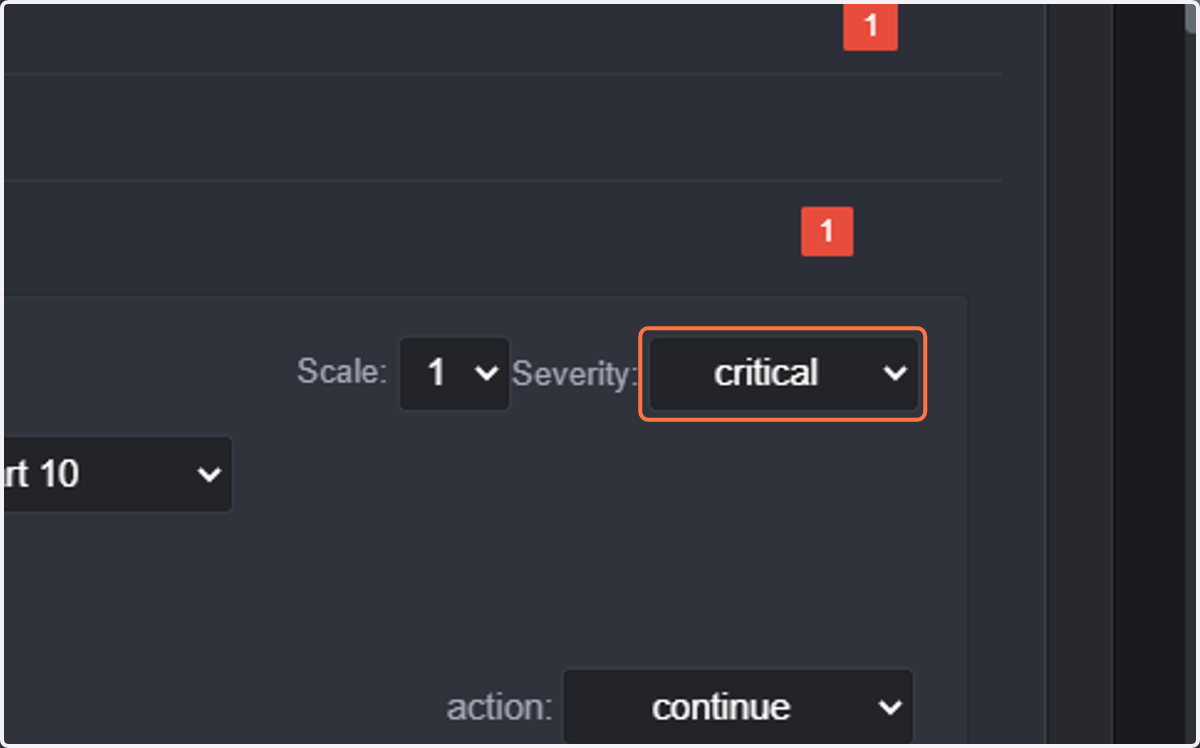
35. Select critical
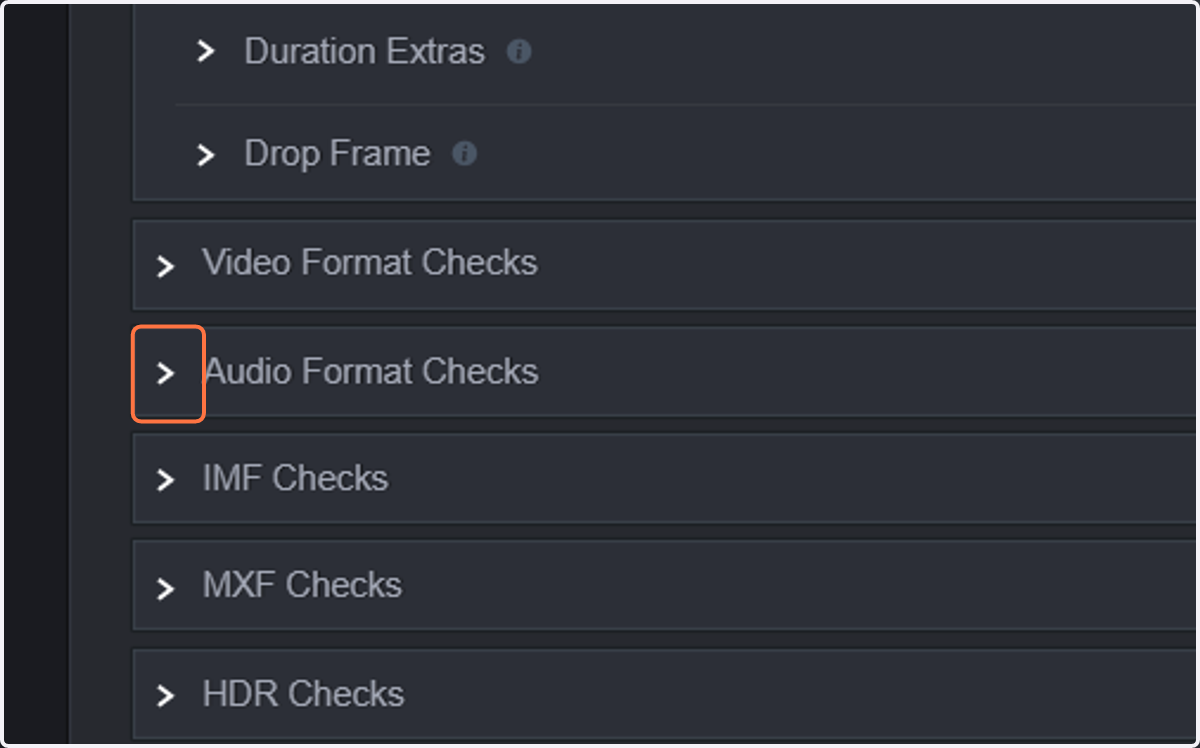
36. Click on Audio Format Checks
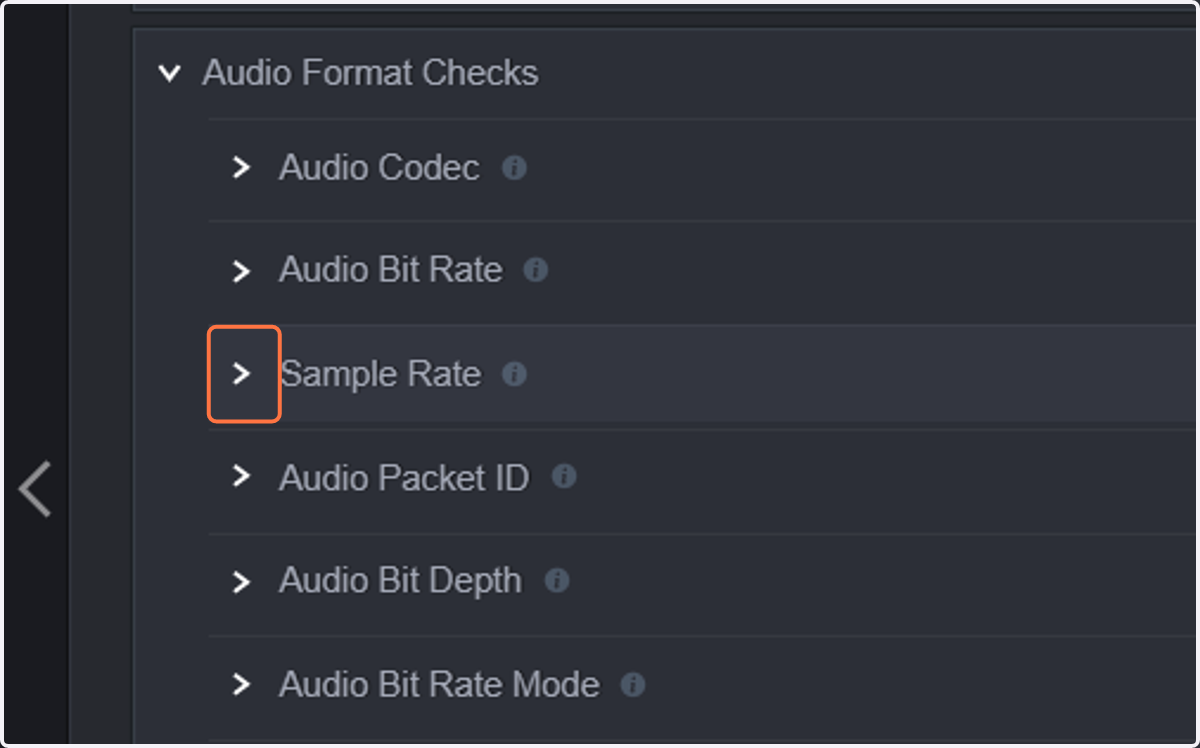
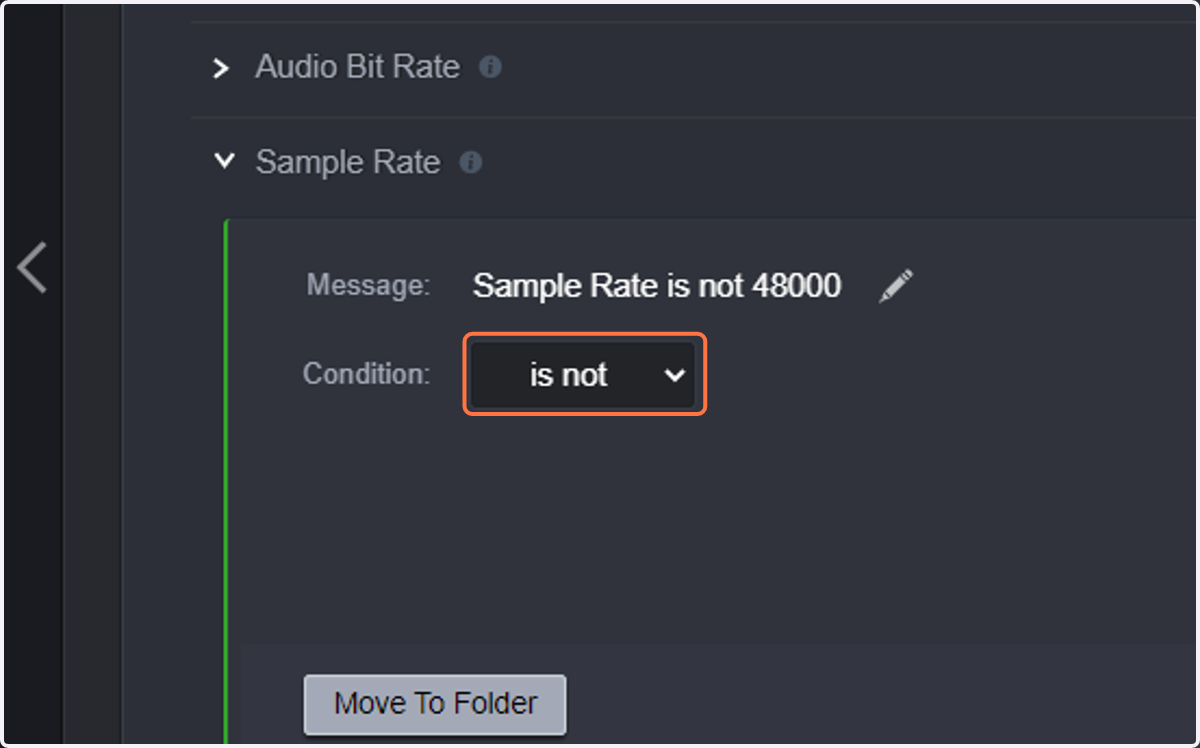
37. Click on Sample Rate
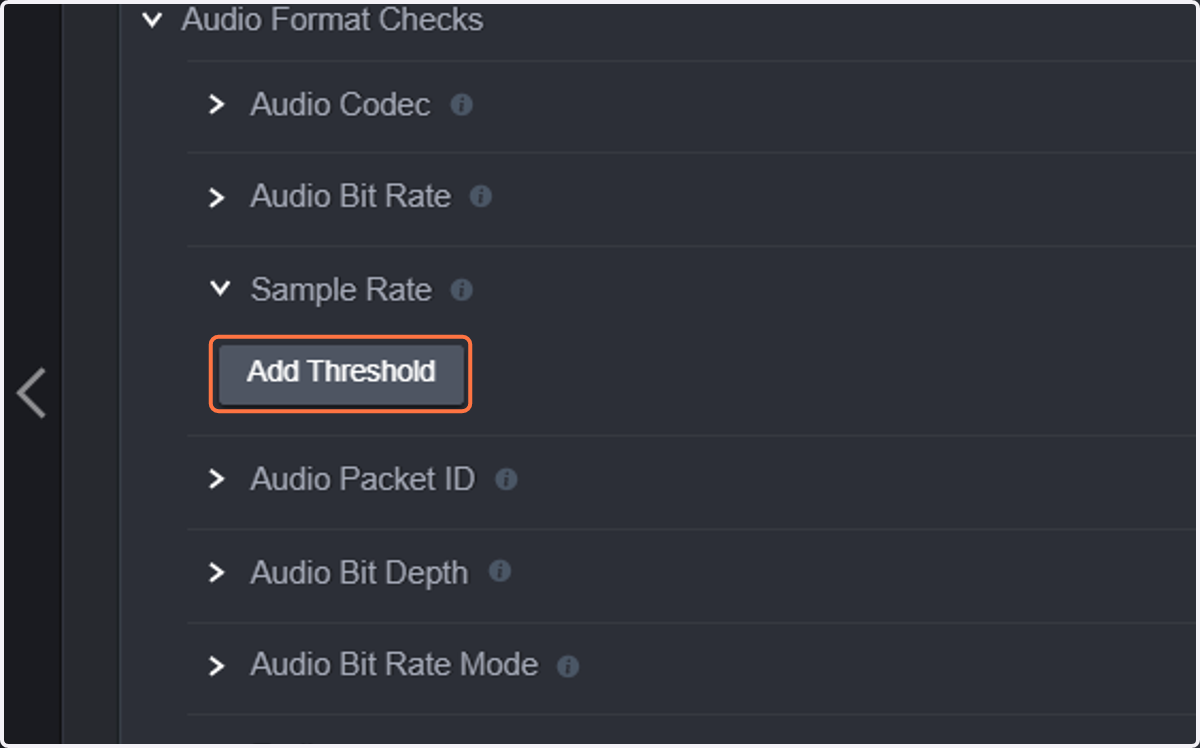
38. Click on Add Threshold
39. Select is not 48000.
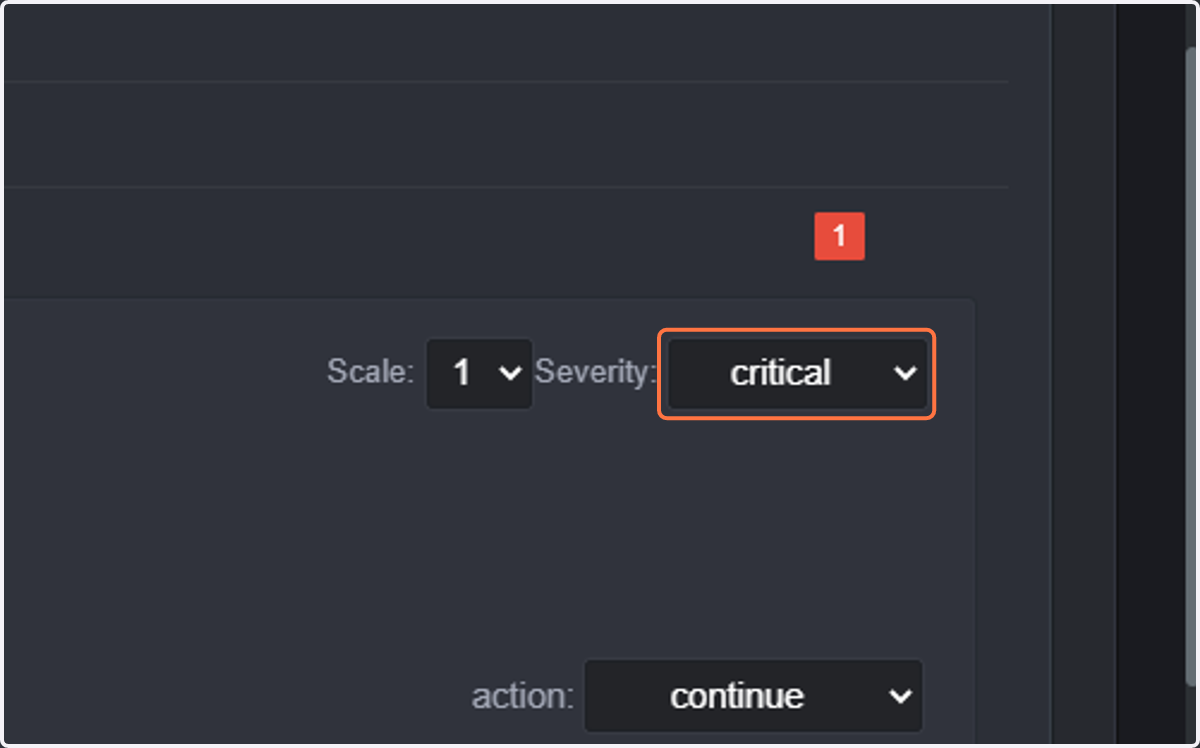
40. Select critical. The event will be marked as critical whenever the condition is met.
41. The last step will be configuring the PDF reporting options
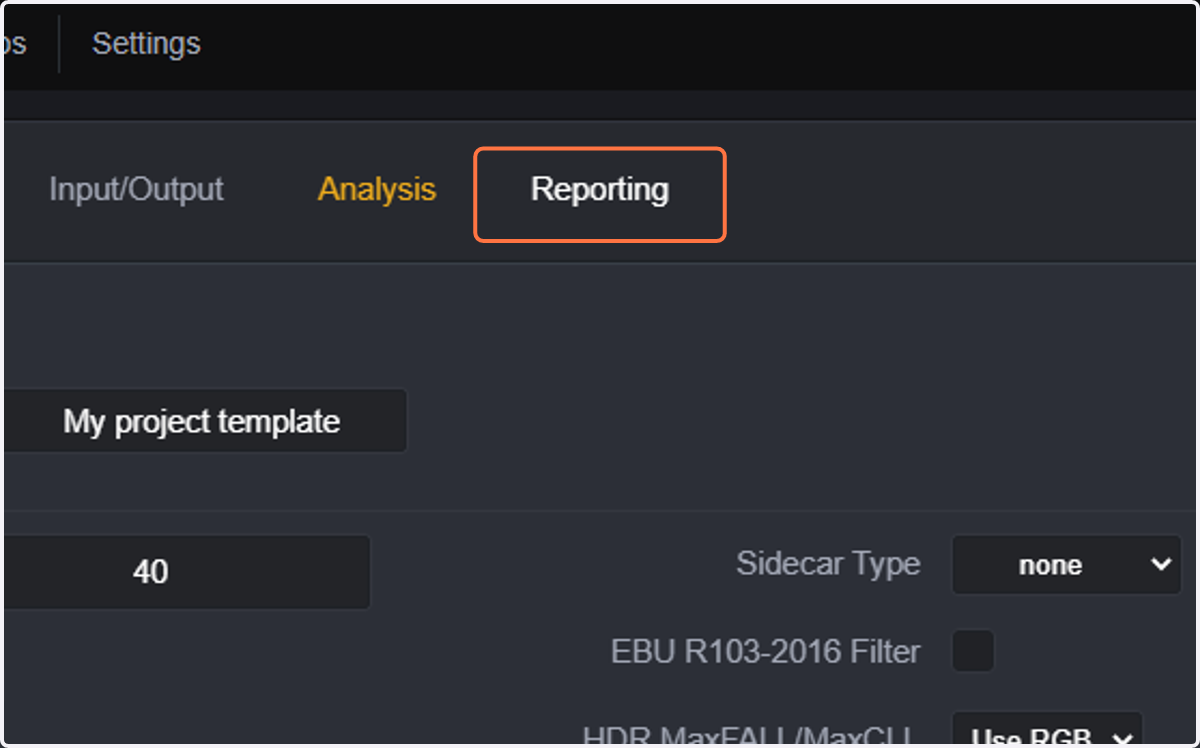
42. Click on Reporting
43. You can select whether you want a PDF report being generated or not
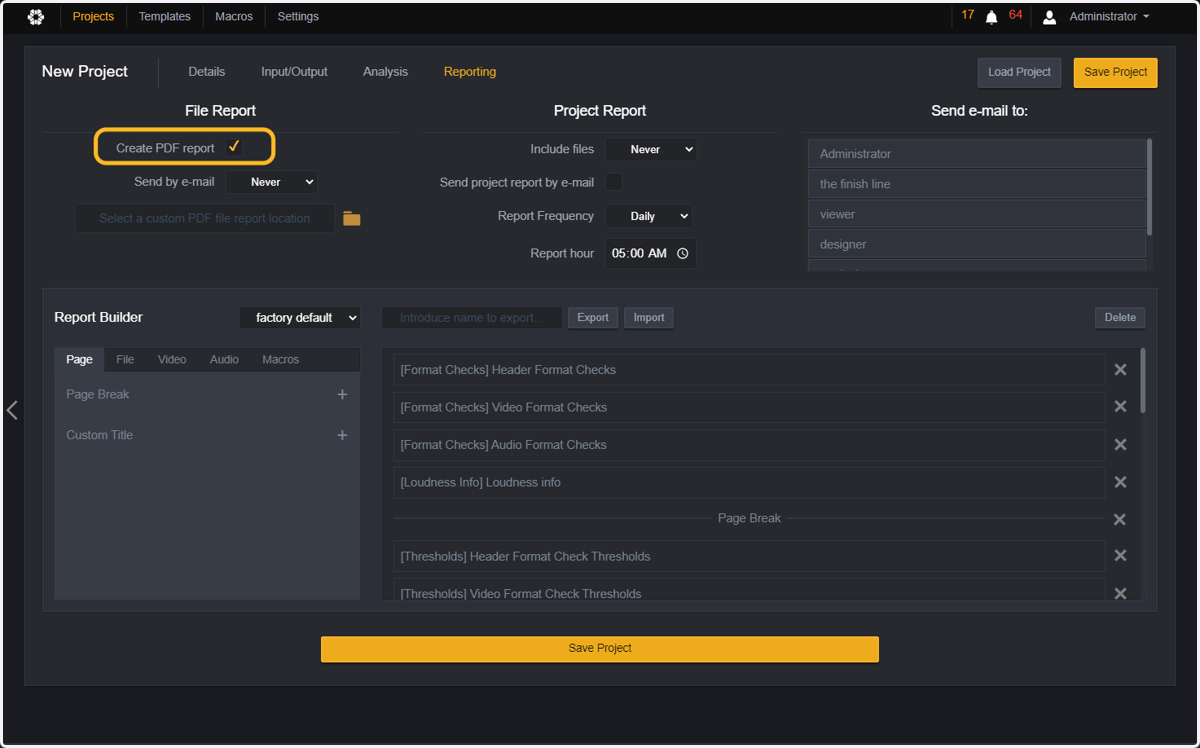
44. Select if you want the PDF being sent by email
Options are:
Never
Always
Logging events: will send the PDF by email if the events found are at least logging events
Warning events: will send the PDF by email if the events found are at least warning events
Critical events: will send the PDF by email if the events foung are at least critical events
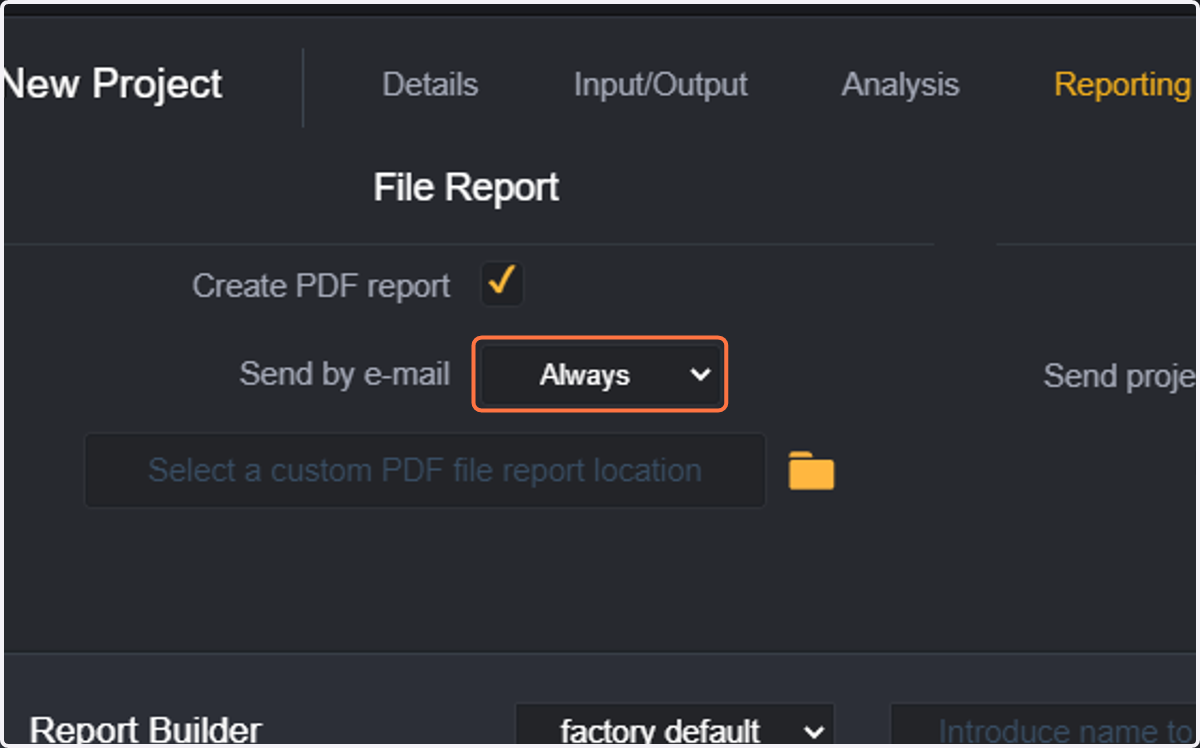
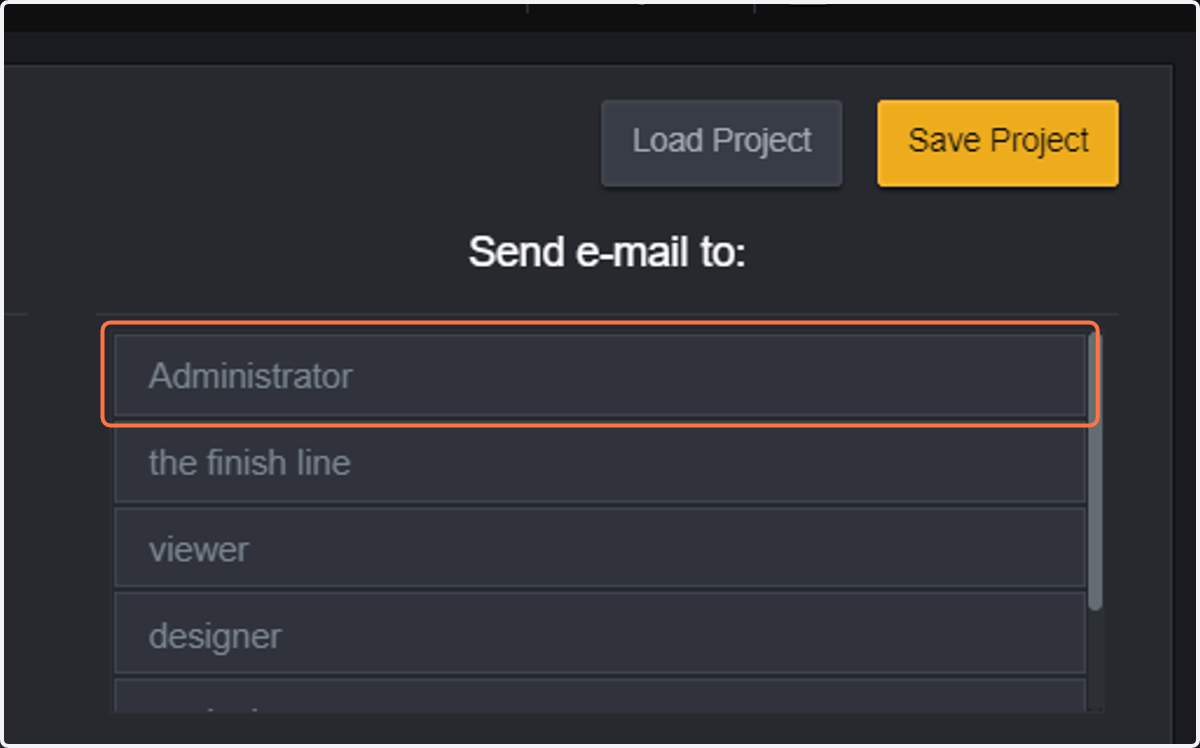
45. Then choose what users will receive the email. In this case, only the administrator will receive the PDF report by email.
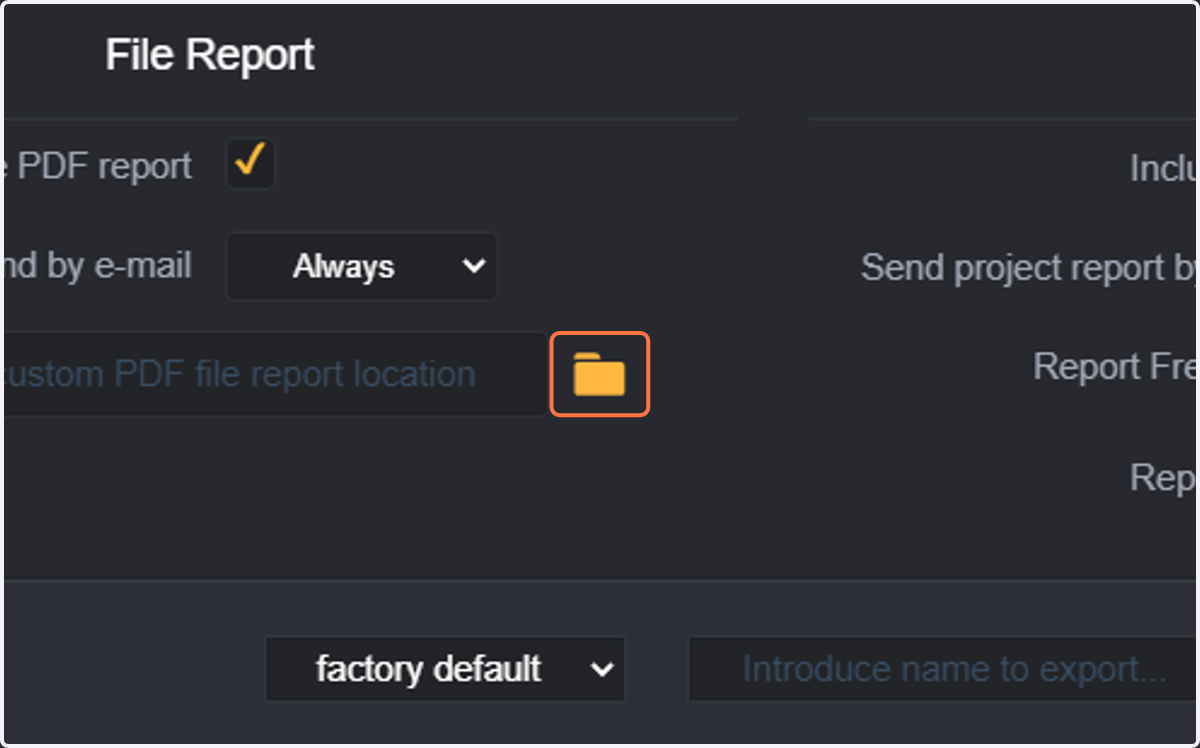
46. You can also choose a location to store all PDF reports for this project. Note: you can select any location in any of your repositories.
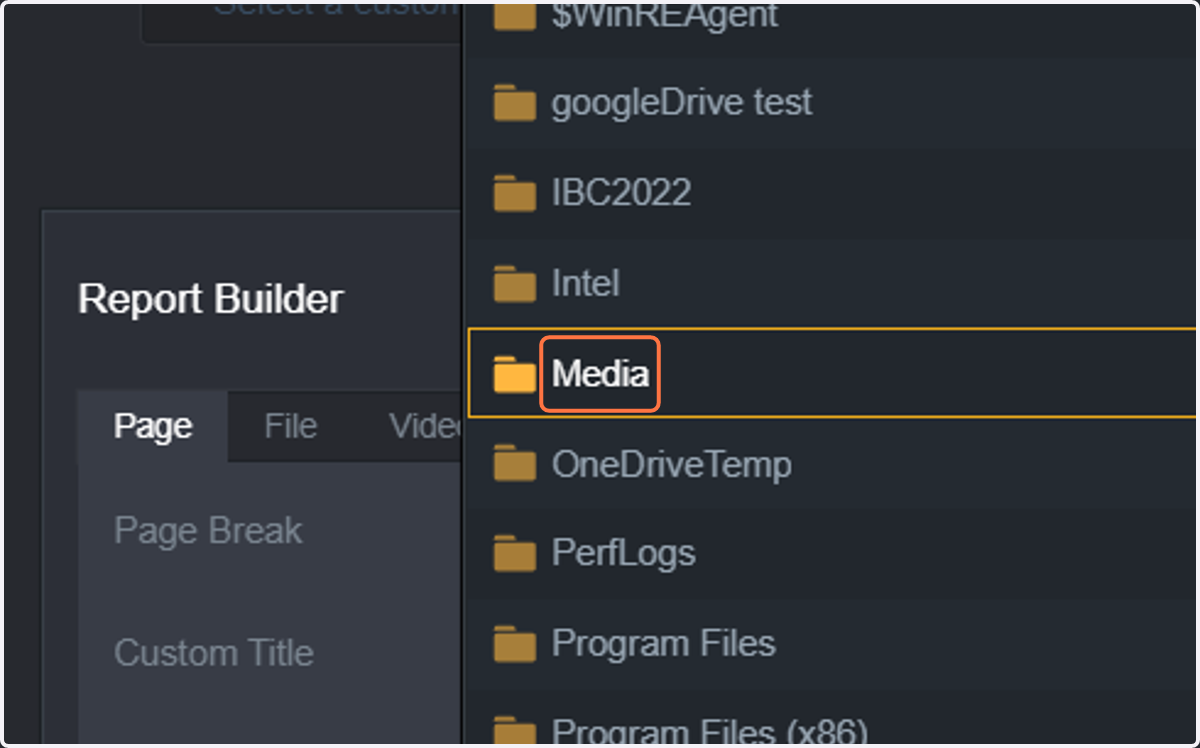
47. Select the folder. In this case, we will be selecting the folder "Media" as storage location for all PDF reports
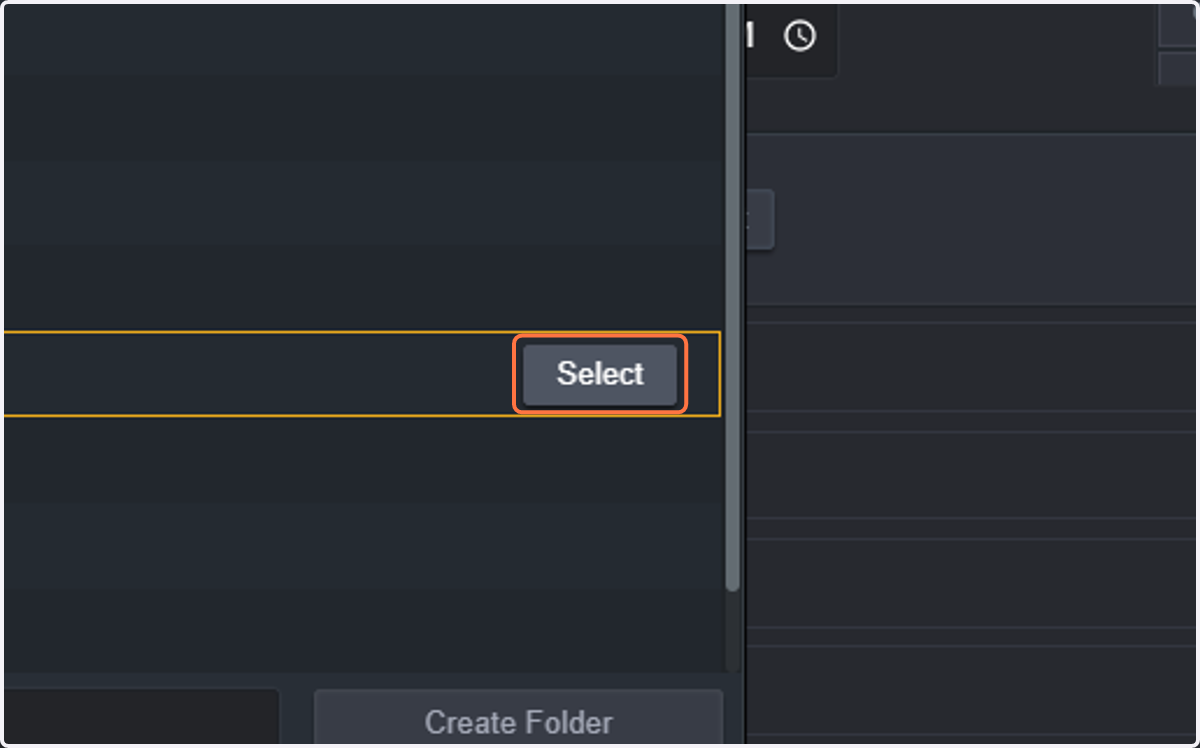
48. Click on Select
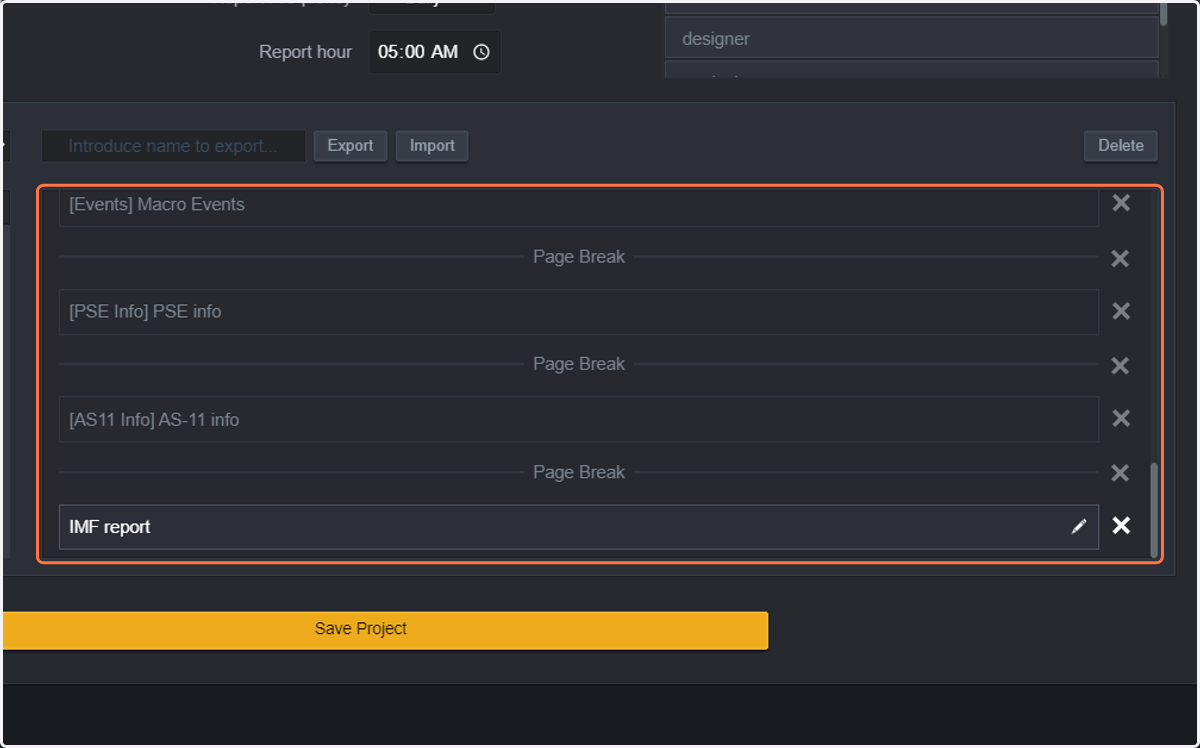
49. You can now modify the layout of the PDF report. Elements on the left can be added to the layout, they can be removed, moved around (so changing the order of the different elements, etc)
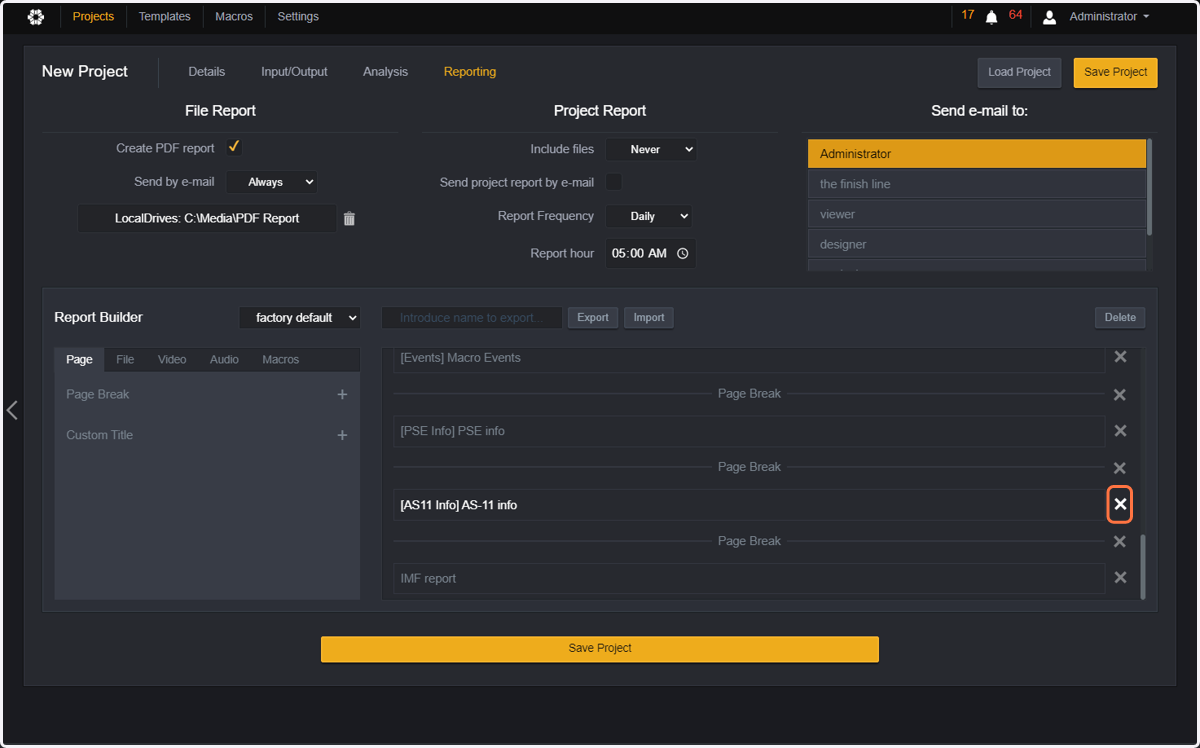
50. We will be removing the AS11 information by clicking on the "X" on the right hand side
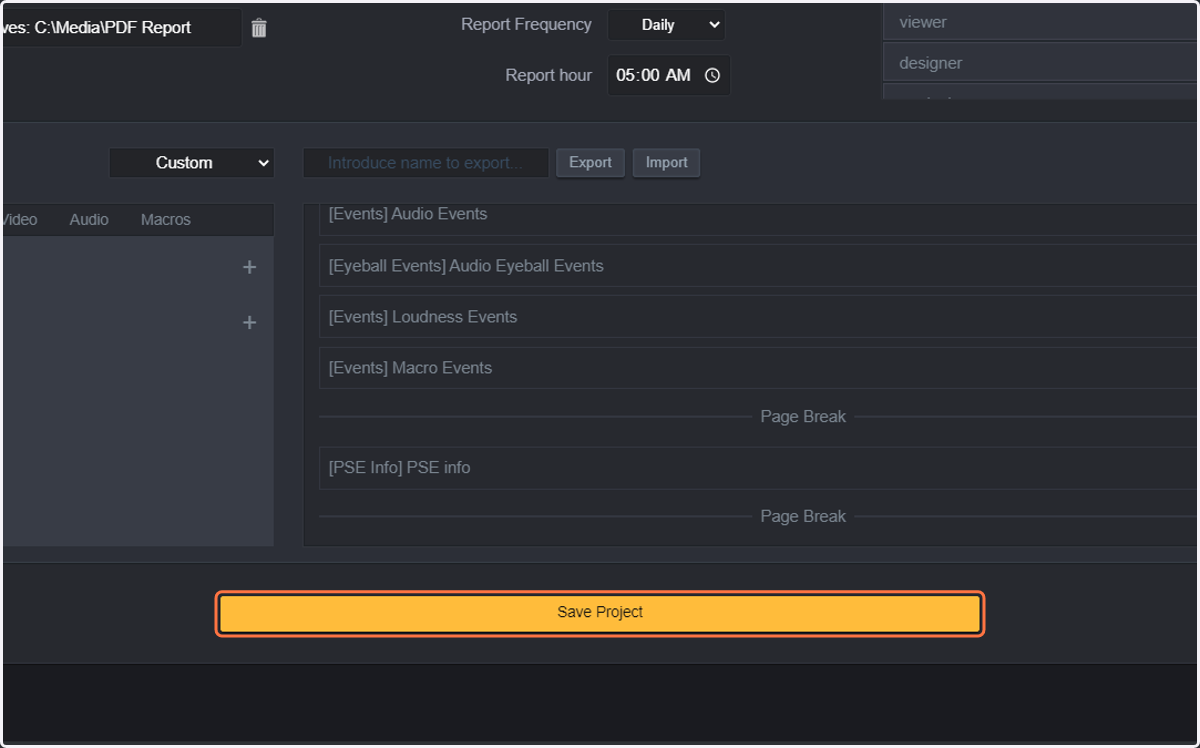
51. Now that we are happy with our Project, just click on Save Project
52. And the last step would be clicking on Run project. Note: that any project that is in running status will detect any new files coming into the watchfolder automatically.
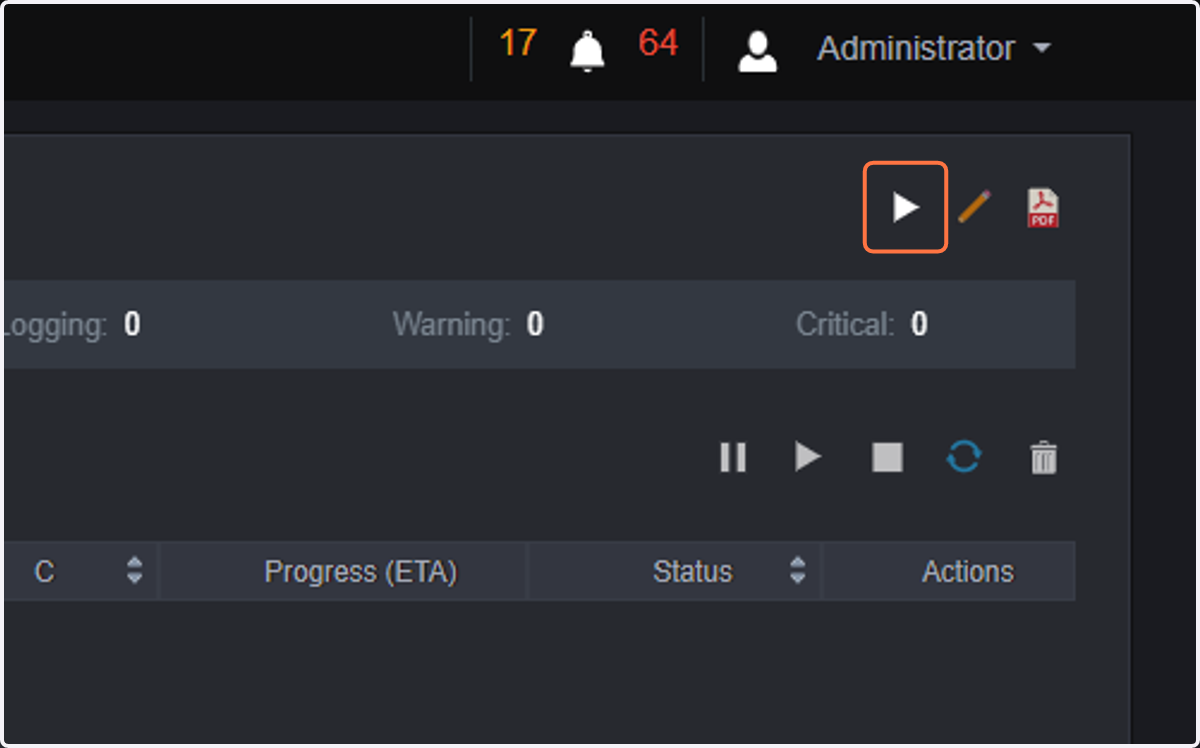
53. And now, just let the project run. You will get your reports by email, and they will be stored in the Location configured in the reporting option
Note that you can also check results in the HTML report. But the different types of reports will be described in a different tutorial.
ENJOY!!!!