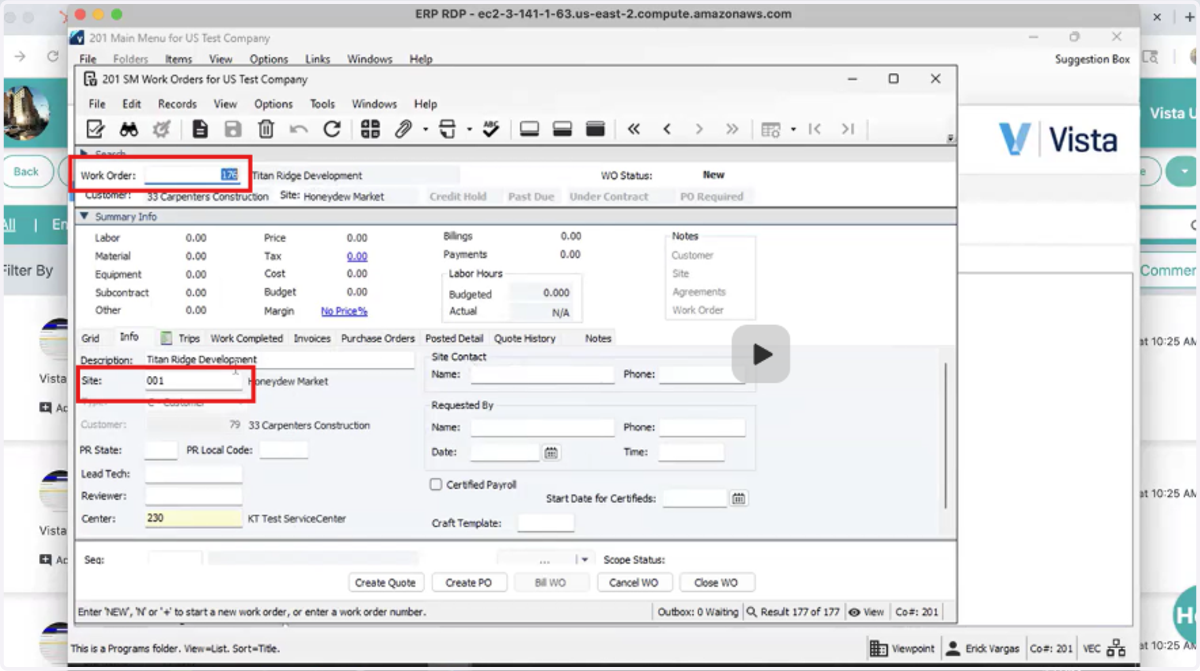
How to Create and Sync a Work Order from Followup CRM to Vista
Projects in Followup CRM
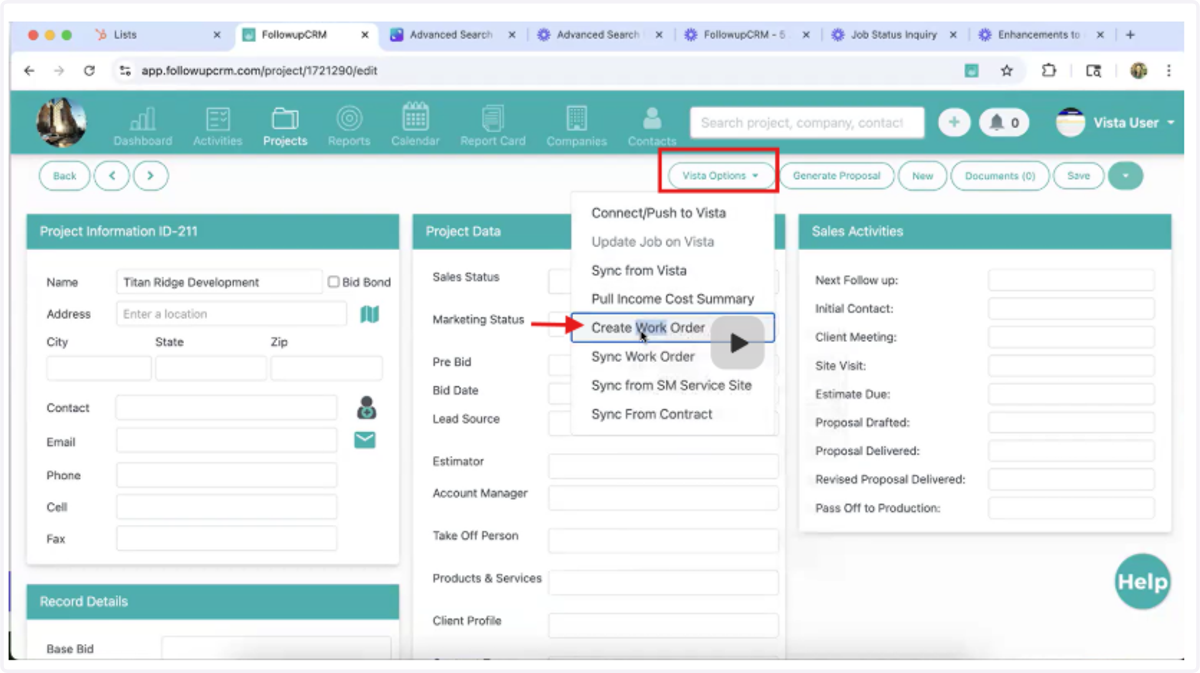
1. In Followup CRM, choose to create a new Work Order.
Click "Vista Options" and select from the dropdown
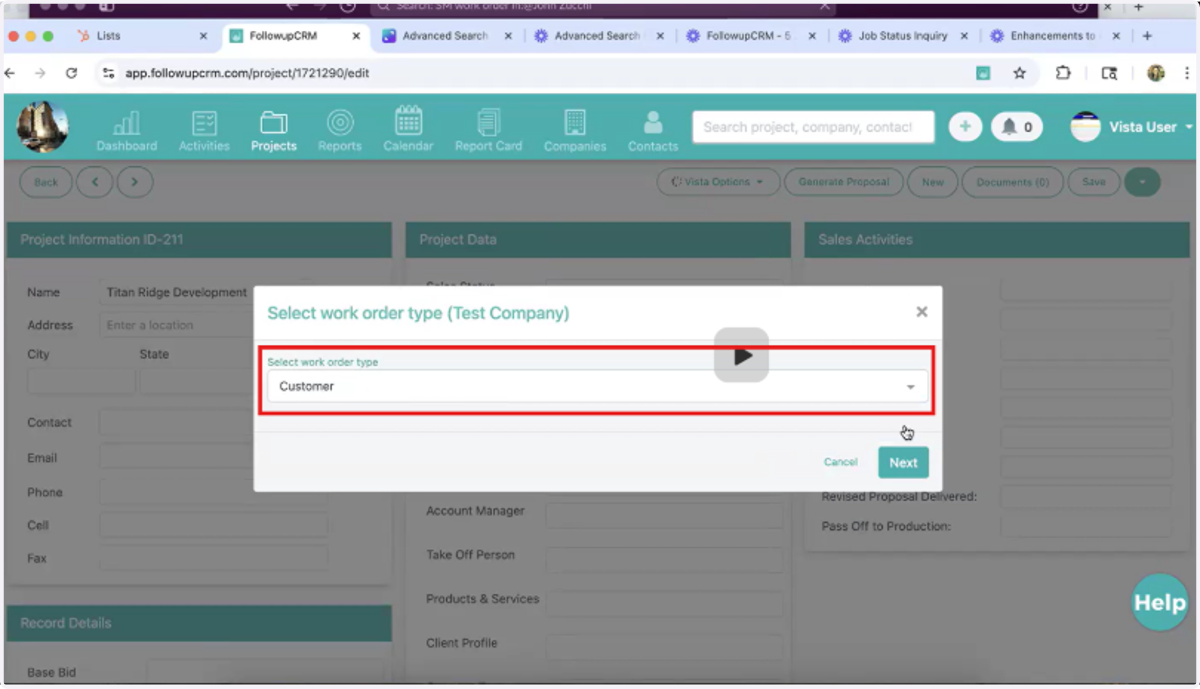
2. Select Work Order Type
When prompted, choose the work order type as "Customer".
Click Next.
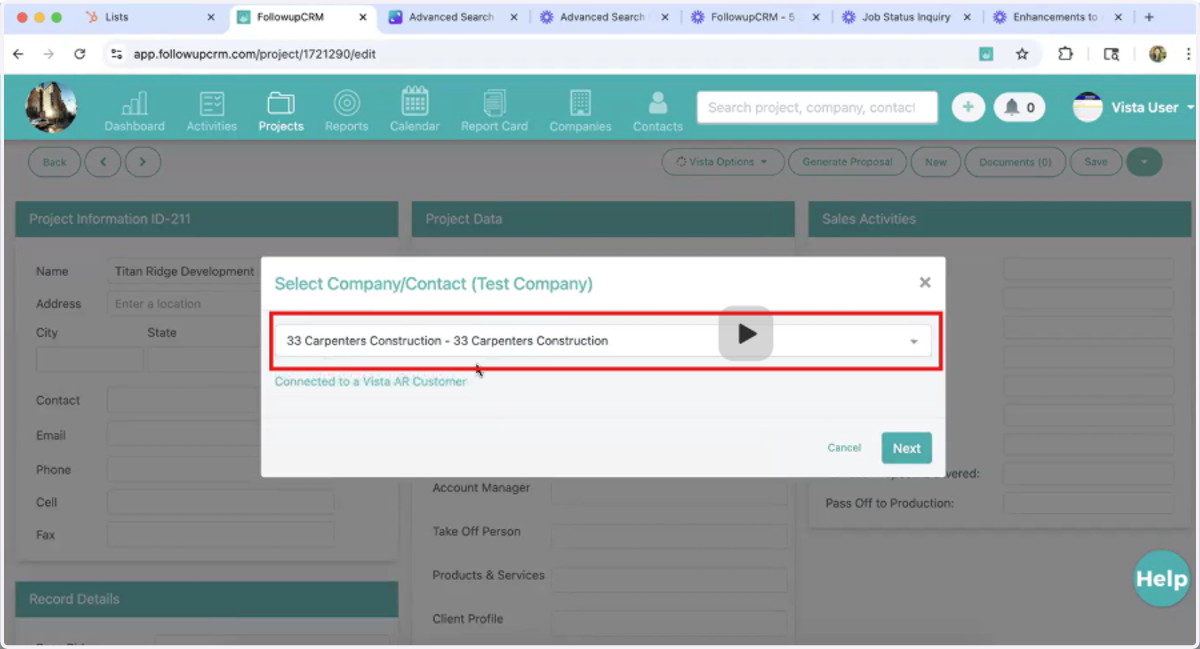
3. Select the Company
From the Company Information section, select the appropriate company.
Click Next.
4. Verify and Load Service Sites
The system will:
Verify it's linked to an SM customer in Vista.
Load the associated service sites.
Select the appropriate Service Site from the dropdown.
Click Continue.
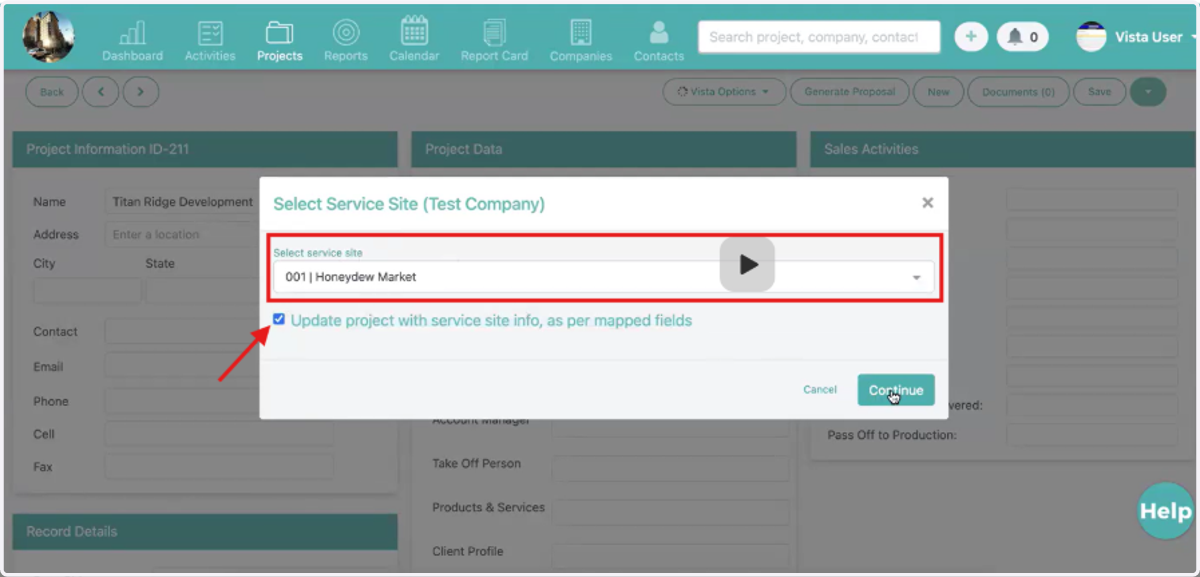
5. Sync Happens Automatically
Simultaneously pulls in Service Site data.
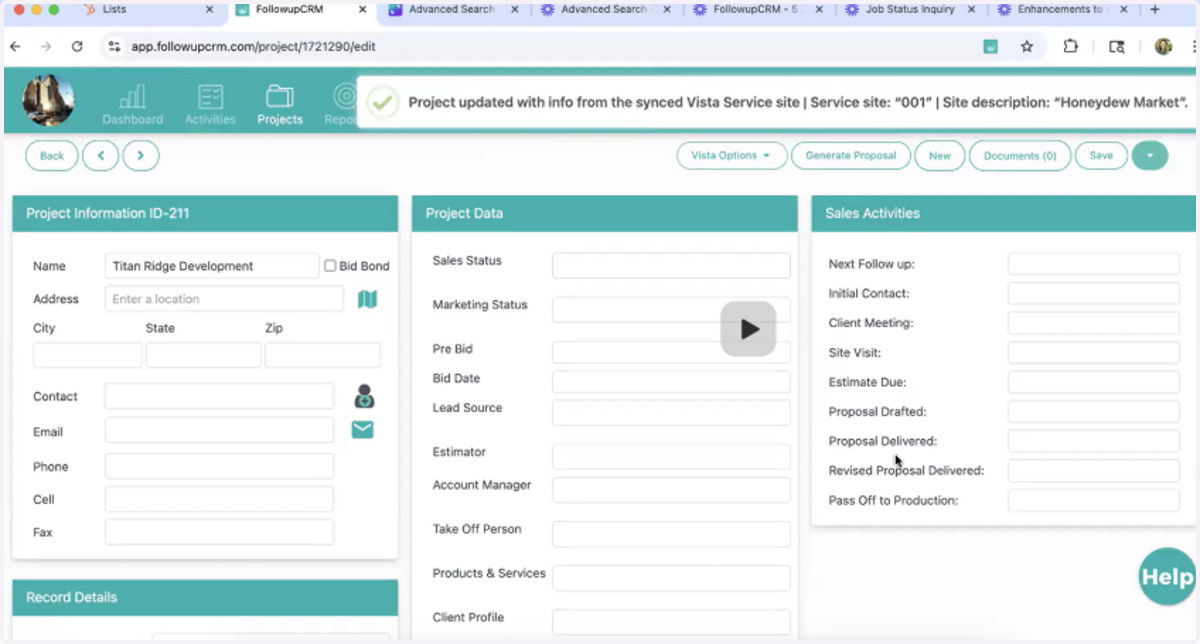
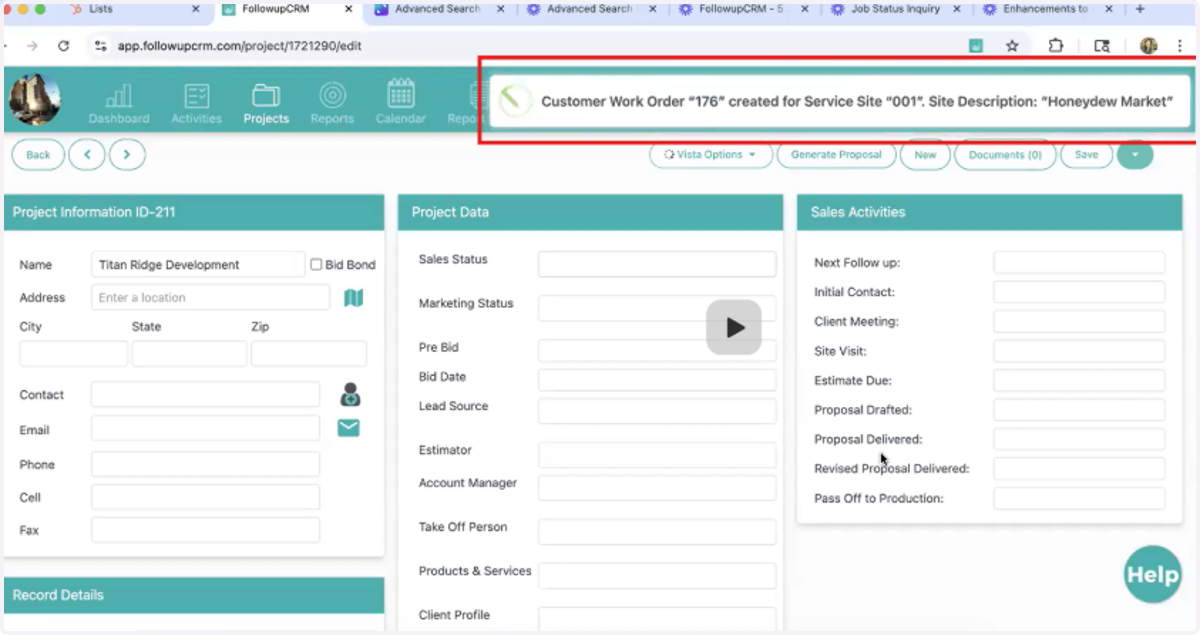
6. Sync Happens Automatically
Connects the Work Order to the Service Site in Vista.
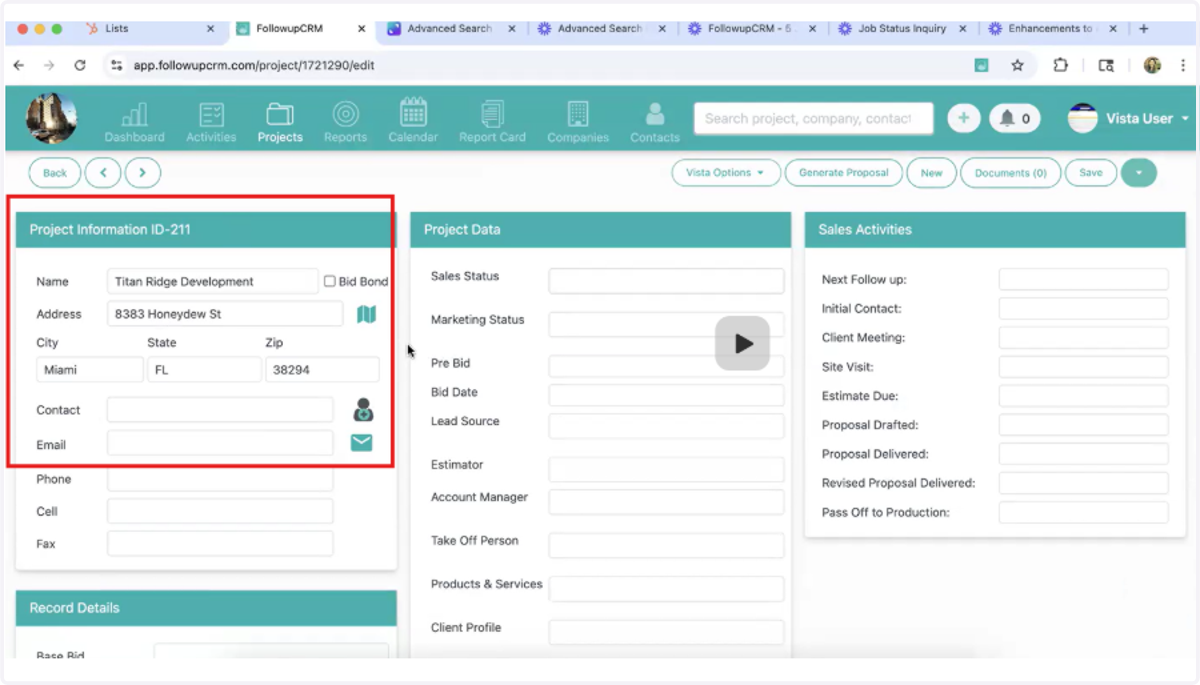
7. Confirm Mapped Fields Populated
All data is pulled based on your mapped fields.
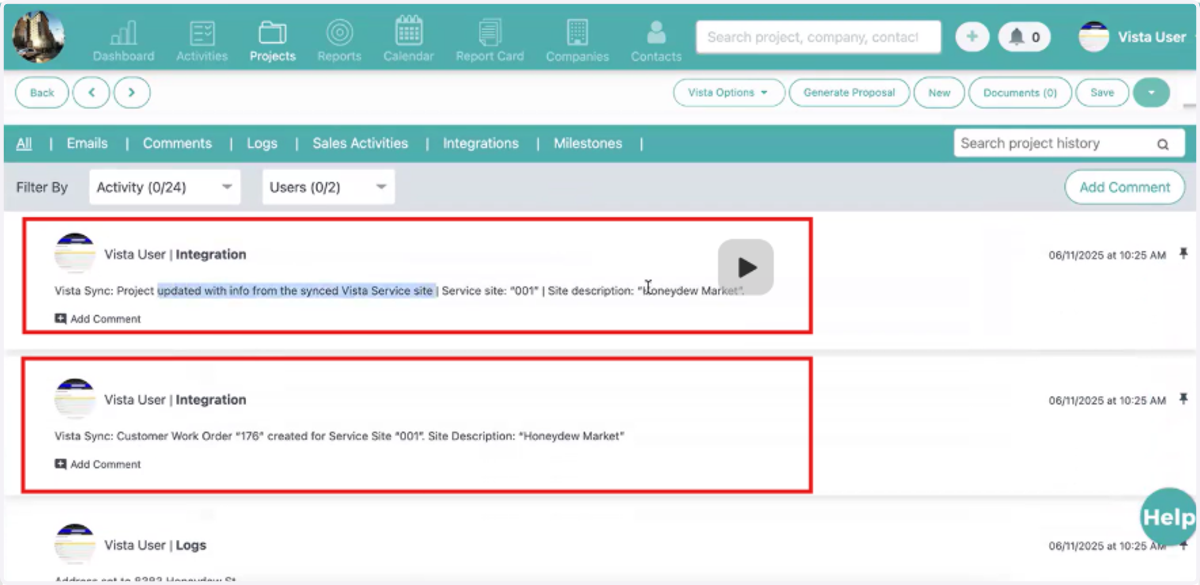
8. Validate the Sync in Vista
Check the logs or status to confirm sync was successful.
9. Verify the work order by searching it in Vista.