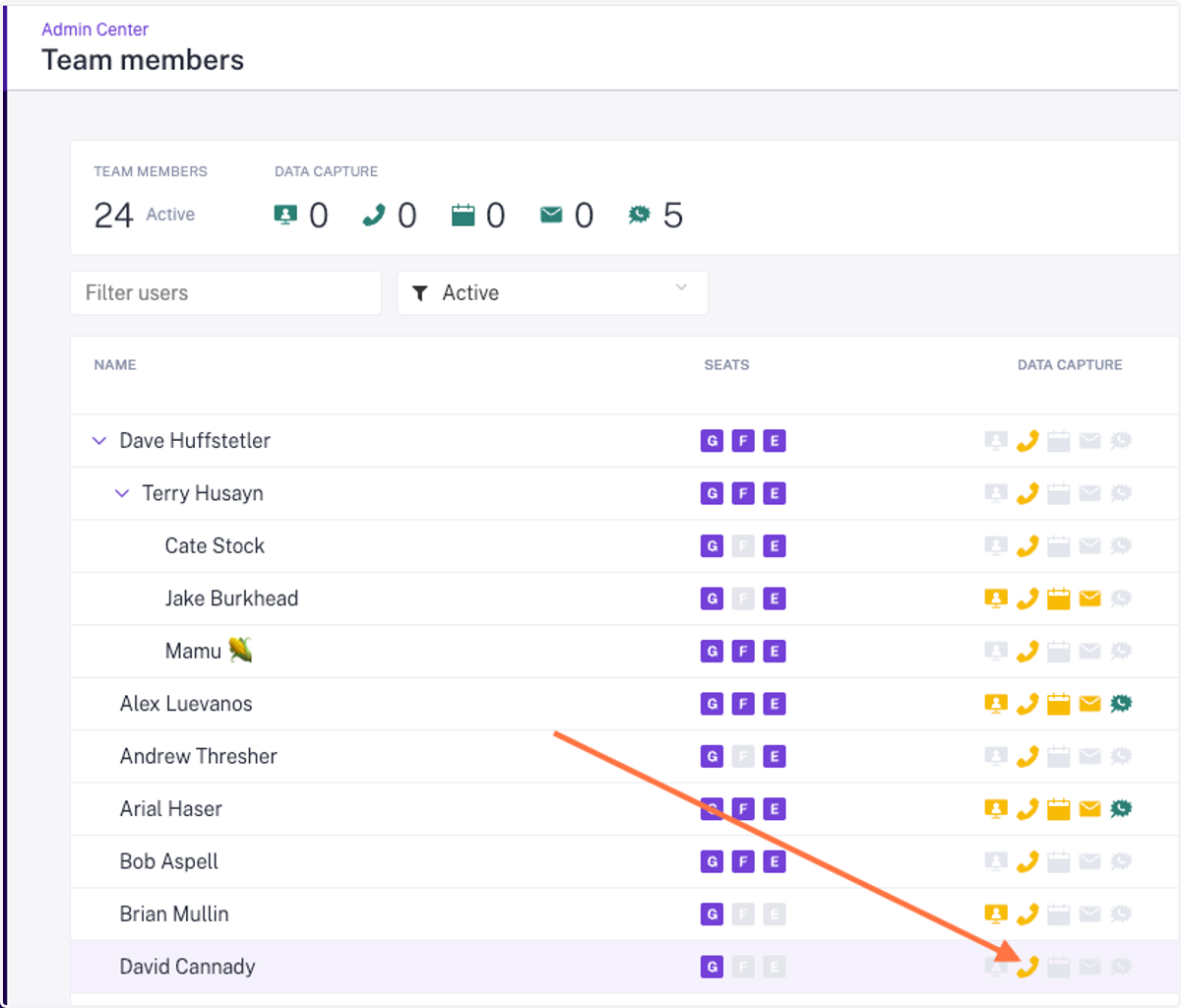
How to Enable Telephony Calls in Gong Engage
This is required for all users hoping to place calls in Orum! This setting is likely already configured for your Reps; however it never hurts to confirm.
Gong | Home
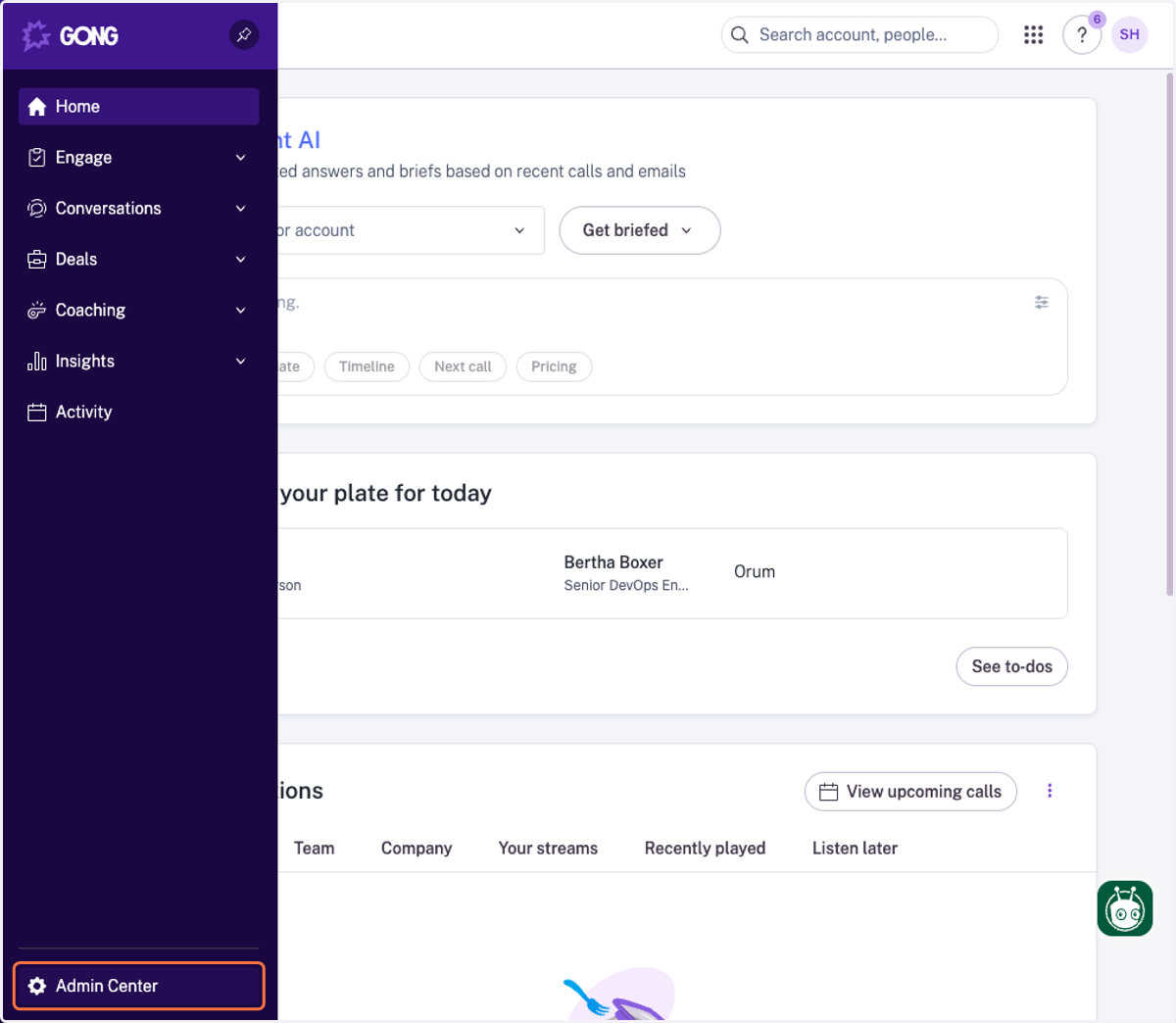
1. In your Gong sidebar, click on Admin Center.
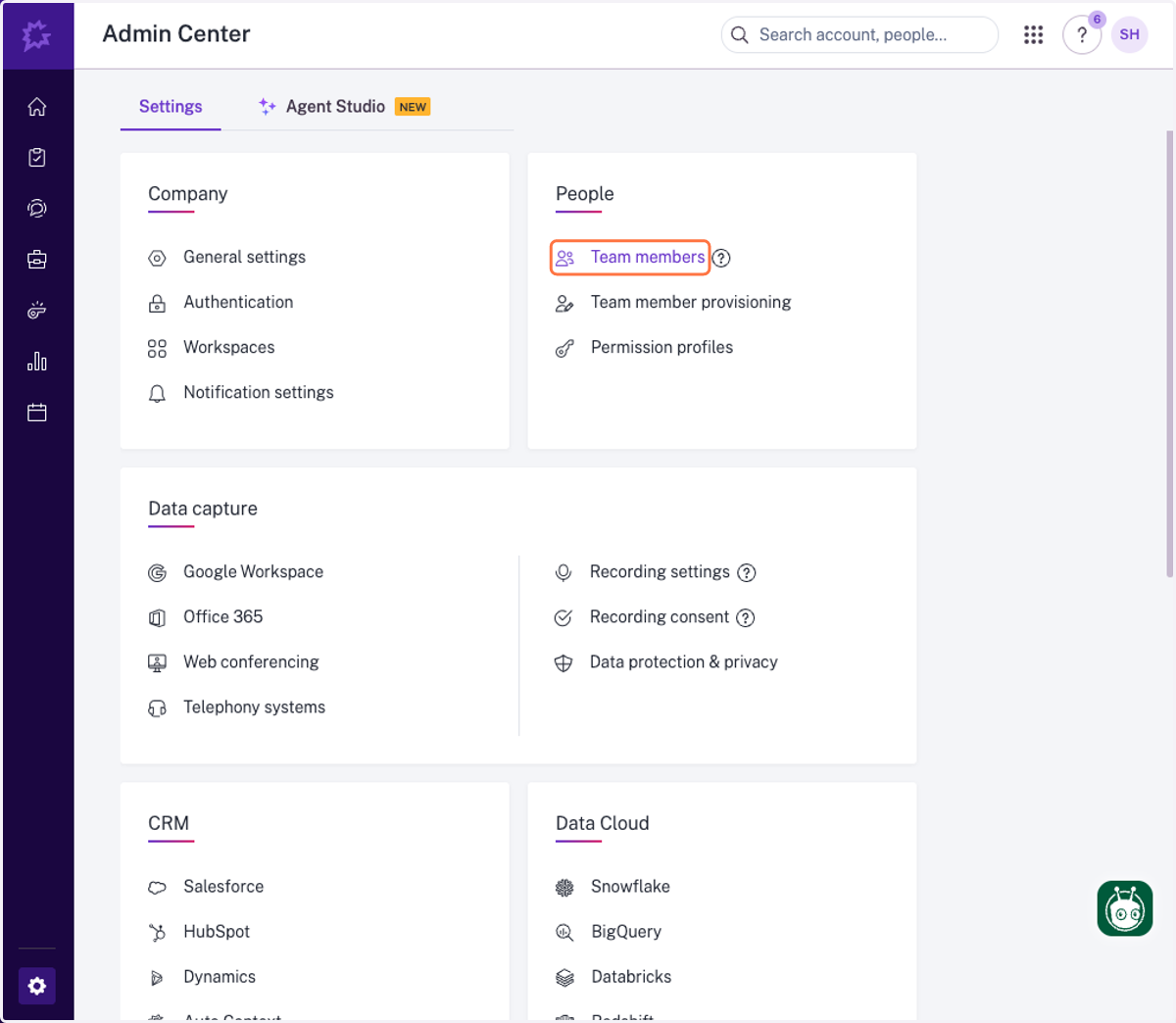
2. Select Team members under the "People" section.
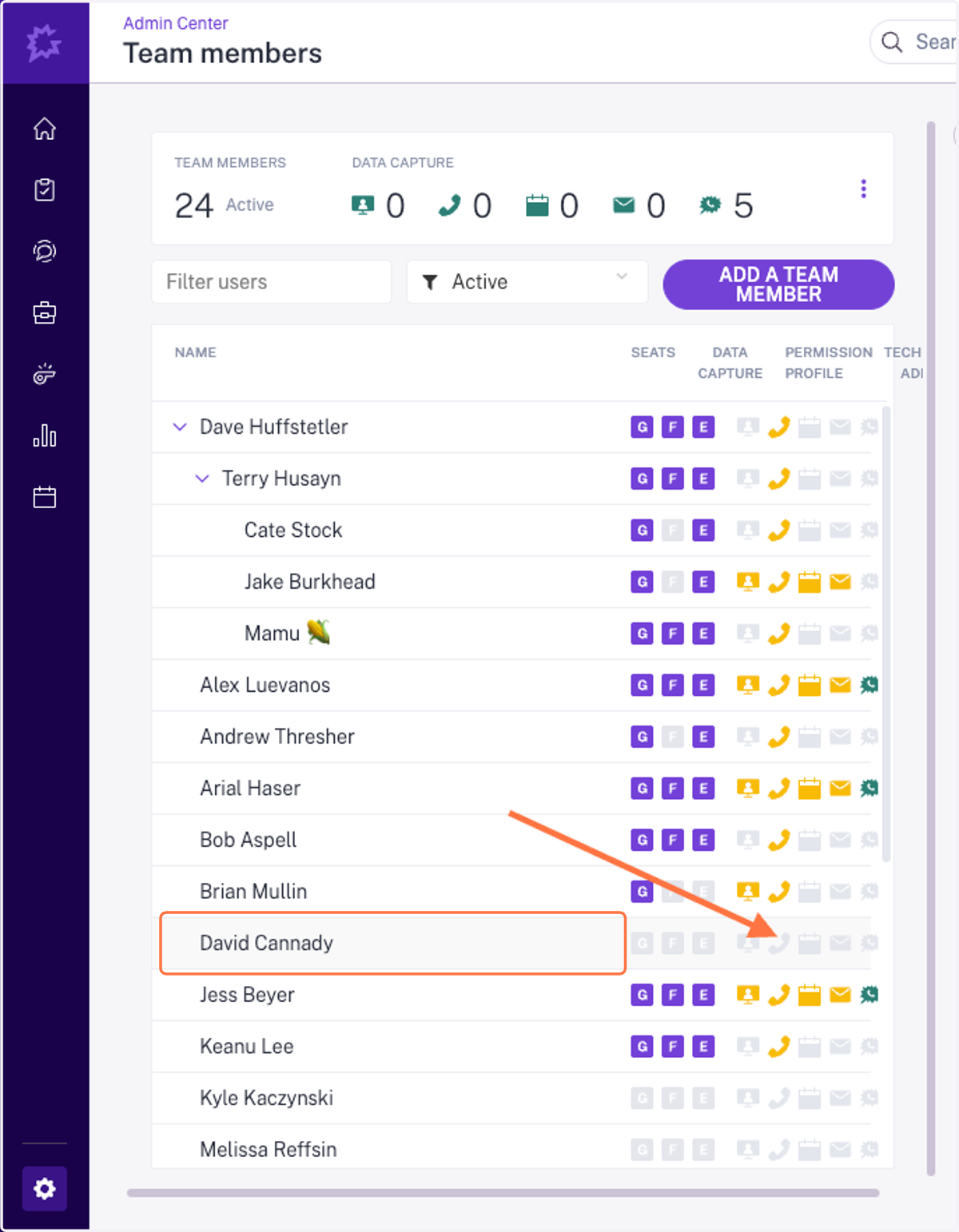
3. Find the user you want to enable Telephony Calls for. If Telephony Calls is disabled, the phone icon next to the user's name will be gray.
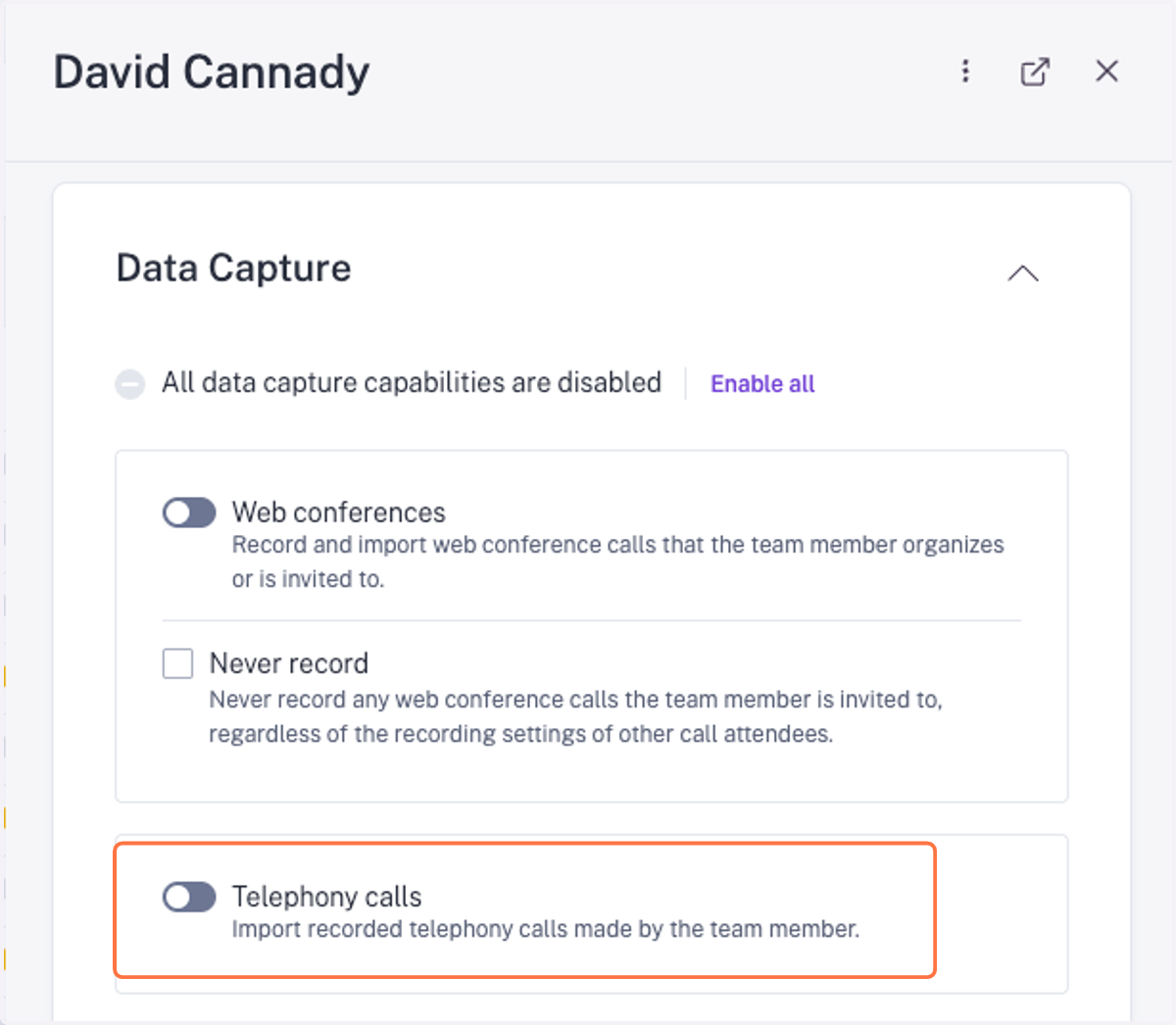
4. Once you select a user, scroll down to the "Data Capture" settings. Turn on Telephony Calls.
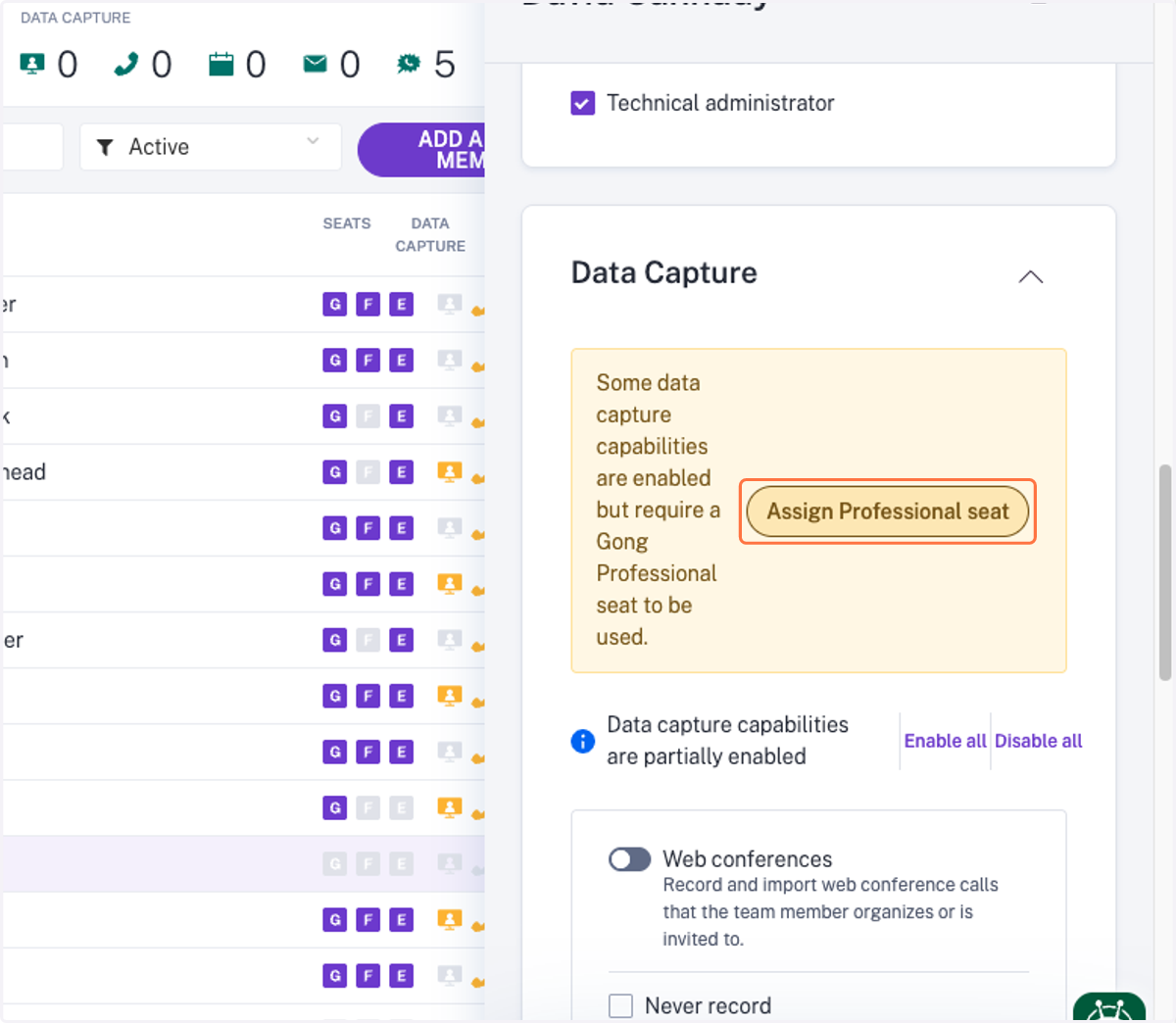
5. *You may be prompted to assign a Professional seat to that user if they do not have one already. If you see this message, this is required to advance further. If you do not see this message, continue below.
6. Click on Save changes.
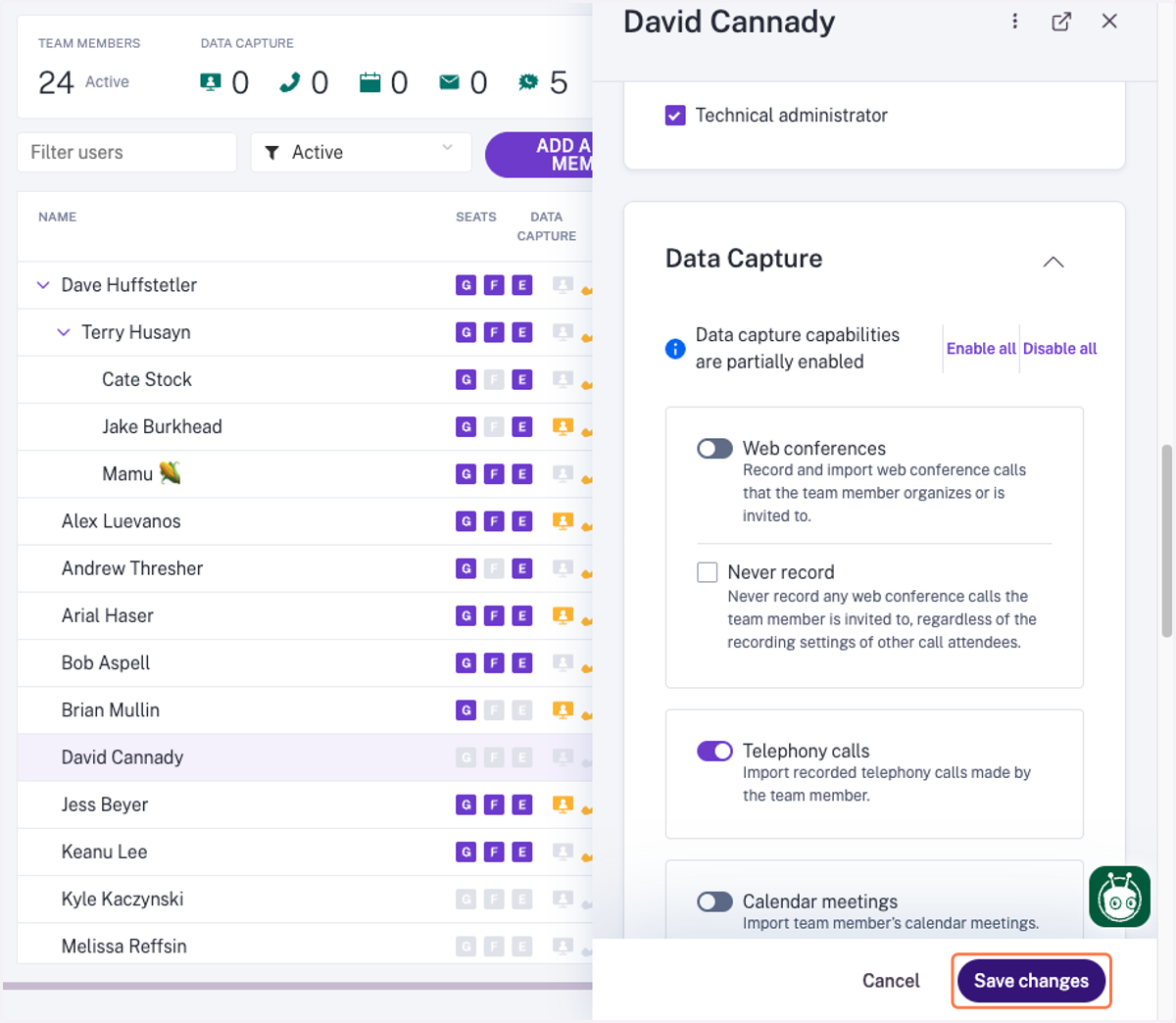
7. You will notice that User's Telephony icon is now yellow or green! That means Telephony Calls is enabled.