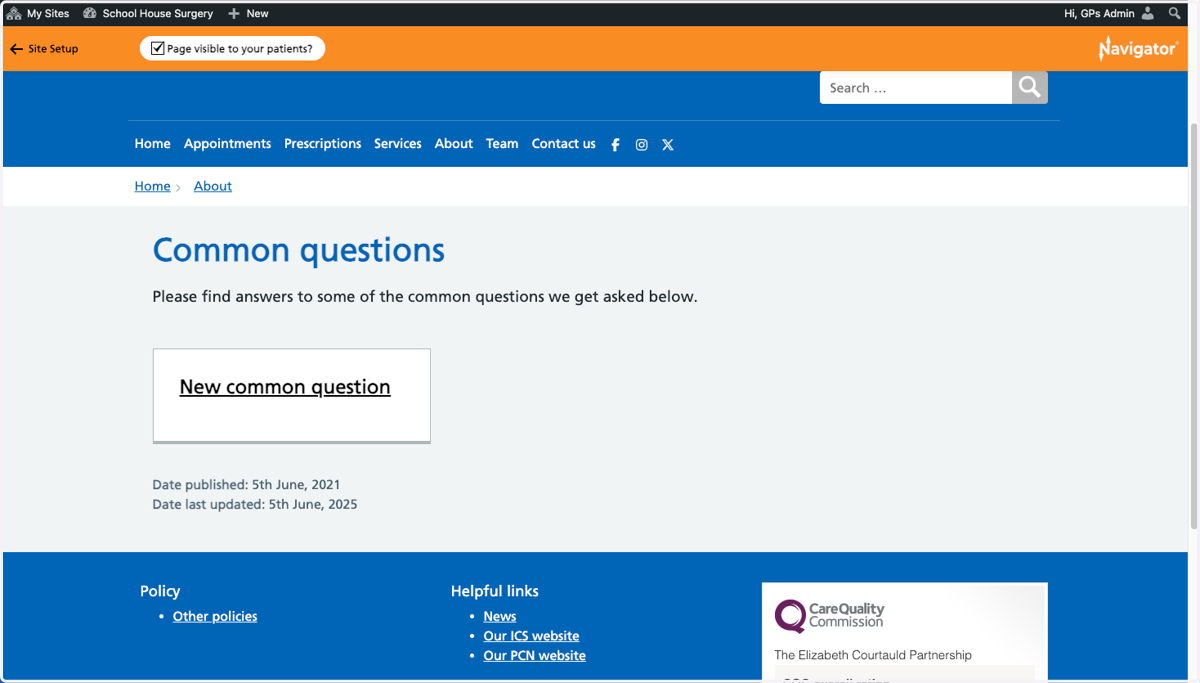
Add Common Questions to your Navigator website
This tutorial explains how to add a new Common Question and locate them on your GPsurgery.net Navigator website. You can move through the tutorial at your own pace using the Next button.
Log in to your Practice website
Please make sure you are logged in as an admin to your site
1. Go to your Dashboard
Ensure that you are logged into your Navigator website. The black admin toolbar will be visible at the top of the screen. Learn how to login to your website.
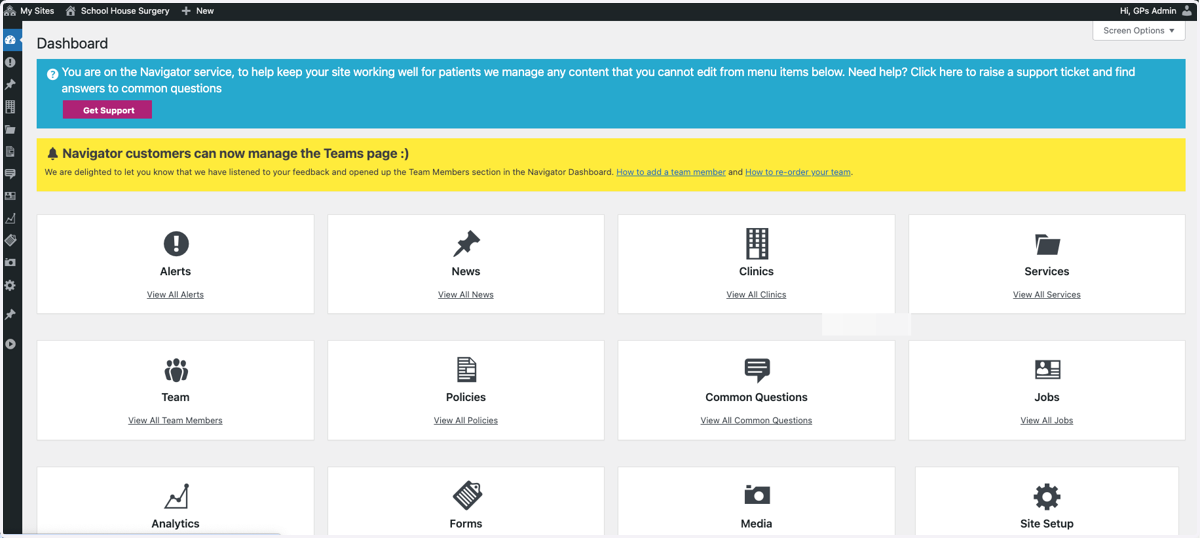
2. Select Common Questions
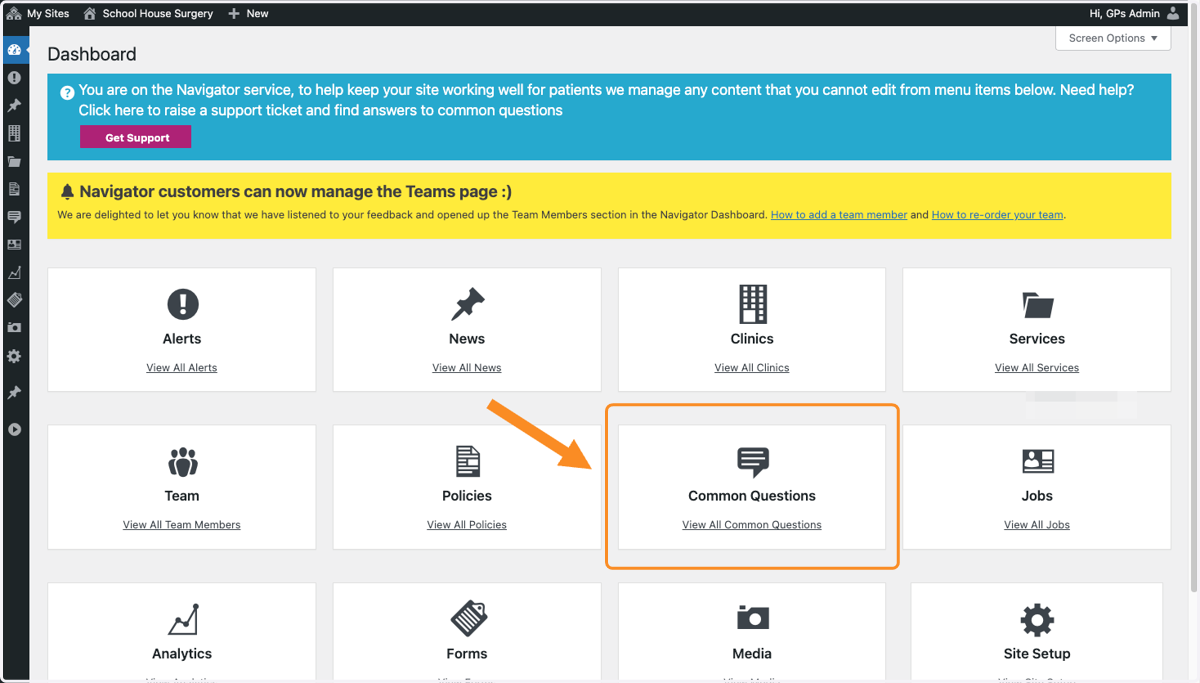
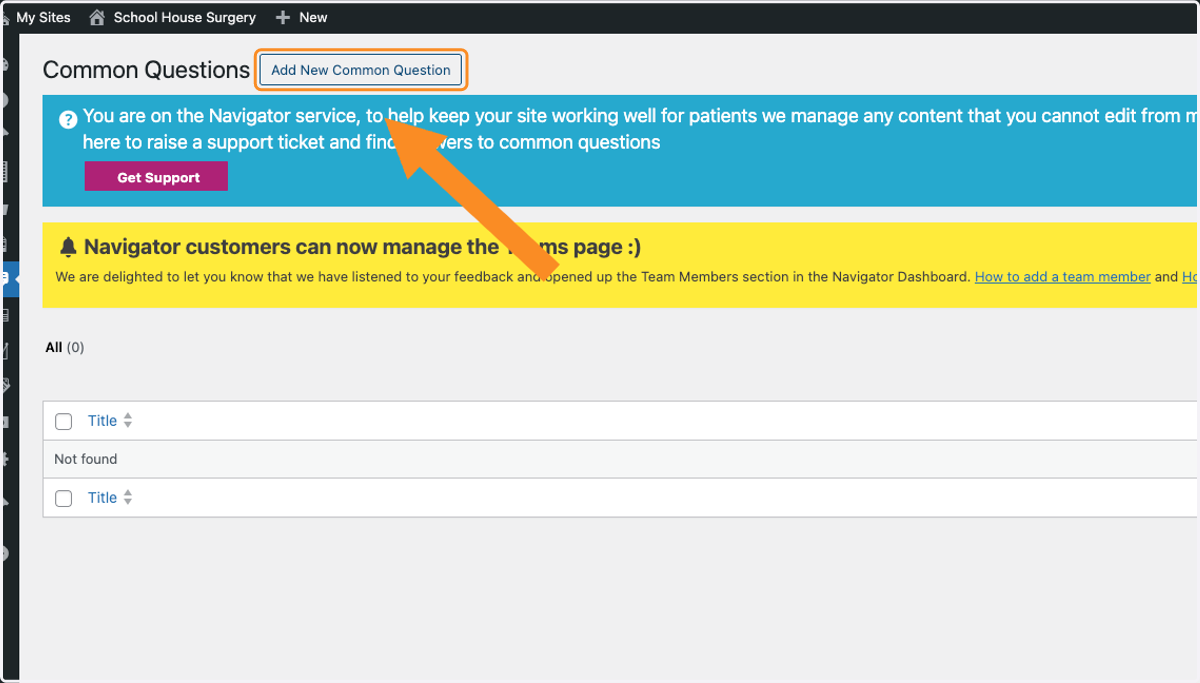
3. Select Add New Common Question
You will see your current Common Questions if you have them.
To add a new Common Question, select Add New Common Question.
4. Add your title
Type your Common Question title in the box
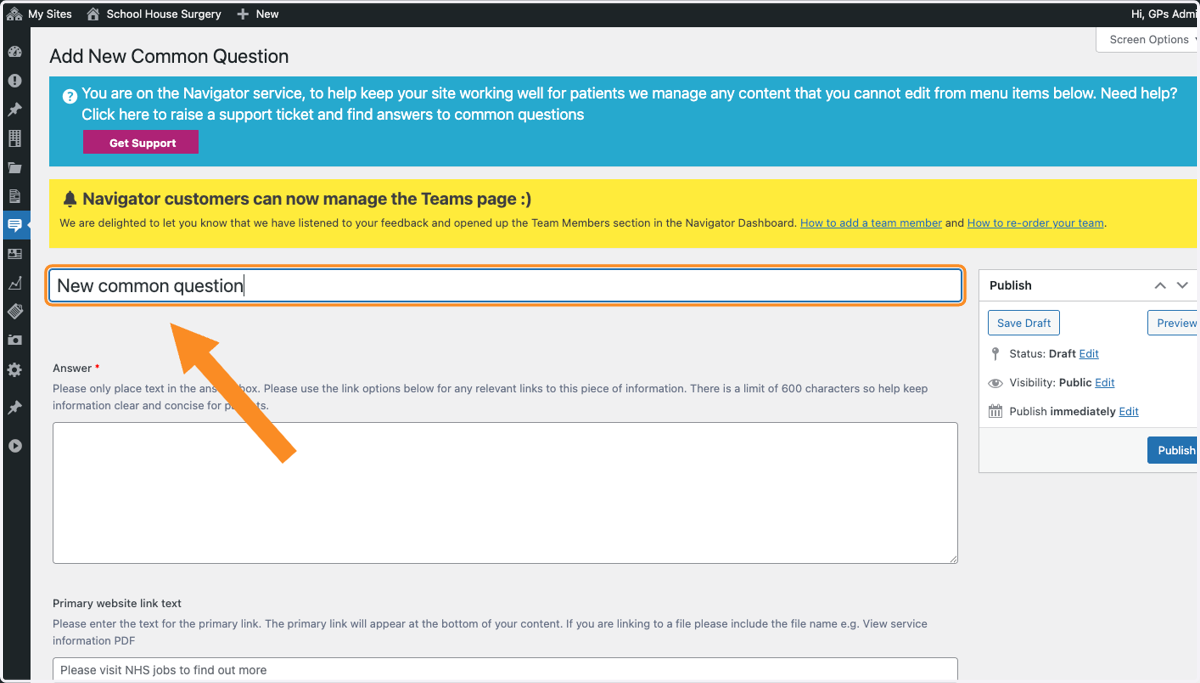
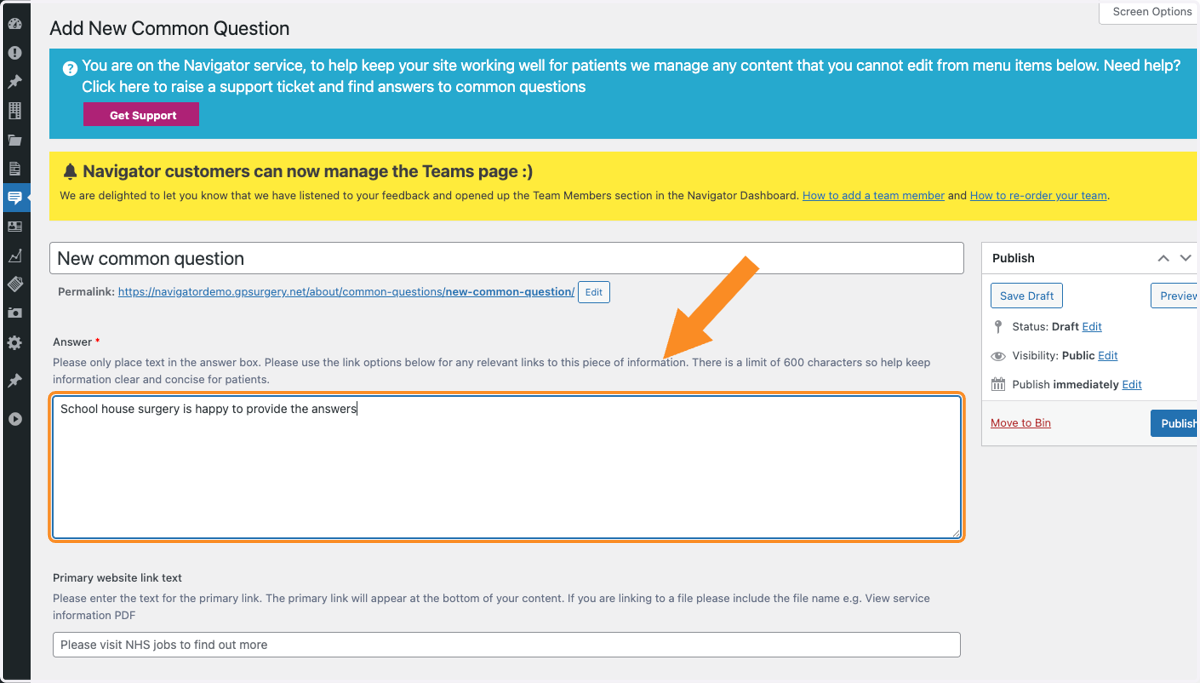
5. Add your answer to the Common Question in the answer box
Add text in the box to answer the Common Question.
Note: Do not add large amounts of clinical information. Instead, use the boxes below to link to reliable, external sources (like the NHS website).
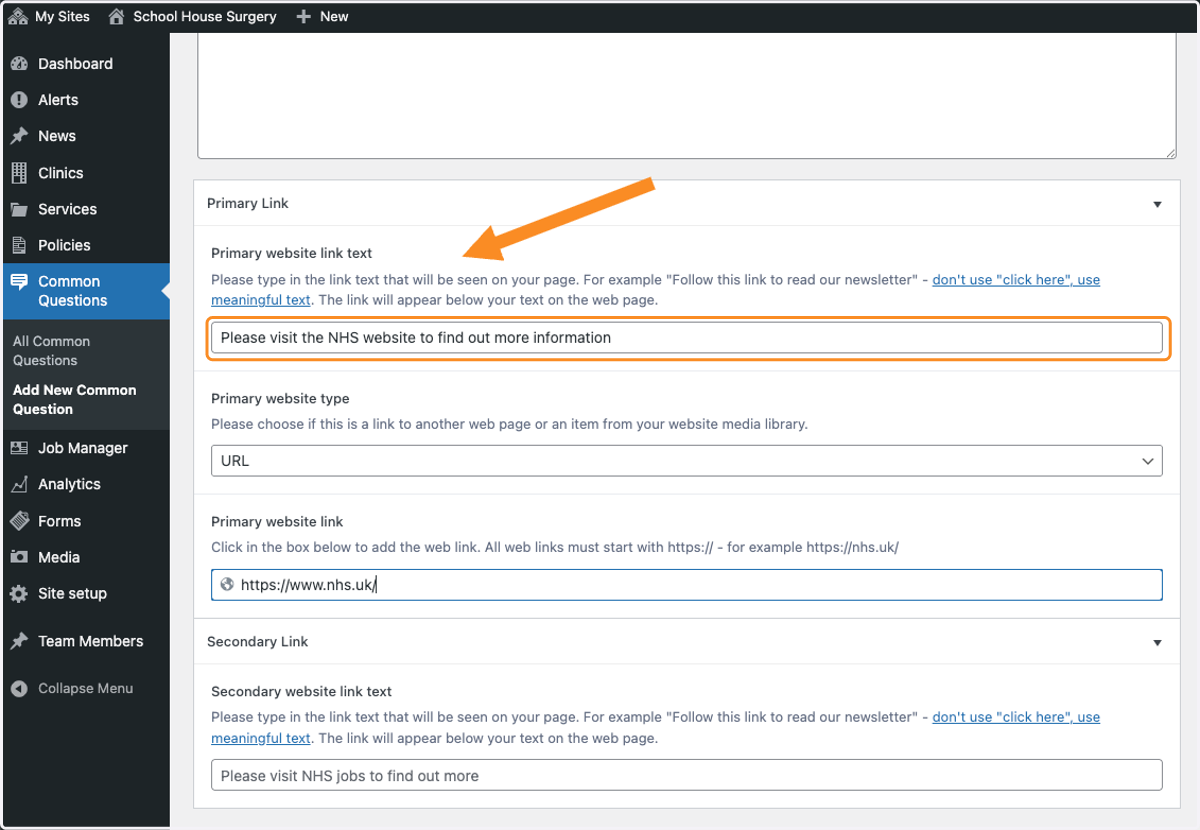
6. Add text to Primary website link text
To add links, use the Primary website link text box to add simple, accessible link text. Learn how to write meaningful link text. For example "Please visit (website name) to find out more information"
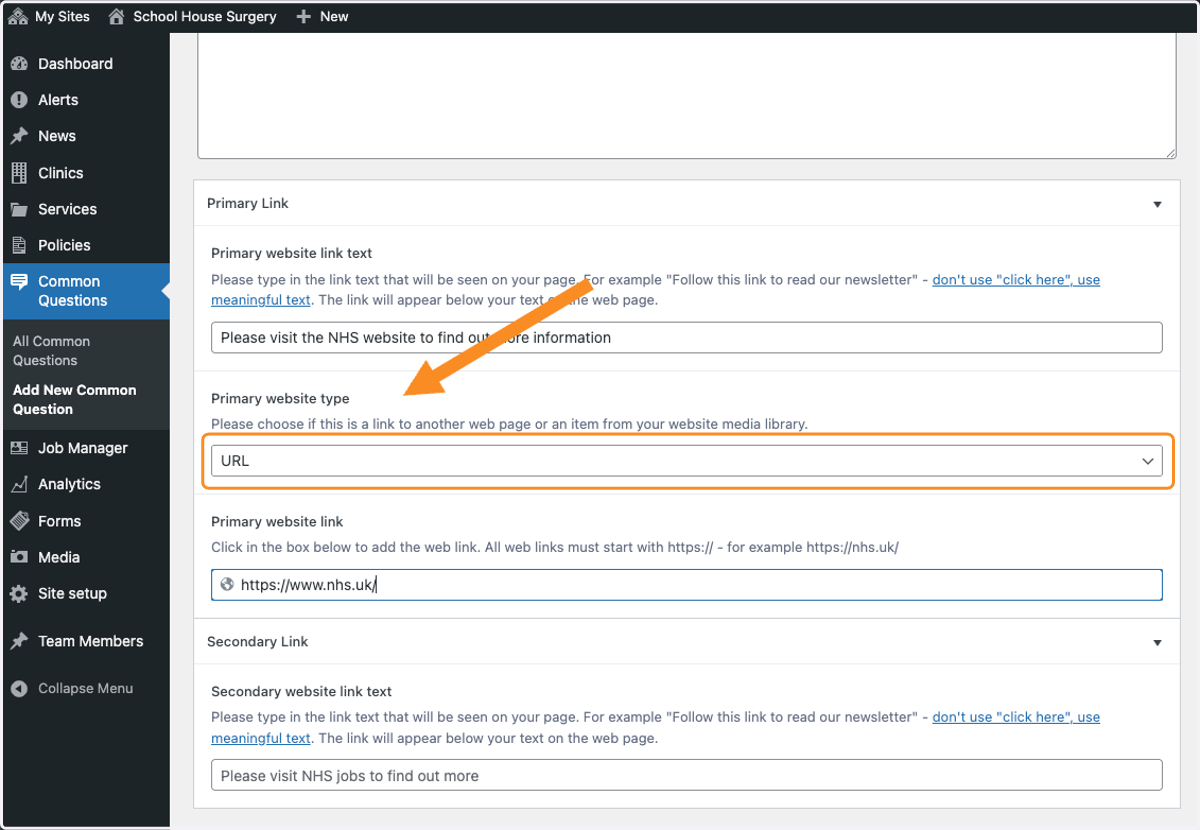
7. Select URL under Primary website type
Select URL to use a website as the first link you would like to add.
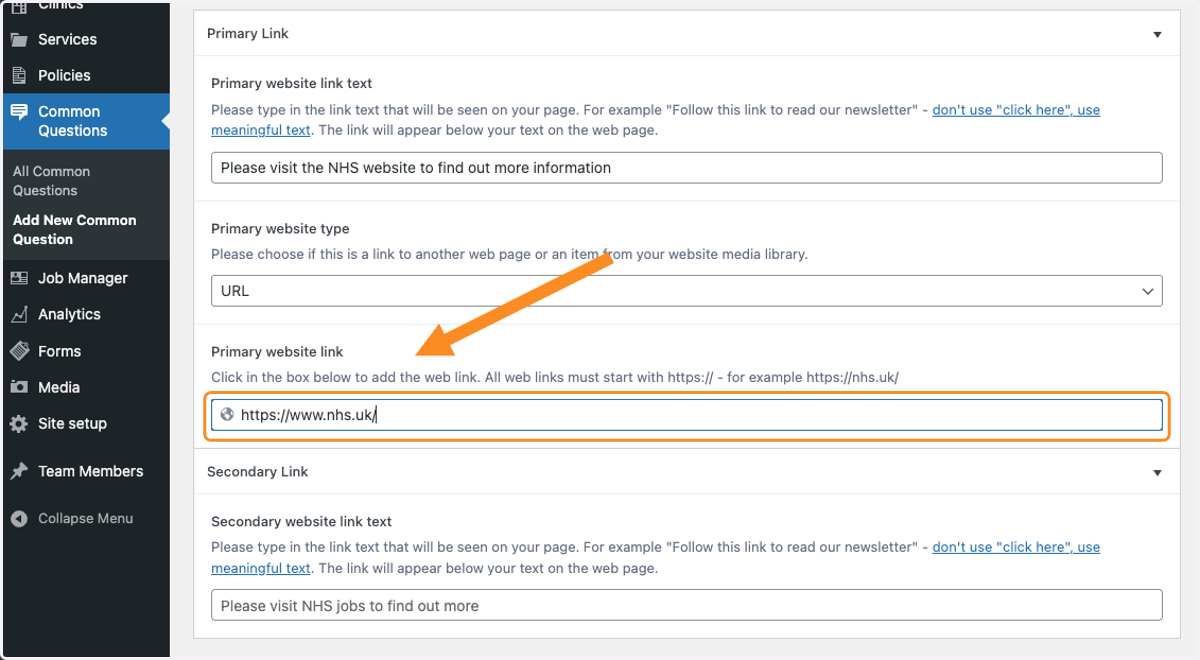
8. Add website address text to Primary website link box
Add the website address in the box. For example https://www.nhs.uk/
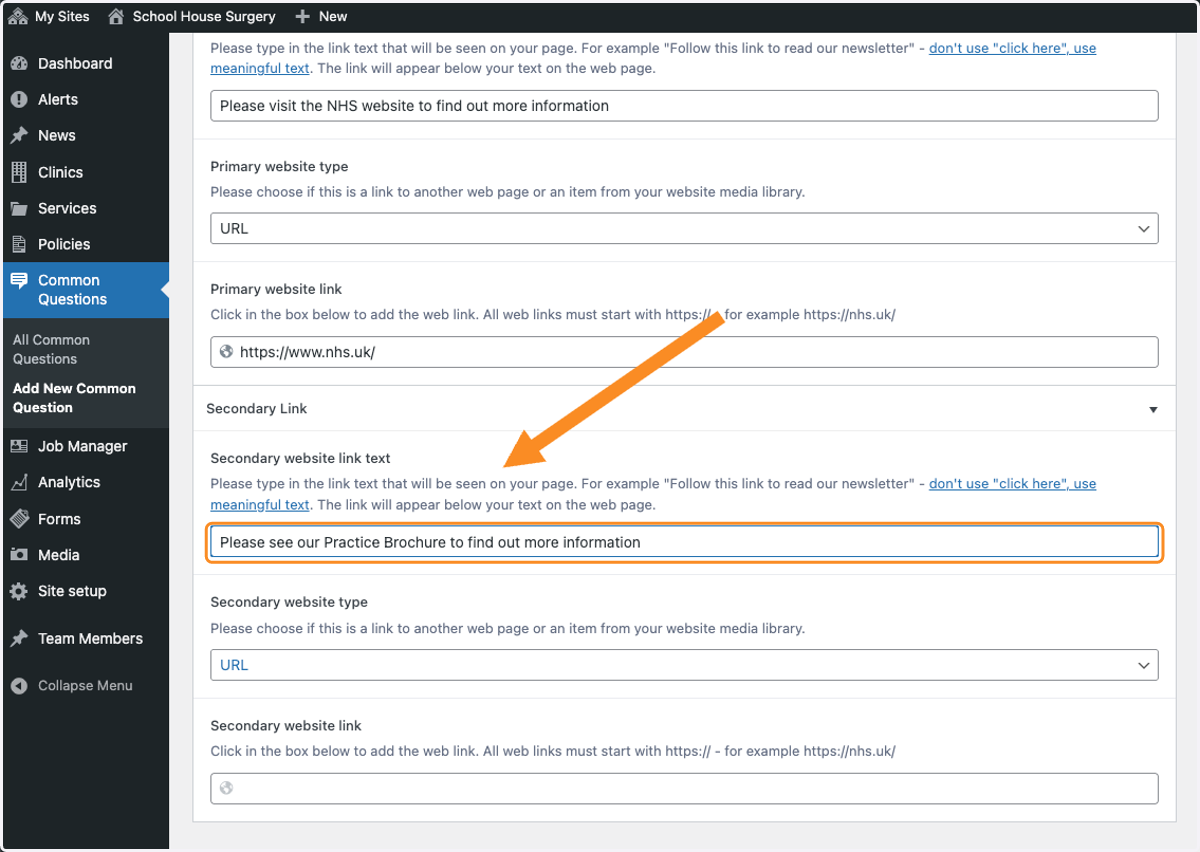
9. Add a Secondary website link text
If you have more than one website address or a document you would like to add to your Common Question, please enter your Secondary website link text in the box
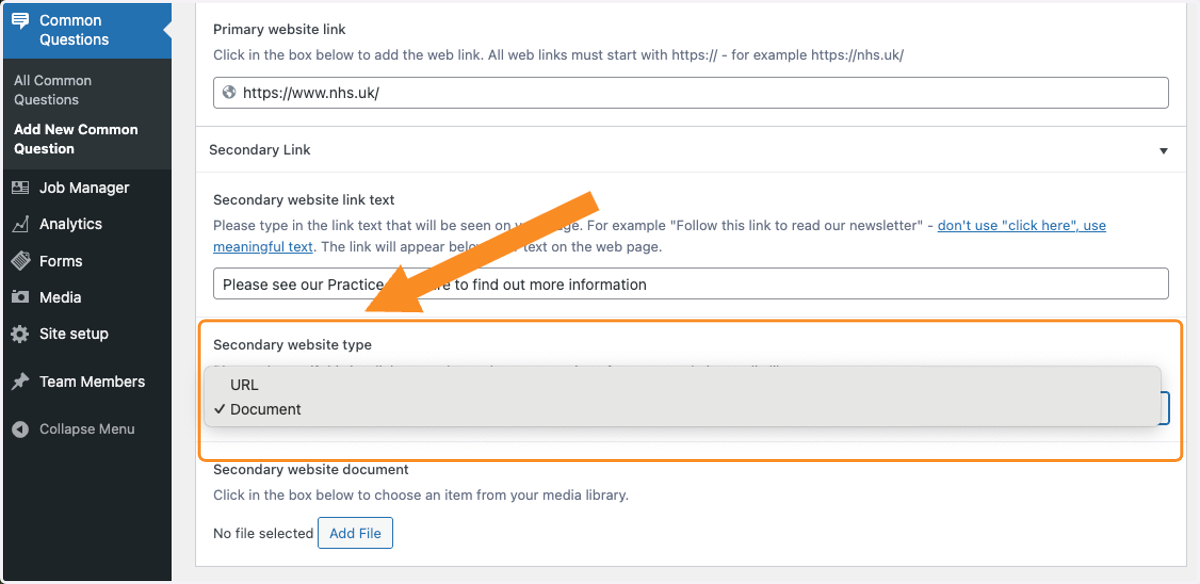
10. Select Secondary website type
Select Document if you would like to add a document as a link
11. Select Add File
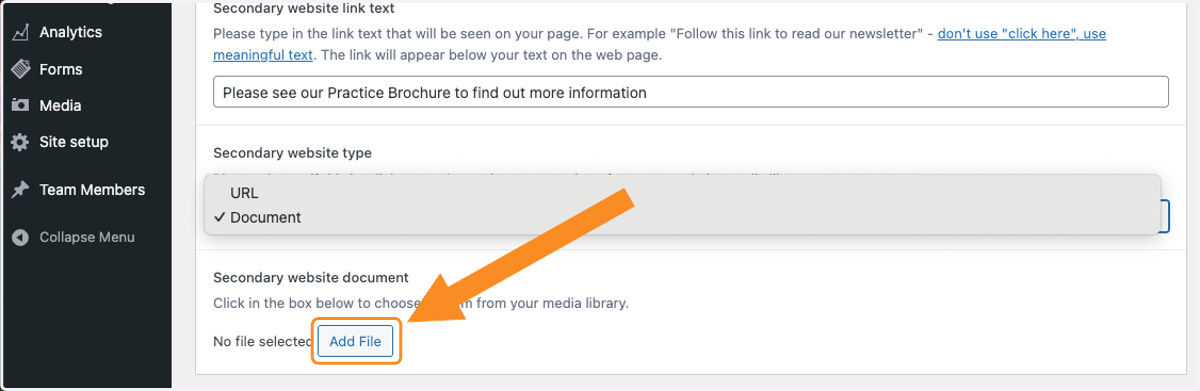
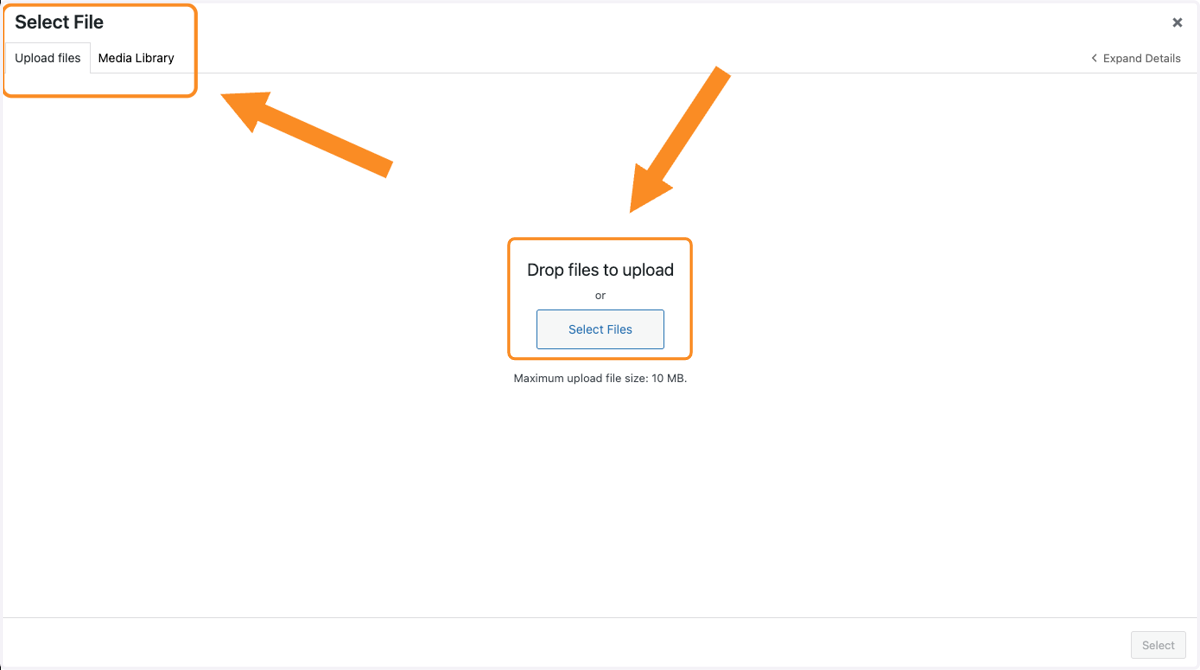
12. Select the document from your device or Media Library that you would like to use
Select the document in your Media Library or use Select Files to select a document from your device. You can also drag and drop a file into this area.
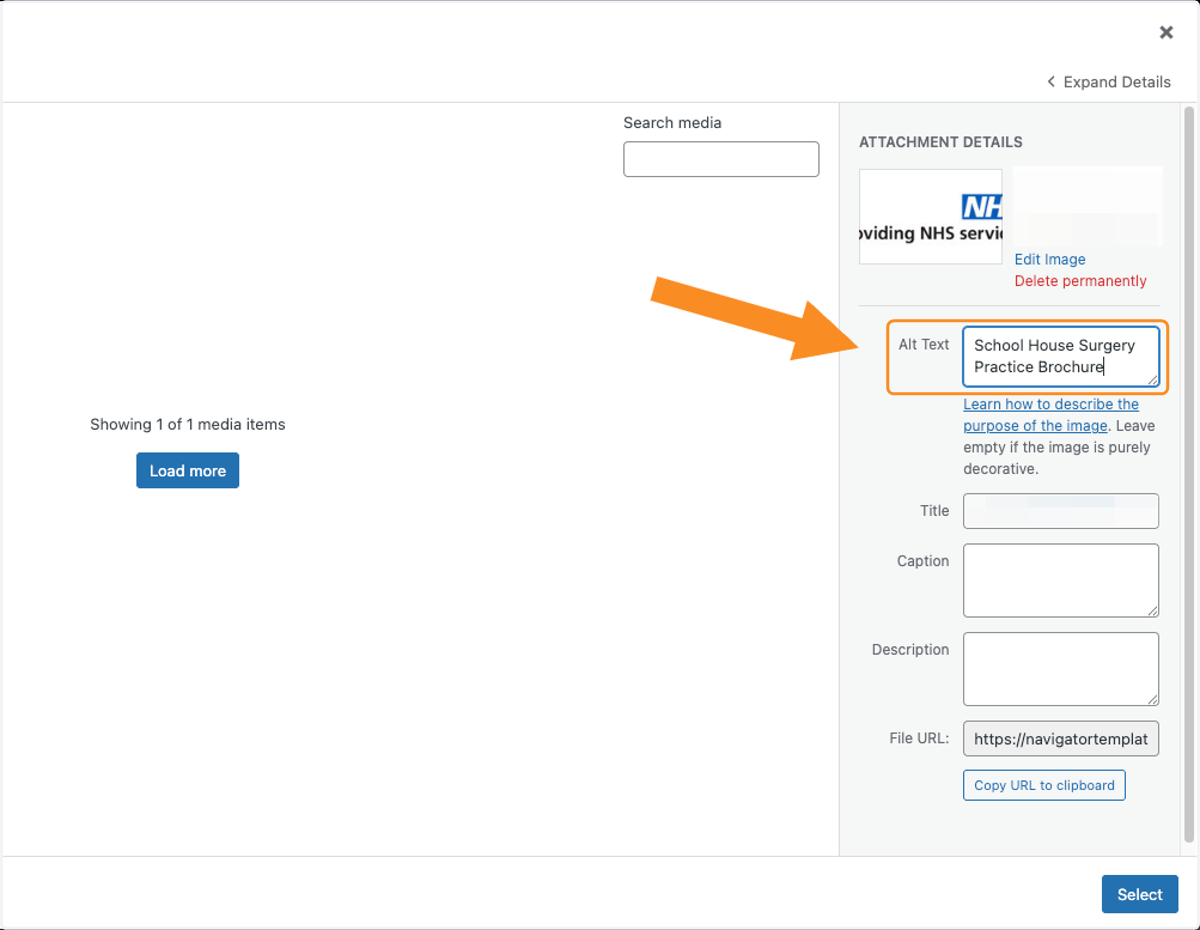
13. Add text to Alt Text
Add a document description to the Alt Text box. For example Practice Name Brochure
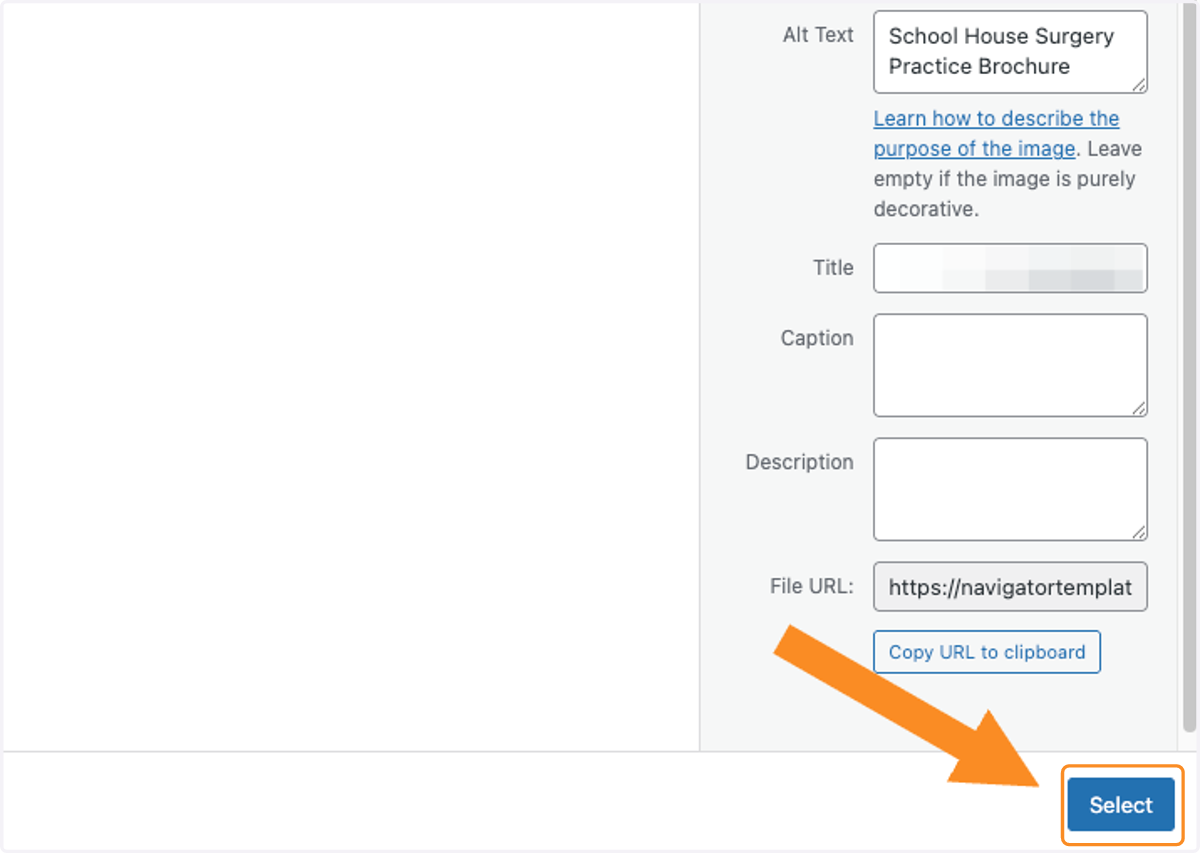
14. Use Select
Use the Select button to set the document as a link.
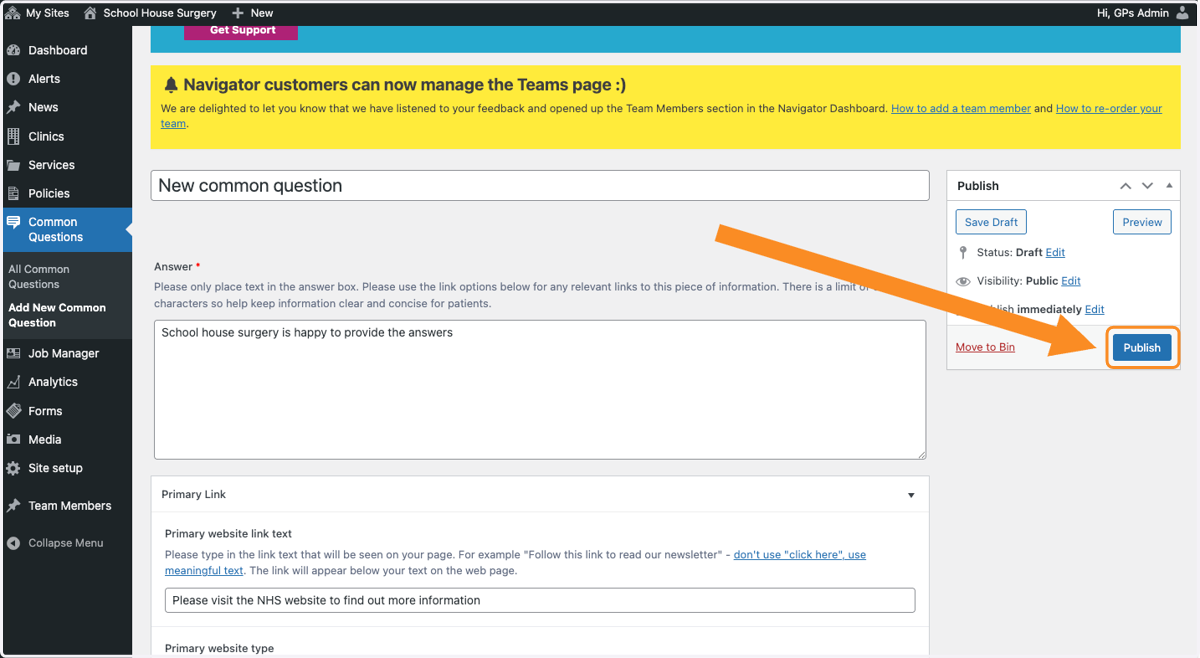
15. Select Publish
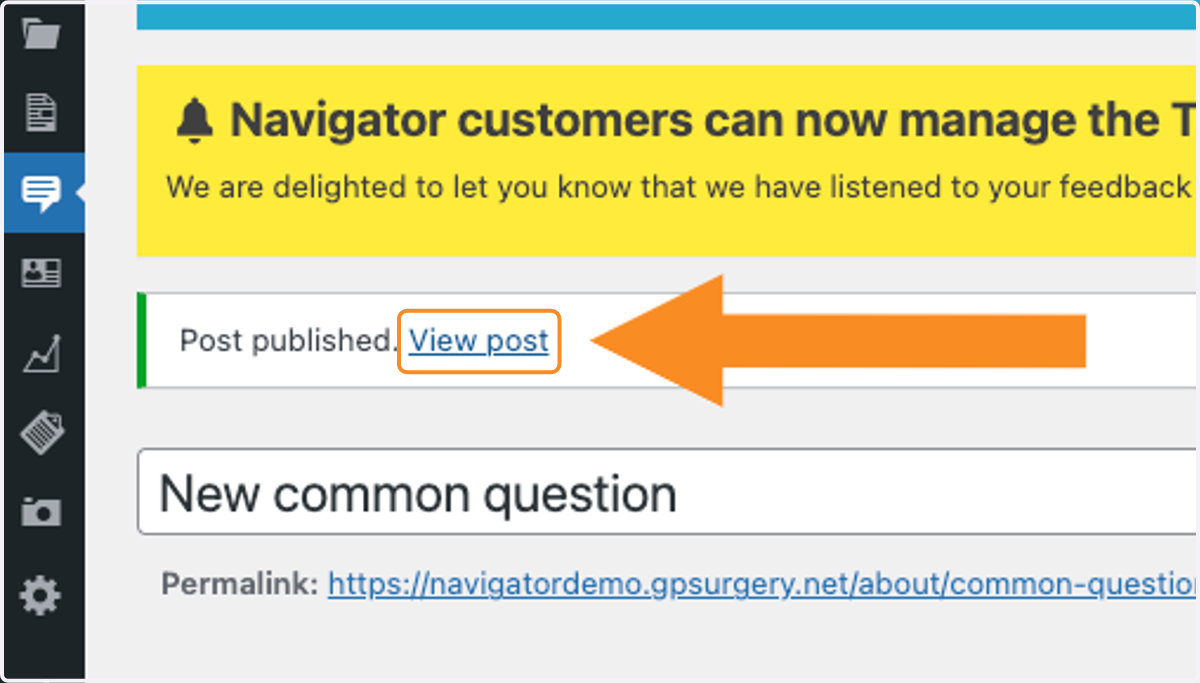
16. Select View post
The post is published. You can now view your Common Question.
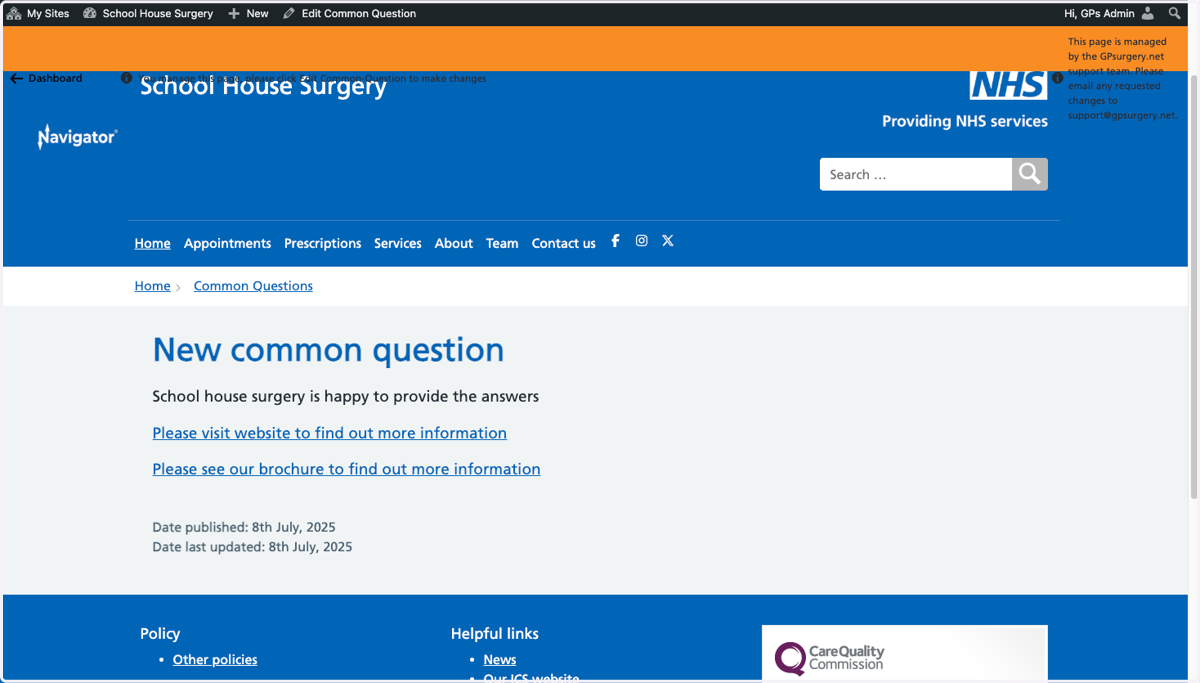
17. View your Common Question
Check your new Common Question and all links.
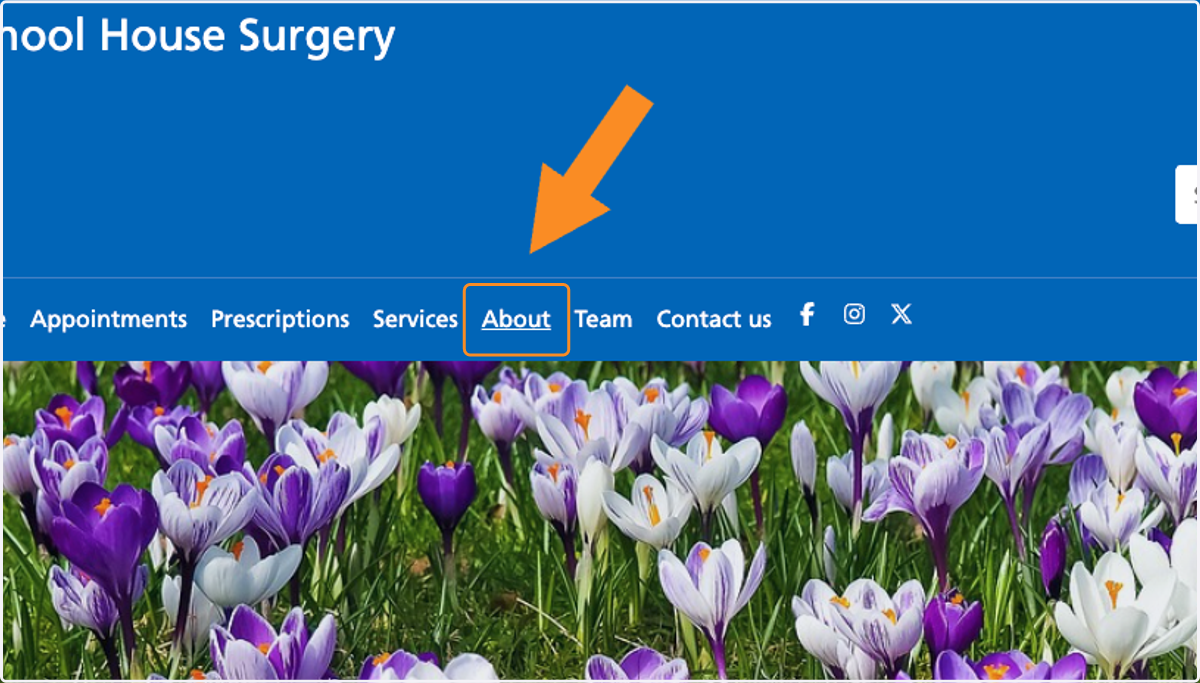
18. View all Common Questions
Common Questions are located by selecting About.
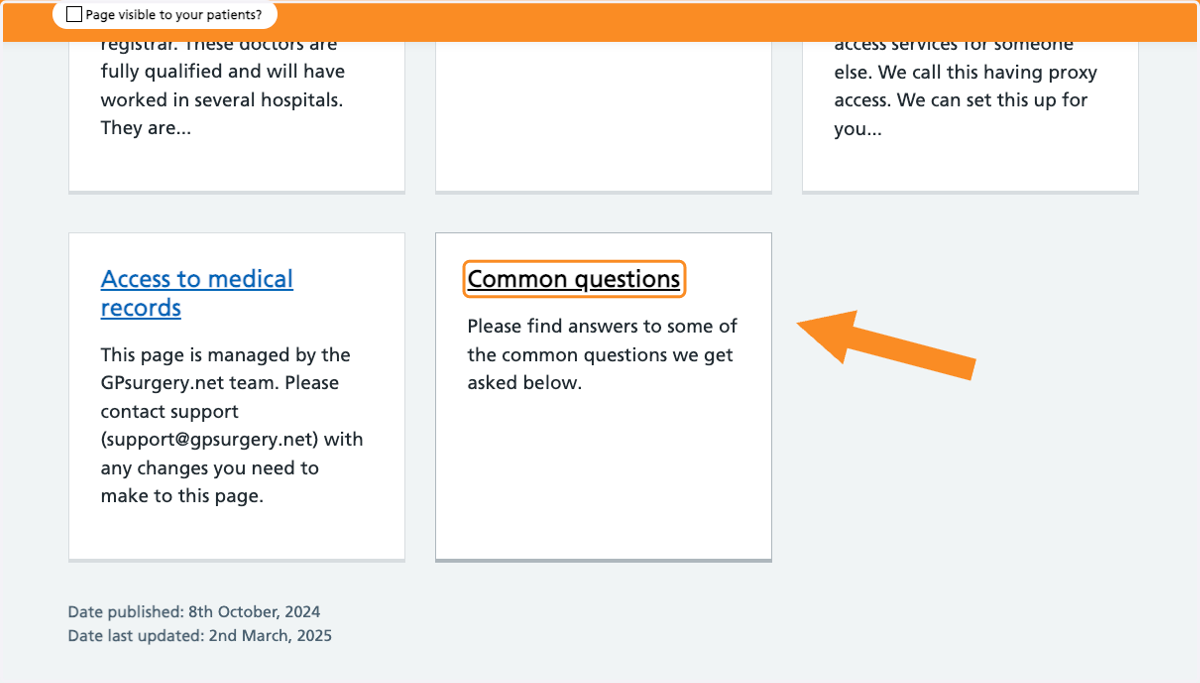
19. Select Common Questions
Scroll down the page to Common Questions.
20. View Common Questions page
On the Common Questions page you can view all Common Questions you have posted.