SEO and Meta Tags in Drupal
SEO and Meta Tags in Drupal
This Tango will show you step-by-step how to fill in meta tags for SEO in Drupal.
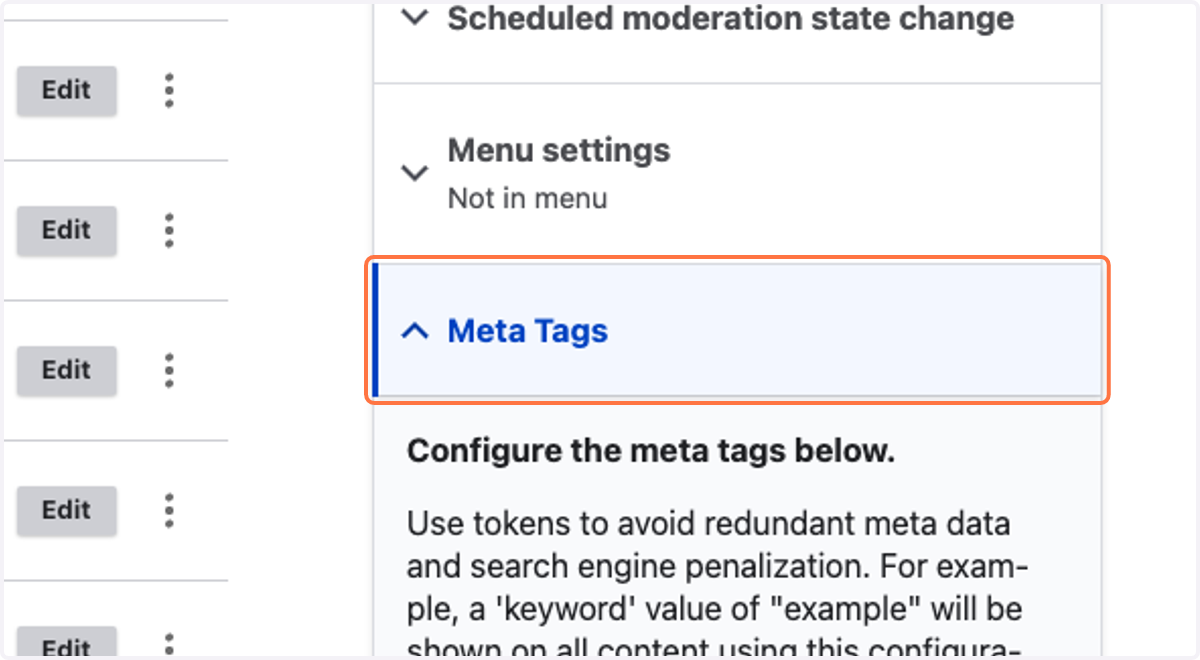
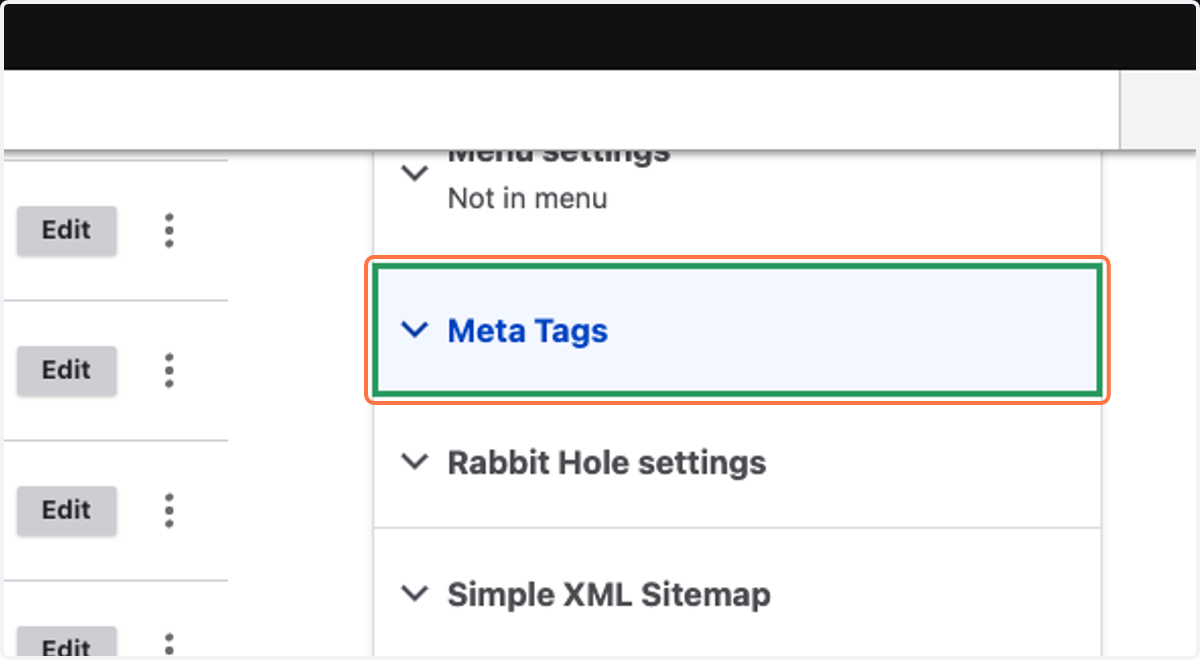
1. Click on Meta Tags in the right sidebar to open the meta tag panel
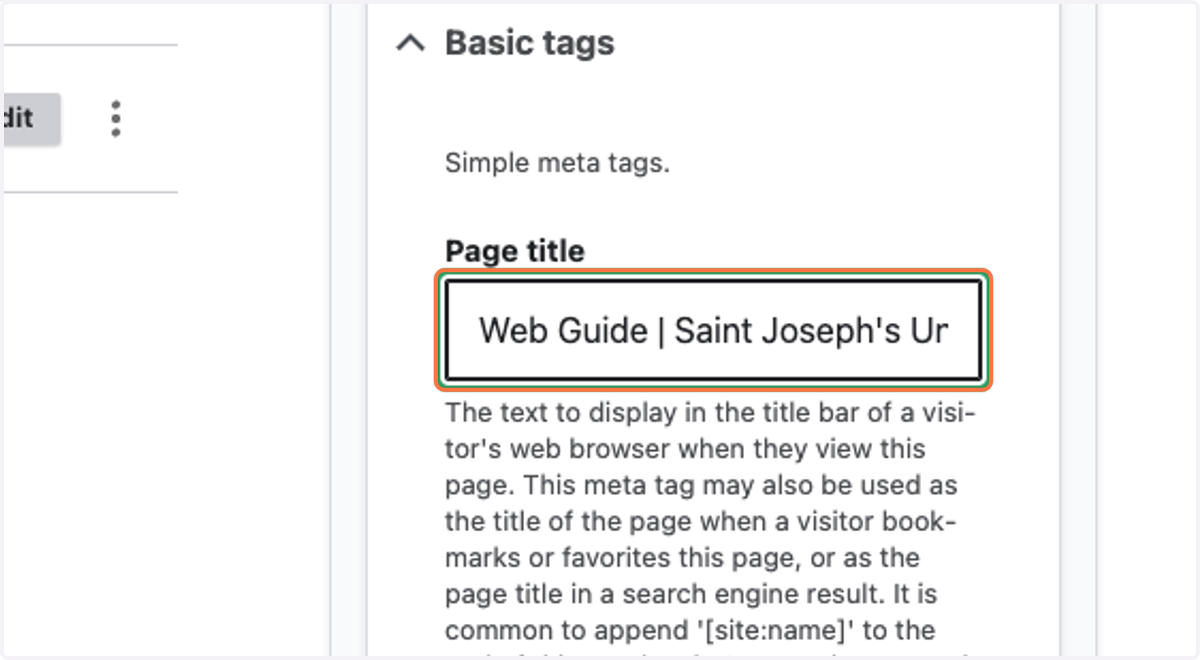
2. Enter the Title of your page
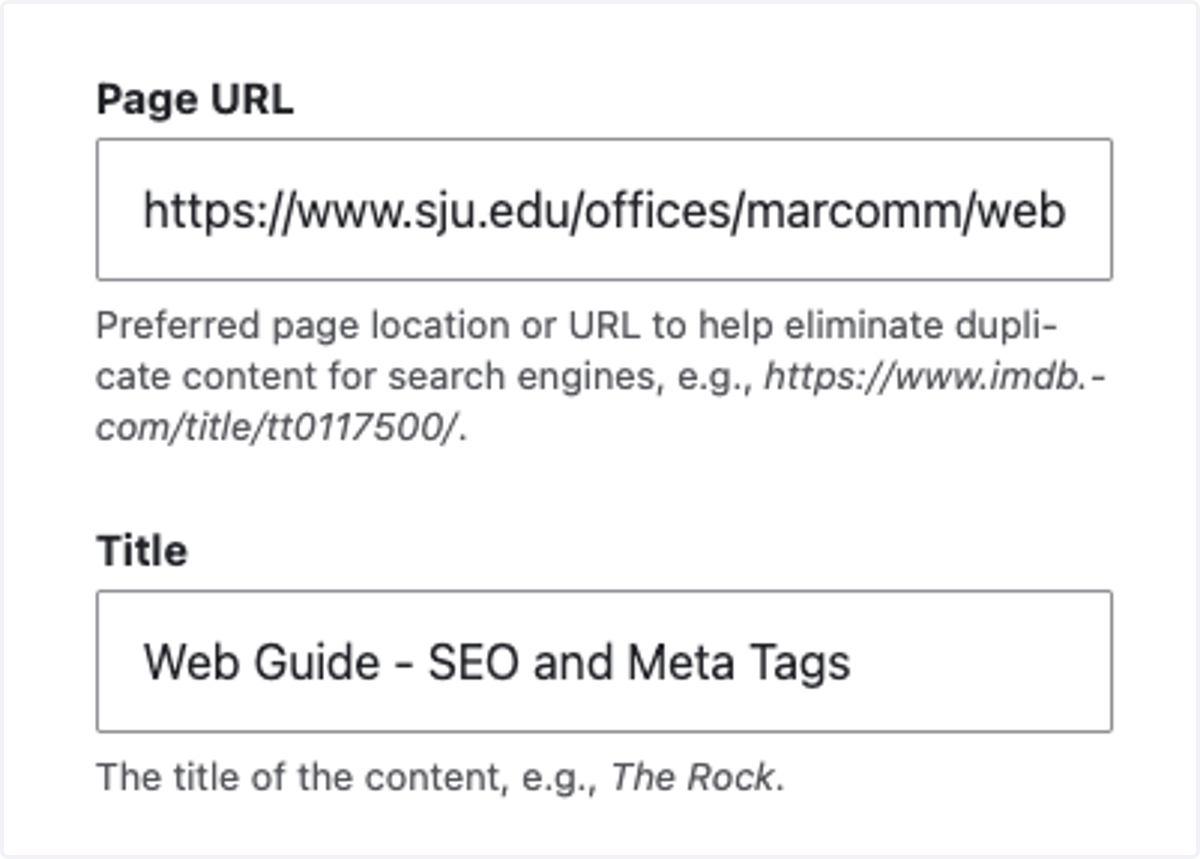
Enter title of your page with Saint Joseph's University separated by a pipe character. Your title should be no longer than 60 characters. If you need to truncate the title, this is fine.
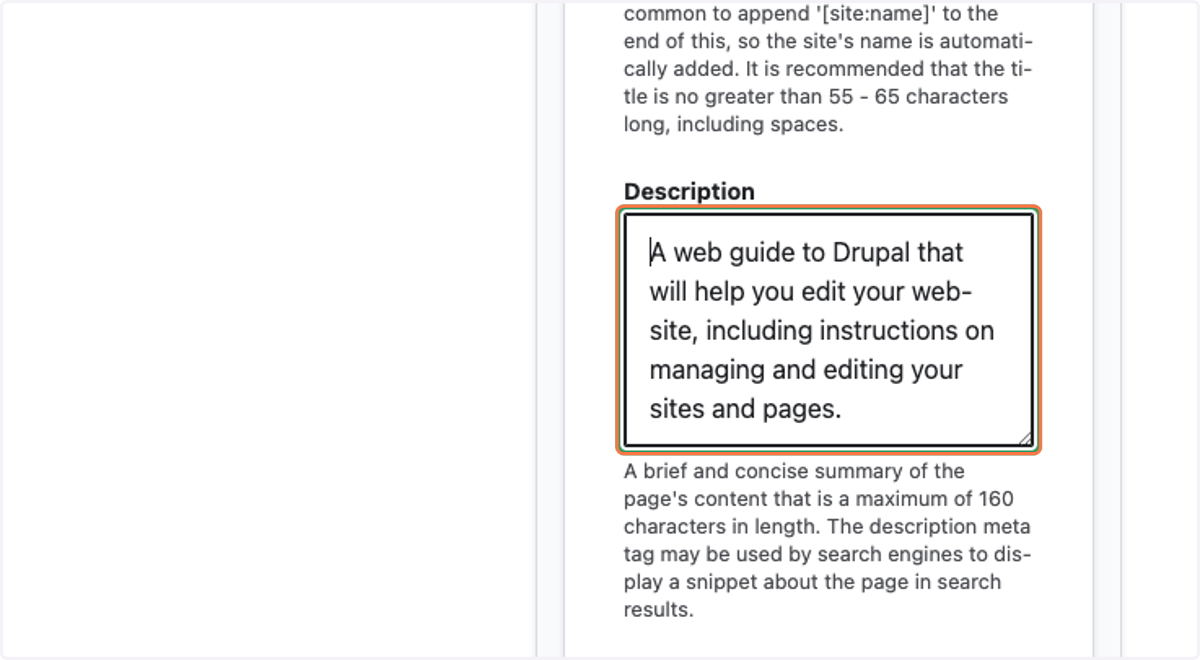
3. Add a meta description
Meta descriptions should be between 55-160 characters.
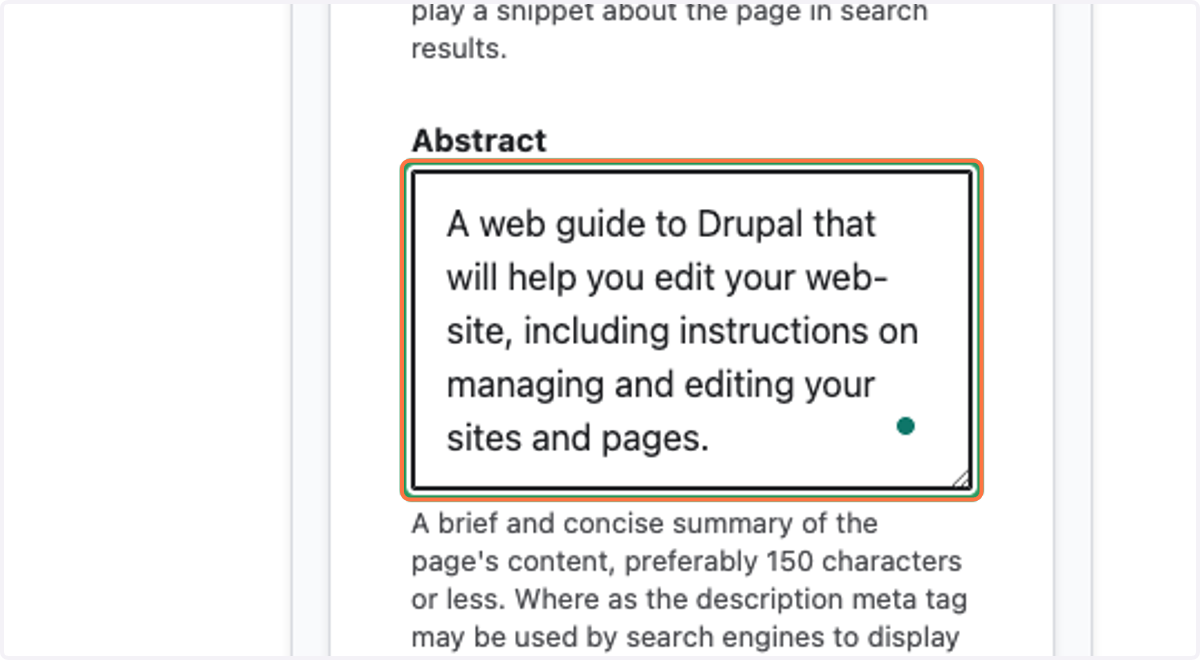
4. Copy your description into Abstract
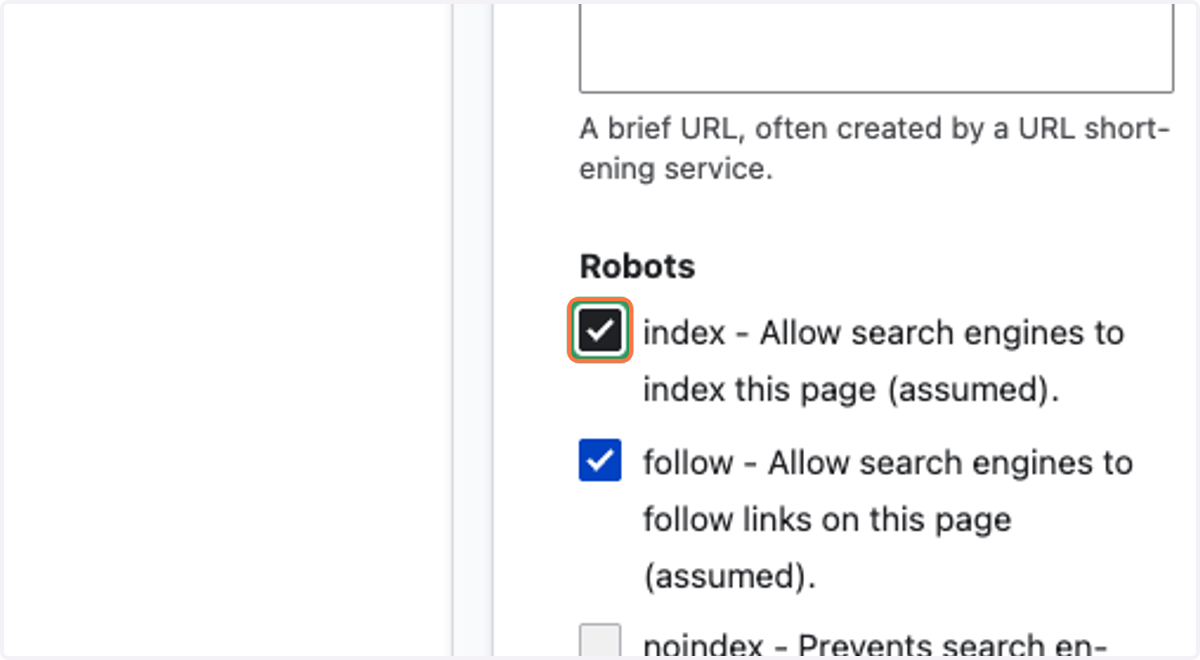
5. Make sure that the index and follow checkboxes are checked under Robots.
If for some reason this is a very rare case of you NOT wanting search engines to index the pages and follow its links, then uncheck each.
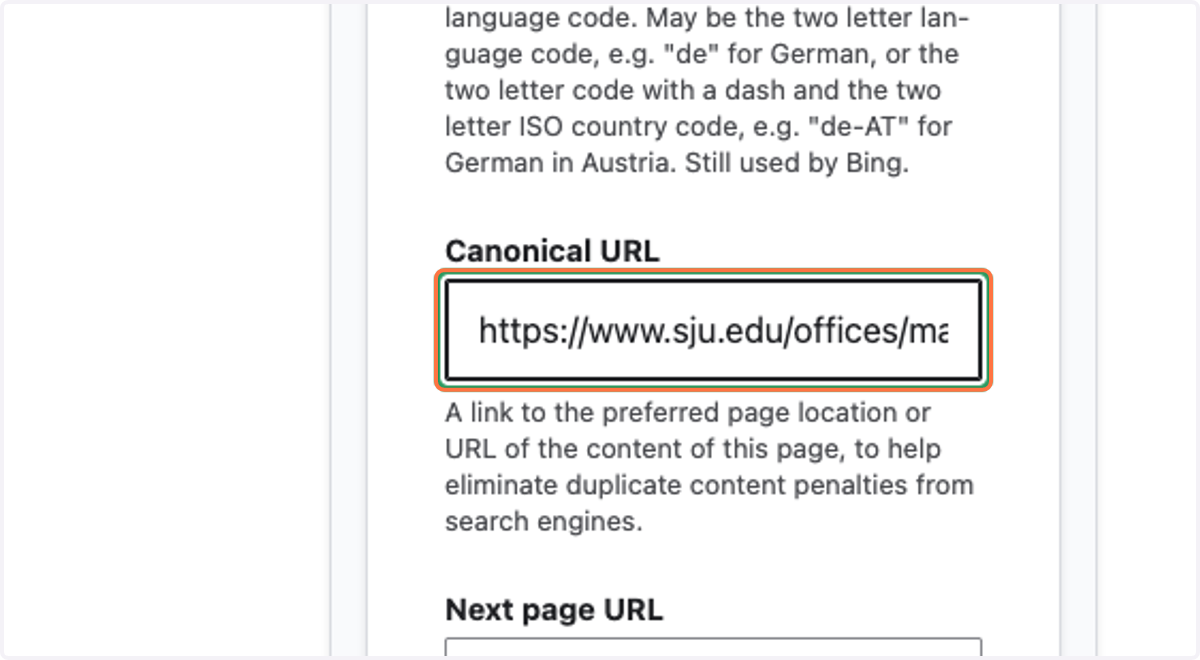
6. Enter the full URL of your page
The Canonical URL is the same as the Page URL. To fill in the Canonical URL field, copy the URL of the page and paste it into the Canonical URL field.
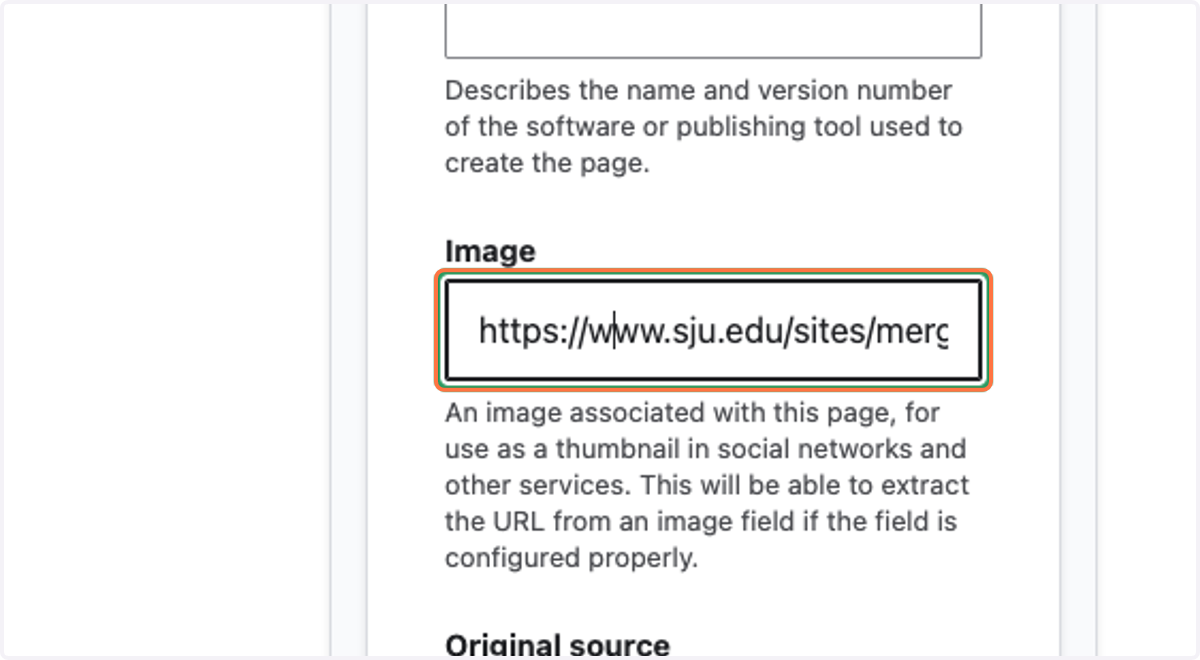
7. Enter the location of the main image on your page.
If you have a chaptered page, you can use the URL of a beauty shot of the campus from our Media Library.
8. In the Open Graph panel, enter Site name
In all but the rarest of cases, this will be Saint Joseph's University.
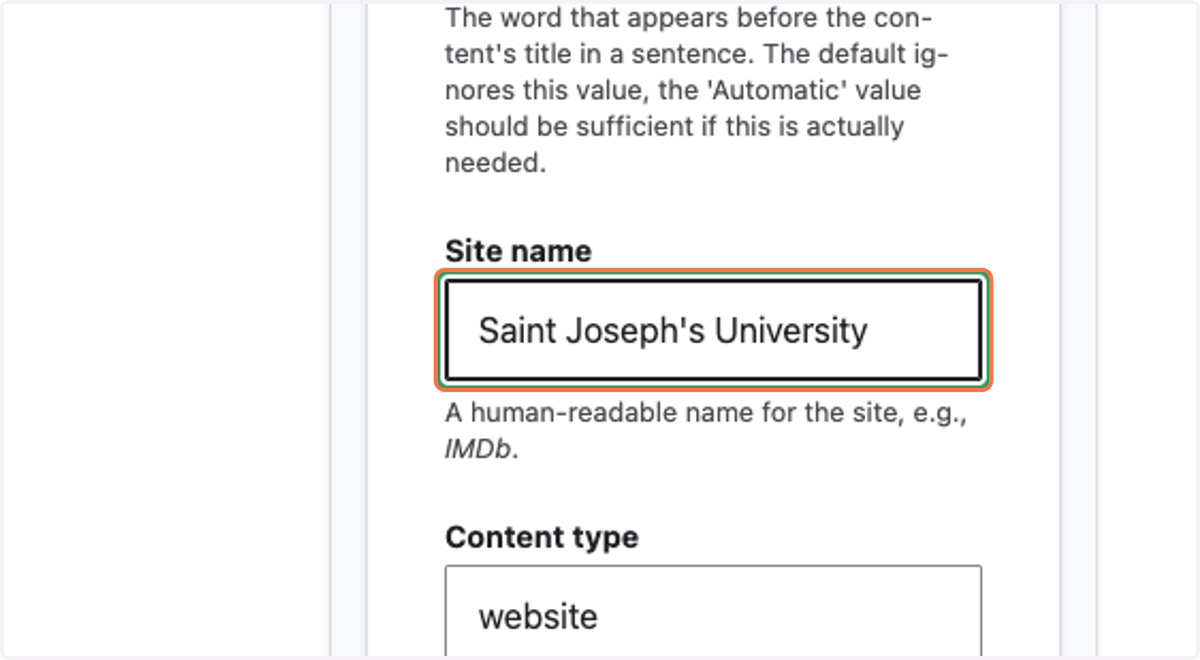
9. Enter "website" for content type
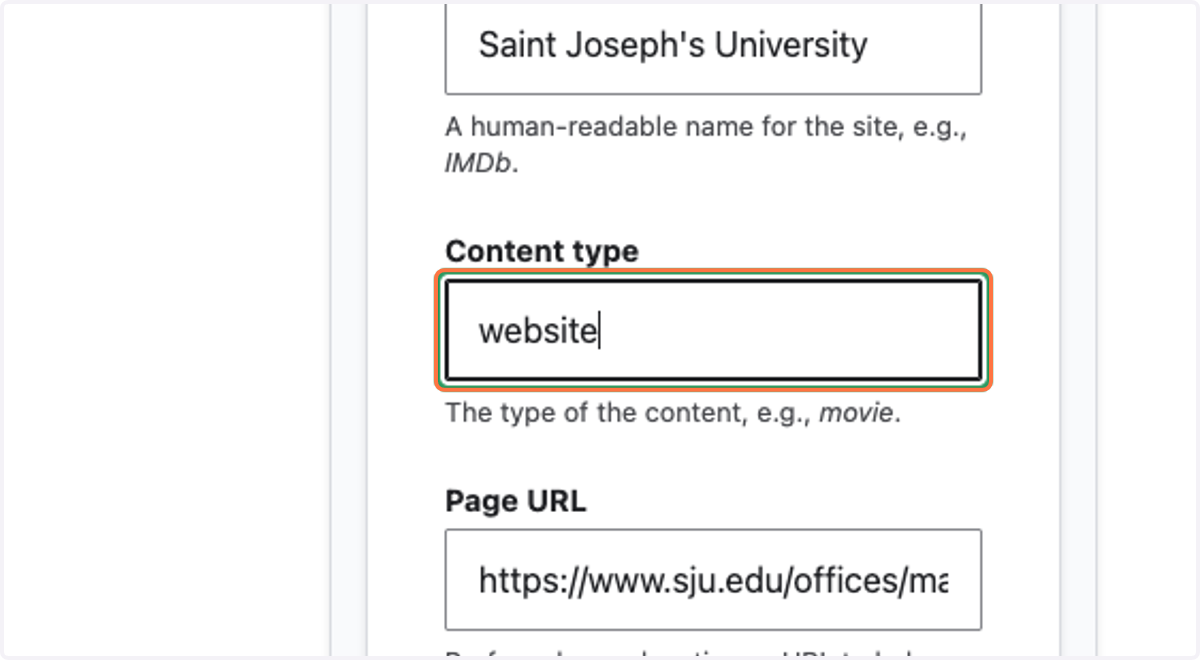
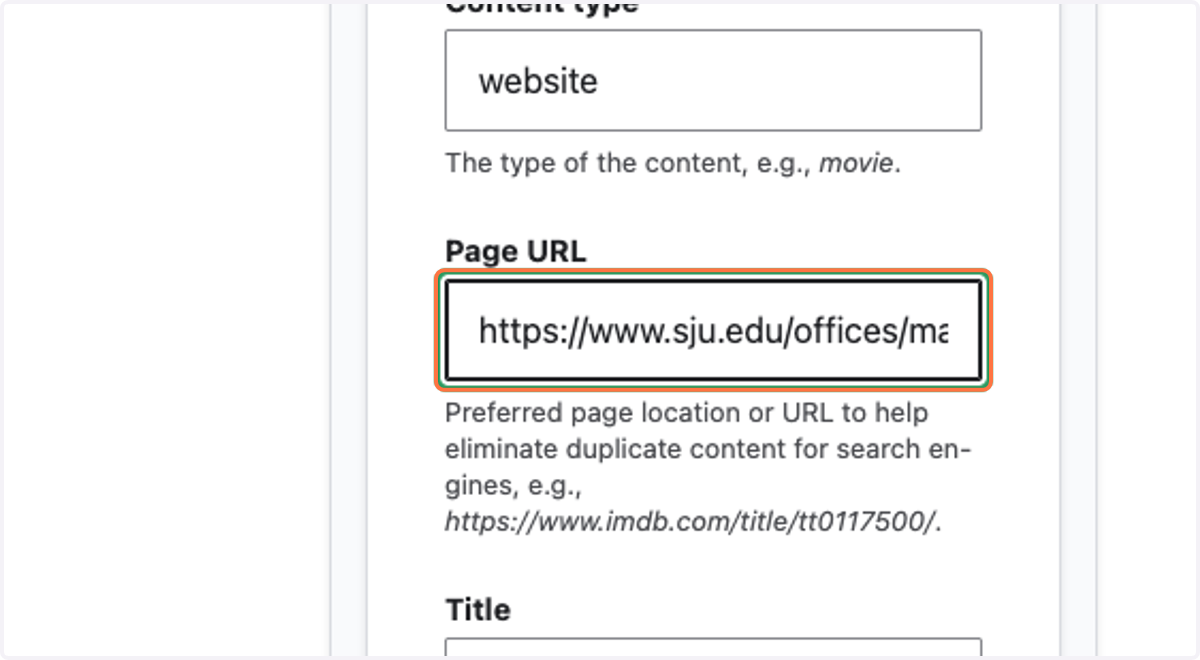
10. Enter the full URL of your page
11. Enter the Title of the page before "| Saint Joseph's University"
12. Cut and paste the description you used earlier
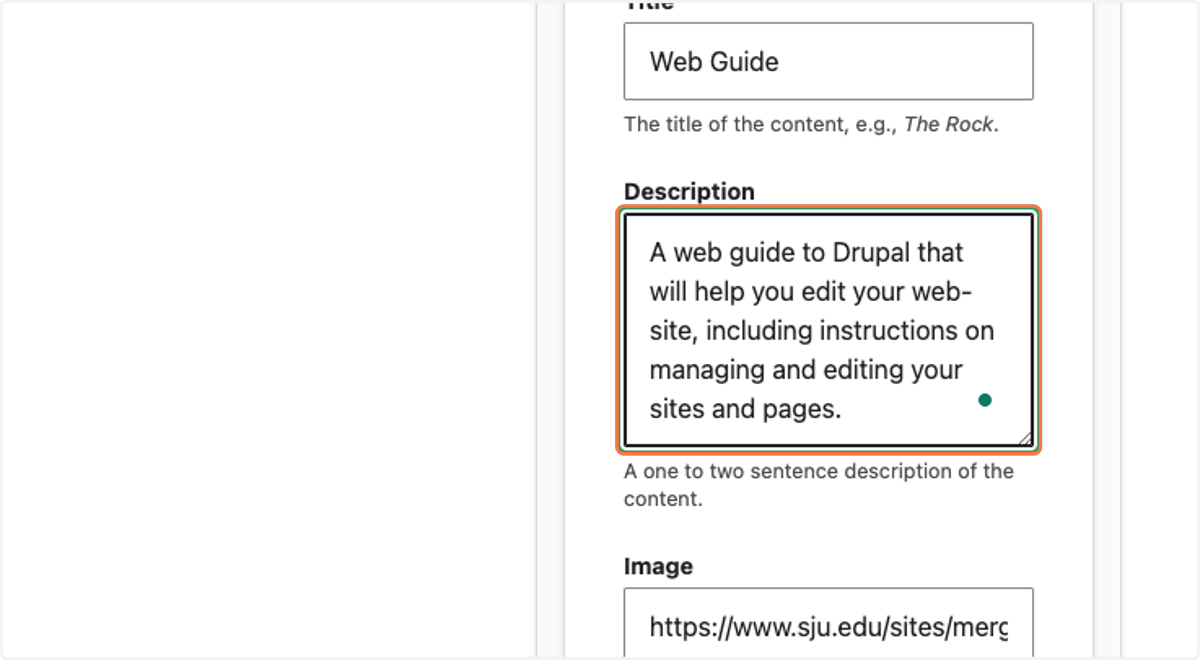
13. Enter the location URL of the image in Image
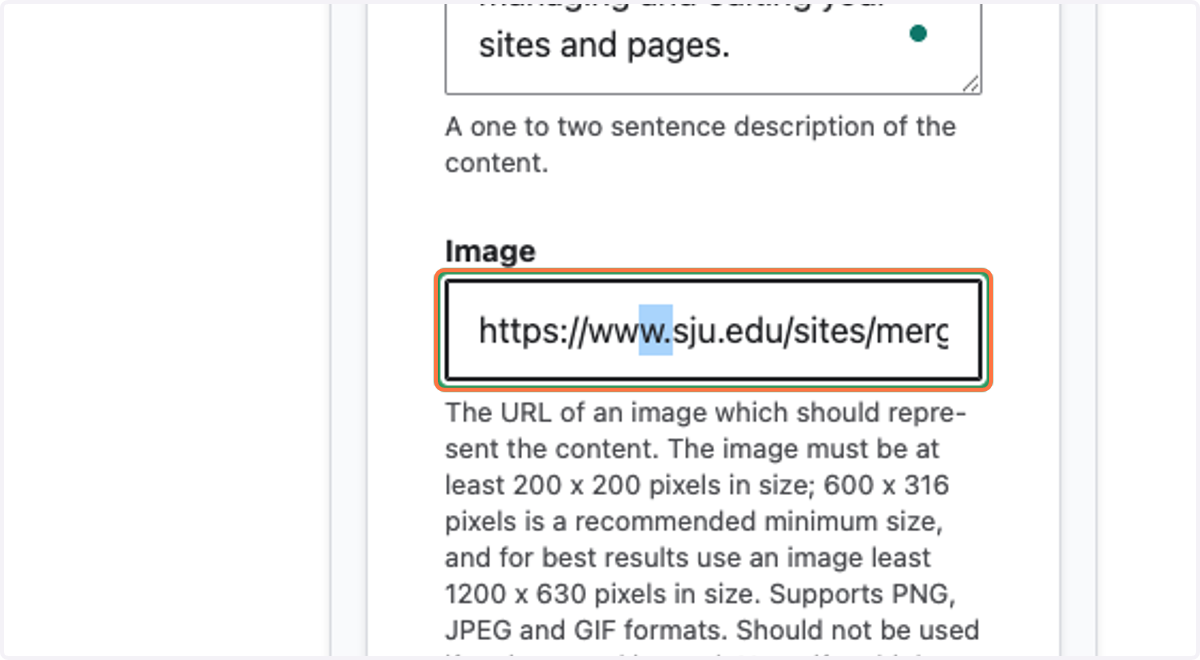
14. Enter the location URL of the image in Image URL
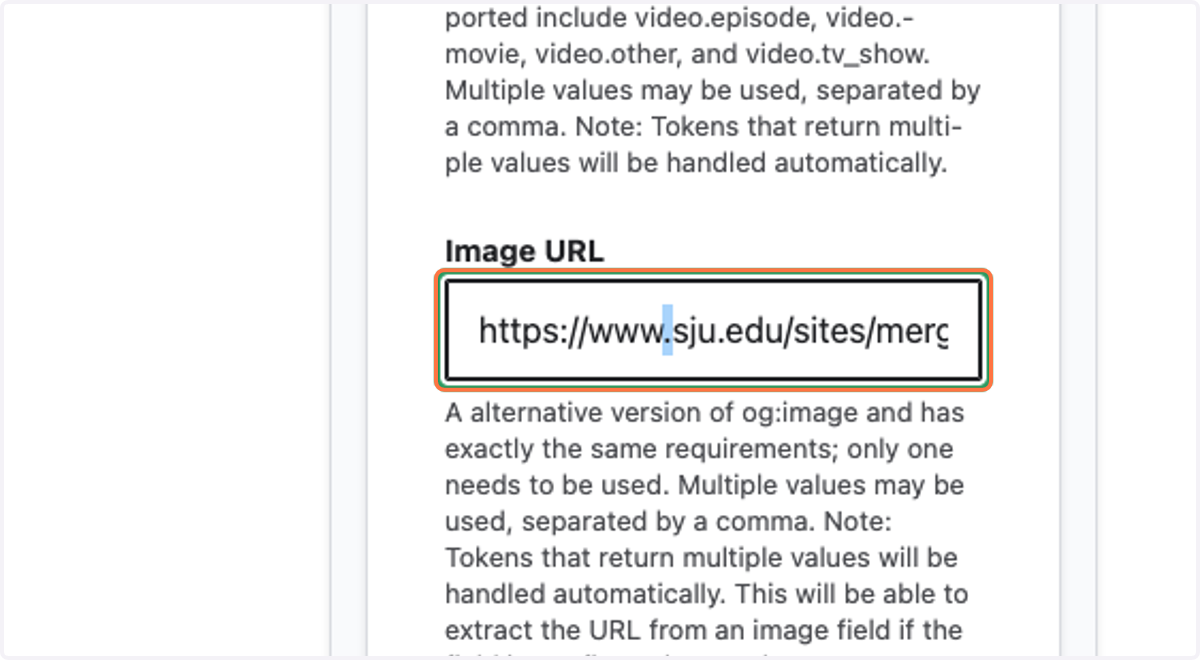
15. Enter the location URL of the image in Image Secure URL
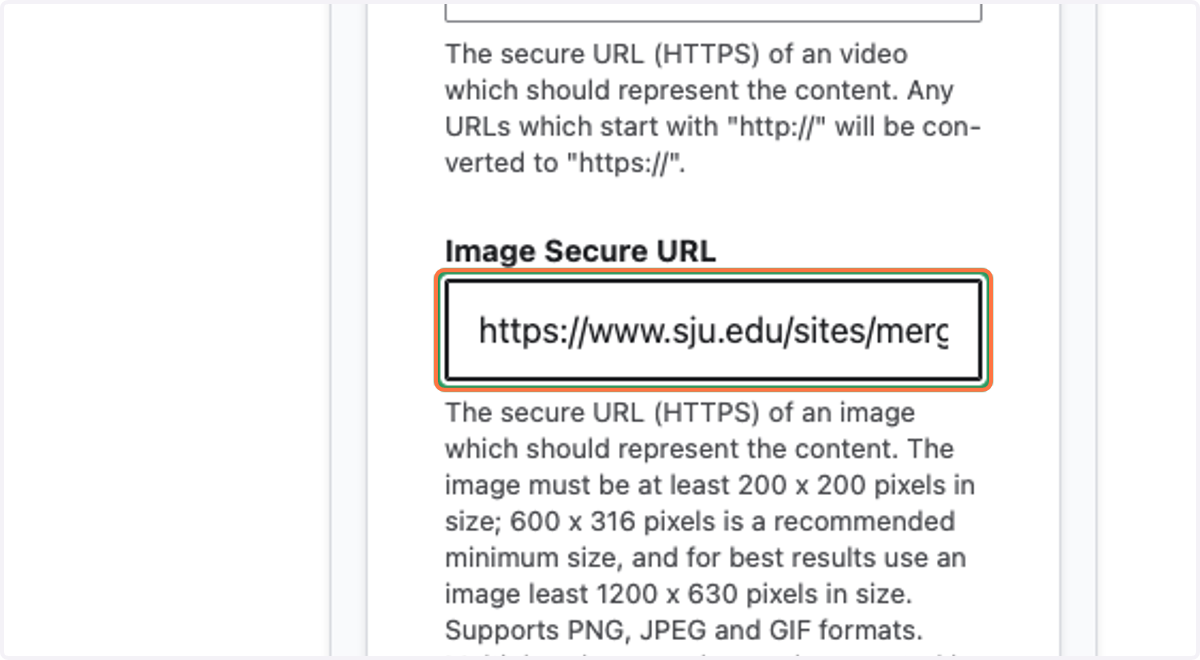
16. Enter your image type
For gifs enter "image/gif."
For jpgs enter "image/jpeg."
For pngs enter "image/png."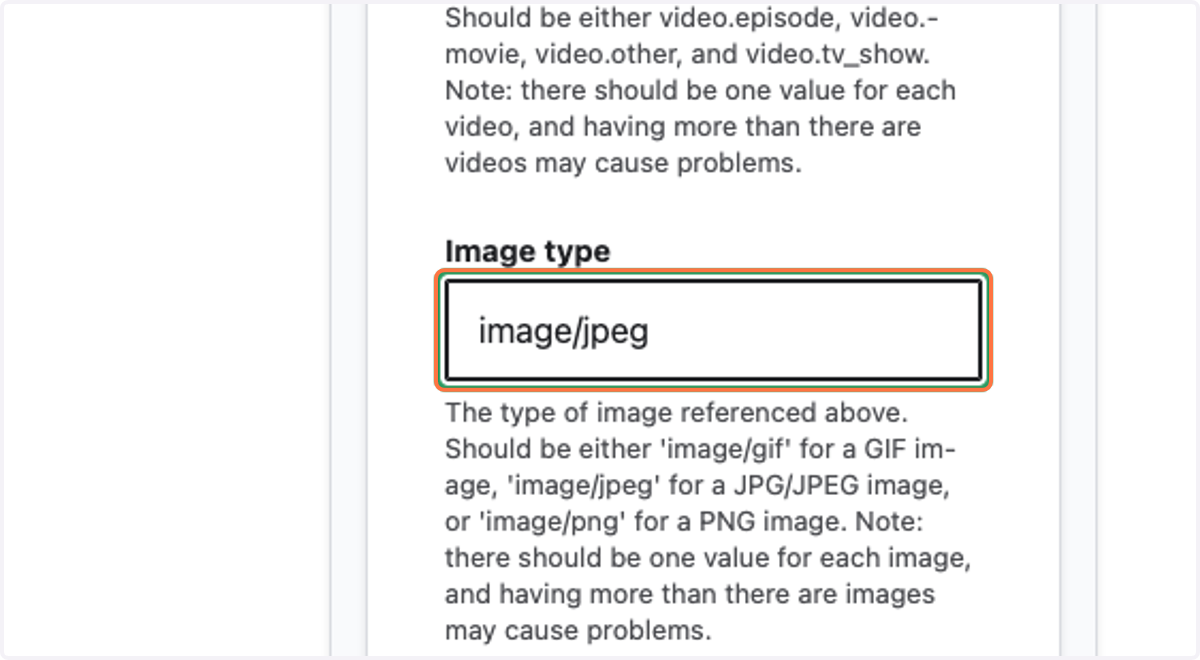
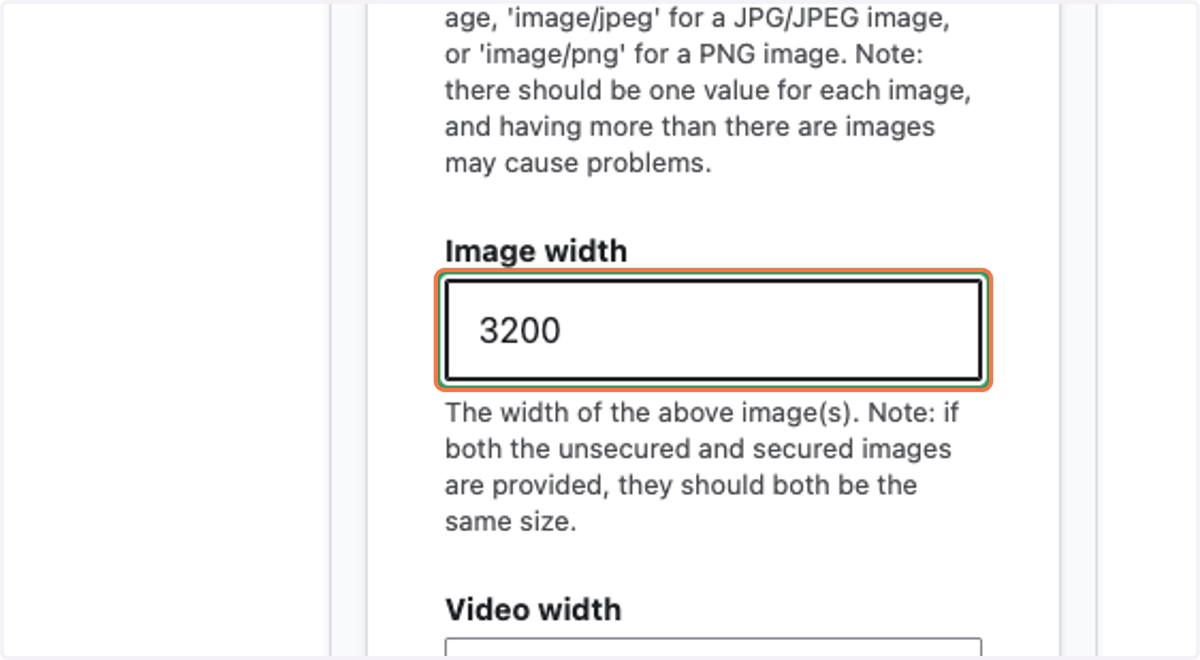
17. Enter the image's width
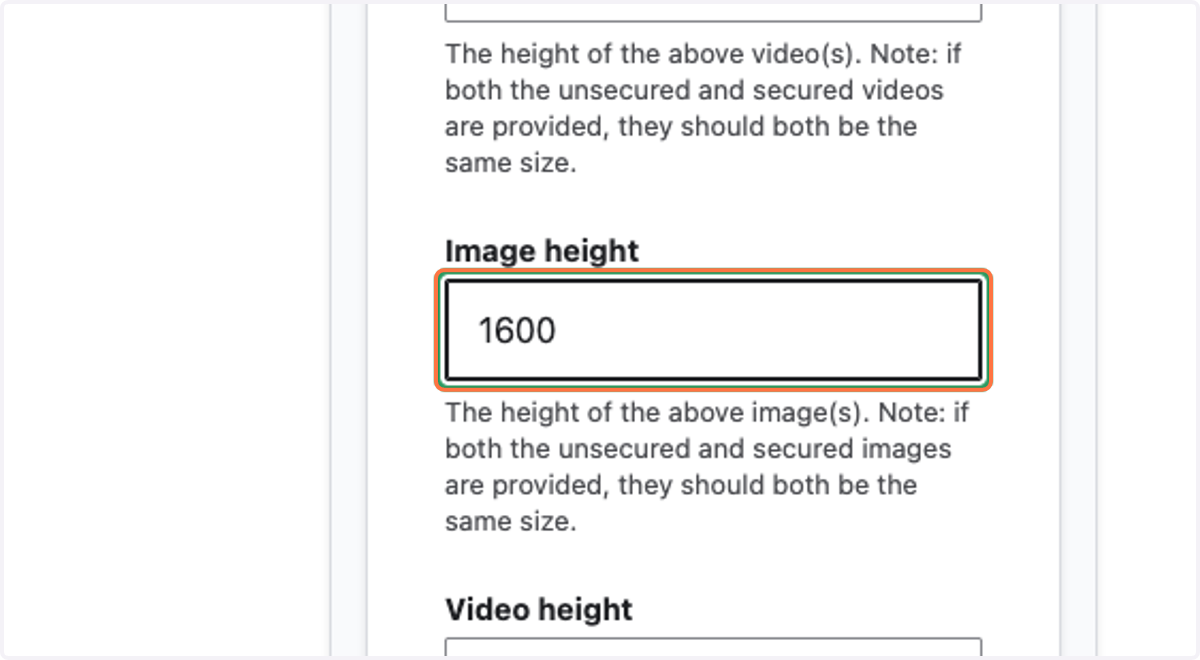
18. Enter the image's height
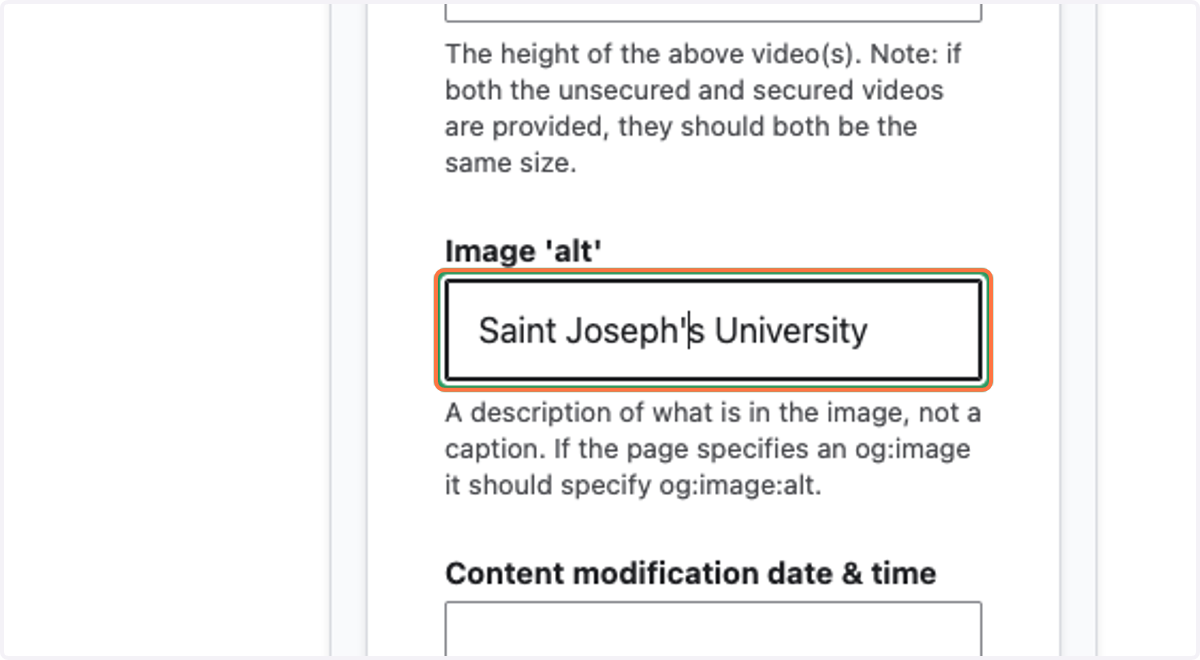
19. Enter alt text for the image
20. Enter the page title you used earlier
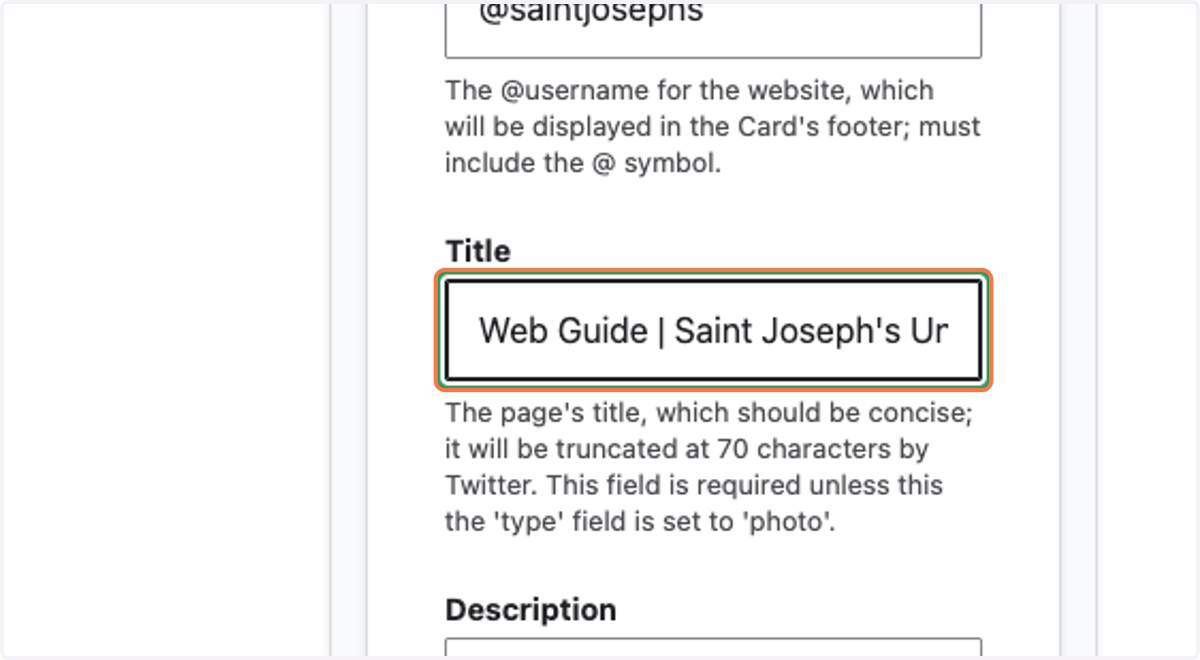
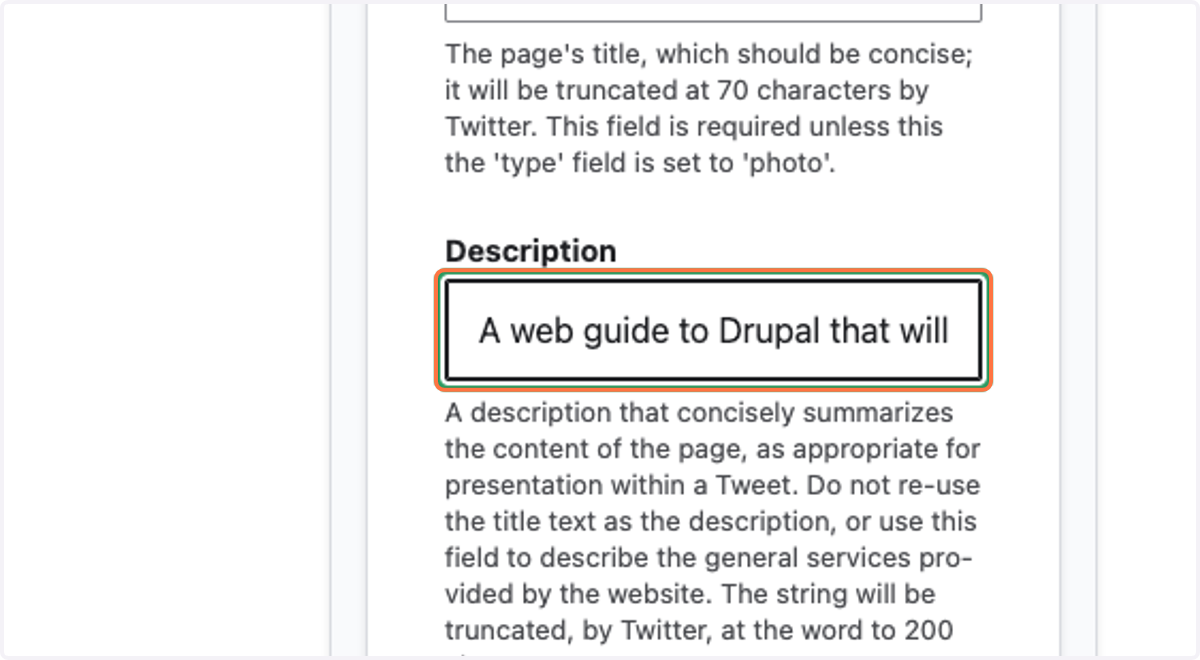
21. Enter the description you used earlier
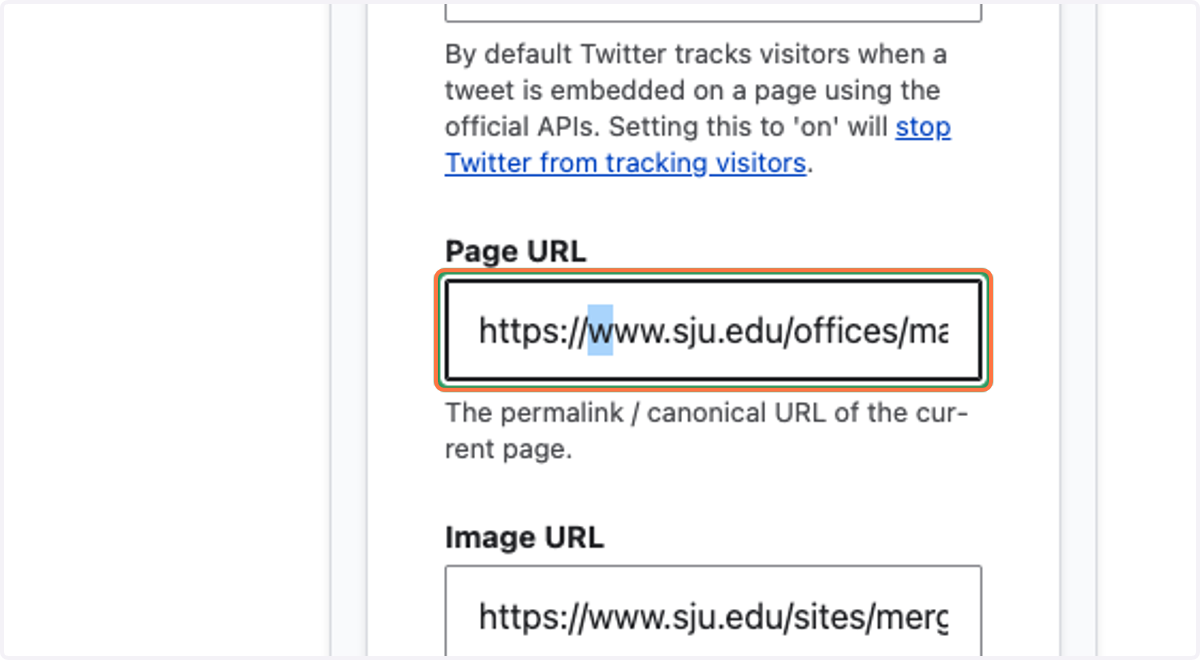
22. Enter the Page URL
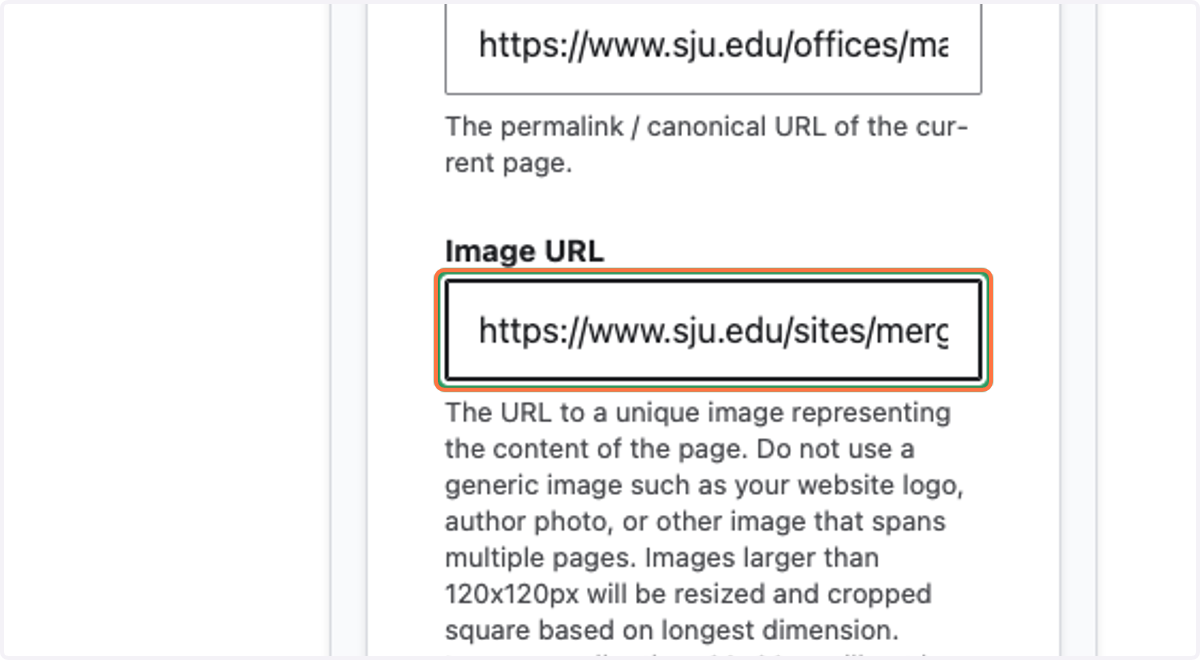
23. Enter the Image URL
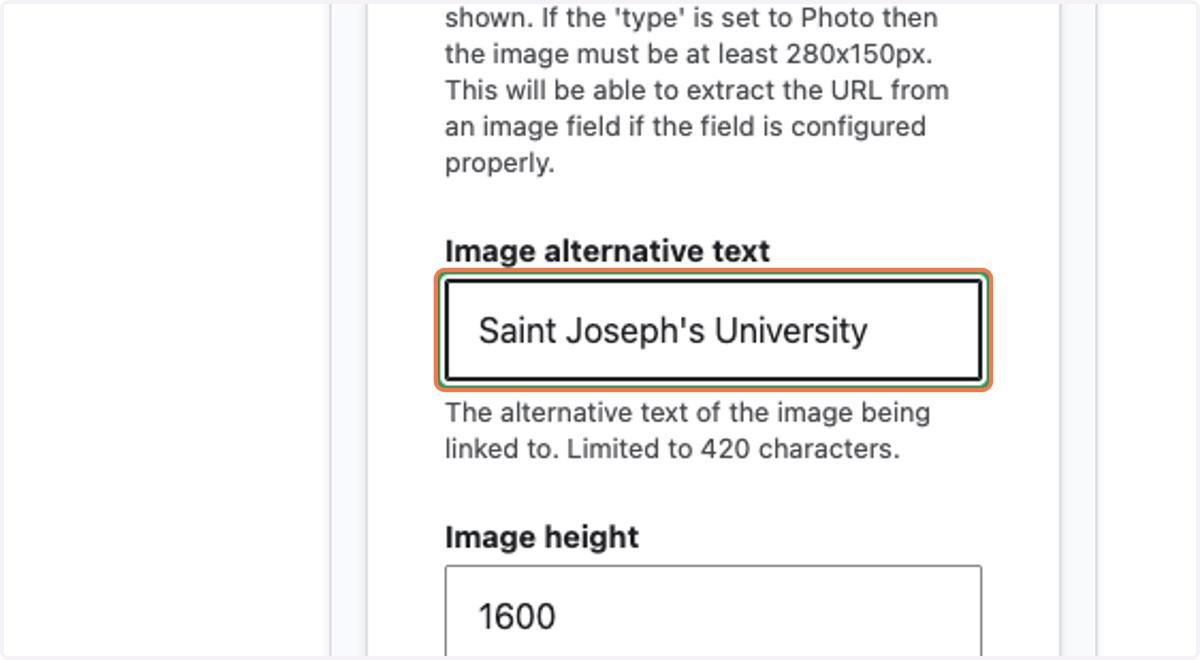
24. Enter the ALT text
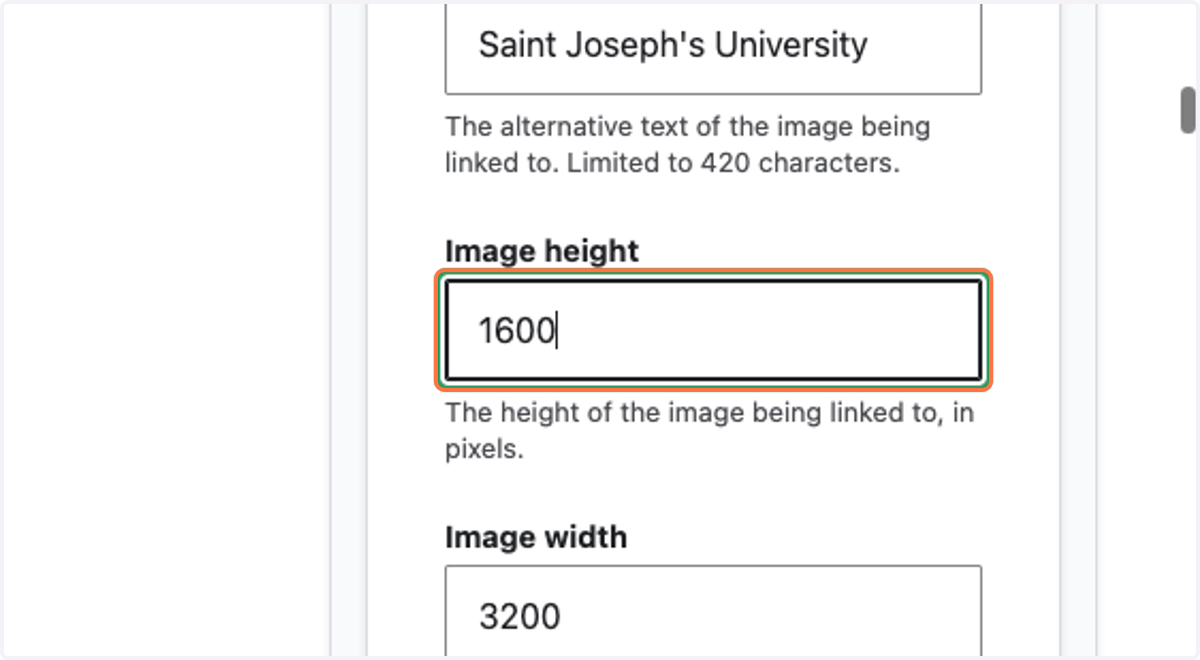
25. Enter the image's height
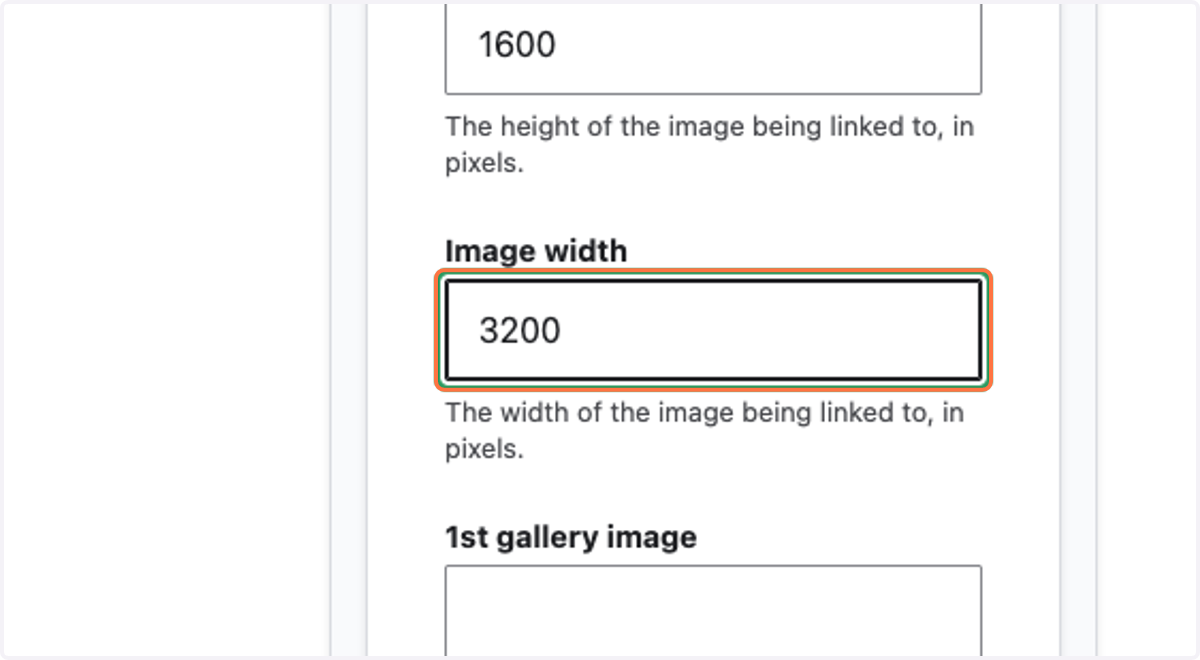
26. Enter the image's width
27. Click on Meta Tags to close the panel