How to Edit Components

Chateau How To

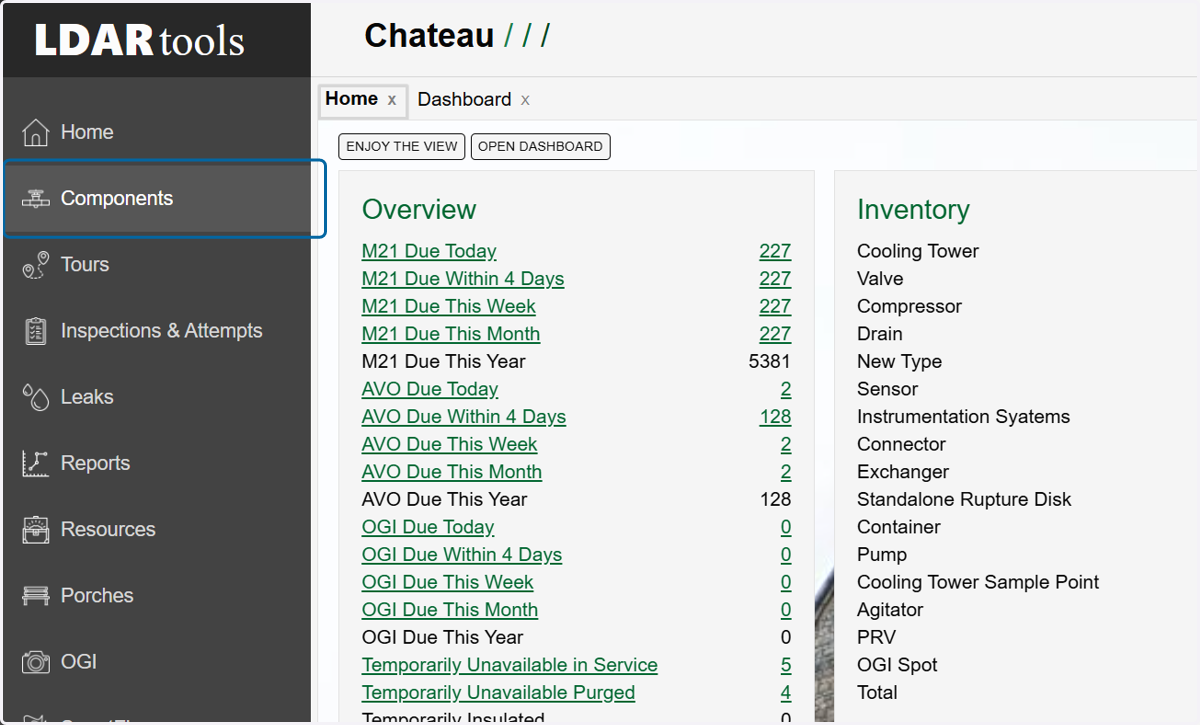
  1. 1. Click on Components

    Click on Components
  2. 2. Utilize the query builder to find the component(s) you wish to edit.
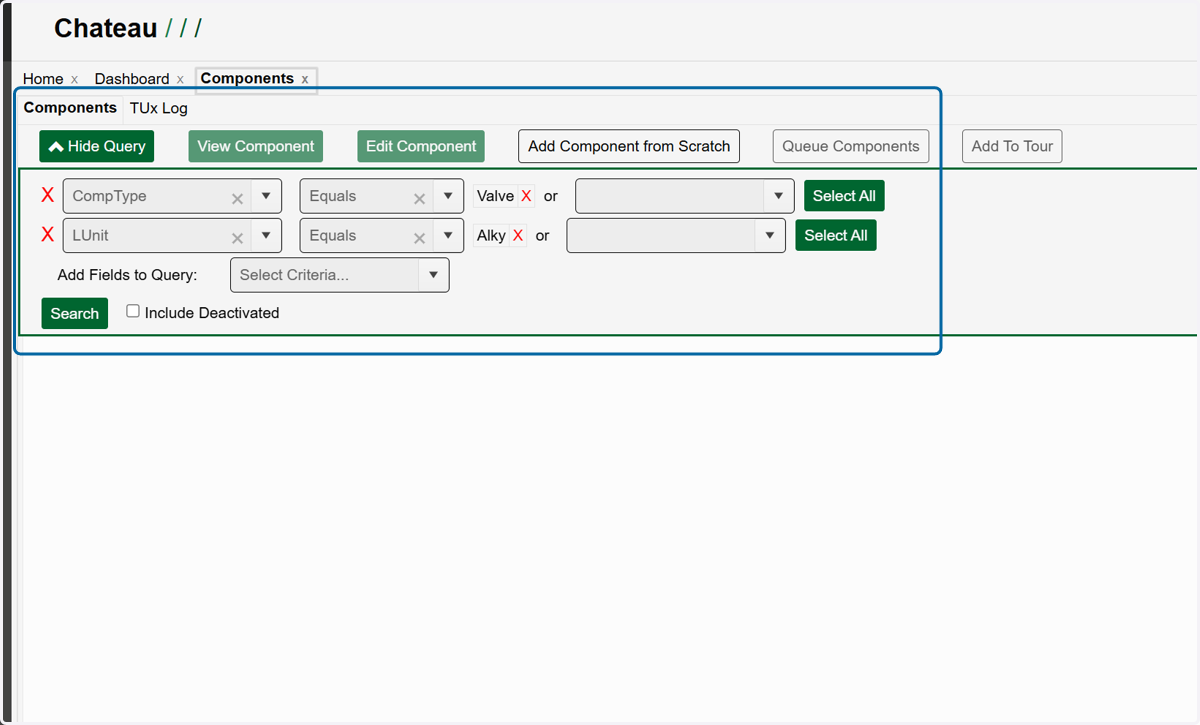
    Utilize the query builder to find the component(s) you wish to edit.
  3. 3. Once you have your query built, click on Search.
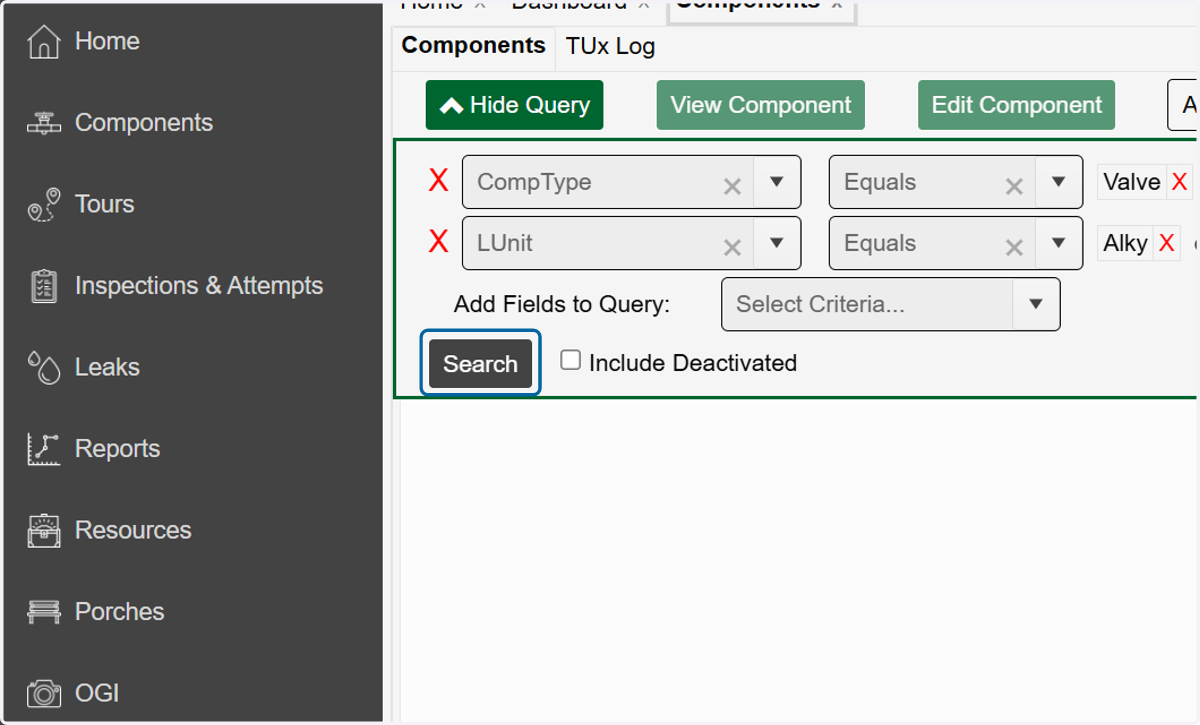
    Once you have your query built, click on Search.
  4. 4. Select the row(s) that match the components you want to edit.
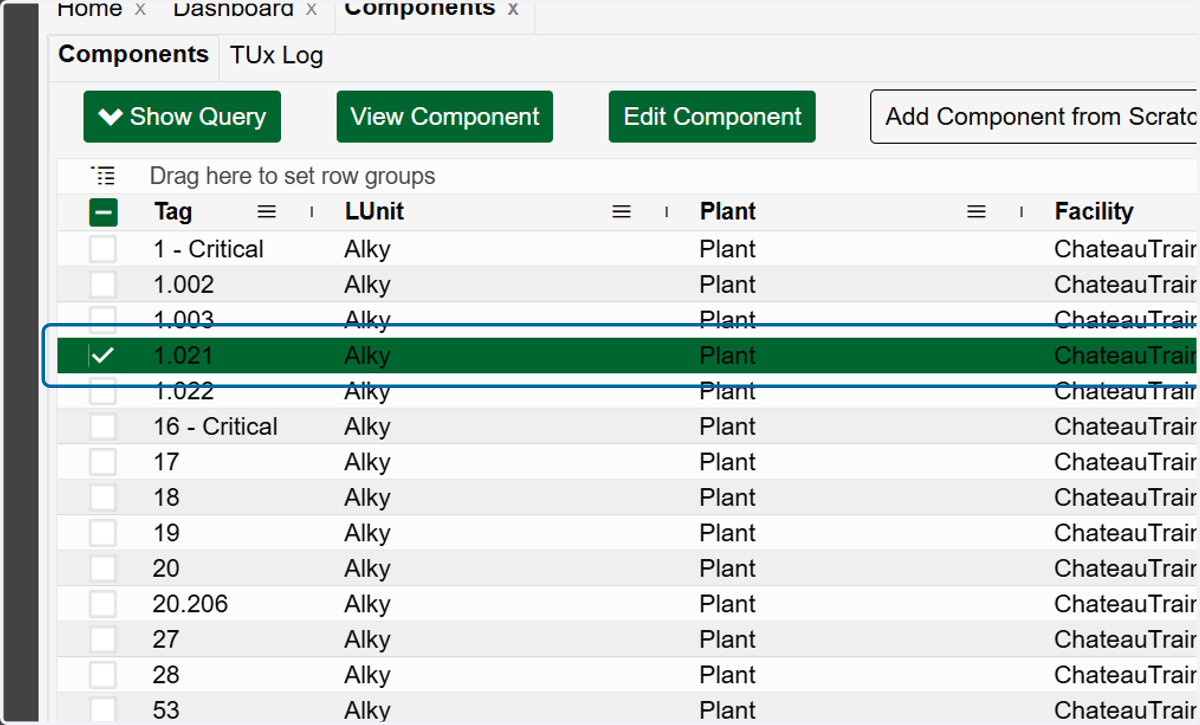
    Select the row(s) that match the components you want to edit.
  5. 5. Click on Edit Component. If you have selected more than one component, this button will read 'Multi-Edit # Components'.
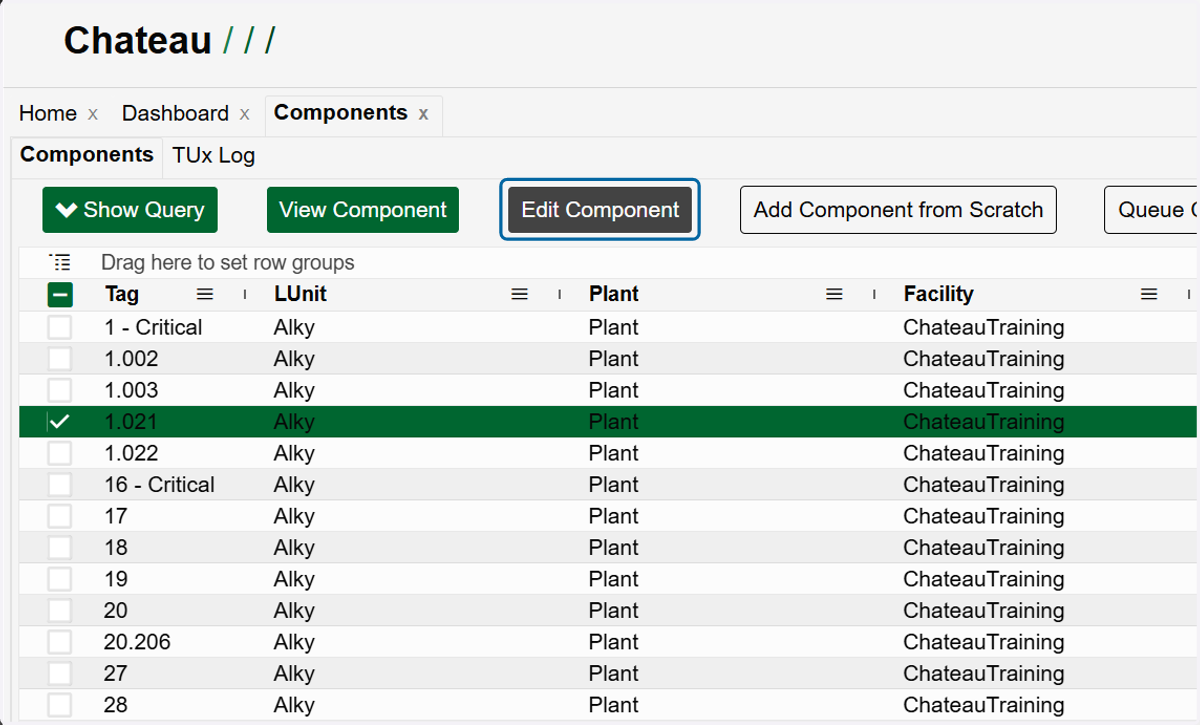
    Click on Edit Component. If you have selected more than one component, this button will read 'Multi-Edit # Components'.
  6. 6. Find the properties you want to edit and choose the value from the picklist or type it in if it's a text field.
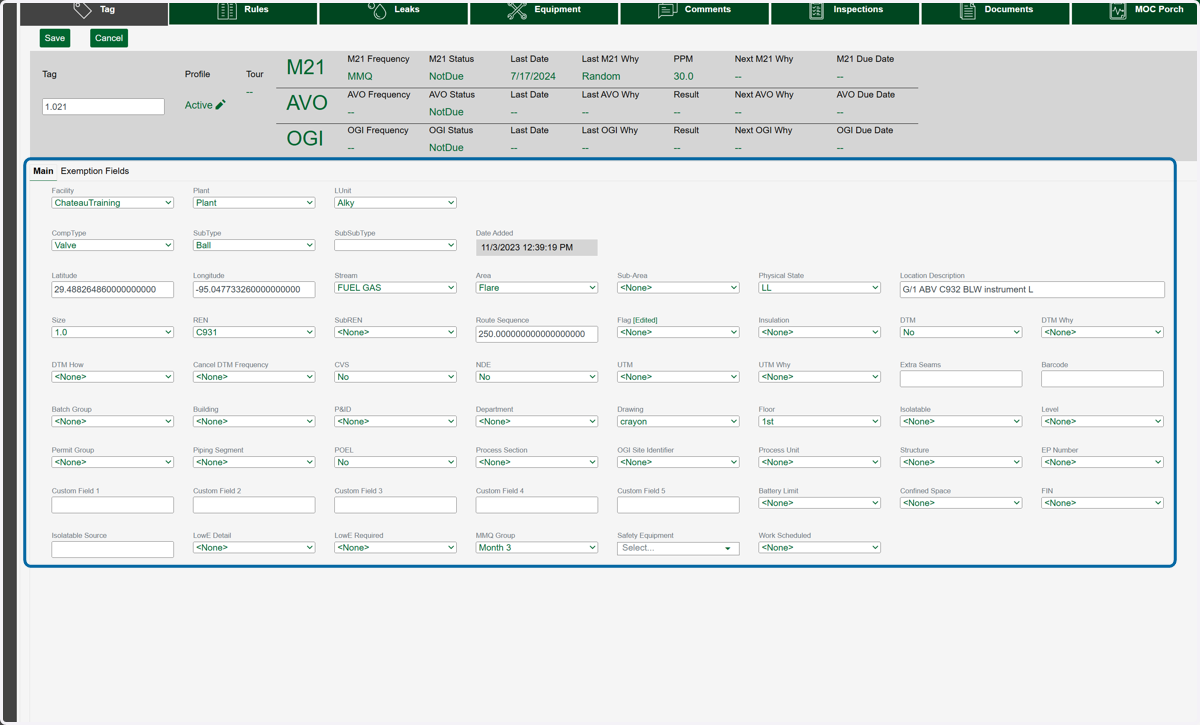
    Find the properties you want to edit and choose the value from the picklist or type it in if it's a text field.
  7. 7. If the field is related to the regulation exemption, it will may be found on the Exemptions Fields tab.
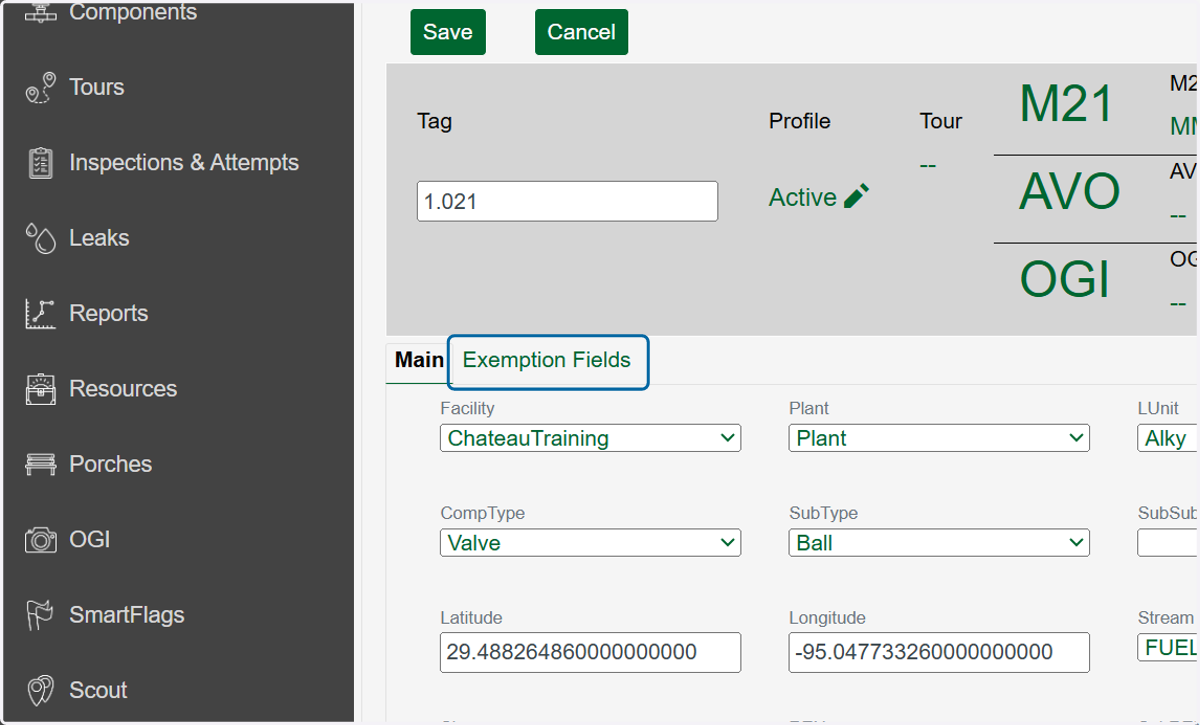
    If the field is related to the regulation exemption, it will may be found on the Exemptions Fields tab.
  8. 8. Select the field and choose the correct value if needed.
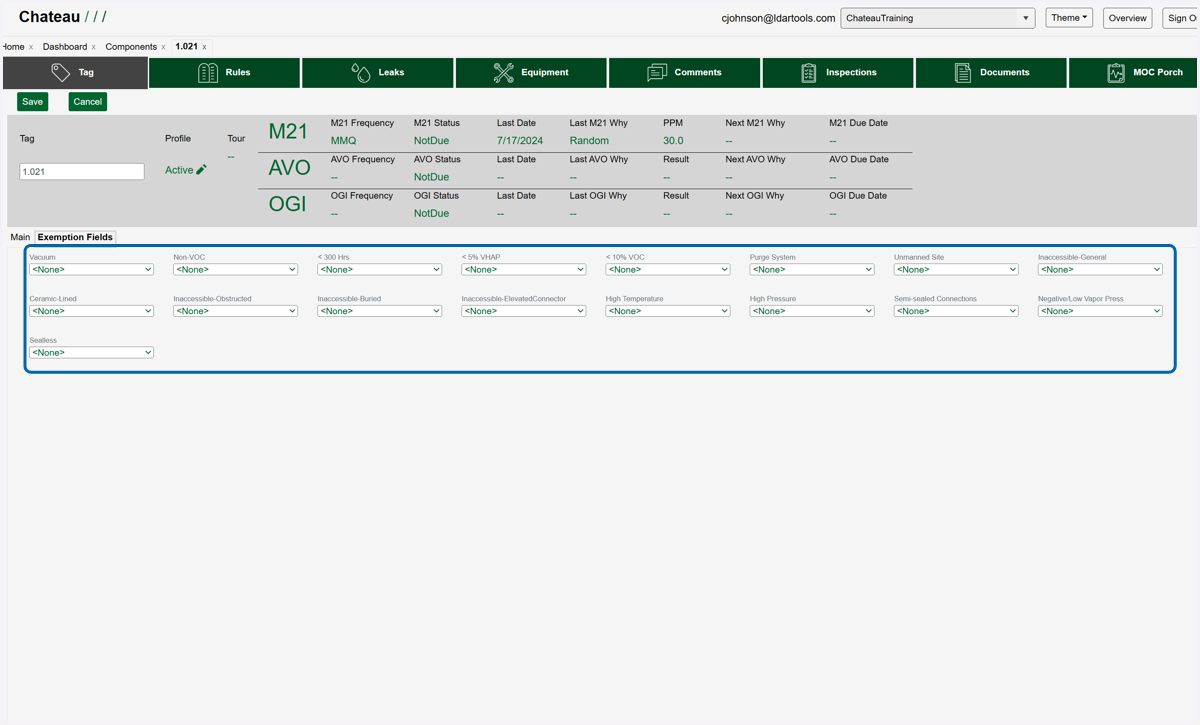
    Select the field and choose the correct value if needed.
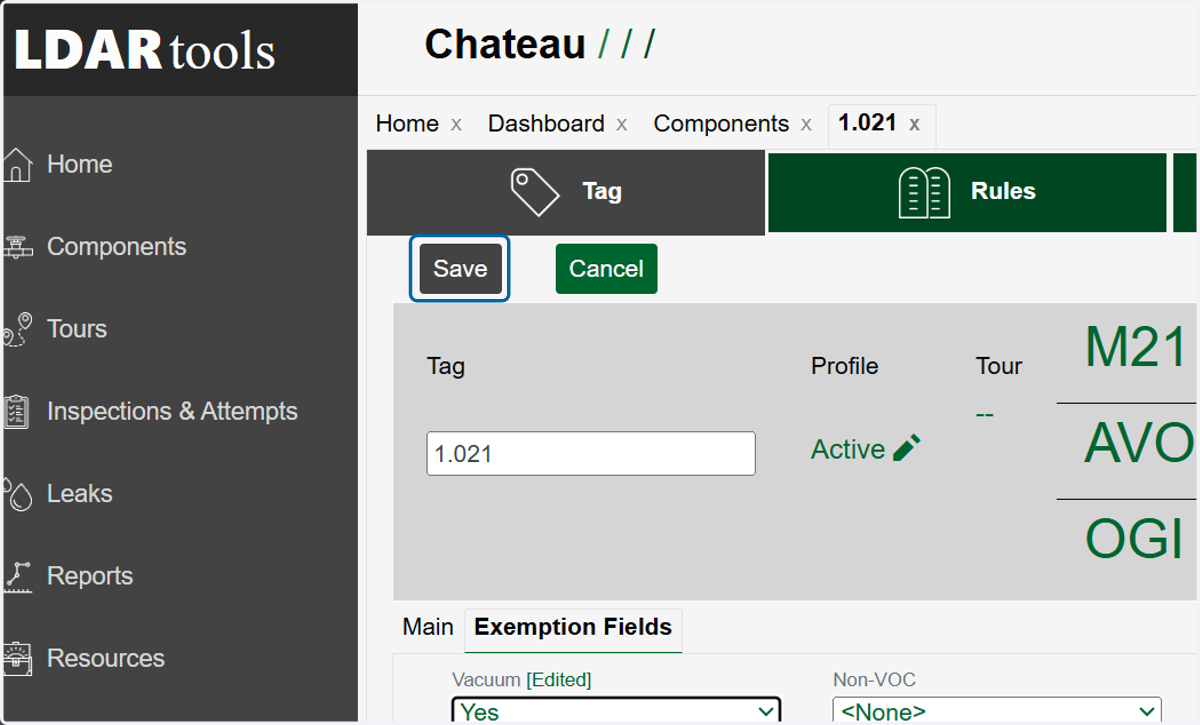
  9. 9. Click on Save.

    Click on Save.
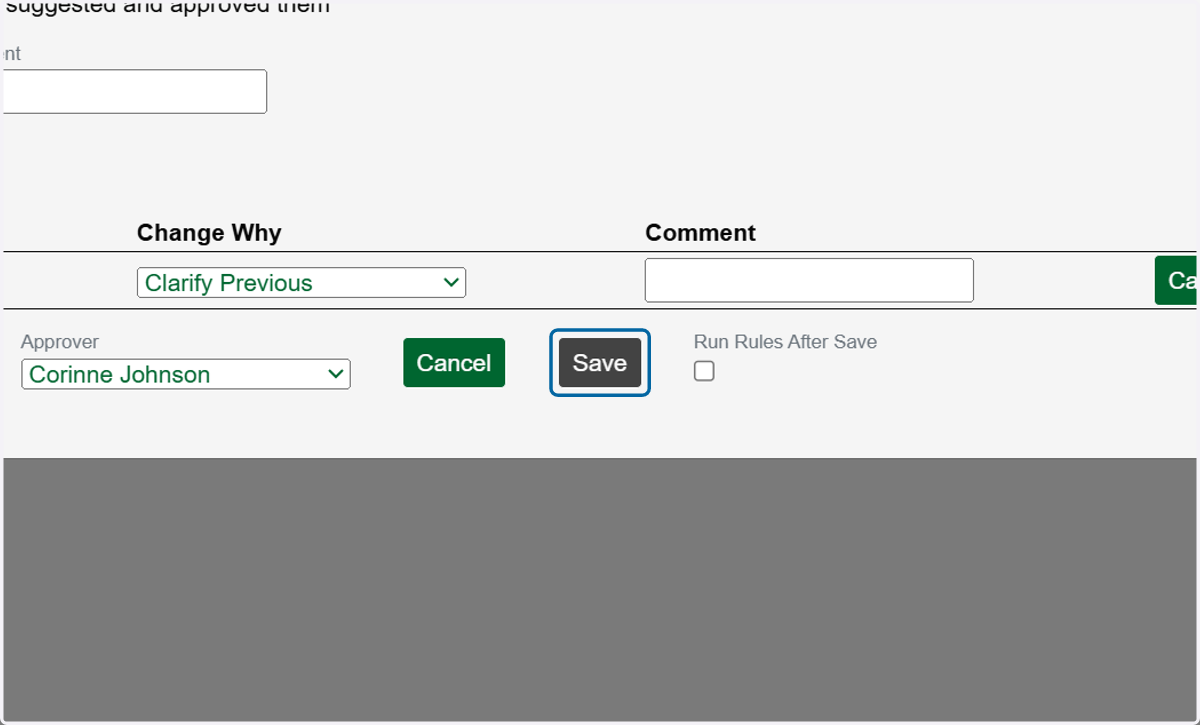
  10. 10. Select a reason for the change in the Profile Change Why dropdown.
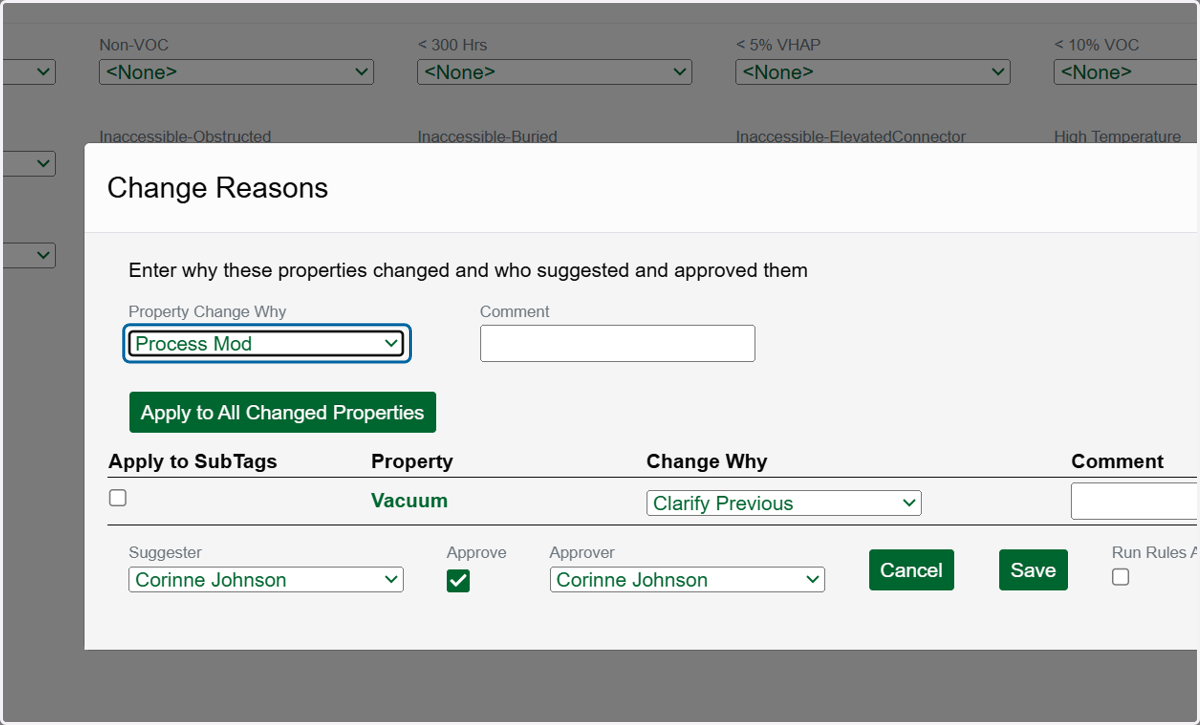
    Select a reason for the change in the Profile Change Why dropdown.
  11. 11. (Optional) If you wish to have the same property edits apply to the SubTags, check the box(es) under Apply to SubTags.
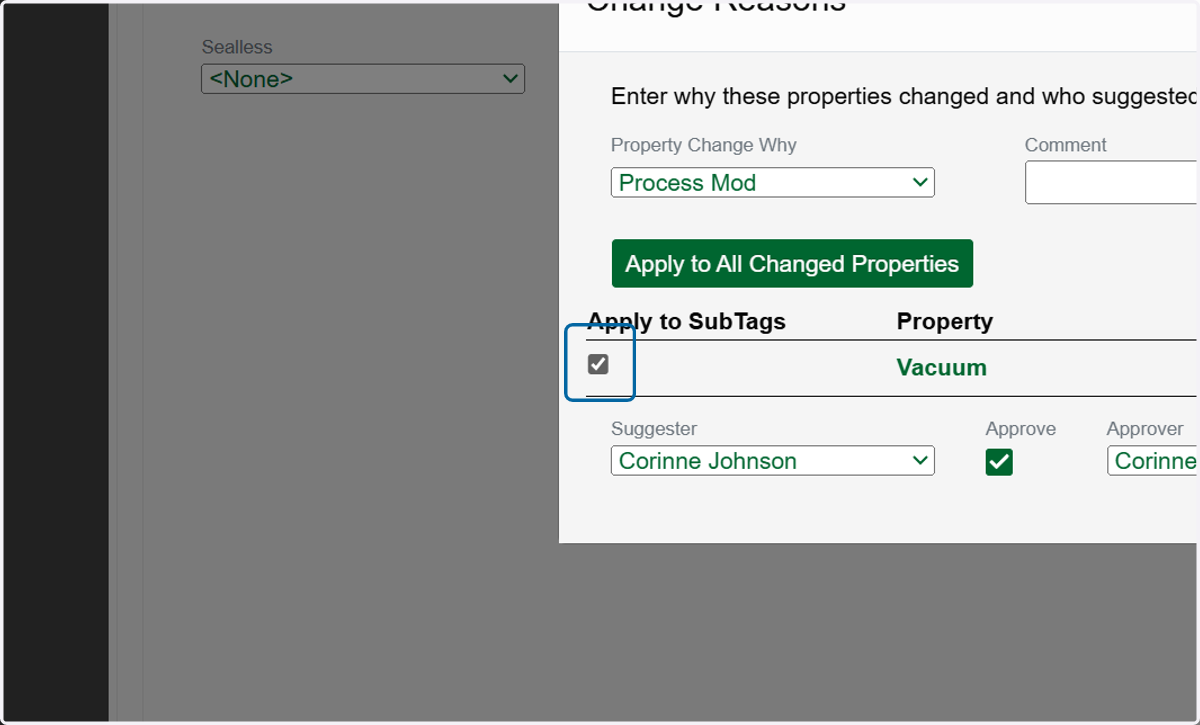
    (Optional) If you wish to have the same property edits apply to the SubTags, check the box(es) under Apply to SubTags.
  12. 12. Click on Save.

    Click on Save.