How to Download CSV for PhoneRaise Test Campaign in CauseMatch
Dashboard | CauseMatch
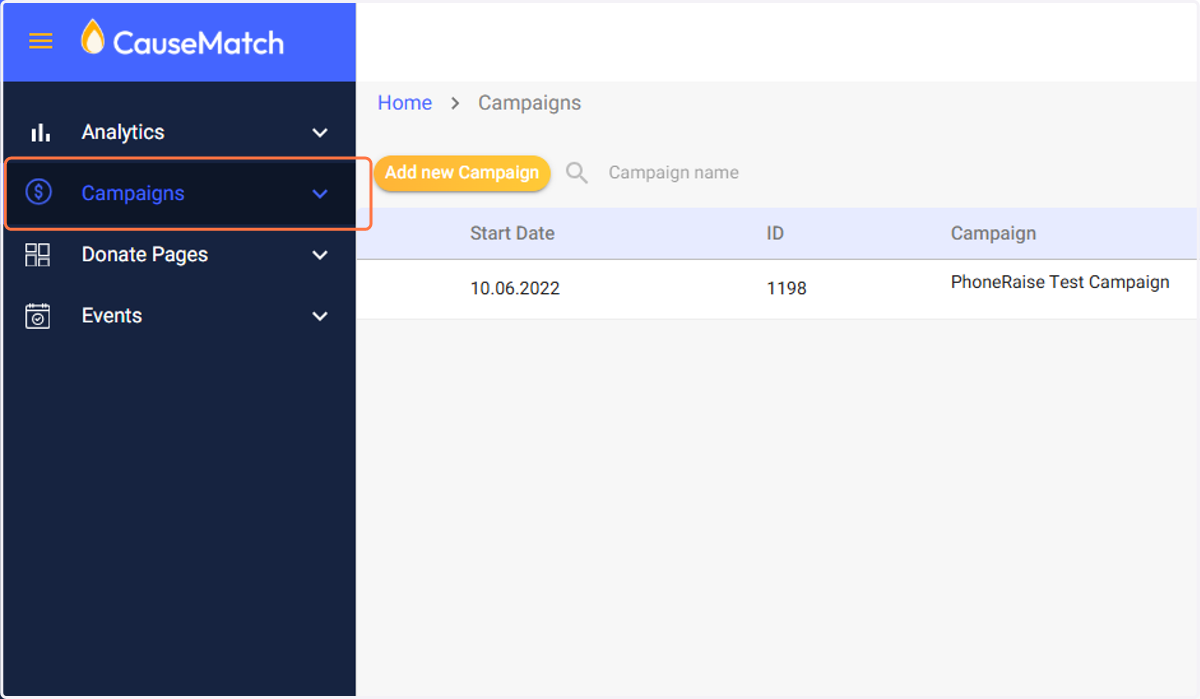
1. Click on Campaigns
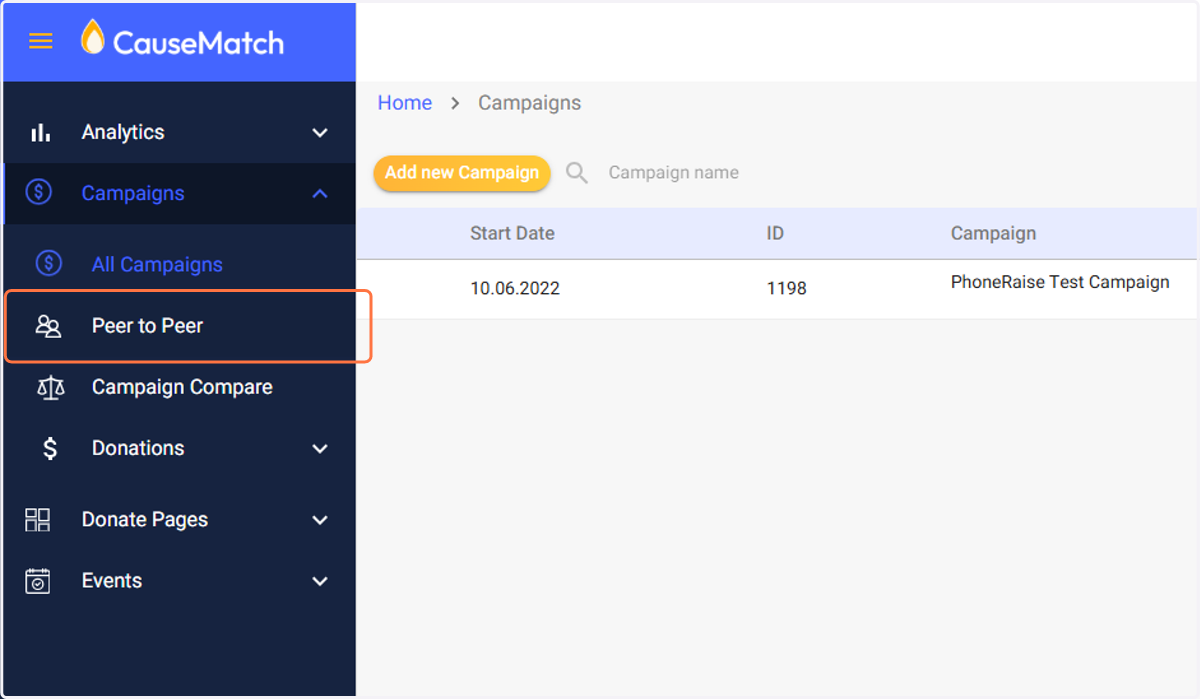
2. Click on Peer to Peer
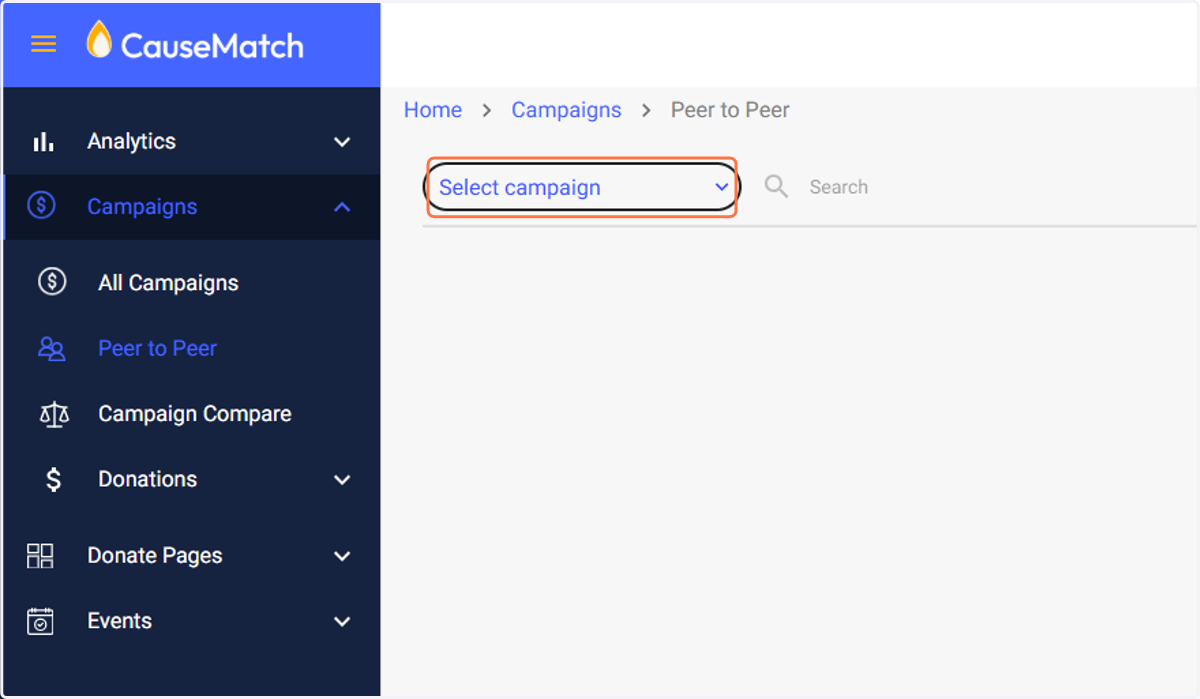
3. Click on Select campaign
4. Choose your campaign
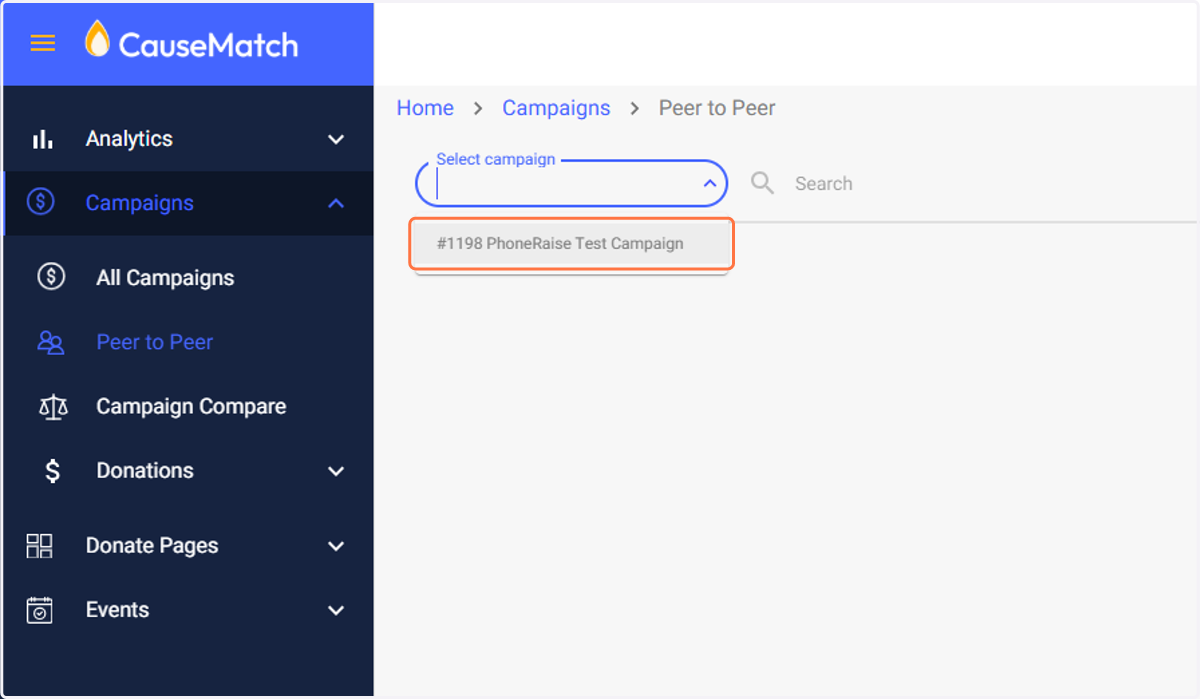
5. You can see a column that displays your team IDs
Copy the team id
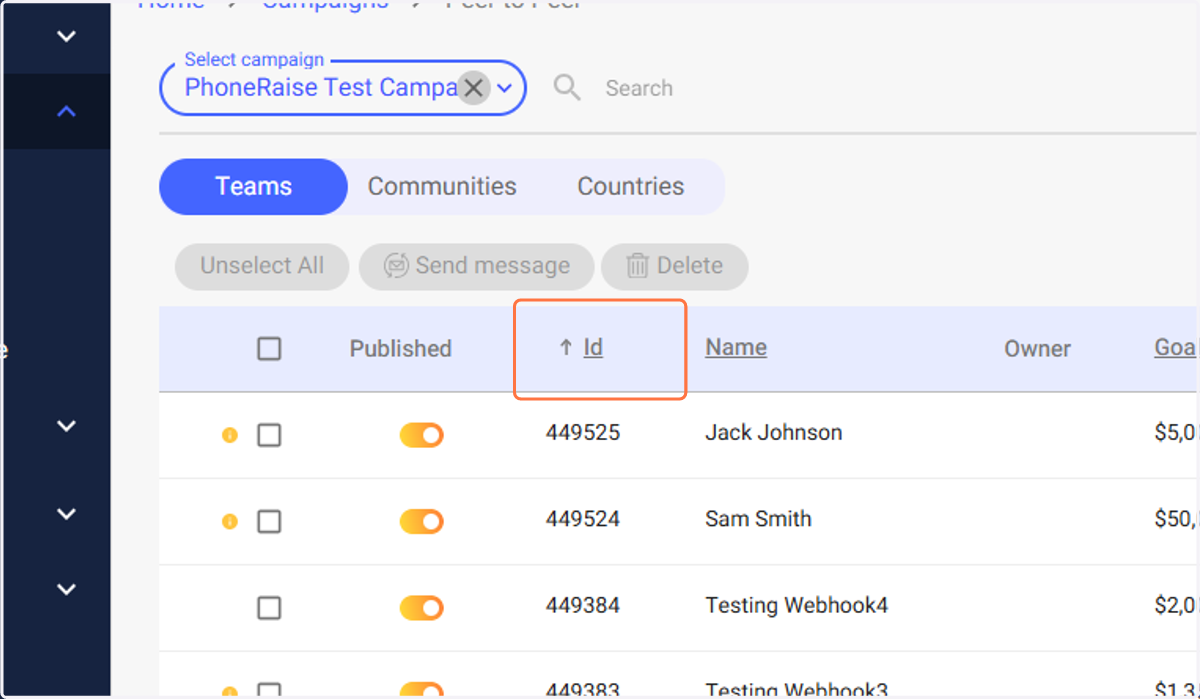
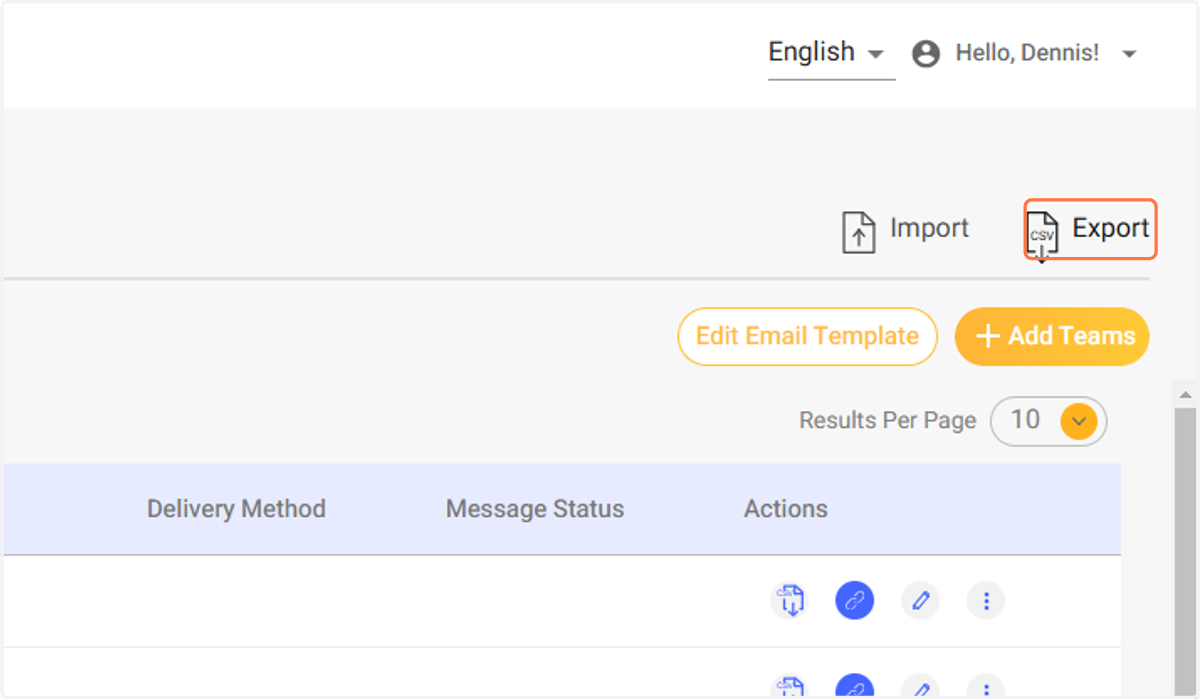
6. You can copy and paste each Team ID or you can export the list
Continue in your PhoneRaise campaign
7. Click on Campaign Users
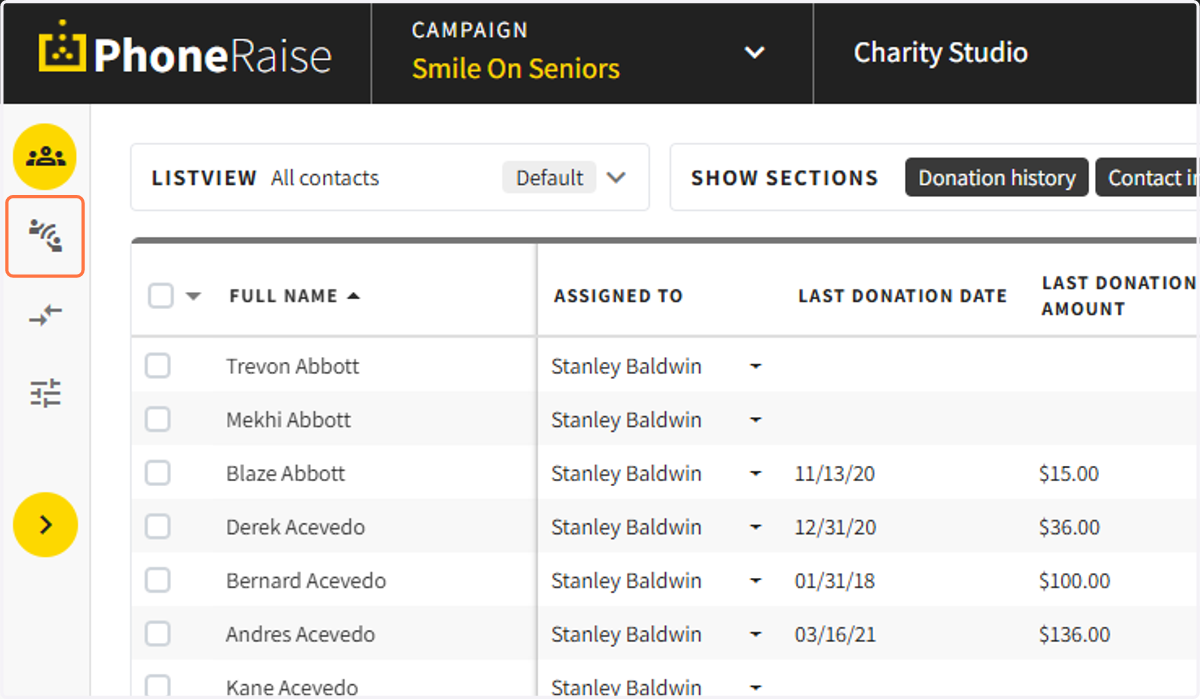
8. Click on the name of the user that you would like to assign a Team ID to
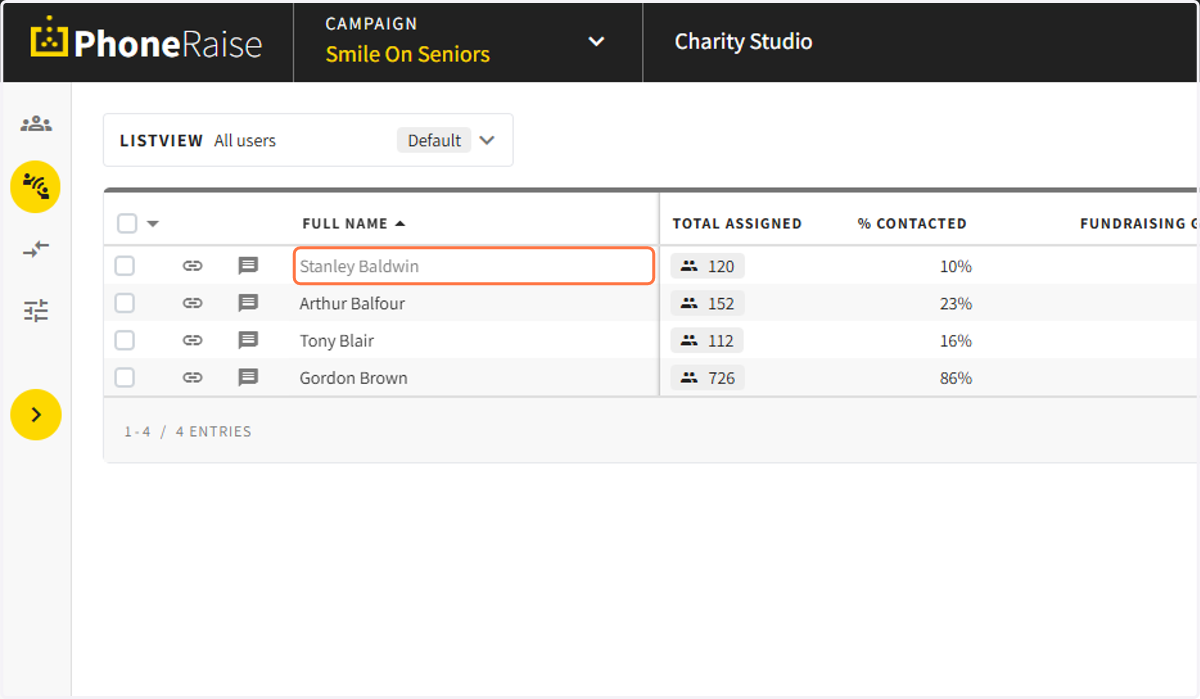
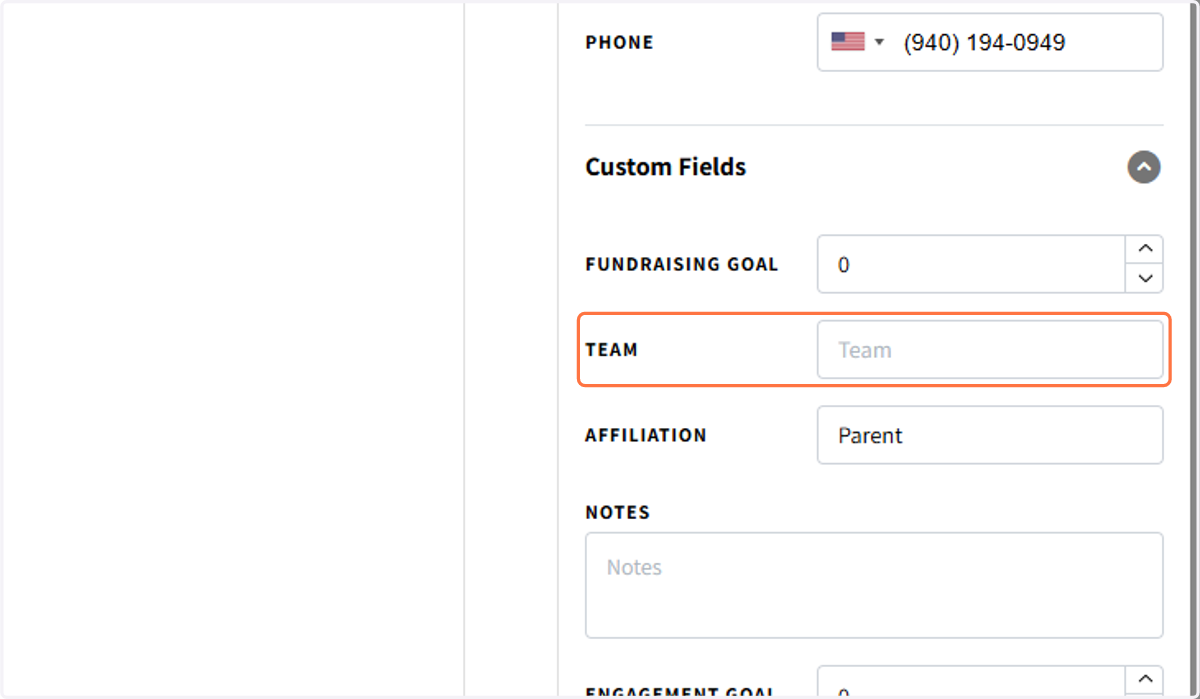
9. The right sidebar will open and you can enter the Team ID into the field
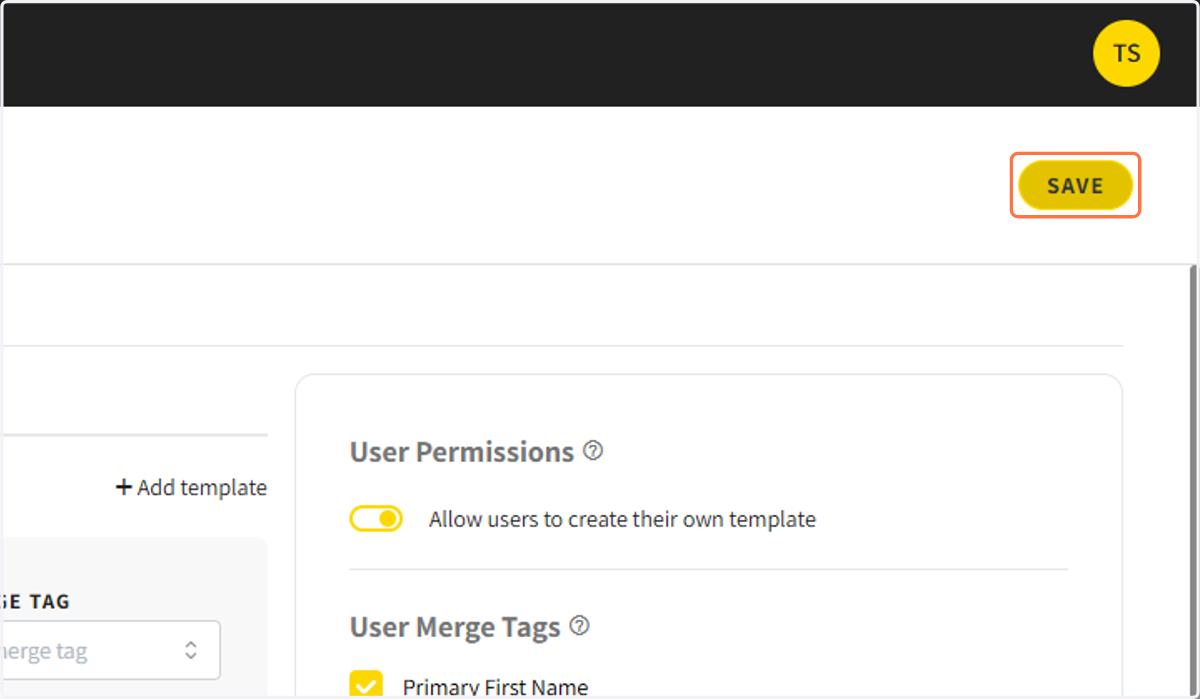
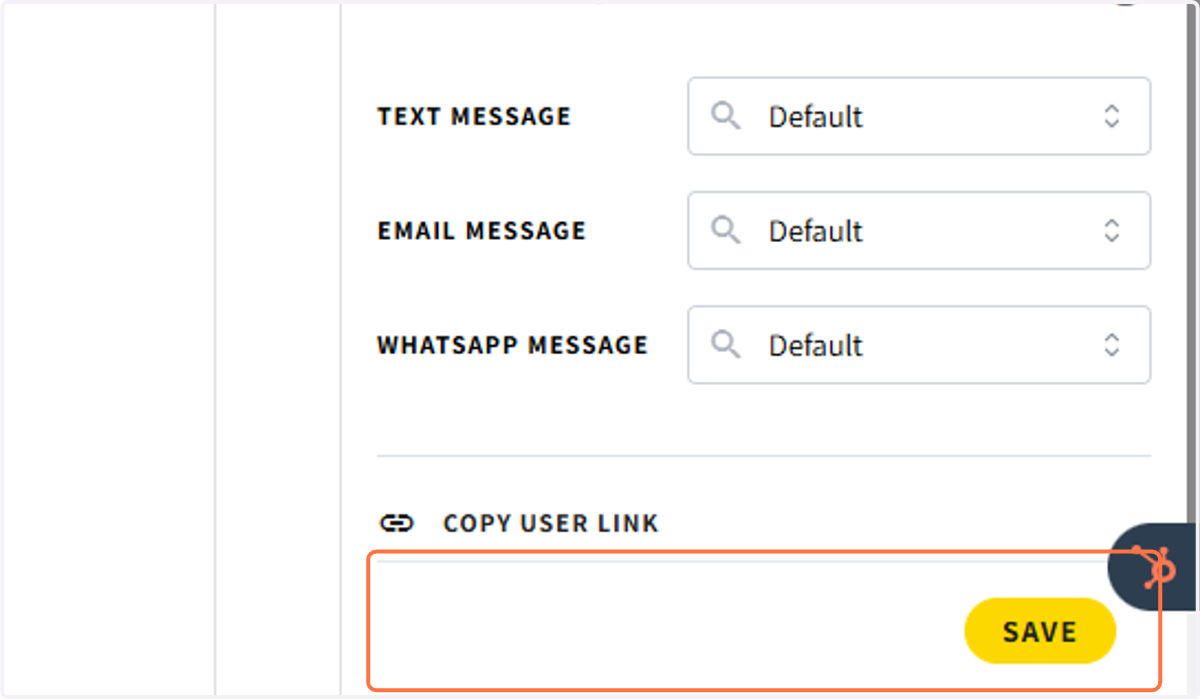
10. Click on SAVE
To insert a team link in messaging
11. Click on campaign settings
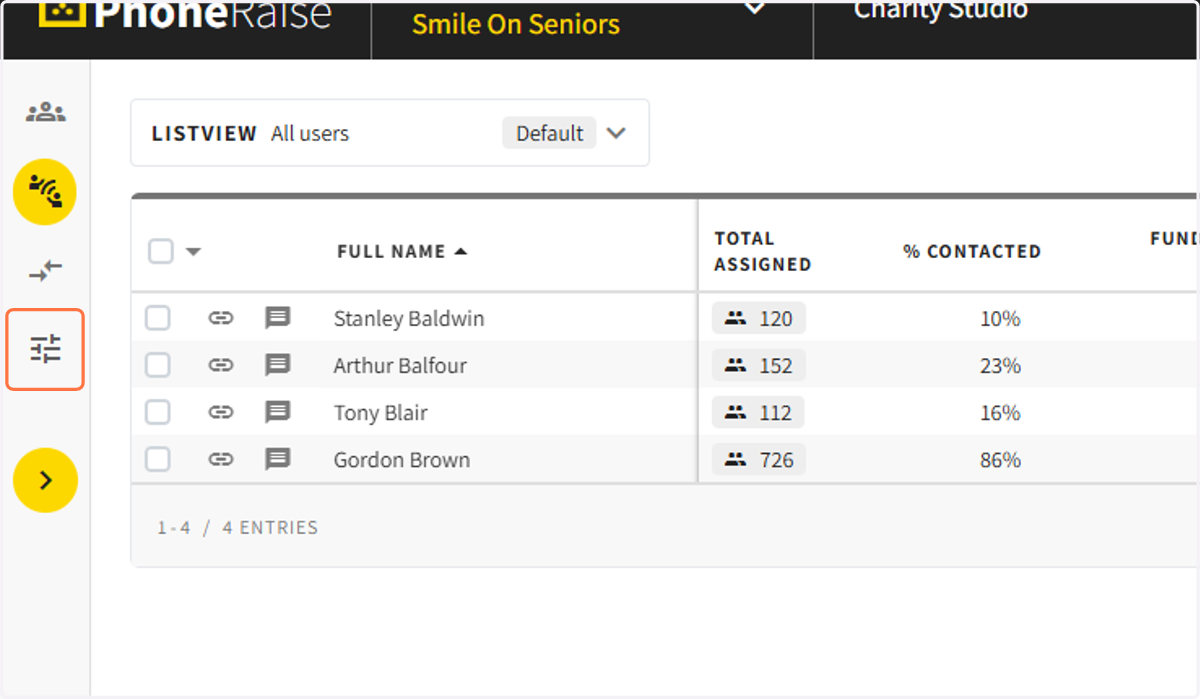
12. Click on Messaging templates…
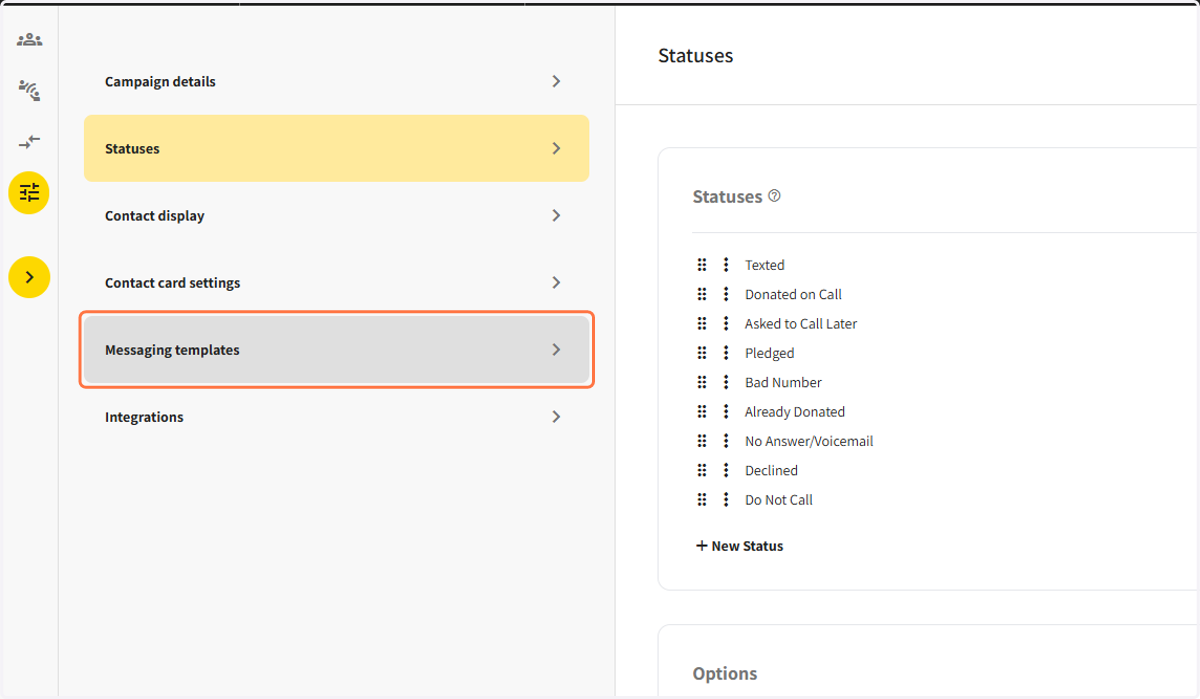
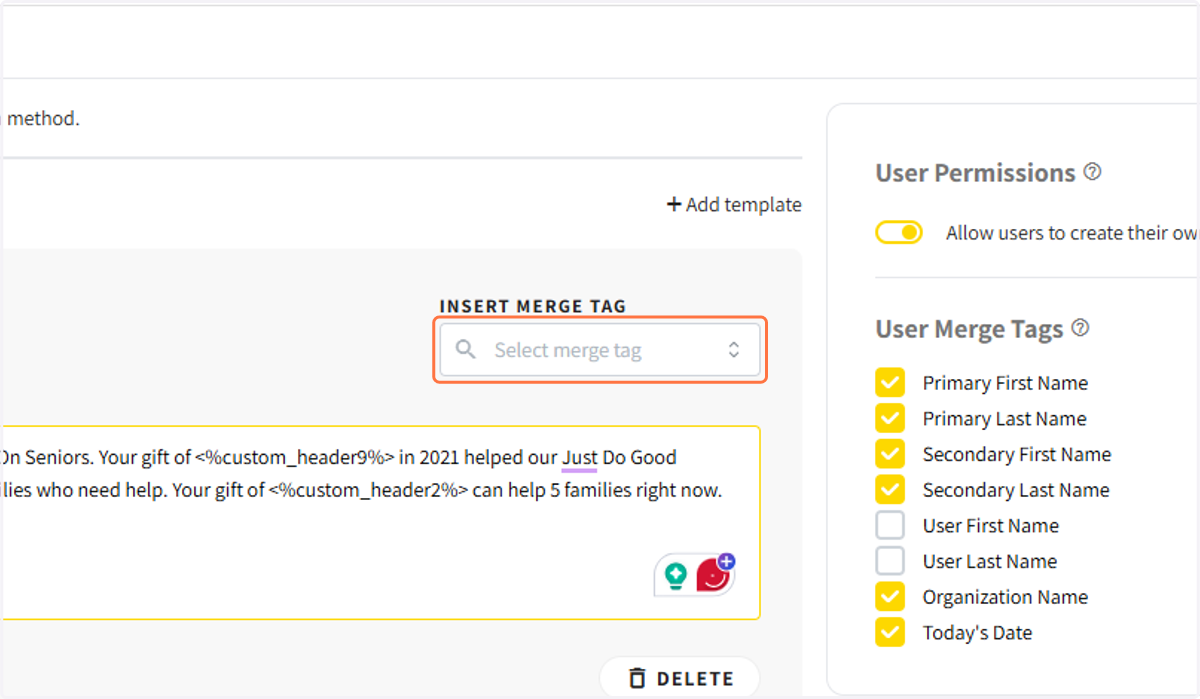
13. To insert a dynamic team link go Insert Merge Tag
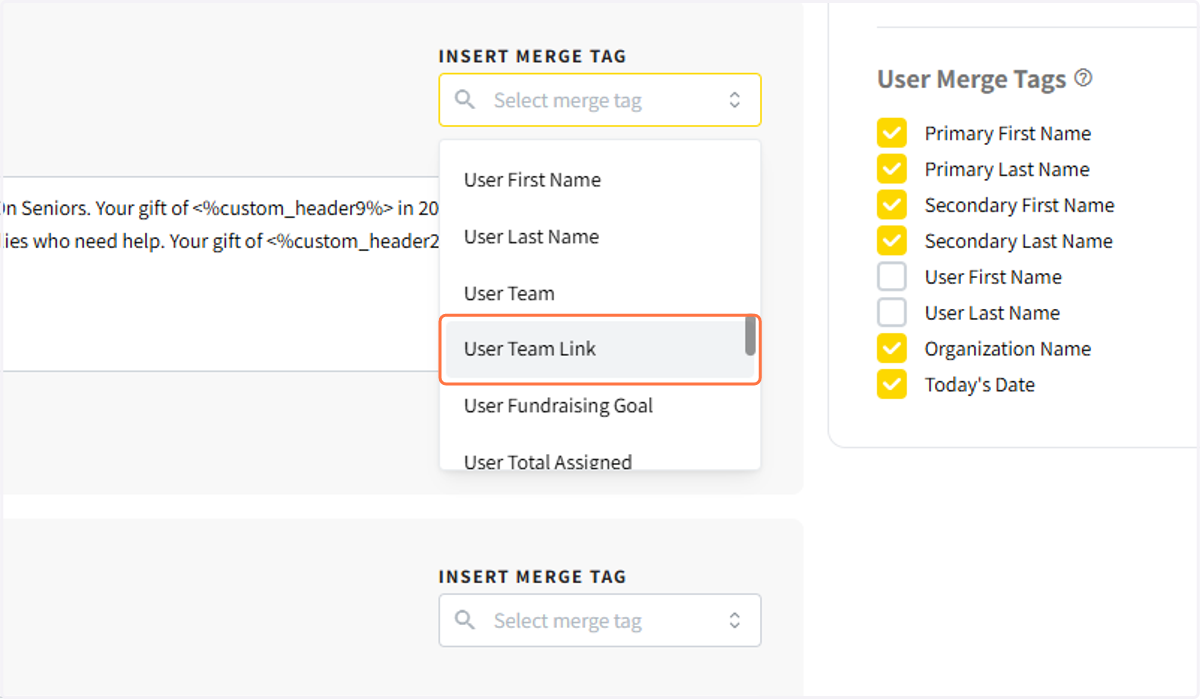
14. Select User Team Link
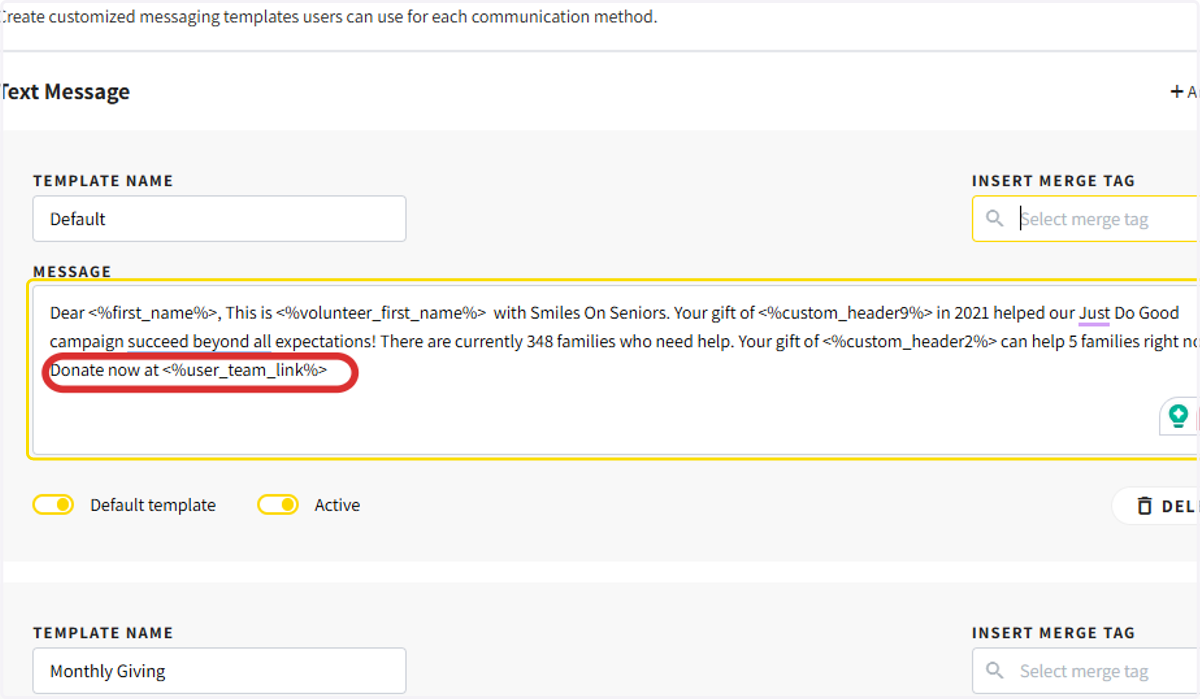
15. Insert the merge tag in the appropriate part of the message
16. Click on SAVE