Cancel Class Registrations in Engagifii

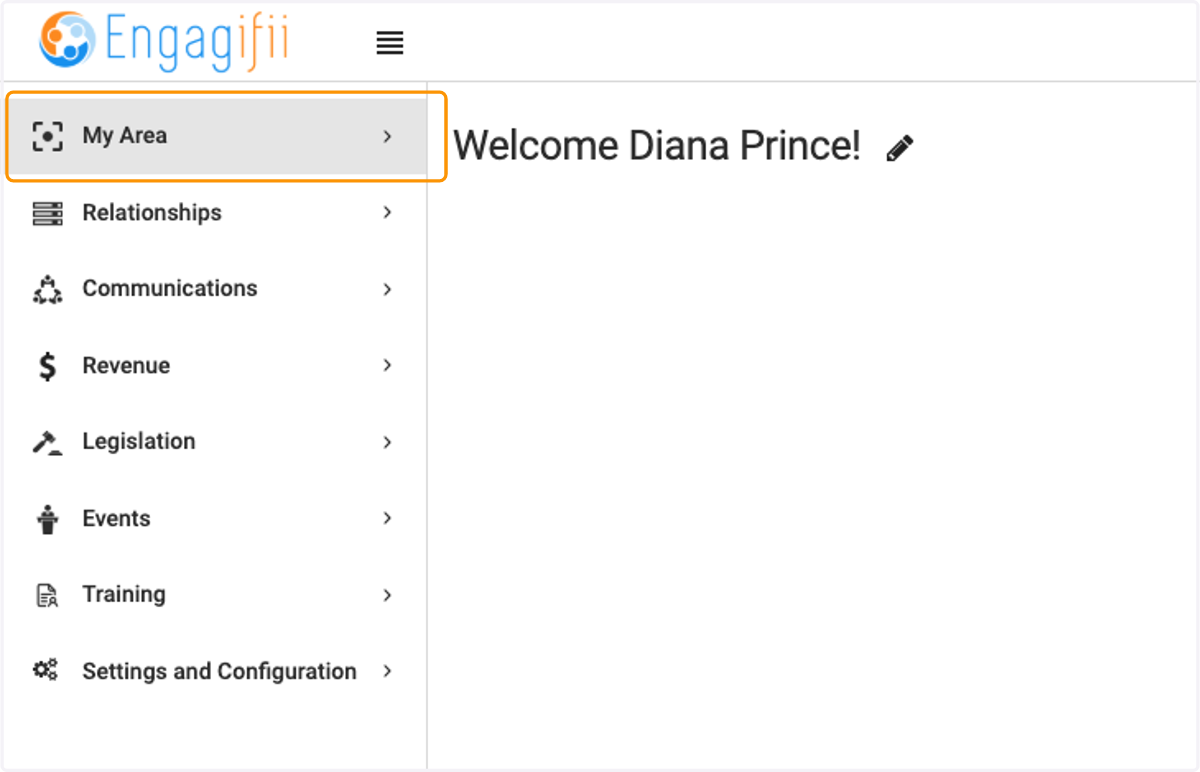
  1. 1. Click on My Area

    Click on My Area
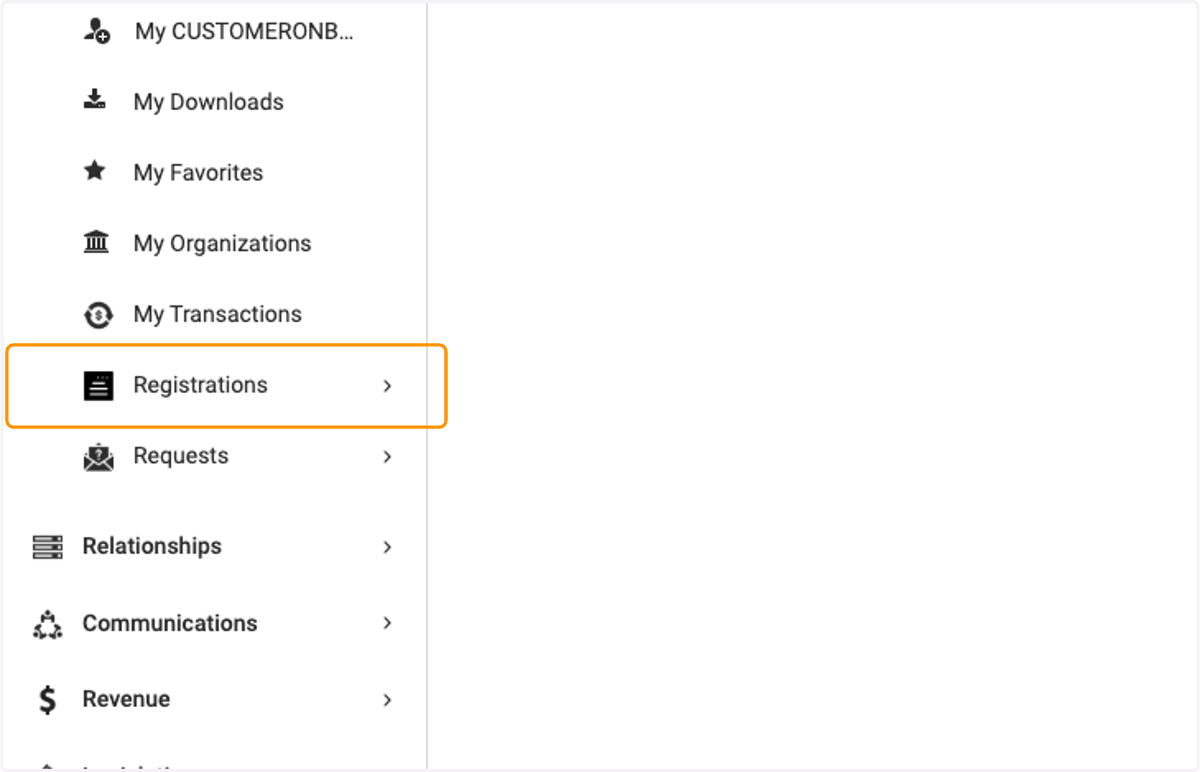
  2. 2. Click on Registrations

    Click on Registrations
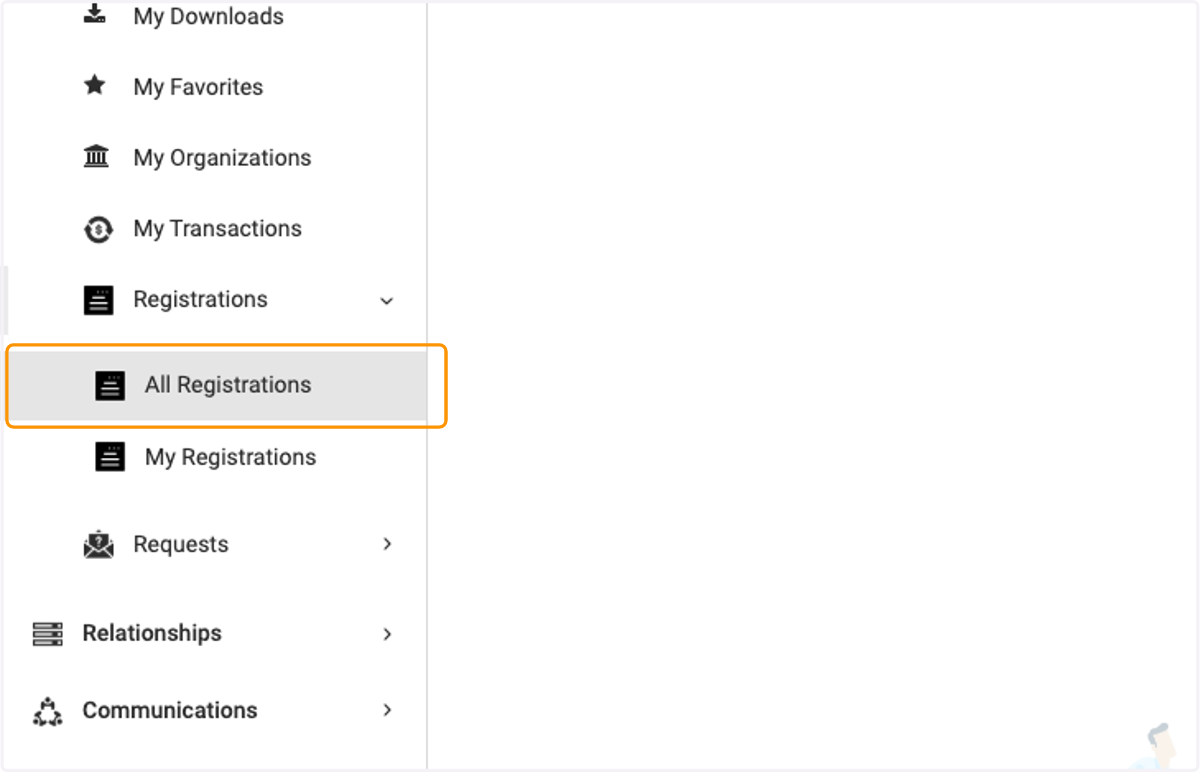
  3. 3. Click on All Registrations

    Click on All Registrations
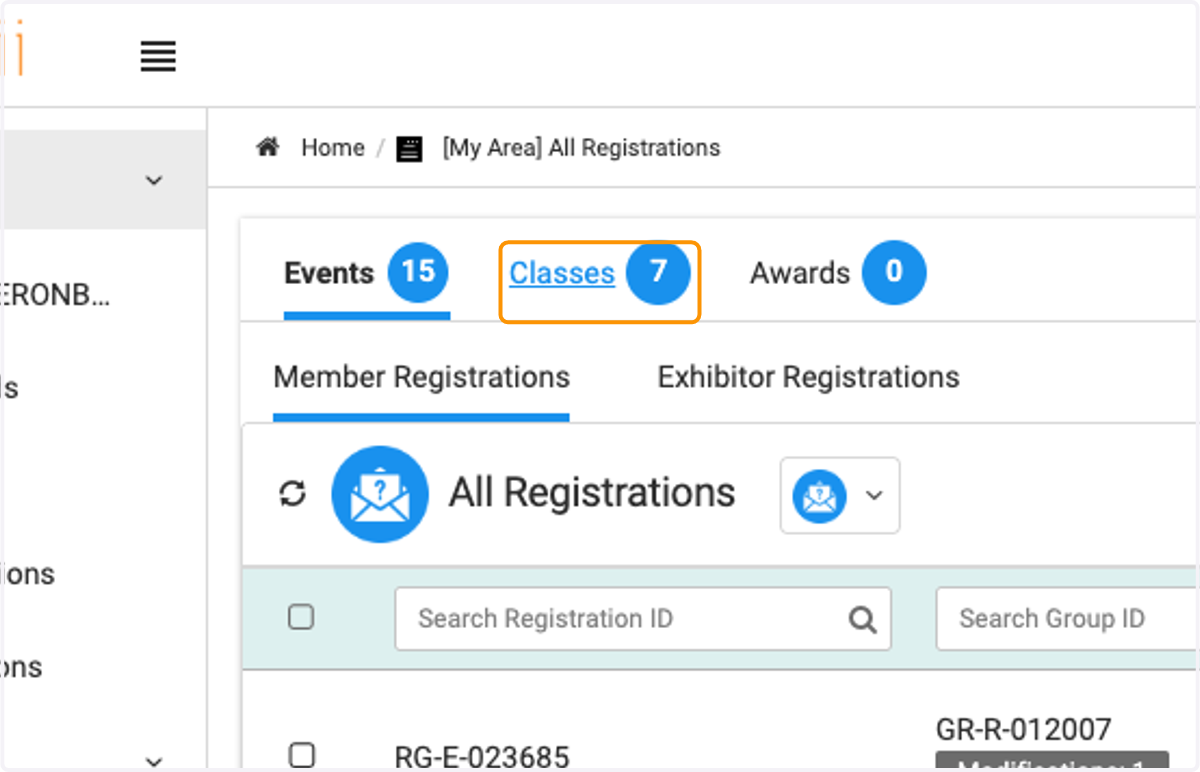
  4. 4. Click on Classes

    Click on Classes
  5. 5. Here you will see a list of all of the class registrations.
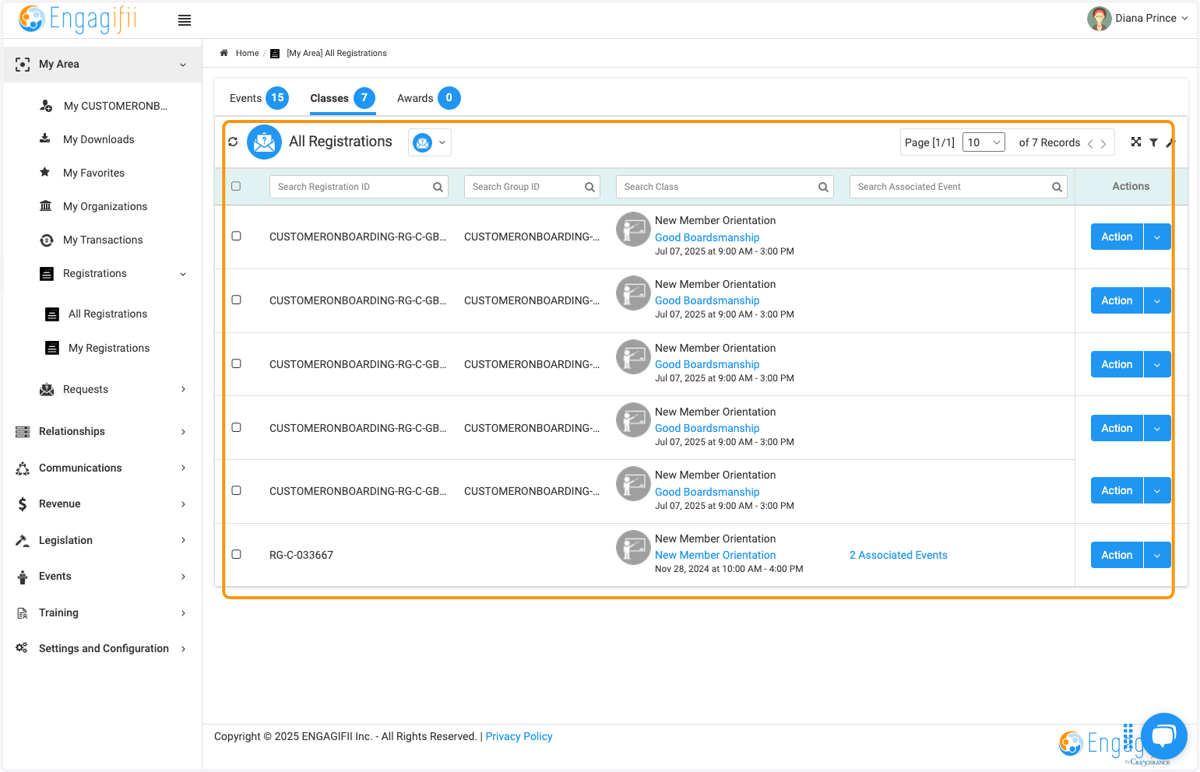
    Here you will see a list of all of the class registrations.
  6. 6. Select the class registration you wish to cancel and click on Action
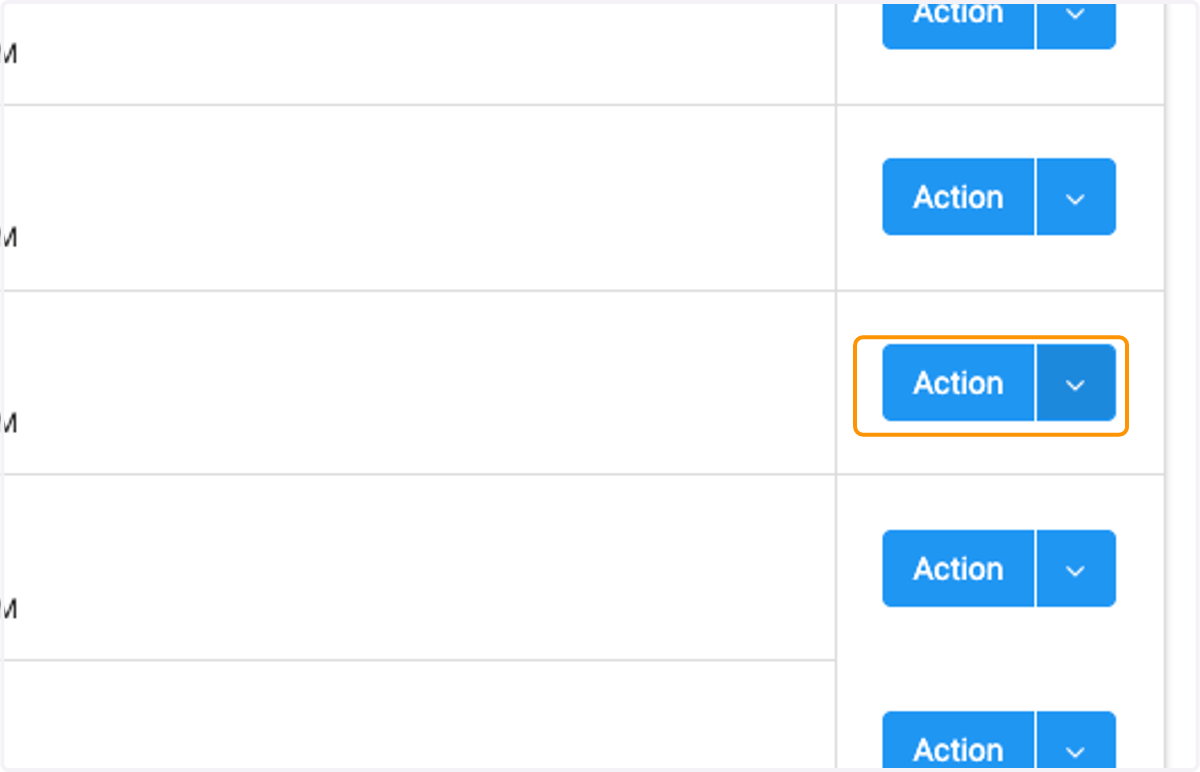
    Select the class registration you wish to cancel and click on Action
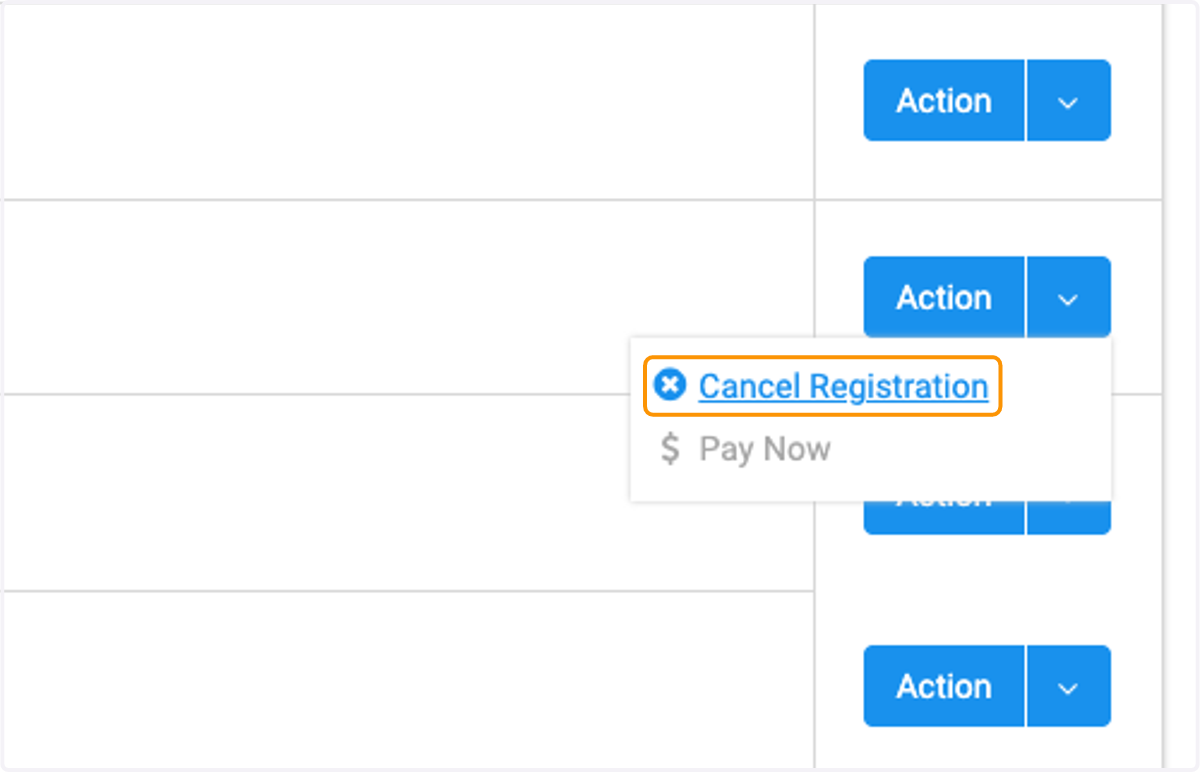
  7. 7. Click on Cancel Registration

    Click on Cancel Registration
  8. 8. Click on Manage Group Registration to cancel everyone or click Cancel this Registration to only cancel an individual from the class.

    The steps to cancel are the same for an individual or a group cancellation.
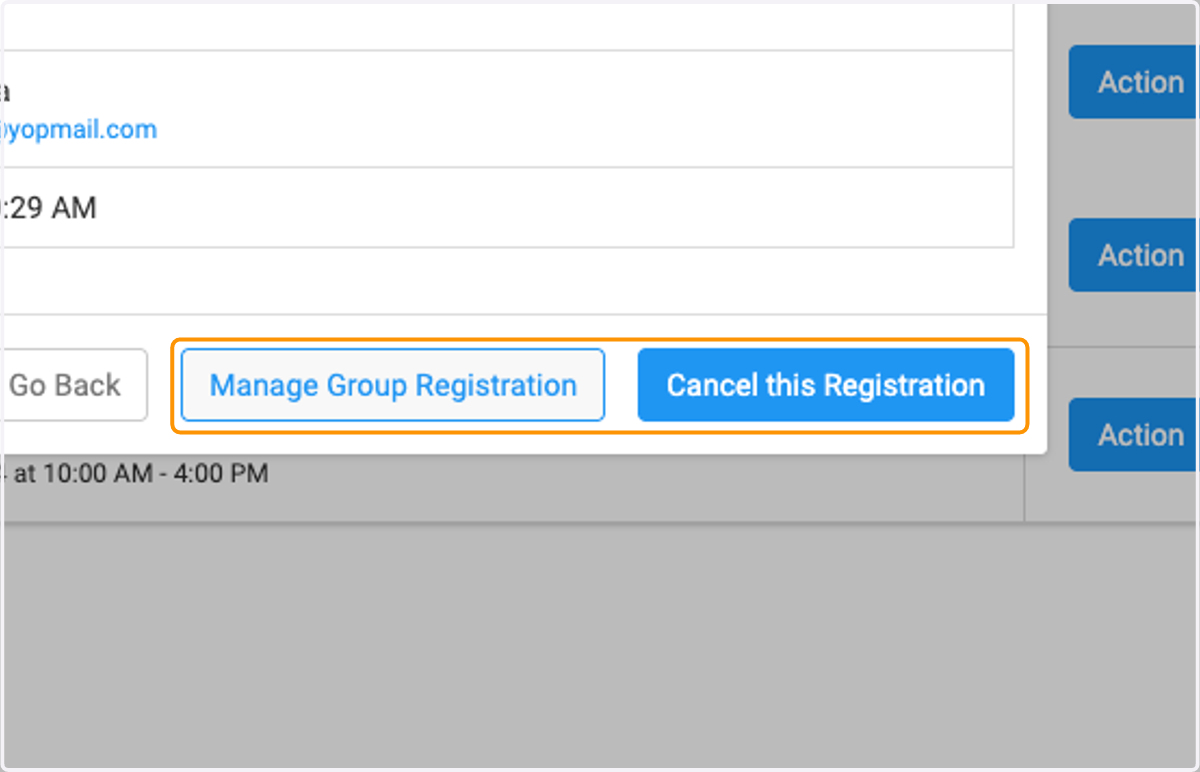
    Click on Manage Group Registration to cancel everyone or click Cancel this Registration to only cancel an individual from the class.
  9. 9. Select or Add a Cancellation Reason and an optional comment
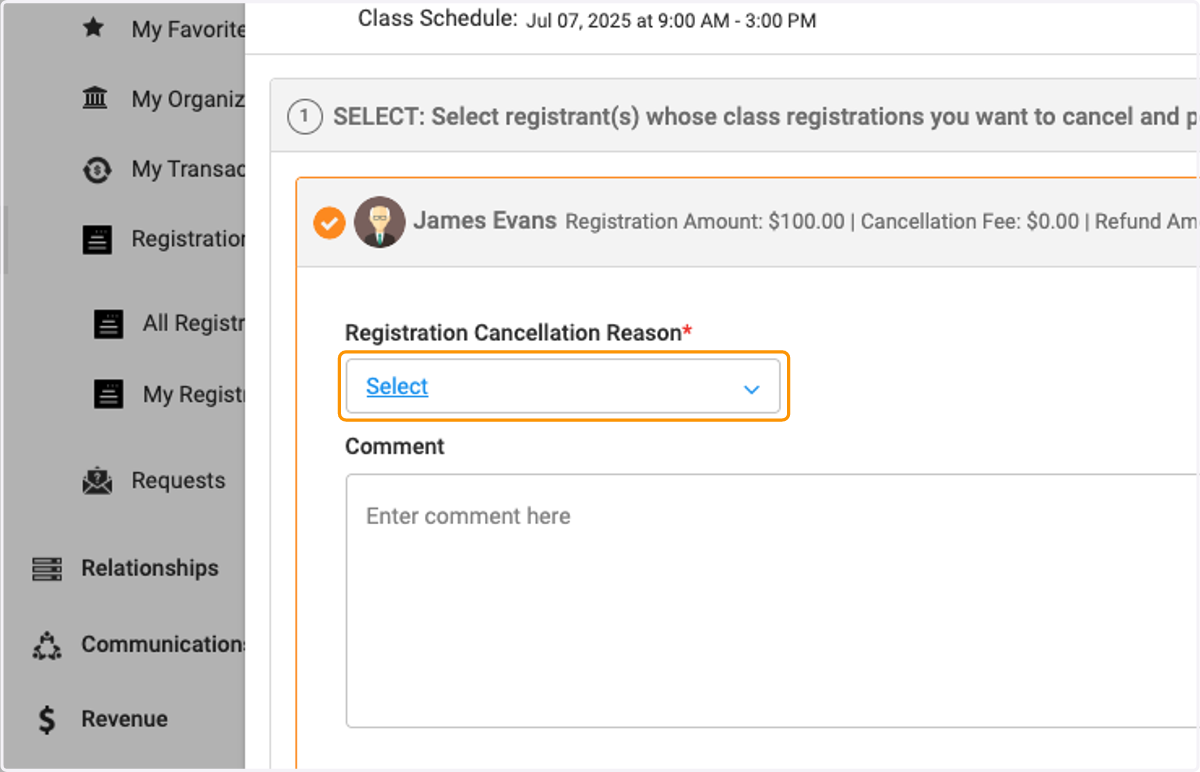
    Select or Add a Cancellation Reason and an optional comment
  10. 10. Enter a Cancellation Fee (if required) and then select Next
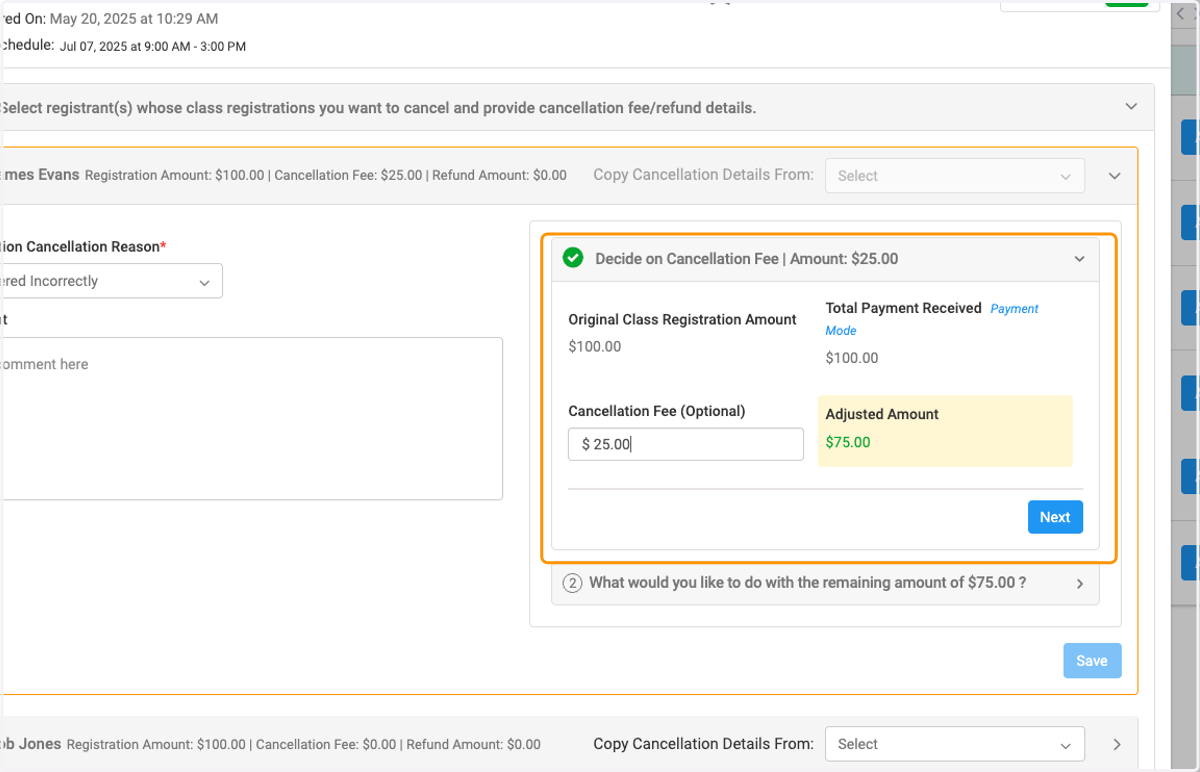
    Enter a Cancellation Fee (if required) and then select Next
  11. 11. Decide if you want to issue a refund, No or Yes. Determine amount of refund and click on Next
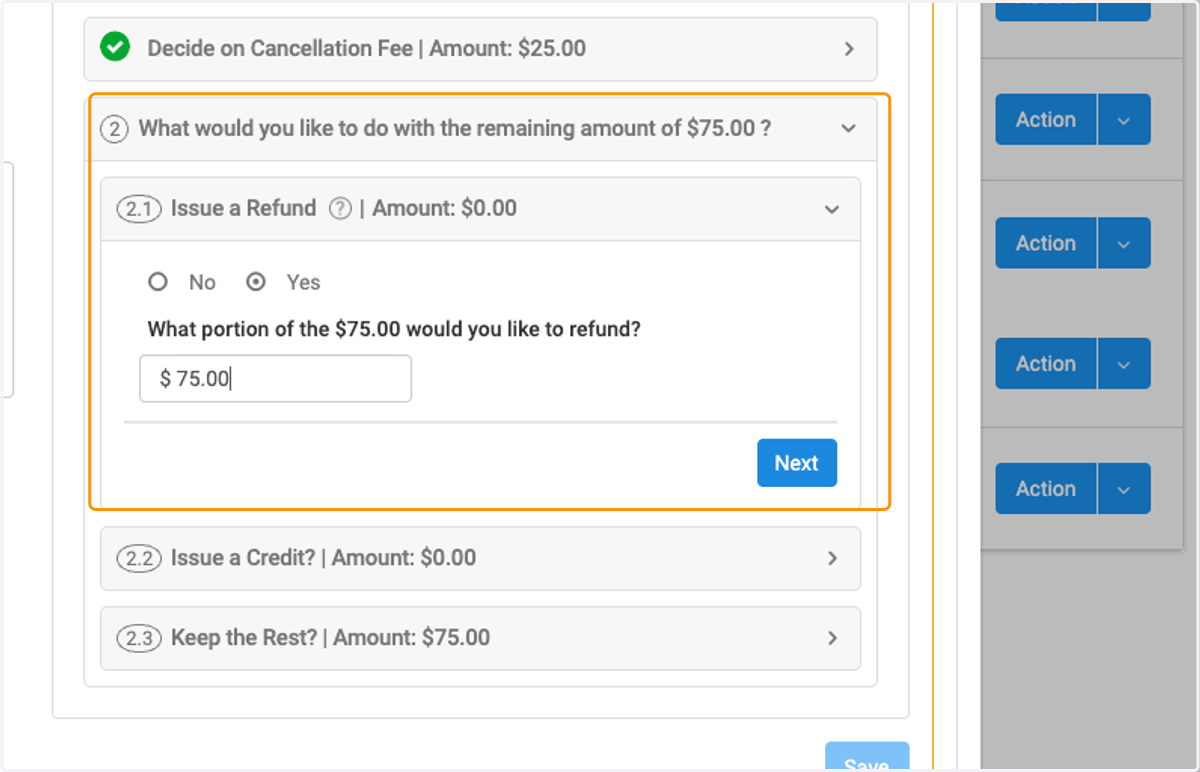
    Decide if you want to issue a refund, No or Yes. Determine amount of refund and click on Next
  12. 12. If no refund is being issued, determine a credit amount to use to pay for a future invoice and then select Next
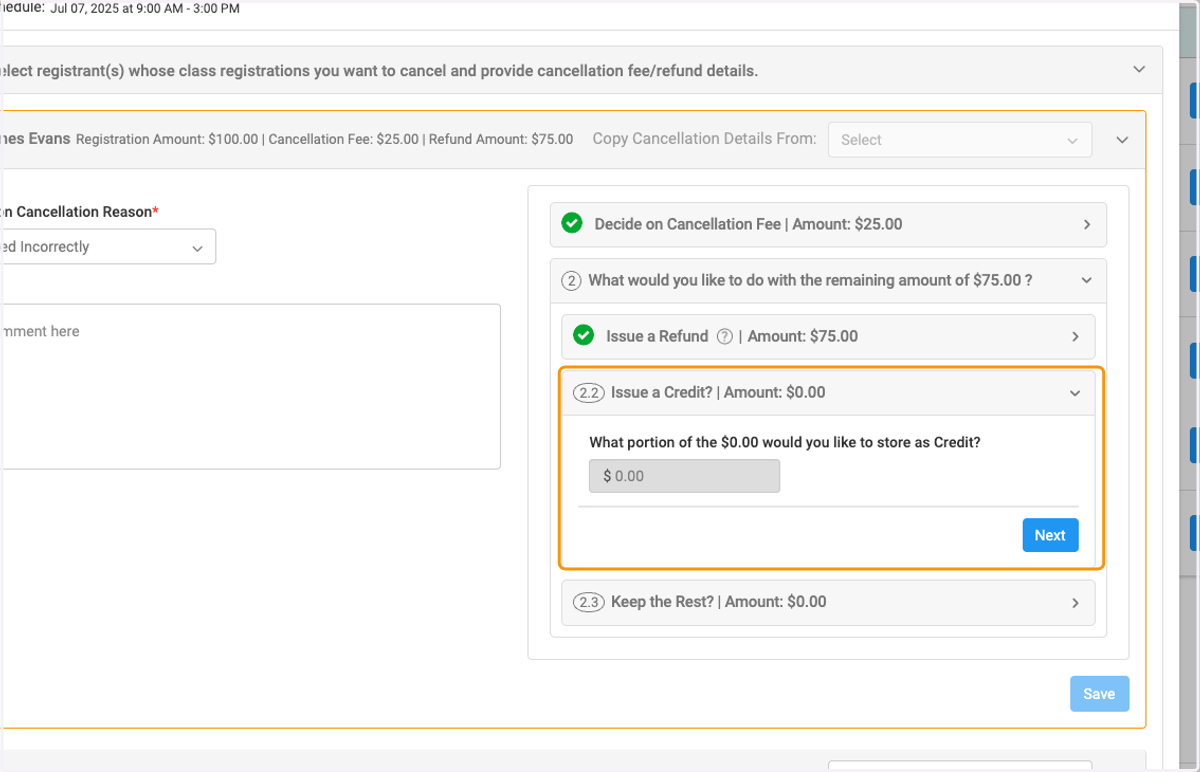
    If no refund is being issued, determine a credit amount to use to pay for a future invoice and then select Next
  13. 13. If not issuing a refund or a credit, you can chose to retain the full amount
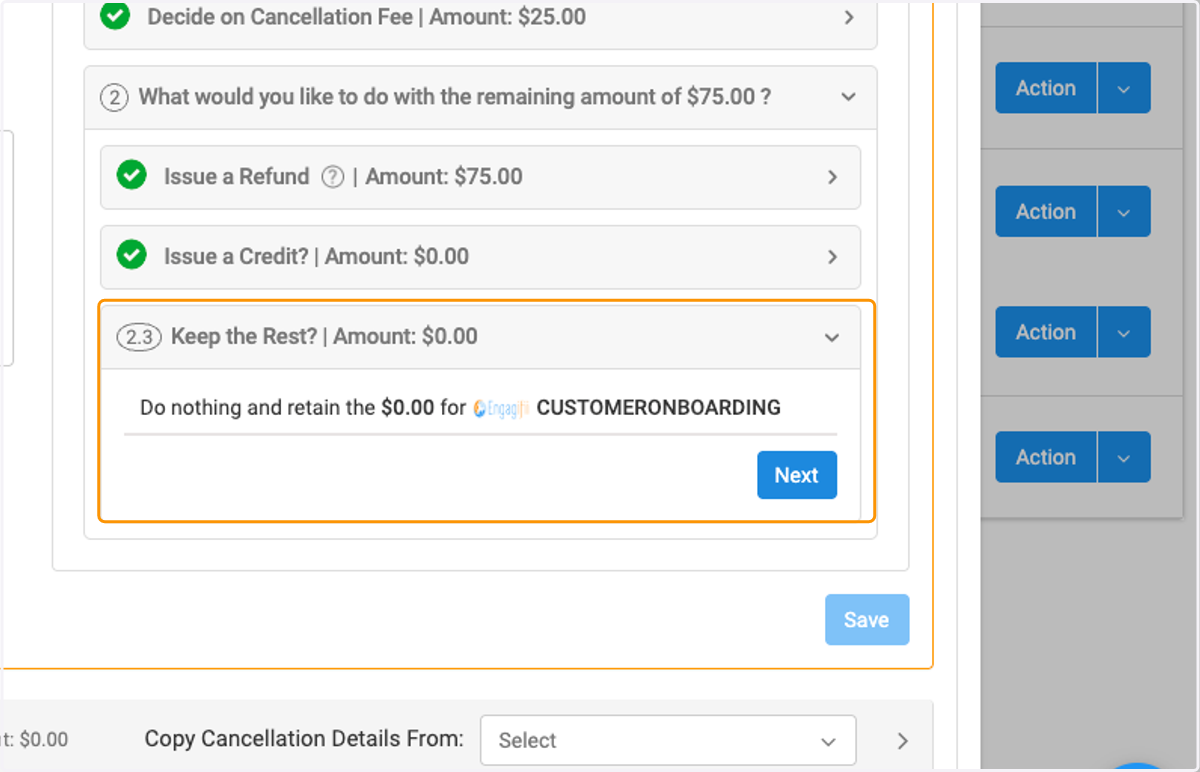
    If not issuing a refund or a credit, you can chose to retain the full amount
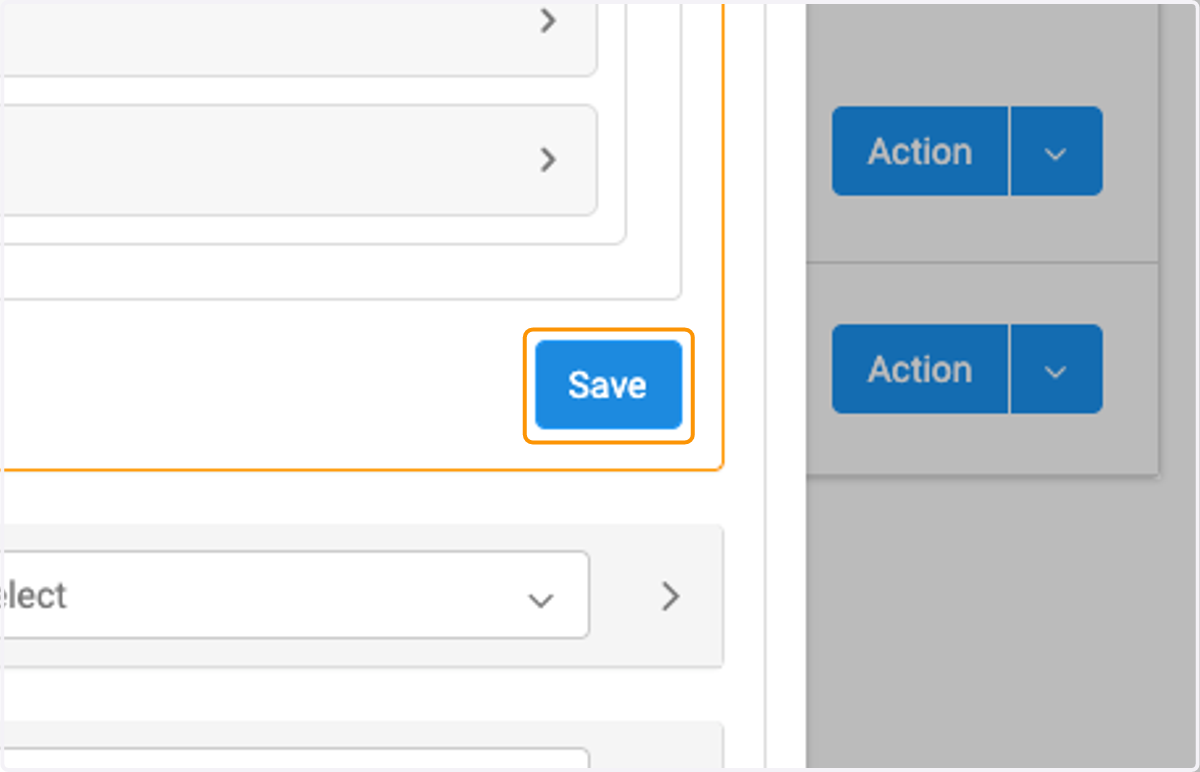
  14. 14. Click on Save

    Click on Save
  15. 15. If you are cancelling multiple registrants from a class, you can copy the cancellation details from the other registrants
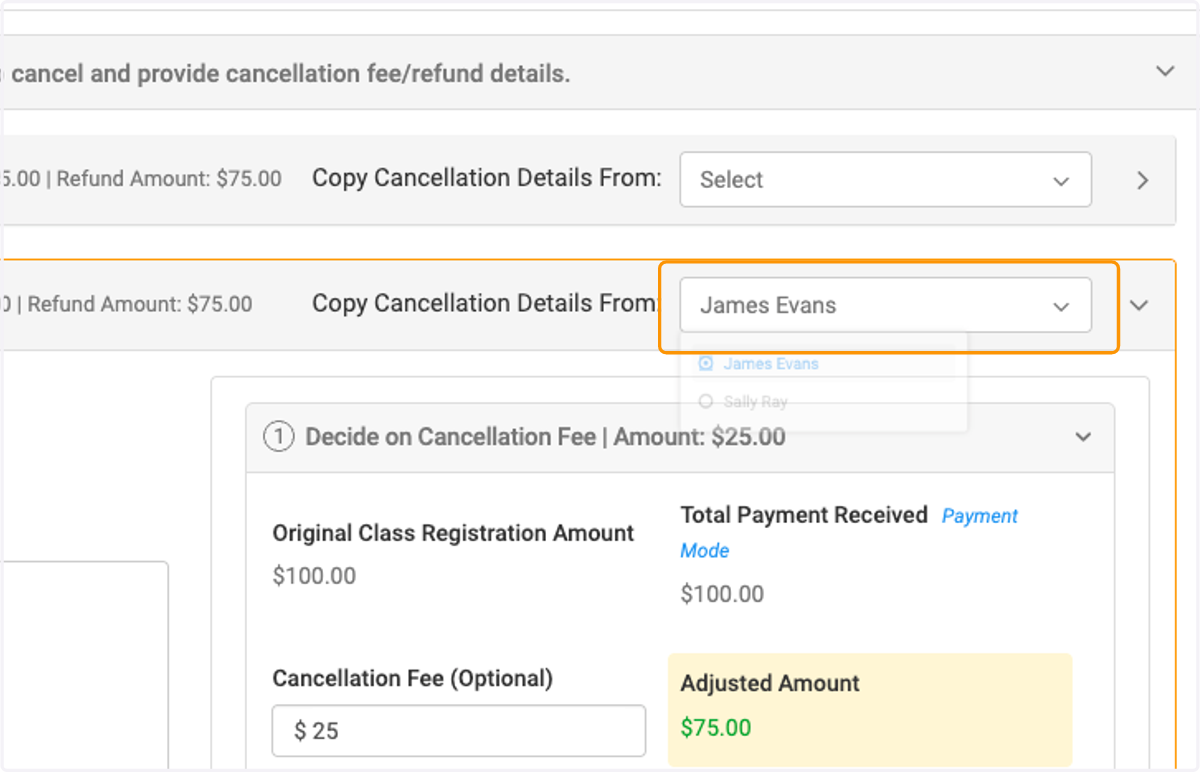
    If you are cancelling multiple registrants from a class, you can copy the cancellation details from the other registrants
  16. 16. Now the cancellation details from selected registrant will already be filled in and you can click on Next to continue
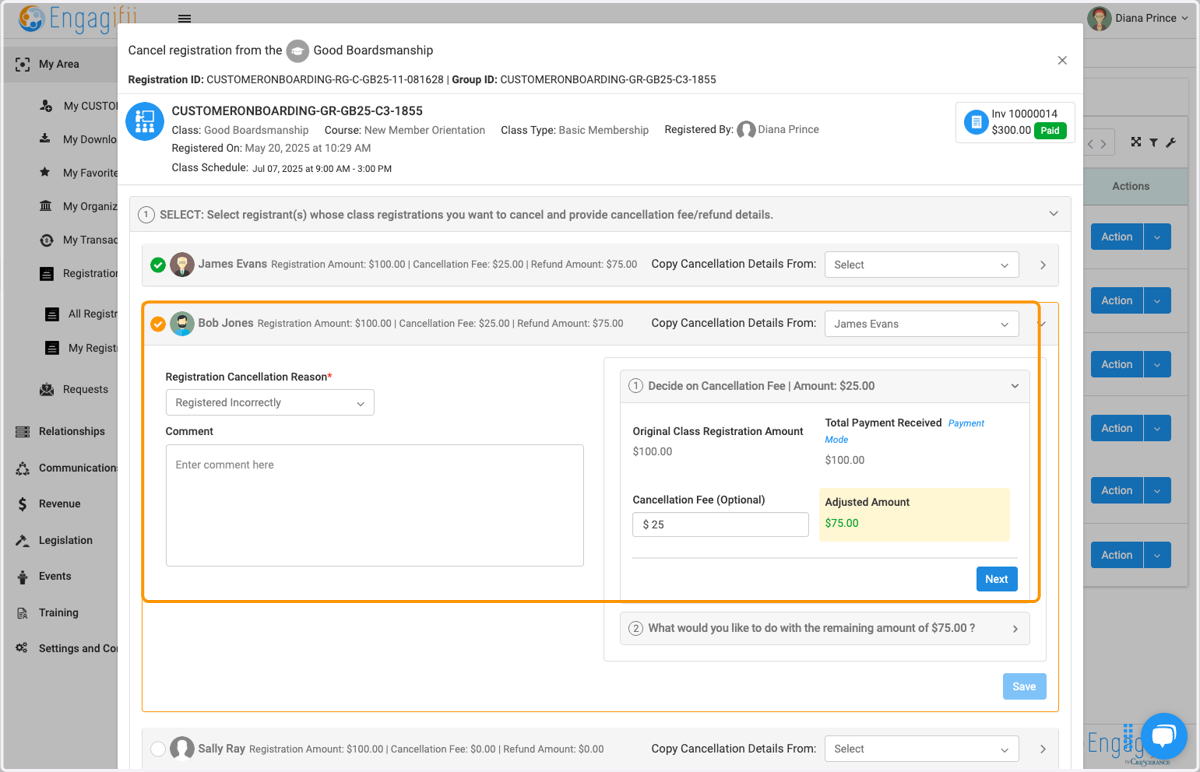
    Now the cancellation details from selected registrant will already be filled in and you can click on Next to continue
  17. 17. Determine refund amount and click on Next
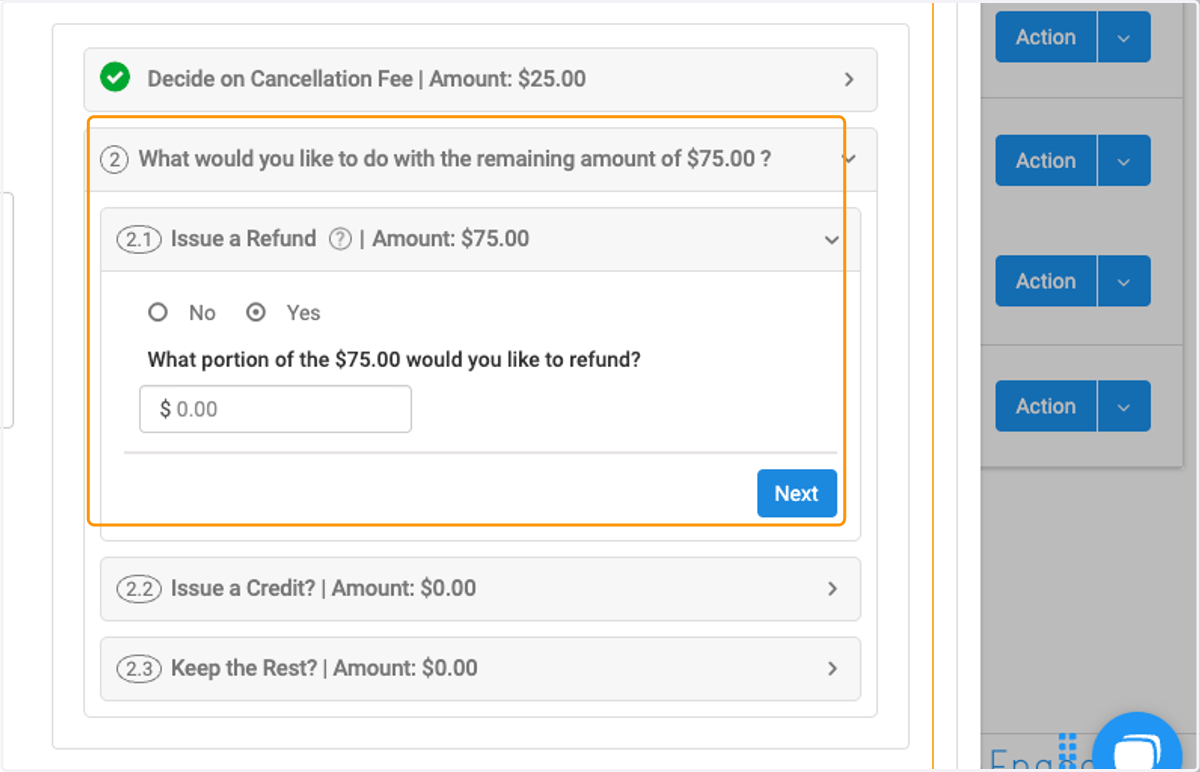
    Determine refund amount and click on Next
  18. 18. Determine credit amount and click on Next
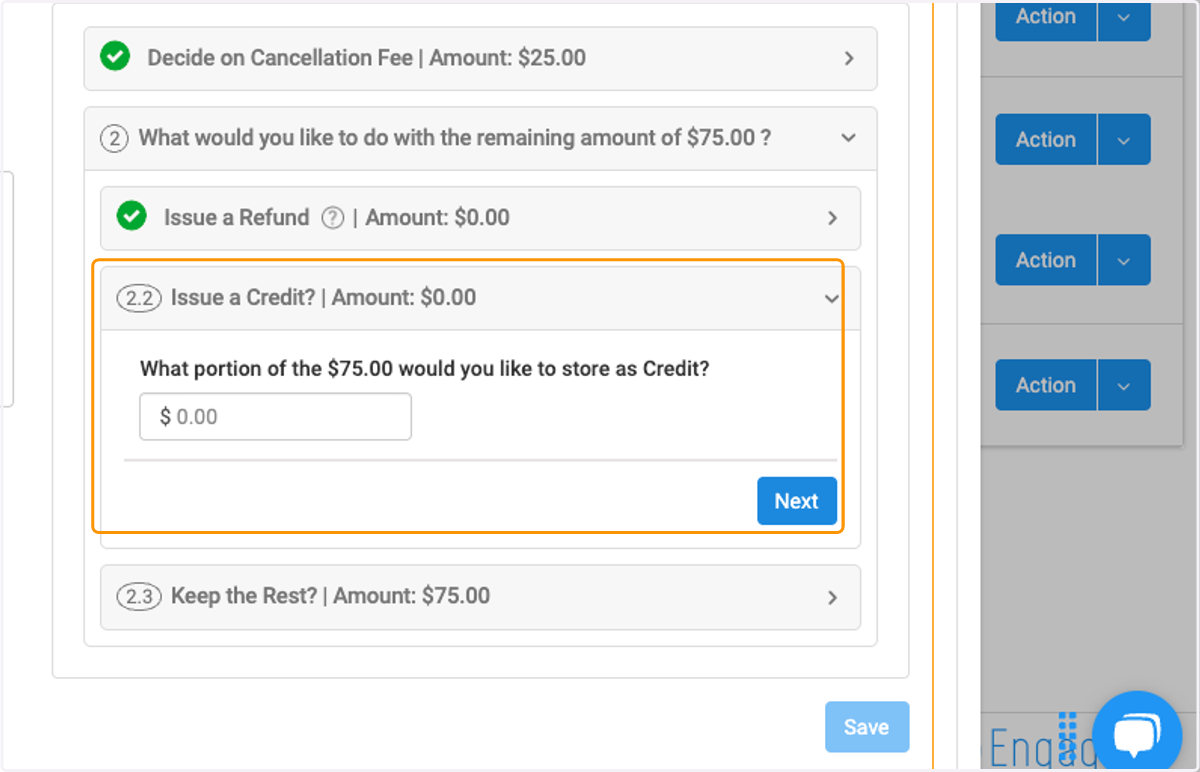
    Determine credit amount and click on Next
  19. 19. Determine retained amount and click on Next
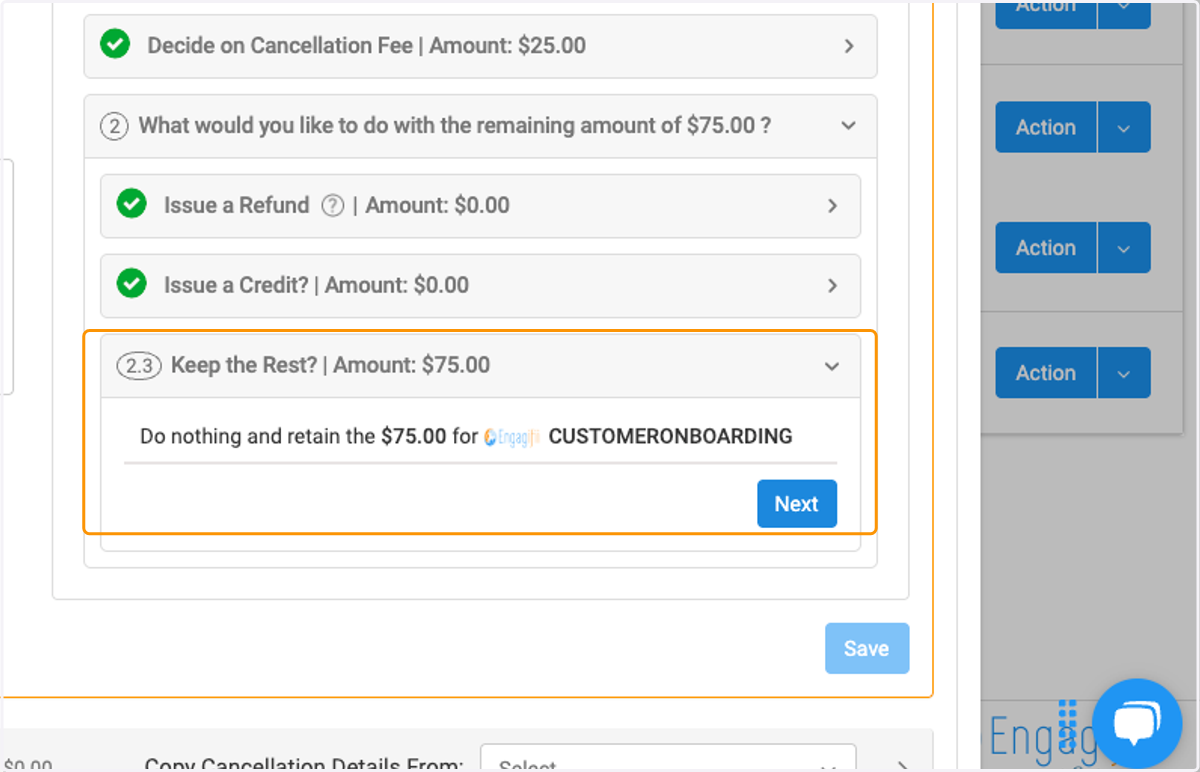
    Determine retained amount and click on Next
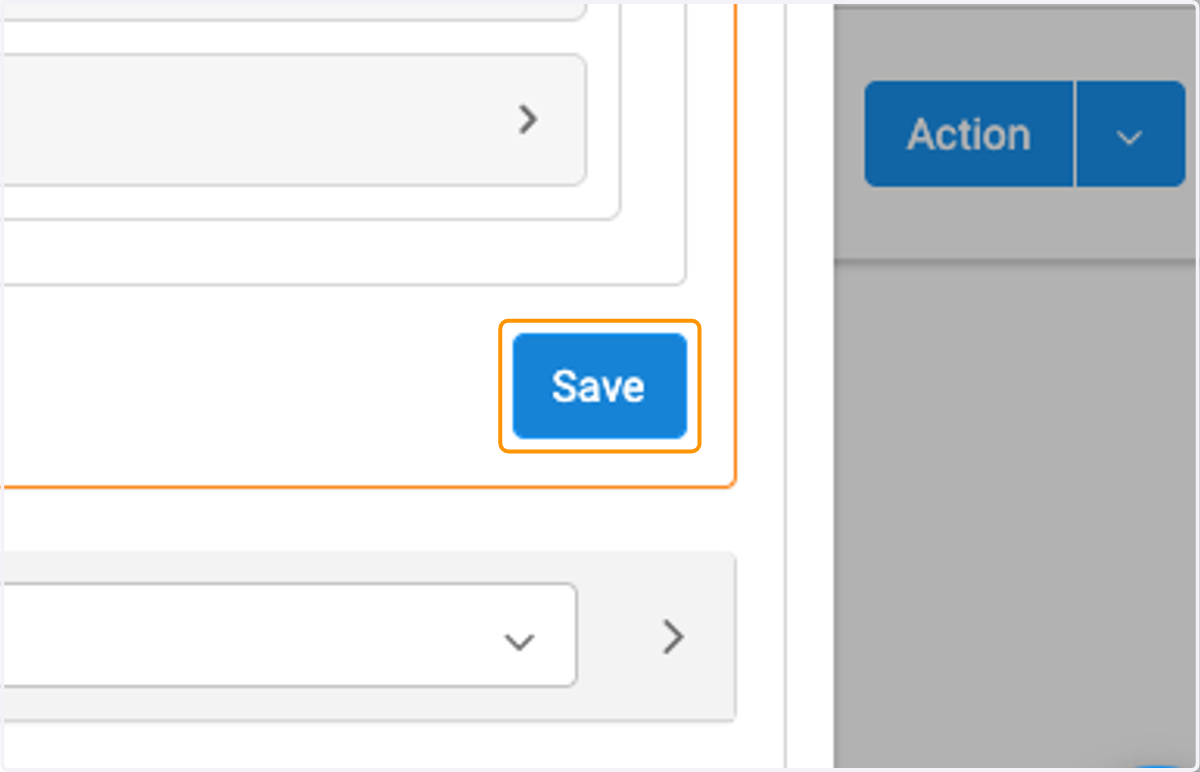
  20. 20. Click on Save when finished

    Click on Save when finished
  21. 21. Continue with all registrants you wish to cancel
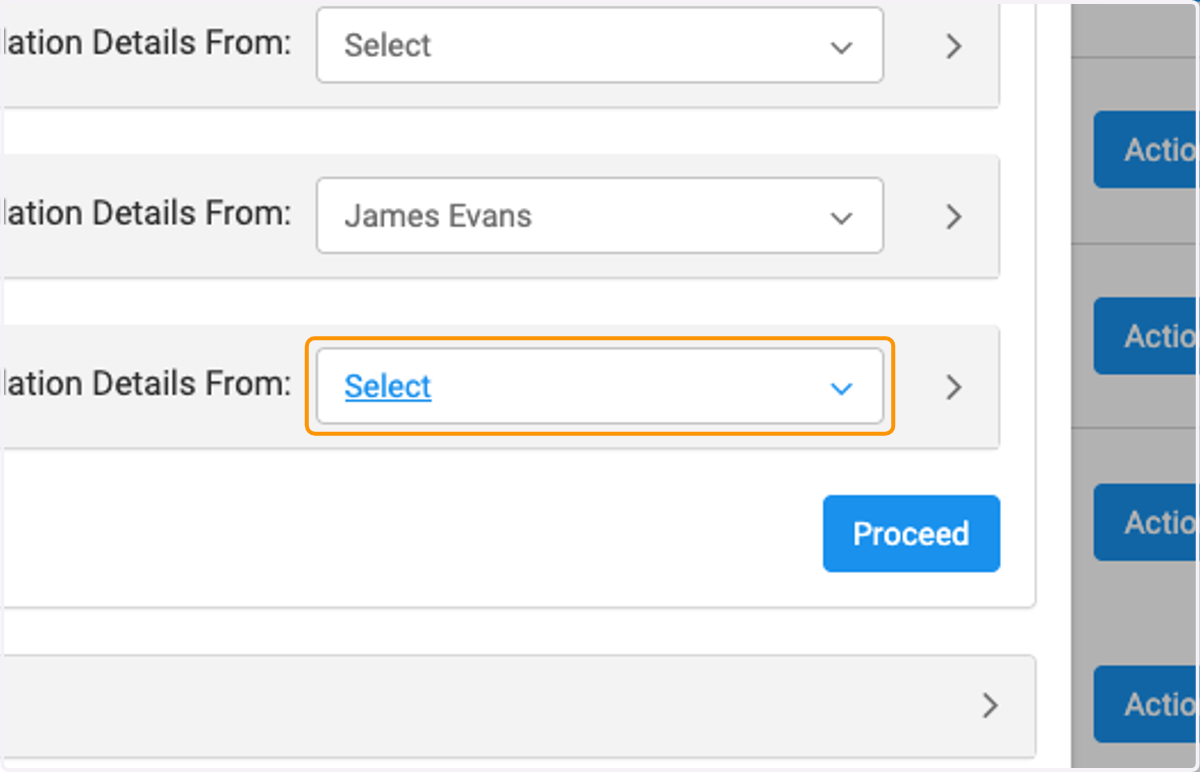
    Continue with all registrants you wish to cancel
  22. 22. Review cancellation details for selected registrants, and then click Confirm and Proceed
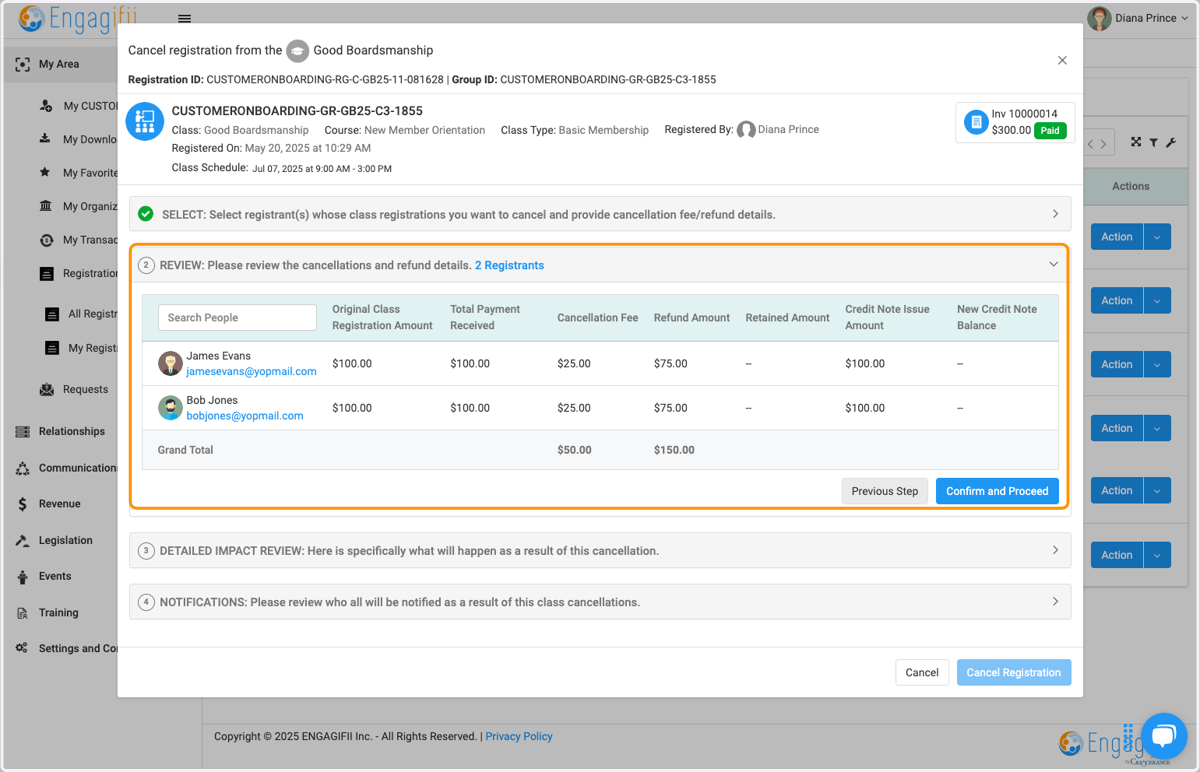
    Review cancellation details for selected registrants, and then click Confirm and Proceed
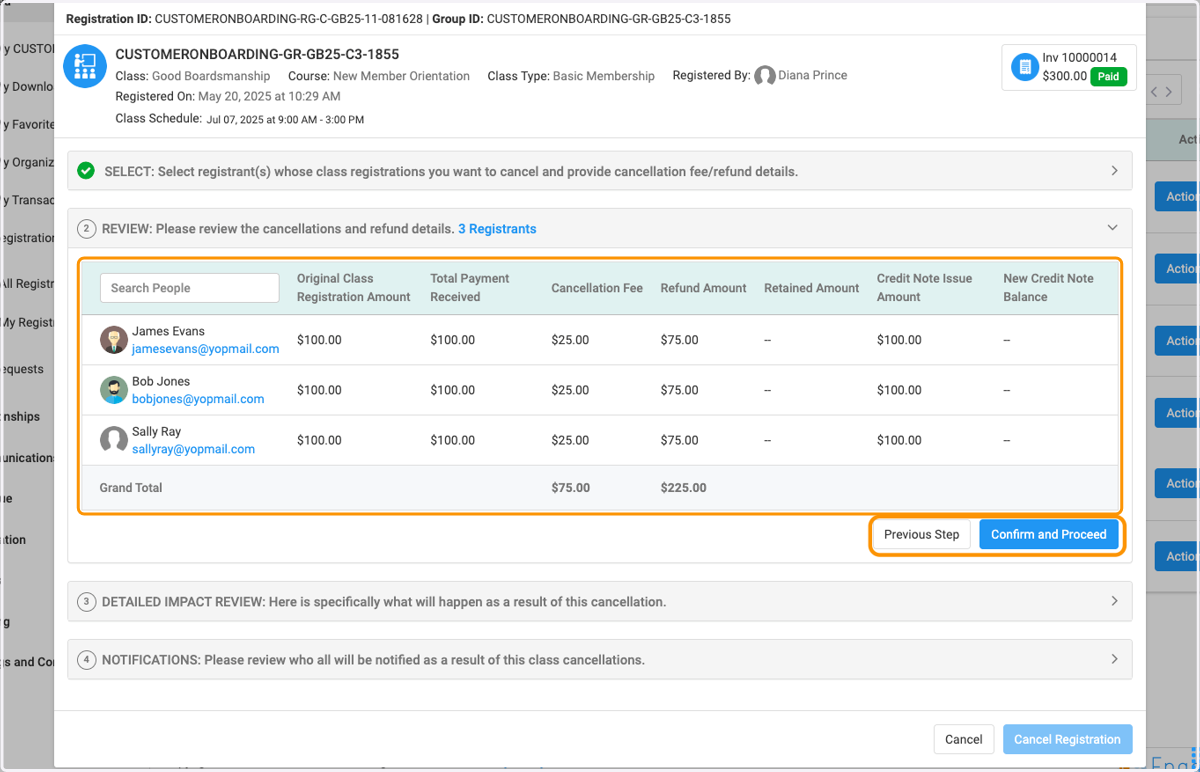
  23. 23. Review cancellation details for selected registrants, and then click Confirm and Proceed

    Review cancellation details for selected registrants, and then click Confirm and Proceed
  24. 24. If all looks correct on the Summary, type "Confirm" in the text box and click on Confirm button
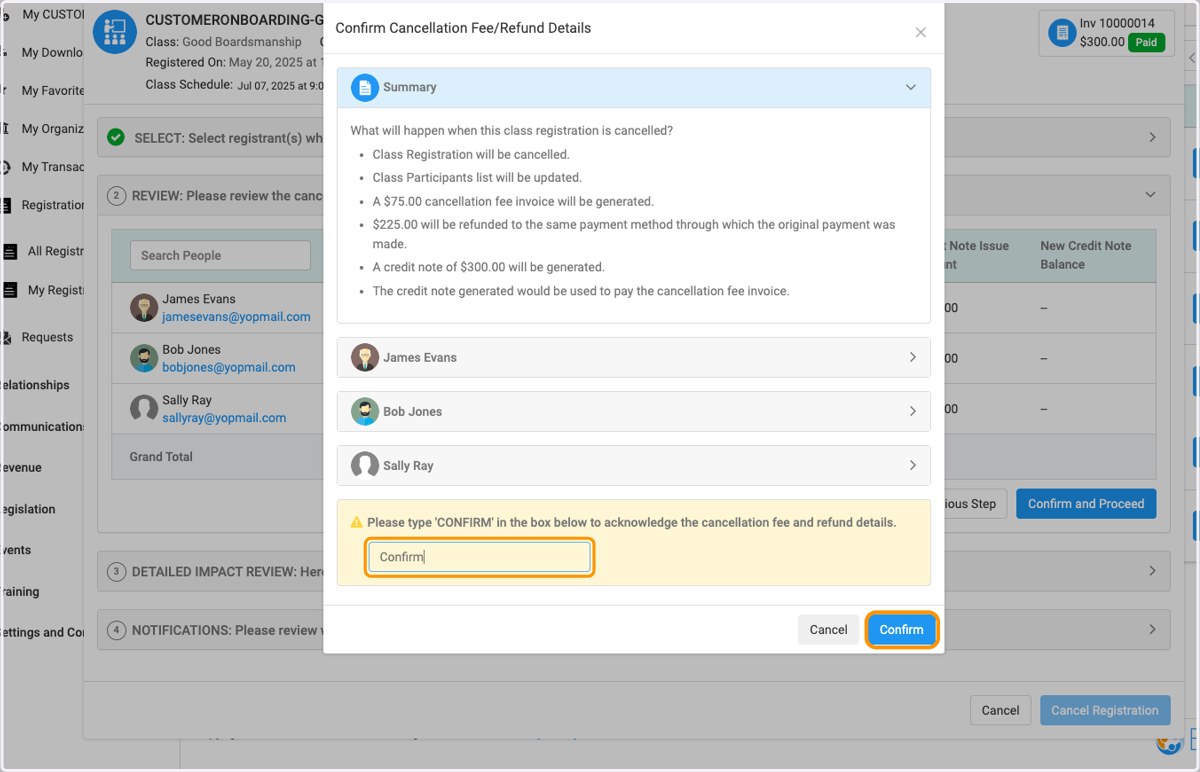
    If all looks correct on the Summary, type "Confirm" in the text box and click on Confirm button
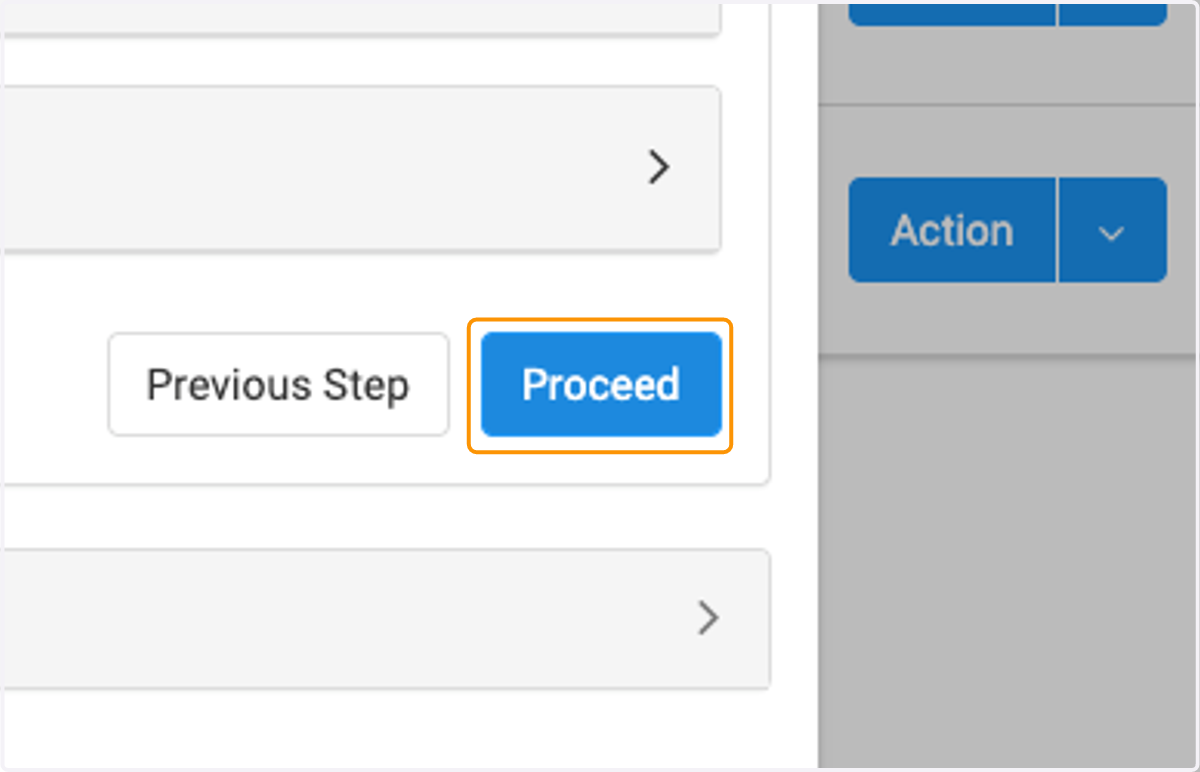
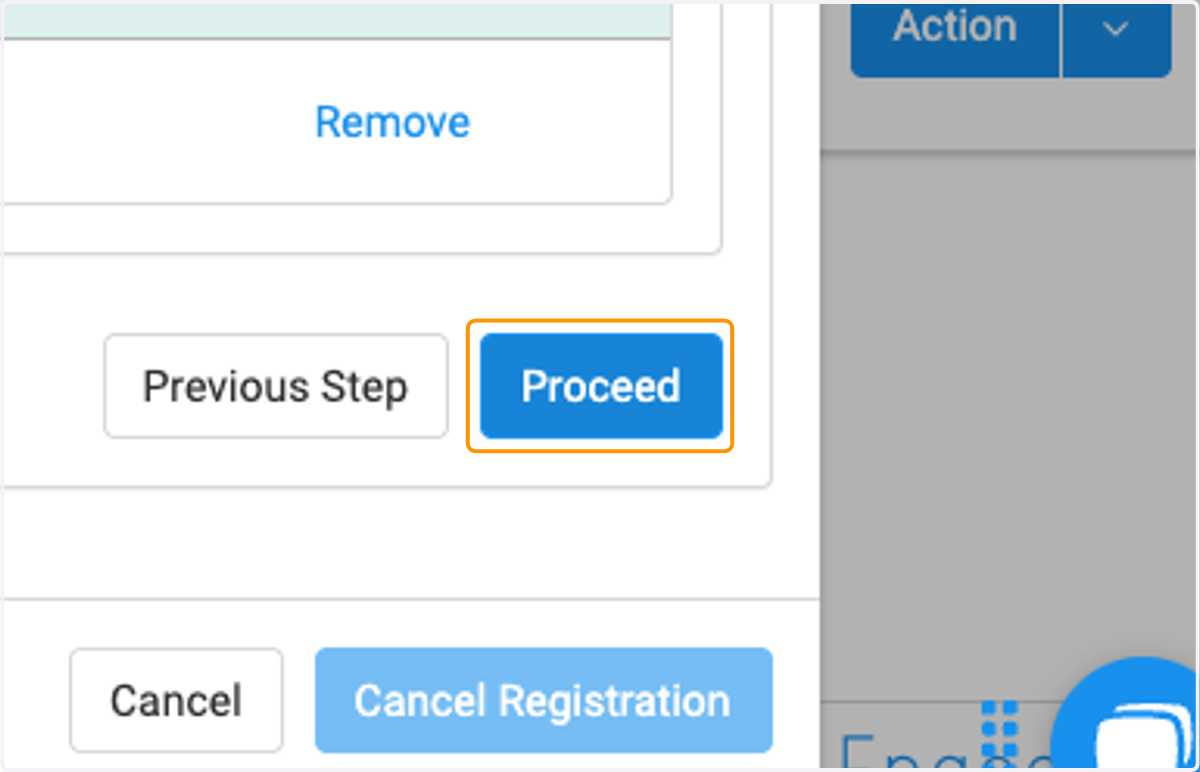
  25. 25. Click on Proceed

    Click on Proceed
  26. 26. Review cancellation notifications
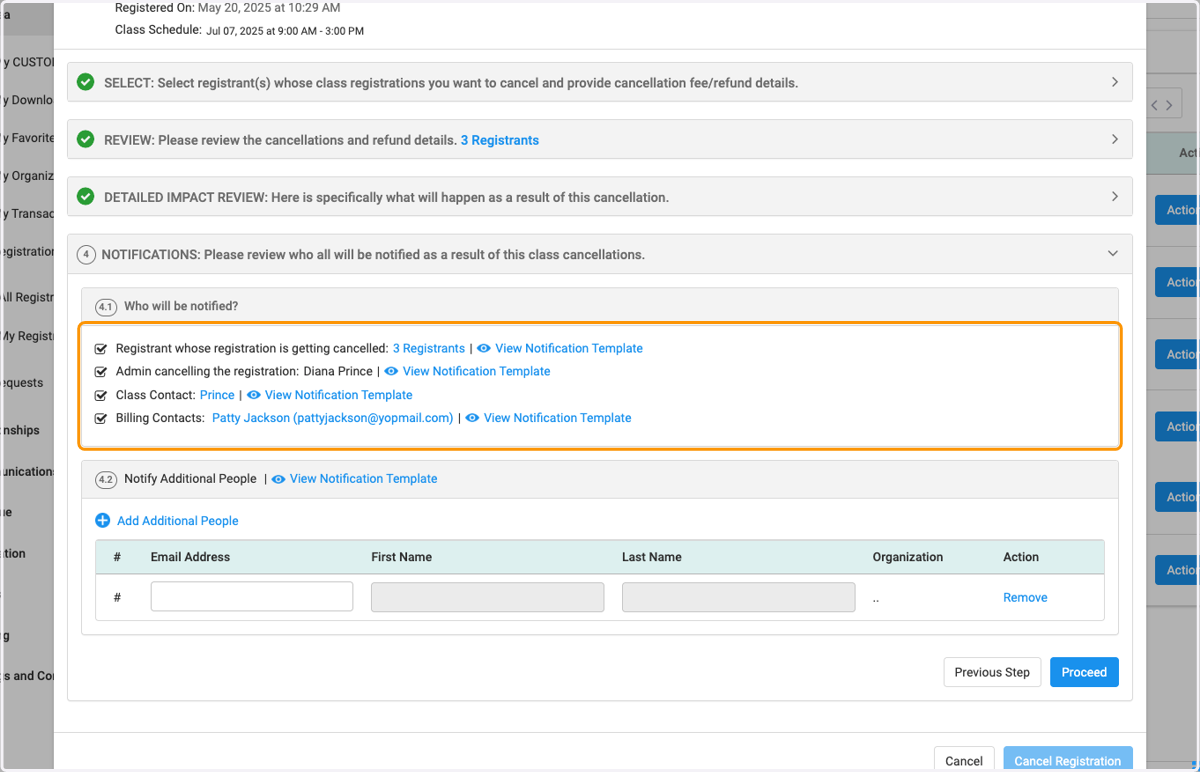
    Review cancellation notifications
  27. 27. Add additional people to receive notifications (if applicable)
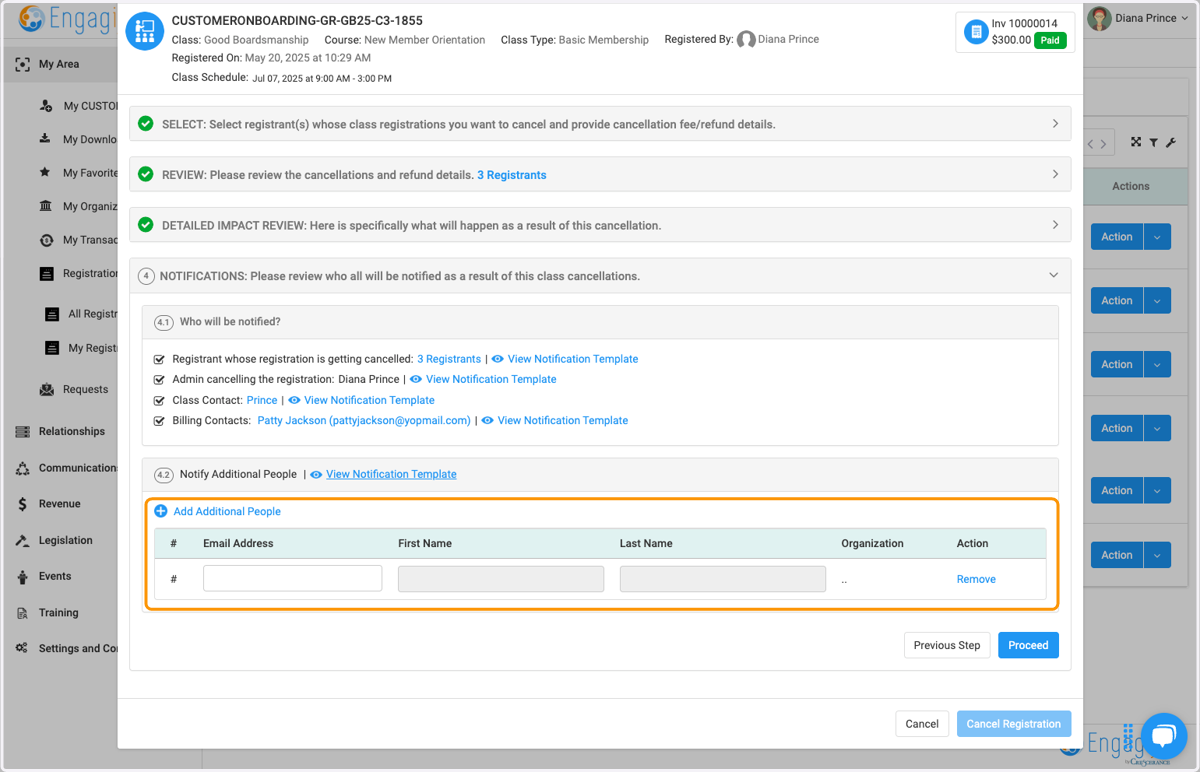
    Add additional people to receive notifications (if applicable)
  28. 28. Click on Proceed

    Click on Proceed
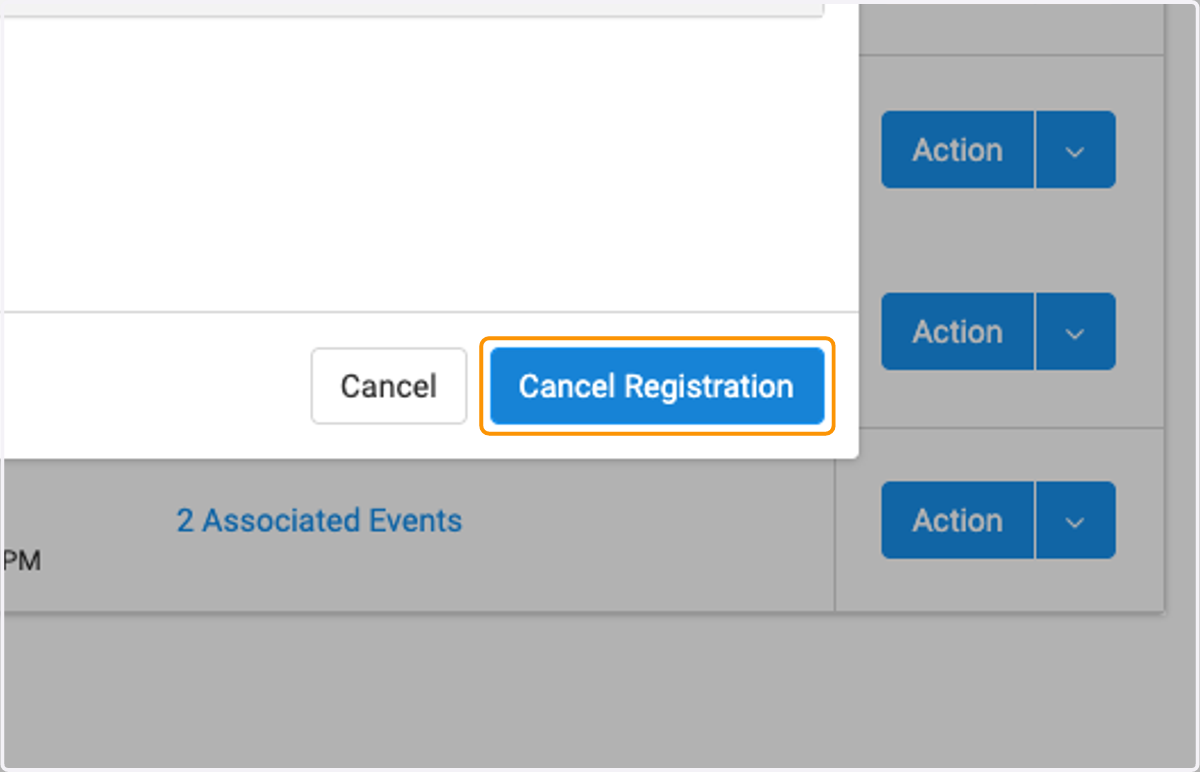
  29. 29. Click on Cancel Registration

    Click on Cancel Registration
  30. 30. Click on Yes, Cancel Registration
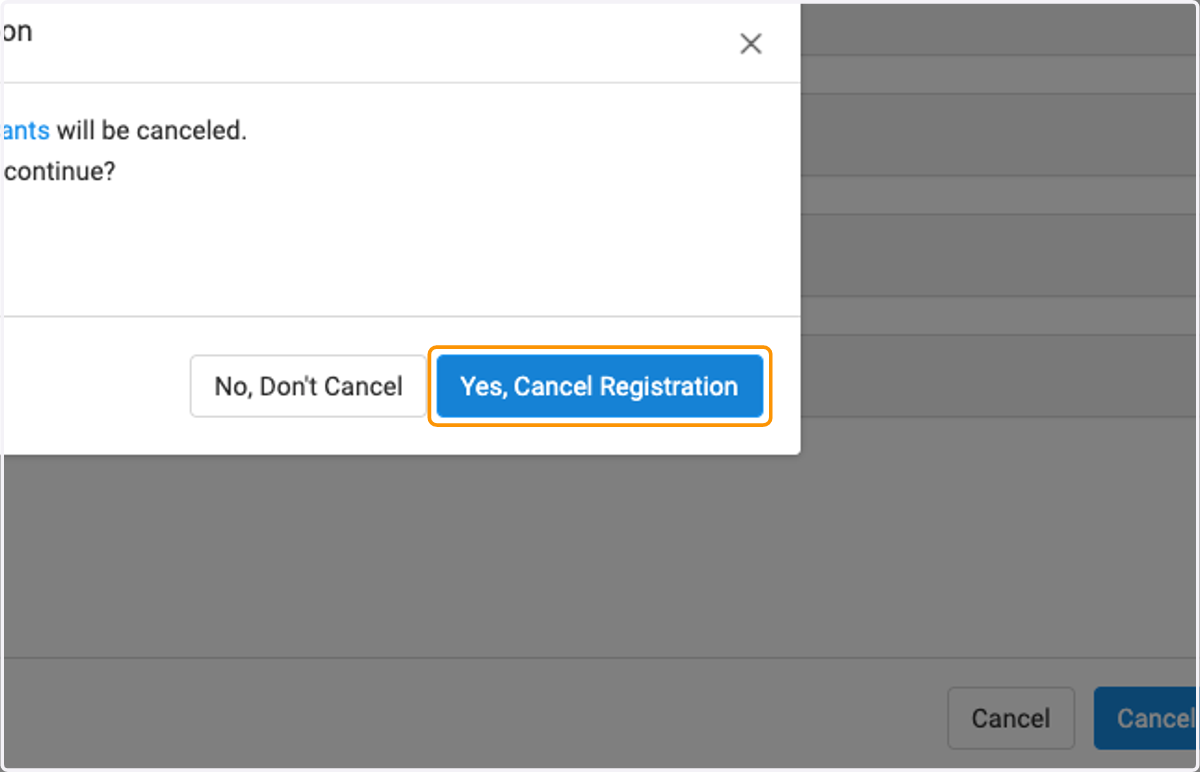
    Click on Yes, Cancel Registration
  31. 31. Click on Okay

    Click on Okay
  32. 32. You will now see the cancelled registrations
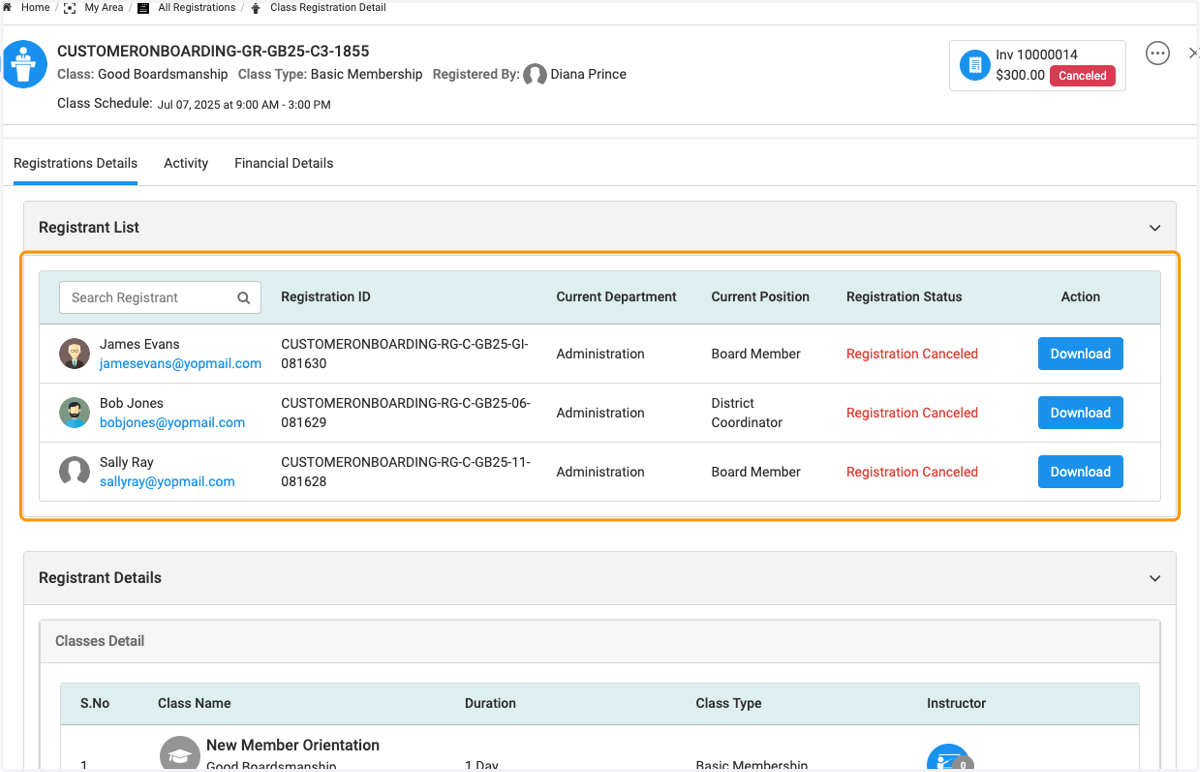
    You will now see the cancelled registrations
  33. 33. The original invoice has been cancelled
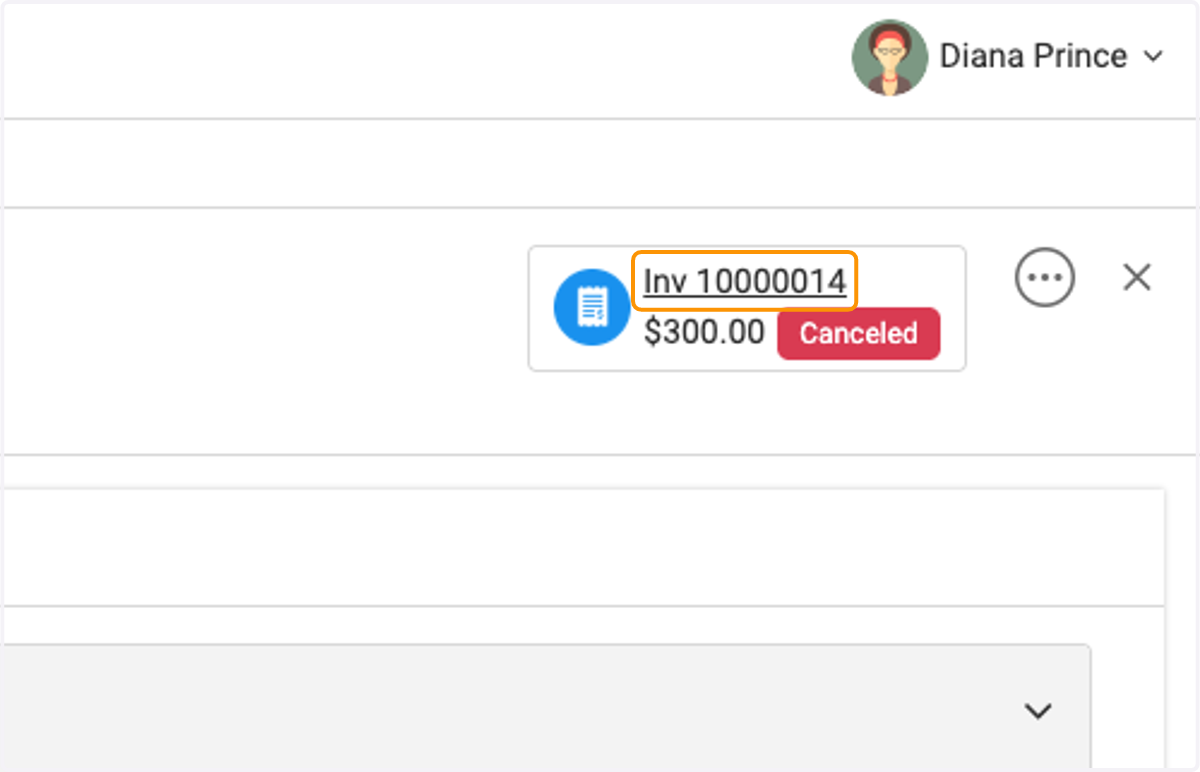
    The original invoice has been cancelled