Alternative text for images
Images on your website should have alternative text that describes their function for visually impaired visitors. This tutorial will show you how to add alternative text. You can move through it at your own pace using the NEXT button below.
Gpsurgery
1. Ensure that you are logged into your website.
If you are logged in, the black admin toolbar will be visible at the top of your screen.
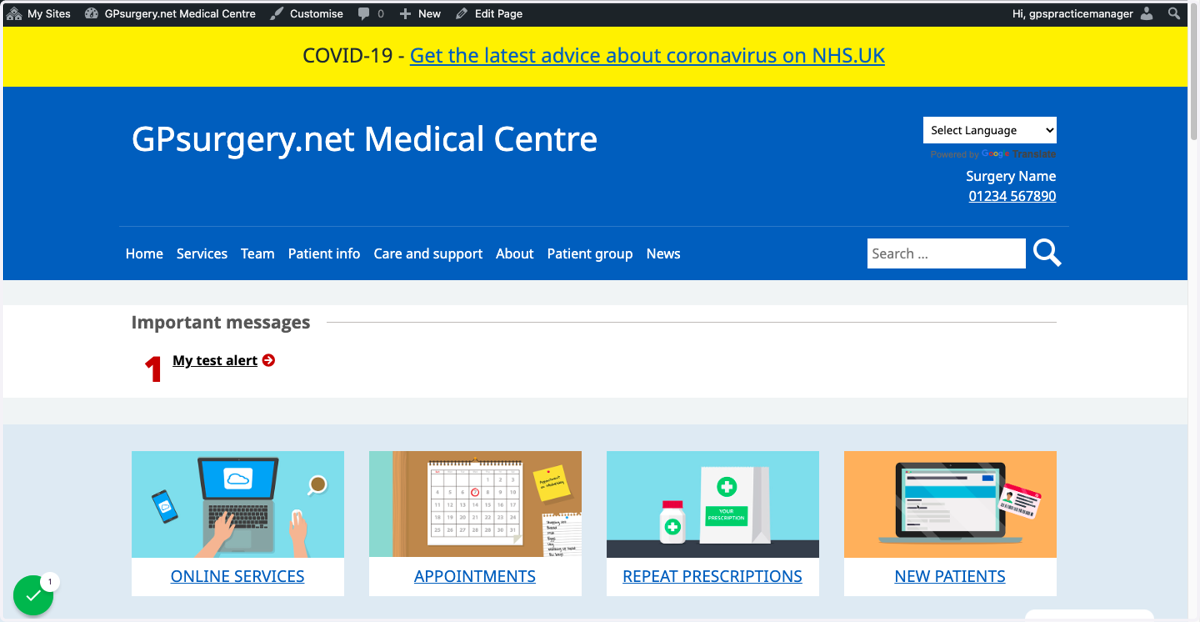
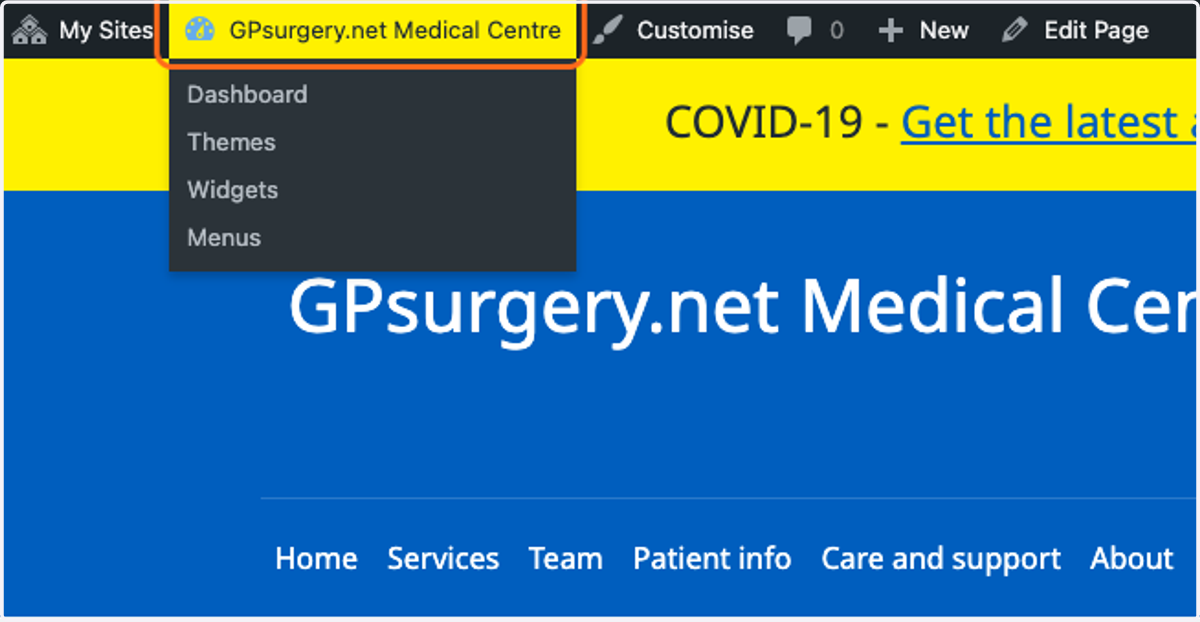
2. Click on the name of your website in the admin toolbar to navigate to the dashboard.
Gpsurgery
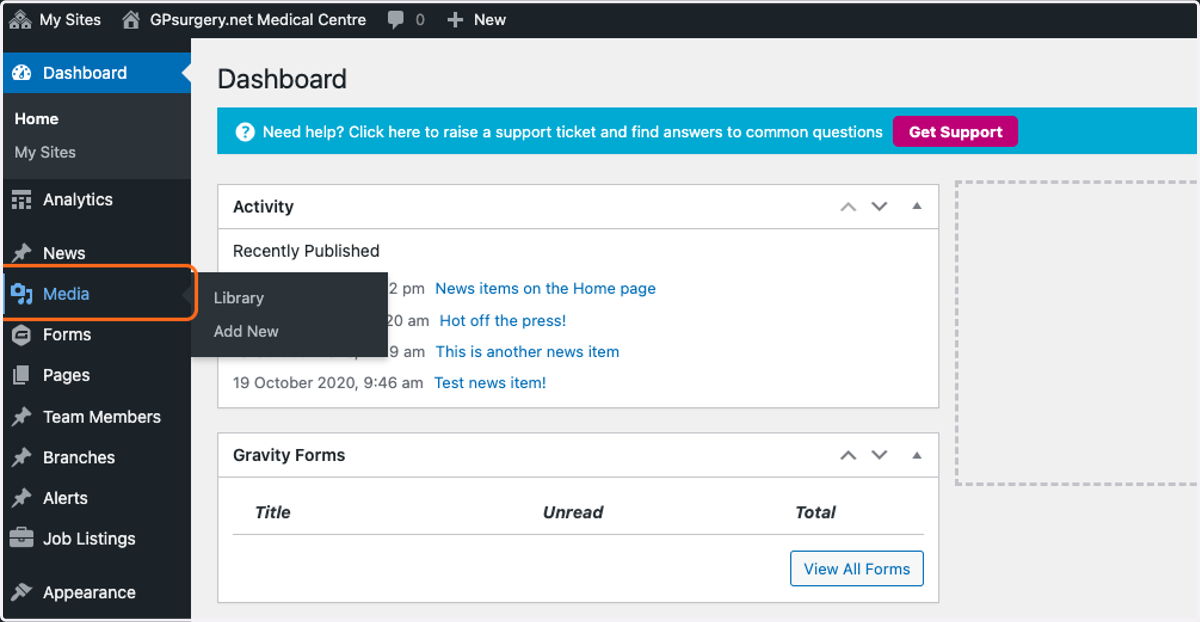
3. In the left-hand sidebar of the dashboard, click Media to go to the media library.
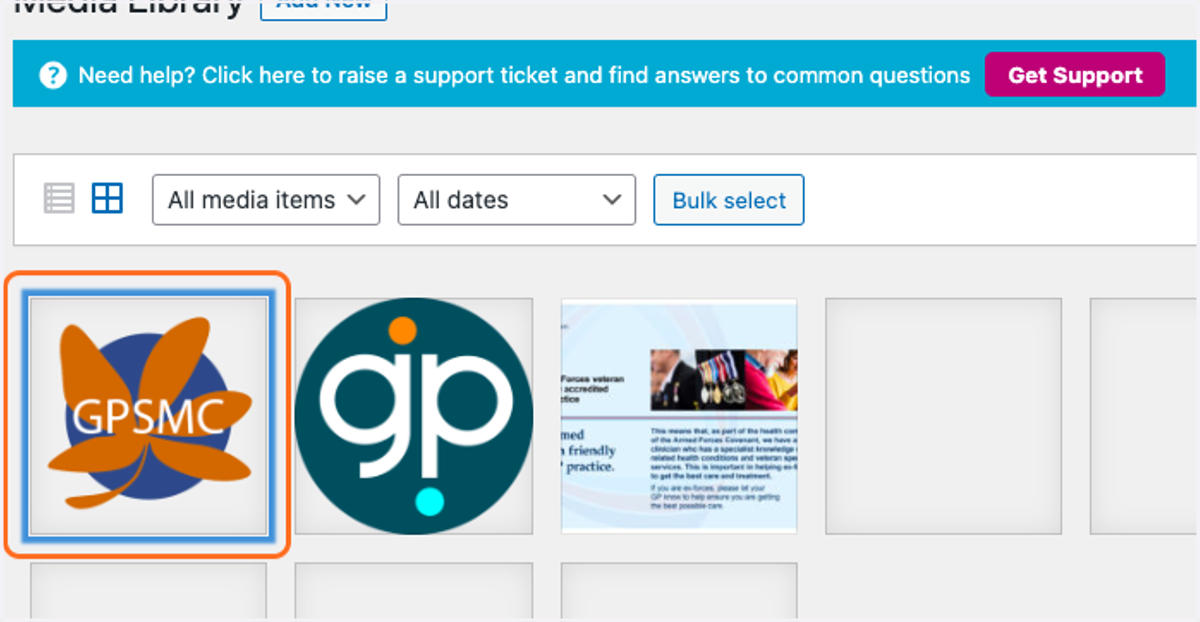
4. In the media library, click on the image to which you would like to add alternative text.
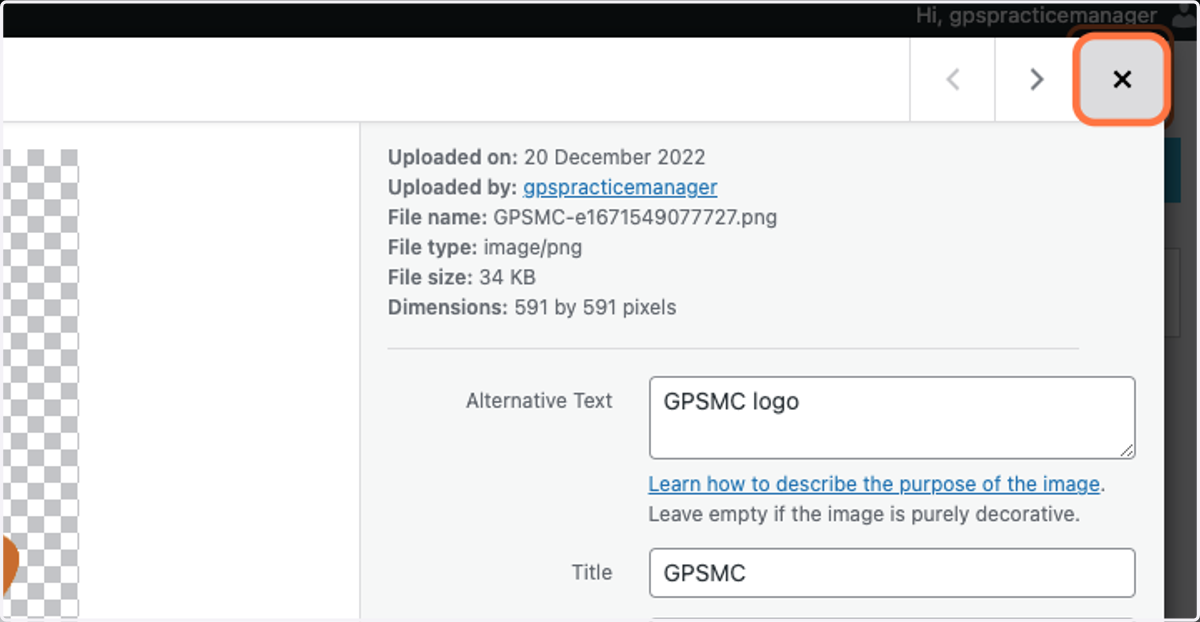
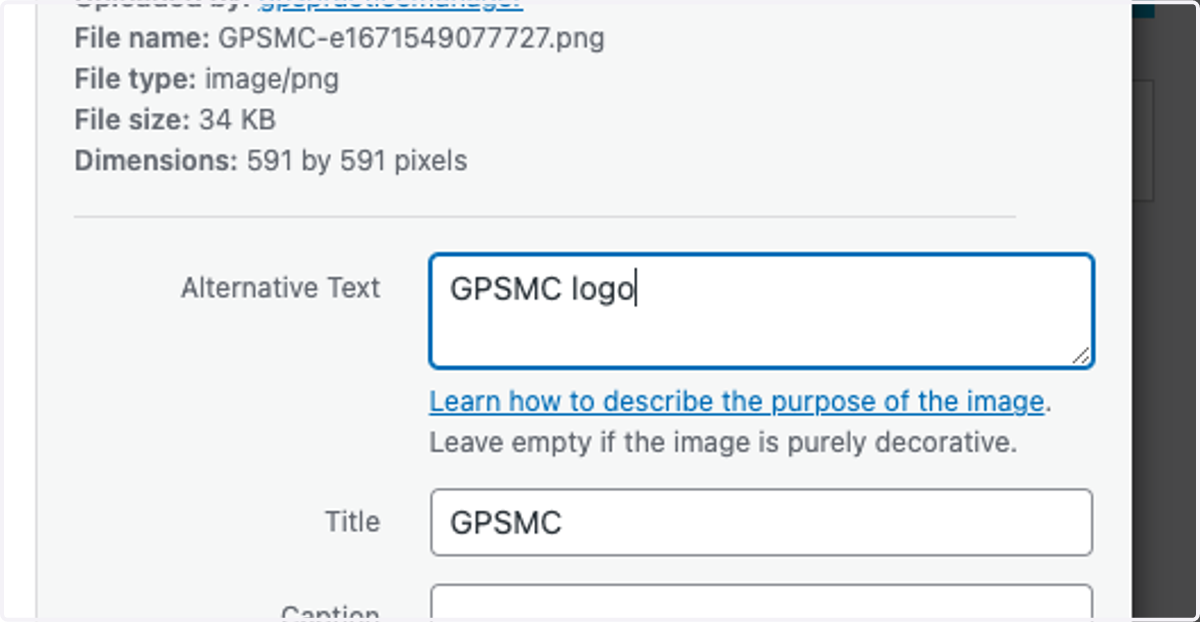
5. In the Alternative Text box, type your alternative text.
Make sure that your alternative text describes the purpose of the image on your website.
6. Click the X to close this screen. Your image will now have alternative text whenever and wherever it is used on your website.