How to Track A Bill

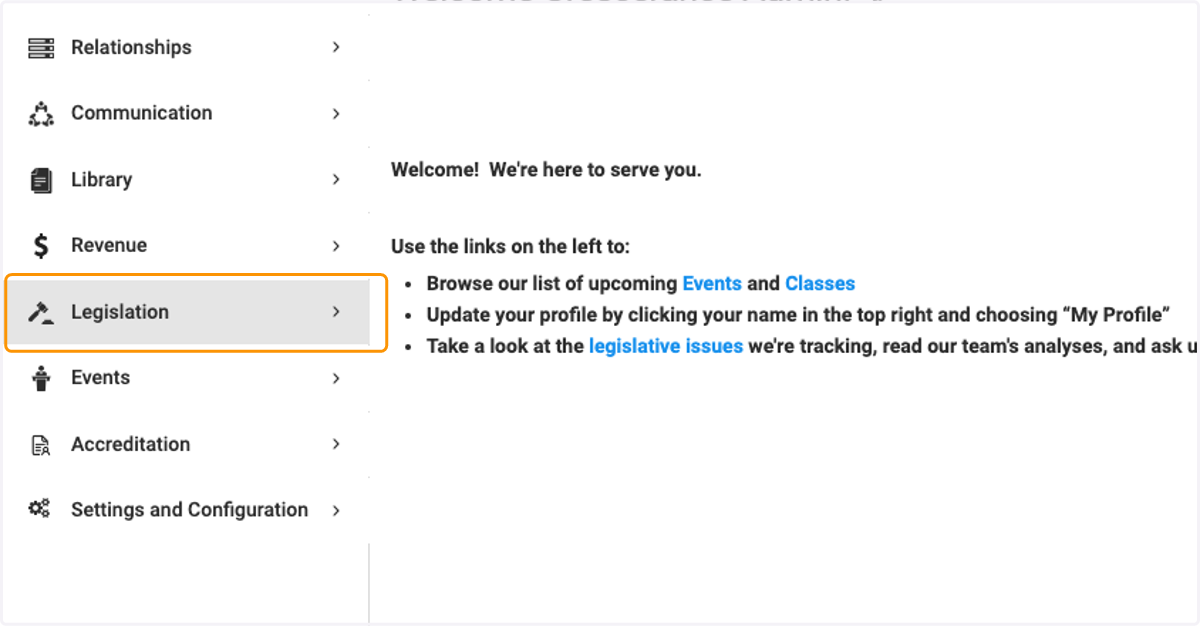
  1. 1. Click on Legislation

    Click on Legislation
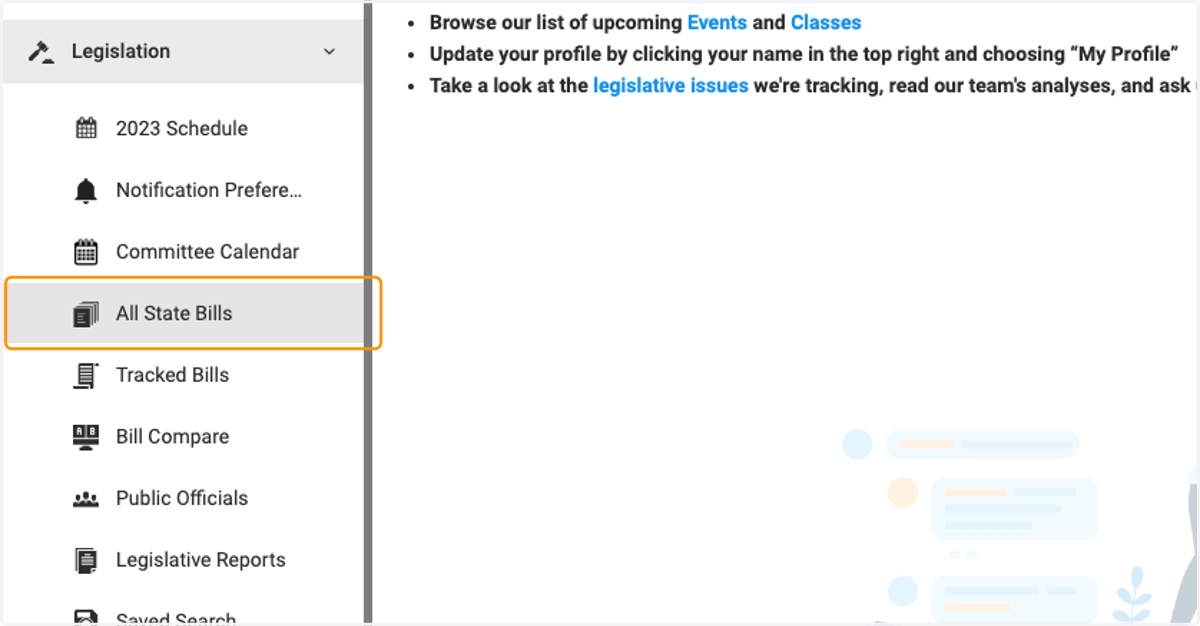
  2. 2. Click on All State Bills

    Click on All State Bills
  3. 3. You can find your bills to track by searching for bills based on keywords
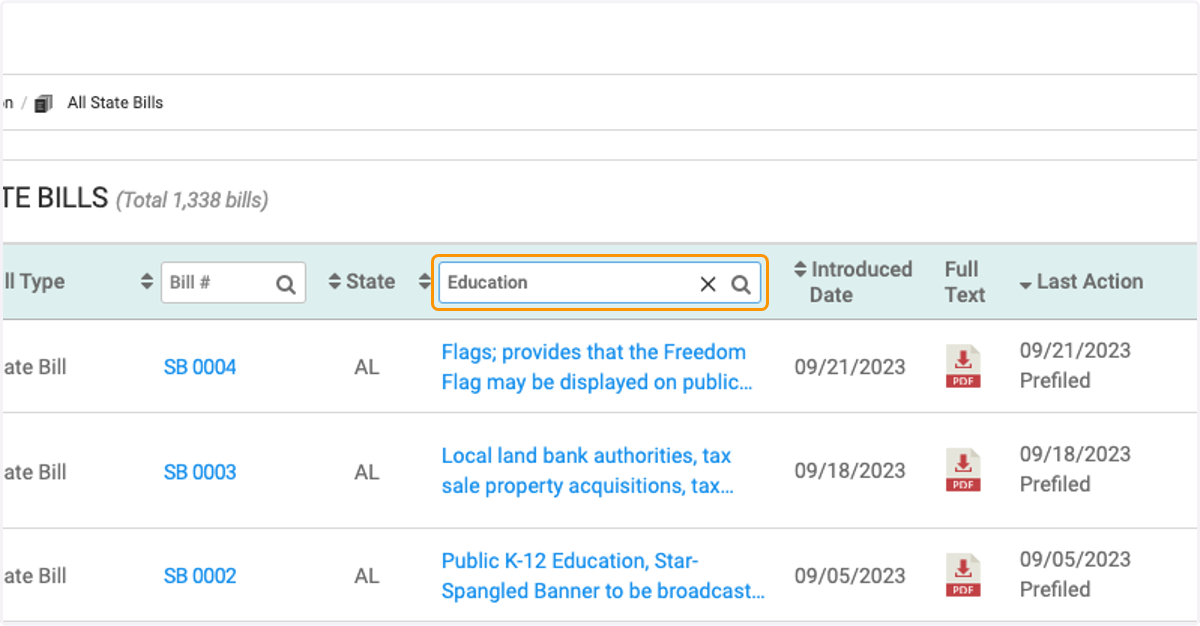
    You can find your bills to track by searching for bills based on keywords
  4. 4. You can select multiple bills to track by checking on the box for those bills
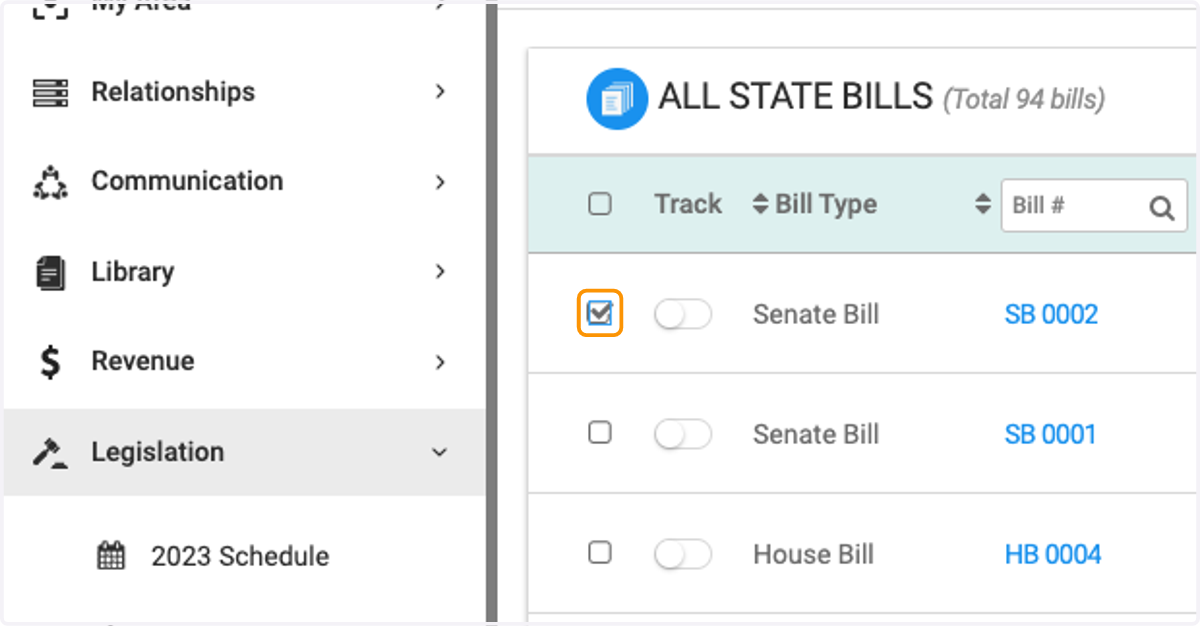
    You can select multiple bills to track by checking on the box for those bills
  5. 5. Once you've selected your bills, click on Track
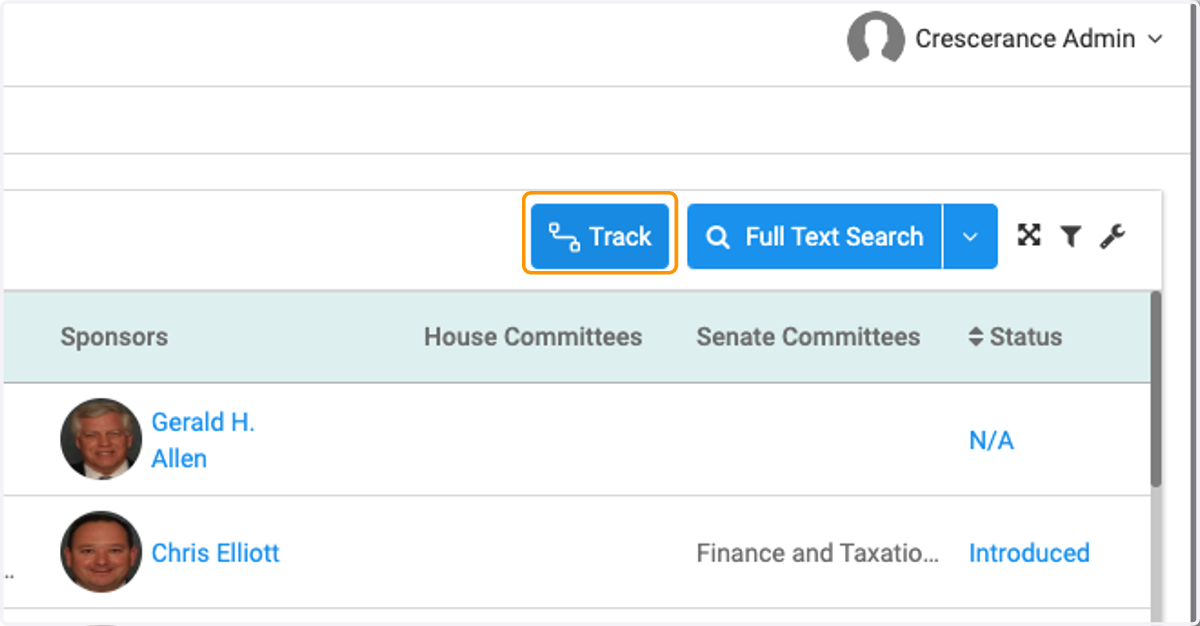
    Once you've selected your bills, click on Track
  6. 6. You will see at the top, the bills you have selected to track
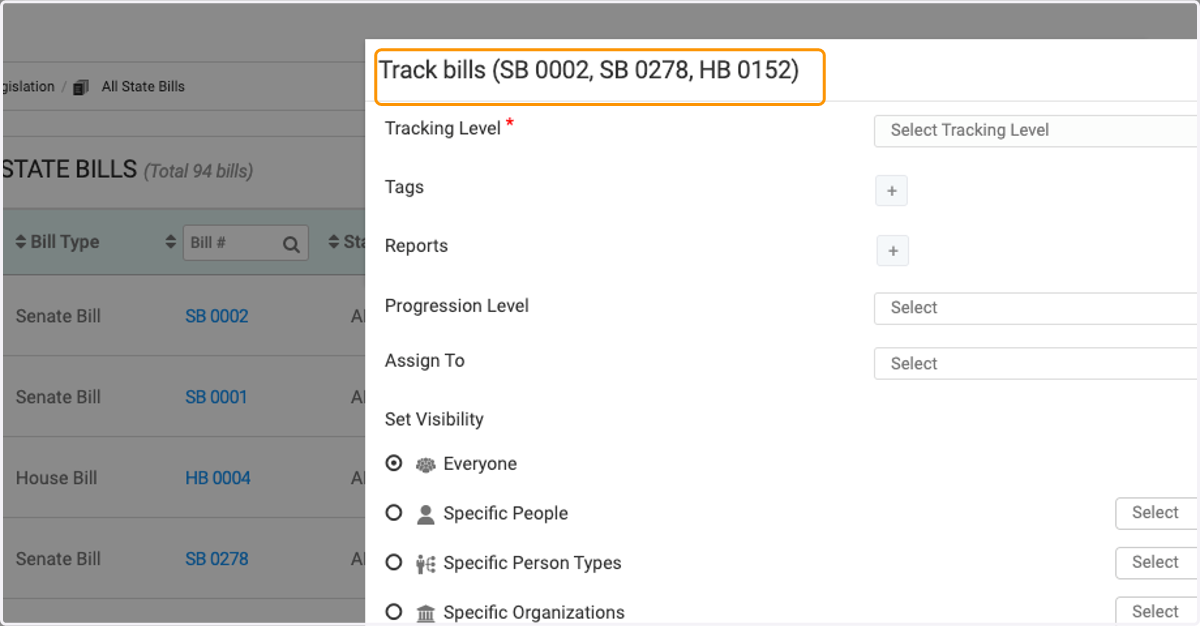
    You will see at the top, the bills you have selected to track
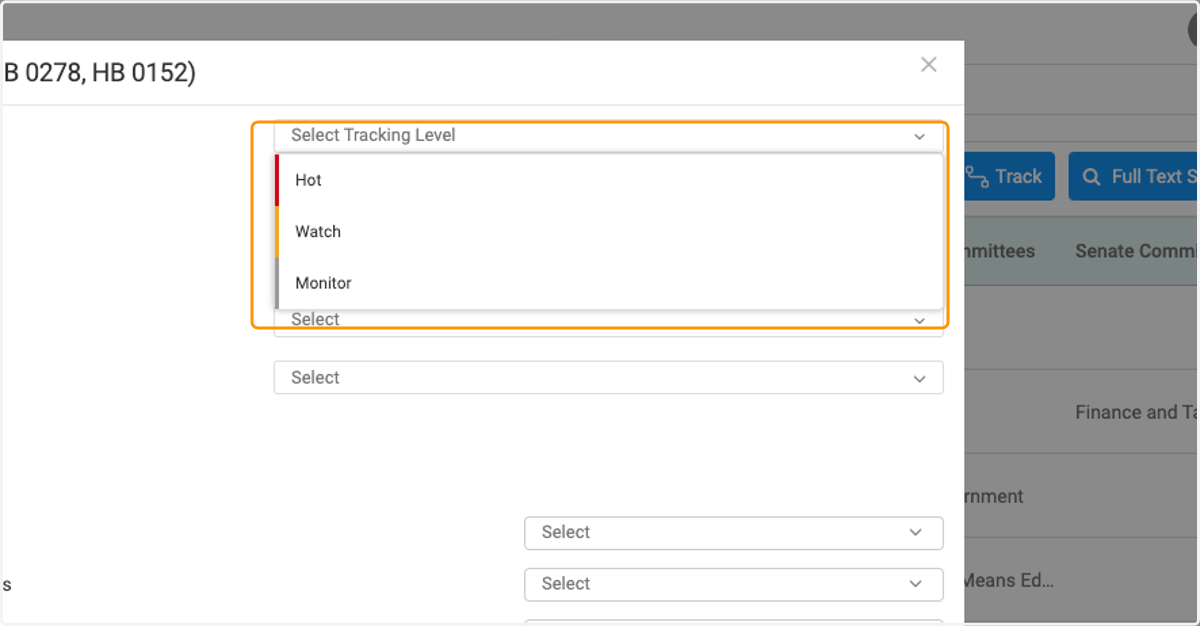
  7. 7. Select the tracking level

    Select the tracking level
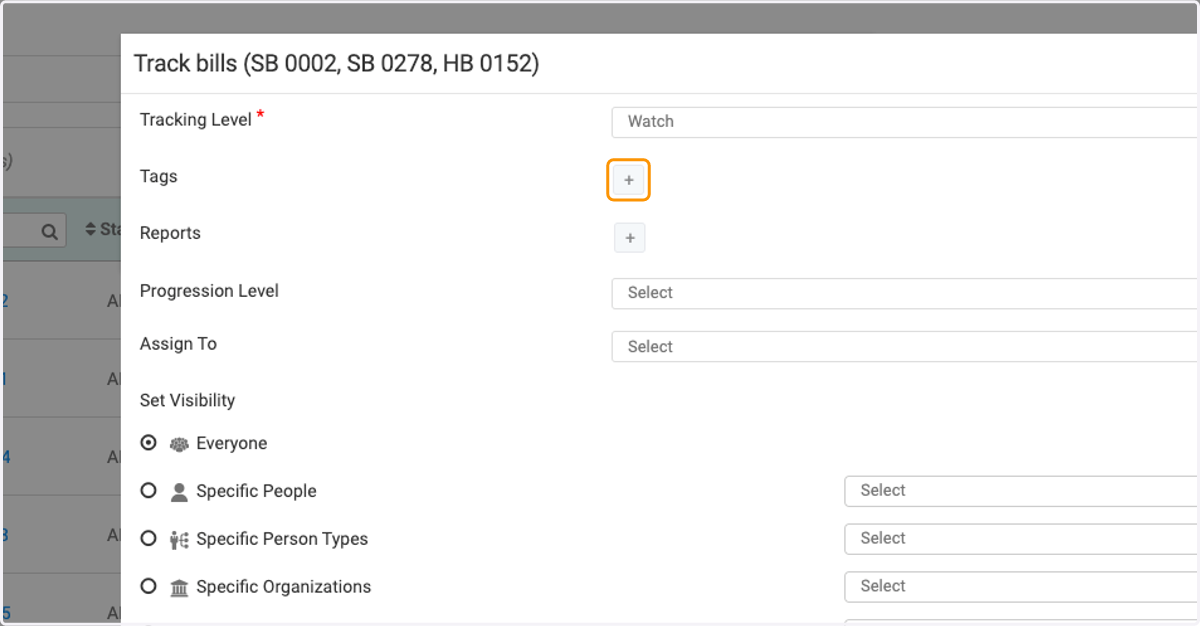
  8. 8. Click on + to add or create a tag

    Click on + to add or create a tag
  9. 9. Type your own tag to create a new one
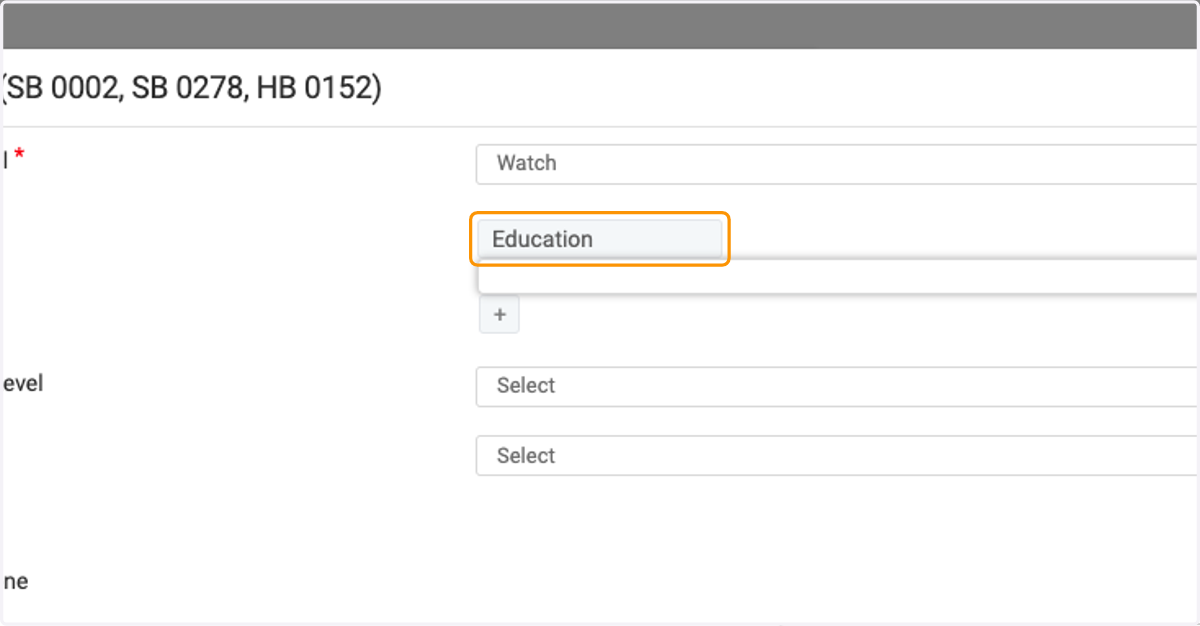
    Type your own tag to create a new one
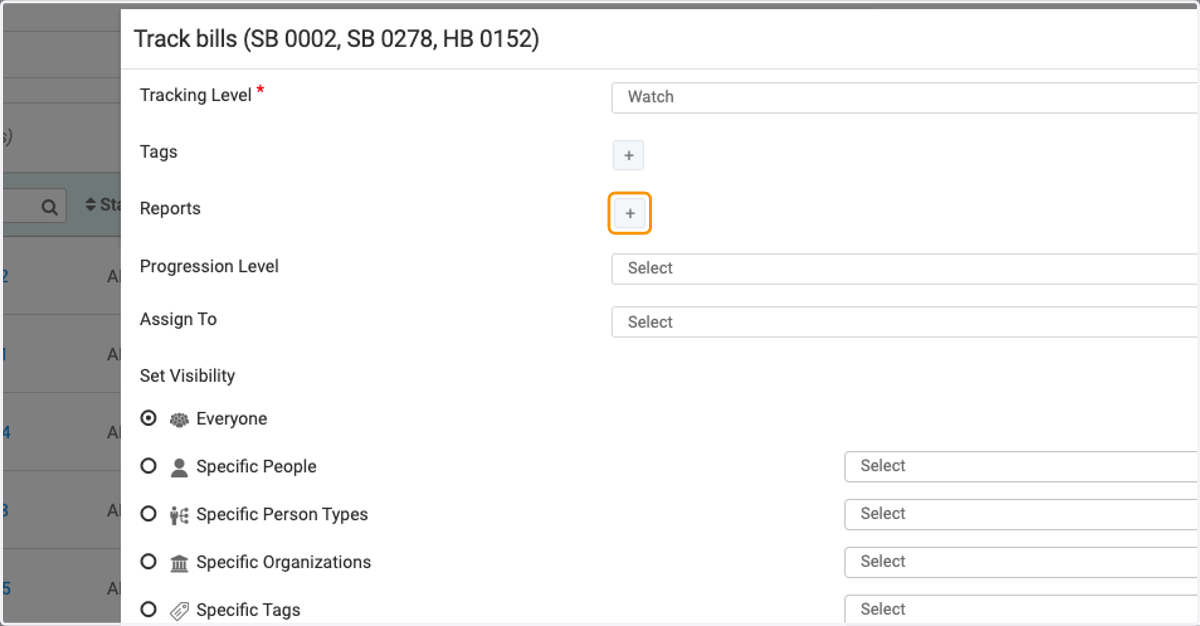
  10. 10. Click on + to add to a report

    Click on + to add to a report
  11. 11. Click on Select to assign these bills
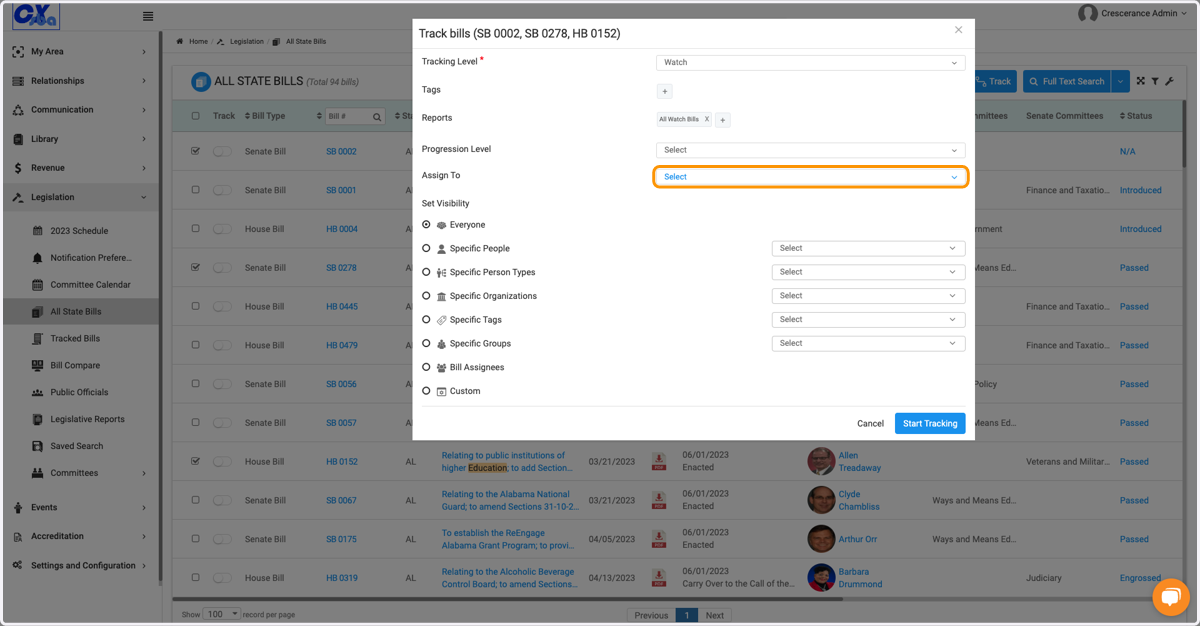
    Click on Select to assign these bills
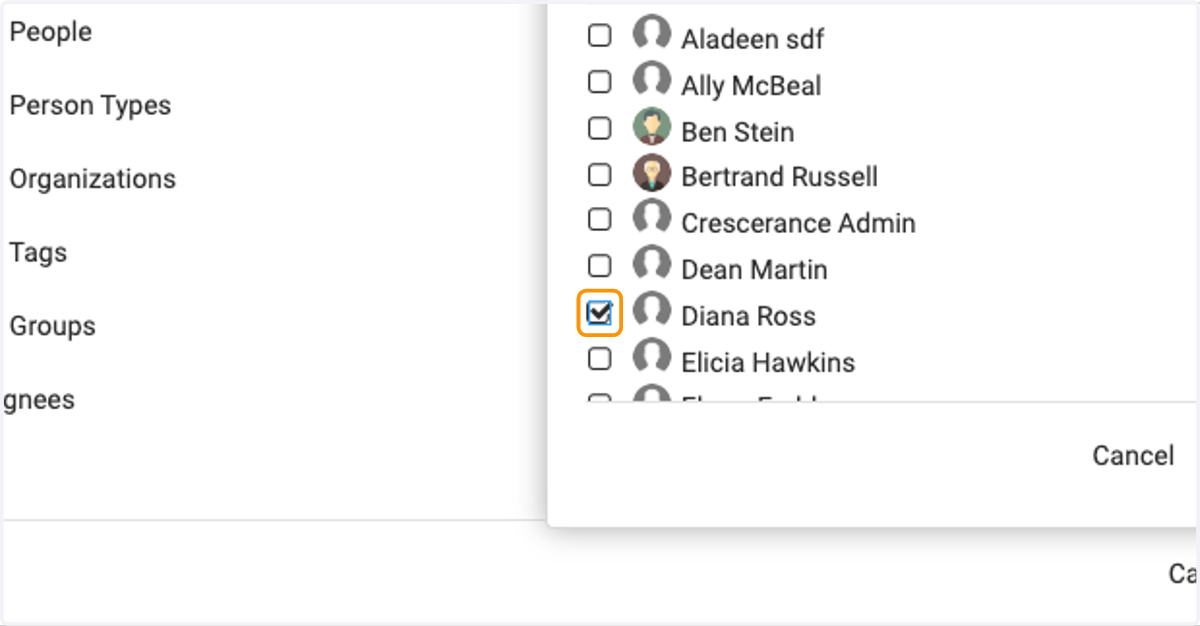
  12. 12. Check staff member(s)

    Check staff member(s)
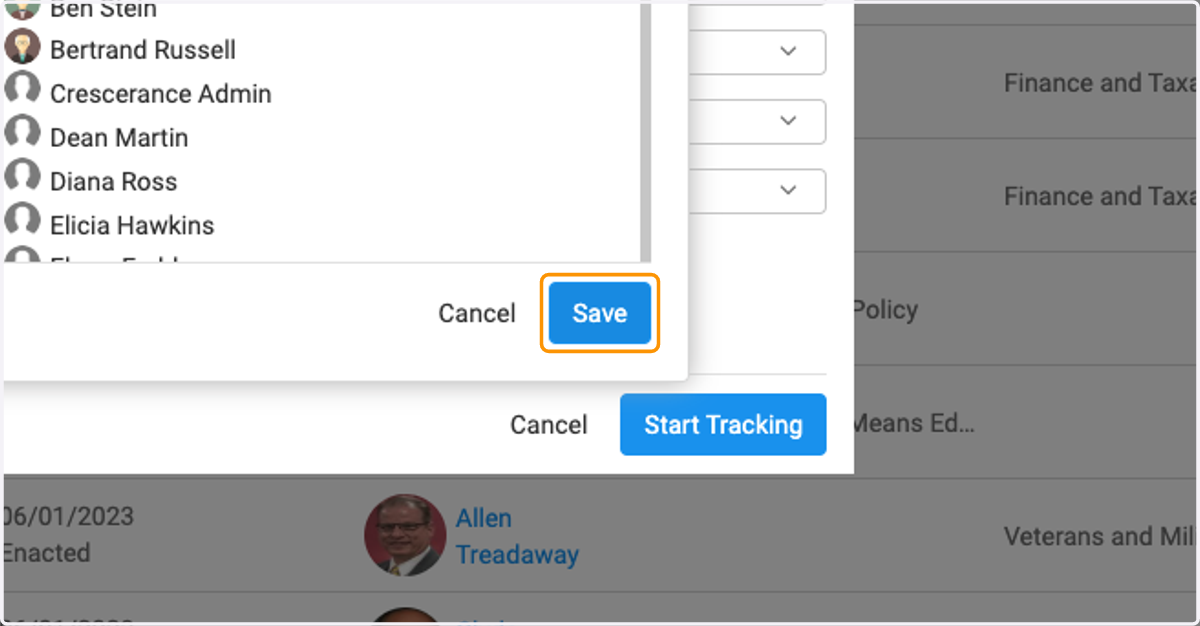
  13. 13. Click on Save

    Click on Save
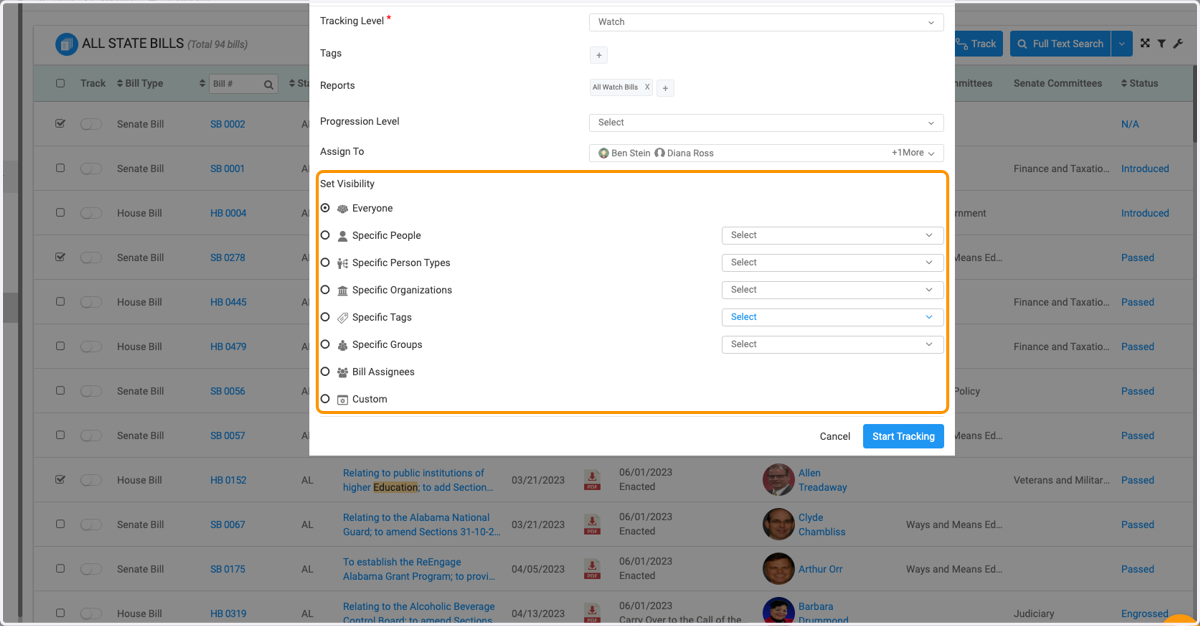
  14. 14. Click to set visibility

    Click to set visibility
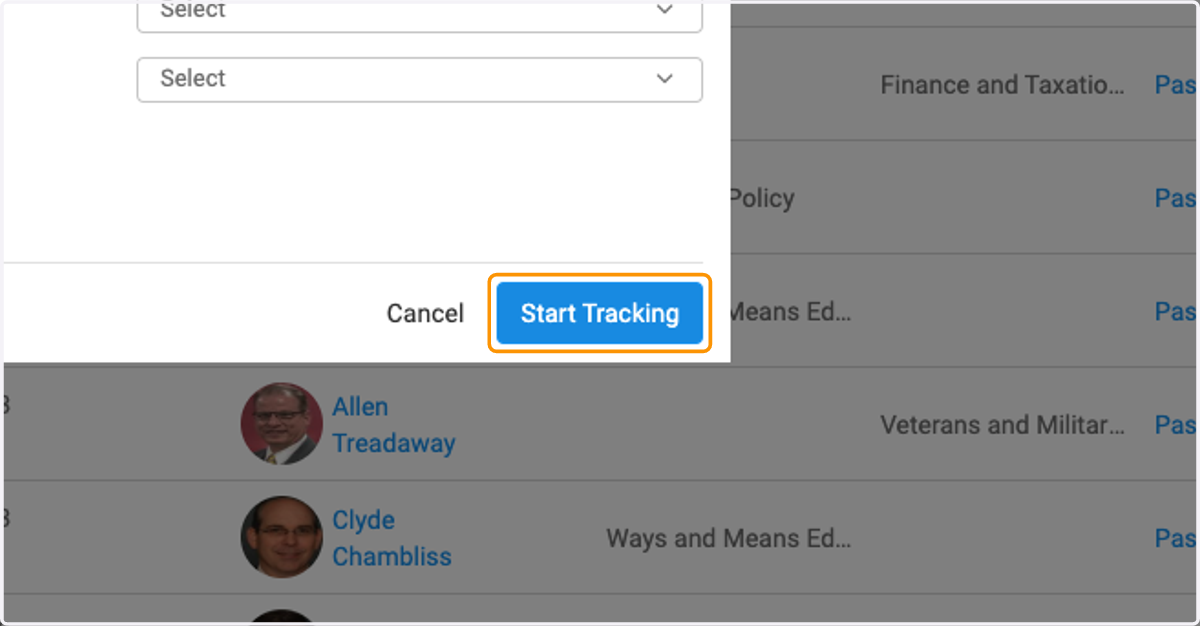
  15. 15. Click on Start Tracking

    Click on Start Tracking
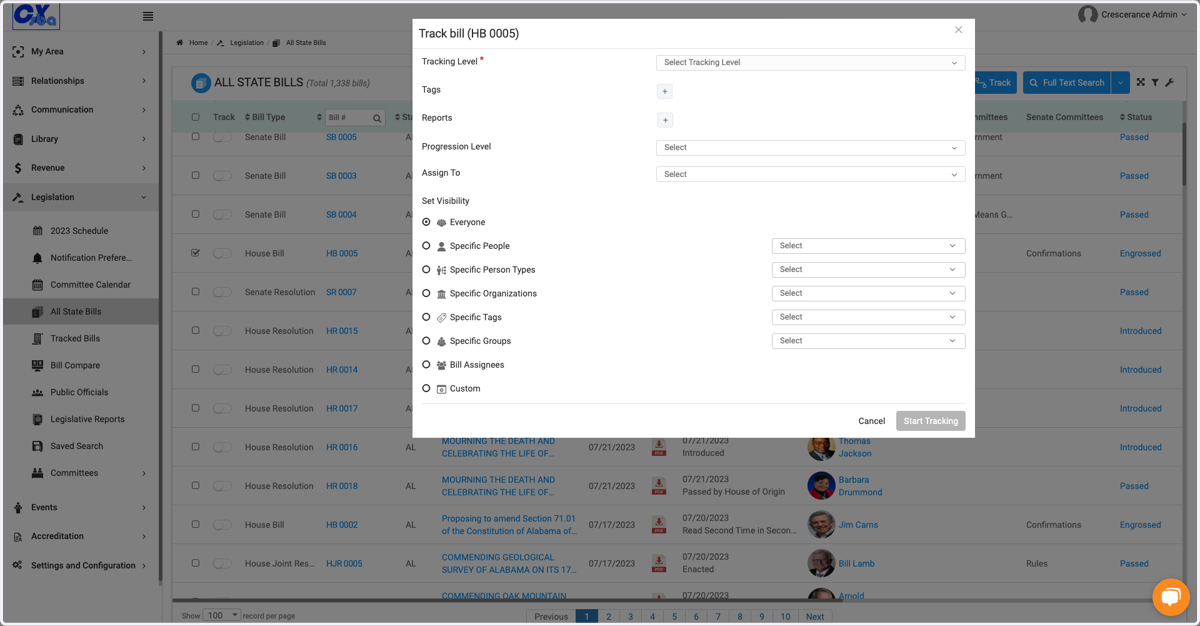
  16. 16. To manually track a bill, you can also toggle on and tracking menu will pop up
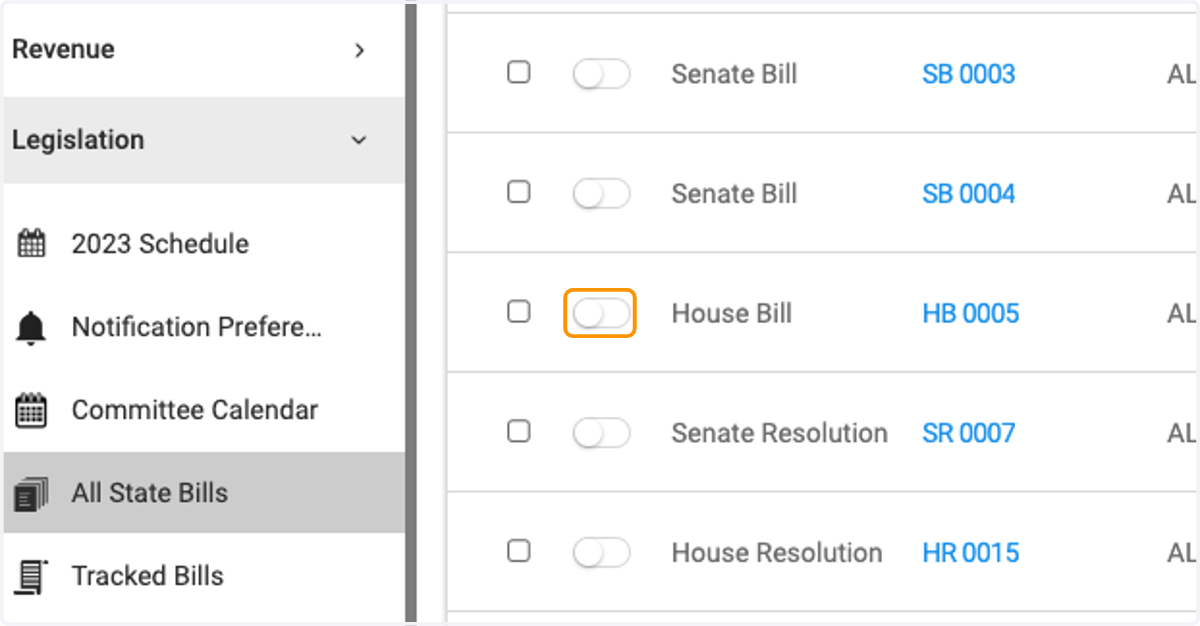
    To manually track a bill, you can also toggle on and tracking menu will pop up
  17. 17. Click on Select Tracking Level

    Click on Select Tracking Level
  18. 18. Click on Start Tracking once all fields have been completed
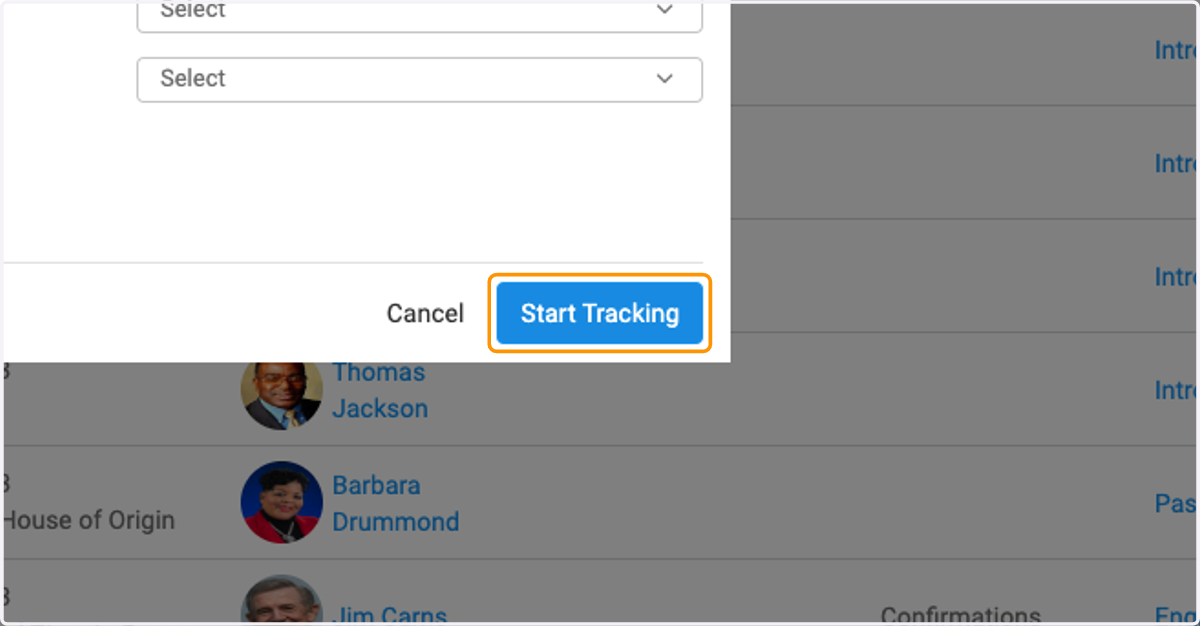
    Click on Start Tracking once all fields have been completed